Module power.bi

ballerinax/power.bi Ballerina library
Overview
Power BI is Microsoft's business analytics service for building interactive reports and dashboards on top of shared datasets.
The Ballerina Power BI connector supports version 1.0 of the Power BI REST API. It lets Ballerina applications manage workspaces, datasets, reports, dashboards, dataflows, gateways, capacities, deployment pipelines and scorecards, push data into push datasets, run DAX queries, trigger and monitor refreshes, generate embed tokens, and use the tenant-wide admin operations.
Key features
- Manage workspaces, their users and their capacity and dataflow storage assignments
- Create push datasets, push rows into them and query any dataset with DAX
- Trigger, schedule and monitor dataset and dataflow refreshes
- Import, clone, rebind and export reports, and manage dashboards and tiles
- Generate embed tokens for reports, dashboards, tiles and datasets
- Run deployment pipelines and administer the tenant, including activity events and workspace scans
Setup guide
To use the Power BI connector, you need a Power BI account in a Microsoft 365 organization and an application registered in Microsoft Entra ID. The connector sends a Microsoft Entra ID access token for the Power BI service with each request. The token can be issued to a signed-in user (delegated access) or to the application itself (service principal access).
Note: The screenshots in this guide are for illustration only. The Microsoft Entra admin center changes over time, so treat them as a visual reference rather than an exact match — follow the described actions and choose the values (application name, redirect URI, permissions, and so on) that fit your own scenario.
Step 1: Register an application in Microsoft Entra ID
-
Sign in to the Microsoft Entra admin center.
-
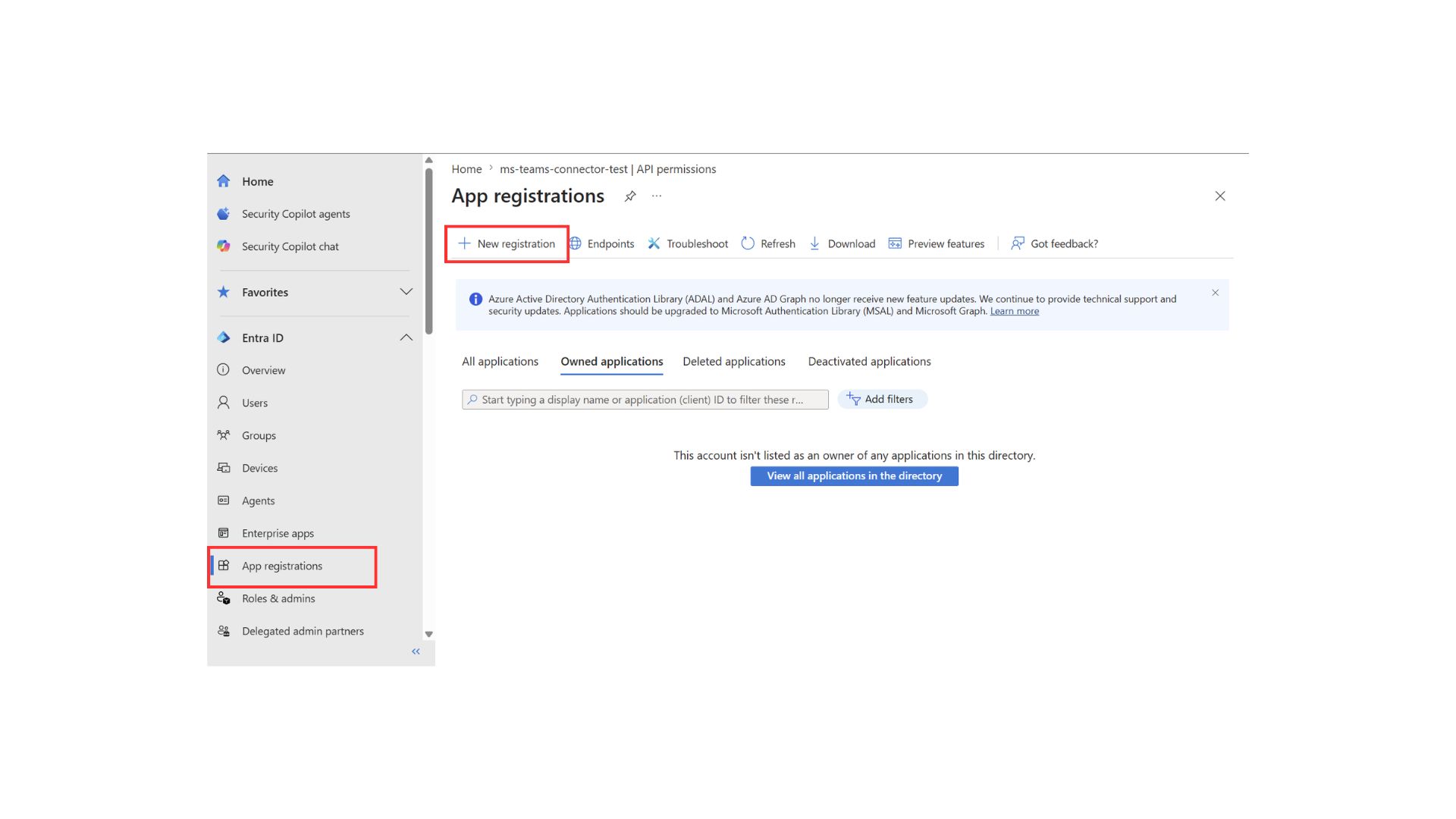
Navigate to Entra ID > App registrations and click New registration.
-
Enter a name of your choice and select the account types appropriate for your organization. If you will call the API as a user, add a Redirect URI under the Web platform — this is where the sign-in flow returns the authorization code (a Microsoft-hosted page such as
https://jwt.msis a convenient choice for Step 4). The Web platform is required because the code is redeemed with a client secret; the public "Mobile and desktop applications" platform does not accept one. A service principal needs no redirect URI. Click Register.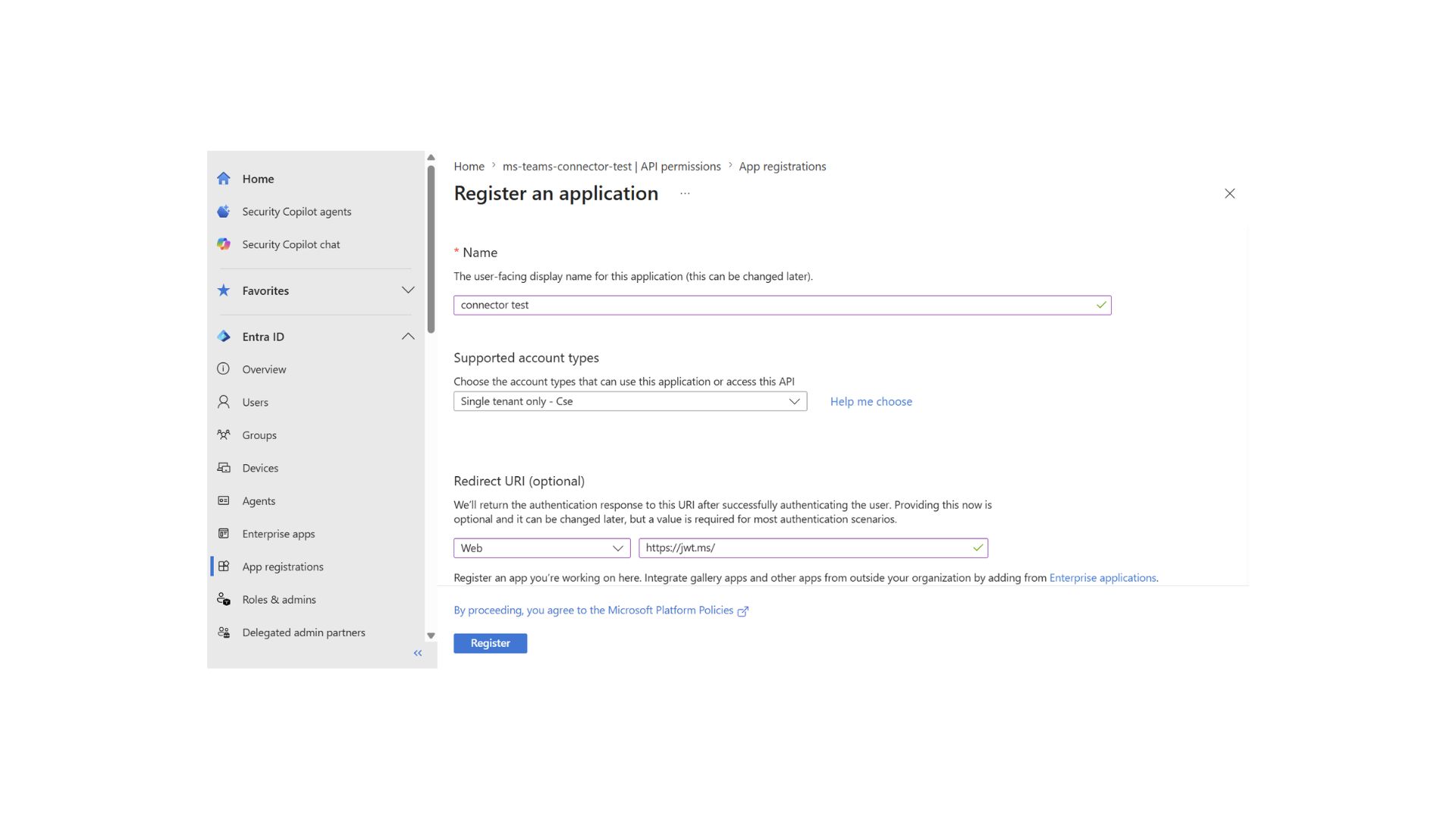
-
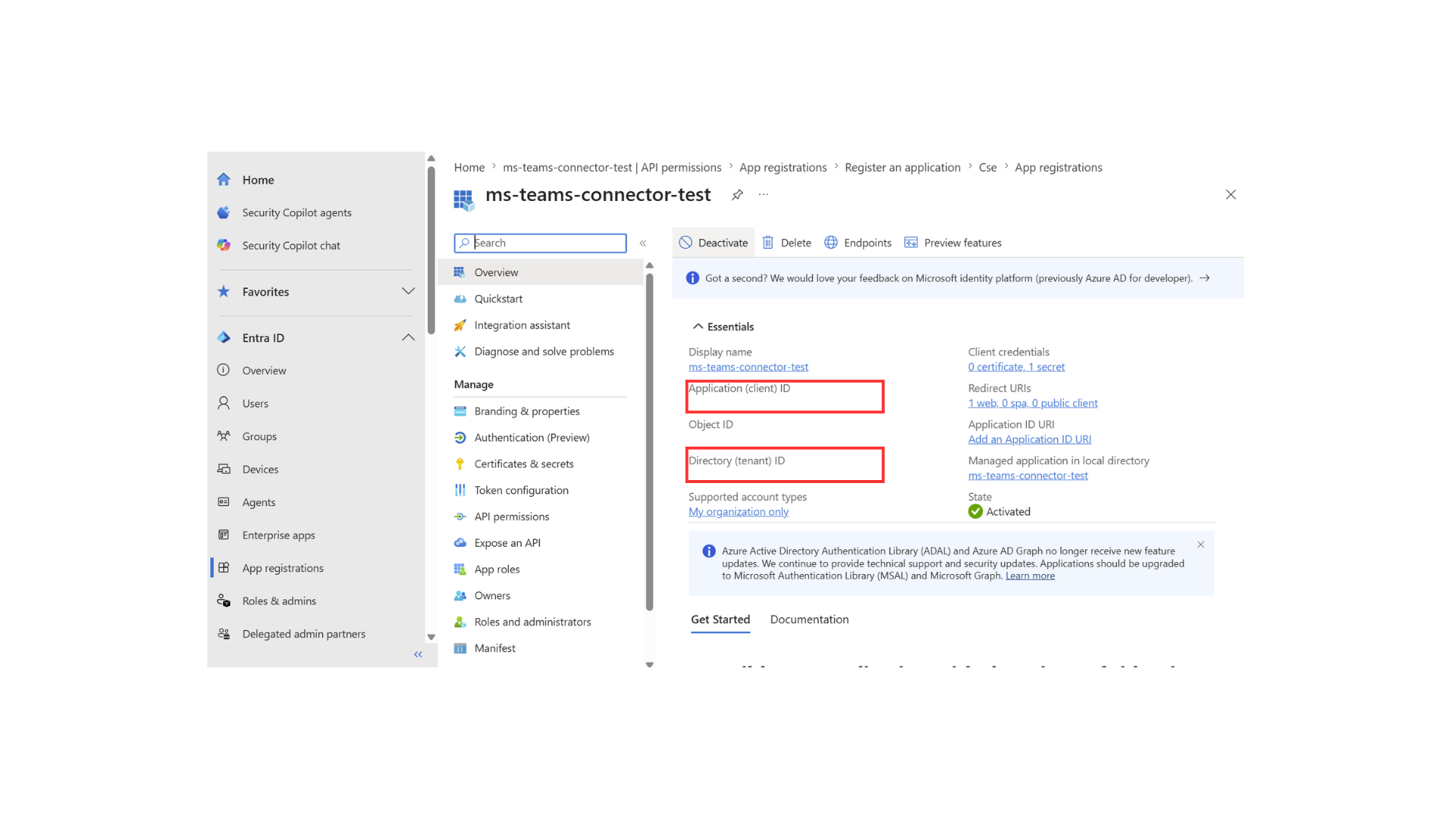
On the app's Overview page, note the Application (client) ID and the Directory (tenant) ID — you need both to request a token in Step 4.
Step 2: Grant Power BI access
How the application gets access depends on whether the connector calls the API as a user or as a service principal. Follow the option that fits your integration.
Option A: As a user (delegated permissions)
-
In the registered application, go to API permissions > Add a permission and select Power BI Service from the Microsoft APIs tab.
-
Choose Delegated permissions and add the scopes your integration needs, for example:
Permission Purpose Workspace.Read.All/Workspace.ReadWrite.AllRead or manage workspaces Dataset.Read.All/Dataset.ReadWrite.AllRead datasets, or push data, run queries and trigger refreshes Report.Read.All/Report.ReadWrite.AllRead or manage reports Dashboard.Read.All/Dashboard.ReadWrite.AllRead or manage dashboards and tiles Tenant.Read.All/Tenant.ReadWrite.AllCall the admin operations (the signed-in user must be a Fabric administrator) Request only the scopes your integration needs, then click Add permissions.
-
Back on the API permissions page, click Grant admin consent for <your tenant> and confirm Yes, if your organization requires admin consent. Each permission should then show Granted for <your tenant> in the Status column.
Option B: As a service principal
Don't add Power BI permissions to the app registration — a service principal's access comes from Power BI tenant settings and workspace roles, the permissions are never used, and the admin operations require that the application has no Power BI permissions that need admin consent.
- Create a Microsoft Entra security group and add the application to it.
- A Fabric administrator must enable Service principals can call Fabric public APIs (formerly Allow service principals to use Power BI APIs) under Developer settings in the admin portal's tenant settings, and apply it to that security group. For the admin operations, also enable Service principals can access read-only admin APIs under Admin API settings for the same group.
- Add the application to each workspace it uses, as a Member or Admin. A service principal has no My workspace, so it can only call the operations that take a workspace (group) ID.
Step 3: Create a client secret
-
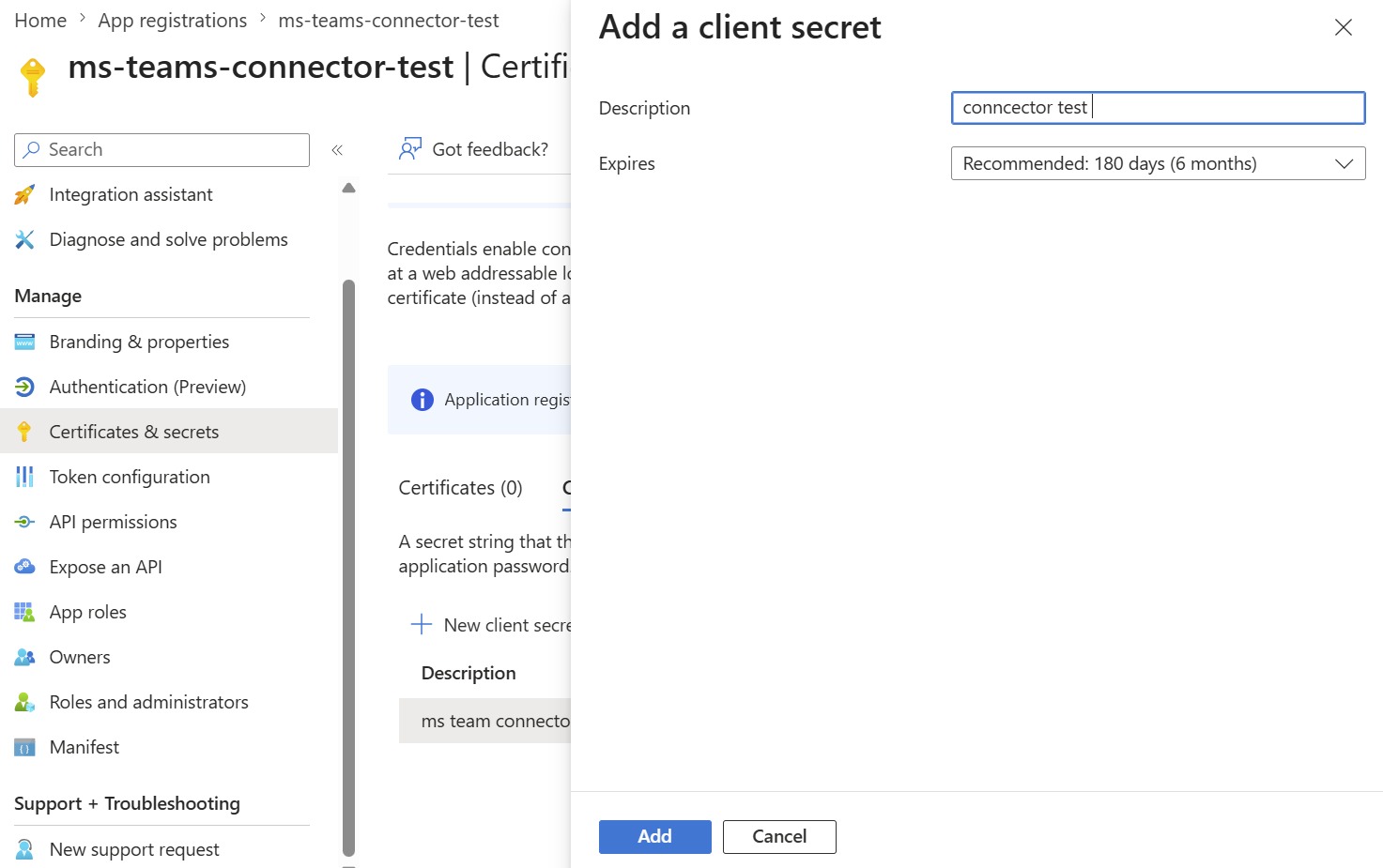
Go to Certificates & secrets > New client secret, add a description and an expiry, and click Add.
-
Copy the secret Value immediately — it is shown only once. (The Secret ID next to it is just a label, not a credential.)
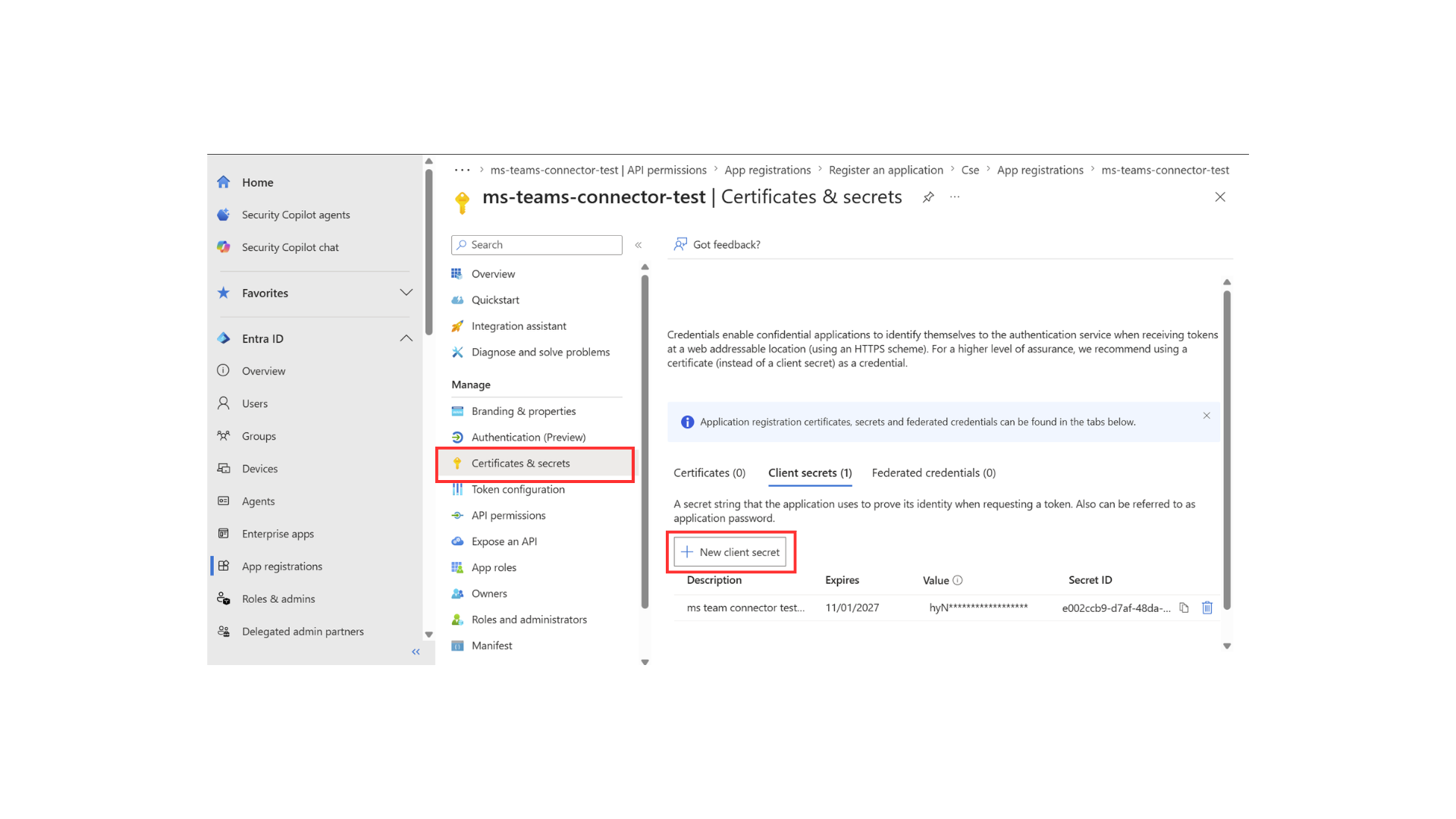
Step 4: Obtain an access token
Replace <TENANT_ID>, <CLIENT_ID>, and <CLIENT_SECRET> below with the values from Steps 1 and 3. Use your directory (tenant) ID for a single-tenant application, or organizations for a multi-tenant one. Both options request the token from the same endpoint, https://login.microsoftonline.com/<TENANT_ID>/oauth2/v2.0/token.
Option A: As a user (authorization code flow)
1. Get an authorization code. This is an interactive sign-in and consent step, so it cannot be curled — paste this URL into a browser instead. The scope below requests Dataset.ReadWrite.All; replace or extend it with the scopes you added in Step 2, each prefixed with https://analysis.windows.net/powerbi/api/ and separated by %20.
https://login.microsoftonline.com/<TENANT_ID>/oauth2/v2.0/authorize?client_id=<CLIENT_ID>&response_type=code&redirect_uri=https%3A%2F%2Fjwt.ms&response_mode=query&scope=https%3A%2F%2Fanalysis.windows.net%2Fpowerbi%2Fapi%2FDataset.ReadWrite.All&state=12345
Sign in and accept the consent prompt. You land on https://jwt.ms/?code=<AUTH_CODE>&state=12345 — copy the code value from that URL. It is single-use and short-lived, so use it within a few minutes.
2. Exchange the code for an access token.
macOS / Linux:
curl -X POST "https://login.microsoftonline.com/<TENANT_ID>/oauth2/v2.0/token" \ --data-urlencode "client_id=<CLIENT_ID>" \ --data-urlencode "client_secret=<CLIENT_SECRET>" \ --data-urlencode "scope=https://analysis.windows.net/powerbi/api/Dataset.ReadWrite.All" \ --data-urlencode "code=<AUTH_CODE>" \ --data-urlencode "redirect_uri=https://jwt.ms" \ --data-urlencode "grant_type=authorization_code"
Windows (PowerShell — call curl.exe explicitly; plain curl is aliased to Invoke-WebRequest and takes different flags):
curl.exe -X POST "https://login.microsoftonline.com/<TENANT_ID>/oauth2/v2.0/token" ` --data-urlencode "client_id=<CLIENT_ID>" ` --data-urlencode "client_secret=<CLIENT_SECRET>" ` --data-urlencode "scope=https://analysis.windows.net/powerbi/api/Dataset.ReadWrite.All" ` --data-urlencode "code=<AUTH_CODE>" ` --data-urlencode "redirect_uri=https://jwt.ms" ` --data-urlencode "grant_type=authorization_code"
Option B: As a service principal (client credentials flow)
No sign-in is involved; the application requests the token with its own credentials. The scope is always https://analysis.windows.net/powerbi/api/.default.
macOS / Linux:
curl -X POST "https://login.microsoftonline.com/<TENANT_ID>/oauth2/v2.0/token" \ --data-urlencode "client_id=<CLIENT_ID>" \ --data-urlencode "client_secret=<CLIENT_SECRET>" \ --data-urlencode "scope=https://analysis.windows.net/powerbi/api/.default" \ --data-urlencode "grant_type=client_credentials"
Windows (PowerShell):
curl.exe -X POST "https://login.microsoftonline.com/<TENANT_ID>/oauth2/v2.0/token" ` --data-urlencode "client_id=<CLIENT_ID>" ` --data-urlencode "client_secret=<CLIENT_SECRET>" ` --data-urlencode "scope=https://analysis.windows.net/powerbi/api/.default" ` --data-urlencode "grant_type=client_credentials"
In either case, the JSON response includes an access_token field — that is the token value for Config.toml.
The access token is short-lived (about an hour). Request a new one when it expires — repeat the client credentials request, or for a user, add
offline_accessto the scopes and redeem the returnedrefresh_tokenat the same endpoint withgrant_type=refresh_token.
Quickstart
To use the Power BI connector in your Ballerina application, update the .bal file as follows:
Step 1: Import the module
Import the power.bi module.
import ballerinax/power.bi;
Step 2: Instantiate a new connector
- Create a
Config.tomlfile and configure the access token obtained in the steps above:
token = "<Access Token>"
- Create a
bi:ConnectionConfigwith the access token and initialize the connector with it.
configurable string token = ?; final bi:Client powerbi = check new ({ auth: { token } });
Step 3: Invoke the connector operation
Now, utilize the available connector operations.
List the datasets in My workspace
public function main() returns error? { bi:Datasets _ = check powerbi->getDatasets(); }
Step 4: Run the Ballerina application
bal run
Examples
The Power BI connector provides practical examples illustrating usage in various scenarios. Explore these examples, covering the following use cases:
-
Push dataset sales feed - Create a push dataset in a workspace if it is missing, push sales rows into it and read per-region totals back with a DAX query.
-
Dataset refresh monitoring - Review the refresh schedule and recent refresh history of every refreshable dataset in a workspace, and optionally re-run refreshes that failed.
Clients
power.bi: Client
Constructor
Gets invoked to initialize the connector.
init (ConnectionConfig config, string serviceUrl)- config ConnectionConfig - The configurations to be used when initializing the
connector
- serviceUrl string "https://api.powerbi.com/v1.0/myorg" - URL of the target service
getDatasets
Returns a list of datasets from My workspace.
Return Type
createDataset
function createDataset(CreateDatasetRequest payload, map<string|string[]> headers, *CreateDatasetQueries queries) returns Dataset|errorCreates a new dataset on My workspace.
Parameters
- payload CreateDatasetRequest - Dataset definition to create
- queries *CreateDatasetQueries - Queries to be sent with the request
getDatasetById
Returns the specified dataset from My workspace.
Parameters
- datasetId string - The dataset ID
Return Type
deleteDataset
Deletes the specified dataset from My workspace.
Parameters
- datasetId string - The dataset ID
Return Type
- error? - OK
updateDataset
function updateDataset(string datasetId, UpdateDatasetRequest payload, map<string|string[]> headers) returns error?Updates the properties for the specified dataset from My workspace.
Parameters
- datasetId string - The dataset ID
- payload UpdateDatasetRequest - Update dataset request parameters
Return Type
- error? - OK
executeQueries
function executeQueries(string datasetId, DatasetExecuteQueriesRequest payload, map<string|string[]> headers) returns DatasetExecuteQueriesResponse|errorExecutes Data Analysis Expressions (DAX) queries against the provided dataset. The dataset must reside in My workspace or another workspace.
Parameters
- datasetId string - The dataset ID
- payload DatasetExecuteQueriesRequest - The request message
Return Type
- DatasetExecuteQueriesResponse|error - The result of the request that executes Data Analysis Expressions (DAX) queries against the provided dataset. The dataset must reside in My workspace or another workspace
getTables
Returns a list of tables within the specified dataset from My workspace.
Parameters
- datasetId string - The dataset ID
Return Type
updateTable
function updateTable(string datasetId, string tableName, Table payload, map<string|string[]> headers) returns Table|errorUpdates the metadata and schema for the specified table within the specified dataset from My workspace.
Parameters
- datasetId string - The dataset ID
- tableName string - The table name
- payload Table - Table name and columns to update existing table
Return Type
addRows
function addRows(string datasetId, string tableName, PostRowsRequest payload, map<string|string[]> headers) returns error?Adds new data rows to the specified table within the specified dataset from My workspace.
Parameters
- datasetId string - The dataset ID
- tableName string - The table name
- payload PostRowsRequest - The request message
Return Type
- error? - OK
deleteRows
function deleteRows(string datasetId, string tableName, map<string|string[]> headers) returns error?Deletes all rows from the specified table within the specified dataset from My workspace.
Return Type
- error? - OK
getRefreshHistory
function getRefreshHistory(string datasetId, map<string|string[]> headers, *GetRefreshHistoryQueries queries) returns Refreshes|errorReturns the refresh history for the specified dataset from My workspace.
Parameters
- datasetId string - The dataset ID
- queries *GetRefreshHistoryQueries - Queries to be sent with the request
Return Type
refreshDataset
function refreshDataset(string datasetId, DatasetRefreshRequest payload, map<string|string[]> headers) returns error?Triggers a refresh for the specified dataset from My workspace. An enhanced refresh is triggered only if a request payload other than notifyOption is set.
Parameters
- datasetId string - The dataset ID
- payload DatasetRefreshRequest - Refresh options: notification option and, for an enhanced refresh, the objects and refresh type
Return Type
- error? - Accepted
getRefreshExecutionDetails
function getRefreshExecutionDetails(string datasetId, string refreshId, map<string|string[]> headers) returns DatasetRefreshDetail|errorReturns execution details of a refresh operation for the specified dataset from My workspace.
Return Type
- DatasetRefreshDetail|error - OK (this response is returned when the refresh operation has completed or failed)
cancelRefresh
function cancelRefresh(string datasetId, string refreshId, map<string|string[]> headers) returns error?Cancels the specified refresh operation for the specified dataset from My workspace.
Return Type
- error? - OK
getRefreshSchedule
function getRefreshSchedule(string datasetId, map<string|string[]> headers) returns RefreshSchedule|errorReturns the refresh schedule for the specified dataset from My workspace.
Parameters
- datasetId string - The dataset ID
Return Type
- RefreshSchedule|error - The result of the request that returns the refresh schedule for the specified dataset from My workspace
updateRefreshSchedule
function updateRefreshSchedule(string datasetId, RefreshScheduleRequest payload, map<string|string[]> headers) returns error?Updates the refresh schedule for the specified dataset from My workspace.
Parameters
- datasetId string - The dataset ID
- payload RefreshScheduleRequest - Update Refresh Schedule parameters, by specifying all or some of the parameters
Return Type
- error? - OK
getDirectQueryRefreshSchedule
function getDirectQueryRefreshSchedule(string datasetId, map<string|string[]> headers) returns DirectQueryRefreshSchedule|errorReturns the refresh schedule for a specified DirectQuery or LiveConnection dataset from My workspace.
Parameters
- datasetId string - The dataset ID
Return Type
- DirectQueryRefreshSchedule|error - The result of the request that returns the refresh schedule for a specified DirectQuery or LiveConnection dataset from My workspace
updateDirectQueryRefreshSchedule
function updateDirectQueryRefreshSchedule(string datasetId, DirectQueryRefreshScheduleRequest payload, map<string|string[]> headers) returns error?Updates the refresh schedule for a specified DirectQuery or LiveConnection dataset from My workspace.
Parameters
- datasetId string - The dataset ID
- payload DirectQueryRefreshScheduleRequest - Patch DirectQuery or LiveConnection Refresh Schedule parameters, by specifying all or some of the parameters
Return Type
- error? - OK
getParameters
function getParameters(string datasetId, map<string|string[]> headers) returns MashupParameters|errorReturns a list of parameters for the specified dataset from My workspace.
Parameters
- datasetId string - The dataset ID
Return Type
- MashupParameters|error - The result of the request that returns a list of parameters for the specified dataset from My workspace
updateParameters
function updateParameters(string datasetId, UpdateMashupParametersRequest payload, map<string|string[]> headers) returns error?Updates the parameters values for the specified dataset from My workspace.
Parameters
- datasetId string - The dataset ID
- payload UpdateMashupParametersRequest - The list of dataset parameters and the new values to set
Return Type
- error? - OK
getDatasources
Returns a list of data sources for the specified dataset from My workspace.
Parameters
- datasetId string - The dataset ID
Return Type
- Datasources|error - The result of the request that returns a list of data sources for the specified dataset from My workspace
updateDatasources
function updateDatasources(string datasetId, UpdateDatasourcesRequest payload, map<string|string[]> headers) returns error?Updates the data sources of the specified dataset from My workspace.
Parameters
- datasetId string - The dataset ID
- payload UpdateDatasourcesRequest - The data source connection updates to apply to the dataset
Return Type
- error? - OK
setAllDatasetConnections
function setAllDatasetConnections(string datasetId, ConnectionDetails payload, map<string|string[]> headers) returns error?Updates all connections for the specified dataset from My workspace. This API call only supports SQL DirectQuery datasets.
Parameters
- datasetId string - The dataset ID
- payload ConnectionDetails - The request payload for the operation that updates all connections for the specified dataset from My workspace. This API call only supports SQL DirectQuery datasets
Return Type
- error? - OK
Deprecated
bindToGateway
function bindToGateway(string datasetId, BindToGatewayRequest payload, map<string|string[]> headers) returns error?Binds the specified dataset from My workspace to the specified gateway, optionally with a given set of data source IDs. If you don't supply a specific data source ID, the dataset will be bound to the first matching data source in the gateway.
Parameters
- datasetId string - The dataset ID
- payload BindToGatewayRequest - The bind to gateway request
Return Type
- error? - OK
getGatewayDatasources
function getGatewayDatasources(string datasetId, map<string|string[]> headers) returns GatewayDatasources|errorReturns a list of gateway data sources for the specified dataset from My workspace.
Parameters
- datasetId string - The dataset ID
Return Type
- GatewayDatasources|error - The result of the request that returns a list of gateway data sources for the specified dataset from My workspace
discoverGateways
Returns a list of gateways that the specified dataset from My workspace can be bound to.
Parameters
- datasetId string - The dataset ID
Return Type
getQueryScaleOutSyncStatus
function getQueryScaleOutSyncStatus(string datasetId, map<string|string[]> headers) returns DatasetQueryScaleOutSyncStatus|errorReturns the query scale-out sync status for the specified dataset from My workspace.
Parameters
- datasetId string - The dataset ID
Return Type
- DatasetQueryScaleOutSyncStatus|error - The result of the request that returns the query scale-out sync status for the specified dataset from My workspace
triggerQueryScaleOutSync
function triggerQueryScaleOutSync(string datasetId, map<string|string[]> headers) returns DatasetQueryScaleOutSyncStatus|errorTriggers a query scale-out sync of read-only replicas for the specified dataset from My workspace.
Parameters
- datasetId string - The dataset ID
Return Type
- DatasetQueryScaleOutSyncStatus|error - The result of the request that triggers a query scale-out sync of read-only replicas for the specified dataset from My workspace
getDatasetUsersInGroup
function getDatasetUsersInGroup(string groupId, string datasetId, map<string|string[]> headers) returns DatasetUsersAccess|errorReturns a list of principals that have access to the specified dataset in the specified workspace.
Return Type
- DatasetUsersAccess|error - The result of the request that returns a list of principals that have access to the specified dataset
updateDatasetUserInGroup
function updateDatasetUserInGroup(string groupId, string datasetId, DatasetUserAccess payload, map<string|string[]> headers) returns error?Updates the existing dataset permissions of the specified user to the specified permissions in the specified workspace.
Parameters
- groupId string - The workspace ID
- datasetId string - The dataset ID
- payload DatasetUserAccess - Details of user access right
Return Type
- error? - OK
addDatasetUserInGroup
function addDatasetUserInGroup(string groupId, string datasetId, PostDatasetUserAccess payload, map<string|string[]> headers) returns error?Grants the specified user's permissions to the specified dataset in the specified workspace.
Parameters
- groupId string - The workspace ID
- datasetId string - The dataset ID
- payload PostDatasetUserAccess - Details of user access right
Return Type
- error? - OK
getDatasetUsers
function getDatasetUsers(string datasetId, map<string|string[]> headers) returns DatasetUsersAccess|errorReturns a list of principals that have access to the specified dataset in My workspace.
Parameters
- datasetId string - The dataset ID
Return Type
- DatasetUsersAccess|error - The result of the request that returns a list of principals that have access to the specified dataset
updateDatasetUser
function updateDatasetUser(string datasetId, DatasetUserAccess payload, map<string|string[]> headers) returns error?Updates the existing dataset permissions of the specified user to the specified permissions in My workspace.
Return Type
- error? - OK
addDatasetUser
function addDatasetUser(string datasetId, PostDatasetUserAccess payload, map<string|string[]> headers) returns error?Grants the specified user's permissions to the specified dataset in My workspace.
Parameters
- datasetId string - The dataset ID
- payload PostDatasetUserAccess - Details of user access right
Return Type
- error? - OK
refreshUserPermissions
Refreshes user permissions in Power BI.
Return Type
- error? - OK
getImports
Returns a list of imports from My workspace.
Return Type
createImport
function createImport(ImportInfo payload, map<string|string[]> headers, *CreateImportQueries queries) returns Import|errorCreates new content in My workspace.
Parameters
- payload ImportInfo - The import to post
- queries *CreateImportQueries - Queries to be sent with the request
getImportById
Returns the specified import from My workspace.
Parameters
- importId string - The import ID
Return Type
createTemporaryUploadLocation
function createTemporaryUploadLocation(map<string|string[]> headers) returns TemporaryUploadLocation|errorCreates a temporary blob storage upload location for importing large Power BI .pbix files that are between 1 GB and 10 GB in size in My workspace.
Return Type
- TemporaryUploadLocation|error - The result of the request that creates a temporary blob storage upload location for importing large Power BI .pbix files that are between 1 GB and 10 GB in size
getReports
Returns a list of reports from My workspace.
Return Type
getReportById
Returns the specified report from My workspace.
Parameters
- reportId string - The report ID
Return Type
deleteReport
Deletes the specified report from My workspace.
Parameters
- reportId string - The report ID
Return Type
- error? - OK
cloneReport
function cloneReport(string reportId, CloneReportRequest payload, map<string|string[]> headers) returns Report|errorClones the specified report from My workspace.
Return Type
exportReport
Exports the specified report from My workspace to a Power BI .pbix or .rdl file.
Parameters
- reportId string - The report ID
Return Type
- byte[]|error - Exported File
updateReportContent
function updateReportContent(string reportId, UpdateReportContentRequest payload, map<string|string[]> headers) returns Report|errorUpdates the content of the specified report from My workspace with the content of a specified source report.
Parameters
- reportId string - The report ID
- payload UpdateReportContentRequest - UpdateReportContent parameters
Return Type
rebindReport
function rebindReport(string reportId, RebindReportRequest payload, map<string|string[]> headers) returns error?Rebinds the specified report from My workspace to the specified dataset.
Return Type
- error? - OK
getPages
Returns a list of pages within the specified report from My workspace.
Parameters
- reportId string - The report ID
Return Type
getPageByName
function getPageByName(string reportId, string pageName, map<string|string[]> headers) returns Page|errorReturns the specified page within the specified report from My workspace.
Return Type
getReportDatasources
function getReportDatasources(string reportId, map<string|string[]> headers) returns Datasources|errorReturns a list of data sources for the specified paginated report (RDL) from My workspace.
Parameters
- reportId string - The report ID
Return Type
- Datasources|error - The result of the request that returns a list of data sources for the specified paginated report (RDL) from My workspace
updateReportDatasources
function updateReportDatasources(string reportId, UpdateRdlDatasourcesRequest payload, map<string|string[]> headers) returns error?Updates the data sources of the specified paginated report (RDL) from My workspace.
Parameters
- reportId string - The report ID
- payload UpdateRdlDatasourcesRequest - The data source connection updates to apply to the paginated report
Return Type
- error? - OK
exportToFile
function exportToFile(string reportId, ExportReportRequest payload, map<string|string[]> headers) returns Export|errorExports the specified report from My workspace to the requested file format.
Parameters
- reportId string - The report ID
- payload ExportReportRequest - Export to file request parameters
Return Type
- Export|error - The result of the request that exports the specified report from My workspace to the requested file format
getExportToFileStatus
function getExportToFileStatus(string reportId, string exportId, map<string|string[]> headers) returns Export|errorReturns the current status of the Export to File job for the specified report from My workspace.
Return Type
- Export|error - The result of the request that returns the current status of the Export to File job for the specified report from My workspace
getFileOfExportToFile
function getFileOfExportToFile(string reportId, string exportId, map<string|string[]> headers) returns byte[]|errorReturns the file from the Export to File job for the specified report from My workspace.
Return Type
- byte[]|error - The exported file
bindReportToGateway
function bindReportToGateway(string reportId, RdlBindToGatewayRequest payload, map<string|string[]> headers) returns error?Binds the specified data source of the paginated report from My workspace to the specified gateway, optionally with a given data source ID. If you don't supply a specific data source ID, the data source will be bound to the first matching data source in the gateway.
Parameters
- reportId string - The report ID
- payload RdlBindToGatewayRequest - The bind to gateway request payload
Return Type
- error? - OK
getDashboards
function getDashboards(map<string|string[]> headers) returns Dashboards|errorReturns a list of dashboards from My workspace.
Return Type
- Dashboards|error - The result of the request that returns a list of dashboards from My workspace
addDashboard
function addDashboard(AddDashboardRequest payload, map<string|string[]> headers) returns Dashboard|errorCreates a new empty dashboard in My workspace.
Parameters
- payload AddDashboardRequest - Add dashboard parameters
Return Type
getDashboardById
Returns the specified dashboard from My workspace.
Parameters
- dashboardId string - The dashboard ID
Return Type
deleteDashboard
Deletes the specified dashboard from My workspace.
Parameters
- dashboardId string - The dashboard ID
Return Type
- error? - OK
getTiles
Returns a list of tiles within the specified dashboard from My workspace.
Parameters
- dashboardId string - The dashboard ID
Return Type
getTileById
function getTileById(string dashboardId, string tileId, map<string|string[]> headers) returns Tile|errorReturns the specified tile within the specified dashboard from My workspace.
Return Type
cloneTile
function cloneTile(string dashboardId, string tileId, CloneTileRequest payload, map<string|string[]> headers) returns Tile|errorClones the specified tile from My workspace.
Parameters
- dashboardId string - The dashboard ID
- tileId string - The tile ID
- payload CloneTileRequest - Clone tile parameters
getDatasetsInGroup
Returns a list of datasets from the specified workspace.
Parameters
- groupId string - The workspace ID
Return Type
createDatasetInGroup
function createDatasetInGroup(string groupId, CreateDatasetRequest payload, map<string|string[]> headers, *CreateDatasetInGroupQueries queries) returns Dataset|errorCreates a new dataset in the specified workspace.
Parameters
- groupId string - The workspace ID
- payload CreateDatasetRequest - Create dataset parameters
- queries *CreateDatasetInGroupQueries - Queries to be sent with the request
Return Type
getDatasetToDataflowsLinksInGroup
function getDatasetToDataflowsLinksInGroup(string groupId, map<string|string[]> headers) returns DatasetToDataflowLinksResponse|errorReturns a list of upstream dataflows for datasets from the specified workspace.
Parameters
- groupId string - The workspace ID
Return Type
- DatasetToDataflowLinksResponse|error - The result of the request that returns a list of upstream dataflows for datasets from the specified workspace
getDatasetByIdInGroup
function getDatasetByIdInGroup(string groupId, string datasetId, map<string|string[]> headers) returns Dataset|errorReturns the specified dataset from the specified workspace.
Return Type
deleteDatasetInGroup
function deleteDatasetInGroup(string groupId, string datasetId, map<string|string[]> headers) returns error?Deletes the specified dataset from the specified workspace.
Return Type
- error? - OK
updateDatasetInGroup
function updateDatasetInGroup(string groupId, string datasetId, UpdateDatasetRequest payload, map<string|string[]> headers) returns error?Updates the properties for the specified dataset from the specified workspace.
Parameters
- groupId string - The workspace ID
- datasetId string - The dataset ID
- payload UpdateDatasetRequest - Update dataset request parameters
Return Type
- error? - OK
getTablesInGroup
function getTablesInGroup(string groupId, string datasetId, map<string|string[]> headers) returns Tables|errorReturns a list of tables within the specified dataset from the specified workspace.
Return Type
updateTableInGroup
function updateTableInGroup(string groupId, string datasetId, string tableName, Table payload, map<string|string[]> headers) returns Table|errorUpdates the metadata and schema for the specified table within the specified dataset from the specified workspace.
Parameters
- groupId string - The workspace ID
- datasetId string - The dataset ID
- tableName string - The table name
- payload Table - The request message
Return Type
addRowsInGroup
function addRowsInGroup(string groupId, string datasetId, string tableName, PostRowsRequest payload, map<string|string[]> headers) returns error?Adds new data rows to the specified table within the specified dataset from the specified workspace.
Parameters
- groupId string - The workspace ID
- datasetId string - The dataset ID
- tableName string - The table name
- payload PostRowsRequest - The request message
Return Type
- error? - OK
deleteRowsInGroup
function deleteRowsInGroup(string groupId, string datasetId, string tableName, map<string|string[]> headers) returns error?Deletes all rows from the specified table within the specified dataset from the specified workspace.
Parameters
- groupId string - The workspace ID
- datasetId string - The dataset ID
- tableName string - The table name
Return Type
- error? - OK
getRefreshHistoryInGroup
function getRefreshHistoryInGroup(string groupId, string datasetId, map<string|string[]> headers, *GetRefreshHistoryInGroupQueries queries) returns Refreshes|errorReturns the refresh history for the specified dataset from the specified workspace.
Parameters
- groupId string - The workspace ID
- datasetId string - The dataset ID
- queries *GetRefreshHistoryInGroupQueries - Queries to be sent with the request
Return Type
refreshDatasetInGroup
function refreshDatasetInGroup(string groupId, string datasetId, DatasetRefreshRequest payload, map<string|string[]> headers) returns error?Triggers a refresh for the specified dataset from the specified workspace. An enhanced refresh is triggered only if a request payload other than notifyOption is set.
Parameters
- groupId string - The workspace ID
- datasetId string - The dataset ID
- payload DatasetRefreshRequest - Refresh options: notification option and, for an enhanced refresh, the objects and refresh type
Return Type
- error? - Accepted
getRefreshExecutionDetailsInGroup
function getRefreshExecutionDetailsInGroup(string groupId, string datasetId, string refreshId, map<string|string[]> headers) returns DatasetRefreshDetail|errorReturns execution details of a refresh operation for the specified dataset from the specified workspace.
Parameters
- groupId string - The workspace ID
- datasetId string - The dataset ID
- refreshId string - The refresh ID
Return Type
- DatasetRefreshDetail|error - OK (this response is returned when the refresh operation has completed or failed)
cancelRefreshInGroup
function cancelRefreshInGroup(string groupId, string datasetId, string refreshId, map<string|string[]> headers) returns error?Cancels the specified refresh operation for the specified dataset from the specified workspace.
Parameters
- groupId string - The workspace ID
- datasetId string - The dataset ID
- refreshId string - The refresh ID
Return Type
- error? - OK
getRefreshScheduleInGroup
function getRefreshScheduleInGroup(string groupId, string datasetId, map<string|string[]> headers) returns RefreshSchedule|errorReturns the refresh schedule for the specified dataset from the specified workspace.
Return Type
- RefreshSchedule|error - The result of the request that returns the refresh schedule for the specified dataset from the specified workspace
updateRefreshScheduleInGroup
function updateRefreshScheduleInGroup(string groupId, string datasetId, RefreshScheduleRequest payload, map<string|string[]> headers) returns error?Updates the refresh schedule for the specified dataset from the specified workspace.
Parameters
- groupId string - The workspace ID
- datasetId string - The dataset ID
- payload RefreshScheduleRequest - Update Refresh Schedule parameters, by specifying all or some of the parameters
Return Type
- error? - OK
getDirectQueryRefreshScheduleInGroup
function getDirectQueryRefreshScheduleInGroup(string groupId, string datasetId, map<string|string[]> headers) returns DirectQueryRefreshSchedule|errorReturns the refresh schedule for a specified DirectQuery or LiveConnection dataset from the specified workspace.
Return Type
- DirectQueryRefreshSchedule|error - The result of the request that returns the refresh schedule for a specified DirectQuery or LiveConnection dataset from the specified workspace
updateDirectQueryRefreshScheduleInGroup
function updateDirectQueryRefreshScheduleInGroup(string groupId, string datasetId, DirectQueryRefreshScheduleRequest payload, map<string|string[]> headers) returns error?Updates the refresh schedule for a specified DirectQuery or LiveConnection dataset from the specified workspace.
Parameters
- groupId string - The workspace ID
- datasetId string - The dataset ID
- payload DirectQueryRefreshScheduleRequest - Patch DirectQuery or LiveConnection Refresh Schedule parameters, by specifying all or some of the parameters
Return Type
- error? - OK
getParametersInGroup
function getParametersInGroup(string groupId, string datasetId, map<string|string[]> headers) returns MashupParameters|errorReturns a list of parameters for the specified dataset from the specified workspace.
Return Type
- MashupParameters|error - The result of the request that returns a list of parameters for the specified dataset from the specified workspace
updateParametersInGroup
function updateParametersInGroup(string groupId, string datasetId, UpdateMashupParametersRequest payload, map<string|string[]> headers) returns error?Updates the parameters values for the specified dataset from the specified workspace.
Parameters
- groupId string - The workspace ID
- datasetId string - The dataset ID
- payload UpdateMashupParametersRequest - The list of dataset parameters and the new values to set
Return Type
- error? - OK
getDatasourcesInGroup
function getDatasourcesInGroup(string groupId, string datasetId, map<string|string[]> headers) returns Datasources|errorReturns a list of data sources for the specified dataset from the specified workspace.
Return Type
- Datasources|error - The result of the request that returns a list of data sources for the specified dataset from the specified workspace
updateDatasourcesInGroup
function updateDatasourcesInGroup(string groupId, string datasetId, UpdateDatasourcesRequest payload, map<string|string[]> headers) returns error?Updates the data sources of the specified dataset from the specified workspace.
Parameters
- groupId string - The workspace ID
- datasetId string - The dataset ID
- payload UpdateDatasourcesRequest - The data source connection updates to apply to the dataset
Return Type
- error? - OK
setAllDatasetConnectionsInGroup
function setAllDatasetConnectionsInGroup(string groupId, string datasetId, ConnectionDetails payload, map<string|string[]> headers) returns error?Updates all connections for the specified dataset from the specified workspace. This API call only supports SQL DirectQuery datasets.
Parameters
- groupId string - The workspace ID
- datasetId string - The dataset ID
- payload ConnectionDetails - The request payload for the operation that updates all connections for the specified dataset from the specified workspace. This API call only supports SQL DirectQuery datasets
Return Type
- error? - OK
Deprecated
bindToGatewayInGroup
function bindToGatewayInGroup(string groupId, string datasetId, BindToGatewayRequest payload, map<string|string[]> headers) returns error?Binds the specified dataset from the specified workspace to the specified gateway, optionally with a given set of data source IDs. If you don't supply a specific data source ID, the dataset will be bound to the first matching data source in the gateway.
Parameters
- groupId string - The workspace ID
- datasetId string - The dataset ID
- payload BindToGatewayRequest - The bind to gateway request
Return Type
- error? - OK
getGatewayDatasourcesInGroup
function getGatewayDatasourcesInGroup(string groupId, string datasetId, map<string|string[]> headers) returns GatewayDatasources|errorReturns a list of gateway data sources for the specified dataset from the specified workspace.
Return Type
- GatewayDatasources|error - The result of the request that returns a list of gateway data sources for the specified dataset from the specified workspace
discoverGatewaysInGroup
function discoverGatewaysInGroup(string groupId, string datasetId, map<string|string[]> headers) returns Gateways|errorReturns a list of gateways that the specified dataset from the specified workspace can be bound to.
Return Type
takeOverInGroup
function takeOverInGroup(string groupId, string datasetId, map<string|string[]> headers) returns error?Transfers ownership over the specified dataset to the current authorized user.
Return Type
- error? - OK
executeQueriesInGroup
function executeQueriesInGroup(string groupId, string datasetId, DatasetExecuteQueriesRequest payload, map<string|string[]> headers) returns DatasetExecuteQueriesResponse|errorExecutes Data Analysis Expressions (DAX) queries against the provided dataset.
Parameters
- groupId string - The workspace ID
- datasetId string - The dataset ID
- payload DatasetExecuteQueriesRequest - The request message
Return Type
- DatasetExecuteQueriesResponse|error - The result of the request that executes Data Analysis Expressions (DAX) queries against the provided dataset
getQueryScaleOutSyncStatusInGroup
function getQueryScaleOutSyncStatusInGroup(string groupId, string datasetId, map<string|string[]> headers) returns DatasetQueryScaleOutSyncStatus|errorReturns the query scale-out sync status for the specified dataset from the specified workspace.
Return Type
- DatasetQueryScaleOutSyncStatus|error - The result of the request that returns the query scale-out sync status for the specified dataset from the specified workspace
triggerQueryScaleOutSyncInGroup
function triggerQueryScaleOutSyncInGroup(string groupId, string datasetId, map<string|string[]> headers) returns DatasetQueryScaleOutSyncStatus|errorTriggers a query scale-out sync of read-only replicas for the specified dataset from the specified workspace.
Return Type
- DatasetQueryScaleOutSyncStatus|error - The result of the request that triggers a query scale-out sync of read-only replicas for the specified dataset from the specified workspace
getImportsInGroup
Returns a list of imports from the specified workspace.
Parameters
- groupId string - The workspace ID
Return Type
createImportInGroup
function createImportInGroup(string groupId, ImportInfo payload, map<string|string[]> headers, *CreateImportInGroupQueries queries) returns Import|errorCreates new content in the specified workspace.
Parameters
- groupId string - The workspace ID
- payload ImportInfo - The import to post
- queries *CreateImportInGroupQueries - Queries to be sent with the request
Return Type
getImportByIdInGroup
function getImportByIdInGroup(string groupId, string importId, map<string|string[]> headers) returns Import|errorReturns the specified import from the specified workspace.
Return Type
createTemporaryUploadLocationInGroup
function createTemporaryUploadLocationInGroup(string groupId, map<string|string[]> headers) returns TemporaryUploadLocation|errorCreates a temporary blob storage upload location for importing large Power BI .pbix files that are between 1 GB and 10 GB in size in the specified workspace.
Parameters
- groupId string - The workspace ID
Return Type
- TemporaryUploadLocation|error - The result of the request that creates a temporary blob storage upload location for importing large Power BI .pbix files that are between 1 GB and 10 GB in size
getReportsInGroup
Returns a list of reports from the specified workspace.
Parameters
- groupId string - The workspace ID
Return Type
getReportByIdInGroup
function getReportByIdInGroup(string groupId, string reportId, map<string|string[]> headers) returns Report|errorReturns the specified report from the specified workspace.
Return Type
deleteReportInGroup
function deleteReportInGroup(string groupId, string reportId, map<string|string[]> headers) returns error?Deletes the specified report from the specified workspace.
Return Type
- error? - OK
cloneReportInGroup
function cloneReportInGroup(string groupId, string reportId, CloneReportRequest payload, map<string|string[]> headers) returns Report|errorClones the specified report from the specified workspace.
Parameters
- groupId string - The workspace ID
- reportId string - The report ID
- payload CloneReportRequest - Clone report parameters
Return Type
exportReportInGroup
function exportReportInGroup(string groupId, string reportId, map<string|string[]> headers, *ExportReportInGroupQueries queries) returns byte[]|errorExports the specified report from the specified workspace to a Power BI .pbix or .rdl file.
Parameters
- groupId string - The workspace ID
- reportId string - The report ID
- queries *ExportReportInGroupQueries - Queries to be sent with the request
Return Type
- byte[]|error - Exported File
updateReportContentInGroup
function updateReportContentInGroup(string groupId, string reportId, UpdateReportContentRequest payload, map<string|string[]> headers) returns Report|errorUpdates the content of the specified report from the specified workspace with the content of a specified source report.
Parameters
- groupId string - The workspace ID
- reportId string - The report ID
- payload UpdateReportContentRequest - UpdateReportContent parameters
Return Type
rebindReportInGroup
function rebindReportInGroup(string groupId, string reportId, RebindReportRequest payload, map<string|string[]> headers) returns error?Rebinds the specified report from the specified workspace to the specified dataset.
Parameters
- groupId string - The workspace ID
- reportId string - The report ID
- payload RebindReportRequest - Rebind report parameters
Return Type
- error? - OK
getPagesInGroup
function getPagesInGroup(string groupId, string reportId, map<string|string[]> headers) returns Pages|errorReturns a list of pages within the specified report from the specified workspace.
Return Type
getPageByNameInGroup
function getPageByNameInGroup(string groupId, string reportId, string pageName, map<string|string[]> headers) returns Page|errorReturns the specified page within the specified report from the specified workspace.
Parameters
- groupId string - The workspace ID
- reportId string - The report ID
- pageName string - The page name
Return Type
getReportDatasourcesInGroup
function getReportDatasourcesInGroup(string groupId, string reportId, map<string|string[]> headers) returns Datasources|errorReturns a list of data sources for the specified paginated report (RDL) from the specified workspace.
Return Type
- Datasources|error - The result of the request that returns a list of data sources for the specified paginated report (RDL) from the specified workspace
updateReportDatasourcesInGroup
function updateReportDatasourcesInGroup(string groupId, string reportId, UpdateRdlDatasourcesRequest payload, map<string|string[]> headers) returns error?Updates the data sources of the specified paginated report (RDL) from the specified workspace.
Parameters
- groupId string - The workspace ID
- reportId string - The report ID
- payload UpdateRdlDatasourcesRequest - The data source connection updates to apply to the paginated report
Return Type
- error? - OK
exportToFileInGroup
function exportToFileInGroup(string groupId, string reportId, ExportReportRequest payload, map<string|string[]> headers) returns Export|errorExports the specified report from the specified workspace to the requested file format.
Parameters
- groupId string - The workspace ID
- reportId string - The report ID
- payload ExportReportRequest - Export to file request parameters
Return Type
- Export|error - The result of the request that exports the specified report from the specified workspace to the requested file format
getExportToFileStatusInGroup
function getExportToFileStatusInGroup(string groupId, string reportId, string exportId, map<string|string[]> headers) returns Export|errorReturns the current status of the Export to File In Group job for the specified report from the specified workspace.
Parameters
- groupId string - The workspace ID
- reportId string - The report ID
- exportId string - The export ID
Return Type
- Export|error - The result of the request that returns the current status of the Export to File In Group job for the specified report from the specified workspace
getFileOfExportToFileInGroup
function getFileOfExportToFileInGroup(string groupId, string reportId, string exportId, map<string|string[]> headers) returns byte[]|errorReturns the file from the Export to File In Group job for the specified report from the specified workspace.
Parameters
- groupId string - The workspace ID
- reportId string - The report ID
- exportId string - The export ID
Return Type
- byte[]|error - The exported file
getDashboardsInGroup
function getDashboardsInGroup(string groupId, map<string|string[]> headers) returns Dashboards|errorReturns a list of dashboards from the specified workspace.
Parameters
- groupId string - The workspace ID
Return Type
- Dashboards|error - The result of the request that returns a list of dashboards from the specified workspace
addDashboardInGroup
function addDashboardInGroup(string groupId, AddDashboardRequest payload, map<string|string[]> headers) returns Dashboard|errorCreates a new empty dashboard in the specified workspace.
Return Type
getDashboardByIdInGroup
function getDashboardByIdInGroup(string groupId, string dashboardId, map<string|string[]> headers) returns Dashboard|errorReturns the specified dashboard from the specified workspace.
Return Type
deleteDashboardInGroup
function deleteDashboardInGroup(string groupId, string dashboardId, map<string|string[]> headers) returns error?Deletes the specified dashboard from the specified workspace.
Return Type
- error? - OK
getTilesInGroup
function getTilesInGroup(string groupId, string dashboardId, map<string|string[]> headers) returns Tiles|errorReturns a list of tiles within the specified dashboard from the specified workspace.
Return Type
getTileByIdInGroup
function getTileByIdInGroup(string groupId, string dashboardId, string tileId, map<string|string[]> headers) returns Tile|errorReturns the specified tile within the specified dashboard from the specified workspace.
Parameters
- groupId string - The workspace ID
- dashboardId string - The dashboard ID
- tileId string - The tile ID
Return Type
cloneTileInGroup
function cloneTileInGroup(string groupId, string dashboardId, string tileId, CloneTileRequest payload, map<string|string[]> headers) returns Tile|errorClones the specified tile from the specified workspace.
Parameters
- groupId string - The workspace ID
- dashboardId string - The dashboard ID
- tileId string - The tile ID
- payload CloneTileRequest - Clone tile parameters
Return Type
generateTokenForCreateInGroup
function generateTokenForCreateInGroup(string groupId, GenerateTokenRequest payload, map<string|string[]> headers) returns EmbedToken|errorGenerates an embed token to allow report creation in the specified workspace based on the specified dataset.
Return Type
- EmbedToken|error - The result of the request that generates an embed token to allow report creation in the specified workspace based on the specified dataset
generateReportTokenInGroup
function generateReportTokenInGroup(string groupId, string reportId, GenerateTokenRequest payload, map<string|string[]> headers) returns EmbedToken|errorGenerates an embed token to view or edit the specified report from the specified workspace.
Parameters
- groupId string - The workspace ID
- reportId string - The report ID
- payload GenerateTokenRequest - Generate token parameters
Return Type
- EmbedToken|error - The result of the request that generates an embed token to view or edit the specified report from the specified workspace
generateTokenInGroup
function generateTokenInGroup(string groupId, string datasetId, GenerateTokenRequest payload, map<string|string[]> headers) returns EmbedToken|errorGenerates an embed token based on the specified dataset from the specified workspace.
Parameters
- groupId string - The workspace ID
- datasetId string - The dataset ID
- payload GenerateTokenRequest - Generate token parameters
Return Type
- EmbedToken|error - The result of the request that generates an embed token based on the specified dataset from the specified workspace
generateDashboardTokenInGroup
function generateDashboardTokenInGroup(string groupId, string dashboardId, GenerateTokenRequest payload, map<string|string[]> headers) returns EmbedToken|errorGenerates an embed token to view the specified dashboard from the specified workspace.
Parameters
- groupId string - The workspace ID
- dashboardId string - The dashboard ID
- payload GenerateTokenRequest - Generate token parameters
Return Type
- EmbedToken|error - The result of the request that generates an embed token to view the specified dashboard from the specified workspace
generateTileTokenInGroup
function generateTileTokenInGroup(string groupId, string dashboardId, string tileId, GenerateTokenRequest payload, map<string|string[]> headers) returns EmbedToken|errorGenerates an embed token to view the specified tile from the specified workspace.
Parameters
- groupId string - The workspace ID
- dashboardId string - The dashboard ID
- tileId string - The tile ID
- payload GenerateTokenRequest - Generate token parameters
Return Type
- EmbedToken|error - The result of the request that generates an embed token to view the specified tile from the specified workspace
bindReportToGatewayInGroup
function bindReportToGatewayInGroup(string groupId, string reportId, RdlBindToGatewayRequest payload, map<string|string[]> headers) returns error?Binds the specified data source of the paginated report from the specified workspace to the specified gateway, optionally with a given data source ID. If you don't supply a specific data source ID, the data source will be bound to the first matching data source in the gateway.
Parameters
- groupId string - The workspace ID
- reportId string - The report ID
- payload RdlBindToGatewayRequest - The bind to gateway request payload
Return Type
- error? - OK
getApps
Returns a list of installed apps.
getAppById
Returns the specified installed app.
Parameters
- appId string - The app ID
getAppReports
Returns a list of reports from the specified app.
Parameters
- appId string - The app ID
Return Type
getAppReportById
function getAppReportById(string appId, string reportId, map<string|string[]> headers) returns Report|errorReturns the specified report from the specified app.
Return Type
getAppDashboards
Returns a list of dashboards from the specified app.
Parameters
- appId string - The app ID
Return Type
- Dashboards|error - The result of the request that returns a list of dashboards from the specified app
getAppDashboardById
function getAppDashboardById(string appId, string dashboardId, map<string|string[]> headers) returns Dashboard|errorReturns the specified dashboard from the specified app.
Return Type
getAppTiles
function getAppTiles(string appId, string dashboardId, map<string|string[]> headers) returns Tiles|errorReturns a list of tiles within the specified dashboard from the specified app.
Return Type
getAppTileById
function getAppTileById(string appId, string dashboardId, string tileId, map<string|string[]> headers) returns Tile|errorReturns the specified tile within the specified dashboard from the specified app.
Return Type
saveDataflowGenOneAsDataflowGenTwo
function saveDataflowGenOneAsDataflowGenTwo(string groupId, string gen1DataflowId, SaveAsNativeDataflowRequest payload, map<string|string[]> headers) returns SaveAsNativeDataflowResponse|errorSave Dataflow Gen1 As Dataflow Gen2 (CI/CD) (Preview)
Parameters
- groupId string - The workspace (group) ID of the gen1 dataflow
- gen1DataflowId string - The object ID of the Gen1 dataflow to save as a native artifact
- payload SaveAsNativeDataflowRequest - Patch dataflow properties, capabilities and settings
Return Type
- SaveAsNativeDataflowResponse|error - The result of the request that save Dataflow Gen1 As Dataflow Gen2 (CI/CD) (Preview)
getDataflowById
function getDataflowById(string groupId, string dataflowId, map<string|string[]> headers) returns byte[]|errorExports the specified dataflow definition to a JSON file.
Return Type
- byte[]|error - Exported Json file
deleteDataflow
function deleteDataflow(string groupId, string dataflowId, map<string|string[]> headers) returns error?Deletes a dataflow from Power BI data prep storage, including its definition file and model.
Return Type
- error? - OK
updateDataflow
function updateDataflow(string groupId, string dataflowId, DataflowUpdateRequestMessage payload, map<string|string[]> headers) returns error?Updates dataflow properties, capabilities and settings.
Parameters
- groupId string - The workspace ID
- dataflowId string - The dataflow ID
- payload DataflowUpdateRequestMessage - Patch dataflow properties, capabilities and settings
Return Type
- error? - OK
refreshDataflow
function refreshDataflow(string groupId, string dataflowId, RefreshRequest payload, map<string|string[]> headers, *RefreshDataflowQueries queries) returns error?Triggers a refresh for the specified dataflow.
Parameters
- groupId string - The workspace ID
- dataflowId string - The dataflow ID
- payload RefreshRequest - The dataflow refresh notification option
- queries *RefreshDataflowQueries - Queries to be sent with the request
Return Type
- error? - OK
getDataflowDatasources
function getDataflowDatasources(string groupId, string dataflowId, map<string|string[]> headers) returns Datasources|errorReturns a list of data sources for the specified dataflow.
Return Type
- Datasources|error - The result of the request that returns a list of data sources for the specified dataflow
getDataflows
Returns a list of all dataflows from the specified workspace.
Parameters
- groupId string - The workspace ID
Return Type
getUpstreamDataflowsInGroup
function getUpstreamDataflowsInGroup(string groupId, string dataflowId, map<string|string[]> headers) returns DependentDataflows|errorReturns a list of upstream dataflows for the specified dataflow.
Return Type
- DependentDataflows|error - The result of the request that returns a list of upstream dataflows for the specified dataflow
updateDataflowRefreshSchedule
function updateDataflowRefreshSchedule(string groupId, string dataflowId, RefreshScheduleRequest payload, map<string|string[]> headers) returns error?Creates or updates the refresh schedule for a specified dataflow.
Parameters
- groupId string - The workspace ID
- dataflowId string - The dataflow ID
- payload RefreshScheduleRequest - The dataflow refresh schedule to create or update
Return Type
- error? - OK
getDataflowTransactions
function getDataflowTransactions(string groupId, string dataflowId, map<string|string[]> headers) returns DataflowTransactions|errorReturns a list of transactions for the specified dataflow.
Return Type
- DataflowTransactions|error - The result of the request that returns a list of transactions for the specified dataflow
cancelDataflowTransaction
function cancelDataflowTransaction(string groupId, string transactionId, map<string|string[]> headers) returns DataflowTransactionStatus|errorAttempts to cancel the specified transactions.
Return Type
- DataflowTransactionStatus|error - The result of the request that attempts to cancel the specified transactions
getGateways
Returns a list of gateways for which the user is an admin.
Return Type
getGatewayById
Returns the specified gateway.
Parameters
- gatewayId string - The gateway ID. When using a gateway cluster, the gateway ID refers to the primary (first) gateway in the cluster. In such cases, gateway ID is similar to gateway cluster ID
getDatasourcesInGateway
function getDatasourcesInGateway(string gatewayId, map<string|string[]> headers) returns GatewayDatasources|errorReturns a list of data sources from the specified gateway.
Parameters
- gatewayId string - The gateway ID. When using a gateway cluster, the gateway ID refers to the primary (first) gateway in the cluster. In such cases, gateway ID is similar to gateway cluster ID
Return Type
- GatewayDatasources|error - The result of the request that returns a list of data sources from the specified gateway
createDatasource
function createDatasource(string gatewayId, PublishDatasourceToGatewayRequest payload, map<string|string[]> headers) returns GatewayDatasource|errorCreates a new data source on the specified on-premises gateway.
Parameters
- gatewayId string - The gateway ID. When using a gateway cluster, the gateway ID refers to the primary (first) gateway in the cluster. In such cases, gateway ID is similar to gateway cluster ID
- payload PublishDatasourceToGatewayRequest - A request to create a new data source on a gateway
Return Type
- GatewayDatasource|error - The result of the request that creates a new data source on the specified on-premises gateway
getDatasourceInGateway
function getDatasourceInGateway(string gatewayId, string datasourceId, map<string|string[]> headers) returns GatewayDatasource|errorReturns the specified data source from the specified gateway.
Parameters
- gatewayId string - The gateway ID. When using a gateway cluster, the gateway ID refers to the primary (first) gateway in the cluster. In such cases, gateway ID is similar to gateway cluster ID
- datasourceId string - The data source ID
Return Type
- GatewayDatasource|error - The result of the request that returns the specified data source from the specified gateway
deleteDatasource
function deleteDatasource(string gatewayId, string datasourceId, map<string|string[]> headers) returns error?Deletes the specified data source from the specified gateway.
Parameters
- gatewayId string - The gateway ID. When using a gateway cluster, the gateway ID refers to the primary (first) gateway in the cluster. In such cases, gateway ID is similar to gateway cluster ID
- datasourceId string - The data source ID
Return Type
- error? - OK
updateDatasourceInGateway
function updateDatasourceInGateway(string gatewayId, string datasourceId, UpdateDatasourceRequest payload, map<string|string[]> headers) returns error?Updates the credentials of the specified data source from the specified gateway.
Parameters
- gatewayId string - The gateway ID. When using a gateway cluster, the gateway ID refers to the primary (first) gateway in the cluster. In such cases, gateway ID is similar to gateway cluster ID
- datasourceId string - The data source ID
- payload UpdateDatasourceRequest - The update data source request
Return Type
- error? - OK
getDatasourceStatus
function getDatasourceStatus(string gatewayId, string datasourceId, map<string|string[]> headers) returns error?Checks the connectivity status of the specified data source from the specified gateway.
Parameters
- gatewayId string - The gateway ID. When using a gateway cluster, the gateway ID refers to the primary (first) gateway in the cluster. In such cases, gateway ID is similar to gateway cluster ID
- datasourceId string - The data source ID
Return Type
- error? - OK
getDatasourceUsers
function getDatasourceUsers(string gatewayId, string datasourceId, map<string|string[]> headers) returns DatasourceUsers|errorReturns a list of users who have access to the specified data source.
Parameters
- gatewayId string - The gateway ID. When using a gateway cluster, the gateway ID refers to the primary (first) gateway in the cluster. In such cases, gateway ID is similar to gateway cluster ID
- datasourceId string - The data source ID
Return Type
- DatasourceUsers|error - The result of the request that returns a list of users who have access to the specified data source
addDatasourceUser
function addDatasourceUser(string gatewayId, string datasourceId, DatasourceUser payload, map<string|string[]> headers) returns error?Grants or updates the permissions required to use the specified data source for the specified user.
Parameters
- gatewayId string - The gateway ID. When using a gateway cluster, the gateway ID refers to the primary (first) gateway in the cluster. In such cases, gateway ID is similar to gateway cluster ID
- datasourceId string - The data source ID
- payload DatasourceUser - The add user to data source request
Return Type
- error? - OK
deleteDatasourceUser
function deleteDatasourceUser(string gatewayId, string datasourceId, string emailAdress, map<string|string[]> headers, *DeleteDatasourceUserQueries queries) returns error?Removes the specified user from the specified data source.
Parameters
- gatewayId string - The gateway ID. When using a gateway cluster, the gateway ID refers to the primary (first) gateway in the cluster. In such cases, gateway ID is similar to gateway cluster ID
- datasourceId string - The data source ID
- emailAdress string - The user's email address or the object ID of the service principal
- queries *DeleteDatasourceUserQueries - Queries to be sent with the request
Return Type
- error? - OK
getGroups
Returns a list of workspaces the user has access to.
Parameters
- queries *GetGroupsQueries - Queries to be sent with the request
Return Type
createGroup
function createGroup(GroupCreationRequest payload, map<string|string[]> headers, *CreateGroupQueries queries) returns Group|errorCreates a new workspace.
Parameters
- payload GroupCreationRequest - Create group request parameters
- queries *CreateGroupQueries - Queries to be sent with the request
getGroupById
Returns a specified workspace.
Parameters
- groupId string - The workspace ID
deleteGroup
Deletes the specified workspace.
Parameters
- groupId string - The workspace ID
Return Type
- error? - OK
updateGroup
function updateGroup(string groupId, UpdateGroupRequest payload, map<string|string[]> headers) returns error?Updates a specified workspace.
Return Type
- error? - OK
getGroupUsers
function getGroupUsers(string groupId, map<string|string[]> headers, *GetGroupUsersQueries queries) returns GroupUsers|errorReturns a list of users that have access to the specified workspace.
Parameters
- groupId string - The workspace ID
- queries *GetGroupUsersQueries - Queries to be sent with the request
Return Type
- GroupUsers|error - The result of the request that returns a list of users that have access to the specified workspace
updateGroupUser
function updateGroupUser(string groupId, GroupUser payload, map<string|string[]> headers) returns error?Updates the specified user permissions to the specified workspace.
Return Type
- error? - OK
addGroupUser
function addGroupUser(string groupId, GroupUser payload, map<string|string[]> headers) returns error?Grants the specified user the specified permissions to the specified workspace.
Return Type
- error? - OK
deleteGroupUser
function deleteGroupUser(string groupId, string user, map<string|string[]> headers, *DeleteGroupUserQueries queries) returns error?Deletes the specified user permissions from the specified workspace.
Parameters
- groupId string - The workspace ID
- user string - The email address of the user or object ID of the service principal to delete
- queries *DeleteGroupUserQueries - Queries to be sent with the request
Return Type
- error? - OK
getCapacities
function getCapacities(map<string|string[]> headers) returns Capacities|errorReturns a list of capacities that the user has access to.
Return Type
- Capacities|error - The result of the request that returns a list of capacities that the user has access to
getWorkloads
Returns the current state of the specified capacity workloads. If a workload is enabled, the percentage of maximum memory that the workload can consume is also returned.
Parameters
- capacityId string - The capacity ID
Return Type
getWorkloadByName
function getWorkloadByName(string capacityId, string workloadName, map<string|string[]> headers) returns Workload|errorReturns the current state of a workload. If the workload is enabled, the percentage of maximum memory that the workload can consume is also returned.
Return Type
updateWorkload
function updateWorkload(string capacityId, string workloadName, PatchWorkloadRequest payload, map<string|string[]> headers) returns error?Changes the state of a specific workload to Enabled or Disabled. When enabling a workload, specify the percentage of maximum memory that the workload can consume.
Parameters
- capacityId string - The capacity ID
- workloadName string - The name of the workload
- payload PatchWorkloadRequest - Patch workload parameters
Return Type
- error? - OK
getRefreshables
function getRefreshables(map<string|string[]> headers, *GetRefreshablesQueries queries) returns Refreshables|errorReturns a list of refreshables for all capacities that the user has access to.
Parameters
- queries *GetRefreshablesQueries - Queries to be sent with the request
Return Type
- Refreshables|error - The result of the request that returns a list of refreshables for all capacities that the user has access to
getRefreshablesForCapacity
function getRefreshablesForCapacity(string capacityId, map<string|string[]> headers, *GetRefreshablesForCapacityQueries queries) returns Refreshables|errorReturns a list of refreshables for the specified capacity that the user has access to.
Parameters
- capacityId string - The capacity ID
- queries *GetRefreshablesForCapacityQueries - Queries to be sent with the request
Return Type
- Refreshables|error - The result of the request that returns a list of refreshables for the specified capacity that the user has access to
getRefreshableByIdForCapacity
function getRefreshableByIdForCapacity(string capacityId, string refreshableId, map<string|string[]> headers, *GetRefreshableByIdForCapacityQueries queries) returns Refreshables|errorReturns the specified refreshable for the specified capacity that the user has access to.
Parameters
- capacityId string - The capacity ID
- refreshableId string - The refreshable ID
- queries *GetRefreshableByIdForCapacityQueries - Queries to be sent with the request
Return Type
- Refreshables|error - The result of the request that returns the specified refreshable for the specified capacity that the user has access to
assignMyWorkspaceToCapacity
function assignMyWorkspaceToCapacity(AssignToCapacityRequest payload, map<string|string[]> headers) returns error?Assigns My workspace to the specified capacity.
Parameters
- payload AssignToCapacityRequest - Assign to capacity parameters
Return Type
- error? - OK
assignToCapacity
function assignToCapacity(string groupId, AssignToCapacityRequest payload, map<string|string[]> headers) returns error?Assigns the specified workspace to the specified capacity.
Parameters
- groupId string - The workspace ID
- payload AssignToCapacityRequest - Assign to capacity parameters
Return Type
- error? - OK
getCapacityAssignmentStatusMyWorkspace
function getCapacityAssignmentStatusMyWorkspace(map<string|string[]> headers) returns WorkspaceCapacityAssignmentStatus|errorGets the status of the My workspace assignment-to-capacity operation.
Return Type
- WorkspaceCapacityAssignmentStatus|error - The result of the request that gets the status of the My workspace assignment-to-capacity operation
getCapacityAssignmentStatus
function getCapacityAssignmentStatus(string groupId, map<string|string[]> headers) returns WorkspaceCapacityAssignmentStatus|errorGets the status of the assignment-to-capacity operation for the specified workspace.
Parameters
- groupId string - The workspace ID
Return Type
- WorkspaceCapacityAssignmentStatus|error - The result of the request that gets the status of the assignment-to-capacity operation for the specified workspace
getAvailableFeatures
function getAvailableFeatures(map<string|string[]> headers) returns AvailableFeatures|errorReturns a list of available features for the user.
Return Type
- AvailableFeatures|error - The result of the request that returns a list of available features for the user
getAvailableFeatureByName
function getAvailableFeatureByName(string featureName, map<string|string[]> headers) returns AvailableFeature|errorReturns the specified available feature for the user by name.
Parameters
- featureName string - The feature name
Return Type
- AvailableFeature|error - The result of the request that returns the specified available feature for the user by name
getPipelines
Returns a list of deployment pipelines that the user has access to.
Return Type
createPipeline
function createPipeline(CreatePipelineRequest payload, map<string|string[]> headers) returns Pipeline|errorCreates a new deployment pipeline.
Parameters
- payload CreatePipelineRequest - The create pipeline request
getPipelineById
function getPipelineById(string pipelineId, map<string|string[]> headers, *GetPipelineByIdQueries queries) returns Pipeline|errorReturns the specified deployment pipeline.
Parameters
- pipelineId string - The deployment pipeline ID
- queries *GetPipelineByIdQueries - Queries to be sent with the request
Return Type
deletePipeline
Deletes the specified deployment pipeline.
Parameters
- pipelineId string - The deployment pipeline ID
Return Type
- error? - OK
updatePipeline
function updatePipeline(string pipelineId, UpdatePipelineRequest payload, map<string|string[]> headers) returns Pipeline|errorUpdates the specified deployment pipeline.
Parameters
- pipelineId string - The deployment pipeline ID
- payload UpdatePipelineRequest - The update pipeline request
Return Type
getPipelineUsers
function getPipelineUsers(string pipelineId, map<string|string[]> headers) returns PipelineUsers|errorReturns a list of users that have access to the specified deployment pipeline.
Parameters
- pipelineId string - The deployment pipeline ID
Return Type
- PipelineUsers|error - The result of the request that returns a list of users that have access to the specified deployment pipeline
addPipelineUser
function addPipelineUser(string pipelineId, PipelineUser payload, map<string|string[]> headers) returns error?Grants user permissions to the specified deployment pipeline.
Parameters
- pipelineId string - The deployment pipeline ID
- payload PipelineUser - Details of user access right
Return Type
- error? - OK
deletePipelineUser
function deletePipelineUser(string pipelineId, string identifier, map<string|string[]> headers) returns error?Removes user permissions from the specified deployment pipeline.
Parameters
- pipelineId string - The deployment pipeline ID
- identifier string - To delete user pipeline permissions, provide the user principal name (UPN) of the user. To delete a service principal or a security group's pipeline permissions, provide the Object ID of the service principal or security group
Return Type
- error? - OK
getPipelineStages
function getPipelineStages(string pipelineId, map<string|string[]> headers) returns PipelineStages|errorReturns the stages of the specified deployment pipeline.
Parameters
- pipelineId string - The deployment pipeline ID
Return Type
- PipelineStages|error - The result of the request that returns the stages of the specified deployment pipeline
assignWorkspace
function assignWorkspace(string pipelineId, Signed32 stageOrder, AssignWorkspaceRequest payload, map<string|string[]> headers) returns error?Assigns the specified workspace to the specified deployment pipeline stage.
Parameters
- pipelineId string - The deployment pipeline ID
- stageOrder Signed32 - The deployment pipeline stage order. Development (0), Test (1), Production (2)
- payload AssignWorkspaceRequest - The assign workspace request
Return Type
- error? - OK
unassignWorkspace
function unassignWorkspace(string pipelineId, Signed32 stageOrder, map<string|string[]> headers) returns error?Unassigns the workspace from the specified stage in the specified deployment pipeline.
Parameters
- pipelineId string - The deployment pipeline ID
- stageOrder Signed32 - The deployment pipeline stage order. Development (0), Test (1), Production (2)
Return Type
- error? - OK
getPipelineStageArtifacts
function getPipelineStageArtifacts(string pipelineId, Signed32 stageOrder, map<string|string[]> headers) returns PipelineStageArtifacts|errorReturns the supported items from the workspace assigned to the specified stage of the specified deployment pipeline.
Parameters
- pipelineId string - The deployment pipeline ID
- stageOrder Signed32 - The deployment pipeline stage order. Development (0), Test (1), Production (2)
Return Type
- PipelineStageArtifacts|error - The result of the request that returns the supported items from the workspace assigned to the specified stage of the specified deployment pipeline
getPipelineOperations
function getPipelineOperations(string pipelineId, map<string|string[]> headers) returns PipelineOperations|errorReturns a list of the up-to-20 most recent deploy operations performed on the specified deployment pipeline.
Parameters
- pipelineId string - The deployment pipeline ID
Return Type
- PipelineOperations|error - The result of the request that returns a list of the up-to-20 most recent deploy operations performed on the specified deployment pipeline
getPipelineOperationById
function getPipelineOperationById(string pipelineId, string operationId, map<string|string[]> headers) returns PipelineOperation|errorReturns the details of the specified deploy operation performed on the specified deployment pipeline, including the deployment execution plan.
Return Type
- PipelineOperation|error - The result of the request that returns the details of the specified deploy operation performed on the specified deployment pipeline, including the deployment execution plan
deployAll
function deployAll(string pipelineId, DeployAllRequest payload, map<string|string[]> headers) returns PipelineOperation|errorDeploys all supported items from the source stage of the specified deployment pipeline.
Parameters
- pipelineId string - The deployment pipeline ID
- payload DeployAllRequest - The deploy request
Return Type
- PipelineOperation|error - The result of the request that deploys all supported items from the source stage of the specified deployment pipeline
selectiveDeploy
function selectiveDeploy(string pipelineId, SelectiveDeployRequest payload, map<string|string[]> headers) returns PipelineOperation|errorDeploys the specified items from the source stage of the specified deployment pipeline.
Parameters
- pipelineId string - The deployment pipeline ID
- payload SelectiveDeployRequest - The selective deploy request
Return Type
- PipelineOperation|error - The result of the request that deploys the specified items from the source stage of the specified deployment pipeline
getDataflowStorageAccounts
function getDataflowStorageAccounts(map<string|string[]> headers) returns DataflowStorageAccounts|errorReturns a list of dataflow storage accounts that the user has access to.
Return Type
- DataflowStorageAccounts|error - The result of the request that returns a list of dataflow storage accounts that the user has access to
assignToDataflowStorage
function assignToDataflowStorage(string groupId, AssignToDataflowStorageRequest payload, map<string|string[]> headers) returns error?Assigns the specified workspace to the specified dataflow storage account.
Parameters
- groupId string - The workspace ID
- payload AssignToDataflowStorageRequest - Assign to Power BI dataflow storage account parameters
Return Type
- error? - OK
requestWorkspaceInfo
function requestWorkspaceInfo(RequiredWorkspaces payload, map<string|string[]> headers, *RequestWorkspaceInfoQueries queries) returns ScanRequest|errorInitiates a call to receive metadata for the requested list of workspaces.
Parameters
- payload RequiredWorkspaces - Required workspace IDs to get info for
- queries *RequestWorkspaceInfoQueries - Queries to be sent with the request
Return Type
- ScanRequest|error - The result of the request that initiates a call to receive metadata for the requested list of workspaces
getScanStatus
Gets the scan status for the specified scan.
Parameters
- scanId string - The scan ID, which is included in the response from the workspaces or the Admin - WorkspaceInfo PostWorkspaceInfo API call that triggered the scan
Return Type
- ScanRequest|error - The result of the request that gets the scan status for the specified scan
getScanResult
function getScanResult(string scanId, map<string|string[]> headers) returns WorkspaceInfoResponse|errorGets the scan result for the specified scan.
Parameters
- scanId string - The scan ID, which is included in the response from the workspaces or the Admin - WorkspaceInfo PostWorkspaceInfo API call that triggered the scan
Return Type
- WorkspaceInfoResponse|error - The result of the request that gets the scan result for the specified scan
getModifiedWorkspaces
function getModifiedWorkspaces(map<string|string[]> headers, *GetModifiedWorkspacesQueries queries) returns ModifiedWorkspace[]|errorGets a list of workspace IDs in the organization.
Parameters
- queries *GetModifiedWorkspacesQueries - Queries to be sent with the request
Return Type
- ModifiedWorkspace[]|error - The result of the request that gets a list of workspace IDs in the organization
assignWorkspacesToCapacity
function assignWorkspacesToCapacity(AssignWorkspacesToCapacityRequest payload, map<string|string[]> headers) returns error?Assigns the specified workspaces to the specified Premium capacity.
Parameters
- payload AssignWorkspacesToCapacityRequest - Admin assign workspaces capacity parameters
Return Type
- error? - OK
unassignWorkspacesFromCapacity
function unassignWorkspacesFromCapacity(UnassignWorkspacesCapacityRequest payload, map<string|string[]> headers) returns error?Unassigns the specified workspaces from capacity.
Parameters
- payload UnassignWorkspacesCapacityRequest - Admin assign workspaces to shared capacity parameters
Return Type
- error? - OK
getDatasetsAsAdmin
function getDatasetsAsAdmin(map<string|string[]> headers, *GetDatasetsAsAdminQueries queries) returns AdminDatasets|errorReturns a list of datasets for the organization.
Parameters
- queries *GetDatasetsAsAdminQueries - Queries to be sent with the request
Return Type
- AdminDatasets|error - The result of the request that returns a list of datasets for the organization
getDatasourcesAsAdmin
function getDatasourcesAsAdmin(string datasetId, map<string|string[]> headers) returns Datasources|errorReturns a list of data sources for the specified dataset.
Parameters
- datasetId string - The dataset ID
Return Type
- Datasources|error - The result of the request that returns a list of data sources for the specified dataset
getDatasetUsersAsAdmin
function getDatasetUsersAsAdmin(string datasetId, map<string|string[]> headers) returns DatasetUsers|errorReturns a list of users that have access to the specified dataset.
Parameters
- datasetId string - The dataset ID
Return Type
- DatasetUsers|error - The result of the request that returns a list of users that have access to the specified dataset
getGroupsAsAdmin
function getGroupsAsAdmin(map<string|string[]> headers, *GetGroupsAsAdminQueries queries) returns AdminGroups|errorReturns a list of workspaces for the organization.
Parameters
- queries *GetGroupsAsAdminQueries - Queries to be sent with the request
Return Type
- AdminGroups|error - The result of the request that returns a list of workspaces for the organization
getGroupByIdAsAdmin
function getGroupByIdAsAdmin(string groupId, map<string|string[]> headers, *GetGroupByIdAsAdminQueries queries) returns AdminGroup|errorReturns a workspace for the organization.
Parameters
- groupId string - The workspace ID
- queries *GetGroupByIdAsAdminQueries - Queries to be sent with the request
Return Type
- AdminGroup|error - The result of the request that returns a workspace for the organization
updateGroupAsAdmin
function updateGroupAsAdmin(string groupId, AdminGroup payload, map<string|string[]> headers) returns error?Updates the properties of the specified workspace.
Return Type
- error? - OK
getGroupUsersAsAdmin
function getGroupUsersAsAdmin(string groupId, map<string|string[]> headers) returns GroupUsers|errorReturns a list of users that have access to the specified workspace (as an administrator).
Parameters
- groupId string - The workspace ID
Return Type
- GroupUsers|error - The result of the request that returns a list of users that have access to the specified workspace
addGroupUserAsAdmin
function addGroupUserAsAdmin(string groupId, GroupUser payload, map<string|string[]> headers) returns error?Grants user permissions to the specified workspace.
Return Type
- error? - OK
deleteGroupUserAsAdmin
function deleteGroupUserAsAdmin(string groupId, string user, map<string|string[]> headers, *DeleteGroupUserAsAdminQueries queries) returns error?Removes user permissions from the specified workspace.
Parameters
- groupId string - The workspace ID
- user string - The user principal name (UPN) of the user or group object Id of the group or app object Id of the service principal to delete
- queries *DeleteGroupUserAsAdminQueries - Queries to be sent with the request
Return Type
- error? - OK
restoreDeletedGroupAsAdmin
function restoreDeletedGroupAsAdmin(string groupId, GroupRestoreRequest payload, map<string|string[]> headers) returns error?Restores a deleted workspace.
Parameters
- groupId string - The workspace ID
- payload GroupRestoreRequest - Details of the group restore request
Return Type
- error? - OK
getUpstreamDataflowsInGroupAsAdmin
function getUpstreamDataflowsInGroupAsAdmin(string groupId, string dataflowId, map<string|string[]> headers) returns DependentDataflows|errorReturns a list of upstream dataflows for the specified dataflow (as an administrator).
Return Type
- DependentDataflows|error - The result of the request that returns a list of upstream dataflows for the specified dataflow
getDashboardsInGroupAsAdmin
function getDashboardsInGroupAsAdmin(string groupId, map<string|string[]> headers, *GetDashboardsInGroupAsAdminQueries queries) returns AdminDashboards|errorReturns a list of dashboards from the specified workspace (as an administrator).
Parameters
- groupId string - The workspace ID
- queries *GetDashboardsInGroupAsAdminQueries - Queries to be sent with the request
Return Type
- AdminDashboards|error - The result of the request that returns a list of dashboards from the specified workspace
getReportsInGroupAsAdmin
function getReportsInGroupAsAdmin(string groupId, map<string|string[]> headers, *GetReportsInGroupAsAdminQueries queries) returns AdminReports|errorReturns a list of reports from the specified workspace (as an administrator).
Parameters
- groupId string - The workspace ID
- queries *GetReportsInGroupAsAdminQueries - Queries to be sent with the request
Return Type
- AdminReports|error - The result of the request that returns a list of reports from the specified workspace
getDatasetsInGroupAsAdmin
function getDatasetsInGroupAsAdmin(string groupId, map<string|string[]> headers, *GetDatasetsInGroupAsAdminQueries queries) returns AdminDatasets|errorReturns a list of datasets from the specified workspace (as an administrator).
Parameters
- groupId string - The workspace ID
- queries *GetDatasetsInGroupAsAdminQueries - Queries to be sent with the request
Return Type
- AdminDatasets|error - The result of the request that returns a list of datasets from the specified workspace
getDatasetToDataflowsLinksInGroupAsAdmin
function getDatasetToDataflowsLinksInGroupAsAdmin(string groupId, map<string|string[]> headers) returns DatasetToDataflowLinksResponse|errorReturns a list of upstream dataflows for datasets from the specified workspace (as an administrator).
Parameters
- groupId string - The workspace ID
Return Type
- DatasetToDataflowLinksResponse|error - The result of the request that returns a list of upstream dataflows for datasets from the specified workspace
getDataflowsInGroupAsAdmin
function getDataflowsInGroupAsAdmin(string groupId, map<string|string[]> headers, *GetDataflowsInGroupAsAdminQueries queries) returns Dataflows|errorReturns a list of dataflows from the specified workspace.
Parameters
- groupId string - The workspace ID
- queries *GetDataflowsInGroupAsAdminQueries - Queries to be sent with the request
Return Type
getUnusedArtifactsAsAdmin
function getUnusedArtifactsAsAdmin(string groupId, map<string|string[]> headers, *GetUnusedArtifactsAsAdminQueries queries) returns UnusedArtifactsResponse|errorReturns a list of datasets, reports, and dashboards that have not been used within 30 days for the specified workspace. This is a preview API call.
Parameters
- groupId string - The workspace ID
- queries *GetUnusedArtifactsAsAdminQueries - Queries to be sent with the request
Return Type
- UnusedArtifactsResponse|error - The result of the request that returns a list of datasets, reports, and dashboards that have not been used within 30 days for the specified workspace. This is a preview API call
getReportsAsAdmin
function getReportsAsAdmin(map<string|string[]> headers, *GetReportsAsAdminQueries queries) returns AdminReports|errorReturns a list of reports for the organization.
Parameters
- queries *GetReportsAsAdminQueries - Queries to be sent with the request
Return Type
- AdminReports|error - The result of the request that returns a list of reports for the organization
getReportUsersAsAdmin
function getReportUsersAsAdmin(string reportId, map<string|string[]> headers) returns ReportUsers|errorReturns a list of users that have access to the specified report.
Parameters
- reportId string - The report ID
Return Type
- ReportUsers|error - The result of the request that returns a list of users that have access to the specified report
getReportSubscriptionsAsAdmin
function getReportSubscriptionsAsAdmin(string reportId, map<string|string[]> headers) returns Subscriptions|errorReturns a list of report subscriptions along with subscriber details. This is a preview API call.
Parameters
- reportId string - The report ID
Return Type
- Subscriptions|error - The result of the request that returns a list of report subscriptions along with subscriber details. This is a preview API call
getDashboardsAsAdmin
function getDashboardsAsAdmin(map<string|string[]> headers, *GetDashboardsAsAdminQueries queries) returns AdminDashboards|errorReturns a list of dashboards for the organization.
Parameters
- queries *GetDashboardsAsAdminQueries - Queries to be sent with the request
Return Type
- AdminDashboards|error - The result of the request that returns a list of dashboards for the organization
getTilesAsAdmin
Returns a list of tiles within the specified dashboard.
Parameters
- dashboardId string - The dashboard ID
Return Type
- AdminTiles|error - The result of the request that returns a list of tiles within the specified dashboard
getDashboardUsersAsAdmin
function getDashboardUsersAsAdmin(string dashboardId, map<string|string[]> headers) returns DashboardUsers|errorReturns a list of users that have access to the specified dashboard.
Parameters
- dashboardId string - The dashboard ID
Return Type
- DashboardUsers|error - The result of the request that returns a list of users that have access to the specified dashboard
getDashboardSubscriptionsAsAdmin
function getDashboardSubscriptionsAsAdmin(string dashboardId, map<string|string[]> headers) returns Subscriptions|errorReturns a list of dashboard subscriptions along with subscriber details. This is a preview API call.
Parameters
- dashboardId string - The dashboard ID
Return Type
- Subscriptions|error - The result of the request that returns a list of dashboard subscriptions along with subscriber details. This is a preview API call
getLinksSharedToWholeOrganizationAsAdmin
function getLinksSharedToWholeOrganizationAsAdmin(map<string|string[]> headers, *GetLinksSharedToWholeOrganizationAsAdminQueries queries) returns ArtifactAccessResponse|errorReturns a list of Power BI reports that are shared with the whole organization through links.
Parameters
- queries *GetLinksSharedToWholeOrganizationAsAdminQueries - Queries to be sent with the request
Return Type
- ArtifactAccessResponse|error - The result of the request that returns a list of Power BI reports that are shared with the whole organization through links
getPublishedToWebAsAdmin
function getPublishedToWebAsAdmin(map<string|string[]> headers, *GetPublishedToWebAsAdminQueries queries) returns ArtifactAccessResponse|errorReturns a list of Power BI items (such as reports or dashboards) that are published to the web.
Parameters
- queries *GetPublishedToWebAsAdminQueries - Queries to be sent with the request
Return Type
- ArtifactAccessResponse|error - The result of the request that returns a list of Power BI items (such as reports or dashboards) that are published to the web
getImportsAsAdmin
function getImportsAsAdmin(map<string|string[]> headers, *GetImportsAsAdminQueries queries) returns Imports|errorReturns a list of imports for the organization.
Parameters
- queries *GetImportsAsAdminQueries - Queries to be sent with the request
Return Type
getPowerBIEncryptionKeys
function getPowerBIEncryptionKeys(map<string|string[]> headers) returns TenantKeys|errorReturns the encryption keys for the tenant.
Return Type
- TenantKeys|error - The result of the request that returns the encryption keys for the tenant
addPowerBIEncryptionKey
function addPowerBIEncryptionKey(TenantKeyCreationRequest payload, map<string|string[]> headers) returns TenantKey|errorAdds an encryption key for Power BI workspaces assigned to a capacity.
Parameters
- payload TenantKeyCreationRequest - Tenant key information
Return Type
rotatePowerBIEncryptionKey
function rotatePowerBIEncryptionKey(string tenantKeyId, TenantKeyRotationRequest payload, map<string|string[]> headers) returns TenantKey|errorRotate the encryption key for Power BI workspaces assigned to a capacity.
Parameters
- tenantKeyId string - The tenant key ID
- payload TenantKeyRotationRequest - Tenant key information
Return Type
getCapacitiesAsAdmin
function getCapacitiesAsAdmin(map<string|string[]> headers, *GetCapacitiesAsAdminQueries queries) returns Capacities|errorReturns a list of capacities for the organization.
Parameters
- queries *GetCapacitiesAsAdminQueries - Queries to be sent with the request
Return Type
- Capacities|error - The result of the request that returns a list of capacities for the organization
updateCapacityAsAdmin
function updateCapacityAsAdmin(string capacityId, CapacityPatchRequest payload, map<string|string[]> headers) returns error?Changes specific capacity information. Currently, this API call only supports changing the capacity's encryption key.
Parameters
- capacityId string - The capacity ID
- payload CapacityPatchRequest - Patch capacity information
Return Type
- error? - OK
getCapacityUsersAsAdmin
function getCapacityUsersAsAdmin(string capacityId, map<string|string[]> headers) returns CapacityUsers|errorReturns a list of users that have access to the specified capacity.
Parameters
- capacityId string - The capacity ID
Return Type
- CapacityUsers|error - The result of the request that returns a list of users that have access to the specified workspace
getRefreshablesAsAdmin
function getRefreshablesAsAdmin(map<string|string[]> headers, *GetRefreshablesAsAdminQueries queries) returns Refreshables|errorReturns a list of refreshables for the organization within a capacity.
Parameters
- queries *GetRefreshablesAsAdminQueries - Queries to be sent with the request
Return Type
- Refreshables|error - The result of the request that returns a list of refreshables for the organization within a capacity
getRefreshablesForCapacityAsAdmin
function getRefreshablesForCapacityAsAdmin(string capacityId, map<string|string[]> headers, *GetRefreshablesForCapacityAsAdminQueries queries) returns Refreshables|errorReturns a list of refreshables for the specified capacity that the user has access to (as an administrator).
Parameters
- capacityId string - The capacity ID
- queries *GetRefreshablesForCapacityAsAdminQueries - Queries to be sent with the request
Return Type
- Refreshables|error - The result of the request that returns a list of refreshables for the specified capacity that the user has access to
getRefreshableByIdForCapacityAsAdmin
function getRefreshableByIdForCapacityAsAdmin(string capacityId, string refreshableId, map<string|string[]> headers, *GetRefreshableByIdForCapacityAsAdminQueries queries) returns Refreshables|errorReturns the specified refreshable for the specified capacity that the user has access to (as an administrator).
Parameters
- capacityId string - The capacity ID
- refreshableId string - The refreshable ID
- queries *GetRefreshableByIdForCapacityAsAdminQueries - Queries to be sent with the request
Return Type
- Refreshables|error - The result of the request that returns the specified refreshable for the specified capacity that the user has access to
getDataflowsAsAdmin
function getDataflowsAsAdmin(map<string|string[]> headers, *GetDataflowsAsAdminQueries queries) returns AdminDataflows|errorReturns a list of dataflows for the organization.
Parameters
- queries *GetDataflowsAsAdminQueries - Queries to be sent with the request
Return Type
- AdminDataflows|error - The result of the request that returns a list of dataflows for the organization
exportDataflowAsAdmin
function exportDataflowAsAdmin(string dataflowId, map<string|string[]> headers) returns byte[]|errorExports the definition for the specified dataflow to a JSON file.
Parameters
- dataflowId string - The dataflow ID
Return Type
- byte[]|error - Exported Json file
getDataflowDatasourcesAsAdmin
function getDataflowDatasourcesAsAdmin(string dataflowId, map<string|string[]> headers) returns Datasources|errorReturns a list of data sources for the specified dataflow (as an administrator).
Parameters
- dataflowId string - The dataflow ID
Return Type
- Datasources|error - The result of the request that returns a list of data sources for the specified dataflow
getDataflowUsersAsAdmin
function getDataflowUsersAsAdmin(string dataflowId, map<string|string[]> headers) returns DataflowUsers|errorReturns a list of users that have access to the specified dataflow.
Parameters
- dataflowId string - The dataflow ID
Return Type
- DataflowUsers|error - The result of the request that returns a list of users that have access to the specified dataflow
generateToken
function generateToken(GenerateTokenRequestV2 payload, map<string|string[]> headers) returns EmbedToken|errorGenerates an embed token for multiple reports, datasets, and target workspaces.
Parameters
- payload GenerateTokenRequestV2 - Generate token parameters
Return Type
- EmbedToken|error - The result of the request that generates an embed token for multiple reports, datasets, and target workspaces
getAppsAsAdmin
function getAppsAsAdmin(map<string|string[]> headers, *GetAppsAsAdminQueries queries) returns AdminApps|errorReturns a list of apps in the organization.
Parameters
- queries *GetAppsAsAdminQueries - Queries to be sent with the request
Return Type
getAppUsersAsAdmin
Returns a list of users that have access to the specified app.
Parameters
- appId string - The app ID
Return Type
getUserArtifactAccessAsAdmin
function getUserArtifactAccessAsAdmin(string userId, map<string|string[]> headers, *GetUserArtifactAccessAsAdminQueries queries) returns ArtifactAccessResponse|errorReturns a list of Power BI items (such as reports or dashboards) that the specified user has access to.
Parameters
- userId string - The graph ID or user principal name (UPN) of the user
- queries *GetUserArtifactAccessAsAdminQueries - Queries to be sent with the request
Return Type
- ArtifactAccessResponse|error - The result of the request that returns a list of Power BI items (such as reports or dashboards) that the specified user has access to
getUserSubscriptionsAsAdmin
function getUserSubscriptionsAsAdmin(string userId, map<string|string[]> headers, *GetUserSubscriptionsAsAdminQueries queries) returns SubscriptionsByUserResponse|errorReturns a list of subscriptions for the specified user. This is a preview API call.
Parameters
- userId string - The graph ID or user principal name (UPN) of the user
- queries *GetUserSubscriptionsAsAdminQueries - Queries to be sent with the request
Return Type
- SubscriptionsByUserResponse|error - The result of the request that returns a list of subscriptions for the specified user. This is a preview API call
getActivityEvents
function getActivityEvents(map<string|string[]> headers, *GetActivityEventsQueries queries) returns ActivityEventResponse|errorReturns a list of audit activity events for a tenant.
Parameters
- queries *GetActivityEventsQueries - Queries to be sent with the request
Return Type
- ActivityEventResponse|error - The result of the request that returns a list of audit activity events for a tenant
removeLabelsAsAdmin
function removeLabelsAsAdmin(InformationProtectionArtifactsChangeLabel payload, map<string|string[]> headers) returns InformationProtectionChangeLabelResponse|errorRemove sensitivity labels from Power BI items (such as reports or dashboards) by item ID.
Parameters
- payload InformationProtectionArtifactsChangeLabel - A composite of artifact ID lists for each type
Return Type
- InformationProtectionChangeLabelResponse|error - The result of the request that remove sensitivity labels from Power BI items (such as reports or dashboards) by item ID
setLabelsAsAdmin
function setLabelsAsAdmin(InformationProtectionChangeLabelDetails payload, map<string|string[]> headers) returns InformationProtectionChangeLabelResponse|errorSet sensitivity labels on Power BI items (such as reports or dashboards) by item ID.
Parameters
- payload InformationProtectionChangeLabelDetails - Set label details
Return Type
- InformationProtectionChangeLabelResponse|error - The result of the request that set sensitivity labels on Power BI items (such as reports or dashboards) by item ID
getPipelinesAsAdmin
function getPipelinesAsAdmin(map<string|string[]> headers, *GetPipelinesAsAdminQueries queries) returns AdminPipelines|errorReturns a list of deployment pipelines for the organization.
Parameters
- queries *GetPipelinesAsAdminQueries - Queries to be sent with the request
Return Type
- AdminPipelines|error - The result of the request that returns a list of deployment pipelines for the organization
getPipelineUsersAsAdmin
function getPipelineUsersAsAdmin(string pipelineId, map<string|string[]> headers) returns PipelineUsers|errorReturns a list of users that have access to a specified deployment pipeline.
Parameters
- pipelineId string - The deployment pipeline ID
Return Type
- PipelineUsers|error - The result of the request that returns a list of users that have access to a specified deployment pipeline
addPipelineUserAsAdmin
function addPipelineUserAsAdmin(string pipelineId, PipelineUser payload, map<string|string[]> headers) returns error?Grants user permissions to a specified deployment pipeline.
Parameters
- pipelineId string - The deployment pipeline ID
- payload PipelineUser - Details of user access right
Return Type
- error? - OK
deletePipelineUserAsAdmin
function deletePipelineUserAsAdmin(string pipelineId, string identifier, map<string|string[]> headers) returns error?Removes user permissions from a specified deployment pipeline.
Return Type
- error? - OK
getProfilesAsAdmin
function getProfilesAsAdmin(map<string|string[]> headers, *GetProfilesAsAdminQueries queries) returns AdminServicePrincipalProfiles|errorReturns a list of service principal profiles for the organization.
Parameters
- queries *GetProfilesAsAdminQueries - Queries to be sent with the request
Return Type
- AdminServicePrincipalProfiles|error - The result of the request that returns a list of service principal profiles for the organization
deleteProfileAsAdmin
Deletes the specified service principal profile (as an administrator).
Parameters
- profileId string - The service principal profile ID
Return Type
- error? - OK
createInstallTicket
function createInstallTicket(CreateInstallTicketRequest payload, map<string|string[]> headers) returns InstallTicket|errorGenerates an installation ticket for the automated install flow of the specified template app.
Parameters
- payload CreateInstallTicketRequest - Create Install Ticket parameters
Return Type
- InstallTicket|error - The result of the request that generates an installation ticket for the automated install flow of the specified template app
takeOverReportInGroup
function takeOverReportInGroup(string groupId, string reportId, map<string|string[]> headers) returns error?Transfers ownership of the data sources for the specified paginated report (RDL) to the current authorized user.
Return Type
- error? - OK
getProfiles
function getProfiles(map<string|string[]> headers, *GetProfilesQueries queries) returns ServicePrincipalProfiles|errorReturns a list of service principal profiles.
Parameters
- queries *GetProfilesQueries - Queries to be sent with the request
Return Type
- ServicePrincipalProfiles|error - The result of the request that returns a list of service principal profiles
createProfile
function createProfile(CreateOrUpdateProfileRequest payload, map<string|string[]> headers) returns ServicePrincipalProfile|errorCreates a new service principal profile.
Parameters
- payload CreateOrUpdateProfileRequest - The create profile request
Return Type
- ServicePrincipalProfile|error - The result of the request that creates a new service principal profile
getProfileById
function getProfileById(string profileId, map<string|string[]> headers) returns ServicePrincipalProfile|errorReturns the specified service principal profile.
Parameters
- profileId string - The service principal profile ID
Return Type
- ServicePrincipalProfile|error - The result of the request that returns the specified service principal profile
updateProfile
function updateProfile(string profileId, CreateOrUpdateProfileRequest payload, map<string|string[]> headers) returns ServicePrincipalProfile|errorUpdates the specified service principal profile name.
Parameters
- profileId string - The service principal profile ID
- payload CreateOrUpdateProfileRequest - The update profile request
Return Type
- ServicePrincipalProfile|error - The result of the request that updates the specified service principal profile name
deleteProfile
Deletes the specified service principal profile.
Parameters
- profileId string - The service principal profile ID
Return Type
- error? - OK
getScorecards
function getScorecards(string groupId, map<string|string[]> headers, *GetScorecardsQueries queries) returns Scorecards|errorReturns a list of scorecards from a workspace.
Parameters
- groupId string - The unique identifier of the workspace
- queries *GetScorecardsQueries - Queries to be sent with the request
Return Type
- Scorecards|error - A list with scorecards
createScorecard
function createScorecard(string groupId, ScorecardCreateRequest payload, map<string|string[]> headers) returns Scorecard|errorCreates a new scorecard.
Parameters
- groupId string - The unique identifier of the workspace
- payload ScorecardCreateRequest - The new scorecard properties
getScorecardById
function getScorecardById(string groupId, string scorecardId, map<string|string[]> headers, *GetScorecardByIdQueries queries) returns Scorecard|errorReturns a scorecard with ID.
Parameters
- groupId string - The unique identifier of the workspace
- scorecardId string - The unique identifier of the scorecard
- queries *GetScorecardByIdQueries - Queries to be sent with the request
deleteScorecard
function deleteScorecard(string groupId, string scorecardId, map<string|string[]> headers) returns error?Deletes a scorecard by its ID.
Parameters
- groupId string - The unique identifier of the workspace
- scorecardId string - The unique identifier of the scorecard
Return Type
- error? - Empty response
updateScorecard
function updateScorecard(string groupId, string scorecardId, Scorecard payload, map<string|string[]> headers) returns Scorecard|errorUpdates a scorecard by its ID
Parameters
- groupId string - The unique identifier of the workspace
- scorecardId string - The unique identifier of the scorecard
- payload Scorecard - The scorecard properties to patch
getGoals
function getGoals(string groupId, string scorecardId, map<string|string[]> headers, *GetGoalsQueries queries) returns Goals|errorReturns a list of goals from a scorecard.
Parameters
- groupId string - The unique identifier of the workspace
- scorecardId string - The unique identifier of the scorecard
- queries *GetGoalsQueries - Queries to be sent with the request
createGoal
function createGoal(string groupId, string scorecardId, GoalCreateRequest payload, map<string|string[]> headers) returns Goal|errorAdds a new goal to a scorecard.
Parameters
- groupId string - The unique identifier of the workspace
- scorecardId string - The unique identifier of the scorecard
- payload GoalCreateRequest - The properties of the new goal
getGoalById
function getGoalById(string groupId, string scorecardId, string goalId, map<string|string[]> headers, *GetGoalByIdQueries queries) returns Goal|errorReturns a goal by ID from a scorecard.
Parameters
- groupId string - The unique identifier of the workspace
- scorecardId string - The unique identifier of the scorecard
- goalId string - The unique identifier of the goal
- queries *GetGoalByIdQueries - Queries to be sent with the request
deleteGoal
function deleteGoal(string groupId, string scorecardId, string goalId, map<string|string[]> headers) returns error?Deletes a goal from a scorecard by goal ID.
Parameters
- groupId string - The unique identifier of the workspace
- scorecardId string - The unique identifier of the scorecard
- goalId string - The unique identifier of the goal
Return Type
- error? - Empty response
updateGoal
function updateGoal(string groupId, string scorecardId, string goalId, Goal payload, map<string|string[]> headers) returns Goal|errorUpdates a goal by ID.
Parameters
- groupId string - The unique identifier of the workspace
- scorecardId string - The unique identifier of the scorecard
- goalId string - The unique identifier of the goal
- payload Goal - The goal properties to patch
getGoalStatusRules
function getGoalStatusRules(string groupId, string scorecardId, string goalId, map<string|string[]> headers) returns GoalsRulesGoalStatusRules|errorReturns status rules of a goal.
Parameters
- groupId string - The unique identifier of the workspace
- scorecardId string - The unique identifier of the scorecard
- goalId string - The unique identifier of the goal
Return Type
- GoalsRulesGoalStatusRules|error - Status rules object
createGoalStatusRules
function createGoalStatusRules(string groupId, string scorecardId, string goalId, GoalsRulesGoalStatusRulesUpdateRequest payload, map<string|string[]> headers) returns GoalsRulesGoalStatusRules|errorCreates or updates status rules of a goal.
Parameters
- groupId string - The unique identifier of the workspace
- scorecardId string - The unique identifier of the scorecard
- goalId string - The unique identifier of the goal
- payload GoalsRulesGoalStatusRulesUpdateRequest - The status rules definition
Return Type
- GoalsRulesGoalStatusRules|error - Updated status rules definition
deleteGoalStatusRules
function deleteGoalStatusRules(string groupId, string scorecardId, string goalId, map<string|string[]> headers) returns error?Removes status rule definitions from a goal.
Parameters
- groupId string - The unique identifier of the workspace
- scorecardId string - The unique identifier of the scorecard
- goalId string - The unique identifier of the goal
Return Type
- error? - Empty response
getGoalValues
function getGoalValues(string groupId, string scorecardId, string goalId, map<string|string[]> headers, *GetGoalValuesQueries queries) returns GoalValues|errorReads goal value check-ins.
Parameters
- groupId string - The unique identifier of the workspace
- scorecardId string - The unique identifier of the scorecard
- goalId string - The unique identifier of the goal
- queries *GetGoalValuesQueries - Queries to be sent with the request
Return Type
- GoalValues|error - The goal value check-ins
createGoalValue
function createGoalValue(string groupId, string scorecardId, string goalId, GoalValueCreateRequest payload, map<string|string[]> headers) returns GoalValue|errorCreates a new goal value check-in.
Parameters
- groupId string - The unique identifier of the workspace
- scorecardId string - The unique identifier of the scorecard
- goalId string - The unique identifier of the goal
- payload GoalValueCreateRequest - Goal value content
getGoalValueByTimestamp
function getGoalValueByTimestamp(string groupId, string scorecardId, string goalId, string timestamp, map<string|string[]> headers, *GetGoalValueByTimestampQueries queries) returns GoalValue|errorReads a goal value check-in by a UTC date timestamp.
Parameters
- groupId string - The unique identifier of the workspace
- scorecardId string - The unique identifier of the scorecard
- goalId string - The unique identifier of the goal
- timestamp string - The timestamp for the value of the goal
- queries *GetGoalValueByTimestampQueries - Queries to be sent with the request
deleteGoalValue
function deleteGoalValue(string groupId, string scorecardId, string goalId, string timestamp, map<string|string[]> headers) returns error?Deletes a goal value check-in by a UTC day timestamp.
Parameters
- groupId string - The unique identifier of the workspace
- scorecardId string - The unique identifier of the scorecard
- goalId string - The unique identifier of the goal
- timestamp string - The timestamp for the value of the goal
Return Type
- error? - Empty response
updateGoalValue
function updateGoalValue(string groupId, string scorecardId, string goalId, string timestamp, GoalValue payload, map<string|string[]> headers) returns GoalValue|errorUpdates a goal value check-in by a UTC date timestamp.
Parameters
- groupId string - The unique identifier of the workspace
- scorecardId string - The unique identifier of the scorecard
- goalId string - The unique identifier of the goal
- timestamp string - The timestamp for the value of the goal
- payload GoalValue - The updated content of goal value check-in
createGoalNote
function createGoalNote(string groupId, string scorecardId, string goalId, string timestamp, GoalNoteRequest payload, map<string|string[]> headers) returns GoalNote|errorAdds a new note to a goal value check-in.
Parameters
- groupId string - The unique identifier of the workspace
- scorecardId string - The unique identifier of the scorecard
- goalId string - The unique identifier of the goal
- timestamp string - The timestamp for the value of the goal
- payload GoalNoteRequest - The goal check-in note
deleteGoalNote
function deleteGoalNote(string groupId, string scorecardId, string goalId, string timestamp, string noteId, map<string|string[]> headers) returns error?Deletes a goal value check-in note by ID.
Parameters
- groupId string - The unique identifier of the workspace
- scorecardId string - The unique identifier of the scorecard
- goalId string - The unique identifier of the goal
- timestamp string - The timestamp for the value of the goal
- noteId string - The unique identifier of the goal check-in note
Return Type
- error? - Empty response
updateGoalNote
function updateGoalNote(string groupId, string scorecardId, string goalId, string timestamp, string noteId, GoalNoteRequest payload, map<string|string[]> headers) returns GoalNote|errorUpdates a goal value check-in note by ID.
Parameters
- groupId string - The unique identifier of the workspace
- scorecardId string - The unique identifier of the scorecard
- goalId string - The unique identifier of the goal
- timestamp string - The timestamp for the value of the goal
- noteId string - The unique identifier of the goal check-in note
- payload GoalNoteRequest - The note content to be updated
getScorecardByReportId
function getScorecardByReportId(string groupId, string reportId, map<string|string[]> headers, *GetScorecardByReportIdQueries queries) returns Scorecard|errorReads a scorecard associated with an internal report ID.
Parameters
- groupId string - The unique identifier of the workspace
- reportId string - The ID of the internal report associated with the scorecard
- queries *GetScorecardByReportIdQueries - Queries to be sent with the request
moveGoals
function moveGoals(string groupId, string scorecardId, GoalsMoveRequest payload, map<string|string[]> headers) returns error?Moves goals within the scorecard. Changes their ranks and parents.
Parameters
- groupId string - The unique identifier of the workspace
- scorecardId string - The unique identifier of the scorecard
- payload GoalsMoveRequest - The request describing the move operation
Return Type
- error? - Empty response
getGoalRefreshHistory
function getGoalRefreshHistory(string groupId, string scorecardId, string goalId, map<string|string[]> headers) returns GoalRefreshHistories|errorReads refresh history of a connected goal.
Parameters
- groupId string - The unique identifier of the workspace
- scorecardId string - The unique identifier of the scorecard
- goalId string - The unique identifier of the goal
Return Type
- GoalRefreshHistories|error - The list of goal refresh history objects
deleteGoalCurrentValueConnection
function deleteGoalCurrentValueConnection(string groupId, string scorecardId, string goalId, map<string|string[]> headers) returns Goal|errorDisconnects the current value of a goal.
Parameters
- groupId string - The unique identifier of the workspace
- scorecardId string - The unique identifier of the scorecard
- goalId string - The unique identifier of the goal
deleteGoalTargetValueConnection
function deleteGoalTargetValueConnection(string groupId, string scorecardId, string goalId, map<string|string[]> headers) returns Goal|errorDisconnects the target value of a goal.
Parameters
- groupId string - The unique identifier of the workspace
- scorecardId string - The unique identifier of the scorecard
- goalId string - The unique identifier of the goal
refreshGoalCurrentValue
function refreshGoalCurrentValue(string groupId, string scorecardId, string goalId, map<string|string[]> headers) returns error?Schedules a refresh of the connected value of a goal.
Parameters
- groupId string - The unique identifier of the workspace
- scorecardId string - The unique identifier of the scorecard
- goalId string - The unique identifier of the goal
Return Type
- error? - Empty response
refreshGoalTargetValue
function refreshGoalTargetValue(string groupId, string scorecardId, string goalId, map<string|string[]> headers) returns error?Schedules a refresh of the target value of a goal.
Parameters
- groupId string - The unique identifier of the workspace
- scorecardId string - The unique identifier of the scorecard
- goalId string - The unique identifier of the goal
Return Type
- error? - Empty response
Records
power.bi: ActivityEventResponse
OData response wrapper for audit activity events list
Fields
- continuationUri? string - The URI for the next chunk in the result set
- activityEventEntities? record {}[] - An array of activity event objects. To learn more about an activity event (which is a collection of event properties) refer to Microsoft 365 Management Activity schema
- continuationToken? string - Token to get the next chunk of the result set
power.bi: AddDashboardRequest
A Power BI request to add a dashboard
Fields
- name string - The name of the new dashboard
power.bi: AdditionalFeatureInfo
Additional feature information
Fields
- usage? int - Workspaces that aren't assigned to a capacity get a limited amount of embed tokens, to allow experimenting with the APIs. The
Usagevalue represents the percentage of embed tokens that have been consumed. TheUsagevalue only applies to the embed trial feature. For more information, see Development testing
power.bi: AdminApp
The admin app
Fields
- Fields Included from *App
- workspaceId? string - Associated workspace for the app
power.bi: AdminApps
The OData response wrapper for a list of Power BI installed apps for Admin APIs
Fields
- atOdataContext? string - OData context
- value? AdminApp[] - The list of installed apps
power.bi: AdminDashboard
A Power BI dashboard returned by Admin APIs. The API returns a subset of the following list of dashboard properties. The subset depends on the API called, caller permissions, and the availability of data in the Power BI database
Fields
- Fields Included from *DashboardBaseProperties
- Fields Included from *DashboardNavigationProperties
- Fields Included from *DashboardWorkspaceIdProperty
- workspaceId string
- anydata...
- Fields Included from *AdminDashboardTilesProperties
- tiles AdminTile[]
- anydata...
- Fields Included from *DashboardUserProperties
- users DashboardUser[]
- anydata...
- Fields Included from *SubscriptionProperties
- subscriptions Subscription[]
- anydata...
power.bi: AdminDashboards
The OData response wrapper for a Power BI dashboard collection
Fields
- atOdataContext? string - OData context
- value? AdminDashboard[] - The dashboard collection
power.bi: AdminDashboardTilesProperties
Common admin dashboard tiles properties
Fields
- tiles? AdminTile[] - The tiles that belong to the dashboard
power.bi: AdminDataflow
The metadata of a dataflow returned by Admin APIs. Below is a list of properties that may be returned for a dataflow. Only a subset of the properties will be returned depending on the API called, the caller permissions and the availability of the data in the Power BI database
Fields
- Fields Included from *DataflowBaseProperties
- Fields Included from *DataflowWorkspaceIdProperty
- workspaceId string
- anydata...
power.bi: AdminDataflows
OData response wrapper for a Power BI Admin dataflow collection
Fields
- atOdataContext? string - OData context
- value? AdminDataflow[] - The report collection
power.bi: AdminDataset
A Power BI dataset returned by Admin APIs. The API returns a subset of the following list of dataset properties. The subset depends on the API called, caller permissions, and the availability of the data in the Power BI database
Fields
- Fields Included from *DatasetBaseProperties
- Fields Included from *DatasetNavigationProperties
- Fields Included from *DatasetSecurityProperties
- isEffectiveIdentityRequired boolean
- isEffectiveIdentityRolesRequired boolean
- encryption Encryption
- isOnPremGatewayRequired boolean
- anydata...
- Fields Included from *DatasetUserProperties
- users DatasetUser[]
- anydata...
- Fields Included from *DatasetMiscProperties
- Fields Included from *DatasetStorageMode
- targetStorageMode string
- anydata...
- Fields Included from *DatasetWorkspaceIdProperty
- workspaceId string
- anydata...
- queryScaleOutSettings? DatasetQueryScaleOutSettings - Query scale-out settings of a dataset
power.bi: AdminDatasets
A dataset odata list wrapper
Fields
- atOdataContext? string - OData context
- value? AdminDataset[] - The datasets
power.bi: AdminGroup
A Power BI group returned by admin APIs
Fields
- Fields Included from *GroupBaseProperties
- Fields Included from *GroupExtendedProperties
- isReadOnly boolean
- logAnalyticsWorkspace AzureResource
- capacityId string
- dataflowStorageId string
- isOnDedicatedCapacity boolean
- defaultDatasetStorageFormat DefaultDatasetStorageFormat
- anydata...
- Fields Included from *GroupAdminProperties
- reports AdminReport[]
- workbooks Workbook[]
- description string
- state string
- datasets AdminDataset[]
- type GroupType
- dashboards AdminDashboard[]
- dataflows AdminDataflow[]
- hasWorkspaceLevelSettings boolean
- users GroupUser[]
- pipelineId string
- anydata...
power.bi: AdminGroups
The OData response wrapper for a list of Power BI groups returned by Admin APIs
Fields
- atOdataContext? string - OData context
- value? AdminGroup[] - The list of groups
power.bi: AdminPipeline
A Power BI pipeline returned by user APIs
Fields
- Fields Included from *PipelineBaseProperties
- displayName string
- stages PipelineStage[]
- description string
- id string
- anydata...
- Fields Included from *PipelineUsersProperties
- users PipelineUser[]
- anydata...
power.bi: AdminPipelines
OData response wrapper for a collection of Power BI deployment pipelines
Fields
- atOdataContext? string - OData context
- value? AdminPipeline[] - The collection of deployment pipelines
power.bi: AdminReport
A Power BI report returned by Admin APIs. The API returns a subset of the following list of report properties. The subset depends on the API called, caller permissions, and the availability of data in the Power BI database
Fields
- Fields Included from *AdminReportBaseProperties
- Fields Included from *ReportNavigationProperties
- Fields Included from *ReportAuthoringProperties
- Fields Included from *ReportUserProperties
- users ReportUser[]
- anydata...
- Fields Included from *SubscriptionProperties
- subscriptions Subscription[]
- anydata...
- Fields Included from *ReportWorkspaceIdProperty
- workspaceId string
- anydata...
power.bi: AdminReportBaseProperties
Power BI report common properties. The API returns a subset of the following list of report properties. The subset depends on the API called, caller permissions, and the availability of data in the Power BI database
Fields
- reportType? "PaginatedReport"|"PowerBIReport" - The report type
- appId? string - The app ID, returned only if the report belongs to an app
- isOwnedByMe? boolean - Indicates whether the current user has the ability to either modify or create a copy of the report
- name? string - The name of the report. App reports start with the prefix [App]
- format? string - The report definition format type. For PowerBIReport: For PaginatedReport:
- datasetId? string - The dataset ID of the report
- description? string - The report description
- id string - The report ID
- originalReportObjectId? string - The actual report ID when the workspace is published as an app
power.bi: AdminReports
OData response wrapper for a Power BI Admin report collection
Fields
- atOdataContext? string - OData context
- value? AdminReport[] - The report collection
power.bi: AdminServicePrincipalProfile
A Power BI service principal profile. Only relevant for Power BI Embedded multi-tenancy solution
Fields
- Fields Included from *ServicePrincipalProfile
- servicePrincipalId? string - The service principal ID
power.bi: AdminServicePrincipalProfiles
Odata response wrapper for a Power BI service principal profile collection
Fields
- atOdataContext? string - OData context
- value? AdminServicePrincipalProfile[] - The service principal profile collection
power.bi: AdminTile
A Power BI tile returned by Admin APIs
Fields
- Fields Included from *TileBaseProperties
- Fields Included from *TileLayoutProperties
- Fields Included from *TileEmbedProperties
power.bi: AdminTiles
The OData response wrapper for a Power BI tile collection
Fields
- atOdataContext? string - OData context
- value? AdminTile[] - The tile collection
power.bi: App
A Power BI installed app
Fields
- publishedBy? string - The app publisher
- lastUpdate? string - The date and time the app was last updated
- name? string - The app name
- description? string - The app description
- id string - The app ID
power.bi: Apps
The OData response wrapper for a list of Power BI installed apps
Fields
- atOdataContext? string - OData context
- value? App[] - The list of installed apps
power.bi: AppUser
A Power BI user access right entry for an app
Fields
- identifier? string - Identifier of the principal
- emailAddress? string - Email address of the user
- displayName? string - Display name of the principal
- appUserAccessRight "None"|"Read"|"ReadWrite"|"ReadReshare"|"ReadWriteReshare"|"ReadExplore"|"ReadCopy"|"ReadExploreCopy"|"ReadReshareExplore"|"ReadReshareExploreCopy"|"ReadWriteExplore"|"ReadWriteReshareExplore"|"ReadWriteExploreCopy"|"ReadReshareCopy"|"All" - The access right that the user has for the app
- graphId? string - Identifier of the principal in Microsoft Graph. Only available for admin APIs
- principalType? PrincipalType - The principal type
power.bi: AppUsers
The OData response wrapper for a list of Power BI users with access to an app
Fields
- atOdataContext? string - The OData context URL of the response
- value? AppUser[] - The list of users with access to an app
power.bi: ArtifactAccessEntry
A user access entry for a Power BI item
Fields
- artifactType ArtifactType - The artifact type
- accessRight string - The access right that the user has for the Power BI item
- displayName string - The display name of the Power BI item
- artifactId string - The Power BI item ID
power.bi: ArtifactAccessResponse
The OData response wrapper for a list of Power BI items (such as reports or dashboards) that a user can access
Fields
- continuationUri? string - The URI of the next chunk in the result set
- artifactAccessEntities? ArtifactAccessEntry[] - The list of Power BI items that a user can access
- atOdataContext? string - The OData context URL of the response
- continuationToken? string - The token for the next chunk in the result set
power.bi: ArtifactId
The unique ID of a Power BI item in UUID format. Dashboard, report, and dataflow IDs are in UUID format, and dataset IDs can be in UUID or string format
Fields
- id string - An ID in UUID format
power.bi: ArtifactMetadata
Metadata information for a Fabric artifact
Fields
- folderObjectId string - ID of the workspace/folder containing this artifact
- artifactType string - Type of the artifact
- createdByUser? ArtifactMetadataUser - User information in artifact metadata
- displayName string - Display name of the artifact
- provisionState ArtifactProvisioningState - Current provisioning state of the artifact
- description? string - Description of the artifact
- capacityObjectId? string - ID of the capacity hosting this artifact
- lastUpdatedDate string - When the artifact was last updated
- createdDate string - When the artifact was created
- ownerUser? ArtifactMetadataUser - User information in artifact metadata
- modifiedByUser? ArtifactMetadataUser - User information in artifact metadata
- workloadPayload? string - Workload-specific payload data
- objectId string - Unique identifier for the artifact
power.bi: ArtifactMetadataUser
User information in artifact metadata
Fields
- emailAddress? string - User's email address
- displayName? string - User's display name
- objectId? string - User's object ID
power.bi: ArtifactStringId
The unique ID of a Power BI item in string or UUID format. Dashboard, report, and dataflow IDs are in UUID format, and dataset IDs can be in UUID or string format
Fields
- id string - An ID in string or UUID format
power.bi: ASMashupExpression
A dataset table source
Fields
- expression string - The source expression
power.bi: AssignToCapacityRequest
A Power BI assign-to-capacity request
Fields
- capacityId string - The capacity ID. To unassign from a capacity, use an empty GUID (
00000000-0000-0000-0000-000000000000)
power.bi: AssignToDataflowStorageRequest
A Power BI assign to dataflow storage account request
Fields
- dataflowStorageId string - The Power BI dataflow storage account ID. To unassign the specified workspace from a Power BI dataflow storage account, use an empty GUID (
00000000-0000-0000-0000-000000000000)
power.bi: AssignWorkspaceRequest
A request to assign a workspace to a deployment pipeline stage
Fields
- workspaceId string - The workspace ID
power.bi: AssignWorkspacesToCapacityRequest
A request to assign workspaces to a premium capacity
Fields
- capacityMigrationAssignments? CapacityMigrationAssignment[] - List of capacity migration assignment items
power.bi: AvailableFeature
A Power BI available feature
Fields
- name string - The feature name
- extendedState "Enabled"|"DisabledByAdmin"|"UserNotLicensed" - The feature extended state
- additionalInfo? AdditionalFeatureInfo - Additional feature information
- state "Enabled"|"Disabled" - The feature state
power.bi: AvailableFeatures
OData response wrapper for a Power BI available features list
Fields
- features? AvailableFeature[] - The available features list
- atOdataContext? string - The OData context URL of the response
power.bi: AzureResource
A response detailing a user-owned Azure resource such as a Log Analytics workspace
Fields
- resourceGroup string - The resource group within the subscription where the resource resides
- resourceName string - The name of the resource
- id? string - An identifier for the resource within Power BI
- subscriptionId string - The Azure subscription where the resource resides
power.bi: BindToGatewayRequest
The bind dataset to gateway request
Fields
- datasourceObjectIds? string[] - The unique identifiers for the data sources in the gateway
- gatewayObjectId string - The gateway ID. When using a gateway cluster, the gateway ID refers to the primary (first) gateway in the cluster and is similar to the gateway cluster ID
power.bi: Capacities
OData response wrapper for a Power BI capacity list
Fields
- atOdataContext? string - The OData context URL of the response
- value? Capacity[] - The capacity list
power.bi: Capacity
A Power BI capacity
Fields
- tenantKeyId? string - The ID of an encryption key (only applicable to the admin route)
- tenantKey? TenantKey - Encryption key information
- displayName? string - The display name of the capacity
- capacityUserAccessRight "None"|"Assign"|"Admin" - The access right a user has on the capacity
- id string - The capacity ID
- state "NotActivated"|"Active"|"Provisioning"|"ProvisionFailed"|"PreSuspended"|"Suspended"|"Deleting"|"Deleted"|"Invalid"|"UpdatingSku" - The capacity state
- sku? string - The capacity SKU
- region? string - The Azure region where the capacity was provisioned
- admins? string[] - An array of capacity admins
power.bi: CapacityMigrationAssignment
Assignment contract for migrating workspaces to a premium capacity as tenant admin
Fields
- workspacesToAssign string[] - The workspace IDs to migrate to a premium capacity
- targetCapacityObjectId string - The premium capacity ID
power.bi: CapacityPatchRequest
A patch capacity request
Fields
- tenantKeyId? string - The ID of the encryption key
power.bi: CapacityUser
A Power BI user access right entry for a capacity
Fields
- Fields Included from *User
- identifier string
- emailAddress string
- displayName string
- profile ServicePrincipalProfile
- userType string
- graphId string
- principalType PrincipalType
- anydata...
- capacityUserAccessRight "None"|"Assign"|"Admin" - The access right that the user has on the capacity
power.bi: CapacityUsers
The OData response wrapper for a list of Power BI users with access to a capacity
Fields
- atOdataContext? string - The OData context URL of the response
- value? CapacityUser[] - The list of users with access to a capacity
power.bi: ChangeLabelStatus
The unique ID and information protection label change status of a Power BI item
Fields
- id string - The unique ID of a Power BI item. The ID is in UUID format for dashboards, reports, and dataflows; and in UUID or string format for datasets
- status "Failed"|"FailedToGetUsageRights"|"InsufficientUsageRights"|"NotFound"|"Succeeded" - The status of an information protection label change operation
power.bi: CloneReportRequest
Power BI clone report request
Fields
- targetModelId? string - Optional. Parameter for specifying the target associated dataset ID. If not provided, the new report will be associated with the same dataset as the source report
- targetWorkspaceId? string - Optional. Parameter for specifying the target workspace ID. An empty GUID (
00000000-0000-0000-0000-000000000000) indicates My workspace. If this parameter isn't provided, the new report will be cloned within the same workspace as the source report
- name string - The new report name
power.bi: CloneTileRequest
A Power BI request to clone a tile
Fields
- targetReportId? string - Optional. A parameter for specifying a target report ID. When cloning a tile linked to a report, pass the target report ID to rebind the new tile to a different report
- targetModelId? string - Optional. A parameter for specifying a target model ID. When cloning a tile linked to a dataset, pass the target model ID to rebind the new tile to a different dataset
- targetWorkspaceId? string - Optional. A parameter for specifying a target workspace ID. An empty GUID (
00000000-0000-0000-0000-000000000000) indicates My workspace. If this parameter isn't provided, the tile will be cloned within the same workspace as the source tile
- targetDashboardId string - The target dashboard ID
- positionConflictAction? "Tail"|"Abort" - Optional. A parameter for specifying an action in case of a position conflict. If there's a conflict and this parameter isn't provided, then the default value
Tailwill be applied. If there's no conflict, then the cloned tile will have the same position as in the source
power.bi: Column
A dataset column
Fields
- formatString? string - Optional. The format of the column as specified in FORMAT_STRING
- dataCategory? string - Optional. The string value to be used for the data category which describes the data within this column
- dataType string - The column data type
- name string - The column name
- sortByColumn? string - Optional. String name of a column in the same table to be used to order the current column
- summarizeBy? string - Optional. The aggregate function to use for summarizing this column
- isHidden? boolean - Optional. Whether the column is hidden. The default is
false
power.bi: ConnectionConfig
Provides a set of configurations for controlling the behaviours when communicating with a remote HTTP endpoint.
Fields
- auth BearerTokenConfig - Configurations related to client authentication
- httpVersion HttpVersion(default http:HTTP_2_0) - The HTTP version understood by the client
- http1Settings ClientHttp1Settings(default {}) - Configurations related to HTTP/1.x protocol
- http2Settings ClientHttp2Settings(default {}) - Configurations related to HTTP/2 protocol
- timeout decimal(default 30) - The maximum time to wait (in seconds) for a response before closing the connection
- forwarded string(default "disable") - The choice of setting
forwarded/x-forwardedheader
- followRedirects? FollowRedirects - Configurations associated with Redirection
- poolConfig? PoolConfiguration - Configurations associated with request pooling
- cache CacheConfig(default {}) - HTTP caching related configurations
- compression Compression(default http:COMPRESSION_AUTO) - Specifies the way of handling compression (
accept-encoding) header
- circuitBreaker? CircuitBreakerConfig - Configurations associated with the behaviour of the Circuit Breaker
- retryConfig? RetryConfig - Configurations associated with retrying
- responseLimits ResponseLimitConfigs(default {}) - Configurations associated with inbound response size limits
- secureSocket? ClientSecureSocket - SSL/TLS-related options
- proxy? ProxyConfig - Proxy server related options
- socketConfig ClientSocketConfig(default {}) - Provides settings related to client socket configuration
- validation boolean(default true) - Enables the inbound payload validation functionality which provided by the constraint package. Enabled by default
- laxDataBinding boolean(default true) - Enables relaxed data binding on the client side. When enabled,
nilvalues are treated as optional, and absent fields are handled asnilabletypes. Enabled by default.
power.bi: ConnectionDetails
A connection string wrapper
Fields
- connectionString string - A dataset connection string
power.bi: CreateDatasetInGroupQueries
Represents the Queries record for the operation: createDatasetInGroup
Fields
- defaultRetentionPolicy? "None"|"basicFIFO" - The default retention policy
power.bi: CreateDatasetQueries
Represents the Queries record for the operation: createDataset
Fields
- defaultRetentionPolicy? "None"|"basicFIFO" - The default retention policy
power.bi: CreateDatasetRequest
A Power BI dataset
Fields
- relationships? Relationship[] - The dataset relationships
- tables Table[] - The dataset tables
- datasources? Datasource[] - The data sources associated with this dataset
- defaultMode? "AsAzure"|"AsOnPrem"|"Push"|"Streaming"|"PushStreaming" - The dataset mode or type
- name string - The dataset name
power.bi: CreateGroupQueries
Represents the Queries record for the operation: createGroup
Fields
- workspaceV2? boolean - (Preview feature) Whether to create a workspace. The only supported value is
true
power.bi: CreateImportInGroupQueries
Represents the Queries record for the operation: createImportInGroup
Fields
- overrideModelLabel? boolean - Determines whether to override the existing label on a model when republishing a Power BI .pbix file. The service default value is
true
- nameConflict? "Ignore"|"Abort"|"Overwrite"|"CreateOrOverwrite"|"GenerateUniqueName" - Specifies what to do if a dataset with the same name already exists. The default value is
Ignore. For RDL files,AbortandOverwriteare the only supported options and not others.. For dataflow model.json files,AbortandGenerateUniqueNameare the only supported options
- subfolderObjectId? string - The subfolder ID to import the file to subfolder
- overrideReportLabel? boolean - Whether to override the existing label on a report when republishing a Power BI .pbix file. The service default value is
true
- datasetDisplayName string - The display name of the dataset should include file extension. Not supported when importing from OneDrive for Business. For importing or creating dataflows, this parameter should be hardcoded to model.json
- skipReport? boolean - Whether to skip report import. If specified, the value must be
true. Only supported for Power BI .pbix files
power.bi: CreateImportQueries
Represents the Queries record for the operation: createImport
Fields
- overrideModelLabel? boolean - Whether to override the existing label on a model when republishing a Power BI .pbix file. The service default value is
true
- nameConflict? "Ignore"|"Abort"|"Overwrite"|"CreateOrOverwrite"|"GenerateUniqueName" - Specifies what to do if a dataset with the same name already exists. The default value is
Ignore. For RDL files,AbortandOverwriteare the only supported options and not others
- subfolderObjectId? string - The subfolder ID to import the file to subfolder
- overrideReportLabel? boolean - Whether to override the existing report label when republishing a Power BI .pbix file. The service default value is
true
- datasetDisplayName string - The display name of the dataset, should include file extension. Not supported when importing from OneDrive for Business
- skipReport? boolean - Whether to skip report import. If specified, the value must be
true. Only supported for Power BI .pbix files
power.bi: CreateInstallTicketRequest
A request to create a Power BI install ticket
Fields
- installDetails? TemplateAppInstallDetails[] - List of install details
power.bi: CreateOrUpdateProfileRequest
A Power BI service principal profile create or update request
Fields
- displayName? string - The service principal profile name
power.bi: CreatePipelineRequest
A request to create a new deployment pipeline
Fields
- displayName string - The display name for the new deployment pipeline
- description? string - The description for the new deployment pipeline
power.bi: CredentialDetails
The credential details
Fields
- credentialType "Basic"|"Windows"|"Anonymous"|"OAuth2"|"Key"|"SAS" - The credential type
- privacyLevel "None"|"Public"|"Organizational"|"Private" - The privacy level, which is relevant when combining data from multiple sources
- credentials string - The credentials, which depend on the 'credentialType' value. For more information, see Update Datasource examples
- useEndUserOAuth2Credentials? boolean - Whether the end-user Azure AD identity (OAuth 2.0 credentials) is used when connecting to the data source in DirectQuery mode. Use with data sources that support single sign-on (SSO). Typically, you would either use this flag or
useCallerAADIdentity
- encryptionAlgorithm "None"|"RSA-OAEP" - The encryption algorithm. For a cloud data source, specify
None. For an on-premises data source, specifyRSA-OAEPand use the gateway public key to encrypt the credentials
- encryptedConnection "Encrypted"|"NotEncrypted" - Whether to encrypt the data source connection. The API call will fail if you select encryption and Power BI is unable to establish an encrypted connection with the data source
- useCallerAADIdentity? boolean - Whether the Azure AD identity (OAuth 2.0 credentials) of the API caller (which must be the data source owner) will be used to configure data source credentials (the owner OAuth access token). Typically, you would either use this flag or
useEndUserOAuth2Credentials
power.bi: Dashboard
A Power BI dashboard. The API returns a subset of the following list of dashboard properties. The subset depends on the API called, caller permissions, and the availability of data in the Power BI database
Fields
- Fields Included from *DashboardBaseProperties
- Fields Included from *DashboardNavigationProperties
- Fields Included from *DashboardUserProperties
- users DashboardUser[]
- anydata...
- Fields Included from *SubscriptionProperties
- subscriptions Subscription[]
- anydata...
power.bi: DashboardBaseProperties
Power BI dashboard common properties. The API returns a subset of the following list of report properties. The subset depends on the API called, caller permissions, and the availability of data in the Power BI database
Fields
- isReadOnly? boolean - Whether the dashboard is read-only
- displayName? string - The display name of the dashboard
- appId? string - The app ID, returned only if the dashboard belongs to an app
- id string - The dashboard ID
power.bi: DashboardNavigationProperties
A list of navigation related properties of a Dashboard
Fields
- embedUrl? string - The embed URL of the dashboard
- webUrl? string - The web URL of the dashboard
power.bi: Dashboards
The OData response wrapper for a Power BI dashboard collection
Fields
- atOdataContext? string - OData context
- value? Dashboard[] - The dashboard collection
power.bi: DashboardUser
A Power BI user access right entry for a dashboard
Fields
- Fields Included from *User
- identifier string
- emailAddress string
- displayName string
- profile ServicePrincipalProfile
- userType string
- graphId string
- principalType PrincipalType
- anydata...
- dashboardUserAccessRight "None"|"Read"|"ReadWrite"|"ReadReshare"|"ReadCopy"|"Owner" - The access right that the user has for the dashboard (permission level)
power.bi: DashboardUserProperties
Common dashboard user properties
Fields
- users? DashboardUser[] - (Empty value) The dashboard user access details. This property will be removed from the payload response in an upcoming release. You can retrieve user information on a Power BI dashboard by using the Get Dashboard Users as Admin API call, or the PostWorkspaceInfo API call with the
getArtifactUsersparameter
power.bi: DashboardUsers
The OData response wrapper for a list of Power BI users with access to a dashboard
Fields
- atOdataContext? string - The OData context URL of the response
- value? DashboardUser[] - The list of users with access to a dashboard
power.bi: DashboardWorkspaceIdProperty
Common dashboard workspace id properties
Fields
- workspaceId? string - The workspace ID (GUID) of the dashboard. This property will be returned only in GetDashboardsAsAdmin
power.bi: DataClassificationProperties
Common data classification properties
Fields
- dataClassification? string - The data classification tag of a Power BI item (such as a report or a dashboard)
power.bi: DataflowBaseProperties
The metadata of a dataflow. The API returns a subset of the following list of dataflow properties. The subset depends on the API called, caller permissions, and the availability of data in the Power BI database
Fields
- name? string - The dataflow name
- description? string - The dataflow description
- modelUrl? string - A URL to the dataflow definition file (model.json)
- configuredBy? string - The dataflow owner
- objectId string - The dataflow ID
- users? DataflowUser[] - (Empty value) The dataflow user access details. This property will be removed from the payload response in an upcoming release. You can retrieve user information on a Power BI dataflow by using the Get Dataflow Users as Admin API call, or the PostWorkspaceInfo API call with the
getArtifactUserparameter
power.bi: Dataflows
OData response wrapper for a dataflow metadata list
Fields
- atOdataContext? string - The OData context URL of the response
- value? Dataflow[] - The dataflow metadata list
power.bi: DataflowStorageAccount
A Power BI dataflow storage account
Fields
- isEnabled boolean - Whether workspaces can be assigned to this storage account
- name? string - The Power BI dataflow storage account name
- id string - The Power BI dataflow storage account ID
power.bi: DataflowStorageAccounts
OData response wrapper for Power BI dataflow storage account list
Fields
- atOdataContext? string - The OData context URL of the response
- value? DataflowStorageAccount[] - The Power BI dataflow storage account list
power.bi: DataflowTransaction
A Power BI dataflow transaction
Fields
- refreshType? string - The type of refresh transaction
- startTime? string - The start time of the transaction
- id string - The transaction ID
- endTime? string - The end time of the transaction
- status? string - The status of the transaction
power.bi: DataflowTransactions
Odata response wrapper for dataflow transactions
Fields
- atOdataContext? string - OData context
- value? DataflowTransaction[] - The dataflow transactions
power.bi: DataflowTransactionStatus
The status of a dataflow refresh transaction
Fields
- transactionId? string - The transaction ID
- status? "invalid"|"successfullyMarked"|"alreadyConcluded"|"notFound" - The transaction status
power.bi: DataflowUpdateRequestMessage
A request to update dataflow information
Fields
- computeEngineBehavior? "computeOptimized"|"computeOn"|"computeDisabled" - The behavior of the compute engine
- name? string - The new name for the dataflow
- description? string - The new description for the dataflow
- allowNativeQueries? boolean - Whether to allow native queries
power.bi: DataflowUser
A Power BI user access right entry for a dataflow
Fields
- Fields Included from *User
- identifier string
- emailAddress string
- displayName string
- profile ServicePrincipalProfile
- userType string
- graphId string
- principalType PrincipalType
- anydata...
- DataflowUserAccessRight? "None"|"Read"|"ReadWrite"|"ReadReshare"|"Owner" - The access right that a user has for the dataflow (permission level)
power.bi: DataflowUsers
The OData response wrapper for a list of Power BI users with access to a dataflow
Fields
- atOdataContext? string - The OData context URL of the response
- value? DataflowUser[] - The list of users with access to a dataflow
power.bi: DataflowWorkspaceIdProperty
Common dataflow workspace id properties
Fields
- workspaceId? string - The dataflow workspace ID
power.bi: DatamartAuthoringProperties
Common datamart authoring properties
Fields
- modifiedBy? string - The last user that modified the datamart
- modifiedDateTime? string - The date and time that the datamart was last modified
- configuredBy? string - The name of the datamart owner
power.bi: DatamartAuthoringPropertiesById
Common datamart authoring properties
Fields
- modifiedById? string - The ID of the last user that modified the datamart
- configuredById? string - The ID of the datamart owner
power.bi: DatamartBaseProperties
Power BI datamart common properties. The API returns a subset of the following list of datamart properties. The subset depends on the API called, caller permissions, and the availability of data in the Power BI database
Fields
- name? string - The datamart name
- description? string - The datamart description
- id string - The datamart ID
- state? "Invalid"|"Initialized"|"Active"|"Migrating"|"Evicted"|"Deleted" - The datamart current state
- 'type? "Unset"|"Ignore"|"Sql"|"Lakehouse"|"Dataverse"|"Datawarehouse" - The datamart type
- status? "Invalid"|"Available"|"SuspendedInCriticalPhase"|"InProgress"|"Error"|"OutOfRegion"|"NoCapacity" - The datamart status
- suspendedBatchId? string - datamart suspended batch id
power.bi: DatamartDatasourceUsagesProperties
Common datamart datasource usages properties
Fields
- datasourceUsages? DatasourceUsage[] - The data source usages
power.bi: DatamartEndorsmentProperties
Common datamart endorsment properties
Fields
- endorsementDetails? EndorsementDetails - Power BI endorsement details
power.bi: DatamartSensitivityLabelProperties
Common datamart sensitivity label properties
Fields
- sensitivityLabel? SensitivityLabel - Sensitivity label info for a Power BI item (such as a report or a dashboard)
power.bi: DatamartUpstreamProperties
Common datamart upstream properties
Fields
- upstreamDataflows? DependentDataflow[] - The list of all the dataflows this item depends on
- upstreamDatamarts? DependentDatamart[] - The list of all the datamarts this item depends on
power.bi: DatamartUser
A Power BI user access right entry for a report
Fields
- Fields Included from *User
- identifier string
- emailAddress string
- displayName string
- profile ServicePrincipalProfile
- userType string
- graphId string
- principalType PrincipalType
- anydata...
- datamartUserAccessRight "None"|"Read"|"Write"|"Reshare"|"Explore"|"ReadWrite"|"ReadReshare"|"ReadWriteReshare"|"ReadExplore"|"ReadReshareExplore"|"ReadWriteExplore"|"ReadWriteReshareExplore" - The access right that the user has for the datamart (permission level)
power.bi: DatamartUserProperties
Common datamart user properties
Fields
- users? DatamartUser[] - The user access details for a Power BI datamart
power.bi: Dataset
A Power BI dataset. The API returns a subset of the following list of dataset properties. The subset depends on the API called, caller permissions, and the availability of the data in the Power BI database
Fields
- Fields Included from *DatasetBaseProperties
- Fields Included from *DatasetNavigationProperties
- Fields Included from *DatasetSecurityProperties
- isEffectiveIdentityRequired boolean
- isEffectiveIdentityRolesRequired boolean
- encryption Encryption
- isOnPremGatewayRequired boolean
- anydata...
- Fields Included from *DatasetUserProperties
- users DatasetUser[]
- anydata...
- Fields Included from *DatasetMiscProperties
- Fields Included from *DatasetStorageMode
- targetStorageMode string
- anydata...
- queryScaleOutSettings? DatasetQueryScaleOutSettings - Query scale-out settings of a dataset
power.bi: DatasetBaseProperties
A Power BI dataset. The API returns a subset of the following list of dataset properties. The subset depends on the API called, caller permissions, and the availability of the data in the Power BI database
Fields
- createdDate? string - The dataset creation date and time
- name? string - The dataset name
- contentProviderType? string - The content provider type for the semantic model. The following ContentProviderTypes are stored in the tenant home region: | ContentProviderType | |-| | Excel | | CSV | | UsageMetricsUserReport | | UsageMetricsUserDashboard | | RealTimeInPushMode | | RealTimeInPubNubMode | | RealTimeInStreamingMode | The following ContentProviderTypes are stored in the Capacity region: | ContentProviderType | |-| | PowerBIDesktop | | PowerBIModelingService | | PbixInImportMode | | PbixInDirectQueryMode | | PbixInCompositeMode | | InImportMode | | InDirectQueryMode | | InCompositeMode |
- upstreamDataflows? DependentDataflow[] - The list of all the dataflows this item depends on
- description? string - The dataset description
- id string - The dataset ID
- configuredBy? string - The dataset owner
power.bi: DatasetExecuteQueriesError
The details of an error, if present
Fields
- code? string - The code associated with the error
- message? string - The message of the error. If not present here, this information my also be found in details object nested under the error object
power.bi: DatasetExecuteQueriesInformationProtectionLabel
The details of the information protection label, if any, associated with the dataset
Fields
- name? string - The display name of the information protection label
- id? string - The identifier (guid) of the information protection label
power.bi: DatasetExecuteQueriesQuery
A dataset query
Fields
- query string - The DAX query to be executed
power.bi: DatasetExecuteQueriesQueryResult
The results from a single dataset query
Fields
- tables? DatasetExecuteQueriesTableResult[] - A list of tables data for a query
- 'error? DatasetExecuteQueriesError - The details of an error, if present
power.bi: DatasetExecuteQueriesRequest
A request to execute queries against a dataset
Fields
- impersonatedUserName? string - The UPN of a user to be impersonated. If the model is not RLS enabled, this will be ignored
- queries DatasetExecuteQueriesQuery[] - The list of dataset queries to execute
- serializerSettings? DatasetExecuteQueriesSerializationSettings - The serialization settings for the results of a dataset query
power.bi: DatasetExecuteQueriesResponse
The response to a dataset execute queries request
Fields
- informationProtectionLabel? DatasetExecuteQueriesInformationProtectionLabel - The details of the information protection label, if any, associated with the dataset
- 'error? DatasetExecuteQueriesError - The details of an error, if present
- results? DatasetExecuteQueriesQueryResult[] - The list of results, one per input query
power.bi: DatasetExecuteQueriesRowResult
A set of key-value pairs representing the column name and a row value. The column name is the key of the pair
power.bi: DatasetExecuteQueriesSerializationSettings
The serialization settings for the results of a dataset query
Fields
- includeNulls? boolean - Whether null (blank) values should be included in the result set. If unspecified, the default value is
false
power.bi: DatasetExecuteQueriesTableResult
A table of data
Fields
- rows? DatasetExecuteQueriesRowResult[] - A list of rows
- 'error? DatasetExecuteQueriesError - The details of an error, if present
power.bi: DatasetMiscProperties
A list of miscellaneous properties returned for a dataset. Returned by User and Admin APIs
Fields
- isRefreshable? boolean - This field returns
truewhen the dataset is either recently refreshed or is configured for automatic refresh, with the connection mode specifically set to 'Import'. The value will returnfalsefor other connection modes, such as 'DirectQuery' and 'LiveConnection', regardless of whether the dataset is manually refreshed or is set up for automatic refresh
- isInPlaceSharingEnabled? boolean - Whether the dataset can be shared with external users to be consumed in their own tenant
- addRowsAPIEnabled? boolean - Whether the dataset allows adding new rows
power.bi: DatasetNavigationProperties
A list of navigation related properties of a dataset
Fields
- createReportEmbedURL? string - The dataset create report embed URL
- webUrl? string - The web URL of the dataset
- qnaEmbedURL? string - The dataset Q&A embed URL
power.bi: DatasetQueryScaleOutSettings
Query scale-out settings of a dataset
Fields
- autoSyncReadOnlyReplicas? boolean - Whether the dataset automatically syncs read-only replicas
- maxReadOnlyReplicas? int - Maximum number of read-only replicas for the dataset (0-64, -1 for automatic number of replicas)
power.bi: DatasetQueryScaleOutSyncStatus
Dataset query scale-out sync status
Fields
- syncStartTime? string - Timestamp indicating when last sync started
- targetSyncTimestamp? string - Timestamp indicating the target sync version
- minActiveReadVersion? int - Minimum active read version
- syncEndTime? string - Timestamp indicating when last sync ended
- triggerReason? "explicit"|"automatic"|"system" - Query scale-out sync trigger reason
- targetSyncVersion? int - Target sync version
- scaleOutStatus? "Enabled"|"TenantSettingDisabled"|"StorageModeNotSupported"|"ReadOnlyReplicasDisabled" - Query scale-out status
- commitVersion? int - Latest commit version
- commitTimestamp? string - Timestamp indicating the latest commit version
- minActiveReadTimestamp? string - Timestamp indicating the minimum active read version
power.bi: DatasetRefreshDetail
A Power BI refresh detail entry
Fields
- currentRefreshType? DatasetRefreshDetailType - The type of processing to perform
- serviceExceptionJson? string - The service exception details in JSON format, if any
- objects? DatasetRefreshObjects[] - An array of objects included in the refresh request
- 'type? DatasetRefreshDetailType - The type of processing to perform
- extendedStatus? "Unknown"|"NotStarted"|"InProgress"|"Completed"|"TimedOut"|"Failed"|"Disabled"|"Cancelled" - Dataset operation detailed status
- commitMode? "Transactional"|"PartialBatch" - Determines if objects will be committed in batches or only when complete
- messages? EngineMessage[] - An array of engine error or warning messages for the refresh request
- startTime? string - The start date and time of the refresh
- numberOfAttempts? int - The number of attempts for the refresh request
- endTime? string - The end date and time of the refresh (may be empty if a refresh is in progress)
- refreshAttempts? RefreshAttempt[] - The refresh attempt list
- initiatedBy? "Scheduled"|"OnDemand"|"ViaApi"|"ViaXmlaEndpoint"|"ViaEnhancedApi"|"OnDemandTraining" - The type of refresh request that initiated this refresh operation
- status? "Unknown"|"Completed"|"Failed"|"Disabled" - Dataset operation general status
power.bi: DatasetRefreshObjects
Power BI dataset refresh target
Fields
- partition? string - Partition to refresh
- 'table? string - Table to refresh
power.bi: DatasetRefreshRequest
Power BI dataset refresh request
Fields
- commitMode? "Transactional"|"PartialBatch" - Determines if objects will be committed in batches or only when complete
- retryCount? int - Number of times the operation will retry before failing. Temporary internal errors may trigger a retry of the refresh, even when this parameter is set to 0
- maxParallelism? int - The maximum number of threads on which to run parallel processing commands
- objects? DatasetRefreshObjects[] - An array of objects to be processed
- 'type? "Full"|"ClearValues"|"Calculate"|"DataOnly"|"Automatic"|"Defragment" - The type of processing to perform
- notifyOption "NoNotification"|"MailOnFailure"|"MailOnCompletion" - Mail notification options. This parameter is not applicable to enhanced refreshes or API operations with a service principal
- applyRefreshPolicy? boolean - Determine if the policy is applied or not
- effectiveDate? string - If an incremental refresh policy is applied, the
effectiveDateparameter overrides the current date
- timeout? string - If a
timeoutis specified, each data refresh attempt on the semantic model will adhere to that timeout. Note that a single refresh request can include multiple attempts ifretryCountis specified, which may cause the total refresh duration to exceed the specified timeout. For instance, setting atimeoutof 1 hour with aretryCountof 2 could result in a total refresh duration of up to 3 hours. Users can adjust thetimeoutto shorten the refresh duration for faster failure detection or extend it beyond the default 5 hours for more complex data refreshes. However, the total refresh duration, including retries, cannot exceed 24 hours
power.bi: Datasets
A dataset OData list wrapper
Fields
- atOdataContext? string - OData context
- value? Dataset[] - The datasets
power.bi: DatasetSchemaProperties
A list of properties related to the schema of the dataset
Fields
- schemaRetrievalError? string - The dataset schema retrieval error
- schemaMayNotBeUpToDate? boolean - Whether the dataset schema might not be up to date
- tables? Table[] - The dataset tables
- roles? Role[] - The dataset roles
- expressions? Expression[] - The dataset expressions
power.bi: DatasetSecurityProperties
A list of security related properties of a Power BI dataset
Fields
- isEffectiveIdentityRequired? boolean - Whether the dataset requires an effective identity, which you must send in a GenerateToken API call
- isEffectiveIdentityRolesRequired? boolean - Whether row-level security is defined inside the Power BI .pbix file. If so, you must specify a role
- encryption? Encryption - Encryption information for a dataset
- isOnPremGatewayRequired? boolean - Whether the dataset requires an on-premises data gateway
power.bi: DatasetStorageMode
The dataset storage mode
Fields
- targetStorageMode? string - The dataset storage mode
power.bi: DatasetToDataflowLinkResponse
A Power BI dataset to dataflow link
Fields
- workspaceObjectId? string - The workspace object ID
- datasetObjectId? string - The dataset object ID
- dataflowObjectId? string - The dataflow object ID
power.bi: DatasetToDataflowLinksResponse
The OData response wrapper for a list of Power BI dataset to dataflow links
Fields
- atOdataContext? string - The OData context URL of the response
- value? DatasetToDataflowLinkResponse[] - The dataset to dataflow links
power.bi: DatasetUser
A Power BI user access right entry for a dataset
Fields
- Fields Included from *User
- identifier string
- emailAddress string
- displayName string
- profile ServicePrincipalProfile
- userType string
- graphId string
- principalType PrincipalType
- anydata...
- datasetUserAccessRight "None"|"Read"|"ReadWrite"|"ReadReshare"|"ReadWriteReshare"|"ReadExplore"|"ReadReshareExplore"|"ReadWriteExplore"|"ReadWriteReshareExplore" - The access right that the user has for the dataset (permission level)
power.bi: DatasetUserAccess
A Power BI principal access right entry for a dataset
Fields
- Fields Included from *Principal
- identifier string
- principalType PrincipalType
- anydata...
- datasetUserAccessRight "None"|"Read"|"ReadWrite"|"ReadReshare"|"ReadWriteReshare"|"ReadExplore"|"ReadReshareExplore"|"ReadWriteExplore"|"ReadWriteReshareExplore" - The access rights to assign to the user for the dataset (permission level)
power.bi: DatasetUserProperties
Common dataset user properties
Fields
- users? DatasetUser[] - (Empty value) The dataset user access details. This property will be removed from the payload response in an upcoming release. You can retrieve user information on a Power BI item (such as a report or a dashboard) by using the Get Dataset Users as Admin API, or the PostWorkspaceInfo API with the
getArtifactUsersparameter
power.bi: DatasetUsers
The OData response wrapper for a list of Power BI users with access to a dataset
Fields
- atOdataContext? string - The OData context URL of the response
- value? DatasetUser[] - The list of users with access to a dataset
power.bi: DatasetUsersAccess
The OData response wrapper for a list of Power BI principals with access to a dataset
Fields
- atOdataContext? string - The OData context URL of the response
- value? DatasetUserAccess[] - The list of users with access to a dataset
power.bi: DatasetWorkspaceIdProperty
Common dataset workspace id properties
Fields
- workspaceId? string - The dataset workspace ID. This property will be returned only in GetDatasetsAsAdmin
power.bi: Datasource
A Power BI data source
Fields
- connectionString? string - (Deprecated) The data source connection string. Available only for DirectQuery
- datasourceType? string - The data source type
- name? string - (Deprecated) The data source name. Available only for DirectQuery
- datasourceId? string - The bound data source ID, which is empty when not bound to a gateway
- connectionDetails? DatasourceConnectionDetails - The Power BI data source connection details. See examples in Get Datasources or Get Datasources In Group
- gatewayId? string - The bound gateway ID, which is empty when not bound to a gateway. When using a gateway cluster, the gateway ID refers to the primary (first) gateway in the cluster and is similar to the gateway cluster ID
power.bi: DatasourceConnectionDetails
The Power BI data source connection details. See examples in Get Datasources or Get Datasources In Group
Fields
- loginServer? string - The connection login server
- server? string - The connection server
- path? string - The connection path
- classInfo? string - The connection class information
- database? string - The connection database
- emailAddress? string - The connection email address
- kind? string - The connection kind
- domain? string - The connection domain
- url? string - The connection URL
- account? string - The connection account
power.bi: DatasourceIdentity
Effective identity for connecting DirectQuery data sources with single sign-on (SSO) enabled
Fields
- datasources DatasourceSelector[] - An array of data sources that this identity applies to
- identityBlob string - A blob for specifying the identity
power.bi: Datasources
The OData response wrapper for a Power BI data source collection
Fields
- atOdataContext? string - OData context
- value? Datasource[] - The data source collection
power.bi: DatasourceSelector
An object that uniquely identifies a single data source by its connection details
Fields
- datasourceType string - The type of the data source. | API name for the data source | | | |-|-|-| | ActiveDirectory | AdobeAnalytics | AdoDotNet | | AnalysisServices | AzureBlobs | AzureDataLakeStorage | | AzureMarketplace | AzureTables | BizTalk | | CDPA | CustomConnector | CustomHttpApi | | DB2 | Essbase | EventHub | | Excel | Exchange | Extension | | Facebook | File | Folder | | GoogleAnalytics | Hdfs | HDInsight | | Informix | MQ | MySql | | OData | ODBC | OleDb | | Oracle | PostgreSql | PowerQueryMashup | PubNub | Salesforce | SAPBW | | SAPBWMessageServer | SapErp | SAPHana | | SharePoint | SharePointDocLib | SharePointList | | Sql | Sybase | Teradata | | UIFlow | Web |
- connectionDetails DatasourceConnectionDetails - The Power BI data source connection details. See examples in Get Datasources or Get Datasources In Group
power.bi: DatasourceUsage
Data source usage
Fields
- datasourceInstanceId string - The data source instance ID
power.bi: DatasourceUser
A Power BI user with access to the data source
Fields
- emailAddress? string - The email address of the user
- displayName? string - The display name of the principal
- profile? ServicePrincipalProfile - A Power BI service principal profile. Only relevant for Power BI Embedded multi-tenancy solution
- principalType? PrincipalType - The principal type
- datasourceAccessRight "None"|"Read"|"ReadOverrideEffectiveIdentity" - The access right (permission level) that a user has on the data source
power.bi: DatasourceUsers
The OData response wrapper for a list of Power BI users with access to a data source
Fields
- atOdataContext? string - The OData context URL of the response
- value? DatasourceUser[] - The list of users with access to a data source
power.bi: DelegatedUser
Delegated user details. The user must be an existing user in Power BI and Azure AAD, and must have signed in to Power BI during the last three months
Fields
- emailAddress string - The email address of the delegated user
power.bi: DeleteDatasourceUserQueries
Represents the Queries record for the operation: deleteDatasourceUser
Fields
- profileId? string - The service principal profile ID to delete
power.bi: DeleteGroupUserAsAdminQueries
Represents the Queries record for the operation: deleteGroupUserAsAdmin
Fields
- profileId? string - The service principal profile ID to delete
- isGroup? boolean - Whether a given user is a group or not. This parameter is required when user to delete is group
power.bi: DeleteGroupUserQueries
Represents the Queries record for the operation: deleteGroupUser
Fields
- profileId? string - The service principal profile ID to delete
power.bi: DependentDataflow
A Power BI dependent dataflow
Fields
- targetDataflowId? string - The target dataflow ID
- groupId? string - The target group ID
power.bi: DependentDataflows
The OData response wrapper for a list of Power BI dependent dataflows
Fields
- atOdataContext? string - The OData context URL of the response
- value? DependentDataflow[] - The dependent dataflows
power.bi: DependentDatamart
A Power BI dependent datamart
Fields
- groupId? string - The target group ID
- targetDatamartId? string - The target datamart ID
power.bi: DependentDataset
A Power BI dependent dataset
Fields
- targetDatasetId? string - The target dataset ID
- groupId? string - The target group ID
power.bi: DeployArtifactRequest
A request to deploy a Power BI item (such as a report or a dashboard)
Fields
- sourceId string - The ID of the Power BI item (such as a report or a dashboard) to be deployed
- options? DeploymentOptions - Deployment configuration options. Can be specified either for the entire deployment or for a specific Power BI item (such as a report or dashboard). If both are specified, only the deployment options for the Power BI item are used
power.bi: DeploymentError
Error details for the deployment step
Fields
- errorCode? string - The error code
- errorDetails? string - Additional error details
power.bi: DeploymentExecutionPlan
A deployment execution plan
Fields
- steps? DeploymentExecutionStep[] - The collection of execution plan steps
power.bi: DeploymentExecutionStep
A deployment execution step
Fields
- preDeploymentDiffState? DeploymentExecutionStepPreDeploymentDiffState - Is an item new, different or identical to items in the target stage before deployment
- index int - The step index
- sourceAndTarget? DeploymentSourceAndTarget - Source and target items
- 'type "DatasetDeployment"|"ReportDeployment"|"DashboardDeployment"|"DataflowDeployment"|"DatamartDeployment" - The type of deployment step
- 'error? DeploymentError - Error details for the deployment step
- status "NotStarted"|"Executing"|"Succeeded"|"Failed" - The status of the pipeline operation
power.bi: DeploymentOptions
Deployment configuration options. Can be specified either for the entire deployment or for a specific Power BI item (such as a report or dashboard). If both are specified, only the deployment options for the Power BI item are used
Fields
- allowCreateArtifact? boolean - Whether creating a new Power BI item (such as a report or a dashboard) in the target stage workspace is allowed. If this option isn't set to
truewhen it's required for deployment, the deployment will fail
- allowTakeOver? boolean - Whether to allow overriding the previous paginated report owner and becoming the owner of the paginated report. Applicable when deploying a paginated report to a stage that already contains a copy of the paginated report that isn't owned by you. If this option isn't set to
truewhen it's required for deployment, the deployment will fail
- allowPurgeData? boolean - Whether to delete all data from the target Power BI item (such as a report or a dashboard) when there's a schema mismatch. If this option isn't set to
truewhen it's required for deployment, the deployment will fail
- allowOverwriteTargetArtifactLabel? boolean - Whether the label of a target Power BI item (such as a report or a dashboard) can be changed. The label gets changed when the source is protected but the target isn't. If this option isn't set to
truewhen it's required for deployment, the deployment will fail
- allowOverwriteArtifact? boolean - Whether overwriting a Power BI item (such as a report or a dashboard) in the target stage workspace is allowed. If this option isn't set to
truewhen it's required for deployment, the deployment will fail
- allowSkipTilesWithMissingPrerequisites? boolean - Whether to skip tiles that don't have a model or a report in the target stage workspace. If this option isn't set to
truewhen it's required for deployment, the deployment will fail
power.bi: DeploymentSourceAndTarget
Source and target items
Fields
- sourceDisplayName? string - The display name of the Power BI item that's deployed from the source stage
- targetDisplayName? string - The name of the Power BI item that will be overwritten in the target stage. Only applies when overwriting a Power BI item
- 'source string - The ID of the Power BI item that's deployed from the source stage
- 'type? string - The type of the Power BI item that will be overwritten in the target stage. Only applies when overwriting a Power BI item
- target? string - The ID of the Power BI item that will be overwritten in the target stage. Only applies when overwriting a Power BI item
power.bi: DeployRequestBase
Base request to deploy content from a deployment pipeline stage
Fields
- sourceStageOrder int - The numeric identifier of the pipeline deployment stage that the content should be deployed from. Development (0), Test (1), Production (2)
- note? string - A note describing the deployment
- updateAppSettings? PipelineUpdateAppSettings - Configuration update org app after deployment
- newWorkspace? PipelineNewWorkspaceRequest - The configuration details for creating a new workspace. Required when deploying to a stage that has no assigned workspaces
- options? DeploymentOptions - Deployment configuration options. Can be specified either for the entire deployment or for a specific Power BI item (such as a report or dashboard). If both are specified, only the deployment options for the Power BI item are used
- isBackwardDeployment? boolean - Whether the deployment will be from a later stage in the deployment pipeline, to an earlier one. The default value is
false
power.bi: DirectQueryRefreshSchedule
A Power BI refresh schedule for DirectQuery or LiveConnection, specifying either the frequency or a combination of days and times
Fields
- times? string[] - The times of day to execute the refresh
- days? ("Monday"|"Tuesday"|"Wednesday"|"Thursday"|"Friday"|"Saturday"|"Sunday")[] - The days on which to execute the refresh
- localTimeZoneId? string - The ID of the time zone to use. For more information, see Time zone info
- frequency? int - The interval in minutes between successive refreshes. Supported values are 15, 30, 60, 120, and 180
power.bi: DirectQueryRefreshScheduleRequest
Power BI refresh schedule request for DirectQuery or LiveConnection
Fields
- value DirectQueryRefreshSchedule - A Power BI refresh schedule for DirectQuery or LiveConnection, specifying either the frequency or a combination of days and times
power.bi: EffectiveIdentity
Defines the user identity and roles. For more information, see Row-level security with Power BI Embedded
Fields
- reports? string[] - An array of reports for which this identity applies. Only supported for paginated reports
- roles? string[] - An array of row-level security (RLS) roles within a token that applies RLS rules. An identity can contain up to 50 roles. A role can contain any character except
,, and its length must not exceed 50 characters
- customData? string - Custom data that's used to apply row-level security rules. Supported for live connection to Azure Analysis Services models and cloud models only
- datasets? string[] - An array of datasets for which this identity applies
- auditableContext? string - The EffectiveIdentity auditable context. If this parameter is provided and isn't empty, it will enable auditing of the EffectiveIdentity and its value will be set to the username in the audit record. Otherwise, the EffectiveIdentity context will be omitted from the GenerateToken audit record
- identityBlob? IdentityBlob - A blob for specifying an identity. Only supported for datasets with a DirectQuery connection to Azure SQL
- username? string - The effective username within a token that applies row-level security rules. For an on-premises model, the username can contain alphanumeric or any of the following characters
.,-,_,!,#,^,~,\\,@. For cloud models, the username can contain any ASCII character. For either model, the username length must not exceed 256 characters, and the username shouldn't contain spaces
power.bi: EmbedToken
A Power BI embed token
Fields
- tokenId string - The unique token ID. Through audit logs, the token ID can be used to correlate operations that use the token with the generate operation
- expiration string - The date and time (UTC) of token expiration
- token string - The embed token
power.bi: Encryption
Encryption information for a dataset
Fields
- encryptionStatus? "Unknown"|"NotSupported"|"InSyncWithWorkspace"|"NotInSyncWithWorkspace" - Dataset encryption status
power.bi: EndorsementDetails
Power BI endorsement details
Fields
- endorsement? string - The endorsement status
- certifiedBy? string - The user that certified the Power BI item (such as a report or a dashboard)
power.bi: EndorsmentProperties
A list of properties returned for a Power BI item (such as a report or a dashboard) by WorkspaceInfo APIs
Fields
- endorsementDetails? EndorsementDetails - Power BI endorsement details
power.bi: EngineMessage
The error or warning message from engine for enhanced refresh
Fields
- code? string - The error code in hex format
- message? string - The text of error or warning message
- 'type? "Error"|"Warning" - The type of the error
power.bi: Export
An object describing the details and current state of an export to file job
Fields
- reportId? string - The ID of the exported report
- reportName? string - The name of the exported report
- expirationTime? string - The expiration date and time of the retrieval URL
- createdDateTime? string - The start date and time of the export to file job
- id? string - The export to file job ID
- percentComplete? Signed32 - Job progress as a percentage
- resourceLocation? string - The retrieval URL for the exported file
- resourceFileExtension? string - The extension of the exported file
- lastActionDateTime? string - The date and time of the last change to the export to file job
- status? "Undefined"|"NotStarted"|"Running"|"Succeeded"|"Failed" - The current state of the export to file job
power.bi: ExportFilter
A filter to be applied during the export operation
Fields
- filter? string - The filter to apply. For information about the filter syntax, see Filter a report
power.bi: ExportReportInGroupQueries
Represents the Queries record for the operation: exportReportInGroup
Fields
- downloadType? "IncludeModel"|"LiveConnect" - The type of download. Valid values are LiveConnect and IncludeModel
power.bi: ExportReportPage
A single page configuration for the export request
Fields
- bookmark? PageBookmark - The bookmark to apply on a single page. Provide name or state, but not both
- visualName? string - The name of the visual to export. Specify a name, in case only a single visual from this page is exported
- pageName string - The page name
power.bi: ExportReportRequest
The export to file request
Fields
- paginatedReportConfiguration? PaginatedReportExportConfiguration - The export to file configuration for a paginated report
- format "PPTX"|"PDF"|"PNG"|"IMAGE"|"XLSX"|"DOCX"|"CSV"|"XML"|"MHTML"|"ACCESSIBLEPDF" - The requested format for the exported file
- powerBIReportConfiguration? PowerBIReportExportConfiguration - The export to file configuration for a Power BI report
power.bi: ExportReportSettings
Export to file request settings
Fields
- includeHiddenPages? boolean - Whether to include hidden pages when exporting an entire report. If not provided, the default behavior is to exclude hidden pages. This property will be ignored when specific pages are exported
- locale? string - The locale to apply
power.bi: Expression
A dataset expression
Fields
- expression string - The expression value
- name? string - The expression name
- description? string - The expression description
power.bi: Gateway
A Power BI gateway
Fields
- name? string - The gateway name
- id string - The gateway ID. When using a gateway cluster, the gateway ID refers to the primary (first) gateway in the cluster and is similar to the gateway cluster ID
- publicKey? GatewayPublicKey - A Power BI gateway public key
- 'type? string - The gateway type
- gatewayStatus? string - The gateway connectivity status
- gatewayAnnotation? string - Gateway metadata in JSON format
power.bi: GatewayDatasource
A Power BI gateway data source
Fields
- datasourceType? string - The type of data source. | API name for the data source | | | |-|-|-| | ActiveDirectory | AdobeAnalytics | AdoDotNet | | AnalysisServices | AzureBlobs | AzureDataLakeStorage | | AzureMarketplace | AzureTables | BizTalk | | CDPA | CustomConnector | CustomHttpApi | | DB2 | Essbase | EventHub | | Excel | Exchange | Extension | | Facebook | File | Folder | | GoogleAnalytics | Hdfs | HDInsight | | Informix | MQ | MySql | | OData | ODBC | OleDb | | Oracle | PostgreSql | PowerQueryMashup | PubNub | Salesforce | SAPBW | | SAPBWMessageServer | SapErp | SAPHana | | SharePoint | SharePointDocLib | SharePointList | | Sql | Sybase | Teradata | | UIFlow | Web |
- credentialType "Basic"|"Windows"|"Anonymous"|"OAuth2"|"Key"|"SAS" - The type of data source credential
- credentialDetails? GatewayDatasourceCredentialDetails - The data source credential details
- id string - The unique ID for the data source
- datasourceName? string - The name of the data source
- connectionDetails? string - Connection details in JSON format
- gatewayId string - The associated gateway ID. When using a gateway cluster, the gateway ID refers to the primary (first) gateway in the cluster and is similar to the gateway cluster ID
power.bi: GatewayDatasourceCredentialDetails
The data source credential details
Fields
- useEndUserOAuth2Credentials? boolean - Whether the end-user Azure AD identity (OAuth 2.0 credentials) is used when connecting to the data source in DirectQuery mode. Use with data sources that support single sign-on (SSO)
power.bi: GatewayDatasources
The OData response wrapper for a Power BI gateway data source collection
Fields
- atOdataContext? string - OData context
- value? GatewayDatasource[] - The list of gateway data sources
power.bi: GatewayPublicKey
A Power BI gateway public key
Fields
- modulus? string - The public key modulus
- exponent? string - The public key exponent
power.bi: Gateways
The OData response wrapper for a list of Power BI gateways
Fields
- atOdataContext? string - The OData context URL of the response
- value? Gateway[] - The list of gateways
power.bi: GenerateTokenRequest
Power BI Generate Token Request
Fields
- allowSaveAs? boolean - Whether an embedded report can be saved as a new report. The default value is
false. Only applies when you generate an embed token for report embedding
- identities? EffectiveIdentity[] - A list of identities to use for row-level security rules
- accessLevel? "View"|"Edit"|"Create" - The required access level for embed token generation
- lifetimeInMinutes? int - The maximum lifetime of the token in minutes, starting from the time it was generated. Can be used to shorten the expiration time of a token, but not to extend it. The value must be a positive integer. Zero (0) is equivalent to null and will be ignored, resulting in the default expiration time
- datasetId? string - The dataset ID used for report creation. Only applies when you generate an embed token for report creation
power.bi: GenerateTokenRequestV2
Power BI Generate Token Request V2
Fields
- reports? GenerateTokenRequestV2Report[] - A list of reports
- identities? EffectiveIdentity[] - The list of identities to use for row-level security rules
- lifetimeInMinutes? int - The maximum lifetime of the token in minutes, starting from the time it was generated. Can be used to shorten the token's expiration time, but not to extend it. The value must be a positive integer. Zero (
0) is equivalent tonull, and will set the default expiration time
- targetWorkspaces? GenerateTokenRequestV2TargetWorkspace[] - The list of workspaces that the embed token will allow saving to
- datasets? GenerateTokenRequestV2Dataset[] - A list of datasets
- datasourceIdentities? DatasourceIdentity[] - List of identities to use when connecting to data sources with Single Sign-On (SSO) enabled
power.bi: GenerateTokenRequestV2Dataset
A dataset object in GenerateTokenRequestV2
Fields
- xmlaPermissions? "Off"|"ReadOnly" - XMLA Permissions
- id string - The dataset ID
power.bi: GenerateTokenRequestV2Report
A report object in GenerateTokenRequestV2
Fields
- allowEdit? boolean - Whether the generated embed token supports report editing
- id string - The report ID
power.bi: GenerateTokenRequestV2TargetWorkspace
A workspace object in GenerateTokenRequestV2
Fields
- id string - The workspace ID
power.bi: GetActivityEventsQueries
Represents the Queries record for the operation: getActivityEvents
Fields
- startDateTime? string - Start date and time of the window for audit event results. Must be in ISO 8601 compliant UTC format
- filter? string - Filters the results based on a boolean condition, using 'Activity', 'UserId', or both properties. Supports only 'eq' and 'and' operators
- endDateTime? string - End date and time of the window for audit event results. Must be in ISO 8601 compliant UTC format
- continuationToken? string - Token required to get the next chunk of the result set
power.bi: GetAppsAsAdminQueries
Represents the Queries record for the operation: getAppsAsAdmin
Fields
- skip? int - The number entries to be skipped
- top int - The requested number of apps
power.bi: GetCapacitiesAsAdminQueries
Represents the Queries record for the operation: getCapacitiesAsAdmin
Fields
- expand? string - Expands related entities inline
power.bi: GetDashboardsAsAdminQueries
Represents the Queries record for the operation: getDashboardsAsAdmin
Fields
- skip? Signed32 - Skips the first n results
- top? Signed32 - Returns only the first n results
- expand? string - Accepts a comma-separated list of data types, which will be expanded inline in the response. Supports
tiles
power.bi: GetDashboardsInGroupAsAdminQueries
Represents the Queries record for the operation: getDashboardsInGroupAsAdmin
Fields
- skip? Signed32 - Skips the first n results
- top? Signed32 - Returns only the first n results
power.bi: GetDataflowsAsAdminQueries
Represents the Queries record for the operation: getDataflowsAsAdmin
Fields
- skip? Signed32 - Skips the first n results
- top? Signed32 - Returns only the first n results
power.bi: GetDataflowsInGroupAsAdminQueries
Represents the Queries record for the operation: getDataflowsInGroupAsAdmin
Fields
- skip? Signed32 - Skips the first n results
- top? Signed32 - Returns only the first n results
power.bi: GetDatasetsAsAdminQueries
Represents the Queries record for the operation: getDatasetsAsAdmin
Fields
- skip? Signed32 - Skips the first n results
- top? Signed32 - Returns only the first n results
power.bi: GetDatasetsInGroupAsAdminQueries
Represents the Queries record for the operation: getDatasetsInGroupAsAdmin
Fields
- skip? Signed32 - Skips the first n results
- top? Signed32 - Returns only the first n results
- expand? string - Expands related entities inline
power.bi: GetGoalByIdQueries
Represents the Queries record for the operation: getGoalById
Fields
- expand? string - description
power.bi: GetGoalsQueries
Represents the Queries record for the operation: getGoals
Fields
- expand? string - Accepts a comma-separated list of data types, which will be expanded inline in the response. Supports
goalValuesandaggregations
- 'select? string - Allows the clients to select specific properties from the server
power.bi: GetGoalValueByTimestampQueries
Represents the Queries record for the operation: getGoalValueByTimestamp
Fields
- expand? string - Accepts a comma-separated list of data types, which will be expanded inline in the response. Supports
notes
power.bi: GetGoalValuesQueries
Represents the Queries record for the operation: getGoalValues
Fields
- expand? string - Accepts a comma-separated list of data types, which will be expanded inline in the response. Supports
notes
power.bi: GetGroupByIdAsAdminQueries
Represents the Queries record for the operation: getGroupByIdAsAdmin
Fields
- expand? string - Accepts a comma-separated list of data types, which will be expanded inline in the response. Supports
users,reports,dashboards,datasets,dataflows, andworkbooks
power.bi: GetGroupsAsAdminQueries
Represents the Queries record for the operation: getGroupsAsAdmin
Fields
- skip? Signed32 - Skips the first n results. Use with top to fetch results beyond the first 5000
- top Signed32 - Returns only the first n results. This parameter is mandatory and must be in the range of 1-5000
- expand? string - Accepts a comma-separated list of data types, which will be expanded inline in the response. Supports
users,reports,dashboards,datasets,dataflows, andworkbooks
power.bi: GetGroupsQueries
Represents the Queries record for the operation: getGroups
Fields
- skip? Signed32 - Skips the first n results
- top? Signed32 - Returns only the first n results
power.bi: GetGroupUsersQueries
Represents the Queries record for the operation: getGroupUsers
Fields
- skip? Signed32 - Skips the first n results
- top? Signed32 - Returns only the first n results
power.bi: GetImportsAsAdminQueries
Represents the Queries record for the operation: getImportsAsAdmin
Fields
- skip? Signed32 - Skips the first n results
- top? Signed32 - Returns only the first n results
- expand? string - Expands related entities inline
power.bi: GetLinksSharedToWholeOrganizationAsAdminQueries
Represents the Queries record for the operation: getLinksSharedToWholeOrganizationAsAdmin
Fields
- continuationToken? string - Token required to get the next chunk of the result set
power.bi: GetModifiedWorkspacesQueries
Represents the Queries record for the operation: getModifiedWorkspaces
Fields
- modifiedSince? string - Last modified date (must be in ISO 8601 compliant UTC format)
- excludeInActiveWorkspaces? boolean - Whether to exclude inactive workspaces
- excludePersonalWorkspaces? boolean - Whether to exclude personal workspaces
power.bi: GetPipelineByIdQueries
Represents the Queries record for the operation: getPipelineById
Fields
- expand string(default "stages") - Accepts a comma-separated list of data types, which will be expanded inline in the response. Supports
stages
power.bi: GetPipelinesAsAdminQueries
Represents the Queries record for the operation: getPipelinesAsAdmin
Fields
- skip? Signed32 - Skips the first n results. Use with top to fetch results beyond the first 5000
- top? Signed32 - Returns only the first n results. This parameter must be in the range of 1-5000
- filter? string - Filters the results based on a boolean condition. This API only supports filtering for orphaned deployment pipelines. Unsupported filters will return unfiltered results
- expand? string - Accepts a comma-separated list of data types, which will be expanded inline in the response. Supports
usersandstages
power.bi: GetProfilesAsAdminQueries
Represents the Queries record for the operation: getProfilesAsAdmin
Fields
- skip? Signed32 - Skips the first n results. Use with top to fetch results beyond the first 5000
- top? Signed32 - Returns only the first n results. This parameter must be in the range of 1-5000
- filter? string - Filters the results based on a boolean condition, using 'id', 'displayName', or 'servicePrincipalId'. Supports only 'eq' operator
power.bi: GetProfilesQueries
Represents the Queries record for the operation: getProfiles
Fields
- skip? Signed32 - Skips the first n results
- top? Signed32 - Returns only the first n results
- filter? string - Get a profile by DisplayName
power.bi: GetPublishedToWebAsAdminQueries
Represents the Queries record for the operation: getPublishedToWebAsAdmin
Fields
- continuationToken? string - Token required to get the next chunk of the result set
power.bi: GetRefreshableByIdForCapacityAsAdminQueries
Represents the Queries record for the operation: getRefreshableByIdForCapacityAsAdmin
Fields
- expand? string - Accepts a comma-separated list of data types, which will be expanded inline in the response. Supports
capacitiesandgroups
power.bi: GetRefreshableByIdForCapacityQueries
Represents the Queries record for the operation: getRefreshableByIdForCapacity
Fields
- expand? string - Accepts a comma-separated list of data types, which will be expanded inline in the response. Supports
capacitiesandgroups
power.bi: GetRefreshablesAsAdminQueries
Represents the Queries record for the operation: getRefreshablesAsAdmin
Fields
- skip? Signed32 - Skips the first n results. Use with top to fetch results beyond the first 1000
- top Signed32 - Returns only the first n results
- expand? string - Accepts a comma-separated list of data types, which will be expanded inline in the response. Supports
capacitiesandgroups
power.bi: GetRefreshablesForCapacityAsAdminQueries
Represents the Queries record for the operation: getRefreshablesForCapacityAsAdmin
Fields
- skip? Signed32 - Skips the first n results. Use with top to fetch results beyond the first 1000
- top Signed32 - Returns only the first n results
- expand? string - Accepts a comma-separated list of data types, which will be expanded inline in the response. Supports
capacitiesandgroups
power.bi: GetRefreshablesForCapacityQueries
Represents the Queries record for the operation: getRefreshablesForCapacity
Fields
- skip? Signed32 - Skips the first n results. Use with top to fetch results beyond the first 1000
- top Signed32 - Returns only the first n results
- expand? string - Accepts a comma-separated list of data types, which will be expanded inline in the response. Supports
capacitiesandgroups
power.bi: GetRefreshablesQueries
Represents the Queries record for the operation: getRefreshables
Fields
- skip? Signed32 - Skips the first n results. Use with top to fetch results beyond the first 1000
- top Signed32 - Returns only the first n results
- expand? string - Accepts a comma-separated list of data types, which will be expanded inline in the response. Supports
capacityandgroup
power.bi: GetRefreshHistoryInGroupQueries
Represents the Queries record for the operation: getRefreshHistoryInGroup
Fields
- top? int - The requested number of entries in the refresh history. If not provided, the default is the last available 60 entries
power.bi: GetRefreshHistoryQueries
Represents the Queries record for the operation: getRefreshHistory
Fields
- top? int - The requested number of entries in the refresh history. If not provided, the default is the last available 60 entries
power.bi: GetReportsAsAdminQueries
Represents the Queries record for the operation: getReportsAsAdmin
Fields
- skip? Signed32 - Skips the first n results
- top? Signed32 - Returns only the first n results
power.bi: GetReportsInGroupAsAdminQueries
Represents the Queries record for the operation: getReportsInGroupAsAdmin
Fields
- skip? Signed32 - Skips the first n results
- top? Signed32 - Returns only the first n results
power.bi: GetScorecardByIdQueries
Represents the Queries record for the operation: getScorecardById
Fields
- expand? string - Accepts a comma-separated list of data types, which will be expanded inline in the response. Supports
goals,goalValues,aggregations, andnotes
power.bi: GetScorecardByReportIdQueries
Represents the Queries record for the operation: getScorecardByReportId
Fields
- expand? string - Accepts a comma-separated list of data types, which will be expanded inline in the response. Supports
goals,goalValues, andaggregations
power.bi: GetScorecardsQueries
Represents the Queries record for the operation: getScorecards
Fields
- top? Signed32 - Returns only the first n results
power.bi: GetUnusedArtifactsAsAdminQueries
Represents the Queries record for the operation: getUnusedArtifactsAsAdmin
Fields
- continuationToken? string - Token required to get the next chunk of the result set
power.bi: GetUserArtifactAccessAsAdminQueries
Represents the Queries record for the operation: getUserArtifactAccessAsAdmin
Fields
- artifactTypes? string - Comma separated list of artifact types
- continuationToken? string - Token required to get the next chunk of the result set
power.bi: GetUserSubscriptionsAsAdminQueries
Represents the Queries record for the operation: getUserSubscriptionsAsAdmin
Fields
- continuationToken? string - Token required to get the next chunk of the result set
power.bi: Goal
A Power BI goal
Fields
- lastModifiedTime? string - The UTC time at last modification
- goalValues? GoalValue[] - The list of goal value check-ins
- level? Signed32 - The nested level of the goal in the parent-child hierarchy of scorecard goals
- description? string - The goal description
- hasStatusRules? boolean - Whether the goal has status rules defined
- parentId? string - The ID of the parent goal, if defined
- statusRules? GoalsRulesGoalRulesContainer - A container for JSON definitions of status rules on a Power BI goal
- notesCount? Signed32 - notesCount
- valuesFormatString? string - valuesFormatString
- datesFormatString? string - datesFormatString
- permissions? "None"|"View"|"UpdateCurrentValue"|"UpdateTargetValue"|"UpdateNotes"|"UpdateStatus"|"UpdateValues"|"All"|"11"|"13"|"15"|"19"|"21"|"23"|"25"|"27"|"29" - The goal permissions
- name? string - The goal name
- createdTime? string - The UTC time at creation
- rank? int - The rank of the goal within the ordered set of sibling goals
- completionDate? string - The UTC timestamp for the completion date of the goal. The time portion of the timestamp is zero
- id? string - The goal ID
- scorecardId? string - The scorecard ID
- aggregations? GoalAggregation[] - The list of aggregated properties of the goal
- startDate? string - The UTC timestamp for the start date of the goal. The time portion of the timestamp is zero
power.bi: GoalAggregation
An entry describing the state of various Power BI goal properties at a specific time (normally current time)
Fields
- valueDisplayString? string - Optional. The alternative text representation of the aggregated property value
- goalId string - The goal ID
- calculationTime string - The UTC timestamp of the aggregation calculation
- maxLastModifiedTime string - The UTC timestamp of the latest modification to the aggregated property
- id string - The aggregation ID
- scorecardId string - The scorecard ID
- 'type "Value"|"Target"|"Status"|"Sparkline"|"Change" - The type of the aggregated property
- value decimal - The numeric value of the aggregated property
- timestamp string - The UTC timestamp associated with the aggregated property. The time portion of the timestamp is zero
power.bi: GoalCreateRequest
A Power BI goal create request
Fields
- valuesFormatString? string - Optional. The custom format string for values
- datesFormatString? string - Optional. The custom format string for dates
- name string - The goal name
- completionDate? string - Optional. The UTC timestamp for the completion date of the goal. The time portion of the timestamp is zero
- startDate? string - Optional. The UTC timestamp for the start date of the goal. The time portion of the timestamp is zero
- parentId? string - Optional. The ID of the parent goal, if defined
power.bi: GoalNote
A Power BI goal value check-in note
Fields
- goalId? string - The goal ID
- lastModifiedTime? string - The UTC time at last modification
- valueTimestamp? string - The UTC timestamp of the goal value check-in that this note belongs to. The time portion of the timestamp is zero
- createdTime? string - The UTC time at creation
- id? string - The goal value check-in note ID
- scorecardId? string - The scorecard ID
- body? string - The note text
- content? string - The content of this note in special format
power.bi: GoalNoteRequest
A Power BI goal value check-in note request
Fields
- body string - The note text
power.bi: GoalRankValidationInfo
The rank validation information for a Power BI goal, to be used with the Move Goals API request. The caller provides validation information to confirm that they know the existing position of the goal within the hierarchy of goals
Fields
- goalId? string - The goal ID
- currentParentId? string - The ID of the current parent goal
power.bi: GoalRefreshHistories
The OData response wrapper for a collection of Power BI goal refresh history entries
Fields
- atOdataContext? string - OData context
- value? GoalRefreshHistory[] - The goal refresh history entries
power.bi: GoalRefreshHistory
A refresh history entry for a Power BI goal
Fields
- goalId? string - The goal ID
- rootActivityId? string - The root activity ID
- message? string - The verbal description of the status of the refresh operation
- connectionType? "Current"|"Target"|"Status" - The refresh connection type
- status? "NotProcessed"|"Succeeded"|"Failed"|"UserNotFound"|"QueryExecutionError"|"QueryResultError"|"BadQueryResultMetadata"|"EmptyGoalValues"|"ConnectedDatasetDeleted"|"UserNotAuthorized"|"ModelNotFound"|"ScorecardNotFound" - The status of the refresh processing
- timestamp? string - The UTC timestamp of the refresh operation
power.bi: Goals
The OData response wrapper for a Power BI goal collection
Fields
- atOdataContext? string - OData context
- value? Goal[] - The goal collection
power.bi: GoalsMoveRequest
A request object to be used with the Move Goals API request
Fields
- newParent? GoalRankValidationInfo - The rank validation information for a Power BI goal, to be used with the Move Goals API request. The caller provides validation information to confirm that they know the existing position of the goal within the hierarchy of goals
- newPrevious? GoalRankValidationInfo - The rank validation information for a Power BI goal, to be used with the Move Goals API request. The caller provides validation information to confirm that they know the existing position of the goal within the hierarchy of goals
- newNext? GoalRankValidationInfo - The rank validation information for a Power BI goal, to be used with the Move Goals API request. The caller provides validation information to confirm that they know the existing position of the goal within the hierarchy of goals
- goalToMove GoalRankValidationInfo - The rank validation information for a Power BI goal, to be used with the Move Goals API request. The caller provides validation information to confirm that they know the existing position of the goal within the hierarchy of goals
power.bi: GoalsRulesFieldComparison
A field comparison specification for Power BI goal status rule
Fields
- 'field? string - The name of the field, such as
Timestamp,Value, orChange
- value? GoalsRulesRuleValue - A specification for a condition in a Power BI goal status rule
- operator? "Equal"|"GreaterThan"|"GreaterThanOrEqual"|"LessThan"|"LessThanOrEqual" - The comparison operator
power.bi: GoalsRulesGoalRulesContainer
A container for JSON definitions of status rules on a Power BI goal
Fields
- lastModifiedTime? string - The UTC time at last modification
- scorecardObjectId? string - The scorecard ID
- goalObjectId? string - The goal ID
- rules? string - The list of rules
power.bi: GoalsRulesGoalStatusRules
The request data to be used when defining or reporting rules for the status of a Power BI goal
Fields
- lastModifiedTime? string - The UTC time at last modification
- defaultOutput? Signed32 - The status ID when no rule matches | ID | Description | |-|-| | 0 | Not started | | 1 | On track | | 2 | At risk | | 3 | Behind | | 4 | Overdue | | 5 | Completed |
- scorecardObjectId? string - The scorecard ID
- goalObjectId? string - The goal ID
- rules? GoalsRulesStatusRule[] - The list of rules
power.bi: GoalsRulesGoalStatusRulesUpdateRequest
The request data to be used when updating rules for a Power BI goal
Fields
- defaultOutput Signed32 - The status ID when no rule matches | ID | Description | |-|-| | 0 | Not started | | 1 | On track | | 2 | At risk | | 3 | Behind | | 4 | Overdue | | 5 | Completed |
- rules? GoalsRulesStatusRule[] - Optional. The list of rules
power.bi: GoalsRulesPercentOf
An entry defining a percentage of some target metric in a condition for Power BI goal status rule
Fields
- 'field? string - The field for which the percent value is computed
- percent? decimal - The percent value
power.bi: GoalsRulesRuleCondition
A Power BI goal status rule
Fields
- expression? string - The rule condition expression when
fieldComparisonisn't defined
- fieldComparison? GoalsRulesFieldComparison - A field comparison specification for Power BI goal status rule
power.bi: GoalsRulesRuleValue
A specification for a condition in a Power BI goal status rule
Fields
- dateTime? string - The rule value timestamp
- number? decimal - The rule value number
- 'field? string - The rule value
- percentOf? GoalsRulesPercentOf - An entry defining a percentage of some target metric in a condition for Power BI goal status rule
power.bi: GoalsRulesStatusRule
A status rule object for the Power BI goal
Fields
- output? Signed32 - The status ID when conditions are met | ID | Description | |-|-| | 0 | Not started | | 1 | On track | | 2 | At risk | | 3 | Behind | | 4 | Overdue | | 5 | Completed |
- conditions? GoalsRulesRuleCondition[] - The list of status rule conditions
power.bi: GoalValue
A Power BI goal value check-in
Fields
- goalId? string - The goal ID
- lastModifiedTime? string - The UTC time at last modification
- notes? GoalNote[] - The notes for the goal
- trend? Signed32 - The goal value trend
- targetDisplayString? string - The textual representation of the goal target
- forecast? decimal - The goal value trend forecast
- target? decimal - The goal target value
- valueDisplayString? string - The textual representation of the current goal value
- createdTime? string - The UTC time at creation
- scorecardId? string - The scorecard ID
- value? decimal - The goal current value
- timestamp? string - The UTC timestamp of the goal value check-in. The time portion of the timestamp is zero
- status? Signed32 - The ID of the goal status | ID | Description | |-|-| | 0 | Not started | | 1 | On track | | 2 | At risk | | 3 | Behind | | 4 | Overdue | | 5 | Completed |
power.bi: GoalValueCreateRequest
A creation request for a Power BI goal value check-in
Fields
- trend? Signed32 - Optional. The value trend of the goal
- forecast? decimal - Optional. The value trend forecast of the goal
- value? decimal - Optional. The current value of the goal
- timestamp string - The UTC timestamp of the goal value check-in. The time portion of the timestamp is zero
- target? decimal - Optional. The target value of the goal
- status? Signed32 - Optional. The goal status ID. | ID | Description | |-|-| | 0 | Not started | | 1 | On track | | 2 | At risk | | 3 | Behind | | 4 | Overdue | | 5 | Completed |
power.bi: GoalValues
The OData response wrapper for a Power BI goal value collection
Fields
- atOdataContext? string - OData context
- value? GoalValue[] - The goal value collection
power.bi: Group
A Power BI group
Fields
- Fields Included from *GroupBaseProperties
- Fields Included from *GroupExtendedProperties
- isReadOnly boolean
- logAnalyticsWorkspace AzureResource
- capacityId string
- dataflowStorageId string
- isOnDedicatedCapacity boolean
- defaultDatasetStorageFormat DefaultDatasetStorageFormat
- anydata...
power.bi: GroupAdminProperties
Common group admin properties
Fields
- reports? AdminReport[] - The reports that belong to the group
- workbooks? Workbook[] - The workbooks that belong to the group
- description? string - The group description
- state? string - The group state
- datasets? AdminDataset[] - The datasets that belong to the group
- 'type? GroupType - The group type
- dashboards? AdminDashboard[] - The dashboards that belong to the group
- dataflows? AdminDataflow[] - The dataflows that belong to the group
- hasWorkspaceLevelSettings? boolean - Whether the workspace has custom settings
- users? GroupUser[] - (Empty value) The users that belong to the group and their access rights. This property will be removed from the payload response in an upcoming release. You can retrieve user information on a Power BI item (such as a report or a dashboard) by using the Get Group Users As Admin API call, or the PostWorkspaceInfo API call with the
getArtifactUsersparameter
- pipelineId? string - The deployment pipeline ID that the workspace is assigned to
power.bi: GroupBaseProperties
Common group base properties
Fields
- name? string - The group name
- id string - The workspace ID
power.bi: GroupCreationRequest
A Power BI request to create a new group
Fields
- name string - The name of the newly created group
power.bi: GroupExtendedProperties
Common group extended properties
Fields
- isReadOnly? boolean - Whether the group is read-only
- logAnalyticsWorkspace? AzureResource - A response detailing a user-owned Azure resource such as a Log Analytics workspace
- capacityId? string - The capacity ID
- dataflowStorageId? string - The Power BI dataflow storage account ID
- isOnDedicatedCapacity? boolean - Whether the group is assigned to a dedicated capacity
- defaultDatasetStorageFormat? DefaultDatasetStorageFormat - The default dataset storage format in the group
power.bi: GroupRestoreRequest
A Power BI request to restore a deleted group
Fields
- emailAddress string - The email address of the owner of the group to be restored
- name? string - The name of the group to be restored
power.bi: Groups
The OData response wrapper for a list of Power BI groups
Fields
- atOdataContext? string - OData context
- value? Group[] - The list of groups
power.bi: GroupUser
A Power BI user with access to the workspace
Fields
- Fields Included from *User
- identifier string
- emailAddress string
- displayName string
- profile ServicePrincipalProfile
- userType string
- graphId string
- principalType PrincipalType
- anydata...
- groupUserAccessRight "None"|"Member"|"Admin"|"Contributor"|"Viewer" - The access right (permission level) that a user has on the workspace
power.bi: GroupUsers
The OData response wrapper for a list of Power BI users with access to a workspace
Fields
- atOdataContext? string - The OData context URL of the response
- value? GroupUser[] - The list of users with access to a workspace
power.bi: IdentityBlob
A blob for specifying an identity. Only supported for datasets with a DirectQuery connection to Azure SQL
Fields
- value string - An OAuth 2.0 access token for Azure SQL
power.bi: Import
The import object
Fields
- reports? Report[] - The reports associated with this import
- name? string - The import name
- importState? "Publishing"|"Succeeded"|"Failed" - The import upload state
- createdDateTime? string - Import creation date and time
- id string - The import ID
- datasets? Dataset[] - The datasets associated with this import
- 'error? ImportError - The error details for a failed import
- updatedDateTime? string - Import last update date and time
power.bi: ImportError
The error details for a failed import
Fields
- code? string - The error code
- details? PowerBIApiErrorResponseDetail[] - An array of error details
power.bi: ImportInfo
The information about the import
Fields
- filePath? string - The path of the OneDrive for Business Excel (.xlsx) file to import, which can be absolute or relative. Power BI .pbix files aren't supported
- fileUrl? string - The shared access signature URL of the temporary blob storage used to import large Power BI .pbix files between 1 GB and 10 GB in size
- connectionType? "import"|"connect" - The import connection type for a OneDrive for Business file
power.bi: Imports
The OData response wrapper for a Power BI import collection
Fields
- atOdataContext? string - OData context
- value? Import[] - The import collection
power.bi: InformationProtectionArtifactsChangeLabel
A composite of Power BI item IDs for each item type. The IDs specify which Power BI items require an information protection label update
Fields
- reports? ArtifactId[] - A list of unique report IDs
- datasets? ArtifactStringId[] - A list of unique dataset IDs
- dashboards? ArtifactId[] - A list of unique dashboard IDs
- dataflows? ArtifactId[] - A list of unique dataflow IDs
power.bi: InformationProtectionChangeLabelDetails
A composite of label information required to update an information protection label
Fields
- delegatedUser? DelegatedUser - Delegated user details. The user must be an existing user in Power BI and Azure AAD, and must have signed in to Power BI during the last three months
- labelId string - The label ID, which must be in the user's label policy
- assignmentMethod? "Standard"|"Priviledged" - Specifies whether the assigned label was set by an automated process or manually
- artifacts InformationProtectionArtifactsChangeLabel - A composite of Power BI item IDs for each item type. The IDs specify which Power BI items require an information protection label update
power.bi: InformationProtectionChangeLabelResponse
A composite of the ID and information protection label change status for one or more Power BI items organized by type
Fields
- reports? ChangeLabelStatus[] - A list containing the unique ID and information protection label change status of one or more reports
- datasets? ChangeLabelStatus[] - A list containing the unique ID and information protection label change status of one or more datasets
- dashboards? ChangeLabelStatus[] - A list containing the unique ID and information protection label change status of one or more dashboards
- dataflows? ChangeLabelStatus[] - A list containing the unique ID and information protection label change status of one or more dataflows
power.bi: InstallTicket
An automated install ticket for a Power BI template app
Fields
- ticket string - Install ticket
- expiration string - The expiration date and time (UTC) of the ticket
- ticketId string - The unique ID of an install ticket. Audit logs can be used to correlate operations that use this ticket with the generate ticket operation
power.bi: MashupParameter
A Power BI dataset parameter
Fields
- isRequired boolean - Whether the dataset parameter is required
- name string - The parameter name
- 'type string - The parameter type
- currentValue? string - The current value of the parameter
- suggestedValues? string[] - A list of suggested parameter values
power.bi: MashupParameters
The OData response wrapper for a list of Power BI dataset parameters
Fields
- atOdataContext? string - The OData context URL of the response
- value? MashupParameter[] - A list of dataset parameters
power.bi: Measure
A Power BI measure
Fields
- formatString? string - Optional. A string describing how the value should be formatted when it's displayed as specified in FORMAT_STRING
- expression string - A valid DAX expression
- name string - The measure name
- description? string - Optional. The measure description
- isHidden? boolean - Optional. Whether the measure is hidden
power.bi: ModifiedWorkspace
A modified workspace
Fields
- id string - The workspace object ID
power.bi: Page
A Power BI report page
Fields
- displayName? string - The display name of the report page
- name? string - The name of the report page
- 'order? Signed32 - The order of the report page
power.bi: PageBookmark
The bookmark to apply on a single page. Provide name or state, but not both
Fields
- name? string - The bookmark name
- state? string - The bookmark state
power.bi: Pages
The OData response wrapper for a Power BI page collection
Fields
- atOdataContext? string - OData context
- value? Page[] - The page collection
power.bi: PaginatedReportExportConfiguration
The export to file configuration for a paginated report
Fields
- identities? EffectiveIdentity[] - The single identity to use when exporting a report. Required when a report uses a Power BI dataset or an Azure Analysis Services data source
- formatSettings? record { string... } - A dictionary of format settings. The keys are the device information property names for the requested file format
- locale? string - The locale to apply
- parameterValues? ParameterValue[] - A list of report parameters
power.bi: ParameterValue
Data contract for paginated report parameters
Fields
- name? string - The parameter name
- value? string - The parameter value
power.bi: PatchWorkloadRequest
Patch workload setting request
Fields
- maxMemoryPercentageSetByUser? int - The percentage of the maximum memory that a workload can consume (set by the user)
- state WorkloadState - The capacity workload state
power.bi: PipelineBaseProperties
Common pipeline base properties
Fields
- displayName? string - The deployment pipeline display name
- stages? PipelineStage[] - The collection of deployment pipeline stages. Only returned when
$expandis set tostagesin the request
- description? string - The deployment pipeline description
- id string - The deployment pipeline ID
power.bi: PipelineNewWorkspaceRequest
The configuration details for creating a new workspace. Required when deploying to a stage that has no assigned workspaces
Fields
- capacityId? string - The ID of the capacity that the new workspace will be assigned to. If unspecified and the API caller has permissions for the source stage workspace capacity, then that capacity will be used. Otherwise, Power BI will select a capacity that the API caller has permissions for
- name? string - The name of the new workspace
power.bi: PipelineOperation
A Power BI deployment pipeline operation
Fields
- sourceStageOrder? int - The numeric identifier of a source pipeline deployment stage. Development (0), Test (1), Production (2)
- note? PipelineOperationNote - A note describing the deployment
- executionPlan? DeploymentExecutionPlan - A deployment execution plan
- performedBy? PipelineOperationUser - User or service principal that performed the pipeline operation
- preDeploymentDiffInformation? PreDeploymentDiffInformation - The amount of new, different and identical deployed items before deployment
- lastUpdatedTime string - The date and time that the operation was last updated
- executionStartTime? string - The date and time that the operation started
- id string - The operation ID
- 'type? "Deploy" - The operation type
- executionEndTime? string - The date and time that the operation ended
- targetStageOrder? int - The numeric identifier of a target pipeline deployment stage. Development (0), Test (1), Production (2)
- status "NotStarted"|"Executing"|"Succeeded"|"Failed" - The pipeline operation status
power.bi: PipelineOperationNote
A note describing the deployment
Fields
- isTruncated boolean - Indicates if the note is incomplete. True, only part of the note is returned. False, the note is complete
- content string - Text describing the deployment
power.bi: PipelineOperations
OData response wrapper for a collection of Power BI deployment pipeline operations
Fields
- atOdataContext? string - OData context
- value? PipelineOperation[] - The collection of deployment pipeline operations
power.bi: PipelineOperationUser
User or service principal that performed the pipeline operation
Fields
- principalObjectID? string - The ID of the service principal that performed the deployment
- userPrincipalName? string - The UPN of the user who performed the deployment
- principalType PrincipalType - The principal type
power.bi: Pipelines
OData response wrapper for a collection of Power BI deployment pipelines
Fields
- atOdataContext? string - OData context
- value? Pipeline[] - The collection of deployment pipelines
power.bi: PipelineStage
A Power BI deployment pipeline stage
Fields
- workspaceName? string - The assigned workspace name. Only applicable when there's an assigned workspace and the user has access to the workspace
- 'order int - The stage order, starting from zero
- workspaceId? string - The assigned workspace ID. Only applicable when there's an assigned workspace
power.bi: PipelineStageArtifactBase
Power BI item metadata for a deployment pipeline stage
Fields
- artifactDisplayName? string - The Power BI item display name
- targetArtifactId? string - The ID of the Power BI item (such as a report or a dashboard) from the workspace of the target stage, which will be updated by the current Power BI item upon deployment. Applicable only when the user has at least contributor access to the target stage workspace
- lastDeploymentTime? string - The last deployment date and time of the Power BI item
- artifactId string - The Power BI item ID
- sourceArtifactId? string - The ID of the Power BI item (such as a report or a dashboard) from the workspace assigned to the source stage, which will update the current Power BI item upon deployment. Applicable only when the user has at least contributor access to the source stage workspace
power.bi: PipelineStageArtifacts
Supported items from a workspace that's assigned to a deployment pipeline stage
Fields
- reports? PipelineStageReport[] - The reports collection
- datamarts? PipelineStageDatamart[] - The datamarts collection
- datasets? PipelineStageDataset[] - The datasets collection
- dashboards? PipelineStageDashboard[] - The dashboards collection
- dataflows? PipelineStageDataflow[] - The dataflows collection
power.bi: PipelineStages
OData response wrapper for a collection of Power BI deployment pipeline stages
Fields
- atOdataContext? string - OData context
- value? PipelineStage[] - The collection of deployment pipeline stages
power.bi: PipelineUpdateAppSettings
Configuration update org app after deployment
Fields
- updateAppInTargetWorkspace? boolean - Whether to update the app in the target workspace. Only deployed items that already exist in the app are updated. New deployed items are not added to the app
power.bi: PipelineUser
A Power BI user access right entry for a deployment pipeline
Fields
- Fields Included from *Principal
- identifier string
- principalType PrincipalType
- anydata...
- accessRight? "Admin" - Required. The access right a user has for the deployment pipeline
power.bi: PipelineUsers
OData response wrapper for a collection of Power BI deployment pipeline users
Fields
- atOdataContext? string - OData context
- value? PipelineUser[] - The collection of deployment pipeline users
power.bi: PipelineUsersProperties
Common pipeline users properties
Fields
- users? PipelineUser[] - The collection of deployment pipeline users. Only returned when
$expandis set tousersin the request
power.bi: PostDatasetUserAccess
A Power BI user access right entry for a dataset
Fields
- Fields Included from *Principal
- identifier string
- principalType PrincipalType
- anydata...
- datasetUserAccessRight "Read"|"ReadReshare"|"ReadExplore"|"ReadReshareExplore" - Required. The access right to grant to the user for the dataset
power.bi: PostRowsRequest
The post rows request
Fields
- rows? record {}[] - An array of data rows pushed to a dataset table. Each element is a collection of properties represented using key-value format
power.bi: PowerBIApiErrorResponseDetail
Detailed information about a Power BI error response
Fields
- code? string - The error code
- message? string - The error message
- target? string - The error target
power.bi: PowerBIReportExportConfiguration
The export to file configuration for a Power BI report
Fields
- reportLevelFilters? ExportFilter[] - A list of report level filters to apply. Currently, only one filter is supported
- settings? ExportReportSettings - Export to file request settings
- pages? ExportReportPage[] - A list of pages to export and their properties. The same page may appear more than once with different visuals
- identities? EffectiveIdentity[] - A list of identities to use for row-level security rules
- defaultBookmark? PageBookmark - The bookmark to apply on a single page. Provide name or state, but not both
- datasetToBind? string - The dataset ID to export the report with. Only needed if exporting with a dataset other than the report's default dataset
power.bi: PreDeploymentDiffInformation
The amount of new, different and identical deployed items before deployment
Fields
- noDifferenceArtifactsCount int - The number of identical deployed items in the source and target stages, before deployment
- differentArtifactsCount int - The number of deployed items with differences between source and target stages, before deployment
- newArtifactsCount int - The number of new items deployed to the target stage
power.bi: Principal
A Power BI principal with access to the artifact
Fields
- principalType PrincipalType - The principal type
power.bi: PublishDatasourceToGatewayRequest
A publish data source to gateway request
Fields
- credentialDetails CredentialDetails - The credential details
- connectionDetails string - The connection details
- dataSourceType string - The data source type
- dataSourceName string - The data source name
power.bi: RdlBindDetail
BindDetail for each data source in a paginated report
Fields
- dataSourceObjectId? string - The unique identifier for the data source in the gateway
- dataSourceName string - Name of the data source in the paginated report
power.bi: RdlBindToGatewayRequest
Paginated report bind data source to gateway request
Fields
- gatewayObjectId string - The gateway ID. When using a gateway cluster, the gateway ID refers to the primary (first) gateway in the cluster and is similar to the gateway cluster ID
- bindDetails RdlBindDetail[] - List of bind details
power.bi: RdlDatasourceConnectionDetails
The connection details for a paginated report data source
Fields
- server? string - The connection server
- database? string - The connection database
power.bi: RebindReportRequest
Power BI rebind report request
Fields
- datasetId string - The new dataset for the rebound report. If the dataset resides in a different workspace than the report, a shared dataset will be created in the report's workspace
power.bi: Refresh
A Power BI refresh history entry
Fields
- serviceExceptionJson? string - Failure error code in JSON format (empty if no error)
- requestId? string - The identifier of the refresh request. Provide this identifier in all service requests
- refreshType? "Scheduled"|"OnDemand"|"ViaApi"|"ViaXmlaEndpoint"|"ViaEnhancedApi"|"OnDemandTraining" - The type of refresh request
- startTime? string - The start date and time of the refresh in UTC format
- endTime? string - The end date and time of the refresh (may be empty if a refresh is in progress) in UTC format
- refreshAttempts? RefreshAttempt[] - The refresh attempt list
- status? string -
Unknownif the completion state is unknown or a refresh is in progress.Completedfor a successfully completed refresh.Failedfor an unsuccessful refresh (serviceExceptionJsonwill contain the error code).Disabledif the refresh is disabled by a selective refresh
power.bi: Refreshable
A Power BI refreshable is a dataset that's been refreshed at least once, or for which a valid refresh schedule exists. If a dataset doesn't meet either of these conditions, then it won't show up in the API response. Power BI retains a seven-day refresh history for each dataset, up to a maximum of sixty refreshes
Fields
- lastRefresh? Refresh - A Power BI refresh history entry
- kind? "Dataset" - The refreshable kind
- refreshCount? int - The number of refreshes within the time window for which refresh data exists
- refreshFailures? int - The number of refresh failures within the time window for which refresh data exists
- averageDuration? decimal - The average duration in seconds of a refresh during the time window for which refresh data exists
- capacity? Capacity - A Power BI capacity
- medianDuration? decimal - The median duration in seconds of a refresh within the time window for which refresh data exists
- name? string - The display name of the refreshable
- startTime? string - The start time of the window for which refresh data exists in UTC format
- id? string - The object ID of the refreshable
- endTime? string - The end time of the window for which refresh data exists in UTC format
- configuredBy? string[] - The refreshable owners
- refreshesPerDay? int - The number of refreshes per day (scheduled and on-demand) within the time window for which refresh data exists
- refreshSchedule? RefreshSchedule - A Power BI refresh schedule for imported model
- group? RefreshableGroup - A Power BI group associated to a Refreshable item
power.bi: Refreshables
A Power BI refreshables list
Fields
- atOdataContext? string - OData context
- value? Refreshable[] - The refreshables
power.bi: RefreshAttempt
Power BI automatically makes multiple attempts to refresh a dataset if it experiences a refresh failure. This object contains information about each refresh attempt
Fields
- serviceExceptionJson? string - Failure error code in JSON format. Void if there's no error
- executionMetrics? record {}[] - The Analysis Services engine execution metrics captured during the refresh attempt
- startTime? string - The start date and time of the refresh attempt
- endTime? string - The end date and time of the refresh attempt. The value is void if the refresh attempt is in progress
- 'type? "Data"|"Query" - The type of refresh attempt
- attemptId? int - The index of the refresh attempt
power.bi: RefreshDataflowQueries
Represents the Queries record for the operation: refreshDataflow
Fields
- processType? "default"|"processFull" - Type of refresh process to use
power.bi: Refreshes
The OData response wrapper for a Power BI refresh history list
Fields
- atOdataContext? string - The OData context URL of the response
- value? Refresh[] - The refresh history list
power.bi: RefreshRequest
Power BI refresh request
Fields
- notifyOption "NoNotification"|"MailOnFailure"|"MailOnCompletion" - Mail notification options
power.bi: RefreshSchedule
A Power BI refresh schedule for imported model
Fields
- times? string[] - The times of day to execute the refresh
- days? ("Monday"|"Tuesday"|"Wednesday"|"Thursday"|"Friday"|"Saturday"|"Sunday")[] - The days on which to execute the refresh
- localTimeZoneId? string - The ID of the time zone to use. For more information, see Time zone info
- enabled? boolean - Whether the refresh is enabled
- notifyOption? "NoNotification"|"MailOnFailure" - The notification option on termination of a scheduled refresh. Service principals only support the
NoNotificationvalue
power.bi: RefreshScheduleRequest
Power BI refresh schedule request
Fields
- value RefreshSchedule - A Power BI refresh schedule for imported model
power.bi: RelatedDatasetProperties
Common related dataset properties
Fields
- datasetWorkspaceId? string - The workspace ID of the related dataset, returned only if the related dataset belongs to a different workspace
power.bi: Relationship
A relationship between tables in a dataset
Fields
- name string - The relationship name and identifier
- crossFilteringBehavior "OneDirection"|"BothDirections"|"Automatic" (default "OneDirection") - The filter direction of the relationship
- fromColumn string - The name of the foreign key column
- toTable string - The name of the primary key table
- toColumn string - The name of the primary key column
- fromTable string - The name of the foreign key table
power.bi: Report
A Power BI report. The API returns a subset of the following list of report properties. The subset depends on the API called, caller permissions, and the availability of data in the Power BI database
Fields
- Fields Included from *ReportBaseProperties
- Fields Included from *ReportNavigationProperties
- Fields Included from *ReportUserProperties
- users ReportUser[]
- anydata...
- Fields Included from *SubscriptionProperties
- subscriptions Subscription[]
- anydata...
power.bi: ReportAuthoringProperties
Common report authoring properties
Fields
- createdBy? string - The report owner. Available only for reports created after June 2019
- createdDateTime? string - The report creation date and time
- modifiedBy? string - The last user that modified the report
- modifiedDateTime? string - The date and time that the report was last modified
power.bi: ReportAuthoringPropertiesById
Common report authoring properties
Fields
- modifiedById? string - The ID of the last user that modified the report
- createdById? string - The ID of the report owner. Available only for reports created after June 2019
power.bi: ReportBaseProperties
Power BI report common properties. The API returns a subset of the following list of report properties. The subset depends on the API called, caller permissions, and the availability of data in the Power BI database
Fields
- reportType? "PaginatedReport"|"PowerBIReport" - The report type
- appId? string - The app ID, returned only if the report belongs to an app
- isOwnedByMe? boolean - Indicates whether the current user has the ability to either modify or create a copy of the report
- name? string - The name of the report. App reports start with the prefix [App]
- format? string - The report definition format type. For PowerBIReport: For PaginatedReport:
- datasetId? string - The dataset ID of the report
- description? string - The report description
- id string - The report ID
- originalReportId? string - The actual report ID when the workspace is published as an app
power.bi: ReportNavigationProperties
A list of navigation related properties of a report
Fields
- embedUrl? string - The embed URL of the report
- webUrl? string - The web URL of the report
power.bi: Reports
The OData response wrapper for a Power BI report collection
Fields
- atOdataContext? string - OData context
- value? Report[] - The report collection
power.bi: ReportUser
A Power BI user access right entry for a report
Fields
- Fields Included from *User
- identifier string
- emailAddress string
- displayName string
- profile ServicePrincipalProfile
- userType string
- graphId string
- principalType PrincipalType
- anydata...
- reportUserAccessRight "None"|"Read"|"ReadWrite"|"ReadReshare"|"ReadCopy"|"Owner" - The access right that the user has for the report (permission level)
power.bi: ReportUserProperties
Common report user properties
Fields
- users? ReportUser[] - (Empty value) The user access details for a Power BI report. This property will be removed from the payload response in an upcoming release. You can retrieve user information on a Power BI report by using the Get Report Users as Admin API call, or the PostWorkspaceInfo API call with the
getArtifactUsersparameter
power.bi: ReportUsers
The OData response wrapper for a list of Power BI users with access to a report
Fields
- atOdataContext? string - The OData context URL of the response
- value? ReportUser[] - The list of users with access to a report
power.bi: ReportWorkspaceIdProperty
Common report workspace id properties
Fields
- workspaceId? string - The workspace ID (GUID) of the report. This property will be returned only in GetReportsAsAdmin
power.bi: RequestWorkspaceInfoQueries
Represents the Queries record for the operation: requestWorkspaceInfo
Fields
- lineage? boolean - Whether to return lineage info (upstream dataflows, tiles, data source IDs)
- datasetExpressions? boolean - Whether to return dataset expressions (DAX and Mashup queries). If you set this parameter to
true, you must fully enable metadata scanning in order for data to be returned. For more information, see Enable tenant settings for metadata scanning
- getArtifactUsers? boolean - Whether to return user details for a Power BI item (such as a report or a dashboard)
- datasetSchema? boolean - Whether to return dataset schema (tables, columns and measures). If you set this parameter to
true, you must fully enable metadata scanning in order for data to be returned. For more information, see Enable tenant settings for metadata scanning
- datasourceDetails? boolean - Whether to return data source details
power.bi: RequiredWorkspaces
A required workspaces request
Fields
- workspaces? string[] - The required workspace IDs to be scanned (supports 1 to 100 workspace IDs)
power.bi: Role
A role in a dataset’s RLS configuration
Fields
- modelPermission? string - The permissions that the role has on the dataset. For example, Read
- members? RoleMember[] - An array listing the members of the role
- name string - The name of the role
- tablePermissions? RoleTablePermission[] - An array that lists all the filters defined for the role
power.bi: RoleMember
A role member
Fields
- memberName string - The name of the role member
- memberType? string - The role member type (user or group)
- identityProvider? string - The role member identity provider
- memberId? string - The role member GUID as assigned by the identity provider
power.bi: RoleTablePermission
A role filter
Fields
- name string - The name of the table specified in the filter
- filterExpression? string - The expression that filters the table specified in the filter
power.bi: Row
A data row in a dataset
Fields
- id? string - The unique row ID
power.bi: SaveAsNativeDataflowRequest
Request body for migrating a Gen1 dataflow to Gen2(CI/CD) native artifact
Fields
- includeSchedule? boolean - Whether to include the refresh schedule from the source dataflow in the migration. If true, attempts to copy the existing schedule to the new artifact in disabled state. If false, the new artifact will be created without a schedule
- displayName? string - Optional display name for the new artifact. If not provided or empty, the system will generate a name based on the source dataflow name with a suffix like "_copy1", "_copy2", etc. to avoid naming conflicts. Maximum length: 200 characters
- targetWorkspaceId? string - Optional target workspace ID where the new artifact will be created. If not provided or empty, the new artifact will be created in the same workspace as the source dataflow
- description? string - Optional description for the new artifact. If not provided or empty, the description from the source dataflow will be copied. Maximum length: 4000 characters
power.bi: SaveAsNativeDataflowResponse
Response from the dataflow migration operation
Fields
- artifactMetadata ArtifactMetadata - Metadata information for a Fabric artifact
- errors SaveAsNativeDataflowErrorCode[] - List of non-fatal errors that occurred during the migration process. The migration is considered successful even if these errors occur, but some features may not have been migrated properly
power.bi: ScanRequest
A scan request
Fields
- createdDateTime? string - The scan creation date and time
- id? string - The scan ID
- 'error? PowerBIApiErrorResponseDetail - Detailed information about a Power BI error response
- status? string - The scan state
power.bi: Scorecard
A Power BI scorecard
Fields
- lastModifiedTime? string - The UTC time at last modification
- reportId? string - The ID of the internal report associated with the scorecard
- provisioningStatus "Initialized"|"Completed"|"Failed"|"Deprovisioning"|"Deleted" (default "Initialized") - The provisioning status of the scorecard
- permissions? "None"|"Read"|"Write"|"ReadWrite" - The scorecard permissions
- groupId? string - The ID of the workspace
- name? string - The scorecard name
- createdTime? string - The UTC time at creation
- datasetId? string - The ID of the dataset associated with the scorecard
- description? string - The scorecard description
- id? string - The scorecard ID
- columnSettings? ScorecardColumnSetting[] - The display settings for columns on a scorecard
- goals? Goal[] - The scorecard goals
power.bi: ScorecardColumnSetting
An entry defining the display settings for columns on a Power BI scorecard
Fields
- columnId 0|1|2|3|4|5|6 - The ID for one of the columns on the scorecard control or scorecard Web UI page
- show boolean - Whether the column should be visible on the scorecard
power.bi: ScorecardCreateRequest
A request to create a scorecard
Fields
- name string - The scorecard name
- description? string - Optional. The scorecard description
- sensitivityLabelId? string - Optional. The GUID of a sensitivity label. If you don't want to select a sensitivity label, use a null or empty GUID (
00000000-0000-0000-0000-000000000000). If default labels are enabled and/or enforced, they will be applied on the scorecard and dataset
power.bi: Scorecards
The OData response wrapper for a Power BI scorecard collection
Fields
- atOdataNextLink? string - Link to the next page results
- atOdataCount? int - The @odata.count
- atOdataContext? string - OData context
- value? Scorecard[] - The scorecard collection
power.bi: SelectiveDeployRequest
A request to selectively deploy items from a deployment pipeline stage
Fields
- Fields Included from *DeployRequestBase
- sourceStageOrder int
- note string
- updateAppSettings PipelineUpdateAppSettings
- newWorkspace PipelineNewWorkspaceRequest
- options DeploymentOptions
- isBackwardDeployment boolean
- anydata...
- reports? DeployArtifactRequest[] - A list of reports to be deployed
- datamarts? DeployArtifactRequest[] - A list of datamarts to be deployed
- datasets? DeployArtifactRequest[] - A list of datasets to be deployed
- dashboards? DeployArtifactRequest[] - A list of dashboards to be deployed
- dataflows? DeployArtifactRequest[] - A list of dataflows to be deployed
power.bi: SensitivityLabel
Sensitivity label info for a Power BI item (such as a report or a dashboard)
Fields
- labelId string - The sensitivity label ID
power.bi: SensitivityProperties
A list of properties returned for a Power BI item (such as a report or a dashboard) by WorkspaceInfo APIs
Fields
- sensitivityLabel? SensitivityLabel - Sensitivity label info for a Power BI item (such as a report or a dashboard)
power.bi: ServicePrincipalProfile
A Power BI service principal profile. Only relevant for Power BI Embedded multi-tenancy solution
Fields
- displayName? string - The service principal profile name
- id string - The service principal profile ID
power.bi: ServicePrincipalProfiles
Odata response wrapper for a Power BI service principal profile collection
Fields
- atOdataContext? string - OData context
- value? ServicePrincipalProfile[] - The service principal profile collection
power.bi: SourceReport
An existing source report
Fields
- sourceWorkspaceId? string - The source workspace ID
- sourceReportId string - The source report ID
power.bi: Subscription
An email subscription for a Power BI item (such as a report or a dashboard)
Fields
- artifactType? string - The type of Power BI item (for example a
Report,Dashboard, orDataset)
- endDate? string - The end date and time of the email subscription
- linkToContent? boolean - Whether a subscription link exists in the email subscription
- title? string - The app name
- users? SubscriptionUser[] - The details of each email subscriber. When using the Get User Subscriptions As Admin API call, the returned value is an empty array (null). This property will be removed from the payload response in an upcoming release. You can retrieve subscription information on a Power BI report or dashboard by using the Get Report Subscriptions As Admin or Get Dashboard Subscriptions As Admin API calls
- frequency? string - The frequency of the email subscription
- subArtifactDisplayName? string - The page name of the subscribed Power BI item, if it's a report
- artifactDisplayName? string - The name of the subscribed Power BI item (such as a report or a dashboard)
- attachmentFormat? string - Format of the report attached in the email subscription
- isEnabled? boolean - Whether the email subscription is enabled
- artifactId? string - The ID of the subscribed Power BI item (such as a report or a dashboard)
- id string - The subscription ID
- startDate? string - The start date and time of the email subscription
- previewImage? boolean - Whether a screenshot of the report exists in the email subscription
power.bi: SubscriptionProperties
Common subscription properties
Fields
- subscriptions? Subscription[] - (Empty Value) The subscription details for a Power BI item (such as a report or a dashboard). This property will be removed from the payload response in an upcoming release. You can retrieve subscription information for a Power BI report by using the Get Report Subscriptions as Admin API call
power.bi: Subscriptions
OData response wrapper for a Power BI subscriptions
Fields
- atOdataContext? string - The OData context URL of the response
- value? Subscription[] - Power BI email subscription
power.bi: SubscriptionsByUserResponse
OData response wrapper for a Power BI subscriptions for user
Fields
- continuationUri? string - The URI for the next chunk in the result set
- subscriptionEntities? Subscription[] - The subscriptions for user
- atOdataContext? string - The OData context URL of the response
- continuationToken? string - Token to get the next chunk of the result set
power.bi: Table
A dataset table
Fields
- measures? Measure[] - The measures within this table
- columns Column[] - The column schema for this table
- name string - The table name
- description? string - The table description
- 'source? ASMashupExpression[] - The table source
- rows? Row[] - The data rows within this table
- isHidden? boolean - Optional. Whether this dataset table is hidden
power.bi: Tables
The OData response wrapper for a Power BI table collection
Fields
- atOdataContext? string - OData context
- value? Table[] - The Power BI tables
power.bi: TagsProperties
A list of tag properties returned for a Power BI item (such as a report or a dashboard) by WorkspaceInfo APIs
Fields
power.bi: TemplateAppConfigurationRequest
An automated install configuration for a Power BI template app (dictionary of name-value pairs)
Fields
- configuration? record { string... } - The configuration
power.bi: TemplateAppInstallDetails
The install details for a Power BI template app
Fields
- packageKey string - The secure key for the Power BI template app version
- appId string - The unique ID of the Power BI template app
- ownerTenantId string - The tenant ID of the Power BI template app owner
- config? TemplateAppConfigurationRequest - An automated install configuration for a Power BI template app (dictionary of name-value pairs)
power.bi: TemporaryUploadLocation
A Power BI update report content request
Fields
- expirationTime string - The expiration date and time of the shared access signature URL
- url string - The shared access signature URL for the temporary blob storage
power.bi: TenantKey
Encryption key information
Fields
- createdAt? string - The creation date and time of the encryption key
- isDefault? boolean - Whether the encryption key is the default key for the entire tenant. Any newly created capacity inherits the default key
- keyVaultKeyIdentifier? string - The URI that uniquely specifies the encryption key in Azure Key Vault
- name? string - The name of the encryption key
- id? string - The ID of the encryption key
- updatedAt? string - The last update date and time of the encryption key
power.bi: TenantKeyCreationRequest
Add encryption key request
Fields
- isDefault? boolean - Whether an encryption key is the default key for the entire tenant. Any newly created capacity inherits the default key
- keyVaultKeyIdentifier? string - The URI that uniquely specifies an encryption key in Azure Key Vault
- name? string - The name of the encryption key
- activate? boolean - Whether to activate any inactivated capacities and to use this key for its encryption
power.bi: TenantKeyRotationRequest
A request to rotate an encryption key
Fields
- keyVaultKeyIdentifier? string - The URI that uniquely specifies the encryption key in Azure Key Vault
power.bi: TenantKeys
Encryption keys information
Fields
- atOdataContext? string - The OData context URL of the response
- value? TenantKey[] - Encryption keys
power.bi: Tile
A Power BI tile
Fields
- Fields Included from *TileBaseProperties
- Fields Included from *TileLayoutProperties
- Fields Included from *TileEmbedProperties
power.bi: TileBaseProperties
Common tile base properties
Fields
- reportId? string - The report ID. Available only for tiles created from a report
- datasetId? string - The dataset ID. Available only for tiles created from a report or by using a dataset, such as Q&A tiles
- id string - The tile ID
- title? string - The display name of the tile
power.bi: TileEmbedProperties
Common tile embed properties
Fields
- embedUrl? string - The embed URL of the tile
- embedData? string - The embed data for the tile
power.bi: TileLayoutProperties
Common tile layout properties
Fields
- rowSpan? int - The number of tile span rows
- colSpan? int - The number of tile span columns
power.bi: Tiles
The OData response wrapper for a Power BI tile collection
Fields
- atOdataContext? string - OData context
- value? Tile[] - The tile collection
power.bi: UnassignWorkspacesCapacityRequest
A request for migrating workspaces to a shared capacity as tenant admin
Fields
- workspacesToUnassign string[] - The workspaces to migrate to a shared capacity
power.bi: UnusedArtifactEntity
The unused Power BI item entity
Fields
- lastAccessedDateTime? string - The last access time of the Power BI item (if applicable)
- artifactType string - The Power BI item type
- displayName string - The display name of the Power BI item
- createdDateTime? string - The creation time of the Power BI item (if applicable)
- artifactId string - The ID of the Power BI item
- artifactSizeInMB? int - The size of the Power BI item in megabytes (if applicable)
power.bi: UnusedArtifactsResponse
OData response wrapper for unused Power BI item (such as a report or a dashboard) entities
Fields
- continuationUri? string - The URI for the next chunk in the result set
- unusedArtifactEntities? UnusedArtifactEntity[] - The unused Power BI item entities
- continuationToken? string - Token to get the next chunk of the result set
power.bi: UpdateDatasetRequest
Update dataset request
Fields
- queryScaleOutSettings? DatasetQueryScaleOutSettings - Query scale-out settings of a dataset
- targetStorageMode? string - The dataset storage mode
power.bi: UpdateDatasourceConnectionRequest
Power BI dataset data source connection update request
Fields
- datasourceSelector? Datasource - A Power BI data source
- connectionDetails DatasourceConnectionDetails - The Power BI data source connection details. See examples in Get Datasources or Get Datasources In Group
power.bi: UpdateDatasourceRequest
An update data source to gateway request
Fields
- credentialDetails CredentialDetails - The credential details
power.bi: UpdateDatasourcesRequest
Power BI dataset data sources update request
Fields
- updateDetails UpdateDatasourceConnectionRequest[] - An array of data source connection update requests
power.bi: UpdateGroupRequest
An update request for the group
Fields
- name? string - The group name
- defaultDatasetStorageFormat? DefaultDatasetStorageFormat - The default dataset storage format in the group
power.bi: UpdateMashupParameterDetails
The update details for a Power BI dataset parameter
Fields
- newValue? string - The new value for the parameter
- name string - The parameter name
power.bi: UpdateMashupParametersRequest
An update request for a Power BI dataset parameter
Fields
- updateDetails UpdateMashupParameterDetails[] - A list of dataset parameters to update
power.bi: UpdatePipelineRequest
A request to update an existing deployment pipeline. An updated display name and/or a description is required
Fields
- displayName? string - The updated display name for the deployment pipeline
- description? string - The updated description for the deployment pipeline
power.bi: UpdateRdlDatasourceDetails
Update details for a paginated report data source
Fields
- connectionDetails RdlDatasourceConnectionDetails - The connection details for a paginated report data source
- datasourceName string - The name of the paginated report data source
power.bi: UpdateRdlDatasourcesRequest
A request to update the data sources of a paginated report
Fields
- updateDetails UpdateRdlDatasourceDetails[] - The update details for the data sources of the paginated report
power.bi: UpdateReportContentRequest
A Power BI request to update the content of a report
Fields
- sourceReport SourceReport - An existing source report
- sourceType "ExistingReport" - The source type of the content update
power.bi: UpstreamDatasetsProperties
Common upstream datasets properties
Fields
- upstreamDatasets? DependentDataset[] - The upstream datasets
power.bi: User
A Power BI user
Fields
- identifier string - Identifier of the principal
- emailAddress? string - Email address of the user
- displayName? string - Display name of the principal
- profile? ServicePrincipalProfile - A Power BI service principal profile. Only relevant for Power BI Embedded multi-tenancy solution
- userType? string - Type of the user
- graphId? string - Identifier of the principal in Microsoft Graph. Only available for admin APIs
- principalType PrincipalType - The principal type
power.bi: Workbook
A Power BI workbook
Fields
- name? string - The workbook name
- datasetId? string - The ID of the dataset associated with a workbook. Only applies if the workbook has an associated dataset
power.bi: Workload
A capacity workload setting
Fields
- name? string - The workload name
- maxMemoryPercentageSetByUser? int - The percentage of the maximum memory that a workload can consume (set by the user)
- state WorkloadState - The capacity workload state
power.bi: Workloads
OData response wrapper for capacity workload settings list
Fields
- atOdataContext? string - The OData context URL of the response
- value? Workload[] - The list of capacity workload settings
power.bi: WorkspaceCapacityAssignmentStatus
A Power BI response with the status of a workspace assign-to-capacity operation
Fields
- activityId? string - The activity ID of the assignment operation (provided in case of an assignment failure)
- capacityId? string - The capacity ID
- startTime? string - The start date and time of a workspace assignment operation
- endTime? string - The end date and time of a workspace assignment operation
- status "Pending"|"InProgress"|"CompletedSuccessfully"|"AssignmentFailed" - The status of a workspace assign-to-capacity operation
power.bi: WorkspaceInfo
Workspace info details
Fields
- reports? WorkspaceInfoReport[] - The reports associated with this workspace. The list of report properties returned varies for different API calls, so you might not see all report properties in an API response
- dataRetrievalState? string - The workspace data retrieval state
- datamarts? WorkspaceInfoDatamart[] - The datamarts associated with this workspace. The list of datamart properties returned varies for different API calls, so you might not see all datamart properties in an API response
- description? string - The workspace description
- datasets? WorkspaceInfoDataset[] - The datasets associated with this workspace. The list of dataset properties returned varies for different API calls, so you might not see all dataset properties in an API response
- 'type? string - The workspace type
- isOnDedicatedCapacity? boolean - Whether the workspace is assigned to a dedicated capacity
- defaultDatasetStorageFormat? DefaultDatasetStorageFormat - The default dataset storage format in the group
- dashboards? WorkspaceInfoDashboard[] - The dashboards associated with this workspace. The list of dashboard properties returned varies for different API calls, so you might not see all dashboard properties in an API response
- dataflows? WorkspaceInfoDataflow[] - The dataflows associated with this workspace. The list of dataflow properties returned varies for different API calls, so you might not see all dataflow properties in an API response
- users? GroupUser[] - The users with access to the workspace. The list is returned only when explicitly requested. To retrieve a list of users for a classic workspace, use the Azure Active Directory Graph API
- capacityId? string - The workspace capacity ID
- name? string - The workspace name
- id string - The workspace object ID
- state? string - The workspace state
power.bi: WorkspaceInfoDashboard
A Power BI dashboard returned by WorkspaceInfo APIs. The API returns a subset of the following list of dashboard properties. The subset depends on the API called, caller permissions, and the availability of data in the Power BI database
Fields
- Fields Included from *DashboardBaseProperties
- Fields Included from *DataClassificationProperties
- dataClassification string
- anydata...
- Fields Included from *SensitivityProperties
- sensitivityLabel SensitivityLabel
- anydata...
- Fields Included from *WorkspaceInfoDashboardTilesProperties
- tiles WorkspaceInfoTile[]
- anydata...
- Fields Included from *DashboardUserProperties
- users DashboardUser[]
- anydata...
- Fields Included from *TagsProperties
- tags string[]
- anydata...
power.bi: WorkspaceInfoDashboardTilesProperties
Common workspace info dashboard tiles properties
Fields
- tiles? WorkspaceInfoTile[] - The tiles that belong to the dashboard
power.bi: WorkspaceInfoDataflow
The metadata of a dataflow returned by Workspace Info APIs. Below is a list of properties that may be returned for a dataflow. Only a subset of the properties will be returned depending on the API called, the caller permissions and the availability of the data in the Power BI database
Fields
- Fields Included from *DataflowBaseProperties
- Fields Included from *WorkspaceInfoDataflowProperties
- misconfiguredDatasourceUsages DatasourceUsage[]
- upstreamDataflows DependentDataflow[]
- datasourceUsages DatasourceUsage[]
- upstreamDatamarts DependentDatamart[]
- anydata...
- Fields Included from *EndorsmentProperties
- endorsementDetails EndorsementDetails
- anydata...
- Fields Included from *SensitivityProperties
- sensitivityLabel SensitivityLabel
- anydata...
- Fields Included from *TagsProperties
- tags string[]
- anydata...
power.bi: WorkspaceInfoDataflowProperties
Common workspace info dataflow properties
Fields
- misconfiguredDatasourceUsages? DatasourceUsage[] - The data source misconfigured usages
- upstreamDataflows? DependentDataflow[] - The list of all the dataflows this item depends on
- datasourceUsages? DatasourceUsage[] - The data source usages
- upstreamDatamarts? DependentDatamart[] - The list of all the datamarts this item depends on
power.bi: WorkspaceInfoDatamart
A Power BI datamart returned by Workspace Info APIs. The API returns a subset of the following list of datamart properties. The subset depends on the API called, caller permissions, and the availability of data in the Power BI database
Fields
- Fields Included from *DatamartBaseProperties
- name string
- description string
- id string
- state "Invalid"|"Initialized"|"Active"|"Migrating"|"Evicted"|"Deleted"
- type "Unset"|"Ignore"|"Sql"|"Lakehouse"|"Dataverse"|"Datawarehouse"
- status "Invalid"|"Available"|"SuspendedInCriticalPhase"|"InProgress"|"Error"|"OutOfRegion"|"NoCapacity"
- suspendedBatchId string
- anydata...
- Fields Included from *DatamartEndorsmentProperties
- endorsementDetails EndorsementDetails
- anydata...
- Fields Included from *DatamartSensitivityLabelProperties
- sensitivityLabel SensitivityLabel
- anydata...
- Fields Included from *DatamartAuthoringProperties
- Fields Included from *DatamartAuthoringPropertiesById
- Fields Included from *DatamartUpstreamProperties
- upstreamDataflows DependentDataflow[]
- upstreamDatamarts DependentDatamart[]
- anydata...
- Fields Included from *DatamartDatasourceUsagesProperties
- datasourceUsages DatasourceUsage[]
- anydata...
- Fields Included from *DatamartUserProperties
- users DatamartUser[]
- anydata...
- Fields Included from *TagsProperties
- tags string[]
- anydata...
power.bi: WorkspaceInfoDataset
A Power BI dataset returned by WorkspaceInfo APIs. The API returns a subset of the following list of dataset properties. The subset depends on the API called, caller permissions, and the availability of the data in the Power BI database
Fields
- Fields Included from *DatasetBaseProperties
- Fields Included from *DatasetSchemaProperties
- schemaRetrievalError string
- schemaMayNotBeUpToDate boolean
- tables Table[]
- roles Role[]
- expressions Expression[]
- anydata...
- Fields Included from *EndorsmentProperties
- endorsementDetails EndorsementDetails
- anydata...
- Fields Included from *SensitivityProperties
- sensitivityLabel SensitivityLabel
- anydata...
- Fields Included from *DatasetStorageMode
- targetStorageMode string
- anydata...
- misconfiguredDatasourceUsages? DatasourceUsage[] - The data source misconfigured usages
- datasourceUsages? DatasourceUsage[] - The data source usages
- upstreamDatamarts? DependentDatamart[] - The list of all the datamarts this item depends on
- Fields Included from *UpstreamDatasetsProperties
- upstreamDatasets DependentDataset[]
- anydata...
- Fields Included from *DatasetUserProperties
- users DatasetUser[]
- anydata...
- Fields Included from *TagsProperties
- tags string[]
- anydata...
power.bi: WorkspaceInfoReport
A Power BI report returned by Workspace Info APIs. The API returns a subset of the following list of report properties. The subset depends on the API called, caller permissions, and the availability of data in the Power BI database
Fields
- Fields Included from *ReportBaseProperties
- Fields Included from *ReportAuthoringProperties
- Fields Included from *ReportAuthoringPropertiesById
- Fields Included from *EndorsmentProperties
- endorsementDetails EndorsementDetails
- anydata...
- Fields Included from *SensitivityProperties
- sensitivityLabel SensitivityLabel
- anydata...
- Fields Included from *ReportUserProperties
- users ReportUser[]
- anydata...
- Fields Included from *RelatedDatasetProperties
- datasetWorkspaceId string
- anydata...
- Fields Included from *TagsProperties
- tags string[]
- anydata...
power.bi: WorkspaceInfoResponse
Workspace info response
Fields
- workspaces? WorkspaceInfo[] - The workspace info associated with this scan
- datasourceInstances? Datasource[] - The data source instances associated with this scan
- misconfiguredDatasourceInstances? Datasource[] - The data source misconfigured instances associated with this scan
power.bi: WorkspaceInfoTile
A Power BI tile returned by WorkspaceInfo APIs
Fields
- Fields Included from *TileBaseProperties
- Fields Included from *RelatedDatasetProperties
- datasetWorkspaceId string
- anydata...
Union types
power.bi: WorkloadState
WorkloadState
The capacity workload state
power.bi: ArtifactProvisioningState
ArtifactProvisioningState
Current provisioning state of the artifact
power.bi: SaveAsNativeDataflowErrorCode
SaveAsNativeDataflowErrorCode
Non-fatal warning codes that may occur during migration. These indicate partial failures that don't prevent the overall operation from succeeding
power.bi: GroupType
GroupType
The group type
power.bi: DefaultDatasetStorageFormat
DefaultDatasetStorageFormat
The default dataset storage format in the group
power.bi: DatasetRefreshDetailType
DatasetRefreshDetailType
The type of processing to perform
power.bi: ArtifactType
ArtifactType
The artifact type
power.bi: PrincipalType
PrincipalType
The principal type
power.bi: DeploymentExecutionStepPreDeploymentDiffState
DeploymentExecutionStepPreDeploymentDiffState
Is an item new, different or identical to items in the target stage before deployment
Simple name reference types
power.bi: PipelineStageDataflow
PipelineStageDataflow
The metadata for a deployment pipeline dataflow
power.bi: PipelineStageReport
PipelineStageReport
The metadata for a deployment pipeline report
power.bi: PipelineStageDataset
PipelineStageDataset
The metadata for a deployment pipeline dataset
power.bi: PipelineStageDashboard
PipelineStageDashboard
The metadata for a deployment pipeline dashboard
power.bi: Dataflow
Dataflow
The metadata of a dataflow. Below is a list of properties that may be returned for a dataflow. Only a subset of the properties will be returned depending on the API called, the caller permissions and the availability of the data in the Power BI database
power.bi: SubscriptionUser
SubscriptionUser
A Power BI email subscription user
power.bi: DeployAllRequest
DeployAllRequest
A request to deploy all supported items from a deployment pipeline stage
power.bi: RefreshableGroup
RefreshableGroup
A Power BI group associated to a Refreshable item
power.bi: Pipeline
Pipeline
A Power BI pipeline
power.bi: PipelineStageDatamart
PipelineStageDatamart
The metadata for a deployment pipeline datamart