Module microsoft.outlook.calendar

ballerinax/microsoft.outlook.calendar Ballerina library
Overview
Microsoft Outlook Calendar is the calendaring part of Microsoft 365. Through Microsoft Graph it exposes users' calendars, calendar groups, events, meeting responses and free/busy availability.
The Microsoft Outlook Calendar connector lets Ballerina applications manage the calendars and events of the signed-in user and of other users in the organization, respond to meeting invitations, share calendars, and find times when people are available. It supports version 1.0 of the Microsoft Graph REST API.
Key features
- Create, read, update and delete events in the default calendar, in any calendar and in calendars grouped under a calendar group
- Accept, tentatively accept, decline, cancel and forward meetings, and dismiss or snooze their reminders
- Read calendar views and recurring-event occurrences for a time range, and track changes with delta queries
- Manage calendars and calendar groups, and share calendars by granting calendar permissions
- Suggest meeting times and check the free/busy availability of users and resources
- Add file attachments, including large files through upload sessions, and open extensions to events
Setup guide
To use the Microsoft Outlook Calendar connector, you need a Microsoft 365 or Outlook.com account and an application registered in Microsoft Entra ID with OAuth 2.0 credentials.
Step 1: Sign in to the Azure portal
-
If you don't have a Microsoft Azure account, you can create one for free at https://azure.microsoft.com.
-
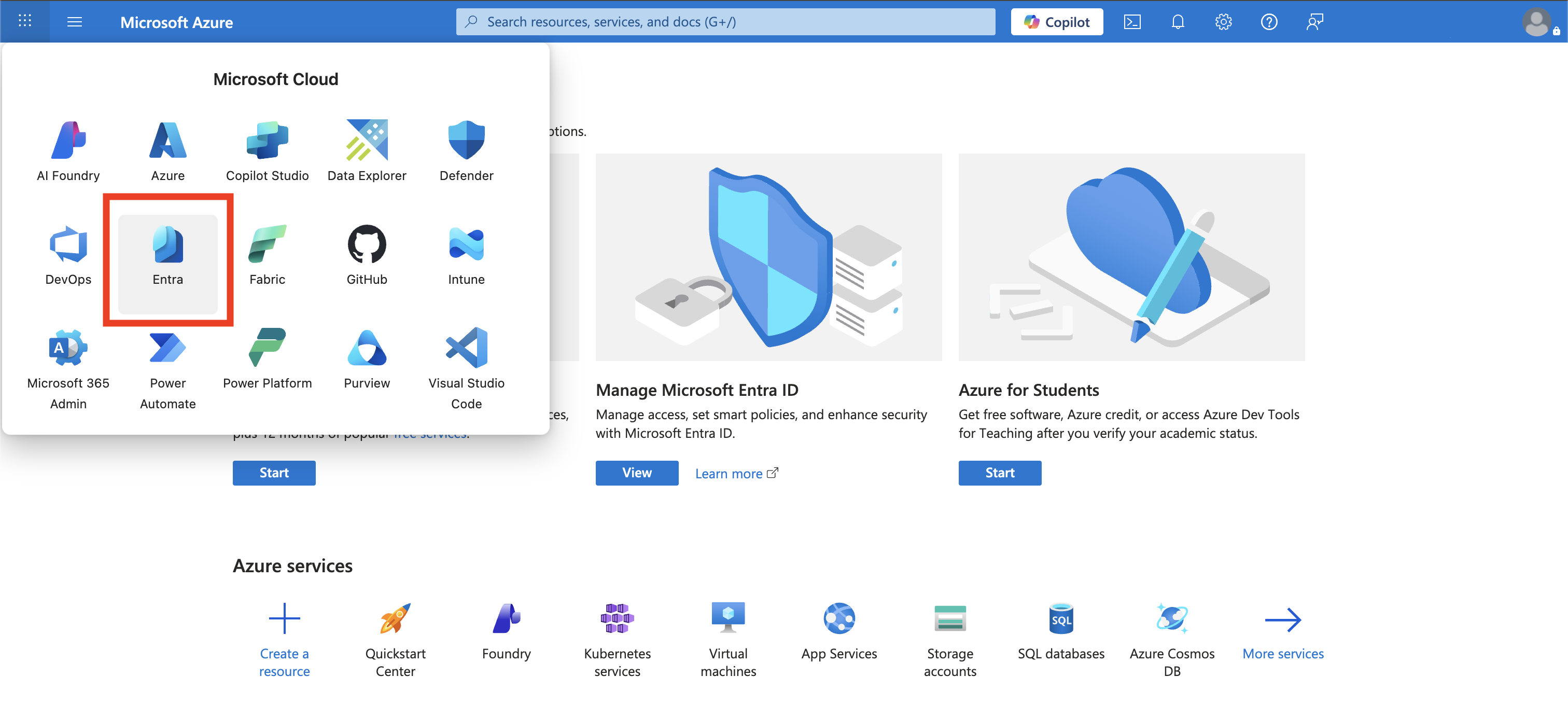
Go to the Azure portal and sign in. From the home page, navigate to Microsoft Entra ID.
Step 2: Register an application
-
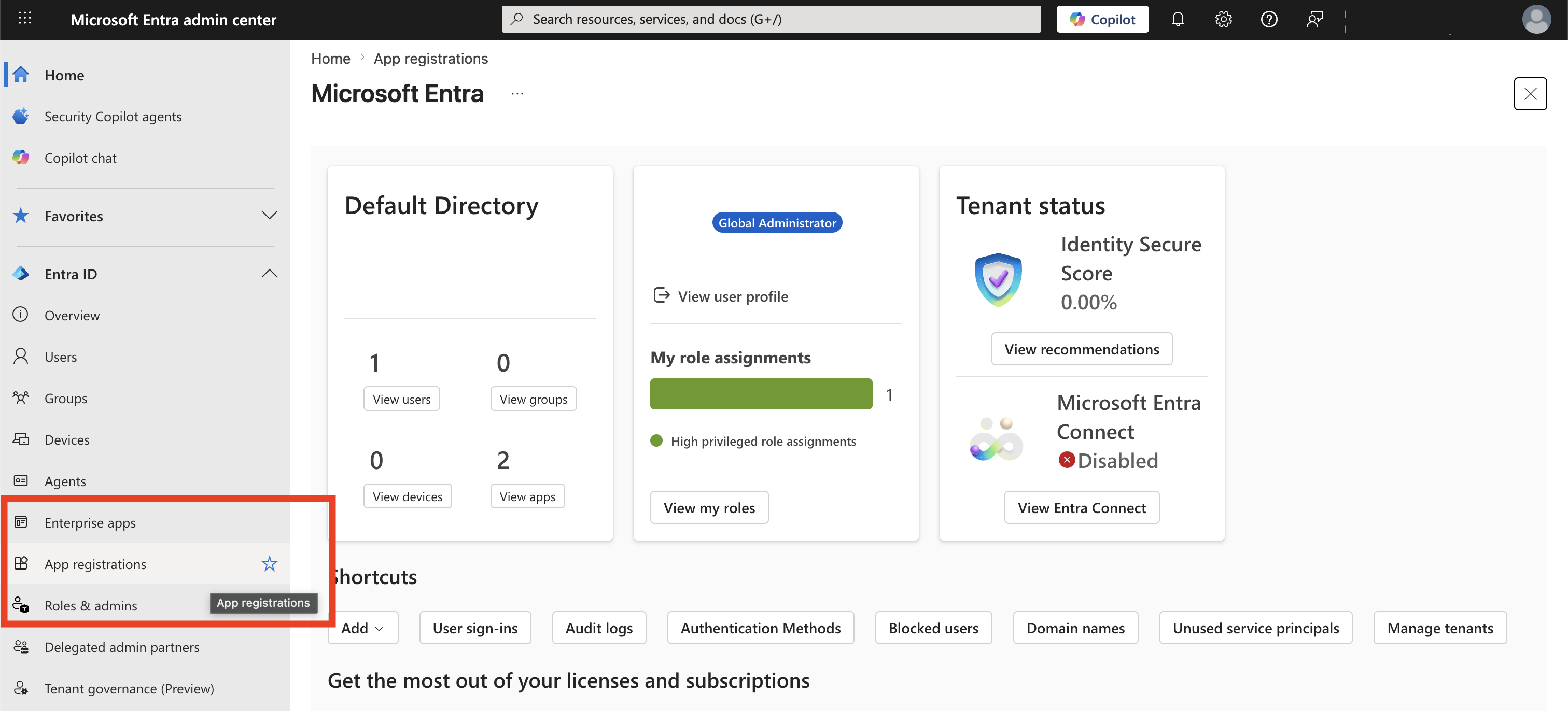
In the Microsoft Entra admin center, navigate to App registrations from the left sidebar.
-
Click New registration.
-
Enter a name for the application, for example
Ballerina Outlook Calendar Connector. Under Supported account types, choose the accounts that will sign in: accounts in your organization only, or any organization and personal Microsoft accounts if Outlook.com users must be able to sign in. -
Under Redirect URI, select Web and enter the URI that receives the authorization code, for example
http://localhost. Then click Register.
Step 3: Add API permissions
-
In the registered application, navigate to API permissions and click Add a permission.
-
Select Microsoft Graph, then Delegated permissions, and add the following permissions:
Calendars.ReadWriteto read and write the signed-in user's calendarsCalendars.ReadWrite.Sharedto read and write calendars that other users have shared with, or delegated to, the signed-in user (needed for the operations underusers/{userId})offline_accessso that the token response includes a refresh token
-
Click Add permissions. If your organization requires it, ask an administrator to grant consent.
Step 4: Create a client secret
-
Navigate to Overview in the registered application and copy the Application (client) ID. This is your
clientId. -
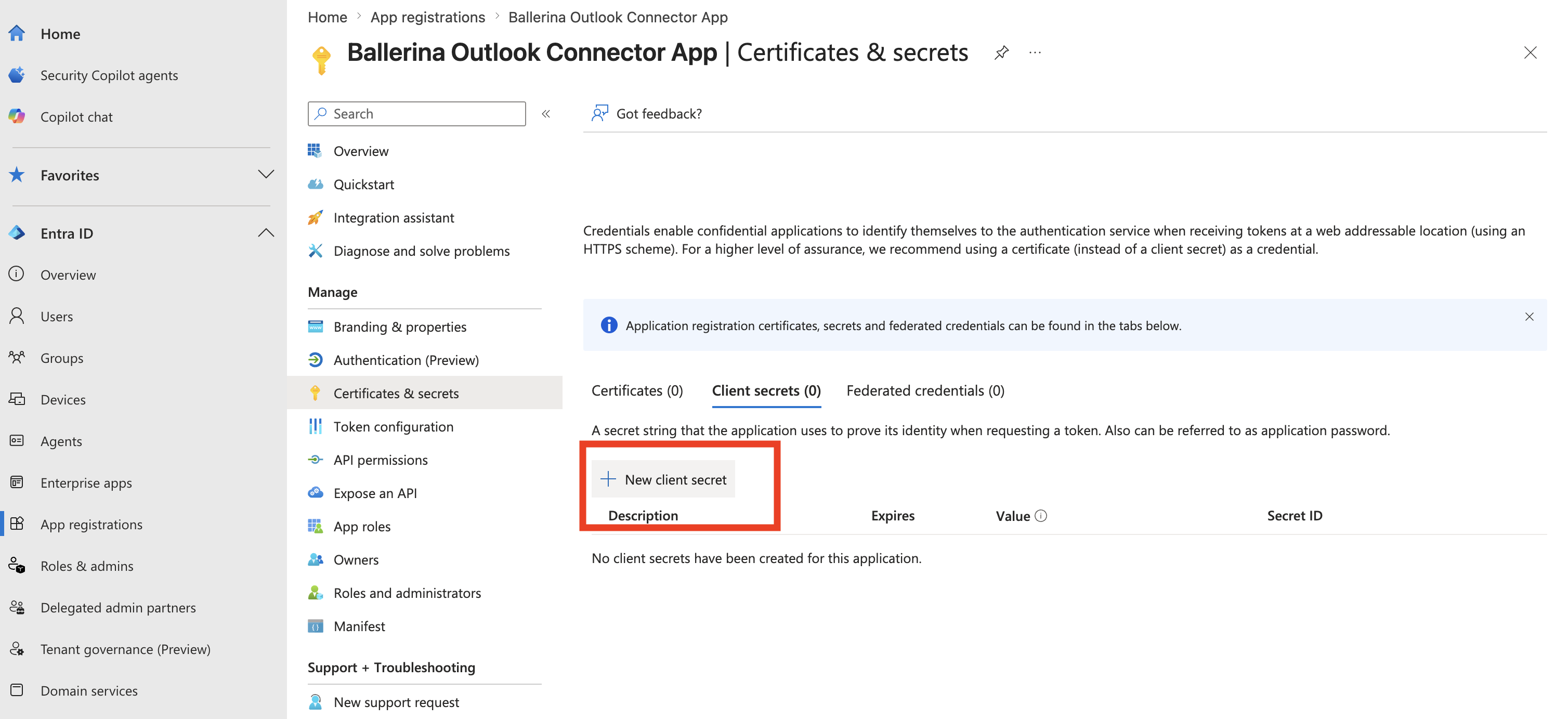
Navigate to Certificates & secrets > Client secrets > New client secret.
-
Enter a description, choose an expiry period and click Add. Copy the secret Value immediately. This is your
clientSecret.
Step 5: Obtain a refresh token
-
Open the following URL in a browser, replacing
<CLIENT_ID>and<REDIRECT_URI>with your values, and sign in with the account whose calendar the connector will use:https://login.microsoftonline.com/common/oauth2/v2.0/authorize?client_id=<CLIENT_ID>&response_type=code&redirect_uri=<REDIRECT_URI>&response_mode=query&scope=Calendars.ReadWrite%20Calendars.ReadWrite.Shared%20offline_access -
After you grant consent, the browser is redirected to your redirect URI with a
codequery parameter. Copy its value. -
Exchange the code for tokens:
curl --location 'https://login.microsoftonline.com/common/oauth2/v2.0/token' \ --header 'Content-Type: application/x-www-form-urlencoded' \ --data-urlencode 'grant_type=authorization_code' \ --data-urlencode 'code=<CODE>' \ --data-urlencode 'redirect_uri=<REDIRECT_URI>' \ --data-urlencode 'client_id=<CLIENT_ID>' \ --data-urlencode 'client_secret=<CLIENT_SECRET>' \ --data-urlencode 'scope=Calendars.ReadWrite Calendars.ReadWrite.Shared offline_access' -
Store the
refresh_tokenfrom the response securely. Usehttps://login.microsoftonline.com/common/oauth2/v2.0/tokenas the refresh URL. If the application is registered for your organization only, replacecommonwith your tenant ID in both URLs.
To call the /users/{userId} operations as the application instead, without a signed-in user, add the Calendars.ReadWrite permission under Application permissions, grant admin consent, and use the client credentials grant with your tenant's token URL. The /me operations always need a signed-in user.
final calendar:Client appClient = check new ({ auth: { clientId, clientSecret, tokenUrl: "https://login.microsoftonline.com/<TENANT_ID>/oauth2/v2.0/token", scopes: ["https://graph.microsoft.com/.default"] } });
Quickstart
To use the Microsoft Outlook Calendar connector in your Ballerina application, update your .bal file as follows.
Step 1: Import the module
Import the microsoft.outlook.calendar module.
import ballerinax/microsoft.outlook.calendar;
Step 2: Configure the credentials
Create a Config.toml file with the credentials obtained in the setup guide:
clientId = "<CLIENT_ID>" clientSecret = "<CLIENT_SECRET>" refreshToken = "<REFRESH_TOKEN>" refreshUrl = "https://login.microsoftonline.com/common/oauth2/v2.0/token"
Step 3: Instantiate a new connector
Initialize the client with the refresh token grant configuration.
configurable string clientId = ?; configurable string clientSecret = ?; configurable string refreshToken = ?; configurable string refreshUrl = ?; final calendar:Client calendarClient = check new ({ auth: {clientId, clientSecret, refreshToken, refreshUrl} });
Step 4: Invoke the connector operation
Use the connector operations. The following creates an event in the signed-in user's default calendar.
public function main() returns error? { calendar:Event _ = check calendarClient->createEvent({ subject: "Project kickoff", 'start: <calendar:DateTimeTimeZone>{dateTime: "2026-10-05T10:00:00", timeZone: "UTC"}, end: <calendar:DateTimeTimeZone>{dateTime: "2026-10-05T11:00:00", timeZone: "UTC"} }); }
Examples
The Microsoft Outlook Calendar connector provides practical examples illustrating usage in various scenarios. Explore these examples, covering the following use cases:
- Team meeting scheduler - Find a time when every attendee is free, book it as a Teams meeting and list the resulting schedule.
- Project calendar setup - Create a project calendar inside a calendar group and schedule the project milestones on it.
Clients
microsoft.outlook.calendar: Client
Microsoft Outlook Calendar API. Subset of the Microsoft Graph v1.0 OpenAPI specification covering calendars, calendar groups, calendar permissions, events, attachments, calendar views, scheduling and meeting-time suggestions for the signed-in user and for users by ID.
Constructor
Gets invoked to initialize the connector.
init (ConnectionConfig config, string serviceUrl)- config ConnectionConfig - The configurations to be used when initializing the
connector
- serviceUrl string "https://graph.microsoft.com/v1.0" - URL of the target service
getDefaultCalendar
function getDefaultCalendar(map<string|string[]> headers, *GetDefaultCalendarQueries queries) returns Calendar|errorGet the signed-in user's default calendar
Parameters
- queries *GetDefaultCalendarQueries - Queries to be sent with the request
updateDefaultCalendar
function updateDefaultCalendar(Calendar payload, map<string|string[]> headers) returns Calendar|errorUpdate the signed-in user's default calendar
Parameters
- payload Calendar - The me calendar properties to update
listDefaultCalendarPermissions
function listDefaultCalendarPermissions(map<string|string[]> headers, *ListDefaultCalendarPermissionsQueries queries) returns CalendarPermissionCollection|errorList the sharing permissions of the signed-in user's default calendar
Parameters
- queries *ListDefaultCalendarPermissionsQueries - Queries to be sent with the request
Return Type
- CalendarPermissionCollection|error - Retrieved collection
createDefaultCalendarPermission
function createDefaultCalendarPermission(CalendarPermission payload, map<string|string[]> headers) returns CalendarPermission|errorCreate a sharing permission on the signed-in user's default calendar
Parameters
- payload CalendarPermission - The me calendar calendar permissions to create
Return Type
- CalendarPermission|error - The created me calendar calendar permissions
getDefaultCalendarPermission
function getDefaultCalendarPermission(string calendarPermissionId, map<string|string[]> headers, *GetDefaultCalendarPermissionQueries queries) returns CalendarPermission|errorGet a sharing permission of the signed-in user's default calendar
Parameters
- calendarPermissionId string - The unique identifier of calendarPermission
- queries *GetDefaultCalendarPermissionQueries - Queries to be sent with the request
Return Type
- CalendarPermission|error - The retrieved me calendar calendar permissions
deleteDefaultCalendarPermission
function deleteDefaultCalendarPermission(string calendarPermissionId, DeleteDefaultCalendarPermissionHeaders headers) returns error?Delete a sharing permission of the signed-in user's default calendar
Parameters
- calendarPermissionId string - The unique identifier of calendarPermission
- headers DeleteDefaultCalendarPermissionHeaders (default {}) - Headers to be sent with the request
Return Type
- error? - Success
updateDefaultCalendarPermission
function updateDefaultCalendarPermission(string calendarPermissionId, CalendarPermission payload, map<string|string[]> headers) returns CalendarPermission|errorUpdate a sharing permission of the signed-in user's default calendar
Parameters
- calendarPermissionId string - The unique identifier of calendarPermission
- payload CalendarPermission - The me calendar calendar permissions properties to update
Return Type
- CalendarPermission|error - The updated default calendar permission
countDefaultCalendarPermissions
function countDefaultCalendarPermissions(map<string|string[]> headers, *CountDefaultCalendarPermissionsQueries queries) returns string|errorCount the sharing permissions of the signed-in user's default calendar
Parameters
- queries *CountDefaultCalendarPermissionsQueries - Queries to be sent with the request
listDefaultCalendarView
function listDefaultCalendarView(map<string|string[]> headers, *ListDefaultCalendarViewQueries queries) returns EventCollection|errorList the event occurrences of the signed-in user's default calendar in a time range
Parameters
- queries *ListDefaultCalendarViewQueries - Queries to be sent with the request
Return Type
- EventCollection|error - Retrieved collection
listDefaultCalendarViewDelta
function listDefaultCalendarViewDelta(map<string|string[]> headers, *ListDefaultCalendarViewDeltaQueries queries) returns EventDeltaCollection|errorTrack changes to the event occurrences of the signed-in user's default calendar in a time range
Parameters
- queries *ListDefaultCalendarViewDeltaQueries - Queries to be sent with the request
Return Type
- EventDeltaCollection|error - The retrieved default calendar view delta
listDefaultEvents
function listDefaultEvents(map<string|string[]> headers, *ListDefaultEventsQueries queries) returns EventCollection|errorList the events in the signed-in user's default calendar
Parameters
- queries *ListDefaultEventsQueries - Queries to be sent with the request
Return Type
- EventCollection|error - Retrieved collection
createDefaultEvent
Create an event in the signed-in user's default calendar
Parameters
- payload Event - The me calendar events to create
getDefaultEvent
function getDefaultEvent(string eventId, map<string|string[]> headers, *GetDefaultEventQueries queries) returns Event|errorGet an event in the signed-in user's default calendar
Parameters
- eventId string - The unique identifier of event
- queries *GetDefaultEventQueries - Queries to be sent with the request
deleteDefaultEvent
function deleteDefaultEvent(string eventId, DeleteDefaultEventHeaders headers) returns error?Delete an event in the signed-in user's default calendar
Parameters
- eventId string - The unique identifier of event
- headers DeleteDefaultEventHeaders (default {}) - Headers to be sent with the request
Return Type
- error? - Success
updateDefaultEvent
function updateDefaultEvent(string eventId, Event payload, map<string|string[]> headers) returns Event|errorUpdate an event in the signed-in user's default calendar
Parameters
- eventId string - The unique identifier of event
- payload Event - The me calendar events properties to update
listDefaultEventAttachments
function listDefaultEventAttachments(string eventId, map<string|string[]> headers, *ListDefaultEventAttachmentsQueries queries) returns AttachmentCollection|errorList the attachments of an event in the signed-in user's default calendar
Parameters
- eventId string - The unique identifier of event
- queries *ListDefaultEventAttachmentsQueries - Queries to be sent with the request
Return Type
- AttachmentCollection|error - Retrieved collection
createDefaultEventAttachment
function createDefaultEventAttachment(string eventId, NewAttachment payload, map<string|string[]> headers) returns Attachment|errorAdd an attachment to an event in the signed-in user's default calendar
Parameters
- eventId string - The unique identifier of event
- payload NewAttachment - The attachment to add: a
FileAttachment(name,contentBytes) or anItemAttachment(name,item)
Return Type
- Attachment|error - The created attachment
getDefaultEventAttachment
function getDefaultEventAttachment(string eventId, string attachmentId, map<string|string[]> headers, *GetDefaultEventAttachmentQueries queries) returns Attachment|errorGet an attachment of an event in the signed-in user's default calendar
Parameters
- eventId string - The unique identifier of event
- attachmentId string - The unique identifier of attachment
- queries *GetDefaultEventAttachmentQueries - Queries to be sent with the request
Return Type
- Attachment|error - The retrieved me calendar events attachments
deleteDefaultEventAttachment
function deleteDefaultEventAttachment(string eventId, string attachmentId, DeleteDefaultEventAttachmentHeaders headers) returns error?Delete an attachment of an event in the signed-in user's default calendar
Parameters
- eventId string - The unique identifier of event
- attachmentId string - The unique identifier of attachment
- headers DeleteDefaultEventAttachmentHeaders (default {}) - Headers to be sent with the request
Return Type
- error? - Success
countDefaultEventAttachments
function countDefaultEventAttachments(string eventId, map<string|string[]> headers, *CountDefaultEventAttachmentsQueries queries) returns string|errorCount the attachments of an event in the signed-in user's default calendar
Parameters
- eventId string - The unique identifier of event
- queries *CountDefaultEventAttachmentsQueries - Queries to be sent with the request
createDefaultEventUploadSession
function createDefaultEventUploadSession(string eventId, CreateUploadSessionRequest payload, map<string|string[]> headers) returns UploadSession|errorCreate an upload session for a large attachment to an event in the signed-in user's default calendar
Parameters
- eventId string - The unique identifier of event
- payload CreateUploadSessionRequest - Details of the file to upload as an attachment
Return Type
- UploadSession|error - The created default event upload session
getDefaultEventCalendar
function getDefaultEventCalendar(string eventId, map<string|string[]> headers, *GetDefaultEventCalendarQueries queries) returns Calendar|errorGet the calendar that contains an event in the signed-in user's default calendar
Parameters
- eventId string - The unique identifier of event
- queries *GetDefaultEventCalendarQueries - Queries to be sent with the request
listDefaultEventExtensions
function listDefaultEventExtensions(string eventId, map<string|string[]> headers, *ListDefaultEventExtensionsQueries queries) returns ExtensionCollection|errorList the open extensions of an event in the signed-in user's default calendar
Parameters
- eventId string - The unique identifier of event
- queries *ListDefaultEventExtensionsQueries - Queries to be sent with the request
Return Type
- ExtensionCollection|error - Retrieved collection
createDefaultEventExtension
function createDefaultEventExtension(string eventId, OpenTypeExtension payload, map<string|string[]> headers) returns OpenTypeExtension|errorCreate an open extension on an event in the signed-in user's default calendar
Parameters
- eventId string - The unique identifier of event
- payload OpenTypeExtension - The open extension to create:
extensionNameplus the custom properties
Return Type
- OpenTypeExtension|error - The created open extension
getDefaultEventExtension
function getDefaultEventExtension(string eventId, string extensionId, map<string|string[]> headers, *GetDefaultEventExtensionQueries queries) returns Extension|errorGet an open extension of an event in the signed-in user's default calendar
Parameters
- eventId string - The unique identifier of event
- extensionId string - The unique identifier of extension
- queries *GetDefaultEventExtensionQueries - Queries to be sent with the request
deleteDefaultEventExtension
function deleteDefaultEventExtension(string eventId, string extensionId, DeleteDefaultEventExtensionHeaders headers) returns error?Delete an open extension of an event in the signed-in user's default calendar
Parameters
- eventId string - The unique identifier of event
- extensionId string - The unique identifier of extension
- headers DeleteDefaultEventExtensionHeaders (default {}) - Headers to be sent with the request
Return Type
- error? - Success
updateDefaultEventExtension
function updateDefaultEventExtension(string eventId, string extensionId, OpenTypeExtension payload, map<string|string[]> headers) returns OpenTypeExtension|errorUpdate an open extension of an event in the signed-in user's default calendar
Parameters
- eventId string - The unique identifier of event
- extensionId string - The unique identifier of extension
- payload OpenTypeExtension - The open extension properties to change or add
Return Type
- OpenTypeExtension|error - The updated open extension
countDefaultEventExtensions
function countDefaultEventExtensions(string eventId, map<string|string[]> headers, *CountDefaultEventExtensionsQueries queries) returns string|errorCount the open extensions of an event in the signed-in user's default calendar
Parameters
- eventId string - The unique identifier of event
- queries *CountDefaultEventExtensionsQueries - Queries to be sent with the request
listDefaultEventInstances
function listDefaultEventInstances(string eventId, map<string|string[]> headers, *ListDefaultEventInstancesQueries queries) returns EventCollection|errorList the occurrences of a recurring event in the signed-in user's default calendar
Parameters
- eventId string - The unique identifier of event
- queries *ListDefaultEventInstancesQueries - Queries to be sent with the request
Return Type
- EventCollection|error - Retrieved collection
listDefaultEventInstancesDelta
function listDefaultEventInstancesDelta(string eventId, map<string|string[]> headers, *ListDefaultEventInstancesDeltaQueries queries) returns EventDeltaCollection|errorTrack changes to the occurrences of a recurring event in the signed-in user's default calendar
Parameters
- eventId string - The unique identifier of event
- queries *ListDefaultEventInstancesDeltaQueries - Queries to be sent with the request
Return Type
- EventDeltaCollection|error - The retrieved default event instances delta
acceptDefaultEvent
function acceptDefaultEvent(string eventId, AcceptEventRequest payload, map<string|string[]> headers) returns error?Accept an event in the signed-in user's default calendar
Parameters
- eventId string - The unique identifier of event
- payload AcceptEventRequest - Optional comment and whether to send a response to the organizer
Return Type
- error? - Success
cancelDefaultEvent
function cancelDefaultEvent(string eventId, CancelEventRequest payload, map<string|string[]> headers) returns error?Cancel a meeting in the signed-in user's default calendar
Parameters
- eventId string - The unique identifier of event
- payload CancelEventRequest - Optional cancellation message sent to the attendees
Return Type
- error? - Success
declineDefaultEvent
function declineDefaultEvent(string eventId, DeclineEventRequest payload, map<string|string[]> headers) returns error?Decline an event in the signed-in user's default calendar
Parameters
- eventId string - The unique identifier of event
- payload DeclineEventRequest - Optional comment, proposed new time and whether to send a response to the organizer
Return Type
- error? - Success
dismissDefaultEventReminder
Dismiss the reminder of an event in the signed-in user's default calendar
Parameters
- eventId string - The unique identifier of event
Return Type
- error? - Success
forwardDefaultEvent
function forwardDefaultEvent(string eventId, ForwardEventRequest payload, map<string|string[]> headers) returns error?Forward an event in the signed-in user's default calendar
Parameters
- eventId string - The unique identifier of event
- payload ForwardEventRequest - Recipients to forward the event to and an optional comment
Return Type
- error? - Success
permanentlyDeleteDefaultEvent
Permanently delete an event in the signed-in user's default calendar
Parameters
- eventId string - The unique identifier of event
Return Type
- error? - Success
snoozeDefaultEventReminder
function snoozeDefaultEventReminder(string eventId, SnoozeReminderRequest payload, map<string|string[]> headers) returns error?Snooze the reminder of an event in the signed-in user's default calendar
Parameters
- eventId string - The unique identifier of event
- payload SnoozeReminderRequest - New date and time for the reminder
Return Type
- error? - Success
tentativelyAcceptDefaultEvent
function tentativelyAcceptDefaultEvent(string eventId, DeclineEventRequest payload, map<string|string[]> headers) returns error?Tentatively accept an event in the signed-in user's default calendar
Parameters
- eventId string - The unique identifier of event
- payload DeclineEventRequest - Optional comment, proposed new time and whether to send a response to the organizer
Return Type
- error? - Success
countDefaultEvents
function countDefaultEvents(map<string|string[]> headers, *CountDefaultEventsQueries queries) returns string|errorCount the events in the signed-in user's default calendar
Parameters
- queries *CountDefaultEventsQueries - Queries to be sent with the request
listDefaultEventsDelta
function listDefaultEventsDelta(map<string|string[]> headers, *ListDefaultEventsDeltaQueries queries) returns EventDeltaCollection|errorTrack changes to the events in the signed-in user's default calendar
Parameters
- queries *ListDefaultEventsDeltaQueries - Queries to be sent with the request
Return Type
- EventDeltaCollection|error - The retrieved default events delta
listDefaultCalendarSharingRoles
function listDefaultCalendarSharingRoles(string user, map<string|string[]> headers, *ListDefaultCalendarSharingRolesQueries queries) returns CalendarSharingRoleCollection|errorList the roles a user can be granted when the signed-in user's default calendar is shared
Parameters
- user string - Usage: User='{User}'
- queries *ListDefaultCalendarSharingRolesQueries - Queries to be sent with the request
Return Type
- CalendarSharingRoleCollection|error - The retrieved default calendar sharing roles
getDefaultCalendarSchedule
function getDefaultCalendarSchedule(GetScheduleRequest payload, map<string|string[]> headers) returns ScheduleInformationCollection|errorGet the free/busy availability of users, lists or resources through the signed-in user's default calendar
Parameters
- payload GetScheduleRequest - Schedules to look up, the time period and the availability interval
Return Type
- ScheduleInformationCollection|error - The retrieved default calendar schedule
permanentlyDeleteDefaultCalendar
Permanently delete the signed-in user's default calendar
Return Type
- error? - Success
listCalendarGroups
function listCalendarGroups(map<string|string[]> headers, *ListCalendarGroupsQueries queries) returns CalendarGroupCollection|errorList the calendar groups of the signed-in user
Parameters
- queries *ListCalendarGroupsQueries - Queries to be sent with the request
Return Type
- CalendarGroupCollection|error - Retrieved collection
createCalendarGroup
function createCalendarGroup(CalendarGroup payload, map<string|string[]> headers) returns CalendarGroup|errorCreate a calendar group for the signed-in user
Parameters
- payload CalendarGroup - The me calendar groups to create
Return Type
- CalendarGroup|error - The created me calendar groups
getCalendarGroup
function getCalendarGroup(string calendarGroupId, map<string|string[]> headers, *GetCalendarGroupQueries queries) returns CalendarGroup|errorGet a calendar group of the signed-in user
Parameters
- calendarGroupId string - The unique identifier of calendarGroup
- queries *GetCalendarGroupQueries - Queries to be sent with the request
Return Type
- CalendarGroup|error - The retrieved me calendar groups
deleteCalendarGroup
function deleteCalendarGroup(string calendarGroupId, DeleteCalendarGroupHeaders headers) returns error?Delete a calendar group of the signed-in user
Parameters
- calendarGroupId string - The unique identifier of calendarGroup
- headers DeleteCalendarGroupHeaders (default {}) - Headers to be sent with the request
Return Type
- error? - Success
updateCalendarGroup
function updateCalendarGroup(string calendarGroupId, CalendarGroup payload, map<string|string[]> headers) returns CalendarGroup|errorUpdate a calendar group of the signed-in user
Parameters
- calendarGroupId string - The unique identifier of calendarGroup
- payload CalendarGroup - The me calendar groups properties to update
Return Type
- CalendarGroup|error - The updated calendar group
listGroupCalendars
function listGroupCalendars(string calendarGroupId, map<string|string[]> headers, *ListGroupCalendarsQueries queries) returns CalendarCollection|errorList the calendars in a calendar group of the signed-in user
Parameters
- calendarGroupId string - The unique identifier of calendarGroup
- queries *ListGroupCalendarsQueries - Queries to be sent with the request
Return Type
- CalendarCollection|error - Retrieved collection
createGroupCalendar
function createGroupCalendar(string calendarGroupId, Calendar payload, map<string|string[]> headers) returns Calendar|errorCreate a calendar in a calendar group of the signed-in user
Parameters
- calendarGroupId string - The unique identifier of calendarGroup
- payload Calendar - The me calendar groups calendars to create
getGroupCalendar
function getGroupCalendar(string calendarGroupId, string calendarId, map<string|string[]> headers, *GetGroupCalendarQueries queries) returns Calendar|errorGet a calendar in a calendar group of the signed-in user
Parameters
- calendarGroupId string - The unique identifier of calendarGroup
- calendarId string - The unique identifier of calendar
- queries *GetGroupCalendarQueries - Queries to be sent with the request
deleteGroupCalendar
function deleteGroupCalendar(string calendarGroupId, string calendarId, DeleteGroupCalendarHeaders headers) returns error?Delete a calendar in a calendar group of the signed-in user
Parameters
- calendarGroupId string - The unique identifier of calendarGroup
- calendarId string - The unique identifier of calendar
- headers DeleteGroupCalendarHeaders (default {}) - Headers to be sent with the request
Return Type
- error? - Success
updateGroupCalendar
function updateGroupCalendar(string calendarGroupId, string calendarId, Calendar payload, map<string|string[]> headers) returns Calendar|errorUpdate a calendar in a calendar group of the signed-in user
Parameters
- calendarGroupId string - The unique identifier of calendarGroup
- calendarId string - The unique identifier of calendar
- payload Calendar - The me calendar groups calendars properties to update
listGroupCalendarPermissions
function listGroupCalendarPermissions(string calendarGroupId, string calendarId, map<string|string[]> headers, *ListGroupCalendarPermissionsQueries queries) returns CalendarPermissionCollection|errorList the sharing permissions of a calendar in a calendar group of the signed-in user
Parameters
- calendarGroupId string - The unique identifier of calendarGroup
- calendarId string - The unique identifier of calendar
- queries *ListGroupCalendarPermissionsQueries - Queries to be sent with the request
Return Type
- CalendarPermissionCollection|error - Retrieved collection
createGroupCalendarPermission
function createGroupCalendarPermission(string calendarGroupId, string calendarId, CalendarPermission payload, map<string|string[]> headers) returns CalendarPermission|errorCreate a sharing permission on a calendar in a calendar group of the signed-in user
Parameters
- calendarGroupId string - The unique identifier of calendarGroup
- calendarId string - The unique identifier of calendar
- payload CalendarPermission - The me calendar groups calendars calendar permissions to create
Return Type
- CalendarPermission|error - The created me calendar groups calendars calendar permissions
getGroupCalendarPermission
function getGroupCalendarPermission(string calendarGroupId, string calendarId, string calendarPermissionId, map<string|string[]> headers, *GetGroupCalendarPermissionQueries queries) returns CalendarPermission|errorGet a sharing permission of a calendar in a calendar group of the signed-in user
Parameters
- calendarGroupId string - The unique identifier of calendarGroup
- calendarId string - The unique identifier of calendar
- calendarPermissionId string - The unique identifier of calendarPermission
- queries *GetGroupCalendarPermissionQueries - Queries to be sent with the request
Return Type
- CalendarPermission|error - The retrieved me calendar groups calendars calendar permissions
deleteGroupCalendarPermission
function deleteGroupCalendarPermission(string calendarGroupId, string calendarId, string calendarPermissionId, DeleteGroupCalendarPermissionHeaders headers) returns error?Delete a sharing permission of a calendar in a calendar group of the signed-in user
Parameters
- calendarGroupId string - The unique identifier of calendarGroup
- calendarId string - The unique identifier of calendar
- calendarPermissionId string - The unique identifier of calendarPermission
- headers DeleteGroupCalendarPermissionHeaders (default {}) - Headers to be sent with the request
Return Type
- error? - Success
updateGroupCalendarPermission
function updateGroupCalendarPermission(string calendarGroupId, string calendarId, string calendarPermissionId, CalendarPermission payload, map<string|string[]> headers) returns CalendarPermission|errorUpdate a sharing permission of a calendar in a calendar group of the signed-in user
Parameters
- calendarGroupId string - The unique identifier of calendarGroup
- calendarId string - The unique identifier of calendar
- calendarPermissionId string - The unique identifier of calendarPermission
- payload CalendarPermission - The me calendar groups calendars calendar permissions properties to update
Return Type
- CalendarPermission|error - The updated group calendar permission
countGroupCalendarPermissions
function countGroupCalendarPermissions(string calendarGroupId, string calendarId, map<string|string[]> headers, *CountGroupCalendarPermissionsQueries queries) returns string|errorCount the sharing permissions of a calendar in a calendar group of the signed-in user
Parameters
- calendarGroupId string - The unique identifier of calendarGroup
- calendarId string - The unique identifier of calendar
- queries *CountGroupCalendarPermissionsQueries - Queries to be sent with the request
listGroupCalendarView
function listGroupCalendarView(string calendarGroupId, string calendarId, map<string|string[]> headers, *ListGroupCalendarViewQueries queries) returns EventCollection|errorList the event occurrences of a calendar in a calendar group of the signed-in user in a time range
Parameters
- calendarGroupId string - The unique identifier of calendarGroup
- calendarId string - The unique identifier of calendar
- queries *ListGroupCalendarViewQueries - Queries to be sent with the request
Return Type
- EventCollection|error - Retrieved collection
listGroupCalendarViewDelta
function listGroupCalendarViewDelta(string calendarGroupId, string calendarId, map<string|string[]> headers, *ListGroupCalendarViewDeltaQueries queries) returns EventDeltaCollection|errorTrack changes to the event occurrences of a calendar in a calendar group of the signed-in user in a time range
Parameters
- calendarGroupId string - The unique identifier of calendarGroup
- calendarId string - The unique identifier of calendar
- queries *ListGroupCalendarViewDeltaQueries - Queries to be sent with the request
Return Type
- EventDeltaCollection|error - The retrieved group calendar view delta
listGroupEvents
function listGroupEvents(string calendarGroupId, string calendarId, map<string|string[]> headers, *ListGroupEventsQueries queries) returns EventCollection|errorList the events in a calendar of a calendar group of the signed-in user
Parameters
- calendarGroupId string - The unique identifier of calendarGroup
- calendarId string - The unique identifier of calendar
- queries *ListGroupEventsQueries - Queries to be sent with the request
Return Type
- EventCollection|error - Retrieved collection
createGroupEvent
function createGroupEvent(string calendarGroupId, string calendarId, Event payload, map<string|string[]> headers) returns Event|errorCreate an event in a calendar of a calendar group of the signed-in user
Parameters
- calendarGroupId string - The unique identifier of calendarGroup
- calendarId string - The unique identifier of calendar
- payload Event - The me calendar groups calendars events to create
getGroupEvent
function getGroupEvent(string calendarGroupId, string calendarId, string eventId, map<string|string[]> headers, *GetGroupEventQueries queries) returns Event|errorGet an event in a calendar of a calendar group of the signed-in user
Parameters
- calendarGroupId string - The unique identifier of calendarGroup
- calendarId string - The unique identifier of calendar
- eventId string - The unique identifier of event
- queries *GetGroupEventQueries - Queries to be sent with the request
deleteGroupEvent
function deleteGroupEvent(string calendarGroupId, string calendarId, string eventId, DeleteGroupEventHeaders headers) returns error?Delete an event in a calendar of a calendar group of the signed-in user
Parameters
- calendarGroupId string - The unique identifier of calendarGroup
- calendarId string - The unique identifier of calendar
- eventId string - The unique identifier of event
- headers DeleteGroupEventHeaders (default {}) - Headers to be sent with the request
Return Type
- error? - Success
updateGroupEvent
function updateGroupEvent(string calendarGroupId, string calendarId, string eventId, Event payload, map<string|string[]> headers) returns Event|errorUpdate an event in a calendar of a calendar group of the signed-in user
Parameters
- calendarGroupId string - The unique identifier of calendarGroup
- calendarId string - The unique identifier of calendar
- eventId string - The unique identifier of event
- payload Event - The me calendar groups calendars events properties to update
listGroupEventAttachments
function listGroupEventAttachments(string calendarGroupId, string calendarId, string eventId, map<string|string[]> headers, *ListGroupEventAttachmentsQueries queries) returns AttachmentCollection|errorList the attachments of an event in a calendar of a calendar group of the signed-in user
Parameters
- calendarGroupId string - The unique identifier of calendarGroup
- calendarId string - The unique identifier of calendar
- eventId string - The unique identifier of event
- queries *ListGroupEventAttachmentsQueries - Queries to be sent with the request
Return Type
- AttachmentCollection|error - Retrieved collection
createGroupEventAttachment
function createGroupEventAttachment(string calendarGroupId, string calendarId, string eventId, NewAttachment payload, map<string|string[]> headers) returns Attachment|errorAdd an attachment to an event in a calendar of a calendar group of the signed-in user
Parameters
- calendarGroupId string - The unique identifier of calendarGroup
- calendarId string - The unique identifier of calendar
- eventId string - The unique identifier of event
- payload NewAttachment - The attachment to add: a
FileAttachment(name,contentBytes) or anItemAttachment(name,item)
Return Type
- Attachment|error - The created attachment
getGroupEventAttachment
function getGroupEventAttachment(string calendarGroupId, string calendarId, string eventId, string attachmentId, map<string|string[]> headers, *GetGroupEventAttachmentQueries queries) returns Attachment|errorGet an attachment of an event in a calendar of a calendar group of the signed-in user
Parameters
- calendarGroupId string - The unique identifier of calendarGroup
- calendarId string - The unique identifier of calendar
- eventId string - The unique identifier of event
- attachmentId string - The unique identifier of attachment
- queries *GetGroupEventAttachmentQueries - Queries to be sent with the request
Return Type
- Attachment|error - The retrieved calendar groups calendars events attachments
deleteGroupEventAttachment
function deleteGroupEventAttachment(string calendarGroupId, string calendarId, string eventId, string attachmentId, DeleteGroupEventAttachmentHeaders headers) returns error?Delete an attachment of an event in a calendar of a calendar group of the signed-in user
Parameters
- calendarGroupId string - The unique identifier of calendarGroup
- calendarId string - The unique identifier of calendar
- eventId string - The unique identifier of event
- attachmentId string - The unique identifier of attachment
- headers DeleteGroupEventAttachmentHeaders (default {}) - Headers to be sent with the request
Return Type
- error? - Success
countGroupEventAttachments
function countGroupEventAttachments(string calendarGroupId, string calendarId, string eventId, map<string|string[]> headers, *CountGroupEventAttachmentsQueries queries) returns string|errorCount the attachments of an event in a calendar of a calendar group of the signed-in user
Parameters
- calendarGroupId string - The unique identifier of calendarGroup
- calendarId string - The unique identifier of calendar
- eventId string - The unique identifier of event
- queries *CountGroupEventAttachmentsQueries - Queries to be sent with the request
createGroupEventUploadSession
function createGroupEventUploadSession(string calendarGroupId, string calendarId, string eventId, CreateUploadSessionRequest payload, map<string|string[]> headers) returns UploadSession|errorCreate an upload session for a large attachment to an event in a calendar of a calendar group of the signed-in user
Parameters
- calendarGroupId string - The unique identifier of calendarGroup
- calendarId string - The unique identifier of calendar
- eventId string - The unique identifier of event
- payload CreateUploadSessionRequest - Details of the file to upload as an attachment
Return Type
- UploadSession|error - The created group event upload session
getGroupEventCalendar
function getGroupEventCalendar(string calendarGroupId, string calendarId, string eventId, map<string|string[]> headers, *GetGroupEventCalendarQueries queries) returns Calendar|errorGet the calendar that contains an event in a calendar of a calendar group of the signed-in user
Parameters
- calendarGroupId string - The unique identifier of calendarGroup
- calendarId string - The unique identifier of calendar
- eventId string - The unique identifier of event
- queries *GetGroupEventCalendarQueries - Queries to be sent with the request
listGroupEventExtensions
function listGroupEventExtensions(string calendarGroupId, string calendarId, string eventId, map<string|string[]> headers, *ListGroupEventExtensionsQueries queries) returns ExtensionCollection|errorList the open extensions of an event in a calendar of a calendar group of the signed-in user
Parameters
- calendarGroupId string - The unique identifier of calendarGroup
- calendarId string - The unique identifier of calendar
- eventId string - The unique identifier of event
- queries *ListGroupEventExtensionsQueries - Queries to be sent with the request
Return Type
- ExtensionCollection|error - Retrieved collection
createGroupEventExtension
function createGroupEventExtension(string calendarGroupId, string calendarId, string eventId, OpenTypeExtension payload, map<string|string[]> headers) returns OpenTypeExtension|errorCreate an open extension on an event in a calendar of a calendar group of the signed-in user
Parameters
- calendarGroupId string - The unique identifier of calendarGroup
- calendarId string - The unique identifier of calendar
- eventId string - The unique identifier of event
- payload OpenTypeExtension - The open extension to create:
extensionNameplus the custom properties
Return Type
- OpenTypeExtension|error - The created open extension
getGroupEventExtension
function getGroupEventExtension(string calendarGroupId, string calendarId, string eventId, string extensionId, map<string|string[]> headers, *GetGroupEventExtensionQueries queries) returns Extension|errorGet an open extension of an event in a calendar of a calendar group of the signed-in user
Parameters
- calendarGroupId string - The unique identifier of calendarGroup
- calendarId string - The unique identifier of calendar
- eventId string - The unique identifier of event
- extensionId string - The unique identifier of extension
- queries *GetGroupEventExtensionQueries - Queries to be sent with the request
deleteGroupEventExtension
function deleteGroupEventExtension(string calendarGroupId, string calendarId, string eventId, string extensionId, DeleteGroupEventExtensionHeaders headers) returns error?Delete an open extension of an event in a calendar of a calendar group of the signed-in user
Parameters
- calendarGroupId string - The unique identifier of calendarGroup
- calendarId string - The unique identifier of calendar
- eventId string - The unique identifier of event
- extensionId string - The unique identifier of extension
- headers DeleteGroupEventExtensionHeaders (default {}) - Headers to be sent with the request
Return Type
- error? - Success
updateGroupEventExtension
function updateGroupEventExtension(string calendarGroupId, string calendarId, string eventId, string extensionId, OpenTypeExtension payload, map<string|string[]> headers) returns OpenTypeExtension|errorUpdate an open extension of an event in a calendar of a calendar group of the signed-in user
Parameters
- calendarGroupId string - The unique identifier of calendarGroup
- calendarId string - The unique identifier of calendar
- eventId string - The unique identifier of event
- extensionId string - The unique identifier of extension
- payload OpenTypeExtension - The open extension properties to change or add
Return Type
- OpenTypeExtension|error - The updated open extension
countGroupEventExtensions
function countGroupEventExtensions(string calendarGroupId, string calendarId, string eventId, map<string|string[]> headers, *CountGroupEventExtensionsQueries queries) returns string|errorCount the open extensions of an event in a calendar of a calendar group of the signed-in user
Parameters
- calendarGroupId string - The unique identifier of calendarGroup
- calendarId string - The unique identifier of calendar
- eventId string - The unique identifier of event
- queries *CountGroupEventExtensionsQueries - Queries to be sent with the request
listGroupEventInstances
function listGroupEventInstances(string calendarGroupId, string calendarId, string eventId, map<string|string[]> headers, *ListGroupEventInstancesQueries queries) returns EventCollection|errorList the occurrences of a recurring event in a calendar of a calendar group of the signed-in user
Parameters
- calendarGroupId string - The unique identifier of calendarGroup
- calendarId string - The unique identifier of calendar
- eventId string - The unique identifier of event
- queries *ListGroupEventInstancesQueries - Queries to be sent with the request
Return Type
- EventCollection|error - Retrieved collection
listGroupEventInstancesDelta
function listGroupEventInstancesDelta(string calendarGroupId, string calendarId, string eventId, map<string|string[]> headers, *ListGroupEventInstancesDeltaQueries queries) returns EventDeltaCollection|errorTrack changes to the occurrences of a recurring event in a calendar of a calendar group of the signed-in user
Parameters
- calendarGroupId string - The unique identifier of calendarGroup
- calendarId string - The unique identifier of calendar
- eventId string - The unique identifier of event
- queries *ListGroupEventInstancesDeltaQueries - Queries to be sent with the request
Return Type
- EventDeltaCollection|error - The retrieved group event instances delta
acceptGroupEvent
function acceptGroupEvent(string calendarGroupId, string calendarId, string eventId, AcceptEventRequest payload, map<string|string[]> headers) returns error?Accept an event in a calendar of a calendar group of the signed-in user
Parameters
- calendarGroupId string - The unique identifier of calendarGroup
- calendarId string - The unique identifier of calendar
- eventId string - The unique identifier of event
- payload AcceptEventRequest - Optional comment and whether to send a response to the organizer
Return Type
- error? - Success
cancelGroupEvent
function cancelGroupEvent(string calendarGroupId, string calendarId, string eventId, CancelEventRequest payload, map<string|string[]> headers) returns error?Cancel a meeting in a calendar of a calendar group of the signed-in user
Parameters
- calendarGroupId string - The unique identifier of calendarGroup
- calendarId string - The unique identifier of calendar
- eventId string - The unique identifier of event
- payload CancelEventRequest - Optional cancellation message sent to the attendees
Return Type
- error? - Success
declineGroupEvent
function declineGroupEvent(string calendarGroupId, string calendarId, string eventId, DeclineEventRequest payload, map<string|string[]> headers) returns error?Decline an event in a calendar of a calendar group of the signed-in user
Parameters
- calendarGroupId string - The unique identifier of calendarGroup
- calendarId string - The unique identifier of calendar
- eventId string - The unique identifier of event
- payload DeclineEventRequest - Optional comment, proposed new time and whether to send a response to the organizer
Return Type
- error? - Success
dismissGroupEventReminder
function dismissGroupEventReminder(string calendarGroupId, string calendarId, string eventId, map<string|string[]> headers) returns error?Dismiss the reminder of an event in a calendar of a calendar group of the signed-in user
Parameters
- calendarGroupId string - The unique identifier of calendarGroup
- calendarId string - The unique identifier of calendar
- eventId string - The unique identifier of event
Return Type
- error? - Success
forwardGroupEvent
function forwardGroupEvent(string calendarGroupId, string calendarId, string eventId, ForwardEventRequest payload, map<string|string[]> headers) returns error?Forward an event in a calendar of a calendar group of the signed-in user
Parameters
- calendarGroupId string - The unique identifier of calendarGroup
- calendarId string - The unique identifier of calendar
- eventId string - The unique identifier of event
- payload ForwardEventRequest - Recipients to forward the event to and an optional comment
Return Type
- error? - Success
permanentlyDeleteGroupEvent
function permanentlyDeleteGroupEvent(string calendarGroupId, string calendarId, string eventId, map<string|string[]> headers) returns error?Permanently delete an event in a calendar of a calendar group of the signed-in user
Parameters
- calendarGroupId string - The unique identifier of calendarGroup
- calendarId string - The unique identifier of calendar
- eventId string - The unique identifier of event
Return Type
- error? - Success
snoozeGroupEventReminder
function snoozeGroupEventReminder(string calendarGroupId, string calendarId, string eventId, SnoozeReminderRequest payload, map<string|string[]> headers) returns error?Snooze the reminder of an event in a calendar of a calendar group of the signed-in user
Parameters
- calendarGroupId string - The unique identifier of calendarGroup
- calendarId string - The unique identifier of calendar
- eventId string - The unique identifier of event
- payload SnoozeReminderRequest - New date and time for the reminder
Return Type
- error? - Success
tentativelyAcceptGroupEvent
function tentativelyAcceptGroupEvent(string calendarGroupId, string calendarId, string eventId, DeclineEventRequest payload, map<string|string[]> headers) returns error?Tentatively accept an event in a calendar of a calendar group of the signed-in user
Parameters
- calendarGroupId string - The unique identifier of calendarGroup
- calendarId string - The unique identifier of calendar
- eventId string - The unique identifier of event
- payload DeclineEventRequest - Optional comment, proposed new time and whether to send a response to the organizer
Return Type
- error? - Success
countGroupEvents
function countGroupEvents(string calendarGroupId, string calendarId, map<string|string[]> headers, *CountGroupEventsQueries queries) returns string|errorCount the events in a calendar of a calendar group of the signed-in user
Parameters
- calendarGroupId string - The unique identifier of calendarGroup
- calendarId string - The unique identifier of calendar
- queries *CountGroupEventsQueries - Queries to be sent with the request
listGroupEventsDelta
function listGroupEventsDelta(string calendarGroupId, string calendarId, map<string|string[]> headers, *ListGroupEventsDeltaQueries queries) returns EventDeltaCollection|errorTrack changes to the events in a calendar of a calendar group of the signed-in user
Parameters
- calendarGroupId string - The unique identifier of calendarGroup
- calendarId string - The unique identifier of calendar
- queries *ListGroupEventsDeltaQueries - Queries to be sent with the request
Return Type
- EventDeltaCollection|error - The retrieved group events delta
listGroupCalendarSharingRoles
function listGroupCalendarSharingRoles(string calendarGroupId, string calendarId, string user, map<string|string[]> headers, *ListGroupCalendarSharingRolesQueries queries) returns CalendarSharingRoleCollection|errorList the roles a user can be granted when a calendar in a calendar group of the signed-in user is shared
Parameters
- calendarGroupId string - The unique identifier of calendarGroup
- calendarId string - The unique identifier of calendar
- user string - Usage: User='{User}'
- queries *ListGroupCalendarSharingRolesQueries - Queries to be sent with the request
Return Type
- CalendarSharingRoleCollection|error - The retrieved group calendar sharing roles
getGroupCalendarSchedule
function getGroupCalendarSchedule(string calendarGroupId, string calendarId, GetScheduleRequest payload, map<string|string[]> headers) returns ScheduleInformationCollection|errorGet the free/busy availability of users, lists or resources through a calendar in a calendar group of the signed-in user
Parameters
- calendarGroupId string - The unique identifier of calendarGroup
- calendarId string - The unique identifier of calendar
- payload GetScheduleRequest - Schedules to look up, the time period and the availability interval
Return Type
- ScheduleInformationCollection|error - The retrieved group calendar schedule
permanentlyDeleteGroupCalendar
function permanentlyDeleteGroupCalendar(string calendarGroupId, string calendarId, map<string|string[]> headers) returns error?Permanently delete a calendar in a calendar group of the signed-in user
Parameters
- calendarGroupId string - The unique identifier of calendarGroup
- calendarId string - The unique identifier of calendar
Return Type
- error? - Success
countGroupCalendars
function countGroupCalendars(string calendarGroupId, map<string|string[]> headers, *CountGroupCalendarsQueries queries) returns string|errorCount the calendars in a calendar group of the signed-in user
Parameters
- calendarGroupId string - The unique identifier of calendarGroup
- queries *CountGroupCalendarsQueries - Queries to be sent with the request
countCalendarGroups
function countCalendarGroups(map<string|string[]> headers, *CountCalendarGroupsQueries queries) returns string|errorCount the calendar groups of the signed-in user
Parameters
- queries *CountCalendarGroupsQueries - Queries to be sent with the request
listCalendars
function listCalendars(map<string|string[]> headers, *ListCalendarsQueries queries) returns CalendarCollection|errorList the calendars of the signed-in user
Parameters
- queries *ListCalendarsQueries - Queries to be sent with the request
Return Type
- CalendarCollection|error - Retrieved collection
createCalendar
Create a calendar for the signed-in user
Parameters
- payload Calendar - The me calendars to create
getCalendar
function getCalendar(string calendarId, map<string|string[]> headers, *GetCalendarQueries queries) returns Calendar|errorGet a calendar of the signed-in user
Parameters
- calendarId string - The unique identifier of calendar
- queries *GetCalendarQueries - Queries to be sent with the request
deleteCalendar
function deleteCalendar(string calendarId, DeleteCalendarHeaders headers) returns error?Delete a calendar of the signed-in user
Parameters
- calendarId string - The unique identifier of calendar
- headers DeleteCalendarHeaders (default {}) - Headers to be sent with the request
Return Type
- error? - Success
updateCalendar
function updateCalendar(string calendarId, Calendar payload, map<string|string[]> headers) returns Calendar|errorUpdate a calendar of the signed-in user
Parameters
- calendarId string - The unique identifier of calendar
- payload Calendar - The me calendars properties to update
listCalendarPermissions
function listCalendarPermissions(string calendarId, map<string|string[]> headers, *ListCalendarPermissionsQueries queries) returns CalendarPermissionCollection|errorList the sharing permissions of a calendar of the signed-in user
Parameters
- calendarId string - The unique identifier of calendar
- queries *ListCalendarPermissionsQueries - Queries to be sent with the request
Return Type
- CalendarPermissionCollection|error - Retrieved collection
createCalendarPermission
function createCalendarPermission(string calendarId, CalendarPermission payload, map<string|string[]> headers) returns CalendarPermission|errorCreate a sharing permission on a calendar of the signed-in user
Parameters
- calendarId string - The unique identifier of calendar
- payload CalendarPermission - The me calendars calendar permissions to create
Return Type
- CalendarPermission|error - The created me calendars calendar permissions
getCalendarPermission
function getCalendarPermission(string calendarId, string calendarPermissionId, map<string|string[]> headers, *GetCalendarPermissionQueries queries) returns CalendarPermission|errorGet a sharing permission of a calendar of the signed-in user
Parameters
- calendarId string - The unique identifier of calendar
- calendarPermissionId string - The unique identifier of calendarPermission
- queries *GetCalendarPermissionQueries - Queries to be sent with the request
Return Type
- CalendarPermission|error - The retrieved me calendars calendar permissions
deleteCalendarPermission
function deleteCalendarPermission(string calendarId, string calendarPermissionId, DeleteCalendarPermissionHeaders headers) returns error?Delete a sharing permission of a calendar of the signed-in user
Parameters
- calendarId string - The unique identifier of calendar
- calendarPermissionId string - The unique identifier of calendarPermission
- headers DeleteCalendarPermissionHeaders (default {}) - Headers to be sent with the request
Return Type
- error? - Success
updateCalendarPermission
function updateCalendarPermission(string calendarId, string calendarPermissionId, CalendarPermission payload, map<string|string[]> headers) returns CalendarPermission|errorUpdate a sharing permission of a calendar of the signed-in user
Parameters
- calendarId string - The unique identifier of calendar
- calendarPermissionId string - The unique identifier of calendarPermission
- payload CalendarPermission - The me calendars calendar permissions properties to update
Return Type
- CalendarPermission|error - The updated calendar permission
countCalendarPermissions
function countCalendarPermissions(string calendarId, map<string|string[]> headers, *CountCalendarPermissionsQueries queries) returns string|errorCount the sharing permissions of a calendar of the signed-in user
Parameters
- calendarId string - The unique identifier of calendar
- queries *CountCalendarPermissionsQueries - Queries to be sent with the request
listCalendarViewById
function listCalendarViewById(string calendarId, map<string|string[]> headers, *ListCalendarViewByIdQueries queries) returns EventCollection|errorList the event occurrences of a calendar of the signed-in user in a time range
Parameters
- calendarId string - The unique identifier of calendar
- queries *ListCalendarViewByIdQueries - Queries to be sent with the request
Return Type
- EventCollection|error - Retrieved collection
listCalendarViewByIdDelta
function listCalendarViewByIdDelta(string calendarId, map<string|string[]> headers, *ListCalendarViewByIdDeltaQueries queries) returns EventDeltaCollection|errorTrack changes to the event occurrences of a calendar of the signed-in user in a time range
Parameters
- calendarId string - The unique identifier of calendar
- queries *ListCalendarViewByIdDeltaQueries - Queries to be sent with the request
Return Type
- EventDeltaCollection|error - The retrieved calendar view by id delta
listCalendarEvents
function listCalendarEvents(string calendarId, map<string|string[]> headers, *ListCalendarEventsQueries queries) returns EventCollection|errorList the events in a calendar of the signed-in user
Parameters
- calendarId string - The unique identifier of calendar
- queries *ListCalendarEventsQueries - Queries to be sent with the request
Return Type
- EventCollection|error - Retrieved collection
createCalendarEvent
function createCalendarEvent(string calendarId, Event payload, map<string|string[]> headers) returns Event|errorCreate an event in a calendar of the signed-in user
Parameters
- calendarId string - The unique identifier of calendar
- payload Event - The me calendars events to create
getCalendarEvent
function getCalendarEvent(string calendarId, string eventId, map<string|string[]> headers, *GetCalendarEventQueries queries) returns Event|errorGet an event in a calendar of the signed-in user
Parameters
- calendarId string - The unique identifier of calendar
- eventId string - The unique identifier of event
- queries *GetCalendarEventQueries - Queries to be sent with the request
deleteCalendarEvent
function deleteCalendarEvent(string calendarId, string eventId, DeleteCalendarEventHeaders headers) returns error?Delete an event in a calendar of the signed-in user
Parameters
- calendarId string - The unique identifier of calendar
- eventId string - The unique identifier of event
- headers DeleteCalendarEventHeaders (default {}) - Headers to be sent with the request
Return Type
- error? - Success
updateCalendarEvent
function updateCalendarEvent(string calendarId, string eventId, Event payload, map<string|string[]> headers) returns Event|errorUpdate an event in a calendar of the signed-in user
Parameters
- calendarId string - The unique identifier of calendar
- eventId string - The unique identifier of event
- payload Event - The me calendars events properties to update
listCalendarEventAttachments
function listCalendarEventAttachments(string calendarId, string eventId, map<string|string[]> headers, *ListCalendarEventAttachmentsQueries queries) returns AttachmentCollection|errorList the attachments of an event in a calendar of the signed-in user
Parameters
- calendarId string - The unique identifier of calendar
- eventId string - The unique identifier of event
- queries *ListCalendarEventAttachmentsQueries - Queries to be sent with the request
Return Type
- AttachmentCollection|error - Retrieved collection
createCalendarEventAttachment
function createCalendarEventAttachment(string calendarId, string eventId, NewAttachment payload, map<string|string[]> headers) returns Attachment|errorAdd an attachment to an event in a calendar of the signed-in user
Parameters
- calendarId string - The unique identifier of calendar
- eventId string - The unique identifier of event
- payload NewAttachment - The attachment to add: a
FileAttachment(name,contentBytes) or anItemAttachment(name,item)
Return Type
- Attachment|error - The created attachment
getCalendarEventAttachment
function getCalendarEventAttachment(string calendarId, string eventId, string attachmentId, map<string|string[]> headers, *GetCalendarEventAttachmentQueries queries) returns Attachment|errorGet an attachment of an event in a calendar of the signed-in user
Parameters
- calendarId string - The unique identifier of calendar
- eventId string - The unique identifier of event
- attachmentId string - The unique identifier of attachment
- queries *GetCalendarEventAttachmentQueries - Queries to be sent with the request
Return Type
- Attachment|error - The retrieved me calendars events attachments
deleteCalendarEventAttachment
function deleteCalendarEventAttachment(string calendarId, string eventId, string attachmentId, DeleteCalendarEventAttachmentHeaders headers) returns error?Delete an attachment of an event in a calendar of the signed-in user
Parameters
- calendarId string - The unique identifier of calendar
- eventId string - The unique identifier of event
- attachmentId string - The unique identifier of attachment
- headers DeleteCalendarEventAttachmentHeaders (default {}) - Headers to be sent with the request
Return Type
- error? - Success
countCalendarEventAttachments
function countCalendarEventAttachments(string calendarId, string eventId, map<string|string[]> headers, *CountCalendarEventAttachmentsQueries queries) returns string|errorCount the attachments of an event in a calendar of the signed-in user
Parameters
- calendarId string - The unique identifier of calendar
- eventId string - The unique identifier of event
- queries *CountCalendarEventAttachmentsQueries - Queries to be sent with the request
createCalendarEventUploadSession
function createCalendarEventUploadSession(string calendarId, string eventId, CreateUploadSessionRequest payload, map<string|string[]> headers) returns UploadSession|errorCreate an upload session for a large attachment to an event in a calendar of the signed-in user
Parameters
- calendarId string - The unique identifier of calendar
- eventId string - The unique identifier of event
- payload CreateUploadSessionRequest - Details of the file to upload as an attachment
Return Type
- UploadSession|error - The created calendar event upload session
getCalendarEventCalendar
function getCalendarEventCalendar(string calendarId, string eventId, map<string|string[]> headers, *GetCalendarEventCalendarQueries queries) returns Calendar|errorGet the calendar that contains an event in a calendar of the signed-in user
Parameters
- calendarId string - The unique identifier of calendar
- eventId string - The unique identifier of event
- queries *GetCalendarEventCalendarQueries - Queries to be sent with the request
listCalendarEventExtensions
function listCalendarEventExtensions(string calendarId, string eventId, map<string|string[]> headers, *ListCalendarEventExtensionsQueries queries) returns ExtensionCollection|errorList the open extensions of an event in a calendar of the signed-in user
Parameters
- calendarId string - The unique identifier of calendar
- eventId string - The unique identifier of event
- queries *ListCalendarEventExtensionsQueries - Queries to be sent with the request
Return Type
- ExtensionCollection|error - Retrieved collection
createCalendarEventExtension
function createCalendarEventExtension(string calendarId, string eventId, OpenTypeExtension payload, map<string|string[]> headers) returns OpenTypeExtension|errorCreate an open extension on an event in a calendar of the signed-in user
Parameters
- calendarId string - The unique identifier of calendar
- eventId string - The unique identifier of event
- payload OpenTypeExtension - The open extension to create:
extensionNameplus the custom properties
Return Type
- OpenTypeExtension|error - The created open extension
getCalendarEventExtension
function getCalendarEventExtension(string calendarId, string eventId, string extensionId, map<string|string[]> headers, *GetCalendarEventExtensionQueries queries) returns Extension|errorGet an open extension of an event in a calendar of the signed-in user
Parameters
- calendarId string - The unique identifier of calendar
- eventId string - The unique identifier of event
- extensionId string - The unique identifier of extension
- queries *GetCalendarEventExtensionQueries - Queries to be sent with the request
deleteCalendarEventExtension
function deleteCalendarEventExtension(string calendarId, string eventId, string extensionId, DeleteCalendarEventExtensionHeaders headers) returns error?Delete an open extension of an event in a calendar of the signed-in user
Parameters
- calendarId string - The unique identifier of calendar
- eventId string - The unique identifier of event
- extensionId string - The unique identifier of extension
- headers DeleteCalendarEventExtensionHeaders (default {}) - Headers to be sent with the request
Return Type
- error? - Success
updateCalendarEventExtension
function updateCalendarEventExtension(string calendarId, string eventId, string extensionId, OpenTypeExtension payload, map<string|string[]> headers) returns OpenTypeExtension|errorUpdate an open extension of an event in a calendar of the signed-in user
Parameters
- calendarId string - The unique identifier of calendar
- eventId string - The unique identifier of event
- extensionId string - The unique identifier of extension
- payload OpenTypeExtension - The open extension properties to change or add
Return Type
- OpenTypeExtension|error - The updated open extension
countCalendarEventExtensions
function countCalendarEventExtensions(string calendarId, string eventId, map<string|string[]> headers, *CountCalendarEventExtensionsQueries queries) returns string|errorCount the open extensions of an event in a calendar of the signed-in user
Parameters
- calendarId string - The unique identifier of calendar
- eventId string - The unique identifier of event
- queries *CountCalendarEventExtensionsQueries - Queries to be sent with the request
listCalendarEventInstances
function listCalendarEventInstances(string calendarId, string eventId, map<string|string[]> headers, *ListCalendarEventInstancesQueries queries) returns EventCollection|errorList the occurrences of a recurring event in a calendar of the signed-in user
Parameters
- calendarId string - The unique identifier of calendar
- eventId string - The unique identifier of event
- queries *ListCalendarEventInstancesQueries - Queries to be sent with the request
Return Type
- EventCollection|error - Retrieved collection
listCalendarEventInstancesDelta
function listCalendarEventInstancesDelta(string calendarId, string eventId, map<string|string[]> headers, *ListCalendarEventInstancesDeltaQueries queries) returns EventDeltaCollection|errorTrack changes to the occurrences of a recurring event in a calendar of the signed-in user
Parameters
- calendarId string - The unique identifier of calendar
- eventId string - The unique identifier of event
- queries *ListCalendarEventInstancesDeltaQueries - Queries to be sent with the request
Return Type
- EventDeltaCollection|error - The retrieved calendar event instances delta
acceptCalendarEvent
function acceptCalendarEvent(string calendarId, string eventId, AcceptEventRequest payload, map<string|string[]> headers) returns error?Accept an event in a calendar of the signed-in user
Parameters
- calendarId string - The unique identifier of calendar
- eventId string - The unique identifier of event
- payload AcceptEventRequest - Optional comment and whether to send a response to the organizer
Return Type
- error? - Success
cancelCalendarEvent
function cancelCalendarEvent(string calendarId, string eventId, CancelEventRequest payload, map<string|string[]> headers) returns error?Cancel a meeting in a calendar of the signed-in user
Parameters
- calendarId string - The unique identifier of calendar
- eventId string - The unique identifier of event
- payload CancelEventRequest - Optional cancellation message sent to the attendees
Return Type
- error? - Success
declineCalendarEvent
function declineCalendarEvent(string calendarId, string eventId, DeclineEventRequest payload, map<string|string[]> headers) returns error?Decline an event in a calendar of the signed-in user
Parameters
- calendarId string - The unique identifier of calendar
- eventId string - The unique identifier of event
- payload DeclineEventRequest - Optional comment, proposed new time and whether to send a response to the organizer
Return Type
- error? - Success
dismissCalendarEventReminder
function dismissCalendarEventReminder(string calendarId, string eventId, map<string|string[]> headers) returns error?Dismiss the reminder of an event in a calendar of the signed-in user
Parameters
- calendarId string - The unique identifier of calendar
- eventId string - The unique identifier of event
Return Type
- error? - Success
forwardCalendarEvent
function forwardCalendarEvent(string calendarId, string eventId, ForwardEventRequest payload, map<string|string[]> headers) returns error?Forward an event in a calendar of the signed-in user
Parameters
- calendarId string - The unique identifier of calendar
- eventId string - The unique identifier of event
- payload ForwardEventRequest - Recipients to forward the event to and an optional comment
Return Type
- error? - Success
permanentlyDeleteCalendarEvent
function permanentlyDeleteCalendarEvent(string calendarId, string eventId, map<string|string[]> headers) returns error?Permanently delete an event in a calendar of the signed-in user
Parameters
- calendarId string - The unique identifier of calendar
- eventId string - The unique identifier of event
Return Type
- error? - Success
snoozeCalendarEventReminder
function snoozeCalendarEventReminder(string calendarId, string eventId, SnoozeReminderRequest payload, map<string|string[]> headers) returns error?Snooze the reminder of an event in a calendar of the signed-in user
Parameters
- calendarId string - The unique identifier of calendar
- eventId string - The unique identifier of event
- payload SnoozeReminderRequest - New date and time for the reminder
Return Type
- error? - Success
tentativelyAcceptCalendarEvent
function tentativelyAcceptCalendarEvent(string calendarId, string eventId, DeclineEventRequest payload, map<string|string[]> headers) returns error?Tentatively accept an event in a calendar of the signed-in user
Parameters
- calendarId string - The unique identifier of calendar
- eventId string - The unique identifier of event
- payload DeclineEventRequest - Optional comment, proposed new time and whether to send a response to the organizer
Return Type
- error? - Success
countCalendarEvents
function countCalendarEvents(string calendarId, map<string|string[]> headers, *CountCalendarEventsQueries queries) returns string|errorCount the events in a calendar of the signed-in user
Parameters
- calendarId string - The unique identifier of calendar
- queries *CountCalendarEventsQueries - Queries to be sent with the request
listCalendarEventsDelta
function listCalendarEventsDelta(string calendarId, map<string|string[]> headers, *ListCalendarEventsDeltaQueries queries) returns EventDeltaCollection|errorTrack changes to the events in a calendar of the signed-in user
Parameters
- calendarId string - The unique identifier of calendar
- queries *ListCalendarEventsDeltaQueries - Queries to be sent with the request
Return Type
- EventDeltaCollection|error - The retrieved calendar events delta
listCalendarSharingRoles
function listCalendarSharingRoles(string calendarId, string user, map<string|string[]> headers, *ListCalendarSharingRolesQueries queries) returns CalendarSharingRoleCollection|errorList the roles a user can be granted when a calendar of the signed-in user is shared
Parameters
- calendarId string - The unique identifier of calendar
- user string - Usage: User='{User}'
- queries *ListCalendarSharingRolesQueries - Queries to be sent with the request
Return Type
- CalendarSharingRoleCollection|error - The retrieved calendar sharing roles
getCalendarSchedule
function getCalendarSchedule(string calendarId, GetScheduleRequest payload, map<string|string[]> headers) returns ScheduleInformationCollection|errorGet the free/busy availability of users, lists or resources through a calendar of the signed-in user
Parameters
- calendarId string - The unique identifier of calendar
- payload GetScheduleRequest - Schedules to look up, the time period and the availability interval
Return Type
- ScheduleInformationCollection|error - The retrieved calendar schedule
permanentlyDeleteCalendar
Permanently delete a calendar of the signed-in user
Parameters
- calendarId string - The unique identifier of calendar
Return Type
- error? - Success
countCalendars
function countCalendars(map<string|string[]> headers, *CountCalendarsQueries queries) returns string|errorCount the calendars of the signed-in user
Parameters
- queries *CountCalendarsQueries - Queries to be sent with the request
listCalendarView
function listCalendarView(map<string|string[]> headers, *ListCalendarViewQueries queries) returns EventCollection|errorList the event occurrences of the signed-in user in a time range
Parameters
- queries *ListCalendarViewQueries - Queries to be sent with the request
Return Type
- EventCollection|error - Retrieved collection
listCalendarViewDelta
function listCalendarViewDelta(map<string|string[]> headers, *ListCalendarViewDeltaQueries queries) returns EventDeltaCollection|errorTrack changes to the event occurrences of the signed-in user in a time range
Parameters
- queries *ListCalendarViewDeltaQueries - Queries to be sent with the request
Return Type
- EventDeltaCollection|error - The retrieved calendar view delta
listEvents
function listEvents(map<string|string[]> headers, *ListEventsQueries queries) returns EventCollection|errorList the events of the signed-in user
Parameters
- queries *ListEventsQueries - Queries to be sent with the request
Return Type
- EventCollection|error - Retrieved collection
createEvent
Create an event of the signed-in user
Parameters
- payload Event - The me events to create
getEvent
function getEvent(string eventId, map<string|string[]> headers, *GetEventQueries queries) returns Event|errorGet an event of the signed-in user
Parameters
- eventId string - The unique identifier of event
- queries *GetEventQueries - Queries to be sent with the request
deleteEvent
function deleteEvent(string eventId, DeleteEventHeaders headers) returns error?Delete an event of the signed-in user
Parameters
- eventId string - The unique identifier of event
- headers DeleteEventHeaders (default {}) - Headers to be sent with the request
Return Type
- error? - Success
updateEvent
function updateEvent(string eventId, Event payload, map<string|string[]> headers) returns Event|errorUpdate an event of the signed-in user
Parameters
- eventId string - The unique identifier of event
- payload Event - The me events properties to update
listEventAttachments
function listEventAttachments(string eventId, map<string|string[]> headers, *ListEventAttachmentsQueries queries) returns AttachmentCollection|errorList the attachments of an event of the signed-in user
Parameters
- eventId string - The unique identifier of event
- queries *ListEventAttachmentsQueries - Queries to be sent with the request
Return Type
- AttachmentCollection|error - Retrieved collection
createEventAttachment
function createEventAttachment(string eventId, NewAttachment payload, map<string|string[]> headers) returns Attachment|errorAdd an attachment to an event of the signed-in user
Parameters
- eventId string - The unique identifier of event
- payload NewAttachment - The attachment to add: a
FileAttachment(name,contentBytes) or anItemAttachment(name,item)
Return Type
- Attachment|error - The created attachment
getEventAttachment
function getEventAttachment(string eventId, string attachmentId, map<string|string[]> headers, *GetEventAttachmentQueries queries) returns Attachment|errorGet an attachment of an event of the signed-in user
Parameters
- eventId string - The unique identifier of event
- attachmentId string - The unique identifier of attachment
- queries *GetEventAttachmentQueries - Queries to be sent with the request
Return Type
- Attachment|error - The retrieved me events attachments
deleteEventAttachment
function deleteEventAttachment(string eventId, string attachmentId, DeleteEventAttachmentHeaders headers) returns error?Delete an attachment of an event of the signed-in user
Parameters
- eventId string - The unique identifier of event
- attachmentId string - The unique identifier of attachment
- headers DeleteEventAttachmentHeaders (default {}) - Headers to be sent with the request
Return Type
- error? - Success
countEventAttachments
function countEventAttachments(string eventId, map<string|string[]> headers, *CountEventAttachmentsQueries queries) returns string|errorCount the attachments of an event of the signed-in user
Parameters
- eventId string - The unique identifier of event
- queries *CountEventAttachmentsQueries - Queries to be sent with the request
createEventUploadSession
function createEventUploadSession(string eventId, CreateUploadSessionRequest payload, map<string|string[]> headers) returns UploadSession|errorCreate an upload session for a large attachment to an event of the signed-in user
Parameters
- eventId string - The unique identifier of event
- payload CreateUploadSessionRequest - Details of the file to upload as an attachment
Return Type
- UploadSession|error - The created event upload session
getEventCalendar
function getEventCalendar(string eventId, map<string|string[]> headers, *GetEventCalendarQueries queries) returns Calendar|errorGet the calendar that contains an event of the signed-in user
Parameters
- eventId string - The unique identifier of event
- queries *GetEventCalendarQueries - Queries to be sent with the request
listEventExtensions
function listEventExtensions(string eventId, map<string|string[]> headers, *ListEventExtensionsQueries queries) returns ExtensionCollection|errorList the open extensions of an event of the signed-in user
Parameters
- eventId string - The unique identifier of event
- queries *ListEventExtensionsQueries - Queries to be sent with the request
Return Type
- ExtensionCollection|error - Retrieved collection
createEventExtension
function createEventExtension(string eventId, OpenTypeExtension payload, map<string|string[]> headers) returns OpenTypeExtension|errorCreate an open extension on an event of the signed-in user
Parameters
- eventId string - The unique identifier of event
- payload OpenTypeExtension - The open extension to create:
extensionNameplus the custom properties
Return Type
- OpenTypeExtension|error - The created open extension
getEventExtension
function getEventExtension(string eventId, string extensionId, map<string|string[]> headers, *GetEventExtensionQueries queries) returns Extension|errorGet an open extension of an event of the signed-in user
Parameters
- eventId string - The unique identifier of event
- extensionId string - The unique identifier of extension
- queries *GetEventExtensionQueries - Queries to be sent with the request
deleteEventExtension
function deleteEventExtension(string eventId, string extensionId, DeleteEventExtensionHeaders headers) returns error?Delete an open extension of an event of the signed-in user
Parameters
- eventId string - The unique identifier of event
- extensionId string - The unique identifier of extension
- headers DeleteEventExtensionHeaders (default {}) - Headers to be sent with the request
Return Type
- error? - Success
updateEventExtension
function updateEventExtension(string eventId, string extensionId, OpenTypeExtension payload, map<string|string[]> headers) returns OpenTypeExtension|errorUpdate an open extension of an event of the signed-in user
Parameters
- eventId string - The unique identifier of event
- extensionId string - The unique identifier of extension
- payload OpenTypeExtension - The open extension properties to change or add
Return Type
- OpenTypeExtension|error - The updated open extension
countEventExtensions
function countEventExtensions(string eventId, map<string|string[]> headers, *CountEventExtensionsQueries queries) returns string|errorCount the open extensions of an event of the signed-in user
Parameters
- eventId string - The unique identifier of event
- queries *CountEventExtensionsQueries - Queries to be sent with the request
listEventInstances
function listEventInstances(string eventId, map<string|string[]> headers, *ListEventInstancesQueries queries) returns EventCollection|errorList the occurrences of a recurring event of the signed-in user
Parameters
- eventId string - The unique identifier of event
- queries *ListEventInstancesQueries - Queries to be sent with the request
Return Type
- EventCollection|error - Retrieved collection
listEventInstancesDelta
function listEventInstancesDelta(string eventId, map<string|string[]> headers, *ListEventInstancesDeltaQueries queries) returns EventDeltaCollection|errorTrack changes to the occurrences of a recurring event of the signed-in user
Parameters
- eventId string - The unique identifier of event
- queries *ListEventInstancesDeltaQueries - Queries to be sent with the request
Return Type
- EventDeltaCollection|error - The retrieved event instances delta
acceptEvent
function acceptEvent(string eventId, AcceptEventRequest payload, map<string|string[]> headers) returns error?Accept an event of the signed-in user
Parameters
- eventId string - The unique identifier of event
- payload AcceptEventRequest - Optional comment and whether to send a response to the organizer
Return Type
- error? - Success
cancelEvent
function cancelEvent(string eventId, CancelEventRequest payload, map<string|string[]> headers) returns error?Cancel a meeting of the signed-in user
Parameters
- eventId string - The unique identifier of event
- payload CancelEventRequest - Optional cancellation message sent to the attendees
Return Type
- error? - Success
declineEvent
function declineEvent(string eventId, DeclineEventRequest payload, map<string|string[]> headers) returns error?Decline an event of the signed-in user
Parameters
- eventId string - The unique identifier of event
- payload DeclineEventRequest - Optional comment, proposed new time and whether to send a response to the organizer
Return Type
- error? - Success
dismissEventReminder
Dismiss the reminder of an event of the signed-in user
Parameters
- eventId string - The unique identifier of event
Return Type
- error? - Success
forwardEvent
function forwardEvent(string eventId, ForwardEventRequest payload, map<string|string[]> headers) returns error?Forward an event of the signed-in user
Parameters
- eventId string - The unique identifier of event
- payload ForwardEventRequest - Recipients to forward the event to and an optional comment
Return Type
- error? - Success
permanentlyDeleteEvent
Permanently delete an event of the signed-in user
Parameters
- eventId string - The unique identifier of event
Return Type
- error? - Success
snoozeEventReminder
function snoozeEventReminder(string eventId, SnoozeReminderRequest payload, map<string|string[]> headers) returns error?Snooze the reminder of an event of the signed-in user
Parameters
- eventId string - The unique identifier of event
- payload SnoozeReminderRequest - New date and time for the reminder
Return Type
- error? - Success
tentativelyAcceptEvent
function tentativelyAcceptEvent(string eventId, DeclineEventRequest payload, map<string|string[]> headers) returns error?Tentatively accept an event of the signed-in user
Parameters
- eventId string - The unique identifier of event
- payload DeclineEventRequest - Optional comment, proposed new time and whether to send a response to the organizer
Return Type
- error? - Success
countEvents
function countEvents(map<string|string[]> headers, *CountEventsQueries queries) returns string|errorCount the events of the signed-in user
Parameters
- queries *CountEventsQueries - Queries to be sent with the request
listEventsDelta
function listEventsDelta(map<string|string[]> headers, *ListEventsDeltaQueries queries) returns EventDeltaCollection|errorTrack changes to the events of the signed-in user
Parameters
- queries *ListEventsDeltaQueries - Queries to be sent with the request
Return Type
- EventDeltaCollection|error - The retrieved events delta
findMeetingTimes
function findMeetingTimes(FindMeetingTimesRequest payload, map<string|string[]> headers) returns MeetingTimeSuggestionsResult|errorSuggest meeting times and locations for the signed-in user
Parameters
- payload FindMeetingTimesRequest - Attendees, time and location constraints for finding meeting times
Return Type
- MeetingTimeSuggestionsResult|error - Meeting time suggestions, or the reason none were found
getUserDefaultCalendar
function getUserDefaultCalendar(string userId, map<string|string[]> headers, *GetUserDefaultCalendarQueries queries) returns Calendar|errorGet a user's default calendar
Parameters
- userId string - The unique identifier of user
- queries *GetUserDefaultCalendarQueries - Queries to be sent with the request
updateUserDefaultCalendar
function updateUserDefaultCalendar(string userId, Calendar payload, map<string|string[]> headers) returns Calendar|errorUpdate a user's default calendar
Parameters
- userId string - The unique identifier of user
- payload Calendar - The users calendar properties to update
listUserDefaultCalendarPermissions
function listUserDefaultCalendarPermissions(string userId, map<string|string[]> headers, *ListUserDefaultCalendarPermissionsQueries queries) returns CalendarPermissionCollection|errorList the sharing permissions of a user's default calendar
Parameters
- userId string - The unique identifier of user
- queries *ListUserDefaultCalendarPermissionsQueries - Queries to be sent with the request
Return Type
- CalendarPermissionCollection|error - Retrieved collection
createUserDefaultCalendarPermission
function createUserDefaultCalendarPermission(string userId, CalendarPermission payload, map<string|string[]> headers) returns CalendarPermission|errorCreate a sharing permission on a user's default calendar
Parameters
- userId string - The unique identifier of user
- payload CalendarPermission - The users calendar calendar permissions to create
Return Type
- CalendarPermission|error - The created users calendar calendar permissions
getUserDefaultCalendarPermission
function getUserDefaultCalendarPermission(string userId, string calendarPermissionId, map<string|string[]> headers, *GetUserDefaultCalendarPermissionQueries queries) returns CalendarPermission|errorGet a sharing permission of a user's default calendar
Parameters
- userId string - The unique identifier of user
- calendarPermissionId string - The unique identifier of calendarPermission
- queries *GetUserDefaultCalendarPermissionQueries - Queries to be sent with the request
Return Type
- CalendarPermission|error - The retrieved users calendar calendar permissions
deleteUserDefaultCalendarPermission
function deleteUserDefaultCalendarPermission(string userId, string calendarPermissionId, DeleteUserDefaultCalendarPermissionHeaders headers) returns error?Delete a sharing permission of a user's default calendar
Parameters
- userId string - The unique identifier of user
- calendarPermissionId string - The unique identifier of calendarPermission
- headers DeleteUserDefaultCalendarPermissionHeaders (default {}) - Headers to be sent with the request
Return Type
- error? - Success
updateUserDefaultCalendarPermission
function updateUserDefaultCalendarPermission(string userId, string calendarPermissionId, CalendarPermission payload, map<string|string[]> headers) returns CalendarPermission|errorUpdate a sharing permission of a user's default calendar
Parameters
- userId string - The unique identifier of user
- calendarPermissionId string - The unique identifier of calendarPermission
- payload CalendarPermission - The users calendar calendar permissions properties to update
Return Type
- CalendarPermission|error - The updated user default calendar permission
countUserDefaultCalendarPermissions
function countUserDefaultCalendarPermissions(string userId, map<string|string[]> headers, *CountUserDefaultCalendarPermissionsQueries queries) returns string|errorCount the sharing permissions of a user's default calendar
Parameters
- userId string - The unique identifier of user
- queries *CountUserDefaultCalendarPermissionsQueries - Queries to be sent with the request
listUserDefaultCalendarView
function listUserDefaultCalendarView(string userId, map<string|string[]> headers, *ListUserDefaultCalendarViewQueries queries) returns EventCollection|errorList the event occurrences of a user's default calendar in a time range
Parameters
- userId string - The unique identifier of user
- queries *ListUserDefaultCalendarViewQueries - Queries to be sent with the request
Return Type
- EventCollection|error - Retrieved collection
listUserDefaultCalendarViewDelta
function listUserDefaultCalendarViewDelta(string userId, map<string|string[]> headers, *ListUserDefaultCalendarViewDeltaQueries queries) returns EventDeltaCollection|errorTrack changes to the event occurrences of a user's default calendar in a time range
Parameters
- userId string - The unique identifier of user
- queries *ListUserDefaultCalendarViewDeltaQueries - Queries to be sent with the request
Return Type
- EventDeltaCollection|error - The retrieved user default calendar view delta
listUserDefaultEvents
function listUserDefaultEvents(string userId, map<string|string[]> headers, *ListUserDefaultEventsQueries queries) returns EventCollection|errorList the events in a user's default calendar
Parameters
- userId string - The unique identifier of user
- queries *ListUserDefaultEventsQueries - Queries to be sent with the request
Return Type
- EventCollection|error - Retrieved collection
createUserDefaultEvent
function createUserDefaultEvent(string userId, Event payload, map<string|string[]> headers) returns Event|errorCreate an event in a user's default calendar
Parameters
- userId string - The unique identifier of user
- payload Event - The users calendar events to create
getUserDefaultEvent
function getUserDefaultEvent(string userId, string eventId, map<string|string[]> headers, *GetUserDefaultEventQueries queries) returns Event|errorGet an event in a user's default calendar
Parameters
- userId string - The unique identifier of user
- eventId string - The unique identifier of event
- queries *GetUserDefaultEventQueries - Queries to be sent with the request
deleteUserDefaultEvent
function deleteUserDefaultEvent(string userId, string eventId, DeleteUserDefaultEventHeaders headers) returns error?Delete an event in a user's default calendar
Parameters
- userId string - The unique identifier of user
- eventId string - The unique identifier of event
- headers DeleteUserDefaultEventHeaders (default {}) - Headers to be sent with the request
Return Type
- error? - Success
updateUserDefaultEvent
function updateUserDefaultEvent(string userId, string eventId, Event payload, map<string|string[]> headers) returns Event|errorUpdate an event in a user's default calendar
Parameters
- userId string - The unique identifier of user
- eventId string - The unique identifier of event
- payload Event - The users calendar events properties to update
listUserDefaultEventAttachments
function listUserDefaultEventAttachments(string userId, string eventId, map<string|string[]> headers, *ListUserDefaultEventAttachmentsQueries queries) returns AttachmentCollection|errorList the attachments of an event in a user's default calendar
Parameters
- userId string - The unique identifier of user
- eventId string - The unique identifier of event
- queries *ListUserDefaultEventAttachmentsQueries - Queries to be sent with the request
Return Type
- AttachmentCollection|error - Retrieved collection
createUserDefaultEventAttachment
function createUserDefaultEventAttachment(string userId, string eventId, NewAttachment payload, map<string|string[]> headers) returns Attachment|errorAdd an attachment to an event in a user's default calendar
Parameters
- userId string - The unique identifier of user
- eventId string - The unique identifier of event
- payload NewAttachment - The attachment to add: a
FileAttachment(name,contentBytes) or anItemAttachment(name,item)
Return Type
- Attachment|error - The created attachment
getUserDefaultEventAttachment
function getUserDefaultEventAttachment(string userId, string eventId, string attachmentId, map<string|string[]> headers, *GetUserDefaultEventAttachmentQueries queries) returns Attachment|errorGet an attachment of an event in a user's default calendar
Parameters
- userId string - The unique identifier of user
- eventId string - The unique identifier of event
- attachmentId string - The unique identifier of attachment
- queries *GetUserDefaultEventAttachmentQueries - Queries to be sent with the request
Return Type
- Attachment|error - The retrieved users calendar events attachments
deleteUserDefaultEventAttachment
function deleteUserDefaultEventAttachment(string userId, string eventId, string attachmentId, DeleteUserDefaultEventAttachmentHeaders headers) returns error?Delete an attachment of an event in a user's default calendar
Parameters
- userId string - The unique identifier of user
- eventId string - The unique identifier of event
- attachmentId string - The unique identifier of attachment
- headers DeleteUserDefaultEventAttachmentHeaders (default {}) - Headers to be sent with the request
Return Type
- error? - Success
countUserDefaultEventAttachments
function countUserDefaultEventAttachments(string userId, string eventId, map<string|string[]> headers, *CountUserDefaultEventAttachmentsQueries queries) returns string|errorCount the attachments of an event in a user's default calendar
Parameters
- userId string - The unique identifier of user
- eventId string - The unique identifier of event
- queries *CountUserDefaultEventAttachmentsQueries - Queries to be sent with the request
createUserDefaultEventUploadSession
function createUserDefaultEventUploadSession(string userId, string eventId, CreateUploadSessionRequest payload, map<string|string[]> headers) returns UploadSession|errorCreate an upload session for a large attachment to an event in a user's default calendar
Parameters
- userId string - The unique identifier of user
- eventId string - The unique identifier of event
- payload CreateUploadSessionRequest - Details of the file to upload as an attachment
Return Type
- UploadSession|error - The created user default event upload session
getUserDefaultEventCalendar
function getUserDefaultEventCalendar(string userId, string eventId, map<string|string[]> headers, *GetUserDefaultEventCalendarQueries queries) returns Calendar|errorGet the calendar that contains an event in a user's default calendar
Parameters
- userId string - The unique identifier of user
- eventId string - The unique identifier of event
- queries *GetUserDefaultEventCalendarQueries - Queries to be sent with the request
listUserDefaultEventExtensions
function listUserDefaultEventExtensions(string userId, string eventId, map<string|string[]> headers, *ListUserDefaultEventExtensionsQueries queries) returns ExtensionCollection|errorList the open extensions of an event in a user's default calendar
Parameters
- userId string - The unique identifier of user
- eventId string - The unique identifier of event
- queries *ListUserDefaultEventExtensionsQueries - Queries to be sent with the request
Return Type
- ExtensionCollection|error - Retrieved collection
createUserDefaultEventExtension
function createUserDefaultEventExtension(string userId, string eventId, OpenTypeExtension payload, map<string|string[]> headers) returns OpenTypeExtension|errorCreate an open extension on an event in a user's default calendar
Parameters
- userId string - The unique identifier of user
- eventId string - The unique identifier of event
- payload OpenTypeExtension - The open extension to create:
extensionNameplus the custom properties
Return Type
- OpenTypeExtension|error - The created open extension
getUserDefaultEventExtension
function getUserDefaultEventExtension(string userId, string eventId, string extensionId, map<string|string[]> headers, *GetUserDefaultEventExtensionQueries queries) returns Extension|errorGet an open extension of an event in a user's default calendar
Parameters
- userId string - The unique identifier of user
- eventId string - The unique identifier of event
- extensionId string - The unique identifier of extension
- queries *GetUserDefaultEventExtensionQueries - Queries to be sent with the request
deleteUserDefaultEventExtension
function deleteUserDefaultEventExtension(string userId, string eventId, string extensionId, DeleteUserDefaultEventExtensionHeaders headers) returns error?Delete an open extension of an event in a user's default calendar
Parameters
- userId string - The unique identifier of user
- eventId string - The unique identifier of event
- extensionId string - The unique identifier of extension
- headers DeleteUserDefaultEventExtensionHeaders (default {}) - Headers to be sent with the request
Return Type
- error? - Success
updateUserDefaultEventExtension
function updateUserDefaultEventExtension(string userId, string eventId, string extensionId, OpenTypeExtension payload, map<string|string[]> headers) returns OpenTypeExtension|errorUpdate an open extension of an event in a user's default calendar
Parameters
- userId string - The unique identifier of user
- eventId string - The unique identifier of event
- extensionId string - The unique identifier of extension
- payload OpenTypeExtension - The open extension properties to change or add
Return Type
- OpenTypeExtension|error - The updated open extension
countUserDefaultEventExtensions
function countUserDefaultEventExtensions(string userId, string eventId, map<string|string[]> headers, *CountUserDefaultEventExtensionsQueries queries) returns string|errorCount the open extensions of an event in a user's default calendar
Parameters
- userId string - The unique identifier of user
- eventId string - The unique identifier of event
- queries *CountUserDefaultEventExtensionsQueries - Queries to be sent with the request
listUserDefaultEventInstances
function listUserDefaultEventInstances(string userId, string eventId, map<string|string[]> headers, *ListUserDefaultEventInstancesQueries queries) returns EventCollection|errorList the occurrences of a recurring event in a user's default calendar
Parameters
- userId string - The unique identifier of user
- eventId string - The unique identifier of event
- queries *ListUserDefaultEventInstancesQueries - Queries to be sent with the request
Return Type
- EventCollection|error - Retrieved collection
listUserDefaultEventInstancesDelta
function listUserDefaultEventInstancesDelta(string userId, string eventId, map<string|string[]> headers, *ListUserDefaultEventInstancesDeltaQueries queries) returns EventDeltaCollection|errorTrack changes to the occurrences of a recurring event in a user's default calendar
Parameters
- userId string - The unique identifier of user
- eventId string - The unique identifier of event
- queries *ListUserDefaultEventInstancesDeltaQueries - Queries to be sent with the request
Return Type
- EventDeltaCollection|error - The retrieved user default event instances delta
acceptUserDefaultEvent
function acceptUserDefaultEvent(string userId, string eventId, AcceptEventRequest payload, map<string|string[]> headers) returns error?Accept an event in a user's default calendar
Parameters
- userId string - The unique identifier of user
- eventId string - The unique identifier of event
- payload AcceptEventRequest - Optional comment and whether to send a response to the organizer
Return Type
- error? - Success
cancelUserDefaultEvent
function cancelUserDefaultEvent(string userId, string eventId, CancelEventRequest payload, map<string|string[]> headers) returns error?Cancel a meeting in a user's default calendar
Parameters
- userId string - The unique identifier of user
- eventId string - The unique identifier of event
- payload CancelEventRequest - Optional cancellation message sent to the attendees
Return Type
- error? - Success
declineUserDefaultEvent
function declineUserDefaultEvent(string userId, string eventId, DeclineEventRequest payload, map<string|string[]> headers) returns error?Decline an event in a user's default calendar
Parameters
- userId string - The unique identifier of user
- eventId string - The unique identifier of event
- payload DeclineEventRequest - Optional comment, proposed new time and whether to send a response to the organizer
Return Type
- error? - Success
dismissUserDefaultEventReminder
function dismissUserDefaultEventReminder(string userId, string eventId, map<string|string[]> headers) returns error?Dismiss the reminder of an event in a user's default calendar
Parameters
- userId string - The unique identifier of user
- eventId string - The unique identifier of event
Return Type
- error? - Success
forwardUserDefaultEvent
function forwardUserDefaultEvent(string userId, string eventId, ForwardEventRequest payload, map<string|string[]> headers) returns error?Forward an event in a user's default calendar
Parameters
- userId string - The unique identifier of user
- eventId string - The unique identifier of event
- payload ForwardEventRequest - Recipients to forward the event to and an optional comment
Return Type
- error? - Success
permanentlyDeleteUserDefaultEvent
function permanentlyDeleteUserDefaultEvent(string userId, string eventId, map<string|string[]> headers) returns error?Permanently delete an event in a user's default calendar
Parameters
- userId string - The unique identifier of user
- eventId string - The unique identifier of event
Return Type
- error? - Success
snoozeUserDefaultEventReminder
function snoozeUserDefaultEventReminder(string userId, string eventId, SnoozeReminderRequest payload, map<string|string[]> headers) returns error?Snooze the reminder of an event in a user's default calendar
Parameters
- userId string - The unique identifier of user
- eventId string - The unique identifier of event
- payload SnoozeReminderRequest - New date and time for the reminder
Return Type
- error? - Success
tentativelyAcceptUserDefaultEvent
function tentativelyAcceptUserDefaultEvent(string userId, string eventId, DeclineEventRequest payload, map<string|string[]> headers) returns error?Tentatively accept an event in a user's default calendar
Parameters
- userId string - The unique identifier of user
- eventId string - The unique identifier of event
- payload DeclineEventRequest - Optional comment, proposed new time and whether to send a response to the organizer
Return Type
- error? - Success
countUserDefaultEvents
function countUserDefaultEvents(string userId, map<string|string[]> headers, *CountUserDefaultEventsQueries queries) returns string|errorCount the events in a user's default calendar
Parameters
- userId string - The unique identifier of user
- queries *CountUserDefaultEventsQueries - Queries to be sent with the request
listUserDefaultEventsDelta
function listUserDefaultEventsDelta(string userId, map<string|string[]> headers, *ListUserDefaultEventsDeltaQueries queries) returns EventDeltaCollection|errorTrack changes to the events in a user's default calendar
Parameters
- userId string - The unique identifier of user
- queries *ListUserDefaultEventsDeltaQueries - Queries to be sent with the request
Return Type
- EventDeltaCollection|error - The retrieved user default events delta
listUserDefaultCalendarSharingRoles
function listUserDefaultCalendarSharingRoles(string userId, string user, map<string|string[]> headers, *ListUserDefaultCalendarSharingRolesQueries queries) returns CalendarSharingRoleCollection|errorList the roles a user can be granted when a user's default calendar is shared
Parameters
- userId string - The unique identifier of user
- user string - Usage: User='{User}'
- queries *ListUserDefaultCalendarSharingRolesQueries - Queries to be sent with the request
Return Type
- CalendarSharingRoleCollection|error - The retrieved user default calendar sharing roles
getUserDefaultCalendarSchedule
function getUserDefaultCalendarSchedule(string userId, GetScheduleRequest payload, map<string|string[]> headers) returns ScheduleInformationCollection|errorGet the free/busy availability of users, lists or resources through a user's default calendar
Parameters
- userId string - The unique identifier of user
- payload GetScheduleRequest - Schedules to look up, the time period and the availability interval
Return Type
- ScheduleInformationCollection|error - The retrieved user default calendar schedule
permanentlyDeleteUserDefaultCalendar
function permanentlyDeleteUserDefaultCalendar(string userId, map<string|string[]> headers) returns error?Permanently delete a user's default calendar
Parameters
- userId string - The unique identifier of user
Return Type
- error? - Success
listUserCalendarGroups
function listUserCalendarGroups(string userId, map<string|string[]> headers, *ListUserCalendarGroupsQueries queries) returns CalendarGroupCollection|errorList the calendar groups of a user
Parameters
- userId string - The unique identifier of user
- queries *ListUserCalendarGroupsQueries - Queries to be sent with the request
Return Type
- CalendarGroupCollection|error - Retrieved collection
createUserCalendarGroup
function createUserCalendarGroup(string userId, CalendarGroup payload, map<string|string[]> headers) returns CalendarGroup|errorCreate a calendar group for a user
Parameters
- userId string - The unique identifier of user
- payload CalendarGroup - The users calendar groups to create
Return Type
- CalendarGroup|error - The created users calendar groups
getUserCalendarGroup
function getUserCalendarGroup(string userId, string calendarGroupId, map<string|string[]> headers, *GetUserCalendarGroupQueries queries) returns CalendarGroup|errorGet a calendar group of a user
Parameters
- userId string - The unique identifier of user
- calendarGroupId string - The unique identifier of calendarGroup
- queries *GetUserCalendarGroupQueries - Queries to be sent with the request
Return Type
- CalendarGroup|error - The retrieved users calendar groups
deleteUserCalendarGroup
function deleteUserCalendarGroup(string userId, string calendarGroupId, DeleteUserCalendarGroupHeaders headers) returns error?Delete a calendar group of a user
Parameters
- userId string - The unique identifier of user
- calendarGroupId string - The unique identifier of calendarGroup
- headers DeleteUserCalendarGroupHeaders (default {}) - Headers to be sent with the request
Return Type
- error? - Success
updateUserCalendarGroup
function updateUserCalendarGroup(string userId, string calendarGroupId, CalendarGroup payload, map<string|string[]> headers) returns CalendarGroup|errorUpdate a calendar group of a user
Parameters
- userId string - The unique identifier of user
- calendarGroupId string - The unique identifier of calendarGroup
- payload CalendarGroup - The users calendar groups properties to update
Return Type
- CalendarGroup|error - The updated user calendar group
listUserGroupCalendars
function listUserGroupCalendars(string userId, string calendarGroupId, map<string|string[]> headers, *ListUserGroupCalendarsQueries queries) returns CalendarCollection|errorList the calendars in a calendar group of a user
Parameters
- userId string - The unique identifier of user
- calendarGroupId string - The unique identifier of calendarGroup
- queries *ListUserGroupCalendarsQueries - Queries to be sent with the request
Return Type
- CalendarCollection|error - Retrieved collection
createUserGroupCalendar
function createUserGroupCalendar(string userId, string calendarGroupId, Calendar payload, map<string|string[]> headers) returns Calendar|errorCreate a calendar in a calendar group of a user
Parameters
- userId string - The unique identifier of user
- calendarGroupId string - The unique identifier of calendarGroup
- payload Calendar - The users calendar groups calendars to create
getUserGroupCalendar
function getUserGroupCalendar(string userId, string calendarGroupId, string calendarId, map<string|string[]> headers, *GetUserGroupCalendarQueries queries) returns Calendar|errorGet a calendar in a calendar group of a user
Parameters
- userId string - The unique identifier of user
- calendarGroupId string - The unique identifier of calendarGroup
- calendarId string - The unique identifier of calendar
- queries *GetUserGroupCalendarQueries - Queries to be sent with the request
deleteUserGroupCalendar
function deleteUserGroupCalendar(string userId, string calendarGroupId, string calendarId, DeleteUserGroupCalendarHeaders headers) returns error?Delete a calendar in a calendar group of a user
Parameters
- userId string - The unique identifier of user
- calendarGroupId string - The unique identifier of calendarGroup
- calendarId string - The unique identifier of calendar
- headers DeleteUserGroupCalendarHeaders (default {}) - Headers to be sent with the request
Return Type
- error? - Success
updateUserGroupCalendar
function updateUserGroupCalendar(string userId, string calendarGroupId, string calendarId, Calendar payload, map<string|string[]> headers) returns Calendar|errorUpdate a calendar in a calendar group of a user
Parameters
- userId string - The unique identifier of user
- calendarGroupId string - The unique identifier of calendarGroup
- calendarId string - The unique identifier of calendar
- payload Calendar - The users calendar groups calendars properties to update
listUserGroupCalendarPermissions
function listUserGroupCalendarPermissions(string userId, string calendarGroupId, string calendarId, map<string|string[]> headers, *ListUserGroupCalendarPermissionsQueries queries) returns CalendarPermissionCollection|errorList the sharing permissions of a calendar in a calendar group of a user
Parameters
- userId string - The unique identifier of user
- calendarGroupId string - The unique identifier of calendarGroup
- calendarId string - The unique identifier of calendar
- queries *ListUserGroupCalendarPermissionsQueries - Queries to be sent with the request
Return Type
- CalendarPermissionCollection|error - Retrieved collection
createUserGroupCalendarPermission
function createUserGroupCalendarPermission(string userId, string calendarGroupId, string calendarId, CalendarPermission payload, map<string|string[]> headers) returns CalendarPermission|errorCreate a sharing permission on a calendar in a calendar group of a user
Parameters
- userId string - The unique identifier of user
- calendarGroupId string - The unique identifier of calendarGroup
- calendarId string - The unique identifier of calendar
- payload CalendarPermission - The users calendar groups calendars calendar permissions to create
Return Type
- CalendarPermission|error - The created users calendar groups calendars calendar permissions
getUserGroupCalendarPermission
function getUserGroupCalendarPermission(string userId, string calendarGroupId, string calendarId, string calendarPermissionId, map<string|string[]> headers, *GetUserGroupCalendarPermissionQueries queries) returns CalendarPermission|errorGet a sharing permission of a calendar in a calendar group of a user
Parameters
- userId string - The unique identifier of user
- calendarGroupId string - The unique identifier of calendarGroup
- calendarId string - The unique identifier of calendar
- calendarPermissionId string - The unique identifier of calendarPermission
- queries *GetUserGroupCalendarPermissionQueries - Queries to be sent with the request
Return Type
- CalendarPermission|error - The retrieved users calendar groups calendars calendar permissions
deleteUserGroupCalendarPermission
function deleteUserGroupCalendarPermission(string userId, string calendarGroupId, string calendarId, string calendarPermissionId, DeleteUserGroupCalendarPermissionHeaders headers) returns error?Delete a sharing permission of a calendar in a calendar group of a user
Parameters
- userId string - The unique identifier of user
- calendarGroupId string - The unique identifier of calendarGroup
- calendarId string - The unique identifier of calendar
- calendarPermissionId string - The unique identifier of calendarPermission
- headers DeleteUserGroupCalendarPermissionHeaders (default {}) - Headers to be sent with the request
Return Type
- error? - Success
updateUserGroupCalendarPermission
function updateUserGroupCalendarPermission(string userId, string calendarGroupId, string calendarId, string calendarPermissionId, CalendarPermission payload, map<string|string[]> headers) returns CalendarPermission|errorUpdate a sharing permission of a calendar in a calendar group of a user
Parameters
- userId string - The unique identifier of user
- calendarGroupId string - The unique identifier of calendarGroup
- calendarId string - The unique identifier of calendar
- calendarPermissionId string - The unique identifier of calendarPermission
- payload CalendarPermission - The users calendar groups calendars calendar permissions properties to update
Return Type
- CalendarPermission|error - The updated user group calendar permission
countUserGroupCalendarPermissions
function countUserGroupCalendarPermissions(string userId, string calendarGroupId, string calendarId, map<string|string[]> headers, *CountUserGroupCalendarPermissionsQueries queries) returns string|errorCount the sharing permissions of a calendar in a calendar group of a user
Parameters
- userId string - The unique identifier of user
- calendarGroupId string - The unique identifier of calendarGroup
- calendarId string - The unique identifier of calendar
- queries *CountUserGroupCalendarPermissionsQueries - Queries to be sent with the request
listUserGroupCalendarView
function listUserGroupCalendarView(string userId, string calendarGroupId, string calendarId, map<string|string[]> headers, *ListUserGroupCalendarViewQueries queries) returns EventCollection|errorList the event occurrences of a calendar in a calendar group of a user in a time range
Parameters
- userId string - The unique identifier of user
- calendarGroupId string - The unique identifier of calendarGroup
- calendarId string - The unique identifier of calendar
- queries *ListUserGroupCalendarViewQueries - Queries to be sent with the request
Return Type
- EventCollection|error - Retrieved collection
listUserGroupCalendarViewDelta
function listUserGroupCalendarViewDelta(string userId, string calendarGroupId, string calendarId, map<string|string[]> headers, *ListUserGroupCalendarViewDeltaQueries queries) returns EventDeltaCollection|errorTrack changes to the event occurrences of a calendar in a calendar group of a user in a time range
Parameters
- userId string - The unique identifier of user
- calendarGroupId string - The unique identifier of calendarGroup
- calendarId string - The unique identifier of calendar
- queries *ListUserGroupCalendarViewDeltaQueries - Queries to be sent with the request
Return Type
- EventDeltaCollection|error - The retrieved user group calendar view delta
listUserGroupEvents
function listUserGroupEvents(string userId, string calendarGroupId, string calendarId, map<string|string[]> headers, *ListUserGroupEventsQueries queries) returns EventCollection|errorList the events in a calendar of a calendar group of a user
Parameters
- userId string - The unique identifier of user
- calendarGroupId string - The unique identifier of calendarGroup
- calendarId string - The unique identifier of calendar
- queries *ListUserGroupEventsQueries - Queries to be sent with the request
Return Type
- EventCollection|error - Retrieved collection
createUserGroupEvent
function createUserGroupEvent(string userId, string calendarGroupId, string calendarId, Event payload, map<string|string[]> headers) returns Event|errorCreate an event in a calendar of a calendar group of a user
Parameters
- userId string - The unique identifier of user
- calendarGroupId string - The unique identifier of calendarGroup
- calendarId string - The unique identifier of calendar
- payload Event - The users calendar groups calendars events to create
getUserGroupEvent
function getUserGroupEvent(string userId, string calendarGroupId, string calendarId, string eventId, map<string|string[]> headers, *GetUserGroupEventQueries queries) returns Event|errorGet an event in a calendar of a calendar group of a user
Parameters
- userId string - The unique identifier of user
- calendarGroupId string - The unique identifier of calendarGroup
- calendarId string - The unique identifier of calendar
- eventId string - The unique identifier of event
- queries *GetUserGroupEventQueries - Queries to be sent with the request
deleteUserGroupEvent
function deleteUserGroupEvent(string userId, string calendarGroupId, string calendarId, string eventId, DeleteUserGroupEventHeaders headers) returns error?Delete an event in a calendar of a calendar group of a user
Parameters
- userId string - The unique identifier of user
- calendarGroupId string - The unique identifier of calendarGroup
- calendarId string - The unique identifier of calendar
- eventId string - The unique identifier of event
- headers DeleteUserGroupEventHeaders (default {}) - Headers to be sent with the request
Return Type
- error? - Success
updateUserGroupEvent
function updateUserGroupEvent(string userId, string calendarGroupId, string calendarId, string eventId, Event payload, map<string|string[]> headers) returns Event|errorUpdate an event in a calendar of a calendar group of a user
Parameters
- userId string - The unique identifier of user
- calendarGroupId string - The unique identifier of calendarGroup
- calendarId string - The unique identifier of calendar
- eventId string - The unique identifier of event
- payload Event - The users calendar groups calendars events properties to update
listUserGroupEventAttachments
function listUserGroupEventAttachments(string userId, string calendarGroupId, string calendarId, string eventId, map<string|string[]> headers, *ListUserGroupEventAttachmentsQueries queries) returns AttachmentCollection|errorList the attachments of an event in a calendar of a calendar group of a user
Parameters
- userId string - The unique identifier of user
- calendarGroupId string - The unique identifier of calendarGroup
- calendarId string - The unique identifier of calendar
- eventId string - The unique identifier of event
- queries *ListUserGroupEventAttachmentsQueries - Queries to be sent with the request
Return Type
- AttachmentCollection|error - Retrieved collection
createUserGroupEventAttachment
function createUserGroupEventAttachment(string userId, string calendarGroupId, string calendarId, string eventId, NewAttachment payload, map<string|string[]> headers) returns Attachment|errorAdd an attachment to an event in a calendar of a calendar group of a user
Parameters
- userId string - The unique identifier of user
- calendarGroupId string - The unique identifier of calendarGroup
- calendarId string - The unique identifier of calendar
- eventId string - The unique identifier of event
- payload NewAttachment - The attachment to add: a
FileAttachment(name,contentBytes) or anItemAttachment(name,item)
Return Type
- Attachment|error - The created attachment
getUserGroupEventAttachment
function getUserGroupEventAttachment(string userId, string calendarGroupId, string calendarId, string eventId, string attachmentId, map<string|string[]> headers, *GetUserGroupEventAttachmentQueries queries) returns Attachment|errorGet an attachment of an event in a calendar of a calendar group of a user
Parameters
- userId string - The unique identifier of user
- calendarGroupId string - The unique identifier of calendarGroup
- calendarId string - The unique identifier of calendar
- eventId string - The unique identifier of event
- attachmentId string - The unique identifier of attachment
- queries *GetUserGroupEventAttachmentQueries - Queries to be sent with the request
Return Type
- Attachment|error - The retrieved calendar groups calendars events attachments
deleteUserGroupEventAttachment
function deleteUserGroupEventAttachment(string userId, string calendarGroupId, string calendarId, string eventId, string attachmentId, DeleteUserGroupEventAttachmentHeaders headers) returns error?Delete an attachment of an event in a calendar of a calendar group of a user
Parameters
- userId string - The unique identifier of user
- calendarGroupId string - The unique identifier of calendarGroup
- calendarId string - The unique identifier of calendar
- eventId string - The unique identifier of event
- attachmentId string - The unique identifier of attachment
- headers DeleteUserGroupEventAttachmentHeaders (default {}) - Headers to be sent with the request
Return Type
- error? - Success
countUserGroupEventAttachments
function countUserGroupEventAttachments(string userId, string calendarGroupId, string calendarId, string eventId, map<string|string[]> headers, *CountUserGroupEventAttachmentsQueries queries) returns string|errorCount the attachments of an event in a calendar of a calendar group of a user
Parameters
- userId string - The unique identifier of user
- calendarGroupId string - The unique identifier of calendarGroup
- calendarId string - The unique identifier of calendar
- eventId string - The unique identifier of event
- queries *CountUserGroupEventAttachmentsQueries - Queries to be sent with the request
createUserGroupEventUploadSession
function createUserGroupEventUploadSession(string userId, string calendarGroupId, string calendarId, string eventId, CreateUploadSessionRequest payload, map<string|string[]> headers) returns UploadSession|errorCreate an upload session for a large attachment to an event in a calendar of a calendar group of a user
Parameters
- userId string - The unique identifier of user
- calendarGroupId string - The unique identifier of calendarGroup
- calendarId string - The unique identifier of calendar
- eventId string - The unique identifier of event
- payload CreateUploadSessionRequest - Details of the file to upload as an attachment
Return Type
- UploadSession|error - The created user group event upload session
getUserGroupEventCalendar
function getUserGroupEventCalendar(string userId, string calendarGroupId, string calendarId, string eventId, map<string|string[]> headers, *GetUserGroupEventCalendarQueries queries) returns Calendar|errorGet the calendar that contains an event in a calendar of a calendar group of a user
Parameters
- userId string - The unique identifier of user
- calendarGroupId string - The unique identifier of calendarGroup
- calendarId string - The unique identifier of calendar
- eventId string - The unique identifier of event
- queries *GetUserGroupEventCalendarQueries - Queries to be sent with the request
listUserGroupEventExtensions
function listUserGroupEventExtensions(string userId, string calendarGroupId, string calendarId, string eventId, map<string|string[]> headers, *ListUserGroupEventExtensionsQueries queries) returns ExtensionCollection|errorList the open extensions of an event in a calendar of a calendar group of a user
Parameters
- userId string - The unique identifier of user
- calendarGroupId string - The unique identifier of calendarGroup
- calendarId string - The unique identifier of calendar
- eventId string - The unique identifier of event
- queries *ListUserGroupEventExtensionsQueries - Queries to be sent with the request
Return Type
- ExtensionCollection|error - Retrieved collection
createUserGroupEventExtension
function createUserGroupEventExtension(string userId, string calendarGroupId, string calendarId, string eventId, OpenTypeExtension payload, map<string|string[]> headers) returns OpenTypeExtension|errorCreate an open extension on an event in a calendar of a calendar group of a user
Parameters
- userId string - The unique identifier of user
- calendarGroupId string - The unique identifier of calendarGroup
- calendarId string - The unique identifier of calendar
- eventId string - The unique identifier of event
- payload OpenTypeExtension - The open extension to create:
extensionNameplus the custom properties
Return Type
- OpenTypeExtension|error - The created open extension
getUserGroupEventExtension
function getUserGroupEventExtension(string userId, string calendarGroupId, string calendarId, string eventId, string extensionId, map<string|string[]> headers, *GetUserGroupEventExtensionQueries queries) returns Extension|errorGet an open extension of an event in a calendar of a calendar group of a user
Parameters
- userId string - The unique identifier of user
- calendarGroupId string - The unique identifier of calendarGroup
- calendarId string - The unique identifier of calendar
- eventId string - The unique identifier of event
- extensionId string - The unique identifier of extension
- queries *GetUserGroupEventExtensionQueries - Queries to be sent with the request
deleteUserGroupEventExtension
function deleteUserGroupEventExtension(string userId, string calendarGroupId, string calendarId, string eventId, string extensionId, DeleteUserGroupEventExtensionHeaders headers) returns error?Delete an open extension of an event in a calendar of a calendar group of a user
Parameters
- userId string - The unique identifier of user
- calendarGroupId string - The unique identifier of calendarGroup
- calendarId string - The unique identifier of calendar
- eventId string - The unique identifier of event
- extensionId string - The unique identifier of extension
- headers DeleteUserGroupEventExtensionHeaders (default {}) - Headers to be sent with the request
Return Type
- error? - Success
updateUserGroupEventExtension
function updateUserGroupEventExtension(string userId, string calendarGroupId, string calendarId, string eventId, string extensionId, OpenTypeExtension payload, map<string|string[]> headers) returns OpenTypeExtension|errorUpdate an open extension of an event in a calendar of a calendar group of a user
Parameters
- userId string - The unique identifier of user
- calendarGroupId string - The unique identifier of calendarGroup
- calendarId string - The unique identifier of calendar
- eventId string - The unique identifier of event
- extensionId string - The unique identifier of extension
- payload OpenTypeExtension - The open extension properties to change or add
Return Type
- OpenTypeExtension|error - The updated open extension
countUserGroupEventExtensions
function countUserGroupEventExtensions(string userId, string calendarGroupId, string calendarId, string eventId, map<string|string[]> headers, *CountUserGroupEventExtensionsQueries queries) returns string|errorCount the open extensions of an event in a calendar of a calendar group of a user
Parameters
- userId string - The unique identifier of user
- calendarGroupId string - The unique identifier of calendarGroup
- calendarId string - The unique identifier of calendar
- eventId string - The unique identifier of event
- queries *CountUserGroupEventExtensionsQueries - Queries to be sent with the request
listUserGroupEventInstances
function listUserGroupEventInstances(string userId, string calendarGroupId, string calendarId, string eventId, map<string|string[]> headers, *ListUserGroupEventInstancesQueries queries) returns EventCollection|errorList the occurrences of a recurring event in a calendar of a calendar group of a user
Parameters
- userId string - The unique identifier of user
- calendarGroupId string - The unique identifier of calendarGroup
- calendarId string - The unique identifier of calendar
- eventId string - The unique identifier of event
- queries *ListUserGroupEventInstancesQueries - Queries to be sent with the request
Return Type
- EventCollection|error - Retrieved collection
listUserGroupEventInstancesDelta
function listUserGroupEventInstancesDelta(string userId, string calendarGroupId, string calendarId, string eventId, map<string|string[]> headers, *ListUserGroupEventInstancesDeltaQueries queries) returns EventDeltaCollection|errorTrack changes to the occurrences of a recurring event in a calendar of a calendar group of a user
Parameters
- userId string - The unique identifier of user
- calendarGroupId string - The unique identifier of calendarGroup
- calendarId string - The unique identifier of calendar
- eventId string - The unique identifier of event
- queries *ListUserGroupEventInstancesDeltaQueries - Queries to be sent with the request
Return Type
- EventDeltaCollection|error - The retrieved user group event instances delta
acceptUserGroupEvent
function acceptUserGroupEvent(string userId, string calendarGroupId, string calendarId, string eventId, AcceptEventRequest payload, map<string|string[]> headers) returns error?Accept an event in a calendar of a calendar group of a user
Parameters
- userId string - The unique identifier of user
- calendarGroupId string - The unique identifier of calendarGroup
- calendarId string - The unique identifier of calendar
- eventId string - The unique identifier of event
- payload AcceptEventRequest - Optional comment and whether to send a response to the organizer
Return Type
- error? - Success
cancelUserGroupEvent
function cancelUserGroupEvent(string userId, string calendarGroupId, string calendarId, string eventId, CancelEventRequest payload, map<string|string[]> headers) returns error?Cancel a meeting in a calendar of a calendar group of a user
Parameters
- userId string - The unique identifier of user
- calendarGroupId string - The unique identifier of calendarGroup
- calendarId string - The unique identifier of calendar
- eventId string - The unique identifier of event
- payload CancelEventRequest - Optional cancellation message sent to the attendees
Return Type
- error? - Success
declineUserGroupEvent
function declineUserGroupEvent(string userId, string calendarGroupId, string calendarId, string eventId, DeclineEventRequest payload, map<string|string[]> headers) returns error?Decline an event in a calendar of a calendar group of a user
Parameters
- userId string - The unique identifier of user
- calendarGroupId string - The unique identifier of calendarGroup
- calendarId string - The unique identifier of calendar
- eventId string - The unique identifier of event
- payload DeclineEventRequest - Optional comment, proposed new time and whether to send a response to the organizer
Return Type
- error? - Success
dismissUserGroupEventReminder
function dismissUserGroupEventReminder(string userId, string calendarGroupId, string calendarId, string eventId, map<string|string[]> headers) returns error?Dismiss the reminder of an event in a calendar of a calendar group of a user
Parameters
- userId string - The unique identifier of user
- calendarGroupId string - The unique identifier of calendarGroup
- calendarId string - The unique identifier of calendar
- eventId string - The unique identifier of event
Return Type
- error? - Success
forwardUserGroupEvent
function forwardUserGroupEvent(string userId, string calendarGroupId, string calendarId, string eventId, ForwardEventRequest payload, map<string|string[]> headers) returns error?Forward an event in a calendar of a calendar group of a user
Parameters
- userId string - The unique identifier of user
- calendarGroupId string - The unique identifier of calendarGroup
- calendarId string - The unique identifier of calendar
- eventId string - The unique identifier of event
- payload ForwardEventRequest - Recipients to forward the event to and an optional comment
Return Type
- error? - Success
permanentlyDeleteUserGroupEvent
function permanentlyDeleteUserGroupEvent(string userId, string calendarGroupId, string calendarId, string eventId, map<string|string[]> headers) returns error?Permanently delete an event in a calendar of a calendar group of a user
Parameters
- userId string - The unique identifier of user
- calendarGroupId string - The unique identifier of calendarGroup
- calendarId string - The unique identifier of calendar
- eventId string - The unique identifier of event
Return Type
- error? - Success
snoozeUserGroupEventReminder
function snoozeUserGroupEventReminder(string userId, string calendarGroupId, string calendarId, string eventId, SnoozeReminderRequest payload, map<string|string[]> headers) returns error?Snooze the reminder of an event in a calendar of a calendar group of a user
Parameters
- userId string - The unique identifier of user
- calendarGroupId string - The unique identifier of calendarGroup
- calendarId string - The unique identifier of calendar
- eventId string - The unique identifier of event
- payload SnoozeReminderRequest - New date and time for the reminder
Return Type
- error? - Success
tentativelyAcceptUserGroupEvent
function tentativelyAcceptUserGroupEvent(string userId, string calendarGroupId, string calendarId, string eventId, DeclineEventRequest payload, map<string|string[]> headers) returns error?Tentatively accept an event in a calendar of a calendar group of a user
Parameters
- userId string - The unique identifier of user
- calendarGroupId string - The unique identifier of calendarGroup
- calendarId string - The unique identifier of calendar
- eventId string - The unique identifier of event
- payload DeclineEventRequest - Optional comment, proposed new time and whether to send a response to the organizer
Return Type
- error? - Success
countUserGroupEvents
function countUserGroupEvents(string userId, string calendarGroupId, string calendarId, map<string|string[]> headers, *CountUserGroupEventsQueries queries) returns string|errorCount the events in a calendar of a calendar group of a user
Parameters
- userId string - The unique identifier of user
- calendarGroupId string - The unique identifier of calendarGroup
- calendarId string - The unique identifier of calendar
- queries *CountUserGroupEventsQueries - Queries to be sent with the request
listUserGroupEventsDelta
function listUserGroupEventsDelta(string userId, string calendarGroupId, string calendarId, map<string|string[]> headers, *ListUserGroupEventsDeltaQueries queries) returns EventDeltaCollection|errorTrack changes to the events in a calendar of a calendar group of a user
Parameters
- userId string - The unique identifier of user
- calendarGroupId string - The unique identifier of calendarGroup
- calendarId string - The unique identifier of calendar
- queries *ListUserGroupEventsDeltaQueries - Queries to be sent with the request
Return Type
- EventDeltaCollection|error - The retrieved user group events delta
listUserGroupCalendarSharingRoles
function listUserGroupCalendarSharingRoles(string userId, string calendarGroupId, string calendarId, string user, map<string|string[]> headers, *ListUserGroupCalendarSharingRolesQueries queries) returns CalendarSharingRoleCollection|errorList the roles a user can be granted when a calendar in a calendar group of a user is shared
Parameters
- userId string - The unique identifier of user
- calendarGroupId string - The unique identifier of calendarGroup
- calendarId string - The unique identifier of calendar
- user string - Usage: User='{User}'
- queries *ListUserGroupCalendarSharingRolesQueries - Queries to be sent with the request
Return Type
- CalendarSharingRoleCollection|error - The retrieved user group calendar sharing roles
getUserGroupCalendarSchedule
function getUserGroupCalendarSchedule(string userId, string calendarGroupId, string calendarId, GetScheduleRequest payload, map<string|string[]> headers) returns ScheduleInformationCollection|errorGet the free/busy availability of users, lists or resources through a calendar in a calendar group of a user
Parameters
- userId string - The unique identifier of user
- calendarGroupId string - The unique identifier of calendarGroup
- calendarId string - The unique identifier of calendar
- payload GetScheduleRequest - Schedules to look up, the time period and the availability interval
Return Type
- ScheduleInformationCollection|error - The retrieved user group calendar schedule
permanentlyDeleteUserGroupCalendar
function permanentlyDeleteUserGroupCalendar(string userId, string calendarGroupId, string calendarId, map<string|string[]> headers) returns error?Permanently delete a calendar in a calendar group of a user
Parameters
- userId string - The unique identifier of user
- calendarGroupId string - The unique identifier of calendarGroup
- calendarId string - The unique identifier of calendar
Return Type
- error? - Success
countUserGroupCalendars
function countUserGroupCalendars(string userId, string calendarGroupId, map<string|string[]> headers, *CountUserGroupCalendarsQueries queries) returns string|errorCount the calendars in a calendar group of a user
Parameters
- userId string - The unique identifier of user
- calendarGroupId string - The unique identifier of calendarGroup
- queries *CountUserGroupCalendarsQueries - Queries to be sent with the request
countUserCalendarGroups
function countUserCalendarGroups(string userId, map<string|string[]> headers, *CountUserCalendarGroupsQueries queries) returns string|errorCount the calendar groups of a user
Parameters
- userId string - The unique identifier of user
- queries *CountUserCalendarGroupsQueries - Queries to be sent with the request
listUserCalendars
function listUserCalendars(string userId, map<string|string[]> headers, *ListUserCalendarsQueries queries) returns CalendarCollection|errorList the calendars of a user
Parameters
- userId string - The unique identifier of user
- queries *ListUserCalendarsQueries - Queries to be sent with the request
Return Type
- CalendarCollection|error - Retrieved collection
createUserCalendar
function createUserCalendar(string userId, Calendar payload, map<string|string[]> headers) returns Calendar|errorCreate a calendar for a user
Parameters
- userId string - The unique identifier of user
- payload Calendar - The users calendars to create
getUserCalendar
function getUserCalendar(string userId, string calendarId, map<string|string[]> headers, *GetUserCalendarQueries queries) returns Calendar|errorGet a calendar of a user
Parameters
- userId string - The unique identifier of user
- calendarId string - The unique identifier of calendar
- queries *GetUserCalendarQueries - Queries to be sent with the request
deleteUserCalendar
function deleteUserCalendar(string userId, string calendarId, DeleteUserCalendarHeaders headers) returns error?Delete a calendar of a user
Parameters
- userId string - The unique identifier of user
- calendarId string - The unique identifier of calendar
- headers DeleteUserCalendarHeaders (default {}) - Headers to be sent with the request
Return Type
- error? - Success
updateUserCalendar
function updateUserCalendar(string userId, string calendarId, Calendar payload, map<string|string[]> headers) returns Calendar|errorUpdate a calendar of a user
Parameters
- userId string - The unique identifier of user
- calendarId string - The unique identifier of calendar
- payload Calendar - The users calendars properties to update
listUserCalendarPermissions
function listUserCalendarPermissions(string userId, string calendarId, map<string|string[]> headers, *ListUserCalendarPermissionsQueries queries) returns CalendarPermissionCollection|errorList the sharing permissions of a calendar of a user
Parameters
- userId string - The unique identifier of user
- calendarId string - The unique identifier of calendar
- queries *ListUserCalendarPermissionsQueries - Queries to be sent with the request
Return Type
- CalendarPermissionCollection|error - Retrieved collection
createUserCalendarPermission
function createUserCalendarPermission(string userId, string calendarId, CalendarPermission payload, map<string|string[]> headers) returns CalendarPermission|errorCreate a sharing permission on a calendar of a user
Parameters
- userId string - The unique identifier of user
- calendarId string - The unique identifier of calendar
- payload CalendarPermission - The users calendars calendar permissions to create
Return Type
- CalendarPermission|error - The created users calendars calendar permissions
getUserCalendarPermission
function getUserCalendarPermission(string userId, string calendarId, string calendarPermissionId, map<string|string[]> headers, *GetUserCalendarPermissionQueries queries) returns CalendarPermission|errorGet a sharing permission of a calendar of a user
Parameters
- userId string - The unique identifier of user
- calendarId string - The unique identifier of calendar
- calendarPermissionId string - The unique identifier of calendarPermission
- queries *GetUserCalendarPermissionQueries - Queries to be sent with the request
Return Type
- CalendarPermission|error - The retrieved users calendars calendar permissions
deleteUserCalendarPermission
function deleteUserCalendarPermission(string userId, string calendarId, string calendarPermissionId, DeleteUserCalendarPermissionHeaders headers) returns error?Delete a sharing permission of a calendar of a user
Parameters
- userId string - The unique identifier of user
- calendarId string - The unique identifier of calendar
- calendarPermissionId string - The unique identifier of calendarPermission
- headers DeleteUserCalendarPermissionHeaders (default {}) - Headers to be sent with the request
Return Type
- error? - Success
updateUserCalendarPermission
function updateUserCalendarPermission(string userId, string calendarId, string calendarPermissionId, CalendarPermission payload, map<string|string[]> headers) returns CalendarPermission|errorUpdate a sharing permission of a calendar of a user
Parameters
- userId string - The unique identifier of user
- calendarId string - The unique identifier of calendar
- calendarPermissionId string - The unique identifier of calendarPermission
- payload CalendarPermission - The users calendars calendar permissions properties to update
Return Type
- CalendarPermission|error - The updated user calendar permission
countUserCalendarPermissions
function countUserCalendarPermissions(string userId, string calendarId, map<string|string[]> headers, *CountUserCalendarPermissionsQueries queries) returns string|errorCount the sharing permissions of a calendar of a user
Parameters
- userId string - The unique identifier of user
- calendarId string - The unique identifier of calendar
- queries *CountUserCalendarPermissionsQueries - Queries to be sent with the request
listUserCalendarViewById
function listUserCalendarViewById(string userId, string calendarId, map<string|string[]> headers, *ListUserCalendarViewByIdQueries queries) returns EventCollection|errorList the event occurrences of a calendar of a user in a time range
Parameters
- userId string - The unique identifier of user
- calendarId string - The unique identifier of calendar
- queries *ListUserCalendarViewByIdQueries - Queries to be sent with the request
Return Type
- EventCollection|error - Retrieved collection
listUserCalendarViewByIdDelta
function listUserCalendarViewByIdDelta(string userId, string calendarId, map<string|string[]> headers, *ListUserCalendarViewByIdDeltaQueries queries) returns EventDeltaCollection|errorTrack changes to the event occurrences of a calendar of a user in a time range
Parameters
- userId string - The unique identifier of user
- calendarId string - The unique identifier of calendar
- queries *ListUserCalendarViewByIdDeltaQueries - Queries to be sent with the request
Return Type
- EventDeltaCollection|error - The retrieved user calendar view by id delta
listUserCalendarEvents
function listUserCalendarEvents(string userId, string calendarId, map<string|string[]> headers, *ListUserCalendarEventsQueries queries) returns EventCollection|errorList the events in a calendar of a user
Parameters
- userId string - The unique identifier of user
- calendarId string - The unique identifier of calendar
- queries *ListUserCalendarEventsQueries - Queries to be sent with the request
Return Type
- EventCollection|error - Retrieved collection
createUserCalendarEvent
function createUserCalendarEvent(string userId, string calendarId, Event payload, map<string|string[]> headers) returns Event|errorCreate an event in a calendar of a user
Parameters
- userId string - The unique identifier of user
- calendarId string - The unique identifier of calendar
- payload Event - The users calendars events to create
getUserCalendarEvent
function getUserCalendarEvent(string userId, string calendarId, string eventId, map<string|string[]> headers, *GetUserCalendarEventQueries queries) returns Event|errorGet an event in a calendar of a user
Parameters
- userId string - The unique identifier of user
- calendarId string - The unique identifier of calendar
- eventId string - The unique identifier of event
- queries *GetUserCalendarEventQueries - Queries to be sent with the request
deleteUserCalendarEvent
function deleteUserCalendarEvent(string userId, string calendarId, string eventId, DeleteUserCalendarEventHeaders headers) returns error?Delete an event in a calendar of a user
Parameters
- userId string - The unique identifier of user
- calendarId string - The unique identifier of calendar
- eventId string - The unique identifier of event
- headers DeleteUserCalendarEventHeaders (default {}) - Headers to be sent with the request
Return Type
- error? - Success
updateUserCalendarEvent
function updateUserCalendarEvent(string userId, string calendarId, string eventId, Event payload, map<string|string[]> headers) returns Event|errorUpdate an event in a calendar of a user
Parameters
- userId string - The unique identifier of user
- calendarId string - The unique identifier of calendar
- eventId string - The unique identifier of event
- payload Event - The users calendars events properties to update
listUserCalendarEventAttachments
function listUserCalendarEventAttachments(string userId, string calendarId, string eventId, map<string|string[]> headers, *ListUserCalendarEventAttachmentsQueries queries) returns AttachmentCollection|errorList the attachments of an event in a calendar of a user
Parameters
- userId string - The unique identifier of user
- calendarId string - The unique identifier of calendar
- eventId string - The unique identifier of event
- queries *ListUserCalendarEventAttachmentsQueries - Queries to be sent with the request
Return Type
- AttachmentCollection|error - Retrieved collection
createUserCalendarEventAttachment
function createUserCalendarEventAttachment(string userId, string calendarId, string eventId, NewAttachment payload, map<string|string[]> headers) returns Attachment|errorAdd an attachment to an event in a calendar of a user
Parameters
- userId string - The unique identifier of user
- calendarId string - The unique identifier of calendar
- eventId string - The unique identifier of event
- payload NewAttachment - The attachment to add: a
FileAttachment(name,contentBytes) or anItemAttachment(name,item)
Return Type
- Attachment|error - The created attachment
getUserCalendarEventAttachment
function getUserCalendarEventAttachment(string userId, string calendarId, string eventId, string attachmentId, map<string|string[]> headers, *GetUserCalendarEventAttachmentQueries queries) returns Attachment|errorGet an attachment of an event in a calendar of a user
Parameters
- userId string - The unique identifier of user
- calendarId string - The unique identifier of calendar
- eventId string - The unique identifier of event
- attachmentId string - The unique identifier of attachment
- queries *GetUserCalendarEventAttachmentQueries - Queries to be sent with the request
Return Type
- Attachment|error - The retrieved users calendars events attachments
deleteUserCalendarEventAttachment
function deleteUserCalendarEventAttachment(string userId, string calendarId, string eventId, string attachmentId, DeleteUserCalendarEventAttachmentHeaders headers) returns error?Delete an attachment of an event in a calendar of a user
Parameters
- userId string - The unique identifier of user
- calendarId string - The unique identifier of calendar
- eventId string - The unique identifier of event
- attachmentId string - The unique identifier of attachment
- headers DeleteUserCalendarEventAttachmentHeaders (default {}) - Headers to be sent with the request
Return Type
- error? - Success
countUserCalendarEventAttachments
function countUserCalendarEventAttachments(string userId, string calendarId, string eventId, map<string|string[]> headers, *CountUserCalendarEventAttachmentsQueries queries) returns string|errorCount the attachments of an event in a calendar of a user
Parameters
- userId string - The unique identifier of user
- calendarId string - The unique identifier of calendar
- eventId string - The unique identifier of event
- queries *CountUserCalendarEventAttachmentsQueries - Queries to be sent with the request
createUserCalendarEventUploadSession
function createUserCalendarEventUploadSession(string userId, string calendarId, string eventId, CreateUploadSessionRequest payload, map<string|string[]> headers) returns UploadSession|errorCreate an upload session for a large attachment to an event in a calendar of a user
Parameters
- userId string - The unique identifier of user
- calendarId string - The unique identifier of calendar
- eventId string - The unique identifier of event
- payload CreateUploadSessionRequest - Details of the file to upload as an attachment
Return Type
- UploadSession|error - The created user calendar event upload session
getUserCalendarEventCalendar
function getUserCalendarEventCalendar(string userId, string calendarId, string eventId, map<string|string[]> headers, *GetUserCalendarEventCalendarQueries queries) returns Calendar|errorGet the calendar that contains an event in a calendar of a user
Parameters
- userId string - The unique identifier of user
- calendarId string - The unique identifier of calendar
- eventId string - The unique identifier of event
- queries *GetUserCalendarEventCalendarQueries - Queries to be sent with the request
listUserCalendarEventExtensions
function listUserCalendarEventExtensions(string userId, string calendarId, string eventId, map<string|string[]> headers, *ListUserCalendarEventExtensionsQueries queries) returns ExtensionCollection|errorList the open extensions of an event in a calendar of a user
Parameters
- userId string - The unique identifier of user
- calendarId string - The unique identifier of calendar
- eventId string - The unique identifier of event
- queries *ListUserCalendarEventExtensionsQueries - Queries to be sent with the request
Return Type
- ExtensionCollection|error - Retrieved collection
createUserCalendarEventExtension
function createUserCalendarEventExtension(string userId, string calendarId, string eventId, OpenTypeExtension payload, map<string|string[]> headers) returns OpenTypeExtension|errorCreate an open extension on an event in a calendar of a user
Parameters
- userId string - The unique identifier of user
- calendarId string - The unique identifier of calendar
- eventId string - The unique identifier of event
- payload OpenTypeExtension - The open extension to create:
extensionNameplus the custom properties
Return Type
- OpenTypeExtension|error - The created open extension
getUserCalendarEventExtension
function getUserCalendarEventExtension(string userId, string calendarId, string eventId, string extensionId, map<string|string[]> headers, *GetUserCalendarEventExtensionQueries queries) returns Extension|errorGet an open extension of an event in a calendar of a user
Parameters
- userId string - The unique identifier of user
- calendarId string - The unique identifier of calendar
- eventId string - The unique identifier of event
- extensionId string - The unique identifier of extension
- queries *GetUserCalendarEventExtensionQueries - Queries to be sent with the request
deleteUserCalendarEventExtension
function deleteUserCalendarEventExtension(string userId, string calendarId, string eventId, string extensionId, DeleteUserCalendarEventExtensionHeaders headers) returns error?Delete an open extension of an event in a calendar of a user
Parameters
- userId string - The unique identifier of user
- calendarId string - The unique identifier of calendar
- eventId string - The unique identifier of event
- extensionId string - The unique identifier of extension
- headers DeleteUserCalendarEventExtensionHeaders (default {}) - Headers to be sent with the request
Return Type
- error? - Success
updateUserCalendarEventExtension
function updateUserCalendarEventExtension(string userId, string calendarId, string eventId, string extensionId, OpenTypeExtension payload, map<string|string[]> headers) returns OpenTypeExtension|errorUpdate an open extension of an event in a calendar of a user
Parameters
- userId string - The unique identifier of user
- calendarId string - The unique identifier of calendar
- eventId string - The unique identifier of event
- extensionId string - The unique identifier of extension
- payload OpenTypeExtension - The open extension properties to change or add
Return Type
- OpenTypeExtension|error - The updated open extension
countUserCalendarEventExtensions
function countUserCalendarEventExtensions(string userId, string calendarId, string eventId, map<string|string[]> headers, *CountUserCalendarEventExtensionsQueries queries) returns string|errorCount the open extensions of an event in a calendar of a user
Parameters
- userId string - The unique identifier of user
- calendarId string - The unique identifier of calendar
- eventId string - The unique identifier of event
- queries *CountUserCalendarEventExtensionsQueries - Queries to be sent with the request
listUserCalendarEventInstances
function listUserCalendarEventInstances(string userId, string calendarId, string eventId, map<string|string[]> headers, *ListUserCalendarEventInstancesQueries queries) returns EventCollection|errorList the occurrences of a recurring event in a calendar of a user
Parameters
- userId string - The unique identifier of user
- calendarId string - The unique identifier of calendar
- eventId string - The unique identifier of event
- queries *ListUserCalendarEventInstancesQueries - Queries to be sent with the request
Return Type
- EventCollection|error - Retrieved collection
listUserCalendarEventInstancesDelta
function listUserCalendarEventInstancesDelta(string userId, string calendarId, string eventId, map<string|string[]> headers, *ListUserCalendarEventInstancesDeltaQueries queries) returns EventDeltaCollection|errorTrack changes to the occurrences of a recurring event in a calendar of a user
Parameters
- userId string - The unique identifier of user
- calendarId string - The unique identifier of calendar
- eventId string - The unique identifier of event
- queries *ListUserCalendarEventInstancesDeltaQueries - Queries to be sent with the request
Return Type
- EventDeltaCollection|error - The retrieved user calendar event instances delta
acceptUserCalendarEvent
function acceptUserCalendarEvent(string userId, string calendarId, string eventId, AcceptEventRequest payload, map<string|string[]> headers) returns error?Accept an event in a calendar of a user
Parameters
- userId string - The unique identifier of user
- calendarId string - The unique identifier of calendar
- eventId string - The unique identifier of event
- payload AcceptEventRequest - Optional comment and whether to send a response to the organizer
Return Type
- error? - Success
cancelUserCalendarEvent
function cancelUserCalendarEvent(string userId, string calendarId, string eventId, CancelEventRequest payload, map<string|string[]> headers) returns error?Cancel a meeting in a calendar of a user
Parameters
- userId string - The unique identifier of user
- calendarId string - The unique identifier of calendar
- eventId string - The unique identifier of event
- payload CancelEventRequest - Optional cancellation message sent to the attendees
Return Type
- error? - Success
declineUserCalendarEvent
function declineUserCalendarEvent(string userId, string calendarId, string eventId, DeclineEventRequest payload, map<string|string[]> headers) returns error?Decline an event in a calendar of a user
Parameters
- userId string - The unique identifier of user
- calendarId string - The unique identifier of calendar
- eventId string - The unique identifier of event
- payload DeclineEventRequest - Optional comment, proposed new time and whether to send a response to the organizer
Return Type
- error? - Success
dismissUserCalendarEventReminder
function dismissUserCalendarEventReminder(string userId, string calendarId, string eventId, map<string|string[]> headers) returns error?Dismiss the reminder of an event in a calendar of a user
Parameters
- userId string - The unique identifier of user
- calendarId string - The unique identifier of calendar
- eventId string - The unique identifier of event
Return Type
- error? - Success
forwardUserCalendarEvent
function forwardUserCalendarEvent(string userId, string calendarId, string eventId, ForwardEventRequest payload, map<string|string[]> headers) returns error?Forward an event in a calendar of a user
Parameters
- userId string - The unique identifier of user
- calendarId string - The unique identifier of calendar
- eventId string - The unique identifier of event
- payload ForwardEventRequest - Recipients to forward the event to and an optional comment
Return Type
- error? - Success
permanentlyDeleteUserCalendarEvent
function permanentlyDeleteUserCalendarEvent(string userId, string calendarId, string eventId, map<string|string[]> headers) returns error?Permanently delete an event in a calendar of a user
Parameters
- userId string - The unique identifier of user
- calendarId string - The unique identifier of calendar
- eventId string - The unique identifier of event
Return Type
- error? - Success
snoozeUserCalendarEventReminder
function snoozeUserCalendarEventReminder(string userId, string calendarId, string eventId, SnoozeReminderRequest payload, map<string|string[]> headers) returns error?Snooze the reminder of an event in a calendar of a user
Parameters
- userId string - The unique identifier of user
- calendarId string - The unique identifier of calendar
- eventId string - The unique identifier of event
- payload SnoozeReminderRequest - New date and time for the reminder
Return Type
- error? - Success
tentativelyAcceptUserCalendarEvent
function tentativelyAcceptUserCalendarEvent(string userId, string calendarId, string eventId, DeclineEventRequest payload, map<string|string[]> headers) returns error?Tentatively accept an event in a calendar of a user
Parameters
- userId string - The unique identifier of user
- calendarId string - The unique identifier of calendar
- eventId string - The unique identifier of event
- payload DeclineEventRequest - Optional comment, proposed new time and whether to send a response to the organizer
Return Type
- error? - Success
countUserCalendarEvents
function countUserCalendarEvents(string userId, string calendarId, map<string|string[]> headers, *CountUserCalendarEventsQueries queries) returns string|errorCount the events in a calendar of a user
Parameters
- userId string - The unique identifier of user
- calendarId string - The unique identifier of calendar
- queries *CountUserCalendarEventsQueries - Queries to be sent with the request
listUserCalendarEventsDelta
function listUserCalendarEventsDelta(string userId, string calendarId, map<string|string[]> headers, *ListUserCalendarEventsDeltaQueries queries) returns EventDeltaCollection|errorTrack changes to the events in a calendar of a user
Parameters
- userId string - The unique identifier of user
- calendarId string - The unique identifier of calendar
- queries *ListUserCalendarEventsDeltaQueries - Queries to be sent with the request
Return Type
- EventDeltaCollection|error - The retrieved user calendar events delta
listUserCalendarSharingRoles
function listUserCalendarSharingRoles(string userId, string calendarId, string user, map<string|string[]> headers, *ListUserCalendarSharingRolesQueries queries) returns CalendarSharingRoleCollection|errorList the roles a user can be granted when a calendar of a user is shared
Parameters
- userId string - The unique identifier of user
- calendarId string - The unique identifier of calendar
- user string - Usage: User='{User}'
- queries *ListUserCalendarSharingRolesQueries - Queries to be sent with the request
Return Type
- CalendarSharingRoleCollection|error - The retrieved user calendar sharing roles
getUserCalendarSchedule
function getUserCalendarSchedule(string userId, string calendarId, GetScheduleRequest payload, map<string|string[]> headers) returns ScheduleInformationCollection|errorGet the free/busy availability of users, lists or resources through a calendar of a user
Parameters
- userId string - The unique identifier of user
- calendarId string - The unique identifier of calendar
- payload GetScheduleRequest - Schedules to look up, the time period and the availability interval
Return Type
- ScheduleInformationCollection|error - The retrieved user calendar schedule
permanentlyDeleteUserCalendar
function permanentlyDeleteUserCalendar(string userId, string calendarId, map<string|string[]> headers) returns error?Permanently delete a calendar of a user
Parameters
- userId string - The unique identifier of user
- calendarId string - The unique identifier of calendar
Return Type
- error? - Success
countUserCalendars
function countUserCalendars(string userId, map<string|string[]> headers, *CountUserCalendarsQueries queries) returns string|errorCount the calendars of a user
Parameters
- userId string - The unique identifier of user
- queries *CountUserCalendarsQueries - Queries to be sent with the request
listUserCalendarView
function listUserCalendarView(string userId, map<string|string[]> headers, *ListUserCalendarViewQueries queries) returns EventCollection|errorList the event occurrences of a user in a time range
Parameters
- userId string - The unique identifier of user
- queries *ListUserCalendarViewQueries - Queries to be sent with the request
Return Type
- EventCollection|error - Retrieved collection
listUserCalendarViewDelta
function listUserCalendarViewDelta(string userId, map<string|string[]> headers, *ListUserCalendarViewDeltaQueries queries) returns EventDeltaCollection|errorTrack changes to the event occurrences of a user in a time range
Parameters
- userId string - The unique identifier of user
- queries *ListUserCalendarViewDeltaQueries - Queries to be sent with the request
Return Type
- EventDeltaCollection|error - The retrieved user calendar view delta
listUserEvents
function listUserEvents(string userId, map<string|string[]> headers, *ListUserEventsQueries queries) returns EventCollection|errorList the events of a user
Parameters
- userId string - The unique identifier of user
- queries *ListUserEventsQueries - Queries to be sent with the request
Return Type
- EventCollection|error - Retrieved collection
createUserEvent
function createUserEvent(string userId, Event payload, map<string|string[]> headers) returns Event|errorCreate an event of a user
getUserEvent
function getUserEvent(string userId, string eventId, map<string|string[]> headers, *GetUserEventQueries queries) returns Event|errorGet an event of a user
Parameters
- userId string - The unique identifier of user
- eventId string - The unique identifier of event
- queries *GetUserEventQueries - Queries to be sent with the request
deleteUserEvent
function deleteUserEvent(string userId, string eventId, DeleteUserEventHeaders headers) returns error?Delete an event of a user
Parameters
- userId string - The unique identifier of user
- eventId string - The unique identifier of event
- headers DeleteUserEventHeaders (default {}) - Headers to be sent with the request
Return Type
- error? - Success
updateUserEvent
function updateUserEvent(string userId, string eventId, Event payload, map<string|string[]> headers) returns Event|errorUpdate an event of a user
Parameters
- userId string - The unique identifier of user
- eventId string - The unique identifier of event
- payload Event - The users events properties to update
listUserEventAttachments
function listUserEventAttachments(string userId, string eventId, map<string|string[]> headers, *ListUserEventAttachmentsQueries queries) returns AttachmentCollection|errorList the attachments of an event of a user
Parameters
- userId string - The unique identifier of user
- eventId string - The unique identifier of event
- queries *ListUserEventAttachmentsQueries - Queries to be sent with the request
Return Type
- AttachmentCollection|error - Retrieved collection
createUserEventAttachment
function createUserEventAttachment(string userId, string eventId, NewAttachment payload, map<string|string[]> headers) returns Attachment|errorAdd an attachment to an event of a user
Parameters
- userId string - The unique identifier of user
- eventId string - The unique identifier of event
- payload NewAttachment - The attachment to add: a
FileAttachment(name,contentBytes) or anItemAttachment(name,item)
Return Type
- Attachment|error - The created attachment
getUserEventAttachment
function getUserEventAttachment(string userId, string eventId, string attachmentId, map<string|string[]> headers, *GetUserEventAttachmentQueries queries) returns Attachment|errorGet an attachment of an event of a user
Parameters
- userId string - The unique identifier of user
- eventId string - The unique identifier of event
- attachmentId string - The unique identifier of attachment
- queries *GetUserEventAttachmentQueries - Queries to be sent with the request
Return Type
- Attachment|error - The retrieved users events attachments
deleteUserEventAttachment
function deleteUserEventAttachment(string userId, string eventId, string attachmentId, DeleteUserEventAttachmentHeaders headers) returns error?Delete an attachment of an event of a user
Parameters
- userId string - The unique identifier of user
- eventId string - The unique identifier of event
- attachmentId string - The unique identifier of attachment
- headers DeleteUserEventAttachmentHeaders (default {}) - Headers to be sent with the request
Return Type
- error? - Success
countUserEventAttachments
function countUserEventAttachments(string userId, string eventId, map<string|string[]> headers, *CountUserEventAttachmentsQueries queries) returns string|errorCount the attachments of an event of a user
Parameters
- userId string - The unique identifier of user
- eventId string - The unique identifier of event
- queries *CountUserEventAttachmentsQueries - Queries to be sent with the request
createUserEventUploadSession
function createUserEventUploadSession(string userId, string eventId, CreateUploadSessionRequest payload, map<string|string[]> headers) returns UploadSession|errorCreate an upload session for a large attachment to an event of a user
Parameters
- userId string - The unique identifier of user
- eventId string - The unique identifier of event
- payload CreateUploadSessionRequest - Details of the file to upload as an attachment
Return Type
- UploadSession|error - The created user event upload session
getUserEventCalendar
function getUserEventCalendar(string userId, string eventId, map<string|string[]> headers, *GetUserEventCalendarQueries queries) returns Calendar|errorGet the calendar that contains an event of a user
Parameters
- userId string - The unique identifier of user
- eventId string - The unique identifier of event
- queries *GetUserEventCalendarQueries - Queries to be sent with the request
listUserEventExtensions
function listUserEventExtensions(string userId, string eventId, map<string|string[]> headers, *ListUserEventExtensionsQueries queries) returns ExtensionCollection|errorList the open extensions of an event of a user
Parameters
- userId string - The unique identifier of user
- eventId string - The unique identifier of event
- queries *ListUserEventExtensionsQueries - Queries to be sent with the request
Return Type
- ExtensionCollection|error - Retrieved collection
createUserEventExtension
function createUserEventExtension(string userId, string eventId, OpenTypeExtension payload, map<string|string[]> headers) returns OpenTypeExtension|errorCreate an open extension on an event of a user
Parameters
- userId string - The unique identifier of user
- eventId string - The unique identifier of event
- payload OpenTypeExtension - The open extension to create:
extensionNameplus the custom properties
Return Type
- OpenTypeExtension|error - The created open extension
getUserEventExtension
function getUserEventExtension(string userId, string eventId, string extensionId, map<string|string[]> headers, *GetUserEventExtensionQueries queries) returns Extension|errorGet an open extension of an event of a user
Parameters
- userId string - The unique identifier of user
- eventId string - The unique identifier of event
- extensionId string - The unique identifier of extension
- queries *GetUserEventExtensionQueries - Queries to be sent with the request
deleteUserEventExtension
function deleteUserEventExtension(string userId, string eventId, string extensionId, DeleteUserEventExtensionHeaders headers) returns error?Delete an open extension of an event of a user
Parameters
- userId string - The unique identifier of user
- eventId string - The unique identifier of event
- extensionId string - The unique identifier of extension
- headers DeleteUserEventExtensionHeaders (default {}) - Headers to be sent with the request
Return Type
- error? - Success
updateUserEventExtension
function updateUserEventExtension(string userId, string eventId, string extensionId, OpenTypeExtension payload, map<string|string[]> headers) returns OpenTypeExtension|errorUpdate an open extension of an event of a user
Parameters
- userId string - The unique identifier of user
- eventId string - The unique identifier of event
- extensionId string - The unique identifier of extension
- payload OpenTypeExtension - The open extension properties to change or add
Return Type
- OpenTypeExtension|error - The updated open extension
countUserEventExtensions
function countUserEventExtensions(string userId, string eventId, map<string|string[]> headers, *CountUserEventExtensionsQueries queries) returns string|errorCount the open extensions of an event of a user
Parameters
- userId string - The unique identifier of user
- eventId string - The unique identifier of event
- queries *CountUserEventExtensionsQueries - Queries to be sent with the request
listUserEventInstances
function listUserEventInstances(string userId, string eventId, map<string|string[]> headers, *ListUserEventInstancesQueries queries) returns EventCollection|errorList the occurrences of a recurring event of a user
Parameters
- userId string - The unique identifier of user
- eventId string - The unique identifier of event
- queries *ListUserEventInstancesQueries - Queries to be sent with the request
Return Type
- EventCollection|error - Retrieved collection
listUserEventInstancesDelta
function listUserEventInstancesDelta(string userId, string eventId, map<string|string[]> headers, *ListUserEventInstancesDeltaQueries queries) returns EventDeltaCollection|errorTrack changes to the occurrences of a recurring event of a user
Parameters
- userId string - The unique identifier of user
- eventId string - The unique identifier of event
- queries *ListUserEventInstancesDeltaQueries - Queries to be sent with the request
Return Type
- EventDeltaCollection|error - The retrieved user event instances delta
acceptUserEvent
function acceptUserEvent(string userId, string eventId, AcceptEventRequest payload, map<string|string[]> headers) returns error?Accept an event of a user
Parameters
- userId string - The unique identifier of user
- eventId string - The unique identifier of event
- payload AcceptEventRequest - Optional comment and whether to send a response to the organizer
Return Type
- error? - Success
cancelUserEvent
function cancelUserEvent(string userId, string eventId, CancelEventRequest payload, map<string|string[]> headers) returns error?Cancel a meeting of a user
Parameters
- userId string - The unique identifier of user
- eventId string - The unique identifier of event
- payload CancelEventRequest - Optional cancellation message sent to the attendees
Return Type
- error? - Success
declineUserEvent
function declineUserEvent(string userId, string eventId, DeclineEventRequest payload, map<string|string[]> headers) returns error?Decline an event of a user
Parameters
- userId string - The unique identifier of user
- eventId string - The unique identifier of event
- payload DeclineEventRequest - Optional comment, proposed new time and whether to send a response to the organizer
Return Type
- error? - Success
dismissUserEventReminder
function dismissUserEventReminder(string userId, string eventId, map<string|string[]> headers) returns error?Dismiss the reminder of an event of a user
Parameters
- userId string - The unique identifier of user
- eventId string - The unique identifier of event
Return Type
- error? - Success
forwardUserEvent
function forwardUserEvent(string userId, string eventId, ForwardEventRequest payload, map<string|string[]> headers) returns error?Forward an event of a user
Parameters
- userId string - The unique identifier of user
- eventId string - The unique identifier of event
- payload ForwardEventRequest - Recipients to forward the event to and an optional comment
Return Type
- error? - Success
permanentlyDeleteUserEvent
function permanentlyDeleteUserEvent(string userId, string eventId, map<string|string[]> headers) returns error?Permanently delete an event of a user
Parameters
- userId string - The unique identifier of user
- eventId string - The unique identifier of event
Return Type
- error? - Success
snoozeUserEventReminder
function snoozeUserEventReminder(string userId, string eventId, SnoozeReminderRequest payload, map<string|string[]> headers) returns error?Snooze the reminder of an event of a user
Parameters
- userId string - The unique identifier of user
- eventId string - The unique identifier of event
- payload SnoozeReminderRequest - New date and time for the reminder
Return Type
- error? - Success
tentativelyAcceptUserEvent
function tentativelyAcceptUserEvent(string userId, string eventId, DeclineEventRequest payload, map<string|string[]> headers) returns error?Tentatively accept an event of a user
Parameters
- userId string - The unique identifier of user
- eventId string - The unique identifier of event
- payload DeclineEventRequest - Optional comment, proposed new time and whether to send a response to the organizer
Return Type
- error? - Success
countUserEvents
function countUserEvents(string userId, map<string|string[]> headers, *CountUserEventsQueries queries) returns string|errorCount the events of a user
Parameters
- userId string - The unique identifier of user
- queries *CountUserEventsQueries - Queries to be sent with the request
listUserEventsDelta
function listUserEventsDelta(string userId, map<string|string[]> headers, *ListUserEventsDeltaQueries queries) returns EventDeltaCollection|errorTrack changes to the events of a user
Parameters
- userId string - The unique identifier of user
- queries *ListUserEventsDeltaQueries - Queries to be sent with the request
Return Type
- EventDeltaCollection|error - The retrieved user events delta
findUserMeetingTimes
function findUserMeetingTimes(string userId, FindMeetingTimesRequest payload, map<string|string[]> headers) returns MeetingTimeSuggestionsResult|errorSuggest meeting times and locations for a user
Parameters
- userId string - The unique identifier of user
- payload FindMeetingTimesRequest - Attendees, time and location constraints for finding meeting times
Return Type
- MeetingTimeSuggestionsResult|error - Meeting time suggestions, or the reason none were found
Records
microsoft.outlook.calendar: AcceptEventRequest
Request body for accepting or tentatively accepting an event
Fields
- comment? string? - Text included in the response to the organizer
- sendResponse boolean?(default false) - Whether to send a response to the organizer; defaults to true
microsoft.outlook.calendar: Attachment
Fields
- Fields Included from *Entity
- lastModifiedDateTime? string? - The Timestamp type represents date and time information using ISO 8601 format and is always in UTC time. For example, midnight UTC on Jan 1, 2014 is 2014-01-01T00:00:00Z
- size? decimal - The length of the attachment in bytes
- atOdataType string - The concrete attachment type. Required:
#microsoft.graph.fileAttachment,#microsoft.graph.itemAttachmentor#microsoft.graph.referenceAttachment
- name? string? - The attachment's file name
- isInline? boolean - true if the attachment is an inline attachment; otherwise, false
- contentType? string? - The MIME type
microsoft.outlook.calendar: AttachmentCollection
Fields
- Fields Included from *CollectionPage
- value? Attachment[] - List of attachments in the current page
microsoft.outlook.calendar: AttachmentItem
Details of an attachment to upload in an upload session
Fields
- size? decimal? - The length of the attachment in bytes. Required
- attachmentType? AttachmentType|record {} - The type of attachment. The possible values are: file, item, reference. Required
- atOdataType? string - The OData type annotation identifying the entity or complex type of the object
- contentId? string? - The CID or Content-Id of the attachment for referencing for the in-line attachments using the <img src='cid:contentId'> tag in HTML messages. Optional
- name? string? - The display name of the attachment. This can be a descriptive string and doesn't have to be the actual file name. Required
- isInline? boolean? - true if the attachment is an inline attachment; otherwise, false. Optional
- contentType? string? - The nature of the data in the attachment. Optional
microsoft.outlook.calendar: Attendee
Fields
- Fields Included from *AttendeeBase
- atOdataType string
- type AttendeeType|record { anydata... }
- emailAddress EmailAddress|record { anydata... }
- anydata...
- atOdataType string(default "#microsoft.graph.attendee") - The OData type annotation identifying the entity or complex type of the object
- proposedNewTime? TimeSlot|record {} - An alternate date/time proposed by the attendee for a meeting request to start and end. If the attendee hasn't proposed another time, then this property isn't included in a response of a GET event
- status? ResponseStatus|record {} - The attendee's response (none, accepted, declined, etc.) for the event and date-time that the response was sent
microsoft.outlook.calendar: AttendeeAvailability
Availability of an attendee for a suggested meeting time
Fields
- attendee? AttendeeBase|record {} - The email address and type of attendee - whether it's a person or a resource, and whether required or optional if it's a person
- atOdataType? string - The OData type annotation identifying the entity or complex type of the object
- availability? FreeBusyStatus|record {} - The availability status of the attendee. The possible values are: free, tentative, busy, oof, workingElsewhere, unknown
microsoft.outlook.calendar: AttendeeBase
Fields
- Fields Included from *Recipient
- emailAddress EmailAddress|record { anydata... }
- atOdataType string
- anydata...
- atOdataType string(default "#microsoft.graph.attendeeBase") - The OData type annotation identifying the entity or complex type of the object
- 'type? AttendeeType|record {} - The type of attendee. The possible values are: required, optional, resource. Currently if the attendee is a person, findMeetingTimes always considers the person is of the Required type
microsoft.outlook.calendar: Calendar
Fields
- Fields Included from *Entity
- owner? EmailAddress|record {} - If set, this represents the user who created or added the calendar. For a calendar that the user created or added, the owner property is set to the user. For a calendar shared with the user, the owner property is set to the person who shared that calendar with the user
- color? CalendarColor|record {} - Specifies the color theme to distinguish the calendar from other calendars in a UI. The property values are: auto, lightBlue, lightGreen, lightOrange, lightGray, lightYellow, lightTeal, lightPink, lightBrown, lightRed, maxColor
- singleValueExtendedProperties? SingleValueLegacyExtendedProperty[] - The collection of single-value extended properties defined for the calendar. Read-only. Nullable
- atOdataType? string - The OData type annotation identifying the entity or complex type of the object
- canEdit? boolean? - true if the user can write to the calendar, false otherwise. This property is true for the user who created the calendar. This property is also true for a user who shared a calendar and granted write access
- isDefaultCalendar? boolean? - true if this is the default calendar where new events are created by default, false otherwise
- defaultOnlineMeetingProvider? OnlineMeetingProviderType|record {} - The default online meeting provider for meetings sent from this calendar. The possible values are: unknown, skypeForBusiness, skypeForConsumer, teamsForBusiness
- calendarPermissions? CalendarPermission[] - The permissions of the users with whom the calendar is shared
- hexColor? string? - The calendar color, expressed in a hex color code of three hexadecimal values, each ranging from 00 to FF and representing the red, green, or blue components of the color in the RGB color space. If the user has never explicitly set a color for the calendar, this property is empty. Read-only
- changeKey? string? - Identifies the version of the calendar object. Every time the calendar is changed, changeKey changes as well. This allows Exchange to apply changes to the correct version of the object. Read-only
- multiValueExtendedProperties? MultiValueLegacyExtendedProperty[] - The collection of multi-value extended properties defined for the calendar. Read-only. Nullable
- name? string? - The calendar name
- calendarView? Event[] - The calendar view for the calendar. Navigation property. Read-only
- allowedOnlineMeetingProviders? (OnlineMeetingProviderType|record {})[] - Represent the online meeting service providers that can be used to create online meetings in this calendar. The possible values are: unknown, skypeForBusiness, skypeForConsumer, teamsForBusiness
- isTallyingResponses? boolean? - Indicates whether this user calendar supports tracking of meeting responses. Only meeting invites sent from users' primary calendars support tracking of meeting responses
- isRemovable? boolean? - Indicates whether this user calendar can be deleted from the user mailbox
- canViewPrivateItems? boolean? - If true, the user can read calendar items that have been marked private, false otherwise
- events? Event[] - The events in the calendar. Navigation property. Read-only
microsoft.outlook.calendar: CalendarCollection
Fields
- Fields Included from *CollectionPage
- value? Calendar[] - List of calendars in the current page
microsoft.outlook.calendar: CalendarGroup
Fields
- Fields Included from *Entity
- changeKey? string? - Identifies the version of the calendar group. Every time the calendar group is changed, ChangeKey changes as well. This allows Exchange to apply changes to the correct version of the object. Read-only
- classId? string? - The class identifier. Read-only
- calendars? Calendar[] - The calendars in the calendar group. Navigation property. Read-only. Nullable
- atOdataType? string - The OData type annotation identifying the entity or complex type of the object
- name? string? - The group name
microsoft.outlook.calendar: CalendarGroupCollection
Fields
- Fields Included from *CollectionPage
- value? CalendarGroup[] - List of calendar groups in the current page
microsoft.outlook.calendar: CalendarPermission
Fields
- Fields Included from *Entity
- emailAddress? EmailAddress|record {} - Represents a share recipient or delegate who has access to the calendar. For the 'My Organization' share recipient, the address property is null. Read-only
- isInsideOrganization? boolean? - True if the user in context (recipient or delegate) is inside the same organization as the calendar owner
- role? CalendarRoleType|record {} - Current permission level of the calendar share recipient or delegate
- allowedRoles? (CalendarRoleType|record {})[] - List of allowed sharing or delegating permission levels for the calendar. The possible values are: none, freeBusyRead, limitedRead, read, write, delegateWithoutPrivateEventAccess, delegateWithPrivateEventAccess, custom
- atOdataType? string - The OData type annotation identifying the entity or complex type of the object
- isRemovable? boolean? - True if the user can be removed from the list of recipients or delegates for the specified calendar, false otherwise. The 'My organization' user determines the permissions other people within your organization have to the given calendar. You can't remove 'My organization' as a share recipient to a calendar
microsoft.outlook.calendar: CalendarPermissionCollection
Fields
- Fields Included from *CollectionPage
- value? CalendarPermission[] - List of calendar permissions in the current page
microsoft.outlook.calendar: CalendarSharingRoleCollection
Calendar sharing roles that can be granted to a user
Fields
- Fields Included from *CollectionPage
- value? CalendarRoleType[] - List of results in the current page
microsoft.outlook.calendar: CancelEventRequest
Request body for cancelling an event
Fields
- comment? string? - Comment about the cancellation sent to all attendees
microsoft.outlook.calendar: CollectionPage
Paging link and item count of a collection response
Fields
- atOdataNextLink? string? - URL to fetch the next page of results, if more results are available
- atOdataCount? int? - Total number of items in the collection, when requested with the count query option
microsoft.outlook.calendar: ConnectionConfig
Provides a set of configurations for controlling the behaviours when communicating with a remote HTTP endpoint.
Fields
- auth OAuth2ClientCredentialsGrantConfig|BearerTokenConfig|OAuth2RefreshTokenGrantConfig - Configurations related to client authentication
- httpVersion HttpVersion(default http:HTTP_2_0) - The HTTP version understood by the client
- http1Settings ClientHttp1Settings(default {}) - Configurations related to HTTP/1.x protocol
- http2Settings ClientHttp2Settings(default {}) - Configurations related to HTTP/2 protocol
- timeout decimal(default 30) - The maximum time to wait (in seconds) for a response before closing the connection
- forwarded string(default "disable") - The choice of setting
forwarded/x-forwardedheader
- followRedirects? FollowRedirects - Configurations associated with Redirection
- poolConfig? PoolConfiguration - Configurations associated with request pooling
- cache CacheConfig(default {}) - HTTP caching related configurations
- compression Compression(default http:COMPRESSION_AUTO) - Specifies the way of handling compression (
accept-encoding) header
- circuitBreaker? CircuitBreakerConfig - Configurations associated with the behaviour of the Circuit Breaker
- retryConfig? RetryConfig - Configurations associated with retrying
- responseLimits ResponseLimitConfigs(default {}) - Configurations associated with inbound response size limits
- secureSocket? ClientSecureSocket - SSL/TLS-related options
- proxy? ProxyConfig - Proxy server related options
- socketConfig ClientSocketConfig(default {}) - Provides settings related to client socket configuration
- validation boolean(default true) - Enables the inbound payload validation functionality which provided by the constraint package. Enabled by default
- laxDataBinding boolean(default true) - Enables relaxed data binding on the client side. When enabled,
nilvalues are treated as optional, and absent fields are handled asnilabletypes. Enabled by default.
microsoft.outlook.calendar: CountCalendarEventAttachmentsQueries
Represents the Queries record for the operation: countCalendarEventAttachments
Fields
- filter? string - Filter items by property values
- search? string - Search items by search phrases
microsoft.outlook.calendar: CountCalendarEventExtensionsQueries
Represents the Queries record for the operation: countCalendarEventExtensions
Fields
- filter? string - Filter items by property values
- search? string - Search items by search phrases
microsoft.outlook.calendar: CountCalendarEventsQueries
Represents the Queries record for the operation: countCalendarEvents
Fields
- filter? string - Filter items by property values
- search? string - Search items by search phrases
microsoft.outlook.calendar: CountCalendarGroupsQueries
Represents the Queries record for the operation: countCalendarGroups
Fields
- filter? string - Filter items by property values
- search? string - Search items by search phrases
microsoft.outlook.calendar: CountCalendarPermissionsQueries
Represents the Queries record for the operation: countCalendarPermissions
Fields
- filter? string - Filter items by property values
- search? string - Search items by search phrases
microsoft.outlook.calendar: CountCalendarsQueries
Represents the Queries record for the operation: countCalendars
Fields
- filter? string - Filter items by property values
- search? string - Search items by search phrases
microsoft.outlook.calendar: CountDefaultCalendarPermissionsQueries
Represents the Queries record for the operation: countDefaultCalendarPermissions
Fields
- filter? string - Filter items by property values
- search? string - Search items by search phrases
microsoft.outlook.calendar: CountDefaultEventAttachmentsQueries
Represents the Queries record for the operation: countDefaultEventAttachments
Fields
- filter? string - Filter items by property values
- search? string - Search items by search phrases
microsoft.outlook.calendar: CountDefaultEventExtensionsQueries
Represents the Queries record for the operation: countDefaultEventExtensions
Fields
- filter? string - Filter items by property values
- search? string - Search items by search phrases
microsoft.outlook.calendar: CountDefaultEventsQueries
Represents the Queries record for the operation: countDefaultEvents
Fields
- filter? string - Filter items by property values
- search? string - Search items by search phrases
microsoft.outlook.calendar: CountEventAttachmentsQueries
Represents the Queries record for the operation: countEventAttachments
Fields
- filter? string - Filter items by property values
- search? string - Search items by search phrases
microsoft.outlook.calendar: CountEventExtensionsQueries
Represents the Queries record for the operation: countEventExtensions
Fields
- filter? string - Filter items by property values
- search? string - Search items by search phrases
microsoft.outlook.calendar: CountEventsQueries
Represents the Queries record for the operation: countEvents
Fields
- filter? string - Filter items by property values
- search? string - Search items by search phrases
microsoft.outlook.calendar: CountGroupCalendarPermissionsQueries
Represents the Queries record for the operation: countGroupCalendarPermissions
Fields
- filter? string - Filter items by property values
- search? string - Search items by search phrases
microsoft.outlook.calendar: CountGroupCalendarsQueries
Represents the Queries record for the operation: countGroupCalendars
Fields
- filter? string - Filter items by property values
- search? string - Search items by search phrases
microsoft.outlook.calendar: CountGroupEventAttachmentsQueries
Represents the Queries record for the operation: countGroupEventAttachments
Fields
- filter? string - Filter items by property values
- search? string - Search items by search phrases
microsoft.outlook.calendar: CountGroupEventExtensionsQueries
Represents the Queries record for the operation: countGroupEventExtensions
Fields
- filter? string - Filter items by property values
- search? string - Search items by search phrases
microsoft.outlook.calendar: CountGroupEventsQueries
Represents the Queries record for the operation: countGroupEvents
Fields
- filter? string - Filter items by property values
- search? string - Search items by search phrases
microsoft.outlook.calendar: CountUserCalendarEventAttachmentsQueries
Represents the Queries record for the operation: countUserCalendarEventAttachments
Fields
- filter? string - Filter items by property values
- search? string - Search items by search phrases
microsoft.outlook.calendar: CountUserCalendarEventExtensionsQueries
Represents the Queries record for the operation: countUserCalendarEventExtensions
Fields
- filter? string - Filter items by property values
- search? string - Search items by search phrases
microsoft.outlook.calendar: CountUserCalendarEventsQueries
Represents the Queries record for the operation: countUserCalendarEvents
Fields
- filter? string - Filter items by property values
- search? string - Search items by search phrases
microsoft.outlook.calendar: CountUserCalendarGroupsQueries
Represents the Queries record for the operation: countUserCalendarGroups
Fields
- filter? string - Filter items by property values
- search? string - Search items by search phrases
microsoft.outlook.calendar: CountUserCalendarPermissionsQueries
Represents the Queries record for the operation: countUserCalendarPermissions
Fields
- filter? string - Filter items by property values
- search? string - Search items by search phrases
microsoft.outlook.calendar: CountUserCalendarsQueries
Represents the Queries record for the operation: countUserCalendars
Fields
- filter? string - Filter items by property values
- search? string - Search items by search phrases
microsoft.outlook.calendar: CountUserDefaultCalendarPermissionsQueries
Represents the Queries record for the operation: countUserDefaultCalendarPermissions
Fields
- filter? string - Filter items by property values
- search? string - Search items by search phrases
microsoft.outlook.calendar: CountUserDefaultEventAttachmentsQueries
Represents the Queries record for the operation: countUserDefaultEventAttachments
Fields
- filter? string - Filter items by property values
- search? string - Search items by search phrases
microsoft.outlook.calendar: CountUserDefaultEventExtensionsQueries
Represents the Queries record for the operation: countUserDefaultEventExtensions
Fields
- filter? string - Filter items by property values
- search? string - Search items by search phrases
microsoft.outlook.calendar: CountUserDefaultEventsQueries
Represents the Queries record for the operation: countUserDefaultEvents
Fields
- filter? string - Filter items by property values
- search? string - Search items by search phrases
microsoft.outlook.calendar: CountUserEventAttachmentsQueries
Represents the Queries record for the operation: countUserEventAttachments
Fields
- filter? string - Filter items by property values
- search? string - Search items by search phrases
microsoft.outlook.calendar: CountUserEventExtensionsQueries
Represents the Queries record for the operation: countUserEventExtensions
Fields
- filter? string - Filter items by property values
- search? string - Search items by search phrases
microsoft.outlook.calendar: CountUserEventsQueries
Represents the Queries record for the operation: countUserEvents
Fields
- filter? string - Filter items by property values
- search? string - Search items by search phrases
microsoft.outlook.calendar: CountUserGroupCalendarPermissionsQueries
Represents the Queries record for the operation: countUserGroupCalendarPermissions
Fields
- filter? string - Filter items by property values
- search? string - Search items by search phrases
microsoft.outlook.calendar: CountUserGroupCalendarsQueries
Represents the Queries record for the operation: countUserGroupCalendars
Fields
- filter? string - Filter items by property values
- search? string - Search items by search phrases
microsoft.outlook.calendar: CountUserGroupEventAttachmentsQueries
Represents the Queries record for the operation: countUserGroupEventAttachments
Fields
- filter? string - Filter items by property values
- search? string - Search items by search phrases
microsoft.outlook.calendar: CountUserGroupEventExtensionsQueries
Represents the Queries record for the operation: countUserGroupEventExtensions
Fields
- filter? string - Filter items by property values
- search? string - Search items by search phrases
microsoft.outlook.calendar: CountUserGroupEventsQueries
Represents the Queries record for the operation: countUserGroupEvents
Fields
- filter? string - Filter items by property values
- search? string - Search items by search phrases
microsoft.outlook.calendar: CreateUploadSessionRequest
Request body for creating an attachment upload session
Fields
- attachmentItem? AttachmentItem - Details of the file attachment to upload, such as its name and size
microsoft.outlook.calendar: DateTimeTimeZone
A date and time together with its time zone
Fields
- dateTime? string - A single point of time in a combined date and time representation ({date}T{time}; for example, 2017-08-29T04:00:00.0000000)
- atOdataType? string - The OData type annotation identifying the entity or complex type of the object
- timeZone? string? - Represents a time zone, for example, 'Pacific Standard Time'. See below for more possible values
microsoft.outlook.calendar: DeclineEventRequest
Request body for declining an event
Fields
- comment? string? - Text included in the response to the organizer
- sendResponse boolean?(default false) - Whether to send a response to the organizer; defaults to true
- proposedNewTime? TimeSlot|record {} - Alternative date and time proposed to the organizer for the meeting
microsoft.outlook.calendar: DeleteCalendarEventAttachmentHeaders
Represents the Headers record for the operation: deleteCalendarEventAttachment
Fields
- ifMatch? string - ETag of the resource; the request succeeds only if it matches the current version
microsoft.outlook.calendar: DeleteCalendarEventExtensionHeaders
Represents the Headers record for the operation: deleteCalendarEventExtension
Fields
- ifMatch? string - ETag of the resource; the request succeeds only if it matches the current version
microsoft.outlook.calendar: DeleteCalendarEventHeaders
Represents the Headers record for the operation: deleteCalendarEvent
Fields
- ifMatch? string - ETag of the resource; the request succeeds only if it matches the current version
microsoft.outlook.calendar: DeleteCalendarGroupHeaders
Represents the Headers record for the operation: deleteCalendarGroup
Fields
- ifMatch? string - ETag of the resource; the request succeeds only if it matches the current version
microsoft.outlook.calendar: DeleteCalendarHeaders
Represents the Headers record for the operation: deleteCalendar
Fields
- ifMatch? string - ETag of the resource; the request succeeds only if it matches the current version
microsoft.outlook.calendar: DeleteCalendarPermissionHeaders
Represents the Headers record for the operation: deleteCalendarPermission
Fields
- ifMatch? string - ETag of the resource; the request succeeds only if it matches the current version
microsoft.outlook.calendar: DeleteDefaultCalendarPermissionHeaders
Represents the Headers record for the operation: deleteDefaultCalendarPermission
Fields
- ifMatch? string - ETag of the resource; the request succeeds only if it matches the current version
microsoft.outlook.calendar: DeleteDefaultEventAttachmentHeaders
Represents the Headers record for the operation: deleteDefaultEventAttachment
Fields
- ifMatch? string - ETag of the resource; the request succeeds only if it matches the current version
microsoft.outlook.calendar: DeleteDefaultEventExtensionHeaders
Represents the Headers record for the operation: deleteDefaultEventExtension
Fields
- ifMatch? string - ETag of the resource; the request succeeds only if it matches the current version
microsoft.outlook.calendar: DeleteDefaultEventHeaders
Represents the Headers record for the operation: deleteDefaultEvent
Fields
- ifMatch? string - ETag of the resource; the request succeeds only if it matches the current version
microsoft.outlook.calendar: DeleteEventAttachmentHeaders
Represents the Headers record for the operation: deleteEventAttachment
Fields
- ifMatch? string - ETag of the resource; the request succeeds only if it matches the current version
microsoft.outlook.calendar: DeleteEventExtensionHeaders
Represents the Headers record for the operation: deleteEventExtension
Fields
- ifMatch? string - ETag of the resource; the request succeeds only if it matches the current version
microsoft.outlook.calendar: DeleteEventHeaders
Represents the Headers record for the operation: deleteEvent
Fields
- ifMatch? string - ETag of the resource; the request succeeds only if it matches the current version
microsoft.outlook.calendar: DeleteGroupCalendarHeaders
Represents the Headers record for the operation: deleteGroupCalendar
Fields
- ifMatch? string - ETag of the resource; the request succeeds only if it matches the current version
microsoft.outlook.calendar: DeleteGroupCalendarPermissionHeaders
Represents the Headers record for the operation: deleteGroupCalendarPermission
Fields
- ifMatch? string - ETag of the resource; the request succeeds only if it matches the current version
microsoft.outlook.calendar: DeleteGroupEventAttachmentHeaders
Represents the Headers record for the operation: deleteGroupEventAttachment
Fields
- ifMatch? string - ETag of the resource; the request succeeds only if it matches the current version
microsoft.outlook.calendar: DeleteGroupEventExtensionHeaders
Represents the Headers record for the operation: deleteGroupEventExtension
Fields
- ifMatch? string - ETag of the resource; the request succeeds only if it matches the current version
microsoft.outlook.calendar: DeleteGroupEventHeaders
Represents the Headers record for the operation: deleteGroupEvent
Fields
- ifMatch? string - ETag of the resource; the request succeeds only if it matches the current version
microsoft.outlook.calendar: DeleteUserCalendarEventAttachmentHeaders
Represents the Headers record for the operation: deleteUserCalendarEventAttachment
Fields
- ifMatch? string - ETag of the resource; the request succeeds only if it matches the current version
microsoft.outlook.calendar: DeleteUserCalendarEventExtensionHeaders
Represents the Headers record for the operation: deleteUserCalendarEventExtension
Fields
- ifMatch? string - ETag of the resource; the request succeeds only if it matches the current version
microsoft.outlook.calendar: DeleteUserCalendarEventHeaders
Represents the Headers record for the operation: deleteUserCalendarEvent
Fields
- ifMatch? string - ETag of the resource; the request succeeds only if it matches the current version
microsoft.outlook.calendar: DeleteUserCalendarGroupHeaders
Represents the Headers record for the operation: deleteUserCalendarGroup
Fields
- ifMatch? string - ETag of the resource; the request succeeds only if it matches the current version
microsoft.outlook.calendar: DeleteUserCalendarHeaders
Represents the Headers record for the operation: deleteUserCalendar
Fields
- ifMatch? string - ETag of the resource; the request succeeds only if it matches the current version
microsoft.outlook.calendar: DeleteUserCalendarPermissionHeaders
Represents the Headers record for the operation: deleteUserCalendarPermission
Fields
- ifMatch? string - ETag of the resource; the request succeeds only if it matches the current version
microsoft.outlook.calendar: DeleteUserDefaultCalendarPermissionHeaders
Represents the Headers record for the operation: deleteUserDefaultCalendarPermission
Fields
- ifMatch? string - ETag of the resource; the request succeeds only if it matches the current version
microsoft.outlook.calendar: DeleteUserDefaultEventAttachmentHeaders
Represents the Headers record for the operation: deleteUserDefaultEventAttachment
Fields
- ifMatch? string - ETag of the resource; the request succeeds only if it matches the current version
microsoft.outlook.calendar: DeleteUserDefaultEventExtensionHeaders
Represents the Headers record for the operation: deleteUserDefaultEventExtension
Fields
- ifMatch? string - ETag of the resource; the request succeeds only if it matches the current version
microsoft.outlook.calendar: DeleteUserDefaultEventHeaders
Represents the Headers record for the operation: deleteUserDefaultEvent
Fields
- ifMatch? string - ETag of the resource; the request succeeds only if it matches the current version
microsoft.outlook.calendar: DeleteUserEventAttachmentHeaders
Represents the Headers record for the operation: deleteUserEventAttachment
Fields
- ifMatch? string - ETag of the resource; the request succeeds only if it matches the current version
microsoft.outlook.calendar: DeleteUserEventExtensionHeaders
Represents the Headers record for the operation: deleteUserEventExtension
Fields
- ifMatch? string - ETag of the resource; the request succeeds only if it matches the current version
microsoft.outlook.calendar: DeleteUserEventHeaders
Represents the Headers record for the operation: deleteUserEvent
Fields
- ifMatch? string - ETag of the resource; the request succeeds only if it matches the current version
microsoft.outlook.calendar: DeleteUserGroupCalendarHeaders
Represents the Headers record for the operation: deleteUserGroupCalendar
Fields
- ifMatch? string - ETag of the resource; the request succeeds only if it matches the current version
microsoft.outlook.calendar: DeleteUserGroupCalendarPermissionHeaders
Represents the Headers record for the operation: deleteUserGroupCalendarPermission
Fields
- ifMatch? string - ETag of the resource; the request succeeds only if it matches the current version
microsoft.outlook.calendar: DeleteUserGroupEventAttachmentHeaders
Represents the Headers record for the operation: deleteUserGroupEventAttachment
Fields
- ifMatch? string - ETag of the resource; the request succeeds only if it matches the current version
microsoft.outlook.calendar: DeleteUserGroupEventExtensionHeaders
Represents the Headers record for the operation: deleteUserGroupEventExtension
Fields
- ifMatch? string - ETag of the resource; the request succeeds only if it matches the current version
microsoft.outlook.calendar: DeleteUserGroupEventHeaders
Represents the Headers record for the operation: deleteUserGroupEvent
Fields
- ifMatch? string - ETag of the resource; the request succeeds only if it matches the current version
microsoft.outlook.calendar: DeltaPage
Paging links returned by a delta query
Fields
- atOdataDeltaLink? string? - URL to call to get the changes since this delta response, returned on the last page
- atOdataNextLink? string? - URL to fetch the next page of changes, if more results are available
microsoft.outlook.calendar: EmailAddress
Name and email address of a person or entity
Fields
- address? string? - The email address of the person or entity
- atOdataType? string - The OData type annotation identifying the entity or complex type of the object
- name? string? - The display name of the person or entity
microsoft.outlook.calendar: Entity
Base type of every Microsoft Graph entity, carrying its unique identifier
Fields
- atOdataType? string - The OData type annotation identifying the entity or complex type of the object
- id? string - The unique identifier for an entity. Read-only
microsoft.outlook.calendar: Event
Fields
- Fields Included from *OutlookItem
- isOnlineMeeting? boolean? - True if this event has online meeting information (that is, onlineMeeting points to an onlineMeetingInfo resource), false otherwise. Default is false (onlineMeeting is null). Optional. After you set isOnlineMeeting to true, Microsoft Graph initializes onlineMeeting. Subsequently, Outlook ignores any further changes to isOnlineMeeting, and the meeting remains available online
- attachments? Attachment[] - The collection of FileAttachment, ItemAttachment, and referenceAttachment attachments for the event. Navigation property. Read-only. Nullable
- cancelledOccurrences? string[] - Contains occurrenceId property values of canceled instances in a recurring series, if the event is the series master. Instances in a recurring series that are canceled are called canceled occurences.Requires $select to retrieve. Only returned in a Get operation that specifies the ID (seriesMasterId property value) of a series master event
- instances? Event[] - The occurrences of a recurring series, if the event is a series master. This property includes occurrences that are part of the recurrence pattern, and exceptions modified, but doesn't include occurrences canceled from the series. Navigation property. Read-only. Nullable
- importance? Importance|record {} - The importance of the event. The possible values are: low, normal, high
- subject? string? - The text of the event's subject line
- webLink? string? - The URL to open the event in Outlook on the web.Outlook on the web opens the event in the browser if you are signed in to your mailbox. Otherwise, Outlook on the web prompts you to sign in.This URL can't be accessed from within an iFrame
- atOdataType string(default "#microsoft.graph.event") - The OData type annotation identifying the entity or complex type of the object
- iCalUId? string? - A unique identifier for an event across calendars. This ID is different for each occurrence in a recurring series. Read-only
- isDraft? boolean? - Set to true if the user has updated the meeting in Outlook but hasn't sent the updates to attendees. Set to false if all changes are sent, or if the event is an appointment without any attendees
- bodyPreview? string? - The preview of the message associated with the event. It's in text format
- onlineMeetingProvider? OnlineMeetingProviderType|record {} - Represents the online meeting service provider. By default, onlineMeetingProvider is unknown. The possible values are unknown, teamsForBusiness, skypeForBusiness, and skypeForConsumer. Optional. After you set onlineMeetingProvider, Microsoft Graph initializes onlineMeeting. Subsequently, you can't change onlineMeetingProvider again, and the meeting remains available online
- body? ItemBody|record {} - The body of the message associated with the event. It can be in HTML or text format
- originalEndTimeZone? string? - The end time zone that was set when the event was created. A value of tzone://Microsoft/Custom indicates that a legacy custom time zone was set in desktop Outlook
- 'type? EventType|record {} - The event type. The possible values are: singleInstance, occurrence, exception, seriesMaster. Read-only
- allowNewTimeProposals? boolean? - true if the meeting organizer allows invitees to propose a new time when responding; otherwise, false. Optional. The default is true
- seriesMasterId? string? - The ID for the recurring series master item, if this event is part of a recurring series
- isAllDay? boolean? - Set to true if the event lasts all day. If true, regardless of whether it's a single-day or multi-day event, start, and endtime must be set to midnight and be in the same time zone
- reminderMinutesBeforeStart? decimal? - The number of minutes before the event start time that the reminder alert occurs
- multiValueExtendedProperties? MultiValueLegacyExtendedProperty[] - The collection of multi-value extended properties defined for the event. Read-only. Nullable
- end? DateTimeTimeZone|record {} - The date, time, and time zone that the event ends. By default, the end time is in UTC
- hasAttachments? boolean? - Set to true if the event has attachments
- responseRequested? boolean? - Default is true, which represents the organizer would like an invitee to send a response to the event
- exceptionOccurrences? Event[] - Contains the id property values of the event instances that are exceptions in a recurring series.Exceptions can differ from other occurrences in a recurring series, such as the subject, start or end times, or attendees. Exceptions don't include canceled occurrences.Requires $select and $expand to retrieve. Only returned in a GET operation that specifies the ID (seriesMasterId property value) of a series master event
- calendar? Calendar|record {} - The calendar that contains the event. Navigation property. Read-only
- isCancelled? boolean? - Set to true if the event has been canceled
- originalStartTimeZone? string? - The start time zone that was set when the event was created. A value of tzone://Microsoft/Custom indicates that a legacy custom time zone was set in desktop Outlook
- showAs? FreeBusyStatus|record {} - The status to show. The possible values are: free, tentative, busy, oof, workingElsewhere, unknown
- singleValueExtendedProperties? SingleValueLegacyExtendedProperty[] - The collection of single-value extended properties defined for the event. Read-only. Nullable
- attendees? Attendee[] - The collection of attendees for the event
- isReminderOn? boolean? - Set to true if an alert is set to remind the user of the event
- 'start? DateTimeTimeZone|record {} - The start date, time, and time zone of the event. By default, the start time is in UTC
- responseStatus? ResponseStatus|record {} - Indicates the type of response sent in response to an event message
- transactionId? string? - A custom identifier specified by a client app for the server to avoid redundant POST operations in case of client retries to create the same event. It's useful when low network connectivity causes the client to time out before receiving a response from the server for the client's prior create-event request. After you set transactionId when creating an event, you can't change transactionId in a subsequent update. This property is only returned in a response payload if an app has set it. Optional
- hideAttendees? boolean? - When set to true, each attendee only sees themselves in the meeting request and meeting Tracking list. The default is false
- recurrence? PatternedRecurrence|record {} - The recurrence pattern for the event
- extensions? Extension[] - The collection of open extensions defined for the event. Nullable
- isOrganizer? boolean? - Set to true if the calendar owner (specified by the owner property of the calendar) is the organizer of the event (specified by the organizer property of the event). It also applies if a delegate organized the event on behalf of the owner
- onlineMeeting? OnlineMeetingInfo|record {} - Details for an attendee to join the meeting online. The default is null. Read-only. After you set the isOnlineMeeting and onlineMeetingProvider properties to enable a meeting online, Microsoft Graph initializes onlineMeeting. When set, the meeting remains available online, and you can't change the isOnlineMeeting, onlineMeetingProvider, and onlneMeeting properties again
- organizer? Recipient|record {} - The organizer of the event
- originalStart? string? - Represents the start time of an event when it's initially created as an occurrence or exception in a recurring series. This property is not returned for events that are single instances. Its date and time information is expressed in ISO 8601 format and is always in UTC. For example, midnight UTC on Jan 1, 2014 is 2014-01-01T00:00:00Z
- onlineMeetingUrl? string? - A URL for an online meeting. The property is set only when an organizer specifies in Outlook that an event is an online meeting such as Skype. Read-only.To access the URL to join an online meeting, use joinUrl which is exposed via the onlineMeeting property of the event. The onlineMeetingUrl property will be deprecated in the future
- location? Location|record {} - The location of the event
- locations? Location[] - The locations where the event is held or attended from. The location and locations properties always correspond with each other. If you update the location property, any prior locations in the locations collection are removed and replaced by the new location value
- sensitivity? Sensitivity|record {} - The possible values are: normal, personal, private, and confidential
microsoft.outlook.calendar: EventCollection
Fields
- Fields Included from *CollectionPage
- value? Event[] - List of events in the current page
microsoft.outlook.calendar: EventDeltaCollection
Fields
- Fields Included from *DeltaPage
- value? Event[] - List of events in the current page
microsoft.outlook.calendar: Extension
Fields
- Fields Included from *Entity
- atOdataType string - The concrete extension type. Required:
#microsoft.graph.openTypeExtensionfor an open extension
microsoft.outlook.calendar: ExtensionCollection
Fields
- Fields Included from *CollectionPage
- value? Extension[] - List of open extensions in the current page
microsoft.outlook.calendar: FileAttachment
A file (text file, Word document, image, ...) attached to an event. Send name and contentBytes; files of 3 MB or more go through an upload session instead
Fields
- Fields Included from *Attachment
- contentBytes string - The base64-encoded contents of the file
- contentId? string? - The ID of the attachment in the Exchange store
- contentLocation? string? - Not supported. Do not use
- atOdataType string(default "#microsoft.graph.fileAttachment") - The OData type of a file attachment
microsoft.outlook.calendar: FindMeetingTimesRequest
Request body for finding meeting time suggestions
Fields
- attendees? AttendeeBase[] - Attendees or resources for the meeting; an empty list checks only the organizer
- locationConstraint? LocationConstraint|record {} - Location requirements of the meeting, such as whether a location is required
- timeConstraint? TimeConstraint|record {} - Time restrictions for the meeting, such as the activity domain and time slots
- meetingDuration? string? - Length of the meeting as an ISO 8601 duration; defaults to 30 minutes
- maxCandidates? decimal? - Maximum number of meeting time suggestions to return
- isOrganizerOptional boolean?(default false) - Whether the organizer does not have to attend; defaults to false
- returnSuggestionReasons boolean?(default false) - Whether to return a reason for each meeting suggestion; defaults to false
- minimumAttendeePercentage? decimal|string|ReferenceNumeric? - Minimum confidence required for a time slot to be returned, from 0 to 100
microsoft.outlook.calendar: ForwardEventRequest
Request body for forwarding an event
Fields
- comment? string? - Comment to include in the forwarded message
- toRecipients? Recipient[] - Recipients to forward the event to
microsoft.outlook.calendar: FreeBusyError
Error returned when free/busy information cannot be retrieved
Fields
- atOdataType? string - The OData type annotation identifying the entity or complex type of the object
- message? string? - Describes the error
- responseCode? string? - The response code from querying for the availability of the user, distribution list, or resource
microsoft.outlook.calendar: GetCalendarEventAttachmentQueries
Represents the Queries record for the operation: getCalendarEventAttachment
Fields
- expand? string[] - Expand related entities
- 'select? string[] - Select properties to be returned
microsoft.outlook.calendar: GetCalendarEventCalendarQueries
Represents the Queries record for the operation: getCalendarEventCalendar
Fields
- expand? string[] - Expand related entities
- 'select? string[] - Select properties to be returned
microsoft.outlook.calendar: GetCalendarEventExtensionQueries
Represents the Queries record for the operation: getCalendarEventExtension
Fields
- expand? string[] - Expand related entities
- 'select? string[] - Select properties to be returned
microsoft.outlook.calendar: GetCalendarEventQueries
Represents the Queries record for the operation: getCalendarEvent
Fields
- expand? string[] - Expand related entities
- 'select? string[] - Select properties to be returned
microsoft.outlook.calendar: GetCalendarGroupQueries
Represents the Queries record for the operation: getCalendarGroup
Fields
- expand? string[] - Expand related entities
- 'select? string[] - Select properties to be returned
microsoft.outlook.calendar: GetCalendarPermissionQueries
Represents the Queries record for the operation: getCalendarPermission
Fields
- expand? string[] - Expand related entities
- 'select? string[] - Select properties to be returned
microsoft.outlook.calendar: GetCalendarQueries
Represents the Queries record for the operation: getCalendar
Fields
- expand? string[] - Expand related entities
- 'select? string[] - Select properties to be returned
microsoft.outlook.calendar: GetDefaultCalendarPermissionQueries
Represents the Queries record for the operation: getDefaultCalendarPermission
Fields
- expand? string[] - Expand related entities
- 'select? string[] - Select properties to be returned
microsoft.outlook.calendar: GetDefaultCalendarQueries
Represents the Queries record for the operation: getDefaultCalendar
Fields
- expand? string[] - Expand related entities
- 'select? string[] - Select properties to be returned
microsoft.outlook.calendar: GetDefaultEventAttachmentQueries
Represents the Queries record for the operation: getDefaultEventAttachment
Fields
- expand? string[] - Expand related entities
- 'select? string[] - Select properties to be returned
microsoft.outlook.calendar: GetDefaultEventCalendarQueries
Represents the Queries record for the operation: getDefaultEventCalendar
Fields
- expand? string[] - Expand related entities
- 'select? string[] - Select properties to be returned
microsoft.outlook.calendar: GetDefaultEventExtensionQueries
Represents the Queries record for the operation: getDefaultEventExtension
Fields
- expand? string[] - Expand related entities
- 'select? string[] - Select properties to be returned
microsoft.outlook.calendar: GetDefaultEventQueries
Represents the Queries record for the operation: getDefaultEvent
Fields
- expand? string[] - Expand related entities
- 'select? string[] - Select properties to be returned
microsoft.outlook.calendar: GetEventAttachmentQueries
Represents the Queries record for the operation: getEventAttachment
Fields
- expand? string[] - Expand related entities
- 'select? string[] - Select properties to be returned
microsoft.outlook.calendar: GetEventCalendarQueries
Represents the Queries record for the operation: getEventCalendar
Fields
- expand? string[] - Expand related entities
- 'select? string[] - Select properties to be returned
microsoft.outlook.calendar: GetEventExtensionQueries
Represents the Queries record for the operation: getEventExtension
Fields
- expand? string[] - Expand related entities
- 'select? string[] - Select properties to be returned
microsoft.outlook.calendar: GetEventQueries
Represents the Queries record for the operation: getEvent
Fields
- expand? string[] - Expand related entities
- 'select? string[] - Select properties to be returned
microsoft.outlook.calendar: GetGroupCalendarPermissionQueries
Represents the Queries record for the operation: getGroupCalendarPermission
Fields
- expand? string[] - Expand related entities
- 'select? string[] - Select properties to be returned
microsoft.outlook.calendar: GetGroupCalendarQueries
Represents the Queries record for the operation: getGroupCalendar
Fields
- expand? string[] - Expand related entities
- 'select? string[] - Select properties to be returned
microsoft.outlook.calendar: GetGroupEventAttachmentQueries
Represents the Queries record for the operation: getGroupEventAttachment
Fields
- expand? string[] - Expand related entities
- 'select? string[] - Select properties to be returned
microsoft.outlook.calendar: GetGroupEventCalendarQueries
Represents the Queries record for the operation: getGroupEventCalendar
Fields
- expand? string[] - Expand related entities
- 'select? string[] - Select properties to be returned
microsoft.outlook.calendar: GetGroupEventExtensionQueries
Represents the Queries record for the operation: getGroupEventExtension
Fields
- expand? string[] - Expand related entities
- 'select? string[] - Select properties to be returned
microsoft.outlook.calendar: GetGroupEventQueries
Represents the Queries record for the operation: getGroupEvent
Fields
- expand? string[] - Expand related entities
- 'select? string[] - Select properties to be returned
microsoft.outlook.calendar: GetScheduleRequest
Request body for getting free/busy availability
Fields
- schedules? string[] - SMTP addresses of the users, distribution lists or resources to get availability for
- endTime? DateTimeTimeZone|record {} - End date, time and time zone of the period to look up
- startTime? DateTimeTimeZone|record {} - Start date, time and time zone of the period to look up
- availabilityViewInterval? decimal? - Length of each time slot in the availability view, in minutes; defaults to 30
microsoft.outlook.calendar: GetUserCalendarEventAttachmentQueries
Represents the Queries record for the operation: getUserCalendarEventAttachment
Fields
- expand? string[] - Expand related entities
- 'select? string[] - Select properties to be returned
microsoft.outlook.calendar: GetUserCalendarEventCalendarQueries
Represents the Queries record for the operation: getUserCalendarEventCalendar
Fields
- expand? string[] - Expand related entities
- 'select? string[] - Select properties to be returned
microsoft.outlook.calendar: GetUserCalendarEventExtensionQueries
Represents the Queries record for the operation: getUserCalendarEventExtension
Fields
- expand? string[] - Expand related entities
- 'select? string[] - Select properties to be returned
microsoft.outlook.calendar: GetUserCalendarEventQueries
Represents the Queries record for the operation: getUserCalendarEvent
Fields
- expand? string[] - Expand related entities
- 'select? string[] - Select properties to be returned
microsoft.outlook.calendar: GetUserCalendarGroupQueries
Represents the Queries record for the operation: getUserCalendarGroup
Fields
- expand? string[] - Expand related entities
- 'select? string[] - Select properties to be returned
microsoft.outlook.calendar: GetUserCalendarPermissionQueries
Represents the Queries record for the operation: getUserCalendarPermission
Fields
- expand? string[] - Expand related entities
- 'select? string[] - Select properties to be returned
microsoft.outlook.calendar: GetUserCalendarQueries
Represents the Queries record for the operation: getUserCalendar
Fields
- expand? string[] - Expand related entities
- 'select? string[] - Select properties to be returned
microsoft.outlook.calendar: GetUserDefaultCalendarPermissionQueries
Represents the Queries record for the operation: getUserDefaultCalendarPermission
Fields
- expand? string[] - Expand related entities
- 'select? string[] - Select properties to be returned
microsoft.outlook.calendar: GetUserDefaultCalendarQueries
Represents the Queries record for the operation: getUserDefaultCalendar
Fields
- expand? string[] - Expand related entities
- 'select? string[] - Select properties to be returned
microsoft.outlook.calendar: GetUserDefaultEventAttachmentQueries
Represents the Queries record for the operation: getUserDefaultEventAttachment
Fields
- expand? string[] - Expand related entities
- 'select? string[] - Select properties to be returned
microsoft.outlook.calendar: GetUserDefaultEventCalendarQueries
Represents the Queries record for the operation: getUserDefaultEventCalendar
Fields
- expand? string[] - Expand related entities
- 'select? string[] - Select properties to be returned
microsoft.outlook.calendar: GetUserDefaultEventExtensionQueries
Represents the Queries record for the operation: getUserDefaultEventExtension
Fields
- expand? string[] - Expand related entities
- 'select? string[] - Select properties to be returned
microsoft.outlook.calendar: GetUserDefaultEventQueries
Represents the Queries record for the operation: getUserDefaultEvent
Fields
- expand? string[] - Expand related entities
- 'select? string[] - Select properties to be returned
microsoft.outlook.calendar: GetUserEventAttachmentQueries
Represents the Queries record for the operation: getUserEventAttachment
Fields
- expand? string[] - Expand related entities
- 'select? string[] - Select properties to be returned
microsoft.outlook.calendar: GetUserEventCalendarQueries
Represents the Queries record for the operation: getUserEventCalendar
Fields
- expand? string[] - Expand related entities
- 'select? string[] - Select properties to be returned
microsoft.outlook.calendar: GetUserEventExtensionQueries
Represents the Queries record for the operation: getUserEventExtension
Fields
- expand? string[] - Expand related entities
- 'select? string[] - Select properties to be returned
microsoft.outlook.calendar: GetUserEventQueries
Represents the Queries record for the operation: getUserEvent
Fields
- expand? string[] - Expand related entities
- 'select? string[] - Select properties to be returned
microsoft.outlook.calendar: GetUserGroupCalendarPermissionQueries
Represents the Queries record for the operation: getUserGroupCalendarPermission
Fields
- expand? string[] - Expand related entities
- 'select? string[] - Select properties to be returned
microsoft.outlook.calendar: GetUserGroupCalendarQueries
Represents the Queries record for the operation: getUserGroupCalendar
Fields
- expand? string[] - Expand related entities
- 'select? string[] - Select properties to be returned
microsoft.outlook.calendar: GetUserGroupEventAttachmentQueries
Represents the Queries record for the operation: getUserGroupEventAttachment
Fields
- expand? string[] - Expand related entities
- 'select? string[] - Select properties to be returned
microsoft.outlook.calendar: GetUserGroupEventCalendarQueries
Represents the Queries record for the operation: getUserGroupEventCalendar
Fields
- expand? string[] - Expand related entities
- 'select? string[] - Select properties to be returned
microsoft.outlook.calendar: GetUserGroupEventExtensionQueries
Represents the Queries record for the operation: getUserGroupEventExtension
Fields
- expand? string[] - Expand related entities
- 'select? string[] - Select properties to be returned
microsoft.outlook.calendar: GetUserGroupEventQueries
Represents the Queries record for the operation: getUserGroupEvent
Fields
- expand? string[] - Expand related entities
- 'select? string[] - Select properties to be returned
microsoft.outlook.calendar: ItemAttachment
An event or message attached to an event. Send name and item, where item sets its own @odata.type (for example #microsoft.graph.event)
Fields
- Fields Included from *Attachment
- item OutlookItem -
- atOdataType string(default "#microsoft.graph.itemAttachment") - The OData type of an item attachment
microsoft.outlook.calendar: ItemBody
Body content of an item, as text or HTML
Fields
- atOdataType? string - The OData type annotation identifying the entity or complex type of the object
- contentType? BodyType|record {} - The type of the content. Possible values are text and html
- content? string? - The content of the item
microsoft.outlook.calendar: ListCalendarEventAttachmentsQueries
Represents the Queries record for the operation: listCalendarEventAttachments
Fields
- skip? int - Skip the first n items
- top? int - Show only the first n items
- filter? string - Filter items by property values
- search? string - Search items by search phrases
- orderby? string[] - Order items by property values
- expand? string[] - Expand related entities
- count? boolean - Include count of items
- 'select? string[] - Select properties to be returned
microsoft.outlook.calendar: ListCalendarEventExtensionsQueries
Represents the Queries record for the operation: listCalendarEventExtensions
Fields
- skip? int - Skip the first n items
- top? int - Show only the first n items
- filter? string - Filter items by property values
- search? string - Search items by search phrases
- orderby? string[] - Order items by property values
- expand? string[] - Expand related entities
- count? boolean - Include count of items
- 'select? string[] - Select properties to be returned
microsoft.outlook.calendar: ListCalendarEventInstancesDeltaQueries
Represents the Queries record for the operation: listCalendarEventInstancesDelta
Fields
- skip? int - Skip the first n items
- startDateTime string - The start date and time of the time range in the function, represented in ISO 8601 format. For example, 2019-11-08T20:00:00-08:00
- top? int - Show only the first n items
- filter? string - Filter items by property values
- search? string - Search items by search phrases
- orderby? string[] - Order items by property values
- expand? string[] - Expand related entities
- endDateTime string - The end date and time of the time range in the function, represented in ISO 8601 format. For example, 2019-11-08T20:00:00-08:00
- count? boolean - Include count of items
- 'select? string[] - Select properties to be returned
microsoft.outlook.calendar: ListCalendarEventInstancesQueries
Represents the Queries record for the operation: listCalendarEventInstances
Fields
- skip? int - Skip the first n items
- startDateTime string - The start date and time of the time range, represented in ISO 8601 format. For example, 2019-11-08T19:00:00-08:00
- top? int - Show only the first n items
- filter? string - Filter items by property values
- search? string - Search items by search phrases
- orderby? string[] - Order items by property values
- expand? string[] - Expand related entities
- endDateTime string - The end date and time of the time range, represented in ISO 8601 format. For example, 2019-11-08T20:00:00-08:00
- count? boolean - Include count of items
- 'select? string[] - Select properties to be returned
microsoft.outlook.calendar: ListCalendarEventsDeltaQueries
Represents the Queries record for the operation: listCalendarEventsDelta
Fields
- skip? int - Skip the first n items
- startDateTime string - The start date and time of the time range in the function, represented in ISO 8601 format. For example, 2019-11-08T20:00:00-08:00
- top? int - Show only the first n items
- filter? string - Filter items by property values
- search? string - Search items by search phrases
- orderby? string[] - Order items by property values
- expand? string[] - Expand related entities
- endDateTime string - The end date and time of the time range in the function, represented in ISO 8601 format. For example, 2019-11-08T20:00:00-08:00
- count? boolean - Include count of items
- 'select? string[] - Select properties to be returned
microsoft.outlook.calendar: ListCalendarEventsQueries
Represents the Queries record for the operation: listCalendarEvents
Fields
- skip? int - Skip the first n items
- top? int - Show only the first n items
- filter? string - Filter items by property values
- search? string - Search items by search phrases
- orderby? string[] - Order items by property values
- expand? string[] - Expand related entities
- count? boolean - Include count of items
- 'select? string[] - Select properties to be returned
microsoft.outlook.calendar: ListCalendarGroupsQueries
Represents the Queries record for the operation: listCalendarGroups
Fields
- skip? int - Skip the first n items
- top? int - Show only the first n items
- filter? string - Filter items by property values
- search? string - Search items by search phrases
- orderby? string[] - Order items by property values
- expand? string[] - Expand related entities
- count? boolean - Include count of items
- 'select? string[] - Select properties to be returned
microsoft.outlook.calendar: ListCalendarPermissionsQueries
Represents the Queries record for the operation: listCalendarPermissions
Fields
- skip? int - Skip the first n items
- top? int - Show only the first n items
- filter? string - Filter items by property values
- search? string - Search items by search phrases
- orderby? string[] - Order items by property values
- expand? string[] - Expand related entities
- count? boolean - Include count of items
- 'select? string[] - Select properties to be returned
microsoft.outlook.calendar: ListCalendarSharingRolesQueries
Represents the Queries record for the operation: listCalendarSharingRoles
Fields
- skip? int - Skip the first n items
- top? int - Show only the first n items
- filter? string - Filter items by property values
- search? string - Search items by search phrases
- count? boolean - Include count of items
microsoft.outlook.calendar: ListCalendarsQueries
Represents the Queries record for the operation: listCalendars
Fields
- skip? int - Skip the first n items
- top? int - Show only the first n items
- filter? string - Filter items by property values
- search? string - Search items by search phrases
- orderby? string[] - Order items by property values
- expand? string[] - Expand related entities
- count? boolean - Include count of items
- 'select? string[] - Select properties to be returned
microsoft.outlook.calendar: ListCalendarViewByIdDeltaQueries
Represents the Queries record for the operation: listCalendarViewByIdDelta
Fields
- skip? int - Skip the first n items
- startDateTime string - The start date and time of the time range in the function, represented in ISO 8601 format. For example, 2019-11-08T20:00:00-08:00
- top? int - Show only the first n items
- filter? string - Filter items by property values
- search? string - Search items by search phrases
- orderby? string[] - Order items by property values
- expand? string[] - Expand related entities
- endDateTime string - The end date and time of the time range in the function, represented in ISO 8601 format. For example, 2019-11-08T20:00:00-08:00
- count? boolean - Include count of items
- 'select? string[] - Select properties to be returned
microsoft.outlook.calendar: ListCalendarViewByIdQueries
Represents the Queries record for the operation: listCalendarViewById
Fields
- skip? int - Skip the first n items
- startDateTime string - The start date and time of the time range, represented in ISO 8601 format. For example, 2019-11-08T19:00:00-08:00
- top? int - Show only the first n items
- filter? string - Filter items by property values
- search? string - Search items by search phrases
- orderby? string[] - Order items by property values
- expand? string[] - Expand related entities
- endDateTime string - The end date and time of the time range, represented in ISO 8601 format. For example, 2019-11-08T20:00:00-08:00
- count? boolean - Include count of items
- 'select? string[] - Select properties to be returned
microsoft.outlook.calendar: ListCalendarViewDeltaQueries
Represents the Queries record for the operation: listCalendarViewDelta
Fields
- skip? int - Skip the first n items
- startDateTime string - The start date and time of the time range in the function, represented in ISO 8601 format. For example, 2019-11-08T20:00:00-08:00
- top? int - Show only the first n items
- filter? string - Filter items by property values
- search? string - Search items by search phrases
- orderby? string[] - Order items by property values
- expand? string[] - Expand related entities
- endDateTime string - The end date and time of the time range in the function, represented in ISO 8601 format. For example, 2019-11-08T20:00:00-08:00
- count? boolean - Include count of items
- 'select? string[] - Select properties to be returned
microsoft.outlook.calendar: ListCalendarViewQueries
Represents the Queries record for the operation: listCalendarView
Fields
- skip? int - Skip the first n items
- startDateTime string - The start date and time of the time range, represented in ISO 8601 format. For example, 2019-11-08T19:00:00-08:00
- top? int - Show only the first n items
- filter? string - Filter items by property values
- search? string - Search items by search phrases
- orderby? string[] - Order items by property values
- expand? string[] - Expand related entities
- endDateTime string - The end date and time of the time range, represented in ISO 8601 format. For example, 2019-11-08T20:00:00-08:00
- count? boolean - Include count of items
- 'select? string[] - Select properties to be returned
microsoft.outlook.calendar: ListDefaultCalendarPermissionsQueries
Represents the Queries record for the operation: listDefaultCalendarPermissions
Fields
- skip? int - Skip the first n items
- top? int - Show only the first n items
- filter? string - Filter items by property values
- search? string - Search items by search phrases
- orderby? string[] - Order items by property values
- expand? string[] - Expand related entities
- count? boolean - Include count of items
- 'select? string[] - Select properties to be returned
microsoft.outlook.calendar: ListDefaultCalendarSharingRolesQueries
Represents the Queries record for the operation: listDefaultCalendarSharingRoles
Fields
- skip? int - Skip the first n items
- top? int - Show only the first n items
- filter? string - Filter items by property values
- search? string - Search items by search phrases
- count? boolean - Include count of items
microsoft.outlook.calendar: ListDefaultCalendarViewDeltaQueries
Represents the Queries record for the operation: listDefaultCalendarViewDelta
Fields
- skip? int - Skip the first n items
- startDateTime string - The start date and time of the time range in the function, represented in ISO 8601 format. For example, 2019-11-08T20:00:00-08:00
- top? int - Show only the first n items
- filter? string - Filter items by property values
- search? string - Search items by search phrases
- orderby? string[] - Order items by property values
- expand? string[] - Expand related entities
- endDateTime string - The end date and time of the time range in the function, represented in ISO 8601 format. For example, 2019-11-08T20:00:00-08:00
- count? boolean - Include count of items
- 'select? string[] - Select properties to be returned
microsoft.outlook.calendar: ListDefaultCalendarViewQueries
Represents the Queries record for the operation: listDefaultCalendarView
Fields
- skip? int - Skip the first n items
- startDateTime string - The start date and time of the time range, represented in ISO 8601 format. For example, 2019-11-08T19:00:00-08:00
- top? int - Show only the first n items
- filter? string - Filter items by property values
- search? string - Search items by search phrases
- orderby? string[] - Order items by property values
- expand? string[] - Expand related entities
- endDateTime string - The end date and time of the time range, represented in ISO 8601 format. For example, 2019-11-08T20:00:00-08:00
- count? boolean - Include count of items
- 'select? string[] - Select properties to be returned
microsoft.outlook.calendar: ListDefaultEventAttachmentsQueries
Represents the Queries record for the operation: listDefaultEventAttachments
Fields
- skip? int - Skip the first n items
- top? int - Show only the first n items
- filter? string - Filter items by property values
- search? string - Search items by search phrases
- orderby? string[] - Order items by property values
- expand? string[] - Expand related entities
- count? boolean - Include count of items
- 'select? string[] - Select properties to be returned
microsoft.outlook.calendar: ListDefaultEventExtensionsQueries
Represents the Queries record for the operation: listDefaultEventExtensions
Fields
- skip? int - Skip the first n items
- top? int - Show only the first n items
- filter? string - Filter items by property values
- search? string - Search items by search phrases
- orderby? string[] - Order items by property values
- expand? string[] - Expand related entities
- count? boolean - Include count of items
- 'select? string[] - Select properties to be returned
microsoft.outlook.calendar: ListDefaultEventInstancesDeltaQueries
Represents the Queries record for the operation: listDefaultEventInstancesDelta
Fields
- skip? int - Skip the first n items
- startDateTime string - The start date and time of the time range in the function, represented in ISO 8601 format. For example, 2019-11-08T20:00:00-08:00
- top? int - Show only the first n items
- filter? string - Filter items by property values
- search? string - Search items by search phrases
- orderby? string[] - Order items by property values
- expand? string[] - Expand related entities
- endDateTime string - The end date and time of the time range in the function, represented in ISO 8601 format. For example, 2019-11-08T20:00:00-08:00
- count? boolean - Include count of items
- 'select? string[] - Select properties to be returned
microsoft.outlook.calendar: ListDefaultEventInstancesQueries
Represents the Queries record for the operation: listDefaultEventInstances
Fields
- skip? int - Skip the first n items
- startDateTime string - The start date and time of the time range, represented in ISO 8601 format. For example, 2019-11-08T19:00:00-08:00
- top? int - Show only the first n items
- filter? string - Filter items by property values
- search? string - Search items by search phrases
- orderby? string[] - Order items by property values
- expand? string[] - Expand related entities
- endDateTime string - The end date and time of the time range, represented in ISO 8601 format. For example, 2019-11-08T20:00:00-08:00
- count? boolean - Include count of items
- 'select? string[] - Select properties to be returned
microsoft.outlook.calendar: ListDefaultEventsDeltaQueries
Represents the Queries record for the operation: listDefaultEventsDelta
Fields
- skip? int - Skip the first n items
- startDateTime string - The start date and time of the time range in the function, represented in ISO 8601 format. For example, 2019-11-08T20:00:00-08:00
- top? int - Show only the first n items
- filter? string - Filter items by property values
- search? string - Search items by search phrases
- orderby? string[] - Order items by property values
- expand? string[] - Expand related entities
- endDateTime string - The end date and time of the time range in the function, represented in ISO 8601 format. For example, 2019-11-08T20:00:00-08:00
- count? boolean - Include count of items
- 'select? string[] - Select properties to be returned
microsoft.outlook.calendar: ListDefaultEventsQueries
Represents the Queries record for the operation: listDefaultEvents
Fields
- skip? int - Skip the first n items
- top? int - Show only the first n items
- filter? string - Filter items by property values
- search? string - Search items by search phrases
- orderby? string[] - Order items by property values
- expand? string[] - Expand related entities
- count? boolean - Include count of items
- 'select? string[] - Select properties to be returned
microsoft.outlook.calendar: ListEventAttachmentsQueries
Represents the Queries record for the operation: listEventAttachments
Fields
- skip? int - Skip the first n items
- top? int - Show only the first n items
- filter? string - Filter items by property values
- search? string - Search items by search phrases
- orderby? string[] - Order items by property values
- expand? string[] - Expand related entities
- count? boolean - Include count of items
- 'select? string[] - Select properties to be returned
microsoft.outlook.calendar: ListEventExtensionsQueries
Represents the Queries record for the operation: listEventExtensions
Fields
- skip? int - Skip the first n items
- top? int - Show only the first n items
- filter? string - Filter items by property values
- search? string - Search items by search phrases
- orderby? string[] - Order items by property values
- expand? string[] - Expand related entities
- count? boolean - Include count of items
- 'select? string[] - Select properties to be returned
microsoft.outlook.calendar: ListEventInstancesDeltaQueries
Represents the Queries record for the operation: listEventInstancesDelta
Fields
- skip? int - Skip the first n items
- startDateTime string - The start date and time of the time range in the function, represented in ISO 8601 format. For example, 2019-11-08T20:00:00-08:00
- top? int - Show only the first n items
- filter? string - Filter items by property values
- search? string - Search items by search phrases
- orderby? string[] - Order items by property values
- expand? string[] - Expand related entities
- endDateTime string - The end date and time of the time range in the function, represented in ISO 8601 format. For example, 2019-11-08T20:00:00-08:00
- count? boolean - Include count of items
- 'select? string[] - Select properties to be returned
microsoft.outlook.calendar: ListEventInstancesQueries
Represents the Queries record for the operation: listEventInstances
Fields
- skip? int - Skip the first n items
- startDateTime string - The start date and time of the time range, represented in ISO 8601 format. For example, 2019-11-08T19:00:00-08:00
- top? int - Show only the first n items
- filter? string - Filter items by property values
- search? string - Search items by search phrases
- orderby? string[] - Order items by property values
- expand? string[] - Expand related entities
- endDateTime string - The end date and time of the time range, represented in ISO 8601 format. For example, 2019-11-08T20:00:00-08:00
- count? boolean - Include count of items
- 'select? string[] - Select properties to be returned
microsoft.outlook.calendar: ListEventsDeltaQueries
Represents the Queries record for the operation: listEventsDelta
Fields
- skip? int - Skip the first n items
- startDateTime string - The start date and time of the time range in the function, represented in ISO 8601 format. For example, 2019-11-08T20:00:00-08:00
- top? int - Show only the first n items
- filter? string - Filter items by property values
- search? string - Search items by search phrases
- orderby? string[] - Order items by property values
- expand? string[] - Expand related entities
- endDateTime string - The end date and time of the time range in the function, represented in ISO 8601 format. For example, 2019-11-08T20:00:00-08:00
- count? boolean - Include count of items
- 'select? string[] - Select properties to be returned
microsoft.outlook.calendar: ListEventsQueries
Represents the Queries record for the operation: listEvents
Fields
- skip? int - Skip the first n items
- top? int - Show only the first n items
- filter? string - Filter items by property values
- search? string - Search items by search phrases
- orderby? string[] - Order items by property values
- expand? string[] - Expand related entities
- count? boolean - Include count of items
- 'select? string[] - Select properties to be returned
microsoft.outlook.calendar: ListGroupCalendarPermissionsQueries
Represents the Queries record for the operation: listGroupCalendarPermissions
Fields
- skip? int - Skip the first n items
- top? int - Show only the first n items
- filter? string - Filter items by property values
- search? string - Search items by search phrases
- orderby? string[] - Order items by property values
- expand? string[] - Expand related entities
- count? boolean - Include count of items
- 'select? string[] - Select properties to be returned
microsoft.outlook.calendar: ListGroupCalendarSharingRolesQueries
Represents the Queries record for the operation: listGroupCalendarSharingRoles
Fields
- skip? int - Skip the first n items
- top? int - Show only the first n items
- filter? string - Filter items by property values
- search? string - Search items by search phrases
- count? boolean - Include count of items
microsoft.outlook.calendar: ListGroupCalendarsQueries
Represents the Queries record for the operation: listGroupCalendars
Fields
- skip? int - Skip the first n items
- top? int - Show only the first n items
- filter? string - Filter items by property values
- search? string - Search items by search phrases
- orderby? string[] - Order items by property values
- expand? string[] - Expand related entities
- count? boolean - Include count of items
- 'select? string[] - Select properties to be returned
microsoft.outlook.calendar: ListGroupCalendarViewDeltaQueries
Represents the Queries record for the operation: listGroupCalendarViewDelta
Fields
- skip? int - Skip the first n items
- startDateTime string - The start date and time of the time range in the function, represented in ISO 8601 format. For example, 2019-11-08T20:00:00-08:00
- top? int - Show only the first n items
- filter? string - Filter items by property values
- search? string - Search items by search phrases
- orderby? string[] - Order items by property values
- expand? string[] - Expand related entities
- endDateTime string - The end date and time of the time range in the function, represented in ISO 8601 format. For example, 2019-11-08T20:00:00-08:00
- count? boolean - Include count of items
- 'select? string[] - Select properties to be returned
microsoft.outlook.calendar: ListGroupCalendarViewQueries
Represents the Queries record for the operation: listGroupCalendarView
Fields
- skip? int - Skip the first n items
- startDateTime string - The start date and time of the time range, represented in ISO 8601 format. For example, 2019-11-08T19:00:00-08:00
- top? int - Show only the first n items
- filter? string - Filter items by property values
- search? string - Search items by search phrases
- orderby? string[] - Order items by property values
- expand? string[] - Expand related entities
- endDateTime string - The end date and time of the time range, represented in ISO 8601 format. For example, 2019-11-08T20:00:00-08:00
- count? boolean - Include count of items
- 'select? string[] - Select properties to be returned
microsoft.outlook.calendar: ListGroupEventAttachmentsQueries
Represents the Queries record for the operation: listGroupEventAttachments
Fields
- skip? int - Skip the first n items
- top? int - Show only the first n items
- filter? string - Filter items by property values
- search? string - Search items by search phrases
- orderby? string[] - Order items by property values
- expand? string[] - Expand related entities
- count? boolean - Include count of items
- 'select? string[] - Select properties to be returned
microsoft.outlook.calendar: ListGroupEventExtensionsQueries
Represents the Queries record for the operation: listGroupEventExtensions
Fields
- skip? int - Skip the first n items
- top? int - Show only the first n items
- filter? string - Filter items by property values
- search? string - Search items by search phrases
- orderby? string[] - Order items by property values
- expand? string[] - Expand related entities
- count? boolean - Include count of items
- 'select? string[] - Select properties to be returned
microsoft.outlook.calendar: ListGroupEventInstancesDeltaQueries
Represents the Queries record for the operation: listGroupEventInstancesDelta
Fields
- skip? int - Skip the first n items
- startDateTime string - The start date and time of the time range in the function, represented in ISO 8601 format. For example, 2019-11-08T20:00:00-08:00
- top? int - Show only the first n items
- filter? string - Filter items by property values
- search? string - Search items by search phrases
- orderby? string[] - Order items by property values
- expand? string[] - Expand related entities
- endDateTime string - The end date and time of the time range in the function, represented in ISO 8601 format. For example, 2019-11-08T20:00:00-08:00
- count? boolean - Include count of items
- 'select? string[] - Select properties to be returned
microsoft.outlook.calendar: ListGroupEventInstancesQueries
Represents the Queries record for the operation: listGroupEventInstances
Fields
- skip? int - Skip the first n items
- startDateTime string - The start date and time of the time range, represented in ISO 8601 format. For example, 2019-11-08T19:00:00-08:00
- top? int - Show only the first n items
- filter? string - Filter items by property values
- search? string - Search items by search phrases
- orderby? string[] - Order items by property values
- expand? string[] - Expand related entities
- endDateTime string - The end date and time of the time range, represented in ISO 8601 format. For example, 2019-11-08T20:00:00-08:00
- count? boolean - Include count of items
- 'select? string[] - Select properties to be returned
microsoft.outlook.calendar: ListGroupEventsDeltaQueries
Represents the Queries record for the operation: listGroupEventsDelta
Fields
- skip? int - Skip the first n items
- startDateTime string - The start date and time of the time range in the function, represented in ISO 8601 format. For example, 2019-11-08T20:00:00-08:00
- top? int - Show only the first n items
- filter? string - Filter items by property values
- search? string - Search items by search phrases
- orderby? string[] - Order items by property values
- expand? string[] - Expand related entities
- endDateTime string - The end date and time of the time range in the function, represented in ISO 8601 format. For example, 2019-11-08T20:00:00-08:00
- count? boolean - Include count of items
- 'select? string[] - Select properties to be returned
microsoft.outlook.calendar: ListGroupEventsQueries
Represents the Queries record for the operation: listGroupEvents
Fields
- skip? int - Skip the first n items
- top? int - Show only the first n items
- filter? string - Filter items by property values
- search? string - Search items by search phrases
- orderby? string[] - Order items by property values
- expand? string[] - Expand related entities
- count? boolean - Include count of items
- 'select? string[] - Select properties to be returned
microsoft.outlook.calendar: ListUserCalendarEventAttachmentsQueries
Represents the Queries record for the operation: listUserCalendarEventAttachments
Fields
- skip? int - Skip the first n items
- top? int - Show only the first n items
- filter? string - Filter items by property values
- search? string - Search items by search phrases
- orderby? string[] - Order items by property values
- expand? string[] - Expand related entities
- count? boolean - Include count of items
- 'select? string[] - Select properties to be returned
microsoft.outlook.calendar: ListUserCalendarEventExtensionsQueries
Represents the Queries record for the operation: listUserCalendarEventExtensions
Fields
- skip? int - Skip the first n items
- top? int - Show only the first n items
- filter? string - Filter items by property values
- search? string - Search items by search phrases
- orderby? string[] - Order items by property values
- expand? string[] - Expand related entities
- count? boolean - Include count of items
- 'select? string[] - Select properties to be returned
microsoft.outlook.calendar: ListUserCalendarEventInstancesDeltaQueries
Represents the Queries record for the operation: listUserCalendarEventInstancesDelta
Fields
- skip? int - Skip the first n items
- startDateTime string - The start date and time of the time range in the function, represented in ISO 8601 format. For example, 2019-11-08T20:00:00-08:00
- top? int - Show only the first n items
- filter? string - Filter items by property values
- search? string - Search items by search phrases
- orderby? string[] - Order items by property values
- expand? string[] - Expand related entities
- endDateTime string - The end date and time of the time range in the function, represented in ISO 8601 format. For example, 2019-11-08T20:00:00-08:00
- count? boolean - Include count of items
- 'select? string[] - Select properties to be returned
microsoft.outlook.calendar: ListUserCalendarEventInstancesQueries
Represents the Queries record for the operation: listUserCalendarEventInstances
Fields
- skip? int - Skip the first n items
- startDateTime string - The start date and time of the time range, represented in ISO 8601 format. For example, 2019-11-08T19:00:00-08:00
- top? int - Show only the first n items
- filter? string - Filter items by property values
- search? string - Search items by search phrases
- orderby? string[] - Order items by property values
- expand? string[] - Expand related entities
- endDateTime string - The end date and time of the time range, represented in ISO 8601 format. For example, 2019-11-08T20:00:00-08:00
- count? boolean - Include count of items
- 'select? string[] - Select properties to be returned
microsoft.outlook.calendar: ListUserCalendarEventsDeltaQueries
Represents the Queries record for the operation: listUserCalendarEventsDelta
Fields
- skip? int - Skip the first n items
- startDateTime string - The start date and time of the time range in the function, represented in ISO 8601 format. For example, 2019-11-08T20:00:00-08:00
- top? int - Show only the first n items
- filter? string - Filter items by property values
- search? string - Search items by search phrases
- orderby? string[] - Order items by property values
- expand? string[] - Expand related entities
- endDateTime string - The end date and time of the time range in the function, represented in ISO 8601 format. For example, 2019-11-08T20:00:00-08:00
- count? boolean - Include count of items
- 'select? string[] - Select properties to be returned
microsoft.outlook.calendar: ListUserCalendarEventsQueries
Represents the Queries record for the operation: listUserCalendarEvents
Fields
- skip? int - Skip the first n items
- top? int - Show only the first n items
- filter? string - Filter items by property values
- search? string - Search items by search phrases
- orderby? string[] - Order items by property values
- expand? string[] - Expand related entities
- count? boolean - Include count of items
- 'select? string[] - Select properties to be returned
microsoft.outlook.calendar: ListUserCalendarGroupsQueries
Represents the Queries record for the operation: listUserCalendarGroups
Fields
- skip? int - Skip the first n items
- top? int - Show only the first n items
- filter? string - Filter items by property values
- search? string - Search items by search phrases
- orderby? string[] - Order items by property values
- expand? string[] - Expand related entities
- count? boolean - Include count of items
- 'select? string[] - Select properties to be returned
microsoft.outlook.calendar: ListUserCalendarPermissionsQueries
Represents the Queries record for the operation: listUserCalendarPermissions
Fields
- skip? int - Skip the first n items
- top? int - Show only the first n items
- filter? string - Filter items by property values
- search? string - Search items by search phrases
- orderby? string[] - Order items by property values
- expand? string[] - Expand related entities
- count? boolean - Include count of items
- 'select? string[] - Select properties to be returned
microsoft.outlook.calendar: ListUserCalendarSharingRolesQueries
Represents the Queries record for the operation: listUserCalendarSharingRoles
Fields
- skip? int - Skip the first n items
- top? int - Show only the first n items
- filter? string - Filter items by property values
- search? string - Search items by search phrases
- count? boolean - Include count of items
microsoft.outlook.calendar: ListUserCalendarsQueries
Represents the Queries record for the operation: listUserCalendars
Fields
- skip? int - Skip the first n items
- top? int - Show only the first n items
- filter? string - Filter items by property values
- search? string - Search items by search phrases
- orderby? string[] - Order items by property values
- expand? string[] - Expand related entities
- count? boolean - Include count of items
- 'select? string[] - Select properties to be returned
microsoft.outlook.calendar: ListUserCalendarViewByIdDeltaQueries
Represents the Queries record for the operation: listUserCalendarViewByIdDelta
Fields
- skip? int - Skip the first n items
- startDateTime string - The start date and time of the time range in the function, represented in ISO 8601 format. For example, 2019-11-08T20:00:00-08:00
- top? int - Show only the first n items
- filter? string - Filter items by property values
- search? string - Search items by search phrases
- orderby? string[] - Order items by property values
- expand? string[] - Expand related entities
- endDateTime string - The end date and time of the time range in the function, represented in ISO 8601 format. For example, 2019-11-08T20:00:00-08:00
- count? boolean - Include count of items
- 'select? string[] - Select properties to be returned
microsoft.outlook.calendar: ListUserCalendarViewByIdQueries
Represents the Queries record for the operation: listUserCalendarViewById
Fields
- skip? int - Skip the first n items
- startDateTime string - The start date and time of the time range, represented in ISO 8601 format. For example, 2019-11-08T19:00:00-08:00
- top? int - Show only the first n items
- filter? string - Filter items by property values
- search? string - Search items by search phrases
- orderby? string[] - Order items by property values
- expand? string[] - Expand related entities
- endDateTime string - The end date and time of the time range, represented in ISO 8601 format. For example, 2019-11-08T20:00:00-08:00
- count? boolean - Include count of items
- 'select? string[] - Select properties to be returned
microsoft.outlook.calendar: ListUserCalendarViewDeltaQueries
Represents the Queries record for the operation: listUserCalendarViewDelta
Fields
- skip? int - Skip the first n items
- startDateTime string - The start date and time of the time range in the function, represented in ISO 8601 format. For example, 2019-11-08T20:00:00-08:00
- top? int - Show only the first n items
- filter? string - Filter items by property values
- search? string - Search items by search phrases
- orderby? string[] - Order items by property values
- expand? string[] - Expand related entities
- endDateTime string - The end date and time of the time range in the function, represented in ISO 8601 format. For example, 2019-11-08T20:00:00-08:00
- count? boolean - Include count of items
- 'select? string[] - Select properties to be returned
microsoft.outlook.calendar: ListUserCalendarViewQueries
Represents the Queries record for the operation: listUserCalendarView
Fields
- skip? int - Skip the first n items
- startDateTime string - The start date and time of the time range, represented in ISO 8601 format. For example, 2019-11-08T19:00:00-08:00
- top? int - Show only the first n items
- filter? string - Filter items by property values
- search? string - Search items by search phrases
- orderby? string[] - Order items by property values
- expand? string[] - Expand related entities
- endDateTime string - The end date and time of the time range, represented in ISO 8601 format. For example, 2019-11-08T20:00:00-08:00
- count? boolean - Include count of items
- 'select? string[] - Select properties to be returned
microsoft.outlook.calendar: ListUserDefaultCalendarPermissionsQueries
Represents the Queries record for the operation: listUserDefaultCalendarPermissions
Fields
- skip? int - Skip the first n items
- top? int - Show only the first n items
- filter? string - Filter items by property values
- search? string - Search items by search phrases
- orderby? string[] - Order items by property values
- expand? string[] - Expand related entities
- count? boolean - Include count of items
- 'select? string[] - Select properties to be returned
microsoft.outlook.calendar: ListUserDefaultCalendarSharingRolesQueries
Represents the Queries record for the operation: listUserDefaultCalendarSharingRoles
Fields
- skip? int - Skip the first n items
- top? int - Show only the first n items
- filter? string - Filter items by property values
- search? string - Search items by search phrases
- count? boolean - Include count of items
microsoft.outlook.calendar: ListUserDefaultCalendarViewDeltaQueries
Represents the Queries record for the operation: listUserDefaultCalendarViewDelta
Fields
- skip? int - Skip the first n items
- startDateTime string - The start date and time of the time range in the function, represented in ISO 8601 format. For example, 2019-11-08T20:00:00-08:00
- top? int - Show only the first n items
- filter? string - Filter items by property values
- search? string - Search items by search phrases
- orderby? string[] - Order items by property values
- expand? string[] - Expand related entities
- endDateTime string - The end date and time of the time range in the function, represented in ISO 8601 format. For example, 2019-11-08T20:00:00-08:00
- count? boolean - Include count of items
- 'select? string[] - Select properties to be returned
microsoft.outlook.calendar: ListUserDefaultCalendarViewQueries
Represents the Queries record for the operation: listUserDefaultCalendarView
Fields
- skip? int - Skip the first n items
- startDateTime string - The start date and time of the time range, represented in ISO 8601 format. For example, 2019-11-08T19:00:00-08:00
- top? int - Show only the first n items
- filter? string - Filter items by property values
- search? string - Search items by search phrases
- orderby? string[] - Order items by property values
- expand? string[] - Expand related entities
- endDateTime string - The end date and time of the time range, represented in ISO 8601 format. For example, 2019-11-08T20:00:00-08:00
- count? boolean - Include count of items
- 'select? string[] - Select properties to be returned
microsoft.outlook.calendar: ListUserDefaultEventAttachmentsQueries
Represents the Queries record for the operation: listUserDefaultEventAttachments
Fields
- skip? int - Skip the first n items
- top? int - Show only the first n items
- filter? string - Filter items by property values
- search? string - Search items by search phrases
- orderby? string[] - Order items by property values
- expand? string[] - Expand related entities
- count? boolean - Include count of items
- 'select? string[] - Select properties to be returned
microsoft.outlook.calendar: ListUserDefaultEventExtensionsQueries
Represents the Queries record for the operation: listUserDefaultEventExtensions
Fields
- skip? int - Skip the first n items
- top? int - Show only the first n items
- filter? string - Filter items by property values
- search? string - Search items by search phrases
- orderby? string[] - Order items by property values
- expand? string[] - Expand related entities
- count? boolean - Include count of items
- 'select? string[] - Select properties to be returned
microsoft.outlook.calendar: ListUserDefaultEventInstancesDeltaQueries
Represents the Queries record for the operation: listUserDefaultEventInstancesDelta
Fields
- skip? int - Skip the first n items
- startDateTime string - The start date and time of the time range in the function, represented in ISO 8601 format. For example, 2019-11-08T20:00:00-08:00
- top? int - Show only the first n items
- filter? string - Filter items by property values
- search? string - Search items by search phrases
- orderby? string[] - Order items by property values
- expand? string[] - Expand related entities
- endDateTime string - The end date and time of the time range in the function, represented in ISO 8601 format. For example, 2019-11-08T20:00:00-08:00
- count? boolean - Include count of items
- 'select? string[] - Select properties to be returned
microsoft.outlook.calendar: ListUserDefaultEventInstancesQueries
Represents the Queries record for the operation: listUserDefaultEventInstances
Fields
- skip? int - Skip the first n items
- startDateTime string - The start date and time of the time range, represented in ISO 8601 format. For example, 2019-11-08T19:00:00-08:00
- top? int - Show only the first n items
- filter? string - Filter items by property values
- search? string - Search items by search phrases
- orderby? string[] - Order items by property values
- expand? string[] - Expand related entities
- endDateTime string - The end date and time of the time range, represented in ISO 8601 format. For example, 2019-11-08T20:00:00-08:00
- count? boolean - Include count of items
- 'select? string[] - Select properties to be returned
microsoft.outlook.calendar: ListUserDefaultEventsDeltaQueries
Represents the Queries record for the operation: listUserDefaultEventsDelta
Fields
- skip? int - Skip the first n items
- startDateTime string - The start date and time of the time range in the function, represented in ISO 8601 format. For example, 2019-11-08T20:00:00-08:00
- top? int - Show only the first n items
- filter? string - Filter items by property values
- search? string - Search items by search phrases
- orderby? string[] - Order items by property values
- expand? string[] - Expand related entities
- endDateTime string - The end date and time of the time range in the function, represented in ISO 8601 format. For example, 2019-11-08T20:00:00-08:00
- count? boolean - Include count of items
- 'select? string[] - Select properties to be returned
microsoft.outlook.calendar: ListUserDefaultEventsQueries
Represents the Queries record for the operation: listUserDefaultEvents
Fields
- skip? int - Skip the first n items
- top? int - Show only the first n items
- filter? string - Filter items by property values
- search? string - Search items by search phrases
- orderby? string[] - Order items by property values
- expand? string[] - Expand related entities
- count? boolean - Include count of items
- 'select? string[] - Select properties to be returned
microsoft.outlook.calendar: ListUserEventAttachmentsQueries
Represents the Queries record for the operation: listUserEventAttachments
Fields
- skip? int - Skip the first n items
- top? int - Show only the first n items
- filter? string - Filter items by property values
- search? string - Search items by search phrases
- orderby? string[] - Order items by property values
- expand? string[] - Expand related entities
- count? boolean - Include count of items
- 'select? string[] - Select properties to be returned
microsoft.outlook.calendar: ListUserEventExtensionsQueries
Represents the Queries record for the operation: listUserEventExtensions
Fields
- skip? int - Skip the first n items
- top? int - Show only the first n items
- filter? string - Filter items by property values
- search? string - Search items by search phrases
- orderby? string[] - Order items by property values
- expand? string[] - Expand related entities
- count? boolean - Include count of items
- 'select? string[] - Select properties to be returned
microsoft.outlook.calendar: ListUserEventInstancesDeltaQueries
Represents the Queries record for the operation: listUserEventInstancesDelta
Fields
- skip? int - Skip the first n items
- startDateTime string - The start date and time of the time range in the function, represented in ISO 8601 format. For example, 2019-11-08T20:00:00-08:00
- top? int - Show only the first n items
- filter? string - Filter items by property values
- search? string - Search items by search phrases
- orderby? string[] - Order items by property values
- expand? string[] - Expand related entities
- endDateTime string - The end date and time of the time range in the function, represented in ISO 8601 format. For example, 2019-11-08T20:00:00-08:00
- count? boolean - Include count of items
- 'select? string[] - Select properties to be returned
microsoft.outlook.calendar: ListUserEventInstancesQueries
Represents the Queries record for the operation: listUserEventInstances
Fields
- skip? int - Skip the first n items
- startDateTime string - The start date and time of the time range, represented in ISO 8601 format. For example, 2019-11-08T19:00:00-08:00
- top? int - Show only the first n items
- filter? string - Filter items by property values
- search? string - Search items by search phrases
- orderby? string[] - Order items by property values
- expand? string[] - Expand related entities
- endDateTime string - The end date and time of the time range, represented in ISO 8601 format. For example, 2019-11-08T20:00:00-08:00
- count? boolean - Include count of items
- 'select? string[] - Select properties to be returned
microsoft.outlook.calendar: ListUserEventsDeltaQueries
Represents the Queries record for the operation: listUserEventsDelta
Fields
- skip? int - Skip the first n items
- startDateTime string - The start date and time of the time range in the function, represented in ISO 8601 format. For example, 2019-11-08T20:00:00-08:00
- top? int - Show only the first n items
- filter? string - Filter items by property values
- search? string - Search items by search phrases
- orderby? string[] - Order items by property values
- expand? string[] - Expand related entities
- endDateTime string - The end date and time of the time range in the function, represented in ISO 8601 format. For example, 2019-11-08T20:00:00-08:00
- count? boolean - Include count of items
- 'select? string[] - Select properties to be returned
microsoft.outlook.calendar: ListUserEventsQueries
Represents the Queries record for the operation: listUserEvents
Fields
- skip? int - Skip the first n items
- top? int - Show only the first n items
- filter? string - Filter items by property values
- search? string - Search items by search phrases
- orderby? string[] - Order items by property values
- expand? string[] - Expand related entities
- count? boolean - Include count of items
- 'select? string[] - Select properties to be returned
microsoft.outlook.calendar: ListUserGroupCalendarPermissionsQueries
Represents the Queries record for the operation: listUserGroupCalendarPermissions
Fields
- skip? int - Skip the first n items
- top? int - Show only the first n items
- filter? string - Filter items by property values
- search? string - Search items by search phrases
- orderby? string[] - Order items by property values
- expand? string[] - Expand related entities
- count? boolean - Include count of items
- 'select? string[] - Select properties to be returned
microsoft.outlook.calendar: ListUserGroupCalendarSharingRolesQueries
Represents the Queries record for the operation: listUserGroupCalendarSharingRoles
Fields
- skip? int - Skip the first n items
- top? int - Show only the first n items
- filter? string - Filter items by property values
- search? string - Search items by search phrases
- count? boolean - Include count of items
microsoft.outlook.calendar: ListUserGroupCalendarsQueries
Represents the Queries record for the operation: listUserGroupCalendars
Fields
- skip? int - Skip the first n items
- top? int - Show only the first n items
- filter? string - Filter items by property values
- search? string - Search items by search phrases
- orderby? string[] - Order items by property values
- expand? string[] - Expand related entities
- count? boolean - Include count of items
- 'select? string[] - Select properties to be returned
microsoft.outlook.calendar: ListUserGroupCalendarViewDeltaQueries
Represents the Queries record for the operation: listUserGroupCalendarViewDelta
Fields
- skip? int - Skip the first n items
- startDateTime string - The start date and time of the time range in the function, represented in ISO 8601 format. For example, 2019-11-08T20:00:00-08:00
- top? int - Show only the first n items
- filter? string - Filter items by property values
- search? string - Search items by search phrases
- orderby? string[] - Order items by property values
- expand? string[] - Expand related entities
- endDateTime string - The end date and time of the time range in the function, represented in ISO 8601 format. For example, 2019-11-08T20:00:00-08:00
- count? boolean - Include count of items
- 'select? string[] - Select properties to be returned
microsoft.outlook.calendar: ListUserGroupCalendarViewQueries
Represents the Queries record for the operation: listUserGroupCalendarView
Fields
- skip? int - Skip the first n items
- startDateTime string - The start date and time of the time range, represented in ISO 8601 format. For example, 2019-11-08T19:00:00-08:00
- top? int - Show only the first n items
- filter? string - Filter items by property values
- search? string - Search items by search phrases
- orderby? string[] - Order items by property values
- expand? string[] - Expand related entities
- endDateTime string - The end date and time of the time range, represented in ISO 8601 format. For example, 2019-11-08T20:00:00-08:00
- count? boolean - Include count of items
- 'select? string[] - Select properties to be returned
microsoft.outlook.calendar: ListUserGroupEventAttachmentsQueries
Represents the Queries record for the operation: listUserGroupEventAttachments
Fields
- skip? int - Skip the first n items
- top? int - Show only the first n items
- filter? string - Filter items by property values
- search? string - Search items by search phrases
- orderby? string[] - Order items by property values
- expand? string[] - Expand related entities
- count? boolean - Include count of items
- 'select? string[] - Select properties to be returned
microsoft.outlook.calendar: ListUserGroupEventExtensionsQueries
Represents the Queries record for the operation: listUserGroupEventExtensions
Fields
- skip? int - Skip the first n items
- top? int - Show only the first n items
- filter? string - Filter items by property values
- search? string - Search items by search phrases
- orderby? string[] - Order items by property values
- expand? string[] - Expand related entities
- count? boolean - Include count of items
- 'select? string[] - Select properties to be returned
microsoft.outlook.calendar: ListUserGroupEventInstancesDeltaQueries
Represents the Queries record for the operation: listUserGroupEventInstancesDelta
Fields
- skip? int - Skip the first n items
- startDateTime string - The start date and time of the time range in the function, represented in ISO 8601 format. For example, 2019-11-08T20:00:00-08:00
- top? int - Show only the first n items
- filter? string - Filter items by property values
- search? string - Search items by search phrases
- orderby? string[] - Order items by property values
- expand? string[] - Expand related entities
- endDateTime string - The end date and time of the time range in the function, represented in ISO 8601 format. For example, 2019-11-08T20:00:00-08:00
- count? boolean - Include count of items
- 'select? string[] - Select properties to be returned
microsoft.outlook.calendar: ListUserGroupEventInstancesQueries
Represents the Queries record for the operation: listUserGroupEventInstances
Fields
- skip? int - Skip the first n items
- startDateTime string - The start date and time of the time range, represented in ISO 8601 format. For example, 2019-11-08T19:00:00-08:00
- top? int - Show only the first n items
- filter? string - Filter items by property values
- search? string - Search items by search phrases
- orderby? string[] - Order items by property values
- expand? string[] - Expand related entities
- endDateTime string - The end date and time of the time range, represented in ISO 8601 format. For example, 2019-11-08T20:00:00-08:00
- count? boolean - Include count of items
- 'select? string[] - Select properties to be returned
microsoft.outlook.calendar: ListUserGroupEventsDeltaQueries
Represents the Queries record for the operation: listUserGroupEventsDelta
Fields
- skip? int - Skip the first n items
- startDateTime string - The start date and time of the time range in the function, represented in ISO 8601 format. For example, 2019-11-08T20:00:00-08:00
- top? int - Show only the first n items
- filter? string - Filter items by property values
- search? string - Search items by search phrases
- orderby? string[] - Order items by property values
- expand? string[] - Expand related entities
- endDateTime string - The end date and time of the time range in the function, represented in ISO 8601 format. For example, 2019-11-08T20:00:00-08:00
- count? boolean - Include count of items
- 'select? string[] - Select properties to be returned
microsoft.outlook.calendar: ListUserGroupEventsQueries
Represents the Queries record for the operation: listUserGroupEvents
Fields
- skip? int - Skip the first n items
- top? int - Show only the first n items
- filter? string - Filter items by property values
- search? string - Search items by search phrases
- orderby? string[] - Order items by property values
- expand? string[] - Expand related entities
- count? boolean - Include count of items
- 'select? string[] - Select properties to be returned
microsoft.outlook.calendar: Location
Location of an event
Fields
- address? PhysicalAddress|record {} - The street address of the location
- uniqueIdType? LocationUniqueIdType|record {} - For internal use only
- displayName? string? - The name associated with the location
- atOdataType? string - The OData type annotation identifying the entity or complex type of the object
- coordinates? OutlookGeoCoordinates|record {} - The geographic coordinates and elevation of the location
- locationType? LocationType|record {} - The type of location. The possible values are: default, conferenceRoom, homeAddress, businessAddress,geoCoordinates, streetAddress, hotel, restaurant, localBusiness, postalAddress. Read-only
- locationUri? string? - Optional URI representing the location
- uniqueId? string? - For internal use only
- locationEmailAddress? string? - Optional email address of the location
microsoft.outlook.calendar: LocationConstraint
Location requirements of a meeting
Fields
- isRequired? boolean? - The client requests the service to include in the response a meeting location for the meeting. If this is true and all the resources are busy, findMeetingTimes won't return any meeting time suggestions. If this is false and all the resources are busy, findMeetingTimes would still look for meeting times without locations
- atOdataType? string - The OData type annotation identifying the entity or complex type of the object
- locations? LocationConstraintItem[] - Constraint information for one or more locations that the client requests for the meeting
- suggestLocation? boolean? - The client requests the service to suggest one or more meeting locations
microsoft.outlook.calendar: LocationConstraintItem
Fields
- Fields Included from *Location
- address PhysicalAddress|record { anydata... }
- uniqueIdType LocationUniqueIdType|record { anydata... }
- displayName string|()
- atOdataType string
- coordinates OutlookGeoCoordinates|record { anydata... }
- locationType LocationType|record { anydata... }
- locationUri string|()
- uniqueId string|()
- locationEmailAddress string|()
- anydata...
- resolveAvailability? boolean? - If set to true and the specified resource is busy, findMeetingTimes looks for another resource that is free. If set to false and the specified resource is busy, findMeetingTimes returns the resource best ranked in the user's cache without checking if it's free. Default is true
- atOdataType string(default "#microsoft.graph.locationConstraintItem") - The OData type annotation identifying the entity or complex type of the object
microsoft.outlook.calendar: MeetingTimeSuggestion
A suggested meeting time, with attendee availability and locations
Fields
- attendeeAvailability? AttendeeAvailability[] - An array that shows the availability status of each attendee for this meeting suggestion
- organizerAvailability? FreeBusyStatus|record {} - Availability of the meeting organizer for this meeting suggestion. The possible values are: free, tentative, busy, oof, workingElsewhere, unknown
- atOdataType? string - The OData type annotation identifying the entity or complex type of the object
- confidence? decimal|string|ReferenceNumeric? - A percentage that represents the likelhood of all the attendees attending
- locations? Location[] - An array that specifies the name and geographic location of each meeting location for this meeting suggestion
- meetingTimeSlot? TimeSlot|record {} - A time period suggested for the meeting
- 'order? decimal? - Order of meeting time suggestions sorted by their computed confidence value from high to low, then by chronology if there are suggestions with the same confidence
- suggestionReason? string? - Reason for suggesting the meeting time
microsoft.outlook.calendar: MeetingTimeSuggestionsResult
Meeting time suggestions, or the reason none were found
Fields
- atOdataType? string - The OData type annotation identifying the entity or complex type of the object
- meetingTimeSuggestions? MeetingTimeSuggestion[] - An array of meeting suggestions
- emptySuggestionsReason? string? - A reason for not returning any meeting suggestions. The possible values are: attendeesUnavailable, attendeesUnavailableOrUnknown, locationsUnavailable, organizerUnavailable, or unknown. This property is an empty string if the meetingTimeSuggestions property does include any meeting suggestions
microsoft.outlook.calendar: MultiValueLegacyExtendedProperty
Fields
- Fields Included from *Entity
- atOdataType? string - The OData type annotation identifying the entity or complex type of the object
- value? string[] - A collection of property values
microsoft.outlook.calendar: OAuth2ClientCredentialsGrantConfig
OAuth2 Client Credentials Grant Configs
Fields
- Fields Included from *OAuth2ClientCredentialsGrantConfig
- tokenUrl string - Token URL of the tenant,
https://login.microsoftonline.com/<tenant-id>/oauth2/v2.0/token
microsoft.outlook.calendar: OAuth2RefreshTokenGrantConfig
OAuth2 Refresh Token Grant Configs
Fields
- Fields Included from *OAuth2RefreshTokenGrantConfig
- refreshUrl string - Refresh URL:
https://login.microsoftonline.com/<tenant-id>/oauth2/v2.0/tokenfor a single-tenant app, or.../common/oauth2/v2.0/tokenfor a multi-tenant one
microsoft.outlook.calendar: OnlineMeetingInfo
Details for joining an online meeting
Fields
- conferenceId? string? - The ID of the conference
- tollNumber? string? - The toll number that can be used to join the conference
- atOdataType? string - The OData type annotation identifying the entity or complex type of the object
- phones? Phone[] - All of the phone numbers associated with this conference
- joinUrl? string? - The external link that launches the online meeting. This is a URL that clients launch into a browser and will redirect the user to join the meeting
- quickDial? string? - The preformatted quick dial for this call
- tollFreeNumbers? string[] - The toll free numbers that can be used to join the conference
microsoft.outlook.calendar: OpenTypeExtension
An open extension: untyped custom properties stored on an event. Set extensionName and add the custom properties as extra fields
Fields
- Fields Included from *Extension
- extensionName string - A unique text identifier for the open extension, such as
Com.Contoso.Referral
- atOdataType string(default "#microsoft.graph.openTypeExtension") - The OData type of an open extension
microsoft.outlook.calendar: OutlookGeoCoordinates
Geographic coordinates and elevation of a location
Fields
- altitude? decimal|string|ReferenceNumeric? - The altitude of the location
- atOdataType? string - The OData type annotation identifying the entity or complex type of the object
- latitude? decimal|string|ReferenceNumeric? - The latitude of the location
- accuracy? decimal|string|ReferenceNumeric? - The accuracy of the latitude and longitude. As an example, the accuracy can be measured in meters, such as the latitude and longitude are accurate to within 50 meters
- altitudeAccuracy? decimal|string|ReferenceNumeric? - The accuracy of the altitude
- longitude? decimal|string|ReferenceNumeric? - The longitude of the location
microsoft.outlook.calendar: OutlookItem
Fields
- Fields Included from *Entity
- changeKey? string? - Identifies the version of the item. Every time the item is changed, changeKey changes as well. This allows Exchange to apply changes to the correct version of the object. Read-only
- lastModifiedDateTime? string? - The Timestamp type represents date and time information using ISO 8601 format and is always in UTC time. For example, midnight UTC on Jan 1, 2014 is 2014-01-01T00:00:00Z
- atOdataType? string - The OData type annotation identifying the entity or complex type of the object
- createdDateTime? string? - The Timestamp type represents date and time information using ISO 8601 format and is always in UTC time. For example, midnight UTC on Jan 1, 2014 is 2014-01-01T00:00:00Z
- categories? string[] - The categories associated with the item
microsoft.outlook.calendar: PatternedRecurrence
Recurrence pattern and range of a recurring event
Fields
- atOdataType? string - The OData type annotation identifying the entity or complex type of the object
- pattern? RecurrencePattern|record {} - The frequency of an event. For access reviews: Do not specify this property for a one-time access review. Only interval, dayOfMonth, and type (weekly, absoluteMonthly) properties of recurrencePattern are supported
- range? RecurrenceRange|record {} - The duration of an event
microsoft.outlook.calendar: Phone
A phone number with its type
Fields
- number? string? - The phone number
- atOdataType? string - The OData type annotation identifying the entity or complex type of the object
- language? string? - Language of the phone number
- region? string? - Region of the phone number
- 'type? PhoneType|record {} - The type of phone number. The possible values are: home, business, mobile, other, assistant, homeFax, businessFax, otherFax, pager, radio
microsoft.outlook.calendar: PhysicalAddress
Street address of a contact, location or organization
Fields
- countryOrRegion? string? - The country or region. It's a free-format string value, for example, 'United States'
- city? string? - The city of the address
- street? string? - The street
- atOdataType? string - The OData type annotation identifying the entity or complex type of the object
- postalCode? string? - The postal code
- state? string? - The state or province of the address
microsoft.outlook.calendar: Recipient
A recipient of an event or message
Fields
- emailAddress? EmailAddress|record {} - The recipient's email address
- atOdataType? string - The OData type annotation identifying the entity or complex type of the object
microsoft.outlook.calendar: RecurrencePattern
Frequency of a recurring event
Fields
- month? decimal - The month in which the event occurs. This is a number from 1 to 12
- dayOfMonth? decimal - The day of the month on which the event occurs. Required if type is absoluteMonthly or absoluteYearly
- firstDayOfWeek? DayOfWeek|record {} - The first day of the week. The possible values are: sunday, monday, tuesday, wednesday, thursday, friday, saturday. Default is sunday. Required if type is weekly
- atOdataType? string - The OData type annotation identifying the entity or complex type of the object
- index? WeekIndex|record {} - Specifies on which instance of the allowed days specified in daysOfWeek the event occurs, counted from the first instance in the month. The possible values are: first, second, third, fourth, last. Default is first. Optional and used if type is relativeMonthly or relativeYearly
- interval? decimal - The number of units between occurrences, where units can be in days, weeks, months, or years, depending on the type. Required
- daysOfWeek? DayOfWeek[] - A collection of the days of the week on which the event occurs. The possible values are: sunday, monday, tuesday, wednesday, thursday, friday, saturday. If type is relativeMonthly or relativeYearly, and daysOfWeek specifies more than one day, the event falls on the first day that satisfies the pattern. Required if type is weekly, relativeMonthly, or relativeYearly
- 'type? RecurrencePatternType|record {} - The recurrence pattern type: daily, weekly, absoluteMonthly, relativeMonthly, absoluteYearly, relativeYearly. Required. For more information, see values of type property
microsoft.outlook.calendar: RecurrenceRange
Duration of a recurring event
Fields
- endDate? string? - The date to stop applying the recurrence pattern. Depending on the recurrence pattern of the event, the last occurrence of the meeting may not be this date. Required if type is endDate
- numberOfOccurrences? decimal - The number of times to repeat the event. Required and must be positive if type is numbered
- atOdataType? string - The OData type annotation identifying the entity or complex type of the object
- recurrenceTimeZone? string? - Time zone for the startDate and endDate properties. Optional. If not specified, the time zone of the event is used
- 'type? RecurrenceRangeType|record {} - The recurrence range. The possible values are: endDate, noEnd, numbered. Required
- startDate? string? - The date to start applying the recurrence pattern. The first occurrence of the meeting may be this date or later, depending on the recurrence pattern of the event. Must be the same value as the start property of the recurring event. Required
microsoft.outlook.calendar: ResponseStatus
Response status of an attendee or organizer for a meeting
Fields
- response? ResponseType|record {} - The response type. The possible values are: none, organizer, tentativelyAccepted, accepted, declined, notResponded.To differentiate between none and notResponded: none – from organizer's perspective. This value is used when the status of an attendee/participant is reported to the organizer of a meeting. notResponded – from attendee's perspective. Indicates the attendee has not responded to the meeting request. Clients can treat notResponded == none. As an example, if attendee Alex hasn't responded to a meeting request, getting Alex' response status for that event in Alex' calendar returns notResponded. Getting Alex' response from the calendar of any other attendee or the organizer's returns none. Getting the organizer's response for the event in anybody's calendar also returns none
- atOdataType? string - The OData type annotation identifying the entity or complex type of the object
- time? string? - The date and time when the response was returned. It uses ISO 8601 format and is always in UTC time. For example, midnight UTC on Jan 1, 2014 is 2014-01-01T00:00:00Z
microsoft.outlook.calendar: ScheduleInformation
Availability of a user, distribution list or resource in a time period
Fields
- scheduleItems? ScheduleItem[] - Contains the items that describe the availability of the user or resource
- atOdataType? string - The OData type annotation identifying the entity or complex type of the object
- availabilityView? string? - Represents a merged view of availability of all the items in scheduleItems. The view consists of time slots. Availability during each time slot is indicated with: 0= free or working elswhere, 1= tentative, 2= busy, 3= out of office.Note: Working elsewhere is set to 0 instead of 4 for backward compatibility. For details, see the Q&A and Exchange 2007 and Exchange 2010 do not use the WorkingElsewhere value
- 'error? FreeBusyError|record {} - Error information from attempting to get the availability of the user, distribution list, or resource
- workingHours? WorkingHours|record {} - The days of the week and hours in a specific time zone that the user works. These are set as part of the user's mailboxSettings
- scheduleId? string? - An SMTP address of the user, distribution list, or resource, identifying an instance of scheduleInformation
microsoft.outlook.calendar: ScheduleInformationCollection
Free/busy availability of the requested schedules
Fields
- Fields Included from *CollectionPage
- value? ScheduleInformation[] - List of results in the current page
microsoft.outlook.calendar: ScheduleItem
An item in a user schedule, such as an event or out-of-office period
Fields
- subject? string? - The corresponding event's subject line. Optional
- atOdataType? string - The OData type annotation identifying the entity or complex type of the object
- 'start? DateTimeTimeZone|record {} - The date, time, and time zone that the corresponding event starts
- end? DateTimeTimeZone|record {} - The date, time, and time zone that the corresponding event ends
- location? string? - The location where the corresponding event is held or attended from. Optional
- isPrivate? boolean? - The sensitivity of the corresponding event. True if the event is marked private, false otherwise. Optional
- status? FreeBusyStatus|record {} - The availability status of the user or resource during the corresponding event. The possible values are: free, tentative, busy, oof, workingElsewhere, unknown
microsoft.outlook.calendar: SingleValueLegacyExtendedProperty
Fields
- Fields Included from *Entity
- atOdataType? string - The OData type annotation identifying the entity or complex type of the object
- value? string? - A property value
microsoft.outlook.calendar: SnoozeReminderRequest
Request body for postponing an event reminder
Fields
- newReminderTime? DateTimeTimeZone - New date and time at which the reminder is triggered
microsoft.outlook.calendar: TimeConstraint
Restrictions on the time a meeting can be scheduled, as used by findMeetingTimes
Fields
- atOdataType? string - The OData type annotation identifying the entity or complex type of the object
- timeSlots? TimeSlot[] - Time periods in which the meeting can be scheduled
- activityDomain? ActivityDomain|record {} - The nature of the activity, optional. The possible values are: work, personal, unrestricted, or unknown
microsoft.outlook.calendar: TimeSlot
A time period with a start and an end
Fields
- atOdataType? string - The OData type annotation identifying the entity or complex type of the object
- 'start? DateTimeTimeZone - A date and time together with its time zone
- end? DateTimeTimeZone - A date and time together with its time zone
microsoft.outlook.calendar: TimeZoneBase
A time zone, identified by name
Fields
- atOdataType? string - The OData type annotation identifying the entity or complex type of the object
- name? string? - The name of a time zone. It can be a standard time zone name such as 'Hawaii-Aleutian Standard Time', or 'Customized Time Zone' for a custom time zone
microsoft.outlook.calendar: UploadSession
An upload session for uploading a large attachment in ranges
Fields
- expirationDateTime? string? - The date and time in UTC that the upload session expires. The complete file must be uploaded before this expiration time is reached. Each fragment uploaded during the session extends the expiration time
- uploadUrl? string? - The URL endpoint that accepts PUT requests for byte ranges of the file
- atOdataType? string - The OData type annotation identifying the entity or complex type of the object
- nextExpectedRanges? string[] - A collection of byte ranges that the server is missing for the file. These ranges are zero indexed and of the format 'start-end' (for example '0-26' to indicate the first 27 bytes of the file). When uploading files as Outlook attachments, instead of a collection of ranges, this property always indicates a single value '{start}', the location in the file where the next upload should begin
microsoft.outlook.calendar: WorkingHours
Days of the week and hours in a time zone that a user works
Fields
- atOdataType? string - The OData type annotation identifying the entity or complex type of the object
- timeZone? TimeZoneBase|record {} - The time zone to which the working hours apply
- startTime? string? - The time of the day that the user starts working
- endTime? string? - The time of the day that the user stops working
- daysOfWeek? DayOfWeek[] - The days of the week on which the user works
Union types
microsoft.outlook.calendar: RecurrenceRangeType
RecurrenceRangeType
Type of a recurrence range: endDate, noEnd or numbered
microsoft.outlook.calendar: ResponseType
ResponseType
Type of response an attendee sent to a meeting request
microsoft.outlook.calendar: CalendarRoleType
CalendarRoleType
Level of access a calendar sharee or delegate has
microsoft.outlook.calendar: DayOfWeek
DayOfWeek
Day of the week
microsoft.outlook.calendar: AttachmentType
AttachmentType
Type of an attachment: file, item or reference
microsoft.outlook.calendar: ReferenceNumeric
ReferenceNumeric
Special numeric values for floating-point fields
microsoft.outlook.calendar: LocationType
LocationType
Type of a location, such as conference room or home address
microsoft.outlook.calendar: Importance
Importance
Importance of an event: low, normal or high
microsoft.outlook.calendar: FreeBusyStatus
FreeBusyStatus
Free/busy status of a time slot or schedule item
microsoft.outlook.calendar: BodyType
BodyType
Content type of an item body: text or html
microsoft.outlook.calendar: LocationUniqueIdType
LocationUniqueIdType
Type of a location unique identifier
microsoft.outlook.calendar: Sensitivity
Sensitivity
Sensitivity level of an event: normal, personal, private or confidential
microsoft.outlook.calendar: EventType
EventType
Type of an event: single instance, occurrence, exception or series master
microsoft.outlook.calendar: OnlineMeetingProviderType
OnlineMeetingProviderType
Online meeting service provider
microsoft.outlook.calendar: WeekIndex
WeekIndex
Week of the month in which a recurring event occurs
microsoft.outlook.calendar: CalendarColor
CalendarColor
Color theme of a calendar
microsoft.outlook.calendar: PhoneType
PhoneType
Type of a phone number, such as home, business or mobile
microsoft.outlook.calendar: ActivityDomain
ActivityDomain
Domain of activity considered when finding meeting times
microsoft.outlook.calendar: NewAttachment
NewAttachment
An attachment to add to an event: a FileAttachment or an ItemAttachment
microsoft.outlook.calendar: AttendeeType
AttendeeType
Type of an attendee: required, optional or resource
microsoft.outlook.calendar: RecurrencePatternType
RecurrencePatternType
Type of a recurrence pattern, such as daily, weekly or monthly