Module azure.keyvault

ballerinax/azure.keyvault Ballerina library
Overview
Azure Key Vault is a Microsoft Azure cloud service for safely storing and accessing secrets, cryptographic keys, certificates and managed storage-account keys, with access governed by Microsoft Entra ID.
The Azure Key Vault connector exposes the Key Vault data-plane REST API to Ballerina programs. It has the same operation surface as API version 7.0, and covers all 78 of its operations: key management and cryptography, secrets, certificates and certificate issuers, and managed storage accounts with their SAS definitions, including soft-delete, recovery, backup and restore.
Key features
- Create, import, rotate and back up cryptographic keys, and use them to encrypt, decrypt, sign, verify, wrap and unwrap data without the private key leaving the vault
- Store, version, update and rotate secrets such as passwords, connection strings and API keys
- Issue and import certificates, manage their policies, issuers and contacts, and follow pending certificate operations
- Manage Key Vault-managed storage accounts, key regeneration and SAS definitions
- Recover or purge soft-deleted keys, secrets, certificates and storage accounts
Setup guide
To use the Azure Key Vault connector, you need a key vault, permission to use it, and an application registered in Microsoft Entra ID.
Step 1: Sign in to the Azure portal
- Go to the Azure portal.
- Sign in with an account that has an active subscription.
Step 2: Create a key vault
- Search for Key vaults and select Create.
- Choose a subscription, resource group, region and a globally unique vault name.
- Create the vault.
- Note the Vault URI on the vault's Overview page, for example
https://<vault-name>.vault.azure.net. The connector sends every request to this URI.
Step 3: Grant data-plane access
- On a vault that uses Azure role-based access control, open the vault's Access control (IAM) page.
- Assign the roles the program needs to the user account that will sign in during Step 4, for example:
- Key Vault Secrets Officer to manage secrets
- Key Vault Crypto Officer to manage keys and use them for cryptographic operations
- Key Vault Certificates Officer to manage certificates
On a vault that uses access policies, add an access policy with the matching key, secret and certificate permissions instead.
Step 4: Obtain a refresh token
The connector authenticates with an OAuth 2.0 refresh token from Microsoft Entra ID and renews its access token automatically.
-
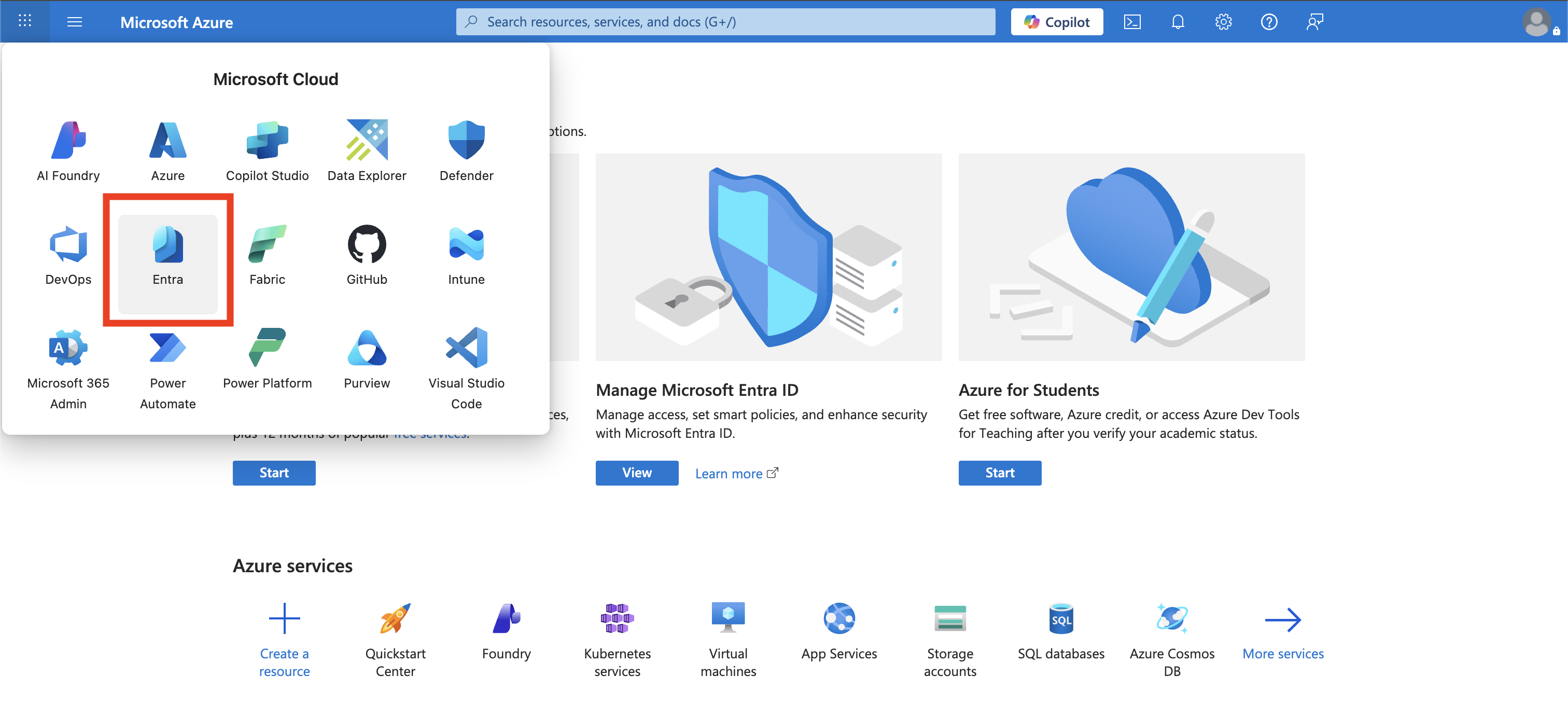
In the Azure portal, open the app launcher and select Entra.
-
Go to App registrations > New registration. Enter a name, choose the supported account types, add
https://jwt.msas a Web redirect URI, and select Register.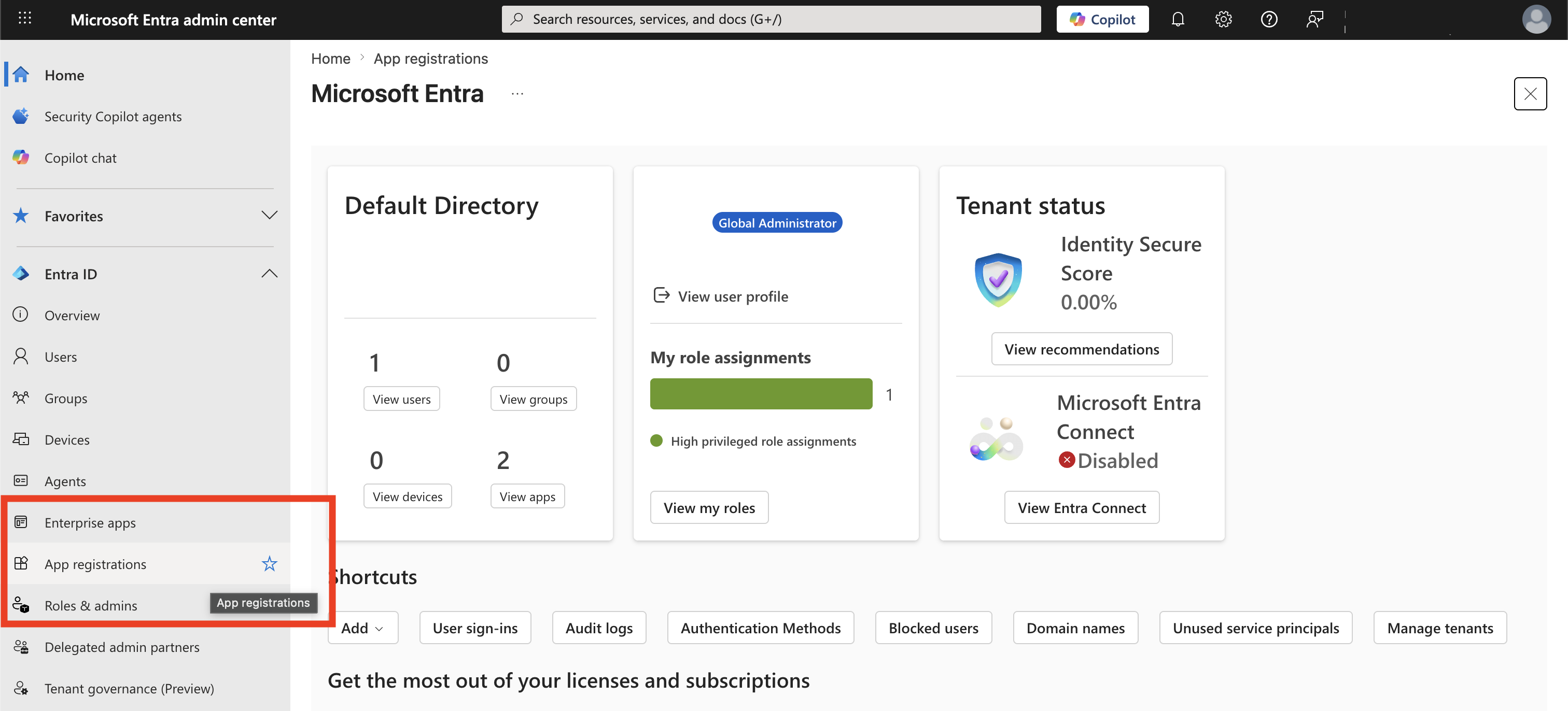
-
On the application's Overview page, note the Application (client) ID and the Directory (tenant) ID.
-
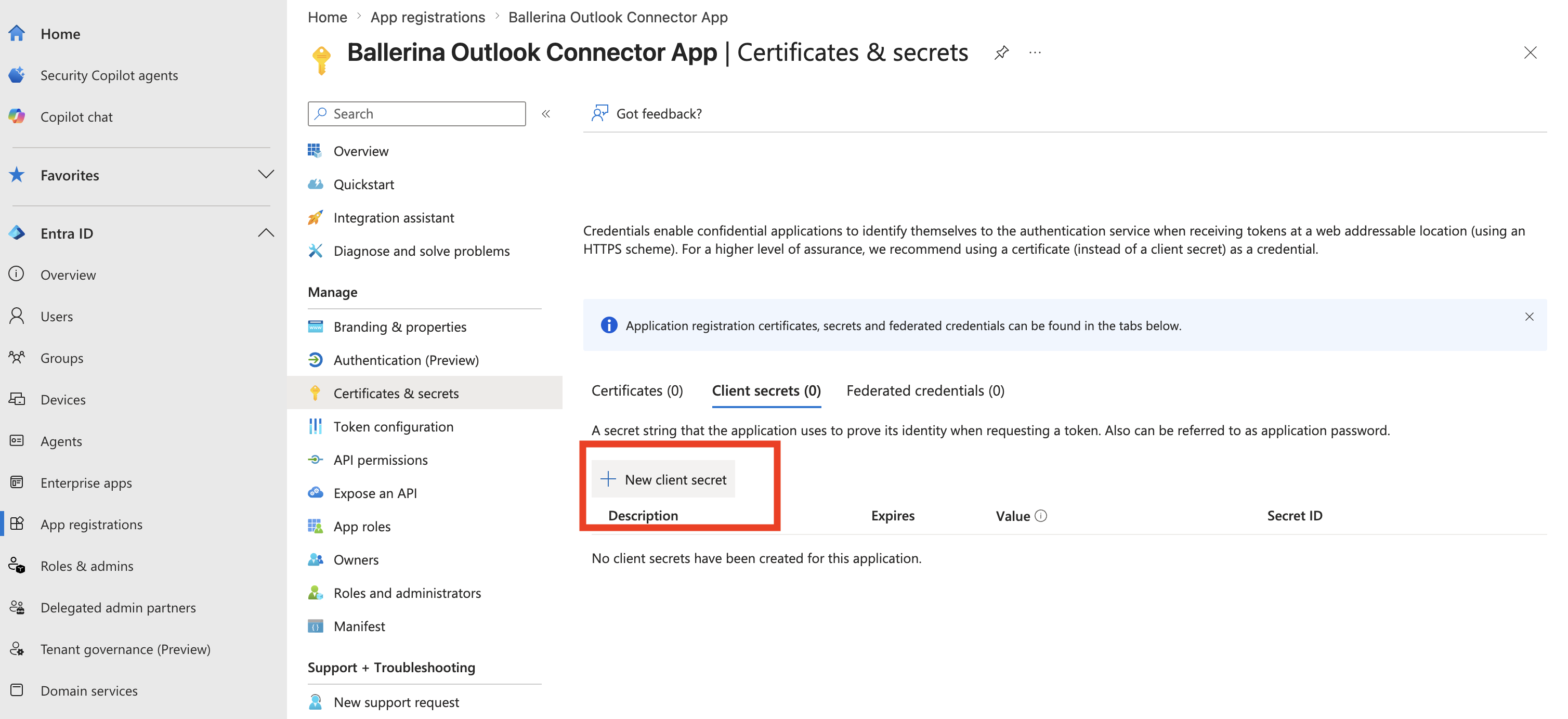
Go to Certificates & secrets > New client secret, add a secret, and copy its Value. The value is shown only once.
-
Go to API permissions > Add a permission > Azure Key Vault, select the delegated user_impersonation permission, and select Add permissions. Grant admin consent if your tenant requires it.
-
Open the following URL in a browser, with your tenant ID and client ID, and sign in with the user account that has the role from Step 3:
https://login.microsoftonline.com/<tenant-id>/oauth2/v2.0/authorize?client_id=<client-id>&response_type=code&redirect_uri=https%3A%2F%2Fjwt.ms&response_mode=query&scope=https%3A%2F%2Fvault.azure.net%2Fuser_impersonation%20offline_access -
Accept the consent prompt. The browser opens
https://jwt.ms/?code=<authorization-code>. Copy thecodevalue, which is single-use and expires within minutes. -
Exchange the code for a refresh token:
curl -X POST "https://login.microsoftonline.com/<tenant-id>/oauth2/v2.0/token" \ --data-urlencode "client_id=<client-id>" \ --data-urlencode "client_secret=<client-secret>" \ --data-urlencode "scope=https://vault.azure.net/user_impersonation offline_access" \ --data-urlencode "code=<authorization-code>" \ --data-urlencode "redirect_uri=https://jwt.ms" \ --data-urlencode "grant_type=authorization_code" -
Copy the
refresh_tokenvalue from the JSON response.
Quickstart
To use the Azure Key Vault connector in your Ballerina application, update the .bal file as follows:
Step 1: Import the module
Import the azure.keyvault module.
import ballerinax/azure.keyvault;
Step 2: Instantiate a new connector
Create a keyvault:Client with the vault URI and the credentials from step 4 of the setup guide.
configurable string keyVaultUrl = ?; configurable string tenantId = ?; configurable string clientId = ?; configurable string clientSecret = ?; configurable string refreshToken = ?; final keyvault:Client keyVault = check new ({ auth: { clientId, clientSecret, refreshToken, refreshUrl: string `https://login.microsoftonline.com/${tenantId}/oauth2/v2.0/token`, scopes: ["https://vault.azure.net/user_impersonation", "offline_access"] } }, keyVaultUrl);
Note: The connector's default token URL is the multi-tenant
https://login.microsoftonline.com/common/oauth2/v2.0/tokenendpoint. It works only for applications that accept accounts from any organization, so change it to your tenant's endpoint, asrefreshUrldoes above.
Provide the values in a Config.toml file:
keyVaultUrl = "https://<vault-name>.vault.azure.net" tenantId = "<tenant-id>" clientId = "<client-id>" clientSecret = "<client-secret>" refreshToken = "<refresh-token>"
Step 3: Invoke the connector operation
Store a secret in the vault. Every operation takes the Key Vault REST API version as apiVersion.
public function main() returns error? { keyvault:SecretBundle _ = check keyVault->setSecret("db-password", {value: "s3cr3t-value"}, apiVersion = "7.0"); }
Step 4: Run the Ballerina application
bal run
Examples
The Azure Key Vault connector provides practical examples illustrating usage in various scenarios. Explore these examples, covering the following use cases:
- Secret rotation workflow - Store a new secret version and disable the older ones.
- Sensitive payload encryption - Create an RSA key and encrypt and decrypt a payload with it.
- Document signing and verification - Sign a document digest with a vault key and verify the signature.
- Self-signed certificate provisioning - Issue a self-signed certificate and inspect its policy and versions.
Clients
azure.keyvault: Client
The key vault client performs cryptographic key operations and vault operations against the Key Vault service.
Constructor
Gets invoked to initialize the connector.
init (ConnectionConfig config, string serviceUrl)- config ConnectionConfig - The configurations to be used when initializing the
connector
- serviceUrl string - URL of the target service
createKey
function createKey(string keyName, KeyCreateParameters payload, map<string|string[]> headers, *CreateKeyQueries queries) returns KeyBundle|errorCreates a new key, stores it, then returns key parameters and attributes to the client.
Parameters
- keyName string - The name for the new key. The system will generate the version name for the new key
- payload KeyCreateParameters - The parameters to create a key
- queries *CreateKeyQueries - Queries to be sent with the request
importKey
function importKey(string keyName, KeyImportParameters payload, map<string|string[]> headers, *ImportKeyQueries queries) returns KeyBundle|errorImports an externally created key, stores it, and returns key parameters and attributes to the client.
Parameters
- keyName string - Name for the imported key
- payload KeyImportParameters - The parameters to import a key
- queries *ImportKeyQueries - Queries to be sent with the request
deleteKey
function deleteKey(string keyName, map<string|string[]> headers, *DeleteKeyQueries queries) returns DeletedKeyBundle|errorDeletes a key of any type from storage in Azure Key Vault.
Parameters
- keyName string - The name of the key to delete
- queries *DeleteKeyQueries - Queries to be sent with the request
Return Type
- DeletedKeyBundle|error - The public part of the deleted key and deletion information on when the key will be purged
getKey
function getKey(string keyName, string keyVersion, map<string|string[]> headers, *GetKeyQueries queries) returns KeyBundle|errorGets the public part of a stored key.
Parameters
- keyName string - The name of the key to get
- keyVersion string - Adding the version parameter retrieves a specific version of a key
- queries *GetKeyQueries - Queries to be sent with the request
updateKey
function updateKey(string keyName, string keyVersion, KeyUpdateParameters payload, map<string|string[]> headers, *UpdateKeyQueries queries) returns KeyBundle|errorThe update key operation changes specified attributes of a stored key and can be applied to any key type and key version stored in Azure Key Vault.
Parameters
- keyName string - The name of key to update
- keyVersion string - The version of the key to update
- payload KeyUpdateParameters - The parameters of the key to update
- queries *UpdateKeyQueries - Queries to be sent with the request
listKeyVersions
function listKeyVersions(string keyName, map<string|string[]> headers, *ListKeyVersionsQueries queries) returns KeyListResult|errorRetrieves a list of individual key versions with the same key name.
Parameters
- keyName string - The name of the key
- queries *ListKeyVersionsQueries - Queries to be sent with the request
Return Type
- KeyListResult|error - A response message containing a list of keys along with a link to the next page of keys
listKeys
function listKeys(map<string|string[]> headers, *ListKeysQueries queries) returns KeyListResult|errorList keys in the specified vault.
Parameters
- queries *ListKeysQueries - Queries to be sent with the request
Return Type
- KeyListResult|error - A response message containing a list of keys in the vault along with a link to the next page of keys
backupKey
function backupKey(string keyName, map<string|string[]> headers, *BackupKeyQueries queries) returns BackupKeyResult|errorRequests that a backup of the specified key be downloaded to the client.
Parameters
- keyName string - The name of the key
- queries *BackupKeyQueries - Queries to be sent with the request
Return Type
- BackupKeyResult|error - The backup blob containing the backed up key
restoreKey
function restoreKey(KeyRestoreParameters payload, map<string|string[]> headers, *RestoreKeyQueries queries) returns KeyBundle|errorRestores a backed up key to a vault.
Parameters
- payload KeyRestoreParameters - The parameters to restore the key
- queries *RestoreKeyQueries - Queries to be sent with the request
encrypt
function encrypt(string keyName, string keyVersion, KeyOperationsParameters payload, map<string|string[]> headers, *EncryptQueries queries) returns KeyOperationResult|errorEncrypts an arbitrary sequence of bytes using an encryption key that is stored in a key vault.
Parameters
- keyName string - The name of the key
- keyVersion string - The version of the key
- payload KeyOperationsParameters - The parameters for the encryption operation
- queries *EncryptQueries - Queries to be sent with the request
Return Type
- KeyOperationResult|error - The encryption result
decrypt
function decrypt(string keyName, string keyVersion, KeyOperationsParameters payload, map<string|string[]> headers, *DecryptQueries queries) returns KeyOperationResult|errorDecrypts a single block of encrypted data.
Parameters
- keyName string - The name of the key
- keyVersion string - The version of the key
- payload KeyOperationsParameters - The parameters for the decryption operation
- queries *DecryptQueries - Queries to be sent with the request
Return Type
- KeyOperationResult|error - The decryption result
sign
function sign(string keyName, string keyVersion, KeySignParameters payload, map<string|string[]> headers, *SignQueries queries) returns KeyOperationResult|errorCreates a signature from a digest using the specified key.
Parameters
- keyName string - The name of the key
- keyVersion string - The version of the key
- payload KeySignParameters - The parameters for the signing operation
- queries *SignQueries - Queries to be sent with the request
Return Type
- KeyOperationResult|error - The signature value
verify
function verify(string keyName, string keyVersion, KeyVerifyParameters payload, map<string|string[]> headers, *VerifyQueries queries) returns KeyVerifyResult|errorVerifies a signature using a specified key.
Parameters
- keyName string - The name of the key
- keyVersion string - The version of the key
- payload KeyVerifyParameters - The parameters for verify operations
- queries *VerifyQueries - Queries to be sent with the request
Return Type
- KeyVerifyResult|error - The verification result
wrapKey
function wrapKey(string keyName, string keyVersion, KeyOperationsParameters payload, map<string|string[]> headers, *WrapKeyQueries queries) returns KeyOperationResult|errorWraps a symmetric key using a specified key.
Parameters
- keyName string - The name of the key
- keyVersion string - The version of the key
- payload KeyOperationsParameters - The parameters for wrap operation
- queries *WrapKeyQueries - Queries to be sent with the request
Return Type
- KeyOperationResult|error - The wrapped symmetric key
unwrapKey
function unwrapKey(string keyName, string keyVersion, KeyOperationsParameters payload, map<string|string[]> headers, *UnwrapKeyQueries queries) returns KeyOperationResult|errorUnwraps a symmetric key using the specified key that was initially used for wrapping that key.
Parameters
- keyName string - The name of the key
- keyVersion string - The version of the key
- payload KeyOperationsParameters - The parameters for the key operation
- queries *UnwrapKeyQueries - Queries to be sent with the request
Return Type
- KeyOperationResult|error - The unwrapped symmetric key
listDeletedKeys
function listDeletedKeys(map<string|string[]> headers, *ListDeletedKeysQueries queries) returns DeletedKeyListResult|errorLists the deleted keys in the specified vault.
Parameters
- queries *ListDeletedKeysQueries - Queries to be sent with the request
Return Type
- DeletedKeyListResult|error - A response message containing a list of deleted keys in the vault along with a link to the next page of deleted keys
getDeletedKey
function getDeletedKey(string keyName, map<string|string[]> headers, *GetDeletedKeyQueries queries) returns DeletedKeyBundle|errorGets the public part of a deleted key.
Parameters
- keyName string - The name of the key
- queries *GetDeletedKeyQueries - Queries to be sent with the request
Return Type
- DeletedKeyBundle|error - A DeletedKeyBundle consisting of a WebKey plus its Attributes and deletion information
purgeDeletedKey
function purgeDeletedKey(string keyName, map<string|string[]> headers, *PurgeDeletedKeyQueries queries) returns error?Permanently deletes the specified key.
Parameters
- keyName string - The name of the key
- queries *PurgeDeletedKeyQueries - Queries to be sent with the request
Return Type
- error? - No content, signaling that the key was permanently purged
recoverDeletedKey
function recoverDeletedKey(string keyName, map<string|string[]> headers, *RecoverDeletedKeyQueries queries) returns KeyBundle|errorRecovers the deleted key to its latest version.
Parameters
- keyName string - The name of the deleted key
- queries *RecoverDeletedKeyQueries - Queries to be sent with the request
setSecret
function setSecret(string secretName, SecretSetParameters payload, map<string|string[]> headers, *SetSecretQueries queries) returns SecretBundle|errorSets a secret in a specified key vault.
Parameters
- secretName string - The name of the secret
- payload SecretSetParameters - The parameters for setting the secret
- queries *SetSecretQueries - Queries to be sent with the request
Return Type
- SecretBundle|error - A secret bundle containing the result of the set secret request
deleteSecret
function deleteSecret(string secretName, map<string|string[]> headers, *DeleteSecretQueries queries) returns DeletedSecretBundle|errorDeletes a secret from a specified key vault.
Parameters
- secretName string - The name of the secret
- queries *DeleteSecretQueries - Queries to be sent with the request
Return Type
- DeletedSecretBundle|error - The deleted secret and information on when the secret will be deleted, and how to recover the deleted secret
getSecret
function getSecret(string secretName, string secretVersion, map<string|string[]> headers, *GetSecretQueries queries) returns SecretBundle|errorGet a specified secret from a given key vault.
Parameters
- secretName string - The name of the secret
- secretVersion string - The version of the secret
- queries *GetSecretQueries - Queries to be sent with the request
Return Type
- SecretBundle|error - The retrieved secret
updateSecret
function updateSecret(string secretName, string secretVersion, SecretUpdateParameters payload, map<string|string[]> headers, *UpdateSecretQueries queries) returns SecretBundle|errorUpdates the attributes associated with a specified secret in a given key vault.
Parameters
- secretName string - The name of the secret
- secretVersion string - The version of the secret
- payload SecretUpdateParameters - The parameters for update secret operation
- queries *UpdateSecretQueries - Queries to be sent with the request
Return Type
- SecretBundle|error - The updated secret
listSecrets
function listSecrets(map<string|string[]> headers, *ListSecretsQueries queries) returns SecretListResult|errorList secrets in a specified key vault.
Parameters
- queries *ListSecretsQueries - Queries to be sent with the request
Return Type
- SecretListResult|error - A response message containing a list of secrets in the vault along with a link to the next page of secrets
listSecretVersions
function listSecretVersions(string secretName, map<string|string[]> headers, *ListSecretVersionsQueries queries) returns SecretListResult|errorList all versions of the specified secret.
Parameters
- secretName string - The name of the secret
- queries *ListSecretVersionsQueries - Queries to be sent with the request
Return Type
- SecretListResult|error - A response message containing a list of secrets along with a link to the next page of secrets
listDeletedSecrets
function listDeletedSecrets(map<string|string[]> headers, *ListDeletedSecretsQueries queries) returns DeletedSecretListResult|errorLists deleted secrets for the specified vault.
Parameters
- queries *ListDeletedSecretsQueries - Queries to be sent with the request
Return Type
- DeletedSecretListResult|error - A response message containing a list of deleted secrets in the vault, along with a link to the next page of deleted secrets
getDeletedSecret
function getDeletedSecret(string secretName, map<string|string[]> headers, *GetDeletedSecretQueries queries) returns DeletedSecretBundle|errorGets the specified deleted secret.
Parameters
- secretName string - The name of the secret
- queries *GetDeletedSecretQueries - Queries to be sent with the request
Return Type
- DeletedSecretBundle|error - A secret bundle of the secret and its attributes
purgeDeletedSecret
function purgeDeletedSecret(string secretName, map<string|string[]> headers, *PurgeDeletedSecretQueries queries) returns error?Permanently deletes the specified secret.
Parameters
- secretName string - The name of the secret
- queries *PurgeDeletedSecretQueries - Queries to be sent with the request
Return Type
- error? - No content signaling that the secret was purged forever
recoverDeletedSecret
function recoverDeletedSecret(string secretName, map<string|string[]> headers, *RecoverDeletedSecretQueries queries) returns SecretBundle|errorRecovers the deleted secret to the latest version.
Parameters
- secretName string - The name of the deleted secret
- queries *RecoverDeletedSecretQueries - Queries to be sent with the request
Return Type
- SecretBundle|error - A Secret bundle of the original secret and its attributes
backupSecret
function backupSecret(string secretName, map<string|string[]> headers, *BackupSecretQueries queries) returns BackupSecretResult|errorBacks up the specified secret.
Parameters
- secretName string - The name of the secret
- queries *BackupSecretQueries - Queries to be sent with the request
Return Type
- BackupSecretResult|error - The backup blob containing the backed up secret
restoreSecret
function restoreSecret(SecretRestoreParameters payload, map<string|string[]> headers, *RestoreSecretQueries queries) returns SecretBundle|errorRestores a backed up secret to a vault.
Parameters
- payload SecretRestoreParameters - The parameters to restore the secret
- queries *RestoreSecretQueries - Queries to be sent with the request
Return Type
- SecretBundle|error - Restored secret bundle in the vault
listCertificates
function listCertificates(map<string|string[]> headers, *ListCertificatesQueries queries) returns CertificateListResult|errorList certificates in a specified key vault
Parameters
- queries *ListCertificatesQueries - Queries to be sent with the request
Return Type
- CertificateListResult|error - A response message containing a list of certificates along with a link to the next page of certificates
deleteCertificate
function deleteCertificate(string certificateName, map<string|string[]> headers, *DeleteCertificateQueries queries) returns DeletedCertificateBundle|errorDeletes a certificate from a specified key vault.
Parameters
- certificateName string - The name of the certificate
- queries *DeleteCertificateQueries - Queries to be sent with the request
Return Type
- DeletedCertificateBundle|error - The deleted certificate
getCertificateContacts
function getCertificateContacts(map<string|string[]> headers, *GetCertificateContactsQueries queries) returns Contacts|errorLists the certificate contacts for a specified key vault.
Parameters
- queries *GetCertificateContactsQueries - Queries to be sent with the request
setCertificateContacts
function setCertificateContacts(Contacts payload, map<string|string[]> headers, *SetCertificateContactsQueries queries) returns Contacts|errorSets the certificate contacts for the specified key vault.
Parameters
- payload Contacts - The contacts for the key vault certificate
- queries *SetCertificateContactsQueries - Queries to be sent with the request
deleteCertificateContacts
function deleteCertificateContacts(map<string|string[]> headers, *DeleteCertificateContactsQueries queries) returns Contacts|errorDeletes the certificate contacts for a specified key vault.
Parameters
- queries *DeleteCertificateContactsQueries - Queries to be sent with the request
listCertificateIssuers
function listCertificateIssuers(map<string|string[]> headers, *ListCertificateIssuersQueries queries) returns CertificateIssuerListResult|errorList certificate issuers for a specified key vault.
Parameters
- queries *ListCertificateIssuersQueries - Queries to be sent with the request
Return Type
- CertificateIssuerListResult|error - A response message containing a list of certificate issuers in a key vault along with a link to the next page of certificate issuers
getCertificateIssuer
function getCertificateIssuer(string issuerName, map<string|string[]> headers, *GetCertificateIssuerQueries queries) returns IssuerBundle|errorLists the specified certificate issuer.
Parameters
- issuerName string - The name of the issuer
- queries *GetCertificateIssuerQueries - Queries to be sent with the request
Return Type
- IssuerBundle|error - The issuer for the key vault certificate
setCertificateIssuer
function setCertificateIssuer(string issuerName, CertificateIssuerSetParameters payload, map<string|string[]> headers, *SetCertificateIssuerQueries queries) returns IssuerBundle|errorSets the specified certificate issuer.
Parameters
- issuerName string - The name of the issuer
- payload CertificateIssuerSetParameters - Certificate issuer set parameter
- queries *SetCertificateIssuerQueries - Queries to be sent with the request
Return Type
- IssuerBundle|error - The issuer for the key vault certificate
deleteCertificateIssuer
function deleteCertificateIssuer(string issuerName, map<string|string[]> headers, *DeleteCertificateIssuerQueries queries) returns IssuerBundle|errorDeletes the specified certificate issuer.
Parameters
- issuerName string - The name of the issuer
- queries *DeleteCertificateIssuerQueries - Queries to be sent with the request
Return Type
- IssuerBundle|error - The issuer for the key vault certificate
updateCertificateIssuer
function updateCertificateIssuer(string issuerName, CertificateIssuerUpdateParameters payload, map<string|string[]> headers, *UpdateCertificateIssuerQueries queries) returns IssuerBundle|errorUpdates the specified certificate issuer.
Parameters
- issuerName string - The name of the issuer
- payload CertificateIssuerUpdateParameters - Certificate issuer update parameter
- queries *UpdateCertificateIssuerQueries - Queries to be sent with the request
Return Type
- IssuerBundle|error - The issuer for the key vault certificate
createCertificate
function createCertificate(string certificateName, CertificateCreateParameters payload, map<string|string[]> headers, *CreateCertificateQueries queries) returns CertificateOperation|errorCreates a new certificate.
Parameters
- certificateName string - The name of the certificate
- payload CertificateCreateParameters - The parameters to create a certificate
- queries *CreateCertificateQueries - Queries to be sent with the request
Return Type
- CertificateOperation|error - Created certificate bundle
importCertificate
function importCertificate(string certificateName, CertificateImportParameters payload, map<string|string[]> headers, *ImportCertificateQueries queries) returns CertificateBundle|errorImports a certificate into a specified key vault.
Parameters
- certificateName string - The name of the certificate
- payload CertificateImportParameters - The parameters to import the certificate
- queries *ImportCertificateQueries - Queries to be sent with the request
Return Type
- CertificateBundle|error - Imported certificate bundle to the vault
listCertificateVersions
function listCertificateVersions(string certificateName, map<string|string[]> headers, *ListCertificateVersionsQueries queries) returns CertificateListResult|errorList the versions of a certificate.
Parameters
- certificateName string - The name of the certificate
- queries *ListCertificateVersionsQueries - Queries to be sent with the request
Return Type
- CertificateListResult|error - A response message containing a list of certificates in the key vault along with a link to the next page of keys
getCertificatePolicy
function getCertificatePolicy(string certificateName, map<string|string[]> headers, *GetCertificatePolicyQueries queries) returns CertificatePolicy|errorLists the policy for a certificate.
Parameters
- certificateName string - The name of the certificate in a given key vault
- queries *GetCertificatePolicyQueries - Queries to be sent with the request
Return Type
- CertificatePolicy|error - The certificate policy
updateCertificatePolicy
function updateCertificatePolicy(string certificateName, CertificatePolicy payload, map<string|string[]> headers, *UpdateCertificatePolicyQueries queries) returns CertificatePolicy|errorUpdates the policy for a certificate.
Parameters
- certificateName string - The name of the certificate in the given vault
- payload CertificatePolicy - The policy for the certificate
- queries *UpdateCertificatePolicyQueries - Queries to be sent with the request
Return Type
- CertificatePolicy|error - The certificate policy
getCertificate
function getCertificate(string certificateName, string certificateVersion, map<string|string[]> headers, *GetCertificateQueries queries) returns CertificateBundle|errorGets information about a certificate.
Parameters
- certificateName string - The name of the certificate in the given vault
- certificateVersion string - The version of the certificate
- queries *GetCertificateQueries - Queries to be sent with the request
Return Type
- CertificateBundle|error - The retrieved certificate
updateCertificate
function updateCertificate(string certificateName, string certificateVersion, CertificateUpdateParameters payload, map<string|string[]> headers, *UpdateCertificateQueries queries) returns CertificateBundle|errorUpdates the specified attributes associated with the given certificate.
Parameters
- certificateName string - The name of the certificate in the given key vault
- certificateVersion string - The version of the certificate
- payload CertificateUpdateParameters - The parameters for certificate update
- queries *UpdateCertificateQueries - Queries to be sent with the request
Return Type
- CertificateBundle|error - The updated certificate
getCertificateOperation
function getCertificateOperation(string certificateName, map<string|string[]> headers, *GetCertificateOperationQueries queries) returns CertificateOperation|errorGets the creation operation of a certificate.
Parameters
- certificateName string - The name of the certificate
- queries *GetCertificateOperationQueries - Queries to be sent with the request
Return Type
- CertificateOperation|error - The certificate operation response
deleteCertificateOperation
function deleteCertificateOperation(string certificateName, map<string|string[]> headers, *DeleteCertificateOperationQueries queries) returns CertificateOperation|errorDeletes the creation operation for a specific certificate.
Parameters
- certificateName string - The name of the certificate
- queries *DeleteCertificateOperationQueries - Queries to be sent with the request
Return Type
- CertificateOperation|error - A message containing the certificate operation response
updateCertificateOperation
function updateCertificateOperation(string certificateName, CertificateOperationUpdateParameter payload, map<string|string[]> headers, *UpdateCertificateOperationQueries queries) returns CertificateOperation|errorUpdates a certificate operation.
Parameters
- certificateName string - The name of the certificate
- payload CertificateOperationUpdateParameter - The certificate operation response
- queries *UpdateCertificateOperationQueries - Queries to be sent with the request
Return Type
- CertificateOperation|error - A message containing the certificate operation response
mergeCertificate
function mergeCertificate(string certificateName, CertificateMergeParameters payload, map<string|string[]> headers, *MergeCertificateQueries queries) returns CertificateBundle|errorMerges a certificate or a certificate chain with a key pair existing on the server.
Parameters
- certificateName string - The name of the certificate
- payload CertificateMergeParameters - The parameters to merge certificate
- queries *MergeCertificateQueries - Queries to be sent with the request
Return Type
- CertificateBundle|error - Merged certificate bundle to the vault
backupCertificate
function backupCertificate(string certificateName, map<string|string[]> headers, *BackupCertificateQueries queries) returns BackupCertificateResult|errorBacks up the specified certificate.
Parameters
- certificateName string - The name of the certificate
- queries *BackupCertificateQueries - Queries to be sent with the request
Return Type
- BackupCertificateResult|error - The backup blob containing the backed up certificate
restoreCertificate
function restoreCertificate(CertificateRestoreParameters payload, map<string|string[]> headers, *RestoreCertificateQueries queries) returns CertificateBundle|errorRestores a backed up certificate to a vault.
Parameters
- payload CertificateRestoreParameters - The parameters to restore the certificate
- queries *RestoreCertificateQueries - Queries to be sent with the request
Return Type
- CertificateBundle|error - Restored certificate bundle in the vault
listDeletedCertificates
function listDeletedCertificates(map<string|string[]> headers, *ListDeletedCertificatesQueries queries) returns DeletedCertificateListResult|errorLists the deleted certificates in the specified vault currently available for recovery.
Parameters
- queries *ListDeletedCertificatesQueries - Queries to be sent with the request
Return Type
- DeletedCertificateListResult|error - A response message containing a list of deleted certificates in the vault along with a link to the next page of deleted certificates
getDeletedCertificate
function getDeletedCertificate(string certificateName, map<string|string[]> headers, *GetDeletedCertificateQueries queries) returns DeletedCertificateBundle|errorRetrieves information about the specified deleted certificate.
Parameters
- certificateName string - The name of the certificate
- queries *GetDeletedCertificateQueries - Queries to be sent with the request
Return Type
- DeletedCertificateBundle|error - A Certificate bundle of the certificate and its attributes
purgeDeletedCertificate
function purgeDeletedCertificate(string certificateName, map<string|string[]> headers, *PurgeDeletedCertificateQueries queries) returns error?Permanently deletes the specified deleted certificate.
Parameters
- certificateName string - The name of the certificate
- queries *PurgeDeletedCertificateQueries - Queries to be sent with the request
Return Type
- error? - No content signaling that the certificate was purged forever
recoverDeletedCertificate
function recoverDeletedCertificate(string certificateName, map<string|string[]> headers, *RecoverDeletedCertificateQueries queries) returns CertificateBundle|errorRecovers the deleted certificate back to its current version under /certificates.
Parameters
- certificateName string - The name of the deleted certificate
- queries *RecoverDeletedCertificateQueries - Queries to be sent with the request
Return Type
- CertificateBundle|error - A Certificate bundle of the original certificate and its attributes
listStorageAccounts
function listStorageAccounts(map<string|string[]> headers, *ListStorageAccountsQueries queries) returns StorageListResult|errorList storage accounts managed by the specified key vault.
Parameters
- queries *ListStorageAccountsQueries - Queries to be sent with the request
Return Type
- StorageListResult|error - A response message containing a list of storage accounts along with a link to the next page of storage accounts
listDeletedStorageAccounts
function listDeletedStorageAccounts(map<string|string[]> headers, *ListDeletedStorageAccountsQueries queries) returns DeletedStorageListResult|errorLists deleted storage accounts for the specified vault.
Parameters
- queries *ListDeletedStorageAccountsQueries - Queries to be sent with the request
Return Type
- DeletedStorageListResult|error - A response message containing a list of deleted storage accounts in the vault, along with a link to the next page of deleted storage accounts
getDeletedStorageAccount
function getDeletedStorageAccount(string storageAccountName, map<string|string[]> headers, *GetDeletedStorageAccountQueries queries) returns DeletedStorageBundle|errorGets the specified deleted storage account.
Parameters
- storageAccountName string - The name of the storage account
- queries *GetDeletedStorageAccountQueries - Queries to be sent with the request
Return Type
- DeletedStorageBundle|error - The deleted storage account and information on when it will be purged, and how to recover the deleted storage account
purgeDeletedStorageAccount
function purgeDeletedStorageAccount(string storageAccountName, map<string|string[]> headers, *PurgeDeletedStorageAccountQueries queries) returns error?Permanently deletes the specified storage account.
Parameters
- storageAccountName string - The name of the storage account
- queries *PurgeDeletedStorageAccountQueries - Queries to be sent with the request
Return Type
- error? - No content signaling that the storage account was purged forever
recoverDeletedStorageAccount
function recoverDeletedStorageAccount(string storageAccountName, map<string|string[]> headers, *RecoverDeletedStorageAccountQueries queries) returns StorageBundle|errorRecovers the deleted storage account.
Parameters
- storageAccountName string - The name of the storage account
- queries *RecoverDeletedStorageAccountQueries - Queries to be sent with the request
Return Type
- StorageBundle|error - A storage bundle of the original storage account and its attributes
backupStorageAccount
function backupStorageAccount(string storageAccountName, map<string|string[]> headers, *BackupStorageAccountQueries queries) returns BackupStorageResult|errorBacks up the specified storage account.
Parameters
- storageAccountName string - The name of the storage account
- queries *BackupStorageAccountQueries - Queries to be sent with the request
Return Type
- BackupStorageResult|error - The backup blob containing the backed up storage account
restoreStorageAccount
function restoreStorageAccount(StorageRestoreParameters payload, map<string|string[]> headers, *RestoreStorageAccountQueries queries) returns StorageBundle|errorRestores a backed up storage account to a vault.
Parameters
- payload StorageRestoreParameters - The parameters to restore the storage account
- queries *RestoreStorageAccountQueries - Queries to be sent with the request
Return Type
- StorageBundle|error - Restored storage account bundle in the vault
getStorageAccount
function getStorageAccount(string storageAccountName, map<string|string[]> headers, *GetStorageAccountQueries queries) returns StorageBundle|errorGets information about a specified storage account.
Parameters
- storageAccountName string - The name of the storage account
- queries *GetStorageAccountQueries - Queries to be sent with the request
Return Type
- StorageBundle|error - The retrieved storage account
setStorageAccount
function setStorageAccount(string storageAccountName, StorageAccountCreateParameters payload, map<string|string[]> headers, *SetStorageAccountQueries queries) returns StorageBundle|errorCreates or updates a new storage account.
Parameters
- storageAccountName string - The name of the storage account
- payload StorageAccountCreateParameters - The parameters to create a storage account
- queries *SetStorageAccountQueries - Queries to be sent with the request
Return Type
- StorageBundle|error - The created storage account
deleteStorageAccount
function deleteStorageAccount(string storageAccountName, map<string|string[]> headers, *DeleteStorageAccountQueries queries) returns DeletedStorageBundle|errorDeletes a storage account.
Parameters
- storageAccountName string - The name of the storage account
- queries *DeleteStorageAccountQueries - Queries to be sent with the request
Return Type
- DeletedStorageBundle|error - The deleted storage account and information on when the storage account will be deleted, and how to recover the deleted storage account
updateStorageAccount
function updateStorageAccount(string storageAccountName, StorageAccountUpdateParameters payload, map<string|string[]> headers, *UpdateStorageAccountQueries queries) returns StorageBundle|errorUpdates the specified attributes associated with the given storage account.
Parameters
- storageAccountName string - The name of the storage account
- payload StorageAccountUpdateParameters - The parameters to update a storage account
- queries *UpdateStorageAccountQueries - Queries to be sent with the request
Return Type
- StorageBundle|error - The updated storage account
regenerateStorageAccountKey
function regenerateStorageAccountKey(string storageAccountName, StorageAccountRegenerateKeyParameters payload, map<string|string[]> headers, *RegenerateStorageAccountKeyQueries queries) returns StorageBundle|errorRegenerates the specified key value for the given storage account.
Parameters
- storageAccountName string - The name of the storage account
- payload StorageAccountRegenerateKeyParameters - The parameters to regenerate storage account key
- queries *RegenerateStorageAccountKeyQueries - Queries to be sent with the request
Return Type
- StorageBundle|error - The updated storage account
listSasDefinitions
function listSasDefinitions(string storageAccountName, map<string|string[]> headers, *ListSasDefinitionsQueries queries) returns SasDefinitionListResult|errorList storage SAS definitions for the given storage account.
Parameters
- storageAccountName string - The name of the storage account
- queries *ListSasDefinitionsQueries - Queries to be sent with the request
Return Type
- SasDefinitionListResult|error - A response message containing a list of SAS definitions along with a link to the next page of SAS definitions
listDeletedSasDefinitions
function listDeletedSasDefinitions(string storageAccountName, map<string|string[]> headers, *ListDeletedSasDefinitionsQueries queries) returns DeletedSasDefinitionListResult|errorLists deleted SAS definitions for the specified vault and storage account.
Parameters
- storageAccountName string - The name of the storage account
- queries *ListDeletedSasDefinitionsQueries - Queries to be sent with the request
Return Type
- DeletedSasDefinitionListResult|error - A response message containing a list of deleted SAS definitions for the storage account, along with a link to the next page of deleted SAS definitions
getDeletedSasDefinition
function getDeletedSasDefinition(string storageAccountName, string sasDefinitionName, map<string|string[]> headers, *GetDeletedSasDefinitionQueries queries) returns DeletedSasDefinitionBundle|errorGets the specified deleted sas definition.
Parameters
- storageAccountName string - The name of the storage account
- sasDefinitionName string - The name of the SAS definition
- queries *GetDeletedSasDefinitionQueries - Queries to be sent with the request
Return Type
- DeletedSasDefinitionBundle|error - The deleted SAS definition and information on when the it will be purged, and how to recover the deleted SAS definition
recoverDeletedSasDefinition
function recoverDeletedSasDefinition(string storageAccountName, string sasDefinitionName, map<string|string[]> headers, *RecoverDeletedSasDefinitionQueries queries) returns SasDefinitionBundle|errorRecovers the deleted SAS definition.
Parameters
- storageAccountName string - The name of the storage account
- sasDefinitionName string - The name of the SAS definition
- queries *RecoverDeletedSasDefinitionQueries - Queries to be sent with the request
Return Type
- SasDefinitionBundle|error - A SAS definition bundle of the original SAS definition and its attributes
getSasDefinition
function getSasDefinition(string storageAccountName, string sasDefinitionName, map<string|string[]> headers, *GetSasDefinitionQueries queries) returns SasDefinitionBundle|errorGets information about a SAS definition for the specified storage account.
Parameters
- storageAccountName string - The name of the storage account
- sasDefinitionName string - The name of the SAS definition
- queries *GetSasDefinitionQueries - Queries to be sent with the request
Return Type
- SasDefinitionBundle|error - The retrieved SAS definition
setSasDefinition
function setSasDefinition(string storageAccountName, string sasDefinitionName, SasDefinitionCreateParameters payload, map<string|string[]> headers, *SetSasDefinitionQueries queries) returns SasDefinitionBundle|errorCreates or updates a new SAS definition for the specified storage account.
Parameters
- storageAccountName string - The name of the storage account
- sasDefinitionName string - The name of the SAS definition
- payload SasDefinitionCreateParameters - The parameters to create a SAS definition
- queries *SetSasDefinitionQueries - Queries to be sent with the request
Return Type
- SasDefinitionBundle|error - The created SAS definition
deleteSasDefinition
function deleteSasDefinition(string storageAccountName, string sasDefinitionName, map<string|string[]> headers, *DeleteSasDefinitionQueries queries) returns DeletedSasDefinitionBundle|errorDeletes a SAS definition from a specified storage account.
Parameters
- storageAccountName string - The name of the storage account
- sasDefinitionName string - The name of the SAS definition
- queries *DeleteSasDefinitionQueries - Queries to be sent with the request
Return Type
- DeletedSasDefinitionBundle|error - The deleted SAS definition and information on when the SAS definition will be deleted, and how to recover the deleted SAS definition
updateSasDefinition
function updateSasDefinition(string storageAccountName, string sasDefinitionName, SasDefinitionUpdateParameters payload, map<string|string[]> headers, *UpdateSasDefinitionQueries queries) returns SasDefinitionBundle|errorUpdates the specified attributes associated with the given SAS definition.
Parameters
- storageAccountName string - The name of the storage account
- sasDefinitionName string - The name of the SAS definition
- payload SasDefinitionUpdateParameters - The parameters to update a SAS definition
- queries *UpdateSasDefinitionQueries - Queries to be sent with the request
Return Type
- SasDefinitionBundle|error - The updated SAS definition
Records
azure.keyvault: Action
The action that will be executed
Fields
- actionType? "EmailContacts"|"AutoRenew" - The type of the action
azure.keyvault: AdministratorDetails
Details of the organization administrator of the certificate issuer
Fields
- phone? string - Phone number
- lastName? string - Last name of the administrator
- firstName? string - First name
- email? string - Email address
azure.keyvault: Attributes
The object attributes managed by the KeyVault service
Fields
- nbf? int - Not before date in UTC
- created? int - Creation time in UTC
- exp? int - Expiry date in UTC
- updated? int - Last updated time in UTC
- enabled? boolean - Determines whether the object is enabled
azure.keyvault: BackupCertificateQueries
Represents the Queries record for the operation: backupCertificate
Fields
- apiVersion string - Client API version
azure.keyvault: BackupCertificateResult
The backup certificate result, containing the backup blob
Fields
- value? string - The backup blob containing the backed up certificate
azure.keyvault: BackupKeyQueries
Represents the Queries record for the operation: backupKey
Fields
- apiVersion string - Client API version
azure.keyvault: BackupKeyResult
The backup key result, containing the backup blob
Fields
- value? string - The backup blob containing the backed up key
azure.keyvault: BackupSecretQueries
Represents the Queries record for the operation: backupSecret
Fields
- apiVersion string - Client API version
azure.keyvault: BackupSecretResult
The backup secret result, containing the backup blob
Fields
- value? string - The backup blob containing the backed up secret
azure.keyvault: BackupStorageAccountQueries
Represents the Queries record for the operation: backupStorageAccount
Fields
- apiVersion string - Client API version
azure.keyvault: BackupStorageResult
The backup storage result, containing the backup blob
Fields
- value? string - The backup blob containing the backed up storage account
azure.keyvault: CertificateAttributes
The certificate management attributes
Fields
- Fields Included from *Attributes
- recoveryLevel? "Purgeable"|"Recoverable+Purgeable"|"Recoverable"|"Recoverable+ProtectedSubscription" - Reflects the deletion recovery level currently in effect for certificates in the current vault. If it contains 'Purgeable', the certificate can be permanently deleted by a privileged user; otherwise, only the system can purge the certificate, at the end of the retention interval
azure.keyvault: CertificateBundle
A certificate bundle consists of a certificate (X509) plus its attributes
Fields
- cer? string - CER contents of x509 certificate
- x5t? string - Thumbprint of the certificate
- kid? string - The key id
- attributes? CertificateAttributes - The certificate attributes
- id? string - The certificate id
- contentType? string - The content type of the secret
- sid? string - The secret id
- policy? CertificatePolicy - The management policy
azure.keyvault: CertificateCreateParameters
The certificate create parameters
Fields
- attributes? CertificateAttributes - The attributes of the certificate (optional)
- policy? CertificatePolicy - The management policy for the certificate
azure.keyvault: CertificateImportParameters
The certificate import parameters
Fields
- attributes? CertificateAttributes - The attributes of the certificate (optional)
- pwd? string - If the private key in base64EncodedCertificate is encrypted, the password used for encryption
- value string - Base64 encoded representation of the certificate object to import. This certificate needs to contain the private key
- policy? CertificatePolicy - The management policy for the certificate
azure.keyvault: CertificateIssuerItem
The certificate issuer item containing certificate issuer metadata
Fields
- provider? string - The issuer provider
- id? string - Certificate Identifier
azure.keyvault: CertificateIssuerListResult
The certificate issuer list result
Fields
- value? CertificateIssuerItem[] - A response message containing a list of certificate issuers in the key vault along with a link to the next page of certificate issuers
- nextLink? string - The URL to get the next set of certificate issuers
azure.keyvault: CertificateIssuerSetParameters
The certificate issuer set parameters
Fields
- provider string - The issuer provider
- credentials? IssuerCredentials - The credentials to be used for the issuer
- orgDetails? OrganizationDetails - Details of the organization as provided to the issuer
- attributes? IssuerAttributes - Attributes of the issuer object
azure.keyvault: CertificateIssuerUpdateParameters
The certificate issuer update parameters
Fields
- provider? string - The issuer provider
- credentials? IssuerCredentials - The credentials to be used for the issuer
- orgDetails? OrganizationDetails - Details of the organization as provided to the issuer
- attributes? IssuerAttributes - Attributes of the issuer object
azure.keyvault: CertificateItem
The certificate item containing certificate metadata
Fields
- x5t? string - Thumbprint of the certificate
- attributes? CertificateAttributes - The certificate management attributes
- id? string - Certificate identifier
azure.keyvault: CertificateListResult
The certificate list result
Fields
- value? CertificateItem[] - A response message containing a list of certificates in the key vault along with a link to the next page of certificates
- nextLink? string - The URL to get the next set of certificates
azure.keyvault: CertificateMergeParameters
The certificate merge parameters
Fields
- x5c CertificateMergeParametersX5cItemsString[] - The certificate or the certificate chain to merge
- attributes? CertificateAttributes - The attributes of the certificate (optional)
azure.keyvault: CertificateOperation
A certificate operation is returned in case of asynchronous requests
Fields
- csr? string - The certificate signing request (CSR) that is being used in the certificate operation
- cancellationRequested? boolean - Indicates if cancellation was requested on the certificate operation
- id? string - The certificate id
- 'error? Error - Error encountered, if any, during the certificate operation
- statusDetails? string - The status details of the certificate operation
- requestId? string - Identifier for the certificate operation
- issuer? IssuerParameters - Parameters for the issuer of the X509 component of a certificate
- status? string - Status of the certificate operation
- target? string - Location which contains the result of the certificate operation
azure.keyvault: CertificateOperationUpdateParameter
The certificate operation update parameters
Fields
- cancellationRequested boolean - Indicates if cancellation was requested on the certificate operation
azure.keyvault: CertificatePolicy
Management policy for a certificate
Fields
- x509Props? X509CertificateProperties - Properties of the X509 component of a certificate
- attributes? CertificateAttributes - The certificate attributes
- id? string - The certificate id
- secretProps? SecretProperties - Properties of the secret backing a certificate
- lifetimeActions? LifetimeAction[] - Actions that will be performed by Key Vault over the lifetime of a certificate
- issuer? IssuerParameters - Parameters for the issuer of the X509 component of a certificate
- keyProps? KeyProperties - Properties of the key backing a certificate
azure.keyvault: CertificateRestoreParameters
The certificate restore parameters
Fields
- value string - The backup blob associated with a certificate bundle
azure.keyvault: CertificateUpdateParameters
The certificate update parameters
Fields
- attributes? CertificateAttributes - The attributes of the certificate (optional)
- policy? CertificatePolicy - The management policy for the certificate
azure.keyvault: ConnectionConfig
Provides a set of configurations for controlling the behaviours when communicating with a remote HTTP endpoint.
Fields
- auth OAuth2ClientCredentialsGrantConfig|BearerTokenConfig|OAuth2RefreshTokenGrantConfig - Configurations related to client authentication
- httpVersion HttpVersion(default http:HTTP_2_0) - The HTTP version understood by the client
- http1Settings ClientHttp1Settings(default {}) - Configurations related to HTTP/1.x protocol
- http2Settings ClientHttp2Settings(default {}) - Configurations related to HTTP/2 protocol
- timeout decimal(default 30) - The maximum time to wait (in seconds) for a response before closing the connection
- forwarded string(default "disable") - The choice of setting
forwarded/x-forwardedheader
- followRedirects? FollowRedirects - Configurations associated with Redirection
- poolConfig? PoolConfiguration - Configurations associated with request pooling
- cache CacheConfig(default {}) - HTTP caching related configurations
- compression Compression(default http:COMPRESSION_AUTO) - Specifies the way of handling compression (
accept-encoding) header
- circuitBreaker? CircuitBreakerConfig - Configurations associated with the behaviour of the Circuit Breaker
- retryConfig? RetryConfig - Configurations associated with retrying
- responseLimits ResponseLimitConfigs(default {}) - Configurations associated with inbound response size limits
- secureSocket? ClientSecureSocket - SSL/TLS-related options
- proxy? ProxyConfig - Proxy server related options
- socketConfig ClientSocketConfig(default {}) - Provides settings related to client socket configuration
- validation boolean(default true) - Enables the inbound payload validation functionality which provided by the constraint package. Enabled by default
- laxDataBinding boolean(default true) - Enables relaxed data binding on the client side. When enabled,
nilvalues are treated as optional, and absent fields are handled asnilabletypes. Enabled by default.
azure.keyvault: Contact
The contact information for the vault certificates
Fields
- phone? string - Phone number
- name? string - Name of the contact
- email? string - Email address
azure.keyvault: Contacts
The contacts for the vault certificates
Fields
- id? string - Identifier for the contacts collection
- contacts? Contact[] - The contact list for the vault certificates
azure.keyvault: CreateCertificateQueries
Represents the Queries record for the operation: createCertificate
Fields
- apiVersion string - Client API version
azure.keyvault: CreateKeyQueries
Represents the Queries record for the operation: createKey
Fields
- apiVersion string - Client API version
azure.keyvault: DecryptQueries
Represents the Queries record for the operation: decrypt
Fields
- apiVersion string - Client API version
azure.keyvault: DeleteCertificateContactsQueries
Represents the Queries record for the operation: deleteCertificateContacts
Fields
- apiVersion string - Client API version
azure.keyvault: DeleteCertificateIssuerQueries
Represents the Queries record for the operation: deleteCertificateIssuer
Fields
- apiVersion string - Client API version
azure.keyvault: DeleteCertificateOperationQueries
Represents the Queries record for the operation: deleteCertificateOperation
Fields
- apiVersion string - Client API version
azure.keyvault: DeleteCertificateQueries
Represents the Queries record for the operation: deleteCertificate
Fields
- apiVersion string - Client API version
azure.keyvault: DeletedCertificateBundle
A Deleted Certificate consisting of its previous id, attributes and its tags, as well as information on when it will be purged
Fields
- Fields Included from *CertificateBundle
- cer string
- x5t string
- kid string
- attributes CertificateAttributes
- id string
- contentType string
- sid string
- policy CertificatePolicy
- tags record { string... }
- anydata...
- deletedDate? int - The time when the certificate was deleted, in UTC
- recoveryId? string - The url of the recovery object, used to identify and recover the deleted certificate
- scheduledPurgeDate? int - The time when the certificate is scheduled to be purged, in UTC
azure.keyvault: DeletedCertificateItem
The deleted certificate item containing metadata about the deleted certificate
Fields
- Fields Included from *CertificateItem
- x5t string
- attributes CertificateAttributes
- id string
- tags record { string... }
- anydata...
- deletedDate? int - The time when the certificate was deleted, in UTC
- recoveryId? string - The url of the recovery object, used to identify and recover the deleted certificate
- scheduledPurgeDate? int - The time when the certificate is scheduled to be purged, in UTC
azure.keyvault: DeletedCertificateListResult
A list of certificates that have been deleted in this vault
Fields
- value? DeletedCertificateItem[] - A response message containing a list of deleted certificates in the vault along with a link to the next page of deleted certificates
- nextLink? string - The URL to get the next set of deleted certificates
azure.keyvault: DeletedKeyBundle
A DeletedKeyBundle consisting of a WebKey plus its Attributes and deletion info
Fields
- Fields Included from *KeyBundle
- managed boolean
- attributes KeyAttributes
- key JsonWebKey
- tags record { string... }
- anydata...
- deletedDate? int - The time when the key was deleted, in UTC
- recoveryId? string - The url of the recovery object, used to identify and recover the deleted key
- scheduledPurgeDate? int - The time when the key is scheduled to be purged, in UTC
azure.keyvault: DeletedKeyItem
The deleted key item containing the deleted key metadata and information about deletion
Fields
- Fields Included from *KeyItem
- managed boolean
- kid string
- attributes KeyAttributes
- tags record { string... }
- anydata...
- deletedDate? int - The time when the key was deleted, in UTC
- recoveryId? string - The url of the recovery object, used to identify and recover the deleted key
- scheduledPurgeDate? int - The time when the key is scheduled to be purged, in UTC
azure.keyvault: DeletedKeyListResult
A list of keys that have been deleted in this vault
Fields
- value? DeletedKeyItem[] - A response message containing a list of deleted keys in the vault along with a link to the next page of deleted keys
- nextLink? string - The URL to get the next set of deleted keys
azure.keyvault: DeletedSasDefinitionBundle
A deleted SAS definition bundle consisting of its previous id, attributes and its tags, as well as information on when it will be purged
Fields
- Fields Included from *SasDefinitionBundle
- deletedDate? int - The time when the SAS definition was deleted, in UTC
- recoveryId? string - The url of the recovery object, used to identify and recover the deleted SAS definition
- scheduledPurgeDate? int - The time when the SAS definition is scheduled to be purged, in UTC
azure.keyvault: DeletedSasDefinitionItem
The deleted SAS definition item containing metadata about the deleted SAS definition
Fields
- Fields Included from *SasDefinitionItem
- attributes SasDefinitionAttributes
- id string
- sid string
- tags record { string... }
- anydata...
- deletedDate? int - The time when the SAS definition was deleted, in UTC
- recoveryId? string - The url of the recovery object, used to identify and recover the deleted SAS definition
- scheduledPurgeDate? int - The time when the SAS definition is scheduled to be purged, in UTC
azure.keyvault: DeletedSasDefinitionListResult
The deleted SAS definition list result
Fields
- value? DeletedSasDefinitionItem[] - A response message containing a list of the deleted SAS definitions in the vault along with a link to the next page of deleted sas definitions
- nextLink? string - The URL to get the next set of deleted SAS definitions
azure.keyvault: DeletedSecretBundle
A Deleted Secret consisting of its previous id, attributes and its tags, as well as information on when it will be purged
Fields
- Fields Included from *SecretBundle
- deletedDate? int - The time when the secret was deleted, in UTC
- recoveryId? string - The url of the recovery object, used to identify and recover the deleted secret
- scheduledPurgeDate? int - The time when the secret is scheduled to be purged, in UTC
azure.keyvault: DeletedSecretItem
The deleted secret item containing metadata about the deleted secret
Fields
- Fields Included from *SecretItem
- managed boolean
- attributes SecretAttributes
- id string
- contentType string
- tags record { string... }
- anydata...
- deletedDate? int - The time when the secret was deleted, in UTC
- recoveryId? string - The url of the recovery object, used to identify and recover the deleted secret
- scheduledPurgeDate? int - The time when the secret is scheduled to be purged, in UTC
azure.keyvault: DeletedSecretListResult
The deleted secret list result
Fields
- value? DeletedSecretItem[] - A response message containing a list of the deleted secrets in the vault along with a link to the next page of deleted secrets
- nextLink? string - The URL to get the next set of deleted secrets
azure.keyvault: DeletedStorageAccountItem
The deleted storage account item containing metadata about the deleted storage account
Fields
- Fields Included from *StorageAccountItem
- resourceId string
- attributes StorageAccountAttributes
- id string
- tags record { string... }
- anydata...
- deletedDate? int - The time when the storage account was deleted, in UTC
- recoveryId? string - The url of the recovery object, used to identify and recover the deleted storage account
- scheduledPurgeDate? int - The time when the storage account is scheduled to be purged, in UTC
azure.keyvault: DeletedStorageBundle
A deleted storage account bundle consisting of its previous id, attributes and its tags, as well as information on when it will be purged
Fields
- Fields Included from *StorageBundle
- deletedDate? int - The time when the storage account was deleted, in UTC
- recoveryId? string - The url of the recovery object, used to identify and recover the deleted storage account
- scheduledPurgeDate? int - The time when the storage account is scheduled to be purged, in UTC
azure.keyvault: DeletedStorageListResult
The deleted storage account list result
Fields
- value? DeletedStorageAccountItem[] - A response message containing a list of the deleted storage accounts in the vault along with a link to the next page of deleted storage accounts
- nextLink? string - The URL to get the next set of deleted storage accounts
azure.keyvault: DeleteKeyQueries
Represents the Queries record for the operation: deleteKey
Fields
- apiVersion string - Client API version
azure.keyvault: DeleteSasDefinitionQueries
Represents the Queries record for the operation: deleteSasDefinition
Fields
- apiVersion string - Client API version
azure.keyvault: DeleteSecretQueries
Represents the Queries record for the operation: deleteSecret
Fields
- apiVersion string - Client API version
azure.keyvault: DeleteStorageAccountQueries
Represents the Queries record for the operation: deleteStorageAccount
Fields
- apiVersion string - Client API version
azure.keyvault: EncryptQueries
Represents the Queries record for the operation: encrypt
Fields
- apiVersion string - Client API version
azure.keyvault: Error
The key vault server error
Fields
- code? string - The error code
- innererror? Error - The inner error, containing a more specific error code, if any
- message? string - The error message
azure.keyvault: GetCertificateContactsQueries
Represents the Queries record for the operation: getCertificateContacts
Fields
- apiVersion string - Client API version
azure.keyvault: GetCertificateIssuerQueries
Represents the Queries record for the operation: getCertificateIssuer
Fields
- apiVersion string - Client API version
azure.keyvault: GetCertificateOperationQueries
Represents the Queries record for the operation: getCertificateOperation
Fields
- apiVersion string - Client API version
azure.keyvault: GetCertificatePolicyQueries
Represents the Queries record for the operation: getCertificatePolicy
Fields
- apiVersion string - Client API version
azure.keyvault: GetCertificateQueries
Represents the Queries record for the operation: getCertificate
Fields
- apiVersion string - Client API version
azure.keyvault: GetDeletedCertificateQueries
Represents the Queries record for the operation: getDeletedCertificate
Fields
- apiVersion string - Client API version
azure.keyvault: GetDeletedKeyQueries
Represents the Queries record for the operation: getDeletedKey
Fields
- apiVersion string - Client API version
azure.keyvault: GetDeletedSasDefinitionQueries
Represents the Queries record for the operation: getDeletedSasDefinition
Fields
- apiVersion string - Client API version
azure.keyvault: GetDeletedSecretQueries
Represents the Queries record for the operation: getDeletedSecret
Fields
- apiVersion string - Client API version
azure.keyvault: GetDeletedStorageAccountQueries
Represents the Queries record for the operation: getDeletedStorageAccount
Fields
- apiVersion string - Client API version
azure.keyvault: GetKeyQueries
Represents the Queries record for the operation: getKey
Fields
- apiVersion string - Client API version
azure.keyvault: GetSasDefinitionQueries
Represents the Queries record for the operation: getSasDefinition
Fields
- apiVersion string - Client API version
azure.keyvault: GetSecretQueries
Represents the Queries record for the operation: getSecret
Fields
- apiVersion string - Client API version
azure.keyvault: GetStorageAccountQueries
Represents the Queries record for the operation: getStorageAccount
Fields
- apiVersion string - Client API version
azure.keyvault: ImportCertificateQueries
Represents the Queries record for the operation: importCertificate
Fields
- apiVersion string - Client API version
azure.keyvault: ImportKeyQueries
Represents the Queries record for the operation: importKey
Fields
- apiVersion string - Client API version
azure.keyvault: IssuerAttributes
The attributes of an issuer managed by the Key Vault service
Fields
- created? int - Creation time in UTC
- updated? int - Last updated time in UTC
- enabled? boolean - Determines whether the issuer is enabled
azure.keyvault: IssuerBundle
The issuer for Key Vault certificate
Fields
- provider? string - The issuer provider
- credentials? IssuerCredentials - The credentials to be used for the issuer
- orgDetails? OrganizationDetails - Details of the organization as provided to the issuer
- attributes? IssuerAttributes - Attributes of the issuer object
- id? string - Identifier for the issuer object
azure.keyvault: IssuerCredentials
The credentials to be used for the certificate issuer
Fields
- accountId? string - The user name/account name/account id
- pwd? string - The password/secret/account key
azure.keyvault: IssuerParameters
Parameters for the issuer of the X509 component of a certificate
Fields
- certTransparency? boolean - Indicates if the certificates generated under this policy should be published to certificate transparency logs
- name? string - Name of the referenced issuer object or reserved names; for example, 'Self' or 'Unknown'
- cty? string - Certificate type as supported by the provider (optional); for example 'OV-SSL', 'EV-SSL'
azure.keyvault: JsonWebKey
As of http://tools.ietf.org/html/draft-ietf-jose-json-web-key-18
Fields
- d? string - RSA private exponent, or the D component of an EC private key
- e? string - RSA public exponent
- crv? "P-256"|"P-384"|"P-521"|"P-256K" - Elliptic curve name. For valid values, see JsonWebKeyCurveName
- kid? string - Key identifier
- keyHsm? string - HSM Token, used with 'Bring Your Own Key'
- k? string - Symmetric key
- dp? string - RSA private key parameter
- dq? string - RSA private key parameter
- n? string - RSA modulus
- p? string - RSA secret prime
- kty? "EC"|"EC-HSM"|"RSA"|"RSA-HSM"|"oct" - JsonWebKey Key Type (kty), as defined in https://tools.ietf.org/html/draft-ietf-jose-json-web-algorithms-40
- q? string - RSA secret prime, with p < q
- keyOps? string[] - Supported key operations
- qi? string - RSA private key parameter
- x? string - X component of an EC public key
- y? string - Y component of an EC public key
azure.keyvault: KeyAttributes
The attributes of a key managed by the key vault service
Fields
- Fields Included from *Attributes
- recoveryLevel? "Purgeable"|"Recoverable+Purgeable"|"Recoverable"|"Recoverable+ProtectedSubscription" - Reflects the deletion recovery level currently in effect for keys in the current vault. If it contains 'Purgeable' the key can be permanently deleted by a privileged user; otherwise, only the system can purge the key, at the end of the retention interval
azure.keyvault: KeyBundle
A KeyBundle consisting of a WebKey plus its attributes
Fields
- managed? boolean - True if the key's lifetime is managed by key vault. If this is a key backing a certificate, then managed will be true
- attributes? KeyAttributes - The key management attributes
- 'key? JsonWebKey - The Json web key
azure.keyvault: KeyCreateParameters
The key create parameters
Fields
- kty "EC"|"EC-HSM"|"RSA"|"RSA-HSM"|"oct" - The type of key to create. For valid values, see JsonWebKeyType
- crv? "P-256"|"P-384"|"P-521"|"P-256K" - Elliptic curve name. For valid values, see JsonWebKeyCurveName
- keyOps? ("encrypt"|"decrypt"|"sign"|"verify"|"wrapKey"|"unwrapKey")[] - JSON web key operations permitted on the key
- attributes? KeyAttributes - The attributes of the key to create
- keySize? Signed32 - The key size in bits. For example: 2048, 3072, or 4096 for RSA
azure.keyvault: KeyImportParameters
The key import parameters
Fields
- hsm? boolean - Whether to import as a hardware key (HSM) or software key
- attributes? KeyAttributes - The key management attributes
- 'key JsonWebKey - The Json web key
azure.keyvault: KeyItem
The key item containing key metadata
Fields
- managed? boolean - True if the key's lifetime is managed by key vault. If this is a key backing a certificate, then managed will be true
- kid? string - Key identifier
- attributes? KeyAttributes - The key management attributes
azure.keyvault: KeyListResult
The key list result
Fields
- value? KeyItem[] - A response message containing a list of keys in the key vault along with a link to the next page of keys
- nextLink? string - The URL to get the next set of keys
azure.keyvault: KeyOperationResult
The key operation result
Fields
- kid? string - Key identifier
- value? string - The result of the key operation, as a base64url-encoded value
azure.keyvault: KeyOperationsParameters
The key operations parameters
Fields
- alg "RSA-OAEP"|"RSA-OAEP-256"|"RSA1_5" - algorithm identifier
- value string - The data to be encrypted, decrypted, wrapped or unwrapped, as a base64url-encoded value
azure.keyvault: KeyProperties
Properties of the key pair backing a certificate
Fields
- kty? "EC"|"EC-HSM"|"RSA"|"RSA-HSM"|"oct" - The type of key pair to be used for the certificate
- exportable? boolean - Indicates if the private key can be exported
- reuseKey? boolean - Indicates if the same key pair will be used on certificate renewal
- crv? "P-256"|"P-384"|"P-521"|"P-256K" - Elliptic curve name. For valid values, see JsonWebKeyCurveName
- keySize? Signed32 - The key size in bits. For example: 2048, 3072, or 4096 for RSA
azure.keyvault: KeyRestoreParameters
The key restore parameters
Fields
- value string - The backup blob associated with a key bundle
azure.keyvault: KeySignParameters
The key operations parameters
Fields
- alg "PS256"|"PS384"|"PS512"|"RS256"|"RS384"|"RS512"|"RSNULL"|"ES256"|"ES384"|"ES512"|"ES256K" - The signing/verification algorithm identifier. For more information on possible algorithm types, see JsonWebKeySignatureAlgorithm
- value string - The digest to be signed, as a base64url-encoded value
azure.keyvault: KeyUpdateParameters
The key update parameters
Fields
- keyOps? ("encrypt"|"decrypt"|"sign"|"verify"|"wrapKey"|"unwrapKey")[] - Json web key operations. For more information on possible key operations, see JsonWebKeyOperation
- attributes? KeyAttributes - The attributes of the key to update
azure.keyvault: KeyVerifyParameters
The key verify parameters
Fields
- digest string - The digest used for signing
- alg "PS256"|"PS384"|"PS512"|"RS256"|"RS384"|"RS512"|"RSNULL"|"ES256"|"ES384"|"ES512"|"ES256K" - The signing/verification algorithm. For more information on possible algorithm types, see JsonWebKeySignatureAlgorithm
- value string - The signature to be verified
azure.keyvault: KeyVerifyResult
The key verify result
Fields
- value? boolean - True if the signature is verified, otherwise false
azure.keyvault: LifetimeAction
Action and its trigger that will be performed by Key Vault over the lifetime of a certificate
Fields
- action? Action - The action that will be executed
- trigger? Trigger - The condition that will execute the action
azure.keyvault: ListCertificateIssuersQueries
Represents the Queries record for the operation: listCertificateIssuers
Fields
- apiVersion string - Client API version
- maxresults? Signed32 - Specifies the maximum number of results to return in a page. Setting maxresults to a value less than 1 or greater than 25 results in error response code 400 (Bad Request). If there are additional results to return, then the service returns a nextLink containing a skip token for pagination. In certain cases, the service might return fewer results than specified by maxresults (even 0 results) and also return a nextLink. Clients should not make any assumptions on the minimum number of results per page, and should enumerate all pages until the nextLink becomes null
azure.keyvault: ListCertificatesQueries
Represents the Queries record for the operation: listCertificates
Fields
- includePending? boolean - Specifies whether to include certificates which are not completely provisioned
- apiVersion string - Client API version
- maxresults? Signed32 - Specifies the maximum number of results to return in a page. Setting maxresults to a value less than 1 or greater than 25 results in error response code 400 (Bad Request). If there are additional results to return, then the service returns a nextLink containing a skip token for pagination. In certain cases, the service might return fewer results than specified by maxresults (even 0 results) and also return a nextLink. Clients should not make any assumptions on the minimum number of results per page, and should enumerate all pages until the nextLink becomes null
azure.keyvault: ListCertificateVersionsQueries
Represents the Queries record for the operation: listCertificateVersions
Fields
- apiVersion string - Client API version
- maxresults? Signed32 - Specifies the maximum number of results to return in a page. Setting maxresults to a value less than 1 or greater than 25 results in error response code 400 (Bad Request). If there are additional results to return, then the service returns a nextLink containing a skip token for pagination. In certain cases, the service might return fewer results than specified by maxresults (even 0 results) and also return a nextLink. Clients should not make any assumptions on the minimum number of results per page, and should enumerate all pages until the nextLink becomes null
azure.keyvault: ListDeletedCertificatesQueries
Represents the Queries record for the operation: listDeletedCertificates
Fields
- includePending? boolean - Specifies whether to include certificates which are not completely provisioned
- apiVersion string - Client API version
- maxresults? Signed32 - Specifies the maximum number of results to return in a page. Setting maxresults to a value less than 1 or greater than 25 results in error response code 400 (Bad Request). If there are additional results to return, then the service returns a nextLink containing a skip token for pagination. In certain cases, the service might return fewer results than specified by maxresults (even 0 results) and also return a nextLink. Clients should not make any assumptions on the minimum number of results per page, and should enumerate all pages until the nextLink becomes null
azure.keyvault: ListDeletedKeysQueries
Represents the Queries record for the operation: listDeletedKeys
Fields
- apiVersion string - Client API version
- maxresults? Signed32 - Specifies the maximum number of results to return in a page. Setting maxresults to a value less than 1 or greater than 25 results in error response code 400 (Bad Request). If there are additional results to return, then the service returns a nextLink containing a skip token for pagination. In certain cases, the service might return fewer results than specified by maxresults (even 0 results) and also return a nextLink. Clients should not make any assumptions on the minimum number of results per page, and should enumerate all pages until the nextLink becomes null
azure.keyvault: ListDeletedSasDefinitionsQueries
Represents the Queries record for the operation: listDeletedSasDefinitions
Fields
- apiVersion string - Client API version
- maxresults? Signed32 - Specifies the maximum number of results to return in a page. Setting maxresults to a value less than 1 or greater than 25 results in error response code 400 (Bad Request). If there are additional results to return, then the service returns a nextLink containing a skip token for pagination. In certain cases, the service might return fewer results than specified by maxresults (even 0 results) and also return a nextLink. Clients should not make any assumptions on the minimum number of results per page, and should enumerate all pages until the nextLink becomes null
azure.keyvault: ListDeletedSecretsQueries
Represents the Queries record for the operation: listDeletedSecrets
Fields
- apiVersion string - Client API version
- maxresults? Signed32 - Specifies the maximum number of results to return in a page. Setting maxresults to a value less than 1 or greater than 25 results in error response code 400 (Bad Request). If there are additional results to return, then the service returns a nextLink containing a skip token for pagination. In certain cases, the service might return fewer results than specified by maxresults (even 0 results) and also return a nextLink. Clients should not make any assumptions on the minimum number of results per page, and should enumerate all pages until the nextLink becomes null
azure.keyvault: ListDeletedStorageAccountsQueries
Represents the Queries record for the operation: listDeletedStorageAccounts
Fields
- apiVersion string - Client API version
- maxresults? Signed32 - Specifies the maximum number of results to return in a page. Setting maxresults to a value less than 1 or greater than 25 results in error response code 400 (Bad Request). If there are additional results to return, then the service returns a nextLink containing a skip token for pagination. In certain cases, the service might return fewer results than specified by maxresults (even 0 results) and also return a nextLink. Clients should not make any assumptions on the minimum number of results per page, and should enumerate all pages until the nextLink becomes null
azure.keyvault: ListKeysQueries
Represents the Queries record for the operation: listKeys
Fields
- apiVersion string - Client API version
- maxresults? Signed32 - Specifies the maximum number of results to return in a page. Setting maxresults to a value less than 1 or greater than 25 results in error response code 400 (Bad Request). If there are additional results to return, then the service returns a nextLink containing a skip token for pagination. In certain cases, the service might return fewer results than specified by maxresults (even 0 results) and also return a nextLink. Clients should not make any assumptions on the minimum number of results per page, and should enumerate all pages until the nextLink becomes null
azure.keyvault: ListKeyVersionsQueries
Represents the Queries record for the operation: listKeyVersions
Fields
- apiVersion string - Client API version
- maxresults? Signed32 - Specifies the maximum number of results to return in a page. Setting maxresults to a value less than 1 or greater than 25 results in error response code 400 (Bad Request). If there are additional results to return, then the service returns a nextLink containing a skip token for pagination. In certain cases, the service might return fewer results than specified by maxresults (even 0 results) and also return a nextLink. Clients should not make any assumptions on the minimum number of results per page, and should enumerate all pages until the nextLink becomes null
azure.keyvault: ListSasDefinitionsQueries
Represents the Queries record for the operation: listSasDefinitions
Fields
- apiVersion string - Client API version
- maxresults? Signed32 - Specifies the maximum number of results to return in a page. Setting maxresults to a value less than 1 or greater than 25 results in error response code 400 (Bad Request). If there are additional results to return, then the service returns a nextLink containing a skip token for pagination. In certain cases, the service might return fewer results than specified by maxresults (even 0 results) and also return a nextLink. Clients should not make any assumptions on the minimum number of results per page, and should enumerate all pages until the nextLink becomes null
azure.keyvault: ListSecretsQueries
Represents the Queries record for the operation: listSecrets
Fields
- apiVersion string - Client API version
- maxresults? Signed32 - Specifies the maximum number of results to return in a page. Setting maxresults to a value less than 1 or greater than 25 results in error response code 400 (Bad Request). If there are additional results to return, then the service returns a nextLink containing a skip token for pagination. In certain cases, the service might return fewer results than specified by maxresults (even 0 results) and also return a nextLink. Clients should not make any assumptions on the minimum number of results per page, and should enumerate all pages until the nextLink becomes null
azure.keyvault: ListSecretVersionsQueries
Represents the Queries record for the operation: listSecretVersions
Fields
- apiVersion string - Client API version
- maxresults? Signed32 - Specifies the maximum number of results to return in a page. Setting maxresults to a value less than 1 or greater than 25 results in error response code 400 (Bad Request). If there are additional results to return, then the service returns a nextLink containing a skip token for pagination. In certain cases, the service might return fewer results than specified by maxresults (even 0 results) and also return a nextLink. Clients should not make any assumptions on the minimum number of results per page, and should enumerate all pages until the nextLink becomes null
azure.keyvault: ListStorageAccountsQueries
Represents the Queries record for the operation: listStorageAccounts
Fields
- apiVersion string - Client API version
- maxresults? Signed32 - Specifies the maximum number of results to return in a page. Setting maxresults to a value less than 1 or greater than 25 results in error response code 400 (Bad Request). If there are additional results to return, then the service returns a nextLink containing a skip token for pagination. In certain cases, the service might return fewer results than specified by maxresults (even 0 results) and also return a nextLink. Clients should not make any assumptions on the minimum number of results per page, and should enumerate all pages until the nextLink becomes null
azure.keyvault: MergeCertificateQueries
Represents the Queries record for the operation: mergeCertificate
Fields
- apiVersion string - Client API version
azure.keyvault: OAuth2ClientCredentialsGrantConfig
OAuth2 Client Credentials Grant Configs
Fields
- Fields Included from *OAuth2ClientCredentialsGrantConfig
- tokenUrl string(default "https://login.microsoftonline.com/common/oauth2/v2.0/token") - Token URL
azure.keyvault: OAuth2RefreshTokenGrantConfig
OAuth2 Refresh Token Grant Configs
Fields
- Fields Included from *OAuth2RefreshTokenGrantConfig
- refreshUrl string(default "https://login.microsoftonline.com/common/oauth2/v2.0/token") - Refresh URL
azure.keyvault: OrganizationDetails
Details of the organization of the certificate issuer
Fields
- id? string - Id of the organization
- adminDetails? AdministratorDetails[] - Details of the organization administrator
azure.keyvault: PurgeDeletedCertificateQueries
Represents the Queries record for the operation: purgeDeletedCertificate
Fields
- apiVersion string - Client API version
azure.keyvault: PurgeDeletedKeyQueries
Represents the Queries record for the operation: purgeDeletedKey
Fields
- apiVersion string - Client API version
azure.keyvault: PurgeDeletedSecretQueries
Represents the Queries record for the operation: purgeDeletedSecret
Fields
- apiVersion string - Client API version
azure.keyvault: PurgeDeletedStorageAccountQueries
Represents the Queries record for the operation: purgeDeletedStorageAccount
Fields
- apiVersion string - Client API version
azure.keyvault: RecoverDeletedCertificateQueries
Represents the Queries record for the operation: recoverDeletedCertificate
Fields
- apiVersion string - Client API version
azure.keyvault: RecoverDeletedKeyQueries
Represents the Queries record for the operation: recoverDeletedKey
Fields
- apiVersion string - Client API version
azure.keyvault: RecoverDeletedSasDefinitionQueries
Represents the Queries record for the operation: recoverDeletedSasDefinition
Fields
- apiVersion string - Client API version
azure.keyvault: RecoverDeletedSecretQueries
Represents the Queries record for the operation: recoverDeletedSecret
Fields
- apiVersion string - Client API version
azure.keyvault: RecoverDeletedStorageAccountQueries
Represents the Queries record for the operation: recoverDeletedStorageAccount
Fields
- apiVersion string - Client API version
azure.keyvault: RegenerateStorageAccountKeyQueries
Represents the Queries record for the operation: regenerateStorageAccountKey
Fields
- apiVersion string - Client API version
azure.keyvault: RestoreCertificateQueries
Represents the Queries record for the operation: restoreCertificate
Fields
- apiVersion string - Client API version
azure.keyvault: RestoreKeyQueries
Represents the Queries record for the operation: restoreKey
Fields
- apiVersion string - Client API version
azure.keyvault: RestoreSecretQueries
Represents the Queries record for the operation: restoreSecret
Fields
- apiVersion string - Client API version
azure.keyvault: RestoreStorageAccountQueries
Represents the Queries record for the operation: restoreStorageAccount
Fields
- apiVersion string - Client API version
azure.keyvault: SasDefinitionAttributes
The SAS definition management attributes
Fields
- created? int - Creation time in UTC
- recoveryLevel? "Purgeable"|"Recoverable+Purgeable"|"Recoverable"|"Recoverable+ProtectedSubscription" - Reflects the deletion recovery level currently in effect for SAS definitions in the current vault. If it contains 'Purgeable' the SAS definition can be permanently deleted by a privileged user; otherwise, only the system can purge the SAS definition, at the end of the retention interval
- updated? int - Last updated time in UTC
- enabled? boolean - the enabled state of the object
azure.keyvault: SasDefinitionBundle
A SAS definition bundle consists of key vault SAS definition details plus its attributes
Fields
- sasType? "account"|"service" - The type of SAS token the SAS definition will create
- validityPeriod? string - The validity period of SAS tokens created according to the SAS definition
- templateUri? string - The SAS definition token template signed with an arbitrary key. Tokens created according to the SAS definition will have the same properties as the template
- attributes? SasDefinitionAttributes - The SAS definition attributes
- id? string - The SAS definition id
- sid? string - Storage account SAS definition secret id
azure.keyvault: SasDefinitionCreateParameters
The SAS definition create parameters
Fields
- sasType "account"|"service" - The type of SAS token the SAS definition will create
- validityPeriod string - The validity period of SAS tokens created according to the SAS definition
- templateUri string - The SAS definition token template signed with an arbitrary key. Tokens created according to the SAS definition will have the same properties as the template
- attributes? SasDefinitionAttributes - The attributes of the SAS definition
azure.keyvault: SasDefinitionItem
The SAS definition item containing storage SAS definition metadata
Fields
- attributes? SasDefinitionAttributes - The SAS definition management attributes
- id? string - The storage SAS identifier
- sid? string - The storage account SAS definition secret id
azure.keyvault: SasDefinitionListResult
The storage account SAS definition list result
Fields
- value? SasDefinitionItem[] - A response message containing a list of SAS definitions along with a link to the next page of SAS definitions
- nextLink? string - The URL to get the next set of SAS definitions
azure.keyvault: SasDefinitionUpdateParameters
The SAS definition update parameters
Fields
- sasType? "account"|"service" - The type of SAS token the SAS definition will create
- validityPeriod? string - The validity period of SAS tokens created according to the SAS definition
- templateUri? string - The SAS definition token template signed with an arbitrary key. Tokens created according to the SAS definition will have the same properties as the template
- attributes? SasDefinitionAttributes - The attributes of the SAS definition
azure.keyvault: SecretAttributes
The secret management attributes
Fields
- Fields Included from *Attributes
- recoveryLevel? "Purgeable"|"Recoverable+Purgeable"|"Recoverable"|"Recoverable+ProtectedSubscription" - Reflects the deletion recovery level currently in effect for secrets in the current vault. If it contains 'Purgeable', the secret can be permanently deleted by a privileged user; otherwise, only the system can purge the secret, at the end of the retention interval
azure.keyvault: SecretBundle
A secret consisting of a value, id and its attributes
Fields
- managed? boolean - True if the secret's lifetime is managed by key vault. If this is a secret backing a certificate, then managed will be true
- kid? string - If this is a secret backing a KV certificate, then this field specifies the corresponding key backing the KV certificate
- attributes? SecretAttributes - The secret management attributes
- id? string - The secret id
- value? string - The secret value
- contentType? string - The content type of the secret
azure.keyvault: SecretItem
The secret item containing secret metadata
Fields
- managed? boolean - True if the secret's lifetime is managed by key vault. If this is a key backing a certificate, then managed will be true
- attributes? SecretAttributes - The secret management attributes
- id? string - Secret identifier
- contentType? string - Type of the secret value such as a password
azure.keyvault: SecretListResult
The secret list result
Fields
- value? SecretItem[] - A response message containing a list of secrets in the key vault along with a link to the next page of secrets
- nextLink? string - The URL to get the next set of secrets
azure.keyvault: SecretProperties
Properties of the key backing a certificate
Fields
- contentType? string - The media type (MIME type)
azure.keyvault: SecretRestoreParameters
The secret restore parameters
Fields
- value string - The backup blob associated with a secret bundle
azure.keyvault: SecretSetParameters
The secret set parameters
Fields
- attributes? SecretAttributes - The secret management attributes
- value string - The value of the secret
- contentType? string - Type of the secret value such as a password
azure.keyvault: SecretUpdateParameters
The secret update parameters
Fields
- attributes? SecretAttributes - The secret management attributes
- contentType? string - Type of the secret value such as a password
azure.keyvault: SetCertificateContactsQueries
Represents the Queries record for the operation: setCertificateContacts
Fields
- apiVersion string - Client API version
azure.keyvault: SetCertificateIssuerQueries
Represents the Queries record for the operation: setCertificateIssuer
Fields
- apiVersion string - Client API version
azure.keyvault: SetSasDefinitionQueries
Represents the Queries record for the operation: setSasDefinition
Fields
- apiVersion string - Client API version
azure.keyvault: SetSecretQueries
Represents the Queries record for the operation: setSecret
Fields
- apiVersion string - Client API version
azure.keyvault: SetStorageAccountQueries
Represents the Queries record for the operation: setStorageAccount
Fields
- apiVersion string - Client API version
azure.keyvault: SignQueries
Represents the Queries record for the operation: sign
Fields
- apiVersion string - Client API version
azure.keyvault: StorageAccountAttributes
The storage account management attributes
Fields
- created? int - Creation time in UTC
- recoveryLevel? "Purgeable"|"Recoverable+Purgeable"|"Recoverable"|"Recoverable+ProtectedSubscription" - Reflects the deletion recovery level currently in effect for storage accounts in the current vault. If it contains 'Purgeable' the storage account can be permanently deleted by a privileged user; otherwise, only the system can purge the storage account, at the end of the retention interval
- updated? int - Last updated time in UTC
- enabled? boolean - the enabled state of the object
azure.keyvault: StorageAccountCreateParameters
The storage account create parameters
Fields
- activeKeyName string - Current active storage account key name
- resourceId string - Storage account resource id
- regenerationPeriod? string - The key regeneration time duration specified in ISO-8601 format
- attributes? StorageAccountAttributes - The attributes of the storage account
- autoRegenerateKey boolean - whether keyvault should manage the storage account for the user
azure.keyvault: StorageAccountItem
The storage account item containing storage account metadata
Fields
- resourceId? string - Storage account resource Id
- attributes? StorageAccountAttributes - The storage account management attributes
- id? string - Storage identifier
azure.keyvault: StorageAccountRegenerateKeyParameters
The storage account key regenerate parameters
Fields
- keyName string - The storage account key name
azure.keyvault: StorageAccountUpdateParameters
The storage account update parameters
Fields
- activeKeyName? string - The current active storage account key name
- regenerationPeriod? string - The key regeneration time duration specified in ISO-8601 format
- attributes? StorageAccountAttributes - The attributes of the storage account
- autoRegenerateKey? boolean - whether keyvault should manage the storage account for the user
azure.keyvault: StorageBundle
A Storage account bundle consists of key vault storage account details plus its attributes
Fields
- activeKeyName? string - The current active storage account key name
- resourceId? string - The storage account resource id
- regenerationPeriod? string - The key regeneration time duration specified in ISO-8601 format
- attributes? StorageAccountAttributes - The storage account attributes
- id? string - The storage account id
- autoRegenerateKey? boolean - whether keyvault should manage the storage account for the user
azure.keyvault: StorageListResult
The storage accounts list result
Fields
- value? StorageAccountItem[] - A response message containing a list of storage accounts in the key vault along with a link to the next page of storage accounts
- nextLink? string - The URL to get the next set of storage accounts
azure.keyvault: StorageRestoreParameters
The secret restore parameters
Fields
- value string - The backup blob associated with a storage account
azure.keyvault: SubjectAlternativeNames
The subject alternate names of a X509 object
Fields
- emails? string[] - Email addresses
- dnsNames? string[] - Domain names
- upns? string[] - User principal names
azure.keyvault: Trigger
A condition to be satisfied for an action to be executed
Fields
- lifetimePercentage? Signed32 - Percentage of lifetime at which to trigger. Value should be between 1 and 99
- daysBeforeExpiry? Signed32 - Days before expiry to attempt renewal. Value should be between 1 and validity_in_months multiplied by 27. If validity_in_months is 36, then value should be between 1 and 972 (36 * 27)
azure.keyvault: UnwrapKeyQueries
Represents the Queries record for the operation: unwrapKey
Fields
- apiVersion string - Client API version
azure.keyvault: UpdateCertificateIssuerQueries
Represents the Queries record for the operation: updateCertificateIssuer
Fields
- apiVersion string - Client API version
azure.keyvault: UpdateCertificateOperationQueries
Represents the Queries record for the operation: updateCertificateOperation
Fields
- apiVersion string - Client API version
azure.keyvault: UpdateCertificatePolicyQueries
Represents the Queries record for the operation: updateCertificatePolicy
Fields
- apiVersion string - Client API version
azure.keyvault: UpdateCertificateQueries
Represents the Queries record for the operation: updateCertificate
Fields
- apiVersion string - Client API version
azure.keyvault: UpdateKeyQueries
Represents the Queries record for the operation: updateKey
Fields
- apiVersion string - Client API version
azure.keyvault: UpdateSasDefinitionQueries
Represents the Queries record for the operation: updateSasDefinition
Fields
- apiVersion string - Client API version
azure.keyvault: UpdateSecretQueries
Represents the Queries record for the operation: updateSecret
Fields
- apiVersion string - Client API version
azure.keyvault: UpdateStorageAccountQueries
Represents the Queries record for the operation: updateStorageAccount
Fields
- apiVersion string - Client API version
azure.keyvault: VerifyQueries
Represents the Queries record for the operation: verify
Fields
- apiVersion string - Client API version
azure.keyvault: WrapKeyQueries
Represents the Queries record for the operation: wrapKey
Fields
- apiVersion string - Client API version
azure.keyvault: X509CertificateProperties
Properties of the X509 component of a certificate
Fields
- keyUsage? ("digitalSignature"|"nonRepudiation"|"keyEncipherment"|"dataEncipherment"|"keyAgreement"|"keyCertSign"|"cRLSign"|"encipherOnly"|"decipherOnly")[] - List of key usages
- validityMonths? Signed32 - The duration that the certificate is valid in months
- subject? string - The subject name. Should be a valid X509 distinguished Name
- sans? SubjectAlternativeNames - The subject alternative names
- ekus? string[] - The enhanced key usage
String types
azure.keyvault: CertificateMergeParametersX5cItemsString
CertificateMergeParametersX5cItemsString