Module sap.successfactors.ecglobalbenefits

ballerinax/sap.successfactors.ecglobalbenefits Ballerina library
Overview
SAP SuccessFactors Employee Central is a comprehensive human capital management solution that helps organizations manage their workforce effectively. It provides a unified platform for HR processes including employee data management, organizational structures, and employment lifecycle management.
WSO2 SAP Successfactors Global Benefits provides a way to interact with the SAP SuccessFactors Employee Central APIs.
Key Features
- Manage comprehensive employee benefits including insurance and savings plans
- Access pension funds, company cars, and benefit enrollments
- Query benefit employee claims and eligibility records
Setup guide
This connector supports two authentication methods: Basic Authentication and OAuth 2.0 SAML Bearer.
Method 1: Basic Authentication
If you already have a username and password for this integration to work, you can use those directly. If you'd rather create a new account with narrowed scope for this integration, follow these steps:
- Sign in to your SAP SuccessFactors instance as an administrator.
- Navigate to Admin Center > Add New Employee and create a new user account for this integration.
- Navigate to Admin Center > Manage Permission Roles, create a role scoped to only the permissions this integration needs, and grant it to the new user.
- Navigate to Admin Center > Reset User Password and set a password for the new user account.
In either case, you will also need the API server hostname for your SuccessFactors region, for example,
api12.successfactors.eu. The complete list of API server hostnames by region is available in the
SAP SuccessFactors API documentation.
Method 2: OAuth 2.0 SAML Bearer
Step 1: Generate a key pair and certificate
-
Generate an RSA key pair and a matching X.509 certificate. If you don't already have one, generate a self-signed pair with OpenSSL:
openssl req -x509 -newkey rsa:2048 -keyout private_key.pem -out certificate.pem -days 365 -nodes -subj "/CN=YourAppName"private_key.pemis secret - it never leaves your machine or gets uploaded anywhere. Onlycertificate.pemis registered with SAP.
Step 2: Register an OAuth2 client application
-
Sign in to your SAP SuccessFactors instance as an administrator.
-
Search for Manage OAuth2 Client Applications in Admin Center's action search, or navigate to it directly under Admin Center > Company Settings.

-
Choose Register Client Application and provide the following information:
Field Description Application Name A name to identify this integration Description An optional description X.509 Certificate The contents of certificate.pemas a single continuous base64 string, with the-----BEGIN CERTIFICATE-----/-----END CERTIFICATE-----lines and line breaks removed. Produce this withawk '/BEGIN CERTIFICATE/{flag=1;next}/END CERTIFICATE/{flag=0}flag' certificate.pem | tr -d '\n'and paste the single line of output it prints. -
Choose Register to save the application.
Step 3: Note your credentials
After registering, open the application (choose View from the application list) to find the Company ID and the API Key SAP assigned to it.
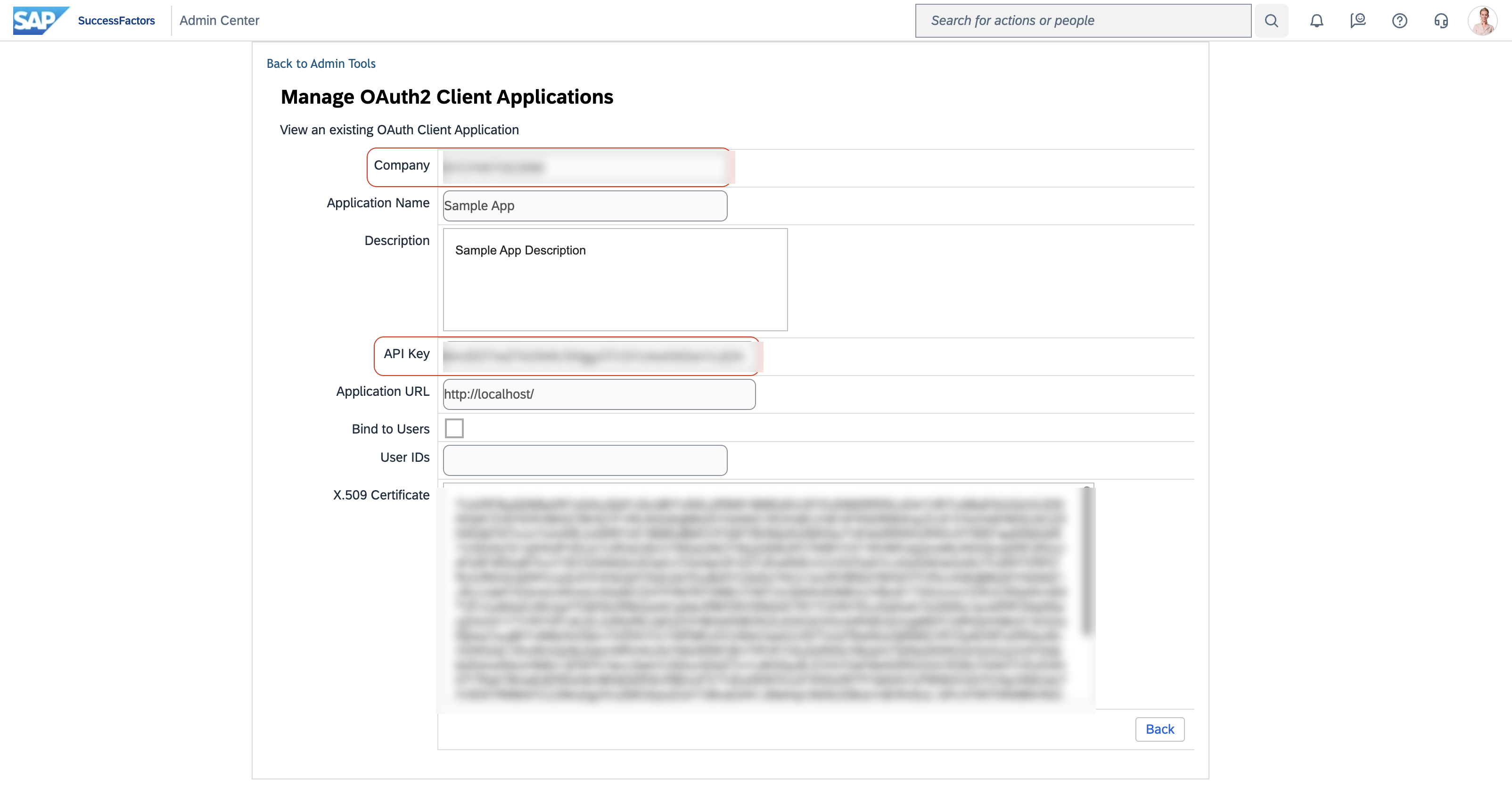
You now have everything sap:SamlBearerAuthConfig needs:
- apiKey - the API Key from the application you just registered
- companyId - the Company ID shown on the same screen
- username - the SAP user to authenticate as
- privateKey - the path to your
private_key.pemfile - certificate - the path to your
certificate.pemfile, or its content - tokenUrl - your Admin Center's OAuth2 token endpoint, typically
https://<admin-center-host>/oauth/token
Quickstart
To use the sap.successfactors.ecglobalbenefits connector in your Ballerina application, modify the .bal file as follows:
Step 1: Import the module
Import the sap.successfactors.ecglobalbenefits module.
import ballerinax/sap.successfactors.ecglobalbenefits as globalbenefits;
Step 2: Instantiate a new connector
Use the hostname and credentials to initiate a client.
configurable string hostname = ?; configurable string username = ?; configurable string password = ?; globalbenefits:Client globalbenefitsClient = check new ( { auth: { username, password } }, hostname );
Step 3: Invoke the connector operation
Now, utilize the available connector operations.
globalbenefits:BenefitEmployeeClaimWrapper result = check globalbenefitsClient->listBenefitEmployeeClaims();
Step 4: Run the Ballerina application
bal run
Examples
The SAP SuccessFactors Employee Central Ballerina connectors provide practical examples illustrating usage in various scenarios. Explore these examples, covering use cases like syncing employee data and sending notifications.
-
Google Sheets to SuccessFactors - Read employee records from a Google Sheets roster and create Personal Information records in SuccessFactors.
-
SuccessFactors to Slack - Poll SuccessFactors for newly onboarded employees and send welcome notifications to a Slack channel.
Clients
sap.successfactors.ecglobalbenefits: Client
You can use these APIs to maintain the global and local benefits beyond regular compensation for employees.
You can find your company's API server in List of API Servers in SAP SuccessFactors.
Constructor
Gets invoked to initialize the connector.
init (ConnectionConfig config, string hostname, int port)- config ConnectionConfig - The configurations to be used when initializing the
connector
- hostname string -
- port int 443 -
listBenefitEmployeeClaims
function listBenefitEmployeeClaims(map<string|string[]> headers, *ListBenefitEmployeeClaimsQueries queries) returns json|errorGet entities from BenefitEmployeeClaim
Parameters
- queries *ListBenefitEmployeeClaimsQueries - Queries to be sent with the request
Return Type
- json|error - Retrieved entities
getBenefitEmployeeClaim
function getBenefitEmployeeClaim(int id, map<string|string[]> headers, *GetBenefitEmployeeClaimQueries queries) returns json|errorGet entity from BenefitEmployeeClaim by key
Parameters
- id int - key: id
- queries *GetBenefitEmployeeClaimQueries - Queries to be sent with the request
Return Type
- json|error - Retrieved entity
listBenefitSavingsPlanSubTypes
function listBenefitSavingsPlanSubTypes(map<string|string[]> headers, *ListBenefitSavingsPlanSubTypesQueries queries) returns Wrapper_1|errorGet entities from BenefitSavingsPlanSubType
Parameters
- queries *ListBenefitSavingsPlanSubTypesQueries - Queries to be sent with the request
getBenefitSavingsPlanSubType
function getBenefitSavingsPlanSubType(string benefitSavingsPlanID, string effectiveStartDate, map<string|string[]> headers, *GetBenefitSavingsPlanSubTypeQueries queries) returns BenefitSavingsPlanSubType|errorGet entity from BenefitSavingsPlanSubType by key
Parameters
- benefitSavingsPlanID string - key: benefitSavingsPlanID
- effectiveStartDate string - key: effectiveStartDate
- queries *GetBenefitSavingsPlanSubTypeQueries - Queries to be sent with the request
Return Type
- BenefitSavingsPlanSubType|error - Retrieved entity
listBenefitInsurancePlans
function listBenefitInsurancePlans(map<string|string[]> headers, *ListBenefitInsurancePlansQueries queries) returns json|errorGet entities from BenefitInsurancePlan
Parameters
- queries *ListBenefitInsurancePlansQueries - Queries to be sent with the request
Return Type
- json|error - Retrieved entities
getBenefitInsurancePlan
function getBenefitInsurancePlan(string effectiveStartDate, string id, map<string|string[]> headers, *GetBenefitInsurancePlanQueries queries) returns json|errorGet entity from BenefitInsurancePlan by key
Parameters
- effectiveStartDate string - key: effectiveStartDate
- id string - key: id
- queries *GetBenefitInsurancePlanQueries - Queries to be sent with the request
Return Type
- json|error - Retrieved entity
listBenefitBalanceCarryForwardDetails
function listBenefitBalanceCarryForwardDetails(map<string|string[]> headers, *ListBenefitBalanceCarryForwardDetailsQueries queries) returns Wrapper_3|errorGet entities from BenefitBalanceCarryForwardDetail
Parameters
- queries *ListBenefitBalanceCarryForwardDetailsQueries - Queries to be sent with the request
getBenefitBalanceCarryForwardDetail
function getBenefitBalanceCarryForwardDetail(int BenefitClaimAccumulation_externalCode, int externalCode, map<string|string[]> headers, *GetBenefitBalanceCarryForwardDetailQueries queries) returns BenefitBalanceCarryForwardDetail|errorGet entity from BenefitBalanceCarryForwardDetail by key
Parameters
- BenefitClaimAccumulation_externalCode int - key: BenefitClaimAccumulation_externalCode
- externalCode int - key: externalCode
- queries *GetBenefitBalanceCarryForwardDetailQueries - Queries to be sent with the request
Return Type
- BenefitBalanceCarryForwardDetail|error - Retrieved entity
listEmployeeWithEmployerMatchContributionss
function listEmployeeWithEmployerMatchContributionss(map<string|string[]> headers, *ListEmployeeWithEmployerMatchContributionssQueries queries) returns Wrapper_4|errorGet entities from EmployeeWithEmployerMatchContributions
Parameters
- queries *ListEmployeeWithEmployerMatchContributionssQueries - Queries to be sent with the request
getEmployeeWithEmployerMatchContributions
function getEmployeeWithEmployerMatchContributions(string configurationId, string effectiveStartDate, map<string|string[]> headers, *GetEmployeeWithEmployerMatchContributionsQueries queries) returns EmployeeWithEmployerMatchContributions|errorGet entity from EmployeeWithEmployerMatchContributions by key
Parameters
- configurationId string - key: configurationId
- effectiveStartDate string - key: effectiveStartDate
- queries *GetEmployeeWithEmployerMatchContributionsQueries - Queries to be sent with the request
Return Type
- EmployeeWithEmployerMatchContributions|error - Retrieved entity
listBenefitProgramEnrollments
function listBenefitProgramEnrollments(map<string|string[]> headers, *ListBenefitProgramEnrollmentsQueries queries) returns json|errorGet entities from BenefitProgramEnrollment
Parameters
- queries *ListBenefitProgramEnrollmentsQueries - Queries to be sent with the request
Return Type
- json|error - Retrieved entities
getBenefitProgramEnrollment
function getBenefitProgramEnrollment(string effectiveStartDate, int id, map<string|string[]> headers, *GetBenefitProgramEnrollmentQueries queries) returns json|errorGet entity from BenefitProgramEnrollment by key
Parameters
- effectiveStartDate string - key: effectiveStartDate
- id int - key: id
- queries *GetBenefitProgramEnrollmentQueries - Queries to be sent with the request
Return Type
- json|error - Retrieved entity
listEmployeeWithEmployerMatchContributionEntriess
function listEmployeeWithEmployerMatchContributionEntriess(map<string|string[]> headers, *ListEmployeeWithEmployerMatchContributionEntriessQueries queries) returns Wrapper_6|errorGet entities from EmployeeWithEmployerMatchContributionEntries
Parameters
- queries *ListEmployeeWithEmployerMatchContributionEntriessQueries - Queries to be sent with the request
getEmployeeWithEmployerMatchContributionEntries
function getEmployeeWithEmployerMatchContributionEntries(string EmployeeWithEmployerMatchContributions_configurationId, string EmployeeWithEmployerMatchContributions_effectiveStartDate, string eeERMatchValuesID, map<string|string[]> headers, *GetEmployeeWithEmployerMatchContributionEntriesQueries queries) returns EmployeeWithEmployerMatchContributionEntries|errorGet entity from EmployeeWithEmployerMatchContributionEntries by key
Parameters
- EmployeeWithEmployerMatchContributions_configurationId string - key: EmployeeWithEmployerMatchContributions_configurationId
- EmployeeWithEmployerMatchContributions_effectiveStartDate string - key: EmployeeWithEmployerMatchContributions_effectiveStartDate
- eeERMatchValuesID string - key: eeERMatchValuesID
- queries *GetEmployeeWithEmployerMatchContributionEntriesQueries - Queries to be sent with the request
Return Type
- EmployeeWithEmployerMatchContributionEntries|error - Retrieved entity
listBenefitInsuranceCoverages
function listBenefitInsuranceCoverages(map<string|string[]> headers, *ListBenefitInsuranceCoveragesQueries queries) returns json|errorGet entities from BenefitInsuranceCoverage
Parameters
- queries *ListBenefitInsuranceCoveragesQueries - Queries to be sent with the request
Return Type
- json|error - Retrieved entities
getBenefitInsuranceCoverage
function getBenefitInsuranceCoverage(string coverageId, map<string|string[]> headers, *GetBenefitInsuranceCoverageQueries queries) returns json|errorGet entity from BenefitInsuranceCoverage by key
Parameters
- coverageId string - key: coverageId
- queries *GetBenefitInsuranceCoverageQueries - Queries to be sent with the request
Return Type
- json|error - Retrieved entity
listBenefitPrograms
function listBenefitPrograms(map<string|string[]> headers, *ListBenefitProgramsQueries queries) returns json|errorGet entities from BenefitProgram
Parameters
- queries *ListBenefitProgramsQueries - Queries to be sent with the request
Return Type
- json|error - Retrieved entities
getBenefitProgram
function getBenefitProgram(string effectiveStartDate, string programId, map<string|string[]> headers, *GetBenefitProgramQueries queries) returns json|errorGet entity from BenefitProgram by key
Parameters
- effectiveStartDate string - key: effectiveStartDate
- programId string - key: programId
- queries *GetBenefitProgramQueries - Queries to be sent with the request
Return Type
- json|error - Retrieved entity
listBenefitCompanyCarLeaseServiceProviders
function listBenefitCompanyCarLeaseServiceProviders(map<string|string[]> headers, *ListBenefitCompanyCarLeaseServiceProvidersQueries queries) returns Wrapper_9|errorGet entities from BenefitCompanyCarLeaseServiceProvider
Parameters
- queries *ListBenefitCompanyCarLeaseServiceProvidersQueries - Queries to be sent with the request
getBenefitCompanyCarLeaseServiceProvider
function getBenefitCompanyCarLeaseServiceProvider(string effectiveStartDate, string externalCode, map<string|string[]> headers, *GetBenefitCompanyCarLeaseServiceProviderQueries queries) returns BenefitCompanyCarLeaseServiceProvider|errorGet entity from BenefitCompanyCarLeaseServiceProvider by key
Parameters
- effectiveStartDate string - key: effectiveStartDate
- externalCode string - key: externalCode
- queries *GetBenefitCompanyCarLeaseServiceProviderQueries - Queries to be sent with the request
Return Type
- BenefitCompanyCarLeaseServiceProvider|error - Retrieved entity
listBenefitInsuranceRateCharts
function listBenefitInsuranceRateCharts(map<string|string[]> headers, *ListBenefitInsuranceRateChartsQueries queries) returns json|errorGet entities from BenefitInsuranceRateChart
Parameters
- queries *ListBenefitInsuranceRateChartsQueries - Queries to be sent with the request
Return Type
- json|error - Retrieved entities
getBenefitInsuranceRateChart
function getBenefitInsuranceRateChart(string effectiveStartDate, string rateChartId, map<string|string[]> headers, *GetBenefitInsuranceRateChartQueries queries) returns json|errorGet entity from BenefitInsuranceRateChart by key
Parameters
- effectiveStartDate string - key: effectiveStartDate
- rateChartId string - key: rateChartId
- queries *GetBenefitInsuranceRateChartQueries - Queries to be sent with the request
Return Type
- json|error - Retrieved entity
listBenefitEmployeeLifeEventDeclarationForms
function listBenefitEmployeeLifeEventDeclarationForms(map<string|string[]> headers, *ListBenefitEmployeeLifeEventDeclarationFormsQueries queries) returns Wrapper_11|errorGet entities from BenefitEmployeeLifeEventDeclarationForm
Parameters
- queries *ListBenefitEmployeeLifeEventDeclarationFormsQueries - Queries to be sent with the request
Return Type
- Wrapper_11|error - Retrieved entities
createBenefitEmployeeLifeEventDeclarationForm
function createBenefitEmployeeLifeEventDeclarationForm(BenefitEmployeeLifeEventDeclarationForm payload, map<string|string[]> headers) returns CreatedBenefitEmployeeLifeEventDeclarationForm|errorAdd new entity to BenefitEmployeeLifeEventDeclarationForm
Parameters
- payload BenefitEmployeeLifeEventDeclarationForm - New entity
Return Type
- CreatedBenefitEmployeeLifeEventDeclarationForm|error - Created entity
getBenefitEmployeeLifeEventDeclarationForm
function getBenefitEmployeeLifeEventDeclarationForm(string employeeLifeEventId, map<string|string[]> headers, *GetBenefitEmployeeLifeEventDeclarationFormQueries queries) returns BenefitEmployeeLifeEventDeclarationForm|errorGet entity from BenefitEmployeeLifeEventDeclarationForm by key
Parameters
- employeeLifeEventId string - key: employeeLifeEventId
- queries *GetBenefitEmployeeLifeEventDeclarationFormQueries - Queries to be sent with the request
Return Type
- BenefitEmployeeLifeEventDeclarationForm|error - Retrieved entity
updateBenefitEmployeeLifeEventDeclarationForm
function updateBenefitEmployeeLifeEventDeclarationForm(string employeeLifeEventId, ModifiedBenefitEmployeeLifeEventDeclarationForm payload, map<string|string[]> headers) returns error?Update entity in BenefitEmployeeLifeEventDeclarationForm
Parameters
- employeeLifeEventId string - key: employeeLifeEventId
- payload ModifiedBenefitEmployeeLifeEventDeclarationForm - New property values
Return Type
- error? - Success
deleteBenefitEmployeeLifeEventDeclarationForm
function deleteBenefitEmployeeLifeEventDeclarationForm(string employeeLifeEventId, DeleteBenefitEmployeeLifeEventDeclarationFormHeaders headers) returns error?Delete entity from BenefitEmployeeLifeEventDeclarationForm
Parameters
- employeeLifeEventId string - key: employeeLifeEventId
- headers DeleteBenefitEmployeeLifeEventDeclarationFormHeaders (default {}) - Headers to be sent with the request
Return Type
- error? - Success
listBenefitInsuranceProviders
function listBenefitInsuranceProviders(map<string|string[]> headers, *ListBenefitInsuranceProvidersQueries queries) returns json|errorGet entities from BenefitInsuranceProvider
Parameters
- queries *ListBenefitInsuranceProvidersQueries - Queries to be sent with the request
Return Type
- json|error - Retrieved entities
getBenefitInsuranceProvider
function getBenefitInsuranceProvider(string providerId, map<string|string[]> headers, *GetBenefitInsuranceProviderQueries queries) returns json|errorGet entity from BenefitInsuranceProvider by key
Parameters
- providerId string - key: providerId
- queries *GetBenefitInsuranceProviderQueries - Queries to be sent with the request
Return Type
- json|error - Retrieved entity
listImputedCostForAgeRangess
function listImputedCostForAgeRangess(map<string|string[]> headers, *ListImputedCostForAgeRangessQueries queries) returns Wrapper_13|errorGet entities from ImputedCostForAgeRanges
Parameters
- queries *ListImputedCostForAgeRangessQueries - Queries to be sent with the request
Return Type
- Wrapper_13|error - Retrieved entities
getImputedCostForAgeRanges
function getImputedCostForAgeRanges(string IRSPremiumTable_configurationId, string IRSPremiumTable_effectiveStartDate, string externalCode, map<string|string[]> headers, *GetImputedCostForAgeRangesQueries queries) returns ImputedCostForAgeRanges|errorGet entity from ImputedCostForAgeRanges by key
Parameters
- IRSPremiumTable_configurationId string - key: IRSPremiumTable_configurationId
- IRSPremiumTable_effectiveStartDate string - key: IRSPremiumTable_effectiveStartDate
- externalCode string - key: externalCode
- queries *GetImputedCostForAgeRangesQueries - Queries to be sent with the request
Return Type
- ImputedCostForAgeRanges|error - Retrieved entity
listBenefitInsurancePlanEnrollmentDetails
function listBenefitInsurancePlanEnrollmentDetails(map<string|string[]> headers, *ListBenefitInsurancePlanEnrollmentDetailsQueries queries) returns json|errorGet entities from BenefitInsurancePlanEnrollmentDetails
Parameters
- queries *ListBenefitInsurancePlanEnrollmentDetailsQueries - Queries to be sent with the request
Return Type
- json|error - Retrieved entities
getBenefitInsurancePlanEnrollmentDetails
function getBenefitInsurancePlanEnrollmentDetails(string BenefitEnrollment_effectiveStartDate, int BenefitEnrollment_id, int externalCode, map<string|string[]> headers, *GetBenefitInsurancePlanEnrollmentDetailsQueries queries) returns json|errorGet entity from BenefitInsurancePlanEnrollmentDetails by key
Parameters
- BenefitEnrollment_effectiveStartDate string - key: BenefitEnrollment_effectiveStartDate
- BenefitEnrollment_id int - key: BenefitEnrollment_id
- externalCode int - key: externalCode
- queries *GetBenefitInsurancePlanEnrollmentDetailsQueries - Queries to be sent with the request
Return Type
- json|error - Retrieved entity
listBenefitEffectiveDateConfigurations
function listBenefitEffectiveDateConfigurations(map<string|string[]> headers, *ListBenefitEffectiveDateConfigurationsQueries queries) returns json|errorGet entities from BenefitEffectiveDateConfiguration
Parameters
- queries *ListBenefitEffectiveDateConfigurationsQueries - Queries to be sent with the request
Return Type
- json|error - Retrieved entities
getBenefitEffectiveDateConfiguration
function getBenefitEffectiveDateConfiguration(string BenefitLifeEventConfiguration_configurationId, string BenefitLifeEventConfiguration_effectiveStartDate, string benefit, map<string|string[]> headers, *GetBenefitEffectiveDateConfigurationQueries queries) returns json|errorGet entity from BenefitEffectiveDateConfiguration by key
Parameters
- BenefitLifeEventConfiguration_configurationId string - key: BenefitLifeEventConfiguration_configurationId
- BenefitLifeEventConfiguration_effectiveStartDate string - key: BenefitLifeEventConfiguration_effectiveStartDate
- benefit string - key: benefit
- queries *GetBenefitEffectiveDateConfigurationQueries - Queries to be sent with the request
Return Type
- json|error - Retrieved entity
listBenefitEvents
function listBenefitEvents(map<string|string[]> headers, *ListBenefitEventsQueries queries) returns Wrapper_16|errorGet entities from BenefitEvent
Parameters
- queries *ListBenefitEventsQueries - Queries to be sent with the request
Return Type
- Wrapper_16|error - Retrieved entities
getBenefitEvent
function getBenefitEvent(string effectiveStartDate, string eventCode, map<string|string[]> headers, *GetBenefitEventQueries queries) returns BenefitEvent|errorGet entity from BenefitEvent by key
Parameters
- effectiveStartDate string - key: effectiveStartDate
- eventCode string - key: eventCode
- queries *GetBenefitEventQueries - Queries to be sent with the request
Return Type
- BenefitEvent|error - Retrieved entity
listBenefitScheduless
function listBenefitScheduless(map<string|string[]> headers, *ListBenefitSchedulessQueries queries) returns Wrapper_17|errorGet entities from BenefitSchedules
Parameters
- queries *ListBenefitSchedulessQueries - Queries to be sent with the request
Return Type
- Wrapper_17|error - Retrieved entities
getBenefitSchedules
function getBenefitSchedules(string id, map<string|string[]> headers, *GetBenefitSchedulesQueries queries) returns BenefitSchedules|errorGet entity from BenefitSchedules by key
Parameters
- id string - key: id
- queries *GetBenefitSchedulesQueries - Queries to be sent with the request
Return Type
- BenefitSchedules|error - Retrieved entity
listBenefitProgramExceptionDetails
function listBenefitProgramExceptionDetails(map<string|string[]> headers, *ListBenefitProgramExceptionDetailsQueries queries) returns json|errorGet entities from BenefitProgramExceptionDetails
Parameters
- queries *ListBenefitProgramExceptionDetailsQueries - Queries to be sent with the request
Return Type
- json|error - Retrieved entities
getBenefitProgramExceptionDetails
function getBenefitProgramExceptionDetails(int BenefitsException_exceptionId, string benefitProgram, map<string|string[]> headers, *GetBenefitProgramExceptionDetailsQueries queries) returns json|errorGet entity from BenefitProgramExceptionDetails by key
Parameters
- BenefitsException_exceptionId int - key: BenefitsException_exceptionId
- benefitProgram string - key: benefitProgram
- queries *GetBenefitProgramExceptionDetailsQueries - Queries to be sent with the request
Return Type
- json|error - Retrieved entity
listSavingsAccountDeductionDetails
function listSavingsAccountDeductionDetails(map<string|string[]> headers, *ListSavingsAccountDeductionDetailsQueries queries) returns Wrapper_19|errorGet entities from SavingsAccountDeductionDetails
Parameters
- queries *ListSavingsAccountDeductionDetailsQueries - Queries to be sent with the request
Return Type
- Wrapper_19|error - Retrieved entities
getSavingsAccountDeductionDetails
function getSavingsAccountDeductionDetails(string Benefit_benefitId, string Benefit_effectiveStartDate, int SavingsAccountBenefitDetails_externalCode, int SavingsAccountUSA_externalCode, int deductionDetailId, map<string|string[]> headers, *GetSavingsAccountDeductionDetailsQueries queries) returns SavingsAccountDeductionDetails|errorGet entity from SavingsAccountDeductionDetails by key
Parameters
- Benefit_benefitId string - key: Benefit_benefitId
- Benefit_effectiveStartDate string - key: Benefit_effectiveStartDate
- SavingsAccountBenefitDetails_externalCode int - key: SavingsAccountBenefitDetails_externalCode
- SavingsAccountUSA_externalCode int - key: SavingsAccountUSA_externalCode
- deductionDetailId int - key: deductionDetailId
- queries *GetSavingsAccountDeductionDetailsQueries - Queries to be sent with the request
Return Type
- SavingsAccountDeductionDetails|error - Retrieved entity
listBenefitPaymentOptionss
function listBenefitPaymentOptionss(map<string|string[]> headers, *ListBenefitPaymentOptionssQueries queries) returns Wrapper_20|errorGet entities from BenefitPaymentOptions
Parameters
- queries *ListBenefitPaymentOptionssQueries - Queries to be sent with the request
Return Type
- Wrapper_20|error - Retrieved entities
getBenefitPaymentOptions
function getBenefitPaymentOptions(string Benefit_benefitId, string Benefit_effectiveStartDate, string payComponent, map<string|string[]> headers, *GetBenefitPaymentOptionsQueries queries) returns BenefitPaymentOptions|errorGet entity from BenefitPaymentOptions by key
Parameters
- Benefit_benefitId string - key: Benefit_benefitId
- Benefit_effectiveStartDate string - key: Benefit_effectiveStartDate
- payComponent string - key: payComponent
- queries *GetBenefitPaymentOptionsQueries - Queries to be sent with the request
Return Type
- BenefitPaymentOptions|error - Retrieved entity
listBenefitSavingsPlanSubTypeCountryLookups
function listBenefitSavingsPlanSubTypeCountryLookups(map<string|string[]> headers, *ListBenefitSavingsPlanSubTypeCountryLookupsQueries queries) returns Wrapper_21|errorGet entities from BenefitSavingsPlanSubTypeCountryLookup
Parameters
- queries *ListBenefitSavingsPlanSubTypeCountryLookupsQueries - Queries to be sent with the request
Return Type
- Wrapper_21|error - Retrieved entities
getBenefitSavingsPlanSubTypeCountryLookup
function getBenefitSavingsPlanSubTypeCountryLookup(string country, string effectiveStartDate, map<string|string[]> headers, *GetBenefitSavingsPlanSubTypeCountryLookupQueries queries) returns BenefitSavingsPlanSubTypeCountryLookup|errorGet entity from BenefitSavingsPlanSubTypeCountryLookup by key
Parameters
- country string - key: country
- effectiveStartDate string - key: effectiveStartDate
- queries *GetBenefitSavingsPlanSubTypeCountryLookupQueries - Queries to be sent with the request
Return Type
- BenefitSavingsPlanSubTypeCountryLookup|error - Retrieved entity
listLifeEventForBenefits
function listLifeEventForBenefits(map<string|string[]> headers, *ListLifeEventForBenefitsQueries queries) returns Wrapper_22|errorGet entities from LifeEventForBenefit
Parameters
- queries *ListLifeEventForBenefitsQueries - Queries to be sent with the request
Return Type
- Wrapper_22|error - Retrieved entities
getLifeEventForBenefit
function getLifeEventForBenefit(string lifeEventId, map<string|string[]> headers, *GetLifeEventForBenefitQueries queries) returns LifeEventForBenefit|errorGet entity from LifeEventForBenefit by key
Parameters
- lifeEventId string - key: lifeEventId
- queries *GetLifeEventForBenefitQueries - Queries to be sent with the request
Return Type
- LifeEventForBenefit|error - Retrieved entity
listBenefitInsurancePlanUSAs
function listBenefitInsurancePlanUSAs(map<string|string[]> headers, *ListBenefitInsurancePlanUSAsQueries queries) returns Wrapper_23|errorGet entities from BenefitInsurancePlanUSA
Parameters
- queries *ListBenefitInsurancePlanUSAsQueries - Queries to be sent with the request
Return Type
- Wrapper_23|error - Retrieved entities
getBenefitInsurancePlanUSA
function getBenefitInsurancePlanUSA(string BenefitInsurancePlan_effectiveStartDate, string BenefitInsurancePlan_id, int id, map<string|string[]> headers, *GetBenefitInsurancePlanUSAQueries queries) returns BenefitInsurancePlanUSA|errorGet entity from BenefitInsurancePlanUSA by key
Parameters
- BenefitInsurancePlan_effectiveStartDate string - key: BenefitInsurancePlan_effectiveStartDate
- BenefitInsurancePlan_id string - key: BenefitInsurancePlan_id
- id int - key: id
- queries *GetBenefitInsurancePlanUSAQueries - Queries to be sent with the request
Return Type
- BenefitInsurancePlanUSA|error - Retrieved entity
listSavingsAccountBenefitDetails
function listSavingsAccountBenefitDetails(map<string|string[]> headers, *ListSavingsAccountBenefitDetailsQueries queries) returns json|errorGet entities from SavingsAccountBenefitDetails
Parameters
- queries *ListSavingsAccountBenefitDetailsQueries - Queries to be sent with the request
Return Type
- json|error - Retrieved entities
getSavingsAccountBenefitDetails
function getSavingsAccountBenefitDetails(string Benefit_benefitId, string Benefit_effectiveStartDate, int externalCode, map<string|string[]> headers, *GetSavingsAccountBenefitDetailsQueries queries) returns json|errorGet entity from SavingsAccountBenefitDetails by key
Parameters
- Benefit_benefitId string - key: Benefit_benefitId
- Benefit_effectiveStartDate string - key: Benefit_effectiveStartDate
- externalCode int - key: externalCode
- queries *GetSavingsAccountBenefitDetailsQueries - Queries to be sent with the request
Return Type
- json|error - Retrieved entity
listIRSPremiumTables
function listIRSPremiumTables(map<string|string[]> headers, *ListIRSPremiumTablesQueries queries) returns Wrapper_25|errorGet entities from IRSPremiumTable
Parameters
- queries *ListIRSPremiumTablesQueries - Queries to be sent with the request
Return Type
- Wrapper_25|error - Retrieved entities
getIRSPremiumTable
function getIRSPremiumTable(string configurationId, string effectiveStartDate, map<string|string[]> headers, *GetIRSPremiumTableQueries queries) returns IRSPremiumTable|errorGet entity from IRSPremiumTable by key
Parameters
- configurationId string - key: configurationId
- effectiveStartDate string - key: effectiveStartDate
- queries *GetIRSPremiumTableQueries - Queries to be sent with the request
Return Type
- IRSPremiumTable|error - Retrieved entity
listBenefitSchedulePeriods
function listBenefitSchedulePeriods(map<string|string[]> headers, *ListBenefitSchedulePeriodsQueries queries) returns Wrapper_26|errorGet entities from BenefitSchedulePeriod
Parameters
- queries *ListBenefitSchedulePeriodsQueries - Queries to be sent with the request
Return Type
- Wrapper_26|error - Retrieved entities
getBenefitSchedulePeriod
function getBenefitSchedulePeriod(string id, map<string|string[]> headers, *GetBenefitSchedulePeriodQueries queries) returns BenefitSchedulePeriod|errorGet entity from BenefitSchedulePeriod by key
Parameters
- id string - key: id
- queries *GetBenefitSchedulePeriodQueries - Queries to be sent with the request
Return Type
- BenefitSchedulePeriod|error - Retrieved entity
listBenefitOpenEnrollmentCycleConfigurations
function listBenefitOpenEnrollmentCycleConfigurations(map<string|string[]> headers, *ListBenefitOpenEnrollmentCycleConfigurationsQueries queries) returns json|errorGet entities from BenefitOpenEnrollmentCycleConfiguration
Parameters
- queries *ListBenefitOpenEnrollmentCycleConfigurationsQueries - Queries to be sent with the request
Return Type
- json|error - Retrieved entities
getBenefitOpenEnrollmentCycleConfiguration
function getBenefitOpenEnrollmentCycleConfiguration(string effectiveStartDate, string openEnrollmentId, map<string|string[]> headers, *GetBenefitOpenEnrollmentCycleConfigurationQueries queries) returns json|errorGet entity from BenefitOpenEnrollmentCycleConfiguration by key
Parameters
- effectiveStartDate string - key: effectiveStartDate
- openEnrollmentId string - key: openEnrollmentId
- queries *GetBenefitOpenEnrollmentCycleConfigurationQueries - Queries to be sent with the request
Return Type
- json|error - Retrieved entity
listPensionBandingConfigurations
function listPensionBandingConfigurations(map<string|string[]> headers, *ListPensionBandingConfigurationsQueries queries) returns Wrapper_28|errorGet entities from PensionBandingConfiguration
Parameters
- queries *ListPensionBandingConfigurationsQueries - Queries to be sent with the request
Return Type
- Wrapper_28|error - Retrieved entities
getPensionBandingConfiguration
function getPensionBandingConfiguration(string bandingConfigurationId, string effectiveStartDate, map<string|string[]> headers, *GetPensionBandingConfigurationQueries queries) returns PensionBandingConfiguration|errorGet entity from PensionBandingConfiguration by key
Parameters
- bandingConfigurationId string - key: bandingConfigurationId
- effectiveStartDate string - key: effectiveStartDate
- queries *GetPensionBandingConfigurationQueries - Queries to be sent with the request
Return Type
- PensionBandingConfiguration|error - Retrieved entity
listBenefitInsuranceDependentDetails
function listBenefitInsuranceDependentDetails(map<string|string[]> headers, *ListBenefitInsuranceDependentDetailsQueries queries) returns Wrapper_29|errorGet entities from BenefitInsuranceDependentDetail
Parameters
- queries *ListBenefitInsuranceDependentDetailsQueries - Queries to be sent with the request
Return Type
- Wrapper_29|error - Retrieved entities
getBenefitInsuranceDependentDetail
function getBenefitInsuranceDependentDetail(string BenefitEnrollment_effectiveStartDate, int BenefitEnrollment_id, int BenefitInsurancePlanEnrollmentDetails_externalCode, string dependentName, map<string|string[]> headers, *GetBenefitInsuranceDependentDetailQueries queries) returns BenefitInsuranceDependentDetail|errorGet entity from BenefitInsuranceDependentDetail by key
Parameters
- BenefitEnrollment_effectiveStartDate string - key: BenefitEnrollment_effectiveStartDate
- BenefitEnrollment_id int - key: BenefitEnrollment_id
- BenefitInsurancePlanEnrollmentDetails_externalCode int - key: BenefitInsurancePlanEnrollmentDetails_externalCode
- dependentName string - key: dependentName
- queries *GetBenefitInsuranceDependentDetailQueries - Queries to be sent with the request
Return Type
- BenefitInsuranceDependentDetail|error - Retrieved entity
listBenefitProgramEnrollmentDetails
function listBenefitProgramEnrollmentDetails(map<string|string[]> headers, *ListBenefitProgramEnrollmentDetailsQueries queries) returns json|errorGet entities from BenefitProgramEnrollmentDetail
Parameters
- queries *ListBenefitProgramEnrollmentDetailsQueries - Queries to be sent with the request
Return Type
- json|error - Retrieved entities
getBenefitProgramEnrollmentDetail
function getBenefitProgramEnrollmentDetail(string BenefitProgramEnrollment_effectiveStartDate, int BenefitProgramEnrollment_id, int selectionId, map<string|string[]> headers, *GetBenefitProgramEnrollmentDetailQueries queries) returns json|errorGet entity from BenefitProgramEnrollmentDetail by key
Parameters
- BenefitProgramEnrollment_effectiveStartDate string - key: BenefitProgramEnrollment_effectiveStartDate
- BenefitProgramEnrollment_id int - key: BenefitProgramEnrollment_id
- selectionId int - key: selectionId
- queries *GetBenefitProgramEnrollmentDetailQueries - Queries to be sent with the request
Return Type
- json|error - Retrieved entity
listACAReportingInformations
function listACAReportingInformations(map<string|string[]> headers, *ListACAReportingInformationsQueries queries) returns json|errorGet entities from ACAReportingInformation
Parameters
- queries *ListACAReportingInformationsQueries - Queries to be sent with the request
Return Type
- json|error - Retrieved entities
getACAReportingInformation
function getACAReportingInformation(string externalCode, map<string|string[]> headers, *GetACAReportingInformationQueries queries) returns json|errorGet entity from ACAReportingInformation by key
Parameters
- externalCode string - key: externalCode
- queries *GetACAReportingInformationQueries - Queries to be sent with the request
Return Type
- json|error - Retrieved entity
listBenefitEmployeeClaimDetails
function listBenefitEmployeeClaimDetails(map<string|string[]> headers, *ListBenefitEmployeeClaimDetailsQueries queries) returns Wrapper_32|errorGet entities from BenefitEmployeeClaimDetail
Parameters
- queries *ListBenefitEmployeeClaimDetailsQueries - Queries to be sent with the request
Return Type
- Wrapper_32|error - Retrieved entities
getBenefitEmployeeClaimDetail
function getBenefitEmployeeClaimDetail(int BenefitEmployeeClaim_id, int id, map<string|string[]> headers, *GetBenefitEmployeeClaimDetailQueries queries) returns BenefitEmployeeClaimDetail|errorGet entity from BenefitEmployeeClaimDetail by key
Parameters
- BenefitEmployeeClaim_id int - key: BenefitEmployeeClaim_id
- id int - key: id
- queries *GetBenefitEmployeeClaimDetailQueries - Queries to be sent with the request
Return Type
- BenefitEmployeeClaimDetail|error - Retrieved entity
listBenefitFuelReimbursements
function listBenefitFuelReimbursements(map<string|string[]> headers, *ListBenefitFuelReimbursementsQueries queries) returns Wrapper_33|errorGet entities from BenefitFuelReimbursement
Parameters
- queries *ListBenefitFuelReimbursementsQueries - Queries to be sent with the request
Return Type
- Wrapper_33|error - Retrieved entities
listInsuranceEnrollmentFieldsConfigurations
function listInsuranceEnrollmentFieldsConfigurations(map<string|string[]> headers, *ListInsuranceEnrollmentFieldsConfigurationsQueries queries) returns Wrapper_34|errorGet entities from InsuranceEnrollmentFieldsConfiguration
Parameters
- queries *ListInsuranceEnrollmentFieldsConfigurationsQueries - Queries to be sent with the request
Return Type
- Wrapper_34|error - Retrieved entities
getInsuranceEnrollmentFieldsConfiguration
function getInsuranceEnrollmentFieldsConfiguration(string Benefit_benefitId, string Benefit_effectiveStartDate, int InsuranceBenefitDetails_externalCode, int configurationId, map<string|string[]> headers, *GetInsuranceEnrollmentFieldsConfigurationQueries queries) returns InsuranceEnrollmentFieldsConfiguration|errorGet entity from InsuranceEnrollmentFieldsConfiguration by key
Parameters
- Benefit_benefitId string - key: Benefit_benefitId
- Benefit_effectiveStartDate string - key: Benefit_effectiveStartDate
- InsuranceBenefitDetails_externalCode int - key: InsuranceBenefitDetails_externalCode
- configurationId int - key: configurationId
- queries *GetInsuranceEnrollmentFieldsConfigurationQueries - Queries to be sent with the request
Return Type
- InsuranceEnrollmentFieldsConfiguration|error - Retrieved entity
getBenefitFuelReimbursement
function getBenefitFuelReimbursement(int BenefitEmployeeClaim_id, string externalCode, map<string|string[]> headers, *GetBenefitFuelReimbursementQueries queries) returns BenefitFuelReimbursement|errorGet entity from BenefitFuelReimbursement by key
Parameters
- BenefitEmployeeClaim_id int - key: BenefitEmployeeClaim_id
- externalCode string - key: externalCode
- queries *GetBenefitFuelReimbursementQueries - Queries to be sent with the request
Return Type
- BenefitFuelReimbursement|error - Retrieved entity
listBenefitCompanyCars
function listBenefitCompanyCars(map<string|string[]> headers, *ListBenefitCompanyCarsQueries queries) returns Wrapper_35|errorGet entities from BenefitCompanyCar
Parameters
- queries *ListBenefitCompanyCarsQueries - Queries to be sent with the request
Return Type
- Wrapper_35|error - Retrieved entities
getBenefitCompanyCar
function getBenefitCompanyCar(string Benefit_benefitId, string Benefit_effectiveStartDate, int benefitCompanyCarId, map<string|string[]> headers, *GetBenefitCompanyCarQueries queries) returns BenefitCompanyCar|errorGet entity from BenefitCompanyCar by key
Parameters
- Benefit_benefitId string - key: Benefit_benefitId
- Benefit_effectiveStartDate string - key: Benefit_effectiveStartDate
- benefitCompanyCarId int - key: benefitCompanyCarId
- queries *GetBenefitCompanyCarQueries - Queries to be sent with the request
Return Type
- BenefitCompanyCar|error - Retrieved entity
listBenefitCompanyHousings
function listBenefitCompanyHousings(map<string|string[]> headers, *ListBenefitCompanyHousingsQueries queries) returns Wrapper_36|errorGet entities from BenefitCompanyHousing
Parameters
- queries *ListBenefitCompanyHousingsQueries - Queries to be sent with the request
Return Type
- Wrapper_36|error - Retrieved entities
getBenefitCompanyHousing
function getBenefitCompanyHousing(string Benefit_benefitId, string Benefit_effectiveStartDate, int id, map<string|string[]> headers, *GetBenefitCompanyHousingQueries queries) returns BenefitCompanyHousing|errorGet entity from BenefitCompanyHousing by key
Parameters
- Benefit_benefitId string - key: Benefit_benefitId
- Benefit_effectiveStartDate string - key: Benefit_effectiveStartDate
- id int - key: id
- queries *GetBenefitCompanyHousingQueries - Queries to be sent with the request
Return Type
- BenefitCompanyHousing|error - Retrieved entity
listBenefitPensionAdditionalContributionLimitss
function listBenefitPensionAdditionalContributionLimitss(map<string|string[]> headers, *ListBenefitPensionAdditionalContributionLimitssQueries queries) returns Wrapper_37|errorGet entities from BenefitPensionAdditionalContributionLimits
Parameters
- queries *ListBenefitPensionAdditionalContributionLimitssQueries - Queries to be sent with the request
Return Type
- Wrapper_37|error - Retrieved entities
getBenefitPensionAdditionalContributionLimits
function getBenefitPensionAdditionalContributionLimits(string contributionLimitId, string effectiveStartDate, map<string|string[]> headers, *GetBenefitPensionAdditionalContributionLimitsQueries queries) returns BenefitPensionAdditionalContributionLimits|errorGet entity from BenefitPensionAdditionalContributionLimits by key
Parameters
- contributionLimitId string - key: contributionLimitId
- effectiveStartDate string - key: effectiveStartDate
- queries *GetBenefitPensionAdditionalContributionLimitsQueries - Queries to be sent with the request
Return Type
- BenefitPensionAdditionalContributionLimits|error - Retrieved entity
listBenefitPensionNonDependentNomineess
function listBenefitPensionNonDependentNomineess(map<string|string[]> headers, *ListBenefitPensionNonDependentNomineessQueries queries) returns Wrapper_38|errorGet entities from BenefitPensionNonDependentNominees
Parameters
- queries *ListBenefitPensionNonDependentNomineessQueries - Queries to be sent with the request
Return Type
- Wrapper_38|error - Retrieved entities
getBenefitPensionNonDependentNominees
function getBenefitPensionNonDependentNominees(string BenefitEnrollment_effectiveStartDate, int BenefitEnrollment_id, int nomineesId, map<string|string[]> headers, *GetBenefitPensionNonDependentNomineesQueries queries) returns BenefitPensionNonDependentNominees|errorGet entity from BenefitPensionNonDependentNominees by key
Parameters
- BenefitEnrollment_effectiveStartDate string - key: BenefitEnrollment_effectiveStartDate
- BenefitEnrollment_id int - key: BenefitEnrollment_id
- nomineesId int - key: nomineesId
- queries *GetBenefitPensionNonDependentNomineesQueries - Queries to be sent with the request
Return Type
- BenefitPensionNonDependentNominees|error - Retrieved entity
listBenefitExceptionDetails
function listBenefitExceptionDetails(map<string|string[]> headers, *ListBenefitExceptionDetailsQueries queries) returns json|errorGet entities from BenefitExceptionDetails
Parameters
- queries *ListBenefitExceptionDetailsQueries - Queries to be sent with the request
Return Type
- json|error - Retrieved entities
getBenefitExceptionDetails
function getBenefitExceptionDetails(int BenefitsException_exceptionId, string benefit, map<string|string[]> headers, *GetBenefitExceptionDetailsQueries queries) returns json|errorGet entity from BenefitExceptionDetails by key
Parameters
- BenefitsException_exceptionId int - key: BenefitsException_exceptionId
- benefit string - key: benefit
- queries *GetBenefitExceptionDetailsQueries - Queries to be sent with the request
Return Type
- json|error - Retrieved entity
listInsuranceBenefitDetails
function listInsuranceBenefitDetails(map<string|string[]> headers, *ListInsuranceBenefitDetailsQueries queries) returns json|errorGet entities from InsuranceBenefitDetails
Parameters
- queries *ListInsuranceBenefitDetailsQueries - Queries to be sent with the request
Return Type
- json|error - Retrieved entities
getInsuranceBenefitDetails
function getInsuranceBenefitDetails(string Benefit_benefitId, string Benefit_effectiveStartDate, int externalCode, map<string|string[]> headers, *GetInsuranceBenefitDetailsQueries queries) returns json|errorGet entity from InsuranceBenefitDetails by key
Parameters
- Benefit_benefitId string - key: Benefit_benefitId
- Benefit_effectiveStartDate string - key: Benefit_effectiveStartDate
- externalCode int - key: externalCode
- queries *GetInsuranceBenefitDetailsQueries - Queries to be sent with the request
Return Type
- json|error - Retrieved entity
listBenefits
function listBenefits(map<string|string[]> headers, *ListBenefitsQueries queries) returns json|errorGet entities from Benefit
Parameters
- queries *ListBenefitsQueries - Queries to be sent with the request
Return Type
- json|error - Retrieved entities
getBenefit
function getBenefit(string benefitId, string effectiveStartDate, map<string|string[]> headers, *GetBenefitQueries queries) returns json|errorGet entity from Benefit by key
Parameters
- benefitId string - key: benefitId
- effectiveStartDate string - key: effectiveStartDate
- queries *GetBenefitQueries - Queries to be sent with the request
Return Type
- json|error - Retrieved entity
listBenefitInsuranceCoverageDetails
function listBenefitInsuranceCoverageDetails(map<string|string[]> headers, *ListBenefitInsuranceCoverageDetailsQueries queries) returns json|errorGet entities from BenefitInsuranceCoverageDetails
Parameters
- queries *ListBenefitInsuranceCoverageDetailsQueries - Queries to be sent with the request
Return Type
- json|error - Retrieved entities
getBenefitInsuranceCoverageDetails
function getBenefitInsuranceCoverageDetails(int BenefitInsuranceCoverageOptions_externalCode, string BenefitInsurancePlan_effectiveStartDate, string BenefitInsurancePlan_id, int externalCode, map<string|string[]> headers, *GetBenefitInsuranceCoverageDetailsQueries queries) returns json|errorGet entity from BenefitInsuranceCoverageDetails by key
Parameters
- BenefitInsuranceCoverageOptions_externalCode int - key: BenefitInsuranceCoverageOptions_externalCode
- BenefitInsurancePlan_effectiveStartDate string - key: BenefitInsurancePlan_effectiveStartDate
- BenefitInsurancePlan_id string - key: BenefitInsurancePlan_id
- externalCode int - key: externalCode
- queries *GetBenefitInsuranceCoverageDetailsQueries - Queries to be sent with the request
Return Type
- json|error - Retrieved entity
listBenefitInsuranceEnrolleeOptionss
function listBenefitInsuranceEnrolleeOptionss(map<string|string[]> headers, *ListBenefitInsuranceEnrolleeOptionssQueries queries) returns json|errorGet entities from BenefitInsuranceEnrolleeOptions
Parameters
- queries *ListBenefitInsuranceEnrolleeOptionssQueries - Queries to be sent with the request
Return Type
- json|error - Retrieved entities
getBenefitInsuranceEnrolleeOptions
function getBenefitInsuranceEnrolleeOptions(string id, map<string|string[]> headers, *GetBenefitInsuranceEnrolleeOptionsQueries queries) returns json|errorGet entity from BenefitInsuranceEnrolleeOptions by key
Parameters
- id string - key: id
- queries *GetBenefitInsuranceEnrolleeOptionsQueries - Queries to be sent with the request
Return Type
- json|error - Retrieved entity
listBenefitPensionFundEnrollmentContributionDetails
function listBenefitPensionFundEnrollmentContributionDetails(map<string|string[]> headers, *ListBenefitPensionFundEnrollmentContributionDetailsQueries queries) returns Wrapper_44|errorGet entities from BenefitPensionFundEnrollmentContributionDetail
Parameters
- queries *ListBenefitPensionFundEnrollmentContributionDetailsQueries - Queries to be sent with the request
Return Type
- Wrapper_44|error - Retrieved entities
getBenefitPensionFundEnrollmentContributionDetail
function getBenefitPensionFundEnrollmentContributionDetail(string BenefitEnrollment_effectiveStartDate, int BenefitEnrollment_id, int id, map<string|string[]> headers, *GetBenefitPensionFundEnrollmentContributionDetailQueries queries) returns BenefitPensionFundEnrollmentContributionDetail|errorGet entity from BenefitPensionFundEnrollmentContributionDetail by key
Parameters
- BenefitEnrollment_effectiveStartDate string - key: BenefitEnrollment_effectiveStartDate
- BenefitEnrollment_id int - key: BenefitEnrollment_id
- id int - key: id
- queries *GetBenefitPensionFundEnrollmentContributionDetailQueries - Queries to be sent with the request
Return Type
- BenefitPensionFundEnrollmentContributionDetail|error - Retrieved entity
listBenefitPensionEnrollmentContributionDetails
function listBenefitPensionEnrollmentContributionDetails(map<string|string[]> headers, *ListBenefitPensionEnrollmentContributionDetailsQueries queries) returns Wrapper_45|errorGet entities from BenefitPensionEnrollmentContributionDetail
Parameters
- queries *ListBenefitPensionEnrollmentContributionDetailsQueries - Queries to be sent with the request
Return Type
- Wrapper_45|error - Retrieved entities
getBenefitPensionEnrollmentContributionDetail
function getBenefitPensionEnrollmentContributionDetail(string BenefitEnrollment_effectiveStartDate, int BenefitEnrollment_id, int contributionId, map<string|string[]> headers, *GetBenefitPensionEnrollmentContributionDetailQueries queries) returns BenefitPensionEnrollmentContributionDetail|errorGet entity from BenefitPensionEnrollmentContributionDetail by key
Parameters
- BenefitEnrollment_effectiveStartDate string - key: BenefitEnrollment_effectiveStartDate
- BenefitEnrollment_id int - key: BenefitEnrollment_id
- contributionId int - key: contributionId
- queries *GetBenefitPensionEnrollmentContributionDetailQueries - Queries to be sent with the request
Return Type
- BenefitPensionEnrollmentContributionDetail|error - Retrieved entity
listBenefitPensionMinMaxContributionLimitss
function listBenefitPensionMinMaxContributionLimitss(map<string|string[]> headers, *ListBenefitPensionMinMaxContributionLimitssQueries queries) returns Wrapper_46|errorGet entities from BenefitPensionMinMaxContributionLimits
Parameters
- queries *ListBenefitPensionMinMaxContributionLimitssQueries - Queries to be sent with the request
Return Type
- Wrapper_46|error - Retrieved entities
getBenefitPensionMinMaxContributionLimits
function getBenefitPensionMinMaxContributionLimits(string configurationTableId, string effectiveStartDate, map<string|string[]> headers, *GetBenefitPensionMinMaxContributionLimitsQueries queries) returns BenefitPensionMinMaxContributionLimits|errorGet entity from BenefitPensionMinMaxContributionLimits by key
Parameters
- configurationTableId string - key: configurationTableId
- effectiveStartDate string - key: effectiveStartDate
- queries *GetBenefitPensionMinMaxContributionLimitsQueries - Queries to be sent with the request
Return Type
- BenefitPensionMinMaxContributionLimits|error - Retrieved entity
listBenefitDependentDetails
function listBenefitDependentDetails(map<string|string[]> headers, *ListBenefitDependentDetailsQueries queries) returns Wrapper_47|errorGet entities from BenefitDependentDetail
Parameters
- queries *ListBenefitDependentDetailsQueries - Queries to be sent with the request
Return Type
- Wrapper_47|error - Retrieved entities
getBenefitDependentDetail
function getBenefitDependentDetail(int BenefitEmployeeClaim_id, string dependentName, map<string|string[]> headers, *GetBenefitDependentDetailQueries queries) returns BenefitDependentDetail|errorGet entity from BenefitDependentDetail by key
Parameters
- BenefitEmployeeClaim_id int - key: BenefitEmployeeClaim_id
- dependentName string - key: dependentName
- queries *GetBenefitDependentDetailQueries - Queries to be sent with the request
Return Type
- BenefitDependentDetail|error - Retrieved entity
listBenefitCompanyCarEnrollments
function listBenefitCompanyCarEnrollments(map<string|string[]> headers, *ListBenefitCompanyCarEnrollmentsQueries queries) returns json|errorGet entities from BenefitCompanyCarEnrollment
Parameters
- queries *ListBenefitCompanyCarEnrollmentsQueries - Queries to be sent with the request
Return Type
- json|error - Retrieved entities
getBenefitCompanyCarEnrollment
function getBenefitCompanyCarEnrollment(string BenefitEnrollment_effectiveStartDate, int BenefitEnrollment_id, int id, map<string|string[]> headers, *GetBenefitCompanyCarEnrollmentQueries queries) returns json|errorGet entity from BenefitCompanyCarEnrollment by key
Parameters
- BenefitEnrollment_effectiveStartDate string - key: BenefitEnrollment_effectiveStartDate
- BenefitEnrollment_id int - key: BenefitEnrollment_id
- id int - key: id
- queries *GetBenefitCompanyCarEnrollmentQueries - Queries to be sent with the request
Return Type
- json|error - Retrieved entity
listBenefitPensionEmployerContributionDetails
function listBenefitPensionEmployerContributionDetails(map<string|string[]> headers, *ListBenefitPensionEmployerContributionDetailsQueries queries) returns Wrapper_49|errorGet entities from BenefitPensionEmployerContributionDetail
Parameters
- queries *ListBenefitPensionEmployerContributionDetailsQueries - Queries to be sent with the request
Return Type
- Wrapper_49|error - Retrieved entities
getBenefitPensionEmployerContributionDetail
function getBenefitPensionEmployerContributionDetail(string Benefit_benefitId, string Benefit_effectiveStartDate, int id, map<string|string[]> headers, *GetBenefitPensionEmployerContributionDetailQueries queries) returns BenefitPensionEmployerContributionDetail|errorGet entity from BenefitPensionEmployerContributionDetail by key
Parameters
- Benefit_benefitId string - key: Benefit_benefitId
- Benefit_effectiveStartDate string - key: Benefit_effectiveStartDate
- id int - key: id
- queries *GetBenefitPensionEmployerContributionDetailQueries - Queries to be sent with the request
Return Type
- BenefitPensionEmployerContributionDetail|error - Retrieved entity
listBenefitsConfigUIScreenLookups
function listBenefitsConfigUIScreenLookups(map<string|string[]> headers, *ListBenefitsConfigUIScreenLookupsQueries queries) returns Wrapper_50|errorGet entities from BenefitsConfigUIScreenLookup
Parameters
- queries *ListBenefitsConfigUIScreenLookupsQueries - Queries to be sent with the request
Return Type
- Wrapper_50|error - Retrieved entities
getBenefitsConfigUIScreenLookup
function getBenefitsConfigUIScreenLookup(string objectType, map<string|string[]> headers, *GetBenefitsConfigUIScreenLookupQueries queries) returns BenefitsConfigUIScreenLookup|errorGet entity from BenefitsConfigUIScreenLookup by key
Parameters
- objectType string - key: objectType
- queries *GetBenefitsConfigUIScreenLookupQueries - Queries to be sent with the request
Return Type
- BenefitsConfigUIScreenLookup|error - Retrieved entity
listBenefitDocumentss
function listBenefitDocumentss(map<string|string[]> headers, *ListBenefitDocumentssQueries queries) returns Wrapper_51|errorGet entities from BenefitDocuments
Parameters
- queries *ListBenefitDocumentssQueries - Queries to be sent with the request
Return Type
- Wrapper_51|error - Retrieved entities
getBenefitDocuments
function getBenefitDocuments(string effectiveStartDate, string id, map<string|string[]> headers, *GetBenefitDocumentsQueries queries) returns BenefitDocuments|errorGet entity from BenefitDocuments by key
Parameters
- effectiveStartDate string - key: effectiveStartDate
- id string - key: id
- queries *GetBenefitDocumentsQueries - Queries to be sent with the request
Return Type
- BenefitDocuments|error - Retrieved entity
listBenefitPensionFunds
function listBenefitPensionFunds(map<string|string[]> headers, *ListBenefitPensionFundsQueries queries) returns Wrapper_52|errorGet entities from BenefitPensionFund
Parameters
- queries *ListBenefitPensionFundsQueries - Queries to be sent with the request
Return Type
- Wrapper_52|error - Retrieved entities
getBenefitPensionFund
function getBenefitPensionFund(string Benefit_benefitId, string Benefit_effectiveStartDate, int id, map<string|string[]> headers, *GetBenefitPensionFundQueries queries) returns BenefitPensionFund|errorGet entity from BenefitPensionFund by key
Parameters
- Benefit_benefitId string - key: Benefit_benefitId
- Benefit_effectiveStartDate string - key: Benefit_effectiveStartDate
- id int - key: id
- queries *GetBenefitPensionFundQueries - Queries to be sent with the request
Return Type
- BenefitPensionFund|error - Retrieved entity
listPensionBandingConfigurationDetails
function listPensionBandingConfigurationDetails(map<string|string[]> headers, *ListPensionBandingConfigurationDetailsQueries queries) returns Wrapper_53|errorGet entities from PensionBandingConfigurationDetails
Parameters
- queries *ListPensionBandingConfigurationDetailsQueries - Queries to be sent with the request
Return Type
- Wrapper_53|error - Retrieved entities
getPensionBandingConfigurationDetails
function getPensionBandingConfigurationDetails(string PensionBandingConfiguration_bandingConfigurationId, string PensionBandingConfiguration_effectiveStartDate, string bandingDetailsId, map<string|string[]> headers, *GetPensionBandingConfigurationDetailsQueries queries) returns PensionBandingConfigurationDetails|errorGet entity from PensionBandingConfigurationDetails by key
Parameters
- PensionBandingConfiguration_bandingConfigurationId string - key: PensionBandingConfiguration_bandingConfigurationId
- PensionBandingConfiguration_effectiveStartDate string - key: PensionBandingConfiguration_effectiveStartDate
- bandingDetailsId string - key: bandingDetailsId
- queries *GetPensionBandingConfigurationDetailsQueries - Queries to be sent with the request
Return Type
- PensionBandingConfigurationDetails|error - Retrieved entity
listBenefitsExceptions
function listBenefitsExceptions(map<string|string[]> headers, *ListBenefitsExceptionsQueries queries) returns json|errorGet entities from BenefitsException
Parameters
- queries *ListBenefitsExceptionsQueries - Queries to be sent with the request
Return Type
- json|error - Retrieved entities
getBenefitsException
function getBenefitsException(int exceptionId, map<string|string[]> headers, *GetBenefitsExceptionQueries queries) returns json|errorGet entity from BenefitsException by key
Parameters
- exceptionId int - key: exceptionId
- queries *GetBenefitsExceptionQueries - Queries to be sent with the request
Return Type
- json|error - Retrieved entity
listBenefitInsuranceRateChartFixedAmounts
function listBenefitInsuranceRateChartFixedAmounts(map<string|string[]> headers, *ListBenefitInsuranceRateChartFixedAmountsQueries queries) returns json|errorGet entities from BenefitInsuranceRateChartFixedAmount
Parameters
- queries *ListBenefitInsuranceRateChartFixedAmountsQueries - Queries to be sent with the request
Return Type
- json|error - Retrieved entities
getBenefitInsuranceRateChartFixedAmount
function getBenefitInsuranceRateChartFixedAmount(string BenefitInsuranceRateChart_effectiveStartDate, string BenefitInsuranceRateChart_rateChartId, int externalCode, map<string|string[]> headers, *GetBenefitInsuranceRateChartFixedAmountQueries queries) returns json|errorGet entity from BenefitInsuranceRateChartFixedAmount by key
Parameters
- BenefitInsuranceRateChart_effectiveStartDate string - key: BenefitInsuranceRateChart_effectiveStartDate
- BenefitInsuranceRateChart_rateChartId string - key: BenefitInsuranceRateChart_rateChartId
- externalCode int - key: externalCode
- queries *GetBenefitInsuranceRateChartFixedAmountQueries - Queries to be sent with the request
Return Type
- json|error - Retrieved entity
listBenefitLegalEntitys
function listBenefitLegalEntitys(map<string|string[]> headers, *ListBenefitLegalEntitysQueries queries) returns Wrapper_56|errorGet entities from BenefitLegalEntity
Parameters
- queries *ListBenefitLegalEntitysQueries - Queries to be sent with the request
Return Type
- Wrapper_56|error - Retrieved entities
getBenefitLegalEntity
function getBenefitLegalEntity(string company, map<string|string[]> headers, *GetBenefitLegalEntityQueries queries) returns BenefitLegalEntity|errorGet entity from BenefitLegalEntity by key
Parameters
- company string - key: company
- queries *GetBenefitLegalEntityQueries - Queries to be sent with the request
Return Type
- BenefitLegalEntity|error - Retrieved entity
listBenefitSavingsPlanEnrollmentContributionDetails
function listBenefitSavingsPlanEnrollmentContributionDetails(map<string|string[]> headers, *ListBenefitSavingsPlanEnrollmentContributionDetailsQueries queries) returns Wrapper_57|errorGet entities from BenefitSavingsPlanEnrollmentContributionDetail
Parameters
- queries *ListBenefitSavingsPlanEnrollmentContributionDetailsQueries - Queries to be sent with the request
Return Type
- Wrapper_57|error - Retrieved entities
getBenefitSavingsPlanEnrollmentContributionDetail
function getBenefitSavingsPlanEnrollmentContributionDetail(string BenefitEnrollment_effectiveStartDate, int BenefitEnrollment_id, int id, map<string|string[]> headers, *GetBenefitSavingsPlanEnrollmentContributionDetailQueries queries) returns BenefitSavingsPlanEnrollmentContributionDetail|errorGet entity from BenefitSavingsPlanEnrollmentContributionDetail by key
Parameters
- BenefitEnrollment_effectiveStartDate string - key: BenefitEnrollment_effectiveStartDate
- BenefitEnrollment_id int - key: BenefitEnrollment_id
- id int - key: id
- queries *GetBenefitSavingsPlanEnrollmentContributionDetailQueries - Queries to be sent with the request
Return Type
- BenefitSavingsPlanEnrollmentContributionDetail|error - Retrieved entity
listBenefitCompanyCarRecommendedVendorss
function listBenefitCompanyCarRecommendedVendorss(map<string|string[]> headers, *ListBenefitCompanyCarRecommendedVendorssQueries queries) returns Wrapper_58|errorGet entities from BenefitCompanyCarRecommendedVendors
Parameters
- queries *ListBenefitCompanyCarRecommendedVendorssQueries - Queries to be sent with the request
Return Type
- Wrapper_58|error - Retrieved entities
getBenefitCompanyCarRecommendedVendors
function getBenefitCompanyCarRecommendedVendors(string effectiveStartDate, string externalCode, map<string|string[]> headers, *GetBenefitCompanyCarRecommendedVendorsQueries queries) returns BenefitCompanyCarRecommendedVendors|errorGet entity from BenefitCompanyCarRecommendedVendors by key
Parameters
- effectiveStartDate string - key: effectiveStartDate
- externalCode string - key: externalCode
- queries *GetBenefitCompanyCarRecommendedVendorsQueries - Queries to be sent with the request
Return Type
- BenefitCompanyCarRecommendedVendors|error - Retrieved entity
listBenefitInsuranceEnrolleeTypes
function listBenefitInsuranceEnrolleeTypes(map<string|string[]> headers, *ListBenefitInsuranceEnrolleeTypesQueries queries) returns Wrapper_59|errorGet entities from BenefitInsuranceEnrolleeType
Parameters
- queries *ListBenefitInsuranceEnrolleeTypesQueries - Queries to be sent with the request
Return Type
- Wrapper_59|error - Retrieved entities
getBenefitInsuranceEnrolleeType
function getBenefitInsuranceEnrolleeType(string mdfSystemEffectiveStartDate, string relationShipType, map<string|string[]> headers, *GetBenefitInsuranceEnrolleeTypeQueries queries) returns BenefitInsuranceEnrolleeType|errorGet entity from BenefitInsuranceEnrolleeType by key
Parameters
- mdfSystemEffectiveStartDate string - key: mdfSystemEffectiveStartDate
- relationShipType string - key: relationShipType
- queries *GetBenefitInsuranceEnrolleeTypeQueries - Queries to be sent with the request
Return Type
- BenefitInsuranceEnrolleeType|error - Retrieved entity
listBenefitClaimAccumulations
function listBenefitClaimAccumulations(map<string|string[]> headers, *ListBenefitClaimAccumulationsQueries queries) returns json|errorGet entities from BenefitClaimAccumulation
Parameters
- queries *ListBenefitClaimAccumulationsQueries - Queries to be sent with the request
Return Type
- json|error - Retrieved entities
getBenefitClaimAccumulation
function getBenefitClaimAccumulation(int externalCode, map<string|string[]> headers, *GetBenefitClaimAccumulationQueries queries) returns json|errorGet entity from BenefitClaimAccumulation by key
Parameters
- externalCode int - key: externalCode
- queries *GetBenefitClaimAccumulationQueries - Queries to be sent with the request
Return Type
- json|error - Retrieved entity
listBenefitCompanyCarClaims
function listBenefitCompanyCarClaims(map<string|string[]> headers, *ListBenefitCompanyCarClaimsQueries queries) returns Wrapper_61|errorGet entities from BenefitCompanyCarClaim
Parameters
- queries *ListBenefitCompanyCarClaimsQueries - Queries to be sent with the request
Return Type
- Wrapper_61|error - Retrieved entities
getBenefitCompanyCarClaim
function getBenefitCompanyCarClaim(int BenefitEmployeeClaim_id, int id, map<string|string[]> headers, *GetBenefitCompanyCarClaimQueries queries) returns BenefitCompanyCarClaim|errorGet entity from BenefitCompanyCarClaim by key
Parameters
- BenefitEmployeeClaim_id int - key: BenefitEmployeeClaim_id
- id int - key: id
- queries *GetBenefitCompanyCarClaimQueries - Queries to be sent with the request
Return Type
- BenefitCompanyCarClaim|error - Retrieved entity
listBenefitLifeEventConfigurations
function listBenefitLifeEventConfigurations(map<string|string[]> headers, *ListBenefitLifeEventConfigurationsQueries queries) returns json|errorGet entities from BenefitLifeEventConfiguration
Parameters
- queries *ListBenefitLifeEventConfigurationsQueries - Queries to be sent with the request
Return Type
- json|error - Retrieved entities
getBenefitLifeEventConfiguration
function getBenefitLifeEventConfiguration(string configurationId, string effectiveStartDate, map<string|string[]> headers, *GetBenefitLifeEventConfigurationQueries queries) returns json|errorGet entity from BenefitLifeEventConfiguration by key
Parameters
- configurationId string - key: configurationId
- effectiveStartDate string - key: effectiveStartDate
- queries *GetBenefitLifeEventConfigurationQueries - Queries to be sent with the request
Return Type
- json|error - Retrieved entity
listBenefitEnrollments
function listBenefitEnrollments(map<string|string[]> headers, *ListBenefitEnrollmentsQueries queries) returns json|errorGet entities from BenefitEnrollment
Parameters
- queries *ListBenefitEnrollmentsQueries - Queries to be sent with the request
Return Type
- json|error - Retrieved entities
getBenefitEnrollment
function getBenefitEnrollment(string effectiveStartDate, int id, map<string|string[]> headers, *GetBenefitEnrollmentQueries queries) returns json|errorGet entity from BenefitEnrollment by key
Parameters
- effectiveStartDate string - key: effectiveStartDate
- id int - key: id
- queries *GetBenefitEnrollmentQueries - Queries to be sent with the request
Return Type
- json|error - Retrieved entity
listBenefitPensionDependentNomineess
function listBenefitPensionDependentNomineess(map<string|string[]> headers, *ListBenefitPensionDependentNomineessQueries queries) returns Wrapper_64|errorGet entities from BenefitPensionDependentNominees
Parameters
- queries *ListBenefitPensionDependentNomineessQueries - Queries to be sent with the request
Return Type
- Wrapper_64|error - Retrieved entities
getBenefitPensionDependentNominees
function getBenefitPensionDependentNominees(string BenefitEnrollment_effectiveStartDate, int BenefitEnrollment_id, string dependentName, map<string|string[]> headers, *GetBenefitPensionDependentNomineesQueries queries) returns BenefitPensionDependentNominees|errorGet entity from BenefitPensionDependentNominees by key
Parameters
- BenefitEnrollment_effectiveStartDate string - key: BenefitEnrollment_effectiveStartDate
- BenefitEnrollment_id int - key: BenefitEnrollment_id
- dependentName string - key: dependentName
- queries *GetBenefitPensionDependentNomineesQueries - Queries to be sent with the request
Return Type
- BenefitPensionDependentNominees|error - Retrieved entity
listBenefitContacts
function listBenefitContacts(map<string|string[]> headers, *ListBenefitContactsQueries queries) returns Wrapper_65|errorGet entities from BenefitContact
Parameters
- queries *ListBenefitContactsQueries - Queries to be sent with the request
Return Type
- Wrapper_65|error - Retrieved entities
getBenefitContact
function getBenefitContact(string externalCode, map<string|string[]> headers, *GetBenefitContactQueries queries) returns BenefitContact|errorGet entity from BenefitContact by key
Parameters
- externalCode string - key: externalCode
- queries *GetBenefitContactQueries - Queries to be sent with the request
Return Type
- BenefitContact|error - Retrieved entity
listBenefitFuelReimbursementClaimDetails
function listBenefitFuelReimbursementClaimDetails(map<string|string[]> headers, *ListBenefitFuelReimbursementClaimDetailsQueries queries) returns Wrapper_66|errorGet entities from BenefitFuelReimbursementClaimDetail
Parameters
- queries *ListBenefitFuelReimbursementClaimDetailsQueries - Queries to be sent with the request
Return Type
- Wrapper_66|error - Retrieved entities
getBenefitFuelReimbursementClaimDetail
function getBenefitFuelReimbursementClaimDetail(int BenefitEmployeeClaim_id, int id, map<string|string[]> headers, *GetBenefitFuelReimbursementClaimDetailQueries queries) returns BenefitFuelReimbursementClaimDetail|errorGet entity from BenefitFuelReimbursementClaimDetail by key
Parameters
- BenefitEmployeeClaim_id int - key: BenefitEmployeeClaim_id
- id int - key: id
- queries *GetBenefitFuelReimbursementClaimDetailQueries - Queries to be sent with the request
Return Type
- BenefitFuelReimbursementClaimDetail|error - Retrieved entity
listBenefitPensionStatutoryMinimumLookups
function listBenefitPensionStatutoryMinimumLookups(map<string|string[]> headers, *ListBenefitPensionStatutoryMinimumLookupsQueries queries) returns Wrapper_67|errorGet entities from BenefitPensionStatutoryMinimumLookup
Parameters
- queries *ListBenefitPensionStatutoryMinimumLookupsQueries - Queries to be sent with the request
Return Type
- Wrapper_67|error - Retrieved entities
getBenefitPensionStatutoryMinimumLookup
function getBenefitPensionStatutoryMinimumLookup(string effectiveStartDate, string externalCode, map<string|string[]> headers, *GetBenefitPensionStatutoryMinimumLookupQueries queries) returns BenefitPensionStatutoryMinimumLookup|errorGet entity from BenefitPensionStatutoryMinimumLookup by key
Parameters
- effectiveStartDate string - key: effectiveStartDate
- externalCode string - key: externalCode
- queries *GetBenefitPensionStatutoryMinimumLookupQueries - Queries to be sent with the request
Return Type
- BenefitPensionStatutoryMinimumLookup|error - Retrieved entity
listBenefitInsuranceCoverageOptionss
function listBenefitInsuranceCoverageOptionss(map<string|string[]> headers, *ListBenefitInsuranceCoverageOptionssQueries queries) returns json|errorGet entities from BenefitInsuranceCoverageOptions
Parameters
- queries *ListBenefitInsuranceCoverageOptionssQueries - Queries to be sent with the request
Return Type
- json|error - Retrieved entities
getBenefitInsuranceCoverageOptions
function getBenefitInsuranceCoverageOptions(string BenefitInsurancePlan_effectiveStartDate, string BenefitInsurancePlan_id, int externalCode, map<string|string[]> headers, *GetBenefitInsuranceCoverageOptionsQueries queries) returns json|errorGet entity from BenefitInsuranceCoverageOptions by key
Parameters
- BenefitInsurancePlan_effectiveStartDate string - key: BenefitInsurancePlan_effectiveStartDate
- BenefitInsurancePlan_id string - key: BenefitInsurancePlan_id
- externalCode int - key: externalCode
- queries *GetBenefitInsuranceCoverageOptionsQueries - Queries to be sent with the request
Return Type
- json|error - Retrieved entity
listBenefitLeaveTravelReimbursementClaims
function listBenefitLeaveTravelReimbursementClaims(map<string|string[]> headers, *ListBenefitLeaveTravelReimbursementClaimsQueries queries) returns Wrapper_69|errorGet entities from BenefitLeaveTravelReimbursementClaim
Parameters
- queries *ListBenefitLeaveTravelReimbursementClaimsQueries - Queries to be sent with the request
Return Type
- Wrapper_69|error - Retrieved entities
getBenefitLeaveTravelReimbursementClaim
function getBenefitLeaveTravelReimbursementClaim(int BenefitEmployeeClaim_id, int id, map<string|string[]> headers, *GetBenefitLeaveTravelReimbursementClaimQueries queries) returns BenefitLeaveTravelReimbursementClaim|errorGet entity from BenefitLeaveTravelReimbursementClaim by key
Parameters
- BenefitEmployeeClaim_id int - key: BenefitEmployeeClaim_id
- id int - key: id
- queries *GetBenefitLeaveTravelReimbursementClaimQueries - Queries to be sent with the request
Return Type
- BenefitLeaveTravelReimbursementClaim|error - Retrieved entity
listBenefitBalanceCarryForwards
function listBenefitBalanceCarryForwards(map<string|string[]> headers, *ListBenefitBalanceCarryForwardsQueries queries) returns Wrapper_70|errorGet entities from BenefitBalanceCarryForward
Parameters
- queries *ListBenefitBalanceCarryForwardsQueries - Queries to be sent with the request
Return Type
- Wrapper_70|error - Retrieved entities
getBenefitBalanceCarryForward
function getBenefitBalanceCarryForward(string Benefit_benefitId, string Benefit_effectiveStartDate, int externalCode, map<string|string[]> headers, *GetBenefitBalanceCarryForwardQueries queries) returns BenefitBalanceCarryForward|errorGet entity from BenefitBalanceCarryForward by key
Parameters
- Benefit_benefitId string - key: Benefit_benefitId
- Benefit_effectiveStartDate string - key: Benefit_effectiveStartDate
- externalCode int - key: externalCode
- queries *GetBenefitBalanceCarryForwardQueries - Queries to be sent with the request
Return Type
- BenefitBalanceCarryForward|error - Retrieved entity
listBenefitCompanyCarAllowedModelss
function listBenefitCompanyCarAllowedModelss(map<string|string[]> headers, *ListBenefitCompanyCarAllowedModelssQueries queries) returns Wrapper_71|errorGet entities from BenefitCompanyCarAllowedModels
Parameters
- queries *ListBenefitCompanyCarAllowedModelssQueries - Queries to be sent with the request
Return Type
- Wrapper_71|error - Retrieved entities
getBenefitCompanyCarAllowedModels
function getBenefitCompanyCarAllowedModels(string effectiveStartDate, string externalCode, map<string|string[]> headers, *GetBenefitCompanyCarAllowedModelsQueries queries) returns BenefitCompanyCarAllowedModels|errorGet entity from BenefitCompanyCarAllowedModels by key
Parameters
- effectiveStartDate string - key: effectiveStartDate
- externalCode string - key: externalCode
- queries *GetBenefitCompanyCarAllowedModelsQueries - Queries to be sent with the request
Return Type
- BenefitCompanyCarAllowedModels|error - Retrieved entity
listBenefitsConfirmationStatementConfigurations
function listBenefitsConfirmationStatementConfigurations(map<string|string[]> headers, *ListBenefitsConfirmationStatementConfigurationsQueries queries) returns Wrapper_72|errorGet entities from BenefitsConfirmationStatementConfiguration
Parameters
- queries *ListBenefitsConfirmationStatementConfigurationsQueries - Queries to be sent with the request
Return Type
- Wrapper_72|error - Retrieved entities
getBenefitsConfirmationStatementConfiguration
function getBenefitsConfirmationStatementConfiguration(string effectiveStartDate, string legalEntity, map<string|string[]> headers, *GetBenefitsConfirmationStatementConfigurationQueries queries) returns BenefitsConfirmationStatementConfiguration|errorGet entity from BenefitsConfirmationStatementConfiguration by key
Parameters
- effectiveStartDate string - key: effectiveStartDate
- legalEntity string - key: legalEntity
- queries *GetBenefitsConfirmationStatementConfigurationQueries - Queries to be sent with the request
Return Type
- BenefitsConfirmationStatementConfiguration|error - Retrieved entity
listBenefitEnrollmentGroups
function listBenefitEnrollmentGroups(map<string|string[]> headers, *ListBenefitEnrollmentGroupsQueries queries) returns json|errorGet entities from BenefitEnrollmentGroup
Parameters
- queries *ListBenefitEnrollmentGroupsQueries - Queries to be sent with the request
Return Type
- json|error - Retrieved entities
getBenefitEnrollmentGroup
function getBenefitEnrollmentGroup(string effectiveStartDate, string id, map<string|string[]> headers, *GetBenefitEnrollmentGroupQueries queries) returns json|errorGet entity from BenefitEnrollmentGroup by key
Parameters
- effectiveStartDate string - key: effectiveStartDate
- id string - key: id
- queries *GetBenefitEnrollmentGroupQueries - Queries to be sent with the request
Return Type
- json|error - Retrieved entity
listSavingsAccountTierConfigurations
function listSavingsAccountTierConfigurations(map<string|string[]> headers, *ListSavingsAccountTierConfigurationsQueries queries) returns json|errorGet entities from SavingsAccountTierConfiguration
Parameters
- queries *ListSavingsAccountTierConfigurationsQueries - Queries to be sent with the request
Return Type
- json|error - Retrieved entities
getSavingsAccountTierConfiguration
function getSavingsAccountTierConfiguration(string Benefit_benefitId, string Benefit_effectiveStartDate, int SavingsAccountBenefitDetails_externalCode, int SavingsAccountUSA_externalCode, string coverageTier, map<string|string[]> headers, *GetSavingsAccountTierConfigurationQueries queries) returns json|errorGet entity from SavingsAccountTierConfiguration by key
Parameters
- Benefit_benefitId string - key: Benefit_benefitId
- Benefit_effectiveStartDate string - key: Benefit_effectiveStartDate
- SavingsAccountBenefitDetails_externalCode int - key: SavingsAccountBenefitDetails_externalCode
- SavingsAccountUSA_externalCode int - key: SavingsAccountUSA_externalCode
- coverageTier string - key: coverageTier
- queries *GetSavingsAccountTierConfigurationQueries - Queries to be sent with the request
Return Type
- json|error - Retrieved entity
listSavingsAccountUSAs
function listSavingsAccountUSAs(map<string|string[]> headers, *ListSavingsAccountUSAsQueries queries) returns json|errorGet entities from SavingsAccountUSA
Parameters
- queries *ListSavingsAccountUSAsQueries - Queries to be sent with the request
Return Type
- json|error - Retrieved entities
getSavingsAccountUSA
function getSavingsAccountUSA(string Benefit_benefitId, string Benefit_effectiveStartDate, int SavingsAccountBenefitDetails_externalCode, int externalCode, map<string|string[]> headers, *GetSavingsAccountUSAQueries queries) returns json|errorGet entity from SavingsAccountUSA by key
Parameters
- Benefit_benefitId string - key: Benefit_benefitId
- Benefit_effectiveStartDate string - key: Benefit_effectiveStartDate
- SavingsAccountBenefitDetails_externalCode int - key: SavingsAccountBenefitDetails_externalCode
- externalCode int - key: externalCode
- queries *GetSavingsAccountUSAQueries - Queries to be sent with the request
Return Type
- json|error - Retrieved entity
listBenefitCompanyHousingEnrollments
function listBenefitCompanyHousingEnrollments(map<string|string[]> headers, *ListBenefitCompanyHousingEnrollmentsQueries queries) returns Wrapper_76|errorGet entities from BenefitCompanyHousingEnrollment
Parameters
- queries *ListBenefitCompanyHousingEnrollmentsQueries - Queries to be sent with the request
Return Type
- Wrapper_76|error - Retrieved entities
getBenefitCompanyHousingEnrollment
function getBenefitCompanyHousingEnrollment(string BenefitEnrollment_effectiveStartDate, int BenefitEnrollment_id, int id, map<string|string[]> headers, *GetBenefitCompanyHousingEnrollmentQueries queries) returns BenefitCompanyHousingEnrollment|errorGet entity from BenefitCompanyHousingEnrollment by key
Parameters
- BenefitEnrollment_effectiveStartDate string - key: BenefitEnrollment_effectiveStartDate
- BenefitEnrollment_id int - key: BenefitEnrollment_id
- id int - key: id
- queries *GetBenefitCompanyHousingEnrollmentQueries - Queries to be sent with the request
Return Type
- BenefitCompanyHousingEnrollment|error - Retrieved entity
listBenefitPensionEmployeeContributionDetails
function listBenefitPensionEmployeeContributionDetails(map<string|string[]> headers, *ListBenefitPensionEmployeeContributionDetailsQueries queries) returns Wrapper_77|errorGet entities from BenefitPensionEmployeeContributionDetail
Parameters
- queries *ListBenefitPensionEmployeeContributionDetailsQueries - Queries to be sent with the request
Return Type
- Wrapper_77|error - Retrieved entities
getBenefitPensionEmployeeContributionDetail
function getBenefitPensionEmployeeContributionDetail(string Benefit_benefitId, string Benefit_effectiveStartDate, int id, map<string|string[]> headers, *GetBenefitPensionEmployeeContributionDetailQueries queries) returns BenefitPensionEmployeeContributionDetail|errorGet entity from BenefitPensionEmployeeContributionDetail by key
Parameters
- Benefit_benefitId string - key: Benefit_benefitId
- Benefit_effectiveStartDate string - key: Benefit_effectiveStartDate
- id int - key: id
- queries *GetBenefitPensionEmployeeContributionDetailQueries - Queries to be sent with the request
Return Type
- BenefitPensionEmployeeContributionDetail|error - Retrieved entity
listBenefitInsuranceRateChartEnrollees
function listBenefitInsuranceRateChartEnrollees(map<string|string[]> headers, *ListBenefitInsuranceRateChartEnrolleesQueries queries) returns json|errorGet entities from BenefitInsuranceRateChartEnrollee
Parameters
- queries *ListBenefitInsuranceRateChartEnrolleesQueries - Queries to be sent with the request
Return Type
- json|error - Retrieved entities
getBenefitInsuranceRateChartEnrollee
function getBenefitInsuranceRateChartEnrollee(string BenefitInsuranceRateChart_effectiveStartDate, string BenefitInsuranceRateChart_rateChartId, int externalCode, map<string|string[]> headers, *GetBenefitInsuranceRateChartEnrolleeQueries queries) returns json|errorGet entity from BenefitInsuranceRateChartEnrollee by key
Parameters
- BenefitInsuranceRateChart_effectiveStartDate string - key: BenefitInsuranceRateChart_effectiveStartDate
- BenefitInsuranceRateChart_rateChartId string - key: BenefitInsuranceRateChart_rateChartId
- externalCode int - key: externalCode
- queries *GetBenefitInsuranceRateChartEnrolleeQueries - Queries to be sent with the request
Return Type
- json|error - Retrieved entity
listBenefitDeductibleAllowanceEnrollments
function listBenefitDeductibleAllowanceEnrollments(map<string|string[]> headers, *ListBenefitDeductibleAllowanceEnrollmentsQueries queries) returns Wrapper_79|errorGet entities from BenefitDeductibleAllowanceEnrollment
Parameters
- queries *ListBenefitDeductibleAllowanceEnrollmentsQueries - Queries to be sent with the request
Return Type
- Wrapper_79|error - Retrieved entities
getBenefitDeductibleAllowanceEnrollment
function getBenefitDeductibleAllowanceEnrollment(string BenefitEnrollment_effectiveStartDate, string BenefitEnrollment_id, int id, map<string|string[]> headers, *GetBenefitDeductibleAllowanceEnrollmentQueries queries) returns BenefitDeductibleAllowanceEnrollment|errorGet entity from BenefitDeductibleAllowanceEnrollment by key
Parameters
- BenefitEnrollment_effectiveStartDate string - key: BenefitEnrollment_effectiveStartDate
- BenefitEnrollment_id string - key: BenefitEnrollment_id
- id int - key: id
- queries *GetBenefitDeductibleAllowanceEnrollmentQueries - Queries to be sent with the request
Return Type
- BenefitDeductibleAllowanceEnrollment|error - Retrieved entity
listBenefitSavingsPlanTierConfigurations
function listBenefitSavingsPlanTierConfigurations(map<string|string[]> headers, *ListBenefitSavingsPlanTierConfigurationsQueries queries) returns json|errorGet entities from BenefitSavingsPlanTierConfiguration
Parameters
- queries *ListBenefitSavingsPlanTierConfigurationsQueries - Queries to be sent with the request
Return Type
- json|error - Retrieved entities
getBenefitSavingsPlanTierConfiguration
function getBenefitSavingsPlanTierConfiguration(string Benefit_benefitId, string Benefit_effectiveStartDate, string coverageTier, map<string|string[]> headers, *GetBenefitSavingsPlanTierConfigurationQueries queries) returns json|errorGet entity from BenefitSavingsPlanTierConfiguration by key
Parameters
- Benefit_benefitId string - key: Benefit_benefitId
- Benefit_effectiveStartDate string - key: Benefit_effectiveStartDate
- coverageTier string - key: coverageTier
- queries *GetBenefitSavingsPlanTierConfigurationQueries - Queries to be sent with the request
Return Type
- json|error - Retrieved entity
listBenefitSavingsPlanERContributionConfigs
function listBenefitSavingsPlanERContributionConfigs(map<string|string[]> headers, *ListBenefitSavingsPlanERContributionConfigsQueries queries) returns Wrapper_81|errorGet entities from BenefitSavingsPlanERContributionConfig
Parameters
- queries *ListBenefitSavingsPlanERContributionConfigsQueries - Queries to be sent with the request
Return Type
- Wrapper_81|error - Retrieved entities
getBenefitSavingsPlanERContributionConfig
function getBenefitSavingsPlanERContributionConfig(string effectiveStartDate, string employerContributionId, map<string|string[]> headers, *GetBenefitSavingsPlanERContributionConfigQueries queries) returns BenefitSavingsPlanERContributionConfig|errorGet entity from BenefitSavingsPlanERContributionConfig by key
Parameters
- effectiveStartDate string - key: effectiveStartDate
- employerContributionId string - key: employerContributionId
- queries *GetBenefitSavingsPlanERContributionConfigQueries - Queries to be sent with the request
Return Type
- BenefitSavingsPlanERContributionConfig|error - Retrieved entity
listBenefitSavingsPlanERContributionConfigDetails
function listBenefitSavingsPlanERContributionConfigDetails(map<string|string[]> headers, *ListBenefitSavingsPlanERContributionConfigDetailsQueries queries) returns Wrapper_82|errorGet entities from BenefitSavingsPlanERContributionConfigDetail
Parameters
- queries *ListBenefitSavingsPlanERContributionConfigDetailsQueries - Queries to be sent with the request
Return Type
- Wrapper_82|error - Retrieved entities
getBenefitSavingsPlanERContributionConfigDetail
function getBenefitSavingsPlanERContributionConfigDetail(string BenefitSavingsPlanERContributionConfig_effectiveStartDate, string BenefitSavingsPlanERContributionConfig_employerContributionId, int employerContributionDetailId, map<string|string[]> headers, *GetBenefitSavingsPlanERContributionConfigDetailQueries queries) returns BenefitSavingsPlanERContributionConfigDetail|errorGet entity from BenefitSavingsPlanERContributionConfigDetail by key
Parameters
- BenefitSavingsPlanERContributionConfig_effectiveStartDate string - key: BenefitSavingsPlanERContributionConfig_effectiveStartDate
- BenefitSavingsPlanERContributionConfig_employerContributionId string - key: BenefitSavingsPlanERContributionConfig_employerContributionId
- employerContributionDetailId int - key: employerContributionDetailId
- queries *GetBenefitSavingsPlanERContributionConfigDetailQueries - Queries to be sent with the request
Return Type
- BenefitSavingsPlanERContributionConfigDetail|error - Retrieved entity
listBenefitSavingsPlanCatchUpDetails
function listBenefitSavingsPlanCatchUpDetails(map<string|string[]> headers, *ListBenefitSavingsPlanCatchUpDetailsQueries queries) returns Wrapper_83|errorGet entities from BenefitSavingsPlanCatchUpDetail
Parameters
- queries *ListBenefitSavingsPlanCatchUpDetailsQueries - Queries to be sent with the request
Return Type
- Wrapper_83|error - Retrieved entities
getBenefitSavingsPlanCatchUpDetail
function getBenefitSavingsPlanCatchUpDetail(string catchUpDetailCode, string effectiveStartDate, map<string|string[]> headers, *GetBenefitSavingsPlanCatchUpDetailQueries queries) returns BenefitSavingsPlanCatchUpDetail|errorGet entity from BenefitSavingsPlanCatchUpDetail by key
Parameters
- catchUpDetailCode string - key: catchUpDetailCode
- effectiveStartDate string - key: effectiveStartDate
- queries *GetBenefitSavingsPlanCatchUpDetailQueries - Queries to be sent with the request
Return Type
- BenefitSavingsPlanCatchUpDetail|error - Retrieved entity
listBenefitsIntegrationOneTimeInfos
function listBenefitsIntegrationOneTimeInfos(map<string|string[]> headers, *ListBenefitsIntegrationOneTimeInfosQueries queries) returns json|errorGet entities from BenefitsIntegrationOneTimeInfo
Parameters
- queries *ListBenefitsIntegrationOneTimeInfosQueries - Queries to be sent with the request
Return Type
- json|error - Retrieved entities
getBenefitsIntegrationOneTimeInfo
function getBenefitsIntegrationOneTimeInfo(string id, map<string|string[]> headers, *GetBenefitsIntegrationOneTimeInfoQueries queries) returns json|errorGet entity from BenefitsIntegrationOneTimeInfo by key
Parameters
- id string - key: id
- queries *GetBenefitsIntegrationOneTimeInfoQueries - Queries to be sent with the request
Return Type
- json|error - Retrieved entity
listBenefitEnrollmentDependencyDetails
function listBenefitEnrollmentDependencyDetails(map<string|string[]> headers, *ListBenefitEnrollmentDependencyDetailsQueries queries) returns json|errorGet entities from BenefitEnrollmentDependencyDetails
Parameters
- queries *ListBenefitEnrollmentDependencyDetailsQueries - Queries to be sent with the request
Return Type
- json|error - Retrieved entities
getBenefitEnrollmentDependencyDetails
function getBenefitEnrollmentDependencyDetails(string BenefitEnrollmentDependencyConfiguration_benefitDependencyId, string BenefitEnrollmentDependencyConfiguration_effectiveStartDate, int externalCode, map<string|string[]> headers, *GetBenefitEnrollmentDependencyDetailsQueries queries) returns json|errorGet entity from BenefitEnrollmentDependencyDetails by key
Parameters
- BenefitEnrollmentDependencyConfiguration_benefitDependencyId string - key: BenefitEnrollmentDependencyConfiguration_benefitDependencyId
- BenefitEnrollmentDependencyConfiguration_effectiveStartDate string - key: BenefitEnrollmentDependencyConfiguration_effectiveStartDate
- externalCode int - key: externalCode
- queries *GetBenefitEnrollmentDependencyDetailsQueries - Queries to be sent with the request
Return Type
- json|error - Retrieved entity
deleteBenefitEnrollmentDependencyDetails
function deleteBenefitEnrollmentDependencyDetails(string BenefitEnrollmentDependencyConfiguration_benefitDependencyId, string BenefitEnrollmentDependencyConfiguration_effectiveStartDate, int externalCode, DeleteBenefitEnrollmentDependencyDetailsHeaders headers) returns error?Delete entity from BenefitEnrollmentDependencyDetails
Parameters
- BenefitEnrollmentDependencyConfiguration_benefitDependencyId string - key: BenefitEnrollmentDependencyConfiguration_benefitDependencyId
- BenefitEnrollmentDependencyConfiguration_effectiveStartDate string - key: BenefitEnrollmentDependencyConfiguration_effectiveStartDate
- externalCode int - key: externalCode
- headers DeleteBenefitEnrollmentDependencyDetailsHeaders (default {}) - Headers to be sent with the request
Return Type
- error? - Success
listBenefitEnrollmentDependencyConfigurations
function listBenefitEnrollmentDependencyConfigurations(map<string|string[]> headers, *ListBenefitEnrollmentDependencyConfigurationsQueries queries) returns json|errorGet entities from BenefitEnrollmentDependencyConfiguration
Parameters
- queries *ListBenefitEnrollmentDependencyConfigurationsQueries - Queries to be sent with the request
Return Type
- json|error - Retrieved entities
getBenefitEnrollmentDependencyConfiguration
function getBenefitEnrollmentDependencyConfiguration(string benefitDependencyId, string effectiveStartDate, map<string|string[]> headers, *GetBenefitEnrollmentDependencyConfigurationQueries queries) returns json|errorGet entity from BenefitEnrollmentDependencyConfiguration by key
Parameters
- benefitDependencyId string - key: benefitDependencyId
- effectiveStartDate string - key: effectiveStartDate
- queries *GetBenefitEnrollmentDependencyConfigurationQueries - Queries to be sent with the request
Return Type
- json|error - Retrieved entity
deleteBenefitEnrollmentDependencyConfiguration
function deleteBenefitEnrollmentDependencyConfiguration(string benefitDependencyId, string effectiveStartDate, DeleteBenefitEnrollmentDependencyConfigurationHeaders headers) returns error?Delete entity from BenefitEnrollmentDependencyConfiguration
Parameters
- benefitDependencyId string - key: benefitDependencyId
- effectiveStartDate string - key: effectiveStartDate
- headers DeleteBenefitEnrollmentDependencyConfigurationHeaders (default {}) - Headers to be sent with the request
Return Type
- error? - Success
listBenefitSavingsPlanPrimaryBeneficiarys
function listBenefitSavingsPlanPrimaryBeneficiarys(map<string|string[]> headers, *ListBenefitSavingsPlanPrimaryBeneficiarysQueries queries) returns Wrapper_87|errorGet entities from BenefitSavingsPlanPrimaryBeneficiary
Parameters
- queries *ListBenefitSavingsPlanPrimaryBeneficiarysQueries - Queries to be sent with the request
Return Type
- Wrapper_87|error - Retrieved entities
getBenefitSavingsPlanPrimaryBeneficiary
function getBenefitSavingsPlanPrimaryBeneficiary(string BenefitEnrollment_effectiveStartDate, string BenefitEnrollment_id, int externalCode, map<string|string[]> headers, *GetBenefitSavingsPlanPrimaryBeneficiaryQueries queries) returns BenefitSavingsPlanPrimaryBeneficiary|errorGet entity from BenefitSavingsPlanPrimaryBeneficiary by key
Parameters
- BenefitEnrollment_effectiveStartDate string - key: BenefitEnrollment_effectiveStartDate
- BenefitEnrollment_id string - key: BenefitEnrollment_id
- externalCode int - key: externalCode
- queries *GetBenefitSavingsPlanPrimaryBeneficiaryQueries - Queries to be sent with the request
Return Type
- BenefitSavingsPlanPrimaryBeneficiary|error - Retrieved entity
listBenefitSavingsPlanContingentBeneficiarys
function listBenefitSavingsPlanContingentBeneficiarys(map<string|string[]> headers, *ListBenefitSavingsPlanContingentBeneficiarysQueries queries) returns Wrapper_88|errorGet entities from BenefitSavingsPlanContingentBeneficiary
Parameters
- queries *ListBenefitSavingsPlanContingentBeneficiarysQueries - Queries to be sent with the request
Return Type
- Wrapper_88|error - Retrieved entities
getBenefitSavingsPlanContingentBeneficiary
function getBenefitSavingsPlanContingentBeneficiary(string BenefitEnrollment_effectiveStartDate, string BenefitEnrollment_id, int externalCode, map<string|string[]> headers, *GetBenefitSavingsPlanContingentBeneficiaryQueries queries) returns BenefitSavingsPlanContingentBeneficiary|errorGet entity from BenefitSavingsPlanContingentBeneficiary by key
Parameters
- BenefitEnrollment_effectiveStartDate string - key: BenefitEnrollment_effectiveStartDate
- BenefitEnrollment_id string - key: BenefitEnrollment_id
- externalCode int - key: externalCode
- queries *GetBenefitSavingsPlanContingentBeneficiaryQueries - Queries to be sent with the request
Return Type
- BenefitSavingsPlanContingentBeneficiary|error - Retrieved entity
listBenefitHyperlinkConfigurations
function listBenefitHyperlinkConfigurations(map<string|string[]> headers, *ListBenefitHyperlinkConfigurationsQueries queries) returns Wrapper_89|errorGet entities from BenefitHyperlinkConfiguration
Parameters
- queries *ListBenefitHyperlinkConfigurationsQueries - Queries to be sent with the request
Return Type
- Wrapper_89|error - Retrieved entities
getBenefitHyperlinkConfiguration
function getBenefitHyperlinkConfiguration(string Benefit_benefitId, string Benefit_effectiveStartDate, string id, map<string|string[]> headers, *GetBenefitHyperlinkConfigurationQueries queries) returns BenefitHyperlinkConfiguration|errorGet entity from BenefitHyperlinkConfiguration by key
Parameters
- Benefit_benefitId string - key: Benefit_benefitId
- Benefit_effectiveStartDate string - key: Benefit_effectiveStartDate
- id string - key: id
- queries *GetBenefitHyperlinkConfigurationQueries - Queries to be sent with the request
Return Type
- BenefitHyperlinkConfiguration|error - Retrieved entity
listBenefitOverviewHyperlinkConfigurations
function listBenefitOverviewHyperlinkConfigurations(map<string|string[]> headers, *ListBenefitOverviewHyperlinkConfigurationsQueries queries) returns Wrapper_90|errorGet entities from BenefitOverviewHyperlinkConfiguration
Parameters
- queries *ListBenefitOverviewHyperlinkConfigurationsQueries - Queries to be sent with the request
Return Type
- Wrapper_90|error - Retrieved entities
getBenefitOverviewHyperlinkConfiguration
function getBenefitOverviewHyperlinkConfiguration(string hyperlinkConfigurationId, map<string|string[]> headers, *GetBenefitOverviewHyperlinkConfigurationQueries queries) returns BenefitOverviewHyperlinkConfiguration|errorGet entity from BenefitOverviewHyperlinkConfiguration by key
Parameters
- hyperlinkConfigurationId string - key: hyperlinkConfigurationId
- queries *GetBenefitOverviewHyperlinkConfigurationQueries - Queries to be sent with the request
Return Type
- BenefitOverviewHyperlinkConfiguration|error - Retrieved entity
listBenefitOverviewHyperlinkDetails
function listBenefitOverviewHyperlinkDetails(map<string|string[]> headers, *ListBenefitOverviewHyperlinkDetailsQueries queries) returns Wrapper_91|errorGet entities from BenefitOverviewHyperlinkDetails
Parameters
- queries *ListBenefitOverviewHyperlinkDetailsQueries - Queries to be sent with the request
Return Type
- Wrapper_91|error - Retrieved entities
getBenefitOverviewHyperlinkDetails
function getBenefitOverviewHyperlinkDetails(string BenefitOverviewHyperlinkConfiguration_hyperlinkConfigurationId, string id, map<string|string[]> headers, *GetBenefitOverviewHyperlinkDetailsQueries queries) returns BenefitOverviewHyperlinkDetails|errorGet entity from BenefitOverviewHyperlinkDetails by key
Parameters
- BenefitOverviewHyperlinkConfiguration_hyperlinkConfigurationId string - key: BenefitOverviewHyperlinkConfiguration_hyperlinkConfigurationId
- id string - key: id
- queries *GetBenefitOverviewHyperlinkDetailsQueries - Queries to be sent with the request
Return Type
- BenefitOverviewHyperlinkDetails|error - Retrieved entity
listBenefitEmployeeOptoutRequestss
function listBenefitEmployeeOptoutRequestss(map<string|string[]> headers, *ListBenefitEmployeeOptoutRequestssQueries queries) returns json|errorGet entities from BenefitEmployeeOptoutRequests
Parameters
- queries *ListBenefitEmployeeOptoutRequestssQueries - Queries to be sent with the request
Return Type
- json|error - Retrieved entities
getBenefitEmployeeOptoutRequests
function getBenefitEmployeeOptoutRequests(string workerId, map<string|string[]> headers, *GetBenefitEmployeeOptoutRequestsQueries queries) returns json|errorGet entity from BenefitEmployeeOptoutRequests by key
Parameters
- workerId string - key: workerId
- queries *GetBenefitEmployeeOptoutRequestsQueries - Queries to be sent with the request
Return Type
- json|error - Retrieved entity
listBenefitEnrollmentOptoutDetails
function listBenefitEnrollmentOptoutDetails(map<string|string[]> headers, *ListBenefitEnrollmentOptoutDetailsQueries queries) returns json|errorGet entities from BenefitEnrollmentOptoutDetails
Parameters
- queries *ListBenefitEnrollmentOptoutDetailsQueries - Queries to be sent with the request
Return Type
- json|error - Retrieved entities
getBenefitEnrollmentOptoutDetails
function getBenefitEnrollmentOptoutDetails(string BenefitEmployeeOptoutRequests_workerId, string id, map<string|string[]> headers, *GetBenefitEnrollmentOptoutDetailsQueries queries) returns json|errorGet entity from BenefitEnrollmentOptoutDetails by key
Parameters
- BenefitEmployeeOptoutRequests_workerId string - key: BenefitEmployeeOptoutRequests_workerId
- id string - key: id
- queries *GetBenefitEnrollmentOptoutDetailsQueries - Queries to be sent with the request
Return Type
- json|error - Retrieved entity
listBenefitHSAEmployerContributions
function listBenefitHSAEmployerContributions(map<string|string[]> headers, *ListBenefitHSAEmployerContributionsQueries queries) returns json|errorGet entities from BenefitHSAEmployerContribution
Parameters
- queries *ListBenefitHSAEmployerContributionsQueries - Queries to be sent with the request
Return Type
- json|error - Retrieved entities
getBenefitHSAEmployerContribution
function getBenefitHSAEmployerContribution(string effectiveStartDate, string externalCode, map<string|string[]> headers, *GetBenefitHSAEmployerContributionQueries queries) returns json|errorGet entity from BenefitHSAEmployerContribution by key
Parameters
- effectiveStartDate string - key: effectiveStartDate
- externalCode string - key: externalCode
- queries *GetBenefitHSAEmployerContributionQueries - Queries to be sent with the request
Return Type
- json|error - Retrieved entity
listBenefitHSAEmployerContributionDetails
function listBenefitHSAEmployerContributionDetails(map<string|string[]> headers, *ListBenefitHSAEmployerContributionDetailsQueries queries) returns json|errorGet entities from BenefitHSAEmployerContributionDetail
Parameters
- queries *ListBenefitHSAEmployerContributionDetailsQueries - Queries to be sent with the request
Return Type
- json|error - Retrieved entities
getBenefitHSAEmployerContributionDetail
function getBenefitHSAEmployerContributionDetail(string BenefitHSAEmployerContribution_effectiveStartDate, string BenefitHSAEmployerContribution_externalCode, int externalCode, map<string|string[]> headers, *GetBenefitHSAEmployerContributionDetailQueries queries) returns json|errorGet entity from BenefitHSAEmployerContributionDetail by key
Parameters
- BenefitHSAEmployerContribution_effectiveStartDate string - key: BenefitHSAEmployerContribution_effectiveStartDate
- BenefitHSAEmployerContribution_externalCode string - key: BenefitHSAEmployerContribution_externalCode
- externalCode int - key: externalCode
- queries *GetBenefitHSAEmployerContributionDetailQueries - Queries to be sent with the request
Return Type
- json|error - Retrieved entity
listBenefitHSAEmployerContributionTierDetails
function listBenefitHSAEmployerContributionTierDetails(map<string|string[]> headers, *ListBenefitHSAEmployerContributionTierDetailsQueries queries) returns json|errorGet entities from BenefitHSAEmployerContributionTierDetail
Parameters
- queries *ListBenefitHSAEmployerContributionTierDetailsQueries - Queries to be sent with the request
Return Type
- json|error - Retrieved entities
getBenefitHSAEmployerContributionTierDetail
function getBenefitHSAEmployerContributionTierDetail(int BenefitHSAEmployerContributionDetail_externalCode, string BenefitHSAEmployerContribution_effectiveStartDate, string BenefitHSAEmployerContribution_externalCode, string coverageTier, map<string|string[]> headers, *GetBenefitHSAEmployerContributionTierDetailQueries queries) returns json|errorGet entity from BenefitHSAEmployerContributionTierDetail by key
Parameters
- BenefitHSAEmployerContributionDetail_externalCode int - key: BenefitHSAEmployerContributionDetail_externalCode
- BenefitHSAEmployerContribution_effectiveStartDate string - key: BenefitHSAEmployerContribution_effectiveStartDate
- BenefitHSAEmployerContribution_externalCode string - key: BenefitHSAEmployerContribution_externalCode
- coverageTier string - key: coverageTier
- queries *GetBenefitHSAEmployerContributionTierDetailQueries - Queries to be sent with the request
Return Type
- json|error - Retrieved entity
listBenefitAutomaticActionConfigurations
function listBenefitAutomaticActionConfigurations(map<string|string[]> headers, *ListBenefitAutomaticActionConfigurationsQueries queries) returns json|errorGet entities from BenefitAutomaticActionConfiguration
Parameters
- queries *ListBenefitAutomaticActionConfigurationsQueries - Queries to be sent with the request
Return Type
- json|error - Retrieved entities
getBenefitAutomaticActionConfiguration
function getBenefitAutomaticActionConfiguration(string BenefitLifeEventConfiguration_configurationId, string BenefitLifeEventConfiguration_effectiveStartDate, string id, map<string|string[]> headers, *GetBenefitAutomaticActionConfigurationQueries queries) returns json|errorGet entity from BenefitAutomaticActionConfiguration by key
Parameters
- BenefitLifeEventConfiguration_configurationId string - key: BenefitLifeEventConfiguration_configurationId
- BenefitLifeEventConfiguration_effectiveStartDate string - key: BenefitLifeEventConfiguration_effectiveStartDate
- id string - key: id
- queries *GetBenefitAutomaticActionConfigurationQueries - Queries to be sent with the request
Return Type
- json|error - Retrieved entity
listBenefitPensionAdditionalEmployeeContributionDetails
function listBenefitPensionAdditionalEmployeeContributionDetails(map<string|string[]> headers, *ListBenefitPensionAdditionalEmployeeContributionDetailsQueries queries) returns Wrapper_98|errorGet entities from BenefitPensionAdditionalEmployeeContributionDetail
Parameters
- queries *ListBenefitPensionAdditionalEmployeeContributionDetailsQueries - Queries to be sent with the request
Return Type
- Wrapper_98|error - Retrieved entities
getBenefitPensionAdditionalEmployeeContributionDetail
function getBenefitPensionAdditionalEmployeeContributionDetail(string Benefit_benefitId, string Benefit_effectiveStartDate, int avcContributionId, map<string|string[]> headers, *GetBenefitPensionAdditionalEmployeeContributionDetailQueries queries) returns BenefitPensionAdditionalEmployeeContributionDetail|errorGet entity from BenefitPensionAdditionalEmployeeContributionDetail by key
Parameters
- Benefit_benefitId string - key: Benefit_benefitId
- Benefit_effectiveStartDate string - key: Benefit_effectiveStartDate
- avcContributionId int - key: avcContributionId
- queries *GetBenefitPensionAdditionalEmployeeContributionDetailQueries - Queries to be sent with the request
Return Type
- BenefitPensionAdditionalEmployeeContributionDetail|error - Retrieved entity
listBenefitsIntegrationRecurringInfos
function listBenefitsIntegrationRecurringInfos(map<string|string[]> headers, *ListBenefitsIntegrationRecurringInfosQueries queries) returns json|errorGet entities from BenefitsIntegrationRecurringInfo
Parameters
- queries *ListBenefitsIntegrationRecurringInfosQueries - Queries to be sent with the request
Return Type
- json|error - Retrieved entities
getBenefitsIntegrationRecurringInfo
function getBenefitsIntegrationRecurringInfo(string id, string payCompBeginDate, map<string|string[]> headers, *GetBenefitsIntegrationRecurringInfoQueries queries) returns json|errorGet entity from BenefitsIntegrationRecurringInfo by key
Parameters
- id string - key: id
- payCompBeginDate string - key: payCompBeginDate
- queries *GetBenefitsIntegrationRecurringInfoQueries - Queries to be sent with the request
Return Type
- json|error - Retrieved entity
listBenefitSavingsPlanEnrollmentDetails
function listBenefitSavingsPlanEnrollmentDetails(map<string|string[]> headers, *ListBenefitSavingsPlanEnrollmentDetailsQueries queries) returns Wrapper_100|errorGet entities from BenefitSavingsPlanEnrollmentDetails
Parameters
- queries *ListBenefitSavingsPlanEnrollmentDetailsQueries - Queries to be sent with the request
Return Type
- Wrapper_100|error - Retrieved entities
getBenefitSavingsPlanEnrollmentDetails
function getBenefitSavingsPlanEnrollmentDetails(string BenefitEnrollment_effectiveStartDate, string BenefitEnrollment_id, int id, map<string|string[]> headers, *GetBenefitSavingsPlanEnrollmentDetailsQueries queries) returns BenefitSavingsPlanEnrollmentDetails|errorGet entity from BenefitSavingsPlanEnrollmentDetails by key
Parameters
- BenefitEnrollment_effectiveStartDate string - key: BenefitEnrollment_effectiveStartDate
- BenefitEnrollment_id string - key: BenefitEnrollment_id
- id int - key: id
- queries *GetBenefitSavingsPlanEnrollmentDetailsQueries - Queries to be sent with the request
Return Type
- BenefitSavingsPlanEnrollmentDetails|error - Retrieved entity
listACAReportingDependentDetails
function listACAReportingDependentDetails(map<string|string[]> headers, *ListACAReportingDependentDetailsQueries queries) returns Wrapper_101|errorGet entities from ACAReportingDependentDetails
Parameters
- queries *ListACAReportingDependentDetailsQueries - Queries to be sent with the request
Return Type
- Wrapper_101|error - Retrieved entities
getACAReportingDependentDetails
function getACAReportingDependentDetails(string ACAReportingInformation_externalCode, int externalCode, map<string|string[]> headers, *GetACAReportingDependentDetailsQueries queries) returns ACAReportingDependentDetails|errorGet entity from ACAReportingDependentDetails by key
Parameters
- ACAReportingInformation_externalCode string - key: ACAReportingInformation_externalCode
- externalCode int - key: externalCode
- queries *GetACAReportingDependentDetailsQueries - Queries to be sent with the request
Return Type
- ACAReportingDependentDetails|error - Retrieved entity
listBenefitDeductionDetails
function listBenefitDeductionDetails(map<string|string[]> headers, *ListBenefitDeductionDetailsQueries queries) returns Wrapper_102|errorGet entities from BenefitDeductionDetails
Parameters
- queries *ListBenefitDeductionDetailsQueries - Queries to be sent with the request
Return Type
- Wrapper_102|error - Retrieved entities
getBenefitDeductionDetails
function getBenefitDeductionDetails(string Benefit_benefitId, string Benefit_effectiveStartDate, int dedcutionDetailId, map<string|string[]> headers, *GetBenefitDeductionDetailsQueries queries) returns BenefitDeductionDetails|errorGet entity from BenefitDeductionDetails by key
Parameters
- Benefit_benefitId string - key: Benefit_benefitId
- Benefit_effectiveStartDate string - key: Benefit_effectiveStartDate
- dedcutionDetailId int - key: dedcutionDetailId
- queries *GetBenefitDeductionDetailsQueries - Queries to be sent with the request
Return Type
- BenefitDeductionDetails|error - Retrieved entity
Records
sap.successfactors.ecglobalbenefits: ACAReportingDependentDetails
Fields
- ACAReportingInformation_externalCode? string -
- externalCode? string -
sap.successfactors.ecglobalbenefits: BenefitBalanceCarryForward
Fields
sap.successfactors.ecglobalbenefits: BenefitBalanceCarryForwardDetail
Fields
sap.successfactors.ecglobalbenefits: BenefitCompanyCar
Fields
- Benefit_benefitId? string -
- Benefit_effectiveStartDate? string -
- benefitCompanyCarId? string -
- benCompanyCarAllowedModels? RelatedCollectionSFOData_BenefitCompanyCarAllowedModels -
- benCompanyCarRecommendedVendors? RelatedCollectionSFOData_BenefitCompanyCarRecommendedVendors -
- carLeaseServiceProviders? RelatedCollectionSFOData_BenefitCompanyCarLeaseServiceProvider -
sap.successfactors.ecglobalbenefits: BenefitCompanyCarAllowedModels
Fields
sap.successfactors.ecglobalbenefits: BenefitCompanyCarClaim
Fields
sap.successfactors.ecglobalbenefits: BenefitCompanyCarLeaseServiceProvider
Fields
sap.successfactors.ecglobalbenefits: BenefitCompanyCarRecommendedVendors
Fields
sap.successfactors.ecglobalbenefits: BenefitCompanyHousing
Fields
- Benefit_benefitId? string -
- Benefit_effectiveStartDate? string -
- id? string -
sap.successfactors.ecglobalbenefits: BenefitCompanyHousingEnrollment
Fields
- BenefitEnrollment_effectiveStartDate? string -
- BenefitEnrollment_id? string -
- id? string -
sap.successfactors.ecglobalbenefits: BenefitContact
Fields
- externalCode? string -
sap.successfactors.ecglobalbenefits: BenefitDeductibleAllowanceEnrollment
Fields
sap.successfactors.ecglobalbenefits: BenefitDeductionDetails
Fields
sap.successfactors.ecglobalbenefits: BenefitDependentDetail
Fields
- BenefitEmployeeClaim_id? string -
- dependentName? string -
sap.successfactors.ecglobalbenefits: BenefitDocuments
Fields
- effectiveStartDate? string -
- id? string -
sap.successfactors.ecglobalbenefits: BenefitEmployeeClaimDetail
Fields
sap.successfactors.ecglobalbenefits: BenefitEmployeeLifeEventDeclarationForm
Fields
- employeeLifeEventId? string -
sap.successfactors.ecglobalbenefits: BenefitEvent
Fields
- d? BenefitEvent -
sap.successfactors.ecglobalbenefits: BenefitFuelReimbursement
Fields
sap.successfactors.ecglobalbenefits: BenefitFuelReimbursementClaimDetail
Fields
sap.successfactors.ecglobalbenefits: BenefitHyperlinkConfiguration
Fields
- Benefit_benefitId? string -
- Benefit_effectiveStartDate? string -
- id? string -
sap.successfactors.ecglobalbenefits: BenefitInsuranceCoverage
Fields
- coverageId? string -
- toCoverageDetails? RelatedCollectionSFOData_BenefitInsuranceCoverageDetails -
sap.successfactors.ecglobalbenefits: BenefitInsuranceCoverageDetails
Fields
- BenefitInsuranceCoverageOptions_externalCode? string -
- BenefitInsurancePlan_effectiveStartDate? string -
- BenefitInsurancePlan_id? string -
- externalCode? string -
sap.successfactors.ecglobalbenefits: BenefitInsuranceDependentDetail
Fields
sap.successfactors.ecglobalbenefits: BenefitInsuranceEnrolleeType
Fields
- mdfSystemEffectiveStartDate? string -
- relationShipType? string -
sap.successfactors.ecglobalbenefits: BenefitInsurancePlanUSA
Fields
- BenefitInsurancePlan_effectiveStartDate? string -
- BenefitInsurancePlan_id? string -
- id? string -
sap.successfactors.ecglobalbenefits: BenefitInsuranceRateChart
Stub type for OData navigation property reference
Fields
- anydata... - Rest field
sap.successfactors.ecglobalbenefits: BenefitLeaveTravelReimbursementClaim
Fields
sap.successfactors.ecglobalbenefits: BenefitLegalEntity
Fields
- company? string -
sap.successfactors.ecglobalbenefits: BenefitOverviewHyperlinkConfiguration
Fields
sap.successfactors.ecglobalbenefits: BenefitOverviewHyperlinkDetails
Fields
- BenefitOverviewHyperlinkConfiguration_hyperlinkConfigurationId? string -
- id? string -
sap.successfactors.ecglobalbenefits: BenefitPaymentOptions
Fields
sap.successfactors.ecglobalbenefits: BenefitPensionAdditionalContributionLimits
Fields
sap.successfactors.ecglobalbenefits: BenefitPensionAdditionalEmployeeContributionDetail
Fields
sap.successfactors.ecglobalbenefits: BenefitPensionDependentNominees
Fields
sap.successfactors.ecglobalbenefits: BenefitPensionEmployeeContributionDetail
Fields
- Benefit_benefitId? string -
- Benefit_effectiveStartDate? string -
- id? string -
sap.successfactors.ecglobalbenefits: BenefitPensionEmployerContributionDetail
Fields
- Benefit_benefitId? string -
- Benefit_effectiveStartDate? string -
- id? string -
sap.successfactors.ecglobalbenefits: BenefitPensionEnrollmentContributionDetail
Fields
sap.successfactors.ecglobalbenefits: BenefitPensionFund
Fields
- Benefit_benefitId? string -
- Benefit_effectiveStartDate? string -
- id? string -
sap.successfactors.ecglobalbenefits: BenefitPensionFundEnrollmentContributionDetail
Fields
sap.successfactors.ecglobalbenefits: BenefitPensionMinMaxContributionLimits
Fields
- configurationTableId? string -
- effectiveStartDate? string -
sap.successfactors.ecglobalbenefits: BenefitPensionNonDependentNominees
Fields
sap.successfactors.ecglobalbenefits: BenefitPensionStatutoryMinimumLookup
Fields
- effectiveStartDate? string -
- externalCode? string -
sap.successfactors.ecglobalbenefits: BenefitSavingsPlanCatchUpDetail
Fields
- catchUpDetailCode? string -
- effectiveStartDate? string -
sap.successfactors.ecglobalbenefits: BenefitSavingsPlanContingentBeneficiary
Fields
sap.successfactors.ecglobalbenefits: BenefitSavingsPlanEnrollmentContributionDetail
Fields
- BenefitEnrollment_effectiveStartDate? string -
- BenefitEnrollment_id? string -
- id? string -
sap.successfactors.ecglobalbenefits: BenefitSavingsPlanEnrollmentDetails
Fields
sap.successfactors.ecglobalbenefits: BenefitSavingsPlanERContributionConfig
Fields
- effectiveStartDate? string -
- employerContributionId? string -
- employerContributionDetail? RelatedCollectionSFOData_BenefitSavingsPlanERContributionConfigDetail -
sap.successfactors.ecglobalbenefits: BenefitSavingsPlanERContributionConfigDetail
Fields
- BenefitSavingsPlanERContributionConfig_effectiveStartDate? string -
- BenefitSavingsPlanERContributionConfig_employerContributionId? string -
- employerContributionDetailId? string -
sap.successfactors.ecglobalbenefits: BenefitSavingsPlanPrimaryBeneficiary
Fields
sap.successfactors.ecglobalbenefits: BenefitSavingsPlanSubType
Fields
sap.successfactors.ecglobalbenefits: BenefitSavingsPlanSubTypeCountryLookup
Fields
- country? string -
- effectiveStartDate? string -
- benefitSavingsPlanSubTypes? RelatedCollectionSFOData_BenefitSavingsPlanSubType -
sap.successfactors.ecglobalbenefits: BenefitSchedulePeriod
Fields
- id? string -
sap.successfactors.ecglobalbenefits: BenefitSchedules
Fields
- id? string -
sap.successfactors.ecglobalbenefits: BenefitsConfigUIScreenLookup
Fields
sap.successfactors.ecglobalbenefits: BenefitsConfirmationStatementConfiguration
Fields
- effectiveStartDate? string -
- legalEntity? string -
sap.successfactors.ecglobalbenefits: CollectionofACAReportingDependentDetails
Fields
- results? ACAReportingDependentDetails[] -
sap.successfactors.ecglobalbenefits: CollectionofBenefitBalanceCarryForward
Fields
- results? BenefitBalanceCarryForward[] -
sap.successfactors.ecglobalbenefits: CollectionofBenefitBalanceCarryForwardDetail
Fields
- results? BenefitBalanceCarryForwardDetail[] -
sap.successfactors.ecglobalbenefits: CollectionofBenefitCompanyCar
Fields
- results? BenefitCompanyCar[] -
sap.successfactors.ecglobalbenefits: CollectionofBenefitCompanyCarAllowedModels
Fields
- results? BenefitCompanyCarAllowedModels[] -
sap.successfactors.ecglobalbenefits: CollectionofBenefitCompanyCarClaim
Fields
- results? BenefitCompanyCarClaim[] -
sap.successfactors.ecglobalbenefits: CollectionofBenefitCompanyCarLeaseServiceProvider
Fields
- results? BenefitCompanyCarLeaseServiceProvider[] -
sap.successfactors.ecglobalbenefits: CollectionofBenefitCompanyCarRecommendedVendors
Fields
- results? BenefitCompanyCarRecommendedVendors[] -
sap.successfactors.ecglobalbenefits: CollectionofBenefitCompanyHousing
Fields
- results? BenefitCompanyHousing[] -
sap.successfactors.ecglobalbenefits: CollectionofBenefitCompanyHousingEnrollment
Fields
- results? BenefitCompanyHousingEnrollment[] -
sap.successfactors.ecglobalbenefits: CollectionofBenefitContact
Fields
- results? BenefitContact[] -
sap.successfactors.ecglobalbenefits: CollectionofBenefitDeductibleAllowanceEnrollment
Fields
- results? BenefitDeductibleAllowanceEnrollment[] -
sap.successfactors.ecglobalbenefits: CollectionofBenefitDeductionDetails
Fields
- results? BenefitDeductionDetails[] -
sap.successfactors.ecglobalbenefits: CollectionofBenefitDependentDetail
Fields
- results? BenefitDependentDetail[] -
sap.successfactors.ecglobalbenefits: CollectionofBenefitDocuments
Fields
- results? BenefitDocuments[] -
sap.successfactors.ecglobalbenefits: CollectionofBenefitEmployeeClaimDetail
Fields
- results? BenefitEmployeeClaimDetail[] -
sap.successfactors.ecglobalbenefits: CollectionofBenefitEmployeeLifeEventDeclarationForm
Fields
- results? BenefitEmployeeLifeEventDeclarationForm[] -
sap.successfactors.ecglobalbenefits: CollectionofBenefitEvent
Fields
- results? BenefitEvent[] -
sap.successfactors.ecglobalbenefits: CollectionofBenefitFuelReimbursement
Fields
- results? BenefitFuelReimbursement[] -
sap.successfactors.ecglobalbenefits: CollectionofBenefitFuelReimbursementClaimDetail
Fields
- results? BenefitFuelReimbursementClaimDetail[] -
sap.successfactors.ecglobalbenefits: CollectionofBenefitHyperlinkConfiguration
Fields
- results? BenefitHyperlinkConfiguration[] -
sap.successfactors.ecglobalbenefits: CollectionofBenefitInsuranceDependentDetail
Fields
- results? BenefitInsuranceDependentDetail[] -
sap.successfactors.ecglobalbenefits: CollectionofBenefitInsuranceEnrolleeType
Fields
- results? BenefitInsuranceEnrolleeType[] -
sap.successfactors.ecglobalbenefits: CollectionofBenefitInsurancePlanUSA
Fields
- results? BenefitInsurancePlanUSA[] -
sap.successfactors.ecglobalbenefits: CollectionofBenefitLeaveTravelReimbursementClaim
Fields
- results? BenefitLeaveTravelReimbursementClaim[] -
sap.successfactors.ecglobalbenefits: CollectionofBenefitLegalEntity
Fields
- results? BenefitLegalEntity[] -
sap.successfactors.ecglobalbenefits: CollectionofBenefitOverviewHyperlinkConfiguration
Fields
- results? BenefitOverviewHyperlinkConfiguration[] -
sap.successfactors.ecglobalbenefits: CollectionofBenefitOverviewHyperlinkDetails
Fields
- results? BenefitOverviewHyperlinkDetails[] -
sap.successfactors.ecglobalbenefits: CollectionofBenefitPaymentOptions
Fields
- results? BenefitPaymentOptions[] -
sap.successfactors.ecglobalbenefits: CollectionofBenefitPensionAdditionalContributionLimits
Fields
- results? BenefitPensionAdditionalContributionLimits[] -
sap.successfactors.ecglobalbenefits: CollectionofBenefitPensionAdditionalEmployeeContributionDetail
Fields
- results? BenefitPensionAdditionalEmployeeContributionDetail[] -
sap.successfactors.ecglobalbenefits: CollectionofBenefitPensionDependentNominees
Fields
- results? BenefitPensionDependentNominees[] -
sap.successfactors.ecglobalbenefits: CollectionofBenefitPensionEmployeeContributionDetail
Fields
- results? BenefitPensionEmployeeContributionDetail[] -
sap.successfactors.ecglobalbenefits: CollectionofBenefitPensionEmployerContributionDetail
Fields
- results? BenefitPensionEmployerContributionDetail[] -
sap.successfactors.ecglobalbenefits: CollectionofBenefitPensionEnrollmentContributionDetail
Fields
- results? BenefitPensionEnrollmentContributionDetail[] -
sap.successfactors.ecglobalbenefits: CollectionofBenefitPensionFund
Fields
- results? BenefitPensionFund[] -
sap.successfactors.ecglobalbenefits: CollectionofBenefitPensionFundEnrollmentContributionDetail
Fields
- results? BenefitPensionFundEnrollmentContributionDetail[] -
sap.successfactors.ecglobalbenefits: CollectionofBenefitPensionMinMaxContributionLimits
Fields
- results? BenefitPensionMinMaxContributionLimits[] -
sap.successfactors.ecglobalbenefits: CollectionofBenefitPensionNonDependentNominees
Fields
- results? BenefitPensionNonDependentNominees[] -
sap.successfactors.ecglobalbenefits: CollectionofBenefitPensionStatutoryMinimumLookup
Fields
- results? BenefitPensionStatutoryMinimumLookup[] -
sap.successfactors.ecglobalbenefits: CollectionofBenefitSavingsPlanCatchUpDetail
Fields
- results? BenefitSavingsPlanCatchUpDetail[] -
sap.successfactors.ecglobalbenefits: CollectionofBenefitSavingsPlanContingentBeneficiary
Fields
- results? BenefitSavingsPlanContingentBeneficiary[] -
sap.successfactors.ecglobalbenefits: CollectionofBenefitSavingsPlanEnrollmentContributionDetail
Fields
- results? BenefitSavingsPlanEnrollmentContributionDetail[] -
sap.successfactors.ecglobalbenefits: CollectionofBenefitSavingsPlanEnrollmentDetails
Fields
- results? BenefitSavingsPlanEnrollmentDetails[] -
sap.successfactors.ecglobalbenefits: CollectionofBenefitSavingsPlanERContributionConfig
Fields
- results? BenefitSavingsPlanERContributionConfig[] -
sap.successfactors.ecglobalbenefits: CollectionofBenefitSavingsPlanERContributionConfigDetail
Fields
- results? BenefitSavingsPlanERContributionConfigDetail[] -
sap.successfactors.ecglobalbenefits: CollectionofBenefitSavingsPlanPrimaryBeneficiary
Fields
- results? BenefitSavingsPlanPrimaryBeneficiary[] -
sap.successfactors.ecglobalbenefits: CollectionofBenefitSavingsPlanSubType
Fields
- results? BenefitSavingsPlanSubType[] -
sap.successfactors.ecglobalbenefits: CollectionofBenefitSavingsPlanSubTypeCountryLookup
Fields
- results? BenefitSavingsPlanSubTypeCountryLookup[] -
sap.successfactors.ecglobalbenefits: CollectionofBenefitSchedulePeriod
Fields
- results? BenefitSchedulePeriod[] -
sap.successfactors.ecglobalbenefits: CollectionofBenefitSchedules
Fields
- results? BenefitSchedules[] -
sap.successfactors.ecglobalbenefits: CollectionofBenefitsConfigUIScreenLookup
Fields
- results? BenefitsConfigUIScreenLookup[] -
sap.successfactors.ecglobalbenefits: CollectionofBenefitsConfirmationStatementConfiguration
Fields
- results? BenefitsConfirmationStatementConfiguration[] -
sap.successfactors.ecglobalbenefits: CollectionofEmployeeWithEmployerMatchContributionEntries
Fields
- results? EmployeeWithEmployerMatchContributionEntries[] -
sap.successfactors.ecglobalbenefits: CollectionofEmployeeWithEmployerMatchContributions
Fields
- results? EmployeeWithEmployerMatchContributions[] -
sap.successfactors.ecglobalbenefits: CollectionofImputedCostForAgeRanges
Fields
- results? ImputedCostForAgeRanges[] -
sap.successfactors.ecglobalbenefits: CollectionofInsuranceEnrollmentFieldsConfiguration
Fields
- results? InsuranceEnrollmentFieldsConfiguration[] -
sap.successfactors.ecglobalbenefits: CollectionofIRSPremiumTable
Fields
- results? IRSPremiumTable[] -
sap.successfactors.ecglobalbenefits: CollectionofLifeEventForBenefit
Fields
- results? LifeEventForBenefit[] -
sap.successfactors.ecglobalbenefits: CollectionofPensionBandingConfiguration
Fields
- results? PensionBandingConfiguration[] -
sap.successfactors.ecglobalbenefits: CollectionofPensionBandingConfigurationDetails
Fields
- results? PensionBandingConfigurationDetails[] -
sap.successfactors.ecglobalbenefits: CollectionofSavingsAccountDeductionDetails
Fields
- results? SavingsAccountDeductionDetails[] -
sap.successfactors.ecglobalbenefits: ConnectionConfig
Provides a set of configurations for controlling the behaviours when communicating with a remote HTTP endpoint.
Fields
- auth CredentialsConfig|SamlBearerAuthConfig - Configurations related to client authentication
- httpVersion HttpVersion(default http:HTTP_2_0) - The HTTP version understood by the client
- http1Settings ClientHttp1Settings(default {}) - Configurations related to HTTP/1.x protocol
- http2Settings ClientHttp2Settings(default {}) - Configurations related to HTTP/2 protocol
- timeout decimal(default 30) - The maximum time to wait (in seconds) for a response before closing the connection
- forwarded string(default "disable") - The choice of setting
forwarded/x-forwardedheader
- followRedirects? FollowRedirects - Configurations associated with Redirection
- poolConfig? PoolConfiguration - Configurations associated with request pooling
- cache CacheConfig(default {}) - HTTP caching related configurations
- compression Compression(default http:COMPRESSION_AUTO) - Specifies the way of handling compression (
accept-encoding) header
- circuitBreaker? CircuitBreakerConfig - Configurations associated with the behaviour of the Circuit Breaker
- retryConfig? RetryConfig - Configurations associated with retrying
- responseLimits ResponseLimitConfigs(default {}) - Configurations associated with inbound response size limits
- secureSocket? ClientSecureSocket - SSL/TLS-related options
- proxy? ProxyConfig - Proxy server related options
- socketConfig ClientSocketConfig(default {}) - Provides settings related to client socket configuration
- validation boolean(default true) - Enables the inbound payload validation functionality which provided by the constraint package. Enabled by default
- laxDataBinding boolean(default true) - Enables relaxed data binding on the client side. When enabled,
nilvalues are treated as optional, and absent fields are handled asnilabletypes. Enabled by default.
sap.successfactors.ecglobalbenefits: CreatedBenefitEmployeeLifeEventDeclarationForm
Fields
sap.successfactors.ecglobalbenefits: DeleteBenefitEmployeeLifeEventDeclarationFormHeaders
Represents the Headers record for the operation: deleteBenefitEmployeeLifeEventDeclarationForm
Fields
- If\-Match? string - ETag
sap.successfactors.ecglobalbenefits: DeleteBenefitEnrollmentDependencyConfigurationHeaders
Represents the Headers record for the operation: deleteBenefitEnrollmentDependencyConfiguration
Fields
- If\-Match? string - ETag
sap.successfactors.ecglobalbenefits: DeleteBenefitEnrollmentDependencyDetailsHeaders
Represents the Headers record for the operation: deleteBenefitEnrollmentDependencyDetails
Fields
- If\-Match? string - ETag
sap.successfactors.ecglobalbenefits: EmployeeWithEmployerMatchContributionEntries
Fields
sap.successfactors.ecglobalbenefits: EmployeeWithEmployerMatchContributions
Fields
- configurationId? string -
- effectiveStartDate? string -
- employeeWithEmployerMatchContributionEntries? RelatedCollectionSFOData_EmployeeWithEmployerMatchContributionEntries -
sap.successfactors.ecglobalbenefits: GetACAReportingDependentDetailsQueries
Represents the Queries record for the operation: getACAReportingDependentDetails
Fields
- \$select? ("ACAReportingInformation_externalCode"|"benEligibilityEndDate"|"benEligibilityStartDate"|"createdBy"|"createdDateTime"|"depDateOfBirth"|"dependentId"|"dependentName"|"externalCode"|"lastModifiedBy"|"lastModifiedDateTime"|"mdfSystemRecordStatus")[] - Select properties to be returned, see OData Select
sap.successfactors.ecglobalbenefits: GetACAReportingInformationQueries
Represents the Queries record for the operation: getACAReportingInformation
Fields
- \$expand? ("*"|"benefitNav"|"dependentDetails"|"exceptionIdNav"|"mecPlanNav"|"schedulePeriodNav")[] - Expand related entities, see OData Expand
- \$select? ("benefit"|"benefitEligibilityEndDate"|"createdBy"|"createdDateTime"|"enrollmentEffectiveFrom"|"enrollmentRequestDate"|"exceptionId"|"externalCode"|"lastModifiedBy"|"lastModifiedDateTime"|"mdfSystemRecordStatus"|"mecPlan"|"minimumCostValue"|"offerDate"|"offerStatus"|"optOutDate"|"schedulePeriod"|"workerId")[] - Select properties to be returned, see OData Select
sap.successfactors.ecglobalbenefits: GetBenefitAutomaticActionConfigurationQueries
Represents the Queries record for the operation: getBenefitAutomaticActionConfiguration
Fields
- \$expand? ("*"|"benefitNav")[] - Expand related entities, see OData Expand
- \$select? ("BenefitLifeEventConfiguration_configurationId"|"BenefitLifeEventConfiguration_effectiveStartDate"|"actionFor"|"benefit"|"createdBy"|"createdDateTime"|"deductionEffectiveDateRule"|"effectiveDateRule"|"id"|"lastModifiedBy"|"lastModifiedDateTime"|"mdfSystemRecordStatus")[] - Select properties to be returned, see OData Select
sap.successfactors.ecglobalbenefits: GetBenefitBalanceCarryForwardDetailQueries
Represents the Queries record for the operation: getBenefitBalanceCarryForwardDetail
Fields
- \$expand? ("*"|"schedulePeriodNav")[] - Expand related entities, see OData Expand
- \$select? ("BenefitClaimAccumulation_externalCode"|"balanceCarryForwardAmount"|"createdBy"|"createdDateTime"|"externalCode"|"lastModifiedBy"|"lastModifiedDateTime"|"mdfSystemCreatedBy"|"mdfSystemCreatedDate"|"mdfSystemEffectiveEndDate"|"mdfSystemEffectiveStartDate"|"mdfSystemEntityId"|"mdfSystemLastModifiedBy"|"mdfSystemLastModifiedDate"|"mdfSystemLastModifiedDateWithTZ"|"mdfSystemObjectType"|"mdfSystemRecordId"|"mdfSystemRecordStatus"|"mdfSystemStatus"|"mdfSystemTransactionSequence"|"mdfSystemVersionId"|"schedulePeriod")[] - Select properties to be returned, see OData Select
sap.successfactors.ecglobalbenefits: GetBenefitBalanceCarryForwardQueries
Represents the Queries record for the operation: getBenefitBalanceCarryForward
Fields
- \$select? ("Benefit_benefitId"|"Benefit_effectiveStartDate"|"balanceCarryForwardUptoNoOfSchedulePeriods"|"createdBy"|"createdDateTime"|"externalCode"|"lastModifiedBy"|"lastModifiedDateTime"|"maximumBalanceCarryForwardAmount"|"mdfSystemCreatedBy"|"mdfSystemCreatedDate"|"mdfSystemEffectiveEndDate"|"mdfSystemEffectiveStartDate"|"mdfSystemEntityId"|"mdfSystemLastModifiedBy"|"mdfSystemLastModifiedDate"|"mdfSystemLastModifiedDateWithTZ"|"mdfSystemObjectType"|"mdfSystemRecordId"|"mdfSystemRecordStatus"|"mdfSystemStatus"|"mdfSystemTransactionSequence"|"mdfSystemVersionId"|"upperLimitOnTotalBalanceCarryForwardAmount")[] - Select properties to be returned, see OData Select
sap.successfactors.ecglobalbenefits: GetBenefitClaimAccumulationQueries
Represents the Queries record for the operation: getBenefitClaimAccumulation
Fields
- \$expand? ("*"|"benefitBalanceCarryForwardDetails"|"benefitClaims"|"benefitEnrollments"|"benefitNav"|"exceptionNav"|"schedulePeriodNav")[] - Expand related entities, see OData Expand
- \$select? ("accumulatedAmount"|"accumulatedCredits"|"balanceCarryForwardAmount"|"balanceCredits"|"benefit"|"claimWindowEnd"|"claimWindowStart"|"createdBy"|"createdDateTime"|"currency"|"exception"|"externalCode"|"lastModifiedBy"|"lastModifiedDateTime"|"mdfSystemCreatedBy"|"mdfSystemCreatedDate"|"mdfSystemEffectiveEndDate"|"mdfSystemEffectiveStartDate"|"mdfSystemEntityId"|"mdfSystemLastModifiedBy"|"mdfSystemLastModifiedDate"|"mdfSystemLastModifiedDateWithTZ"|"mdfSystemObjectType"|"mdfSystemRecordId"|"mdfSystemRecordStatus"|"mdfSystemStatus"|"mdfSystemTransactionSequence"|"mdfSystemVersionId"|"remainingAmount"|"schedulePeriod"|"workerId")[] - Select properties to be returned, see OData Select
sap.successfactors.ecglobalbenefits: GetBenefitCompanyCarAllowedModelsQueries
Represents the Queries record for the operation: getBenefitCompanyCarAllowedModels
Fields
- \$select? ("carModelName"|"createdBy"|"createdDate"|"createdDateTime"|"effectiveEndDate"|"effectiveStartDate"|"externalCode"|"lastModifiedBy"|"lastModifiedDate"|"lastModifiedDateTime"|"lastModifiedDateWithTZ"|"mdfSystemEntityId"|"mdfSystemObjectType"|"mdfSystemRecordId"|"mdfSystemRecordStatus"|"mdfSystemStatus"|"mdfSystemTransactionSequence"|"mdfSystemVersionId")[] - Select properties to be returned, see OData Select
sap.successfactors.ecglobalbenefits: GetBenefitCompanyCarClaimQueries
Represents the Queries record for the operation: getBenefitCompanyCarClaim
Fields
- \$select? ("BenefitEmployeeClaim_id"|"carModel"|"carValue"|"carVendor"|"createdBy"|"createdDateTime"|"currency"|"id"|"installmentFrequency"|"lastModifiedBy"|"lastModifiedDateTime"|"leaseServiceProvider"|"mdfSystemCreatedBy"|"mdfSystemCreatedDate"|"mdfSystemEffectiveEndDate"|"mdfSystemEffectiveStartDate"|"mdfSystemEntityId"|"mdfSystemLastModifiedBy"|"mdfSystemLastModifiedDate"|"mdfSystemLastModifiedDateWithTZ"|"mdfSystemObjectType"|"mdfSystemRecordId"|"mdfSystemRecordStatus"|"mdfSystemStatus"|"mdfSystemTransactionSequence"|"mdfSystemVersionId"|"policyDuration"|"unitOfPeriod")[] - Select properties to be returned, see OData Select
sap.successfactors.ecglobalbenefits: GetBenefitCompanyCarEnrollmentQueries
Represents the Queries record for the operation: getBenefitCompanyCarEnrollment
Fields
- \$expand? ("*"|"carLeaseServiceProviderNav"|"carModelNav"|"carVendorNav")[] - Expand related entities, see OData Expand
- \$select? ("BenefitEnrollment_effectiveStartDate"|"BenefitEnrollment_id"|"benefitID"|"carLeaseEndDate"|"carLeaseServiceProvider"|"carLeaseStartDate"|"carModel"|"carRegistrationNumber"|"carVendor"|"createdBy"|"createdDate"|"createdDateTime"|"currency"|"effectiveStatus"|"emiAmount"|"employeeContribution"|"employerContribution"|"exShowroomValue"|"id"|"installmentFrequency"|"interestRate"|"lastModifiedBy"|"lastModifiedDate"|"lastModifiedDateTime"|"lastModifiedDateWithTZ"|"mdfSystemEffectiveEndDate"|"mdfSystemEffectiveStartDate"|"mdfSystemEntityId"|"mdfSystemObjectType"|"mdfSystemRecordId"|"mdfSystemRecordStatus"|"mdfSystemTransactionSequence"|"mdfSystemVersionId"|"periodDuration"|"unitOfPeriod")[] - Select properties to be returned, see OData Select
sap.successfactors.ecglobalbenefits: GetBenefitCompanyCarLeaseServiceProviderQueries
Represents the Queries record for the operation: getBenefitCompanyCarLeaseServiceProvider
Fields
- \$select? ("createdBy"|"createdDate"|"createdDateTime"|"effectiveEndDate"|"effectiveStartDate"|"emiInterestRate"|"externalCode"|"lastModifiedBy"|"lastModifiedDate"|"lastModifiedDateTime"|"lastModifiedDateWithTZ"|"mdfSystemEntityId"|"mdfSystemObjectType"|"mdfSystemRecordId"|"mdfSystemRecordStatus"|"mdfSystemStatus"|"mdfSystemTransactionSequence"|"mdfSystemVersionId"|"serviceProviderName")[] - Select properties to be returned, see OData Select
sap.successfactors.ecglobalbenefits: GetBenefitCompanyCarQueries
Represents the Queries record for the operation: getBenefitCompanyCar
Fields
- \$expand? ("*"|"benCompanyCarAllowedModels"|"benCompanyCarRecommendedVendors"|"carLeaseServiceProviders")[] - Expand related entities, see OData Expand
- \$select? ("Benefit_benefitId"|"Benefit_effectiveStartDate"|"benefitCompanyCarId"|"buyBackSupported"|"createdBy"|"createdDate"|"createdDateTime"|"effectiveStatus"|"installmentFrequency"|"interestRate"|"lastModifiedBy"|"lastModifiedDate"|"lastModifiedDateTime"|"lastModifiedDateWithTZ"|"lockInPolicyDuration"|"maintainanceCovered"|"mdfSystemEffectiveEndDate"|"mdfSystemEffectiveStartDate"|"mdfSystemEntityId"|"mdfSystemObjectType"|"mdfSystemRecordId"|"mdfSystemRecordStatus"|"mdfSystemTransactionSequence"|"mdfSystemVersionId"|"roadTaxCovered")[] - Select properties to be returned, see OData Select
sap.successfactors.ecglobalbenefits: GetBenefitCompanyCarRecommendedVendorsQueries
Represents the Queries record for the operation: getBenefitCompanyCarRecommendedVendors
Fields
- \$select? ("carVendorName"|"createdBy"|"createdDate"|"createdDateTime"|"effectiveEndDate"|"effectiveStartDate"|"externalCode"|"lastModifiedBy"|"lastModifiedDate"|"lastModifiedDateTime"|"lastModifiedDateWithTZ"|"mdfSystemEntityId"|"mdfSystemObjectType"|"mdfSystemRecordId"|"mdfSystemRecordStatus"|"mdfSystemStatus"|"mdfSystemTransactionSequence"|"mdfSystemVersionId")[] - Select properties to be returned, see OData Select
sap.successfactors.ecglobalbenefits: GetBenefitCompanyHousingEnrollmentQueries
Represents the Queries record for the operation: getBenefitCompanyHousingEnrollment
Fields
- \$select? ("BenefitEnrollment_effectiveStartDate"|"BenefitEnrollment_id"|"accommodationType"|"address"|"cityCategory"|"createdBy"|"createdDateTime"|"furnitureCost"|"helperCost"|"id"|"lastModifiedBy"|"lastModifiedDateTime"|"mdfSystemCreatedBy"|"mdfSystemCreatedDate"|"mdfSystemEffectiveEndDate"|"mdfSystemEffectiveStartDate"|"mdfSystemEntityId"|"mdfSystemLastModifiedBy"|"mdfSystemLastModifiedDate"|"mdfSystemLastModifiedDateWithTZ"|"mdfSystemObjectType"|"mdfSystemRecordId"|"mdfSystemRecordStatus"|"mdfSystemStatus"|"mdfSystemTransactionSequence"|"mdfSystemVersionId"|"name"|"personalId"|"personalIdType")[] - Select properties to be returned, see OData Select
sap.successfactors.ecglobalbenefits: GetBenefitCompanyHousingQueries
Represents the Queries record for the operation: getBenefitCompanyHousing
Fields
- \$select? ("Benefit_benefitId"|"Benefit_effectiveStartDate"|"accommodationType"|"cityCategory"|"createdBy"|"createdDateTime"|"id"|"lastModifiedBy"|"lastModifiedDateTime"|"mdfSystemCreatedBy"|"mdfSystemCreatedDate"|"mdfSystemEffectiveEndDate"|"mdfSystemEffectiveStartDate"|"mdfSystemEntityId"|"mdfSystemLastModifiedBy"|"mdfSystemLastModifiedDate"|"mdfSystemLastModifiedDateWithTZ"|"mdfSystemObjectType"|"mdfSystemRecordId"|"mdfSystemRecordStatus"|"mdfSystemStatus"|"mdfSystemTransactionSequence"|"mdfSystemVersionId")[] - Select properties to be returned, see OData Select
sap.successfactors.ecglobalbenefits: GetBenefitContactQueries
Represents the Queries record for the operation: getBenefitContact
Fields
- \$select? ("contactEmail"|"contactEmployeeId"|"contactPhone"|"contactType"|"createdBy"|"createdDate"|"createdDateTime"|"employeeName"|"externalCode"|"lastModifiedBy"|"lastModifiedDate"|"lastModifiedDateTime"|"lastModifiedDateWithTZ"|"mdfSystemEffectiveEndDate"|"mdfSystemEffectiveStartDate"|"mdfSystemEntityId"|"mdfSystemObjectType"|"mdfSystemRecordId"|"mdfSystemRecordStatus"|"mdfSystemStatus"|"mdfSystemTransactionSequence"|"mdfSystemVersionId")[] - Select properties to be returned, see OData Select
sap.successfactors.ecglobalbenefits: GetBenefitDeductibleAllowanceEnrollmentQueries
Represents the Queries record for the operation: getBenefitDeductibleAllowanceEnrollment
Fields
- \$select? ("BenefitEnrollment_effectiveStartDate"|"BenefitEnrollment_id"|"createdBy"|"createdDateTime"|"employeeContribution"|"employeeContributionPayComponent"|"employerContribution"|"employerContributionPayComponent"|"id"|"lastModifiedBy"|"lastModifiedDateTime"|"mdfSystemRecordStatus")[] - Select properties to be returned, see OData Select
sap.successfactors.ecglobalbenefits: GetBenefitDeductionDetailsQueries
Represents the Queries record for the operation: getBenefitDeductionDetails
Fields
- \$select? ("Benefit_benefitId"|"Benefit_effectiveStartDate"|"basePayComponent"|"createdBy"|"createdDateTime"|"dedcutionDetailId"|"deductionPayComponent"|"lastModifiedBy"|"lastModifiedDateTime"|"mdfSystemRecordStatus"|"payFrequency")[] - Select properties to be returned, see OData Select
sap.successfactors.ecglobalbenefits: GetBenefitDependentDetailQueries
Represents the Queries record for the operation: getBenefitDependentDetail
Fields
- \$select? ("BenefitEmployeeClaim_id"|"createdBy"|"createdDateTime"|"dateOfBirth"|"dependentName"|"lastModifiedBy"|"lastModifiedDateTime"|"mdfSystemCreatedBy"|"mdfSystemCreatedDate"|"mdfSystemEffectiveEndDate"|"mdfSystemEffectiveStartDate"|"mdfSystemEntityId"|"mdfSystemLastModifiedBy"|"mdfSystemLastModifiedDate"|"mdfSystemLastModifiedDateWithTZ"|"mdfSystemObjectType"|"mdfSystemRecordId"|"mdfSystemRecordStatus"|"mdfSystemStatus"|"mdfSystemTransactionSequence"|"mdfSystemVersionId"|"relationShipType")[] - Select properties to be returned, see OData Select
sap.successfactors.ecglobalbenefits: GetBenefitDocumentsQueries
Represents the Queries record for the operation: getBenefitDocuments
Fields
- \$select? ("createdBy"|"createdDateTime"|"effectiveStartDate"|"id"|"lastModifiedBy"|"lastModifiedDateTime"|"mdfSystemCreatedBy"|"mdfSystemCreatedDate"|"mdfSystemEffectiveEndDate"|"mdfSystemEntityId"|"mdfSystemLastModifiedBy"|"mdfSystemLastModifiedDate"|"mdfSystemLastModifiedDateWithTZ"|"mdfSystemObjectType"|"mdfSystemRecordId"|"mdfSystemRecordStatus"|"mdfSystemStatus"|"mdfSystemTransactionSequence"|"mdfSystemVersionId"|"shortName"|"usefulLink")[] - Select properties to be returned, see OData Select
sap.successfactors.ecglobalbenefits: GetBenefitEffectiveDateConfigurationQueries
Represents the Queries record for the operation: getBenefitEffectiveDateConfiguration
Fields
- \$expand? ("*"|"benefitNav")[] - Expand related entities, see OData Expand
- \$select? ("BenefitLifeEventConfiguration_configurationId"|"BenefitLifeEventConfiguration_effectiveStartDate"|"benefit"|"createdBy"|"createdDateTime"|"deductionRule"|"exceptionFor"|"lastModifiedBy"|"lastModifiedDateTime"|"mdfSystemRecordStatus"|"rule")[] - Select properties to be returned, see OData Select
sap.successfactors.ecglobalbenefits: GetBenefitEmployeeClaimDetailQueries
Represents the Queries record for the operation: getBenefitEmployeeClaimDetail
Fields
- \$select? ("BenefitEmployeeClaim_id"|"amount"|"createdBy"|"createdDateTime"|"currency"|"cust_patientName"|"cust_receiptDate"|"cust_receiptDate2"|"cust_receiptNo"|"cust_relationship"|"description"|"id"|"lastModifiedBy"|"lastModifiedDateTime"|"mdfSystemCreatedBy"|"mdfSystemCreatedDate"|"mdfSystemEffectiveEndDate"|"mdfSystemEffectiveStartDate"|"mdfSystemEntityId"|"mdfSystemLastModifiedBy"|"mdfSystemLastModifiedDate"|"mdfSystemLastModifiedDateWithTZ"|"mdfSystemObjectType"|"mdfSystemRecordId"|"mdfSystemRecordStatus"|"mdfSystemStatus"|"mdfSystemTransactionSequence"|"mdfSystemVersionId")[] - Select properties to be returned, see OData Select
sap.successfactors.ecglobalbenefits: GetBenefitEmployeeClaimQueries
Represents the Queries record for the operation: getBenefitEmployeeClaim
Fields
- \$expand? ("*"|"benFuelReimbursement"|"benTravelReimbursementClaim"|"benefitContacts"|"benefitDependentDetail"|"benefitEmployeeCarClaim"|"benefitEmployeeClaimDetail"|"benefitFuelReimbursementClaimDetail"|"benefitNav"|"benefitProgramNav"|"exceptionNav"|"forms"|"policyDocuments"|"usefulLinks")[] - Expand related entities, see OData Expand
- \$select? ("benefit"|"benefitDataSource"|"benefitDataSourceWithExternalCode"|"benefitProgram"|"byPassWorkflow"|"claimDate"|"createdBy"|"createdDate"|"createdDateTime"|"currency"|"entitlementAmount"|"exception"|"externalName"|"id"|"isTotalAmountReadOnly"|"lastModifiedBy"|"lastModifiedDate"|"lastModifiedDateTime"|"lastModifiedDateWithTZ"|"mdfSystemCreatedBy"|"mdfSystemEffectiveEndDate"|"mdfSystemEffectiveStartDate"|"mdfSystemEntityId"|"mdfSystemObjectType"|"mdfSystemRecordId"|"mdfSystemStatus"|"mdfSystemTransactionSequence"|"mdfSystemVersionId"|"nrpId"|"recordStatus"|"remarks"|"status"|"totalAmount"|"workerId")[] - Select properties to be returned, see OData Select
sap.successfactors.ecglobalbenefits: GetBenefitEmployeeLifeEventDeclarationFormQueries
Represents the Queries record for the operation: getBenefitEmployeeLifeEventDeclarationForm
Fields
- \$expand? ("*"|"lifeEventIdNav")[] - Expand related entities, see OData Expand
- \$select? ("createdBy"|"createdDateTime"|"employeeLifeEventId"|"lastModifiedBy"|"lastModifiedDateTime"|"lifeEventDate"|"lifeEventId"|"mdfSystemRecordStatus"|"workerId")[] - Select properties to be returned, see OData Select
sap.successfactors.ecglobalbenefits: GetBenefitEmployeeOptoutRequestsQueries
Represents the Queries record for the operation: getBenefitEmployeeOptoutRequests
Fields
- \$expand? ("*"|"benefitEnrollmentOptoutDetails")[] - Expand related entities, see OData Expand
- \$select? ("createdBy"|"createdDateTime"|"lastModifiedBy"|"lastModifiedDateTime"|"mdfSystemRecordStatus"|"workerId")[] - Select properties to be returned, see OData Select
sap.successfactors.ecglobalbenefits: GetBenefitEnrollmentDependencyConfigurationQueries
Represents the Queries record for the operation: getBenefitEnrollmentDependencyConfiguration
Fields
- \$expand? ("*"|"benefitEnrollmentDependencyDetails")[] - Expand related entities, see OData Expand
- \$select? ("benefitDependencyId"|"comment_de_DE"|"comment_defaultValue"|"comment_en_DEBUG"|"comment_en_GB"|"comment_en_US"|"comment_es_ES"|"comment_fr_FR"|"comment_ja_JP"|"comment_ko_KR"|"comment_localized"|"comment_nl_NL"|"comment_pt_BR"|"comment_pt_PT"|"comment_ru_RU"|"comment_zh_CN"|"comment_zh_TW"|"createdBy"|"createdDateTime"|"effectiveEndDate"|"effectiveStartDate"|"lastModifiedBy"|"lastModifiedDateTime"|"mdfSystemRecordStatus")[] - Select properties to be returned, see OData Select
sap.successfactors.ecglobalbenefits: GetBenefitEnrollmentDependencyDetailsQueries
Represents the Queries record for the operation: getBenefitEnrollmentDependencyDetails
Fields
- \$expand? ("*"|"dependentBenefitNav"|"dependentInsurancePlanNav"|"leadBenefitNav"|"leadInsurancePlanNav")[] - Expand related entities, see OData Expand
- \$select? ("BenefitEnrollmentDependencyConfiguration_benefitDependencyId"|"BenefitEnrollmentDependencyConfiguration_effectiveStartDate"|"createdBy"|"createdDateTime"|"dependentBenefit"|"dependentInsurancePlan"|"enrollmentCondition"|"externalCode"|"lastModifiedBy"|"lastModifiedDateTime"|"leadBenefit"|"leadInsurancePlan"|"mdfSystemRecordStatus")[] - Select properties to be returned, see OData Select
sap.successfactors.ecglobalbenefits: GetBenefitEnrollmentGroupQueries
Represents the Queries record for the operation: getBenefitEnrollmentGroup
Fields
- \$expand? ("*"|"benefitEnrollments"|"openEnrollmentConfigNav"|"schedulePeriodNav")[] - Expand related entities, see OData Expand
- \$select? ("createdBy"|"createdDateTime"|"effectiveEndDate"|"effectiveStartDate"|"id"|"lastModifiedBy"|"lastModifiedDateTime"|"openEnrollmentConfig"|"recordStatus"|"schedulePeriod"|"workerId")[] - Select properties to be returned, see OData Select
sap.successfactors.ecglobalbenefits: GetBenefitEnrollmentOptoutDetailsQueries
Represents the Queries record for the operation: getBenefitEnrollmentOptoutDetails
Fields
- \$expand? ("*"|"benefitEnrollmentNav"|"benefitSchedulePeriodNav")[] - Expand related entities, see OData Expand
- \$select? ("BenefitEmployeeOptoutRequests_workerId"|"benefitEnrollment"|"benefitEnrollmentId"|"benefitSchedulePeriod"|"contributionChangeDate"|"createdBy"|"createdDateTime"|"enrollmentChangeDate"|"id"|"lastModifiedBy"|"lastModifiedDateTime"|"mdfSystemRecordStatus"|"optedoutBy"|"optoutRequestDate")[] - Select properties to be returned, see OData Select
sap.successfactors.ecglobalbenefits: GetBenefitEnrollmentQueries
Represents the Queries record for the operation: getBenefitEnrollment
Fields
- \$expand? ("*"|"benefitCompanyCarEnrollment"|"benefitCompanyHousingEnrollment"|"benefitContacts"|"benefitInsurancePlanEnrollmentDetails"|"benefitNav"|"benefitPaymentOptionNav"|"benefitPensionDependentNominees"|"benefitPensionEnrollmentContributionDetail"|"benefitPensionFundEnrollmentContributionDetail"|"benefitPensionNonDependentNominees"|"benefitProgramNav"|"benefitSavingsPlanEnrollmentContributionDetail"|"eligibleWalletNav"|"exceptionNav"|"forms"|"policyDocuments"|"schedulePeriodNav"|"usefulLinks"|"benefitDeductibleAllowanceEnrollment")[] - Expand related entities, see OData Expand
- \$select? ("amount"|"amountFromWallet"|"benefit"|"benefitDataSource"|"benefitDataSourceWithExternalCode"|"benefitEntitlementAmount"|"benefitPaymentOption"|"benefitProgram"|"compensationAdjustmentUntil"|"compensationId"|"createdBy"|"createdDate"|"createdDateTime"|"creditPointsFromWallet"|"currency"|"deductionStartDate"|"effectiveEndDate"|"effectiveStartDate"|"effectiveStatus"|"eligibleWallet"|"eligibleWalletAmount"|"eligibleWalletCredits"|"eligibleWalletWithDataSource"|"enrollmentContext"|"enrollmentDate"|"exception"|"externalName"|"id"|"jobRunDate"|"lastModifiedBy"|"lastModifiedDate"|"lastModifiedDateTime"|"lastModifiedDateWithTZ"|"mdfSystemEntityId"|"mdfSystemObjectType"|"mdfSystemRecordId"|"mdfSystemTransactionSequence"|"mdfSystemVersionId"|"previousEnrollmentId"|"recordStatus"|"retirementDate"|"schedulePeriod"|"walletConsumedTill"|"workerId")[] - Select properties to be returned, see OData Select
sap.successfactors.ecglobalbenefits: GetBenefitEventQueries
Represents the Queries record for the operation: getBenefitEvent
Fields
- \$select? ("createdBy"|"createdDateTime"|"effectiveStartDate"|"eventCode"|"eventId"|"eventName_de_DE"|"eventName_defaultValue"|"eventName_en_GB"|"eventName_en_US"|"eventName_es_ES"|"eventName_fr_FR"|"eventName_ja_JP"|"eventName_ko_KR"|"eventName_localized"|"eventName_nl_NL"|"eventName_pt_BR"|"eventName_pt_PT"|"eventName_ru_RU"|"eventName_zh_CN"|"eventName_zh_TW"|"lastModifiedBy"|"lastModifiedDateTime"|"mdfSystemEffectiveEndDate"|"mdfSystemRecordStatus")[] - Select properties to be returned, see OData Select
sap.successfactors.ecglobalbenefits: GetBenefitExceptionDetailsQueries
Represents the Queries record for the operation: getBenefitExceptionDetails
Fields
- \$expand? ("*"|"benefitNav"|"schedulePeriodNav")[] - Expand related entities, see OData Expand
- \$select? ("BenefitsException_exceptionId"|"adjustmentAmount"|"benefit"|"benefitSchedulePeriodDataSourceWithExternalCode"|"createdBy"|"createdDateTime"|"deductionStartDateRule"|"effectiveStartDateRule"|"enrollmentEffectiveDate"|"lastModifiedBy"|"lastModifiedDateTime"|"mdfSystemCreatedBy"|"mdfSystemCreatedDate"|"mdfSystemEffectiveEndDate"|"mdfSystemEffectiveStartDate"|"mdfSystemEntityId"|"mdfSystemLastModifiedBy"|"mdfSystemLastModifiedDate"|"mdfSystemLastModifiedDateWithTZ"|"mdfSystemObjectType"|"mdfSystemRecordId"|"mdfSystemRecordStatus"|"mdfSystemStatus"|"mdfSystemTransactionSequence"|"mdfSystemVersionId"|"schedulePeriod")[] - Select properties to be returned, see OData Select
sap.successfactors.ecglobalbenefits: GetBenefitFuelReimbursementClaimDetailQueries
Represents the Queries record for the operation: getBenefitFuelReimbursementClaimDetail
Fields
- \$select? ("BenefitEmployeeClaim_id"|"amount"|"billNo"|"createdBy"|"createdDateTime"|"fuelStationName"|"id"|"lastModifiedBy"|"lastModifiedDateTime"|"mdfSystemCreatedBy"|"mdfSystemCreatedDate"|"mdfSystemEffectiveEndDate"|"mdfSystemEffectiveStartDate"|"mdfSystemEntityId"|"mdfSystemLastModifiedBy"|"mdfSystemLastModifiedDate"|"mdfSystemLastModifiedDateWithTZ"|"mdfSystemObjectType"|"mdfSystemRecordId"|"mdfSystemRecordStatus"|"mdfSystemStatus"|"mdfSystemTransactionSequence"|"mdfSystemVersionId")[] - Select properties to be returned, see OData Select
sap.successfactors.ecglobalbenefits: GetBenefitFuelReimbursementQueries
Represents the Queries record for the operation: getBenefitFuelReimbursement
Fields
- \$select? ("BenefitEmployeeClaim_id"|"createdBy"|"createdDate"|"createdDateTime"|"effectiveStatus"|"externalCode"|"fuelStationName"|"lastModifiedBy"|"lastModifiedDate"|"lastModifiedDateTime"|"lastModifiedDateWithTZ"|"mdfSystemEffectiveEndDate"|"mdfSystemEffectiveStartDate"|"mdfSystemEntityId"|"mdfSystemObjectType"|"mdfSystemRecordId"|"mdfSystemRecordStatus"|"mdfSystemTransactionSequence"|"mdfSystemVersionId")[] - Select properties to be returned, see OData Select
sap.successfactors.ecglobalbenefits: GetBenefitHSAEmployerContributionDetailQueries
Represents the Queries record for the operation: getBenefitHSAEmployerContributionDetail
Fields
- \$expand? ("*"|"employerContributionTierDetail")[] - Expand related entities, see OData Expand
- \$select? ("BenefitHSAEmployerContribution_effectiveStartDate"|"BenefitHSAEmployerContribution_externalCode"|"createdBy"|"createdDateTime"|"externalCode"|"lastModifiedBy"|"lastModifiedDateTime"|"mdfSystemRecordStatus"|"paymentDateDay"|"paymentDateMonth"|"qualifyingEndDateDay"|"qualifyingEndDateMonth"|"qualifyingStartDateDay"|"qualifyingStartDateMonth")[] - Select properties to be returned, see OData Select
sap.successfactors.ecglobalbenefits: GetBenefitHSAEmployerContributionQueries
Represents the Queries record for the operation: getBenefitHSAEmployerContribution
Fields
- \$expand? ("*"|"employerContributionDetail")[] - Expand related entities, see OData Expand
- \$select? ("createdBy"|"createdDateTime"|"effectiveEndDate"|"effectiveStartDate"|"externalCode"|"externalName_de_DE"|"externalName_defaultValue"|"externalName_en_DEBUG"|"externalName_en_GB"|"externalName_en_US"|"externalName_es_ES"|"externalName_fr_FR"|"externalName_ja_JP"|"externalName_ko_KR"|"externalName_localized"|"externalName_nl_NL"|"externalName_pt_BR"|"externalName_pt_PT"|"externalName_ru_RU"|"externalName_zh_CN"|"externalName_zh_TW"|"lastModifiedBy"|"lastModifiedDateTime"|"mdfSystemRecordStatus")[] - Select properties to be returned, see OData Select
sap.successfactors.ecglobalbenefits: GetBenefitHSAEmployerContributionTierDetailQueries
Represents the Queries record for the operation: getBenefitHSAEmployerContributionTierDetail
Fields
- \$expand? ("*"|"coverageTierNav")[] - Expand related entities, see OData Expand
- \$select? ("BenefitHSAEmployerContributionDetail_externalCode"|"BenefitHSAEmployerContribution_effectiveStartDate"|"BenefitHSAEmployerContribution_externalCode"|"coverageTier"|"createdBy"|"createdDateTime"|"employerContributionAmount"|"lastModifiedBy"|"lastModifiedDateTime"|"mdfSystemRecordStatus")[] - Select properties to be returned, see OData Select
sap.successfactors.ecglobalbenefits: GetBenefitHyperlinkConfigurationQueries
Represents the Queries record for the operation: getBenefitHyperlinkConfiguration
Fields
- \$select? ("Benefit_benefitId"|"Benefit_effectiveStartDate"|"createdBy"|"createdDateTime"|"id"|"label_de_DE"|"label_defaultValue"|"label_en_DEBUG"|"label_en_GB"|"label_en_US"|"label_es_ES"|"label_fr_FR"|"label_ja_JP"|"label_ko_KR"|"label_localized"|"label_nl_NL"|"label_pt_BR"|"label_pt_PT"|"label_ru_RU"|"label_zh_CN"|"label_zh_TW"|"lastModifiedBy"|"lastModifiedDateTime"|"mdfSystemRecordStatus"|"url")[] - Select properties to be returned, see OData Select
sap.successfactors.ecglobalbenefits: GetBenefitInsuranceCoverageDetailsQueries
Represents the Queries record for the operation: getBenefitInsuranceCoverageDetails
Fields
- \$expand? ("*"|"coverageNav"|"rateChartNav")[] - Expand related entities, see OData Expand
- \$select? ("BenefitInsuranceCoverageOptions_externalCode"|"BenefitInsurancePlan_effectiveStartDate"|"BenefitInsurancePlan_id"|"coverage"|"createdBy"|"createdDateTime"|"externalCode"|"lastModifiedBy"|"lastModifiedDateTime"|"mdfSystemCreatedBy"|"mdfSystemCreatedDate"|"mdfSystemEffectiveEndDate"|"mdfSystemEffectiveStartDate"|"mdfSystemEntityId"|"mdfSystemLastModifiedBy"|"mdfSystemLastModifiedDate"|"mdfSystemLastModifiedDateWithTZ"|"mdfSystemObjectType"|"mdfSystemRecordId"|"mdfSystemRecordStatus"|"mdfSystemStatus"|"mdfSystemTransactionSequence"|"mdfSystemVersionId"|"rateChart")[] - Select properties to be returned, see OData Select
sap.successfactors.ecglobalbenefits: GetBenefitInsuranceCoverageOptionsQueries
Represents the Queries record for the operation: getBenefitInsuranceCoverageOptions
Fields
- \$expand? ("*"|"coverageDetails"|"enrolleeOptionsNav")[] - Expand related entities, see OData Expand
- \$select? ("BenefitInsurancePlan_effectiveStartDate"|"BenefitInsurancePlan_id"|"createdBy"|"createdDateTime"|"enrolleeOptions"|"externalCode"|"lastModifiedBy"|"lastModifiedDateTime"|"mdfSystemCreatedBy"|"mdfSystemCreatedDate"|"mdfSystemEffectiveEndDate"|"mdfSystemEffectiveStartDate"|"mdfSystemEntityId"|"mdfSystemLastModifiedBy"|"mdfSystemLastModifiedDate"|"mdfSystemLastModifiedDateWithTZ"|"mdfSystemObjectType"|"mdfSystemRecordId"|"mdfSystemRecordStatus"|"mdfSystemStatus"|"mdfSystemTransactionSequence"|"mdfSystemVersionId")[] - Select properties to be returned, see OData Select
sap.successfactors.ecglobalbenefits: GetBenefitInsuranceCoverageQueries
Represents the Queries record for the operation: getBenefitInsuranceCoverage
Fields
- \$expand? ("*"|"toCoverageDetails")[] - Expand related entities, see OData Expand
- \$select? ("amount"|"basePayComponentGroup"|"benefitSalaryAmount"|"benefitSalaryCalculationRule"|"coverageId"|"coverageLevel"|"coverageName_de_DE"|"coverageName_defaultValue"|"coverageName_en_GB"|"coverageName_en_US"|"coverageName_es_ES"|"coverageName_fr_FR"|"coverageName_ja_JP"|"coverageName_ko_KR"|"coverageName_localized"|"coverageName_nl_NL"|"coverageName_pt_BR"|"coverageName_pt_PT"|"coverageName_ru_RU"|"coverageName_zh_CN"|"coverageName_zh_TW"|"coverageRoundingRule"|"coverageType"|"createdBy"|"createdDateTime"|"factor"|"lastModifiedBy"|"lastModifiedDateTime"|"maximumCoverageAmount"|"mdfSystemCreatedBy"|"mdfSystemCreatedDate"|"mdfSystemEffectiveEndDate"|"mdfSystemEffectiveStartDate"|"mdfSystemEntityId"|"mdfSystemLastModifiedBy"|"mdfSystemLastModifiedDate"|"mdfSystemLastModifiedDateWithTZ"|"mdfSystemObjectType"|"mdfSystemRecordId"|"mdfSystemRecordStatus"|"mdfSystemStatus"|"mdfSystemTransactionSequence"|"mdfSystemVersionId"|"minimumCoverageAmount"|"paycomponent"|"percentage"|"roundedCoverageAmount")[] - Select properties to be returned, see OData Select
sap.successfactors.ecglobalbenefits: GetBenefitInsuranceDependentDetailQueries
Represents the Queries record for the operation: getBenefitInsuranceDependentDetail
Fields
- \$select? ("BenefitEnrollment_effectiveStartDate"|"BenefitEnrollment_id"|"BenefitInsurancePlanEnrollmentDetails_externalCode"|"createdBy"|"createdDateTime"|"dateOfBirth"|"dependentName"|"gender"|"lastModifiedBy"|"lastModifiedDateTime"|"mdfSystemCreatedBy"|"mdfSystemCreatedDate"|"mdfSystemEffectiveEndDate"|"mdfSystemEffectiveStartDate"|"mdfSystemEntityId"|"mdfSystemLastModifiedBy"|"mdfSystemLastModifiedDate"|"mdfSystemLastModifiedDateWithTZ"|"mdfSystemObjectType"|"mdfSystemRecordId"|"mdfSystemRecordStatus"|"mdfSystemStatus"|"mdfSystemTransactionSequence"|"mdfSystemVersionId"|"relationShipType"|"smoking")[] - Select properties to be returned, see OData Select
sap.successfactors.ecglobalbenefits: GetBenefitInsuranceEnrolleeOptionsQueries
Represents the Queries record for the operation: getBenefitInsuranceEnrolleeOptions
Fields
- \$expand? ("*"|"enrolleType"|"toCoverageOptions")[] - Expand related entities, see OData Expand
- \$select? ("createdBy"|"createdDateTime"|"depEligibilityRule"|"dependentOption"|"enrolleeOptionsName"|"id"|"lastModifiedBy"|"lastModifiedDateTime"|"maxTotalDependents"|"mdfSystemCreatedBy"|"mdfSystemCreatedDate"|"mdfSystemEffectiveEndDate"|"mdfSystemEffectiveStartDate"|"mdfSystemEntityId"|"mdfSystemLastModifiedBy"|"mdfSystemLastModifiedDate"|"mdfSystemLastModifiedDateWithTZ"|"mdfSystemObjectType"|"mdfSystemRecordId"|"mdfSystemRecordStatus"|"mdfSystemStatus"|"mdfSystemTransactionSequence"|"mdfSystemVersionId"|"minTotalDependents")[] - Select properties to be returned, see OData Select
sap.successfactors.ecglobalbenefits: GetBenefitInsuranceEnrolleeTypeQueries
Represents the Queries record for the operation: getBenefitInsuranceEnrolleeType
Fields
- \$select? ("createdBy"|"createdDateTime"|"lastModifiedBy"|"lastModifiedDateTime"|"maxDependents"|"mdfSystemCreatedBy"|"mdfSystemCreatedDate"|"mdfSystemEffectiveEndDate"|"mdfSystemEffectiveStartDate"|"mdfSystemEntityId"|"mdfSystemLastModifiedBy"|"mdfSystemLastModifiedDate"|"mdfSystemLastModifiedDateWithTZ"|"mdfSystemObjectType"|"mdfSystemRecordId"|"mdfSystemRecordStatus"|"mdfSystemStatus"|"mdfSystemTransactionSequence"|"mdfSystemVersionId"|"minDependents"|"relationShipType")[] - Select properties to be returned, see OData Select
sap.successfactors.ecglobalbenefits: GetBenefitInsurancePlanEnrollmentDetailsQueries
Represents the Queries record for the operation: getBenefitInsurancePlanEnrollmentDetails
Fields
- \$expand? ("*"|"benefitInsuranceDependentDetails"|"coverageNav"|"enrolleeOptionsNav"|"planNav"|"providerNav")[] - Expand related entities, see OData Expand
- \$select? ("BenefitEnrollment_effectiveStartDate"|"BenefitEnrollment_id"|"benefitSalaryAmount"|"coverage"|"createdBy"|"createdDateTime"|"employeeContribution"|"employerContribution"|"enrolleeOptions"|"externalCode"|"lastModifiedBy"|"lastModifiedDateTime"|"mdfSystemCreatedBy"|"mdfSystemCreatedDate"|"mdfSystemEffectiveEndDate"|"mdfSystemEffectiveStartDate"|"mdfSystemEntityId"|"mdfSystemLastModifiedBy"|"mdfSystemLastModifiedDate"|"mdfSystemLastModifiedDateWithTZ"|"mdfSystemObjectType"|"mdfSystemRecordId"|"mdfSystemRecordStatus"|"mdfSystemStatus"|"mdfSystemTransactionSequence"|"mdfSystemVersionId"|"plan"|"provider"|"roundedCoverageAmount"|"smoking")[] - Select properties to be returned, see OData Select
sap.successfactors.ecglobalbenefits: GetBenefitInsurancePlanQueries
Represents the Queries record for the operation: getBenefitInsurancePlan
Fields
- \$expand? ("*"|"coverageOptions"|"insurancePlanUSA"|"providerNav")[] - Expand related entities, see OData Expand
- \$select? ("country"|"createdBy"|"createdDateTime"|"effectiveStartDate"|"eligibilityRuleForCoverage"|"employeeContribution"|"employerContribution"|"frequency"|"id"|"lastModifiedBy"|"lastModifiedDateTime"|"mdfSystemCreatedBy"|"mdfSystemCreatedDate"|"mdfSystemEffectiveEndDate"|"mdfSystemEntityId"|"mdfSystemLastModifiedBy"|"mdfSystemLastModifiedDate"|"mdfSystemLastModifiedDateWithTZ"|"mdfSystemObjectType"|"mdfSystemRecordId"|"mdfSystemRecordStatus"|"mdfSystemStatus"|"mdfSystemTransactionSequence"|"mdfSystemVersionId"|"planName_de_DE"|"planName_defaultValue"|"planName_en_GB"|"planName_en_US"|"planName_es_ES"|"planName_fr_FR"|"planName_ja_JP"|"planName_ko_KR"|"planName_localized"|"planName_nl_NL"|"planName_pt_BR"|"planName_pt_PT"|"planName_ru_RU"|"planName_zh_CN"|"planName_zh_TW"|"premiumType"|"provider")[] - Select properties to be returned, see OData Select
sap.successfactors.ecglobalbenefits: GetBenefitInsurancePlanUSAQueries
Represents the Queries record for the operation: getBenefitInsurancePlanUSA
Fields
- \$expand? ("*"|"IRSPremiumTableNav")[] - Expand related entities, see OData Expand
- \$select? ("BenefitInsurancePlan_effectiveStartDate"|"BenefitInsurancePlan_id"|"IRSPremiumTable"|"cobraRelevant"|"createdBy"|"createdDateTime"|"employeeContributionTaxAllocation"|"employeePostTaxContributionPayComponent"|"employeePreTaxContributionPayComponent"|"id"|"imputedIncomeHandling"|"imputedIncomePayComponent"|"lastModifiedBy"|"lastModifiedDateTime"|"mdfSystemRecordStatus")[] - Select properties to be returned, see OData Select
sap.successfactors.ecglobalbenefits: GetBenefitInsuranceProviderQueries
Represents the Queries record for the operation: getBenefitInsuranceProvider
Fields
- \$expand? ("*"|"policyDocuments"|"usefulLinks")[] - Expand related entities, see OData Expand
- \$select? ("contactEmail"|"contactPerson"|"contactPhone"|"createdBy"|"createdDateTime"|"lastModifiedBy"|"lastModifiedDateTime"|"mdfSystemCreatedBy"|"mdfSystemCreatedDate"|"mdfSystemEffectiveEndDate"|"mdfSystemEffectiveStartDate"|"mdfSystemEntityId"|"mdfSystemLastModifiedBy"|"mdfSystemLastModifiedDate"|"mdfSystemLastModifiedDateWithTZ"|"mdfSystemObjectType"|"mdfSystemRecordId"|"mdfSystemRecordStatus"|"mdfSystemStatus"|"mdfSystemTransactionSequence"|"mdfSystemVersionId"|"providerId"|"providerName")[] - Select properties to be returned, see OData Select
sap.successfactors.ecglobalbenefits: GetBenefitInsuranceRateChartEnrolleeQueries
Represents the Queries record for the operation: getBenefitInsuranceRateChartEnrollee
Fields
- \$expand? ("*"|"benefitInsuranceEnrolleeTypeNav")[] - Expand related entities, see OData Expand
- \$select? ("BenefitInsuranceRateChart_effectiveStartDate"|"BenefitInsuranceRateChart_rateChartId"|"ageFrom"|"ageTo"|"benefitInsuranceEnrolleeType"|"createdBy"|"createdDateTime"|"employeeContribution"|"employerContribution"|"externalCode"|"gender"|"lastModifiedBy"|"lastModifiedDateTime"|"mdfSystemCreatedBy"|"mdfSystemCreatedDate"|"mdfSystemEffectiveEndDate"|"mdfSystemEffectiveStartDate"|"mdfSystemEntityId"|"mdfSystemLastModifiedBy"|"mdfSystemLastModifiedDate"|"mdfSystemLastModifiedDateWithTZ"|"mdfSystemObjectType"|"mdfSystemRecordId"|"mdfSystemRecordStatus"|"mdfSystemStatus"|"mdfSystemTransactionSequence"|"mdfSystemVersionId"|"rateApplicableFor"|"smoking")[] - Select properties to be returned, see OData Select
sap.successfactors.ecglobalbenefits: GetBenefitInsuranceRateChartFixedAmountQueries
Represents the Queries record for the operation: getBenefitInsuranceRateChartFixedAmount
Fields
- \$expand? ("*"|"enrolleeOptionNav")[] - Expand related entities, see OData Expand
- \$select? ("BenefitInsuranceRateChart_effectiveStartDate"|"BenefitInsuranceRateChart_rateChartId"|"ageFrom"|"ageTo"|"createdBy"|"createdDateTime"|"employeeContribution"|"employerContribution"|"enrolleeOption"|"externalCode"|"gender"|"lastModifiedBy"|"lastModifiedDateTime"|"location"|"mdfSystemCreatedBy"|"mdfSystemCreatedDate"|"mdfSystemEffectiveEndDate"|"mdfSystemEffectiveStartDate"|"mdfSystemEntityId"|"mdfSystemLastModifiedBy"|"mdfSystemLastModifiedDate"|"mdfSystemLastModifiedDateWithTZ"|"mdfSystemObjectType"|"mdfSystemRecordId"|"mdfSystemRecordStatus"|"mdfSystemStatus"|"mdfSystemTransactionSequence"|"mdfSystemVersionId"|"rateChartType"|"smoking")[] - Select properties to be returned, see OData Select
sap.successfactors.ecglobalbenefits: GetBenefitInsuranceRateChartQueries
Represents the Queries record for the operation: getBenefitInsuranceRateChart
Fields
- \$expand? ("*"|"coverageNav"|"insurancePlanNav"|"providerNav"|"rateChartEnrollee"|"rateChartFixedAmount")[] - Expand related entities, see OData Expand
- \$select? ("ageAsOfDay"|"ageAsOfMonth"|"ageAsOfYear"|"coverage"|"createdBy"|"createdDateTime"|"currency"|"effectiveStartDate"|"factor"|"genderRelevant"|"insurancePlan"|"lastModifiedBy"|"lastModifiedDateTime"|"mdfSystemCreatedBy"|"mdfSystemCreatedDate"|"mdfSystemEffectiveEndDate"|"mdfSystemEntityId"|"mdfSystemLastModifiedBy"|"mdfSystemLastModifiedDate"|"mdfSystemLastModifiedDateWithTZ"|"mdfSystemObjectType"|"mdfSystemRecordId"|"mdfSystemRecordStatus"|"mdfSystemStatus"|"mdfSystemTransactionSequence"|"mdfSystemVersionId"|"provider"|"rateChartId")[] - Select properties to be returned, see OData Select
sap.successfactors.ecglobalbenefits: GetBenefitLeaveTravelReimbursementClaimQueries
Represents the Queries record for the operation: getBenefitLeaveTravelReimbursementClaim
Fields
- \$select? ("BenefitEmployeeClaim_id"|"createdBy"|"createdDateTime"|"id"|"lastModifiedBy"|"lastModifiedDateTime"|"mdfSystemCreatedBy"|"mdfSystemCreatedDate"|"mdfSystemEffectiveEndDate"|"mdfSystemEffectiveStartDate"|"mdfSystemEntityId"|"mdfSystemLastModifiedBy"|"mdfSystemLastModifiedDate"|"mdfSystemLastModifiedDateWithTZ"|"mdfSystemObjectType"|"mdfSystemRecordId"|"mdfSystemRecordStatus"|"mdfSystemStatus"|"mdfSystemTransactionSequence"|"mdfSystemVersionId"|"modeOfTravel"|"placeOfTravel"|"travelEndDate"|"travelStartDate")[] - Select properties to be returned, see OData Select
sap.successfactors.ecglobalbenefits: GetBenefitLegalEntityQueries
Represents the Queries record for the operation: getBenefitLegalEntity
Fields
- \$select? ("company"|"createdBy"|"createdDate"|"createdDateTime"|"lastModifiedBy"|"lastModifiedDate"|"lastModifiedDateTime"|"lastModifiedDateWithTZ"|"legalEntityName"|"mdfSystemEffectiveEndDate"|"mdfSystemEffectiveStartDate"|"mdfSystemEntityId"|"mdfSystemObjectType"|"mdfSystemRecordId"|"mdfSystemRecordStatus"|"mdfSystemStatus"|"mdfSystemTransactionSequence"|"mdfSystemVersionId")[] - Select properties to be returned, see OData Select
sap.successfactors.ecglobalbenefits: GetBenefitLifeEventConfigurationQueries
Represents the Queries record for the operation: getBenefitLifeEventConfiguration
Fields
- \$expand? ("*"|"benefitEffectiveDateConfiguration"|"benefitEventNav"|"legalEntityNav")[] - Expand related entities, see OData Expand
- \$select? ("benefitEvent"|"configurationId"|"configurationName"|"createdBy"|"createdDateTime"|"effectiveStartDate"|"exceptionForPeriod"|"exceptionWindowRule"|"lastModifiedBy"|"lastModifiedDateTime"|"legalEntity"|"mdfSystemEffectiveEndDate"|"mdfSystemRecordStatus")[] - Select properties to be returned, see OData Select
sap.successfactors.ecglobalbenefits: GetBenefitOpenEnrollmentCycleConfigurationQueries
Represents the Queries record for the operation: getBenefitOpenEnrollmentCycleConfiguration
Fields
- \$expand? ("*"|"benefits"|"legalEntityNav"|"openEnrollmentScheduleNav")[] - Expand related entities, see OData Expand
- \$select? ("cartWorkflowId"|"createdBy"|"createdDateTime"|"effectiveStartDate"|"instructionTextURL"|"lastModifiedBy"|"lastModifiedDateTime"|"legalEntity"|"mdfSystemEffectiveEndDate"|"mdfSystemRecordStatus"|"openEnrollmentId"|"openEnrollmentSchedule"|"tncURL")[] - Select properties to be returned, see OData Select
sap.successfactors.ecglobalbenefits: GetBenefitOverviewHyperlinkConfigurationQueries
Represents the Queries record for the operation: getBenefitOverviewHyperlinkConfiguration
Fields
- \$expand? ("*"|"benefitOverviewHyperlinkDetails")[] - Expand related entities, see OData Expand
- \$select? ("createdBy"|"createdDateTime"|"hyperlinkConfigurationId"|"hyperlinkConfigurationName"|"lastModifiedBy"|"lastModifiedDateTime"|"mdfSystemRecordStatus")[] - Select properties to be returned, see OData Select
sap.successfactors.ecglobalbenefits: GetBenefitOverviewHyperlinkDetailsQueries
Represents the Queries record for the operation: getBenefitOverviewHyperlinkDetails
Fields
- \$select? ("BenefitOverviewHyperlinkConfiguration_hyperlinkConfigurationId"|"createdBy"|"createdDateTime"|"eligibilityRule"|"id"|"label_de_DE"|"label_defaultValue"|"label_en_DEBUG"|"label_en_GB"|"label_en_US"|"label_es_ES"|"label_fr_FR"|"label_ja_JP"|"label_ko_KR"|"label_localized"|"label_nl_NL"|"label_pt_BR"|"label_pt_PT"|"label_ru_RU"|"label_zh_CN"|"label_zh_TW"|"lastModifiedBy"|"lastModifiedDateTime"|"mdfSystemRecordStatus"|"url")[] - Select properties to be returned, see OData Select
sap.successfactors.ecglobalbenefits: GetBenefitPaymentOptionsQueries
Represents the Queries record for the operation: getBenefitPaymentOptions
Fields
- \$select? ("Benefit_benefitId"|"Benefit_effectiveStartDate"|"createdBy"|"createdDate"|"createdDateTime"|"isDefault"|"lastModifiedBy"|"lastModifiedDate"|"lastModifiedDateTime"|"lastModifiedDateWithTZ"|"mdfSystemEffectiveEndDate"|"mdfSystemEffectiveStartDate"|"mdfSystemEntityId"|"mdfSystemObjectType"|"mdfSystemRecordId"|"mdfSystemRecordStatus"|"mdfSystemStatus"|"mdfSystemTransactionSequence"|"mdfSystemVersionId"|"payComponent"|"paymentMode")[] - Select properties to be returned, see OData Select
sap.successfactors.ecglobalbenefits: GetBenefitPensionAdditionalContributionLimitsQueries
Represents the Queries record for the operation: getBenefitPensionAdditionalContributionLimits
Fields
- \$select? ("contributionLimitId"|"contributionLimitName"|"createdBy"|"createdDateTime"|"currency"|"effectiveEndDate"|"effectiveStartDate"|"lastModifiedBy"|"lastModifiedDateTime"|"maxAdditionalContributionAmount"|"mdfSystemRecordStatus"|"minAdditionalContributionAmount")[] - Select properties to be returned, see OData Select
sap.successfactors.ecglobalbenefits: GetBenefitPensionAdditionalEmployeeContributionDetailQueries
Represents the Queries record for the operation: getBenefitPensionAdditionalEmployeeContributionDetail
Fields
- \$expand? ("*"|"avcLimitConfigurationNav")[] - Expand related entities, see OData Expand
- \$select? ("Benefit_benefitId"|"Benefit_effectiveStartDate"|"avcContributionId"|"avcLimitApplicable"|"avcLimitConfiguration"|"createdBy"|"createdDateTime"|"lastModifiedBy"|"lastModifiedDateTime"|"mdfSystemRecordStatus")[] - Select properties to be returned, see OData Select
sap.successfactors.ecglobalbenefits: GetBenefitPensionDependentNomineesQueries
Represents the Queries record for the operation: getBenefitPensionDependentNominees
Fields
- \$select? ("BenefitEnrollment_effectiveStartDate"|"BenefitEnrollment_id"|"createdBy"|"createdDateTime"|"dateOfBirth"|"dependentName"|"lastModifiedBy"|"lastModifiedDateTime"|"mdfSystemCreatedBy"|"mdfSystemCreatedDate"|"mdfSystemEffectiveEndDate"|"mdfSystemEffectiveStartDate"|"mdfSystemEntityId"|"mdfSystemLastModifiedBy"|"mdfSystemLastModifiedDate"|"mdfSystemLastModifiedDateWithTZ"|"mdfSystemObjectType"|"mdfSystemRecordId"|"mdfSystemRecordStatus"|"mdfSystemStatus"|"mdfSystemTransactionSequence"|"mdfSystemVersionId"|"percentage"|"relationShipType")[] - Select properties to be returned, see OData Select
sap.successfactors.ecglobalbenefits: GetBenefitPensionEmployeeContributionDetailQueries
Represents the Queries record for the operation: getBenefitPensionEmployeeContributionDetail
Fields
- \$select? ("Benefit_benefitId"|"Benefit_effectiveStartDate"|"createdBy"|"createdDate"|"createdDateTime"|"employeeCanEditEmployeeContribution"|"employeeContributionAmount"|"employeeContributionPercentage"|"employeeContributionRule"|"employeeContributionType"|"employeeStatutoryMinimumAmount"|"employeeStatutoryMinimumPercentage"|"id"|"lastModifiedBy"|"lastModifiedDate"|"lastModifiedDateTime"|"lastModifiedDateWithTZ"|"mdfSystemEffectiveEndDate"|"mdfSystemEffectiveStartDate"|"mdfSystemEntityId"|"mdfSystemObjectType"|"mdfSystemRecordId"|"mdfSystemRecordStatus"|"mdfSystemStatus"|"mdfSystemTransactionSequence"|"mdfSystemVersionId")[] - Select properties to be returned, see OData Select
sap.successfactors.ecglobalbenefits: GetBenefitPensionEmployerContributionDetailQueries
Represents the Queries record for the operation: getBenefitPensionEmployerContributionDetail
Fields
- \$select? ("Benefit_benefitId"|"Benefit_effectiveStartDate"|"createdBy"|"createdDate"|"createdDateTime"|"employeeCanEditEmployerContribution"|"employerContributionAmount"|"employerContributionPercentage"|"employerContributionRule"|"employerContributionType"|"employerStatutoryMinimumAmount"|"employerStatutoryMinimumPercentage"|"id"|"lastModifiedBy"|"lastModifiedDate"|"lastModifiedDateTime"|"lastModifiedDateWithTZ"|"mdfSystemEffectiveEndDate"|"mdfSystemEffectiveStartDate"|"mdfSystemEntityId"|"mdfSystemObjectType"|"mdfSystemRecordId"|"mdfSystemRecordStatus"|"mdfSystemStatus"|"mdfSystemTransactionSequence"|"mdfSystemVersionId")[] - Select properties to be returned, see OData Select
sap.successfactors.ecglobalbenefits: GetBenefitPensionEnrollmentContributionDetailQueries
Represents the Queries record for the operation: getBenefitPensionEnrollmentContributionDetail
Fields
- \$select? ("BenefitEnrollment_effectiveStartDate"|"BenefitEnrollment_id"|"contributionId"|"createdBy"|"createdDateTime"|"employeeContributionAmt"|"employeeContributionPerc"|"employeeStatutoryMaxAmt"|"employeeStatutoryMaxPerc"|"employeeStatutoryMinAmt"|"employeeStatutoryMinPerc"|"employerContributionAmt"|"employerContributionPerc"|"employerStatutoryMaxAmt"|"employerStatutoryMaxPerc"|"employerStatutoryMinAmt"|"employerStatutoryMinPerc"|"lastModifiedBy"|"lastModifiedDateTime"|"mdfSystemCreatedBy"|"mdfSystemCreatedDate"|"mdfSystemEffectiveEndDate"|"mdfSystemEffectiveStartDate"|"mdfSystemEntityId"|"mdfSystemLastModifiedBy"|"mdfSystemLastModifiedDate"|"mdfSystemLastModifiedDateWithTZ"|"mdfSystemObjectType"|"mdfSystemRecordId"|"mdfSystemRecordStatus"|"mdfSystemStatus"|"mdfSystemTransactionSequence"|"mdfSystemVersionId")[] - Select properties to be returned, see OData Select
sap.successfactors.ecglobalbenefits: GetBenefitPensionFundEnrollmentContributionDetailQueries
Represents the Queries record for the operation: getBenefitPensionFundEnrollmentContributionDetail
Fields
- \$expand? ("*"|"pensionFundNav")[] - Expand related entities, see OData Expand
- \$select? ("BenefitEnrollment_effectiveStartDate"|"BenefitEnrollment_id"|"createdBy"|"createdDateTime"|"employeeContributionAmount"|"employeeContributionPercentage"|"employerContributionAmount"|"employerContributionPercentage"|"id"|"lastModifiedBy"|"lastModifiedDateTime"|"mdfSystemCreatedBy"|"mdfSystemCreatedDate"|"mdfSystemEffectiveEndDate"|"mdfSystemEffectiveStartDate"|"mdfSystemEntityId"|"mdfSystemLastModifiedBy"|"mdfSystemLastModifiedDate"|"mdfSystemLastModifiedDateWithTZ"|"mdfSystemObjectType"|"mdfSystemRecordId"|"mdfSystemRecordStatus"|"mdfSystemStatus"|"mdfSystemTransactionSequence"|"mdfSystemVersionId"|"pensionFund")[] - Select properties to be returned, see OData Select
sap.successfactors.ecglobalbenefits: GetBenefitPensionFundQueries
Represents the Queries record for the operation: getBenefitPensionFund
Fields
- \$select? ("Benefit_benefitId"|"Benefit_effectiveStartDate"|"createdBy"|"createdDate"|"createdDateTime"|"employeeContributionPayComponent"|"employerContributionPayComponent"|"fundAgencyId"|"fundAgencyLink"|"fundName"|"fundNumber"|"id"|"isDefault"|"lastModifiedBy"|"lastModifiedDate"|"lastModifiedDateTime"|"lastModifiedDateWithTZ"|"mdfSystemEffectiveEndDate"|"mdfSystemEffectiveStartDate"|"mdfSystemEntityId"|"mdfSystemObjectType"|"mdfSystemRecordId"|"mdfSystemRecordStatus"|"mdfSystemStatus"|"mdfSystemTransactionSequence"|"mdfSystemVersionId")[] - Select properties to be returned, see OData Select
sap.successfactors.ecglobalbenefits: GetBenefitPensionMinMaxContributionLimitsQueries
Represents the Queries record for the operation: getBenefitPensionMinMaxContributionLimits
Fields
- \$select? ("configurationTableId"|"configurationTableName"|"createdBy"|"createdDateTime"|"currency"|"eeDefaultAmount"|"eeDefaultPercentage"|"eeMaxContributionAmount"|"eeMaxContributionPercentage"|"eeMinContributionAmount"|"eeMinContributionPercentage"|"effectiveEndDate"|"effectiveStartDate"|"employeeContributionType"|"employerContributionType"|"erDefaultAmount"|"erDefaultPercentage"|"erMaxContributionAmount"|"erMaxContributionPercentage"|"erMinContributionAmount"|"erMinContributionPercentage"|"lastModifiedBy"|"lastModifiedDateTime"|"mdfSystemRecordStatus")[] - Select properties to be returned, see OData Select
sap.successfactors.ecglobalbenefits: GetBenefitPensionNonDependentNomineesQueries
Represents the Queries record for the operation: getBenefitPensionNonDependentNominees
Fields
- \$select? ("BenefitEnrollment_effectiveStartDate"|"BenefitEnrollment_id"|"address"|"contact"|"createdBy"|"createdDateTime"|"lastModifiedBy"|"lastModifiedDateTime"|"mdfSystemCreatedBy"|"mdfSystemCreatedDate"|"mdfSystemEffectiveEndDate"|"mdfSystemEffectiveStartDate"|"mdfSystemEntityId"|"mdfSystemLastModifiedBy"|"mdfSystemLastModifiedDate"|"mdfSystemLastModifiedDateWithTZ"|"mdfSystemObjectType"|"mdfSystemRecordId"|"mdfSystemRecordStatus"|"mdfSystemStatus"|"mdfSystemTransactionSequence"|"mdfSystemVersionId"|"name"|"nomineesId"|"percentage")[] - Select properties to be returned, see OData Select
sap.successfactors.ecglobalbenefits: GetBenefitPensionStatutoryMinimumLookupQueries
Represents the Queries record for the operation: getBenefitPensionStatutoryMinimumLookup
Fields
- \$select? ("country"|"createdBy"|"createdDate"|"createdDateTime"|"effectiveEndDate"|"effectiveStartDate"|"employeeStatutoryMaximumAmount"|"employeeStatutoryMaximumPercentage"|"employeeStatutoryMinimumAmount"|"employeeStatutoryMinimumPercentage"|"employerStatutoryMaximumAmount"|"employerStatutoryMaximumPercentage"|"employerStatutoryMinimumAmount"|"employerStatutoryMinimumPercentage"|"externalCode"|"lastModifiedBy"|"lastModifiedDate"|"lastModifiedDateTime"|"lastModifiedDateWithTZ"|"mdfSystemEntityId"|"mdfSystemObjectType"|"mdfSystemRecordId"|"mdfSystemRecordStatus"|"mdfSystemStatus"|"mdfSystemTransactionSequence"|"mdfSystemVersionId"|"typeOfPension")[] - Select properties to be returned, see OData Select
sap.successfactors.ecglobalbenefits: GetBenefitProgramEnrollmentDetailQueries
Represents the Queries record for the operation: getBenefitProgramEnrollmentDetail
Fields
- \$expand? ("*"|"benefitNav")[] - Expand related entities, see OData Expand
- \$select? ("BenefitProgramEnrollment_effectiveStartDate"|"BenefitProgramEnrollment_id"|"benefit"|"benefitAmount"|"benefitAmountForComparison"|"benefitCurrency"|"createdBy"|"createdDateTime"|"lastModifiedBy"|"lastModifiedDateTime"|"mdfSystemCreatedBy"|"mdfSystemCreatedDate"|"mdfSystemEffectiveEndDate"|"mdfSystemEffectiveStartDate"|"mdfSystemEntityId"|"mdfSystemLastModifiedBy"|"mdfSystemLastModifiedDate"|"mdfSystemLastModifiedDateWithTZ"|"mdfSystemObjectType"|"mdfSystemRecordId"|"mdfSystemRecordStatus"|"mdfSystemStatus"|"mdfSystemTransactionSequence"|"mdfSystemVersionId"|"selectionId")[] - Select properties to be returned, see OData Select
sap.successfactors.ecglobalbenefits: GetBenefitProgramEnrollmentQueries
Represents the Queries record for the operation: getBenefitProgramEnrollment
Fields
- \$expand? ("*"|"benefitProgramEnrollmentDetail"|"benefitProgramNav"|"exceptionNav"|"forms"|"policyDocuments"|"usefulLinks")[] - Expand related entities, see OData Expand
- \$select? ("benefitProgram"|"benefitProgramDataSource"|"benefitProgramDataSourceWithExternalCode"|"createdBy"|"createdDateTime"|"effectiveEndDate"|"effectiveStartDate"|"effectiveStatus"|"enrollmentDate"|"exception"|"externalName"|"id"|"lastModifiedBy"|"lastModifiedDateTime"|"mdfSystemCreatedBy"|"mdfSystemCreatedDate"|"mdfSystemEntityId"|"mdfSystemLastModifiedBy"|"mdfSystemLastModifiedDate"|"mdfSystemLastModifiedDateWithTZ"|"mdfSystemObjectType"|"mdfSystemRecordId"|"mdfSystemTransactionSequence"|"mdfSystemVersionId"|"programAmount"|"programCurrency"|"programEntitlementAmount"|"recordStatus"|"workerId")[] - Select properties to be returned, see OData Select
sap.successfactors.ecglobalbenefits: GetBenefitProgramExceptionDetailsQueries
Represents the Queries record for the operation: getBenefitProgramExceptionDetails
Fields
- \$expand? ("*"|"benefitProgramNav"|"schedulePeriodNav")[] - Expand related entities, see OData Expand
- \$select? ("BenefitsException_exceptionId"|"adjustmentAmount"|"benefitProgram"|"benefitSchedulePeriodDataSourceWithExternalCode"|"createdBy"|"createdDateTime"|"lastModifiedBy"|"lastModifiedDateTime"|"mdfSystemCreatedBy"|"mdfSystemCreatedDate"|"mdfSystemEffectiveEndDate"|"mdfSystemEffectiveStartDate"|"mdfSystemEntityId"|"mdfSystemLastModifiedBy"|"mdfSystemLastModifiedDate"|"mdfSystemLastModifiedDateWithTZ"|"mdfSystemObjectType"|"mdfSystemRecordId"|"mdfSystemRecordStatus"|"mdfSystemStatus"|"mdfSystemTransactionSequence"|"mdfSystemVersionId"|"schedulePeriod")[] - Select properties to be returned, see OData Select
sap.successfactors.ecglobalbenefits: GetBenefitProgramQueries
Represents the Queries record for the operation: getBenefitProgram
Fields
- \$expand? ("*"|"benefits"|"forms"|"policyDocuments"|"programScheduleNav"|"usefulLinks")[] - Expand related entities, see OData Expand
- \$select? ("amount"|"createdBy"|"createdDateTime"|"currency"|"effectiveStartDate"|"eligibilityRuleId"|"exceptionWorkflowId"|"lastModifiedBy"|"lastModifiedDateTime"|"mdfSystemCreatedBy"|"mdfSystemCreatedDate"|"mdfSystemEffectiveEndDate"|"mdfSystemEntityId"|"mdfSystemLastModifiedBy"|"mdfSystemLastModifiedDate"|"mdfSystemLastModifiedDateWithTZ"|"mdfSystemObjectType"|"mdfSystemRecordId"|"mdfSystemRecordStatus"|"mdfSystemStatus"|"mdfSystemTransactionSequence"|"mdfSystemVersionId"|"multipleSelectionAllowed"|"programEnrollmentWorkflowId"|"programId"|"programName"|"programSchedule"|"status"|"supressClientDateValidation")[] - Select properties to be returned, see OData Select
sap.successfactors.ecglobalbenefits: GetBenefitQueries
Represents the Queries record for the operation: getBenefit
Fields
- \$expand? ("*"|"balanceCarryForwardOption"|"bandingsConfigurationNav"|"benCompanyCar"|"benPaymentOptions"|"benefitCompanyHousing"|"benefitContact"|"benefitHyperlinkConfiguration"|"benefitProgramNav"|"benefitSavingsPlanSubTypeNav"|"benefitSavingsPlanTierConfig"|"benefitScheduleNav"|"coverageNav"|"deductionDetails"|"eligibleBenefits"|"employeeContributionDetail"|"employeeWithEmployerMatchContributionsNav"|"employerContributionDetail"|"employerContributionHSANav"|"enrolleeOptionsNav"|"forms"|"insurancePlans"|"legalEntities"|"pensionAdditionalEmployeeContributionDetail"|"pensionFunds"|"pensionMinMaxContributionLimitsNav"|"planNav"|"policyDocuments"|"savingsPlanCatchUpDetailNav"|"statutoryMinimumLookUp"|"usefulLinks"|"walletsAssociated")[] - Expand related entities, see OData Expand
- \$select? ("ageOfRetirement"|"annualMaxContributionAmount"|"annualMaxPayComponent"|"annualMinContributionAmount"|"balanceCarryForward"|"bandingsConfiguration"|"beneficiaryRelevant"|"benefitEntityID"|"benefitId"|"benefitName"|"benefitProgram"|"benefitSavingsPlanSubType"|"benefitSchedule"|"benefitShortDescription"|"benefitSpecific"|"benefitType"|"bothBalanceCarryForwardParametersPresent"|"carryForwardEnrollment"|"claim"|"claimDetail"|"claimDetailRequired"|"claimScreenID"|"claimsLimitPerFrequencyPeriod"|"conversionFactor"|"country"|"coverage"|"createdBy"|"createdDate"|"createdDateTime"|"creditPoints"|"currency"|"decimalPrecisionSettingForContributionAmount"|"deductionStartDate"|"dependentSpecificRule"|"dummyField"|"effectiveEndDate"|"effectiveStartDate"|"effectiveStatus"|"eligibilityRuleId"|"emailNotificationForEnrollment"|"empAnnualLimitPayComponent"|"employeeClaimWorkflowId"|"employeeEnrollmentEditAllowed"|"employeeEnrollmentEditType"|"employeeEnrollmentWorkflowId"|"employeeWithEmployerMatchContributions"|"employerContributionHSA"|"employerPayComponent"|"enrolleeOptions"|"enrollment"|"enrollmentEffFromDateRule"|"enrollmentOptOutAllowed"|"enrollmentRequired"|"enrollmentScreenID"|"enrollmentType"|"entitlementAmount"|"exceedEntitlementAmount"|"exceptionWorkflowId"|"frequency"|"insuranceType"|"insuranceBenefitDetails"|"isEmployerContributionRequired"|"jobEnrollmentEditAllowed"|"lastModifiedBy"|"lastModifiedDate"|"lastModifiedDateTime"|"lastModifiedDateWithTZ"|"mdfSystemObjectType"|"mdfSystemRecordId"|"mdfSystemRecordStatus"|"mdfSystemTransactionSequence"|"mdfSystemVersionId"|"multipleFundSelectionsAllowed"|"noOfClaimTansactions"|"noOfDependentsToConsider"|"nomineeRelevant"|"optOutWorkflowId"|"payrollIntegration"|"pensionContributionOptions"|"pensionMinMaxContributionLimits"|"pensionSchemeStartDate"|"plan"|"qualifyingScheme"|"retroCalculationMode"|"savingsPlanCatchUpDetail"|"savingsPlanSubType"|"schemeType"|"sconNumber"|"showRemaningNoOfDaysForClaim"|"showRemaningNoOfDaysForEnrollment"|"status"|"supressClientDateValidation"|"taxationMode"|"triggerDate"|"typeOfPension"|"walletType")[] - Select properties to be returned, see OData Select
sap.successfactors.ecglobalbenefits: GetBenefitSavingsPlanCatchUpDetailQueries
Represents the Queries record for the operation: getBenefitSavingsPlanCatchUpDetail
Fields
- \$select? ("ageAsOfDayInMonth"|"ageAsOfMonth"|"ageAsOfYear"|"catchUpAge"|"catchUpAmount"|"catchUpDetailCode"|"catchUpDetailName_de_DE"|"catchUpDetailName_defaultValue"|"catchUpDetailName_en_DEBUG"|"catchUpDetailName_en_GB"|"catchUpDetailName_en_US"|"catchUpDetailName_es_ES"|"catchUpDetailName_fr_FR"|"catchUpDetailName_ja_JP"|"catchUpDetailName_ko_KR"|"catchUpDetailName_localized"|"catchUpDetailName_nl_NL"|"catchUpDetailName_pt_BR"|"catchUpDetailName_pt_PT"|"catchUpDetailName_ru_RU"|"catchUpDetailName_zh_CN"|"catchUpDetailName_zh_TW"|"createdBy"|"createdDateTime"|"effectiveStartDate"|"lastModifiedBy"|"lastModifiedDateTime"|"mdfSystemEffectiveEndDate"|"mdfSystemRecordStatus")[] - Select properties to be returned, see OData Select
sap.successfactors.ecglobalbenefits: GetBenefitSavingsPlanContingentBeneficiaryQueries
Represents the Queries record for the operation: getBenefitSavingsPlanContingentBeneficiary
Fields
- \$select? ("BenefitEnrollment_effectiveStartDate"|"BenefitEnrollment_id"|"createdBy"|"createdDateTime"|"dependentDateOfBirth"|"dependentId"|"dependentName"|"dependentRelationShipType"|"externalCode"|"isDependent"|"lastModifiedBy"|"lastModifiedDateTime"|"mdfSystemRecordStatus"|"nonDependentDateOfBirth"|"nonDependentName"|"nonDependentRelationShipType"|"percentage"|"referenceId")[] - Select properties to be returned, see OData Select
sap.successfactors.ecglobalbenefits: GetBenefitSavingsPlanEnrollmentContributionDetailQueries
Represents the Queries record for the operation: getBenefitSavingsPlanEnrollmentContributionDetail
Fields
- \$expand? ("*"|"pensionFundNav")[] - Expand related entities, see OData Expand
- \$select? ("BenefitEnrollment_effectiveStartDate"|"BenefitEnrollment_id"|"createdBy"|"createdDateTime"|"id"|"lastModifiedBy"|"lastModifiedDateTime"|"mdfSystemCreatedBy"|"mdfSystemCreatedDate"|"mdfSystemEffectiveEndDate"|"mdfSystemEffectiveStartDate"|"mdfSystemEntityId"|"mdfSystemLastModifiedBy"|"mdfSystemLastModifiedDate"|"mdfSystemLastModifiedDateWithTZ"|"mdfSystemObjectType"|"mdfSystemRecordId"|"mdfSystemRecordStatus"|"mdfSystemStatus"|"mdfSystemTransactionSequence"|"mdfSystemVersionId"|"pensionFund"|"postTaxAmountBonus"|"postTaxAmountRegular"|"postTaxPercentageBonus"|"postTaxPercentageRegular"|"preTaxAmountBonus"|"preTaxAmountRegular"|"preTaxPercentageBonus"|"preTaxPercentageRegular"|"rollOverBonus"|"rollOverRegular"|"startPostTaxBonus"|"startPostTaxRegular")[] - Select properties to be returned, see OData Select
sap.successfactors.ecglobalbenefits: GetBenefitSavingsPlanEnrollmentDetailsQueries
Represents the Queries record for the operation: getBenefitSavingsPlanEnrollmentDetails
Fields
- \$select? ("BenefitEnrollment_effectiveStartDate"|"BenefitEnrollment_id"|"annualContributionAmount"|"annualMaxContributionAmount"|"annualMinContributionAmount"|"calculatedAnnualLimit"|"createdBy"|"createdDateTime"|"empBenefitPayComponent"|"estimatedAnnualContribution"|"estimatedEmployerContributionAmount"|"hsaAnnualContributionAmount"|"hsaPayPeriodContributionAmount"|"id"|"lastModifiedBy"|"lastModifiedDateTime"|"mdfSystemRecordStatus"|"payPeriodContributionAmount"|"payPeriodsRemaining"|"savingsPlanSubType"|"ytdContribution")[] - Select properties to be returned, see OData Select
sap.successfactors.ecglobalbenefits: GetBenefitSavingsPlanERContributionConfigDetailQueries
Represents the Queries record for the operation: getBenefitSavingsPlanERContributionConfigDetail
Fields
- \$select? ("BenefitSavingsPlanERContributionConfig_effectiveStartDate"|"BenefitSavingsPlanERContributionConfig_employerContributionId"|"contributionAmount"|"createdBy"|"createdDateTime"|"day"|"employerContributionDetailId"|"lastModifiedBy"|"lastModifiedDateTime"|"mdfSystemRecordStatus"|"month")[] - Select properties to be returned, see OData Select
sap.successfactors.ecglobalbenefits: GetBenefitSavingsPlanERContributionConfigQueries
Represents the Queries record for the operation: getBenefitSavingsPlanERContributionConfig
Fields
- \$expand? ("*"|"employerContributionDetail")[] - Expand related entities, see OData Expand
- \$select? ("createdBy"|"createdDateTime"|"effectiveStartDate"|"employerContributionId"|"employerContributionName_de_DE"|"employerContributionName_defaultValue"|"employerContributionName_en_DEBUG"|"employerContributionName_en_GB"|"employerContributionName_en_US"|"employerContributionName_es_ES"|"employerContributionName_fr_FR"|"employerContributionName_ja_JP"|"employerContributionName_ko_KR"|"employerContributionName_localized"|"employerContributionName_nl_NL"|"employerContributionName_pt_BR"|"employerContributionName_pt_PT"|"employerContributionName_ru_RU"|"employerContributionName_zh_CN"|"employerContributionName_zh_TW"|"lastModifiedBy"|"lastModifiedDateTime"|"mdfSystemEffectiveEndDate"|"mdfSystemRecordStatus")[] - Select properties to be returned, see OData Select
sap.successfactors.ecglobalbenefits: GetBenefitSavingsPlanPrimaryBeneficiaryQueries
Represents the Queries record for the operation: getBenefitSavingsPlanPrimaryBeneficiary
Fields
- \$select? ("BenefitEnrollment_effectiveStartDate"|"BenefitEnrollment_id"|"createdBy"|"createdDateTime"|"dependentDateOfBirth"|"dependentId"|"dependentName"|"dependentRelationShipType"|"externalCode"|"isDependent"|"lastModifiedBy"|"lastModifiedDateTime"|"mdfSystemRecordStatus"|"nonDependentDateOfBirth"|"nonDependentName"|"nonDependentRelationShipType"|"percentage"|"referenceId")[] - Select properties to be returned, see OData Select
sap.successfactors.ecglobalbenefits: GetBenefitSavingsPlanSubTypeCountryLookupQueries
Represents the Queries record for the operation: getBenefitSavingsPlanSubTypeCountryLookup
Fields
- \$expand? ("*"|"benefitSavingsPlanSubTypes")[] - Expand related entities, see OData Expand
- \$select? ("country"|"createdBy"|"createdDateTime"|"effectiveStartDate"|"lastModifiedBy"|"lastModifiedDateTime"|"mdfSystemCreatedBy"|"mdfSystemCreatedDate"|"mdfSystemEffectiveEndDate"|"mdfSystemEntityId"|"mdfSystemLastModifiedBy"|"mdfSystemLastModifiedDate"|"mdfSystemLastModifiedDateWithTZ"|"mdfSystemObjectType"|"mdfSystemRecordId"|"mdfSystemRecordStatus"|"mdfSystemStatus"|"mdfSystemTransactionSequence"|"mdfSystemVersionId")[] - Select properties to be returned, see OData Select
sap.successfactors.ecglobalbenefits: GetBenefitSavingsPlanSubTypeQueries
Represents the Queries record for the operation: getBenefitSavingsPlanSubType
Fields
- \$select? ("benefitSavingsPlanID"|"country"|"createdBy"|"createdDateTime"|"effectiveStartDate"|"externalName"|"lastModifiedBy"|"lastModifiedDateTime"|"mdfSystemCreatedBy"|"mdfSystemCreatedDate"|"mdfSystemEffectiveEndDate"|"mdfSystemEntityId"|"mdfSystemLastModifiedBy"|"mdfSystemLastModifiedDate"|"mdfSystemLastModifiedDateWithTZ"|"mdfSystemObjectType"|"mdfSystemRecordId"|"mdfSystemRecordStatus"|"mdfSystemStatus"|"mdfSystemTransactionSequence"|"mdfSystemVersionId")[] - Select properties to be returned, see OData Select
sap.successfactors.ecglobalbenefits: GetBenefitSavingsPlanTierConfigurationQueries
Represents the Queries record for the operation: getBenefitSavingsPlanTierConfiguration
Fields
- \$expand? ("*"|"coverageTierNav"|"employerContributionConfigNav")[] - Expand related entities, see OData Expand
- \$select? ("Benefit_benefitId"|"Benefit_effectiveStartDate"|"annualMaxContributionAmount"|"annualMinContributionAmount"|"coverageTier"|"createdBy"|"createdDateTime"|"employerContributionConfig"|"lastModifiedBy"|"lastModifiedDateTime"|"mdfSystemRecordStatus")[] - Select properties to be returned, see OData Select
sap.successfactors.ecglobalbenefits: GetBenefitSchedulePeriodQueries
Represents the Queries record for the operation: getBenefitSchedulePeriod
Fields
- \$select? ("balanceCarryForwardUptoDate"|"claimWindowEndDate"|"claimWindowStartDate"|"createdBy"|"createdDateTime"|"enrollmentEffectiveFrom"|"enrollmentValidityEndDate"|"enrollmentWindowEndDate"|"enrollmentWindowStartDate"|"id"|"lastModifiedBy"|"lastModifiedDateTime"|"mdfSystemCreatedBy"|"mdfSystemCreatedDate"|"mdfSystemEffectiveEndDate"|"mdfSystemEffectiveStartDate"|"mdfSystemEntityId"|"mdfSystemLastModifiedBy"|"mdfSystemLastModifiedDate"|"mdfSystemLastModifiedDateWithTZ"|"mdfSystemObjectType"|"mdfSystemRecordId"|"mdfSystemRecordStatus"|"mdfSystemStatus"|"mdfSystemTransactionSequence"|"mdfSystemVersionId"|"periodName")[] - Select properties to be returned, see OData Select
sap.successfactors.ecglobalbenefits: GetBenefitSchedulesQueries
Represents the Queries record for the operation: getBenefitSchedules
Fields
- \$expand? ("*"|"periods")[] - Expand related entities, see OData Expand
- \$select? ("createdBy"|"createdDateTime"|"id"|"lastModifiedBy"|"lastModifiedDateTime"|"mdfSystemCreatedBy"|"mdfSystemCreatedDate"|"mdfSystemEffectiveEndDate"|"mdfSystemEffectiveStartDate"|"mdfSystemEntityId"|"mdfSystemLastModifiedBy"|"mdfSystemLastModifiedDate"|"mdfSystemLastModifiedDateWithTZ"|"mdfSystemObjectType"|"mdfSystemRecordId"|"mdfSystemRecordStatus"|"mdfSystemStatus"|"mdfSystemTransactionSequence"|"mdfSystemVersionId"|"scheduleName")[] - Select properties to be returned, see OData Select
sap.successfactors.ecglobalbenefits: GetBenefitsConfigUIScreenLookupQueries
Represents the Queries record for the operation: getBenefitsConfigUIScreenLookup
Fields
- \$select? ("createdBy"|"createdDateTime"|"lastModifiedBy"|"lastModifiedDateTime"|"mdfSystemCreatedBy"|"mdfSystemCreatedDate"|"mdfSystemEffectiveEndDate"|"mdfSystemEffectiveStartDate"|"mdfSystemEntityId"|"mdfSystemLastModifiedBy"|"mdfSystemLastModifiedDate"|"mdfSystemLastModifiedDateWithTZ"|"mdfSystemObjectType"|"mdfSystemRecordId"|"mdfSystemRecordStatus"|"mdfSystemStatus"|"mdfSystemTransactionSequence"|"mdfSystemVersionId"|"objectType"|"screenId")[] - Select properties to be returned, see OData Select
sap.successfactors.ecglobalbenefits: GetBenefitsConfirmationStatementConfigurationQueries
Represents the Queries record for the operation: getBenefitsConfirmationStatementConfiguration
Fields
- \$expand? ("*"|"legalEntityNav")[] - Expand related entities, see OData Expand
- \$select? ("createdBy"|"createdDateTime"|"effectiveStartDate"|"lastModifiedBy"|"lastModifiedDateTime"|"legalEntity"|"mdfSystemEffectiveEndDate"|"mdfSystemRecordStatus"|"templateId")[] - Select properties to be returned, see OData Select
sap.successfactors.ecglobalbenefits: GetBenefitsExceptionQueries
Represents the Queries record for the operation: getBenefitsException
Fields
- \$expand? ("*"|"benefitExceptionDetails"|"benefitProgramExceptionDetails"|"lifeEventConfigurationNav")[] - Expand related entities, see OData Expand
- \$select? ("createdBy"|"createdDateTime"|"eventDate"|"exceptionCreationDate"|"exceptionEndDate"|"exceptionFor"|"exceptionId"|"exceptionName"|"exceptionStartDate"|"isAutomation"|"lastModifiedBy"|"lastModifiedDateTime"|"legalEntity"|"lifeEventConfiguration"|"mdfSystemCreatedBy"|"mdfSystemCreatedDate"|"mdfSystemEffectiveEndDate"|"mdfSystemEffectiveStartDate"|"mdfSystemEntityId"|"mdfSystemLastModifiedBy"|"mdfSystemLastModifiedDate"|"mdfSystemLastModifiedDateWithTZ"|"mdfSystemObjectType"|"mdfSystemRecordId"|"mdfSystemRecordStatus"|"mdfSystemStatus"|"mdfSystemTransactionSequence"|"mdfSystemVersionId"|"newExceptionWindow"|"workerId")[] - Select properties to be returned, see OData Select
sap.successfactors.ecglobalbenefits: GetBenefitsIntegrationOneTimeInfoQueries
Represents the Queries record for the operation: getBenefitsIntegrationOneTimeInfo
Fields
- \$expand? ("*"|"benefitEnrollmentNav"|"benefitNav"|"benefitSchedulePeriodNav")[] - Expand related entities, see OData Expand
- \$select? ("benefit"|"benefitEnrollment"|"benefitSchedulePeriod"|"category"|"createdBy"|"createdDateTime"|"currency"|"effectiveStatus"|"externalName"|"id"|"lastModifiedBy"|"lastModifiedDateTime"|"payCompDate"|"payComponent"|"recordStatus"|"reference"|"unitOfMeasure"|"value"|"workerId")[] - Select properties to be returned, see OData Select
sap.successfactors.ecglobalbenefits: GetBenefitsIntegrationRecurringInfoQueries
Represents the Queries record for the operation: getBenefitsIntegrationRecurringInfo
Fields
- \$expand? ("*"|"benefitEnrollmentNav"|"benefitNav"|"benefitSchedulePeriodNav")[] - Expand related entities, see OData Expand
- \$select? ("benefit"|"benefitEnrollment"|"benefitSchedulePeriod"|"category"|"createdBy"|"createdDateTime"|"currency"|"effectiveStatus"|"externalName"|"frequency"|"id"|"lastModifiedBy"|"lastModifiedDateTime"|"payCompBeginDate"|"payCompEndDate"|"payComponent"|"recordStatus"|"reference"|"unitOfMeasure"|"value"|"workerId")[] - Select properties to be returned, see OData Select
sap.successfactors.ecglobalbenefits: GetEmployeeWithEmployerMatchContributionEntriesQueries
Represents the Queries record for the operation: getEmployeeWithEmployerMatchContributionEntries
Fields
- \$select? ("EmployeeWithEmployerMatchContributions_configurationId"|"EmployeeWithEmployerMatchContributions_effectiveStartDate"|"createdBy"|"createdDateTime"|"eeContributionPercentage"|"eeERMatchValuesID"|"erContributionPercentage"|"isDefault"|"lastModifiedBy"|"lastModifiedDateTime"|"mdfSystemRecordStatus")[] - Select properties to be returned, see OData Select
sap.successfactors.ecglobalbenefits: GetEmployeeWithEmployerMatchContributionsQueries
Represents the Queries record for the operation: getEmployeeWithEmployerMatchContributions
Fields
- \$expand? ("*"|"employeeWithEmployerMatchContributionEntries")[] - Expand related entities, see OData Expand
- \$select? ("configurationId"|"configurationName"|"createdBy"|"createdDateTime"|"effectiveEndDate"|"effectiveStartDate"|"lastModifiedBy"|"lastModifiedDateTime"|"mdfSystemRecordStatus")[] - Select properties to be returned, see OData Select
sap.successfactors.ecglobalbenefits: GetImputedCostForAgeRangesQueries
Represents the Queries record for the operation: getImputedCostForAgeRanges
Fields
- \$select? ("IRSPremiumTable_configurationId"|"IRSPremiumTable_effectiveStartDate"|"ageFrom"|"ageTo"|"costPerAge"|"createdBy"|"createdDateTime"|"externalCode"|"lastModifiedBy"|"lastModifiedDateTime"|"mdfSystemRecordStatus")[] - Select properties to be returned, see OData Select
sap.successfactors.ecglobalbenefits: GetInsuranceBenefitDetailsQueries
Represents the Queries record for the operation: getInsuranceBenefitDetails
Fields
- \$expand? ("*"|"defaultCoverageNav"|"defaultEnrolleeOptionsNav"|"defaultPlanNav"|"insuranceFieldConfiguration"|"insurancePlans")[] - Expand related entities, see OData Expand
- \$select? ("Benefit_benefitId"|"Benefit_effectiveStartDate"|"createdBy"|"createdDateTime"|"decimalPrecisionSettingForContributionAmount"|"defaultCoverage"|"defaultEnrolleeOptions"|"defaultPlan"|"enrollmentApplicableFor"|"externalCode"|"insuranceType"|"lastModifiedBy"|"lastModifiedDateTime"|"mdfSystemRecordStatus"|"nomineeRelevant")[] - Select properties to be returned, see OData Select
sap.successfactors.ecglobalbenefits: GetInsuranceEnrollmentFieldsConfigurationQueries
Represents the Queries record for the operation: getInsuranceEnrollmentFieldsConfiguration
Fields
- \$select? ("Benefit_benefitId"|"Benefit_effectiveStartDate"|"InsuranceBenefitDetails_externalCode"|"configurationId"|"createdBy"|"createdDateTime"|"insuranceFieldName"|"lastModifiedBy"|"lastModifiedDateTime"|"mdfSystemRecordStatus"|"visibilitySettingsEnum")[] - Select properties to be returned, see OData Select
sap.successfactors.ecglobalbenefits: GetIRSPremiumTableQueries
Represents the Queries record for the operation: getIRSPremiumTable
Fields
- \$expand? ("*"|"imputedCostForAgeRanges")[] - Expand related entities, see OData Expand
- \$select? ("ageVerificationDate"|"ageVerificationMonth"|"ageVerificationYear"|"configurationId"|"configurationName"|"createdBy"|"createdDateTime"|"currency"|"effectiveStartDate"|"exemptedAmount"|"factor"|"lastModifiedBy"|"lastModifiedDateTime"|"mdfSystemEffectiveEndDate"|"mdfSystemRecordStatus")[] - Select properties to be returned, see OData Select
sap.successfactors.ecglobalbenefits: GetLifeEventForBenefitQueries
Represents the Queries record for the operation: getLifeEventForBenefit
Fields
- \$expand? ("*"|"legalEntities")[] - Expand related entities, see OData Expand
- \$select? ("createdBy"|"createdDateTime"|"daysLimitToReport"|"dependentInfoLinkApplicable"|"lastModifiedBy"|"lastModifiedDateTime"|"lifeEventId"|"lifeEventName"|"mdfSystemRecordStatus"|"personalInfoLinkApplicable")[] - Select properties to be returned, see OData Select
sap.successfactors.ecglobalbenefits: GetPensionBandingConfigurationDetailsQueries
Represents the Queries record for the operation: getPensionBandingConfigurationDetails
Fields
- \$select? ("PensionBandingConfiguration_bandingConfigurationId"|"PensionBandingConfiguration_effectiveStartDate"|"bandingDetailsId"|"createdBy"|"createdDateTime"|"employeePercentage"|"employerPercentage"|"lastModifiedBy"|"lastModifiedDateTime"|"lowerBandValue"|"mdfSystemRecordStatus"|"upperBandValue")[] - Select properties to be returned, see OData Select
sap.successfactors.ecglobalbenefits: GetPensionBandingConfigurationQueries
Represents the Queries record for the operation: getPensionBandingConfiguration
Fields
- \$expand? ("*"|"pensionBandingConfigurationDetails")[] - Expand related entities, see OData Expand
- \$select? ("bandingConfigurationId"|"bandingConfigurationName"|"createdBy"|"createdDateTime"|"currency"|"effectiveStartDate"|"lastModifiedBy"|"lastModifiedDateTime"|"mdfSystemEffectiveEndDate"|"mdfSystemRecordStatus")[] - Select properties to be returned, see OData Select
sap.successfactors.ecglobalbenefits: GetSavingsAccountBenefitDetailsQueries
Represents the Queries record for the operation: getSavingsAccountBenefitDetails
Fields
- \$expand? ("*"|"savingsAccountUSA")[] - Expand related entities, see OData Expand
- \$select? ("Benefit_benefitId"|"Benefit_effectiveStartDate"|"createdBy"|"createdDateTime"|"externalCode"|"lastModifiedBy"|"lastModifiedDateTime"|"mdfSystemRecordStatus"|"savingsAccountCountry")[] - Select properties to be returned, see OData Select
sap.successfactors.ecglobalbenefits: GetSavingsAccountDeductionDetailsQueries
Represents the Queries record for the operation: getSavingsAccountDeductionDetails
Fields
- \$select? ("Benefit_benefitId"|"Benefit_effectiveStartDate"|"SavingsAccountBenefitDetails_externalCode"|"SavingsAccountUSA_externalCode"|"basePayComponent"|"createdBy"|"createdDateTime"|"deductionDetailId"|"deductionPayComponent"|"lastModifiedBy"|"lastModifiedDateTime"|"mdfSystemRecordStatus"|"payFrequency")[] - Select properties to be returned, see OData Select
sap.successfactors.ecglobalbenefits: GetSavingsAccountTierConfigurationQueries
Represents the Queries record for the operation: getSavingsAccountTierConfiguration
Fields
- \$expand? ("*"|"coverageTierNav")[] - Expand related entities, see OData Expand
- \$select? ("Benefit_benefitId"|"Benefit_effectiveStartDate"|"SavingsAccountBenefitDetails_externalCode"|"SavingsAccountUSA_externalCode"|"annualMaxContributionAmount"|"annualMinContributionAmount"|"coverageTier"|"createdBy"|"createdDateTime"|"lastModifiedBy"|"lastModifiedDateTime"|"mdfSystemRecordStatus")[] - Select properties to be returned, see OData Select
sap.successfactors.ecglobalbenefits: GetSavingsAccountUSAQueries
Represents the Queries record for the operation: getSavingsAccountUSA
Fields
- \$expand? ("*"|"employerContributionHSANav"|"savingsAccountDeductionDetails"|"savingsAccountTierConfiguration"|"savingsPlanCatchUpDetailNav")[] - Expand related entities, see OData Expand
- \$select? ("Benefit_benefitId"|"Benefit_effectiveStartDate"|"SavingsAccountBenefitDetails_externalCode"|"annualMaxContributionAmount"|"annualMaxPayComponent"|"annualMinContributionAmount"|"beneficiaryRelevant"|"createdBy"|"createdDateTime"|"empAnnualLimitPayComponent"|"employerContributionHSA"|"employerPayComponent"|"externalCode"|"isEmployerContributionRequired"|"lastModifiedBy"|"lastModifiedDateTime"|"mdfSystemRecordStatus"|"savingsPlanCatchUpDetail"|"savingsPlanSubType")[] - Select properties to be returned, see OData Select
sap.successfactors.ecglobalbenefits: ImputedCostForAgeRanges
Fields
sap.successfactors.ecglobalbenefits: InsuranceEnrollmentFieldsConfiguration
Fields
- Benefit_benefitId? string -
- Benefit_effectiveStartDate? string -
- InsuranceBenefitDetails_externalCode? string -
- configurationId? string -
sap.successfactors.ecglobalbenefits: IRSPremiumTable
Fields
- configurationId? string -
- effectiveStartDate? string -
- imputedCostForAgeRanges? RelatedCollectionSFOData_ImputedCostForAgeRanges -
sap.successfactors.ecglobalbenefits: LifeEventForBenefit
Fields
- d? LifeEventForBenefit -
sap.successfactors.ecglobalbenefits: ListACAReportingDependentDetailsQueries
Represents the Queries record for the operation: listACAReportingDependentDetails
Fields
- \$skip? int - Skip the first n items, see OData Paging - Skip
- \$top int(default 20) - Show only the first n items, see OData Paging - Top
- \$filter? string - Filter items by property values, see OData Filtering
- \$search? string - Search items by search phrases, see OData Searching
- \$orderby? ("ACAReportingInformation_externalCode"|"ACAReportingInformation_externalCode desc"|"benEligibilityEndDate"|"benEligibilityEndDate desc"|"benEligibilityStartDate"|"benEligibilityStartDate desc"|"createdBy"|"createdBy desc"|"createdDateTime"|"createdDateTime desc"|"depDateOfBirth"|"depDateOfBirth desc"|"dependentId"|"dependentId desc"|"dependentName"|"dependentName desc"|"externalCode"|"externalCode desc"|"lastModifiedBy"|"lastModifiedBy desc"|"lastModifiedDateTime"|"lastModifiedDateTime desc"|"mdfSystemRecordStatus"|"mdfSystemRecordStatus desc")[] - Order items by property values, see OData Sorting
- \$count? boolean - Include count of items, see OData Count
- \$select? ("ACAReportingInformation_externalCode"|"benEligibilityEndDate"|"benEligibilityStartDate"|"createdBy"|"createdDateTime"|"depDateOfBirth"|"dependentId"|"dependentName"|"externalCode"|"lastModifiedBy"|"lastModifiedDateTime"|"mdfSystemRecordStatus")[] - Select properties to be returned, see OData Select
sap.successfactors.ecglobalbenefits: ListACAReportingInformationsQueries
Represents the Queries record for the operation: listACAReportingInformations
Fields
- \$skip? int - Skip the first n items, see OData Paging - Skip
- \$top int(default 20) - Show only the first n items, see OData Paging - Top
- \$filter? string - Filter items by property values, see OData Filtering
- \$search? string - Search items by search phrases, see OData Searching
- \$orderby? ("benefit"|"benefit desc"|"benefitEligibilityEndDate"|"benefitEligibilityEndDate desc"|"createdBy"|"createdBy desc"|"createdDateTime"|"createdDateTime desc"|"enrollmentEffectiveFrom"|"enrollmentEffectiveFrom desc"|"enrollmentRequestDate"|"enrollmentRequestDate desc"|"exceptionId"|"exceptionId desc"|"externalCode"|"externalCode desc"|"lastModifiedBy"|"lastModifiedBy desc"|"lastModifiedDateTime"|"lastModifiedDateTime desc"|"mdfSystemRecordStatus"|"mdfSystemRecordStatus desc"|"mecPlan"|"mecPlan desc"|"minimumCostValue"|"minimumCostValue desc"|"offerDate"|"offerDate desc"|"offerStatus"|"offerStatus desc"|"optOutDate"|"optOutDate desc"|"schedulePeriod"|"schedulePeriod desc"|"workerId"|"workerId desc")[] - Order items by property values, see OData Sorting
- \$expand? ("*"|"benefitNav"|"dependentDetails"|"exceptionIdNav"|"mecPlanNav"|"schedulePeriodNav")[] - Expand related entities, see OData Expand
- \$count? boolean - Include count of items, see OData Count
- \$select? ("benefit"|"benefitEligibilityEndDate"|"createdBy"|"createdDateTime"|"enrollmentEffectiveFrom"|"enrollmentRequestDate"|"exceptionId"|"externalCode"|"lastModifiedBy"|"lastModifiedDateTime"|"mdfSystemRecordStatus"|"mecPlan"|"minimumCostValue"|"offerDate"|"offerStatus"|"optOutDate"|"schedulePeriod"|"workerId")[] - Select properties to be returned, see OData Select
sap.successfactors.ecglobalbenefits: ListBenefitAutomaticActionConfigurationsQueries
Represents the Queries record for the operation: listBenefitAutomaticActionConfigurations
Fields
- \$skip? int - Skip the first n items, see OData Paging - Skip
- \$top int(default 20) - Show only the first n items, see OData Paging - Top
- \$filter? string - Filter items by property values, see OData Filtering
- \$search? string - Search items by search phrases, see OData Searching
- \$orderby? ("BenefitLifeEventConfiguration_configurationId"|"BenefitLifeEventConfiguration_configurationId desc"|"BenefitLifeEventConfiguration_effectiveStartDate"|"BenefitLifeEventConfiguration_effectiveStartDate desc"|"actionFor"|"actionFor desc"|"benefit"|"benefit desc"|"createdBy"|"createdBy desc"|"createdDateTime"|"createdDateTime desc"|"deductionEffectiveDateRule"|"deductionEffectiveDateRule desc"|"effectiveDateRule"|"effectiveDateRule desc"|"id"|"id desc"|"lastModifiedBy"|"lastModifiedBy desc"|"lastModifiedDateTime"|"lastModifiedDateTime desc"|"mdfSystemRecordStatus"|"mdfSystemRecordStatus desc")[] - Order items by property values, see OData Sorting
- \$expand? ("*"|"benefitNav")[] - Expand related entities, see OData Expand
- \$count? boolean - Include count of items, see OData Count
- \$select? ("BenefitLifeEventConfiguration_configurationId"|"BenefitLifeEventConfiguration_effectiveStartDate"|"actionFor"|"benefit"|"createdBy"|"createdDateTime"|"deductionEffectiveDateRule"|"effectiveDateRule"|"id"|"lastModifiedBy"|"lastModifiedDateTime"|"mdfSystemRecordStatus")[] - Select properties to be returned, see OData Select
sap.successfactors.ecglobalbenefits: ListBenefitBalanceCarryForwardDetailsQueries
Represents the Queries record for the operation: listBenefitBalanceCarryForwardDetails
Fields
- \$skip? int - Skip the first n items, see OData Paging - Skip
- \$top int(default 20) - Show only the first n items, see OData Paging - Top
- \$filter? string - Filter items by property values, see OData Filtering
- \$search? string - Search items by search phrases, see OData Searching
- \$orderby? ("BenefitClaimAccumulation_externalCode"|"BenefitClaimAccumulation_externalCode desc"|"balanceCarryForwardAmount"|"balanceCarryForwardAmount desc"|"createdBy"|"createdBy desc"|"createdDateTime"|"createdDateTime desc"|"externalCode"|"externalCode desc"|"lastModifiedBy"|"lastModifiedBy desc"|"lastModifiedDateTime"|"lastModifiedDateTime desc"|"mdfSystemCreatedBy"|"mdfSystemCreatedBy desc"|"mdfSystemCreatedDate"|"mdfSystemCreatedDate desc"|"mdfSystemEffectiveEndDate"|"mdfSystemEffectiveEndDate desc"|"mdfSystemEffectiveStartDate"|"mdfSystemEffectiveStartDate desc"|"mdfSystemEntityId"|"mdfSystemEntityId desc"|"mdfSystemLastModifiedBy"|"mdfSystemLastModifiedBy desc"|"mdfSystemLastModifiedDate"|"mdfSystemLastModifiedDate desc"|"mdfSystemLastModifiedDateWithTZ"|"mdfSystemLastModifiedDateWithTZ desc"|"mdfSystemObjectType"|"mdfSystemObjectType desc"|"mdfSystemRecordId"|"mdfSystemRecordId desc"|"mdfSystemRecordStatus"|"mdfSystemRecordStatus desc"|"mdfSystemStatus"|"mdfSystemStatus desc"|"mdfSystemTransactionSequence"|"mdfSystemTransactionSequence desc"|"mdfSystemVersionId"|"mdfSystemVersionId desc"|"schedulePeriod"|"schedulePeriod desc")[] - Order items by property values, see OData Sorting
- \$expand? ("*"|"schedulePeriodNav")[] - Expand related entities, see OData Expand
- \$count? boolean - Include count of items, see OData Count
- \$select? ("BenefitClaimAccumulation_externalCode"|"balanceCarryForwardAmount"|"createdBy"|"createdDateTime"|"externalCode"|"lastModifiedBy"|"lastModifiedDateTime"|"mdfSystemCreatedBy"|"mdfSystemCreatedDate"|"mdfSystemEffectiveEndDate"|"mdfSystemEffectiveStartDate"|"mdfSystemEntityId"|"mdfSystemLastModifiedBy"|"mdfSystemLastModifiedDate"|"mdfSystemLastModifiedDateWithTZ"|"mdfSystemObjectType"|"mdfSystemRecordId"|"mdfSystemRecordStatus"|"mdfSystemStatus"|"mdfSystemTransactionSequence"|"mdfSystemVersionId"|"schedulePeriod")[] - Select properties to be returned, see OData Select
sap.successfactors.ecglobalbenefits: ListBenefitBalanceCarryForwardsQueries
Represents the Queries record for the operation: listBenefitBalanceCarryForwards
Fields
- \$skip? int - Skip the first n items, see OData Paging - Skip
- \$top int(default 20) - Show only the first n items, see OData Paging - Top
- \$filter? string - Filter items by property values, see OData Filtering
- \$search? string - Search items by search phrases, see OData Searching
- \$orderby? ("Benefit_benefitId"|"Benefit_benefitId desc"|"Benefit_effectiveStartDate"|"Benefit_effectiveStartDate desc"|"balanceCarryForwardUptoNoOfSchedulePeriods"|"balanceCarryForwardUptoNoOfSchedulePeriods desc"|"createdBy"|"createdBy desc"|"createdDateTime"|"createdDateTime desc"|"externalCode"|"externalCode desc"|"lastModifiedBy"|"lastModifiedBy desc"|"lastModifiedDateTime"|"lastModifiedDateTime desc"|"maximumBalanceCarryForwardAmount"|"maximumBalanceCarryForwardAmount desc"|"mdfSystemCreatedBy"|"mdfSystemCreatedBy desc"|"mdfSystemCreatedDate"|"mdfSystemCreatedDate desc"|"mdfSystemEffectiveEndDate"|"mdfSystemEffectiveEndDate desc"|"mdfSystemEffectiveStartDate"|"mdfSystemEffectiveStartDate desc"|"mdfSystemEntityId"|"mdfSystemEntityId desc"|"mdfSystemLastModifiedBy"|"mdfSystemLastModifiedBy desc"|"mdfSystemLastModifiedDate"|"mdfSystemLastModifiedDate desc"|"mdfSystemLastModifiedDateWithTZ"|"mdfSystemLastModifiedDateWithTZ desc"|"mdfSystemObjectType"|"mdfSystemObjectType desc"|"mdfSystemRecordId"|"mdfSystemRecordId desc"|"mdfSystemRecordStatus"|"mdfSystemRecordStatus desc"|"mdfSystemStatus"|"mdfSystemStatus desc"|"mdfSystemTransactionSequence"|"mdfSystemTransactionSequence desc"|"mdfSystemVersionId"|"mdfSystemVersionId desc"|"upperLimitOnTotalBalanceCarryForwardAmount"|"upperLimitOnTotalBalanceCarryForwardAmount desc")[] - Order items by property values, see OData Sorting
- \$count? boolean - Include count of items, see OData Count
- \$select? ("Benefit_benefitId"|"Benefit_effectiveStartDate"|"balanceCarryForwardUptoNoOfSchedulePeriods"|"createdBy"|"createdDateTime"|"externalCode"|"lastModifiedBy"|"lastModifiedDateTime"|"maximumBalanceCarryForwardAmount"|"mdfSystemCreatedBy"|"mdfSystemCreatedDate"|"mdfSystemEffectiveEndDate"|"mdfSystemEffectiveStartDate"|"mdfSystemEntityId"|"mdfSystemLastModifiedBy"|"mdfSystemLastModifiedDate"|"mdfSystemLastModifiedDateWithTZ"|"mdfSystemObjectType"|"mdfSystemRecordId"|"mdfSystemRecordStatus"|"mdfSystemStatus"|"mdfSystemTransactionSequence"|"mdfSystemVersionId"|"upperLimitOnTotalBalanceCarryForwardAmount")[] - Select properties to be returned, see OData Select
sap.successfactors.ecglobalbenefits: ListBenefitClaimAccumulationsQueries
Represents the Queries record for the operation: listBenefitClaimAccumulations
Fields
- \$skip? int - Skip the first n items, see OData Paging - Skip
- \$top int(default 20) - Show only the first n items, see OData Paging - Top
- \$filter? string - Filter items by property values, see OData Filtering
- \$search? string - Search items by search phrases, see OData Searching
- \$orderby? ("accumulatedAmount"|"accumulatedAmount desc"|"accumulatedCredits"|"accumulatedCredits desc"|"balanceCarryForwardAmount"|"balanceCarryForwardAmount desc"|"balanceCredits"|"balanceCredits desc"|"benefit"|"benefit desc"|"claimWindowEnd"|"claimWindowEnd desc"|"claimWindowStart"|"claimWindowStart desc"|"createdBy"|"createdBy desc"|"createdDateTime"|"createdDateTime desc"|"currency"|"currency desc"|"exception"|"exception desc"|"externalCode"|"externalCode desc"|"lastModifiedBy"|"lastModifiedBy desc"|"lastModifiedDateTime"|"lastModifiedDateTime desc"|"mdfSystemCreatedBy"|"mdfSystemCreatedBy desc"|"mdfSystemCreatedDate"|"mdfSystemCreatedDate desc"|"mdfSystemEffectiveEndDate"|"mdfSystemEffectiveEndDate desc"|"mdfSystemEffectiveStartDate"|"mdfSystemEffectiveStartDate desc"|"mdfSystemEntityId"|"mdfSystemEntityId desc"|"mdfSystemLastModifiedBy"|"mdfSystemLastModifiedBy desc"|"mdfSystemLastModifiedDate"|"mdfSystemLastModifiedDate desc"|"mdfSystemLastModifiedDateWithTZ"|"mdfSystemLastModifiedDateWithTZ desc"|"mdfSystemObjectType"|"mdfSystemObjectType desc"|"mdfSystemRecordId"|"mdfSystemRecordId desc"|"mdfSystemRecordStatus"|"mdfSystemRecordStatus desc"|"mdfSystemStatus"|"mdfSystemStatus desc"|"mdfSystemTransactionSequence"|"mdfSystemTransactionSequence desc"|"mdfSystemVersionId"|"mdfSystemVersionId desc"|"remainingAmount"|"remainingAmount desc"|"schedulePeriod"|"schedulePeriod desc"|"workerId"|"workerId desc")[] - Order items by property values, see OData Sorting
- \$expand? ("*"|"benefitBalanceCarryForwardDetails"|"benefitClaims"|"benefitEnrollments"|"benefitNav"|"exceptionNav"|"schedulePeriodNav")[] - Expand related entities, see OData Expand
- \$count? boolean - Include count of items, see OData Count
- \$select? ("accumulatedAmount"|"accumulatedCredits"|"balanceCarryForwardAmount"|"balanceCredits"|"benefit"|"claimWindowEnd"|"claimWindowStart"|"createdBy"|"createdDateTime"|"currency"|"exception"|"externalCode"|"lastModifiedBy"|"lastModifiedDateTime"|"mdfSystemCreatedBy"|"mdfSystemCreatedDate"|"mdfSystemEffectiveEndDate"|"mdfSystemEffectiveStartDate"|"mdfSystemEntityId"|"mdfSystemLastModifiedBy"|"mdfSystemLastModifiedDate"|"mdfSystemLastModifiedDateWithTZ"|"mdfSystemObjectType"|"mdfSystemRecordId"|"mdfSystemRecordStatus"|"mdfSystemStatus"|"mdfSystemTransactionSequence"|"mdfSystemVersionId"|"remainingAmount"|"schedulePeriod"|"workerId")[] - Select properties to be returned, see OData Select
sap.successfactors.ecglobalbenefits: ListBenefitCompanyCarAllowedModelssQueries
Represents the Queries record for the operation: listBenefitCompanyCarAllowedModelss
Fields
- \$skip? int - Skip the first n items, see OData Paging - Skip
- \$top int(default 20) - Show only the first n items, see OData Paging - Top
- \$filter? string - Filter items by property values, see OData Filtering
- \$search? string - Search items by search phrases, see OData Searching
- \$orderby? ("carModelName"|"carModelName desc"|"createdBy"|"createdBy desc"|"createdDate"|"createdDate desc"|"createdDateTime"|"createdDateTime desc"|"effectiveEndDate"|"effectiveEndDate desc"|"effectiveStartDate"|"effectiveStartDate desc"|"externalCode"|"externalCode desc"|"lastModifiedBy"|"lastModifiedBy desc"|"lastModifiedDate"|"lastModifiedDate desc"|"lastModifiedDateTime"|"lastModifiedDateTime desc"|"lastModifiedDateWithTZ"|"lastModifiedDateWithTZ desc"|"mdfSystemEntityId"|"mdfSystemEntityId desc"|"mdfSystemObjectType"|"mdfSystemObjectType desc"|"mdfSystemRecordId"|"mdfSystemRecordId desc"|"mdfSystemRecordStatus"|"mdfSystemRecordStatus desc"|"mdfSystemStatus"|"mdfSystemStatus desc"|"mdfSystemTransactionSequence"|"mdfSystemTransactionSequence desc"|"mdfSystemVersionId"|"mdfSystemVersionId desc")[] - Order items by property values, see OData Sorting
- \$count? boolean - Include count of items, see OData Count
- \$select? ("carModelName"|"createdBy"|"createdDate"|"createdDateTime"|"effectiveEndDate"|"effectiveStartDate"|"externalCode"|"lastModifiedBy"|"lastModifiedDate"|"lastModifiedDateTime"|"lastModifiedDateWithTZ"|"mdfSystemEntityId"|"mdfSystemObjectType"|"mdfSystemRecordId"|"mdfSystemRecordStatus"|"mdfSystemStatus"|"mdfSystemTransactionSequence"|"mdfSystemVersionId")[] - Select properties to be returned, see OData Select
sap.successfactors.ecglobalbenefits: ListBenefitCompanyCarClaimsQueries
Represents the Queries record for the operation: listBenefitCompanyCarClaims
Fields
- \$skip? int - Skip the first n items, see OData Paging - Skip
- \$top int(default 20) - Show only the first n items, see OData Paging - Top
- \$filter? string - Filter items by property values, see OData Filtering
- \$search? string - Search items by search phrases, see OData Searching
- \$orderby? ("BenefitEmployeeClaim_id"|"BenefitEmployeeClaim_id desc"|"carModel"|"carModel desc"|"carValue"|"carValue desc"|"carVendor"|"carVendor desc"|"createdBy"|"createdBy desc"|"createdDateTime"|"createdDateTime desc"|"currency"|"currency desc"|"id"|"id desc"|"installmentFrequency"|"installmentFrequency desc"|"lastModifiedBy"|"lastModifiedBy desc"|"lastModifiedDateTime"|"lastModifiedDateTime desc"|"leaseServiceProvider"|"leaseServiceProvider desc"|"mdfSystemCreatedBy"|"mdfSystemCreatedBy desc"|"mdfSystemCreatedDate"|"mdfSystemCreatedDate desc"|"mdfSystemEffectiveEndDate"|"mdfSystemEffectiveEndDate desc"|"mdfSystemEffectiveStartDate"|"mdfSystemEffectiveStartDate desc"|"mdfSystemEntityId"|"mdfSystemEntityId desc"|"mdfSystemLastModifiedBy"|"mdfSystemLastModifiedBy desc"|"mdfSystemLastModifiedDate"|"mdfSystemLastModifiedDate desc"|"mdfSystemLastModifiedDateWithTZ"|"mdfSystemLastModifiedDateWithTZ desc"|"mdfSystemObjectType"|"mdfSystemObjectType desc"|"mdfSystemRecordId"|"mdfSystemRecordId desc"|"mdfSystemRecordStatus"|"mdfSystemRecordStatus desc"|"mdfSystemStatus"|"mdfSystemStatus desc"|"mdfSystemTransactionSequence"|"mdfSystemTransactionSequence desc"|"mdfSystemVersionId"|"mdfSystemVersionId desc"|"policyDuration"|"policyDuration desc"|"unitOfPeriod"|"unitOfPeriod desc")[] - Order items by property values, see OData Sorting
- \$count? boolean - Include count of items, see OData Count
- \$select? ("BenefitEmployeeClaim_id"|"carModel"|"carValue"|"carVendor"|"createdBy"|"createdDateTime"|"currency"|"id"|"installmentFrequency"|"lastModifiedBy"|"lastModifiedDateTime"|"leaseServiceProvider"|"mdfSystemCreatedBy"|"mdfSystemCreatedDate"|"mdfSystemEffectiveEndDate"|"mdfSystemEffectiveStartDate"|"mdfSystemEntityId"|"mdfSystemLastModifiedBy"|"mdfSystemLastModifiedDate"|"mdfSystemLastModifiedDateWithTZ"|"mdfSystemObjectType"|"mdfSystemRecordId"|"mdfSystemRecordStatus"|"mdfSystemStatus"|"mdfSystemTransactionSequence"|"mdfSystemVersionId"|"policyDuration"|"unitOfPeriod")[] - Select properties to be returned, see OData Select
sap.successfactors.ecglobalbenefits: ListBenefitCompanyCarEnrollmentsQueries
Represents the Queries record for the operation: listBenefitCompanyCarEnrollments
Fields
- \$skip? int - Skip the first n items, see OData Paging - Skip
- \$top int(default 20) - Show only the first n items, see OData Paging - Top
- \$filter? string - Filter items by property values, see OData Filtering
- \$search? string - Search items by search phrases, see OData Searching
- \$orderby? ("BenefitEnrollment_effectiveStartDate"|"BenefitEnrollment_effectiveStartDate desc"|"BenefitEnrollment_id"|"BenefitEnrollment_id desc"|"benefitID"|"benefitID desc"|"carLeaseEndDate"|"carLeaseEndDate desc"|"carLeaseServiceProvider"|"carLeaseServiceProvider desc"|"carLeaseStartDate"|"carLeaseStartDate desc"|"carModel"|"carModel desc"|"carRegistrationNumber"|"carRegistrationNumber desc"|"carVendor"|"carVendor desc"|"createdBy"|"createdBy desc"|"createdDate"|"createdDate desc"|"createdDateTime"|"createdDateTime desc"|"currency"|"currency desc"|"effectiveStatus"|"effectiveStatus desc"|"emiAmount"|"emiAmount desc"|"employeeContribution"|"employeeContribution desc"|"employerContribution"|"employerContribution desc"|"exShowroomValue"|"exShowroomValue desc"|"id"|"id desc"|"installmentFrequency"|"installmentFrequency desc"|"interestRate"|"interestRate desc"|"lastModifiedBy"|"lastModifiedBy desc"|"lastModifiedDate"|"lastModifiedDate desc"|"lastModifiedDateTime"|"lastModifiedDateTime desc"|"lastModifiedDateWithTZ"|"lastModifiedDateWithTZ desc"|"mdfSystemEffectiveEndDate"|"mdfSystemEffectiveEndDate desc"|"mdfSystemEffectiveStartDate"|"mdfSystemEffectiveStartDate desc"|"mdfSystemEntityId"|"mdfSystemEntityId desc"|"mdfSystemObjectType"|"mdfSystemObjectType desc"|"mdfSystemRecordId"|"mdfSystemRecordId desc"|"mdfSystemRecordStatus"|"mdfSystemRecordStatus desc"|"mdfSystemTransactionSequence"|"mdfSystemTransactionSequence desc"|"mdfSystemVersionId"|"mdfSystemVersionId desc"|"periodDuration"|"periodDuration desc"|"unitOfPeriod"|"unitOfPeriod desc")[] - Order items by property values, see OData Sorting
- \$expand? ("*"|"carLeaseServiceProviderNav"|"carModelNav"|"carVendorNav")[] - Expand related entities, see OData Expand
- \$count? boolean - Include count of items, see OData Count
- \$select? ("BenefitEnrollment_effectiveStartDate"|"BenefitEnrollment_id"|"benefitID"|"carLeaseEndDate"|"carLeaseServiceProvider"|"carLeaseStartDate"|"carModel"|"carRegistrationNumber"|"carVendor"|"createdBy"|"createdDate"|"createdDateTime"|"currency"|"effectiveStatus"|"emiAmount"|"employeeContribution"|"employerContribution"|"exShowroomValue"|"id"|"installmentFrequency"|"interestRate"|"lastModifiedBy"|"lastModifiedDate"|"lastModifiedDateTime"|"lastModifiedDateWithTZ"|"mdfSystemEffectiveEndDate"|"mdfSystemEffectiveStartDate"|"mdfSystemEntityId"|"mdfSystemObjectType"|"mdfSystemRecordId"|"mdfSystemRecordStatus"|"mdfSystemTransactionSequence"|"mdfSystemVersionId"|"periodDuration"|"unitOfPeriod")[] - Select properties to be returned, see OData Select
sap.successfactors.ecglobalbenefits: ListBenefitCompanyCarLeaseServiceProvidersQueries
Represents the Queries record for the operation: listBenefitCompanyCarLeaseServiceProviders
Fields
- \$skip? int - Skip the first n items, see OData Paging - Skip
- \$top int(default 20) - Show only the first n items, see OData Paging - Top
- \$filter? string - Filter items by property values, see OData Filtering
- \$search? string - Search items by search phrases, see OData Searching
- \$orderby? ("createdBy"|"createdBy desc"|"createdDate"|"createdDate desc"|"createdDateTime"|"createdDateTime desc"|"effectiveEndDate"|"effectiveEndDate desc"|"effectiveStartDate"|"effectiveStartDate desc"|"emiInterestRate"|"emiInterestRate desc"|"externalCode"|"externalCode desc"|"lastModifiedBy"|"lastModifiedBy desc"|"lastModifiedDate"|"lastModifiedDate desc"|"lastModifiedDateTime"|"lastModifiedDateTime desc"|"lastModifiedDateWithTZ"|"lastModifiedDateWithTZ desc"|"mdfSystemEntityId"|"mdfSystemEntityId desc"|"mdfSystemObjectType"|"mdfSystemObjectType desc"|"mdfSystemRecordId"|"mdfSystemRecordId desc"|"mdfSystemRecordStatus"|"mdfSystemRecordStatus desc"|"mdfSystemStatus"|"mdfSystemStatus desc"|"mdfSystemTransactionSequence"|"mdfSystemTransactionSequence desc"|"mdfSystemVersionId"|"mdfSystemVersionId desc"|"serviceProviderName"|"serviceProviderName desc")[] - Order items by property values, see OData Sorting
- \$count? boolean - Include count of items, see OData Count
- \$select? ("createdBy"|"createdDate"|"createdDateTime"|"effectiveEndDate"|"effectiveStartDate"|"emiInterestRate"|"externalCode"|"lastModifiedBy"|"lastModifiedDate"|"lastModifiedDateTime"|"lastModifiedDateWithTZ"|"mdfSystemEntityId"|"mdfSystemObjectType"|"mdfSystemRecordId"|"mdfSystemRecordStatus"|"mdfSystemStatus"|"mdfSystemTransactionSequence"|"mdfSystemVersionId"|"serviceProviderName")[] - Select properties to be returned, see OData Select
sap.successfactors.ecglobalbenefits: ListBenefitCompanyCarRecommendedVendorssQueries
Represents the Queries record for the operation: listBenefitCompanyCarRecommendedVendorss
Fields
- \$skip? int - Skip the first n items, see OData Paging - Skip
- \$top int(default 20) - Show only the first n items, see OData Paging - Top
- \$filter? string - Filter items by property values, see OData Filtering
- \$search? string - Search items by search phrases, see OData Searching
- \$orderby? ("carVendorName"|"carVendorName desc"|"createdBy"|"createdBy desc"|"createdDate"|"createdDate desc"|"createdDateTime"|"createdDateTime desc"|"effectiveEndDate"|"effectiveEndDate desc"|"effectiveStartDate"|"effectiveStartDate desc"|"externalCode"|"externalCode desc"|"lastModifiedBy"|"lastModifiedBy desc"|"lastModifiedDate"|"lastModifiedDate desc"|"lastModifiedDateTime"|"lastModifiedDateTime desc"|"lastModifiedDateWithTZ"|"lastModifiedDateWithTZ desc"|"mdfSystemEntityId"|"mdfSystemEntityId desc"|"mdfSystemObjectType"|"mdfSystemObjectType desc"|"mdfSystemRecordId"|"mdfSystemRecordId desc"|"mdfSystemRecordStatus"|"mdfSystemRecordStatus desc"|"mdfSystemStatus"|"mdfSystemStatus desc"|"mdfSystemTransactionSequence"|"mdfSystemTransactionSequence desc"|"mdfSystemVersionId"|"mdfSystemVersionId desc")[] - Order items by property values, see OData Sorting
- \$count? boolean - Include count of items, see OData Count
- \$select? ("carVendorName"|"createdBy"|"createdDate"|"createdDateTime"|"effectiveEndDate"|"effectiveStartDate"|"externalCode"|"lastModifiedBy"|"lastModifiedDate"|"lastModifiedDateTime"|"lastModifiedDateWithTZ"|"mdfSystemEntityId"|"mdfSystemObjectType"|"mdfSystemRecordId"|"mdfSystemRecordStatus"|"mdfSystemStatus"|"mdfSystemTransactionSequence"|"mdfSystemVersionId")[] - Select properties to be returned, see OData Select
sap.successfactors.ecglobalbenefits: ListBenefitCompanyCarsQueries
Represents the Queries record for the operation: listBenefitCompanyCars
Fields
- \$skip? int - Skip the first n items, see OData Paging - Skip
- \$top int(default 20) - Show only the first n items, see OData Paging - Top
- \$filter? string - Filter items by property values, see OData Filtering
- \$search? string - Search items by search phrases, see OData Searching
- \$orderby? ("Benefit_benefitId"|"Benefit_benefitId desc"|"Benefit_effectiveStartDate"|"Benefit_effectiveStartDate desc"|"benefitCompanyCarId"|"benefitCompanyCarId desc"|"buyBackSupported"|"buyBackSupported desc"|"createdBy"|"createdBy desc"|"createdDate"|"createdDate desc"|"createdDateTime"|"createdDateTime desc"|"effectiveStatus"|"effectiveStatus desc"|"installmentFrequency"|"installmentFrequency desc"|"interestRate"|"interestRate desc"|"lastModifiedBy"|"lastModifiedBy desc"|"lastModifiedDate"|"lastModifiedDate desc"|"lastModifiedDateTime"|"lastModifiedDateTime desc"|"lastModifiedDateWithTZ"|"lastModifiedDateWithTZ desc"|"lockInPolicyDuration"|"lockInPolicyDuration desc"|"maintainanceCovered"|"maintainanceCovered desc"|"mdfSystemEffectiveEndDate"|"mdfSystemEffectiveEndDate desc"|"mdfSystemEffectiveStartDate"|"mdfSystemEffectiveStartDate desc"|"mdfSystemEntityId"|"mdfSystemEntityId desc"|"mdfSystemObjectType"|"mdfSystemObjectType desc"|"mdfSystemRecordId"|"mdfSystemRecordId desc"|"mdfSystemRecordStatus"|"mdfSystemRecordStatus desc"|"mdfSystemTransactionSequence"|"mdfSystemTransactionSequence desc"|"mdfSystemVersionId"|"mdfSystemVersionId desc"|"roadTaxCovered"|"roadTaxCovered desc")[] - Order items by property values, see OData Sorting
- \$expand? ("*"|"benCompanyCarAllowedModels"|"benCompanyCarRecommendedVendors"|"carLeaseServiceProviders")[] - Expand related entities, see OData Expand
- \$count? boolean - Include count of items, see OData Count
- \$select? ("Benefit_benefitId"|"Benefit_effectiveStartDate"|"benefitCompanyCarId"|"buyBackSupported"|"createdBy"|"createdDate"|"createdDateTime"|"effectiveStatus"|"installmentFrequency"|"interestRate"|"lastModifiedBy"|"lastModifiedDate"|"lastModifiedDateTime"|"lastModifiedDateWithTZ"|"lockInPolicyDuration"|"maintainanceCovered"|"mdfSystemEffectiveEndDate"|"mdfSystemEffectiveStartDate"|"mdfSystemEntityId"|"mdfSystemObjectType"|"mdfSystemRecordId"|"mdfSystemRecordStatus"|"mdfSystemTransactionSequence"|"mdfSystemVersionId"|"roadTaxCovered")[] - Select properties to be returned, see OData Select
sap.successfactors.ecglobalbenefits: ListBenefitCompanyHousingEnrollmentsQueries
Represents the Queries record for the operation: listBenefitCompanyHousingEnrollments
Fields
- \$skip? int - Skip the first n items, see OData Paging - Skip
- \$top int(default 20) - Show only the first n items, see OData Paging - Top
- \$filter? string - Filter items by property values, see OData Filtering
- \$search? string - Search items by search phrases, see OData Searching
- \$orderby? ("BenefitEnrollment_effectiveStartDate"|"BenefitEnrollment_effectiveStartDate desc"|"BenefitEnrollment_id"|"BenefitEnrollment_id desc"|"accommodationType"|"accommodationType desc"|"address"|"address desc"|"cityCategory"|"cityCategory desc"|"createdBy"|"createdBy desc"|"createdDateTime"|"createdDateTime desc"|"furnitureCost"|"furnitureCost desc"|"helperCost"|"helperCost desc"|"id"|"id desc"|"lastModifiedBy"|"lastModifiedBy desc"|"lastModifiedDateTime"|"lastModifiedDateTime desc"|"mdfSystemCreatedBy"|"mdfSystemCreatedBy desc"|"mdfSystemCreatedDate"|"mdfSystemCreatedDate desc"|"mdfSystemEffectiveEndDate"|"mdfSystemEffectiveEndDate desc"|"mdfSystemEffectiveStartDate"|"mdfSystemEffectiveStartDate desc"|"mdfSystemEntityId"|"mdfSystemEntityId desc"|"mdfSystemLastModifiedBy"|"mdfSystemLastModifiedBy desc"|"mdfSystemLastModifiedDate"|"mdfSystemLastModifiedDate desc"|"mdfSystemLastModifiedDateWithTZ"|"mdfSystemLastModifiedDateWithTZ desc"|"mdfSystemObjectType"|"mdfSystemObjectType desc"|"mdfSystemRecordId"|"mdfSystemRecordId desc"|"mdfSystemRecordStatus"|"mdfSystemRecordStatus desc"|"mdfSystemStatus"|"mdfSystemStatus desc"|"mdfSystemTransactionSequence"|"mdfSystemTransactionSequence desc"|"mdfSystemVersionId"|"mdfSystemVersionId desc"|"name"|"name desc"|"personalId"|"personalId desc"|"personalIdType"|"personalIdType desc")[] - Order items by property values, see OData Sorting
- \$count? boolean - Include count of items, see OData Count
- \$select? ("BenefitEnrollment_effectiveStartDate"|"BenefitEnrollment_id"|"accommodationType"|"address"|"cityCategory"|"createdBy"|"createdDateTime"|"furnitureCost"|"helperCost"|"id"|"lastModifiedBy"|"lastModifiedDateTime"|"mdfSystemCreatedBy"|"mdfSystemCreatedDate"|"mdfSystemEffectiveEndDate"|"mdfSystemEffectiveStartDate"|"mdfSystemEntityId"|"mdfSystemLastModifiedBy"|"mdfSystemLastModifiedDate"|"mdfSystemLastModifiedDateWithTZ"|"mdfSystemObjectType"|"mdfSystemRecordId"|"mdfSystemRecordStatus"|"mdfSystemStatus"|"mdfSystemTransactionSequence"|"mdfSystemVersionId"|"name"|"personalId"|"personalIdType")[] - Select properties to be returned, see OData Select
sap.successfactors.ecglobalbenefits: ListBenefitCompanyHousingsQueries
Represents the Queries record for the operation: listBenefitCompanyHousings
Fields
- \$skip? int - Skip the first n items, see OData Paging - Skip
- \$top int(default 20) - Show only the first n items, see OData Paging - Top
- \$filter? string - Filter items by property values, see OData Filtering
- \$search? string - Search items by search phrases, see OData Searching
- \$orderby? ("Benefit_benefitId"|"Benefit_benefitId desc"|"Benefit_effectiveStartDate"|"Benefit_effectiveStartDate desc"|"accommodationType"|"accommodationType desc"|"cityCategory"|"cityCategory desc"|"createdBy"|"createdBy desc"|"createdDateTime"|"createdDateTime desc"|"id"|"id desc"|"lastModifiedBy"|"lastModifiedBy desc"|"lastModifiedDateTime"|"lastModifiedDateTime desc"|"mdfSystemCreatedBy"|"mdfSystemCreatedBy desc"|"mdfSystemCreatedDate"|"mdfSystemCreatedDate desc"|"mdfSystemEffectiveEndDate"|"mdfSystemEffectiveEndDate desc"|"mdfSystemEffectiveStartDate"|"mdfSystemEffectiveStartDate desc"|"mdfSystemEntityId"|"mdfSystemEntityId desc"|"mdfSystemLastModifiedBy"|"mdfSystemLastModifiedBy desc"|"mdfSystemLastModifiedDate"|"mdfSystemLastModifiedDate desc"|"mdfSystemLastModifiedDateWithTZ"|"mdfSystemLastModifiedDateWithTZ desc"|"mdfSystemObjectType"|"mdfSystemObjectType desc"|"mdfSystemRecordId"|"mdfSystemRecordId desc"|"mdfSystemRecordStatus"|"mdfSystemRecordStatus desc"|"mdfSystemStatus"|"mdfSystemStatus desc"|"mdfSystemTransactionSequence"|"mdfSystemTransactionSequence desc"|"mdfSystemVersionId"|"mdfSystemVersionId desc")[] - Order items by property values, see OData Sorting
- \$count? boolean - Include count of items, see OData Count
- \$select? ("Benefit_benefitId"|"Benefit_effectiveStartDate"|"accommodationType"|"cityCategory"|"createdBy"|"createdDateTime"|"id"|"lastModifiedBy"|"lastModifiedDateTime"|"mdfSystemCreatedBy"|"mdfSystemCreatedDate"|"mdfSystemEffectiveEndDate"|"mdfSystemEffectiveStartDate"|"mdfSystemEntityId"|"mdfSystemLastModifiedBy"|"mdfSystemLastModifiedDate"|"mdfSystemLastModifiedDateWithTZ"|"mdfSystemObjectType"|"mdfSystemRecordId"|"mdfSystemRecordStatus"|"mdfSystemStatus"|"mdfSystemTransactionSequence"|"mdfSystemVersionId")[] - Select properties to be returned, see OData Select
sap.successfactors.ecglobalbenefits: ListBenefitContactsQueries
Represents the Queries record for the operation: listBenefitContacts
Fields
- \$skip? int - Skip the first n items, see OData Paging - Skip
- \$top int(default 20) - Show only the first n items, see OData Paging - Top
- \$filter? string - Filter items by property values, see OData Filtering
- \$search? string - Search items by search phrases, see OData Searching
- \$orderby? ("contactEmail"|"contactEmail desc"|"contactEmployeeId"|"contactEmployeeId desc"|"contactPhone"|"contactPhone desc"|"contactType"|"contactType desc"|"createdBy"|"createdBy desc"|"createdDate"|"createdDate desc"|"createdDateTime"|"createdDateTime desc"|"employeeName"|"employeeName desc"|"externalCode"|"externalCode desc"|"lastModifiedBy"|"lastModifiedBy desc"|"lastModifiedDate"|"lastModifiedDate desc"|"lastModifiedDateTime"|"lastModifiedDateTime desc"|"lastModifiedDateWithTZ"|"lastModifiedDateWithTZ desc"|"mdfSystemEffectiveEndDate"|"mdfSystemEffectiveEndDate desc"|"mdfSystemEffectiveStartDate"|"mdfSystemEffectiveStartDate desc"|"mdfSystemEntityId"|"mdfSystemEntityId desc"|"mdfSystemObjectType"|"mdfSystemObjectType desc"|"mdfSystemRecordId"|"mdfSystemRecordId desc"|"mdfSystemRecordStatus"|"mdfSystemRecordStatus desc"|"mdfSystemStatus"|"mdfSystemStatus desc"|"mdfSystemTransactionSequence"|"mdfSystemTransactionSequence desc"|"mdfSystemVersionId"|"mdfSystemVersionId desc")[] - Order items by property values, see OData Sorting
- \$count? boolean - Include count of items, see OData Count
- \$select? ("contactEmail"|"contactEmployeeId"|"contactPhone"|"contactType"|"createdBy"|"createdDate"|"createdDateTime"|"employeeName"|"externalCode"|"lastModifiedBy"|"lastModifiedDate"|"lastModifiedDateTime"|"lastModifiedDateWithTZ"|"mdfSystemEffectiveEndDate"|"mdfSystemEffectiveStartDate"|"mdfSystemEntityId"|"mdfSystemObjectType"|"mdfSystemRecordId"|"mdfSystemRecordStatus"|"mdfSystemStatus"|"mdfSystemTransactionSequence"|"mdfSystemVersionId")[] - Select properties to be returned, see OData Select
sap.successfactors.ecglobalbenefits: ListBenefitDeductibleAllowanceEnrollmentsQueries
Represents the Queries record for the operation: listBenefitDeductibleAllowanceEnrollments
Fields
- \$skip? int - Skip the first n items, see OData Paging - Skip
- \$top int(default 20) - Show only the first n items, see OData Paging - Top
- \$filter? string - Filter items by property values, see OData Filtering
- \$search? string - Search items by search phrases, see OData Searching
- \$orderby? ("BenefitEnrollment_effectiveStartDate"|"BenefitEnrollment_effectiveStartDate desc"|"BenefitEnrollment_id"|"BenefitEnrollment_id desc"|"createdBy"|"createdBy desc"|"createdDateTime"|"createdDateTime desc"|"employeeContribution"|"employeeContribution desc"|"employeeContributionPayComponent"|"employeeContributionPayComponent desc"|"employerContribution"|"employerContribution desc"|"employerContributionPayComponent"|"employerContributionPayComponent desc"|"id"|"id desc"|"lastModifiedBy"|"lastModifiedBy desc"|"lastModifiedDateTime"|"lastModifiedDateTime desc"|"mdfSystemRecordStatus"|"mdfSystemRecordStatus desc")[] - Order items by property values, see OData Sorting
- \$count? boolean - Include count of items, see OData Count
- \$select? ("BenefitEnrollment_effectiveStartDate"|"BenefitEnrollment_id"|"createdBy"|"createdDateTime"|"employeeContribution"|"employeeContributionPayComponent"|"employerContribution"|"employerContributionPayComponent"|"id"|"lastModifiedBy"|"lastModifiedDateTime"|"mdfSystemRecordStatus")[] - Select properties to be returned, see OData Select
sap.successfactors.ecglobalbenefits: ListBenefitDeductionDetailsQueries
Represents the Queries record for the operation: listBenefitDeductionDetails
Fields
- \$skip? int - Skip the first n items, see OData Paging - Skip
- \$top int(default 20) - Show only the first n items, see OData Paging - Top
- \$filter? string - Filter items by property values, see OData Filtering
- \$search? string - Search items by search phrases, see OData Searching
- \$orderby? ("Benefit_benefitId"|"Benefit_benefitId desc"|"Benefit_effectiveStartDate"|"Benefit_effectiveStartDate desc"|"basePayComponent"|"basePayComponent desc"|"createdBy"|"createdBy desc"|"createdDateTime"|"createdDateTime desc"|"dedcutionDetailId"|"dedcutionDetailId desc"|"deductionPayComponent"|"deductionPayComponent desc"|"lastModifiedBy"|"lastModifiedBy desc"|"lastModifiedDateTime"|"lastModifiedDateTime desc"|"mdfSystemRecordStatus"|"mdfSystemRecordStatus desc"|"payFrequency"|"payFrequency desc")[] - Order items by property values, see OData Sorting
- \$count? boolean - Include count of items, see OData Count
- \$select? ("Benefit_benefitId"|"Benefit_effectiveStartDate"|"basePayComponent"|"createdBy"|"createdDateTime"|"dedcutionDetailId"|"deductionPayComponent"|"lastModifiedBy"|"lastModifiedDateTime"|"mdfSystemRecordStatus"|"payFrequency")[] - Select properties to be returned, see OData Select
sap.successfactors.ecglobalbenefits: ListBenefitDependentDetailsQueries
Represents the Queries record for the operation: listBenefitDependentDetails
Fields
- \$skip? int - Skip the first n items, see OData Paging - Skip
- \$top int(default 20) - Show only the first n items, see OData Paging - Top
- \$filter? string - Filter items by property values, see OData Filtering
- \$search? string - Search items by search phrases, see OData Searching
- \$orderby? ("BenefitEmployeeClaim_id"|"BenefitEmployeeClaim_id desc"|"createdBy"|"createdBy desc"|"createdDateTime"|"createdDateTime desc"|"dateOfBirth"|"dateOfBirth desc"|"dependentName"|"dependentName desc"|"lastModifiedBy"|"lastModifiedBy desc"|"lastModifiedDateTime"|"lastModifiedDateTime desc"|"mdfSystemCreatedBy"|"mdfSystemCreatedBy desc"|"mdfSystemCreatedDate"|"mdfSystemCreatedDate desc"|"mdfSystemEffectiveEndDate"|"mdfSystemEffectiveEndDate desc"|"mdfSystemEffectiveStartDate"|"mdfSystemEffectiveStartDate desc"|"mdfSystemEntityId"|"mdfSystemEntityId desc"|"mdfSystemLastModifiedBy"|"mdfSystemLastModifiedBy desc"|"mdfSystemLastModifiedDate"|"mdfSystemLastModifiedDate desc"|"mdfSystemLastModifiedDateWithTZ"|"mdfSystemLastModifiedDateWithTZ desc"|"mdfSystemObjectType"|"mdfSystemObjectType desc"|"mdfSystemRecordId"|"mdfSystemRecordId desc"|"mdfSystemRecordStatus"|"mdfSystemRecordStatus desc"|"mdfSystemStatus"|"mdfSystemStatus desc"|"mdfSystemTransactionSequence"|"mdfSystemTransactionSequence desc"|"mdfSystemVersionId"|"mdfSystemVersionId desc"|"relationShipType"|"relationShipType desc")[] - Order items by property values, see OData Sorting
- \$count? boolean - Include count of items, see OData Count
- \$select? ("BenefitEmployeeClaim_id"|"createdBy"|"createdDateTime"|"dateOfBirth"|"dependentName"|"lastModifiedBy"|"lastModifiedDateTime"|"mdfSystemCreatedBy"|"mdfSystemCreatedDate"|"mdfSystemEffectiveEndDate"|"mdfSystemEffectiveStartDate"|"mdfSystemEntityId"|"mdfSystemLastModifiedBy"|"mdfSystemLastModifiedDate"|"mdfSystemLastModifiedDateWithTZ"|"mdfSystemObjectType"|"mdfSystemRecordId"|"mdfSystemRecordStatus"|"mdfSystemStatus"|"mdfSystemTransactionSequence"|"mdfSystemVersionId"|"relationShipType")[] - Select properties to be returned, see OData Select
sap.successfactors.ecglobalbenefits: ListBenefitDocumentssQueries
Represents the Queries record for the operation: listBenefitDocumentss
Fields
- \$skip? int - Skip the first n items, see OData Paging - Skip
- \$top int(default 20) - Show only the first n items, see OData Paging - Top
- \$filter? string - Filter items by property values, see OData Filtering
- \$search? string - Search items by search phrases, see OData Searching
- \$orderby? ("createdBy"|"createdBy desc"|"createdDateTime"|"createdDateTime desc"|"effectiveStartDate"|"effectiveStartDate desc"|"id"|"id desc"|"lastModifiedBy"|"lastModifiedBy desc"|"lastModifiedDateTime"|"lastModifiedDateTime desc"|"mdfSystemCreatedBy"|"mdfSystemCreatedBy desc"|"mdfSystemCreatedDate"|"mdfSystemCreatedDate desc"|"mdfSystemEffectiveEndDate"|"mdfSystemEffectiveEndDate desc"|"mdfSystemEntityId"|"mdfSystemEntityId desc"|"mdfSystemLastModifiedBy"|"mdfSystemLastModifiedBy desc"|"mdfSystemLastModifiedDate"|"mdfSystemLastModifiedDate desc"|"mdfSystemLastModifiedDateWithTZ"|"mdfSystemLastModifiedDateWithTZ desc"|"mdfSystemObjectType"|"mdfSystemObjectType desc"|"mdfSystemRecordId"|"mdfSystemRecordId desc"|"mdfSystemRecordStatus"|"mdfSystemRecordStatus desc"|"mdfSystemStatus"|"mdfSystemStatus desc"|"mdfSystemTransactionSequence"|"mdfSystemTransactionSequence desc"|"mdfSystemVersionId"|"mdfSystemVersionId desc"|"shortName"|"shortName desc"|"usefulLink"|"usefulLink desc")[] - Order items by property values, see OData Sorting
- \$count? boolean - Include count of items, see OData Count
- \$select? ("createdBy"|"createdDateTime"|"effectiveStartDate"|"id"|"lastModifiedBy"|"lastModifiedDateTime"|"mdfSystemCreatedBy"|"mdfSystemCreatedDate"|"mdfSystemEffectiveEndDate"|"mdfSystemEntityId"|"mdfSystemLastModifiedBy"|"mdfSystemLastModifiedDate"|"mdfSystemLastModifiedDateWithTZ"|"mdfSystemObjectType"|"mdfSystemRecordId"|"mdfSystemRecordStatus"|"mdfSystemStatus"|"mdfSystemTransactionSequence"|"mdfSystemVersionId"|"shortName"|"usefulLink")[] - Select properties to be returned, see OData Select
sap.successfactors.ecglobalbenefits: ListBenefitEffectiveDateConfigurationsQueries
Represents the Queries record for the operation: listBenefitEffectiveDateConfigurations
Fields
- \$skip? int - Skip the first n items, see OData Paging - Skip
- \$top int(default 20) - Show only the first n items, see OData Paging - Top
- \$filter? string - Filter items by property values, see OData Filtering
- \$search? string - Search items by search phrases, see OData Searching
- \$orderby? ("BenefitLifeEventConfiguration_configurationId"|"BenefitLifeEventConfiguration_configurationId desc"|"BenefitLifeEventConfiguration_effectiveStartDate"|"BenefitLifeEventConfiguration_effectiveStartDate desc"|"benefit"|"benefit desc"|"createdBy"|"createdBy desc"|"createdDateTime"|"createdDateTime desc"|"deductionRule"|"deductionRule desc"|"exceptionFor"|"exceptionFor desc"|"lastModifiedBy"|"lastModifiedBy desc"|"lastModifiedDateTime"|"lastModifiedDateTime desc"|"mdfSystemRecordStatus"|"mdfSystemRecordStatus desc"|"rule"|"rule desc")[] - Order items by property values, see OData Sorting
- \$expand? ("*"|"benefitNav")[] - Expand related entities, see OData Expand
- \$count? boolean - Include count of items, see OData Count
- \$select? ("BenefitLifeEventConfiguration_configurationId"|"BenefitLifeEventConfiguration_effectiveStartDate"|"benefit"|"createdBy"|"createdDateTime"|"deductionRule"|"exceptionFor"|"lastModifiedBy"|"lastModifiedDateTime"|"mdfSystemRecordStatus"|"rule")[] - Select properties to be returned, see OData Select
sap.successfactors.ecglobalbenefits: ListBenefitEmployeeClaimDetailsQueries
Represents the Queries record for the operation: listBenefitEmployeeClaimDetails
Fields
- \$skip? int - Skip the first n items, see OData Paging - Skip
- \$top int(default 20) - Show only the first n items, see OData Paging - Top
- \$filter? string - Filter items by property values, see OData Filtering
- \$search? string - Search items by search phrases, see OData Searching
- \$orderby? ("BenefitEmployeeClaim_id"|"BenefitEmployeeClaim_id desc"|"amount"|"amount desc"|"createdBy"|"createdBy desc"|"createdDateTime"|"createdDateTime desc"|"currency"|"currency desc"|"cust_patientName"|"cust_patientName desc"|"cust_receiptDate"|"cust_receiptDate desc"|"cust_receiptDate2"|"cust_receiptDate2 desc"|"cust_receiptNo"|"cust_receiptNo desc"|"cust_relationship"|"cust_relationship desc"|"description"|"description desc"|"id"|"id desc"|"lastModifiedBy"|"lastModifiedBy desc"|"lastModifiedDateTime"|"lastModifiedDateTime desc"|"mdfSystemCreatedBy"|"mdfSystemCreatedBy desc"|"mdfSystemCreatedDate"|"mdfSystemCreatedDate desc"|"mdfSystemEffectiveEndDate"|"mdfSystemEffectiveEndDate desc"|"mdfSystemEffectiveStartDate"|"mdfSystemEffectiveStartDate desc"|"mdfSystemEntityId"|"mdfSystemEntityId desc"|"mdfSystemLastModifiedBy"|"mdfSystemLastModifiedBy desc"|"mdfSystemLastModifiedDate"|"mdfSystemLastModifiedDate desc"|"mdfSystemLastModifiedDateWithTZ"|"mdfSystemLastModifiedDateWithTZ desc"|"mdfSystemObjectType"|"mdfSystemObjectType desc"|"mdfSystemRecordId"|"mdfSystemRecordId desc"|"mdfSystemRecordStatus"|"mdfSystemRecordStatus desc"|"mdfSystemStatus"|"mdfSystemStatus desc"|"mdfSystemTransactionSequence"|"mdfSystemTransactionSequence desc"|"mdfSystemVersionId"|"mdfSystemVersionId desc")[] - Order items by property values, see OData Sorting
- \$count? boolean - Include count of items, see OData Count
- \$select? ("BenefitEmployeeClaim_id"|"amount"|"createdBy"|"createdDateTime"|"currency"|"cust_patientName"|"cust_receiptDate"|"cust_receiptDate2"|"cust_receiptNo"|"cust_relationship"|"description"|"id"|"lastModifiedBy"|"lastModifiedDateTime"|"mdfSystemCreatedBy"|"mdfSystemCreatedDate"|"mdfSystemEffectiveEndDate"|"mdfSystemEffectiveStartDate"|"mdfSystemEntityId"|"mdfSystemLastModifiedBy"|"mdfSystemLastModifiedDate"|"mdfSystemLastModifiedDateWithTZ"|"mdfSystemObjectType"|"mdfSystemRecordId"|"mdfSystemRecordStatus"|"mdfSystemStatus"|"mdfSystemTransactionSequence"|"mdfSystemVersionId")[] - Select properties to be returned, see OData Select
sap.successfactors.ecglobalbenefits: ListBenefitEmployeeClaimsQueries
Represents the Queries record for the operation: listBenefitEmployeeClaims
Fields
- \$skip? int - Skip the first n items, see OData Paging - Skip
- \$top int(default 20) - Show only the first n items, see OData Paging - Top
- \$filter? string - Filter items by property values, see OData Filtering
- \$search? string - Search items by search phrases, see OData Searching
- \$orderby? ("benefit"|"benefit desc"|"benefitDataSource"|"benefitDataSource desc"|"benefitDataSourceWithExternalCode"|"benefitDataSourceWithExternalCode desc"|"benefitProgram"|"benefitProgram desc"|"byPassWorkflow"|"byPassWorkflow desc"|"claimDate"|"claimDate desc"|"createdBy"|"createdBy desc"|"createdDate"|"createdDate desc"|"createdDateTime"|"createdDateTime desc"|"currency"|"currency desc"|"entitlementAmount"|"entitlementAmount desc"|"exception"|"exception desc"|"externalName"|"externalName desc"|"id"|"id desc"|"isTotalAmountReadOnly"|"isTotalAmountReadOnly desc"|"lastModifiedBy"|"lastModifiedBy desc"|"lastModifiedDate"|"lastModifiedDate desc"|"lastModifiedDateTime"|"lastModifiedDateTime desc"|"lastModifiedDateWithTZ"|"lastModifiedDateWithTZ desc"|"mdfSystemCreatedBy"|"mdfSystemCreatedBy desc"|"mdfSystemEffectiveEndDate"|"mdfSystemEffectiveEndDate desc"|"mdfSystemEffectiveStartDate"|"mdfSystemEffectiveStartDate desc"|"mdfSystemEntityId"|"mdfSystemEntityId desc"|"mdfSystemObjectType"|"mdfSystemObjectType desc"|"mdfSystemRecordId"|"mdfSystemRecordId desc"|"mdfSystemStatus"|"mdfSystemStatus desc"|"mdfSystemTransactionSequence"|"mdfSystemTransactionSequence desc"|"mdfSystemVersionId"|"mdfSystemVersionId desc"|"nrpId"|"nrpId desc"|"recordStatus"|"recordStatus desc"|"remarks"|"remarks desc"|"status"|"status desc"|"totalAmount"|"totalAmount desc"|"workerId"|"workerId desc")[] - Order items by property values, see OData Sorting
- \$expand? ("*"|"benFuelReimbursement"|"benTravelReimbursementClaim"|"benefitContacts"|"benefitDependentDetail"|"benefitEmployeeCarClaim"|"benefitEmployeeClaimDetail"|"benefitFuelReimbursementClaimDetail"|"benefitNav"|"benefitProgramNav"|"exceptionNav"|"forms"|"policyDocuments"|"usefulLinks")[] - Expand related entities, see OData Expand
- \$count? boolean - Include count of items, see OData Count
- \$select? ("benefit"|"benefitDataSource"|"benefitDataSourceWithExternalCode"|"benefitProgram"|"byPassWorkflow"|"claimDate"|"createdBy"|"createdDate"|"createdDateTime"|"currency"|"entitlementAmount"|"exception"|"externalName"|"id"|"isTotalAmountReadOnly"|"lastModifiedBy"|"lastModifiedDate"|"lastModifiedDateTime"|"lastModifiedDateWithTZ"|"mdfSystemCreatedBy"|"mdfSystemEffectiveEndDate"|"mdfSystemEffectiveStartDate"|"mdfSystemEntityId"|"mdfSystemObjectType"|"mdfSystemRecordId"|"mdfSystemStatus"|"mdfSystemTransactionSequence"|"mdfSystemVersionId"|"nrpId"|"recordStatus"|"remarks"|"status"|"totalAmount"|"workerId")[] - Select properties to be returned, see OData Select
sap.successfactors.ecglobalbenefits: ListBenefitEmployeeLifeEventDeclarationFormsQueries
Represents the Queries record for the operation: listBenefitEmployeeLifeEventDeclarationForms
Fields
- \$skip? int - Skip the first n items, see OData Paging - Skip
- \$top int(default 20) - Show only the first n items, see OData Paging - Top
- \$filter? string - Filter items by property values, see OData Filtering
- \$search? string - Search items by search phrases, see OData Searching
- \$orderby? ("createdBy"|"createdBy desc"|"createdDateTime"|"createdDateTime desc"|"employeeLifeEventId"|"employeeLifeEventId desc"|"lastModifiedBy"|"lastModifiedBy desc"|"lastModifiedDateTime"|"lastModifiedDateTime desc"|"lifeEventDate"|"lifeEventDate desc"|"lifeEventId"|"lifeEventId desc"|"mdfSystemRecordStatus"|"mdfSystemRecordStatus desc"|"workerId"|"workerId desc")[] - Order items by property values, see OData Sorting
- \$expand? ("*"|"lifeEventIdNav")[] - Expand related entities, see OData Expand
- \$count? boolean - Include count of items, see OData Count
- \$select? ("createdBy"|"createdDateTime"|"employeeLifeEventId"|"lastModifiedBy"|"lastModifiedDateTime"|"lifeEventDate"|"lifeEventId"|"mdfSystemRecordStatus"|"workerId")[] - Select properties to be returned, see OData Select
sap.successfactors.ecglobalbenefits: ListBenefitEmployeeOptoutRequestssQueries
Represents the Queries record for the operation: listBenefitEmployeeOptoutRequestss
Fields
- \$skip? int - Skip the first n items, see OData Paging - Skip
- \$top int(default 20) - Show only the first n items, see OData Paging - Top
- \$filter? string - Filter items by property values, see OData Filtering
- \$search? string - Search items by search phrases, see OData Searching
- \$orderby? ("createdBy"|"createdBy desc"|"createdDateTime"|"createdDateTime desc"|"lastModifiedBy"|"lastModifiedBy desc"|"lastModifiedDateTime"|"lastModifiedDateTime desc"|"mdfSystemRecordStatus"|"mdfSystemRecordStatus desc"|"workerId"|"workerId desc")[] - Order items by property values, see OData Sorting
- \$expand? ("*"|"benefitEnrollmentOptoutDetails")[] - Expand related entities, see OData Expand
- \$count? boolean - Include count of items, see OData Count
- \$select? ("createdBy"|"createdDateTime"|"lastModifiedBy"|"lastModifiedDateTime"|"mdfSystemRecordStatus"|"workerId")[] - Select properties to be returned, see OData Select
sap.successfactors.ecglobalbenefits: ListBenefitEnrollmentDependencyConfigurationsQueries
Represents the Queries record for the operation: listBenefitEnrollmentDependencyConfigurations
Fields
- \$skip? int - Skip the first n items, see OData Paging - Skip
- \$top int(default 20) - Show only the first n items, see OData Paging - Top
- \$filter? string - Filter items by property values, see OData Filtering
- \$search? string - Search items by search phrases, see OData Searching
- \$orderby? ("benefitDependencyId"|"benefitDependencyId desc"|"comment_de_DE"|"comment_de_DE desc"|"comment_defaultValue"|"comment_defaultValue desc"|"comment_en_DEBUG"|"comment_en_DEBUG desc"|"comment_en_GB"|"comment_en_GB desc"|"comment_en_US"|"comment_en_US desc"|"comment_es_ES"|"comment_es_ES desc"|"comment_fr_FR"|"comment_fr_FR desc"|"comment_ja_JP"|"comment_ja_JP desc"|"comment_ko_KR"|"comment_ko_KR desc"|"comment_localized"|"comment_localized desc"|"comment_nl_NL"|"comment_nl_NL desc"|"comment_pt_BR"|"comment_pt_BR desc"|"comment_pt_PT"|"comment_pt_PT desc"|"comment_ru_RU"|"comment_ru_RU desc"|"comment_zh_CN"|"comment_zh_CN desc"|"comment_zh_TW"|"comment_zh_TW desc"|"createdBy"|"createdBy desc"|"createdDateTime"|"createdDateTime desc"|"effectiveEndDate"|"effectiveEndDate desc"|"effectiveStartDate"|"effectiveStartDate desc"|"lastModifiedBy"|"lastModifiedBy desc"|"lastModifiedDateTime"|"lastModifiedDateTime desc"|"mdfSystemRecordStatus"|"mdfSystemRecordStatus desc")[] - Order items by property values, see OData Sorting
- \$expand? ("*"|"benefitEnrollmentDependencyDetails")[] - Expand related entities, see OData Expand
- \$count? boolean - Include count of items, see OData Count
- \$select? ("benefitDependencyId"|"comment_de_DE"|"comment_defaultValue"|"comment_en_DEBUG"|"comment_en_GB"|"comment_en_US"|"comment_es_ES"|"comment_fr_FR"|"comment_ja_JP"|"comment_ko_KR"|"comment_localized"|"comment_nl_NL"|"comment_pt_BR"|"comment_pt_PT"|"comment_ru_RU"|"comment_zh_CN"|"comment_zh_TW"|"createdBy"|"createdDateTime"|"effectiveEndDate"|"effectiveStartDate"|"lastModifiedBy"|"lastModifiedDateTime"|"mdfSystemRecordStatus")[] - Select properties to be returned, see OData Select
sap.successfactors.ecglobalbenefits: ListBenefitEnrollmentDependencyDetailsQueries
Represents the Queries record for the operation: listBenefitEnrollmentDependencyDetails
Fields
- \$skip? int - Skip the first n items, see OData Paging - Skip
- \$top int(default 20) - Show only the first n items, see OData Paging - Top
- \$filter? string - Filter items by property values, see OData Filtering
- \$search? string - Search items by search phrases, see OData Searching
- \$orderby? ("BenefitEnrollmentDependencyConfiguration_benefitDependencyId"|"BenefitEnrollmentDependencyConfiguration_benefitDependencyId desc"|"BenefitEnrollmentDependencyConfiguration_effectiveStartDate"|"BenefitEnrollmentDependencyConfiguration_effectiveStartDate desc"|"createdBy"|"createdBy desc"|"createdDateTime"|"createdDateTime desc"|"dependentBenefit"|"dependentBenefit desc"|"dependentInsurancePlan"|"dependentInsurancePlan desc"|"enrollmentCondition"|"enrollmentCondition desc"|"externalCode"|"externalCode desc"|"lastModifiedBy"|"lastModifiedBy desc"|"lastModifiedDateTime"|"lastModifiedDateTime desc"|"leadBenefit"|"leadBenefit desc"|"leadInsurancePlan"|"leadInsurancePlan desc"|"mdfSystemRecordStatus"|"mdfSystemRecordStatus desc")[] - Order items by property values, see OData Sorting
- \$expand? ("*"|"dependentBenefitNav"|"dependentInsurancePlanNav"|"leadBenefitNav"|"leadInsurancePlanNav")[] - Expand related entities, see OData Expand
- \$count? boolean - Include count of items, see OData Count
- \$select? ("BenefitEnrollmentDependencyConfiguration_benefitDependencyId"|"BenefitEnrollmentDependencyConfiguration_effectiveStartDate"|"createdBy"|"createdDateTime"|"dependentBenefit"|"dependentInsurancePlan"|"enrollmentCondition"|"externalCode"|"lastModifiedBy"|"lastModifiedDateTime"|"leadBenefit"|"leadInsurancePlan"|"mdfSystemRecordStatus")[] - Select properties to be returned, see OData Select
sap.successfactors.ecglobalbenefits: ListBenefitEnrollmentGroupsQueries
Represents the Queries record for the operation: listBenefitEnrollmentGroups
Fields
- \$skip? int - Skip the first n items, see OData Paging - Skip
- \$top int(default 20) - Show only the first n items, see OData Paging - Top
- \$filter? string - Filter items by property values, see OData Filtering
- \$search? string - Search items by search phrases, see OData Searching
- \$orderby? ("createdBy"|"createdBy desc"|"createdDateTime"|"createdDateTime desc"|"effectiveEndDate"|"effectiveEndDate desc"|"effectiveStartDate"|"effectiveStartDate desc"|"id"|"id desc"|"lastModifiedBy"|"lastModifiedBy desc"|"lastModifiedDateTime"|"lastModifiedDateTime desc"|"openEnrollmentConfig"|"openEnrollmentConfig desc"|"recordStatus"|"recordStatus desc"|"schedulePeriod"|"schedulePeriod desc"|"workerId"|"workerId desc")[] - Order items by property values, see OData Sorting
- \$expand? ("*"|"benefitEnrollments"|"openEnrollmentConfigNav"|"schedulePeriodNav")[] - Expand related entities, see OData Expand
- \$count? boolean - Include count of items, see OData Count
- \$select? ("createdBy"|"createdDateTime"|"effectiveEndDate"|"effectiveStartDate"|"id"|"lastModifiedBy"|"lastModifiedDateTime"|"openEnrollmentConfig"|"recordStatus"|"schedulePeriod"|"workerId")[] - Select properties to be returned, see OData Select
sap.successfactors.ecglobalbenefits: ListBenefitEnrollmentOptoutDetailsQueries
Represents the Queries record for the operation: listBenefitEnrollmentOptoutDetails
Fields
- \$skip? int - Skip the first n items, see OData Paging - Skip
- \$top int(default 20) - Show only the first n items, see OData Paging - Top
- \$filter? string - Filter items by property values, see OData Filtering
- \$search? string - Search items by search phrases, see OData Searching
- \$orderby? ("BenefitEmployeeOptoutRequests_workerId"|"BenefitEmployeeOptoutRequests_workerId desc"|"benefitEnrollment"|"benefitEnrollment desc"|"benefitEnrollmentId"|"benefitEnrollmentId desc"|"benefitSchedulePeriod"|"benefitSchedulePeriod desc"|"contributionChangeDate"|"contributionChangeDate desc"|"createdBy"|"createdBy desc"|"createdDateTime"|"createdDateTime desc"|"enrollmentChangeDate"|"enrollmentChangeDate desc"|"id"|"id desc"|"lastModifiedBy"|"lastModifiedBy desc"|"lastModifiedDateTime"|"lastModifiedDateTime desc"|"mdfSystemRecordStatus"|"mdfSystemRecordStatus desc"|"optedoutBy"|"optedoutBy desc"|"optoutRequestDate"|"optoutRequestDate desc")[] - Order items by property values, see OData Sorting
- \$expand? ("*"|"benefitEnrollmentNav"|"benefitSchedulePeriodNav")[] - Expand related entities, see OData Expand
- \$count? boolean - Include count of items, see OData Count
- \$select? ("BenefitEmployeeOptoutRequests_workerId"|"benefitEnrollment"|"benefitEnrollmentId"|"benefitSchedulePeriod"|"contributionChangeDate"|"createdBy"|"createdDateTime"|"enrollmentChangeDate"|"id"|"lastModifiedBy"|"lastModifiedDateTime"|"mdfSystemRecordStatus"|"optedoutBy"|"optoutRequestDate")[] - Select properties to be returned, see OData Select
sap.successfactors.ecglobalbenefits: ListBenefitEnrollmentsQueries
Represents the Queries record for the operation: listBenefitEnrollments
Fields
- \$skip? int - Skip the first n items, see OData Paging - Skip
- \$top int(default 20) - Show only the first n items, see OData Paging - Top
- \$filter? string - Filter items by property values, see OData Filtering
- \$search? string - Search items by search phrases, see OData Searching
- \$orderby? ("amount"|"amount desc"|"amountFromWallet"|"amountFromWallet desc"|"benefit"|"benefit desc"|"benefitDataSource"|"benefitDataSource desc"|"benefitDataSourceWithExternalCode"|"benefitDataSourceWithExternalCode desc"|"benefitEntitlementAmount"|"benefitEntitlementAmount desc"|"benefitPaymentOption"|"benefitPaymentOption desc"|"benefitProgram"|"benefitProgram desc"|"compensationAdjustmentUntil"|"compensationAdjustmentUntil desc"|"compensationId"|"compensationId desc"|"createdBy"|"createdBy desc"|"createdDate"|"createdDate desc"|"createdDateTime"|"createdDateTime desc"|"creditPointsFromWallet"|"creditPointsFromWallet desc"|"currency"|"currency desc"|"deductionStartDate"|"deductionStartDate desc"|"effectiveEndDate"|"effectiveEndDate desc"|"effectiveStartDate"|"effectiveStartDate desc"|"effectiveStatus"|"effectiveStatus desc"|"eligibleWallet"|"eligibleWallet desc"|"eligibleWalletAmount"|"eligibleWalletAmount desc"|"eligibleWalletCredits"|"eligibleWalletCredits desc"|"eligibleWalletWithDataSource"|"eligibleWalletWithDataSource desc"|"enrollmentContext"|"enrollmentContext desc"|"enrollmentDate"|"enrollmentDate desc"|"exception"|"exception desc"|"externalName"|"externalName desc"|"id"|"id desc"|"jobRunDate"|"jobRunDate desc"|"lastModifiedBy"|"lastModifiedBy desc"|"lastModifiedDate"|"lastModifiedDate desc"|"lastModifiedDateTime"|"lastModifiedDateTime desc"|"lastModifiedDateWithTZ"|"lastModifiedDateWithTZ desc"|"mdfSystemEntityId"|"mdfSystemEntityId desc"|"mdfSystemObjectType"|"mdfSystemObjectType desc"|"mdfSystemRecordId"|"mdfSystemRecordId desc"|"mdfSystemTransactionSequence"|"mdfSystemTransactionSequence desc"|"mdfSystemVersionId"|"mdfSystemVersionId desc"|"previousEnrollmentId"|"previousEnrollmentId desc"|"recordStatus"|"recordStatus desc"|"retirementDate"|"retirementDate desc"|"schedulePeriod"|"schedulePeriod desc"|"walletConsumedTill"|"walletConsumedTill desc"|"workerId"|"workerId desc")[] - Order items by property values, see OData Sorting
- \$expand? ("*"|"benefitCompanyCarEnrollment"|"benefitCompanyHousingEnrollment"|"benefitContacts"|"benefitInsurancePlanEnrollmentDetails"|"benefitNav"|"benefitPaymentOptionNav"|"benefitPensionDependentNominees"|"benefitPensionEnrollmentContributionDetail"|"benefitPensionFundEnrollmentContributionDetail"|"benefitPensionNonDependentNominees"|"benefitProgramNav"|"benefitSavingsPlanEnrollmentContributionDetail"|"eligibleWalletNav"|"exceptionNav"|"forms"|"policyDocuments"|"schedulePeriodNav"|"usefulLinks"|"benefitDeductibleAllowanceEnrollment")[] - Expand related entities, see OData Expand
- \$count? boolean - Include count of items, see OData Count
- \$select? ("amount"|"amountFromWallet"|"benefit"|"benefitDataSource"|"benefitDataSourceWithExternalCode"|"benefitEntitlementAmount"|"benefitPaymentOption"|"benefitProgram"|"compensationAdjustmentUntil"|"compensationId"|"createdBy"|"createdDate"|"createdDateTime"|"creditPointsFromWallet"|"currency"|"deductionStartDate"|"effectiveEndDate"|"effectiveStartDate"|"effectiveStatus"|"eligibleWallet"|"eligibleWalletAmount"|"eligibleWalletCredits"|"eligibleWalletWithDataSource"|"enrollmentContext"|"enrollmentDate"|"exception"|"externalName"|"id"|"jobRunDate"|"lastModifiedBy"|"lastModifiedDate"|"lastModifiedDateTime"|"lastModifiedDateWithTZ"|"mdfSystemEntityId"|"mdfSystemObjectType"|"mdfSystemRecordId"|"mdfSystemTransactionSequence"|"mdfSystemVersionId"|"previousEnrollmentId"|"recordStatus"|"retirementDate"|"schedulePeriod"|"walletConsumedTill"|"workerId")[] - Select properties to be returned, see OData Select
sap.successfactors.ecglobalbenefits: ListBenefitEventsQueries
Represents the Queries record for the operation: listBenefitEvents
Fields
- \$skip? int - Skip the first n items, see OData Paging - Skip
- \$top int(default 20) - Show only the first n items, see OData Paging - Top
- \$filter? string - Filter items by property values, see OData Filtering
- \$search? string - Search items by search phrases, see OData Searching
- \$orderby? ("createdBy"|"createdBy desc"|"createdDateTime"|"createdDateTime desc"|"effectiveStartDate"|"effectiveStartDate desc"|"eventCode"|"eventCode desc"|"eventId"|"eventId desc"|"eventName_de_DE"|"eventName_de_DE desc"|"eventName_defaultValue"|"eventName_defaultValue desc"|"eventName_en_GB"|"eventName_en_GB desc"|"eventName_en_US"|"eventName_en_US desc"|"eventName_es_ES"|"eventName_es_ES desc"|"eventName_fr_FR"|"eventName_fr_FR desc"|"eventName_ja_JP"|"eventName_ja_JP desc"|"eventName_ko_KR"|"eventName_ko_KR desc"|"eventName_localized"|"eventName_localized desc"|"eventName_nl_NL"|"eventName_nl_NL desc"|"eventName_pt_BR"|"eventName_pt_BR desc"|"eventName_pt_PT"|"eventName_pt_PT desc"|"eventName_ru_RU"|"eventName_ru_RU desc"|"eventName_zh_CN"|"eventName_zh_CN desc"|"eventName_zh_TW"|"eventName_zh_TW desc"|"lastModifiedBy"|"lastModifiedBy desc"|"lastModifiedDateTime"|"lastModifiedDateTime desc"|"mdfSystemEffectiveEndDate"|"mdfSystemEffectiveEndDate desc"|"mdfSystemRecordStatus"|"mdfSystemRecordStatus desc")[] - Order items by property values, see OData Sorting
- \$count? boolean - Include count of items, see OData Count
- \$select? ("createdBy"|"createdDateTime"|"effectiveStartDate"|"eventCode"|"eventId"|"eventName_de_DE"|"eventName_defaultValue"|"eventName_en_GB"|"eventName_en_US"|"eventName_es_ES"|"eventName_fr_FR"|"eventName_ja_JP"|"eventName_ko_KR"|"eventName_localized"|"eventName_nl_NL"|"eventName_pt_BR"|"eventName_pt_PT"|"eventName_ru_RU"|"eventName_zh_CN"|"eventName_zh_TW"|"lastModifiedBy"|"lastModifiedDateTime"|"mdfSystemEffectiveEndDate"|"mdfSystemRecordStatus")[] - Select properties to be returned, see OData Select
sap.successfactors.ecglobalbenefits: ListBenefitExceptionDetailsQueries
Represents the Queries record for the operation: listBenefitExceptionDetails
Fields
- \$skip? int - Skip the first n items, see OData Paging - Skip
- \$top int(default 20) - Show only the first n items, see OData Paging - Top
- \$filter? string - Filter items by property values, see OData Filtering
- \$search? string - Search items by search phrases, see OData Searching
- \$orderby? ("BenefitsException_exceptionId"|"BenefitsException_exceptionId desc"|"adjustmentAmount"|"adjustmentAmount desc"|"benefit"|"benefit desc"|"benefitSchedulePeriodDataSourceWithExternalCode"|"benefitSchedulePeriodDataSourceWithExternalCode desc"|"createdBy"|"createdBy desc"|"createdDateTime"|"createdDateTime desc"|"deductionStartDateRule"|"deductionStartDateRule desc"|"effectiveStartDateRule"|"effectiveStartDateRule desc"|"enrollmentEffectiveDate"|"enrollmentEffectiveDate desc"|"lastModifiedBy"|"lastModifiedBy desc"|"lastModifiedDateTime"|"lastModifiedDateTime desc"|"mdfSystemCreatedBy"|"mdfSystemCreatedBy desc"|"mdfSystemCreatedDate"|"mdfSystemCreatedDate desc"|"mdfSystemEffectiveEndDate"|"mdfSystemEffectiveEndDate desc"|"mdfSystemEffectiveStartDate"|"mdfSystemEffectiveStartDate desc"|"mdfSystemEntityId"|"mdfSystemEntityId desc"|"mdfSystemLastModifiedBy"|"mdfSystemLastModifiedBy desc"|"mdfSystemLastModifiedDate"|"mdfSystemLastModifiedDate desc"|"mdfSystemLastModifiedDateWithTZ"|"mdfSystemLastModifiedDateWithTZ desc"|"mdfSystemObjectType"|"mdfSystemObjectType desc"|"mdfSystemRecordId"|"mdfSystemRecordId desc"|"mdfSystemRecordStatus"|"mdfSystemRecordStatus desc"|"mdfSystemStatus"|"mdfSystemStatus desc"|"mdfSystemTransactionSequence"|"mdfSystemTransactionSequence desc"|"mdfSystemVersionId"|"mdfSystemVersionId desc"|"schedulePeriod"|"schedulePeriod desc")[] - Order items by property values, see OData Sorting
- \$expand? ("*"|"benefitNav"|"schedulePeriodNav")[] - Expand related entities, see OData Expand
- \$count? boolean - Include count of items, see OData Count
- \$select? ("BenefitsException_exceptionId"|"adjustmentAmount"|"benefit"|"benefitSchedulePeriodDataSourceWithExternalCode"|"createdBy"|"createdDateTime"|"deductionStartDateRule"|"effectiveStartDateRule"|"enrollmentEffectiveDate"|"lastModifiedBy"|"lastModifiedDateTime"|"mdfSystemCreatedBy"|"mdfSystemCreatedDate"|"mdfSystemEffectiveEndDate"|"mdfSystemEffectiveStartDate"|"mdfSystemEntityId"|"mdfSystemLastModifiedBy"|"mdfSystemLastModifiedDate"|"mdfSystemLastModifiedDateWithTZ"|"mdfSystemObjectType"|"mdfSystemRecordId"|"mdfSystemRecordStatus"|"mdfSystemStatus"|"mdfSystemTransactionSequence"|"mdfSystemVersionId"|"schedulePeriod")[] - Select properties to be returned, see OData Select
sap.successfactors.ecglobalbenefits: ListBenefitFuelReimbursementClaimDetailsQueries
Represents the Queries record for the operation: listBenefitFuelReimbursementClaimDetails
Fields
- \$skip? int - Skip the first n items, see OData Paging - Skip
- \$top int(default 20) - Show only the first n items, see OData Paging - Top
- \$filter? string - Filter items by property values, see OData Filtering
- \$search? string - Search items by search phrases, see OData Searching
- \$orderby? ("BenefitEmployeeClaim_id"|"BenefitEmployeeClaim_id desc"|"amount"|"amount desc"|"billNo"|"billNo desc"|"createdBy"|"createdBy desc"|"createdDateTime"|"createdDateTime desc"|"fuelStationName"|"fuelStationName desc"|"id"|"id desc"|"lastModifiedBy"|"lastModifiedBy desc"|"lastModifiedDateTime"|"lastModifiedDateTime desc"|"mdfSystemCreatedBy"|"mdfSystemCreatedBy desc"|"mdfSystemCreatedDate"|"mdfSystemCreatedDate desc"|"mdfSystemEffectiveEndDate"|"mdfSystemEffectiveEndDate desc"|"mdfSystemEffectiveStartDate"|"mdfSystemEffectiveStartDate desc"|"mdfSystemEntityId"|"mdfSystemEntityId desc"|"mdfSystemLastModifiedBy"|"mdfSystemLastModifiedBy desc"|"mdfSystemLastModifiedDate"|"mdfSystemLastModifiedDate desc"|"mdfSystemLastModifiedDateWithTZ"|"mdfSystemLastModifiedDateWithTZ desc"|"mdfSystemObjectType"|"mdfSystemObjectType desc"|"mdfSystemRecordId"|"mdfSystemRecordId desc"|"mdfSystemRecordStatus"|"mdfSystemRecordStatus desc"|"mdfSystemStatus"|"mdfSystemStatus desc"|"mdfSystemTransactionSequence"|"mdfSystemTransactionSequence desc"|"mdfSystemVersionId"|"mdfSystemVersionId desc")[] - Order items by property values, see OData Sorting
- \$count? boolean - Include count of items, see OData Count
- \$select? ("BenefitEmployeeClaim_id"|"amount"|"billNo"|"createdBy"|"createdDateTime"|"fuelStationName"|"id"|"lastModifiedBy"|"lastModifiedDateTime"|"mdfSystemCreatedBy"|"mdfSystemCreatedDate"|"mdfSystemEffectiveEndDate"|"mdfSystemEffectiveStartDate"|"mdfSystemEntityId"|"mdfSystemLastModifiedBy"|"mdfSystemLastModifiedDate"|"mdfSystemLastModifiedDateWithTZ"|"mdfSystemObjectType"|"mdfSystemRecordId"|"mdfSystemRecordStatus"|"mdfSystemStatus"|"mdfSystemTransactionSequence"|"mdfSystemVersionId")[] - Select properties to be returned, see OData Select
sap.successfactors.ecglobalbenefits: ListBenefitFuelReimbursementsQueries
Represents the Queries record for the operation: listBenefitFuelReimbursements
Fields
- \$skip? int - Skip the first n items, see OData Paging - Skip
- \$top int(default 20) - Show only the first n items, see OData Paging - Top
- \$filter? string - Filter items by property values, see OData Filtering
- \$search? string - Search items by search phrases, see OData Searching
- \$orderby? ("BenefitEmployeeClaim_id"|"BenefitEmployeeClaim_id desc"|"createdBy"|"createdBy desc"|"createdDate"|"createdDate desc"|"createdDateTime"|"createdDateTime desc"|"effectiveStatus"|"effectiveStatus desc"|"externalCode"|"externalCode desc"|"fuelStationName"|"fuelStationName desc"|"lastModifiedBy"|"lastModifiedBy desc"|"lastModifiedDate"|"lastModifiedDate desc"|"lastModifiedDateTime"|"lastModifiedDateTime desc"|"lastModifiedDateWithTZ"|"lastModifiedDateWithTZ desc"|"mdfSystemEffectiveEndDate"|"mdfSystemEffectiveEndDate desc"|"mdfSystemEffectiveStartDate"|"mdfSystemEffectiveStartDate desc"|"mdfSystemEntityId"|"mdfSystemEntityId desc"|"mdfSystemObjectType"|"mdfSystemObjectType desc"|"mdfSystemRecordId"|"mdfSystemRecordId desc"|"mdfSystemRecordStatus"|"mdfSystemRecordStatus desc"|"mdfSystemTransactionSequence"|"mdfSystemTransactionSequence desc"|"mdfSystemVersionId"|"mdfSystemVersionId desc")[] - Order items by property values, see OData Sorting
- \$count? boolean - Include count of items, see OData Count
- \$select? ("BenefitEmployeeClaim_id"|"createdBy"|"createdDate"|"createdDateTime"|"effectiveStatus"|"externalCode"|"fuelStationName"|"lastModifiedBy"|"lastModifiedDate"|"lastModifiedDateTime"|"lastModifiedDateWithTZ"|"mdfSystemEffectiveEndDate"|"mdfSystemEffectiveStartDate"|"mdfSystemEntityId"|"mdfSystemObjectType"|"mdfSystemRecordId"|"mdfSystemRecordStatus"|"mdfSystemTransactionSequence"|"mdfSystemVersionId")[] - Select properties to be returned, see OData Select
sap.successfactors.ecglobalbenefits: ListBenefitHSAEmployerContributionDetailsQueries
Represents the Queries record for the operation: listBenefitHSAEmployerContributionDetails
Fields
- \$skip? int - Skip the first n items, see OData Paging - Skip
- \$top int(default 20) - Show only the first n items, see OData Paging - Top
- \$filter? string - Filter items by property values, see OData Filtering
- \$search? string - Search items by search phrases, see OData Searching
- \$orderby? ("BenefitHSAEmployerContribution_effectiveStartDate"|"BenefitHSAEmployerContribution_effectiveStartDate desc"|"BenefitHSAEmployerContribution_externalCode"|"BenefitHSAEmployerContribution_externalCode desc"|"createdBy"|"createdBy desc"|"createdDateTime"|"createdDateTime desc"|"externalCode"|"externalCode desc"|"lastModifiedBy"|"lastModifiedBy desc"|"lastModifiedDateTime"|"lastModifiedDateTime desc"|"mdfSystemRecordStatus"|"mdfSystemRecordStatus desc"|"paymentDateDay"|"paymentDateDay desc"|"paymentDateMonth"|"paymentDateMonth desc"|"qualifyingEndDateDay"|"qualifyingEndDateDay desc"|"qualifyingEndDateMonth"|"qualifyingEndDateMonth desc"|"qualifyingStartDateDay"|"qualifyingStartDateDay desc"|"qualifyingStartDateMonth"|"qualifyingStartDateMonth desc")[] - Order items by property values, see OData Sorting
- \$expand? ("*"|"employerContributionTierDetail")[] - Expand related entities, see OData Expand
- \$count? boolean - Include count of items, see OData Count
- \$select? ("BenefitHSAEmployerContribution_effectiveStartDate"|"BenefitHSAEmployerContribution_externalCode"|"createdBy"|"createdDateTime"|"externalCode"|"lastModifiedBy"|"lastModifiedDateTime"|"mdfSystemRecordStatus"|"paymentDateDay"|"paymentDateMonth"|"qualifyingEndDateDay"|"qualifyingEndDateMonth"|"qualifyingStartDateDay"|"qualifyingStartDateMonth")[] - Select properties to be returned, see OData Select
sap.successfactors.ecglobalbenefits: ListBenefitHSAEmployerContributionsQueries
Represents the Queries record for the operation: listBenefitHSAEmployerContributions
Fields
- \$skip? int - Skip the first n items, see OData Paging - Skip
- \$top int(default 20) - Show only the first n items, see OData Paging - Top
- \$filter? string - Filter items by property values, see OData Filtering
- \$search? string - Search items by search phrases, see OData Searching
- \$orderby? ("createdBy"|"createdBy desc"|"createdDateTime"|"createdDateTime desc"|"effectiveEndDate"|"effectiveEndDate desc"|"effectiveStartDate"|"effectiveStartDate desc"|"externalCode"|"externalCode desc"|"externalName_de_DE"|"externalName_de_DE desc"|"externalName_defaultValue"|"externalName_defaultValue desc"|"externalName_en_DEBUG"|"externalName_en_DEBUG desc"|"externalName_en_GB"|"externalName_en_GB desc"|"externalName_en_US"|"externalName_en_US desc"|"externalName_es_ES"|"externalName_es_ES desc"|"externalName_fr_FR"|"externalName_fr_FR desc"|"externalName_ja_JP"|"externalName_ja_JP desc"|"externalName_ko_KR"|"externalName_ko_KR desc"|"externalName_localized"|"externalName_localized desc"|"externalName_nl_NL"|"externalName_nl_NL desc"|"externalName_pt_BR"|"externalName_pt_BR desc"|"externalName_pt_PT"|"externalName_pt_PT desc"|"externalName_ru_RU"|"externalName_ru_RU desc"|"externalName_zh_CN"|"externalName_zh_CN desc"|"externalName_zh_TW"|"externalName_zh_TW desc"|"lastModifiedBy"|"lastModifiedBy desc"|"lastModifiedDateTime"|"lastModifiedDateTime desc"|"mdfSystemRecordStatus"|"mdfSystemRecordStatus desc")[] - Order items by property values, see OData Sorting
- \$expand? ("*"|"employerContributionDetail")[] - Expand related entities, see OData Expand
- \$count? boolean - Include count of items, see OData Count
- \$select? ("createdBy"|"createdDateTime"|"effectiveEndDate"|"effectiveStartDate"|"externalCode"|"externalName_de_DE"|"externalName_defaultValue"|"externalName_en_DEBUG"|"externalName_en_GB"|"externalName_en_US"|"externalName_es_ES"|"externalName_fr_FR"|"externalName_ja_JP"|"externalName_ko_KR"|"externalName_localized"|"externalName_nl_NL"|"externalName_pt_BR"|"externalName_pt_PT"|"externalName_ru_RU"|"externalName_zh_CN"|"externalName_zh_TW"|"lastModifiedBy"|"lastModifiedDateTime"|"mdfSystemRecordStatus")[] - Select properties to be returned, see OData Select
sap.successfactors.ecglobalbenefits: ListBenefitHSAEmployerContributionTierDetailsQueries
Represents the Queries record for the operation: listBenefitHSAEmployerContributionTierDetails
Fields
- \$skip? int - Skip the first n items, see OData Paging - Skip
- \$top int(default 20) - Show only the first n items, see OData Paging - Top
- \$filter? string - Filter items by property values, see OData Filtering
- \$search? string - Search items by search phrases, see OData Searching
- \$orderby? ("BenefitHSAEmployerContributionDetail_externalCode"|"BenefitHSAEmployerContributionDetail_externalCode desc"|"BenefitHSAEmployerContribution_effectiveStartDate"|"BenefitHSAEmployerContribution_effectiveStartDate desc"|"BenefitHSAEmployerContribution_externalCode"|"BenefitHSAEmployerContribution_externalCode desc"|"coverageTier"|"coverageTier desc"|"createdBy"|"createdBy desc"|"createdDateTime"|"createdDateTime desc"|"employerContributionAmount"|"employerContributionAmount desc"|"lastModifiedBy"|"lastModifiedBy desc"|"lastModifiedDateTime"|"lastModifiedDateTime desc"|"mdfSystemRecordStatus"|"mdfSystemRecordStatus desc")[] - Order items by property values, see OData Sorting
- \$expand? ("*"|"coverageTierNav")[] - Expand related entities, see OData Expand
- \$count? boolean - Include count of items, see OData Count
- \$select? ("BenefitHSAEmployerContributionDetail_externalCode"|"BenefitHSAEmployerContribution_effectiveStartDate"|"BenefitHSAEmployerContribution_externalCode"|"coverageTier"|"createdBy"|"createdDateTime"|"employerContributionAmount"|"lastModifiedBy"|"lastModifiedDateTime"|"mdfSystemRecordStatus")[] - Select properties to be returned, see OData Select
sap.successfactors.ecglobalbenefits: ListBenefitHyperlinkConfigurationsQueries
Represents the Queries record for the operation: listBenefitHyperlinkConfigurations
Fields
- \$skip? int - Skip the first n items, see OData Paging - Skip
- \$top int(default 20) - Show only the first n items, see OData Paging - Top
- \$filter? string - Filter items by property values, see OData Filtering
- \$search? string - Search items by search phrases, see OData Searching
- \$orderby? ("Benefit_benefitId"|"Benefit_benefitId desc"|"Benefit_effectiveStartDate"|"Benefit_effectiveStartDate desc"|"createdBy"|"createdBy desc"|"createdDateTime"|"createdDateTime desc"|"id"|"id desc"|"label_de_DE"|"label_de_DE desc"|"label_defaultValue"|"label_defaultValue desc"|"label_en_DEBUG"|"label_en_DEBUG desc"|"label_en_GB"|"label_en_GB desc"|"label_en_US"|"label_en_US desc"|"label_es_ES"|"label_es_ES desc"|"label_fr_FR"|"label_fr_FR desc"|"label_ja_JP"|"label_ja_JP desc"|"label_ko_KR"|"label_ko_KR desc"|"label_localized"|"label_localized desc"|"label_nl_NL"|"label_nl_NL desc"|"label_pt_BR"|"label_pt_BR desc"|"label_pt_PT"|"label_pt_PT desc"|"label_ru_RU"|"label_ru_RU desc"|"label_zh_CN"|"label_zh_CN desc"|"label_zh_TW"|"label_zh_TW desc"|"lastModifiedBy"|"lastModifiedBy desc"|"lastModifiedDateTime"|"lastModifiedDateTime desc"|"mdfSystemRecordStatus"|"mdfSystemRecordStatus desc"|"url"|"url desc")[] - Order items by property values, see OData Sorting
- \$count? boolean - Include count of items, see OData Count
- \$select? ("Benefit_benefitId"|"Benefit_effectiveStartDate"|"createdBy"|"createdDateTime"|"id"|"label_de_DE"|"label_defaultValue"|"label_en_DEBUG"|"label_en_GB"|"label_en_US"|"label_es_ES"|"label_fr_FR"|"label_ja_JP"|"label_ko_KR"|"label_localized"|"label_nl_NL"|"label_pt_BR"|"label_pt_PT"|"label_ru_RU"|"label_zh_CN"|"label_zh_TW"|"lastModifiedBy"|"lastModifiedDateTime"|"mdfSystemRecordStatus"|"url")[] - Select properties to be returned, see OData Select
sap.successfactors.ecglobalbenefits: ListBenefitInsuranceCoverageDetailsQueries
Represents the Queries record for the operation: listBenefitInsuranceCoverageDetails
Fields
- \$skip? int - Skip the first n items, see OData Paging - Skip
- \$top int(default 20) - Show only the first n items, see OData Paging - Top
- \$filter? string - Filter items by property values, see OData Filtering
- \$search? string - Search items by search phrases, see OData Searching
- \$orderby? ("BenefitInsuranceCoverageOptions_externalCode"|"BenefitInsuranceCoverageOptions_externalCode desc"|"BenefitInsurancePlan_effectiveStartDate"|"BenefitInsurancePlan_effectiveStartDate desc"|"BenefitInsurancePlan_id"|"BenefitInsurancePlan_id desc"|"coverage"|"coverage desc"|"createdBy"|"createdBy desc"|"createdDateTime"|"createdDateTime desc"|"externalCode"|"externalCode desc"|"lastModifiedBy"|"lastModifiedBy desc"|"lastModifiedDateTime"|"lastModifiedDateTime desc"|"mdfSystemCreatedBy"|"mdfSystemCreatedBy desc"|"mdfSystemCreatedDate"|"mdfSystemCreatedDate desc"|"mdfSystemEffectiveEndDate"|"mdfSystemEffectiveEndDate desc"|"mdfSystemEffectiveStartDate"|"mdfSystemEffectiveStartDate desc"|"mdfSystemEntityId"|"mdfSystemEntityId desc"|"mdfSystemLastModifiedBy"|"mdfSystemLastModifiedBy desc"|"mdfSystemLastModifiedDate"|"mdfSystemLastModifiedDate desc"|"mdfSystemLastModifiedDateWithTZ"|"mdfSystemLastModifiedDateWithTZ desc"|"mdfSystemObjectType"|"mdfSystemObjectType desc"|"mdfSystemRecordId"|"mdfSystemRecordId desc"|"mdfSystemRecordStatus"|"mdfSystemRecordStatus desc"|"mdfSystemStatus"|"mdfSystemStatus desc"|"mdfSystemTransactionSequence"|"mdfSystemTransactionSequence desc"|"mdfSystemVersionId"|"mdfSystemVersionId desc"|"rateChart"|"rateChart desc")[] - Order items by property values, see OData Sorting
- \$expand? ("*"|"coverageNav"|"rateChartNav")[] - Expand related entities, see OData Expand
- \$count? boolean - Include count of items, see OData Count
- \$select? ("BenefitInsuranceCoverageOptions_externalCode"|"BenefitInsurancePlan_effectiveStartDate"|"BenefitInsurancePlan_id"|"coverage"|"createdBy"|"createdDateTime"|"externalCode"|"lastModifiedBy"|"lastModifiedDateTime"|"mdfSystemCreatedBy"|"mdfSystemCreatedDate"|"mdfSystemEffectiveEndDate"|"mdfSystemEffectiveStartDate"|"mdfSystemEntityId"|"mdfSystemLastModifiedBy"|"mdfSystemLastModifiedDate"|"mdfSystemLastModifiedDateWithTZ"|"mdfSystemObjectType"|"mdfSystemRecordId"|"mdfSystemRecordStatus"|"mdfSystemStatus"|"mdfSystemTransactionSequence"|"mdfSystemVersionId"|"rateChart")[] - Select properties to be returned, see OData Select
sap.successfactors.ecglobalbenefits: ListBenefitInsuranceCoverageOptionssQueries
Represents the Queries record for the operation: listBenefitInsuranceCoverageOptionss
Fields
- \$skip? int - Skip the first n items, see OData Paging - Skip
- \$top int(default 20) - Show only the first n items, see OData Paging - Top
- \$filter? string - Filter items by property values, see OData Filtering
- \$search? string - Search items by search phrases, see OData Searching
- \$orderby? ("BenefitInsurancePlan_effectiveStartDate"|"BenefitInsurancePlan_effectiveStartDate desc"|"BenefitInsurancePlan_id"|"BenefitInsurancePlan_id desc"|"createdBy"|"createdBy desc"|"createdDateTime"|"createdDateTime desc"|"enrolleeOptions"|"enrolleeOptions desc"|"externalCode"|"externalCode desc"|"lastModifiedBy"|"lastModifiedBy desc"|"lastModifiedDateTime"|"lastModifiedDateTime desc"|"mdfSystemCreatedBy"|"mdfSystemCreatedBy desc"|"mdfSystemCreatedDate"|"mdfSystemCreatedDate desc"|"mdfSystemEffectiveEndDate"|"mdfSystemEffectiveEndDate desc"|"mdfSystemEffectiveStartDate"|"mdfSystemEffectiveStartDate desc"|"mdfSystemEntityId"|"mdfSystemEntityId desc"|"mdfSystemLastModifiedBy"|"mdfSystemLastModifiedBy desc"|"mdfSystemLastModifiedDate"|"mdfSystemLastModifiedDate desc"|"mdfSystemLastModifiedDateWithTZ"|"mdfSystemLastModifiedDateWithTZ desc"|"mdfSystemObjectType"|"mdfSystemObjectType desc"|"mdfSystemRecordId"|"mdfSystemRecordId desc"|"mdfSystemRecordStatus"|"mdfSystemRecordStatus desc"|"mdfSystemStatus"|"mdfSystemStatus desc"|"mdfSystemTransactionSequence"|"mdfSystemTransactionSequence desc"|"mdfSystemVersionId"|"mdfSystemVersionId desc")[] - Order items by property values, see OData Sorting
- \$expand? ("*"|"coverageDetails"|"enrolleeOptionsNav")[] - Expand related entities, see OData Expand
- \$count? boolean - Include count of items, see OData Count
- \$select? ("BenefitInsurancePlan_effectiveStartDate"|"BenefitInsurancePlan_id"|"createdBy"|"createdDateTime"|"enrolleeOptions"|"externalCode"|"lastModifiedBy"|"lastModifiedDateTime"|"mdfSystemCreatedBy"|"mdfSystemCreatedDate"|"mdfSystemEffectiveEndDate"|"mdfSystemEffectiveStartDate"|"mdfSystemEntityId"|"mdfSystemLastModifiedBy"|"mdfSystemLastModifiedDate"|"mdfSystemLastModifiedDateWithTZ"|"mdfSystemObjectType"|"mdfSystemRecordId"|"mdfSystemRecordStatus"|"mdfSystemStatus"|"mdfSystemTransactionSequence"|"mdfSystemVersionId")[] - Select properties to be returned, see OData Select
sap.successfactors.ecglobalbenefits: ListBenefitInsuranceCoveragesQueries
Represents the Queries record for the operation: listBenefitInsuranceCoverages
Fields
- \$skip? int - Skip the first n items, see OData Paging - Skip
- \$top int(default 20) - Show only the first n items, see OData Paging - Top
- \$filter? string - Filter items by property values, see OData Filtering
- \$search? string - Search items by search phrases, see OData Searching
- \$orderby? ("amount"|"amount desc"|"basePayComponentGroup"|"basePayComponentGroup desc"|"benefitSalaryAmount"|"benefitSalaryAmount desc"|"benefitSalaryCalculationRule"|"benefitSalaryCalculationRule desc"|"coverageId"|"coverageId desc"|"coverageLevel"|"coverageLevel desc"|"coverageName_de_DE"|"coverageName_de_DE desc"|"coverageName_defaultValue"|"coverageName_defaultValue desc"|"coverageName_en_GB"|"coverageName_en_GB desc"|"coverageName_en_US"|"coverageName_en_US desc"|"coverageName_es_ES"|"coverageName_es_ES desc"|"coverageName_fr_FR"|"coverageName_fr_FR desc"|"coverageName_ja_JP"|"coverageName_ja_JP desc"|"coverageName_ko_KR"|"coverageName_ko_KR desc"|"coverageName_localized"|"coverageName_localized desc"|"coverageName_nl_NL"|"coverageName_nl_NL desc"|"coverageName_pt_BR"|"coverageName_pt_BR desc"|"coverageName_pt_PT"|"coverageName_pt_PT desc"|"coverageName_ru_RU"|"coverageName_ru_RU desc"|"coverageName_zh_CN"|"coverageName_zh_CN desc"|"coverageName_zh_TW"|"coverageName_zh_TW desc"|"coverageRoundingRule"|"coverageRoundingRule desc"|"coverageType"|"coverageType desc"|"createdBy"|"createdBy desc"|"createdDateTime"|"createdDateTime desc"|"factor"|"factor desc"|"lastModifiedBy"|"lastModifiedBy desc"|"lastModifiedDateTime"|"lastModifiedDateTime desc"|"maximumCoverageAmount"|"maximumCoverageAmount desc"|"mdfSystemCreatedBy"|"mdfSystemCreatedBy desc"|"mdfSystemCreatedDate"|"mdfSystemCreatedDate desc"|"mdfSystemEffectiveEndDate"|"mdfSystemEffectiveEndDate desc"|"mdfSystemEffectiveStartDate"|"mdfSystemEffectiveStartDate desc"|"mdfSystemEntityId"|"mdfSystemEntityId desc"|"mdfSystemLastModifiedBy"|"mdfSystemLastModifiedBy desc"|"mdfSystemLastModifiedDate"|"mdfSystemLastModifiedDate desc"|"mdfSystemLastModifiedDateWithTZ"|"mdfSystemLastModifiedDateWithTZ desc"|"mdfSystemObjectType"|"mdfSystemObjectType desc"|"mdfSystemRecordId"|"mdfSystemRecordId desc"|"mdfSystemRecordStatus"|"mdfSystemRecordStatus desc"|"mdfSystemStatus"|"mdfSystemStatus desc"|"mdfSystemTransactionSequence"|"mdfSystemTransactionSequence desc"|"mdfSystemVersionId"|"mdfSystemVersionId desc"|"minimumCoverageAmount"|"minimumCoverageAmount desc"|"paycomponent"|"paycomponent desc"|"percentage"|"percentage desc"|"roundedCoverageAmount"|"roundedCoverageAmount desc")[] - Order items by property values, see OData Sorting
- \$expand? ("*"|"toCoverageDetails")[] - Expand related entities, see OData Expand
- \$count? boolean - Include count of items, see OData Count
- \$select? ("amount"|"basePayComponentGroup"|"benefitSalaryAmount"|"benefitSalaryCalculationRule"|"coverageId"|"coverageLevel"|"coverageName_de_DE"|"coverageName_defaultValue"|"coverageName_en_GB"|"coverageName_en_US"|"coverageName_es_ES"|"coverageName_fr_FR"|"coverageName_ja_JP"|"coverageName_ko_KR"|"coverageName_localized"|"coverageName_nl_NL"|"coverageName_pt_BR"|"coverageName_pt_PT"|"coverageName_ru_RU"|"coverageName_zh_CN"|"coverageName_zh_TW"|"coverageRoundingRule"|"coverageType"|"createdBy"|"createdDateTime"|"factor"|"lastModifiedBy"|"lastModifiedDateTime"|"maximumCoverageAmount"|"mdfSystemCreatedBy"|"mdfSystemCreatedDate"|"mdfSystemEffectiveEndDate"|"mdfSystemEffectiveStartDate"|"mdfSystemEntityId"|"mdfSystemLastModifiedBy"|"mdfSystemLastModifiedDate"|"mdfSystemLastModifiedDateWithTZ"|"mdfSystemObjectType"|"mdfSystemRecordId"|"mdfSystemRecordStatus"|"mdfSystemStatus"|"mdfSystemTransactionSequence"|"mdfSystemVersionId"|"minimumCoverageAmount"|"paycomponent"|"percentage"|"roundedCoverageAmount")[] - Select properties to be returned, see OData Select
sap.successfactors.ecglobalbenefits: ListBenefitInsuranceDependentDetailsQueries
Represents the Queries record for the operation: listBenefitInsuranceDependentDetails
Fields
- \$skip? int - Skip the first n items, see OData Paging - Skip
- \$top int(default 20) - Show only the first n items, see OData Paging - Top
- \$filter? string - Filter items by property values, see OData Filtering
- \$search? string - Search items by search phrases, see OData Searching
- \$orderby? ("BenefitEnrollment_effectiveStartDate"|"BenefitEnrollment_effectiveStartDate desc"|"BenefitEnrollment_id"|"BenefitEnrollment_id desc"|"BenefitInsurancePlanEnrollmentDetails_externalCode"|"BenefitInsurancePlanEnrollmentDetails_externalCode desc"|"createdBy"|"createdBy desc"|"createdDateTime"|"createdDateTime desc"|"dateOfBirth"|"dateOfBirth desc"|"dependentName"|"dependentName desc"|"gender"|"gender desc"|"lastModifiedBy"|"lastModifiedBy desc"|"lastModifiedDateTime"|"lastModifiedDateTime desc"|"mdfSystemCreatedBy"|"mdfSystemCreatedBy desc"|"mdfSystemCreatedDate"|"mdfSystemCreatedDate desc"|"mdfSystemEffectiveEndDate"|"mdfSystemEffectiveEndDate desc"|"mdfSystemEffectiveStartDate"|"mdfSystemEffectiveStartDate desc"|"mdfSystemEntityId"|"mdfSystemEntityId desc"|"mdfSystemLastModifiedBy"|"mdfSystemLastModifiedBy desc"|"mdfSystemLastModifiedDate"|"mdfSystemLastModifiedDate desc"|"mdfSystemLastModifiedDateWithTZ"|"mdfSystemLastModifiedDateWithTZ desc"|"mdfSystemObjectType"|"mdfSystemObjectType desc"|"mdfSystemRecordId"|"mdfSystemRecordId desc"|"mdfSystemRecordStatus"|"mdfSystemRecordStatus desc"|"mdfSystemStatus"|"mdfSystemStatus desc"|"mdfSystemTransactionSequence"|"mdfSystemTransactionSequence desc"|"mdfSystemVersionId"|"mdfSystemVersionId desc"|"relationShipType"|"relationShipType desc"|"smoking"|"smoking desc")[] - Order items by property values, see OData Sorting
- \$count? boolean - Include count of items, see OData Count
- \$select? ("BenefitEnrollment_effectiveStartDate"|"BenefitEnrollment_id"|"BenefitInsurancePlanEnrollmentDetails_externalCode"|"createdBy"|"createdDateTime"|"dateOfBirth"|"dependentName"|"gender"|"lastModifiedBy"|"lastModifiedDateTime"|"mdfSystemCreatedBy"|"mdfSystemCreatedDate"|"mdfSystemEffectiveEndDate"|"mdfSystemEffectiveStartDate"|"mdfSystemEntityId"|"mdfSystemLastModifiedBy"|"mdfSystemLastModifiedDate"|"mdfSystemLastModifiedDateWithTZ"|"mdfSystemObjectType"|"mdfSystemRecordId"|"mdfSystemRecordStatus"|"mdfSystemStatus"|"mdfSystemTransactionSequence"|"mdfSystemVersionId"|"relationShipType"|"smoking")[] - Select properties to be returned, see OData Select
sap.successfactors.ecglobalbenefits: ListBenefitInsuranceEnrolleeOptionssQueries
Represents the Queries record for the operation: listBenefitInsuranceEnrolleeOptionss
Fields
- \$skip? int - Skip the first n items, see OData Paging - Skip
- \$top int(default 20) - Show only the first n items, see OData Paging - Top
- \$filter? string - Filter items by property values, see OData Filtering
- \$search? string - Search items by search phrases, see OData Searching
- \$orderby? ("createdBy"|"createdBy desc"|"createdDateTime"|"createdDateTime desc"|"depEligibilityRule"|"depEligibilityRule desc"|"dependentOption"|"dependentOption desc"|"enrolleeOptionsName"|"enrolleeOptionsName desc"|"id"|"id desc"|"lastModifiedBy"|"lastModifiedBy desc"|"lastModifiedDateTime"|"lastModifiedDateTime desc"|"maxTotalDependents"|"maxTotalDependents desc"|"mdfSystemCreatedBy"|"mdfSystemCreatedBy desc"|"mdfSystemCreatedDate"|"mdfSystemCreatedDate desc"|"mdfSystemEffectiveEndDate"|"mdfSystemEffectiveEndDate desc"|"mdfSystemEffectiveStartDate"|"mdfSystemEffectiveStartDate desc"|"mdfSystemEntityId"|"mdfSystemEntityId desc"|"mdfSystemLastModifiedBy"|"mdfSystemLastModifiedBy desc"|"mdfSystemLastModifiedDate"|"mdfSystemLastModifiedDate desc"|"mdfSystemLastModifiedDateWithTZ"|"mdfSystemLastModifiedDateWithTZ desc"|"mdfSystemObjectType"|"mdfSystemObjectType desc"|"mdfSystemRecordId"|"mdfSystemRecordId desc"|"mdfSystemRecordStatus"|"mdfSystemRecordStatus desc"|"mdfSystemStatus"|"mdfSystemStatus desc"|"mdfSystemTransactionSequence"|"mdfSystemTransactionSequence desc"|"mdfSystemVersionId"|"mdfSystemVersionId desc"|"minTotalDependents"|"minTotalDependents desc")[] - Order items by property values, see OData Sorting
- \$expand? ("*"|"enrolleType"|"toCoverageOptions")[] - Expand related entities, see OData Expand
- \$count? boolean - Include count of items, see OData Count
- \$select? ("createdBy"|"createdDateTime"|"depEligibilityRule"|"dependentOption"|"enrolleeOptionsName"|"id"|"lastModifiedBy"|"lastModifiedDateTime"|"maxTotalDependents"|"mdfSystemCreatedBy"|"mdfSystemCreatedDate"|"mdfSystemEffectiveEndDate"|"mdfSystemEffectiveStartDate"|"mdfSystemEntityId"|"mdfSystemLastModifiedBy"|"mdfSystemLastModifiedDate"|"mdfSystemLastModifiedDateWithTZ"|"mdfSystemObjectType"|"mdfSystemRecordId"|"mdfSystemRecordStatus"|"mdfSystemStatus"|"mdfSystemTransactionSequence"|"mdfSystemVersionId"|"minTotalDependents")[] - Select properties to be returned, see OData Select
sap.successfactors.ecglobalbenefits: ListBenefitInsuranceEnrolleeTypesQueries
Represents the Queries record for the operation: listBenefitInsuranceEnrolleeTypes
Fields
- \$skip? int - Skip the first n items, see OData Paging - Skip
- \$top int(default 20) - Show only the first n items, see OData Paging - Top
- \$filter? string - Filter items by property values, see OData Filtering
- \$search? string - Search items by search phrases, see OData Searching
- \$orderby? ("createdBy"|"createdBy desc"|"createdDateTime"|"createdDateTime desc"|"lastModifiedBy"|"lastModifiedBy desc"|"lastModifiedDateTime"|"lastModifiedDateTime desc"|"maxDependents"|"maxDependents desc"|"mdfSystemCreatedBy"|"mdfSystemCreatedBy desc"|"mdfSystemCreatedDate"|"mdfSystemCreatedDate desc"|"mdfSystemEffectiveEndDate"|"mdfSystemEffectiveEndDate desc"|"mdfSystemEffectiveStartDate"|"mdfSystemEffectiveStartDate desc"|"mdfSystemEntityId"|"mdfSystemEntityId desc"|"mdfSystemLastModifiedBy"|"mdfSystemLastModifiedBy desc"|"mdfSystemLastModifiedDate"|"mdfSystemLastModifiedDate desc"|"mdfSystemLastModifiedDateWithTZ"|"mdfSystemLastModifiedDateWithTZ desc"|"mdfSystemObjectType"|"mdfSystemObjectType desc"|"mdfSystemRecordId"|"mdfSystemRecordId desc"|"mdfSystemRecordStatus"|"mdfSystemRecordStatus desc"|"mdfSystemStatus"|"mdfSystemStatus desc"|"mdfSystemTransactionSequence"|"mdfSystemTransactionSequence desc"|"mdfSystemVersionId"|"mdfSystemVersionId desc"|"minDependents"|"minDependents desc"|"relationShipType"|"relationShipType desc")[] - Order items by property values, see OData Sorting
- \$count? boolean - Include count of items, see OData Count
- \$select? ("createdBy"|"createdDateTime"|"lastModifiedBy"|"lastModifiedDateTime"|"maxDependents"|"mdfSystemCreatedBy"|"mdfSystemCreatedDate"|"mdfSystemEffectiveEndDate"|"mdfSystemEffectiveStartDate"|"mdfSystemEntityId"|"mdfSystemLastModifiedBy"|"mdfSystemLastModifiedDate"|"mdfSystemLastModifiedDateWithTZ"|"mdfSystemObjectType"|"mdfSystemRecordId"|"mdfSystemRecordStatus"|"mdfSystemStatus"|"mdfSystemTransactionSequence"|"mdfSystemVersionId"|"minDependents"|"relationShipType")[] - Select properties to be returned, see OData Select
sap.successfactors.ecglobalbenefits: ListBenefitInsurancePlanEnrollmentDetailsQueries
Represents the Queries record for the operation: listBenefitInsurancePlanEnrollmentDetails
Fields
- \$skip? int - Skip the first n items, see OData Paging - Skip
- \$top int(default 20) - Show only the first n items, see OData Paging - Top
- \$filter? string - Filter items by property values, see OData Filtering
- \$search? string - Search items by search phrases, see OData Searching
- \$orderby? ("BenefitEnrollment_effectiveStartDate"|"BenefitEnrollment_effectiveStartDate desc"|"BenefitEnrollment_id"|"BenefitEnrollment_id desc"|"benefitSalaryAmount"|"benefitSalaryAmount desc"|"coverage"|"coverage desc"|"createdBy"|"createdBy desc"|"createdDateTime"|"createdDateTime desc"|"employeeContribution"|"employeeContribution desc"|"employerContribution"|"employerContribution desc"|"enrolleeOptions"|"enrolleeOptions desc"|"externalCode"|"externalCode desc"|"lastModifiedBy"|"lastModifiedBy desc"|"lastModifiedDateTime"|"lastModifiedDateTime desc"|"mdfSystemCreatedBy"|"mdfSystemCreatedBy desc"|"mdfSystemCreatedDate"|"mdfSystemCreatedDate desc"|"mdfSystemEffectiveEndDate"|"mdfSystemEffectiveEndDate desc"|"mdfSystemEffectiveStartDate"|"mdfSystemEffectiveStartDate desc"|"mdfSystemEntityId"|"mdfSystemEntityId desc"|"mdfSystemLastModifiedBy"|"mdfSystemLastModifiedBy desc"|"mdfSystemLastModifiedDate"|"mdfSystemLastModifiedDate desc"|"mdfSystemLastModifiedDateWithTZ"|"mdfSystemLastModifiedDateWithTZ desc"|"mdfSystemObjectType"|"mdfSystemObjectType desc"|"mdfSystemRecordId"|"mdfSystemRecordId desc"|"mdfSystemRecordStatus"|"mdfSystemRecordStatus desc"|"mdfSystemStatus"|"mdfSystemStatus desc"|"mdfSystemTransactionSequence"|"mdfSystemTransactionSequence desc"|"mdfSystemVersionId"|"mdfSystemVersionId desc"|"plan"|"plan desc"|"provider"|"provider desc"|"roundedCoverageAmount"|"roundedCoverageAmount desc"|"smoking"|"smoking desc")[] - Order items by property values, see OData Sorting
- \$expand? ("*"|"benefitInsuranceDependentDetails"|"coverageNav"|"enrolleeOptionsNav"|"planNav"|"providerNav")[] - Expand related entities, see OData Expand
- \$count? boolean - Include count of items, see OData Count
- \$select? ("BenefitEnrollment_effectiveStartDate"|"BenefitEnrollment_id"|"benefitSalaryAmount"|"coverage"|"createdBy"|"createdDateTime"|"employeeContribution"|"employerContribution"|"enrolleeOptions"|"externalCode"|"lastModifiedBy"|"lastModifiedDateTime"|"mdfSystemCreatedBy"|"mdfSystemCreatedDate"|"mdfSystemEffectiveEndDate"|"mdfSystemEffectiveStartDate"|"mdfSystemEntityId"|"mdfSystemLastModifiedBy"|"mdfSystemLastModifiedDate"|"mdfSystemLastModifiedDateWithTZ"|"mdfSystemObjectType"|"mdfSystemRecordId"|"mdfSystemRecordStatus"|"mdfSystemStatus"|"mdfSystemTransactionSequence"|"mdfSystemVersionId"|"plan"|"provider"|"roundedCoverageAmount"|"smoking")[] - Select properties to be returned, see OData Select
sap.successfactors.ecglobalbenefits: ListBenefitInsurancePlansQueries
Represents the Queries record for the operation: listBenefitInsurancePlans
Fields
- \$skip? int - Skip the first n items, see OData Paging - Skip
- \$top int(default 20) - Show only the first n items, see OData Paging - Top
- \$filter? string - Filter items by property values, see OData Filtering
- \$search? string - Search items by search phrases, see OData Searching
- \$orderby? ("country"|"country desc"|"createdBy"|"createdBy desc"|"createdDateTime"|"createdDateTime desc"|"effectiveStartDate"|"effectiveStartDate desc"|"eligibilityRuleForCoverage"|"eligibilityRuleForCoverage desc"|"employeeContribution"|"employeeContribution desc"|"employerContribution"|"employerContribution desc"|"frequency"|"frequency desc"|"id"|"id desc"|"lastModifiedBy"|"lastModifiedBy desc"|"lastModifiedDateTime"|"lastModifiedDateTime desc"|"mdfSystemCreatedBy"|"mdfSystemCreatedBy desc"|"mdfSystemCreatedDate"|"mdfSystemCreatedDate desc"|"mdfSystemEffectiveEndDate"|"mdfSystemEffectiveEndDate desc"|"mdfSystemEntityId"|"mdfSystemEntityId desc"|"mdfSystemLastModifiedBy"|"mdfSystemLastModifiedBy desc"|"mdfSystemLastModifiedDate"|"mdfSystemLastModifiedDate desc"|"mdfSystemLastModifiedDateWithTZ"|"mdfSystemLastModifiedDateWithTZ desc"|"mdfSystemObjectType"|"mdfSystemObjectType desc"|"mdfSystemRecordId"|"mdfSystemRecordId desc"|"mdfSystemRecordStatus"|"mdfSystemRecordStatus desc"|"mdfSystemStatus"|"mdfSystemStatus desc"|"mdfSystemTransactionSequence"|"mdfSystemTransactionSequence desc"|"mdfSystemVersionId"|"mdfSystemVersionId desc"|"planName_de_DE"|"planName_de_DE desc"|"planName_defaultValue"|"planName_defaultValue desc"|"planName_en_GB"|"planName_en_GB desc"|"planName_en_US"|"planName_en_US desc"|"planName_es_ES"|"planName_es_ES desc"|"planName_fr_FR"|"planName_fr_FR desc"|"planName_ja_JP"|"planName_ja_JP desc"|"planName_ko_KR"|"planName_ko_KR desc"|"planName_localized"|"planName_localized desc"|"planName_nl_NL"|"planName_nl_NL desc"|"planName_pt_BR"|"planName_pt_BR desc"|"planName_pt_PT"|"planName_pt_PT desc"|"planName_ru_RU"|"planName_ru_RU desc"|"planName_zh_CN"|"planName_zh_CN desc"|"planName_zh_TW"|"planName_zh_TW desc"|"premiumType"|"premiumType desc"|"provider"|"provider desc")[] - Order items by property values, see OData Sorting
- \$expand? ("*"|"coverageOptions"|"insurancePlanUSA"|"providerNav")[] - Expand related entities, see OData Expand
- \$count? boolean - Include count of items, see OData Count
- \$select? ("country"|"createdBy"|"createdDateTime"|"effectiveStartDate"|"eligibilityRuleForCoverage"|"employeeContribution"|"employerContribution"|"frequency"|"id"|"lastModifiedBy"|"lastModifiedDateTime"|"mdfSystemCreatedBy"|"mdfSystemCreatedDate"|"mdfSystemEffectiveEndDate"|"mdfSystemEntityId"|"mdfSystemLastModifiedBy"|"mdfSystemLastModifiedDate"|"mdfSystemLastModifiedDateWithTZ"|"mdfSystemObjectType"|"mdfSystemRecordId"|"mdfSystemRecordStatus"|"mdfSystemStatus"|"mdfSystemTransactionSequence"|"mdfSystemVersionId"|"planName_de_DE"|"planName_defaultValue"|"planName_en_GB"|"planName_en_US"|"planName_es_ES"|"planName_fr_FR"|"planName_ja_JP"|"planName_ko_KR"|"planName_localized"|"planName_nl_NL"|"planName_pt_BR"|"planName_pt_PT"|"planName_ru_RU"|"planName_zh_CN"|"planName_zh_TW"|"premiumType"|"provider")[] - Select properties to be returned, see OData Select
sap.successfactors.ecglobalbenefits: ListBenefitInsurancePlanUSAsQueries
Represents the Queries record for the operation: listBenefitInsurancePlanUSAs
Fields
- \$skip? int - Skip the first n items, see OData Paging - Skip
- \$top int(default 20) - Show only the first n items, see OData Paging - Top
- \$filter? string - Filter items by property values, see OData Filtering
- \$search? string - Search items by search phrases, see OData Searching
- \$orderby? ("BenefitInsurancePlan_effectiveStartDate"|"BenefitInsurancePlan_effectiveStartDate desc"|"BenefitInsurancePlan_id"|"BenefitInsurancePlan_id desc"|"IRSPremiumTable"|"IRSPremiumTable desc"|"cobraRelevant"|"cobraRelevant desc"|"createdBy"|"createdBy desc"|"createdDateTime"|"createdDateTime desc"|"employeeContributionTaxAllocation"|"employeeContributionTaxAllocation desc"|"employeePostTaxContributionPayComponent"|"employeePostTaxContributionPayComponent desc"|"employeePreTaxContributionPayComponent"|"employeePreTaxContributionPayComponent desc"|"id"|"id desc"|"imputedIncomeHandling"|"imputedIncomeHandling desc"|"imputedIncomePayComponent"|"imputedIncomePayComponent desc"|"lastModifiedBy"|"lastModifiedBy desc"|"lastModifiedDateTime"|"lastModifiedDateTime desc"|"mdfSystemRecordStatus"|"mdfSystemRecordStatus desc")[] - Order items by property values, see OData Sorting
- \$expand? ("*"|"IRSPremiumTableNav")[] - Expand related entities, see OData Expand
- \$count? boolean - Include count of items, see OData Count
- \$select? ("BenefitInsurancePlan_effectiveStartDate"|"BenefitInsurancePlan_id"|"IRSPremiumTable"|"cobraRelevant"|"createdBy"|"createdDateTime"|"employeeContributionTaxAllocation"|"employeePostTaxContributionPayComponent"|"employeePreTaxContributionPayComponent"|"id"|"imputedIncomeHandling"|"imputedIncomePayComponent"|"lastModifiedBy"|"lastModifiedDateTime"|"mdfSystemRecordStatus")[] - Select properties to be returned, see OData Select
sap.successfactors.ecglobalbenefits: ListBenefitInsuranceProvidersQueries
Represents the Queries record for the operation: listBenefitInsuranceProviders
Fields
- \$skip? int - Skip the first n items, see OData Paging - Skip
- \$top int(default 20) - Show only the first n items, see OData Paging - Top
- \$filter? string - Filter items by property values, see OData Filtering
- \$search? string - Search items by search phrases, see OData Searching
- \$orderby? ("contactEmail"|"contactEmail desc"|"contactPerson"|"contactPerson desc"|"contactPhone"|"contactPhone desc"|"createdBy"|"createdBy desc"|"createdDateTime"|"createdDateTime desc"|"lastModifiedBy"|"lastModifiedBy desc"|"lastModifiedDateTime"|"lastModifiedDateTime desc"|"mdfSystemCreatedBy"|"mdfSystemCreatedBy desc"|"mdfSystemCreatedDate"|"mdfSystemCreatedDate desc"|"mdfSystemEffectiveEndDate"|"mdfSystemEffectiveEndDate desc"|"mdfSystemEffectiveStartDate"|"mdfSystemEffectiveStartDate desc"|"mdfSystemEntityId"|"mdfSystemEntityId desc"|"mdfSystemLastModifiedBy"|"mdfSystemLastModifiedBy desc"|"mdfSystemLastModifiedDate"|"mdfSystemLastModifiedDate desc"|"mdfSystemLastModifiedDateWithTZ"|"mdfSystemLastModifiedDateWithTZ desc"|"mdfSystemObjectType"|"mdfSystemObjectType desc"|"mdfSystemRecordId"|"mdfSystemRecordId desc"|"mdfSystemRecordStatus"|"mdfSystemRecordStatus desc"|"mdfSystemStatus"|"mdfSystemStatus desc"|"mdfSystemTransactionSequence"|"mdfSystemTransactionSequence desc"|"mdfSystemVersionId"|"mdfSystemVersionId desc"|"providerId"|"providerId desc"|"providerName"|"providerName desc")[] - Order items by property values, see OData Sorting
- \$expand? ("*"|"policyDocuments"|"usefulLinks")[] - Expand related entities, see OData Expand
- \$count? boolean - Include count of items, see OData Count
- \$select? ("contactEmail"|"contactPerson"|"contactPhone"|"createdBy"|"createdDateTime"|"lastModifiedBy"|"lastModifiedDateTime"|"mdfSystemCreatedBy"|"mdfSystemCreatedDate"|"mdfSystemEffectiveEndDate"|"mdfSystemEffectiveStartDate"|"mdfSystemEntityId"|"mdfSystemLastModifiedBy"|"mdfSystemLastModifiedDate"|"mdfSystemLastModifiedDateWithTZ"|"mdfSystemObjectType"|"mdfSystemRecordId"|"mdfSystemRecordStatus"|"mdfSystemStatus"|"mdfSystemTransactionSequence"|"mdfSystemVersionId"|"providerId"|"providerName")[] - Select properties to be returned, see OData Select
sap.successfactors.ecglobalbenefits: ListBenefitInsuranceRateChartEnrolleesQueries
Represents the Queries record for the operation: listBenefitInsuranceRateChartEnrollees
Fields
- \$skip? int - Skip the first n items, see OData Paging - Skip
- \$top int(default 20) - Show only the first n items, see OData Paging - Top
- \$filter? string - Filter items by property values, see OData Filtering
- \$search? string - Search items by search phrases, see OData Searching
- \$orderby? ("BenefitInsuranceRateChart_effectiveStartDate"|"BenefitInsuranceRateChart_effectiveStartDate desc"|"BenefitInsuranceRateChart_rateChartId"|"BenefitInsuranceRateChart_rateChartId desc"|"ageFrom"|"ageFrom desc"|"ageTo"|"ageTo desc"|"benefitInsuranceEnrolleeType"|"benefitInsuranceEnrolleeType desc"|"createdBy"|"createdBy desc"|"createdDateTime"|"createdDateTime desc"|"employeeContribution"|"employeeContribution desc"|"employerContribution"|"employerContribution desc"|"externalCode"|"externalCode desc"|"gender"|"gender desc"|"lastModifiedBy"|"lastModifiedBy desc"|"lastModifiedDateTime"|"lastModifiedDateTime desc"|"mdfSystemCreatedBy"|"mdfSystemCreatedBy desc"|"mdfSystemCreatedDate"|"mdfSystemCreatedDate desc"|"mdfSystemEffectiveEndDate"|"mdfSystemEffectiveEndDate desc"|"mdfSystemEffectiveStartDate"|"mdfSystemEffectiveStartDate desc"|"mdfSystemEntityId"|"mdfSystemEntityId desc"|"mdfSystemLastModifiedBy"|"mdfSystemLastModifiedBy desc"|"mdfSystemLastModifiedDate"|"mdfSystemLastModifiedDate desc"|"mdfSystemLastModifiedDateWithTZ"|"mdfSystemLastModifiedDateWithTZ desc"|"mdfSystemObjectType"|"mdfSystemObjectType desc"|"mdfSystemRecordId"|"mdfSystemRecordId desc"|"mdfSystemRecordStatus"|"mdfSystemRecordStatus desc"|"mdfSystemStatus"|"mdfSystemStatus desc"|"mdfSystemTransactionSequence"|"mdfSystemTransactionSequence desc"|"mdfSystemVersionId"|"mdfSystemVersionId desc"|"rateApplicableFor"|"rateApplicableFor desc"|"smoking"|"smoking desc")[] - Order items by property values, see OData Sorting
- \$expand? ("*"|"benefitInsuranceEnrolleeTypeNav")[] - Expand related entities, see OData Expand
- \$count? boolean - Include count of items, see OData Count
- \$select? ("BenefitInsuranceRateChart_effectiveStartDate"|"BenefitInsuranceRateChart_rateChartId"|"ageFrom"|"ageTo"|"benefitInsuranceEnrolleeType"|"createdBy"|"createdDateTime"|"employeeContribution"|"employerContribution"|"externalCode"|"gender"|"lastModifiedBy"|"lastModifiedDateTime"|"mdfSystemCreatedBy"|"mdfSystemCreatedDate"|"mdfSystemEffectiveEndDate"|"mdfSystemEffectiveStartDate"|"mdfSystemEntityId"|"mdfSystemLastModifiedBy"|"mdfSystemLastModifiedDate"|"mdfSystemLastModifiedDateWithTZ"|"mdfSystemObjectType"|"mdfSystemRecordId"|"mdfSystemRecordStatus"|"mdfSystemStatus"|"mdfSystemTransactionSequence"|"mdfSystemVersionId"|"rateApplicableFor"|"smoking")[] - Select properties to be returned, see OData Select
sap.successfactors.ecglobalbenefits: ListBenefitInsuranceRateChartFixedAmountsQueries
Represents the Queries record for the operation: listBenefitInsuranceRateChartFixedAmounts
Fields
- \$skip? int - Skip the first n items, see OData Paging - Skip
- \$top int(default 20) - Show only the first n items, see OData Paging - Top
- \$filter? string - Filter items by property values, see OData Filtering
- \$search? string - Search items by search phrases, see OData Searching
- \$orderby? ("BenefitInsuranceRateChart_effectiveStartDate"|"BenefitInsuranceRateChart_effectiveStartDate desc"|"BenefitInsuranceRateChart_rateChartId"|"BenefitInsuranceRateChart_rateChartId desc"|"ageFrom"|"ageFrom desc"|"ageTo"|"ageTo desc"|"createdBy"|"createdBy desc"|"createdDateTime"|"createdDateTime desc"|"employeeContribution"|"employeeContribution desc"|"employerContribution"|"employerContribution desc"|"enrolleeOption"|"enrolleeOption desc"|"externalCode"|"externalCode desc"|"gender"|"gender desc"|"lastModifiedBy"|"lastModifiedBy desc"|"lastModifiedDateTime"|"lastModifiedDateTime desc"|"location"|"location desc"|"mdfSystemCreatedBy"|"mdfSystemCreatedBy desc"|"mdfSystemCreatedDate"|"mdfSystemCreatedDate desc"|"mdfSystemEffectiveEndDate"|"mdfSystemEffectiveEndDate desc"|"mdfSystemEffectiveStartDate"|"mdfSystemEffectiveStartDate desc"|"mdfSystemEntityId"|"mdfSystemEntityId desc"|"mdfSystemLastModifiedBy"|"mdfSystemLastModifiedBy desc"|"mdfSystemLastModifiedDate"|"mdfSystemLastModifiedDate desc"|"mdfSystemLastModifiedDateWithTZ"|"mdfSystemLastModifiedDateWithTZ desc"|"mdfSystemObjectType"|"mdfSystemObjectType desc"|"mdfSystemRecordId"|"mdfSystemRecordId desc"|"mdfSystemRecordStatus"|"mdfSystemRecordStatus desc"|"mdfSystemStatus"|"mdfSystemStatus desc"|"mdfSystemTransactionSequence"|"mdfSystemTransactionSequence desc"|"mdfSystemVersionId"|"mdfSystemVersionId desc"|"rateChartType"|"rateChartType desc"|"smoking"|"smoking desc")[] - Order items by property values, see OData Sorting
- \$expand? ("*"|"enrolleeOptionNav")[] - Expand related entities, see OData Expand
- \$count? boolean - Include count of items, see OData Count
- \$select? ("BenefitInsuranceRateChart_effectiveStartDate"|"BenefitInsuranceRateChart_rateChartId"|"ageFrom"|"ageTo"|"createdBy"|"createdDateTime"|"employeeContribution"|"employerContribution"|"enrolleeOption"|"externalCode"|"gender"|"lastModifiedBy"|"lastModifiedDateTime"|"location"|"mdfSystemCreatedBy"|"mdfSystemCreatedDate"|"mdfSystemEffectiveEndDate"|"mdfSystemEffectiveStartDate"|"mdfSystemEntityId"|"mdfSystemLastModifiedBy"|"mdfSystemLastModifiedDate"|"mdfSystemLastModifiedDateWithTZ"|"mdfSystemObjectType"|"mdfSystemRecordId"|"mdfSystemRecordStatus"|"mdfSystemStatus"|"mdfSystemTransactionSequence"|"mdfSystemVersionId"|"rateChartType"|"smoking")[] - Select properties to be returned, see OData Select
sap.successfactors.ecglobalbenefits: ListBenefitInsuranceRateChartsQueries
Represents the Queries record for the operation: listBenefitInsuranceRateCharts
Fields
- \$skip? int - Skip the first n items, see OData Paging - Skip
- \$top int(default 20) - Show only the first n items, see OData Paging - Top
- \$filter? string - Filter items by property values, see OData Filtering
- \$search? string - Search items by search phrases, see OData Searching
- \$orderby? ("ageAsOfDay"|"ageAsOfDay desc"|"ageAsOfMonth"|"ageAsOfMonth desc"|"ageAsOfYear"|"ageAsOfYear desc"|"coverage"|"coverage desc"|"createdBy"|"createdBy desc"|"createdDateTime"|"createdDateTime desc"|"currency"|"currency desc"|"effectiveStartDate"|"effectiveStartDate desc"|"factor"|"factor desc"|"genderRelevant"|"genderRelevant desc"|"insurancePlan"|"insurancePlan desc"|"lastModifiedBy"|"lastModifiedBy desc"|"lastModifiedDateTime"|"lastModifiedDateTime desc"|"mdfSystemCreatedBy"|"mdfSystemCreatedBy desc"|"mdfSystemCreatedDate"|"mdfSystemCreatedDate desc"|"mdfSystemEffectiveEndDate"|"mdfSystemEffectiveEndDate desc"|"mdfSystemEntityId"|"mdfSystemEntityId desc"|"mdfSystemLastModifiedBy"|"mdfSystemLastModifiedBy desc"|"mdfSystemLastModifiedDate"|"mdfSystemLastModifiedDate desc"|"mdfSystemLastModifiedDateWithTZ"|"mdfSystemLastModifiedDateWithTZ desc"|"mdfSystemObjectType"|"mdfSystemObjectType desc"|"mdfSystemRecordId"|"mdfSystemRecordId desc"|"mdfSystemRecordStatus"|"mdfSystemRecordStatus desc"|"mdfSystemStatus"|"mdfSystemStatus desc"|"mdfSystemTransactionSequence"|"mdfSystemTransactionSequence desc"|"mdfSystemVersionId"|"mdfSystemVersionId desc"|"provider"|"provider desc"|"rateChartId"|"rateChartId desc")[] - Order items by property values, see OData Sorting
- \$expand? ("*"|"coverageNav"|"insurancePlanNav"|"providerNav"|"rateChartEnrollee"|"rateChartFixedAmount")[] - Expand related entities, see OData Expand
- \$count? boolean - Include count of items, see OData Count
- \$select? ("ageAsOfDay"|"ageAsOfMonth"|"ageAsOfYear"|"coverage"|"createdBy"|"createdDateTime"|"currency"|"effectiveStartDate"|"factor"|"genderRelevant"|"insurancePlan"|"lastModifiedBy"|"lastModifiedDateTime"|"mdfSystemCreatedBy"|"mdfSystemCreatedDate"|"mdfSystemEffectiveEndDate"|"mdfSystemEntityId"|"mdfSystemLastModifiedBy"|"mdfSystemLastModifiedDate"|"mdfSystemLastModifiedDateWithTZ"|"mdfSystemObjectType"|"mdfSystemRecordId"|"mdfSystemRecordStatus"|"mdfSystemStatus"|"mdfSystemTransactionSequence"|"mdfSystemVersionId"|"provider"|"rateChartId")[] - Select properties to be returned, see OData Select
sap.successfactors.ecglobalbenefits: ListBenefitLeaveTravelReimbursementClaimsQueries
Represents the Queries record for the operation: listBenefitLeaveTravelReimbursementClaims
Fields
- \$skip? int - Skip the first n items, see OData Paging - Skip
- \$top int(default 20) - Show only the first n items, see OData Paging - Top
- \$filter? string - Filter items by property values, see OData Filtering
- \$search? string - Search items by search phrases, see OData Searching
- \$orderby? ("BenefitEmployeeClaim_id"|"BenefitEmployeeClaim_id desc"|"createdBy"|"createdBy desc"|"createdDateTime"|"createdDateTime desc"|"id"|"id desc"|"lastModifiedBy"|"lastModifiedBy desc"|"lastModifiedDateTime"|"lastModifiedDateTime desc"|"mdfSystemCreatedBy"|"mdfSystemCreatedBy desc"|"mdfSystemCreatedDate"|"mdfSystemCreatedDate desc"|"mdfSystemEffectiveEndDate"|"mdfSystemEffectiveEndDate desc"|"mdfSystemEffectiveStartDate"|"mdfSystemEffectiveStartDate desc"|"mdfSystemEntityId"|"mdfSystemEntityId desc"|"mdfSystemLastModifiedBy"|"mdfSystemLastModifiedBy desc"|"mdfSystemLastModifiedDate"|"mdfSystemLastModifiedDate desc"|"mdfSystemLastModifiedDateWithTZ"|"mdfSystemLastModifiedDateWithTZ desc"|"mdfSystemObjectType"|"mdfSystemObjectType desc"|"mdfSystemRecordId"|"mdfSystemRecordId desc"|"mdfSystemRecordStatus"|"mdfSystemRecordStatus desc"|"mdfSystemStatus"|"mdfSystemStatus desc"|"mdfSystemTransactionSequence"|"mdfSystemTransactionSequence desc"|"mdfSystemVersionId"|"mdfSystemVersionId desc"|"modeOfTravel"|"modeOfTravel desc"|"placeOfTravel"|"placeOfTravel desc"|"travelEndDate"|"travelEndDate desc"|"travelStartDate"|"travelStartDate desc")[] - Order items by property values, see OData Sorting
- \$count? boolean - Include count of items, see OData Count
- \$select? ("BenefitEmployeeClaim_id"|"createdBy"|"createdDateTime"|"id"|"lastModifiedBy"|"lastModifiedDateTime"|"mdfSystemCreatedBy"|"mdfSystemCreatedDate"|"mdfSystemEffectiveEndDate"|"mdfSystemEffectiveStartDate"|"mdfSystemEntityId"|"mdfSystemLastModifiedBy"|"mdfSystemLastModifiedDate"|"mdfSystemLastModifiedDateWithTZ"|"mdfSystemObjectType"|"mdfSystemRecordId"|"mdfSystemRecordStatus"|"mdfSystemStatus"|"mdfSystemTransactionSequence"|"mdfSystemVersionId"|"modeOfTravel"|"placeOfTravel"|"travelEndDate"|"travelStartDate")[] - Select properties to be returned, see OData Select
sap.successfactors.ecglobalbenefits: ListBenefitLegalEntitysQueries
Represents the Queries record for the operation: listBenefitLegalEntitys
Fields
- \$skip? int - Skip the first n items, see OData Paging - Skip
- \$top int(default 20) - Show only the first n items, see OData Paging - Top
- \$filter? string - Filter items by property values, see OData Filtering
- \$search? string - Search items by search phrases, see OData Searching
- \$orderby? ("company"|"company desc"|"createdBy"|"createdBy desc"|"createdDate"|"createdDate desc"|"createdDateTime"|"createdDateTime desc"|"lastModifiedBy"|"lastModifiedBy desc"|"lastModifiedDate"|"lastModifiedDate desc"|"lastModifiedDateTime"|"lastModifiedDateTime desc"|"lastModifiedDateWithTZ"|"lastModifiedDateWithTZ desc"|"legalEntityName"|"legalEntityName desc"|"mdfSystemEffectiveEndDate"|"mdfSystemEffectiveEndDate desc"|"mdfSystemEffectiveStartDate"|"mdfSystemEffectiveStartDate desc"|"mdfSystemEntityId"|"mdfSystemEntityId desc"|"mdfSystemObjectType"|"mdfSystemObjectType desc"|"mdfSystemRecordId"|"mdfSystemRecordId desc"|"mdfSystemRecordStatus"|"mdfSystemRecordStatus desc"|"mdfSystemStatus"|"mdfSystemStatus desc"|"mdfSystemTransactionSequence"|"mdfSystemTransactionSequence desc"|"mdfSystemVersionId"|"mdfSystemVersionId desc")[] - Order items by property values, see OData Sorting
- \$count? boolean - Include count of items, see OData Count
- \$select? ("company"|"createdBy"|"createdDate"|"createdDateTime"|"lastModifiedBy"|"lastModifiedDate"|"lastModifiedDateTime"|"lastModifiedDateWithTZ"|"legalEntityName"|"mdfSystemEffectiveEndDate"|"mdfSystemEffectiveStartDate"|"mdfSystemEntityId"|"mdfSystemObjectType"|"mdfSystemRecordId"|"mdfSystemRecordStatus"|"mdfSystemStatus"|"mdfSystemTransactionSequence"|"mdfSystemVersionId")[] - Select properties to be returned, see OData Select
sap.successfactors.ecglobalbenefits: ListBenefitLifeEventConfigurationsQueries
Represents the Queries record for the operation: listBenefitLifeEventConfigurations
Fields
- \$skip? int - Skip the first n items, see OData Paging - Skip
- \$top int(default 20) - Show only the first n items, see OData Paging - Top
- \$filter? string - Filter items by property values, see OData Filtering
- \$search? string - Search items by search phrases, see OData Searching
- \$orderby? ("benefitEvent"|"benefitEvent desc"|"configurationId"|"configurationId desc"|"configurationName"|"configurationName desc"|"createdBy"|"createdBy desc"|"createdDateTime"|"createdDateTime desc"|"effectiveStartDate"|"effectiveStartDate desc"|"exceptionForPeriod"|"exceptionForPeriod desc"|"exceptionWindowRule"|"exceptionWindowRule desc"|"lastModifiedBy"|"lastModifiedBy desc"|"lastModifiedDateTime"|"lastModifiedDateTime desc"|"legalEntity"|"legalEntity desc"|"mdfSystemEffectiveEndDate"|"mdfSystemEffectiveEndDate desc"|"mdfSystemRecordStatus"|"mdfSystemRecordStatus desc")[] - Order items by property values, see OData Sorting
- \$expand? ("*"|"benefitEffectiveDateConfiguration"|"benefitEventNav"|"legalEntityNav")[] - Expand related entities, see OData Expand
- \$count? boolean - Include count of items, see OData Count
- \$select? ("benefitEvent"|"configurationId"|"configurationName"|"createdBy"|"createdDateTime"|"effectiveStartDate"|"exceptionForPeriod"|"exceptionWindowRule"|"lastModifiedBy"|"lastModifiedDateTime"|"legalEntity"|"mdfSystemEffectiveEndDate"|"mdfSystemRecordStatus")[] - Select properties to be returned, see OData Select
sap.successfactors.ecglobalbenefits: ListBenefitOpenEnrollmentCycleConfigurationsQueries
Represents the Queries record for the operation: listBenefitOpenEnrollmentCycleConfigurations
Fields
- \$skip? int - Skip the first n items, see OData Paging - Skip
- \$top int(default 20) - Show only the first n items, see OData Paging - Top
- \$filter? string - Filter items by property values, see OData Filtering
- \$search? string - Search items by search phrases, see OData Searching
- \$orderby? ("cartWorkflowId"|"cartWorkflowId desc"|"createdBy"|"createdBy desc"|"createdDateTime"|"createdDateTime desc"|"effectiveStartDate"|"effectiveStartDate desc"|"instructionTextURL"|"instructionTextURL desc"|"lastModifiedBy"|"lastModifiedBy desc"|"lastModifiedDateTime"|"lastModifiedDateTime desc"|"legalEntity"|"legalEntity desc"|"mdfSystemEffectiveEndDate"|"mdfSystemEffectiveEndDate desc"|"mdfSystemRecordStatus"|"mdfSystemRecordStatus desc"|"openEnrollmentId"|"openEnrollmentId desc"|"openEnrollmentSchedule"|"openEnrollmentSchedule desc"|"tncURL"|"tncURL desc")[] - Order items by property values, see OData Sorting
- \$expand? ("*"|"benefits"|"legalEntityNav"|"openEnrollmentScheduleNav")[] - Expand related entities, see OData Expand
- \$count? boolean - Include count of items, see OData Count
- \$select? ("cartWorkflowId"|"createdBy"|"createdDateTime"|"effectiveStartDate"|"instructionTextURL"|"lastModifiedBy"|"lastModifiedDateTime"|"legalEntity"|"mdfSystemEffectiveEndDate"|"mdfSystemRecordStatus"|"openEnrollmentId"|"openEnrollmentSchedule"|"tncURL")[] - Select properties to be returned, see OData Select
sap.successfactors.ecglobalbenefits: ListBenefitOverviewHyperlinkConfigurationsQueries
Represents the Queries record for the operation: listBenefitOverviewHyperlinkConfigurations
Fields
- \$skip? int - Skip the first n items, see OData Paging - Skip
- \$top int(default 20) - Show only the first n items, see OData Paging - Top
- \$filter? string - Filter items by property values, see OData Filtering
- \$search? string - Search items by search phrases, see OData Searching
- \$orderby? ("createdBy"|"createdBy desc"|"createdDateTime"|"createdDateTime desc"|"hyperlinkConfigurationId"|"hyperlinkConfigurationId desc"|"hyperlinkConfigurationName"|"hyperlinkConfigurationName desc"|"lastModifiedBy"|"lastModifiedBy desc"|"lastModifiedDateTime"|"lastModifiedDateTime desc"|"mdfSystemRecordStatus"|"mdfSystemRecordStatus desc")[] - Order items by property values, see OData Sorting
- \$expand? ("*"|"benefitOverviewHyperlinkDetails")[] - Expand related entities, see OData Expand
- \$count? boolean - Include count of items, see OData Count
- \$select? ("createdBy"|"createdDateTime"|"hyperlinkConfigurationId"|"hyperlinkConfigurationName"|"lastModifiedBy"|"lastModifiedDateTime"|"mdfSystemRecordStatus")[] - Select properties to be returned, see OData Select
sap.successfactors.ecglobalbenefits: ListBenefitOverviewHyperlinkDetailsQueries
Represents the Queries record for the operation: listBenefitOverviewHyperlinkDetails
Fields
- \$skip? int - Skip the first n items, see OData Paging - Skip
- \$top int(default 20) - Show only the first n items, see OData Paging - Top
- \$filter? string - Filter items by property values, see OData Filtering
- \$search? string - Search items by search phrases, see OData Searching
- \$orderby? ("BenefitOverviewHyperlinkConfiguration_hyperlinkConfigurationId"|"BenefitOverviewHyperlinkConfiguration_hyperlinkConfigurationId desc"|"createdBy"|"createdBy desc"|"createdDateTime"|"createdDateTime desc"|"eligibilityRule"|"eligibilityRule desc"|"id"|"id desc"|"label_de_DE"|"label_de_DE desc"|"label_defaultValue"|"label_defaultValue desc"|"label_en_DEBUG"|"label_en_DEBUG desc"|"label_en_GB"|"label_en_GB desc"|"label_en_US"|"label_en_US desc"|"label_es_ES"|"label_es_ES desc"|"label_fr_FR"|"label_fr_FR desc"|"label_ja_JP"|"label_ja_JP desc"|"label_ko_KR"|"label_ko_KR desc"|"label_localized"|"label_localized desc"|"label_nl_NL"|"label_nl_NL desc"|"label_pt_BR"|"label_pt_BR desc"|"label_pt_PT"|"label_pt_PT desc"|"label_ru_RU"|"label_ru_RU desc"|"label_zh_CN"|"label_zh_CN desc"|"label_zh_TW"|"label_zh_TW desc"|"lastModifiedBy"|"lastModifiedBy desc"|"lastModifiedDateTime"|"lastModifiedDateTime desc"|"mdfSystemRecordStatus"|"mdfSystemRecordStatus desc"|"url"|"url desc")[] - Order items by property values, see OData Sorting
- \$count? boolean - Include count of items, see OData Count
- \$select? ("BenefitOverviewHyperlinkConfiguration_hyperlinkConfigurationId"|"createdBy"|"createdDateTime"|"eligibilityRule"|"id"|"label_de_DE"|"label_defaultValue"|"label_en_DEBUG"|"label_en_GB"|"label_en_US"|"label_es_ES"|"label_fr_FR"|"label_ja_JP"|"label_ko_KR"|"label_localized"|"label_nl_NL"|"label_pt_BR"|"label_pt_PT"|"label_ru_RU"|"label_zh_CN"|"label_zh_TW"|"lastModifiedBy"|"lastModifiedDateTime"|"mdfSystemRecordStatus"|"url")[] - Select properties to be returned, see OData Select
sap.successfactors.ecglobalbenefits: ListBenefitPaymentOptionssQueries
Represents the Queries record for the operation: listBenefitPaymentOptionss
Fields
- \$skip? int - Skip the first n items, see OData Paging - Skip
- \$top int(default 20) - Show only the first n items, see OData Paging - Top
- \$filter? string - Filter items by property values, see OData Filtering
- \$search? string - Search items by search phrases, see OData Searching
- \$orderby? ("Benefit_benefitId"|"Benefit_benefitId desc"|"Benefit_effectiveStartDate"|"Benefit_effectiveStartDate desc"|"createdBy"|"createdBy desc"|"createdDate"|"createdDate desc"|"createdDateTime"|"createdDateTime desc"|"isDefault"|"isDefault desc"|"lastModifiedBy"|"lastModifiedBy desc"|"lastModifiedDate"|"lastModifiedDate desc"|"lastModifiedDateTime"|"lastModifiedDateTime desc"|"lastModifiedDateWithTZ"|"lastModifiedDateWithTZ desc"|"mdfSystemEffectiveEndDate"|"mdfSystemEffectiveEndDate desc"|"mdfSystemEffectiveStartDate"|"mdfSystemEffectiveStartDate desc"|"mdfSystemEntityId"|"mdfSystemEntityId desc"|"mdfSystemObjectType"|"mdfSystemObjectType desc"|"mdfSystemRecordId"|"mdfSystemRecordId desc"|"mdfSystemRecordStatus"|"mdfSystemRecordStatus desc"|"mdfSystemStatus"|"mdfSystemStatus desc"|"mdfSystemTransactionSequence"|"mdfSystemTransactionSequence desc"|"mdfSystemVersionId"|"mdfSystemVersionId desc"|"payComponent"|"payComponent desc"|"paymentMode"|"paymentMode desc")[] - Order items by property values, see OData Sorting
- \$count? boolean - Include count of items, see OData Count
- \$select? ("Benefit_benefitId"|"Benefit_effectiveStartDate"|"createdBy"|"createdDate"|"createdDateTime"|"isDefault"|"lastModifiedBy"|"lastModifiedDate"|"lastModifiedDateTime"|"lastModifiedDateWithTZ"|"mdfSystemEffectiveEndDate"|"mdfSystemEffectiveStartDate"|"mdfSystemEntityId"|"mdfSystemObjectType"|"mdfSystemRecordId"|"mdfSystemRecordStatus"|"mdfSystemStatus"|"mdfSystemTransactionSequence"|"mdfSystemVersionId"|"payComponent"|"paymentMode")[] - Select properties to be returned, see OData Select
sap.successfactors.ecglobalbenefits: ListBenefitPensionAdditionalContributionLimitssQueries
Represents the Queries record for the operation: listBenefitPensionAdditionalContributionLimitss
Fields
- \$skip? int - Skip the first n items, see OData Paging - Skip
- \$top int(default 20) - Show only the first n items, see OData Paging - Top
- \$filter? string - Filter items by property values, see OData Filtering
- \$search? string - Search items by search phrases, see OData Searching
- \$orderby? ("contributionLimitId"|"contributionLimitId desc"|"contributionLimitName"|"contributionLimitName desc"|"createdBy"|"createdBy desc"|"createdDateTime"|"createdDateTime desc"|"currency"|"currency desc"|"effectiveEndDate"|"effectiveEndDate desc"|"effectiveStartDate"|"effectiveStartDate desc"|"lastModifiedBy"|"lastModifiedBy desc"|"lastModifiedDateTime"|"lastModifiedDateTime desc"|"maxAdditionalContributionAmount"|"maxAdditionalContributionAmount desc"|"mdfSystemRecordStatus"|"mdfSystemRecordStatus desc"|"minAdditionalContributionAmount"|"minAdditionalContributionAmount desc")[] - Order items by property values, see OData Sorting
- \$count? boolean - Include count of items, see OData Count
- \$select? ("contributionLimitId"|"contributionLimitName"|"createdBy"|"createdDateTime"|"currency"|"effectiveEndDate"|"effectiveStartDate"|"lastModifiedBy"|"lastModifiedDateTime"|"maxAdditionalContributionAmount"|"mdfSystemRecordStatus"|"minAdditionalContributionAmount")[] - Select properties to be returned, see OData Select
sap.successfactors.ecglobalbenefits: ListBenefitPensionAdditionalEmployeeContributionDetailsQueries
Represents the Queries record for the operation: listBenefitPensionAdditionalEmployeeContributionDetails
Fields
- \$skip? int - Skip the first n items, see OData Paging - Skip
- \$top int(default 20) - Show only the first n items, see OData Paging - Top
- \$filter? string - Filter items by property values, see OData Filtering
- \$search? string - Search items by search phrases, see OData Searching
- \$orderby? ("Benefit_benefitId"|"Benefit_benefitId desc"|"Benefit_effectiveStartDate"|"Benefit_effectiveStartDate desc"|"avcContributionId"|"avcContributionId desc"|"avcLimitApplicable"|"avcLimitApplicable desc"|"avcLimitConfiguration"|"avcLimitConfiguration desc"|"createdBy"|"createdBy desc"|"createdDateTime"|"createdDateTime desc"|"lastModifiedBy"|"lastModifiedBy desc"|"lastModifiedDateTime"|"lastModifiedDateTime desc"|"mdfSystemRecordStatus"|"mdfSystemRecordStatus desc")[] - Order items by property values, see OData Sorting
- \$expand? ("*"|"avcLimitConfigurationNav")[] - Expand related entities, see OData Expand
- \$count? boolean - Include count of items, see OData Count
- \$select? ("Benefit_benefitId"|"Benefit_effectiveStartDate"|"avcContributionId"|"avcLimitApplicable"|"avcLimitConfiguration"|"createdBy"|"createdDateTime"|"lastModifiedBy"|"lastModifiedDateTime"|"mdfSystemRecordStatus")[] - Select properties to be returned, see OData Select
sap.successfactors.ecglobalbenefits: ListBenefitPensionDependentNomineessQueries
Represents the Queries record for the operation: listBenefitPensionDependentNomineess
Fields
- \$skip? int - Skip the first n items, see OData Paging - Skip
- \$top int(default 20) - Show only the first n items, see OData Paging - Top
- \$filter? string - Filter items by property values, see OData Filtering
- \$search? string - Search items by search phrases, see OData Searching
- \$orderby? ("BenefitEnrollment_effectiveStartDate"|"BenefitEnrollment_effectiveStartDate desc"|"BenefitEnrollment_id"|"BenefitEnrollment_id desc"|"createdBy"|"createdBy desc"|"createdDateTime"|"createdDateTime desc"|"dateOfBirth"|"dateOfBirth desc"|"dependentName"|"dependentName desc"|"lastModifiedBy"|"lastModifiedBy desc"|"lastModifiedDateTime"|"lastModifiedDateTime desc"|"mdfSystemCreatedBy"|"mdfSystemCreatedBy desc"|"mdfSystemCreatedDate"|"mdfSystemCreatedDate desc"|"mdfSystemEffectiveEndDate"|"mdfSystemEffectiveEndDate desc"|"mdfSystemEffectiveStartDate"|"mdfSystemEffectiveStartDate desc"|"mdfSystemEntityId"|"mdfSystemEntityId desc"|"mdfSystemLastModifiedBy"|"mdfSystemLastModifiedBy desc"|"mdfSystemLastModifiedDate"|"mdfSystemLastModifiedDate desc"|"mdfSystemLastModifiedDateWithTZ"|"mdfSystemLastModifiedDateWithTZ desc"|"mdfSystemObjectType"|"mdfSystemObjectType desc"|"mdfSystemRecordId"|"mdfSystemRecordId desc"|"mdfSystemRecordStatus"|"mdfSystemRecordStatus desc"|"mdfSystemStatus"|"mdfSystemStatus desc"|"mdfSystemTransactionSequence"|"mdfSystemTransactionSequence desc"|"mdfSystemVersionId"|"mdfSystemVersionId desc"|"percentage"|"percentage desc"|"relationShipType"|"relationShipType desc")[] - Order items by property values, see OData Sorting
- \$count? boolean - Include count of items, see OData Count
- \$select? ("BenefitEnrollment_effectiveStartDate"|"BenefitEnrollment_id"|"createdBy"|"createdDateTime"|"dateOfBirth"|"dependentName"|"lastModifiedBy"|"lastModifiedDateTime"|"mdfSystemCreatedBy"|"mdfSystemCreatedDate"|"mdfSystemEffectiveEndDate"|"mdfSystemEffectiveStartDate"|"mdfSystemEntityId"|"mdfSystemLastModifiedBy"|"mdfSystemLastModifiedDate"|"mdfSystemLastModifiedDateWithTZ"|"mdfSystemObjectType"|"mdfSystemRecordId"|"mdfSystemRecordStatus"|"mdfSystemStatus"|"mdfSystemTransactionSequence"|"mdfSystemVersionId"|"percentage"|"relationShipType")[] - Select properties to be returned, see OData Select
sap.successfactors.ecglobalbenefits: ListBenefitPensionEmployeeContributionDetailsQueries
Represents the Queries record for the operation: listBenefitPensionEmployeeContributionDetails
Fields
- \$skip? int - Skip the first n items, see OData Paging - Skip
- \$top int(default 20) - Show only the first n items, see OData Paging - Top
- \$filter? string - Filter items by property values, see OData Filtering
- \$search? string - Search items by search phrases, see OData Searching
- \$orderby? ("Benefit_benefitId"|"Benefit_benefitId desc"|"Benefit_effectiveStartDate"|"Benefit_effectiveStartDate desc"|"createdBy"|"createdBy desc"|"createdDate"|"createdDate desc"|"createdDateTime"|"createdDateTime desc"|"employeeCanEditEmployeeContribution"|"employeeCanEditEmployeeContribution desc"|"employeeContributionAmount"|"employeeContributionAmount desc"|"employeeContributionPercentage"|"employeeContributionPercentage desc"|"employeeContributionRule"|"employeeContributionRule desc"|"employeeContributionType"|"employeeContributionType desc"|"employeeStatutoryMinimumAmount"|"employeeStatutoryMinimumAmount desc"|"employeeStatutoryMinimumPercentage"|"employeeStatutoryMinimumPercentage desc"|"id"|"id desc"|"lastModifiedBy"|"lastModifiedBy desc"|"lastModifiedDate"|"lastModifiedDate desc"|"lastModifiedDateTime"|"lastModifiedDateTime desc"|"lastModifiedDateWithTZ"|"lastModifiedDateWithTZ desc"|"mdfSystemEffectiveEndDate"|"mdfSystemEffectiveEndDate desc"|"mdfSystemEffectiveStartDate"|"mdfSystemEffectiveStartDate desc"|"mdfSystemEntityId"|"mdfSystemEntityId desc"|"mdfSystemObjectType"|"mdfSystemObjectType desc"|"mdfSystemRecordId"|"mdfSystemRecordId desc"|"mdfSystemRecordStatus"|"mdfSystemRecordStatus desc"|"mdfSystemStatus"|"mdfSystemStatus desc"|"mdfSystemTransactionSequence"|"mdfSystemTransactionSequence desc"|"mdfSystemVersionId"|"mdfSystemVersionId desc")[] - Order items by property values, see OData Sorting
- \$count? boolean - Include count of items, see OData Count
- \$select? ("Benefit_benefitId"|"Benefit_effectiveStartDate"|"createdBy"|"createdDate"|"createdDateTime"|"employeeCanEditEmployeeContribution"|"employeeContributionAmount"|"employeeContributionPercentage"|"employeeContributionRule"|"employeeContributionType"|"employeeStatutoryMinimumAmount"|"employeeStatutoryMinimumPercentage"|"id"|"lastModifiedBy"|"lastModifiedDate"|"lastModifiedDateTime"|"lastModifiedDateWithTZ"|"mdfSystemEffectiveEndDate"|"mdfSystemEffectiveStartDate"|"mdfSystemEntityId"|"mdfSystemObjectType"|"mdfSystemRecordId"|"mdfSystemRecordStatus"|"mdfSystemStatus"|"mdfSystemTransactionSequence"|"mdfSystemVersionId")[] - Select properties to be returned, see OData Select
sap.successfactors.ecglobalbenefits: ListBenefitPensionEmployerContributionDetailsQueries
Represents the Queries record for the operation: listBenefitPensionEmployerContributionDetails
Fields
- \$skip? int - Skip the first n items, see OData Paging - Skip
- \$top int(default 20) - Show only the first n items, see OData Paging - Top
- \$filter? string - Filter items by property values, see OData Filtering
- \$search? string - Search items by search phrases, see OData Searching
- \$orderby? ("Benefit_benefitId"|"Benefit_benefitId desc"|"Benefit_effectiveStartDate"|"Benefit_effectiveStartDate desc"|"createdBy"|"createdBy desc"|"createdDate"|"createdDate desc"|"createdDateTime"|"createdDateTime desc"|"employeeCanEditEmployerContribution"|"employeeCanEditEmployerContribution desc"|"employerContributionAmount"|"employerContributionAmount desc"|"employerContributionPercentage"|"employerContributionPercentage desc"|"employerContributionRule"|"employerContributionRule desc"|"employerContributionType"|"employerContributionType desc"|"employerStatutoryMinimumAmount"|"employerStatutoryMinimumAmount desc"|"employerStatutoryMinimumPercentage"|"employerStatutoryMinimumPercentage desc"|"id"|"id desc"|"lastModifiedBy"|"lastModifiedBy desc"|"lastModifiedDate"|"lastModifiedDate desc"|"lastModifiedDateTime"|"lastModifiedDateTime desc"|"lastModifiedDateWithTZ"|"lastModifiedDateWithTZ desc"|"mdfSystemEffectiveEndDate"|"mdfSystemEffectiveEndDate desc"|"mdfSystemEffectiveStartDate"|"mdfSystemEffectiveStartDate desc"|"mdfSystemEntityId"|"mdfSystemEntityId desc"|"mdfSystemObjectType"|"mdfSystemObjectType desc"|"mdfSystemRecordId"|"mdfSystemRecordId desc"|"mdfSystemRecordStatus"|"mdfSystemRecordStatus desc"|"mdfSystemStatus"|"mdfSystemStatus desc"|"mdfSystemTransactionSequence"|"mdfSystemTransactionSequence desc"|"mdfSystemVersionId"|"mdfSystemVersionId desc")[] - Order items by property values, see OData Sorting
- \$count? boolean - Include count of items, see OData Count
- \$select? ("Benefit_benefitId"|"Benefit_effectiveStartDate"|"createdBy"|"createdDate"|"createdDateTime"|"employeeCanEditEmployerContribution"|"employerContributionAmount"|"employerContributionPercentage"|"employerContributionRule"|"employerContributionType"|"employerStatutoryMinimumAmount"|"employerStatutoryMinimumPercentage"|"id"|"lastModifiedBy"|"lastModifiedDate"|"lastModifiedDateTime"|"lastModifiedDateWithTZ"|"mdfSystemEffectiveEndDate"|"mdfSystemEffectiveStartDate"|"mdfSystemEntityId"|"mdfSystemObjectType"|"mdfSystemRecordId"|"mdfSystemRecordStatus"|"mdfSystemStatus"|"mdfSystemTransactionSequence"|"mdfSystemVersionId")[] - Select properties to be returned, see OData Select
sap.successfactors.ecglobalbenefits: ListBenefitPensionEnrollmentContributionDetailsQueries
Represents the Queries record for the operation: listBenefitPensionEnrollmentContributionDetails
Fields
- \$skip? int - Skip the first n items, see OData Paging - Skip
- \$top int(default 20) - Show only the first n items, see OData Paging - Top
- \$filter? string - Filter items by property values, see OData Filtering
- \$search? string - Search items by search phrases, see OData Searching
- \$orderby? ("BenefitEnrollment_effectiveStartDate"|"BenefitEnrollment_effectiveStartDate desc"|"BenefitEnrollment_id"|"BenefitEnrollment_id desc"|"contributionId"|"contributionId desc"|"createdBy"|"createdBy desc"|"createdDateTime"|"createdDateTime desc"|"employeeContributionAmt"|"employeeContributionAmt desc"|"employeeContributionPerc"|"employeeContributionPerc desc"|"employeeStatutoryMaxAmt"|"employeeStatutoryMaxAmt desc"|"employeeStatutoryMaxPerc"|"employeeStatutoryMaxPerc desc"|"employeeStatutoryMinAmt"|"employeeStatutoryMinAmt desc"|"employeeStatutoryMinPerc"|"employeeStatutoryMinPerc desc"|"employerContributionAmt"|"employerContributionAmt desc"|"employerContributionPerc"|"employerContributionPerc desc"|"employerStatutoryMaxAmt"|"employerStatutoryMaxAmt desc"|"employerStatutoryMaxPerc"|"employerStatutoryMaxPerc desc"|"employerStatutoryMinAmt"|"employerStatutoryMinAmt desc"|"employerStatutoryMinPerc"|"employerStatutoryMinPerc desc"|"lastModifiedBy"|"lastModifiedBy desc"|"lastModifiedDateTime"|"lastModifiedDateTime desc"|"mdfSystemCreatedBy"|"mdfSystemCreatedBy desc"|"mdfSystemCreatedDate"|"mdfSystemCreatedDate desc"|"mdfSystemEffectiveEndDate"|"mdfSystemEffectiveEndDate desc"|"mdfSystemEffectiveStartDate"|"mdfSystemEffectiveStartDate desc"|"mdfSystemEntityId"|"mdfSystemEntityId desc"|"mdfSystemLastModifiedBy"|"mdfSystemLastModifiedBy desc"|"mdfSystemLastModifiedDate"|"mdfSystemLastModifiedDate desc"|"mdfSystemLastModifiedDateWithTZ"|"mdfSystemLastModifiedDateWithTZ desc"|"mdfSystemObjectType"|"mdfSystemObjectType desc"|"mdfSystemRecordId"|"mdfSystemRecordId desc"|"mdfSystemRecordStatus"|"mdfSystemRecordStatus desc"|"mdfSystemStatus"|"mdfSystemStatus desc"|"mdfSystemTransactionSequence"|"mdfSystemTransactionSequence desc"|"mdfSystemVersionId"|"mdfSystemVersionId desc")[] - Order items by property values, see OData Sorting
- \$count? boolean - Include count of items, see OData Count
- \$select? ("BenefitEnrollment_effectiveStartDate"|"BenefitEnrollment_id"|"contributionId"|"createdBy"|"createdDateTime"|"employeeContributionAmt"|"employeeContributionPerc"|"employeeStatutoryMaxAmt"|"employeeStatutoryMaxPerc"|"employeeStatutoryMinAmt"|"employeeStatutoryMinPerc"|"employerContributionAmt"|"employerContributionPerc"|"employerStatutoryMaxAmt"|"employerStatutoryMaxPerc"|"employerStatutoryMinAmt"|"employerStatutoryMinPerc"|"lastModifiedBy"|"lastModifiedDateTime"|"mdfSystemCreatedBy"|"mdfSystemCreatedDate"|"mdfSystemEffectiveEndDate"|"mdfSystemEffectiveStartDate"|"mdfSystemEntityId"|"mdfSystemLastModifiedBy"|"mdfSystemLastModifiedDate"|"mdfSystemLastModifiedDateWithTZ"|"mdfSystemObjectType"|"mdfSystemRecordId"|"mdfSystemRecordStatus"|"mdfSystemStatus"|"mdfSystemTransactionSequence"|"mdfSystemVersionId")[] - Select properties to be returned, see OData Select
sap.successfactors.ecglobalbenefits: ListBenefitPensionFundEnrollmentContributionDetailsQueries
Represents the Queries record for the operation: listBenefitPensionFundEnrollmentContributionDetails
Fields
- \$skip? int - Skip the first n items, see OData Paging - Skip
- \$top int(default 20) - Show only the first n items, see OData Paging - Top
- \$filter? string - Filter items by property values, see OData Filtering
- \$search? string - Search items by search phrases, see OData Searching
- \$orderby? ("BenefitEnrollment_effectiveStartDate"|"BenefitEnrollment_effectiveStartDate desc"|"BenefitEnrollment_id"|"BenefitEnrollment_id desc"|"createdBy"|"createdBy desc"|"createdDateTime"|"createdDateTime desc"|"employeeContributionAmount"|"employeeContributionAmount desc"|"employeeContributionPercentage"|"employeeContributionPercentage desc"|"employerContributionAmount"|"employerContributionAmount desc"|"employerContributionPercentage"|"employerContributionPercentage desc"|"id"|"id desc"|"lastModifiedBy"|"lastModifiedBy desc"|"lastModifiedDateTime"|"lastModifiedDateTime desc"|"mdfSystemCreatedBy"|"mdfSystemCreatedBy desc"|"mdfSystemCreatedDate"|"mdfSystemCreatedDate desc"|"mdfSystemEffectiveEndDate"|"mdfSystemEffectiveEndDate desc"|"mdfSystemEffectiveStartDate"|"mdfSystemEffectiveStartDate desc"|"mdfSystemEntityId"|"mdfSystemEntityId desc"|"mdfSystemLastModifiedBy"|"mdfSystemLastModifiedBy desc"|"mdfSystemLastModifiedDate"|"mdfSystemLastModifiedDate desc"|"mdfSystemLastModifiedDateWithTZ"|"mdfSystemLastModifiedDateWithTZ desc"|"mdfSystemObjectType"|"mdfSystemObjectType desc"|"mdfSystemRecordId"|"mdfSystemRecordId desc"|"mdfSystemRecordStatus"|"mdfSystemRecordStatus desc"|"mdfSystemStatus"|"mdfSystemStatus desc"|"mdfSystemTransactionSequence"|"mdfSystemTransactionSequence desc"|"mdfSystemVersionId"|"mdfSystemVersionId desc"|"pensionFund"|"pensionFund desc")[] - Order items by property values, see OData Sorting
- \$expand? ("*"|"pensionFundNav")[] - Expand related entities, see OData Expand
- \$count? boolean - Include count of items, see OData Count
- \$select? ("BenefitEnrollment_effectiveStartDate"|"BenefitEnrollment_id"|"createdBy"|"createdDateTime"|"employeeContributionAmount"|"employeeContributionPercentage"|"employerContributionAmount"|"employerContributionPercentage"|"id"|"lastModifiedBy"|"lastModifiedDateTime"|"mdfSystemCreatedBy"|"mdfSystemCreatedDate"|"mdfSystemEffectiveEndDate"|"mdfSystemEffectiveStartDate"|"mdfSystemEntityId"|"mdfSystemLastModifiedBy"|"mdfSystemLastModifiedDate"|"mdfSystemLastModifiedDateWithTZ"|"mdfSystemObjectType"|"mdfSystemRecordId"|"mdfSystemRecordStatus"|"mdfSystemStatus"|"mdfSystemTransactionSequence"|"mdfSystemVersionId"|"pensionFund")[] - Select properties to be returned, see OData Select
sap.successfactors.ecglobalbenefits: ListBenefitPensionFundsQueries
Represents the Queries record for the operation: listBenefitPensionFunds
Fields
- \$skip? int - Skip the first n items, see OData Paging - Skip
- \$top int(default 20) - Show only the first n items, see OData Paging - Top
- \$filter? string - Filter items by property values, see OData Filtering
- \$search? string - Search items by search phrases, see OData Searching
- \$orderby? ("Benefit_benefitId"|"Benefit_benefitId desc"|"Benefit_effectiveStartDate"|"Benefit_effectiveStartDate desc"|"createdBy"|"createdBy desc"|"createdDate"|"createdDate desc"|"createdDateTime"|"createdDateTime desc"|"employeeContributionPayComponent"|"employeeContributionPayComponent desc"|"employerContributionPayComponent"|"employerContributionPayComponent desc"|"fundAgencyId"|"fundAgencyId desc"|"fundAgencyLink"|"fundAgencyLink desc"|"fundName"|"fundName desc"|"fundNumber"|"fundNumber desc"|"id"|"id desc"|"isDefault"|"isDefault desc"|"lastModifiedBy"|"lastModifiedBy desc"|"lastModifiedDate"|"lastModifiedDate desc"|"lastModifiedDateTime"|"lastModifiedDateTime desc"|"lastModifiedDateWithTZ"|"lastModifiedDateWithTZ desc"|"mdfSystemEffectiveEndDate"|"mdfSystemEffectiveEndDate desc"|"mdfSystemEffectiveStartDate"|"mdfSystemEffectiveStartDate desc"|"mdfSystemEntityId"|"mdfSystemEntityId desc"|"mdfSystemObjectType"|"mdfSystemObjectType desc"|"mdfSystemRecordId"|"mdfSystemRecordId desc"|"mdfSystemRecordStatus"|"mdfSystemRecordStatus desc"|"mdfSystemStatus"|"mdfSystemStatus desc"|"mdfSystemTransactionSequence"|"mdfSystemTransactionSequence desc"|"mdfSystemVersionId"|"mdfSystemVersionId desc")[] - Order items by property values, see OData Sorting
- \$count? boolean - Include count of items, see OData Count
- \$select? ("Benefit_benefitId"|"Benefit_effectiveStartDate"|"createdBy"|"createdDate"|"createdDateTime"|"employeeContributionPayComponent"|"employerContributionPayComponent"|"fundAgencyId"|"fundAgencyLink"|"fundName"|"fundNumber"|"id"|"isDefault"|"lastModifiedBy"|"lastModifiedDate"|"lastModifiedDateTime"|"lastModifiedDateWithTZ"|"mdfSystemEffectiveEndDate"|"mdfSystemEffectiveStartDate"|"mdfSystemEntityId"|"mdfSystemObjectType"|"mdfSystemRecordId"|"mdfSystemRecordStatus"|"mdfSystemStatus"|"mdfSystemTransactionSequence"|"mdfSystemVersionId")[] - Select properties to be returned, see OData Select
sap.successfactors.ecglobalbenefits: ListBenefitPensionMinMaxContributionLimitssQueries
Represents the Queries record for the operation: listBenefitPensionMinMaxContributionLimitss
Fields
- \$skip? int - Skip the first n items, see OData Paging - Skip
- \$top int(default 20) - Show only the first n items, see OData Paging - Top
- \$filter? string - Filter items by property values, see OData Filtering
- \$search? string - Search items by search phrases, see OData Searching
- \$orderby? ("configurationTableId"|"configurationTableId desc"|"configurationTableName"|"configurationTableName desc"|"createdBy"|"createdBy desc"|"createdDateTime"|"createdDateTime desc"|"currency"|"currency desc"|"eeDefaultAmount"|"eeDefaultAmount desc"|"eeDefaultPercentage"|"eeDefaultPercentage desc"|"eeMaxContributionAmount"|"eeMaxContributionAmount desc"|"eeMaxContributionPercentage"|"eeMaxContributionPercentage desc"|"eeMinContributionAmount"|"eeMinContributionAmount desc"|"eeMinContributionPercentage"|"eeMinContributionPercentage desc"|"effectiveEndDate"|"effectiveEndDate desc"|"effectiveStartDate"|"effectiveStartDate desc"|"employeeContributionType"|"employeeContributionType desc"|"employerContributionType"|"employerContributionType desc"|"erDefaultAmount"|"erDefaultAmount desc"|"erDefaultPercentage"|"erDefaultPercentage desc"|"erMaxContributionAmount"|"erMaxContributionAmount desc"|"erMaxContributionPercentage"|"erMaxContributionPercentage desc"|"erMinContributionAmount"|"erMinContributionAmount desc"|"erMinContributionPercentage"|"erMinContributionPercentage desc"|"lastModifiedBy"|"lastModifiedBy desc"|"lastModifiedDateTime"|"lastModifiedDateTime desc"|"mdfSystemRecordStatus"|"mdfSystemRecordStatus desc")[] - Order items by property values, see OData Sorting
- \$count? boolean - Include count of items, see OData Count
- \$select? ("configurationTableId"|"configurationTableName"|"createdBy"|"createdDateTime"|"currency"|"eeDefaultAmount"|"eeDefaultPercentage"|"eeMaxContributionAmount"|"eeMaxContributionPercentage"|"eeMinContributionAmount"|"eeMinContributionPercentage"|"effectiveEndDate"|"effectiveStartDate"|"employeeContributionType"|"employerContributionType"|"erDefaultAmount"|"erDefaultPercentage"|"erMaxContributionAmount"|"erMaxContributionPercentage"|"erMinContributionAmount"|"erMinContributionPercentage"|"lastModifiedBy"|"lastModifiedDateTime"|"mdfSystemRecordStatus")[] - Select properties to be returned, see OData Select
sap.successfactors.ecglobalbenefits: ListBenefitPensionNonDependentNomineessQueries
Represents the Queries record for the operation: listBenefitPensionNonDependentNomineess
Fields
- \$skip? int - Skip the first n items, see OData Paging - Skip
- \$top int(default 20) - Show only the first n items, see OData Paging - Top
- \$filter? string - Filter items by property values, see OData Filtering
- \$search? string - Search items by search phrases, see OData Searching
- \$orderby? ("BenefitEnrollment_effectiveStartDate"|"BenefitEnrollment_effectiveStartDate desc"|"BenefitEnrollment_id"|"BenefitEnrollment_id desc"|"address"|"address desc"|"contact"|"contact desc"|"createdBy"|"createdBy desc"|"createdDateTime"|"createdDateTime desc"|"lastModifiedBy"|"lastModifiedBy desc"|"lastModifiedDateTime"|"lastModifiedDateTime desc"|"mdfSystemCreatedBy"|"mdfSystemCreatedBy desc"|"mdfSystemCreatedDate"|"mdfSystemCreatedDate desc"|"mdfSystemEffectiveEndDate"|"mdfSystemEffectiveEndDate desc"|"mdfSystemEffectiveStartDate"|"mdfSystemEffectiveStartDate desc"|"mdfSystemEntityId"|"mdfSystemEntityId desc"|"mdfSystemLastModifiedBy"|"mdfSystemLastModifiedBy desc"|"mdfSystemLastModifiedDate"|"mdfSystemLastModifiedDate desc"|"mdfSystemLastModifiedDateWithTZ"|"mdfSystemLastModifiedDateWithTZ desc"|"mdfSystemObjectType"|"mdfSystemObjectType desc"|"mdfSystemRecordId"|"mdfSystemRecordId desc"|"mdfSystemRecordStatus"|"mdfSystemRecordStatus desc"|"mdfSystemStatus"|"mdfSystemStatus desc"|"mdfSystemTransactionSequence"|"mdfSystemTransactionSequence desc"|"mdfSystemVersionId"|"mdfSystemVersionId desc"|"name"|"name desc"|"nomineesId"|"nomineesId desc"|"percentage"|"percentage desc")[] - Order items by property values, see OData Sorting
- \$count? boolean - Include count of items, see OData Count
- \$select? ("BenefitEnrollment_effectiveStartDate"|"BenefitEnrollment_id"|"address"|"contact"|"createdBy"|"createdDateTime"|"lastModifiedBy"|"lastModifiedDateTime"|"mdfSystemCreatedBy"|"mdfSystemCreatedDate"|"mdfSystemEffectiveEndDate"|"mdfSystemEffectiveStartDate"|"mdfSystemEntityId"|"mdfSystemLastModifiedBy"|"mdfSystemLastModifiedDate"|"mdfSystemLastModifiedDateWithTZ"|"mdfSystemObjectType"|"mdfSystemRecordId"|"mdfSystemRecordStatus"|"mdfSystemStatus"|"mdfSystemTransactionSequence"|"mdfSystemVersionId"|"name"|"nomineesId"|"percentage")[] - Select properties to be returned, see OData Select
sap.successfactors.ecglobalbenefits: ListBenefitPensionStatutoryMinimumLookupsQueries
Represents the Queries record for the operation: listBenefitPensionStatutoryMinimumLookups
Fields
- \$skip? int - Skip the first n items, see OData Paging - Skip
- \$top int(default 20) - Show only the first n items, see OData Paging - Top
- \$filter? string - Filter items by property values, see OData Filtering
- \$search? string - Search items by search phrases, see OData Searching
- \$orderby? ("country"|"country desc"|"createdBy"|"createdBy desc"|"createdDate"|"createdDate desc"|"createdDateTime"|"createdDateTime desc"|"effectiveEndDate"|"effectiveEndDate desc"|"effectiveStartDate"|"effectiveStartDate desc"|"employeeStatutoryMaximumAmount"|"employeeStatutoryMaximumAmount desc"|"employeeStatutoryMaximumPercentage"|"employeeStatutoryMaximumPercentage desc"|"employeeStatutoryMinimumAmount"|"employeeStatutoryMinimumAmount desc"|"employeeStatutoryMinimumPercentage"|"employeeStatutoryMinimumPercentage desc"|"employerStatutoryMaximumAmount"|"employerStatutoryMaximumAmount desc"|"employerStatutoryMaximumPercentage"|"employerStatutoryMaximumPercentage desc"|"employerStatutoryMinimumAmount"|"employerStatutoryMinimumAmount desc"|"employerStatutoryMinimumPercentage"|"employerStatutoryMinimumPercentage desc"|"externalCode"|"externalCode desc"|"lastModifiedBy"|"lastModifiedBy desc"|"lastModifiedDate"|"lastModifiedDate desc"|"lastModifiedDateTime"|"lastModifiedDateTime desc"|"lastModifiedDateWithTZ"|"lastModifiedDateWithTZ desc"|"mdfSystemEntityId"|"mdfSystemEntityId desc"|"mdfSystemObjectType"|"mdfSystemObjectType desc"|"mdfSystemRecordId"|"mdfSystemRecordId desc"|"mdfSystemRecordStatus"|"mdfSystemRecordStatus desc"|"mdfSystemStatus"|"mdfSystemStatus desc"|"mdfSystemTransactionSequence"|"mdfSystemTransactionSequence desc"|"mdfSystemVersionId"|"mdfSystemVersionId desc"|"typeOfPension"|"typeOfPension desc")[] - Order items by property values, see OData Sorting
- \$count? boolean - Include count of items, see OData Count
- \$select? ("country"|"createdBy"|"createdDate"|"createdDateTime"|"effectiveEndDate"|"effectiveStartDate"|"employeeStatutoryMaximumAmount"|"employeeStatutoryMaximumPercentage"|"employeeStatutoryMinimumAmount"|"employeeStatutoryMinimumPercentage"|"employerStatutoryMaximumAmount"|"employerStatutoryMaximumPercentage"|"employerStatutoryMinimumAmount"|"employerStatutoryMinimumPercentage"|"externalCode"|"lastModifiedBy"|"lastModifiedDate"|"lastModifiedDateTime"|"lastModifiedDateWithTZ"|"mdfSystemEntityId"|"mdfSystemObjectType"|"mdfSystemRecordId"|"mdfSystemRecordStatus"|"mdfSystemStatus"|"mdfSystemTransactionSequence"|"mdfSystemVersionId"|"typeOfPension")[] - Select properties to be returned, see OData Select
sap.successfactors.ecglobalbenefits: ListBenefitProgramEnrollmentDetailsQueries
Represents the Queries record for the operation: listBenefitProgramEnrollmentDetails
Fields
- \$skip? int - Skip the first n items, see OData Paging - Skip
- \$top int(default 20) - Show only the first n items, see OData Paging - Top
- \$filter? string - Filter items by property values, see OData Filtering
- \$search? string - Search items by search phrases, see OData Searching
- \$orderby? ("BenefitProgramEnrollment_effectiveStartDate"|"BenefitProgramEnrollment_effectiveStartDate desc"|"BenefitProgramEnrollment_id"|"BenefitProgramEnrollment_id desc"|"benefit"|"benefit desc"|"benefitAmount"|"benefitAmount desc"|"benefitAmountForComparison"|"benefitAmountForComparison desc"|"benefitCurrency"|"benefitCurrency desc"|"createdBy"|"createdBy desc"|"createdDateTime"|"createdDateTime desc"|"lastModifiedBy"|"lastModifiedBy desc"|"lastModifiedDateTime"|"lastModifiedDateTime desc"|"mdfSystemCreatedBy"|"mdfSystemCreatedBy desc"|"mdfSystemCreatedDate"|"mdfSystemCreatedDate desc"|"mdfSystemEffectiveEndDate"|"mdfSystemEffectiveEndDate desc"|"mdfSystemEffectiveStartDate"|"mdfSystemEffectiveStartDate desc"|"mdfSystemEntityId"|"mdfSystemEntityId desc"|"mdfSystemLastModifiedBy"|"mdfSystemLastModifiedBy desc"|"mdfSystemLastModifiedDate"|"mdfSystemLastModifiedDate desc"|"mdfSystemLastModifiedDateWithTZ"|"mdfSystemLastModifiedDateWithTZ desc"|"mdfSystemObjectType"|"mdfSystemObjectType desc"|"mdfSystemRecordId"|"mdfSystemRecordId desc"|"mdfSystemRecordStatus"|"mdfSystemRecordStatus desc"|"mdfSystemStatus"|"mdfSystemStatus desc"|"mdfSystemTransactionSequence"|"mdfSystemTransactionSequence desc"|"mdfSystemVersionId"|"mdfSystemVersionId desc"|"selectionId"|"selectionId desc")[] - Order items by property values, see OData Sorting
- \$expand? ("*"|"benefitNav")[] - Expand related entities, see OData Expand
- \$count? boolean - Include count of items, see OData Count
- \$select? ("BenefitProgramEnrollment_effectiveStartDate"|"BenefitProgramEnrollment_id"|"benefit"|"benefitAmount"|"benefitAmountForComparison"|"benefitCurrency"|"createdBy"|"createdDateTime"|"lastModifiedBy"|"lastModifiedDateTime"|"mdfSystemCreatedBy"|"mdfSystemCreatedDate"|"mdfSystemEffectiveEndDate"|"mdfSystemEffectiveStartDate"|"mdfSystemEntityId"|"mdfSystemLastModifiedBy"|"mdfSystemLastModifiedDate"|"mdfSystemLastModifiedDateWithTZ"|"mdfSystemObjectType"|"mdfSystemRecordId"|"mdfSystemRecordStatus"|"mdfSystemStatus"|"mdfSystemTransactionSequence"|"mdfSystemVersionId"|"selectionId")[] - Select properties to be returned, see OData Select
sap.successfactors.ecglobalbenefits: ListBenefitProgramEnrollmentsQueries
Represents the Queries record for the operation: listBenefitProgramEnrollments
Fields
- \$skip? int - Skip the first n items, see OData Paging - Skip
- \$top int(default 20) - Show only the first n items, see OData Paging - Top
- \$filter? string - Filter items by property values, see OData Filtering
- \$search? string - Search items by search phrases, see OData Searching
- \$orderby? ("benefitProgram"|"benefitProgram desc"|"benefitProgramDataSource"|"benefitProgramDataSource desc"|"benefitProgramDataSourceWithExternalCode"|"benefitProgramDataSourceWithExternalCode desc"|"createdBy"|"createdBy desc"|"createdDateTime"|"createdDateTime desc"|"effectiveEndDate"|"effectiveEndDate desc"|"effectiveStartDate"|"effectiveStartDate desc"|"effectiveStatus"|"effectiveStatus desc"|"enrollmentDate"|"enrollmentDate desc"|"exception"|"exception desc"|"externalName"|"externalName desc"|"id"|"id desc"|"lastModifiedBy"|"lastModifiedBy desc"|"lastModifiedDateTime"|"lastModifiedDateTime desc"|"mdfSystemCreatedBy"|"mdfSystemCreatedBy desc"|"mdfSystemCreatedDate"|"mdfSystemCreatedDate desc"|"mdfSystemEntityId"|"mdfSystemEntityId desc"|"mdfSystemLastModifiedBy"|"mdfSystemLastModifiedBy desc"|"mdfSystemLastModifiedDate"|"mdfSystemLastModifiedDate desc"|"mdfSystemLastModifiedDateWithTZ"|"mdfSystemLastModifiedDateWithTZ desc"|"mdfSystemObjectType"|"mdfSystemObjectType desc"|"mdfSystemRecordId"|"mdfSystemRecordId desc"|"mdfSystemTransactionSequence"|"mdfSystemTransactionSequence desc"|"mdfSystemVersionId"|"mdfSystemVersionId desc"|"programAmount"|"programAmount desc"|"programCurrency"|"programCurrency desc"|"programEntitlementAmount"|"programEntitlementAmount desc"|"recordStatus"|"recordStatus desc"|"workerId"|"workerId desc")[] - Order items by property values, see OData Sorting
- \$expand? ("*"|"benefitProgramEnrollmentDetail"|"benefitProgramNav"|"exceptionNav"|"forms"|"policyDocuments"|"usefulLinks")[] - Expand related entities, see OData Expand
- \$count? boolean - Include count of items, see OData Count
- \$select? ("benefitProgram"|"benefitProgramDataSource"|"benefitProgramDataSourceWithExternalCode"|"createdBy"|"createdDateTime"|"effectiveEndDate"|"effectiveStartDate"|"effectiveStatus"|"enrollmentDate"|"exception"|"externalName"|"id"|"lastModifiedBy"|"lastModifiedDateTime"|"mdfSystemCreatedBy"|"mdfSystemCreatedDate"|"mdfSystemEntityId"|"mdfSystemLastModifiedBy"|"mdfSystemLastModifiedDate"|"mdfSystemLastModifiedDateWithTZ"|"mdfSystemObjectType"|"mdfSystemRecordId"|"mdfSystemTransactionSequence"|"mdfSystemVersionId"|"programAmount"|"programCurrency"|"programEntitlementAmount"|"recordStatus"|"workerId")[] - Select properties to be returned, see OData Select
sap.successfactors.ecglobalbenefits: ListBenefitProgramExceptionDetailsQueries
Represents the Queries record for the operation: listBenefitProgramExceptionDetails
Fields
- \$skip? int - Skip the first n items, see OData Paging - Skip
- \$top int(default 20) - Show only the first n items, see OData Paging - Top
- \$filter? string - Filter items by property values, see OData Filtering
- \$search? string - Search items by search phrases, see OData Searching
- \$orderby? ("BenefitsException_exceptionId"|"BenefitsException_exceptionId desc"|"adjustmentAmount"|"adjustmentAmount desc"|"benefitProgram"|"benefitProgram desc"|"benefitSchedulePeriodDataSourceWithExternalCode"|"benefitSchedulePeriodDataSourceWithExternalCode desc"|"createdBy"|"createdBy desc"|"createdDateTime"|"createdDateTime desc"|"lastModifiedBy"|"lastModifiedBy desc"|"lastModifiedDateTime"|"lastModifiedDateTime desc"|"mdfSystemCreatedBy"|"mdfSystemCreatedBy desc"|"mdfSystemCreatedDate"|"mdfSystemCreatedDate desc"|"mdfSystemEffectiveEndDate"|"mdfSystemEffectiveEndDate desc"|"mdfSystemEffectiveStartDate"|"mdfSystemEffectiveStartDate desc"|"mdfSystemEntityId"|"mdfSystemEntityId desc"|"mdfSystemLastModifiedBy"|"mdfSystemLastModifiedBy desc"|"mdfSystemLastModifiedDate"|"mdfSystemLastModifiedDate desc"|"mdfSystemLastModifiedDateWithTZ"|"mdfSystemLastModifiedDateWithTZ desc"|"mdfSystemObjectType"|"mdfSystemObjectType desc"|"mdfSystemRecordId"|"mdfSystemRecordId desc"|"mdfSystemRecordStatus"|"mdfSystemRecordStatus desc"|"mdfSystemStatus"|"mdfSystemStatus desc"|"mdfSystemTransactionSequence"|"mdfSystemTransactionSequence desc"|"mdfSystemVersionId"|"mdfSystemVersionId desc"|"schedulePeriod"|"schedulePeriod desc")[] - Order items by property values, see OData Sorting
- \$expand? ("*"|"benefitProgramNav"|"schedulePeriodNav")[] - Expand related entities, see OData Expand
- \$count? boolean - Include count of items, see OData Count
- \$select? ("BenefitsException_exceptionId"|"adjustmentAmount"|"benefitProgram"|"benefitSchedulePeriodDataSourceWithExternalCode"|"createdBy"|"createdDateTime"|"lastModifiedBy"|"lastModifiedDateTime"|"mdfSystemCreatedBy"|"mdfSystemCreatedDate"|"mdfSystemEffectiveEndDate"|"mdfSystemEffectiveStartDate"|"mdfSystemEntityId"|"mdfSystemLastModifiedBy"|"mdfSystemLastModifiedDate"|"mdfSystemLastModifiedDateWithTZ"|"mdfSystemObjectType"|"mdfSystemRecordId"|"mdfSystemRecordStatus"|"mdfSystemStatus"|"mdfSystemTransactionSequence"|"mdfSystemVersionId"|"schedulePeriod")[] - Select properties to be returned, see OData Select
sap.successfactors.ecglobalbenefits: ListBenefitProgramsQueries
Represents the Queries record for the operation: listBenefitPrograms
Fields
- \$skip? int - Skip the first n items, see OData Paging - Skip
- \$top int(default 20) - Show only the first n items, see OData Paging - Top
- \$filter? string - Filter items by property values, see OData Filtering
- \$search? string - Search items by search phrases, see OData Searching
- \$orderby? ("amount"|"amount desc"|"createdBy"|"createdBy desc"|"createdDateTime"|"createdDateTime desc"|"currency"|"currency desc"|"effectiveStartDate"|"effectiveStartDate desc"|"eligibilityRuleId"|"eligibilityRuleId desc"|"exceptionWorkflowId"|"exceptionWorkflowId desc"|"lastModifiedBy"|"lastModifiedBy desc"|"lastModifiedDateTime"|"lastModifiedDateTime desc"|"mdfSystemCreatedBy"|"mdfSystemCreatedBy desc"|"mdfSystemCreatedDate"|"mdfSystemCreatedDate desc"|"mdfSystemEffectiveEndDate"|"mdfSystemEffectiveEndDate desc"|"mdfSystemEntityId"|"mdfSystemEntityId desc"|"mdfSystemLastModifiedBy"|"mdfSystemLastModifiedBy desc"|"mdfSystemLastModifiedDate"|"mdfSystemLastModifiedDate desc"|"mdfSystemLastModifiedDateWithTZ"|"mdfSystemLastModifiedDateWithTZ desc"|"mdfSystemObjectType"|"mdfSystemObjectType desc"|"mdfSystemRecordId"|"mdfSystemRecordId desc"|"mdfSystemRecordStatus"|"mdfSystemRecordStatus desc"|"mdfSystemStatus"|"mdfSystemStatus desc"|"mdfSystemTransactionSequence"|"mdfSystemTransactionSequence desc"|"mdfSystemVersionId"|"mdfSystemVersionId desc"|"multipleSelectionAllowed"|"multipleSelectionAllowed desc"|"programEnrollmentWorkflowId"|"programEnrollmentWorkflowId desc"|"programId"|"programId desc"|"programName"|"programName desc"|"programSchedule"|"programSchedule desc"|"status"|"status desc"|"supressClientDateValidation"|"supressClientDateValidation desc")[] - Order items by property values, see OData Sorting
- \$expand? ("*"|"benefits"|"forms"|"policyDocuments"|"programScheduleNav"|"usefulLinks")[] - Expand related entities, see OData Expand
- \$count? boolean - Include count of items, see OData Count
- \$select? ("amount"|"createdBy"|"createdDateTime"|"currency"|"effectiveStartDate"|"eligibilityRuleId"|"exceptionWorkflowId"|"lastModifiedBy"|"lastModifiedDateTime"|"mdfSystemCreatedBy"|"mdfSystemCreatedDate"|"mdfSystemEffectiveEndDate"|"mdfSystemEntityId"|"mdfSystemLastModifiedBy"|"mdfSystemLastModifiedDate"|"mdfSystemLastModifiedDateWithTZ"|"mdfSystemObjectType"|"mdfSystemRecordId"|"mdfSystemRecordStatus"|"mdfSystemStatus"|"mdfSystemTransactionSequence"|"mdfSystemVersionId"|"multipleSelectionAllowed"|"programEnrollmentWorkflowId"|"programId"|"programName"|"programSchedule"|"status"|"supressClientDateValidation")[] - Select properties to be returned, see OData Select
sap.successfactors.ecglobalbenefits: ListBenefitSavingsPlanCatchUpDetailsQueries
Represents the Queries record for the operation: listBenefitSavingsPlanCatchUpDetails
Fields
- \$skip? int - Skip the first n items, see OData Paging - Skip
- \$top int(default 20) - Show only the first n items, see OData Paging - Top
- \$filter? string - Filter items by property values, see OData Filtering
- \$search? string - Search items by search phrases, see OData Searching
- \$orderby? ("ageAsOfDayInMonth"|"ageAsOfDayInMonth desc"|"ageAsOfMonth"|"ageAsOfMonth desc"|"ageAsOfYear"|"ageAsOfYear desc"|"catchUpAge"|"catchUpAge desc"|"catchUpAmount"|"catchUpAmount desc"|"catchUpDetailCode"|"catchUpDetailCode desc"|"catchUpDetailName_de_DE"|"catchUpDetailName_de_DE desc"|"catchUpDetailName_defaultValue"|"catchUpDetailName_defaultValue desc"|"catchUpDetailName_en_DEBUG"|"catchUpDetailName_en_DEBUG desc"|"catchUpDetailName_en_GB"|"catchUpDetailName_en_GB desc"|"catchUpDetailName_en_US"|"catchUpDetailName_en_US desc"|"catchUpDetailName_es_ES"|"catchUpDetailName_es_ES desc"|"catchUpDetailName_fr_FR"|"catchUpDetailName_fr_FR desc"|"catchUpDetailName_ja_JP"|"catchUpDetailName_ja_JP desc"|"catchUpDetailName_ko_KR"|"catchUpDetailName_ko_KR desc"|"catchUpDetailName_localized"|"catchUpDetailName_localized desc"|"catchUpDetailName_nl_NL"|"catchUpDetailName_nl_NL desc"|"catchUpDetailName_pt_BR"|"catchUpDetailName_pt_BR desc"|"catchUpDetailName_pt_PT"|"catchUpDetailName_pt_PT desc"|"catchUpDetailName_ru_RU"|"catchUpDetailName_ru_RU desc"|"catchUpDetailName_zh_CN"|"catchUpDetailName_zh_CN desc"|"catchUpDetailName_zh_TW"|"catchUpDetailName_zh_TW desc"|"createdBy"|"createdBy desc"|"createdDateTime"|"createdDateTime desc"|"effectiveStartDate"|"effectiveStartDate desc"|"lastModifiedBy"|"lastModifiedBy desc"|"lastModifiedDateTime"|"lastModifiedDateTime desc"|"mdfSystemEffectiveEndDate"|"mdfSystemEffectiveEndDate desc"|"mdfSystemRecordStatus"|"mdfSystemRecordStatus desc")[] - Order items by property values, see OData Sorting
- \$count? boolean - Include count of items, see OData Count
- \$select? ("ageAsOfDayInMonth"|"ageAsOfMonth"|"ageAsOfYear"|"catchUpAge"|"catchUpAmount"|"catchUpDetailCode"|"catchUpDetailName_de_DE"|"catchUpDetailName_defaultValue"|"catchUpDetailName_en_DEBUG"|"catchUpDetailName_en_GB"|"catchUpDetailName_en_US"|"catchUpDetailName_es_ES"|"catchUpDetailName_fr_FR"|"catchUpDetailName_ja_JP"|"catchUpDetailName_ko_KR"|"catchUpDetailName_localized"|"catchUpDetailName_nl_NL"|"catchUpDetailName_pt_BR"|"catchUpDetailName_pt_PT"|"catchUpDetailName_ru_RU"|"catchUpDetailName_zh_CN"|"catchUpDetailName_zh_TW"|"createdBy"|"createdDateTime"|"effectiveStartDate"|"lastModifiedBy"|"lastModifiedDateTime"|"mdfSystemEffectiveEndDate"|"mdfSystemRecordStatus")[] - Select properties to be returned, see OData Select
sap.successfactors.ecglobalbenefits: ListBenefitSavingsPlanContingentBeneficiarysQueries
Represents the Queries record for the operation: listBenefitSavingsPlanContingentBeneficiarys
Fields
- \$skip? int - Skip the first n items, see OData Paging - Skip
- \$top int(default 20) - Show only the first n items, see OData Paging - Top
- \$filter? string - Filter items by property values, see OData Filtering
- \$search? string - Search items by search phrases, see OData Searching
- \$orderby? ("BenefitEnrollment_effectiveStartDate"|"BenefitEnrollment_effectiveStartDate desc"|"BenefitEnrollment_id"|"BenefitEnrollment_id desc"|"createdBy"|"createdBy desc"|"createdDateTime"|"createdDateTime desc"|"dependentDateOfBirth"|"dependentDateOfBirth desc"|"dependentId"|"dependentId desc"|"dependentName"|"dependentName desc"|"dependentRelationShipType"|"dependentRelationShipType desc"|"externalCode"|"externalCode desc"|"isDependent"|"isDependent desc"|"lastModifiedBy"|"lastModifiedBy desc"|"lastModifiedDateTime"|"lastModifiedDateTime desc"|"mdfSystemRecordStatus"|"mdfSystemRecordStatus desc"|"nonDependentDateOfBirth"|"nonDependentDateOfBirth desc"|"nonDependentName"|"nonDependentName desc"|"nonDependentRelationShipType"|"nonDependentRelationShipType desc"|"percentage"|"percentage desc"|"referenceId"|"referenceId desc")[] - Order items by property values, see OData Sorting
- \$count? boolean - Include count of items, see OData Count
- \$select? ("BenefitEnrollment_effectiveStartDate"|"BenefitEnrollment_id"|"createdBy"|"createdDateTime"|"dependentDateOfBirth"|"dependentId"|"dependentName"|"dependentRelationShipType"|"externalCode"|"isDependent"|"lastModifiedBy"|"lastModifiedDateTime"|"mdfSystemRecordStatus"|"nonDependentDateOfBirth"|"nonDependentName"|"nonDependentRelationShipType"|"percentage"|"referenceId")[] - Select properties to be returned, see OData Select
sap.successfactors.ecglobalbenefits: ListBenefitSavingsPlanEnrollmentContributionDetailsQueries
Represents the Queries record for the operation: listBenefitSavingsPlanEnrollmentContributionDetails
Fields
- \$skip? int - Skip the first n items, see OData Paging - Skip
- \$top int(default 20) - Show only the first n items, see OData Paging - Top
- \$filter? string - Filter items by property values, see OData Filtering
- \$search? string - Search items by search phrases, see OData Searching
- \$orderby? ("BenefitEnrollment_effectiveStartDate"|"BenefitEnrollment_effectiveStartDate desc"|"BenefitEnrollment_id"|"BenefitEnrollment_id desc"|"createdBy"|"createdBy desc"|"createdDateTime"|"createdDateTime desc"|"id"|"id desc"|"lastModifiedBy"|"lastModifiedBy desc"|"lastModifiedDateTime"|"lastModifiedDateTime desc"|"mdfSystemCreatedBy"|"mdfSystemCreatedBy desc"|"mdfSystemCreatedDate"|"mdfSystemCreatedDate desc"|"mdfSystemEffectiveEndDate"|"mdfSystemEffectiveEndDate desc"|"mdfSystemEffectiveStartDate"|"mdfSystemEffectiveStartDate desc"|"mdfSystemEntityId"|"mdfSystemEntityId desc"|"mdfSystemLastModifiedBy"|"mdfSystemLastModifiedBy desc"|"mdfSystemLastModifiedDate"|"mdfSystemLastModifiedDate desc"|"mdfSystemLastModifiedDateWithTZ"|"mdfSystemLastModifiedDateWithTZ desc"|"mdfSystemObjectType"|"mdfSystemObjectType desc"|"mdfSystemRecordId"|"mdfSystemRecordId desc"|"mdfSystemRecordStatus"|"mdfSystemRecordStatus desc"|"mdfSystemStatus"|"mdfSystemStatus desc"|"mdfSystemTransactionSequence"|"mdfSystemTransactionSequence desc"|"mdfSystemVersionId"|"mdfSystemVersionId desc"|"pensionFund"|"pensionFund desc"|"postTaxAmountBonus"|"postTaxAmountBonus desc"|"postTaxAmountRegular"|"postTaxAmountRegular desc"|"postTaxPercentageBonus"|"postTaxPercentageBonus desc"|"postTaxPercentageRegular"|"postTaxPercentageRegular desc"|"preTaxAmountBonus"|"preTaxAmountBonus desc"|"preTaxAmountRegular"|"preTaxAmountRegular desc"|"preTaxPercentageBonus"|"preTaxPercentageBonus desc"|"preTaxPercentageRegular"|"preTaxPercentageRegular desc"|"rollOverBonus"|"rollOverBonus desc"|"rollOverRegular"|"rollOverRegular desc"|"startPostTaxBonus"|"startPostTaxBonus desc"|"startPostTaxRegular"|"startPostTaxRegular desc")[] - Order items by property values, see OData Sorting
- \$expand? ("*"|"pensionFundNav")[] - Expand related entities, see OData Expand
- \$count? boolean - Include count of items, see OData Count
- \$select? ("BenefitEnrollment_effectiveStartDate"|"BenefitEnrollment_id"|"createdBy"|"createdDateTime"|"id"|"lastModifiedBy"|"lastModifiedDateTime"|"mdfSystemCreatedBy"|"mdfSystemCreatedDate"|"mdfSystemEffectiveEndDate"|"mdfSystemEffectiveStartDate"|"mdfSystemEntityId"|"mdfSystemLastModifiedBy"|"mdfSystemLastModifiedDate"|"mdfSystemLastModifiedDateWithTZ"|"mdfSystemObjectType"|"mdfSystemRecordId"|"mdfSystemRecordStatus"|"mdfSystemStatus"|"mdfSystemTransactionSequence"|"mdfSystemVersionId"|"pensionFund"|"postTaxAmountBonus"|"postTaxAmountRegular"|"postTaxPercentageBonus"|"postTaxPercentageRegular"|"preTaxAmountBonus"|"preTaxAmountRegular"|"preTaxPercentageBonus"|"preTaxPercentageRegular"|"rollOverBonus"|"rollOverRegular"|"startPostTaxBonus"|"startPostTaxRegular")[] - Select properties to be returned, see OData Select
sap.successfactors.ecglobalbenefits: ListBenefitSavingsPlanEnrollmentDetailsQueries
Represents the Queries record for the operation: listBenefitSavingsPlanEnrollmentDetails
Fields
- \$skip? int - Skip the first n items, see OData Paging - Skip
- \$top int(default 20) - Show only the first n items, see OData Paging - Top
- \$filter? string - Filter items by property values, see OData Filtering
- \$search? string - Search items by search phrases, see OData Searching
- \$orderby? ("BenefitEnrollment_effectiveStartDate"|"BenefitEnrollment_effectiveStartDate desc"|"BenefitEnrollment_id"|"BenefitEnrollment_id desc"|"annualContributionAmount"|"annualContributionAmount desc"|"annualMaxContributionAmount"|"annualMaxContributionAmount desc"|"annualMinContributionAmount"|"annualMinContributionAmount desc"|"calculatedAnnualLimit"|"calculatedAnnualLimit desc"|"createdBy"|"createdBy desc"|"createdDateTime"|"createdDateTime desc"|"empBenefitPayComponent"|"empBenefitPayComponent desc"|"estimatedAnnualContribution"|"estimatedAnnualContribution desc"|"estimatedEmployerContributionAmount"|"estimatedEmployerContributionAmount desc"|"hsaAnnualContributionAmount"|"hsaAnnualContributionAmount desc"|"hsaPayPeriodContributionAmount"|"hsaPayPeriodContributionAmount desc"|"id"|"id desc"|"lastModifiedBy"|"lastModifiedBy desc"|"lastModifiedDateTime"|"lastModifiedDateTime desc"|"mdfSystemRecordStatus"|"mdfSystemRecordStatus desc"|"payPeriodContributionAmount"|"payPeriodContributionAmount desc"|"payPeriodsRemaining"|"payPeriodsRemaining desc"|"savingsPlanSubType"|"savingsPlanSubType desc"|"ytdContribution"|"ytdContribution desc")[] - Order items by property values, see OData Sorting
- \$count? boolean - Include count of items, see OData Count
- \$select? ("BenefitEnrollment_effectiveStartDate"|"BenefitEnrollment_id"|"annualContributionAmount"|"annualMaxContributionAmount"|"annualMinContributionAmount"|"calculatedAnnualLimit"|"createdBy"|"createdDateTime"|"empBenefitPayComponent"|"estimatedAnnualContribution"|"estimatedEmployerContributionAmount"|"hsaAnnualContributionAmount"|"hsaPayPeriodContributionAmount"|"id"|"lastModifiedBy"|"lastModifiedDateTime"|"mdfSystemRecordStatus"|"payPeriodContributionAmount"|"payPeriodsRemaining"|"savingsPlanSubType"|"ytdContribution")[] - Select properties to be returned, see OData Select
sap.successfactors.ecglobalbenefits: ListBenefitSavingsPlanERContributionConfigDetailsQueries
Represents the Queries record for the operation: listBenefitSavingsPlanERContributionConfigDetails
Fields
- \$skip? int - Skip the first n items, see OData Paging - Skip
- \$top int(default 20) - Show only the first n items, see OData Paging - Top
- \$filter? string - Filter items by property values, see OData Filtering
- \$search? string - Search items by search phrases, see OData Searching
- \$orderby? ("BenefitSavingsPlanERContributionConfig_effectiveStartDate"|"BenefitSavingsPlanERContributionConfig_effectiveStartDate desc"|"BenefitSavingsPlanERContributionConfig_employerContributionId"|"BenefitSavingsPlanERContributionConfig_employerContributionId desc"|"contributionAmount"|"contributionAmount desc"|"createdBy"|"createdBy desc"|"createdDateTime"|"createdDateTime desc"|"day"|"day desc"|"employerContributionDetailId"|"employerContributionDetailId desc"|"lastModifiedBy"|"lastModifiedBy desc"|"lastModifiedDateTime"|"lastModifiedDateTime desc"|"mdfSystemRecordStatus"|"mdfSystemRecordStatus desc"|"month"|"month desc")[] - Order items by property values, see OData Sorting
- \$count? boolean - Include count of items, see OData Count
- \$select? ("BenefitSavingsPlanERContributionConfig_effectiveStartDate"|"BenefitSavingsPlanERContributionConfig_employerContributionId"|"contributionAmount"|"createdBy"|"createdDateTime"|"day"|"employerContributionDetailId"|"lastModifiedBy"|"lastModifiedDateTime"|"mdfSystemRecordStatus"|"month")[] - Select properties to be returned, see OData Select
sap.successfactors.ecglobalbenefits: ListBenefitSavingsPlanERContributionConfigsQueries
Represents the Queries record for the operation: listBenefitSavingsPlanERContributionConfigs
Fields
- \$skip? int - Skip the first n items, see OData Paging - Skip
- \$top int(default 20) - Show only the first n items, see OData Paging - Top
- \$filter? string - Filter items by property values, see OData Filtering
- \$search? string - Search items by search phrases, see OData Searching
- \$orderby? ("createdBy"|"createdBy desc"|"createdDateTime"|"createdDateTime desc"|"effectiveStartDate"|"effectiveStartDate desc"|"employerContributionId"|"employerContributionId desc"|"employerContributionName_de_DE"|"employerContributionName_de_DE desc"|"employerContributionName_defaultValue"|"employerContributionName_defaultValue desc"|"employerContributionName_en_DEBUG"|"employerContributionName_en_DEBUG desc"|"employerContributionName_en_GB"|"employerContributionName_en_GB desc"|"employerContributionName_en_US"|"employerContributionName_en_US desc"|"employerContributionName_es_ES"|"employerContributionName_es_ES desc"|"employerContributionName_fr_FR"|"employerContributionName_fr_FR desc"|"employerContributionName_ja_JP"|"employerContributionName_ja_JP desc"|"employerContributionName_ko_KR"|"employerContributionName_ko_KR desc"|"employerContributionName_localized"|"employerContributionName_localized desc"|"employerContributionName_nl_NL"|"employerContributionName_nl_NL desc"|"employerContributionName_pt_BR"|"employerContributionName_pt_BR desc"|"employerContributionName_pt_PT"|"employerContributionName_pt_PT desc"|"employerContributionName_ru_RU"|"employerContributionName_ru_RU desc"|"employerContributionName_zh_CN"|"employerContributionName_zh_CN desc"|"employerContributionName_zh_TW"|"employerContributionName_zh_TW desc"|"lastModifiedBy"|"lastModifiedBy desc"|"lastModifiedDateTime"|"lastModifiedDateTime desc"|"mdfSystemEffectiveEndDate"|"mdfSystemEffectiveEndDate desc"|"mdfSystemRecordStatus"|"mdfSystemRecordStatus desc")[] - Order items by property values, see OData Sorting
- \$expand? ("*"|"employerContributionDetail")[] - Expand related entities, see OData Expand
- \$count? boolean - Include count of items, see OData Count
- \$select? ("createdBy"|"createdDateTime"|"effectiveStartDate"|"employerContributionId"|"employerContributionName_de_DE"|"employerContributionName_defaultValue"|"employerContributionName_en_DEBUG"|"employerContributionName_en_GB"|"employerContributionName_en_US"|"employerContributionName_es_ES"|"employerContributionName_fr_FR"|"employerContributionName_ja_JP"|"employerContributionName_ko_KR"|"employerContributionName_localized"|"employerContributionName_nl_NL"|"employerContributionName_pt_BR"|"employerContributionName_pt_PT"|"employerContributionName_ru_RU"|"employerContributionName_zh_CN"|"employerContributionName_zh_TW"|"lastModifiedBy"|"lastModifiedDateTime"|"mdfSystemEffectiveEndDate"|"mdfSystemRecordStatus")[] - Select properties to be returned, see OData Select
sap.successfactors.ecglobalbenefits: ListBenefitSavingsPlanPrimaryBeneficiarysQueries
Represents the Queries record for the operation: listBenefitSavingsPlanPrimaryBeneficiarys
Fields
- \$skip? int - Skip the first n items, see OData Paging - Skip
- \$top int(default 20) - Show only the first n items, see OData Paging - Top
- \$filter? string - Filter items by property values, see OData Filtering
- \$search? string - Search items by search phrases, see OData Searching
- \$orderby? ("BenefitEnrollment_effectiveStartDate"|"BenefitEnrollment_effectiveStartDate desc"|"BenefitEnrollment_id"|"BenefitEnrollment_id desc"|"createdBy"|"createdBy desc"|"createdDateTime"|"createdDateTime desc"|"dependentDateOfBirth"|"dependentDateOfBirth desc"|"dependentId"|"dependentId desc"|"dependentName"|"dependentName desc"|"dependentRelationShipType"|"dependentRelationShipType desc"|"externalCode"|"externalCode desc"|"isDependent"|"isDependent desc"|"lastModifiedBy"|"lastModifiedBy desc"|"lastModifiedDateTime"|"lastModifiedDateTime desc"|"mdfSystemRecordStatus"|"mdfSystemRecordStatus desc"|"nonDependentDateOfBirth"|"nonDependentDateOfBirth desc"|"nonDependentName"|"nonDependentName desc"|"nonDependentRelationShipType"|"nonDependentRelationShipType desc"|"percentage"|"percentage desc"|"referenceId"|"referenceId desc")[] - Order items by property values, see OData Sorting
- \$count? boolean - Include count of items, see OData Count
- \$select? ("BenefitEnrollment_effectiveStartDate"|"BenefitEnrollment_id"|"createdBy"|"createdDateTime"|"dependentDateOfBirth"|"dependentId"|"dependentName"|"dependentRelationShipType"|"externalCode"|"isDependent"|"lastModifiedBy"|"lastModifiedDateTime"|"mdfSystemRecordStatus"|"nonDependentDateOfBirth"|"nonDependentName"|"nonDependentRelationShipType"|"percentage"|"referenceId")[] - Select properties to be returned, see OData Select
sap.successfactors.ecglobalbenefits: ListBenefitSavingsPlanSubTypeCountryLookupsQueries
Represents the Queries record for the operation: listBenefitSavingsPlanSubTypeCountryLookups
Fields
- \$skip? int - Skip the first n items, see OData Paging - Skip
- \$top int(default 20) - Show only the first n items, see OData Paging - Top
- \$filter? string - Filter items by property values, see OData Filtering
- \$search? string - Search items by search phrases, see OData Searching
- \$orderby? ("country"|"country desc"|"createdBy"|"createdBy desc"|"createdDateTime"|"createdDateTime desc"|"effectiveStartDate"|"effectiveStartDate desc"|"lastModifiedBy"|"lastModifiedBy desc"|"lastModifiedDateTime"|"lastModifiedDateTime desc"|"mdfSystemCreatedBy"|"mdfSystemCreatedBy desc"|"mdfSystemCreatedDate"|"mdfSystemCreatedDate desc"|"mdfSystemEffectiveEndDate"|"mdfSystemEffectiveEndDate desc"|"mdfSystemEntityId"|"mdfSystemEntityId desc"|"mdfSystemLastModifiedBy"|"mdfSystemLastModifiedBy desc"|"mdfSystemLastModifiedDate"|"mdfSystemLastModifiedDate desc"|"mdfSystemLastModifiedDateWithTZ"|"mdfSystemLastModifiedDateWithTZ desc"|"mdfSystemObjectType"|"mdfSystemObjectType desc"|"mdfSystemRecordId"|"mdfSystemRecordId desc"|"mdfSystemRecordStatus"|"mdfSystemRecordStatus desc"|"mdfSystemStatus"|"mdfSystemStatus desc"|"mdfSystemTransactionSequence"|"mdfSystemTransactionSequence desc"|"mdfSystemVersionId"|"mdfSystemVersionId desc")[] - Order items by property values, see OData Sorting
- \$expand? ("*"|"benefitSavingsPlanSubTypes")[] - Expand related entities, see OData Expand
- \$count? boolean - Include count of items, see OData Count
- \$select? ("country"|"createdBy"|"createdDateTime"|"effectiveStartDate"|"lastModifiedBy"|"lastModifiedDateTime"|"mdfSystemCreatedBy"|"mdfSystemCreatedDate"|"mdfSystemEffectiveEndDate"|"mdfSystemEntityId"|"mdfSystemLastModifiedBy"|"mdfSystemLastModifiedDate"|"mdfSystemLastModifiedDateWithTZ"|"mdfSystemObjectType"|"mdfSystemRecordId"|"mdfSystemRecordStatus"|"mdfSystemStatus"|"mdfSystemTransactionSequence"|"mdfSystemVersionId")[] - Select properties to be returned, see OData Select
sap.successfactors.ecglobalbenefits: ListBenefitSavingsPlanSubTypesQueries
Represents the Queries record for the operation: listBenefitSavingsPlanSubTypes
Fields
- \$skip? int - Skip the first n items, see OData Paging - Skip
- \$top int(default 20) - Show only the first n items, see OData Paging - Top
- \$filter? string - Filter items by property values, see OData Filtering
- \$search? string - Search items by search phrases, see OData Searching
- \$orderby? ("benefitSavingsPlanID"|"benefitSavingsPlanID desc"|"country"|"country desc"|"createdBy"|"createdBy desc"|"createdDateTime"|"createdDateTime desc"|"effectiveStartDate"|"effectiveStartDate desc"|"externalName"|"externalName desc"|"lastModifiedBy"|"lastModifiedBy desc"|"lastModifiedDateTime"|"lastModifiedDateTime desc"|"mdfSystemCreatedBy"|"mdfSystemCreatedBy desc"|"mdfSystemCreatedDate"|"mdfSystemCreatedDate desc"|"mdfSystemEffectiveEndDate"|"mdfSystemEffectiveEndDate desc"|"mdfSystemEntityId"|"mdfSystemEntityId desc"|"mdfSystemLastModifiedBy"|"mdfSystemLastModifiedBy desc"|"mdfSystemLastModifiedDate"|"mdfSystemLastModifiedDate desc"|"mdfSystemLastModifiedDateWithTZ"|"mdfSystemLastModifiedDateWithTZ desc"|"mdfSystemObjectType"|"mdfSystemObjectType desc"|"mdfSystemRecordId"|"mdfSystemRecordId desc"|"mdfSystemRecordStatus"|"mdfSystemRecordStatus desc"|"mdfSystemStatus"|"mdfSystemStatus desc"|"mdfSystemTransactionSequence"|"mdfSystemTransactionSequence desc"|"mdfSystemVersionId"|"mdfSystemVersionId desc")[] - Order items by property values, see OData Sorting
- \$count? boolean - Include count of items, see OData Count
- \$select? ("benefitSavingsPlanID"|"country"|"createdBy"|"createdDateTime"|"effectiveStartDate"|"externalName"|"lastModifiedBy"|"lastModifiedDateTime"|"mdfSystemCreatedBy"|"mdfSystemCreatedDate"|"mdfSystemEffectiveEndDate"|"mdfSystemEntityId"|"mdfSystemLastModifiedBy"|"mdfSystemLastModifiedDate"|"mdfSystemLastModifiedDateWithTZ"|"mdfSystemObjectType"|"mdfSystemRecordId"|"mdfSystemRecordStatus"|"mdfSystemStatus"|"mdfSystemTransactionSequence"|"mdfSystemVersionId")[] - Select properties to be returned, see OData Select
sap.successfactors.ecglobalbenefits: ListBenefitSavingsPlanTierConfigurationsQueries
Represents the Queries record for the operation: listBenefitSavingsPlanTierConfigurations
Fields
- \$skip? int - Skip the first n items, see OData Paging - Skip
- \$top int(default 20) - Show only the first n items, see OData Paging - Top
- \$filter? string - Filter items by property values, see OData Filtering
- \$search? string - Search items by search phrases, see OData Searching
- \$orderby? ("Benefit_benefitId"|"Benefit_benefitId desc"|"Benefit_effectiveStartDate"|"Benefit_effectiveStartDate desc"|"annualMaxContributionAmount"|"annualMaxContributionAmount desc"|"annualMinContributionAmount"|"annualMinContributionAmount desc"|"coverageTier"|"coverageTier desc"|"createdBy"|"createdBy desc"|"createdDateTime"|"createdDateTime desc"|"employerContributionConfig"|"employerContributionConfig desc"|"lastModifiedBy"|"lastModifiedBy desc"|"lastModifiedDateTime"|"lastModifiedDateTime desc"|"mdfSystemRecordStatus"|"mdfSystemRecordStatus desc")[] - Order items by property values, see OData Sorting
- \$expand? ("*"|"coverageTierNav"|"employerContributionConfigNav")[] - Expand related entities, see OData Expand
- \$count? boolean - Include count of items, see OData Count
- \$select? ("Benefit_benefitId"|"Benefit_effectiveStartDate"|"annualMaxContributionAmount"|"annualMinContributionAmount"|"coverageTier"|"createdBy"|"createdDateTime"|"employerContributionConfig"|"lastModifiedBy"|"lastModifiedDateTime"|"mdfSystemRecordStatus")[] - Select properties to be returned, see OData Select
sap.successfactors.ecglobalbenefits: ListBenefitSchedulePeriodsQueries
Represents the Queries record for the operation: listBenefitSchedulePeriods
Fields
- \$skip? int - Skip the first n items, see OData Paging - Skip
- \$top int(default 20) - Show only the first n items, see OData Paging - Top
- \$filter? string - Filter items by property values, see OData Filtering
- \$search? string - Search items by search phrases, see OData Searching
- \$orderby? ("balanceCarryForwardUptoDate"|"balanceCarryForwardUptoDate desc"|"claimWindowEndDate"|"claimWindowEndDate desc"|"claimWindowStartDate"|"claimWindowStartDate desc"|"createdBy"|"createdBy desc"|"createdDateTime"|"createdDateTime desc"|"enrollmentEffectiveFrom"|"enrollmentEffectiveFrom desc"|"enrollmentValidityEndDate"|"enrollmentValidityEndDate desc"|"enrollmentWindowEndDate"|"enrollmentWindowEndDate desc"|"enrollmentWindowStartDate"|"enrollmentWindowStartDate desc"|"id"|"id desc"|"lastModifiedBy"|"lastModifiedBy desc"|"lastModifiedDateTime"|"lastModifiedDateTime desc"|"mdfSystemCreatedBy"|"mdfSystemCreatedBy desc"|"mdfSystemCreatedDate"|"mdfSystemCreatedDate desc"|"mdfSystemEffectiveEndDate"|"mdfSystemEffectiveEndDate desc"|"mdfSystemEffectiveStartDate"|"mdfSystemEffectiveStartDate desc"|"mdfSystemEntityId"|"mdfSystemEntityId desc"|"mdfSystemLastModifiedBy"|"mdfSystemLastModifiedBy desc"|"mdfSystemLastModifiedDate"|"mdfSystemLastModifiedDate desc"|"mdfSystemLastModifiedDateWithTZ"|"mdfSystemLastModifiedDateWithTZ desc"|"mdfSystemObjectType"|"mdfSystemObjectType desc"|"mdfSystemRecordId"|"mdfSystemRecordId desc"|"mdfSystemRecordStatus"|"mdfSystemRecordStatus desc"|"mdfSystemStatus"|"mdfSystemStatus desc"|"mdfSystemTransactionSequence"|"mdfSystemTransactionSequence desc"|"mdfSystemVersionId"|"mdfSystemVersionId desc"|"periodName"|"periodName desc")[] - Order items by property values, see OData Sorting
- \$count? boolean - Include count of items, see OData Count
- \$select? ("balanceCarryForwardUptoDate"|"claimWindowEndDate"|"claimWindowStartDate"|"createdBy"|"createdDateTime"|"enrollmentEffectiveFrom"|"enrollmentValidityEndDate"|"enrollmentWindowEndDate"|"enrollmentWindowStartDate"|"id"|"lastModifiedBy"|"lastModifiedDateTime"|"mdfSystemCreatedBy"|"mdfSystemCreatedDate"|"mdfSystemEffectiveEndDate"|"mdfSystemEffectiveStartDate"|"mdfSystemEntityId"|"mdfSystemLastModifiedBy"|"mdfSystemLastModifiedDate"|"mdfSystemLastModifiedDateWithTZ"|"mdfSystemObjectType"|"mdfSystemRecordId"|"mdfSystemRecordStatus"|"mdfSystemStatus"|"mdfSystemTransactionSequence"|"mdfSystemVersionId"|"periodName")[] - Select properties to be returned, see OData Select
sap.successfactors.ecglobalbenefits: ListBenefitSchedulessQueries
Represents the Queries record for the operation: listBenefitScheduless
Fields
- \$skip? int - Skip the first n items, see OData Paging - Skip
- \$top int(default 20) - Show only the first n items, see OData Paging - Top
- \$filter? string - Filter items by property values, see OData Filtering
- \$search? string - Search items by search phrases, see OData Searching
- \$orderby? ("createdBy"|"createdBy desc"|"createdDateTime"|"createdDateTime desc"|"id"|"id desc"|"lastModifiedBy"|"lastModifiedBy desc"|"lastModifiedDateTime"|"lastModifiedDateTime desc"|"mdfSystemCreatedBy"|"mdfSystemCreatedBy desc"|"mdfSystemCreatedDate"|"mdfSystemCreatedDate desc"|"mdfSystemEffectiveEndDate"|"mdfSystemEffectiveEndDate desc"|"mdfSystemEffectiveStartDate"|"mdfSystemEffectiveStartDate desc"|"mdfSystemEntityId"|"mdfSystemEntityId desc"|"mdfSystemLastModifiedBy"|"mdfSystemLastModifiedBy desc"|"mdfSystemLastModifiedDate"|"mdfSystemLastModifiedDate desc"|"mdfSystemLastModifiedDateWithTZ"|"mdfSystemLastModifiedDateWithTZ desc"|"mdfSystemObjectType"|"mdfSystemObjectType desc"|"mdfSystemRecordId"|"mdfSystemRecordId desc"|"mdfSystemRecordStatus"|"mdfSystemRecordStatus desc"|"mdfSystemStatus"|"mdfSystemStatus desc"|"mdfSystemTransactionSequence"|"mdfSystemTransactionSequence desc"|"mdfSystemVersionId"|"mdfSystemVersionId desc"|"scheduleName"|"scheduleName desc")[] - Order items by property values, see OData Sorting
- \$expand? ("*"|"periods")[] - Expand related entities, see OData Expand
- \$count? boolean - Include count of items, see OData Count
- \$select? ("createdBy"|"createdDateTime"|"id"|"lastModifiedBy"|"lastModifiedDateTime"|"mdfSystemCreatedBy"|"mdfSystemCreatedDate"|"mdfSystemEffectiveEndDate"|"mdfSystemEffectiveStartDate"|"mdfSystemEntityId"|"mdfSystemLastModifiedBy"|"mdfSystemLastModifiedDate"|"mdfSystemLastModifiedDateWithTZ"|"mdfSystemObjectType"|"mdfSystemRecordId"|"mdfSystemRecordStatus"|"mdfSystemStatus"|"mdfSystemTransactionSequence"|"mdfSystemVersionId"|"scheduleName")[] - Select properties to be returned, see OData Select
sap.successfactors.ecglobalbenefits: ListBenefitsConfigUIScreenLookupsQueries
Represents the Queries record for the operation: listBenefitsConfigUIScreenLookups
Fields
- \$skip? int - Skip the first n items, see OData Paging - Skip
- \$top int(default 20) - Show only the first n items, see OData Paging - Top
- \$filter? string - Filter items by property values, see OData Filtering
- \$search? string - Search items by search phrases, see OData Searching
- \$orderby? ("createdBy"|"createdBy desc"|"createdDateTime"|"createdDateTime desc"|"lastModifiedBy"|"lastModifiedBy desc"|"lastModifiedDateTime"|"lastModifiedDateTime desc"|"mdfSystemCreatedBy"|"mdfSystemCreatedBy desc"|"mdfSystemCreatedDate"|"mdfSystemCreatedDate desc"|"mdfSystemEffectiveEndDate"|"mdfSystemEffectiveEndDate desc"|"mdfSystemEffectiveStartDate"|"mdfSystemEffectiveStartDate desc"|"mdfSystemEntityId"|"mdfSystemEntityId desc"|"mdfSystemLastModifiedBy"|"mdfSystemLastModifiedBy desc"|"mdfSystemLastModifiedDate"|"mdfSystemLastModifiedDate desc"|"mdfSystemLastModifiedDateWithTZ"|"mdfSystemLastModifiedDateWithTZ desc"|"mdfSystemObjectType"|"mdfSystemObjectType desc"|"mdfSystemRecordId"|"mdfSystemRecordId desc"|"mdfSystemRecordStatus"|"mdfSystemRecordStatus desc"|"mdfSystemStatus"|"mdfSystemStatus desc"|"mdfSystemTransactionSequence"|"mdfSystemTransactionSequence desc"|"mdfSystemVersionId"|"mdfSystemVersionId desc"|"objectType"|"objectType desc"|"screenId"|"screenId desc")[] - Order items by property values, see OData Sorting
- \$count? boolean - Include count of items, see OData Count
- \$select? ("createdBy"|"createdDateTime"|"lastModifiedBy"|"lastModifiedDateTime"|"mdfSystemCreatedBy"|"mdfSystemCreatedDate"|"mdfSystemEffectiveEndDate"|"mdfSystemEffectiveStartDate"|"mdfSystemEntityId"|"mdfSystemLastModifiedBy"|"mdfSystemLastModifiedDate"|"mdfSystemLastModifiedDateWithTZ"|"mdfSystemObjectType"|"mdfSystemRecordId"|"mdfSystemRecordStatus"|"mdfSystemStatus"|"mdfSystemTransactionSequence"|"mdfSystemVersionId"|"objectType"|"screenId")[] - Select properties to be returned, see OData Select
sap.successfactors.ecglobalbenefits: ListBenefitsConfirmationStatementConfigurationsQueries
Represents the Queries record for the operation: listBenefitsConfirmationStatementConfigurations
Fields
- \$skip? int - Skip the first n items, see OData Paging - Skip
- \$top int(default 20) - Show only the first n items, see OData Paging - Top
- \$filter? string - Filter items by property values, see OData Filtering
- \$search? string - Search items by search phrases, see OData Searching
- \$orderby? ("createdBy"|"createdBy desc"|"createdDateTime"|"createdDateTime desc"|"effectiveStartDate"|"effectiveStartDate desc"|"lastModifiedBy"|"lastModifiedBy desc"|"lastModifiedDateTime"|"lastModifiedDateTime desc"|"legalEntity"|"legalEntity desc"|"mdfSystemEffectiveEndDate"|"mdfSystemEffectiveEndDate desc"|"mdfSystemRecordStatus"|"mdfSystemRecordStatus desc"|"templateId"|"templateId desc")[] - Order items by property values, see OData Sorting
- \$expand? ("*"|"legalEntityNav")[] - Expand related entities, see OData Expand
- \$count? boolean - Include count of items, see OData Count
- \$select? ("createdBy"|"createdDateTime"|"effectiveStartDate"|"lastModifiedBy"|"lastModifiedDateTime"|"legalEntity"|"mdfSystemEffectiveEndDate"|"mdfSystemRecordStatus"|"templateId")[] - Select properties to be returned, see OData Select
sap.successfactors.ecglobalbenefits: ListBenefitsExceptionsQueries
Represents the Queries record for the operation: listBenefitsExceptions
Fields
- \$skip? int - Skip the first n items, see OData Paging - Skip
- \$top int(default 20) - Show only the first n items, see OData Paging - Top
- \$filter? string - Filter items by property values, see OData Filtering
- \$search? string - Search items by search phrases, see OData Searching
- \$orderby? ("createdBy"|"createdBy desc"|"createdDateTime"|"createdDateTime desc"|"eventDate"|"eventDate desc"|"exceptionCreationDate"|"exceptionCreationDate desc"|"exceptionEndDate"|"exceptionEndDate desc"|"exceptionFor"|"exceptionFor desc"|"exceptionId"|"exceptionId desc"|"exceptionName"|"exceptionName desc"|"exceptionStartDate"|"exceptionStartDate desc"|"isAutomation"|"isAutomation desc"|"lastModifiedBy"|"lastModifiedBy desc"|"lastModifiedDateTime"|"lastModifiedDateTime desc"|"legalEntity"|"legalEntity desc"|"lifeEventConfiguration"|"lifeEventConfiguration desc"|"mdfSystemCreatedBy"|"mdfSystemCreatedBy desc"|"mdfSystemCreatedDate"|"mdfSystemCreatedDate desc"|"mdfSystemEffectiveEndDate"|"mdfSystemEffectiveEndDate desc"|"mdfSystemEffectiveStartDate"|"mdfSystemEffectiveStartDate desc"|"mdfSystemEntityId"|"mdfSystemEntityId desc"|"mdfSystemLastModifiedBy"|"mdfSystemLastModifiedBy desc"|"mdfSystemLastModifiedDate"|"mdfSystemLastModifiedDate desc"|"mdfSystemLastModifiedDateWithTZ"|"mdfSystemLastModifiedDateWithTZ desc"|"mdfSystemObjectType"|"mdfSystemObjectType desc"|"mdfSystemRecordId"|"mdfSystemRecordId desc"|"mdfSystemRecordStatus"|"mdfSystemRecordStatus desc"|"mdfSystemStatus"|"mdfSystemStatus desc"|"mdfSystemTransactionSequence"|"mdfSystemTransactionSequence desc"|"mdfSystemVersionId"|"mdfSystemVersionId desc"|"newExceptionWindow"|"newExceptionWindow desc"|"workerId"|"workerId desc")[] - Order items by property values, see OData Sorting
- \$expand? ("*"|"benefitExceptionDetails"|"benefitProgramExceptionDetails"|"lifeEventConfigurationNav")[] - Expand related entities, see OData Expand
- \$count? boolean - Include count of items, see OData Count
- \$select? ("createdBy"|"createdDateTime"|"eventDate"|"exceptionCreationDate"|"exceptionEndDate"|"exceptionFor"|"exceptionId"|"exceptionName"|"exceptionStartDate"|"isAutomation"|"lastModifiedBy"|"lastModifiedDateTime"|"legalEntity"|"lifeEventConfiguration"|"mdfSystemCreatedBy"|"mdfSystemCreatedDate"|"mdfSystemEffectiveEndDate"|"mdfSystemEffectiveStartDate"|"mdfSystemEntityId"|"mdfSystemLastModifiedBy"|"mdfSystemLastModifiedDate"|"mdfSystemLastModifiedDateWithTZ"|"mdfSystemObjectType"|"mdfSystemRecordId"|"mdfSystemRecordStatus"|"mdfSystemStatus"|"mdfSystemTransactionSequence"|"mdfSystemVersionId"|"newExceptionWindow"|"workerId")[] - Select properties to be returned, see OData Select
sap.successfactors.ecglobalbenefits: ListBenefitsIntegrationOneTimeInfosQueries
Represents the Queries record for the operation: listBenefitsIntegrationOneTimeInfos
Fields
- \$skip? int - Skip the first n items, see OData Paging - Skip
- \$top int(default 20) - Show only the first n items, see OData Paging - Top
- \$filter? string - Filter items by property values, see OData Filtering
- \$search? string - Search items by search phrases, see OData Searching
- \$orderby? ("benefit"|"benefit desc"|"benefitEnrollment"|"benefitEnrollment desc"|"benefitSchedulePeriod"|"benefitSchedulePeriod desc"|"category"|"category desc"|"createdBy"|"createdBy desc"|"createdDateTime"|"createdDateTime desc"|"currency"|"currency desc"|"effectiveStatus"|"effectiveStatus desc"|"externalName"|"externalName desc"|"id"|"id desc"|"lastModifiedBy"|"lastModifiedBy desc"|"lastModifiedDateTime"|"lastModifiedDateTime desc"|"payCompDate"|"payCompDate desc"|"payComponent"|"payComponent desc"|"recordStatus"|"recordStatus desc"|"reference"|"reference desc"|"unitOfMeasure"|"unitOfMeasure desc"|"value"|"value desc"|"workerId"|"workerId desc")[] - Order items by property values, see OData Sorting
- \$expand? ("*"|"benefitEnrollmentNav"|"benefitNav"|"benefitSchedulePeriodNav")[] - Expand related entities, see OData Expand
- \$count? boolean - Include count of items, see OData Count
- \$select? ("benefit"|"benefitEnrollment"|"benefitSchedulePeriod"|"category"|"createdBy"|"createdDateTime"|"currency"|"effectiveStatus"|"externalName"|"id"|"lastModifiedBy"|"lastModifiedDateTime"|"payCompDate"|"payComponent"|"recordStatus"|"reference"|"unitOfMeasure"|"value"|"workerId")[] - Select properties to be returned, see OData Select
sap.successfactors.ecglobalbenefits: ListBenefitsIntegrationRecurringInfosQueries
Represents the Queries record for the operation: listBenefitsIntegrationRecurringInfos
Fields
- \$skip? int - Skip the first n items, see OData Paging - Skip
- \$top int(default 20) - Show only the first n items, see OData Paging - Top
- \$filter? string - Filter items by property values, see OData Filtering
- \$search? string - Search items by search phrases, see OData Searching
- \$orderby? ("benefit"|"benefit desc"|"benefitEnrollment"|"benefitEnrollment desc"|"benefitSchedulePeriod"|"benefitSchedulePeriod desc"|"category"|"category desc"|"createdBy"|"createdBy desc"|"createdDateTime"|"createdDateTime desc"|"currency"|"currency desc"|"effectiveStatus"|"effectiveStatus desc"|"externalName"|"externalName desc"|"frequency"|"frequency desc"|"id"|"id desc"|"lastModifiedBy"|"lastModifiedBy desc"|"lastModifiedDateTime"|"lastModifiedDateTime desc"|"payCompBeginDate"|"payCompBeginDate desc"|"payCompEndDate"|"payCompEndDate desc"|"payComponent"|"payComponent desc"|"recordStatus"|"recordStatus desc"|"reference"|"reference desc"|"unitOfMeasure"|"unitOfMeasure desc"|"value"|"value desc"|"workerId"|"workerId desc")[] - Order items by property values, see OData Sorting
- \$expand? ("*"|"benefitEnrollmentNav"|"benefitNav"|"benefitSchedulePeriodNav")[] - Expand related entities, see OData Expand
- \$count? boolean - Include count of items, see OData Count
- \$select? ("benefit"|"benefitEnrollment"|"benefitSchedulePeriod"|"category"|"createdBy"|"createdDateTime"|"currency"|"effectiveStatus"|"externalName"|"frequency"|"id"|"lastModifiedBy"|"lastModifiedDateTime"|"payCompBeginDate"|"payCompEndDate"|"payComponent"|"recordStatus"|"reference"|"unitOfMeasure"|"value"|"workerId")[] - Select properties to be returned, see OData Select
sap.successfactors.ecglobalbenefits: ListBenefitsQueries
Represents the Queries record for the operation: listBenefits
Fields
- \$skip? int - Skip the first n items, see OData Paging - Skip
- \$top int(default 20) - Show only the first n items, see OData Paging - Top
- \$filter? string - Filter items by property values, see OData Filtering
- \$search? string - Search items by search phrases, see OData Searching
- \$orderby? ("ageOfRetirement"|"ageOfRetirement desc"|"annualMaxContributionAmount"|"annualMaxContributionAmount desc"|"annualMaxPayComponent"|"annualMaxPayComponent desc"|"annualMinContributionAmount"|"annualMinContributionAmount desc"|"balanceCarryForward"|"balanceCarryForward desc"|"bandingsConfiguration"|"bandingsConfiguration desc"|"beneficiaryRelevant"|"beneficiaryRelevant desc"|"benefitEntityID"|"benefitEntityID desc"|"benefitId"|"benefitId desc"|"benefitName"|"benefitName desc"|"benefitProgram"|"benefitProgram desc"|"benefitSavingsPlanSubType"|"benefitSavingsPlanSubType desc"|"benefitSchedule"|"benefitSchedule desc"|"benefitShortDescription"|"benefitShortDescription desc"|"benefitSpecific"|"benefitSpecific desc"|"benefitType"|"benefitType desc"|"bothBalanceCarryForwardParametersPresent"|"bothBalanceCarryForwardParametersPresent desc"|"carryForwardEnrollment"|"carryForwardEnrollment desc"|"claim"|"claim desc"|"claimDetail"|"claimDetail desc"|"claimDetailRequired"|"claimDetailRequired desc"|"claimScreenID"|"claimScreenID desc"|"claimsLimitPerFrequencyPeriod"|"claimsLimitPerFrequencyPeriod desc"|"conversionFactor"|"conversionFactor desc"|"country"|"country desc"|"coverage"|"coverage desc"|"createdBy"|"createdBy desc"|"createdDate"|"createdDate desc"|"createdDateTime"|"createdDateTime desc"|"creditPoints"|"creditPoints desc"|"currency"|"currency desc"|"decimalPrecisionSettingForContributionAmount"|"decimalPrecisionSettingForContributionAmount desc"|"deductionStartDate"|"deductionStartDate desc"|"dependentSpecificRule"|"dependentSpecificRule desc"|"dummyField"|"dummyField desc"|"effectiveEndDate"|"effectiveEndDate desc"|"effectiveStartDate"|"effectiveStartDate desc"|"effectiveStatus"|"effectiveStatus desc"|"eligibilityRuleId"|"eligibilityRuleId desc"|"emailNotificationForEnrollment"|"emailNotificationForEnrollment desc"|"empAnnualLimitPayComponent"|"empAnnualLimitPayComponent desc"|"employeeClaimWorkflowId"|"employeeClaimWorkflowId desc"|"employeeEnrollmentEditAllowed"|"employeeEnrollmentEditAllowed desc"|"employeeEnrollmentEditType"|"employeeEnrollmentEditType desc"|"employeeEnrollmentWorkflowId"|"employeeEnrollmentWorkflowId desc"|"employeeWithEmployerMatchContributions"|"employeeWithEmployerMatchContributions desc"|"employerContributionHSA"|"employerContributionHSA desc"|"employerPayComponent"|"employerPayComponent desc"|"enrolleeOptions"|"enrolleeOptions desc"|"enrollment"|"enrollment desc"|"enrollmentEffFromDateRule"|"enrollmentEffFromDateRule desc"|"enrollmentOptOutAllowed"|"enrollmentOptOutAllowed desc"|"enrollmentRequired"|"enrollmentRequired desc"|"enrollmentScreenID"|"enrollmentScreenID desc"|"enrollmentType"|"enrollmentType desc"|"entitlementAmount"|"entitlementAmount desc"|"exceedEntitlementAmount"|"exceedEntitlementAmount desc"|"exceptionWorkflowId"|"exceptionWorkflowId desc"|"frequency"|"frequency desc"|"insuranceType"|"insuranceType desc"|"insuranceBenefitDetails"|"isEmployerContributionRequired"|"isEmployerContributionRequired desc"|"jobEnrollmentEditAllowed"|"jobEnrollmentEditAllowed desc"|"lastModifiedBy"|"lastModifiedBy desc"|"lastModifiedDate"|"lastModifiedDate desc"|"lastModifiedDateTime"|"lastModifiedDateTime desc"|"lastModifiedDateWithTZ"|"lastModifiedDateWithTZ desc"|"mdfSystemObjectType"|"mdfSystemObjectType desc"|"mdfSystemRecordId"|"mdfSystemRecordId desc"|"mdfSystemRecordStatus"|"mdfSystemRecordStatus desc"|"mdfSystemTransactionSequence"|"mdfSystemTransactionSequence desc"|"mdfSystemVersionId"|"mdfSystemVersionId desc"|"multipleFundSelectionsAllowed"|"multipleFundSelectionsAllowed desc"|"noOfClaimTansactions"|"noOfClaimTansactions desc"|"noOfDependentsToConsider"|"noOfDependentsToConsider desc"|"nomineeRelevant"|"nomineeRelevant desc"|"optOutWorkflowId"|"optOutWorkflowId desc"|"payrollIntegration"|"payrollIntegration desc"|"pensionContributionOptions"|"pensionContributionOptions desc"|"pensionMinMaxContributionLimits"|"pensionMinMaxContributionLimits desc"|"pensionSchemeStartDate"|"pensionSchemeStartDate desc"|"plan"|"plan desc"|"qualifyingScheme"|"qualifyingScheme desc"|"retroCalculationMode"|"retroCalculationMode desc"|"savingsPlanCatchUpDetail"|"savingsPlanCatchUpDetail desc"|"savingsPlanSubType"|"savingsPlanSubType desc"|"schemeType"|"schemeType desc"|"sconNumber"|"sconNumber desc"|"showRemaningNoOfDaysForClaim"|"showRemaningNoOfDaysForClaim desc"|"showRemaningNoOfDaysForEnrollment"|"showRemaningNoOfDaysForEnrollment desc"|"status"|"status desc"|"supressClientDateValidation"|"supressClientDateValidation desc"|"taxationMode"|"taxationMode desc"|"triggerDate"|"triggerDate desc"|"typeOfPension"|"typeOfPension desc"|"walletType"|"walletType desc")[] - Order items by property values, see OData Sorting
- \$expand? ("*"|"balanceCarryForwardOption"|"bandingsConfigurationNav"|"benCompanyCar"|"benPaymentOptions"|"benefitCompanyHousing"|"benefitContact"|"benefitHyperlinkConfiguration"|"benefitProgramNav"|"benefitSavingsPlanSubTypeNav"|"benefitSavingsPlanTierConfig"|"benefitScheduleNav"|"coverageNav"|"deductionDetails"|"eligibleBenefits"|"employeeContributionDetail"|"employeeWithEmployerMatchContributionsNav"|"employerContributionDetail"|"employerContributionHSANav"|"enrolleeOptionsNav"|"forms"|"insurancePlans"|"legalEntities"|"pensionAdditionalEmployeeContributionDetail"|"pensionFunds"|"pensionMinMaxContributionLimitsNav"|"planNav"|"policyDocuments"|"savingsPlanCatchUpDetailNav"|"statutoryMinimumLookUp"|"usefulLinks"|"walletsAssociated")[] - Expand related entities, see OData Expand
- \$count? boolean - Include count of items, see OData Count
- \$select? ("ageOfRetirement"|"annualMaxContributionAmount"|"annualMaxPayComponent"|"annualMinContributionAmount"|"balanceCarryForward"|"bandingsConfiguration"|"beneficiaryRelevant"|"benefitEntityID"|"benefitId"|"benefitName"|"benefitProgram"|"benefitSavingsPlanSubType"|"benefitSchedule"|"benefitShortDescription"|"benefitSpecific"|"benefitType"|"bothBalanceCarryForwardParametersPresent"|"carryForwardEnrollment"|"claim"|"claimDetail"|"claimDetailRequired"|"claimScreenID"|"claimsLimitPerFrequencyPeriod"|"conversionFactor"|"country"|"coverage"|"createdBy"|"createdDate"|"createdDateTime"|"creditPoints"|"currency"|"decimalPrecisionSettingForContributionAmount"|"deductionStartDate"|"dependentSpecificRule"|"dummyField"|"effectiveEndDate"|"effectiveStartDate"|"effectiveStatus"|"eligibilityRuleId"|"emailNotificationForEnrollment"|"empAnnualLimitPayComponent"|"employeeClaimWorkflowId"|"employeeEnrollmentEditAllowed"|"employeeEnrollmentEditType"|"employeeEnrollmentWorkflowId"|"employeeWithEmployerMatchContributions"|"employerContributionHSA"|"employerPayComponent"|"enrolleeOptions"|"enrollment"|"enrollmentEffFromDateRule"|"enrollmentOptOutAllowed"|"enrollmentRequired"|"enrollmentScreenID"|"enrollmentType"|"entitlementAmount"|"exceedEntitlementAmount"|"exceptionWorkflowId"|"frequency"|"insuranceType"|"isEmployerContributionRequired"|"jobEnrollmentEditAllowed"|"lastModifiedBy"|"lastModifiedDate"|"lastModifiedDateTime"|"lastModifiedDateWithTZ"|"mdfSystemObjectType"|"mdfSystemRecordId"|"mdfSystemRecordStatus"|"mdfSystemTransactionSequence"|"mdfSystemVersionId"|"multipleFundSelectionsAllowed"|"noOfClaimTansactions"|"noOfDependentsToConsider"|"nomineeRelevant"|"optOutWorkflowId"|"payrollIntegration"|"pensionContributionOptions"|"pensionMinMaxContributionLimits"|"pensionSchemeStartDate"|"plan"|"qualifyingScheme"|"retroCalculationMode"|"savingsPlanCatchUpDetail"|"savingsPlanSubType"|"schemeType"|"sconNumber"|"showRemaningNoOfDaysForClaim"|"showRemaningNoOfDaysForEnrollment"|"status"|"supressClientDateValidation"|"taxationMode"|"triggerDate"|"typeOfPension"|"walletType")[] - Select properties to be returned, see OData Select
sap.successfactors.ecglobalbenefits: ListEmployeeWithEmployerMatchContributionEntriessQueries
Represents the Queries record for the operation: listEmployeeWithEmployerMatchContributionEntriess
Fields
- \$skip? int - Skip the first n items, see OData Paging - Skip
- \$top int(default 20) - Show only the first n items, see OData Paging - Top
- \$filter? string - Filter items by property values, see OData Filtering
- \$search? string - Search items by search phrases, see OData Searching
- \$orderby? ("EmployeeWithEmployerMatchContributions_configurationId"|"EmployeeWithEmployerMatchContributions_configurationId desc"|"EmployeeWithEmployerMatchContributions_effectiveStartDate"|"EmployeeWithEmployerMatchContributions_effectiveStartDate desc"|"createdBy"|"createdBy desc"|"createdDateTime"|"createdDateTime desc"|"eeContributionPercentage"|"eeContributionPercentage desc"|"eeERMatchValuesID"|"eeERMatchValuesID desc"|"erContributionPercentage"|"erContributionPercentage desc"|"isDefault"|"isDefault desc"|"lastModifiedBy"|"lastModifiedBy desc"|"lastModifiedDateTime"|"lastModifiedDateTime desc"|"mdfSystemRecordStatus"|"mdfSystemRecordStatus desc")[] - Order items by property values, see OData Sorting
- \$count? boolean - Include count of items, see OData Count
- \$select? ("EmployeeWithEmployerMatchContributions_configurationId"|"EmployeeWithEmployerMatchContributions_effectiveStartDate"|"createdBy"|"createdDateTime"|"eeContributionPercentage"|"eeERMatchValuesID"|"erContributionPercentage"|"isDefault"|"lastModifiedBy"|"lastModifiedDateTime"|"mdfSystemRecordStatus")[] - Select properties to be returned, see OData Select
sap.successfactors.ecglobalbenefits: ListEmployeeWithEmployerMatchContributionssQueries
Represents the Queries record for the operation: listEmployeeWithEmployerMatchContributionss
Fields
- \$skip? int - Skip the first n items, see OData Paging - Skip
- \$top int(default 20) - Show only the first n items, see OData Paging - Top
- \$filter? string - Filter items by property values, see OData Filtering
- \$search? string - Search items by search phrases, see OData Searching
- \$orderby? ("configurationId"|"configurationId desc"|"configurationName"|"configurationName desc"|"createdBy"|"createdBy desc"|"createdDateTime"|"createdDateTime desc"|"effectiveEndDate"|"effectiveEndDate desc"|"effectiveStartDate"|"effectiveStartDate desc"|"lastModifiedBy"|"lastModifiedBy desc"|"lastModifiedDateTime"|"lastModifiedDateTime desc"|"mdfSystemRecordStatus"|"mdfSystemRecordStatus desc")[] - Order items by property values, see OData Sorting
- \$expand? ("*"|"employeeWithEmployerMatchContributionEntries")[] - Expand related entities, see OData Expand
- \$count? boolean - Include count of items, see OData Count
- \$select? ("configurationId"|"configurationName"|"createdBy"|"createdDateTime"|"effectiveEndDate"|"effectiveStartDate"|"lastModifiedBy"|"lastModifiedDateTime"|"mdfSystemRecordStatus")[] - Select properties to be returned, see OData Select
sap.successfactors.ecglobalbenefits: ListImputedCostForAgeRangessQueries
Represents the Queries record for the operation: listImputedCostForAgeRangess
Fields
- \$skip? int - Skip the first n items, see OData Paging - Skip
- \$top int(default 20) - Show only the first n items, see OData Paging - Top
- \$filter? string - Filter items by property values, see OData Filtering
- \$search? string - Search items by search phrases, see OData Searching
- \$orderby? ("IRSPremiumTable_configurationId"|"IRSPremiumTable_configurationId desc"|"IRSPremiumTable_effectiveStartDate"|"IRSPremiumTable_effectiveStartDate desc"|"ageFrom"|"ageFrom desc"|"ageTo"|"ageTo desc"|"costPerAge"|"costPerAge desc"|"createdBy"|"createdBy desc"|"createdDateTime"|"createdDateTime desc"|"externalCode"|"externalCode desc"|"lastModifiedBy"|"lastModifiedBy desc"|"lastModifiedDateTime"|"lastModifiedDateTime desc"|"mdfSystemRecordStatus"|"mdfSystemRecordStatus desc")[] - Order items by property values, see OData Sorting
- \$count? boolean - Include count of items, see OData Count
- \$select? ("IRSPremiumTable_configurationId"|"IRSPremiumTable_effectiveStartDate"|"ageFrom"|"ageTo"|"costPerAge"|"createdBy"|"createdDateTime"|"externalCode"|"lastModifiedBy"|"lastModifiedDateTime"|"mdfSystemRecordStatus")[] - Select properties to be returned, see OData Select
sap.successfactors.ecglobalbenefits: ListInsuranceBenefitDetailsQueries
Represents the Queries record for the operation: listInsuranceBenefitDetails
Fields
- \$skip? int - Skip the first n items, see OData Paging - Skip
- \$top int(default 20) - Show only the first n items, see OData Paging - Top
- \$filter? string - Filter items by property values, see OData Filtering
- \$search? string - Search items by search phrases, see OData Searching
- \$orderby? ("Benefit_benefitId"|"Benefit_benefitId desc"|"Benefit_effectiveStartDate"|"Benefit_effectiveStartDate desc"|"createdBy"|"createdBy desc"|"createdDateTime"|"createdDateTime desc"|"decimalPrecisionSettingForContributionAmount"|"decimalPrecisionSettingForContributionAmount desc"|"defaultCoverage"|"defaultCoverage desc"|"defaultEnrolleeOptions"|"defaultEnrolleeOptions desc"|"defaultPlan"|"defaultPlan desc"|"enrollmentApplicableFor"|"enrollmentApplicableFor desc"|"externalCode"|"externalCode desc"|"insuranceType"|"insuranceType desc"|"lastModifiedBy"|"lastModifiedBy desc"|"lastModifiedDateTime"|"lastModifiedDateTime desc"|"mdfSystemRecordStatus"|"mdfSystemRecordStatus desc"|"nomineeRelevant"|"nomineeRelevant desc")[] - Order items by property values, see OData Sorting
- \$expand? ("*"|"defaultCoverageNav"|"defaultEnrolleeOptionsNav"|"defaultPlanNav"|"insuranceFieldConfiguration"|"insurancePlans")[] - Expand related entities, see OData Expand
- \$count? boolean - Include count of items, see OData Count
- \$select? ("Benefit_benefitId"|"Benefit_effectiveStartDate"|"createdBy"|"createdDateTime"|"decimalPrecisionSettingForContributionAmount"|"defaultCoverage"|"defaultEnrolleeOptions"|"defaultPlan"|"enrollmentApplicableFor"|"externalCode"|"insuranceType"|"lastModifiedBy"|"lastModifiedDateTime"|"mdfSystemRecordStatus"|"nomineeRelevant")[] - Select properties to be returned, see OData Select
sap.successfactors.ecglobalbenefits: ListInsuranceEnrollmentFieldsConfigurationsQueries
Represents the Queries record for the operation: listInsuranceEnrollmentFieldsConfigurations
Fields
- \$skip? int - Skip the first n items, see OData Paging - Skip
- \$top int(default 20) - Show only the first n items, see OData Paging - Top
- \$filter? string - Filter items by property values, see OData Filtering
- \$search? string - Search items by search phrases, see OData Searching
- \$orderby? ("Benefit_benefitId"|"Benefit_benefitId desc"|"Benefit_effectiveStartDate"|"Benefit_effectiveStartDate desc"|"InsuranceBenefitDetails_externalCode"|"InsuranceBenefitDetails_externalCode desc"|"configurationId"|"configurationId desc"|"createdBy"|"createdBy desc"|"createdDateTime"|"createdDateTime desc"|"insuranceFieldName"|"insuranceFieldName desc"|"lastModifiedBy"|"lastModifiedBy desc"|"lastModifiedDateTime"|"lastModifiedDateTime desc"|"mdfSystemRecordStatus"|"mdfSystemRecordStatus desc"|"visibilitySettingsEnum"|"visibilitySettingsEnum desc")[] - Order items by property values, see OData Sorting
- \$count? boolean - Include count of items, see OData Count
- \$select? ("Benefit_benefitId"|"Benefit_effectiveStartDate"|"InsuranceBenefitDetails_externalCode"|"configurationId"|"createdBy"|"createdDateTime"|"insuranceFieldName"|"lastModifiedBy"|"lastModifiedDateTime"|"mdfSystemRecordStatus"|"visibilitySettingsEnum")[] - Select properties to be returned, see OData Select
sap.successfactors.ecglobalbenefits: ListIRSPremiumTablesQueries
Represents the Queries record for the operation: listIRSPremiumTables
Fields
- \$skip? int - Skip the first n items, see OData Paging - Skip
- \$top int(default 20) - Show only the first n items, see OData Paging - Top
- \$filter? string - Filter items by property values, see OData Filtering
- \$search? string - Search items by search phrases, see OData Searching
- \$orderby? ("ageVerificationDate"|"ageVerificationDate desc"|"ageVerificationMonth"|"ageVerificationMonth desc"|"ageVerificationYear"|"ageVerificationYear desc"|"configurationId"|"configurationId desc"|"configurationName"|"configurationName desc"|"createdBy"|"createdBy desc"|"createdDateTime"|"createdDateTime desc"|"currency"|"currency desc"|"effectiveStartDate"|"effectiveStartDate desc"|"exemptedAmount"|"exemptedAmount desc"|"factor"|"factor desc"|"lastModifiedBy"|"lastModifiedBy desc"|"lastModifiedDateTime"|"lastModifiedDateTime desc"|"mdfSystemEffectiveEndDate"|"mdfSystemEffectiveEndDate desc"|"mdfSystemRecordStatus"|"mdfSystemRecordStatus desc")[] - Order items by property values, see OData Sorting
- \$expand? ("*"|"imputedCostForAgeRanges")[] - Expand related entities, see OData Expand
- \$count? boolean - Include count of items, see OData Count
- \$select? ("ageVerificationDate"|"ageVerificationMonth"|"ageVerificationYear"|"configurationId"|"configurationName"|"createdBy"|"createdDateTime"|"currency"|"effectiveStartDate"|"exemptedAmount"|"factor"|"lastModifiedBy"|"lastModifiedDateTime"|"mdfSystemEffectiveEndDate"|"mdfSystemRecordStatus")[] - Select properties to be returned, see OData Select
sap.successfactors.ecglobalbenefits: ListLifeEventForBenefitsQueries
Represents the Queries record for the operation: listLifeEventForBenefits
Fields
- \$skip? int - Skip the first n items, see OData Paging - Skip
- \$top int(default 20) - Show only the first n items, see OData Paging - Top
- \$filter? string - Filter items by property values, see OData Filtering
- \$search? string - Search items by search phrases, see OData Searching
- \$orderby? ("createdBy"|"createdBy desc"|"createdDateTime"|"createdDateTime desc"|"daysLimitToReport"|"daysLimitToReport desc"|"dependentInfoLinkApplicable"|"dependentInfoLinkApplicable desc"|"lastModifiedBy"|"lastModifiedBy desc"|"lastModifiedDateTime"|"lastModifiedDateTime desc"|"lifeEventId"|"lifeEventId desc"|"lifeEventName"|"lifeEventName desc"|"mdfSystemRecordStatus"|"mdfSystemRecordStatus desc"|"personalInfoLinkApplicable"|"personalInfoLinkApplicable desc")[] - Order items by property values, see OData Sorting
- \$expand? ("*"|"legalEntities")[] - Expand related entities, see OData Expand
- \$count? boolean - Include count of items, see OData Count
- \$select? ("createdBy"|"createdDateTime"|"daysLimitToReport"|"dependentInfoLinkApplicable"|"lastModifiedBy"|"lastModifiedDateTime"|"lifeEventId"|"lifeEventName"|"mdfSystemRecordStatus"|"personalInfoLinkApplicable")[] - Select properties to be returned, see OData Select
sap.successfactors.ecglobalbenefits: ListPensionBandingConfigurationDetailsQueries
Represents the Queries record for the operation: listPensionBandingConfigurationDetails
Fields
- \$skip? int - Skip the first n items, see OData Paging - Skip
- \$top int(default 20) - Show only the first n items, see OData Paging - Top
- \$filter? string - Filter items by property values, see OData Filtering
- \$search? string - Search items by search phrases, see OData Searching
- \$orderby? ("PensionBandingConfiguration_bandingConfigurationId"|"PensionBandingConfiguration_bandingConfigurationId desc"|"PensionBandingConfiguration_effectiveStartDate"|"PensionBandingConfiguration_effectiveStartDate desc"|"bandingDetailsId"|"bandingDetailsId desc"|"createdBy"|"createdBy desc"|"createdDateTime"|"createdDateTime desc"|"employeePercentage"|"employeePercentage desc"|"employerPercentage"|"employerPercentage desc"|"lastModifiedBy"|"lastModifiedBy desc"|"lastModifiedDateTime"|"lastModifiedDateTime desc"|"lowerBandValue"|"lowerBandValue desc"|"mdfSystemRecordStatus"|"mdfSystemRecordStatus desc"|"upperBandValue"|"upperBandValue desc")[] - Order items by property values, see OData Sorting
- \$count? boolean - Include count of items, see OData Count
- \$select? ("PensionBandingConfiguration_bandingConfigurationId"|"PensionBandingConfiguration_effectiveStartDate"|"bandingDetailsId"|"createdBy"|"createdDateTime"|"employeePercentage"|"employerPercentage"|"lastModifiedBy"|"lastModifiedDateTime"|"lowerBandValue"|"mdfSystemRecordStatus"|"upperBandValue")[] - Select properties to be returned, see OData Select
sap.successfactors.ecglobalbenefits: ListPensionBandingConfigurationsQueries
Represents the Queries record for the operation: listPensionBandingConfigurations
Fields
- \$skip? int - Skip the first n items, see OData Paging - Skip
- \$top int(default 20) - Show only the first n items, see OData Paging - Top
- \$filter? string - Filter items by property values, see OData Filtering
- \$search? string - Search items by search phrases, see OData Searching
- \$orderby? ("bandingConfigurationId"|"bandingConfigurationId desc"|"bandingConfigurationName"|"bandingConfigurationName desc"|"createdBy"|"createdBy desc"|"createdDateTime"|"createdDateTime desc"|"currency"|"currency desc"|"effectiveStartDate"|"effectiveStartDate desc"|"lastModifiedBy"|"lastModifiedBy desc"|"lastModifiedDateTime"|"lastModifiedDateTime desc"|"mdfSystemEffectiveEndDate"|"mdfSystemEffectiveEndDate desc"|"mdfSystemRecordStatus"|"mdfSystemRecordStatus desc")[] - Order items by property values, see OData Sorting
- \$expand? ("*"|"pensionBandingConfigurationDetails")[] - Expand related entities, see OData Expand
- \$count? boolean - Include count of items, see OData Count
- \$select? ("bandingConfigurationId"|"bandingConfigurationName"|"createdBy"|"createdDateTime"|"currency"|"effectiveStartDate"|"lastModifiedBy"|"lastModifiedDateTime"|"mdfSystemEffectiveEndDate"|"mdfSystemRecordStatus")[] - Select properties to be returned, see OData Select
sap.successfactors.ecglobalbenefits: ListSavingsAccountBenefitDetailsQueries
Represents the Queries record for the operation: listSavingsAccountBenefitDetails
Fields
- \$skip? int - Skip the first n items, see OData Paging - Skip
- \$top int(default 20) - Show only the first n items, see OData Paging - Top
- \$filter? string - Filter items by property values, see OData Filtering
- \$search? string - Search items by search phrases, see OData Searching
- \$orderby? ("Benefit_benefitId"|"Benefit_benefitId desc"|"Benefit_effectiveStartDate"|"Benefit_effectiveStartDate desc"|"createdBy"|"createdBy desc"|"createdDateTime"|"createdDateTime desc"|"externalCode"|"externalCode desc"|"lastModifiedBy"|"lastModifiedBy desc"|"lastModifiedDateTime"|"lastModifiedDateTime desc"|"mdfSystemRecordStatus"|"mdfSystemRecordStatus desc"|"savingsAccountCountry"|"savingsAccountCountry desc")[] - Order items by property values, see OData Sorting
- \$expand? ("*"|"savingsAccountUSA")[] - Expand related entities, see OData Expand
- \$count? boolean - Include count of items, see OData Count
- \$select? ("Benefit_benefitId"|"Benefit_effectiveStartDate"|"createdBy"|"createdDateTime"|"externalCode"|"lastModifiedBy"|"lastModifiedDateTime"|"mdfSystemRecordStatus"|"savingsAccountCountry")[] - Select properties to be returned, see OData Select
sap.successfactors.ecglobalbenefits: ListSavingsAccountDeductionDetailsQueries
Represents the Queries record for the operation: listSavingsAccountDeductionDetails
Fields
- \$skip? int - Skip the first n items, see OData Paging - Skip
- \$top int(default 20) - Show only the first n items, see OData Paging - Top
- \$filter? string - Filter items by property values, see OData Filtering
- \$search? string - Search items by search phrases, see OData Searching
- \$orderby? ("Benefit_benefitId"|"Benefit_benefitId desc"|"Benefit_effectiveStartDate"|"Benefit_effectiveStartDate desc"|"SavingsAccountBenefitDetails_externalCode"|"SavingsAccountBenefitDetails_externalCode desc"|"SavingsAccountUSA_externalCode"|"SavingsAccountUSA_externalCode desc"|"basePayComponent"|"basePayComponent desc"|"createdBy"|"createdBy desc"|"createdDateTime"|"createdDateTime desc"|"deductionDetailId"|"deductionDetailId desc"|"deductionPayComponent"|"deductionPayComponent desc"|"lastModifiedBy"|"lastModifiedBy desc"|"lastModifiedDateTime"|"lastModifiedDateTime desc"|"mdfSystemRecordStatus"|"mdfSystemRecordStatus desc"|"payFrequency"|"payFrequency desc")[] - Order items by property values, see OData Sorting
- \$count? boolean - Include count of items, see OData Count
- \$select? ("Benefit_benefitId"|"Benefit_effectiveStartDate"|"SavingsAccountBenefitDetails_externalCode"|"SavingsAccountUSA_externalCode"|"basePayComponent"|"createdBy"|"createdDateTime"|"deductionDetailId"|"deductionPayComponent"|"lastModifiedBy"|"lastModifiedDateTime"|"mdfSystemRecordStatus"|"payFrequency")[] - Select properties to be returned, see OData Select
sap.successfactors.ecglobalbenefits: ListSavingsAccountTierConfigurationsQueries
Represents the Queries record for the operation: listSavingsAccountTierConfigurations
Fields
- \$skip? int - Skip the first n items, see OData Paging - Skip
- \$top int(default 20) - Show only the first n items, see OData Paging - Top
- \$filter? string - Filter items by property values, see OData Filtering
- \$search? string - Search items by search phrases, see OData Searching
- \$orderby? ("Benefit_benefitId"|"Benefit_benefitId desc"|"Benefit_effectiveStartDate"|"Benefit_effectiveStartDate desc"|"SavingsAccountBenefitDetails_externalCode"|"SavingsAccountBenefitDetails_externalCode desc"|"SavingsAccountUSA_externalCode"|"SavingsAccountUSA_externalCode desc"|"annualMaxContributionAmount"|"annualMaxContributionAmount desc"|"annualMinContributionAmount"|"annualMinContributionAmount desc"|"coverageTier"|"coverageTier desc"|"createdBy"|"createdBy desc"|"createdDateTime"|"createdDateTime desc"|"lastModifiedBy"|"lastModifiedBy desc"|"lastModifiedDateTime"|"lastModifiedDateTime desc"|"mdfSystemRecordStatus"|"mdfSystemRecordStatus desc")[] - Order items by property values, see OData Sorting
- \$expand? ("*"|"coverageTierNav")[] - Expand related entities, see OData Expand
- \$count? boolean - Include count of items, see OData Count
- \$select? ("Benefit_benefitId"|"Benefit_effectiveStartDate"|"SavingsAccountBenefitDetails_externalCode"|"SavingsAccountUSA_externalCode"|"annualMaxContributionAmount"|"annualMinContributionAmount"|"coverageTier"|"createdBy"|"createdDateTime"|"lastModifiedBy"|"lastModifiedDateTime"|"mdfSystemRecordStatus")[] - Select properties to be returned, see OData Select
sap.successfactors.ecglobalbenefits: ListSavingsAccountUSAsQueries
Represents the Queries record for the operation: listSavingsAccountUSAs
Fields
- \$skip? int - Skip the first n items, see OData Paging - Skip
- \$top int(default 20) - Show only the first n items, see OData Paging - Top
- \$filter? string - Filter items by property values, see OData Filtering
- \$search? string - Search items by search phrases, see OData Searching
- \$orderby? ("Benefit_benefitId"|"Benefit_benefitId desc"|"Benefit_effectiveStartDate"|"Benefit_effectiveStartDate desc"|"SavingsAccountBenefitDetails_externalCode"|"SavingsAccountBenefitDetails_externalCode desc"|"annualMaxContributionAmount"|"annualMaxContributionAmount desc"|"annualMaxPayComponent"|"annualMaxPayComponent desc"|"annualMinContributionAmount"|"annualMinContributionAmount desc"|"beneficiaryRelevant"|"beneficiaryRelevant desc"|"createdBy"|"createdBy desc"|"createdDateTime"|"createdDateTime desc"|"empAnnualLimitPayComponent"|"empAnnualLimitPayComponent desc"|"employerContributionHSA"|"employerContributionHSA desc"|"employerPayComponent"|"employerPayComponent desc"|"externalCode"|"externalCode desc"|"isEmployerContributionRequired"|"isEmployerContributionRequired desc"|"lastModifiedBy"|"lastModifiedBy desc"|"lastModifiedDateTime"|"lastModifiedDateTime desc"|"mdfSystemRecordStatus"|"mdfSystemRecordStatus desc"|"savingsPlanCatchUpDetail"|"savingsPlanCatchUpDetail desc"|"savingsPlanSubType"|"savingsPlanSubType desc")[] - Order items by property values, see OData Sorting
- \$expand? ("*"|"employerContributionHSANav"|"savingsAccountDeductionDetails"|"savingsAccountTierConfiguration"|"savingsPlanCatchUpDetailNav")[] - Expand related entities, see OData Expand
- \$count? boolean - Include count of items, see OData Count
- \$select? ("Benefit_benefitId"|"Benefit_effectiveStartDate"|"SavingsAccountBenefitDetails_externalCode"|"annualMaxContributionAmount"|"annualMaxPayComponent"|"annualMinContributionAmount"|"beneficiaryRelevant"|"createdBy"|"createdDateTime"|"empAnnualLimitPayComponent"|"employerContributionHSA"|"employerPayComponent"|"externalCode"|"isEmployerContributionRequired"|"lastModifiedBy"|"lastModifiedDateTime"|"mdfSystemRecordStatus"|"savingsPlanCatchUpDetail"|"savingsPlanSubType")[] - Select properties to be returned, see OData Select
sap.successfactors.ecglobalbenefits: ModifiedBenefitEmployeeLifeEventDeclarationForm
Fields
sap.successfactors.ecglobalbenefits: PensionBandingConfiguration
Fields
sap.successfactors.ecglobalbenefits: PensionBandingConfigurationDetails
Fields
sap.successfactors.ecglobalbenefits: RelatedCollectionSFOData_BenefitBalanceCarryForwardDetail
Fields
- results? BenefitBalanceCarryForwardDetail[] -
sap.successfactors.ecglobalbenefits: RelatedCollectionSFOData_BenefitCompanyCarAllowedModels
Fields
- results? BenefitCompanyCarAllowedModels[] -
sap.successfactors.ecglobalbenefits: RelatedCollectionSFOData_BenefitCompanyCarLeaseServiceProvider
Fields
- results? BenefitCompanyCarLeaseServiceProvider[] -
sap.successfactors.ecglobalbenefits: RelatedCollectionSFOData_BenefitCompanyCarRecommendedVendors
Fields
- results? BenefitCompanyCarRecommendedVendors[] -
sap.successfactors.ecglobalbenefits: RelatedCollectionSFOData_BenefitContact
Fields
- results? BenefitContact[] -
sap.successfactors.ecglobalbenefits: RelatedCollectionSFOData_BenefitDependentDetail
Fields
- results? BenefitDependentDetail[] -
sap.successfactors.ecglobalbenefits: RelatedCollectionSFOData_BenefitEmployeeClaimDetail
Fields
- results? BenefitEmployeeClaimDetail[] -
sap.successfactors.ecglobalbenefits: RelatedCollectionSFOData_BenefitFuelReimbursementClaimDetail
Fields
- results? BenefitFuelReimbursementClaimDetail[] -
sap.successfactors.ecglobalbenefits: RelatedCollectionSFOData_BenefitInsuranceCoverageDetails
Fields
- results? BenefitInsuranceCoverageDetails[] -
sap.successfactors.ecglobalbenefits: RelatedCollectionSFOData_BenefitInsuranceDependentDetail
Fields
- results? BenefitInsuranceDependentDetail[] -
sap.successfactors.ecglobalbenefits: RelatedCollectionSFOData_BenefitInsuranceEnrolleeType
Fields
- results? BenefitInsuranceEnrolleeType[] -
sap.successfactors.ecglobalbenefits: RelatedCollectionSFOData_BenefitInsuranceRateChart
Fields
- results? BenefitInsuranceRateChart[] -
sap.successfactors.ecglobalbenefits: RelatedCollectionSFOData_BenefitLegalEntity
Fields
- results? BenefitLegalEntity[] -
sap.successfactors.ecglobalbenefits: RelatedCollectionSFOData_BenefitOverviewHyperlinkDetails
Fields
- results? BenefitOverviewHyperlinkDetails[] -
sap.successfactors.ecglobalbenefits: RelatedCollectionSFOData_BenefitPaymentOptions
Fields
- results? BenefitPaymentOptions[] -
sap.successfactors.ecglobalbenefits: RelatedCollectionSFOData_BenefitPensionAdditionalContributionLimits
Fields
- results? BenefitPensionAdditionalContributionLimits[] -
sap.successfactors.ecglobalbenefits: RelatedCollectionSFOData_BenefitSavingsPlanERContributionConfigDetail
Fields
- results? BenefitSavingsPlanERContributionConfigDetail[] -
sap.successfactors.ecglobalbenefits: RelatedCollectionSFOData_BenefitSavingsPlanSubType
Fields
- results? BenefitSavingsPlanSubType[] -
sap.successfactors.ecglobalbenefits: RelatedCollectionSFOData_BenefitSchedulePeriod
Fields
- results? BenefitSchedulePeriod[] -
sap.successfactors.ecglobalbenefits: RelatedCollectionSFOData_EmployeeWithEmployerMatchContributionEntries
Fields
- results? EmployeeWithEmployerMatchContributionEntries[] -
sap.successfactors.ecglobalbenefits: RelatedCollectionSFOData_ImputedCostForAgeRanges
Fields
- results? ImputedCostForAgeRanges[] -
sap.successfactors.ecglobalbenefits: RelatedCollectionSFOData_IRSPremiumTable
Fields
- results? IRSPremiumTable[] -
sap.successfactors.ecglobalbenefits: RelatedCollectionSFOData_PensionBandingConfigurationDetails
Fields
- results? PensionBandingConfigurationDetails[] -
sap.successfactors.ecglobalbenefits: SavingsAccountDeductionDetails
Fields
- Benefit_benefitId? string -
- Benefit_effectiveStartDate? string -
- SavingsAccountBenefitDetails_externalCode? string -
- SavingsAccountUSA_externalCode? string -
- deductionDetailId? string -