Module sap.successfactors.ecadvances

ballerinax/sap.successfactors.ecadvances Ballerina library
Overview
SAP SuccessFactors Employee Central is a comprehensive human capital management solution that helps organizations manage their workforce effectively. It provides a unified platform for HR processes including employee data management, organizational structures, and employment lifecycle management.
WSO2 SAP Successfactors Advances provides a way to interact with the SAP SuccessFactors Employee Central APIs.
Key Features
- Manage employee salary advance requests and eligibility
- Track advance accumulation and repayment schedules
- Query installment plans and advance history
Setup guide
This connector supports two authentication methods: Basic Authentication and OAuth 2.0 SAML Bearer.
Method 1: Basic Authentication
If you already have a username and password for this integration to work, you can use those directly. If you'd rather create a new account with narrowed scope for this integration, follow these steps:
- Sign in to your SAP SuccessFactors instance as an administrator.
- Navigate to Admin Center > Add New Employee and create a new user account for this integration.
- Navigate to Admin Center > Manage Permission Roles, create a role scoped to only the permissions this integration needs, and grant it to the new user.
- Navigate to Admin Center > Reset User Password and set a password for the new user account.
In either case, you will also need the API server hostname for your SuccessFactors region, for example,
api12.successfactors.eu. The complete list of API server hostnames by region is available in the
SAP SuccessFactors API documentation.
Method 2: OAuth 2.0 SAML Bearer
Step 1: Generate a key pair and certificate
-
Generate an RSA key pair and a matching X.509 certificate. If you don't already have one, generate a self-signed pair with OpenSSL:
openssl req -x509 -newkey rsa:2048 -keyout private_key.pem -out certificate.pem -days 365 -nodes -subj "/CN=YourAppName"private_key.pemis secret - it never leaves your machine or gets uploaded anywhere. Onlycertificate.pemis registered with SAP.
Step 2: Register an OAuth2 client application
-
Sign in to your SAP SuccessFactors instance as an administrator.
-
Search for Manage OAuth2 Client Applications in Admin Center's action search, or navigate to it directly under Admin Center > Company Settings.

-
Choose Register Client Application and provide the following information:
Field Description Application Name A name to identify this integration Description An optional description X.509 Certificate The contents of certificate.pemas a single continuous base64 string, with the-----BEGIN CERTIFICATE-----/-----END CERTIFICATE-----lines and line breaks removed. Produce this withawk '/BEGIN CERTIFICATE/{flag=1;next}/END CERTIFICATE/{flag=0}flag' certificate.pem | tr -d '\n'and paste the single line of output it prints. -
Choose Register to save the application.
Step 3: Note your credentials
After registering, open the application (choose View from the application list) to find the Company ID and the API Key SAP assigned to it.
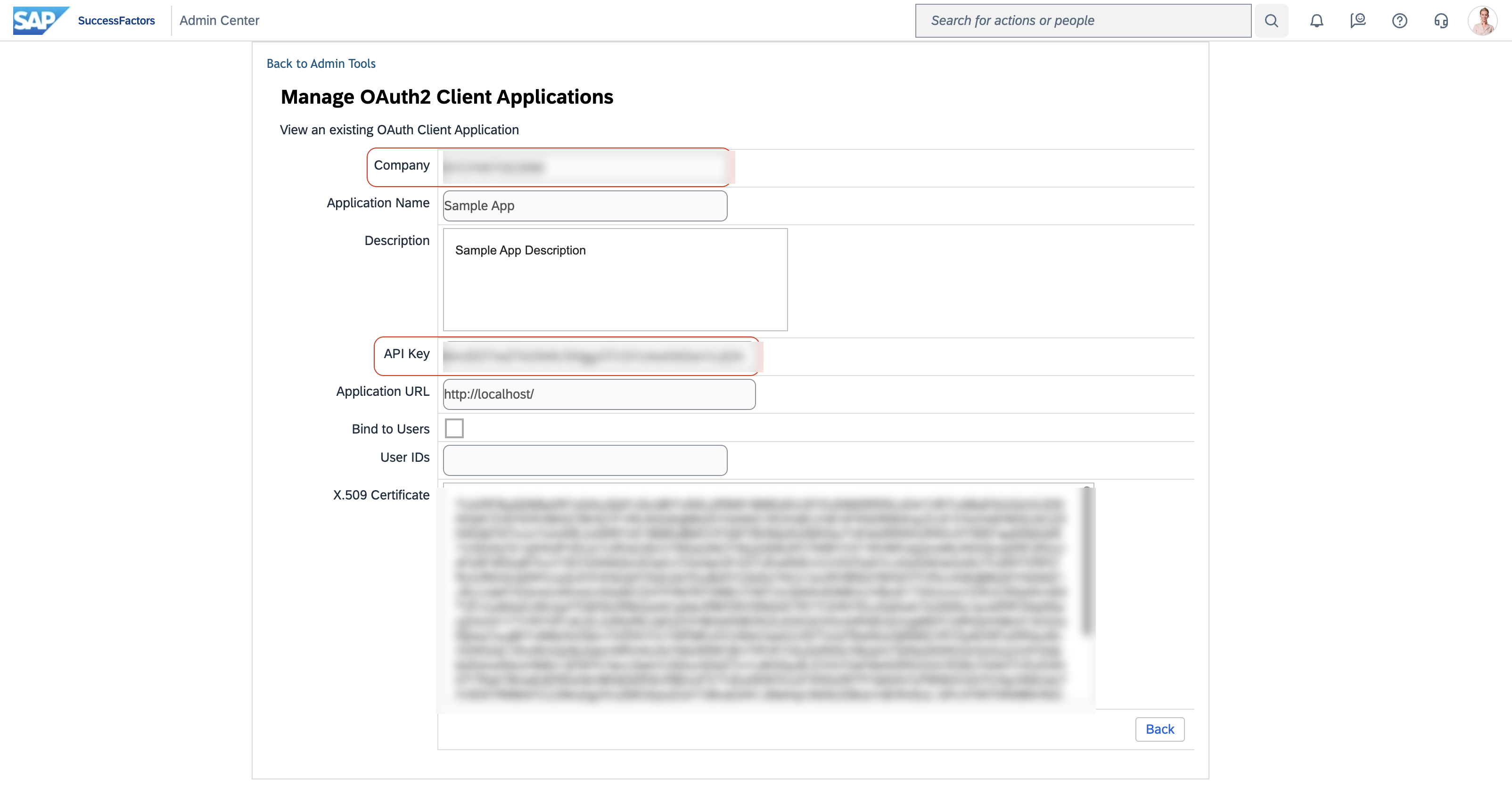
You now have everything sap:SamlBearerAuthConfig needs:
- apiKey - the API Key from the application you just registered
- companyId - the Company ID shown on the same screen
- username - the SAP user to authenticate as
- privateKey - the path to your
private_key.pemfile - certificate - the path to your
certificate.pemfile, or its content - tokenUrl - your Admin Center's OAuth2 token endpoint, typically
https://<admin-center-host>/oauth/token
Quickstart
To use the sap.successfactors.ecadvances connector in your Ballerina application, modify the .bal file as follows:
Step 1: Import the module
Import the sap.successfactors.ecadvances module.
import ballerinax/sap.successfactors.ecadvances as advances;
Step 2: Instantiate a new connector
Use the hostname and credentials to initiate a client.
configurable string hostname = ?; configurable string username = ?; configurable string password = ?; advances:Client advancesClient = check new ( { auth: { username, password } }, hostname );
Step 3: Invoke the connector operation
Now, utilize the available connector operations.
advances:AdvancesInstallmentsWrapper result = check advancesClient->listAdvancesInstallmentss();
Step 4: Run the Ballerina application
bal run
Examples
The SAP SuccessFactors Employee Central Ballerina connectors provide practical examples illustrating usage in various scenarios. Explore these examples, covering use cases like syncing employee data and sending notifications.
-
Google Sheets to SuccessFactors - Read employee records from a Google Sheets roster and create Personal Information records in SuccessFactors.
-
SuccessFactors to Slack - Poll SuccessFactors for newly onboarded employees and send welcome notifications to a Slack channel.
Clients
sap.successfactors.ecadvances: Client
You can use these APIs to manage the information about payroll advances and the recovery of the advances.
You can find your company's API server in List of API Servers in SAP SuccessFactors.
Constructor
Gets invoked to initialize the connector.
init (ConnectionConfig config, string hostname, int port)- config ConnectionConfig - The configurations to be used when initializing the
connector
- hostname string -
- port int 443 -
listAdvancesInstallmentss
function listAdvancesInstallmentss(map<string|string[]> headers, *ListAdvancesInstallmentssQueries queries) returns ListAdvancesInstallmentssResponse|errorGet entities from AdvancesInstallments
Parameters
- queries *ListAdvancesInstallmentssQueries - Queries to be sent with the request
Return Type
- ListAdvancesInstallmentssResponse|error - Retrieved entities
getAdvancesInstallments
function getAdvancesInstallments(string Advance_externalCode, string NonRecurringPayment_externalCode, string externalCode, map<string|string[]> headers, *GetAdvancesInstallmentsQueries queries) returns AdvancesInstallments|errorGet entity from AdvancesInstallments by key
Parameters
- Advance_externalCode string - key: Advance_externalCode
- NonRecurringPayment_externalCode string - key: NonRecurringPayment_externalCode
- externalCode string - key: externalCode
- queries *GetAdvancesInstallmentsQueries - Queries to be sent with the request
Return Type
- AdvancesInstallments|error - Retrieved entity
listAdvancesEligibilitys
function listAdvancesEligibilitys(map<string|string[]> headers, *ListAdvancesEligibilitysQueries queries) returns ListAdvancesEligibilitysResponse|errorGet entities from AdvancesEligibility
Parameters
- queries *ListAdvancesEligibilitysQueries - Queries to be sent with the request
Return Type
- ListAdvancesEligibilitysResponse|error - Retrieved entities
getAdvancesEligibility
function getAdvancesEligibility(string effectiveStartDate, string externalCode, map<string|string[]> headers, *GetAdvancesEligibilityQueries queries) returns AdvancesEligibility|errorGet entity from AdvancesEligibility by key
Parameters
- effectiveStartDate string - key: effectiveStartDate
- externalCode string - key: externalCode
- queries *GetAdvancesEligibilityQueries - Queries to be sent with the request
Return Type
- AdvancesEligibility|error - Retrieved entity
listAdvancesAccumulations
function listAdvancesAccumulations(map<string|string[]> headers, *ListAdvancesAccumulationsQueries queries) returns ListAdvancesAccumulationsResponse|errorGet entities from AdvancesAccumulation
Parameters
- queries *ListAdvancesAccumulationsQueries - Queries to be sent with the request
Return Type
- ListAdvancesAccumulationsResponse|error - Retrieved entities
getAdvancesAccumulation
function getAdvancesAccumulation(string externalCode, map<string|string[]> headers, *GetAdvancesAccumulationQueries queries) returns AdvancesAccumulation|errorGet entity from AdvancesAccumulation by key
Parameters
- externalCode string - key: externalCode
- queries *GetAdvancesAccumulationQueries - Queries to be sent with the request
Return Type
- AdvancesAccumulation|error - Retrieved entity
listAdvances
function listAdvances(map<string|string[]> headers, *ListAdvancesQueries queries) returns ListAdvancesResponse|errorGet entities from Advance
Parameters
- queries *ListAdvancesQueries - Queries to be sent with the request
Return Type
- ListAdvancesResponse|error - Retrieved entities
getAdvance
function getAdvance(string NonRecurringPayment_externalCode, string externalCode, map<string|string[]> headers, *GetAdvanceQueries queries) returns Advance|errorGet entity from Advance by key
Parameters
- NonRecurringPayment_externalCode string - key: NonRecurringPayment_externalCode
- externalCode string - key: externalCode
- queries *GetAdvanceQueries - Queries to be sent with the request
Records
sap.successfactors.ecadvances: Advance
Fields
- NonRecurringPayment_externalCode? string -
- externalCode? string -
- advancesInstallments? RelatedCollectionSFOData_AdvancesInstallments -
sap.successfactors.ecadvances: AdvancesAccumulation
Fields
- externalCode? string -
sap.successfactors.ecadvances: AdvancesEligibility
Fields
- effectiveStartDate? string -
- externalCode? string -
sap.successfactors.ecadvances: AdvancesInstallments
Fields
- Advance_externalCode? string -
- NonRecurringPayment_externalCode? string -
- externalCode? string -
sap.successfactors.ecadvances: CollectionofAdvance
Fields
- results? Advance[] -
sap.successfactors.ecadvances: CollectionofAdvancesAccumulation
Fields
- results? AdvancesAccumulation[] -
sap.successfactors.ecadvances: CollectionofAdvancesEligibility
Fields
- results? AdvancesEligibility[] -
sap.successfactors.ecadvances: CollectionofAdvancesInstallments
Fields
- results? AdvancesInstallments[] -
sap.successfactors.ecadvances: ConnectionConfig
Provides a set of configurations for controlling the behaviours when communicating with a remote HTTP endpoint.
Fields
- auth CredentialsConfig|SamlBearerAuthConfig - Configurations related to client authentication
- httpVersion HttpVersion(default http:HTTP_2_0) - The HTTP version understood by the client
- http1Settings ClientHttp1Settings(default {}) - Configurations related to HTTP/1.x protocol
- http2Settings ClientHttp2Settings(default {}) - Configurations related to HTTP/2 protocol
- timeout decimal(default 30) - The maximum time to wait (in seconds) for a response before closing the connection
- forwarded string(default "disable") - The choice of setting
forwarded/x-forwardedheader
- followRedirects? FollowRedirects - Configurations associated with Redirection
- poolConfig? PoolConfiguration - Configurations associated with request pooling
- cache CacheConfig(default {}) - HTTP caching related configurations
- compression Compression(default http:COMPRESSION_AUTO) - Specifies the way of handling compression (
accept-encoding) header
- circuitBreaker? CircuitBreakerConfig - Configurations associated with the behaviour of the Circuit Breaker
- retryConfig? RetryConfig - Configurations associated with retrying
- responseLimits ResponseLimitConfigs(default {}) - Configurations associated with inbound response size limits
- secureSocket? ClientSecureSocket - SSL/TLS-related options
- proxy? ProxyConfig - Proxy server related options
- socketConfig ClientSocketConfig(default {}) - Provides settings related to client socket configuration
- validation boolean(default true) - Enables the inbound payload validation functionality which provided by the constraint package. Enabled by default
- laxDataBinding boolean(default true) - Enables relaxed data binding on the client side. When enabled,
nilvalues are treated as optional, and absent fields are handled asnilabletypes. Enabled by default.
sap.successfactors.ecadvances: GetAdvanceQueries
Represents the Queries record for the operation: getAdvance
Fields
- \$expand? ("*"|"advanceEligibilityCodeNav"|"advancesInstallments")[] - Expand related entities, see OData Expand
- \$select? ("NonRecurringPayment_externalCode"|"advanceEligibilityCode"|"advanceType"|"approvalStatus"|"approver"|"createdBy"|"createdDate"|"createdDateTime"|"currencyCode"|"currencyGO"|"eligibileAmount"|"eligibilityAmount"|"eligibleAdvanceType"|"externalCode"|"installmentAmount"|"installmentFrequency"|"interestRate"|"interestType"|"lastModifiedBy"|"lastModifiedDate"|"lastModifiedDateTime"|"lastModifiedDateWithTZ"|"mdfSystemEffectiveEndDate"|"mdfSystemEffectiveStartDate"|"mdfSystemEntityId"|"mdfSystemObjectType"|"mdfSystemRecordId"|"mdfSystemRecordStatus"|"mdfSystemStatus"|"mdfSystemTransactionSequence"|"mdfSystemVersionId"|"notesForApprover"|"numberOfInstallments"|"paymentMode"|"pendingAmount"|"periodEndDate"|"periodStartDate"|"recoveryMode"|"recoveryStatus"|"remainingRequests"|"requestDate"|"requestedAmount"|"totalRepaymentAmount")[] - Select properties to be returned, see OData Select
sap.successfactors.ecadvances: GetAdvancesAccumulationQueries
Represents the Queries record for the operation: getAdvancesAccumulation
Fields
- \$select? ("accumulatedAmount"|"advanceType"|"createdBy"|"createdDate"|"createdDateTime"|"currency"|"currencyGO"|"externalCode"|"lastModifiedBy"|"lastModifiedDate"|"lastModifiedDateTime"|"lastModifiedDateWithTZ"|"mdfSystemEffectiveEndDate"|"mdfSystemEffectiveStartDate"|"mdfSystemEntityId"|"mdfSystemObjectType"|"mdfSystemRecordId"|"mdfSystemRecordStatus"|"mdfSystemStatus"|"mdfSystemTransactionSequence"|"mdfSystemVersionId"|"numberOfOccurances"|"periodEndDate"|"periodStartDate"|"remainingEligibleAmount"|"remainingNumberOfOccurances"|"userSysId")[] - Select properties to be returned, see OData Select
sap.successfactors.ecadvances: GetAdvancesEligibilityQueries
Represents the Queries record for the operation: getAdvancesEligibility
Fields
- \$select? ("advanceType"|"basePayComponent"|"basePayComponentGroup"|"calculationPercentageOn"|"company"|"createdBy"|"createdDateTime"|"currency"|"currencyGO"|"dayOfDeduction"|"deductionDateFormat"|"deductionPayCompOTD"|"deductionPayCompRD"|"defaultWorkflow"|"department"|"effectiveEndDate"|"effectiveStartDate"|"effectiveStatus"|"eligibilityAmount"|"enableAutoRecovery"|"exceptionForNumberOfInstallments"|"exceptionForRequestedAmount"|"exceptionWorkflow"|"externalCode"|"externalName"|"firstOccurenceStartDate"|"installmentAmount"|"installmentFrequency"|"interestRate"|"interestType"|"lastModifiedBy"|"lastModifiedDateTime"|"maximumEligibilityAmount"|"mdfSystemCreatedBy"|"mdfSystemCreatedDate"|"mdfSystemEntityId"|"mdfSystemLastModifiedBy"|"mdfSystemLastModifiedDate"|"mdfSystemLastModifiedDateWithTZ"|"mdfSystemObjectType"|"mdfSystemRecordId"|"mdfSystemRecordStatus"|"mdfSystemTransactionSequence"|"mdfSystemVersionId"|"monthDate"|"numberOfInstallments"|"numberOfInstallmentsEditableByEmployee"|"numberOfOccurences"|"occuranceOfDay"|"payComponentType"|"paygrade"|"periodEndDate"|"periodStartDate"|"recoveryMode"|"recoveryModeEditableByEmployee"|"unitOfPeriod"|"validityPeriod")[] - Select properties to be returned, see OData Select
sap.successfactors.ecadvances: GetAdvancesInstallmentsQueries
Represents the Queries record for the operation: getAdvancesInstallments
Fields
- \$select? ("Advance_externalCode"|"NonRecurringPayment_externalCode"|"amortization"|"amortizationTotal"|"balanceRemaining"|"createdBy"|"createdDateTime"|"currency"|"currencyGO"|"effectiveStatus"|"externalCode"|"installmentAmount"|"installmentStatus"|"interestAmount"|"lastModifiedBy"|"lastModifiedDateTime"|"mdfSystemCreatedBy"|"mdfSystemCreatedDate"|"mdfSystemEffectiveEndDate"|"mdfSystemEffectiveStartDate"|"mdfSystemEntityId"|"mdfSystemLastModifiedBy"|"mdfSystemLastModifiedDate"|"mdfSystemLastModifiedDateWithTZ"|"mdfSystemObjectType"|"mdfSystemRecordId"|"mdfSystemRecordStatus"|"mdfSystemTransactionSequence"|"mdfSystemVersionId"|"paymentDate")[] - Select properties to be returned, see OData Select
sap.successfactors.ecadvances: ListAdvancesAccumulationsQueries
Represents the Queries record for the operation: listAdvancesAccumulations
Fields
- \$skip? int - Skip the first n items, see OData Paging - Skip
- \$top int(default 20) - Show only the first n items, see OData Paging - Top
- \$filter? string - Filter items by property values, see OData Filtering
- \$search? string - Search items by search phrases, see OData Searching
- \$orderby? ("accumulatedAmount"|"accumulatedAmount desc"|"advanceType"|"advanceType desc"|"createdBy"|"createdBy desc"|"createdDate"|"createdDate desc"|"createdDateTime"|"createdDateTime desc"|"currency"|"currency desc"|"currencyGO"|"currencyGO desc"|"externalCode"|"externalCode desc"|"lastModifiedBy"|"lastModifiedBy desc"|"lastModifiedDate"|"lastModifiedDate desc"|"lastModifiedDateTime"|"lastModifiedDateTime desc"|"lastModifiedDateWithTZ"|"lastModifiedDateWithTZ desc"|"mdfSystemEffectiveEndDate"|"mdfSystemEffectiveEndDate desc"|"mdfSystemEffectiveStartDate"|"mdfSystemEffectiveStartDate desc"|"mdfSystemEntityId"|"mdfSystemEntityId desc"|"mdfSystemObjectType"|"mdfSystemObjectType desc"|"mdfSystemRecordId"|"mdfSystemRecordId desc"|"mdfSystemRecordStatus"|"mdfSystemRecordStatus desc"|"mdfSystemStatus"|"mdfSystemStatus desc"|"mdfSystemTransactionSequence"|"mdfSystemTransactionSequence desc"|"mdfSystemVersionId"|"mdfSystemVersionId desc"|"numberOfOccurances"|"numberOfOccurances desc"|"periodEndDate"|"periodEndDate desc"|"periodStartDate"|"periodStartDate desc"|"remainingEligibleAmount"|"remainingEligibleAmount desc"|"remainingNumberOfOccurances"|"remainingNumberOfOccurances desc"|"userSysId"|"userSysId desc")[] - Order items by property values, see OData Sorting
- \$count? boolean - Include count of items, see OData Count
- \$select? ("accumulatedAmount"|"advanceType"|"createdBy"|"createdDate"|"createdDateTime"|"currency"|"currencyGO"|"externalCode"|"lastModifiedBy"|"lastModifiedDate"|"lastModifiedDateTime"|"lastModifiedDateWithTZ"|"mdfSystemEffectiveEndDate"|"mdfSystemEffectiveStartDate"|"mdfSystemEntityId"|"mdfSystemObjectType"|"mdfSystemRecordId"|"mdfSystemRecordStatus"|"mdfSystemStatus"|"mdfSystemTransactionSequence"|"mdfSystemVersionId"|"numberOfOccurances"|"periodEndDate"|"periodStartDate"|"remainingEligibleAmount"|"remainingNumberOfOccurances"|"userSysId")[] - Select properties to be returned, see OData Select
sap.successfactors.ecadvances: ListAdvancesAccumulationsResponse
Fields
sap.successfactors.ecadvances: ListAdvancesEligibilitysQueries
Represents the Queries record for the operation: listAdvancesEligibilitys
Fields
- \$skip? int - Skip the first n items, see OData Paging - Skip
- \$top int(default 20) - Show only the first n items, see OData Paging - Top
- \$filter? string - Filter items by property values, see OData Filtering
- \$search? string - Search items by search phrases, see OData Searching
- \$orderby? ("advanceType"|"advanceType desc"|"basePayComponent"|"basePayComponent desc"|"basePayComponentGroup"|"basePayComponentGroup desc"|"calculationPercentageOn"|"calculationPercentageOn desc"|"company"|"company desc"|"createdBy"|"createdBy desc"|"createdDateTime"|"createdDateTime desc"|"currency"|"currency desc"|"currencyGO"|"currencyGO desc"|"dayOfDeduction"|"dayOfDeduction desc"|"deductionDateFormat"|"deductionDateFormat desc"|"deductionPayCompOTD"|"deductionPayCompOTD desc"|"deductionPayCompRD"|"deductionPayCompRD desc"|"defaultWorkflow"|"defaultWorkflow desc"|"department"|"department desc"|"effectiveEndDate"|"effectiveEndDate desc"|"effectiveStartDate"|"effectiveStartDate desc"|"effectiveStatus"|"effectiveStatus desc"|"eligibilityAmount"|"eligibilityAmount desc"|"enableAutoRecovery"|"enableAutoRecovery desc"|"exceptionForNumberOfInstallments"|"exceptionForNumberOfInstallments desc"|"exceptionForRequestedAmount"|"exceptionForRequestedAmount desc"|"exceptionWorkflow"|"exceptionWorkflow desc"|"externalCode"|"externalCode desc"|"externalName"|"externalName desc"|"firstOccurenceStartDate"|"firstOccurenceStartDate desc"|"installmentAmount"|"installmentAmount desc"|"installmentFrequency"|"installmentFrequency desc"|"interestRate"|"interestRate desc"|"interestType"|"interestType desc"|"lastModifiedBy"|"lastModifiedBy desc"|"lastModifiedDateTime"|"lastModifiedDateTime desc"|"maximumEligibilityAmount"|"maximumEligibilityAmount desc"|"mdfSystemCreatedBy"|"mdfSystemCreatedBy desc"|"mdfSystemCreatedDate"|"mdfSystemCreatedDate desc"|"mdfSystemEntityId"|"mdfSystemEntityId desc"|"mdfSystemLastModifiedBy"|"mdfSystemLastModifiedBy desc"|"mdfSystemLastModifiedDate"|"mdfSystemLastModifiedDate desc"|"mdfSystemLastModifiedDateWithTZ"|"mdfSystemLastModifiedDateWithTZ desc"|"mdfSystemObjectType"|"mdfSystemObjectType desc"|"mdfSystemRecordId"|"mdfSystemRecordId desc"|"mdfSystemRecordStatus"|"mdfSystemRecordStatus desc"|"mdfSystemTransactionSequence"|"mdfSystemTransactionSequence desc"|"mdfSystemVersionId"|"mdfSystemVersionId desc"|"monthDate"|"monthDate desc"|"numberOfInstallments"|"numberOfInstallments desc"|"numberOfInstallmentsEditableByEmployee"|"numberOfInstallmentsEditableByEmployee desc"|"numberOfOccurences"|"numberOfOccurences desc"|"occuranceOfDay"|"occuranceOfDay desc"|"payComponentType"|"payComponentType desc"|"paygrade"|"paygrade desc"|"periodEndDate"|"periodEndDate desc"|"periodStartDate"|"periodStartDate desc"|"recoveryMode"|"recoveryMode desc"|"recoveryModeEditableByEmployee"|"recoveryModeEditableByEmployee desc"|"unitOfPeriod"|"unitOfPeriod desc"|"validityPeriod"|"validityPeriod desc")[] - Order items by property values, see OData Sorting
- \$count? boolean - Include count of items, see OData Count
- \$select? ("advanceType"|"basePayComponent"|"basePayComponentGroup"|"calculationPercentageOn"|"company"|"createdBy"|"createdDateTime"|"currency"|"currencyGO"|"dayOfDeduction"|"deductionDateFormat"|"deductionPayCompOTD"|"deductionPayCompRD"|"defaultWorkflow"|"department"|"effectiveEndDate"|"effectiveStartDate"|"effectiveStatus"|"eligibilityAmount"|"enableAutoRecovery"|"exceptionForNumberOfInstallments"|"exceptionForRequestedAmount"|"exceptionWorkflow"|"externalCode"|"externalName"|"firstOccurenceStartDate"|"installmentAmount"|"installmentFrequency"|"interestRate"|"interestType"|"lastModifiedBy"|"lastModifiedDateTime"|"maximumEligibilityAmount"|"mdfSystemCreatedBy"|"mdfSystemCreatedDate"|"mdfSystemEntityId"|"mdfSystemLastModifiedBy"|"mdfSystemLastModifiedDate"|"mdfSystemLastModifiedDateWithTZ"|"mdfSystemObjectType"|"mdfSystemRecordId"|"mdfSystemRecordStatus"|"mdfSystemTransactionSequence"|"mdfSystemVersionId"|"monthDate"|"numberOfInstallments"|"numberOfInstallmentsEditableByEmployee"|"numberOfOccurences"|"occuranceOfDay"|"payComponentType"|"paygrade"|"periodEndDate"|"periodStartDate"|"recoveryMode"|"recoveryModeEditableByEmployee"|"unitOfPeriod"|"validityPeriod")[] - Select properties to be returned, see OData Select
sap.successfactors.ecadvances: ListAdvancesEligibilitysResponse
Fields
sap.successfactors.ecadvances: ListAdvancesInstallmentssQueries
Represents the Queries record for the operation: listAdvancesInstallmentss
Fields
- \$skip? int - Skip the first n items, see OData Paging - Skip
- \$top int(default 20) - Show only the first n items, see OData Paging - Top
- \$filter? string - Filter items by property values, see OData Filtering
- \$search? string - Search items by search phrases, see OData Searching
- \$orderby? ("Advance_externalCode"|"Advance_externalCode desc"|"NonRecurringPayment_externalCode"|"NonRecurringPayment_externalCode desc"|"amortization"|"amortization desc"|"amortizationTotal"|"amortizationTotal desc"|"balanceRemaining"|"balanceRemaining desc"|"createdBy"|"createdBy desc"|"createdDateTime"|"createdDateTime desc"|"currency"|"currency desc"|"currencyGO"|"currencyGO desc"|"effectiveStatus"|"effectiveStatus desc"|"externalCode"|"externalCode desc"|"installmentAmount"|"installmentAmount desc"|"installmentStatus"|"installmentStatus desc"|"interestAmount"|"interestAmount desc"|"lastModifiedBy"|"lastModifiedBy desc"|"lastModifiedDateTime"|"lastModifiedDateTime desc"|"mdfSystemCreatedBy"|"mdfSystemCreatedBy desc"|"mdfSystemCreatedDate"|"mdfSystemCreatedDate desc"|"mdfSystemEffectiveEndDate"|"mdfSystemEffectiveEndDate desc"|"mdfSystemEffectiveStartDate"|"mdfSystemEffectiveStartDate desc"|"mdfSystemEntityId"|"mdfSystemEntityId desc"|"mdfSystemLastModifiedBy"|"mdfSystemLastModifiedBy desc"|"mdfSystemLastModifiedDate"|"mdfSystemLastModifiedDate desc"|"mdfSystemLastModifiedDateWithTZ"|"mdfSystemLastModifiedDateWithTZ desc"|"mdfSystemObjectType"|"mdfSystemObjectType desc"|"mdfSystemRecordId"|"mdfSystemRecordId desc"|"mdfSystemRecordStatus"|"mdfSystemRecordStatus desc"|"mdfSystemTransactionSequence"|"mdfSystemTransactionSequence desc"|"mdfSystemVersionId"|"mdfSystemVersionId desc"|"paymentDate"|"paymentDate desc")[] - Order items by property values, see OData Sorting
- \$count? boolean - Include count of items, see OData Count
- \$select? ("Advance_externalCode"|"NonRecurringPayment_externalCode"|"amortization"|"amortizationTotal"|"balanceRemaining"|"createdBy"|"createdDateTime"|"currency"|"currencyGO"|"effectiveStatus"|"externalCode"|"installmentAmount"|"installmentStatus"|"interestAmount"|"lastModifiedBy"|"lastModifiedDateTime"|"mdfSystemCreatedBy"|"mdfSystemCreatedDate"|"mdfSystemEffectiveEndDate"|"mdfSystemEffectiveStartDate"|"mdfSystemEntityId"|"mdfSystemLastModifiedBy"|"mdfSystemLastModifiedDate"|"mdfSystemLastModifiedDateWithTZ"|"mdfSystemObjectType"|"mdfSystemRecordId"|"mdfSystemRecordStatus"|"mdfSystemTransactionSequence"|"mdfSystemVersionId"|"paymentDate")[] - Select properties to be returned, see OData Select
sap.successfactors.ecadvances: ListAdvancesInstallmentssResponse
Fields
sap.successfactors.ecadvances: ListAdvancesQueries
Represents the Queries record for the operation: listAdvances
Fields
- \$skip? int - Skip the first n items, see OData Paging - Skip
- \$top int(default 20) - Show only the first n items, see OData Paging - Top
- \$filter? string - Filter items by property values, see OData Filtering
- \$search? string - Search items by search phrases, see OData Searching
- \$orderby? ("NonRecurringPayment_externalCode"|"NonRecurringPayment_externalCode desc"|"advanceEligibilityCode"|"advanceEligibilityCode desc"|"advanceType"|"advanceType desc"|"approvalStatus"|"approvalStatus desc"|"approver"|"approver desc"|"createdBy"|"createdBy desc"|"createdDate"|"createdDate desc"|"createdDateTime"|"createdDateTime desc"|"currencyCode"|"currencyCode desc"|"currencyGO"|"currencyGO desc"|"eligibileAmount"|"eligibileAmount desc"|"eligibilityAmount"|"eligibilityAmount desc"|"eligibleAdvanceType"|"eligibleAdvanceType desc"|"externalCode"|"externalCode desc"|"installmentAmount"|"installmentAmount desc"|"installmentFrequency"|"installmentFrequency desc"|"interestRate"|"interestRate desc"|"interestType"|"interestType desc"|"lastModifiedBy"|"lastModifiedBy desc"|"lastModifiedDate"|"lastModifiedDate desc"|"lastModifiedDateTime"|"lastModifiedDateTime desc"|"lastModifiedDateWithTZ"|"lastModifiedDateWithTZ desc"|"mdfSystemEffectiveEndDate"|"mdfSystemEffectiveEndDate desc"|"mdfSystemEffectiveStartDate"|"mdfSystemEffectiveStartDate desc"|"mdfSystemEntityId"|"mdfSystemEntityId desc"|"mdfSystemObjectType"|"mdfSystemObjectType desc"|"mdfSystemRecordId"|"mdfSystemRecordId desc"|"mdfSystemRecordStatus"|"mdfSystemRecordStatus desc"|"mdfSystemStatus"|"mdfSystemStatus desc"|"mdfSystemTransactionSequence"|"mdfSystemTransactionSequence desc"|"mdfSystemVersionId"|"mdfSystemVersionId desc"|"notesForApprover"|"notesForApprover desc"|"numberOfInstallments"|"numberOfInstallments desc"|"paymentMode"|"paymentMode desc"|"pendingAmount"|"pendingAmount desc"|"periodEndDate"|"periodEndDate desc"|"periodStartDate"|"periodStartDate desc"|"recoveryMode"|"recoveryMode desc"|"recoveryStatus"|"recoveryStatus desc"|"remainingRequests"|"remainingRequests desc"|"requestDate"|"requestDate desc"|"requestedAmount"|"requestedAmount desc"|"totalRepaymentAmount"|"totalRepaymentAmount desc")[] - Order items by property values, see OData Sorting
- \$expand? ("*"|"advanceEligibilityCodeNav"|"advancesInstallments")[] - Expand related entities, see OData Expand
- \$count? boolean - Include count of items, see OData Count
- \$select? ("NonRecurringPayment_externalCode"|"advanceEligibilityCode"|"advanceType"|"approvalStatus"|"approver"|"createdBy"|"createdDate"|"createdDateTime"|"currencyCode"|"currencyGO"|"eligibileAmount"|"eligibilityAmount"|"eligibleAdvanceType"|"externalCode"|"installmentAmount"|"installmentFrequency"|"interestRate"|"interestType"|"lastModifiedBy"|"lastModifiedDate"|"lastModifiedDateTime"|"lastModifiedDateWithTZ"|"mdfSystemEffectiveEndDate"|"mdfSystemEffectiveStartDate"|"mdfSystemEntityId"|"mdfSystemObjectType"|"mdfSystemRecordId"|"mdfSystemRecordStatus"|"mdfSystemStatus"|"mdfSystemTransactionSequence"|"mdfSystemVersionId"|"notesForApprover"|"numberOfInstallments"|"paymentMode"|"pendingAmount"|"periodEndDate"|"periodStartDate"|"recoveryMode"|"recoveryStatus"|"remainingRequests"|"requestDate"|"requestedAmount"|"totalRepaymentAmount")[] - Select properties to be returned, see OData Select
sap.successfactors.ecadvances: ListAdvancesResponse
Fields
- d? CollectionofAdvance -
sap.successfactors.ecadvances: RelatedCollectionSFOData_AdvancesEligibility
Fields
- results? AdvancesEligibility[] -
sap.successfactors.ecadvances: RelatedCollectionSFOData_AdvancesInstallments
Fields
- results? AdvancesInstallments[] -