Module sap.s4hana.api_physical_inventory_doc_srv

ballerinax/sap.s4hana.api_physical_inventory_doc_srv Ballerina library
Overview
SAP S/4HANA is a robust enterprise resource planning (ERP) solution, designed for large-scale enterprises by SAP SE. It covers core business processes such as finance, procurement, sales, and materials management, including inventory and warehouse operations.
WSO2 SAP S/4HANA Physical Inventory Document provides a way to interact with the Physical Inventory Documents - Read, Create API. The service allows to read and create physical inventory documents.
Key Features
- Create physical inventory documents to plan stock counts
- Read physical inventory document headers and items
- Read serial numbers recorded on physical inventory documents
Setup guide
This connector uses Basic Authentication with an SAP S/4HANA Cloud communication user. Each S/4HANA API is
exposed through a communication scenario, so the user must be assigned to a communication arrangement for the
Physical Inventory Document Integration (SAP_COM_0107) scenario before the connector can call it.
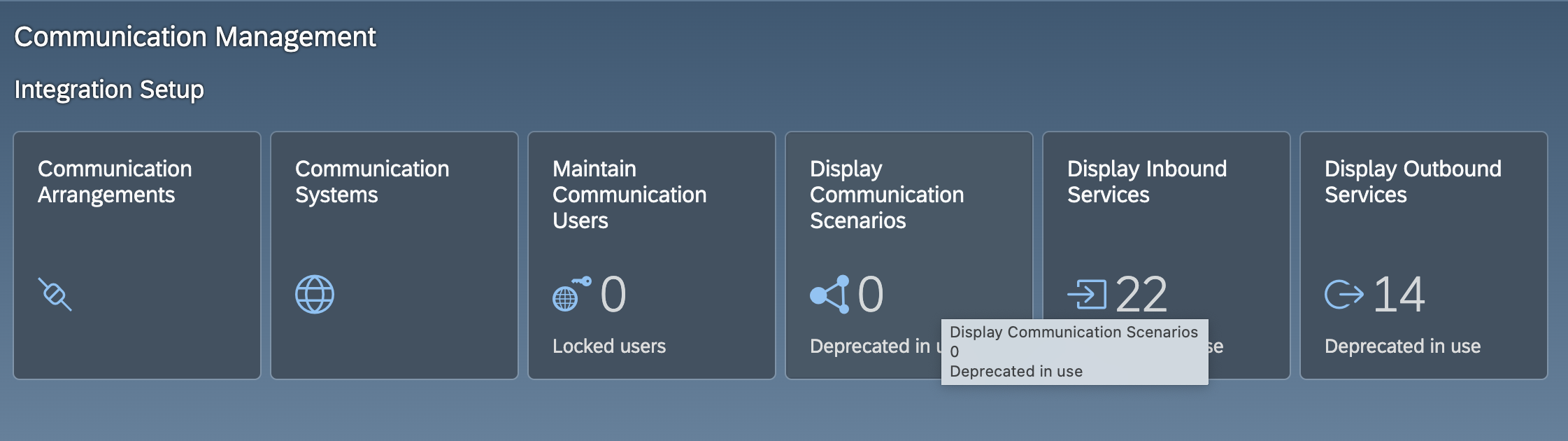
All the apps used below are in the Communication Management group of the SAP Fiori launchpad.
Step 1: Create a communication user
- Sign in to your SAP S/4HANA Cloud system as an administrator.
- Open the Maintain Communication Users app and choose New.
- Enter a user name and a description, set a password, and choose Create.
Note the user name and password. These are the credentials the connector uses.
Step 2: Create a communication system
-
Open the Communication Systems app and choose New.
-
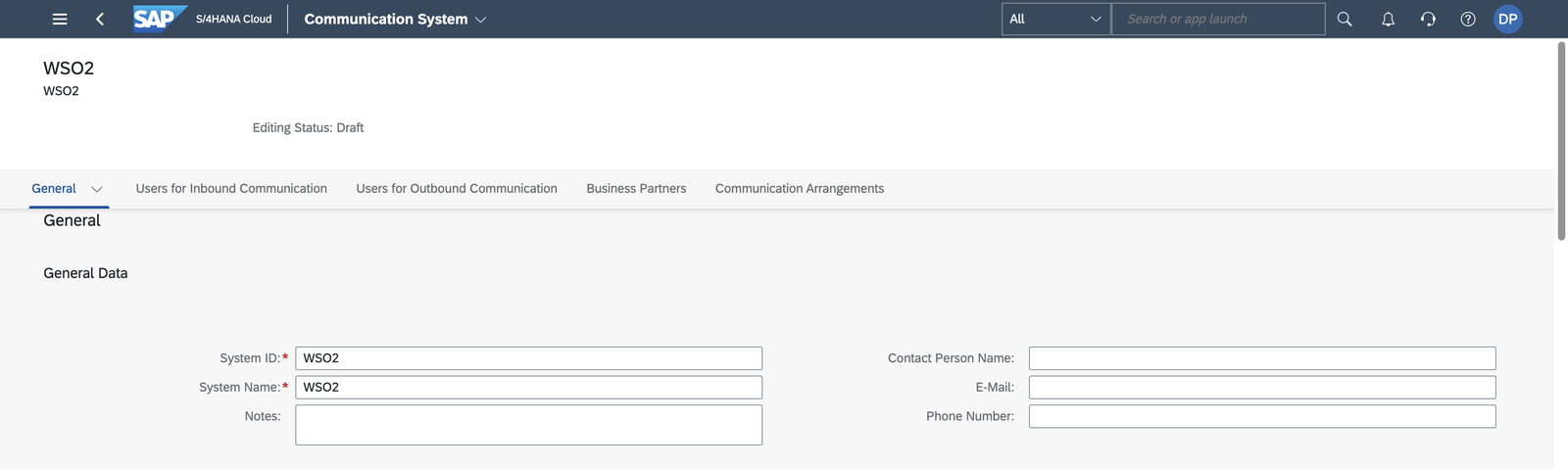
Enter a system ID and a system name, and choose Create.
-
Under General > Technical Data, enter a host name and a Logical System (an uppercase ID of up to 10 characters, for example,
INTEGRATOR). Some scenarios refuse to activate when the logical system is empty. -
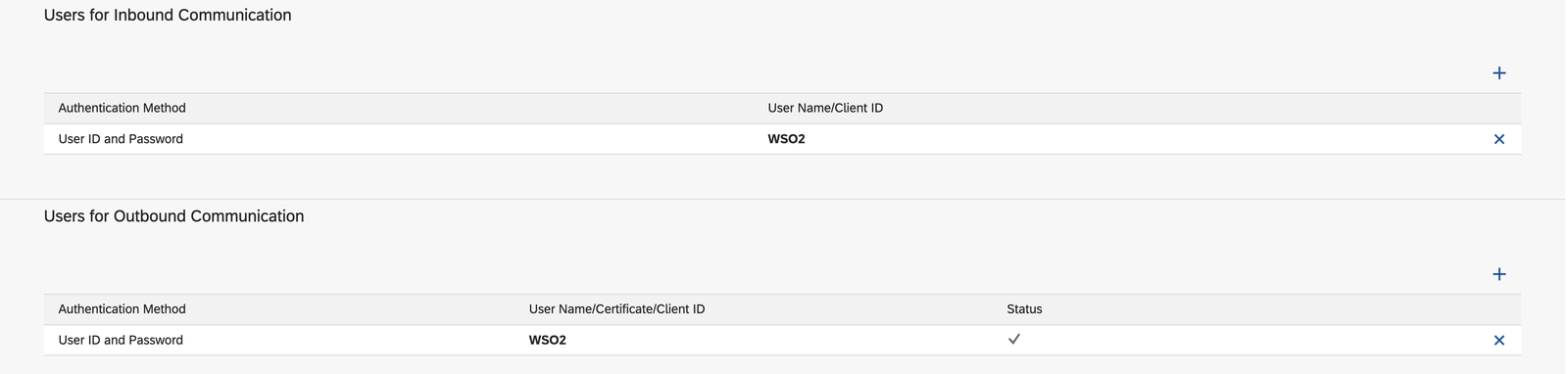
Under Users for Inbound Communication, add the communication user from Step 1 with the User Name and Password authentication method.
-
Choose Save.
Step 3: Create a communication arrangement
-
Open the Communication Arrangements app and choose New.
-
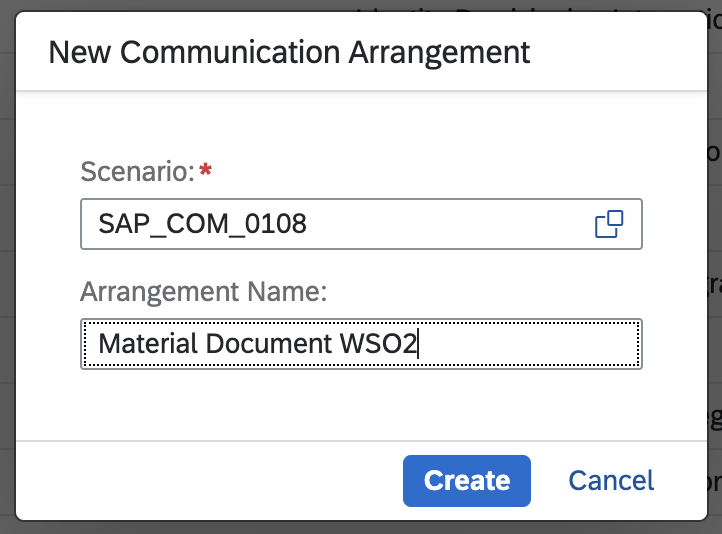
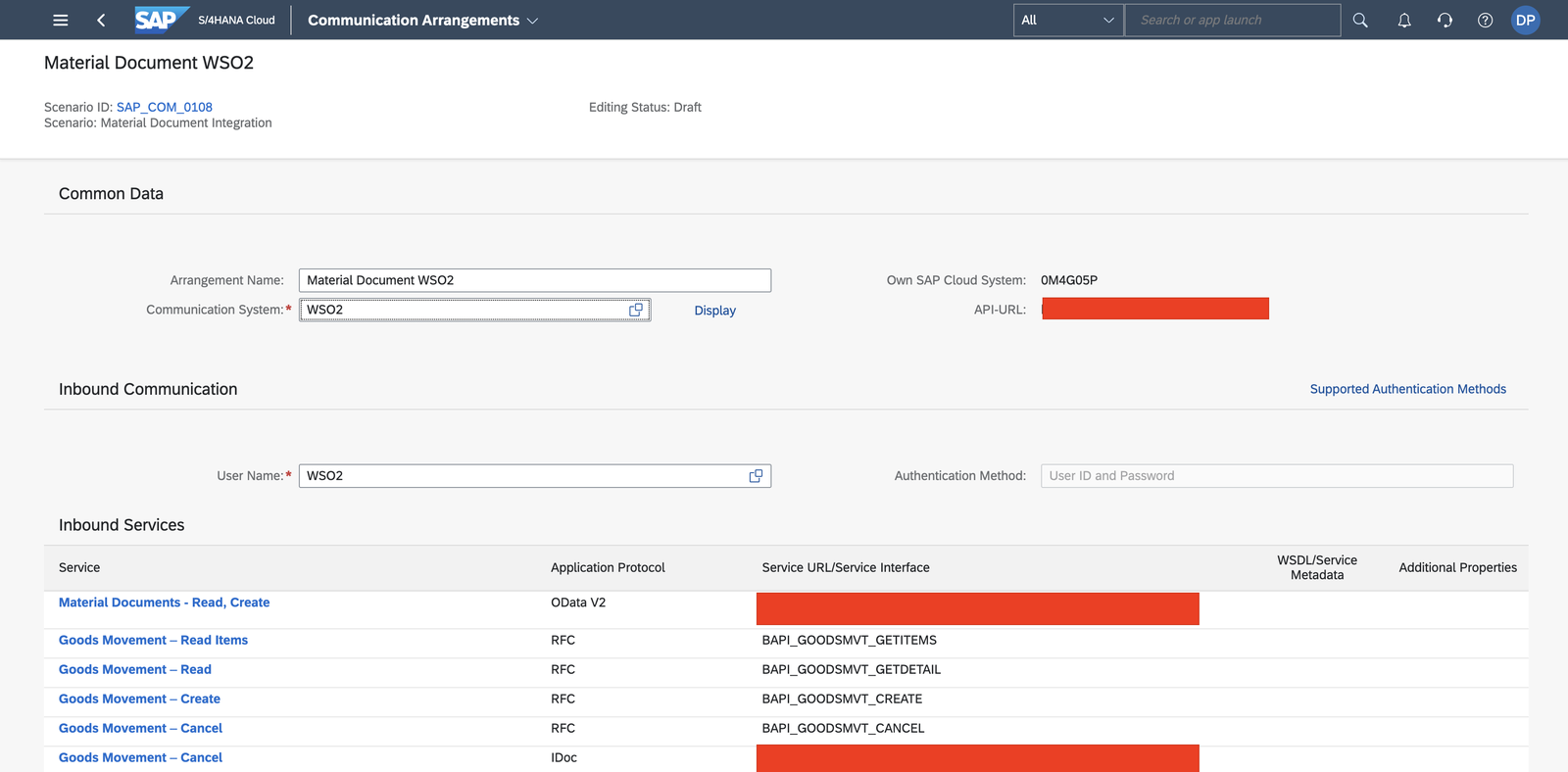
In the Scenario value help, search for Physical Inventory Document Integration and select
SAP_COM_0107. This is the scenario that exposesAPI_PHYSICAL_INVENTORY_DOC_SRV, the service this connector calls.
-
Enter a unique name for the arrangement and choose Create.
-
Select the communication system from Step 2. The communication user from Step 1 is filled in as the inbound user. If the scenario lists outbound services that the integration does not need, clear their Active check boxes so that no outbound user is required.
-
Choose Save.
Step 4: Note the hostname
Open the saved arrangement. The API-URL next to Own SAP Cloud System shows the hostname
(<unique id>-api.s4hana.cloud.sap).
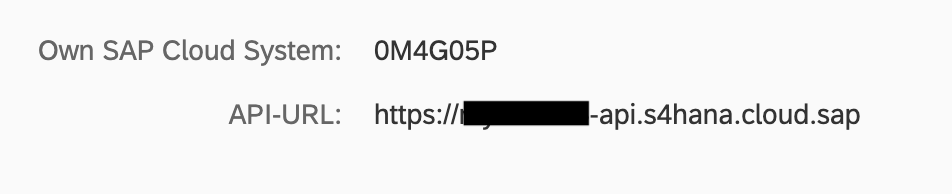
You now have everything the connector needs:
- hostname - the API hostname, for example,
my123456-api.s4hana.cloud.sap - username - the communication user name
- password - the communication user password
Quickstart
To use the sap.s4hana.api_physical_inventory_doc_srv connector in your Ballerina application, modify the .bal file as follows:
Step 1: Import the module
Import the sap.s4hana.api_physical_inventory_doc_srv module.
import ballerinax/sap.s4hana.api_physical_inventory_doc_srv as physicalinventorydoc;
Step 2: Instantiate a new connector
Use the hostname and credentials to initiate a client.
configurable string hostname = ?; configurable string username = ?; configurable string password = ?; physicalinventorydoc:Client physicalInventoryDocClient = check new ( { auth: { username, password } }, hostname );
Step 3: Invoke the connector operation
Now, utilize the available connector operations.
physicalinventorydoc:CollectionOfA_PhysInventoryDocItemWrapper listAPhysInventoryDocItems = check physicalInventoryDocClient->listA_PhysInventoryDocItems();
Step 4: Run the Ballerina application
bal run
Examples
The SAP S/4HANA Inventory Ballerina connectors provide practical examples illustrating usage in various scenarios. Explore these examples, covering use cases like point-of-sale stock reservations and warehouse document automation.
-
POS Integration with S/4HANA - Check real-time material stock and create reservation documents in S/4HANA from point-of-sale orders.
-
Warehouse Automation through S/4HANA Integration - Digitize paper delivery notes with OCR and create material documents in S/4HANA from the extracted data.
Clients
sap.s4hana.api_physical_inventory_doc_srv: Client
You can count items and post differences on both document and item level. The service can be consumed by external systems.
Constructor
Gets invoked to initialize the connector.
init (ConnectionConfig config, string hostname, int port)- config ConnectionConfig - The configurations to be used when initializing the
connector
- hostname string -
- port int 443 -
createA_PhysInventoryDocHeader
function createA_PhysInventoryDocHeader(CreateA_PhysInventoryDocHeader payload, map<string|string[]> headers) returns A_PhysInventoryDocHeader_1|errorCreates a physical inventory document
Parameters
- payload CreateA_PhysInventoryDocHeader - New entity
Return Type
- A_PhysInventoryDocHeader_1|error - Created entity
createInitiateRecount
function createInitiateRecount(map<string|string[]> headers, *CreateInitiateRecountQueries queries) returns A_PhysInventoryDocHeader_1|errorInitiates a recount for the physical inventory document
Parameters
- queries *CreateInitiateRecountQueries - Queries to be sent with the request
Return Type
- A_PhysInventoryDocHeader_1|error - Success
createInitiateRecountOnItem
function createInitiateRecountOnItem(map<string|string[]> headers, *CreateInitiateRecountOnItemQueries queries) returns A_PhysInventoryDocItem_1|errorInitiates a recount for the specific physical inventory document
Parameters
- queries *CreateInitiateRecountOnItemQueries - Queries to be sent with the request
Return Type
- A_PhysInventoryDocItem_1|error - Success
createPostDifferences
function createPostDifferences(map<string|string[]> headers, *CreatePostDifferencesQueries queries) returns A_PhysInventoryDocHeader_1|errorCreates the material document for the differences
Parameters
- queries *CreatePostDifferencesQueries - Queries to be sent with the request
Return Type
- A_PhysInventoryDocHeader_1|error - Success
createPostDifferencesOnItem
function createPostDifferencesOnItem(map<string|string[]> headers, *CreatePostDifferencesOnItemQueries queries) returns A_PhysInventoryDocItem_1|errorCreates the material document for the differences for a specific physical inventory document item
Parameters
- queries *CreatePostDifferencesOnItemQueries - Queries to be sent with the request
Return Type
- A_PhysInventoryDocItem_1|error - Success
getA_PhysInventoryDocHeader
function getA_PhysInventoryDocHeader(string FiscalYear, string PhysicalInventoryDocument, map<string|string[]> headers, *GetA_PhysInventoryDocHeaderQueries queries) returns A_PhysInventoryDocHeaderWrapper|errorReads information for a specific physical inventory document
Parameters
- FiscalYear string - Fiscal Year
- PhysicalInventoryDocument string - Physical Inventory Document
- queries *GetA_PhysInventoryDocHeaderQueries - Queries to be sent with the request
Return Type
- A_PhysInventoryDocHeaderWrapper|error - Retrieved entity
getA_PhysInventoryDocItem
function getA_PhysInventoryDocItem(string FiscalYear, string PhysicalInventoryDocument, string PhysicalInventoryDocumentItem, map<string|string[]> headers, *GetA_PhysInventoryDocItemQueries queries) returns A_PhysInventoryDocItemWrapper|errorReads information on physical inventory document item level for a specific physical inventory document item
Parameters
- FiscalYear string - Fiscal Year
- PhysicalInventoryDocument string - Physical Inventory Document
- PhysicalInventoryDocumentItem string - Physical Inventory Item Number
- queries *GetA_PhysInventoryDocItemQueries - Queries to be sent with the request
Return Type
- A_PhysInventoryDocItemWrapper|error - Retrieved entity
getA_SerialNumberPhysInventoryDoc
function getA_SerialNumberPhysInventoryDoc(string Equipment, string FiscalYear, string PhysicalInventoryDocument, string PhysicalInventoryDocumentItem, string SerialNumberPhysicalInvtryType, map<string|string[]> headers, *GetA_SerialNumberPhysInventoryDocQueries queries) returns A_SerialNumberPhysInventoryDocWrapper|errorReads information of serial number on physical inventory document item level for a specific physical inventory document, item and year
Parameters
- Equipment string - Equipment Number
- FiscalYear string - Fiscal Year
- PhysicalInventoryDocument string - Physical Inventory Document
- PhysicalInventoryDocumentItem string - Line Number
- SerialNumberPhysicalInvtryType string - Serial Number Physical Inventory Type
- queries *GetA_SerialNumberPhysInventoryDocQueries - Queries to be sent with the request
Return Type
- A_SerialNumberPhysInventoryDocWrapper|error - Retrieved entity
getPhysicalInventoryDocumentOfA_PhysInventoryDocItem
function getPhysicalInventoryDocumentOfA_PhysInventoryDocItem(string FiscalYear, string PhysicalInventoryDocument, string PhysicalInventoryDocumentItem, map<string|string[]> headers, *GetPhysicalInventoryDocumentOfA_PhysInventoryDocItemQueries queries) returns A_PhysInventoryDocHeaderWrapper|errorReads information on physical inventory document item and header level for a specific physical inventory document item
Parameters
- FiscalYear string - Fiscal Year
- PhysicalInventoryDocument string - Physical Inventory Document
- PhysicalInventoryDocumentItem string - Physical Inventory Item Number
- queries *GetPhysicalInventoryDocumentOfA_PhysInventoryDocItemQueries - Queries to be sent with the request
Return Type
- A_PhysInventoryDocHeaderWrapper|error - Retrieved entity
listA_PhysInventoryDocHeaders
function listA_PhysInventoryDocHeaders(map<string|string[]> headers, *ListA_PhysInventoryDocHeadersQueries queries) returns CollectionOfA_PhysInventoryDocHeaderWrapper|errorReads information on physical inventory document header level
Parameters
- queries *ListA_PhysInventoryDocHeadersQueries - Queries to be sent with the request
Return Type
- CollectionOfA_PhysInventoryDocHeaderWrapper|error - Retrieved entities
listA_PhysInventoryDocItems
function listA_PhysInventoryDocItems(map<string|string[]> headers, *ListA_PhysInventoryDocItemsQueries queries) returns CollectionOfA_PhysInventoryDocItemWrapper|errorReads information on physical inventory items level
Parameters
- queries *ListA_PhysInventoryDocItemsQueries - Queries to be sent with the request
Return Type
- CollectionOfA_PhysInventoryDocItemWrapper|error - Retrieved entities
listA_SerialNumberPhysInventoryDocs
function listA_SerialNumberPhysInventoryDocs(map<string|string[]> headers, *ListA_SerialNumberPhysInventoryDocsQueries queries) returns CollectionOfA_SerialNumberPhysInventoryDocWrapper|errorReads information of serial numbers on physical inventory document items level
Parameters
- queries *ListA_SerialNumberPhysInventoryDocsQueries - Queries to be sent with the request
Return Type
- CollectionOfA_SerialNumberPhysInventoryDocWrapper|error - Retrieved entities
listPhysicalInventoryDocumentItemsOfA_PhysInventoryDocHeader
function listPhysicalInventoryDocumentItemsOfA_PhysInventoryDocHeader(string FiscalYear, string PhysicalInventoryDocument, map<string|string[]> headers, *ListPhysicalInventoryDocumentItemsOfA_PhysInventoryDocHeaderQueries queries) returns CollectionOfA_PhysInventoryDocItemWrapper|errorReads information for a specific physical inventory document header and physical inventory document items
Parameters
- FiscalYear string - Fiscal Year
- PhysicalInventoryDocument string - Physical Inventory Document
- queries *ListPhysicalInventoryDocumentItemsOfA_PhysInventoryDocHeaderQueries - Queries to be sent with the request
Return Type
- CollectionOfA_PhysInventoryDocItemWrapper|error - Retrieved entities
listSerialNumberssOfA_PhysInventoryDocItem
function listSerialNumberssOfA_PhysInventoryDocItem(string FiscalYear, string PhysicalInventoryDocument, string PhysicalInventoryDocumentItem, map<string|string[]> headers, *ListSerialNumberssOfA_PhysInventoryDocItemQueries queries) returns CollectionOfA_SerialNumberPhysInventoryDocWrapper|errorReads information on serial numbers for a specific physical inventory document item
Parameters
- FiscalYear string - Fiscal Year
- PhysicalInventoryDocument string - Physical Inventory Document
- PhysicalInventoryDocumentItem string - Physical Inventory Item Number
- queries *ListSerialNumberssOfA_PhysInventoryDocItemQueries - Queries to be sent with the request
Return Type
- CollectionOfA_SerialNumberPhysInventoryDocWrapper|error - Retrieved entities
patchA_PhysInventoryDocItem
function patchA_PhysInventoryDocItem(string FiscalYear, string PhysicalInventoryDocument, string PhysicalInventoryDocumentItem, Modified\ A_PhysInventoryDocItemType payload, map<string|string[]> headers) returns Response|errorChange a specific physical inventory document item
Parameters
- FiscalYear string - Fiscal Year
- PhysicalInventoryDocument string - Physical Inventory Document
- PhysicalInventoryDocumentItem string - Physical Inventory Item Number
- payload Modified\ A_PhysInventoryDocItemType - New property values
patchA_SerialNumberPhysInventoryDoc
function patchA_SerialNumberPhysInventoryDoc(string Equipment, string FiscalYear, string PhysicalInventoryDocument, string PhysicalInventoryDocumentItem, string SerialNumberPhysicalInvtryType, Modified\ A_SerialNumberPhysInventoryDocType payload, map<string|string[]> headers) returns Response|errorSet a counted serial number for a specific physical inventory document item
Parameters
- Equipment string - Equipment Number
- FiscalYear string - Fiscal Year
- PhysicalInventoryDocument string - Physical Inventory Document
- PhysicalInventoryDocumentItem string - Line Number
- SerialNumberPhysicalInvtryType string - Serial Number Physical Inventory Type
- payload Modified\ A_SerialNumberPhysInventoryDocType - New property values
performBatchOperation
function performBatchOperation(Request request, map<string|string[]> headers) returns Response|errorSend a group of requests
Parameters
- request Request - Batch request
Records
sap.s4hana.api_physical_inventory_doc_srv: A_PhysInventoryDocHeader
Fields
- FiscalYear? string -
- PhysicalInventoryDocument? string -
- InventoryTransactionType? string? -
- Plant? string? -
- StorageLocation? string? -
- InventorySpecialStockType? string? - Special Stock Indicator
- DocumentDate? string? - Document Date in Document
- PhysInventoryPlannedCountDate? string? - Planned Date of Inventory Count
- PhysicalInventoryLastCountDate? string? - Date of Last Count
- PostingDate? string? - Posting Date in the Document
- FiscalPeriod? string? -
- CreatedByUser? string? - Physical Inventory Created by User
- PostingIsBlockedForPhysInvtry? boolean? - Posting Block Due to Physical Inventory
- PhysicalInventoryCountStatus? string? -
- PhysInvtryAdjustmentPostingSts? string? - Status of Adjustment Posting (Inventory Differences)
- PhysInvtryDeletionStatus? string? - Status of Deletion
- PhysInvtryDocHasQtySnapshot? boolean? -
- PhysicalInventoryGroupType? string? - Type of Grouping Criterion
- PhysicalInventoryGroup? string? - Grouping Criterion of Physical Inventory Document Item
- PhysicalInventoryNumber? string? -
- PhysInventoryReferenceNumber? string? -
- PhysicalInventoryDocumentDesc? string? - Description of Physical Inventory Document
- PhysicalInventoryType? string? -
- LastChangeDateTime? string? - Last Change Timestamp
- to_PhysicalInventoryDocumentItem? A_PhysInventoryDocHeader_to_PhysicalInventoryDocumentItem -
sap.s4hana.api_physical_inventory_doc_srv: A_PhysInventoryDocHeader_1
Fields
sap.s4hana.api_physical_inventory_doc_srv: A_PhysInventoryDocHeader_to_PhysicalInventoryDocumentItem
Fields
- results? A_PhysInventoryDocItem[] -
sap.s4hana.api_physical_inventory_doc_srv: A_PhysInventoryDocHeaderWrapper
Fields
sap.s4hana.api_physical_inventory_doc_srv: A_PhysInventoryDocItem
Fields
- FiscalYear? string -
- PhysicalInventoryDocument? string -
- PhysicalInventoryDocumentItem? string - Physical Inventory Item Number
- Plant? string? -
- StorageLocation? string? -
- Material? string? - Material Number
- Batch? string? - Batch Number
- InventorySpecialStockType? string? -
- PhysicalInventoryStockType? string? - Stock Type (Physical Inventory)
- SalesOrder? string? - Sales Order Number
- SalesOrderItem? string? - Item Number in Sales Order
- Supplier? string? - Supplier's Account Number
- Customer? string? - Account number of customer
- WBSElement? string? - Work Breakdown Structure Element (WBS Element)
- LastChangeUser? string? -
- LastChangeDate? string? - Last Changed On
- CountedByUser? string? -
- PhysicalInventoryLastCountDate? string? - Date of Last Count
- AdjustmentPostingMadeByUser? string? -
- PostingDate? string? - Posting Date in the Document
- PhysicalInventoryItemIsCounted? boolean? - Item is Counted
- PhysInvtryDifferenceIsPosted? boolean? - Difference of Item is Posted
- PhysInvtryItemIsRecounted? boolean? - Item is Recounted
- PhysInvtryItemIsDeleted? boolean? - Item is Deleted
- IsHandledInAltvUnitOfMsr? boolean? -
- CycleCountType? string? -
- IsValueOnlyMaterial? boolean? -
- PhysInventoryReferenceNumber? string? -
- MaterialDocument? string? - Number of Material Document
- MaterialDocumentYear? string? -
- MaterialDocumentItem? string? -
- PhysInvtryRecountDocument? string? - Number of Recount Document
- PhysicalInventoryItemIsZero? boolean? - Is Zero Count
- ReasonForPhysInvtryDifference? string? -
- MaterialBaseUnit? string? -
- BookQtyBfrCountInMatlBaseUnit? string? - Book Quantity Immediately Prior to Count
- Quantity? string? -
- UnitOfEntry? string? -
- QuantityInUnitOfEntry? string? -
- Currency? string? -
- DifferenceAmountInCoCodeCrcy? string? - Value of Difference
- EnteredSlsAmtInCoCodeCrcy? string? - Externally Entered Value Based on Sales Price
- SlsPriceAmountInCoCodeCrcy? string? -
- PhysInvtryCtAmtInCoCodeCrcy? string? -
- BookQtyAmountInCoCodeCrcy? string? -
- LastChangeDateTime? string? - Last Change Timestamp
- to_PhysicalInventoryDocument? A_PhysInventoryDocHeader -
- to_SerialNumbers? A_PhysInventoryDocItem_to_SerialNumbers -
sap.s4hana.api_physical_inventory_doc_srv: A_PhysInventoryDocItem_1
Fields
sap.s4hana.api_physical_inventory_doc_srv: A_PhysInventoryDocItem_to_SerialNumbers
Fields
- results? A_SerialNumberPhysInventoryDoc[] -
sap.s4hana.api_physical_inventory_doc_srv: A_PhysInventoryDocItemWrapper
Fields
sap.s4hana.api_physical_inventory_doc_srv: A_SerialNumberPhysInventoryDoc
Fields
- Equipment? string - Equipment Number
- FiscalYear? string -
- PhysicalInventoryDocument? string - Physical Inventory Document
- PhysicalInventoryDocumentItem? string - Line Number
- SerialNumberPhysicalInvtryType? string -
- Material? string? - Material Number
- SerialNumber? string? -
sap.s4hana.api_physical_inventory_doc_srv: A_SerialNumberPhysInventoryDocWrapper
Fields
sap.s4hana.api_physical_inventory_doc_srv: CollectionOfA_PhysInventoryDocHeader
Fields
- __count? count -
- results? A_PhysInventoryDocHeader[] -
sap.s4hana.api_physical_inventory_doc_srv: CollectionOfA_PhysInventoryDocHeaderWrapper
Fields
sap.s4hana.api_physical_inventory_doc_srv: CollectionOfA_PhysInventoryDocItem
Fields
- __count? count -
- results? A_PhysInventoryDocItem[] -
sap.s4hana.api_physical_inventory_doc_srv: CollectionOfA_PhysInventoryDocItemWrapper
Fields
sap.s4hana.api_physical_inventory_doc_srv: CollectionOfA_SerialNumberPhysInventoryDoc
Fields
- __count? count -
- results? A_SerialNumberPhysInventoryDoc[] -
sap.s4hana.api_physical_inventory_doc_srv: CollectionOfA_SerialNumberPhysInventoryDocWrapper
Fields
sap.s4hana.api_physical_inventory_doc_srv: ConnectionConfig
Provides a set of configurations for controlling the behaviours when communicating with a remote HTTP endpoint.
Fields
- auth BearerTokenConfig|OAuth2RefreshTokenGrantConfig|CredentialsConfig - Configurations related to client authentication
- httpVersion HttpVersion(default http:HTTP_2_0) - The HTTP version understood by the client
- http1Settings ClientHttp1Settings(default {}) - Configurations related to HTTP/1.x protocol
- http2Settings ClientHttp2Settings(default {}) - Configurations related to HTTP/2 protocol
- timeout decimal(default 60) - The maximum time to wait (in seconds) for a response before closing the connection
- forwarded string(default "disable") - The choice of setting
forwarded/x-forwardedheader
- followRedirects? FollowRedirects - Configurations associated with Redirection
- poolConfig? PoolConfiguration - Configurations associated with request pooling
- cache CacheConfig(default {}) - HTTP caching related configurations
- compression Compression(default http:COMPRESSION_AUTO) - Specifies the way of handling compression (
accept-encoding) header
- circuitBreaker? CircuitBreakerConfig - Configurations associated with the behaviour of the Circuit Breaker
- retryConfig? RetryConfig - Configurations associated with retrying
- responseLimits ResponseLimitConfigs(default {}) - Configurations associated with inbound response size limits
- secureSocket? ClientSecureSocket - SSL/TLS-related options
- proxy? ProxyConfig - Proxy server related options
- socketConfig ClientSocketConfig(default {}) - Provides settings related to client socket configuration
- validation boolean(default true) - Enables the inbound payload validation functionality which provided by the constraint package. Enabled by default
- laxDataBinding boolean(default true) - Enables relaxed data binding on the client side. When enabled,
nilvalues are treated as optional, and absent fields are handled asnilabletypes. Enabled by default.
sap.s4hana.api_physical_inventory_doc_srv: CreateA_PhysInventoryDocHeader
Fields
- FiscalYear string -
- PhysicalInventoryDocument string -
- InventoryTransactionType? string? -
- Plant? string? -
- StorageLocation? string? -
- InventorySpecialStockType? string? - Special Stock Indicator
- DocumentDate? string? - Document Date in Document
- PhysInventoryPlannedCountDate? string? - Planned Date of Inventory Count
- PhysicalInventoryLastCountDate? string? - Date of Last Count
- PostingDate? string? - Posting Date in the Document
- FiscalPeriod? string? -
- CreatedByUser? string? - Physical Inventory Created by User
- PostingIsBlockedForPhysInvtry? boolean? - Posting Block Due to Physical Inventory
- PhysicalInventoryCountStatus? string? -
- PhysInvtryAdjustmentPostingSts? string? - Status of Adjustment Posting (Inventory Differences)
- PhysInvtryDeletionStatus? string? - Status of Deletion
- PhysInvtryDocHasQtySnapshot? boolean? -
- PhysicalInventoryGroupType? string? - Type of Grouping Criterion
- PhysicalInventoryGroup? string? - Grouping Criterion of Physical Inventory Document Item
- PhysicalInventoryNumber? string? -
- PhysInventoryReferenceNumber? string? -
- PhysicalInventoryDocumentDesc? string? - Description of Physical Inventory Document
- PhysicalInventoryType? string? -
- LastChangeDateTime? string? - Last Change Timestamp
- to_PhysicalInventoryDocumentItem? CreateA_PhysInventoryDocHeader_to_PhysicalInventoryDocumentItem -
sap.s4hana.api_physical_inventory_doc_srv: CreateA_PhysInventoryDocHeader_to_PhysicalInventoryDocumentItem
Fields
- results? CreateA_PhysInventoryDocItem[] -
sap.s4hana.api_physical_inventory_doc_srv: CreateA_PhysInventoryDocItem
Fields
- FiscalYear string -
- PhysicalInventoryDocument string -
- PhysicalInventoryDocumentItem string - Physical Inventory Item Number
- Plant? string? -
- StorageLocation? string? -
- Material? string? - Material Number
- Batch? string? - Batch Number
- InventorySpecialStockType? string? -
- PhysicalInventoryStockType? string? - Stock Type (Physical Inventory)
- SalesOrder? string? - Sales Order Number
- SalesOrderItem? string? - Item Number in Sales Order
- Supplier? string? - Supplier's Account Number
- Customer? string? - Account number of customer
- WBSElement? string? - Work Breakdown Structure Element (WBS Element)
- LastChangeUser? string? -
- LastChangeDate? string? - Last Changed On
- CountedByUser? string? -
- PhysicalInventoryLastCountDate? string? - Date of Last Count
- AdjustmentPostingMadeByUser? string? -
- PostingDate? string? - Posting Date in the Document
- PhysicalInventoryItemIsCounted? boolean? - Item is Counted
- PhysInvtryDifferenceIsPosted? boolean? - Difference of Item is Posted
- PhysInvtryItemIsRecounted? boolean? - Item is Recounted
- PhysInvtryItemIsDeleted? boolean? - Item is Deleted
- IsHandledInAltvUnitOfMsr? boolean? -
- CycleCountType? string? -
- IsValueOnlyMaterial? boolean? -
- PhysInventoryReferenceNumber? string? -
- MaterialDocument? string? - Number of Material Document
- MaterialDocumentYear? string? -
- MaterialDocumentItem? string? -
- PhysInvtryRecountDocument? string? - Number of Recount Document
- PhysicalInventoryItemIsZero? boolean? - Is Zero Count
- ReasonForPhysInvtryDifference? string? -
- MaterialBaseUnit? string? -
- BookQtyBfrCountInMatlBaseUnit? string? - Book Quantity Immediately Prior to Count
- Quantity? string? -
- UnitOfEntry? string? -
- QuantityInUnitOfEntry? string? -
- Currency? string? -
- DifferenceAmountInCoCodeCrcy? string? - Value of Difference
- EnteredSlsAmtInCoCodeCrcy? string? - Externally Entered Value Based on Sales Price
- SlsPriceAmountInCoCodeCrcy? string? -
- PhysInvtryCtAmtInCoCodeCrcy? string? -
- BookQtyAmountInCoCodeCrcy? string? -
- LastChangeDateTime? string? - Last Change Timestamp
- to_PhysicalInventoryDocument? CreateA_PhysInventoryDocHeader -
- to_SerialNumbers? CreateA_PhysInventoryDocItem_to_SerialNumbers -
sap.s4hana.api_physical_inventory_doc_srv: CreateA_PhysInventoryDocItem_to_SerialNumbers
Fields
- results? CreateA_SerialNumberPhysInventoryDoc[] -
sap.s4hana.api_physical_inventory_doc_srv: CreateA_SerialNumberPhysInventoryDoc
Fields
- Equipment string - Equipment Number
- FiscalYear string -
- PhysicalInventoryDocument string - Physical Inventory Document
- PhysicalInventoryDocumentItem string - Line Number
- SerialNumberPhysicalInvtryType string -
- Material? string? - Material Number
- SerialNumber? string? -
sap.s4hana.api_physical_inventory_doc_srv: CreateInitiateRecountOnItemQueries
Represents the Queries record for the operation: createInitiateRecountOnItem
Fields
- FiscalYear string - Fiscal Year
(Value needs to be enclosed in single quotes)
- PhysicalInventoryNumber? string? - Phys. inventory no.
(Value needs to be enclosed in single quotes)
- PhysicalInventoryDocumentDesc? string? - Description
(Value needs to be enclosed in single quotes)
- PhysInvtryDocHasQtySnapshot? boolean? - Freeze Book Invtry
- PhysicalInventoryDocument string - Phys. Inventory Doc.
(Value needs to be enclosed in single quotes)
- PhysicalInventoryDocumentItem string - Item
(Value needs to be enclosed in single quotes)
- PostingIsBlockedForPhysInvtry? boolean? - Phys. Inv. Block
- DocumentDate? string? - Document Date
(Value needs to be enclosed in single quotes and prefixed withdatetime, e.g.datetime'2017-12-31T00:00')
- PhysInventoryReferenceNumber? string? - Phys. inventory ref.
(Value needs to be enclosed in single quotes)
- PhysInventoryPlannedCountDate? string? - Planned Count Date
(Value needs to be enclosed in single quotes and prefixed withdatetime, e.g.datetime'2017-12-31T00:00')
sap.s4hana.api_physical_inventory_doc_srv: CreateInitiateRecountQueries
Represents the Queries record for the operation: createInitiateRecount
Fields
- FiscalYear string - Fiscal Year
(Value needs to be enclosed in single quotes)
- PhysicalInventoryNumber? string? - Phys. inventory no.
(Value needs to be enclosed in single quotes)
- PhysicalInventoryDocumentDesc? string? - Description
(Value needs to be enclosed in single quotes)
- PhysInvtryDocHasQtySnapshot? boolean? - Freeze Book Invtry
- PhysicalInventoryDocument string - Phys. Inventory Doc.
(Value needs to be enclosed in single quotes)
- PostingIsBlockedForPhysInvtry? boolean? - Phys. Inv. Block
- PostingThresholdValue? string? - Threshold Value
(Value needs to be suffixed withM)
- DocumentDate? string? - Document Date
(Value needs to be enclosed in single quotes and prefixed withdatetime, e.g.datetime'2017-12-31T00:00')
- PhysInventoryReferenceNumber? string? - Phys. inventory ref.
(Value needs to be enclosed in single quotes)
- PhysInventoryPlannedCountDate? string? - Planned Count Date
(Value needs to be enclosed in single quotes and prefixed withdatetime, e.g.datetime'2017-12-31T00:00')
sap.s4hana.api_physical_inventory_doc_srv: CreatePostDifferencesOnItemQueries
Represents the Queries record for the operation: createPostDifferencesOnItem
Fields
- ReasonForPhysInvtryDifference? string? - Reason f. Diff.
(Value needs to be enclosed in single quotes)
- FiscalYear string - Fiscal Year
(Value needs to be enclosed in single quotes)
- PhysicalInventoryDocument string - Phys. Inventory Doc.
(Value needs to be enclosed in single quotes)
- Batch? string? - Batch
(Value needs to be enclosed in single quotes)
- PostingDate? string? - Posting Date
(Value needs to be enclosed in single quotes and prefixed withdatetime, e.g.datetime'2017-12-31T00:00')
- PhysicalInventoryDocumentItem string - Item
(Value needs to be enclosed in single quotes)
- Material string - Material
(Value needs to be enclosed in single quotes)
sap.s4hana.api_physical_inventory_doc_srv: CreatePostDifferencesQueries
Represents the Queries record for the operation: createPostDifferences
Fields
- FiscalYear string - Fiscal Year
(Value needs to be enclosed in single quotes)
- PostingDate? string? - Posting Date
(Value needs to be enclosed in single quotes and prefixed withdatetime, e.g.datetime'2017-12-31T00:00')
- PhysicalInventoryDocument string - Phys. Inventory Doc.
(Value needs to be enclosed in single quotes)
- PostingThresholdValue? string? - Threshold Value
(Value needs to be suffixed withM)
sap.s4hana.api_physical_inventory_doc_srv: GetA_PhysInventoryDocHeaderQueries
Represents the Queries record for the operation: getA_PhysInventoryDocHeader
Fields
- \$expand? A_PhysInventoryDocHeaderExpandOptions - Expand related entities, see Expand
- \$select? A_PhysInventoryDocHeaderSelectOptions - Select properties to be returned, see Select
sap.s4hana.api_physical_inventory_doc_srv: GetA_PhysInventoryDocItemQueries
Represents the Queries record for the operation: getA_PhysInventoryDocItem
Fields
- \$expand? A_PhysInventoryDocItemExpandOptions - Expand related entities, see Expand
- \$select? A_PhysInventoryDocItemSelectOptions - Select properties to be returned, see Select
sap.s4hana.api_physical_inventory_doc_srv: GetA_SerialNumberPhysInventoryDocQueries
Represents the Queries record for the operation: getA_SerialNumberPhysInventoryDoc
Fields
- \$select? A_SerialNumberPhysInventoryDocSelectOptions - Select properties to be returned, see Select
sap.s4hana.api_physical_inventory_doc_srv: GetPhysicalInventoryDocumentOfA_PhysInventoryDocItemQueries
Represents the Queries record for the operation: getPhysicalInventoryDocumentOfA_PhysInventoryDocItem
Fields
- \$expand? PhysicalInventoryDocumentOfA_PhysInventoryDocItemExpandOptions - Expand related entities, see Expand
- \$select? PhysicalInventoryDocumentOfA_PhysInventoryDocItemSelectOptions - Select properties to be returned, see Select
sap.s4hana.api_physical_inventory_doc_srv: ListA_PhysInventoryDocHeadersQueries
Represents the Queries record for the operation: listA_PhysInventoryDocHeaders
Fields
- \$skip? int - Skip the first n items, see Paging - Skip
- \$top? int - Show only the first n items, see Paging - Top
- \$orderby? A_PhysInventoryDocHeaderOrderByOptions - Order items by property values, see Sorting
- \$expand? A_PhysInventoryDocHeaderExpandOptions - Expand related entities, see Expand
- \$inlinecount? "allpages"|"none" - Include count of items, see Inlinecount
- \$select? A_PhysInventoryDocHeaderSelectOptions - Select properties to be returned, see Select
sap.s4hana.api_physical_inventory_doc_srv: ListA_PhysInventoryDocItemsQueries
Represents the Queries record for the operation: listA_PhysInventoryDocItems
Fields
- \$skip? int - Skip the first n items, see Paging - Skip
- \$top? int - Show only the first n items, see Paging - Top
- \$orderby? A_PhysInventoryDocItemOrderByOptions - Order items by property values, see Sorting
- \$expand? A_PhysInventoryDocItemExpandOptions - Expand related entities, see Expand
- \$inlinecount? "allpages"|"none" - Include count of items, see Inlinecount
- \$select? A_PhysInventoryDocItemSelectOptions - Select properties to be returned, see Select
sap.s4hana.api_physical_inventory_doc_srv: ListA_SerialNumberPhysInventoryDocsQueries
Represents the Queries record for the operation: listA_SerialNumberPhysInventoryDocs
Fields
- \$skip? int - Skip the first n items, see Paging - Skip
- \$top? int - Show only the first n items, see Paging - Top
- \$orderby? A_SerialNumberPhysInventoryDocOrderByOptions - Order items by property values, see Sorting
- \$inlinecount? "allpages"|"none" - Include count of items, see Inlinecount
- \$select? A_SerialNumberPhysInventoryDocSelectOptions - Select properties to be returned, see Select
sap.s4hana.api_physical_inventory_doc_srv: ListPhysicalInventoryDocumentItemsOfA_PhysInventoryDocHeaderQueries
Represents the Queries record for the operation: listPhysicalInventoryDocumentItemsOfA_PhysInventoryDocHeader
Fields
- \$skip? int - Skip the first n items, see Paging - Skip
- \$top? int - Show only the first n items, see Paging - Top
- \$orderby? PhysicalInventoryDocumentItemOfA_PhysInventoryDocHeaderOrderByOptions - Order items by property values, see Sorting
- \$expand? PhysicalInventoryDocumentItemOfA_PhysInventoryDocHeaderExpandOptions - Expand related entities, see Expand
- \$inlinecount? "allpages"|"none" - Include count of items, see Inlinecount
- \$select? PhysicalInventoryDocumentItemOfA_PhysInventoryDocHeaderSelectOptions - Select properties to be returned, see Select
sap.s4hana.api_physical_inventory_doc_srv: ListSerialNumberssOfA_PhysInventoryDocItemQueries
Represents the Queries record for the operation: listSerialNumberssOfA_PhysInventoryDocItem
Fields
- \$skip? int - Skip the first n items, see Paging - Skip
- \$top? int - Show only the first n items, see Paging - Top
- \$orderby? SerialNumbersOfA_PhysInventoryDocItemOrderByOptions - Order items by property values, see Sorting
- \$inlinecount? "allpages"|"none" - Include count of items, see Inlinecount
- \$select? SerialNumbersOfA_PhysInventoryDocItemSelectOptions - Select properties to be returned, see Select
sap.s4hana.api_physical_inventory_doc_srv: Modified\ A_PhysInventoryDocItemType
Fields
sap.s4hana.api_physical_inventory_doc_srv: Modified\ A_SerialNumberPhysInventoryDocType
Fields
sap.s4hana.api_physical_inventory_doc_srv: OAuth2RefreshTokenGrantConfig
OAuth2 Refresh Token Grant Configs
Fields
- Fields Included from *OAuth2RefreshTokenGrantConfig
- refreshUrl string(default "https://{host}:{port}") - Refresh URL
sap.s4hana.api_physical_inventory_doc_srv: UpdateA_PhysInventoryDocItem
Fields
- Plant? string? -
- StorageLocation? string? -
- Material? string? - Material Number
- Batch? string? - Batch Number
- InventorySpecialStockType? string? -
- PhysicalInventoryStockType? string? - Stock Type (Physical Inventory)
- SalesOrder? string? - Sales Order Number
- SalesOrderItem? string? - Item Number in Sales Order
- Supplier? string? - Supplier's Account Number
- Customer? string? - Account number of customer
- WBSElement? string? - Work Breakdown Structure Element (WBS Element)
- LastChangeUser? string? -
- LastChangeDate? string? - Last Changed On
- CountedByUser? string? -
- PhysicalInventoryLastCountDate? string? - Date of Last Count
- AdjustmentPostingMadeByUser? string? -
- PostingDate? string? - Posting Date in the Document
- PhysicalInventoryItemIsCounted? boolean? - Item is Counted
- PhysInvtryDifferenceIsPosted? boolean? - Difference of Item is Posted
- PhysInvtryItemIsRecounted? boolean? - Item is Recounted
- PhysInvtryItemIsDeleted? boolean? - Item is Deleted
- IsHandledInAltvUnitOfMsr? boolean? -
- CycleCountType? string? -
- IsValueOnlyMaterial? boolean? -
- PhysInventoryReferenceNumber? string? -
- MaterialDocument? string? - Number of Material Document
- MaterialDocumentYear? string? -
- MaterialDocumentItem? string? -
- PhysInvtryRecountDocument? string? - Number of Recount Document
- PhysicalInventoryItemIsZero? boolean? - Is Zero Count
- ReasonForPhysInvtryDifference? string? -
- MaterialBaseUnit? string? -
- BookQtyBfrCountInMatlBaseUnit? string? - Book Quantity Immediately Prior to Count
- Quantity? string? -
- UnitOfEntry? string? -
- QuantityInUnitOfEntry? string? -
- Currency? string? -
- DifferenceAmountInCoCodeCrcy? string? - Value of Difference
- EnteredSlsAmtInCoCodeCrcy? string? - Externally Entered Value Based on Sales Price
- SlsPriceAmountInCoCodeCrcy? string? -
- PhysInvtryCtAmtInCoCodeCrcy? string? -
- BookQtyAmountInCoCodeCrcy? string? -
- LastChangeDateTime? string? - Last Change Timestamp
sap.s4hana.api_physical_inventory_doc_srv: UpdateA_SerialNumberPhysInventoryDoc
Fields
- Material? string? - Material Number
- SerialNumber? string? -
Array types
sap.s4hana.api_physical_inventory_doc_srv: PhysicalInventoryDocumentOfA_PhysInventoryDocItemExpandOptions
PhysicalInventoryDocumentOfA_PhysInventoryDocItemExpandOptions
sap.s4hana.api_physical_inventory_doc_srv: PhysicalInventoryDocumentItemOfA_PhysInventoryDocHeaderOrderByOptions
PhysicalInventoryDocumentItemOfA_PhysInventoryDocHeaderOrderByOptions
sap.s4hana.api_physical_inventory_doc_srv: A_SerialNumberPhysInventoryDocOrderByOptions
A_SerialNumberPhysInventoryDocOrderByOptions
sap.s4hana.api_physical_inventory_doc_srv: A_SerialNumberPhysInventoryDocSelectOptions
A_SerialNumberPhysInventoryDocSelectOptions
sap.s4hana.api_physical_inventory_doc_srv: PhysicalInventoryDocumentItemOfA_PhysInventoryDocHeaderExpandOptions
PhysicalInventoryDocumentItemOfA_PhysInventoryDocHeaderExpandOptions
sap.s4hana.api_physical_inventory_doc_srv: A_PhysInventoryDocHeaderOrderByOptions
A_PhysInventoryDocHeaderOrderByOptions
sap.s4hana.api_physical_inventory_doc_srv: A_PhysInventoryDocItemExpandOptions
A_PhysInventoryDocItemExpandOptions
sap.s4hana.api_physical_inventory_doc_srv: PhysicalInventoryDocumentItemOfA_PhysInventoryDocHeaderSelectOptions
PhysicalInventoryDocumentItemOfA_PhysInventoryDocHeaderSelectOptions
sap.s4hana.api_physical_inventory_doc_srv: A_PhysInventoryDocItemOrderByOptions
A_PhysInventoryDocItemOrderByOptions
sap.s4hana.api_physical_inventory_doc_srv: A_PhysInventoryDocItemSelectOptions
A_PhysInventoryDocItemSelectOptions
sap.s4hana.api_physical_inventory_doc_srv: SerialNumbersOfA_PhysInventoryDocItemOrderByOptions
SerialNumbersOfA_PhysInventoryDocItemOrderByOptions
sap.s4hana.api_physical_inventory_doc_srv: PhysicalInventoryDocumentOfA_PhysInventoryDocItemSelectOptions
PhysicalInventoryDocumentOfA_PhysInventoryDocItemSelectOptions
sap.s4hana.api_physical_inventory_doc_srv: SerialNumbersOfA_PhysInventoryDocItemSelectOptions
SerialNumbersOfA_PhysInventoryDocItemSelectOptions
sap.s4hana.api_physical_inventory_doc_srv: A_PhysInventoryDocHeaderExpandOptions
A_PhysInventoryDocHeaderExpandOptions
sap.s4hana.api_physical_inventory_doc_srv: A_PhysInventoryDocHeaderSelectOptions
A_PhysInventoryDocHeaderSelectOptions
String types
sap.s4hana.api_physical_inventory_doc_srv: count
count
The number of entities in the collection. Available when using the $inlinecount query option.
Import
import ballerinax/sap.s4hana.api_physical_inventory_doc_srv;Other versions
1.0.0