Module salesforce.datacloud

ballerinax/salesforce.datacloud Ballerina library


Overview
Salesforce Data 360 (Data Cloud) is Salesforce's customer data platform. It ingests data from any source, unifies it into customer profiles through identity resolution, and computes calculated insights on those profiles.
The WSO2 Salesforce Data 360 (Data Cloud) Connector offers APIs to connect and interact with the Data 360 APIs, enabling operations to stream and bulk-load records with the Ingestion API, read unified profiles with the Profile API, query calculated insights, run SQL queries with the Query API, and trigger identity resolution and calculated insight runs.
Key features
- Stream records into Data 360, delete them by primary key, and validate them against the object's schema before ingesting
- Load large data sets with bulk ingestion jobs: create a job, upload CSV files, close or abort it, and track it to completion
- Look up unified profiles and their related records, and read profile and calculated insight metadata
- Query calculated insights and read an insight's values for a single profile
- Run ANSI SQL queries over Data 360 objects and page through the results
- Start identity resolution and calculated insight runs on demand
- Authenticate with your Salesforce org credentials only: the connector obtains and renews the Data 360 token itself
Setup guide
To use the WSO2 Salesforce Data 360 (Data Cloud) Connector, you need a Salesforce org with Data 360, and an External Client App that the connector can authenticate with.
Data 360 serves its APIs from two hosts with two different tokens: the Runs operations go to your Salesforce org with its access token, and every other operation goes to the Data 360 tenant endpoint with a Data 360 token. The connector takes only your Salesforce org credentials and handles the rest: it exchanges the org's access token for a Data 360 token, discovers the tenant endpoint, and exchanges again before the token expires.
Step 1: Turn on Data 360
-
In Salesforce Setup, search for Data Cloud Setup (shown as Data 360 Setup in newer orgs). If Data 360 isn't set up yet, click Get Started and wait until provisioning finishes, which can take up to an hour.
-
Make sure the user the connector acts as has a Data 360 permission set, e.g. Data Cloud Admin or Data Cloud Architect.
Step 2: Create an External Client App
-
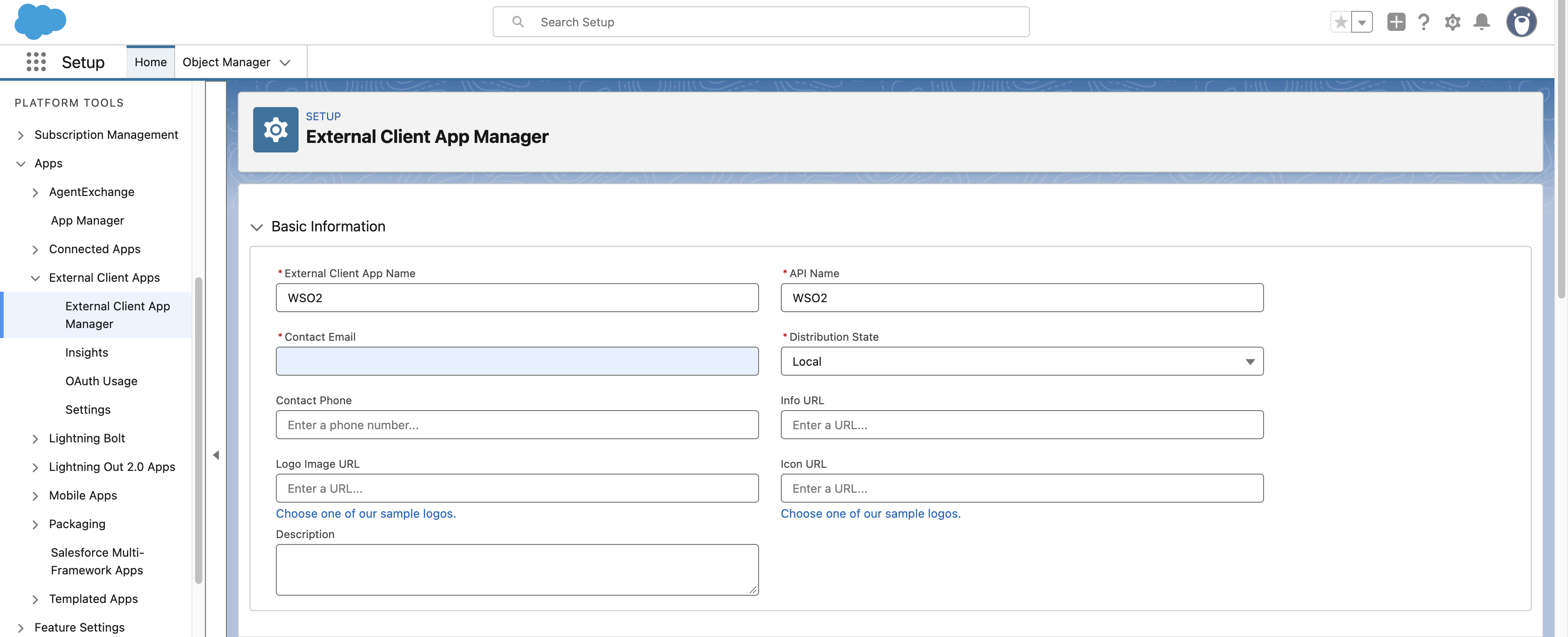
In Setup, search for External Client App Manager and click New External Client App. Enter a name and a contact email.
-
Expand API (Enable OAuth Settings), select Enable OAuth, and set a Callback URL, e.g.
https://login.salesforce.com/services/oauth2/success. Add these OAuth scopes:Scope Needed for apithe Runsoperations (identity resolution and calculated insight runs)cdp_ingest_apistreaming and bulk ingestion cdp_profile_apiprofile lookups cdp_query_apiSQL queries, and calculated insight queries and metadata refresh_token, offline_accessgetting a refresh token (refresh token grant only) 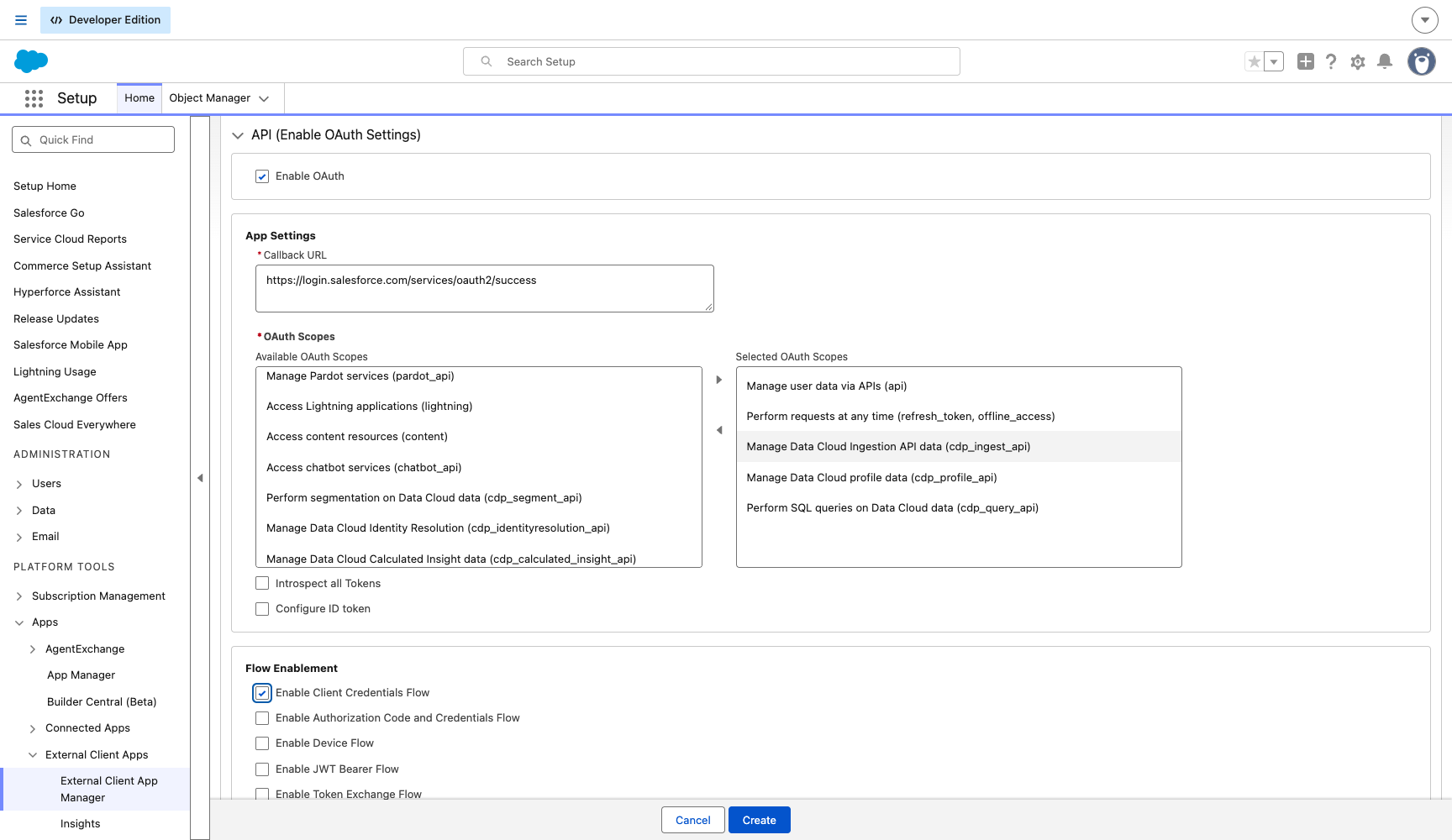
-
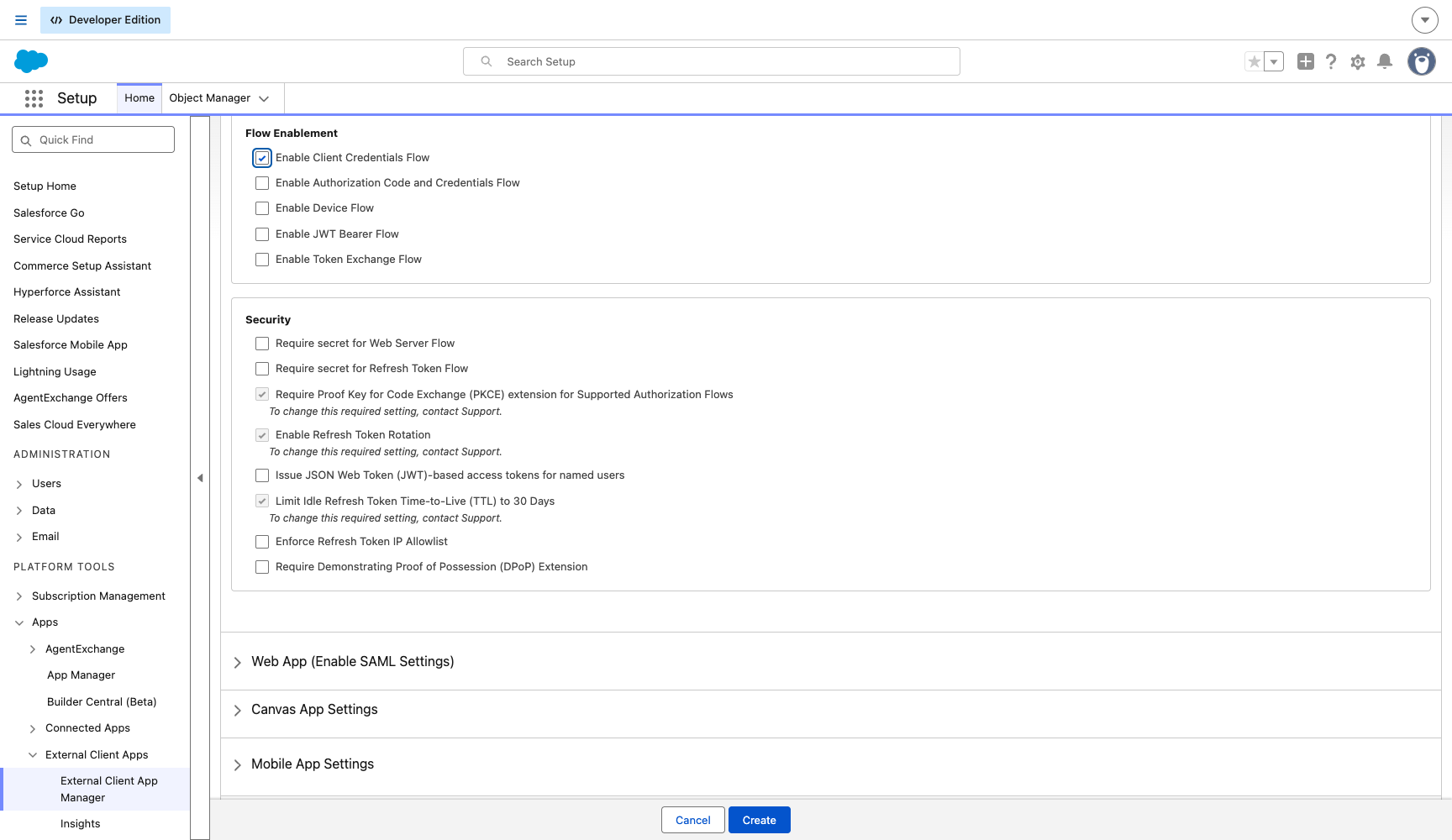
Under Flow Enablement, select Enable Client Credentials Flow (recommended for services). Under Security, leave Issue JSON Web Token (JWT)-based access tokens for named users cleared: the Data 360 token exchange doesn't accept JWT-based access tokens.
New apps always require PKCE and rotate refresh tokens (each refresh token can be used only once); these settings can't be changed. The connector keeps the rotated token while it runs, but a refresh token saved in configuration stops working after one run, so prefer the client credentials grant for anything that restarts.
-
Click Create. For the client credentials grant, open the app's Policies tab, click Edit, and under OAuth Policies select Enable Client Credentials Flow and set Run As to the user from Step 1.
-
On the app's Settings tab, under OAuth Settings, click Consumer Key and Secret, verify your identity, and copy both values.


Step 3: Get a refresh token (refresh token grant only)
Skip this step if you use the client credentials grant.
-
Create a PKCE verifier and challenge:
VERIFIER=$(openssl rand -base64 64 | tr -d '\n=' | tr '+/' '-_' | cut -c1-64) CHALLENGE=$(printf '%s' "$VERIFIER" | openssl dgst -sha256 -binary | openssl base64 | tr -d '\n=' | tr '+/' '-_') -
Open this URL in a browser, signed in as the user from Step 1, and click Allow. The browser is redirected to the callback URL with a
codequery parameter.https://<your-domain>.my.salesforce.com/services/oauth2/authorize?response_type=code&client_id=<consumer-key>&redirect_uri=<callback-url>&code_challenge=<CHALLENGE>&code_challenge_method=S256 -
Exchange the code for tokens within a few minutes, in the same terminal:
curl -X POST https://<your-domain>.my.salesforce.com/services/oauth2/token \ -d grant_type=authorization_code --data-urlencode code=<code> \ -d client_id=<consumer-key> -d client_secret=<consumer-secret> -d redirect_uri=<callback-url> \ -d code_verifier="$VERIFIER"The response holds the
refresh_token.
Step 4: Prepare Data 360 for ingestion (ingestion operations only)
-
In Data 360 Setup, go to Ingestion API, click New, and name the connector. That name (as shown in the Ingestion API list, not the generated API name) is the
sourceNameof the ingestion operations. -
Upload an OpenAPI schema (YAML) that defines your objects and their fields. The object names are the
objectNamevalues of the ingestion operations. -
Create a data stream for each object from the Ingestion API connector, and map it to the data model.
Note: Every field defined in an object's schema must be present in every record you send (send a blank value when there's no data), an update replaces the whole record, and date-times need fractional seconds, e.g.
2026-10-24T10:15:30.000Z.
Quickstart
To use the WSO2 Salesforce Data 360 (Data Cloud) Connector in your integration, update the .bal file as follows:
Step 1: Import the module
import ballerinax/salesforce.datacloud;
Step 2: Instantiate a new connector
-
Create a
Config.tomlfile with your org's My Domain URL and the app's consumer key and secret:orgUrl = "https://<your-domain>.my.salesforce.com" clientId = "<consumer-key>" clientSecret = "<consumer-secret>" -
Create a
datacloud:Clientinstance with the client credentials grant. The service URL is your org's My Domain URL, not the Data 360 tenant endpoint, which the connector discovers itself:configurable string orgUrl = ?; configurable string clientId = ?; configurable string clientSecret = ?; final datacloud:Client datacloudClient = check new ({auth: {clientId, clientSecret}}, orgUrl);The connector also accepts the refresh token grant (
{auth: {clientId, clientSecret, refreshToken}}), the password grant, or an existing org access token ({auth: {token: accessToken}}). Token requests go to<orgUrl>/services/oauth2/tokenunless you setrefreshUrl(refresh token grant) ortokenUrl(other grants).Note: New apps rotate refresh tokens, so a refresh token can be used only once. The connector keeps the rotated token while it runs, but a refresh token in
Config.tomlstops working after the first run. New orgs also block the username-password flow by default. For services, use the client credentials grant.Note: Salesforce token responses carry no expiry, so the connector reuses an org access token for
defaultTokenExpTime(3600 seconds by default). If Salesforce rejects the token earlier, for example because the org's session timeout is shorter, the connector fetches a new one and retries the call. SettingdefaultTokenExpTimein theauthconfiguration below the session timeout avoids those extra round trips. A plain access token ({auth: {token: accessToken}}) can't be renewed.To scope the Data 360 token to a data space other than the default, pass
dataspace. To call theRunsoperations on a specific API version (v57.0 or later), passapiVersion(defaultv62.0):final datacloud:Client datacloudClient = check new ({auth: {clientId, clientSecret}}, orgUrl, apiVersion = "v62.0", dataspace = "<data-space-name>");
Step 3: Invoke the connector operation
Now, utilize the available connector operations.
Stream records into Data 360
public function main() returns error? { datacloud:AcceptedResponse response = check datacloudClient->upsertRecords("CustomerOrders", "customers", { data: [ { "customer_id": "100000001", "email": "alex@example.com", "first_name": "Alex", "last_name": "Perera", "created_at": "2026-10-24T10:15:30.000Z" } ] }); io:println(response.accepted); }
Step 4: Run the integration
bal run
Examples
The WSO2 Salesforce Data 360 (Data Cloud) Connector provides practical examples illustrating usage in various scenarios. Explore these examples, covering the following use cases:
- Bulk customer load — Create a bulk upsert job, upload a CSV file to it, close it, poll it until processing finishes, and delete the finished job.
- Customer profile insights — Validate and stream a customer record, start an identity resolution run, and find the customer by email to read their profile and calculated insight values.
Clients
salesforce.datacloud: Client
Write records to Salesforce Data 360 (Data Cloud), read unified profiles and calculated insights back, and trigger the identity resolution and insight runs that build them.
Data Cloud serves its APIs from two hosts with two different tokens. The Runs operations go to the
core Salesforce org with the core access token. Every other operation goes to the Data Cloud tenant
endpoint with a Data Cloud token. This client takes the core org credentials only: on the first tenant
call it exchanges the core token at POST {serviceUrl}/services/a360/token for a Data Cloud token and
the tenant endpoint, caches both, exchanges again shortly before the token expires, and on a 401 from
the tenant endpoint exchanges again and retries the call once. When the org rejects the core token
itself, the client fetches a new one from the configured OAuth2 grant and retries once.
Constructor
Gets invoked to initialize the connector.
init (ConnectionConfig config, string serviceUrl, string apiVersion, string? dataspace)- config ConnectionConfig - The configurations to be used when initializing the
connector.authholds the core Salesforce org credentials (OAuth 2.0 refresh token, client credentials or password grant, or an access token) of a connected app with theapi,cdp_ingest_api,cdp_profile_apiandcdp_query_apiscopes. IftokenUrl/refreshUrlis left at its default, token requests go to{serviceUrl}/services/oauth2/token
- serviceUrl string - URL of the core Salesforce org (its My Domain), e.g.
https://acme.my.salesforce.com. Not the Data Cloud tenant endpoint, which is discovered through the token exchange
- apiVersion string "v62.0" - Salesforce REST API version for the
Runsoperations, e.g.v62.0. Needs v57.0 or later
- dataspace string? () - Data space to scope the Data Cloud token to. Omit it to use the default data space
upsertRecords
function upsertRecords(string sourceName, string objectName, IngestRecords payload, map<string|string[]> headers) returns AcceptedResponse|errorUpsert records via streaming ingestion
Parameters
- sourceName string - Name of the Ingestion API connector as shown in Data Cloud setup, e.g.
CustomerOrders
- objectName string - Object name from the connector's schema
- payload IngestRecords - The records to upsert. Every field defined in the object's schema must be present in each record
Return Type
- AcceptedResponse|error - Records queued for asynchronous processing
deleteRecords
function deleteRecords(string sourceName, string objectName, DeleteRecordsRequest payload, map<string|string[]> headers) returns AcceptedResponse|errorDelete records by primary key via streaming ingestion
Parameters
- sourceName string - Name of the Ingestion API connector as shown in Data Cloud setup, e.g.
CustomerOrders
- objectName string - Object name from the connector's schema
- payload DeleteRecordsRequest - The primary keys of the records to delete (max 200)
Return Type
- AcceptedResponse|error - Records queued for asynchronous processing
validateRecords
function validateRecords(string sourceName, string objectName, IngestRecords payload, map<string|string[]> headers) returns AcceptedResponse|errorValidate records against the object schema without ingesting them
Parameters
- sourceName string - Name of the Ingestion API connector as shown in Data Cloud setup, e.g.
CustomerOrders
- objectName string - Object name from the connector's schema
- payload IngestRecords - The records to validate
Return Type
- AcceptedResponse|error - All records are valid (nothing is stored)
listBulkJobs
function listBulkJobs(map<string|string[]> headers, *ListBulkJobsQueries queries) returns BulkJobList|errorList bulk ingestion jobs
Parameters
- queries *ListBulkJobsQueries - Queries to be sent with the request
Return Type
- BulkJobList|error - Jobs
createBulkJob
function createBulkJob(CreateBulkJobRequest payload, map<string|string[]> headers) returns BulkJob|errorCreate a bulk ingestion job
Parameters
- payload CreateBulkJobRequest - The job to create
getBulkJob
Get a bulk ingestion job's status
Parameters
- jobId string - Bulk job ID
deleteBulkJob
Delete a bulk ingestion job
Parameters
- jobId string - Bulk job ID
Return Type
- error? - An error if the job could not be deleted
updateBulkJobState
function updateBulkJobState(string jobId, UpdateBulkJobStateRequest payload, map<string|string[]> headers) returns BulkJob|errorClose (UploadComplete) or abort a bulk ingestion job
uploadBulkJobData
function uploadBulkJobData(string jobId, string payload, map<string|string[]> headers) returns AcceptedResponse|errorUpload a CSV file to an open bulk ingestion job
Parameters
- jobId string - Bulk job ID
- payload string - The CSV content. Upsert jobs need a header row matching the object's field names; delete jobs have no header and the primary key in the first column
Return Type
- AcceptedResponse|error - File accepted
listProfileMetadata
function listProfileMetadata(map<string|string[]> headers) returns MetadataResponse|errorGet metadata for all profile data model objects
Return Type
- MetadataResponse|error - Metadata of profile-category DMOs
getProfileMetadata
function getProfileMetadata(string dataModelName, map<string|string[]> headers) returns MetadataResponse|errorGet metadata (fields, indexes, relationships) for one profile data model object
Parameters
- dataModelName string - API name of a profile-category DMO, e.g.
UnifiedIndividual__dlm
Return Type
- MetadataResponse|error - Metadata of the DMO
queryProfiles
function queryProfiles(string dataModelName, map<string|string[]> headers, *QueryProfilesQueries queries) returns QueryResponse|errorQuery profile records with filters
Parameters
- dataModelName string - API name of a profile-category DMO, e.g.
UnifiedIndividual__dlm
- queries *QueryProfilesQueries - Queries to be sent with the request
Return Type
- QueryResponse|error - Matching rows
getProfile
function getProfile(string dataModelName, string recordId, map<string|string[]> headers, *GetProfileQueries queries) returns QueryResponse|errorGet a profile record by ID (or by secondary key with searchKey)
Parameters
- dataModelName string - API name of a profile-category DMO, e.g.
UnifiedIndividual__dlm
- recordId string - Record ID, or the value of the field named in
searchKey
- queries *GetProfileQueries - Queries to be sent with the request
Return Type
- QueryResponse|error - Matching rows
getProfileChildRecords
function getProfileChildRecords(string dataModelName, string recordId, string childDataModelName, map<string|string[]> headers, *GetProfileChildRecordsQueries queries) returns QueryResponse|errorGet a profile's related child records
Parameters
- dataModelName string - API name of a profile-category DMO, e.g.
UnifiedIndividual__dlm
- recordId string - Record ID, or the value of the field named in
searchKey
- childDataModelName string - API name of a related child DMO, e.g.
ContactPointEmail__dlm
- queries *GetProfileChildRecordsQueries - Queries to be sent with the request
Return Type
- QueryResponse|error - Matching rows
getProfileCalculatedInsight
function getProfileCalculatedInsight(string dataModelName, string recordId, string insightName, map<string|string[]> headers, *GetProfileCalculatedInsightQueries queries) returns QueryResponse|errorGet a calculated insight's values for one profile
Parameters
- dataModelName string - API name of a profile-category DMO, e.g.
UnifiedIndividual__dlm
- recordId string - Record ID, or the value of the field named in
searchKey
- insightName string - API name of the calculated insight, e.g.
IndividualSpend__cio
- queries *GetProfileCalculatedInsightQueries - Queries to be sent with the request
Return Type
- QueryResponse|error - Matching rows
listCalculatedInsightMetadata
function listCalculatedInsightMetadata(map<string|string[]> headers) returns MetadataResponse|errorGet metadata (dimensions and measures) for all calculated insights
Return Type
- MetadataResponse|error - Calculated insight metadata
getCalculatedInsightMetadata
function getCalculatedInsightMetadata(string insightName, map<string|string[]> headers) returns MetadataResponse|errorGet metadata (dimensions and measures) for one calculated insight
Parameters
- insightName string - API name of the calculated insight, e.g.
IndividualSpend__cio
Return Type
- MetadataResponse|error - Calculated insight metadata
queryCalculatedInsight
function queryCalculatedInsight(string insightName, map<string|string[]> headers, *QueryCalculatedInsightQueries queries) returns QueryResponse|errorQuery a calculated insight
Parameters
- insightName string - API name of the calculated insight, e.g.
IndividualSpend__cio
- queries *QueryCalculatedInsightQueries - Queries to be sent with the request
Return Type
- QueryResponse|error - Matching rows
querySql
function querySql(SqlQueryRequest payload, map<string|string[]> headers) returns SqlQueryResponse|errorRun a SQL query
Parameters
- payload SqlQueryRequest - The SQL query. It runs synchronously over data lake objects, data model objects and calculated
insights. Rows come back as arrays of column values ordered by each column's
placeInOrder
Return Type
- SqlQueryResponse|error - The first batch of results. When
doneisfalse, get the rest withgetNextSqlQueryBatch
getNextSqlQueryBatch
function getNextSqlQueryBatch(string nextBatchId, map<string|string[]> headers) returns SqlQueryResponse|errorGet the next batch of SQL query results
Parameters
- nextBatchId string - The
nextBatchIdof the previous batch
Return Type
- SqlQueryResponse|error - The next batch of results
listIdentityResolutionRulesets
function listIdentityResolutionRulesets(map<string|string[]> headers) returns IdentityResolutionRulesetList|errorList identity resolution rulesets
Return Type
- IdentityResolutionRulesetList|error - Rulesets
runIdentityResolutionRuleset
function runIdentityResolutionRuleset(string rulesetId, map<string|string[]> headers) returns RunResult|errorRun an identity resolution ruleset now
Parameters
- rulesetId string - ID or developer name of the identity resolution ruleset
runCalculatedInsight
function runCalculatedInsight(string insightName, map<string|string[]> headers) returns RunResult|errorRun a calculated insight now
Parameters
- insightName string - API name of the calculated insight, e.g.
IndividualSpend__cio
Records
salesforce.datacloud: AcceptedResponse
Acknowledgement that the request was accepted for asynchronous processing
Fields
- accepted? boolean - Whether the request was accepted
salesforce.datacloud: BulkJob
A bulk ingestion job. systemModstamp is empty on a new job, and contentUrl, retries and totalProcessingTime are null once the job is closed
Fields
- id? string - Job ID
- objectName? string - Object the job loads, from the connector's schema
- sourceName? string - Name of the Ingestion API connector
- operation? BulkJobOperation - Operation the job performs
- state? BulkJobState - Current state of the job
- contentType? string - Format of the uploaded data,
CSV
- apiVersion? anydata - Ingestion API version, as a string (
"v1") or a number
- contentUrl? string? - Path to upload CSV files to, e.g.
/api/v1/ingest/jobs/{id}/batches.nullafter the job is closed.
- createdById? string - ID of the user who created the job
- createdDate? string - Time the job was created
- systemModstamp? string - Last-modified time. Empty (
"") on a new job, so nodate-timeformat is enforced.
- retries? int? - Number of times the job was retried.
nullonce the job is closed
- totalProcessingTime? int? - Total processing time of the job.
nullonce the job is closed
salesforce.datacloud: BulkJobList
A page of bulk ingestion jobs
Fields
- data? BulkJob[] - The jobs
salesforce.datacloud: ConnectionConfig
Provides a set of configurations for controlling the behaviours when communicating with a remote HTTP endpoint.
Fields
- auth OAuth2ClientCredentialsGrantConfig|OAuth2PasswordGrantConfig|BearerTokenConfig|OAuth2RefreshTokenGrantConfig|OAuth2JwtBearerGrantConfig - Configurations related to client authentication
- httpVersion HttpVersion(default http:HTTP_2_0) - The HTTP version understood by the client
- http1Settings ClientHttp1Settings(default {}) - Configurations related to HTTP/1.x protocol
- http2Settings ClientHttp2Settings(default {}) - Configurations related to HTTP/2 protocol
- timeout decimal(default 30) - The maximum time to wait (in seconds) for a response before closing the connection
- forwarded string(default "disable") - The choice of setting
forwarded/x-forwardedheader
- followRedirects? FollowRedirects - Configurations associated with Redirection
- poolConfig? PoolConfiguration - Configurations associated with request pooling
- cache CacheConfig(default {}) - HTTP caching related configurations
- compression Compression(default http:COMPRESSION_AUTO) - Specifies the way of handling compression (
accept-encoding) header
- circuitBreaker? CircuitBreakerConfig - Configurations associated with the behaviour of the Circuit Breaker
- retryConfig? RetryConfig - Configurations associated with retrying
- responseLimits ResponseLimitConfigs(default {}) - Configurations associated with inbound response size limits
- secureSocket? ClientSecureSocket - SSL/TLS-related options
- proxy? ProxyConfig - Proxy server related options
- socketConfig ClientSocketConfig(default {}) - Provides settings related to client socket configuration
- validation boolean(default true) - Enables the inbound payload validation functionality which provided by the constraint package. Enabled by default
- laxDataBinding boolean(default true) - Enables relaxed data binding on the client side. When enabled,
nilvalues are treated as optional, and absent fields are handled asnilabletypes. Enabled by default.
salesforce.datacloud: CreateBulkJobRequest
A bulk ingestion job to create
Fields
- sourceName string - Name of the Ingestion API connector as shown in Data Cloud setup
- operation BulkJobOperation - Whether the job upserts or deletes records
- objectName string - Object name from the connector's schema
salesforce.datacloud: DeleteRecordsRequest
Primary keys of the records to delete
Fields
- ids string[] - Primary keys of the records to delete (max 200)
salesforce.datacloud: FieldMetadata
A field, dimension or measure of a data model object or calculated insight
Fields
- name? string - API name of the field
- displayName? string - Display label of the field
- dataType? string - Data type of the field, e.g.
STRING,NUMBER,DATE_TIME
- rollupable? boolean - Calculated insight measures only.
salesforce.datacloud: GetProfileCalculatedInsightQueries
Represents the Queries record for the operation: getProfileCalculatedInsight
Fields
- measures? string[] - Measures to return. Defaults to all
- offset? int - Rows to skip before returning. API v52.0+
- timeGranularity? "HOUR"|"DAY"|"MONTH"|"QUARTER"|"YEAR" - Rolls measures up to this time range. API v53.0+
- 'limit? int - Rows to return. Default and maximum 49,999
- orderBy? string - Comma-separated sort, e.g.
GenderId__c ASC, Occupation__c DESC. API v52.0+
- filters? string - Comma-separated equality expressions in square brackets, joined with AND, e.g.
[FirstName__c=Alex,LastName__c=Perera]. On child and insight lookups they apply to the parent object only
- searchKey? string - Field to match
recordIdagainst instead of the primary key, e.g.ssot__Email__c
- dimensions? string[] - Dimensions to return. Defaults to all
salesforce.datacloud: GetProfileChildRecordsQueries
Represents the Queries record for the operation: getProfileChildRecords
Fields
- offset? int - Rows to skip before returning. API v52.0+
- 'limit? int - Rows to return. Default and maximum 49,999
- orderBy? string - Comma-separated sort, e.g.
GenderId__c ASC, Occupation__c DESC. API v52.0+
- filters? string - Comma-separated equality expressions in square brackets, joined with AND, e.g.
[FirstName__c=Alex,LastName__c=Perera]. On child and insight lookups they apply to the parent object only
- searchKey? string - Field to match
recordIdagainst instead of the primary key, e.g.ssot__Email__c
- fields? string[] - Fields to return (max 50). Without it, only the first 10 fields (alphabetically) come back
salesforce.datacloud: GetProfileQueries
Represents the Queries record for the operation: getProfile
Fields
- offset? int - Rows to skip before returning. API v52.0+
- 'limit? int - Rows to return. Default and maximum 49,999
- orderBy? string - Comma-separated sort, e.g.
GenderId__c ASC, Occupation__c DESC. API v52.0+
- filters? string - Comma-separated equality expressions in square brackets, joined with AND, e.g.
[FirstName__c=Alex,LastName__c=Perera]. On child and insight lookups they apply to the parent object only
- searchKey? string - Field to match
recordIdagainst instead of the primary key, e.g.ssot__Email__c
- fields? string[] - Fields to return (max 50). Without it, only the first 10 fields (alphabetically) come back
salesforce.datacloud: IdentityResolutionRuleset
An identity resolution ruleset. developerName can be null; use id to run it
Fields
- id? string - ID of the ruleset
- label? string - Label of the ruleset
- developerName? string? - Developer name of the ruleset. Can be
null
- configurationType? string - Type of entity the ruleset unifies, e.g.
individual
- objectApiName? string - API name of the object the ruleset unifies, e.g.
Individual
- dataSpaceName? string - Data space of the ruleset, e.g.
default
- doesRunAutomatically? boolean - Whether the ruleset runs on its schedule
- lastJobStatus? string - Status of the latest run, e.g.
SUCCESSorIN_PROGRESS
- lastJobCompleted? string? - Completion time of the latest run.
nullif it never completed
- matchRules? record {}[] - Rules that decide which source records belong to the same profile
- reconciliationRules? record {}[] - Rules that decide which value a unified profile keeps for each field
salesforce.datacloud: IdentityResolutionRulesetList
Identity resolution rulesets of the org
Fields
- rulesets? IdentityResolutionRuleset[] - The identity resolution rulesets
salesforce.datacloud: IngestRecord
A record whose fields match the object's schema in the Ingestion API connector
salesforce.datacloud: IngestRecords
Records to ingest into a streaming Ingestion API object
Fields
- data IngestRecord[] - The records. Every field defined in the object's schema must be present in each record; date-times need fractional seconds, e.g.
2026-10-24T10:15:30.000Z
salesforce.datacloud: JwtSigningKeyFile
A PEM private key file to sign JWT bearer assertions with.
Fields
- keyFile string - Path to the PEM private key file
- keyPassword? string - Password of the private key, if it is encrypted
salesforce.datacloud: JwtSigningKeyStore
A private key in a PKCS#12 keystore to sign JWT bearer assertions with.
Fields
- keyStore KeyStore - The keystore
- keyAlias string - Alias of the private key in the keystore
- keyPassword string - Password of the private key
salesforce.datacloud: ListBulkJobsQueries
Represents the Queries record for the operation: listBulkJobs
Fields
- offset? int - Number of rows to skip before returning
- 'limit int(default 20) - Number of jobs to return. Defaults to 20, maximum 100
- orderBy? string - Field to order jobs by. Defaults to
systemModstamp
- states? BulkJobState[] - Only return jobs in these states (comma-separated)
salesforce.datacloud: MetadataResponse
Metadata of data model objects or calculated insights
Fields
- metadata? ObjectMetadata[] - Metadata of each object
salesforce.datacloud: OAuth2ClientCredentialsGrantConfig
OAuth2 Client Credentials Grant Configs
Fields
- Fields Included from *OAuth2ClientCredentialsGrantConfig
- tokenUrl string(default "https://login.salesforce.com/services/oauth2/token") - Token URL
salesforce.datacloud: OAuth2JwtBearerGrantConfig
OAuth 2.0 JWT bearer grant configuration. For every token request the connector signs a new short-lived JWT with the private key, whose certificate is uploaded to the External Client App, and exchanges it for an org access token.
Fields
- clientId string - Consumer key of the External Client App (the JWT issuer)
- username string - Username of the Salesforce user the connector acts as (the JWT subject). The user must be approved for the app
- privateKey JwtSigningKeyFile|JwtSigningKeyStore - The private key to sign the JWT with: a PEM key file, or a key in a PKCS#12 keystore
- audience string(default "https://login.salesforce.com") - Audience of the JWT:
https://login.salesforce.comfor production orgs,https://test.salesforce.comfor sandboxes
- tokenUrl string(default DEFAULT_TOKEN_URL) - Token endpoint. Left at its default, token requests go to the org's own
/services/oauth2/token
- defaultTokenExpTime decimal(default 3600) - How long (in seconds) an org access token is reused. Salesforce token responses carry no expiry
salesforce.datacloud: OAuth2PasswordGrantConfig
OAuth2 Password Grant Configs
Fields
- Fields Included from *OAuth2PasswordGrantConfig
- tokenUrl string
- username string
- password string
- clientId string
- clientSecret string
- scopes string|string[]
- refreshConfig RefreshConfig|"INFER_REFRESH_CONFIG"
- defaultTokenExpTime decimal
- clockSkew decimal
- optionalParams map<string>
- credentialBearer CredentialBearer
- clientConfig ClientConfiguration
- tokenUrl string(default "https://login.salesforce.com/services/oauth2/token") - Token URL
salesforce.datacloud: OAuth2RefreshTokenGrantConfig
OAuth2 Refresh Token Grant Configs
Fields
- Fields Included from *OAuth2RefreshTokenGrantConfig
- refreshUrl string(default "https://login.salesforce.com/services/oauth2/token") - Refresh URL
salesforce.datacloud: ObjectIndex
A combination of fields available for lookups
Fields
- fields? FieldMetadata[] - Fields of the index
salesforce.datacloud: ObjectMetadata
Metadata of a data model object or calculated insight
Fields
- name? string - API name of the object
- displayName? string - Display label of the object
- category? string - Category of the object, e.g.
Profile
- fields? FieldMetadata[] - Fields of the object
- dimensions? FieldMetadata[] - Dimensions of the calculated insight
- measures? FieldMetadata[] - Measures of the calculated insight
- indexes? ObjectIndex[] - Field combinations available for lookup.
- primaryKeys? PrimaryKeyField[] - Primary key fields of the object
- relationships? ObjectRelationship[] - Relationships to other objects
- partitionBy? string - Calculated insights only.
- latestProcessTime? string - Calculated insights only: time of the latest run.
1970-01-01T00:00:00.00000Zmeans the insight has never run
- latestSuccessfulProcessTime? string - Calculated insights only: time of the latest successful run
salesforce.datacloud: ObjectRelationship
A relationship from this object to another data model object
Fields
- fromEntity? string - API name of the object the relationship starts from
- toEntity? string - API name of the related object
- fromEntityAttribute? string - Field of the starting object that holds the key
- toEntityAttribute? string - Field of the related object that the key matches
- cardinality? string - Cardinality of the relationship, e.g.
NTOONEorONETOMANY
salesforce.datacloud: PrimaryKeyField
A primary key field of the object
Fields
- name? string - API name of the key field
- displayName? string - Display label of the key field
- indexOrder? string - Position of the field in the key
salesforce.datacloud: QueryCalculatedInsightQueries
Represents the Queries record for the operation: queryCalculatedInsight
Fields
- measures? string[] - Measures to return. Defaults to all
- offset? int - Rows to skip before returning. API v52.0+
- timeGranularity? "HOUR"|"DAY"|"MONTH"|"QUARTER"|"YEAR" - Rolls measures up to this time range. API v53.0+
- 'limit? int - Rows to return. Default and maximum 4,999
- orderBy? string - Comma-separated sort, e.g.
GenderId__c ASC, Occupation__c DESC. API v52.0+
- filters? string - Comma-separated equality expressions in square brackets, joined with AND, e.g.
[FirstName__c=Alex,LastName__c=Perera]. On child and insight lookups they apply to the parent object only
- dimensions? string[] - Dimensions to return. Defaults to all
salesforce.datacloud: QueryProfilesQueries
Represents the Queries record for the operation: queryProfiles
Fields
- offset? int - Rows to skip before returning. API v52.0+
- 'limit? int - Rows to return. Default and maximum 49,999
- orderBy? string - Comma-separated sort, e.g.
GenderId__c ASC, Occupation__c DESC. API v52.0+
- filters string - Required. Comma-separated equality expressions in square brackets, joined with AND, e.g.
[FirstName__c=Alex]. Date-times asBirthDate__c=1990-07-12 00:00:00
- fields? string[] - Fields to return (max 50). Without it, only the first 10 fields (alphabetically) come back
salesforce.datacloud: QueryResponse
Rows returned by a profile or calculated insight query, keyed by field API name
Fields
- data? record {}[] - Rows, keyed by field API name.
- done? boolean - True when there are no more rows to page through.
- metadata? record {} - Column metadata, keyed by field API name. Empty when there are no rows
salesforce.datacloud: RunResult
Result of a run request. A calculated insight run returns success and errors; an identity resolution run returns resultCode
Fields
- success? boolean - Whether the calculated insight run was started
- errors? record {}[] - Errors of the calculated insight run, if any
- resultCode? string - Outcome of an identity resolution run, e.g.
SuccessfullySubmittedIdentityResolutionJobRunRequest,IdentityResolutionJobIsAlreadyRunning,NoPendingChangesJobRunSkippedorExceededMaximumNumberOfSuccessfulRunsAllowedIn24Hours
salesforce.datacloud: SqlColumn
Metadata of a result column
Fields
- dataType? string - SQL type of the column, e.g.
VARCHAR,DECIMAL,TIMESTAMP WITH TIME ZONE
- placeInOrder? int - Position of the column in each row, starting at 0
- typeCode? int - JDBC type code of the column
salesforce.datacloud: SqlQueryRequest
A SQL query
Fields
- sql string - ANSI SQL query, e.g.
SELECT ssot__Id__c FROM ssot__Individual__dlm LIMIT 10
salesforce.datacloud: SqlQueryResponse
A batch of SQL query results
Fields
- data? anydata[][] - Rows, each an array of column values ordered by the columns'
placeInOrder
- metadata? record { SqlColumn... } - Result columns, keyed by column name
- rowCount? int - Number of rows in this batch
- done? boolean - Whether this is the last batch
- nextBatchId? string? - ID to get the next batch with.
nullwhendoneistrue
- queryId? string - ID of the query
- startTime? string - Time the query started
- endTime? string - Time the query ended
salesforce.datacloud: UpdateBulkJobStateRequest
The state to move a bulk ingestion job to
Fields
- state "UploadComplete"|"Aborted" -
UploadCompleteto queue the uploaded data for processing, orAbortedto discard it
Union types
salesforce.datacloud: BulkJobOperation
BulkJobOperation
Operation a bulk ingestion job performs
salesforce.datacloud: BulkJobState
BulkJobState
State of a bulk ingestion job: Open → UploadComplete → InProgress → JobComplete or Failed, or Aborted