Module microsoft.sharepoint.pages

ballerinax/microsoft.sharepoint.pages Ballerina library
Overview
Microsoft SharePoint is a cloud-based collaboration and content management platform that enables organizations to create, manage, and share pages, sites, and documents seamlessly across teams and enterprises.
The ballerinax/microsoft.sharepoint.pages package offers APIs to connect and interact with Microsoft SharePoint Pages API endpoints, specifically based on Microsoft Graph REST API v1.0.
Setup guide
To use the Microsoft SharePoint Pages connector, you must have access to the Microsoft SharePoint API through a Microsoft Azure developer account and obtain client credentials by registering an application in Azure Active Directory. If you do not have a Microsoft account, you can sign up for one here.
Step 1: Create a Microsoft Account and Set Up SharePoint Access
-
Navigate to the Microsoft 365 website and sign up for an account or log in if you already have one.
-
Ensure you have a Microsoft 365 Business Basic, Business Standard, Business Premium, or an Enterprise (E1, E3, or E5) plan, as SharePoint Online and its API capabilities are restricted to users on these plans. SharePoint Pages API features may require Microsoft 365 E3 or higher for full functionality.
Step 2: Register an Application and Generate Credentials
-
Log in to the Microsoft Azure Portal using your Microsoft 365 account credentials.
-
In the left-hand navigation menu, select Microsoft Entra ID in the top search bar.
-
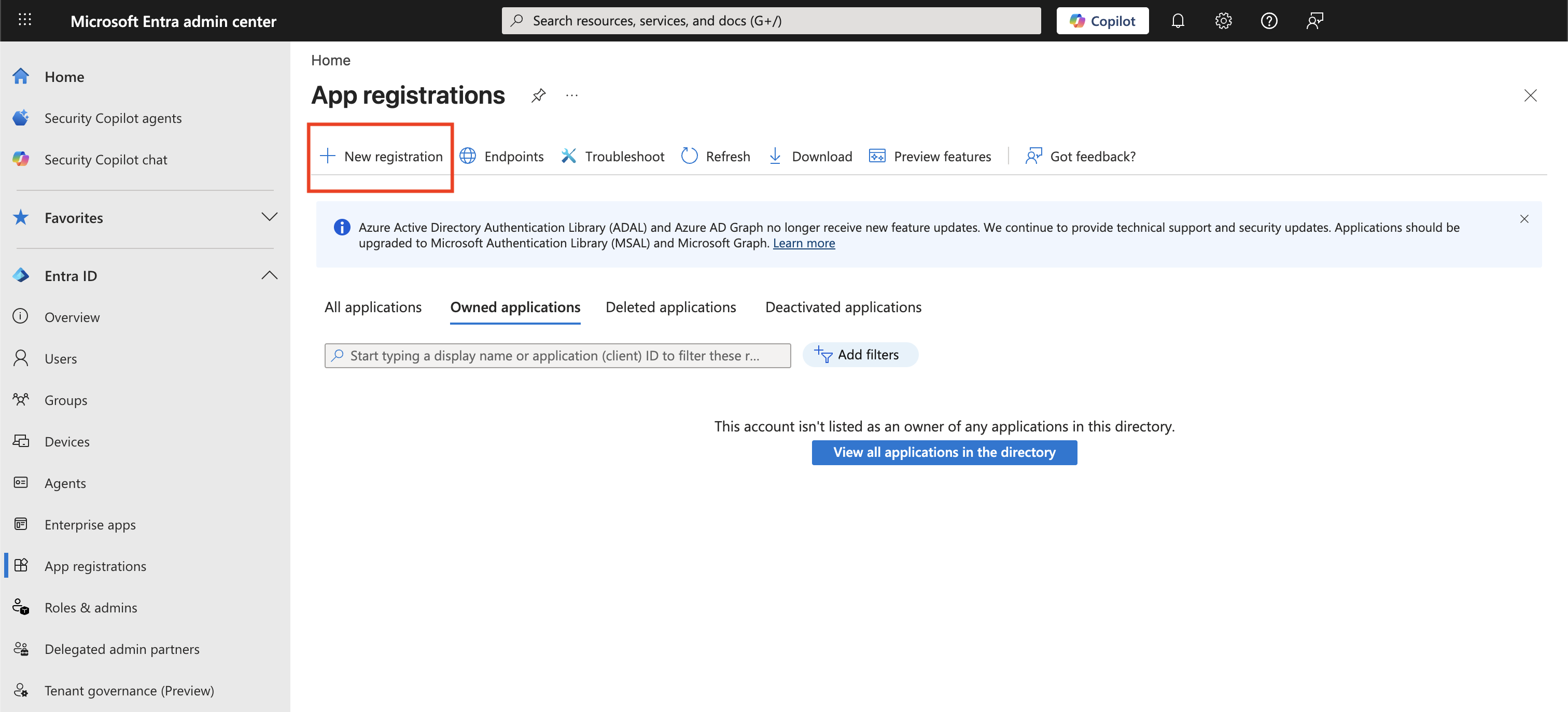
In the left panel, navigate to App registrations and click New registration.
-
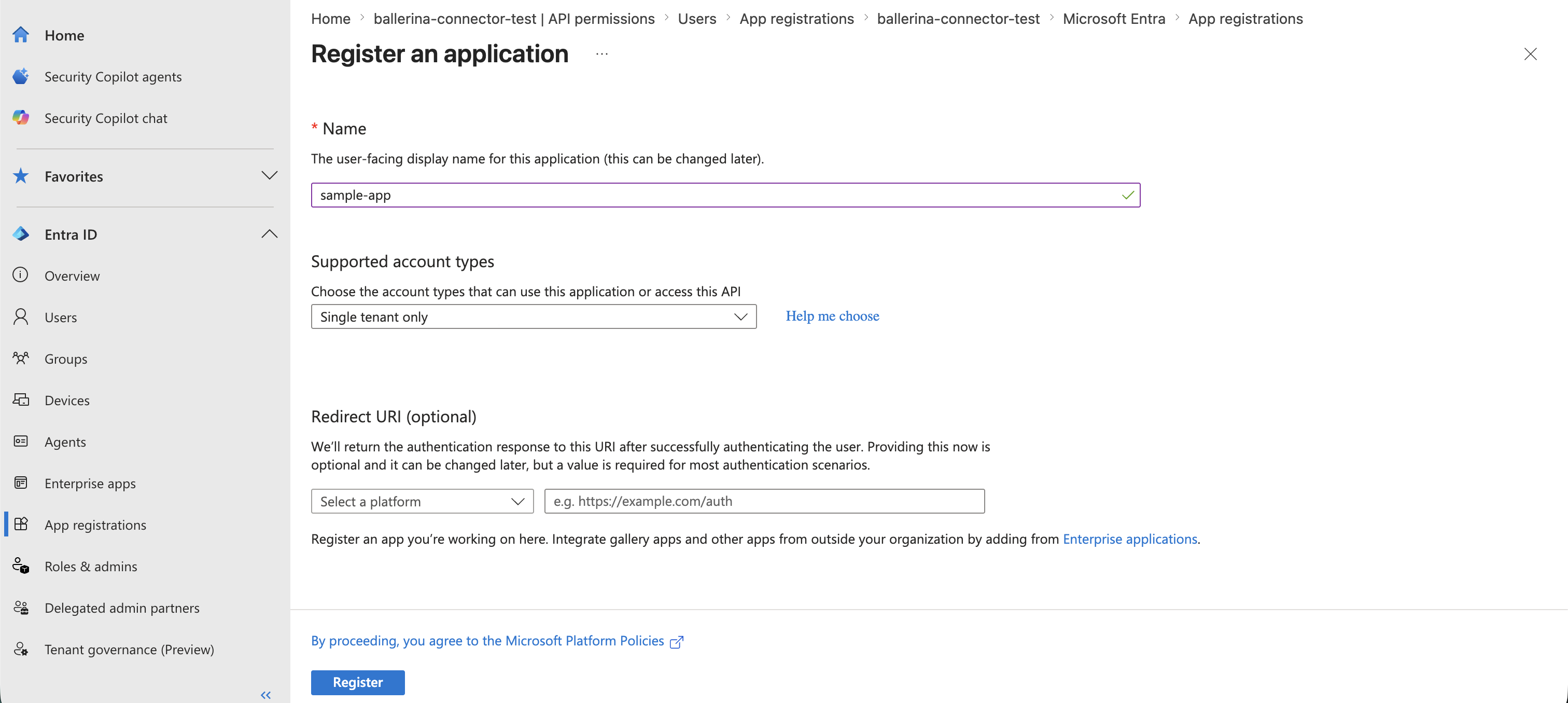
Enter a name for your application, select the appropriate Supported account types (e.g., "Single tenant only"), and click Register.
-
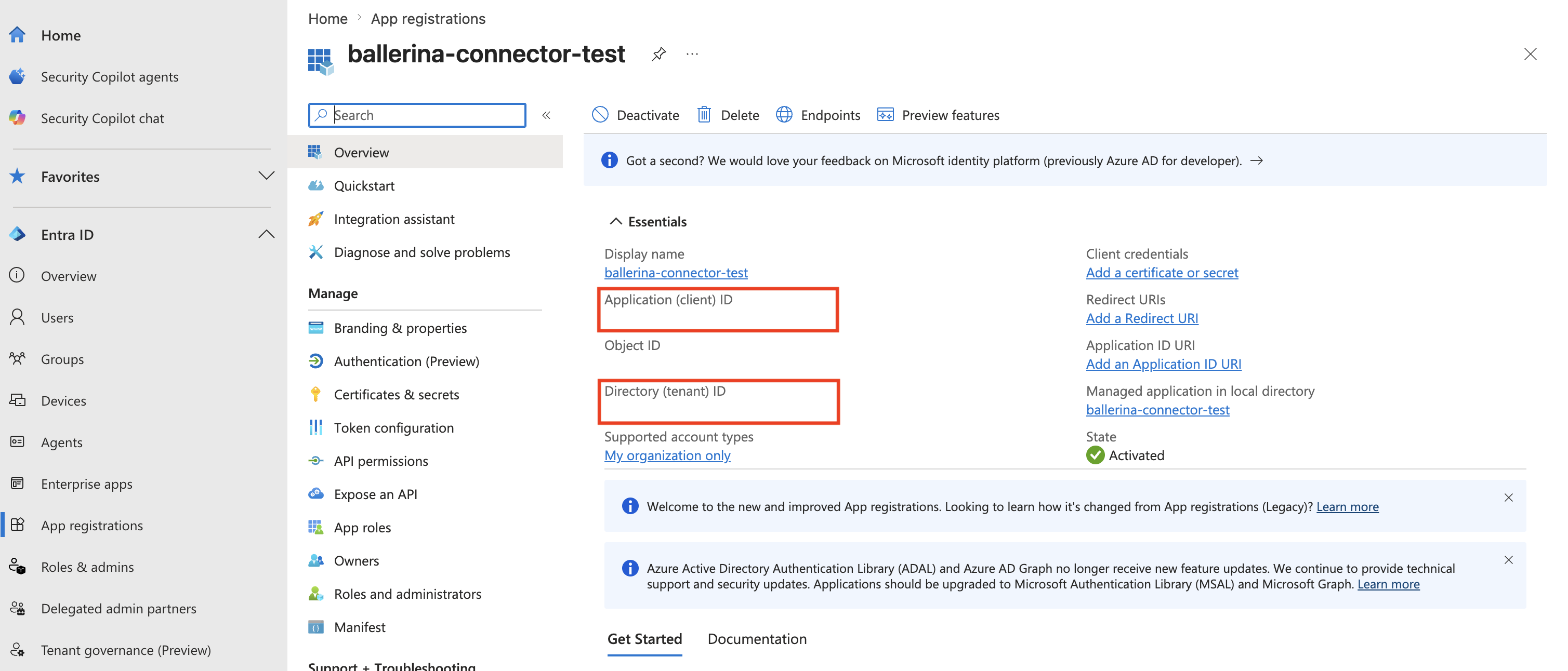
Once the application is registered, note down the Application (client) ID and Directory (tenant) ID from the Overview page.
-
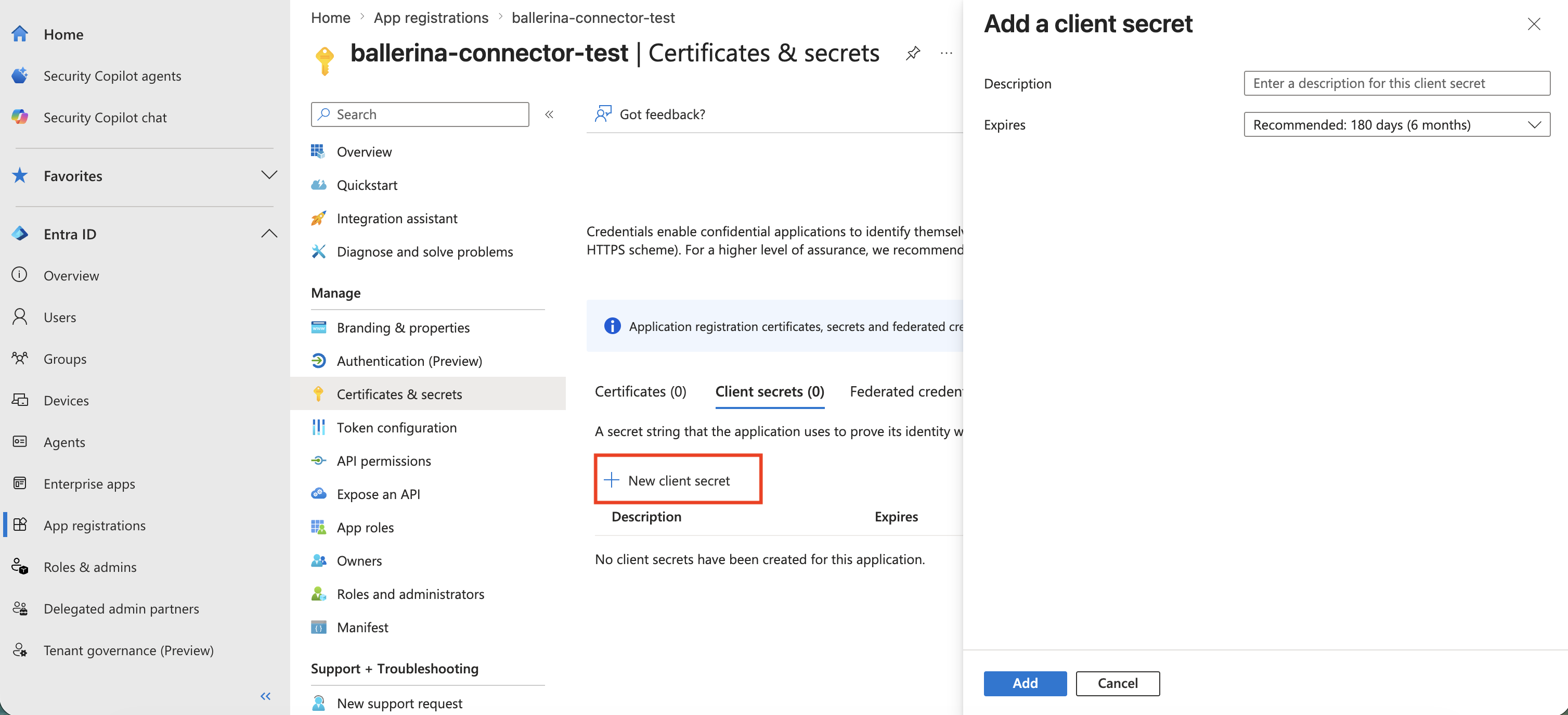
Navigate to Certificates & secrets in the left panel, click New client secret, provide a description and expiry period, then click Add. Copy the generated client secret value immediately.
-
Navigate to API permissions in the left panel and click Add a permission.
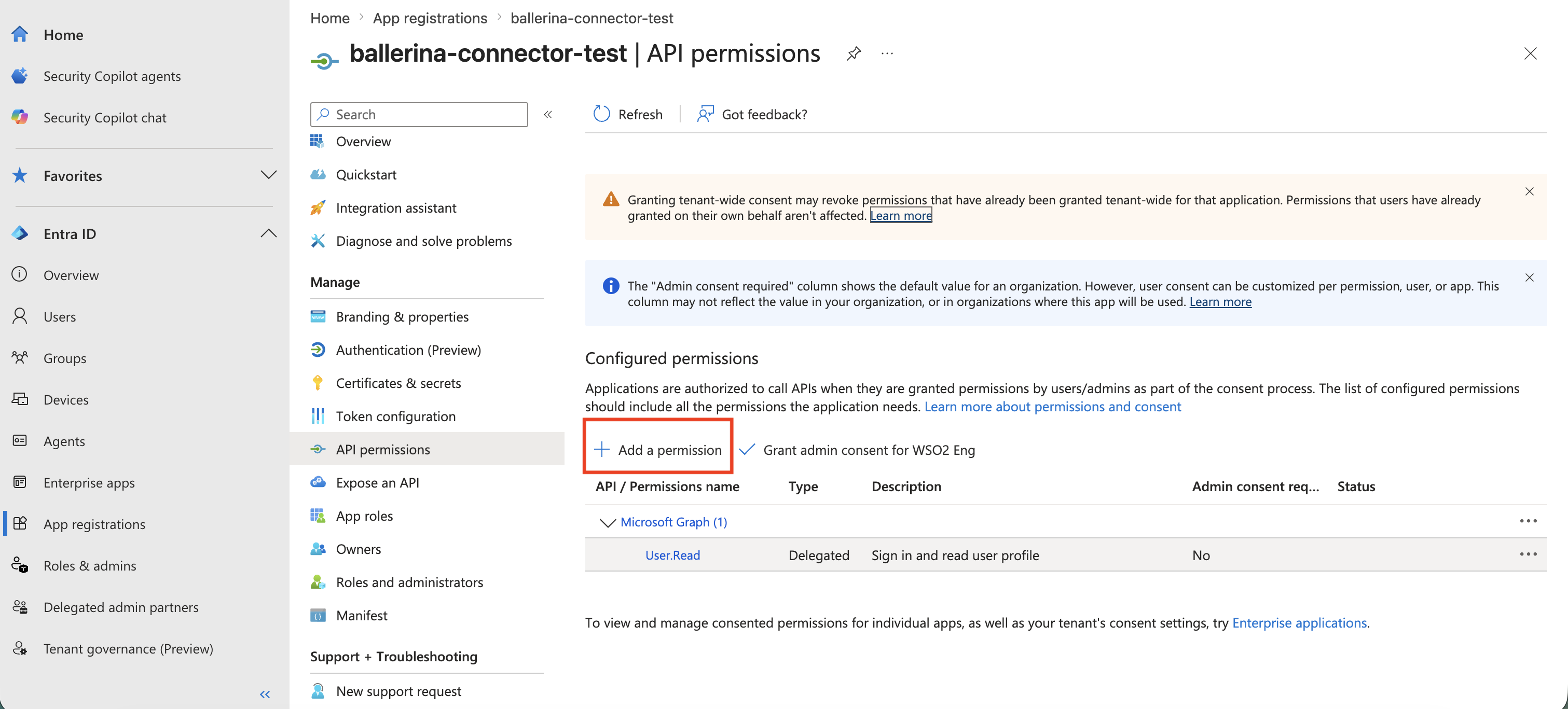
-
Select Microsoft Graph from the available API options.
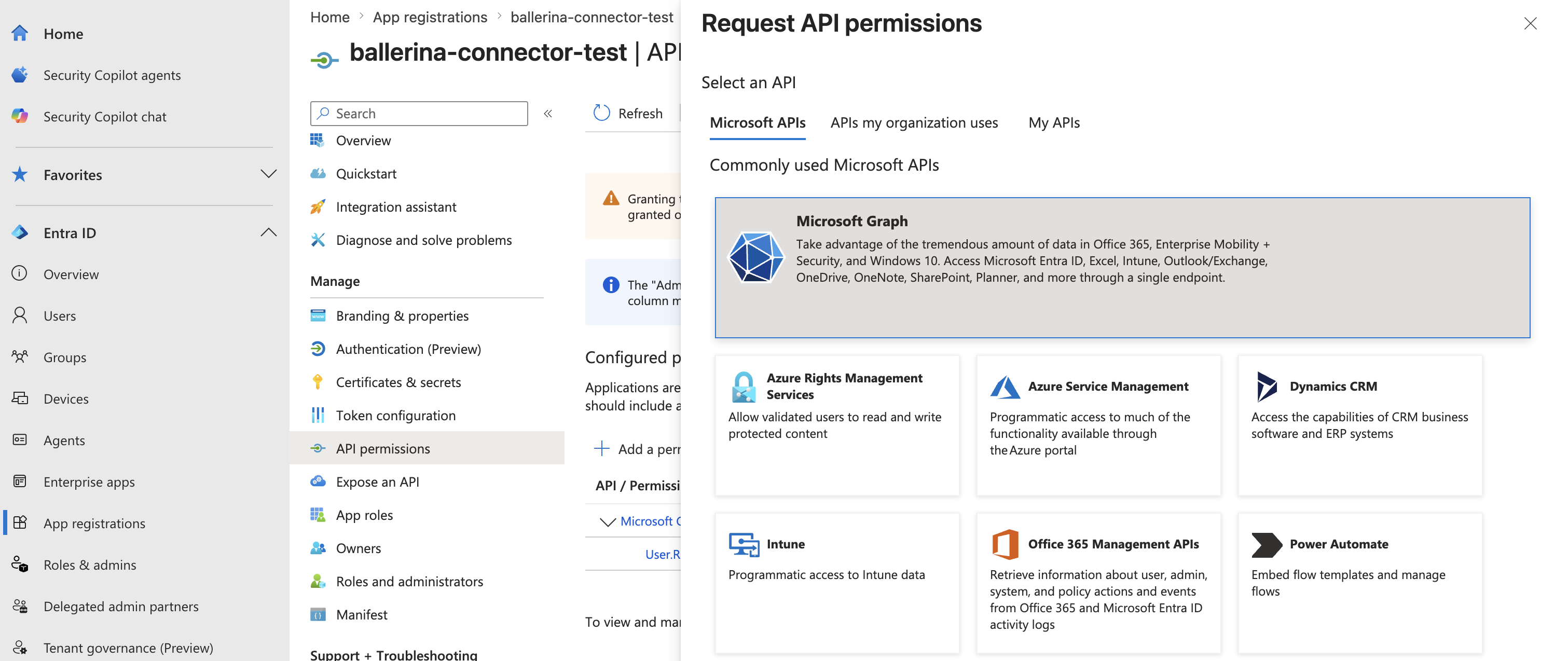
-
Select Application permissions, then search for and add the following permissions depending on your use case, then click Add permissions.
Permission Operations covered Sites.Read.AllRead sites, lists, columns, content types, drives, analytics Sites.ReadWrite.AllCreate and update lists, list items, drives, and content Sites.Manage.AllUpdate site properties, create/delete columns and content types Sites.FullControl.AllManage site permissions Tip: Grant only the permissions your application actually requires. For read-only use cases,
Sites.Read.Allis sufficient. For full connector coverage, add all four.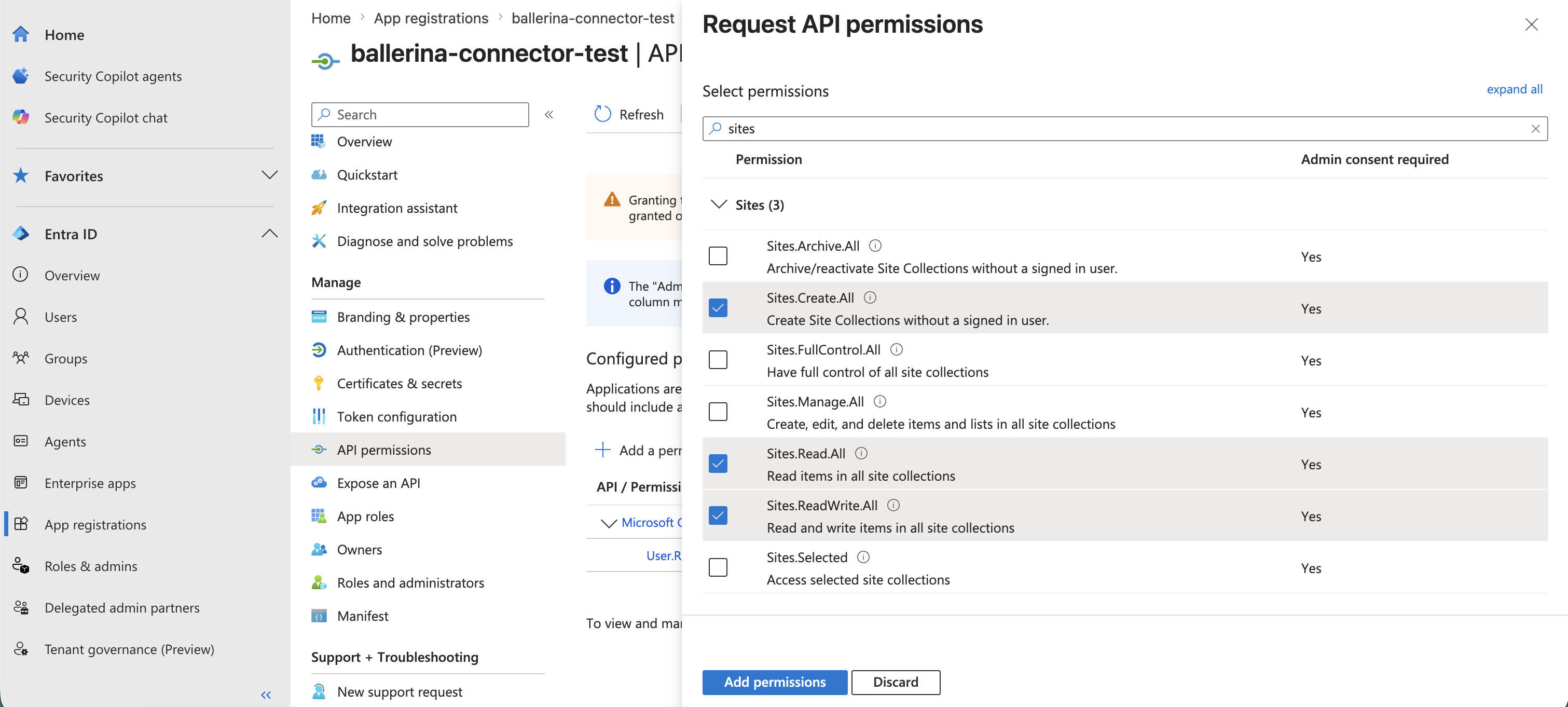
-
Click Grant admin consent to approve the permissions for your organization.
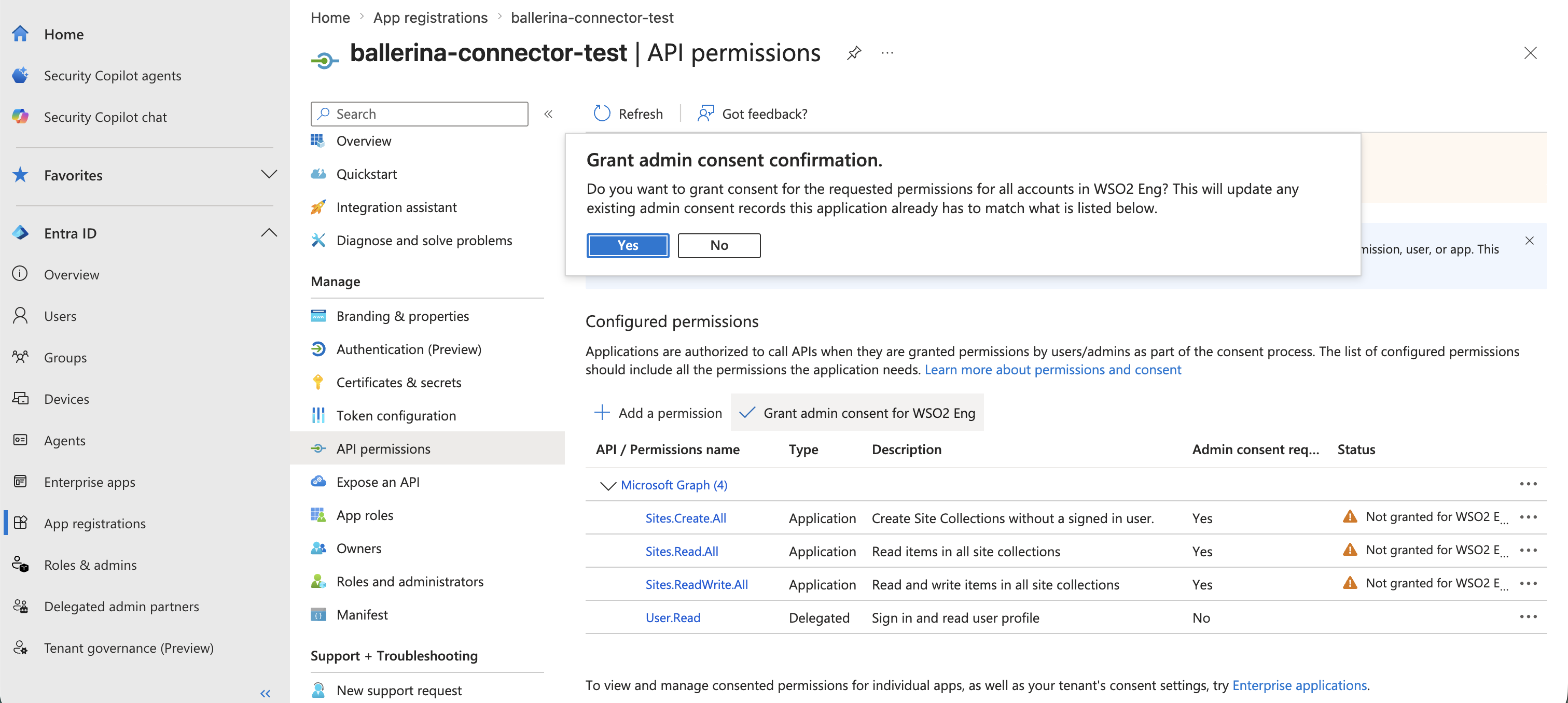
-
Construct the
tokenUrlusing the Directory (tenant) ID obtained in step 5:
https://login.microsoftonline.com/<TENANT_ID>/oauth2/v2.0/token
This is the OAuth 2.0 token endpoint the connector uses to exchange your clientId and clientSecret for an access token with the https://graph.microsoft.com/.default scope.
Quickstart
To use the microsoft.sharepoint.pages connector in your Ballerina application, update the .bal file as follows:
Step 1: Import the module
import ballerinax/microsoft.sharepoint.pages;
Step 2: Instantiate a new connector
- Create a
Config.tomlfile and configure the credentials obtained above:
clientId = "<CLIENT_ID>" clientSecret = "<CLIENT_SECRET>" tokenUrl = "https://login.microsoftonline.com/<TENANT_ID>/oauth2/v2.0/token"
- Instantiate a
pages:Clientwith the obtained credentials.
configurable string clientId = ?; configurable string clientSecret = ?; configurable string tokenUrl = ?; final pages:Client sharepointPagesClient = check new({ auth: { clientId, clientSecret, tokenUrl } });
Step 3: Invoke the connector operation
Now, utilize the available connector operations.
List pages in a SharePoint site
public function main() returns error? { string siteId = "add-the-site-id"; pages:BaseSitePageCollectionResponse response = check sharepointPagesClient->listPages(siteId); }
Step 4: Run the Ballerina application
bal run
Examples
The microsoft.sharepoint.pages connector provides practical examples illustrating usage in various scenarios. Explore these examples, covering the following use cases:
- Vertical section webpart audit - Inspect and report on web parts placed within vertical sections across SharePoint pages.
- Webpart audit cleanup - Identify and remove outdated or unused web parts from SharePoint pages as part of a cleanup process.
- SharePoint page audit enrichment - Enrich SharePoint page audit data with additional metadata to produce comprehensive audit reports.
Clients
microsoft.sharepoint.pages: Client
SharePoint subset of the Microsoft Graph v1.0 OpenAPI specification (generated from graphexplorer.yaml).
Constructor
Gets invoked to initialize the connector.
init (ConnectionConfig config, string serviceUrl)- config ConnectionConfig - The configurations to be used when initializing the
connector
- serviceUrl string "https://graph.microsoft.com/v1.0/sites" - URL of the target service
listPages
function listPages(string siteId, map<string|string[]> headers, *ListPagesQueries queries) returns BaseSitePageCollectionResponse|errorList baseSitePages
Parameters
- siteId string - The unique identifier of site
- queries *ListPagesQueries - Queries to be sent with the request
Return Type
- BaseSitePageCollectionResponse|error - Retrieved collection
createPages
function createPages(string siteId, BaseSitePage payload, map<string|string[]> headers) returns BaseSitePage|errorCreate a page in the site pages list of a site
Parameters
- siteId string - The unique identifier of site
- payload BaseSitePage - New navigation property
Return Type
- BaseSitePage|error - Created navigation property
getPages
function getPages(string siteId, string baseSitePageId, map<string|string[]> headers, *GetPagesQueries queries) returns BaseSitePage|errorGet baseSitePage
Parameters
- siteId string - The unique identifier of site
- baseSitePageId string - The unique identifier of baseSitePage
- queries *GetPagesQueries - Queries to be sent with the request
Return Type
- BaseSitePage|error - Retrieved navigation property
deletePages
function deletePages(string siteId, string baseSitePageId, DeletePagesHeaders headers) returns error?Delete baseSitePage
Parameters
- siteId string - The unique identifier of site
- baseSitePageId string - The unique identifier of baseSitePage
- headers DeletePagesHeaders (default {}) - Headers to be sent with the request
Return Type
- error? - Success
updatePages
function updatePages(string siteId, string baseSitePageId, BaseSitePage payload, map<string|string[]> headers) returns error?Update the navigation property pages in sites
Parameters
- siteId string - The unique identifier of site
- baseSitePageId string - The unique identifier of baseSitePage
- payload BaseSitePage - New navigation property values
Return Type
- error? - Success
getPageCreator
function getPageCreator(string siteId, string baseSitePageId, map<string|string[]> headers, *GetPageCreatorQueries queries) returns User|errorGet createdByUser from sites
Parameters
- siteId string - The unique identifier of site
- baseSitePageId string - The unique identifier of baseSitePage
- queries *GetPageCreatorQueries - Queries to be sent with the request
getPageCreatorMailbox
function getPageCreatorMailbox(string siteId, string baseSitePageId, map<string|string[]> headers, *GetPageCreatorMailboxQueries queries) returns MailboxSettings|errorGet mailboxSettings property value
Parameters
- siteId string - The unique identifier of site
- baseSitePageId string - The unique identifier of baseSitePage
- queries *GetPageCreatorMailboxQueries - Queries to be sent with the request
Return Type
- MailboxSettings|error - Entity result
updatePageCreatorMailbox
function updatePageCreatorMailbox(string siteId, string baseSitePageId, MailboxSettings payload, map<string|string[]> headers) returns error?Update property mailboxSettings value.
Parameters
- siteId string - The unique identifier of site
- baseSitePageId string - The unique identifier of baseSitePage
- payload MailboxSettings - New property values
Return Type
- error? - Success
listPageCreatorServiceErrors
function listPageCreatorServiceErrors(string siteId, string baseSitePageId, map<string|string[]> headers, *ListPageCreatorServiceErrorsQueries queries) returns ServiceProvisioningErrorCollectionResponse|errorGet serviceProvisioningErrors property value
Parameters
- siteId string - The unique identifier of site
- baseSitePageId string - The unique identifier of baseSitePage
- queries *ListPageCreatorServiceErrorsQueries - Queries to be sent with the request
Return Type
- ServiceProvisioningErrorCollectionResponse|error - Retrieved collection
getPageCreatorServiceErrorsCount
function getPageCreatorServiceErrorsCount(string siteId, string baseSitePageId, map<string|string[]> headers, *GetPageCreatorServiceErrorsCountQueries queries) returns string|errorGet the number of the resource
Parameters
- siteId string - The unique identifier of site
- baseSitePageId string - The unique identifier of baseSitePage
- queries *GetPageCreatorServiceErrorsCountQueries - Queries to be sent with the request
getPageModifier
function getPageModifier(string siteId, string baseSitePageId, map<string|string[]> headers, *GetPageModifierQueries queries) returns User|errorGet lastModifiedByUser from sites
Parameters
- siteId string - The unique identifier of site
- baseSitePageId string - The unique identifier of baseSitePage
- queries *GetPageModifierQueries - Queries to be sent with the request
getPageModifierMailbox
function getPageModifierMailbox(string siteId, string baseSitePageId, map<string|string[]> headers, *GetPageModifierMailboxQueries queries) returns MailboxSettings|errorGet mailboxSettings property value
Parameters
- siteId string - The unique identifier of site
- baseSitePageId string - The unique identifier of baseSitePage
- queries *GetPageModifierMailboxQueries - Queries to be sent with the request
Return Type
- MailboxSettings|error - Entity result
updatePageModifierMailbox
function updatePageModifierMailbox(string siteId, string baseSitePageId, MailboxSettings payload, map<string|string[]> headers) returns error?Update property mailboxSettings value.
Parameters
- siteId string - The unique identifier of site
- baseSitePageId string - The unique identifier of baseSitePage
- payload MailboxSettings - New property values
Return Type
- error? - Success
listPageModifierServiceErrors
function listPageModifierServiceErrors(string siteId, string baseSitePageId, map<string|string[]> headers, *ListPageModifierServiceErrorsQueries queries) returns ServiceProvisioningErrorCollectionResponse|errorGet serviceProvisioningErrors property value
Parameters
- siteId string - The unique identifier of site
- baseSitePageId string - The unique identifier of baseSitePage
- queries *ListPageModifierServiceErrorsQueries - Queries to be sent with the request
Return Type
- ServiceProvisioningErrorCollectionResponse|error - Retrieved collection
getPageModifierServiceErrorsCount
function getPageModifierServiceErrorsCount(string siteId, string baseSitePageId, map<string|string[]> headers, *GetPageModifierServiceErrorsCountQueries queries) returns string|errorGet the number of the resource
Parameters
- siteId string - The unique identifier of site
- baseSitePageId string - The unique identifier of baseSitePage
- queries *GetPageModifierServiceErrorsCountQueries - Queries to be sent with the request
getSitePage
function getSitePage(string siteId, string baseSitePageId, map<string|string[]> headers, *GetSitePageQueries queries) returns SitePage|errorGet SitePage
Parameters
- siteId string - The unique identifier of site
- baseSitePageId string - The unique identifier of baseSitePage
- queries *GetSitePageQueries - Queries to be sent with the request
getSitePageCanvasLayout
function getSitePageCanvasLayout(string siteId, string baseSitePageId, map<string|string[]> headers, *GetSitePageCanvasLayoutQueries queries) returns CanvasLayout|errorGet canvasLayout from sites
Parameters
- siteId string - The unique identifier of site
- baseSitePageId string - The unique identifier of baseSitePage
- queries *GetSitePageCanvasLayoutQueries - Queries to be sent with the request
Return Type
- CanvasLayout|error - Retrieved navigation property
deleteSitePageCanvasLayout
function deleteSitePageCanvasLayout(string siteId, string baseSitePageId, DeleteSitePageCanvasLayoutHeaders headers) returns error?Delete navigation property canvasLayout for sites
Parameters
- siteId string - The unique identifier of site
- baseSitePageId string - The unique identifier of baseSitePage
- headers DeleteSitePageCanvasLayoutHeaders (default {}) - Headers to be sent with the request
Return Type
- error? - Success
updateSitePageCanvasLayout
function updateSitePageCanvasLayout(string siteId, string baseSitePageId, CanvasLayout payload, map<string|string[]> headers) returns error?Update the navigation property canvasLayout in sites
Parameters
- siteId string - The unique identifier of site
- baseSitePageId string - The unique identifier of baseSitePage
- payload CanvasLayout - New navigation property values
Return Type
- error? - Success
listHorizontalSections
function listHorizontalSections(string siteId, string baseSitePageId, map<string|string[]> headers, *ListHorizontalSectionsQueries queries) returns HorizontalSectionCollectionResponse|errorGet horizontalSections from sites
Parameters
- siteId string - The unique identifier of site
- baseSitePageId string - The unique identifier of baseSitePage
- queries *ListHorizontalSectionsQueries - Queries to be sent with the request
Return Type
- HorizontalSectionCollectionResponse|error - Retrieved collection
createHorizontalSection
function createHorizontalSection(string siteId, string baseSitePageId, HorizontalSection payload, map<string|string[]> headers) returns HorizontalSection|errorCreate new navigation property to horizontalSections for sites
Parameters
- siteId string - The unique identifier of site
- baseSitePageId string - The unique identifier of baseSitePage
- payload HorizontalSection - New navigation property
Return Type
- HorizontalSection|error - Created navigation property
getHorizontalSection
function getHorizontalSection(string siteId, string baseSitePageId, string horizontalSectionId, map<string|string[]> headers, *GetHorizontalSectionQueries queries) returns HorizontalSection|errorGet horizontalSections from sites
Parameters
- siteId string - The unique identifier of site
- baseSitePageId string - The unique identifier of baseSitePage
- horizontalSectionId string - The unique identifier of horizontalSection
- queries *GetHorizontalSectionQueries - Queries to be sent with the request
Return Type
- HorizontalSection|error - Retrieved navigation property
deleteHorizontalSection
function deleteHorizontalSection(string siteId, string baseSitePageId, string horizontalSectionId, DeleteHorizontalSectionHeaders headers) returns error?Delete navigation property horizontalSections for sites
Parameters
- siteId string - The unique identifier of site
- baseSitePageId string - The unique identifier of baseSitePage
- horizontalSectionId string - The unique identifier of horizontalSection
- headers DeleteHorizontalSectionHeaders (default {}) - Headers to be sent with the request
Return Type
- error? - Success
updateHorizontalSection
function updateHorizontalSection(string siteId, string baseSitePageId, string horizontalSectionId, HorizontalSection payload, map<string|string[]> headers) returns error?Update the navigation property horizontalSections in sites
Parameters
- siteId string - The unique identifier of site
- baseSitePageId string - The unique identifier of baseSitePage
- horizontalSectionId string - The unique identifier of horizontalSection
- payload HorizontalSection - New navigation property values
Return Type
- error? - Success
listHSectionColumns
function listHSectionColumns(string siteId, string baseSitePageId, string horizontalSectionId, map<string|string[]> headers, *ListHSectionColumnsQueries queries) returns HorizontalSectionColumnCollectionResponse|errorGet columns from sites
Parameters
- siteId string - The unique identifier of site
- baseSitePageId string - The unique identifier of baseSitePage
- horizontalSectionId string - The unique identifier of horizontalSection
- queries *ListHSectionColumnsQueries - Queries to be sent with the request
Return Type
- HorizontalSectionColumnCollectionResponse|error - Retrieved collection
createHSectionColumn
function createHSectionColumn(string siteId, string baseSitePageId, string horizontalSectionId, HorizontalSectionColumn payload, map<string|string[]> headers) returns HorizontalSectionColumn|errorCreate new navigation property to columns for sites
Parameters
- siteId string - The unique identifier of site
- baseSitePageId string - The unique identifier of baseSitePage
- horizontalSectionId string - The unique identifier of horizontalSection
- payload HorizontalSectionColumn - New navigation property
Return Type
- HorizontalSectionColumn|error - Created navigation property
getHSectionColumn
function getHSectionColumn(string siteId, string baseSitePageId, string horizontalSectionId, string horizontalSectionColumnId, map<string|string[]> headers, *GetHSectionColumnQueries queries) returns HorizontalSectionColumn|errorGet columns from sites
Parameters
- siteId string - The unique identifier of site
- baseSitePageId string - The unique identifier of baseSitePage
- horizontalSectionId string - The unique identifier of horizontalSection
- horizontalSectionColumnId string - The unique identifier of horizontalSectionColumn
- queries *GetHSectionColumnQueries - Queries to be sent with the request
Return Type
- HorizontalSectionColumn|error - Retrieved navigation property
deleteHSectionColumn
function deleteHSectionColumn(string siteId, string baseSitePageId, string horizontalSectionId, string horizontalSectionColumnId, DeleteHSectionColumnHeaders headers) returns error?Delete navigation property columns for sites
Parameters
- siteId string - The unique identifier of site
- baseSitePageId string - The unique identifier of baseSitePage
- horizontalSectionId string - The unique identifier of horizontalSection
- horizontalSectionColumnId string - The unique identifier of horizontalSectionColumn
- headers DeleteHSectionColumnHeaders (default {}) - Headers to be sent with the request
Return Type
- error? - Success
updateHSectionColumn
function updateHSectionColumn(string siteId, string baseSitePageId, string horizontalSectionId, string horizontalSectionColumnId, HorizontalSectionColumn payload, map<string|string[]> headers) returns error?Update the navigation property columns in sites
Parameters
- siteId string - The unique identifier of site
- baseSitePageId string - The unique identifier of baseSitePage
- horizontalSectionId string - The unique identifier of horizontalSection
- horizontalSectionColumnId string - The unique identifier of horizontalSectionColumn
- payload HorizontalSectionColumn - New navigation property values
Return Type
- error? - Success
listHSectionColumnWebparts
function listHSectionColumnWebparts(string siteId, string baseSitePageId, string horizontalSectionId, string horizontalSectionColumnId, map<string|string[]> headers, *ListHSectionColumnWebpartsQueries queries) returns WebPartCollectionResponse|errorGet webparts from sites
Parameters
- siteId string - The unique identifier of site
- baseSitePageId string - The unique identifier of baseSitePage
- horizontalSectionId string - The unique identifier of horizontalSection
- horizontalSectionColumnId string - The unique identifier of horizontalSectionColumn
- queries *ListHSectionColumnWebpartsQueries - Queries to be sent with the request
Return Type
- WebPartCollectionResponse|error - Retrieved collection
createHSectionColumnWebpart
function createHSectionColumnWebpart(string siteId, string baseSitePageId, string horizontalSectionId, string horizontalSectionColumnId, WebPart payload, map<string|string[]> headers) returns WebPart|errorCreate new navigation property to webparts for sites
Parameters
- siteId string - The unique identifier of site
- baseSitePageId string - The unique identifier of baseSitePage
- horizontalSectionId string - The unique identifier of horizontalSection
- horizontalSectionColumnId string - The unique identifier of horizontalSectionColumn
- payload WebPart - New navigation property
getHSectionColumnWebpart
function getHSectionColumnWebpart(string siteId, string baseSitePageId, string horizontalSectionId, string horizontalSectionColumnId, string webPartId, map<string|string[]> headers, *GetHSectionColumnWebpartQueries queries) returns WebPart|errorGet webparts from sites
Parameters
- siteId string - The unique identifier of site
- baseSitePageId string - The unique identifier of baseSitePage
- horizontalSectionId string - The unique identifier of horizontalSection
- horizontalSectionColumnId string - The unique identifier of horizontalSectionColumn
- webPartId string - The unique identifier of webPart
- queries *GetHSectionColumnWebpartQueries - Queries to be sent with the request
deleteHSectionColumnWebpart
function deleteHSectionColumnWebpart(string siteId, string baseSitePageId, string horizontalSectionId, string horizontalSectionColumnId, string webPartId, DeleteHSectionColumnWebpartHeaders headers) returns error?Delete navigation property webparts for sites
Parameters
- siteId string - The unique identifier of site
- baseSitePageId string - The unique identifier of baseSitePage
- horizontalSectionId string - The unique identifier of horizontalSection
- horizontalSectionColumnId string - The unique identifier of horizontalSectionColumn
- webPartId string - The unique identifier of webPart
- headers DeleteHSectionColumnWebpartHeaders (default {}) - Headers to be sent with the request
Return Type
- error? - Success
updateHSectionColumnWebpart
function updateHSectionColumnWebpart(string siteId, string baseSitePageId, string horizontalSectionId, string horizontalSectionColumnId, string webPartId, WebPart payload, map<string|string[]> headers) returns error?Update the navigation property webparts in sites
Parameters
- siteId string - The unique identifier of site
- baseSitePageId string - The unique identifier of baseSitePage
- horizontalSectionId string - The unique identifier of horizontalSection
- horizontalSectionColumnId string - The unique identifier of horizontalSectionColumn
- webPartId string - The unique identifier of webPart
- payload WebPart - New navigation property values
Return Type
- error? - Success
getHSectionColumnWebpartPosition
function getHSectionColumnWebpartPosition(string siteId, string baseSitePageId, string horizontalSectionId, string horizontalSectionColumnId, string webPartId, map<string|string[]> headers) returns WebPartPositionResponse|errorInvoke action getPositionOfWebPart
Parameters
- siteId string - The unique identifier of site
- baseSitePageId string - The unique identifier of baseSitePage
- horizontalSectionId string - The unique identifier of horizontalSection
- horizontalSectionColumnId string - The unique identifier of horizontalSectionColumn
- webPartId string - The unique identifier of webPart
Return Type
- WebPartPositionResponse|error - Success
getHSectionColumnWebpartsCount
function getHSectionColumnWebpartsCount(string siteId, string baseSitePageId, string horizontalSectionId, string horizontalSectionColumnId, map<string|string[]> headers, *GetHSectionColumnWebpartsCountQueries queries) returns string|errorGet the number of the resource
Parameters
- siteId string - The unique identifier of site
- baseSitePageId string - The unique identifier of baseSitePage
- horizontalSectionId string - The unique identifier of horizontalSection
- horizontalSectionColumnId string - The unique identifier of horizontalSectionColumn
- queries *GetHSectionColumnWebpartsCountQueries - Queries to be sent with the request
getHSectionColumnsCount
function getHSectionColumnsCount(string siteId, string baseSitePageId, string horizontalSectionId, map<string|string[]> headers, *GetHSectionColumnsCountQueries queries) returns string|errorGet the number of the resource
Parameters
- siteId string - The unique identifier of site
- baseSitePageId string - The unique identifier of baseSitePage
- horizontalSectionId string - The unique identifier of horizontalSection
- queries *GetHSectionColumnsCountQueries - Queries to be sent with the request
getHSectionsCount
function getHSectionsCount(string siteId, string baseSitePageId, map<string|string[]> headers, *GetHSectionsCountQueries queries) returns string|errorGet the number of the resource
Parameters
- siteId string - The unique identifier of site
- baseSitePageId string - The unique identifier of baseSitePage
- queries *GetHSectionsCountQueries - Queries to be sent with the request
getVerticalSection
function getVerticalSection(string siteId, string baseSitePageId, map<string|string[]> headers, *GetVerticalSectionQueries queries) returns VerticalSection|errorGet verticalSection from sites
Parameters
- siteId string - The unique identifier of site
- baseSitePageId string - The unique identifier of baseSitePage
- queries *GetVerticalSectionQueries - Queries to be sent with the request
Return Type
- VerticalSection|error - Retrieved navigation property
deleteVerticalSection
function deleteVerticalSection(string siteId, string baseSitePageId, DeleteVerticalSectionHeaders headers) returns error?Delete navigation property verticalSection for sites
Parameters
- siteId string - The unique identifier of site
- baseSitePageId string - The unique identifier of baseSitePage
- headers DeleteVerticalSectionHeaders (default {}) - Headers to be sent with the request
Return Type
- error? - Success
updateVerticalSection
function updateVerticalSection(string siteId, string baseSitePageId, VerticalSection payload, map<string|string[]> headers) returns error?Update the navigation property verticalSection in sites
Parameters
- siteId string - The unique identifier of site
- baseSitePageId string - The unique identifier of baseSitePage
- payload VerticalSection - New navigation property values
Return Type
- error? - Success
listVSectionWebparts
function listVSectionWebparts(string siteId, string baseSitePageId, map<string|string[]> headers, *ListVSectionWebpartsQueries queries) returns WebPartCollectionResponse|errorGet webparts from sites
Parameters
- siteId string - The unique identifier of site
- baseSitePageId string - The unique identifier of baseSitePage
- queries *ListVSectionWebpartsQueries - Queries to be sent with the request
Return Type
- WebPartCollectionResponse|error - Retrieved collection
createVSectionWebpart
function createVSectionWebpart(string siteId, string baseSitePageId, WebPart payload, map<string|string[]> headers) returns WebPart|errorCreate new navigation property to webparts for sites
Parameters
- siteId string - The unique identifier of site
- baseSitePageId string - The unique identifier of baseSitePage
- payload WebPart - New navigation property
getVSectionWebpart
function getVSectionWebpart(string siteId, string baseSitePageId, string webPartId, map<string|string[]> headers, *GetVSectionWebpartQueries queries) returns WebPart|errorGet webparts from sites
Parameters
- siteId string - The unique identifier of site
- baseSitePageId string - The unique identifier of baseSitePage
- webPartId string - The unique identifier of webPart
- queries *GetVSectionWebpartQueries - Queries to be sent with the request
deleteVSectionWebpart
function deleteVSectionWebpart(string siteId, string baseSitePageId, string webPartId, DeleteVSectionWebpartHeaders headers) returns error?Delete navigation property webparts for sites
Parameters
- siteId string - The unique identifier of site
- baseSitePageId string - The unique identifier of baseSitePage
- webPartId string - The unique identifier of webPart
- headers DeleteVSectionWebpartHeaders (default {}) - Headers to be sent with the request
Return Type
- error? - Success
updateVSectionWebpart
function updateVSectionWebpart(string siteId, string baseSitePageId, string webPartId, WebPart payload, map<string|string[]> headers) returns error?Update the navigation property webparts in sites
Parameters
- siteId string - The unique identifier of site
- baseSitePageId string - The unique identifier of baseSitePage
- webPartId string - The unique identifier of webPart
- payload WebPart - New navigation property values
Return Type
- error? - Success
getVSectionWebpartPosition
function getVSectionWebpartPosition(string siteId, string baseSitePageId, string webPartId, map<string|string[]> headers) returns WebPartPositionResponse|errorInvoke action getPositionOfWebPart
Parameters
- siteId string - The unique identifier of site
- baseSitePageId string - The unique identifier of baseSitePage
- webPartId string - The unique identifier of webPart
Return Type
- WebPartPositionResponse|error - Success
getVSectionWebpartsCount
function getVSectionWebpartsCount(string siteId, string baseSitePageId, map<string|string[]> headers, *GetVSectionWebpartsCountQueries queries) returns string|errorGet the number of the resource
Parameters
- siteId string - The unique identifier of site
- baseSitePageId string - The unique identifier of baseSitePage
- queries *GetVSectionWebpartsCountQueries - Queries to be sent with the request
getSitePageCreator
function getSitePageCreator(string siteId, string baseSitePageId, map<string|string[]> headers, *GetSitePageCreatorQueries queries) returns User|errorGet createdByUser from sites
Parameters
- siteId string - The unique identifier of site
- baseSitePageId string - The unique identifier of baseSitePage
- queries *GetSitePageCreatorQueries - Queries to be sent with the request
getSitePageCreatorMailbox
function getSitePageCreatorMailbox(string siteId, string baseSitePageId, map<string|string[]> headers, *GetSitePageCreatorMailboxQueries queries) returns MailboxSettings|errorGet mailboxSettings property value
Parameters
- siteId string - The unique identifier of site
- baseSitePageId string - The unique identifier of baseSitePage
- queries *GetSitePageCreatorMailboxQueries - Queries to be sent with the request
Return Type
- MailboxSettings|error - Entity result
updateSitePageCreatorMailbox
function updateSitePageCreatorMailbox(string siteId, string baseSitePageId, MailboxSettings payload, map<string|string[]> headers) returns error?Update property mailboxSettings value.
Parameters
- siteId string - The unique identifier of site
- baseSitePageId string - The unique identifier of baseSitePage
- payload MailboxSettings - New property values
Return Type
- error? - Success
listSitePageCreatorServiceErrors
function listSitePageCreatorServiceErrors(string siteId, string baseSitePageId, map<string|string[]> headers, *ListSitePageCreatorServiceErrorsQueries queries) returns ServiceProvisioningErrorCollectionResponse|errorGet serviceProvisioningErrors property value
Parameters
- siteId string - The unique identifier of site
- baseSitePageId string - The unique identifier of baseSitePage
- queries *ListSitePageCreatorServiceErrorsQueries - Queries to be sent with the request
Return Type
- ServiceProvisioningErrorCollectionResponse|error - Retrieved collection
getSitePageCreatorServiceErrorsCount
function getSitePageCreatorServiceErrorsCount(string siteId, string baseSitePageId, map<string|string[]> headers, *GetSitePageCreatorServiceErrorsCountQueries queries) returns string|errorGet the number of the resource
Parameters
- siteId string - The unique identifier of site
- baseSitePageId string - The unique identifier of baseSitePage
- queries *GetSitePageCreatorServiceErrorsCountQueries - Queries to be sent with the request
getSitePageModifier
function getSitePageModifier(string siteId, string baseSitePageId, map<string|string[]> headers, *GetSitePageModifierQueries queries) returns User|errorGet lastModifiedByUser from sites
Parameters
- siteId string - The unique identifier of site
- baseSitePageId string - The unique identifier of baseSitePage
- queries *GetSitePageModifierQueries - Queries to be sent with the request
getSitePageModifierMailbox
function getSitePageModifierMailbox(string siteId, string baseSitePageId, map<string|string[]> headers, *GetSitePageModifierMailboxQueries queries) returns MailboxSettings|errorGet mailboxSettings property value
Parameters
- siteId string - The unique identifier of site
- baseSitePageId string - The unique identifier of baseSitePage
- queries *GetSitePageModifierMailboxQueries - Queries to be sent with the request
Return Type
- MailboxSettings|error - Entity result
updateSitePageModifierMailbox
function updateSitePageModifierMailbox(string siteId, string baseSitePageId, MailboxSettings payload, map<string|string[]> headers) returns error?Update property mailboxSettings value.
Parameters
- siteId string - The unique identifier of site
- baseSitePageId string - The unique identifier of baseSitePage
- payload MailboxSettings - New property values
Return Type
- error? - Success
listSitePageModifierServiceErrors
function listSitePageModifierServiceErrors(string siteId, string baseSitePageId, map<string|string[]> headers, *ListSitePageModifierServiceErrorsQueries queries) returns ServiceProvisioningErrorCollectionResponse|errorGet serviceProvisioningErrors property value
Parameters
- siteId string - The unique identifier of site
- baseSitePageId string - The unique identifier of baseSitePage
- queries *ListSitePageModifierServiceErrorsQueries - Queries to be sent with the request
Return Type
- ServiceProvisioningErrorCollectionResponse|error - Retrieved collection
getSitePageModifierServiceErrorsCount
function getSitePageModifierServiceErrorsCount(string siteId, string baseSitePageId, map<string|string[]> headers, *GetSitePageModifierServiceErrorsCountQueries queries) returns string|errorGet the number of the resource
Parameters
- siteId string - The unique identifier of site
- baseSitePageId string - The unique identifier of baseSitePage
- queries *GetSitePageModifierServiceErrorsCountQueries - Queries to be sent with the request
listSitePageWebParts
function listSitePageWebParts(string siteId, string baseSitePageId, map<string|string[]> headers, *ListSitePageWebPartsQueries queries) returns WebPartCollectionResponse|errorGet webParts from sites
Parameters
- siteId string - The unique identifier of site
- baseSitePageId string - The unique identifier of baseSitePage
- queries *ListSitePageWebPartsQueries - Queries to be sent with the request
Return Type
- WebPartCollectionResponse|error - Retrieved collection
createSitePageWebPart
function createSitePageWebPart(string siteId, string baseSitePageId, WebPart payload, map<string|string[]> headers) returns WebPart|errorCreate new navigation property to webParts for sites
Parameters
- siteId string - The unique identifier of site
- baseSitePageId string - The unique identifier of baseSitePage
- payload WebPart - New navigation property
getSitePageWebPart
function getSitePageWebPart(string siteId, string baseSitePageId, string webPartId, map<string|string[]> headers, *GetSitePageWebPartQueries queries) returns WebPart|errorGet webParts from sites
Parameters
- siteId string - The unique identifier of site
- baseSitePageId string - The unique identifier of baseSitePage
- webPartId string - The unique identifier of webPart
- queries *GetSitePageWebPartQueries - Queries to be sent with the request
deleteSitePageWebPart
function deleteSitePageWebPart(string siteId, string baseSitePageId, string webPartId, DeleteSitePageWebPartHeaders headers) returns error?Delete webPart
Parameters
- siteId string - The unique identifier of site
- baseSitePageId string - The unique identifier of baseSitePage
- webPartId string - The unique identifier of webPart
- headers DeleteSitePageWebPartHeaders (default {}) - Headers to be sent with the request
Return Type
- error? - Success
updateSitePageWebPart
function updateSitePageWebPart(string siteId, string baseSitePageId, string webPartId, WebPart payload, map<string|string[]> headers) returns error?Update the navigation property webParts in sites
Parameters
- siteId string - The unique identifier of site
- baseSitePageId string - The unique identifier of baseSitePage
- webPartId string - The unique identifier of webPart
- payload WebPart - New navigation property values
Return Type
- error? - Success
getSitePageWebPartPosition
function getSitePageWebPartPosition(string siteId, string baseSitePageId, string webPartId, map<string|string[]> headers) returns WebPartPositionResponse|errorInvoke action getPositionOfWebPart
Parameters
- siteId string - The unique identifier of site
- baseSitePageId string - The unique identifier of baseSitePage
- webPartId string - The unique identifier of webPart
Return Type
- WebPartPositionResponse|error - Success
getSitePageWebPartsCount
function getSitePageWebPartsCount(string siteId, string baseSitePageId, map<string|string[]> headers, *GetSitePageWebPartsCountQueries queries) returns string|errorGet the number of the resource
Parameters
- siteId string - The unique identifier of site
- baseSitePageId string - The unique identifier of baseSitePage
- queries *GetSitePageWebPartsCountQueries - Queries to be sent with the request
publishSitePage
function publishSitePage(string siteId, string baseSitePageId, map<string|string[]> headers) returns error?Publish a site page
Parameters
- siteId string - The unique identifier of site
- baseSitePageId string - The unique identifier of baseSitePage
Return Type
- error? - No content. The page was successfully published.
getSitePageWebPartsByPosition
function getSitePageWebPartsByPosition(string siteId, string baseSitePageId, map<string|string[]> headers, *GetSitePageWebPartsByPositionQueries queries) returns WebPartCollectionResponse|errorGet web parts by position
Parameters
- siteId string - The unique identifier of site
- baseSitePageId string - The unique identifier of baseSitePage
- queries *GetSitePageWebPartsByPositionQueries - Queries to be sent with the request
Return Type
- WebPartCollectionResponse|error - Retrieved collection
getPagesCount
function getPagesCount(string siteId, map<string|string[]> headers, *GetPagesCountQueries queries) returns string|errorGet the number of the resource
Parameters
- siteId string - The unique identifier of site
- queries *GetPagesCountQueries - Queries to be sent with the request
listSitePages
function listSitePages(string siteId, map<string|string[]> headers, *ListSitePagesQueries queries) returns SitePageCollectionResponse|errorGet SitePage
Parameters
- siteId string - The unique identifier of site
- queries *ListSitePagesQueries - Queries to be sent with the request
Return Type
- SitePageCollectionResponse|error - Retrieved collection
getSitePagesCount
function getSitePagesCount(string siteId, map<string|string[]> headers, *GetSitePagesCountQueries queries) returns string|errorGet the number of the resource
Parameters
- siteId string - The unique identifier of site
- queries *GetSitePagesCountQueries - Queries to be sent with the request
Records
microsoft.sharepoint.pages: AccessAction
Represents an access action event recorded on a resource.
microsoft.sharepoint.pages: ActivitiesContainer
Container entity that holds a collection of content activity logs for processing tracking.
Fields
- Fields Included from *Entity
- id string
- anydata...
- contentActivities? ContentActivity[] - Collection of activity logs related to content processing
microsoft.sharepoint.pages: ActivityHistoryItem
Represents a session or history entry for a user activity, tracking engagement duration and timestamps.
Fields
- Fields Included from *Entity
- id string
- anydata...
- startedDateTime? string - Required. UTC DateTime when the activityHistoryItem (activity session) was started. Required for timeline history
- expirationDateTime? string? - Optional. UTC DateTime when the activityHistoryItem will undergo hard-delete. Can be set by the client
- lastModifiedDateTime? string? - Set by the server. DateTime in UTC when the object was modified on the server
- activity? UserActivity - Represents a user activity in an application, tracking cross-platform engagement with content and supporting activity history.
- lastActiveDateTime? string? - Optional. UTC DateTime when the activityHistoryItem (activity session) was last understood as active or finished - if null, activityHistoryItem status should be Ongoing
- createdDateTime? string? - Set by the server. DateTime in UTC when the object was created on the server
- activeDurationSeconds? decimal? - Optional. The duration of active user engagement. if not supplied, this is calculated from the startedDateTime and lastActiveDateTime
- userTimezone? string? - Optional. The timezone in which the user's device used to generate the activity was located at activity creation time. Values supplied as Olson IDs in order to support cross-platform representation
- status? Status|record {} - Set by the server. A status code used to identify valid objects. Values: active, updated, deleted, ignored
microsoft.sharepoint.pages: ActivityMetadata
Metadata object describing a user activity, including its associated activity type.
Fields
- activity? UserActivityType - Indicates the type of user activity: text/file upload or download, or unknown future value.
microsoft.sharepoint.pages: AdhocCall
Represents an ad hoc call, including its associated recordings and transcripts.
Fields
- Fields Included from *Entity
- id string
- anydata...
- recordings? CallRecording[] - The recordings of a call. Read-only
- transcripts? CallTranscript[] - The transcripts of a call. Read-only
microsoft.sharepoint.pages: AgreementAcceptance
Represents a user's acceptance or decline of a terms-of-use agreement.
Fields
- Fields Included from *Entity
- id string
- anydata...
- expirationDateTime? string? - The expiration date time of the acceptance. The Timestamp type represents date and time information using ISO 8601 format and is always in UTC time. For example, midnight UTC on Jan 1, 2014 is 2014-01-01T00:00:00Z. Supports $filter (eq, ge, le) and eq for null values
- deviceOSType? string? - The operating system used to accept the agreement
- userDisplayName? string? - Display name of the user when the acceptance was recorded
- deviceId? string? - The unique identifier of the device used for accepting the agreement. Supports $filter (eq) and eq for null values
- userId? string? - The identifier of the user who accepted the agreement. Supports $filter (eq)
- agreementFileId? string? - The identifier of the agreement file accepted by the user
- deviceDisplayName? string? - The display name of the device used for accepting the agreement
- deviceOSVersion? string? - The operating system version of the device used to accept the agreement
- agreementId? string? - The identifier of the agreement
- userEmail? string? - Email of the user when the acceptance was recorded
- state? AgreementAcceptanceState|record {} - The state of the agreement acceptance. The possible values are: accepted, declined. Supports $filter (eq)
- recordedDateTime? string? - The Timestamp type represents date and time information using ISO 8601 format and is always in UTC time. For example, midnight UTC on Jan 1, 2014 is 2014-01-01T00:00:00Z
- userPrincipalName? string? - UPN of the user when the acceptance was recorded
microsoft.sharepoint.pages: Album
Represents a photo album, including the identifier of its cover image drive item.
Fields
- coverImageItemId? string? - Unique identifier of the driveItem that is the cover of the album
microsoft.sharepoint.pages: AlternativeSecurityId
Represents an alternative security identifier for internal identity provider use.
Fields
- 'type? decimal? - For internal use only
- identityProvider? string? - For internal use only
- 'key? string? - For internal use only
microsoft.sharepoint.pages: AppIdentity
Represents the identity of an application, including its ID, display name, and service principal details.
Fields
- servicePrincipalName? string? - Refers to the Service Principal Name is the Application name in the tenant
- displayName? string? - Refers to the application name displayed in the Microsoft Entra admin center
- appId? string? - Refers to the unique ID representing application in Microsoft Entra ID
- servicePrincipalId? string? - Refers to the unique ID for the service principal in Microsoft Entra ID
microsoft.sharepoint.pages: AppRoleAssignment
Represents an app role assignment granted to a user, group, or service principal for a resource application.
Fields
- Fields Included from *DirectoryObject
- resourceDisplayName? string? - The display name of the resource app's service principal to which the assignment is made. Maximum length is 256 characters
- resourceId? string? - The unique identifier (id) for the resource service principal for which the assignment is made. Required on create. Supports $filter (eq only)
- principalDisplayName? string? - The display name of the user, group, or service principal that was granted the app role assignment. Maximum length is 256 characters. Read-only. Supports $filter (eq and startswith)
- appRoleId? string - The identifier (id) for the app role that's assigned to the principal. This app role must be exposed in the appRoles property on the resource application's service principal (resourceId). If the resource application hasn't declared any app roles, a default app role ID of 00000000-0000-0000-0000-000000000000 can be specified to signal that the principal is assigned to the resource app without any specific app roles. Required on create
- createdDateTime? string? - The time when the app role assignment was created. The Timestamp type represents date and time information using ISO 8601 format and is always in UTC time. For example, midnight UTC on Jan 1, 2014 is 2014-01-01T00:00:00Z. Read-only
- principalId? string? - The unique identifier (id) for the user, security group, or service principal being granted the app role. Security groups with dynamic memberships are supported. Required on create
- principalType? string? - The type of the assigned principal. This can either be User, Group, or ServicePrincipal. Read-only
microsoft.sharepoint.pages: AssignedLabel
Represents a sensitivity label assigned to a resource, including its identifier and display name.
Fields
- labelId? string? - The unique identifier of the label
- displayName? string? - The display name of the label. Read-only
microsoft.sharepoint.pages: AssignedLicense
Represents a license assigned to a user, including the SKU identifier and disabled service plans.
Fields
- disabledPlans? AssignedLicenseDisabledPlansItemsString[] - A collection of the unique identifiers for plans that have been disabled. IDs are available in servicePlans > servicePlanId in the tenant's subscribedSkus or serviceStatus > servicePlanId in the tenant's companySubscription
- skuId? string? - The unique identifier for the SKU. Corresponds to the skuId from subscribedSkus or companySubscription
microsoft.sharepoint.pages: AssignedPlan
Represents a service plan assigned to an entity, including status, service name, and plan identifier.
Fields
- assignedDateTime? string? - The date and time at which the plan was assigned. The Timestamp type represents date and time information using ISO 8601 format and is always in UTC time. For example, midnight UTC on Jan 1, 2014 is 2014-01-01T00:00:00Z
- 'service? string? - The name of the service; for example, exchange
- capabilityStatus? string? - Condition of the capability assignment. The possible values are Enabled, Warning, Suspended, Deleted, LockedOut. See a detailed description of each value
- servicePlanId? string? - A GUID that identifies the service plan. For a complete list of GUIDs and their equivalent friendly service names, see Product names and service plan identifiers for licensing
microsoft.sharepoint.pages: AssociatedTeamInfo
Represents a team associated with a user or resource, extending the base TeamInfo schema.
Fields
- Fields Included from *TeamInfo
microsoft.sharepoint.pages: Attachment
Represents a file or item attached to a message, including metadata such as name, size, and MIME type.
Fields
- Fields Included from *Entity
- id string
- anydata...
- lastModifiedDateTime? string? - The Timestamp type represents date and time information using ISO 8601 format and is always in UTC time. For example, midnight UTC on Jan 1, 2014 is 2014-01-01T00:00:00Z
- size? decimal - The length of the attachment in bytes
- name? string? - The attachment's file name
- isInline? boolean - true if the attachment is an inline attachment; otherwise, false
- contentType? string? - The MIME type
microsoft.sharepoint.pages: AttachmentBase
Base schema representing a file or item attachment with metadata such as name, size, and MIME type.
Fields
- Fields Included from *Entity
- id string
- anydata...
- lastModifiedDateTime? string? - The Timestamp type represents date and time information using ISO 8601 format and is always in UTC time. For example, midnight UTC on Jan 1, 2014 is 2014-01-01T00:00:00Z
- size? decimal - The length of the attachment in bytes
- name? string? - The display name of the attachment. This doesn't need to be the actual file name
- contentType? string? - The MIME type
microsoft.sharepoint.pages: AttachmentSession
Represents an active upload session for a large attachment, including expiration, progress ranges, and content.
Fields
- Fields Included from *Entity
- id string
- anydata...
- expirationDateTime? string? - The date and time in UTC when the upload session will expire. The complete file must be uploaded before this expiration time is reached
- nextExpectedRanges? string[] - Indicates a single value {start} that represents the location in the file where the next upload should begin
- content? string? - The content streams that are uploaded
microsoft.sharepoint.pages: AttendanceInterval
Represents a single attendance interval, including join time, leave time, and duration in seconds.
Fields
- joinDateTime? string? - The time the attendee joined in UTC
- durationInSeconds? decimal? - Duration of the meeting interval in seconds; that is, the difference between joinDateTime and leaveDateTime
- leaveDateTime? string? - The time the attendee left in UTC
microsoft.sharepoint.pages: AttendanceRecord
Represents an attendance record for a participant in a meeting or virtual event.
Fields
- Fields Included from *Entity
- id string
- anydata...
- emailAddress? string? - Email address of the user associated with this attendance record
- role? string? - Role of the attendee. The possible values are: None, Attendee, Presenter, and Organizer
- externalRegistrationInformation? VirtualEventExternalRegistrationInformation|record {} - The external information for a virtualEventRegistration
- identity? Identity|record {} - The identity of the user associated with this attendance record. The specific type is one of the following derived types of identity, depending on the user type: communicationsUserIdentity, azureCommunicationServicesUserIdentity
- attendanceIntervals? AttendanceInterval[] - List of time periods between joining and leaving a meeting
- registrationId? string? - Unique identifier of a virtualEventRegistration that is available to all participants registered for the virtualEventWebinar
- totalAttendanceInSeconds? decimal? - Total duration of the attendances in seconds
microsoft.sharepoint.pages: Attendee
Represents a calendar event attendee, including response status and proposed time.
Fields
- Fields Included from *AttendeeBase
- type AttendeeType|record { anydata... }
- emailAddress EmailAddress|record { anydata... }
- anydata...
- proposedNewTime? TimeSlot|record {} - An alternate date/time proposed by the attendee for a meeting request to start and end. If the attendee hasn't proposed another time, then this property isn't included in a response of a GET event
- status? ResponseStatus|record {} - The attendee's response (none, accepted, declined, etc.) for the event and date-time that the response was sent
microsoft.sharepoint.pages: AttendeeBase
Represents a base attendee for a calendar event, extending recipient with an attendee type classification.
Fields
- Fields Included from *Recipient
- emailAddress EmailAddress|record { anydata... }
- anydata...
- 'type? AttendeeType|record {} - The type of attendee. The possible values are: required, optional, resource. Currently if the attendee is a person, findMeetingTimes always considers the person is of the Required type
microsoft.sharepoint.pages: Audio
Represents audio file metadata including artist, album, bitrate, duration, genre, and DRM status.
Fields
- hasDrm? boolean? - Indicates if the file is protected with digital rights management
- composers? string? - The name of the composer of the audio file
- copyright? string? - Copyright information for the audio file
- artist? string? - The performing artist for the audio file
- isVariableBitrate? boolean? - Indicates if the file is encoded with a variable bitrate
- year? decimal? - The year the audio file was recorded
- album? string? - The title of the album for this audio file
- bitrate? decimal? - Bitrate expressed in kbps
- title? string? - The title of the audio file
- discCount? decimal? - The total number of discs in this album
- duration? decimal? - Duration of the audio file, expressed in milliseconds
- trackCount? decimal? - The total number of tracks on the original disc for this audio file
- albumArtist? string? - The artist named on the album for the audio file
- genre? string? - The genre of this audio file
- disc? decimal? - The number of the disc this audio file came from
- track? decimal? - The number of the track on the original disc for this audio file
microsoft.sharepoint.pages: AudioConferencing
Contains audio conferencing details for an online meeting, including dial-in URLs, conference ID, and toll/toll-free numbers.
Fields
- dialinUrl? string? - A URL to the externally-accessible web page that contains dial-in information
- tollFreeNumber? string? - The toll-free number that connects to the Audio Conference Provider
- conferenceId? string? - The conference id of the online meeting
- tollNumber? string? - The toll number that connects to the Audio Conference Provider
- tollFreeNumbers? string[] - List of toll-free numbers that are displayed in the meeting invite
- tollNumbers? string[] - List of toll numbers that are displayed in the meeting invite
microsoft.sharepoint.pages: Authentication
Represents the collection of authentication methods registered to a user.
Fields
- Fields Included from *Entity
- id string
- anydata...
- phoneMethods? PhoneAuthenticationMethod[] - The phone numbers registered to a user for authentication
- emailMethods? EmailAuthenticationMethod[] - The email address registered to a user for authentication
- externalAuthenticationMethods? ExternalAuthenticationMethod[] - Represents the external MFA registered to a user for authentication using an external identity provider
- operations? LongRunningOperation[] - Represents the status of a long-running operation, such as a password reset operation
- passwordMethods? PasswordAuthenticationMethod[] - Represents the password registered to a user for authentication. For security, the password itself is never returned in the object, but action can be taken to reset a password
- temporaryAccessPassMethods? TemporaryAccessPassAuthenticationMethod[] - Represents a Temporary Access Pass registered to a user for authentication through time-limited passcodes
- methods? AuthenticationMethod[] - Represents all authentication methods registered to a user
- fido2Methods? Fido2AuthenticationMethod[] - Represents the FIDO2 security keys registered to a user for authentication
- windowsHelloForBusinessMethods? WindowsHelloForBusinessAuthenticationMethod[] - Represents the Windows Hello for Business authentication method registered to a user for authentication
- softwareOathMethods? SoftwareOathAuthenticationMethod[] - The software OATH time-based one-time password (TOTP) applications registered to a user for authentication
- microsoftAuthenticatorMethods? MicrosoftAuthenticatorAuthenticationMethod[] - The details of the Microsoft Authenticator app registered to a user for authentication
- platformCredentialMethods? PlatformCredentialAuthenticationMethod[] - Represents a platform credential instance registered to a user on Mac OS
microsoft.sharepoint.pages: AuthenticationMethod
Represents an authentication method registered to a user, including its creation timestamp.
Fields
- Fields Included from *Entity
- id string
- anydata...
- createdDateTime? string? - Represents the date and time when an entity was created. Read-only
microsoft.sharepoint.pages: AuthorizationInfo
Authorization metadata for a user, including certificate-based user identifiers.
Fields
- certificateUserIds? string[] - Collection of certificate-based user identifiers associated with the user.
microsoft.sharepoint.pages: AutomaticRepliesSetting
Configures automatic reply settings, including status, audience scope, schedule, and reply messages.
Fields
- externalAudience? ExternalAudienceScope|record {} - The set of audience external to the signed-in user's organization who will receive the ExternalReplyMessage, if Status is AlwaysEnabled or Scheduled. The possible values are: none, contactsOnly, all
- scheduledEndDateTime? DateTimeTimeZone|record {} - The date and time that automatic replies are set to end, if Status is set to Scheduled
- scheduledStartDateTime? DateTimeTimeZone|record {} - The date and time that automatic replies are set to begin, if Status is set to Scheduled
- internalReplyMessage? string? - The automatic reply to send to the audience internal to the signed-in user's organization, if Status is AlwaysEnabled or Scheduled
- externalReplyMessage? string? - The automatic reply to send to the specified external audience, if Status is AlwaysEnabled or Scheduled
- status? AutomaticRepliesStatus|record {} - Configurations status for automatic replies. The possible values are: disabled, alwaysEnabled, scheduled
microsoft.sharepoint.pages: BaseCollectionPaginationCountResponse
Base schema for paginated collection responses, supporting OData pagination links.
Fields
- atOdataNextLink? string? - OData URL to retrieve the next page of results in a paginated collection.
microsoft.sharepoint.pages: BaseItem
Base type for SharePoint items, providing common metadata such as name, timestamps, and creator identity.
Fields
- Fields Included from *Entity
- id string
- anydata...
- parentReference? ItemReference|record {} - Parent information, if the item has a parent. Read-write
- lastModifiedDateTime? string - Date and time the item was last modified. Read-only
- createdBy? IdentitySet|record {} - Identity of the user, device, or application that created the item. Read-only
- createdByUser? User|record {} - Identity of the user who created the item. Read-only
- webUrl? string? - URL that either displays the resource in the browser (for Office file formats), or is a direct link to the file (for other formats). Read-only
- lastModifiedBy? IdentitySet|record {} - Identity of the user, device, and application that last modified the item. Read-only
- name? string? - The name of the item. Read-write
- createdDateTime? string - Date and time of item creation. Read-only
- description? string? - Provides a user-visible description of the item. Optional
- eTag? string? - ETag for the item. Read-only
- lastModifiedByUser? User|record {} - Identity of the user who last modified the item. Read-only
microsoft.sharepoint.pages: BaseItemVersion
Represents a version of a base item, including modification timestamp, modifier identity, and publication status.
Fields
- Fields Included from *Entity
- id string
- anydata...
- lastModifiedDateTime? string? - Date and time the version was last modified. Read-only
- lastModifiedBy? IdentitySet|record {} - Identity of the user which last modified the version. Read-only
- publication? PublicationFacet|record {} - Indicates the publication status of this particular version. Read-only
microsoft.sharepoint.pages: BaseSitePage
Represents a base SharePoint site page with layout type, title, and publishing state.
Fields
- Fields Included from *BaseItem
- parentReference ItemReference|record { anydata... }
- lastModifiedDateTime string
- createdBy IdentitySet|record { anydata... }
- createdByUser User|record { anydata... }
- webUrl string|()
- lastModifiedBy IdentitySet|record { anydata... }
- name string|()
- createdDateTime string
- description string|()
- eTag string|()
- lastModifiedByUser User|record { anydata... }
- id string
- anydata...
- atOdataType? string? - The OData type of the resource. Use '#microsoft.graph.sitePage' when creating a site page.
- pageLayout? PageLayoutType|record {} - The name of the page layout of the page. The possible values are: microsoftReserved, article, home, unknownFutureValue
- title? string? - Title of the sitePage
- publishingState? PublicationFacet|record {} - The publishing status and the MM.mm version of the page
microsoft.sharepoint.pages: BaseSitePageCollectionResponse
Paginated collection of base site page resources with count and navigation support.
Fields
- Fields Included from *BaseCollectionPaginationCountResponse
- atOdataNextLink string|()
- anydata...
- value? BaseSitePage[] - Array of base site page objects returned in the collection.
microsoft.sharepoint.pages: BooleanColumn
Represents a boolean column type in a SharePoint list.
microsoft.sharepoint.pages: BroadcastMeetingCaptionSettings
Caption settings for a Teams live event broadcast, including language and translation options.
Fields
- isCaptionEnabled? boolean? - Indicates whether captions are enabled for this Teams live event
- translationLanguages? string[] - The translation languages (choose up to 6)
- spokenLanguage? string? - The spoken language
microsoft.sharepoint.pages: BroadcastMeetingSettings
Configuration settings for a Teams live event, including audience, recording, and caption options.
Fields
- isQuestionAndAnswerEnabled? boolean? - Indicates whether Q&A is enabled for this Teams live event. Default value is false
- isRecordingEnabled? boolean? - Indicates whether recording is enabled for this Teams live event. Default value is false
- isAttendeeReportEnabled? boolean? - Indicates whether attendee report is enabled for this Teams live event. Default value is false
- isVideoOnDemandEnabled? boolean? - Indicates whether video on demand is enabled for this Teams live event. Default value is false
- allowedAudience? BroadcastMeetingAudience|record {} - Defines who can join the Teams live event. Possible values are listed in the following table
- captions? BroadcastMeetingCaptionSettings|record {} - Caption settings of a Teams live event
microsoft.sharepoint.pages: Bundle
Represents a drive item bundle, optionally typed as an album, with a child item count.
Fields
- album? Album|record {} - If the bundle is an album, then the album property is included
- childCount? decimal? - Number of children contained immediately within this container
microsoft.sharepoint.pages: CalculatedColumn
Defines a SharePoint column whose value is computed via a formula, with configurable output format and type.
Fields
- format? string? - For dateTime output types, the format of the value. The possible values are: dateOnly or dateTime
- formula? string? - The formula used to compute the value for this column
- outputType? string? - The output type used to format values in this column. The possible values are: boolean, currency, dateTime, number, or text
microsoft.sharepoint.pages: Calendar
Represents a user or group calendar with events, permissions, color, and online meeting configuration.
Fields
- Fields Included from *Entity
- id string
- anydata...
- owner? EmailAddress|record {} - If set, this represents the user who created or added the calendar. For a calendar that the user created or added, the owner property is set to the user. For a calendar shared with the user, the owner property is set to the person who shared that calendar with the user
- color? CalendarColor|record {} - Specifies the color theme to distinguish the calendar from other calendars in a UI. The property values are: auto, lightBlue, lightGreen, lightOrange, lightGray, lightYellow, lightTeal, lightPink, lightBrown, lightRed, maxColor
- singleValueExtendedProperties? SingleValueLegacyExtendedProperty[] - The collection of single-value extended properties defined for the calendar. Read-only. Nullable
- canEdit? boolean? - true if the user can write to the calendar, false otherwise. This property is true for the user who created the calendar. This property is also true for a user who shared a calendar and granted write access
- isDefaultCalendar? boolean? - true if this is the default calendar where new events are created by default, false otherwise
- defaultOnlineMeetingProvider? OnlineMeetingProviderType|record {} - The default online meeting provider for meetings sent from this calendar. The possible values are: unknown, skypeForBusiness, skypeForConsumer, teamsForBusiness
- calendarPermissions? CalendarPermission[] - The permissions of the users with whom the calendar is shared
- hexColor? string? - The calendar color, expressed in a hex color code of three hexadecimal values, each ranging from 00 to FF and representing the red, green, or blue components of the color in the RGB color space. If the user has never explicitly set a color for the calendar, this property is empty. Read-only
- changeKey? string? - Identifies the version of the calendar object. Every time the calendar is changed, changeKey changes as well. This allows Exchange to apply changes to the correct version of the object. Read-only
- multiValueExtendedProperties? MultiValueLegacyExtendedProperty[] - The collection of multi-value extended properties defined for the calendar. Read-only. Nullable
- name? string? - The calendar name
- calendarView? Event[] - The calendar view for the calendar. Navigation property. Read-only
- allowedOnlineMeetingProviders? (OnlineMeetingProviderType|record {})[] - Represent the online meeting service providers that can be used to create online meetings in this calendar. The possible values are: unknown, skypeForBusiness, skypeForConsumer, teamsForBusiness
- isTallyingResponses? boolean? - Indicates whether this user calendar supports tracking of meeting responses. Only meeting invites sent from users' primary calendars support tracking of meeting responses
- isRemovable? boolean? - Indicates whether this user calendar can be deleted from the user mailbox
- canViewPrivateItems? boolean? - If true, the user can read calendar items that have been marked private, false otherwise
- events? Event[] - The events in the calendar. Navigation property. Read-only
microsoft.sharepoint.pages: CalendarGroup
Represents a named group of calendars belonging to a user in Exchange.
Fields
- Fields Included from *Entity
- id string
- anydata...
- changeKey? string? - Identifies the version of the calendar group. Every time the calendar group is changed, ChangeKey changes as well. This allows Exchange to apply changes to the correct version of the object. Read-only
- classId? string? - The class identifier. Read-only
- calendars? Calendar[] - The calendars in the calendar group. Navigation property. Read-only. Nullable
- name? string? - The group name
microsoft.sharepoint.pages: CalendarPermission
Represents sharing or delegate permissions granted to a user or recipient for a calendar.
Fields
- Fields Included from *Entity
- id string
- anydata...
- emailAddress? EmailAddress|record {} - Represents a share recipient or delegate who has access to the calendar. For the 'My Organization' share recipient, the address property is null. Read-only
- isInsideOrganization? boolean? - True if the user in context (recipient or delegate) is inside the same organization as the calendar owner
- role? CalendarRoleType|record {} - Current permission level of the calendar share recipient or delegate
- allowedRoles? (CalendarRoleType|record {})[] - List of allowed sharing or delegating permission levels for the calendar. The possible values are: none, freeBusyRead, limitedRead, read, write, delegateWithoutPrivateEventAccess, delegateWithPrivateEventAccess, custom
- isRemovable? boolean? - True if the user can be removed from the list of recipients or delegates for the specified calendar, false otherwise. The 'My organization' user determines the permissions other people within your organization have to the given calendar. You can't remove 'My organization' as a share recipient to a calendar
microsoft.sharepoint.pages: CallRecording
Represents a recording associated with an online meeting, including content and metadata.
Fields
- Fields Included from *Entity
- id string
- anydata...
- callId? string? - The unique identifier for the call that is related to this recording. Read-only
- meetingOrganizer? IdentitySet|record {} - The identity information of the organizer of the onlineMeeting related to this recording. Read-only
- recordingContentUrl? string? - The URL that can be used to access the content of the recording. Read-only
- createdDateTime? string? - Date and time at which the recording was created. The timestamp type represents date and time information using ISO 8601 format and is always in UTC. For example, midnight UTC on Jan 1, 2014 is 2014-01-01T00:00:00Z. Read-only
- meetingId? string? - The unique identifier of the onlineMeeting related to this recording. Read-only
- contentCorrelationId? string? - The unique identifier that links the transcript with its corresponding recording. Read-only
- endDateTime? string? - Date and time at which the recording ends. The timestamp type represents date and time information using ISO 8601 format and is always in UTC. For example, midnight UTC on Jan 1, 2014 is 2014-01-01T00:00:00Z. Read-only
- content? string? - The content of the recording. Read-only
microsoft.sharepoint.pages: CallTranscript
Represents a transcript associated with an online meeting call, including content, metadata, and timing information.
Fields
- Fields Included from *Entity
- id string
- anydata...
- callId? string? - The unique identifier for the call that is related to this transcript. Read-only
- meetingOrganizer? IdentitySet|record {} - The identity information of the organizer of the onlineMeeting related to this transcript. Read-only
- metadataContent? string? - The time-aligned metadata of the utterances in the transcript. Read-only
- transcriptContentUrl? string? - The URL that can be used to access the content of the transcript. Read-only
- createdDateTime? string? - Date and time at which the transcript was created. The timestamp type represents date and time information using ISO 8601 format and is always in UTC. For example, midnight UTC on Jan 1, 2014 is 2014-01-01T00:00:00Z. Read-only
- meetingId? string? - The unique identifier of the online meeting related to this transcript. Read-only
- contentCorrelationId? string? - The unique identifier that links the transcript with its corresponding recording. Read-only
- endDateTime? string? - Date and time at which the transcription ends. The timestamp type represents date and time information using ISO 8601 format and is always in UTC. For example, midnight UTC on Jan 1, 2014 is 2014-01-01T00:00:00Z. Read-only
- content? string? - The content of the transcript. Read-only
microsoft.sharepoint.pages: CanvasLayout
Represents the layout of a SharePoint page canvas, including horizontal and vertical sections.
Fields
- Fields Included from *Entity
- id string
- anydata...
- atOdataType? string? - The OData type of the resource. Value: '#microsoft.graph.canvasLayout'.
- horizontalSections? HorizontalSection[] - Collection of horizontal sections on the SharePoint page
- verticalSection? VerticalSection|record {} - Vertical section on the SharePoint page
microsoft.sharepoint.pages: ChangeTrackedEntity
An entity that tracks creation and modification timestamps and identity information.
Fields
- Fields Included from *Entity
- id string
- anydata...
- lastModifiedDateTime? string? - The Timestamp type represents date and time information using ISO 8601 format and is always in UTC time. For example, midnight UTC on Jan 1, 2014 is 2014-01-01T00:00:00Z
- createdBy? IdentitySet|record {} - Identity of the creator of the entity
- lastModifiedBy? IdentitySet|record {} - Identity of the person who last modified the entity
- createdDateTime? string? - The Timestamp type represents date and time information using ISO 8601 format and is always in UTC time. For example, midnight UTC on Jan 1, 2014 is 2014-01-01T00:00:00Z
microsoft.sharepoint.pages: Channel
Represents a Microsoft Teams channel with messaging, membership, and configuration properties.
Fields
- Fields Included from *Entity
- id string
- anydata...
- summary? ChannelSummary|record {} - Contains summary information about the channel, including number of owners, members, guests, and an indicator for members from other tenants. The summary property will only be returned if it is specified in the $select clause of the Get channel method
- membershipType? ChannelMembershipType|record {} - The type of the channel. Can be set during creation and can't be changed. The possible values are: standard, private, unknownFutureValue, shared. The default value is standard. Use the Prefer: include-unknown-enum-members request header to get the following members in this evolvable enum: shared
- allMembers? ConversationMember[] - A collection of membership records associated with the channel, including both direct and indirect members of shared channels
- displayName? string - Channel name as it will appear to the user in Microsoft Teams. The maximum length is 50 characters
- isArchived? boolean? - Indicates whether the channel is archived. Read-only
- filesFolder? DriveItem|record {} - Metadata for the location where the channel's files are stored
- tabs? TeamsTab[] - A collection of all the tabs in the channel. A navigation property
- createdDateTime? string? - Read only. Timestamp at which the channel was created
- description? string? - Optional textual description for the channel
- originalCreatedDateTime? string? - Timestamp of the original creation time for the channel. The value is null if the channel never entered migration mode
- migrationMode? MigrationMode|record {} - Indicates whether a channel is in migration mode. This value is null for channels that never entered migration mode. The possible values are: inProgress, completed, unknownFutureValue
- webUrl? string? - A hyperlink that will go to the channel in Microsoft Teams. This is the URL that you get when you right-click a channel in Microsoft Teams and select Get link to channel. This URL should be treated as an opaque blob, and not parsed. Read-only
- enabledApps? TeamsApp[] - A collection of enabled apps in the channel
- members? ConversationMember[] - A collection of membership records associated with the channel
- tenantId? string? - The ID of the Microsoft Entra tenant
- layoutType? ChannelLayoutType|record {} - The layout type of the channel. It can be set during creation and updated later. The possible values are: post, chat, unknownFutureValue. The default value is post. Channels with the post layout use a traditional post‑reply conversation format, and channels with the chat layout provide a chat‑like threading experience similar to group chats
- messages? ChatMessage[] - A collection of all the messages in the channel. A navigation property. Nullable
- isFavoriteByDefault? boolean? - Indicates whether the channel should be marked as recommended for all members of the team to show in their channel list. Note: All recommended channels automatically show in the channels list for education and frontline worker users. The property can only be set programmatically via the Create team method. The default value is false
- email? string? - The email address for sending messages to the channel. Read-only
microsoft.sharepoint.pages: ChannelIdentity
Identifies the team and channel in which a message was posted.
Fields
- teamId? string? - The identity of the team in which the message was posted
- channelId? string? - The identity of the channel in which the message was posted
microsoft.sharepoint.pages: ChannelSummary
Provides an aggregate summary of membership counts for a Teams channel, including owners, members, and guests.
Fields
- membersCount? decimal? - Count of members in a channel
- guestsCount? decimal? - Count of guests in a channel
- hasMembersFromOtherTenants? boolean? - Indicates whether external members are included on the channel
- ownersCount? decimal? - Count of owners in a channel
microsoft.sharepoint.pages: Chat
Represents a Microsoft Teams chat, including members, messages, tabs, apps, meeting info, and chat metadata.
Fields
- Fields Included from *Entity
- id string
- anydata...
- pinnedMessages? PinnedChatMessageInfo[] - A collection of all the pinned messages in the chat. Nullable
- viewpoint? ChatViewpoint|record {} - Represents caller-specific information about the chat, such as the last message read date and time. This property is populated only when the request is made in a delegated context
- permissionGrants? ResourceSpecificPermissionGrant[] - A collection of permissions granted to apps for the chat
- tabs? TeamsTab[] - A collection of all the tabs in the chat. Nullable
- createdDateTime? string? - Date and time at which the chat was created. Read-only
- onlineMeetingInfo? TeamworkOnlineMeetingInfo|record {} - Represents details about an online meeting. If the chat isn't associated with an online meeting, the property is empty. Read-only
- isHiddenForAllMembers? boolean? - Indicates whether the chat is hidden for all its members. Read-only
- targetedMessages? TargetedChatMessage[] - Collection of targeted messages sent within the chat.
- originalCreatedDateTime? string? - Timestamp of the original creation time for the chat. The value is null if the chat never entered migration mode
- migrationMode? MigrationMode|record {} - Indicates whether a chat is in migration mode. This value is null for chats that never entered migration mode. The possible values are: inProgress, completed, unknownFutureValue
- installedApps? TeamsAppInstallation[] - A collection of all the apps in the chat. Nullable
- webUrl? string? - The URL for the chat in Microsoft Teams. The URL should be treated as an opaque blob, and not parsed. Read-only
- lastMessagePreview? ChatMessageInfo|record {} - Preview of the last message sent in the chat. Null if no messages were sent in the chat. Currently, only the list chats operation supports this property
- members? ConversationMember[] - A collection of all the members in the chat. Nullable
- tenantId? string? - The identifier of the tenant in which the chat was created. Read-only
- topic? string? - (Optional) Subject or topic for the chat. Only available for group chats
- messages? ChatMessage[] - A collection of all the messages in the chat. Nullable
- lastUpdatedDateTime? string? - Date and time at which the chat was renamed or the list of members was last changed. Read-only
- chatType? ChatType - Enumeration of chat conversation types: oneOnOne, group, meeting, or unknownFutureValue.
microsoft.sharepoint.pages: ChatInfo
Contains identifiers for a Microsoft Teams chat, including thread, message, and reply chain IDs.
Fields
- threadId? string? - The unique identifier for a thread in Microsoft Teams
- replyChainMessageId? string? - The ID of the reply message
- messageId? string? - The unique identifier of a message in a Microsoft Teams channel
microsoft.sharepoint.pages: ChatMessage
Represents a message in a Microsoft Teams chat or channel, including content, metadata, mentions, attachments, and reactions.
Fields
- Fields Included from *Entity
- id string
- anydata...
- summary? string? - Summary text of the chat message that could be used for push notifications and summary views or fall back views. Only applies to channel chat messages, not chat messages in a chat
- attachments? ChatMessageAttachment[] - References to attached objects like files, tabs, meetings etc
- lastEditedDateTime? string? - Read only. Timestamp when edits to the chat message were made. Triggers an 'Edited' flag in the Teams UI. If no edits are made the value is null
- lastModifiedDateTime? string? - Read only. Timestamp when the chat message is created (initial setting) or modified, including when a reaction is added or removed
- chatId? string? - If the message was sent in a chat, represents the identity of the chat
- importance? ChatMessageImportance - Indicates the importance level of a chat message: normal, high, or urgent.
- replyToId? string? - Read-only. ID of the parent chat message or root chat message of the thread. (Only applies to chat messages in channels, not chats.)
- subject? string? - The subject of the chat message, in plaintext
- createdDateTime? string? - Timestamp of when the chat message was created
- deletedDateTime? string? - Read only. Timestamp at which the chat message was deleted, or null if not deleted
- policyViolation? ChatMessagePolicyViolation|record {} - Defines the properties of a policy violation set by a data loss prevention (DLP) application
- body? ItemBody - Represents the body content of an item, including its content type and text or HTML value.
- locale? string - Locale of the chat message set by the client. Always set to en-us
- channelIdentity? ChannelIdentity|record {} - If the message was sent in a channel, represents identity of the channel
- messageType? ChatMessageType - Enumeration of chat message types: message, chatEvent, typing, systemEventMessage, or unknownFutureValue.
- replies? ChatMessage[] - Replies for a specified message. Supports $expand for channel messages
- webUrl? string? - Read-only. Link to the message in Microsoft Teams
- mentions? ChatMessageMention[] - List of entities mentioned in the chat message. Supported entities are: user, bot, team, channel, chat, and tag
- hostedContents? ChatMessageHostedContent[] - Content in a message hosted by Microsoft Teams - for example, images or code snippets
- messageHistory? ChatMessageHistoryItem[] - List of activity history of a message item, including modification time and actions, such as reactionAdded, reactionRemoved, or reaction changes, on the message
- etag? string? - Read-only. Version number of the chat message
- 'from? ChatMessageFromIdentitySet|record {} - Details of the sender of the chat message. Can only be set during migration
- reactions? ChatMessageReaction[] - Reactions for this chat message (for example, Like)
- eventDetail? EventMessageDetail|record {} - Read-only. If present, represents details of an event that happened in a chat, a channel, or a team, for example, adding new members. For event messages, the messageType property will be set to systemEventMessage
microsoft.sharepoint.pages: ChatMessageAttachment
Represents an attachment on a chat message, including content, URL, media type, and thumbnail details.
Fields
- teamsAppId? string? - The ID of the Teams app that is associated with the attachment. The property is used to attribute a Teams message card to the specified app
- contentUrl? string? - The URL for the content of the attachment
- name? string? - The name of the attachment
- id? string? - Read-only. The unique ID of the attachment
- contentType? string? - The media type of the content attachment. The possible values are: reference: The attachment is a link to another file. Populate the contentURL with the link to the object.forwardedMessageReference: The attachment is a reference to a forwarded message. Populate the content with the original message context.Any contentType that is supported by the Bot Framework's Attachment object.application/vnd.microsoft.card.codesnippet: A code snippet. application/vnd.microsoft.card.announcement: An announcement header
- content? string? - The content of the attachment. If the attachment is a rich card, set the property to the rich card object. This property and contentUrl are mutually exclusive
- thumbnailUrl? string? - The URL to a thumbnail image that the channel can use if it supports using an alternative, smaller form of content or contentUrl. For example, if you set contentType to application/word and set contentUrl to the location of the Word document, you might include a thumbnail image that represents the document. The channel could display the thumbnail image instead of the document. When the user selects the image, the channel would open the document
microsoft.sharepoint.pages: ChatMessageFromIdentitySet
Represents the sender identity of a chat message, extending the base identity set.
Fields
- Fields Included from *IdentitySet
microsoft.sharepoint.pages: ChatMessageHistoryItem
Represents a historical modification to a chat message, including actions, reactions, and modification timestamp.
Fields
- reaction? ChatMessageReaction|record {} - The reaction in the modified message
- modifiedDateTime? string - The date and time when the message was modified
- actions? ChatMessageActions - Enum flags representing actions performed on a chat message, such as reaction events.
microsoft.sharepoint.pages: ChatMessageHostedContent
Represents hosted content embedded within a Teams chat message.
Fields
- Fields Included from *TeamworkHostedContent
microsoft.sharepoint.pages: ChatMessageInfo
Represents summary information about a chat message, including sender, body, type, and event details.
Fields
- Fields Included from *Entity
- id string
- anydata...
- isDeleted? boolean? - If set to true, the original message has been deleted
- messageType? ChatMessageType - Enumeration of chat message types: message, chatEvent, typing, systemEventMessage, or unknownFutureValue.
- createdDateTime? string? - Date time object representing the time at which message was created
- 'from? ChatMessageFromIdentitySet|record {} - Information about the sender of the message
- body? ItemBody|record {} - Body of the chatMessage. This will still contain markers for @mentions and attachments even though the object doesn't return @mentions and attachments
- eventDetail? EventMessageDetail|record {} - Read-only. If present, represents details of an event that happened in a chat, a channel, or a team, for example, members were added, and so on. For event messages, the messageType property is set to systemEventMessage
microsoft.sharepoint.pages: ChatMessageMention
Represents an @mention of a user, team, channel, application, or chat within a chat message.
Fields
- mentionText? string? - String used to represent the mention. For example, a user's display name, a team name
- id? decimal? - Index of an entity being mentioned in the specified chatMessage. Matches the {index} value in the corresponding <at id='{index}'> tag in the message body
- mentioned? ChatMessageMentionedIdentitySet|record {} - The entity (user, application, team, channel, or chat) that was @mentioned
microsoft.sharepoint.pages: ChatMessageMentionedIdentitySet
Extends IdentitySet to represent an identity mentioned in a chat message, including conversation context.
Fields
- Fields Included from *IdentitySet
- conversation? TeamworkConversationIdentity|record {} - If present, represents a conversation (for example, team, channel, or chat) @mentioned in a message
microsoft.sharepoint.pages: ChatMessagePolicyViolation
Represents a DLP policy violation on a chat message, including actions, tips, and verdict details.
Fields
- justificationText? string? - Justification text provided by the sender of the message when overriding a policy violation
- userAction? ChatMessagePolicyViolationUserActionTypes|record {} - Indicates the action taken by the user on a message blocked by the DLP provider. Supported values are: NoneOverrideReportFalsePositiveWhen the DLP provider is updating the message for blocking sensitive content, userAction isn't required
- policyTip? ChatMessagePolicyViolationPolicyTip|record {} - Information to display to the message sender about why the message was flagged as a violation
- dlpAction? ChatMessagePolicyViolationDlpActionTypes|record {} - The action taken by the DLP provider on the message with sensitive content. Supported values are: NoneNotifySender -- Inform the sender of the violation but allow readers to read the message.BlockAccess -- Block readers from reading the message.BlockAccessExternal -- Block users outside the organization from reading the message, while allowing users within the organization to read the message
- verdictDetails? ChatMessagePolicyViolationVerdictDetailsTypes|record {} - Indicates what actions the sender may take in response to the policy violation. Supported values are: NoneAllowFalsePositiveOverride -- Allows the sender to declare the policyViolation to be an error in the DLP app and its rules, and allow readers to see the message again if the dlpAction hides it.AllowOverrideWithoutJustification -- Allows the sender to override the DLP violation and allow readers to see the message again if the dlpAction hides it, without needing to provide an explanation for doing so. AllowOverrideWithJustification -- Allows the sender to override the DLP violation and allow readers to see the message again if the dlpAction hides it, after providing an explanation for doing so.AllowOverrideWithoutJustification and AllowOverrideWithJustification are mutually exclusive
microsoft.sharepoint.pages: ChatMessagePolicyViolationPolicyTip
Represents a DLP policy tip shown to a message sender, including compliance URL and matched conditions.
Fields
- complianceUrl? string? - The URL a user can visit to read about the data loss prevention policies for the organization. (ie, policies about what users shouldn't say in chats)
- generalText? string? - Explanatory text shown to the sender of the message
- matchedConditionDescriptions? string[] - The list of improper data in the message that was detected by the data loss prevention app. Each DLP app defines its own conditions, examples include 'Credit Card Number' and 'Social Security Number'
microsoft.sharepoint.pages: ChatMessageReaction
Represents a reaction to a chat message, including type, display name, URL, timestamp, and user.
Fields
- reactionType? string - The reaction type. Supported values include Unicode characters, custom, and some backward-compatible reaction types, such as like, angry, sad, laugh, heart, and surprised
- displayName? string? - The name of the reaction
- reactionContentUrl? string? - The hosted content URL for the custom reaction type
- createdDateTime? string - The timestamp type represents date and time information using ISO 8601 format and is always in UTC. For example, midnight UTC on Jan 1, 2014 is 2014-01-01T00:00:00Z
- user? ChatMessageReactionIdentitySet - Represents the identity set of a user who reacted to a chat message.
microsoft.sharepoint.pages: ChatMessageReactionIdentitySet
Represents the identity set of a user who reacted to a chat message.
Fields
- Fields Included from *IdentitySet
microsoft.sharepoint.pages: ChatRestrictions
Defines chat restrictions for a meeting, such as limiting messages to text only.
Fields
- allowTextOnly? boolean? - Indicates whether only text is allowed in the meeting chat. Optional
microsoft.sharepoint.pages: ChatViewpoint
Represents the current user's perspective of a chat, including read state and visibility.
Fields
- lastMessageReadDateTime? string? - Represents the dateTime up until which the current user has read chatMessages in a specific chat
- isHidden? boolean? - Indicates whether the chat is hidden for the current user
microsoft.sharepoint.pages: ChecklistItem
Represents a single checklist item within a task, including its title, timestamps, and checked state.
Fields
- Fields Included from *Entity
- id string
- anydata...
- displayName? string? - Indicates the title of the checklistItem
- createdDateTime? string - The date and time when the checklistItem was created
- checkedDateTime? string? - The date and time when the checklistItem was finished
- isChecked? boolean? - State that indicates whether the item is checked off or not
microsoft.sharepoint.pages: ChoiceColumn
Configuration for a choice column, defining available values, display format, and custom entry support.
Fields
- allowTextEntry? boolean? - If true, allows custom values that aren't in the configured choices
- displayAs? string? - How the choices are to be presented in the UX. Must be one of checkBoxes, dropDownMenu, or radioButtons
- choices? string[] - The list of values available for this column
microsoft.sharepoint.pages: CloudClipboardItem
Represents a cloud clipboard item with payloads, timestamps, and expiration metadata
Fields
- Fields Included from *Entity
- id string
- anydata...
- expirationDateTime? string - Set by the server. DateTime in UTC when the object expires and after that the object is no longer available. The default and also maximum TTL is 12 hours after the creation, but it might change for performance optimization
- lastModifiedDateTime? string? - Set by the server if not provided in the client's request. DateTime in UTC when the object was modified by the client
- payloads? CloudClipboardItemPayload[] - A cloudClipboardItem can have multiple cloudClipboardItemPayload objects in the payloads. A window can place more than one clipboard object on the clipboard. Each one represents the same information in a different clipboard format
- createdDateTime? string - Set by the server. DateTime in UTC when the object was created on the server
microsoft.sharepoint.pages: CloudClipboardItemPayload
Payload of a cloud clipboard item, containing the format name and base64-encoded content.
Fields
- formatName? string - For a list of possible values see formatName values
- content? string - The formatName version of the value of a cloud clipboard encoded in base64
microsoft.sharepoint.pages: CloudClipboardRoot
Represents the root container for a user's Cloud Clipboard items.
Fields
- Fields Included from *Entity
- id string
- anydata...
- items? CloudClipboardItem[] - Represents a collection of Cloud Clipboard items
microsoft.sharepoint.pages: CloudPC
Represents a Windows 365 Cloud PC entity with provisioning, device, and service plan details.
Fields
- Fields Included from *Entity
- id string
- anydata...
- lastModifiedDateTime? string - The last modified date and time of the Cloud PC. The timestamp type represents date and time information using ISO 8601 format and is always in UTC. For example, midnight UTC on Jan 1, 2014 is 2014-01-01T00:00:00Z
- displayName? string? - The display name for the Cloud PC. Maximum length is 64 characters. Read-only. You can use the cloudPC: rename API to modify the Cloud PC name
- gracePeriodEndDateTime? string? - The date and time when the grace period ends and reprovisioning or deprovisioning happen. Required only if the status is inGracePeriod. The timestamp is shown in ISO 8601 format and Coordinated Universal Time (UTC). For example, midnight UTC on Jan 1, 2014 is 2014-01-01T00:00:00Z
- managedDeviceName? string? - The Intune enrolled device name for the Cloud PC. The managedDeviceName property of Windows 365 Business Cloud PCs is always null as Windows 365 Business Cloud PCs aren't Intune-enrolled automatically by Windows 365. Read-only
- onPremisesConnectionName? string? - The on-premises connection that applied during the provisioning of Cloud PCs. Read-only
- provisioningPolicyId? string? - The provisioning policy ID for the Cloud PC that consists of 32 characters in a GUID format. A policy defines the type of Cloud PC the user wants to create. Read-only
- servicePlanName? string? - The service plan name for the customer-facing Cloud PC entity. Read-only
- managedDeviceId? string? - The Intune enrolled device ID for the Cloud PC that consists of 32 characters in a GUID format. The managedDeviceId property of Windows 365 Business Cloud PCs is always null as Windows 365 Business Cloud PCs aren't Intune-enrolled automatically by Windows 365. Read-only
- provisioningType? CloudPcProvisioningType|record {} - The type of licenses to be used when provisioning Cloud PCs using this policy. The possible values are: dedicated, shared, unknownFutureValue. The default value is dedicated
- provisioningPolicyName? string? - The provisioning policy that applied during the provisioning of Cloud PCs. Maximum length is 120 characters. Read-only
- aadDeviceId? string? - The Microsoft Entra device ID for the Cloud PC, also known as the Azure Active Directory (Azure AD) device ID, that consists of 32 characters in a GUID format. Generated on a VM joined to Microsoft Entra ID. Read-only
- servicePlanId? string? - The service plan ID for the Cloud PC that consists of 32 characters in a GUID format. For more information about service plans, see Product names and service plan identifiers for licensing. Read-only
- imageDisplayName? string? - The name of the operating system image used for the Cloud PC. Maximum length is 50 characters. Only letters (A-Z, a-z), numbers (0-9), and special characters (-,,.) are allowed for this property. The property value can't begin or end with an underscore. Read-only
- userPrincipalName? string? - The user principal name (UPN) of the user assigned to the Cloud PC. Maximum length is 113 characters. For more information on username policies, see Password policies and account restrictions in Microsoft Entra ID. Read-only
microsoft.sharepoint.pages: ColorModesAnyOf2
Nullable object representing an alternative color mode value.
microsoft.sharepoint.pages: ColumnDefinition
Defines the schema and configuration for a SharePoint list or site column.
Fields
- Fields Included from *Entity
- id string
- anydata...
- dateTime? DateTimeColumn|record {} - This column stores DateTime values
- isSealed? boolean? - Specifies whether the column can be changed
- defaultValue? DefaultColumnValue|record {} - The default value for this column
- displayName? string? - The user-facing name of the column
- description? string? - The user-facing description of the column
- enforceUniqueValues? boolean? - If true, no two list items may have the same value for this column
- 'type? ColumnTypes|record {} - For site columns, the type of column. Read-only
- required? boolean? - Specifies whether the column value isn't optional
- isDeletable? boolean? - Indicates whether this column can be deleted
- number? NumberColumn|record {} - This column stores number values
- propagateChanges? boolean? - If 'true', changes to this column will be propagated to lists that implement the column
- contentApprovalStatus? ContentApprovalStatusColumn|record {} - This column stores content approval status
- personOrGroup? PersonOrGroupColumn|record {} - This column stores Person or Group values
- currency? CurrencyColumn|record {} - This column stores currency values
- term? TermColumn|record {} - This column stores taxonomy terms
- text? TextColumn|record {} - This column stores text values
- calculated? CalculatedColumn|record {} - This column's data is calculated based on other columns
- validation? ColumnValidation|record {} - This column stores validation formula and message for the column
- sourceColumn? ColumnDefinition|record {} - The source column for the content type column
- lookup? LookupColumn|record {} - This column's data is looked up from another source in the site
- columnGroup? string? - For site columns, the name of the group this column belongs to. Helps organize related columns
- thumbnail? ThumbnailColumn|record {} - This column stores thumbnail values
- indexed? boolean? - Specifies whether the column values can be used for sorting and searching
- readOnly? boolean? - Specifies whether the column values can be modified
- sourceContentType? ContentTypeInfo|record {} - ContentType from which this column is inherited from. Present only in contentTypes columns response. Read-only
- hyperlinkOrPicture? HyperlinkOrPictureColumn|record {} - This column stores hyperlink or picture values
- 'boolean? BooleanColumn|record {} - This column stores Boolean values
- name? string? - The API-facing name of the column as it appears in the fields on a listItem. For the user-facing name, see displayName
- choice? ChoiceColumn|record {} - This column stores data from a list of choices
- geolocation? GeolocationColumn|record {} - This column stores a geolocation
- isReorderable? boolean? - Indicates whether values in the column can be reordered. Read-only
microsoft.sharepoint.pages: ColumnLink
Represents a reference linking a column definition to a content type.
Fields
- Fields Included from *Entity
- id string
- anydata...
- name? string? - The name of the column in this content type
microsoft.sharepoint.pages: ColumnValidation
Defines validation rules and localized error messages for a SharePoint column
Fields
- defaultLanguage? string? - Default BCP 47 language tag for the description
- formula? string? - The formula to validate column value. For examples, see Examples of common formulas in lists
- descriptions? DisplayNameLocalization[] - Localized messages that explain what is needed for this column's value to be considered valid. User will be prompted with this message if validation fails
microsoft.sharepoint.pages: ConfigurationManagerClientEnabledFeatures
configuration Manager client enabled features
Fields
- modernApps? boolean - Whether modern application is managed by Intune
- compliancePolicy? boolean - Whether compliance policy is managed by Intune
- windowsUpdateForBusiness? boolean - Whether Windows Update for Business is managed by Intune
- deviceConfiguration? boolean - Whether device configuration is managed by Intune
- inventory? boolean - Whether inventory is managed by Intune
- resourceAccess? boolean - Whether resource access is managed by Intune
microsoft.sharepoint.pages: ConnectionConfig
Provides a set of configurations for controlling the behaviours when communicating with a remote HTTP endpoint.
Fields
- auth OAuth2ClientCredentialsGrantConfig|BearerTokenConfig|OAuth2RefreshTokenGrantConfig - Configurations related to client authentication
- httpVersion HttpVersion(default http:HTTP_2_0) - The HTTP version understood by the client
- http1Settings ClientHttp1Settings(default {}) - Configurations related to HTTP/1.x protocol
- http2Settings ClientHttp2Settings(default {}) - Configurations related to HTTP/2 protocol
- timeout decimal(default 30) - The maximum time to wait (in seconds) for a response before closing the connection
- forwarded string(default "disable") - The choice of setting
forwarded/x-forwardedheader
- followRedirects? FollowRedirects - Configurations associated with Redirection
- poolConfig? PoolConfiguration - Configurations associated with request pooling
- cache CacheConfig(default {}) - HTTP caching related configurations
- compression Compression(default http:COMPRESSION_AUTO) - Specifies the way of handling compression (
accept-encoding) header
- circuitBreaker? CircuitBreakerConfig - Configurations associated with the behaviour of the Circuit Breaker
- retryConfig? RetryConfig - Configurations associated with retrying
- responseLimits ResponseLimitConfigs(default {}) - Configurations associated with inbound response size limits
- secureSocket? ClientSecureSocket - SSL/TLS-related options
- proxy? ProxyConfig - Proxy server related options
- socketConfig ClientSocketConfig(default {}) - Provides settings related to client socket configuration
- validation boolean(default true) - Enables the inbound payload validation functionality which provided by the constraint package. Enabled by default
- laxDataBinding boolean(default true) - Enables relaxed data binding on the client side. When enabled,
nilvalues are treated as optional, and absent fields are handled asnilabletypes. Enabled by default.
microsoft.sharepoint.pages: Contact
Represents an Outlook contact with personal, business, and communication details.
Fields
- Fields Included from *OutlookItem
- birthday? string? - The contact's birthday. The Timestamp type represents date and time information using ISO 8601 format and is always in UTC time. For example, midnight UTC on Jan 1, 2014 is 2014-01-01T00:00:00Z
- assistantName? string? - The name of the contact's assistant
- parentFolderId? string? - The ID of the contact's parent folder
- displayName? string? - The contact's display name. You can specify the display name in a create or update operation. Note that later updates to other properties may cause an automatically generated value to overwrite the displayName value you have specified. To preserve a pre-existing value, always include it as displayName in an update operation
- fileAs? string? - The name the contact is filed under
- companyName? string? - The name of the contact's company
- jobTitle? string? - The contact’s job title
- businessHomePage? string? - The business home page of the contact
- yomiCompanyName? string? - The phonetic Japanese company name of the contact
- title? string? - The contact's title
- primaryEmailAddress? EmailAddress|record {} - The contact's primary email address
- businessPhones? string[] - The contact's business phone numbers
- personalNotes? string? - The user's notes about the contact
- emailAddresses? EmailAddress[] - The contact's email addresses
- multiValueExtendedProperties? MultiValueLegacyExtendedProperty[] - The collection of multi-value extended properties defined for the contact. Read-only. Nullable
- children? string[] - The names of the contact's children
- officeLocation? string? - The location of the contact's office
- surname? string? - The contact's surname
- otherAddress? PhysicalAddress|record {} - Other addresses for the contact
- businessAddress? PhysicalAddress|record {} - The contact's business address
- department? string? - The contact's department
- homeAddress? PhysicalAddress|record {} - The contact's home address
- generation? string? - The contact's suffix
- profession? string? - The contact's profession
- yomiGivenName? string? - The phonetic Japanese given name (first name) of the contact
- manager? string? - The name of the contact's manager
- singleValueExtendedProperties? SingleValueLegacyExtendedProperty[] - The collection of single-value extended properties defined for the contact. Read-only. Nullable
- initials? string? - The contact's initials
- nickName? string? - The contact's nickname
- givenName? string? - The contact's given name
- photo? ProfilePhoto|record {} - Optional contact picture. You can get or set a photo for a contact
- homePhones? string[] - The contact's home phone numbers
- extensions? Extension[] - The collection of open extensions defined for the contact. Read-only. Nullable
- mobilePhone? string? - The contact's mobile phone number
- secondaryEmailAddress? EmailAddress|record {} - The contact's secondary email address
- tertiaryEmailAddress? EmailAddress|record {} - The contact's tertiary email address
- middleName? string? - The contact's middle name
- imAddresses? string[] - The contact's instant messaging (IM) addresses
- spouseName? string? - The name of the contact's spouse/partner
- yomiSurname? string? - The phonetic Japanese surname (last name) of the contact
microsoft.sharepoint.pages: ContactFolder
Represents a folder for organizing contacts, supporting nested child folders and extended properties.
Fields
- Fields Included from *Entity
- id string
- anydata...
- multiValueExtendedProperties? MultiValueLegacyExtendedProperty[] - The collection of multi-value extended properties defined for the contactFolder. Read-only. Nullable
- singleValueExtendedProperties? SingleValueLegacyExtendedProperty[] - The collection of single-value extended properties defined for the contactFolder. Read-only. Nullable
- parentFolderId? string? - The ID of the folder's parent folder
- displayName? string? - The folder's display name
- childFolders? ContactFolder[] - The collection of child folders in the folder. Navigation property. Read-only. Nullable
- contacts? Contact[] - The contacts in the folder. Navigation property. Read-only. Nullable
microsoft.sharepoint.pages: ContentActivity
Represents a content activity entity, including metadata, user ID, and protection scope identifier.
Fields
- Fields Included from *Entity
- id string
- anydata...
- contentMetadata? ProcessContentRequest - Represents a request to process content entries, including device, application, and activity metadata.
- userId? string? - ID of the user
- scopeIdentifier? string? - The scope identified from computed protection scopes
microsoft.sharepoint.pages: ContentApprovalStatusColumn
Represents a content approval status column in a SharePoint list.
microsoft.sharepoint.pages: ContentBase
Base schema representing generic content; serves as a foundation for derived content types.
microsoft.sharepoint.pages: ContentType
Represents a SharePoint content type, including its columns, inheritance, document templates, and metadata.
Fields
- Fields Included from *Entity
- id string
- anydata...
- associatedHubsUrls? string[] - List of canonical URLs for hub sites with which this content type is associated to. This will contain all hub sites where this content type is queued to be enforced or is already enforced. Enforcing a content type means that the content type is applied to the lists in the enforced sites
- sealed? boolean? - If true, the content type can't be modified by users or through push-down operations. Only site collection administrators can seal or unseal content types
- columns? ColumnDefinition[] - The collection of column definitions for this content type
- description? string? - The descriptive text for the item
- columnPositions? ColumnDefinition[] - Column order information in a content type
- readOnly? boolean? - If true, the content type can't be modified unless this value is first set to false
- baseTypes? ContentType[] - The collection of content types that are ancestors of this content type
- isBuiltIn? boolean? - Specifies if a content type is a built-in content type
- columnLinks? ColumnLink[] - The collection of columns that are required by this content type
- parentId? string? - The unique identifier of the content type
- propagateChanges? boolean? - If true, any changes made to the content type are pushed to inherited content types and lists that implement the content type
- documentSet? DocumentSet|record {} - Document Set metadata
- name? string? - The name of the content type
- inheritedFrom? ItemReference|record {} - If this content type is inherited from another scope (like a site), provides a reference to the item where the content type is defined
- documentTemplate? DocumentSetContent|record {} - Document template metadata. To make sure that documents have consistent content across a site and its subsites, you can associate a Word, Excel, or PowerPoint template with a site content type
- group? string? - The name of the group this content type belongs to. Helps organize related content types
- 'order? ContentTypeOrder|record {} - Specifies the order in which the content type appears in the selection UI
- base? ContentType|record {} - Parent contentType from which this content type is derived
microsoft.sharepoint.pages: ContentTypeInfo
Represents metadata identifying a SharePoint content type by ID and name.
Fields
- name? string? - The name of the content type
- id? string? - The ID of the content type
microsoft.sharepoint.pages: ContentTypeOrder
Defines the ordering and default status of a content type within a selection UI.
Fields
- default? boolean? - Indicates whether this is the default content type
- position? decimal? - Specifies the position in which the content type appears in the selection UI
microsoft.sharepoint.pages: Conversation
Represents a group conversation thread container with topic, preview, and members
Fields
- Fields Included from *Entity
- id string
- anydata...
- preview? string - A short summary from the body of the latest post in this conversation. Supports $filter (eq, ne, le, ge)
- uniqueSenders? string[] - All the users that sent a message to this Conversation
- lastDeliveredDateTime? string - The Timestamp type represents date and time information using ISO 8601 format and is always in UTC time. For example, midnight UTC on Jan 1, 2014 is 2014-01-01T00:00:00Z
- topic? string - The topic of the conversation. This property can be set when the conversation is created, but it cannot be updated
- threads? ConversationThread[] - A collection of all the conversation threads in the conversation. A navigation property. Read-only. Nullable
- hasAttachments? boolean - Indicates whether any of the posts within this Conversation has at least one attachment. Supports $filter (eq, ne) and $search
microsoft.sharepoint.pages: ConversationMember
Represents a member of a chat or channel conversation with roles and history
Fields
- Fields Included from *Entity
- id string
- anydata...
- displayName? string? - The display name of the user
- roles? string[] - The roles for that user. This property contains more qualifiers only when relevant - for example, if the member has owner privileges, the roles property contains owner as one of the values. Similarly, if the member is an in-tenant guest, the roles property contains guest as one of the values. A basic member shouldn't have any values specified in the roles property. An Out-of-tenant external member is assigned the owner role
- visibleHistoryStartDateTime? string? - The timestamp denoting how far back a conversation's history is shared with the conversation member. This property is settable only for members of a chat
microsoft.sharepoint.pages: ConversationThread
Represents a thread within a group conversation, containing posts, recipients, and metadata.
Fields
- Fields Included from *Entity
- id string
- anydata...
- preview? string - A short summary from the body of the latest post in this conversation. Returned by default
- toRecipients? Recipient[] - The To: recipients for the thread. Requires $select to retrieve
- uniqueSenders? string[] - All the users that sent a message to this thread. Returned by default
- lastDeliveredDateTime? string - The Timestamp type represents date and time information using ISO 8601 format and is always in UTC time. For example, midnight UTC on Jan 1, 2014 is 2014-01-01T00:00:00Z.Returned by default
- isLocked? boolean - Indicates if the thread is locked. Returned by default
- ccRecipients? Recipient[] - The Cc: recipients for the thread. Requires $select to retrieve
- topic? string - The topic of the conversation. This property can be set when the conversation is created, but it cannot be updated. Returned by default
- hasAttachments? boolean - Indicates whether any of the posts within this thread has at least one attachment. Returned by default
- posts? Post[] - Collection of posts contained within this conversation thread.
microsoft.sharepoint.pages: CurrencyColumn
Defines currency column settings for a SharePoint list, including locale-based symbol inference.
Fields
- locale? string? - Specifies the locale from which to infer the currency symbol
microsoft.sharepoint.pages: CustomSecurityAttributeValue
Represents the value of a custom security attribute assigned to a directory object.
microsoft.sharepoint.pages: DataSecurityAndGovernance
Represents data security and governance resources, including associated sensitivity labels.
Fields
- Fields Included from *Entity
- id string
- anydata...
- sensitivityLabels? SensitivityLabel[] - Collection of sensitivity labels associated with the data security and governance resource.
microsoft.sharepoint.pages: DateTimeColumn
Configures a date/time column's display format and value presentation in SharePoint.
Fields
- displayAs? string? - How the value should be presented in the UX. Must be one of default, friendly, or standard. See below for more details. If unspecified, treated as default
- format? string? - Indicates whether the value should be presented as a date only or a date and time. Must be one of dateOnly or dateTime
microsoft.sharepoint.pages: DateTimeTimeZone
Represents a date and time value paired with a specific time zone identifier.
Fields
- dateTime? string - A single point of time in a combined date and time representation ({date}T{time}; for example, 2017-08-29T04:00:00.0000000)
- timeZone? string? - Represents a time zone, for example, 'Pacific Standard Time'. See below for more possible values
microsoft.sharepoint.pages: DayNote
Represents a day-level note for scheduling, with draft and shared versions and an associated date.
Fields
- Fields Included from *ChangeTrackedEntity
- lastModifiedDateTime string|()
- createdBy IdentitySet|record { anydata... }
- lastModifiedBy IdentitySet|record { anydata... }
- createdDateTime string|()
- id string
- anydata...
- draftDayNote? ItemBody|record {} - The draft version of this day note that is viewable by managers. Only contentType text is supported
- dayNoteDate? string? - The date of the day note
microsoft.sharepoint.pages: DaysOfWeekAnyOf2
Nullable object variant used as an alternative type composition for days-of-week values.
microsoft.sharepoint.pages: DaysOfWeekAnyOf21
Nullable object variant of the DaysOfWeek enumeration value.
microsoft.sharepoint.pages: DefaultColumnValue
Defines the default value for a column, specified as either a direct value or a formula.
Fields
- formula? string? - The formula used to compute the default value for the column
- value? string? - The direct value to use as the default value for the column
microsoft.sharepoint.pages: Deleted
Represents the deletion state of an item within Microsoft Graph
Fields
- state? string? - Represents the state of the deleted item
microsoft.sharepoint.pages: DeleteHorizontalSectionHeaders
Represents the Headers record for the operation: deleteHorizontalSection
Fields
- ifMatch? string - ETag
microsoft.sharepoint.pages: DeleteHSectionColumnHeaders
Represents the Headers record for the operation: deleteHSectionColumn
Fields
- ifMatch? string - ETag
microsoft.sharepoint.pages: DeleteHSectionColumnWebpartHeaders
Represents the Headers record for the operation: deleteHSectionColumnWebpart
Fields
- ifMatch? string - ETag
microsoft.sharepoint.pages: DeletePagesHeaders
Represents the Headers record for the operation: deletePages
Fields
- ifMatch? string - ETag
microsoft.sharepoint.pages: DeleteSitePageCanvasLayoutHeaders
Represents the Headers record for the operation: deleteSitePageCanvasLayout
Fields
- ifMatch? string - ETag
microsoft.sharepoint.pages: DeleteSitePageWebPartHeaders
Represents the Headers record for the operation: deleteSitePageWebPart
Fields
- ifMatch? string - ETag
microsoft.sharepoint.pages: DeleteVerticalSectionHeaders
Represents the Headers record for the operation: deleteVerticalSection
Fields
- ifMatch? string - ETag
microsoft.sharepoint.pages: DeleteVSectionWebpartHeaders
Represents the Headers record for the operation: deleteVSectionWebpart
Fields
- ifMatch? string - ETag
microsoft.sharepoint.pages: Device
Represents a device registered or joined in Microsoft Entra ID, extending DirectoryObject.
Fields
- Fields Included from *DirectoryObject
- displayName? string? - The display name for the device. Maximum length is 256 characters. Required. Supports $filter (eq, ne, not, ge, le, in, startsWith, and eq on null values), $search, and $orderby
- alternativeSecurityIds? AlternativeSecurityId[] - For internal use only. Not nullable. Supports $filter (eq, not, ge, le)
- deviceId? string? - Unique identifier set by Azure Device Registration Service at the time of registration. This alternate key can be used to reference the device object. Supports $filter (eq, ne, not, startsWith)
- operatingSystem? string? - The type of operating system on the device. Required. Supports $filter (eq, ne, not, ge, le, startsWith, and eq on null values)
- accountEnabled? boolean? - true if the account is enabled; otherwise, false. Required. Default is true. Supports $filter (eq, ne, not, in). Only callers with at least the Cloud Device Administrator role can set this property
- isCompliant? boolean? - true if the device complies with Mobile Device Management (MDM) policies; otherwise, false. Read-only. This can only be updated by Intune for any device OS type or by an approved MDM app for Windows OS devices. Supports $filter (eq, ne, not)
- isRooted? boolean? - true if the device is rooted or jail-broken. This property can only be updated by Intune
- managementType? string? - The management channel of the device. This property is set by Intune. The possible values are: eas, mdm, easMdm, intuneClient, easIntuneClient, configurationManagerClient, configurationManagerClientMdm, configurationManagerClientMdmEas, unknown, jamf, googleCloudDevicePolicyController
- manufacturer? string? - Manufacturer of the device. Read-only
- operatingSystemVersion? string? - The version of the operating system on the device. Required. Supports $filter (eq, ne, not, ge, le, startsWith, and eq on null values)
- onPremisesSyncEnabled? boolean? - true if this object is synced from an on-premises directory; false if this object was originally synced from an on-premises directory but is no longer synced; null if this object has never been synced from an on-premises directory (default). Read-only. Supports $filter (eq, ne, not, in, and eq on null values)
- profileType? string? - The profile type of the device. Possible values: RegisteredDevice (default), SecureVM, Printer, Shared, IoT
- deviceOwnership? string? - Ownership of the device. Intune sets this property. The possible values are: unknown, company, personal
- deviceMetadata? string? - For internal use only. Set to null
- registeredUsers? DirectoryObject[] - Collection of registered users of the device. For cloud joined devices and registered personal devices, registered users are set to the same value as registered owners at the time of registration. Read-only. Nullable. Supports $expand
- model? string? - Model of the device. Read-only
- memberOf? DirectoryObject[] - Groups and administrative units that this device is a member of. Read-only. Nullable. Supports $expand
- enrollmentProfileName? string? - Enrollment profile applied to the device. For example, Apple Device Enrollment Profile, Device enrollment - Corporate device identifiers, or Windows Autopilot profile name. This property is set by Intune
- mdmAppId? string? - Application identifier used to register device into MDM. Read-only. Supports $filter (eq, ne, not, startsWith)
- transitiveMemberOf? DirectoryObject[] - Groups and administrative units that the device is a member of. This operation is transitive. Supports $expand
- complianceExpirationDateTime? string? - The timestamp when the device is no longer deemed compliant. The timestamp type represents date and time information using ISO 8601 format and is always in UTC time. For example, midnight UTC on Jan 1, 2014 is 2014-01-01T00:00:00Z. Read-only
- approximateLastSignInDateTime? string? - The timestamp type represents date and time information using ISO 8601 format and is always in UTC time. For example, midnight UTC on Jan 1, 2014 is 2014-01-01T00:00:00Z. Read-only. Supports $filter (eq, ne, not, ge, le, and eq on null values) and $orderby
- isManagementRestricted? boolean? - Indicates whether the device is a member of a restricted management administrative unit. If not set, the default value is null and the default behavior is false. Read-only. To manage a device that's a member of a restricted management administrative unit, the administrator or calling app must be assigned a Microsoft Entra role at the scope of the restricted management administrative unit. Requires $select to retrieve
- deviceVersion? decimal? - For internal use only
- physicalIds? string[] - For internal use only. Not nullable. Supports $filter (eq, not, ge, le, startsWith,/$count eq 0, /$count ne 0)
- onPremisesSecurityIdentifier? string? - The on-premises security identifier (SID) for the user who was synchronized from on-premises to the cloud. Read-only. Requires $select to retrieve. Supports $filter (eq)
- isManaged? boolean? - true if the device is managed by a Mobile Device Management (MDM) app; otherwise, false. This can only be updated by Intune for any device OS type or by an approved MDM app for Windows OS devices. Supports $filter (eq, ne, not)
- registrationDateTime? string? - Date and time of when the device was registered. The timestamp type represents date and time information using ISO 8601 format and is always in UTC time. For example, midnight UTC on Jan 1, 2014 is 2014-01-01T00:00:00Z. Read-only
- extensions? Extension[] - The collection of open extensions defined for the device. Read-only. Nullable
- deviceCategory? string? - User-defined property set by Intune to automatically add devices to groups and simplify managing devices
- registeredOwners? DirectoryObject[] - The user that cloud joined the device or registered their personal device. The registered owner is set at the time of registration. Read-only. Nullable. Supports $expand
- systemLabels? string[] - List of labels applied to the device by the system. Supports $filter (/$count eq 0, /$count ne 0)
- onPremisesLastSyncDateTime? string? - The last time at which the object was synced with the on-premises directory. The Timestamp type represents date and time information using ISO 8601 format and is always in UTC time. For example, midnight UTC on Jan 1, 2014 is 2014-01-01T00:00:00Z Read-only. Supports $filter (eq, ne, not, ge, le, in)
- trustType? string? - Type of trust for the joined device. Read-only. Possible values: Workplace (indicates bring your own personal devices), AzureAd (Cloud-only joined devices), ServerAd (on-premises domain joined devices joined to Microsoft Entra ID). For more information, see Introduction to device management in Microsoft Entra ID. Supports $filter (eq, ne, not, in)
- enrollmentType? string? - Enrollment type of the device. Intune sets this property. The possible values are: unknown, userEnrollment, deviceEnrollmentManager, appleBulkWithUser, appleBulkWithoutUser, windowsAzureADJoin, windowsBulkUserless, windowsAutoEnrollment, windowsBulkAzureDomainJoin, windowsCoManagement, windowsAzureADJoinUsingDeviceAuth,appleUserEnrollment, appleUserEnrollmentWithServiceAccount. NOTE: This property might return other values apart from those listed
microsoft.sharepoint.pages: DeviceActionResult
Device action result
Fields
- startDateTime? string - Time the action was initiated
- actionState? ActionState - State of the action on the device
- lastUpdatedDateTime? string - Time the action state was last updated
- actionName? string? - Action name
microsoft.sharepoint.pages: DeviceCategory
Represents a device category used to organize and group devices within Intune.
Fields
- Fields Included from *Entity
- id string
- anydata...
- displayName? string? - Display name for the device category
- description? string? - Optional description for the device category
microsoft.sharepoint.pages: DeviceCompliancePolicySettingState
Device Compilance Policy Setting State for a given device
Fields
- errorDescription? string? - Error description
- sources? SettingSource[] - Contributing policies
- instanceDisplayName? string? - Name of setting instance that is being reported
- errorCode? decimal - Error code for the setting
- userEmail? string? - UserEmail
- state? ComplianceStatus - Enumeration of possible device or policy compliance status values.
- userName? string? - UserName
- userId? string? - UserId
- currentValue? string? - Current value of setting on device
- userPrincipalName? string? - UserPrincipalName
- setting? string? - The setting that is being reported
- settingName? string? - Localized/user friendly setting name that is being reported
microsoft.sharepoint.pages: DeviceCompliancePolicyState
Represents the compliance policy evaluation state for a device, including settings, status, and version.
Fields
- Fields Included from *Entity
- id string
- anydata...
- settingStates? DeviceCompliancePolicySettingState[] - Collection of individual compliance policy setting evaluation states for the device.
- displayName? string? - The name of the policy for this policyBase
- platformType? PolicyPlatformType - Supported platform types for policies
- state? ComplianceStatus - Enumeration of possible device or policy compliance status values.
- version? decimal - The version of the policy
- settingCount? decimal - Count of how many setting a policy holds
microsoft.sharepoint.pages: DeviceConfigurationSettingState
Device Configuration Setting State for a given device
Fields
- errorDescription? string? - Error description
- sources? SettingSource[] - Contributing policies
- instanceDisplayName? string? - Name of setting instance that is being reported
- errorCode? decimal - Error code for the setting
- userEmail? string? - UserEmail
- state? ComplianceStatus - Enumeration of possible device or policy compliance status values.
- userName? string? - UserName
- userId? string? - UserId
- currentValue? string? - Current value of setting on device
- userPrincipalName? string? - UserPrincipalName
- setting? string? - The setting that is being reported
- settingName? string? - Localized/user friendly setting name that is being reported
microsoft.sharepoint.pages: DeviceConfigurationState
Represents the compliance state of a device configuration policy. Deprecated as of May 2026.
Fields
- Fields Included from *Entity
- id string
- anydata...
- settingStates? DeviceConfigurationSettingState[] - Collection of individual setting compliance states within this device configuration.
- displayName? string? - The name of the policy for this policyBase
- platformType? PolicyPlatformType - Supported platform types for policies
- state? ComplianceStatus - Enumeration of possible device or policy compliance status values.
- version? decimal - The version of the policy
- settingCount? decimal - Count of how many setting a policy holds
microsoft.sharepoint.pages: DeviceHealthAttestationState
Represents the health attestation state of a device, including boot, security, and integrity status details.
Fields
- testSigning? string? - When test signing is allowed, the device does not enforce signature validation during boot
- pcr0? string? - The measurement that is captured in PCR[0]
- restartCount? decimal - The number of times a PC device has rebooted
- resetCount? decimal - The number of times a PC device has hibernated or resumed
- attestationIdentityKey? string? - TWhen an Attestation Identity Key (AIK) is present on a device, it indicates that the device has an endorsement key (EK) certificate
- healthAttestationSupportedStatus? string? - This attribute indicates if DHA is supported for the device
- secureBoot? string? - When Secure Boot is enabled, the core components must have the correct cryptographic signatures
- bootManagerSecurityVersion? string? - The security version number of the Boot Application
- bootRevisionListInfo? string? - The Boot Revision List that was loaded during initial boot on the attested device
- bootAppSecurityVersion? string? - The security version number of the Boot Application
- operatingSystemKernelDebugging? string? - When operatingSystemKernelDebugging is enabled, the device is used in development and testing
- bootDebugging? string? - When bootDebugging is enabled, the device is used in development and testing
- deviceHealthAttestationStatus? string? - The DHA report version. (Namespace version)
- healthStatusMismatchInfo? string? - This attribute appears if DHA-Service detects an integrity issue
- bitLockerStatus? string? - On or Off of BitLocker Drive Encryption
- contentNamespaceUrl? string? - The DHA report version. (Namespace version)
- lastUpdateDateTime? string? - The Timestamp of the last update
- secureBootConfigurationPolicyFingerPrint? string? - Fingerprint of the Custom Secure Boot Configuration Policy
- tpmVersion? string? - The security version number of the Boot Application
- codeIntegrityPolicy? string? - The Code Integrity policy that is controlling the security of the boot environment
- windowsPE? string? - Operating system running with limited services that is used to prepare a computer for Windows
- dataExcutionPolicy? string? - DEP Policy defines a set of hardware and software technologies that perform additional checks on memory
- pcrHashAlgorithm? string? - Informational attribute that identifies the HASH algorithm that was used by TPM
- operatingSystemRevListInfo? string? - The Operating System Revision List that was loaded during initial boot on the attested device
- codeIntegrity? string? - When code integrity is enabled, code execution is restricted to integrity verified code
- codeIntegrityCheckVersion? string? - The version of the Boot Manager
- safeMode? string? - Safe mode is a troubleshooting option for Windows that starts your computer in a limited state
- earlyLaunchAntiMalwareDriverProtection? string? - ELAM provides protection for the computers in your network when they start up
- issuedDateTime? string - The DateTime when device was evaluated or issued to MDM
- contentVersion? string? - The HealthAttestation state schema version
- bootManagerVersion? string? - The version of the Boot Manager
- virtualSecureMode? string? - Indicates whether the device has Virtual Secure Mode (VSM) enabled. Virtual Secure Mode (VSM) is a container that protects high value assets from a compromised kernel. This property will be deprecated in beta from August 2023. Support for this property will end in August 2025 for v1.0 API. A new property virtualizationBasedSecurity is added and used instead. The value used for virtualSecureMode will be passed by virtualizationBasedSecurity during the deprecation process. Possible values are 'enabled', 'disabled' and 'notApplicable'. 'enabled' indicates Virtual Secure Mode (VSM) is enabled. 'disabled' indicates Virtual Secure Mode (VSM) is disabled. 'notApplicable' indicates the device is not a Windows 11 device. Default value is 'notApplicable'
microsoft.sharepoint.pages: DeviceLogCollectionResponse
Represents a Windows device log collection request, including status, size, and timestamps
Fields
- Fields Included from *Entity
- id string
- anydata...
- managedDeviceId? string - Indicates Intune device unique identifier
- enrolledByUser? string? - The User Principal Name (UPN) of the user that enrolled the device
- expirationDateTimeUTC? string? - The DateTime of the expiration of the logs
- receivedDateTimeUTC? string? - The DateTime the request was received
- initiatedByUserPrincipalName? string? - The UPN for who initiated the request
- sizeInKB? decimal|string|ReferenceNumeric? - The size of the logs in KB. Valid values -1.79769313486232E+308 to 1.79769313486232E+308
- requestedDateTimeUTC? string? - The DateTime of the request
- status? AppLogUploadState - AppLogUploadStatus
microsoft.sharepoint.pages: DeviceManagementTroubleshootingEvent
Represents a general device management failure event with timestamp and correlation ID.
Fields
- Fields Included from *Entity
- id string
- anydata...
- eventDateTime? string - Time when the event occurred
- correlationId? string? - Id used for tracing the failure in the service
microsoft.sharepoint.pages: DeviceMetadata
Contains metadata about a device, including its type, IP address, and operating system details.
Fields
- deviceType? string? - Optional. The general type of the device (for example, 'Managed', 'Unmanaged')
- operatingSystemSpecifications? OperatingSystemSpecifications|record {} - Details about the operating system platform and version
- ipAddress? string? - The Internet Protocol (IP) address of the device
microsoft.sharepoint.pages: DirectoryObject
Base representation of a Microsoft Entra directory object with deletion tracking.
Fields
- Fields Included from *Entity
- id string
- anydata...
- deletedDateTime? string? - Date and time when this object was deleted. Always null when the object hasn't been deleted
microsoft.sharepoint.pages: DisplayNameLocalization
Localized display name paired with its associated language tag for internationalization.
Fields
- displayName? string? - If present, the value of this field contains the displayName string that has been set for the language present in the languageTag field
- languageTag? string? - Provides the language culture-code and friendly name of the language that the displayName field has been provided in
microsoft.sharepoint.pages: DocumentSet
Represents a SharePoint document set, defining its allowed content types, default contents, and column configuration.
Fields
- allowedContentTypes? ContentTypeInfo[] - Content types allowed in document set
- propagateWelcomePageChanges? boolean? - Specifies whether to push welcome page changes to inherited content types
- shouldPrefixNameToFile? boolean? - Indicates whether to add the name of the document set to each file name
- defaultContents? DocumentSetContent[] - Default contents of document set
- welcomePageUrl? string? - Welcome page absolute URL
- welcomePageColumns? ColumnDefinition[] - The column definitions displayed on the document set welcome page.
microsoft.sharepoint.pages: DocumentSetContent
Defines default content or template files included when a new document set is created in a library.
Fields
- fileName? string? - Name of the file in resource folder that should be added as a default content or a template in the document set
- folderName? string? - Folder name in which the file will be placed when a new document set is created in the library
- contentType? ContentTypeInfo|record {} - Content type information of the file
microsoft.sharepoint.pages: DocumentSetVersion
A captured version of a document set, including its items and version metadata
Fields
- Fields Included from *ListItemVersion
- fields FieldValueSet|record { anydata... }
- lastModifiedDateTime string|()
- lastModifiedBy IdentitySet|record { anydata... }
- publication PublicationFacet|record { anydata... }
- id string
- anydata...
- createdBy? IdentitySet|record {} - User who captured the version
- shouldCaptureMinorVersion? boolean? - If true, minor versions of items are also captured; otherwise, only major versions are captured. The default value is false
- createdDateTime? string? - Date and time when this version was created
- comment? string? - Comment about the captured version
- items? DocumentSetVersionItem[] - Items within the document set that are captured as part of this version
microsoft.sharepoint.pages: DocumentSetVersionItem
Represents a specific versioned item captured within a document set version snapshot.
Fields
- itemId? string? - The unique identifier for the item
- versionId? string? - The version ID of the item
- title? string? - The title of the item
microsoft.sharepoint.pages: Drive
Represents a OneDrive or SharePoint document library drive, including storage, items, and ownership details.
Fields
- Fields Included from *BaseItem
- parentReference ItemReference|record { anydata... }
- lastModifiedDateTime string
- createdBy IdentitySet|record { anydata... }
- createdByUser User|record { anydata... }
- webUrl string|()
- lastModifiedBy IdentitySet|record { anydata... }
- name string|()
- createdDateTime string
- description string|()
- eTag string|()
- lastModifiedByUser User|record { anydata... }
- id string
- anydata...
- owner? IdentitySet|record {} - Optional. The user account that owns the drive. Read-only
- special? DriveItem[] - Collection of common folders available in OneDrive. Read-only. Nullable
- system? SystemFacet|record {} - If present, indicates that it's a system-managed drive. Read-only
- driveType? string? - Describes the type of drive represented by this resource. OneDrive personal drives return personal. OneDrive for Business returns business. SharePoint document libraries return documentLibrary. Read-only
- quota? Quota|record {} - Optional. Information about the drive's storage space quota. Read-only
- bundles? DriveItem[] - Collection of bundles (albums and multi-select-shared sets of items). Only in personal OneDrive
- following? DriveItem[] - The list of items the user is following. Only in OneDrive for Business
- root? DriveItem|record {} - The root folder of the drive. Read-only
- list? List|record {} - For drives in SharePoint, the underlying document library list. Read-only. Nullable
- items? DriveItem[] - All items contained in the drive. Read-only. Nullable
microsoft.sharepoint.pages: DriveItem
Represents a file, folder, or other item stored in a OneDrive or SharePoint drive.
Fields
- Fields Included from *BaseItem
- parentReference ItemReference|record { anydata... }
- lastModifiedDateTime string
- createdBy IdentitySet|record { anydata... }
- createdByUser User|record { anydata... }
- webUrl string|()
- lastModifiedBy IdentitySet|record { anydata... }
- name string|()
- createdDateTime string
- description string|()
- eTag string|()
- lastModifiedByUser User|record { anydata... }
- id string
- anydata...
- searchResult? SearchResult|record {} - Search metadata, if the item is from a search result. Read-only
- subscriptions? Subscription[] - The set of subscriptions on the item. Only supported on the root of a drive
- video? Video|record {} - Video metadata, if the item is a video. Read-only
- content? string? - The content stream, if the item represents a file
- analytics? ItemAnalytics|record {} - Analytics about the view activities that took place on this item
- file? File|record {} - File metadata, if the item is a file. Read-only
- pendingOperations? PendingOperations|record {} - If present, indicates that one or more operations that might affect the state of the driveItem are pending completion. Read-only
- children? DriveItem[] - Collection containing Item objects for the immediate children of Item. Only items representing folders have children. Read-only. Nullable
- permissions? Permission[] - The set of permissions for the item. Read-only. Nullable
- publication? PublicationFacet|record {} - Provides information about the published or checked-out state of an item, in locations that support such actions. This property isn't returned by default. Read-only
- root? Root|record {} - If this property is non-null, it indicates that the driveItem is the top-most driveItem in the drive
- cTag? string? - An eTag for the content of the item. This eTag isn't changed if only the metadata is changed. Note This property isn't returned if the item is a folder. Read-only
- audio? Audio|record {} - Audio metadata, if the item is an audio file. Read-only. Read-only. Only on OneDrive Personal
- bundle? Bundle|record {} - Bundle metadata, if the item is a bundle. Read-only
- workbook? Workbook|record {} - For files that are Excel spreadsheets, access to the workbook API to work with the spreadsheet's contents. Nullable
- image? Image|record {} - Image metadata, if the item is an image. Read-only
- listItem? ListItem|record {} - For drives in SharePoint, the associated document library list item. Read-only. Nullable
- malware? Malware|record {} - Malware metadata, if the item was detected to contain malware. Read-only
- package? Package|record {} - If present, indicates that this item is a package instead of a folder or file. Packages are treated like files in some contexts and folders in others. Read-only
- photo? Photo|record {} - Photo metadata, if the item is a photo. Read-only
- webDavUrl? string? - WebDAV compatible URL for the item
- deleted? Deleted|record {} - Information about the deleted state of the item. Read-only
- folder? Folder|record {} - Folder metadata, if the item is a folder. Read-only
- size? decimal? - Size of the item in bytes. Read-only
- remoteItem? RemoteItem|record {} - Remote item data, if the item is shared from a drive other than the one being accessed. Read-only
- versions? DriveItemVersion[] - The list of previous versions of the item. For more info, see getting previous versions. Read-only. Nullable
- retentionLabel? ItemRetentionLabel|record {} - Information about retention label and settings enforced on the driveItem. Read-write
- location? GeoCoordinates|record {} - Location metadata, if the item has location data. Read-only
- specialFolder? SpecialFolder|record {} - If the current item is also available as a special folder, this facet is returned. Read-only
- thumbnails? ThumbnailSet[] - Collection of thumbnailSet objects associated with the item. For more information, see getting thumbnails. Read-only. Nullable
- fileSystemInfo? FileSystemInfo|record {} - File system information on client. Read-write
microsoft.sharepoint.pages: DriveItemVersion
Represents a specific version of a drive item, including its content stream and size.
Fields
- Fields Included from *BaseItemVersion
- lastModifiedDateTime string|()
- lastModifiedBy IdentitySet|record { anydata... }
- publication PublicationFacet|record { anydata... }
- id string
- anydata...
- size? decimal? - Indicates the size of the content stream for this version of the item
- content? string? - The content stream for this version of the item
microsoft.sharepoint.pages: DuplexModesAnyOf2
Nullable object variant for duplex mode values, used in polymorphic type resolution.
microsoft.sharepoint.pages: EmailAddress
Represents an email address with an optional display name and address value.
Fields
- address? string? - The email address of the person or entity
- name? string? - The display name of the person or entity
microsoft.sharepoint.pages: EmailAuthenticationMethod
Represents an email-based authentication method registered to a user account.
Fields
- Fields Included from *AuthenticationMethod
- emailAddress? string? - The email address registered to this user
microsoft.sharepoint.pages: EmployeeExperienceUser
Represents a user in the employee experience context, including Viva Engage roles and learning activities.
Fields
- Fields Included from *Entity
- id string
- anydata...
- assignedRoles? EngagementRole[] - Represents the collection of Viva Engage roles assigned to a user
- learningCourseActivities? LearningCourseActivity[] - Collection of learning course activities associated with the user.
microsoft.sharepoint.pages: EmployeeOrgData
Contains organizational data for an employee, including their division and cost center.
Fields
- division? string? - The name of the division in which the user works. Requires $select to retrieve. Supports $filter
- costCenter? string? - The cost center associated with the user. Requires $select to retrieve. Supports $filter
microsoft.sharepoint.pages: EngagementRole
Represents a Viva Engage role with a display name and its assigned members.
Fields
- Fields Included from *Entity
- id string
- anydata...
- displayName? string - The name of the role
- members? EngagementRoleMember[] - Users that have this role assigned
microsoft.sharepoint.pages: EngagementRoleMember
Represents the assignment of an engagement role to a specific user.
Fields
- Fields Included from *Entity
- id string
- anydata...
- createdDateTime? string - The date and time when the role was assigned to the user. The timestamp type represents date and time information using ISO 8601 format and is always in UTC. For example, midnight UTC on Jan 1, 2014 is 2014-01-01T00:00:00Z
- userId? string? - The Microsoft Entra ID of the user who has the role assigned
- user? User|record {} - The user who has this role assigned
microsoft.sharepoint.pages: Entity
Base entity schema providing a read-only unique identifier for all derived resources.
Fields
- id? string - The unique identifier for an entity. Read-only
microsoft.sharepoint.pages: Event
Represents a calendar event, extending OutlookItem with scheduling, attendee, recurrence, and online meeting details.
Fields
- Fields Included from *OutlookItem
- isOnlineMeeting? boolean? - True if this event has online meeting information (that is, onlineMeeting points to an onlineMeetingInfo resource), false otherwise. Default is false (onlineMeeting is null). Optional. After you set isOnlineMeeting to true, Microsoft Graph initializes onlineMeeting. Subsequently, Outlook ignores any further changes to isOnlineMeeting, and the meeting remains available online
- attachments? Attachment[] - The collection of FileAttachment, ItemAttachment, and referenceAttachment attachments for the event. Navigation property. Read-only. Nullable
- cancelledOccurrences? string[] - Contains occurrenceId property values of canceled instances in a recurring series, if the event is the series master. Instances in a recurring series that are canceled are called canceled occurences.Requires $select to retrieve. Only returned in a Get operation that specifies the ID (seriesMasterId property value) of a series master event
- instances? Event[] - The occurrences of a recurring series, if the event is a series master. This property includes occurrences that are part of the recurrence pattern, and exceptions modified, but doesn't include occurrences canceled from the series. Navigation property. Read-only. Nullable
- importance? Importance|record {} - The importance of the event. The possible values are: low, normal, high
- subject? string? - The text of the event's subject line
- webLink? string? - The URL to open the event in Outlook on the web.Outlook on the web opens the event in the browser if you are signed in to your mailbox. Otherwise, Outlook on the web prompts you to sign in.This URL can't be accessed from within an iFrame
- iCalUId? string? - A unique identifier for an event across calendars. This ID is different for each occurrence in a recurring series. Read-only
- isDraft? boolean? - Set to true if the user has updated the meeting in Outlook but hasn't sent the updates to attendees. Set to false if all changes are sent, or if the event is an appointment without any attendees
- bodyPreview? string? - The preview of the message associated with the event. It's in text format
- onlineMeetingProvider? OnlineMeetingProviderType|record {} - Represents the online meeting service provider. By default, onlineMeetingProvider is unknown. The possible values are unknown, teamsForBusiness, skypeForBusiness, and skypeForConsumer. Optional. After you set onlineMeetingProvider, Microsoft Graph initializes onlineMeeting. Subsequently, you can't change onlineMeetingProvider again, and the meeting remains available online
- body? ItemBody|record {} - The body of the message associated with the event. It can be in HTML or text format
- originalEndTimeZone? string? - The end time zone that was set when the event was created. A value of tzone://Microsoft/Custom indicates that a legacy custom time zone was set in desktop Outlook
- 'type? EventType|record {} - The event type. The possible values are: singleInstance, occurrence, exception, seriesMaster. Read-only
- allowNewTimeProposals? boolean? - true if the meeting organizer allows invitees to propose a new time when responding; otherwise, false. Optional. The default is true
- seriesMasterId? string? - The ID for the recurring series master item, if this event is part of a recurring series
- isAllDay? boolean? - Set to true if the event lasts all day. If true, regardless of whether it's a single-day or multi-day event, start, and endtime must be set to midnight and be in the same time zone
- reminderMinutesBeforeStart? decimal? - The number of minutes before the event start time that the reminder alert occurs
- multiValueExtendedProperties? MultiValueLegacyExtendedProperty[] - The collection of multi-value extended properties defined for the event. Read-only. Nullable
- end? DateTimeTimeZone|record {} - The date, time, and time zone that the event ends. By default, the end time is in UTC
- hasAttachments? boolean? - Set to true if the event has attachments
- responseRequested? boolean? - Default is true, which represents the organizer would like an invitee to send a response to the event
- exceptionOccurrences? Event[] - Contains the id property values of the event instances that are exceptions in a recurring series.Exceptions can differ from other occurrences in a recurring series, such as the subject, start or end times, or attendees. Exceptions don't include canceled occurrences.Requires $select and $expand to retrieve. Only returned in a GET operation that specifies the ID (seriesMasterId property value) of a series master event
- calendar? Calendar|record {} - The calendar that contains the event. Navigation property. Read-only
- isCancelled? boolean? - Set to true if the event has been canceled
- originalStartTimeZone? string? - The start time zone that was set when the event was created. A value of tzone://Microsoft/Custom indicates that a legacy custom time zone was set in desktop Outlook
- showAs? FreeBusyStatus|record {} - The status to show. The possible values are: free, tentative, busy, oof, workingElsewhere, unknown
- singleValueExtendedProperties? SingleValueLegacyExtendedProperty[] - The collection of single-value extended properties defined for the event. Read-only. Nullable
- attendees? Attendee[] - The collection of attendees for the event
- isReminderOn? boolean? - Set to true if an alert is set to remind the user of the event
- 'start? DateTimeTimeZone|record {} - The start date, time, and time zone of the event. By default, the start time is in UTC
- responseStatus? ResponseStatus|record {} - Indicates the type of response sent in response to an event message
- transactionId? string? - A custom identifier specified by a client app for the server to avoid redundant POST operations in case of client retries to create the same event. It's useful when low network connectivity causes the client to time out before receiving a response from the server for the client's prior create-event request. After you set transactionId when creating an event, you can't change transactionId in a subsequent update. This property is only returned in a response payload if an app has set it. Optional
- hideAttendees? boolean? - When set to true, each attendee only sees themselves in the meeting request and meeting Tracking list. The default is false
- recurrence? PatternedRecurrence|record {} - The recurrence pattern for the event
- extensions? Extension[] - The collection of open extensions defined for the event. Nullable
- isOrganizer? boolean? - Set to true if the calendar owner (specified by the owner property of the calendar) is the organizer of the event (specified by the organizer property of the event). It also applies if a delegate organized the event on behalf of the owner
- onlineMeeting? OnlineMeetingInfo|record {} - Details for an attendee to join the meeting online. The default is null. Read-only. After you set the isOnlineMeeting and onlineMeetingProvider properties to enable a meeting online, Microsoft Graph initializes onlineMeeting. When set, the meeting remains available online, and you can't change the isOnlineMeeting, onlineMeetingProvider, and onlneMeeting properties again
- organizer? Recipient|record {} - The organizer of the event
- originalStart? string? - Represents the start time of an event when it's initially created as an occurrence or exception in a recurring series. This property is not returned for events that are single instances. Its date and time information is expressed in ISO 8601 format and is always in UTC. For example, midnight UTC on Jan 1, 2014 is 2014-01-01T00:00:00Z
- onlineMeetingUrl? string? - A URL for an online meeting. The property is set only when an organizer specifies in Outlook that an event is an online meeting such as Skype. Read-only.To access the URL to join an online meeting, use joinUrl which is exposed via the onlineMeeting property of the event. The onlineMeetingUrl property will be deprecated in the future
- location? Location|record {} - The location of the event
- locations? Location[] - The locations where the event is held or attended from. The location and locations properties always correspond with each other. If you update the location property, any prior locations in the locations collection are removed and replaced by the new location value
- sensitivity? Sensitivity|record {} - The possible values are: normal, personal, private, and confidential
microsoft.sharepoint.pages: EventMessageDetail
Represents the details of an event message in a chat or channel conversation.
microsoft.sharepoint.pages: ExchangeSettings
Exchange settings entity containing the user's primary mailbox identifier.
Fields
- Fields Included from *Entity
- id string
- anydata...
- primaryMailboxId? string? - The unique identifier for the user's primary mailbox
microsoft.sharepoint.pages: Extension
Represents an open extension, inheriting from Entity, used to add custom data to resources.
Fields
- Fields Included from *Entity
- id string
- anydata...
microsoft.sharepoint.pages: ExternalAuthenticationMethod
Represents an external MFA authentication method registered in Microsoft Entra ID.
Fields
- Fields Included from *AuthenticationMethod
- displayName? string - Custom name given to the registered external MFA
- configurationId? string - A unique identifier used to manage the external auth method within Microsoft Entra ID
microsoft.sharepoint.pages: ExternalLink
Represents an external hyperlink with a resolvable URL target.
Fields
- href? string? - The URL of the link
microsoft.sharepoint.pages: FeedOrientationsAnyOf2
Nullable object representing an alternative or extended feed orientation value.
microsoft.sharepoint.pages: Fido2AuthenticationMethod
Represents a FIDO2 passkey authentication method with attestation, model, and credential details.
Fields
- Fields Included from *AuthenticationMethod
- passkeyType? PasskeyType|record {} - The type of passkey. The possible values are: deviceBound, synced, unknownFutureValue
- aaGuid? string? - Authenticator Attestation GUID, an identifier that indicates the type (such as make and model) of the authenticator
- displayName? string? - The display name of the key as given by the user
- model? string? - The manufacturer-assigned model of the FIDO2 passkey
- attestationCertificates? string[] - The attestation certificate or certificates attached to this passkey
- attestationLevel? AttestationLevel|record {} - The attestation level of this passkey (FIDO2). The possible values are: attested, notAttested, unknownFutureValue
- publicKeyCredential? WebauthnPublicKeyCredential|record {} - Contains the WebAuthn public key credential information being registered. This property is used only for write requests and isn't returned on read operations
microsoft.sharepoint.pages: FieldValueSet
Represents the set of column field values for a SharePoint list item.
Fields
- Fields Included from *Entity
- id string
- anydata...
microsoft.sharepoint.pages: File
Represents file metadata including MIME type, content hashes, and processing state.
Fields
- processingMetadata? boolean? - Indicates whether the file's metadata is currently being processed.
- hashes? Hashes|record {} - Hashes of the file's binary content, if available. Read-only
- mimeType? string? - The MIME type for the file. This is determined by logic on the server and might not be the value provided when the file was uploaded. Read-only
microsoft.sharepoint.pages: FileSystemInfo
Contains client-reported file system timestamps for creation, modification, and last access.
Fields
- lastAccessedDateTime? string? - The UTC date and time the file was last accessed. Available for the recent file list only
- lastModifiedDateTime? string? - The UTC date and time the file was last modified on a client
- createdDateTime? string? - The UTC date and time the file was created on a client
microsoft.sharepoint.pages: FinishingsAnyOf2
Nullable object representing an alternative finishing option type.
microsoft.sharepoint.pages: FinishingsAnyOf21
Optional nullable object representing an alternate finishing specification variant.
microsoft.sharepoint.pages: FinishingsAnyOf22
Optional nullable object representing an alternate finishing specification variant.
microsoft.sharepoint.pages: Folder
Represents folder metadata including child item count and recommended view settings.
Fields
- view? FolderView|record {} - A collection of properties defining the recommended view for the folder
- childCount? decimal? - Number of children contained immediately within this container
microsoft.sharepoint.pages: FolderView
Defines the preferred display view settings for a folder, including sort order and view type.
Fields
- sortOrder? string? - If true, indicates that items should be sorted in descending order. Otherwise, items should be sorted ascending
- viewType? string? - The type of view that should be used to represent the folder
- sortBy? string? - The method by which the folder should be sorted
microsoft.sharepoint.pages: FollowupFlag
Represents a follow-up flag on an item, including its status and relevant date-time range.
Fields
- startDateTime? DateTimeTimeZone|record {} - The date and time that the follow-up is to begin
- dueDateTime? DateTimeTimeZone|record {} - The date and time that the follow-up is to be finished. Note: To set the due date, you must also specify the startDateTime; otherwise, you get a 400 Bad Request response
- flagStatus? FollowupFlagStatus|record {} - The status for follow-up for an item. Possible values are notFlagged, complete, and flagged
- completedDateTime? DateTimeTimeZone|record {} - The date and time that the follow-up was finished
microsoft.sharepoint.pages: GeoCoordinates
Geographic coordinates of an item, including optional latitude, longitude, and altitude values.
Fields
- altitude? decimal|string|ReferenceNumeric? - Optional. The altitude (height), in feet, above sea level for the item. Read-only
- latitude? decimal|string|ReferenceNumeric? - Optional. The latitude, in decimal, for the item. Read-only
- longitude? decimal|string|ReferenceNumeric? - Optional. The longitude, in decimal, for the item. Read-only
microsoft.sharepoint.pages: GeolocationColumn
Represents a geolocation column type configuration for a SharePoint list.
microsoft.sharepoint.pages: GetHorizontalSectionQueries
Represents the Queries record for the operation: getHorizontalSection
Fields
- dollarExpand? ("*"|"columns")[] - Expand related entities
- dollarSelect? ("id"|"emphasis"|"layout"|"columns")[] - Select properties to be returned
microsoft.sharepoint.pages: GetHSectionColumnQueries
Represents the Queries record for the operation: getHSectionColumn
Fields
- dollarExpand? ("*"|"webparts")[] - Expand related entities
- dollarSelect? ("id"|"width"|"webparts")[] - Select properties to be returned
microsoft.sharepoint.pages: GetHSectionColumnsCountQueries
Represents the Queries record for the operation: getHSectionColumnsCount
Fields
- dollarFilter? string - Filter items by property values
- dollarSearch? string - Search items by search phrases
microsoft.sharepoint.pages: GetHSectionColumnWebpartQueries
Represents the Queries record for the operation: getHSectionColumnWebpart
Fields
- dollarExpand? ("*")[] - Expand related entities
- dollarSelect? ("id")[] - Select properties to be returned
microsoft.sharepoint.pages: GetHSectionColumnWebpartsCountQueries
Represents the Queries record for the operation: getHSectionColumnWebpartsCount
Fields
- dollarFilter? string - Filter items by property values
- dollarSearch? string - Search items by search phrases
microsoft.sharepoint.pages: GetHSectionsCountQueries
Represents the Queries record for the operation: getHSectionsCount
Fields
- dollarFilter? string - Filter items by property values
- dollarSearch? string - Search items by search phrases
microsoft.sharepoint.pages: GetPageCreatorMailboxQueries
Represents the Queries record for the operation: getPageCreatorMailbox
Fields
- dollarExpand? ("*")[] - Expand related entities
- dollarSelect? ("archiveFolder"|"automaticRepliesSetting"|"dateFormat"|"delegateMeetingMessageDeliveryOptions"|"language"|"timeFormat"|"timeZone"|"userPurpose"|"workingHours")[] - Select properties to be returned
microsoft.sharepoint.pages: GetPageCreatorQueries
Represents the Queries record for the operation: getPageCreator
Fields
- dollarExpand? ("*"|"activities"|"adhocCalls"|"agreementAcceptances"|"appRoleAssignments"|"authentication"|"calendar"|"calendarGroups"|"calendars"|"calendarView"|"chats"|"cloudClipboard"|"cloudPCs"|"contactFolders"|"contacts"|"createdObjects"|"dataSecurityAndGovernance"|"deviceManagementTroubleshootingEvents"|"directReports"|"drive"|"drives"|"employeeExperience"|"events"|"extensions"|"followedSites"|"inferenceClassification"|"insights"|"joinedTeams"|"licenseDetails"|"mailFolders"|"managedAppRegistrations"|"managedDevices"|"manager"|"memberOf"|"messages"|"oauth2PermissionGrants"|"onenote"|"onlineMeetings"|"onPremisesSyncBehavior"|"outlook"|"ownedDevices"|"ownedObjects"|"people"|"permissionGrants"|"photo"|"photos"|"planner"|"presence"|"registeredDevices"|"scopedRoleMemberOf"|"settings"|"solutions"|"sponsors"|"teamwork"|"todo"|"transitiveMemberOf")[] - Expand related entities
- dollarSelect? ("id"|"deletedDateTime"|"aboutMe"|"accountEnabled"|"ageGroup"|"assignedLicenses"|"assignedPlans"|"authorizationInfo"|"birthday"|"businessPhones"|"city"|"companyName"|"consentProvidedForMinor"|"country"|"createdDateTime"|"creationType"|"customSecurityAttributes"|"department"|"deviceEnrollmentLimit"|"displayName"|"employeeHireDate"|"employeeId"|"employeeLeaveDateTime"|"employeeOrgData"|"employeeType"|"externalUserState"|"externalUserStateChangeDateTime"|"faxNumber"|"givenName"|"hireDate"|"identities"|"identityParentId"|"imAddresses"|"interests"|"isManagementRestricted"|"isResourceAccount"|"jobTitle"|"lastPasswordChangeDateTime"|"legalAgeGroupClassification"|"licenseAssignmentStates"|"mail"|"mailboxSettings"|"mailNickname"|"mobilePhone"|"mySite"|"officeLocation"|"onPremisesDistinguishedName"|"onPremisesDomainName"|"onPremisesExtensionAttributes"|"onPremisesImmutableId"|"onPremisesLastSyncDateTime"|"onPremisesProvisioningErrors"|"onPremisesSamAccountName"|"onPremisesSecurityIdentifier"|"onPremisesSyncEnabled"|"onPremisesUserPrincipalName"|"otherMails"|"passwordPolicies"|"passwordProfile"|"pastProjects"|"postalCode"|"preferredDataLocation"|"preferredLanguage"|"preferredName"|"print"|"provisionedPlans"|"proxyAddresses"|"responsibilities"|"schools"|"securityIdentifier"|"serviceProvisioningErrors"|"showInAddressList"|"signInActivity"|"signInSessionsValidFromDateTime"|"skills"|"state"|"streetAddress"|"surname"|"usageLocation"|"userPrincipalName"|"userType"|"activities"|"adhocCalls"|"agreementAcceptances"|"appRoleAssignments"|"authentication"|"calendar"|"calendarGroups"|"calendars"|"calendarView"|"chats"|"cloudClipboard"|"cloudPCs"|"contactFolders"|"contacts"|"createdObjects"|"dataSecurityAndGovernance"|"deviceManagementTroubleshootingEvents"|"directReports"|"drive"|"drives"|"employeeExperience"|"events"|"extensions"|"followedSites"|"inferenceClassification"|"insights"|"joinedTeams"|"licenseDetails"|"mailFolders"|"managedAppRegistrations"|"managedDevices"|"manager"|"memberOf"|"messages"|"oauth2PermissionGrants"|"onenote"|"onlineMeetings"|"onPremisesSyncBehavior"|"outlook"|"ownedDevices"|"ownedObjects"|"people"|"permissionGrants"|"photo"|"photos"|"planner"|"presence"|"registeredDevices"|"scopedRoleMemberOf"|"settings"|"solutions"|"sponsors"|"teamwork"|"todo"|"transitiveMemberOf")[] - Select properties to be returned
microsoft.sharepoint.pages: GetPageCreatorServiceErrorsCountQueries
Represents the Queries record for the operation: getPageCreatorServiceErrorsCount
Fields
- dollarFilter? string - Filter items by property values
- dollarSearch? string - Search items by search phrases
microsoft.sharepoint.pages: GetPageModifierMailboxQueries
Represents the Queries record for the operation: getPageModifierMailbox
Fields
- dollarExpand? ("*")[] - Expand related entities
- dollarSelect? ("archiveFolder"|"automaticRepliesSetting"|"dateFormat"|"delegateMeetingMessageDeliveryOptions"|"language"|"timeFormat"|"timeZone"|"userPurpose"|"workingHours")[] - Select properties to be returned
microsoft.sharepoint.pages: GetPageModifierQueries
Represents the Queries record for the operation: getPageModifier
Fields
- dollarExpand? ("*"|"activities"|"adhocCalls"|"agreementAcceptances"|"appRoleAssignments"|"authentication"|"calendar"|"calendarGroups"|"calendars"|"calendarView"|"chats"|"cloudClipboard"|"cloudPCs"|"contactFolders"|"contacts"|"createdObjects"|"dataSecurityAndGovernance"|"deviceManagementTroubleshootingEvents"|"directReports"|"drive"|"drives"|"employeeExperience"|"events"|"extensions"|"followedSites"|"inferenceClassification"|"insights"|"joinedTeams"|"licenseDetails"|"mailFolders"|"managedAppRegistrations"|"managedDevices"|"manager"|"memberOf"|"messages"|"oauth2PermissionGrants"|"onenote"|"onlineMeetings"|"onPremisesSyncBehavior"|"outlook"|"ownedDevices"|"ownedObjects"|"people"|"permissionGrants"|"photo"|"photos"|"planner"|"presence"|"registeredDevices"|"scopedRoleMemberOf"|"settings"|"solutions"|"sponsors"|"teamwork"|"todo"|"transitiveMemberOf")[] - Expand related entities
- dollarSelect? ("id"|"deletedDateTime"|"aboutMe"|"accountEnabled"|"ageGroup"|"assignedLicenses"|"assignedPlans"|"authorizationInfo"|"birthday"|"businessPhones"|"city"|"companyName"|"consentProvidedForMinor"|"country"|"createdDateTime"|"creationType"|"customSecurityAttributes"|"department"|"deviceEnrollmentLimit"|"displayName"|"employeeHireDate"|"employeeId"|"employeeLeaveDateTime"|"employeeOrgData"|"employeeType"|"externalUserState"|"externalUserStateChangeDateTime"|"faxNumber"|"givenName"|"hireDate"|"identities"|"identityParentId"|"imAddresses"|"interests"|"isManagementRestricted"|"isResourceAccount"|"jobTitle"|"lastPasswordChangeDateTime"|"legalAgeGroupClassification"|"licenseAssignmentStates"|"mail"|"mailboxSettings"|"mailNickname"|"mobilePhone"|"mySite"|"officeLocation"|"onPremisesDistinguishedName"|"onPremisesDomainName"|"onPremisesExtensionAttributes"|"onPremisesImmutableId"|"onPremisesLastSyncDateTime"|"onPremisesProvisioningErrors"|"onPremisesSamAccountName"|"onPremisesSecurityIdentifier"|"onPremisesSyncEnabled"|"onPremisesUserPrincipalName"|"otherMails"|"passwordPolicies"|"passwordProfile"|"pastProjects"|"postalCode"|"preferredDataLocation"|"preferredLanguage"|"preferredName"|"print"|"provisionedPlans"|"proxyAddresses"|"responsibilities"|"schools"|"securityIdentifier"|"serviceProvisioningErrors"|"showInAddressList"|"signInActivity"|"signInSessionsValidFromDateTime"|"skills"|"state"|"streetAddress"|"surname"|"usageLocation"|"userPrincipalName"|"userType"|"activities"|"adhocCalls"|"agreementAcceptances"|"appRoleAssignments"|"authentication"|"calendar"|"calendarGroups"|"calendars"|"calendarView"|"chats"|"cloudClipboard"|"cloudPCs"|"contactFolders"|"contacts"|"createdObjects"|"dataSecurityAndGovernance"|"deviceManagementTroubleshootingEvents"|"directReports"|"drive"|"drives"|"employeeExperience"|"events"|"extensions"|"followedSites"|"inferenceClassification"|"insights"|"joinedTeams"|"licenseDetails"|"mailFolders"|"managedAppRegistrations"|"managedDevices"|"manager"|"memberOf"|"messages"|"oauth2PermissionGrants"|"onenote"|"onlineMeetings"|"onPremisesSyncBehavior"|"outlook"|"ownedDevices"|"ownedObjects"|"people"|"permissionGrants"|"photo"|"photos"|"planner"|"presence"|"registeredDevices"|"scopedRoleMemberOf"|"settings"|"solutions"|"sponsors"|"teamwork"|"todo"|"transitiveMemberOf")[] - Select properties to be returned
microsoft.sharepoint.pages: GetPageModifierServiceErrorsCountQueries
Represents the Queries record for the operation: getPageModifierServiceErrorsCount
Fields
- dollarFilter? string - Filter items by property values
- dollarSearch? string - Search items by search phrases
microsoft.sharepoint.pages: GetPagesCountQueries
Represents the Queries record for the operation: getPagesCount
Fields
- dollarFilter? string - Filter items by property values
- dollarSearch? string - Search items by search phrases
microsoft.sharepoint.pages: GetPagesQueries
Represents the Queries record for the operation: getPages
Fields
- dollarExpand? ("*"|"createdByUser"|"lastModifiedByUser")[] - Expand related entities
- dollarSelect? ("id"|"createdBy"|"createdDateTime"|"description"|"eTag"|"lastModifiedBy"|"lastModifiedDateTime"|"name"|"parentReference"|"webUrl"|"pageLayout"|"publishingState"|"title"|"createdByUser"|"lastModifiedByUser")[] - Select properties to be returned
microsoft.sharepoint.pages: GetSitePageCanvasLayoutQueries
Represents the Queries record for the operation: getSitePageCanvasLayout
Fields
- dollarExpand? ("*"|"horizontalSections"|"verticalSection")[] - Expand related entities
- dollarSelect? ("id"|"horizontalSections"|"verticalSection")[] - Select properties to be returned
microsoft.sharepoint.pages: GetSitePageCreatorMailboxQueries
Represents the Queries record for the operation: getSitePageCreatorMailbox
Fields
- dollarExpand? ("*")[] - Expand related entities
- dollarSelect? ("archiveFolder"|"automaticRepliesSetting"|"dateFormat"|"delegateMeetingMessageDeliveryOptions"|"language"|"timeFormat"|"timeZone"|"userPurpose"|"workingHours")[] - Select properties to be returned
microsoft.sharepoint.pages: GetSitePageCreatorQueries
Represents the Queries record for the operation: getSitePageCreator
Fields
- dollarExpand? ("*"|"activities"|"adhocCalls"|"agreementAcceptances"|"appRoleAssignments"|"authentication"|"calendar"|"calendarGroups"|"calendars"|"calendarView"|"chats"|"cloudClipboard"|"cloudPCs"|"contactFolders"|"contacts"|"createdObjects"|"dataSecurityAndGovernance"|"deviceManagementTroubleshootingEvents"|"directReports"|"drive"|"drives"|"employeeExperience"|"events"|"extensions"|"followedSites"|"inferenceClassification"|"insights"|"joinedTeams"|"licenseDetails"|"mailFolders"|"managedAppRegistrations"|"managedDevices"|"manager"|"memberOf"|"messages"|"oauth2PermissionGrants"|"onenote"|"onlineMeetings"|"onPremisesSyncBehavior"|"outlook"|"ownedDevices"|"ownedObjects"|"people"|"permissionGrants"|"photo"|"photos"|"planner"|"presence"|"registeredDevices"|"scopedRoleMemberOf"|"settings"|"solutions"|"sponsors"|"teamwork"|"todo"|"transitiveMemberOf")[] - Expand related entities
- dollarSelect? ("id"|"deletedDateTime"|"aboutMe"|"accountEnabled"|"ageGroup"|"assignedLicenses"|"assignedPlans"|"authorizationInfo"|"birthday"|"businessPhones"|"city"|"companyName"|"consentProvidedForMinor"|"country"|"createdDateTime"|"creationType"|"customSecurityAttributes"|"department"|"deviceEnrollmentLimit"|"displayName"|"employeeHireDate"|"employeeId"|"employeeLeaveDateTime"|"employeeOrgData"|"employeeType"|"externalUserState"|"externalUserStateChangeDateTime"|"faxNumber"|"givenName"|"hireDate"|"identities"|"identityParentId"|"imAddresses"|"interests"|"isManagementRestricted"|"isResourceAccount"|"jobTitle"|"lastPasswordChangeDateTime"|"legalAgeGroupClassification"|"licenseAssignmentStates"|"mail"|"mailboxSettings"|"mailNickname"|"mobilePhone"|"mySite"|"officeLocation"|"onPremisesDistinguishedName"|"onPremisesDomainName"|"onPremisesExtensionAttributes"|"onPremisesImmutableId"|"onPremisesLastSyncDateTime"|"onPremisesProvisioningErrors"|"onPremisesSamAccountName"|"onPremisesSecurityIdentifier"|"onPremisesSyncEnabled"|"onPremisesUserPrincipalName"|"otherMails"|"passwordPolicies"|"passwordProfile"|"pastProjects"|"postalCode"|"preferredDataLocation"|"preferredLanguage"|"preferredName"|"print"|"provisionedPlans"|"proxyAddresses"|"responsibilities"|"schools"|"securityIdentifier"|"serviceProvisioningErrors"|"showInAddressList"|"signInActivity"|"signInSessionsValidFromDateTime"|"skills"|"state"|"streetAddress"|"surname"|"usageLocation"|"userPrincipalName"|"userType"|"activities"|"adhocCalls"|"agreementAcceptances"|"appRoleAssignments"|"authentication"|"calendar"|"calendarGroups"|"calendars"|"calendarView"|"chats"|"cloudClipboard"|"cloudPCs"|"contactFolders"|"contacts"|"createdObjects"|"dataSecurityAndGovernance"|"deviceManagementTroubleshootingEvents"|"directReports"|"drive"|"drives"|"employeeExperience"|"events"|"extensions"|"followedSites"|"inferenceClassification"|"insights"|"joinedTeams"|"licenseDetails"|"mailFolders"|"managedAppRegistrations"|"managedDevices"|"manager"|"memberOf"|"messages"|"oauth2PermissionGrants"|"onenote"|"onlineMeetings"|"onPremisesSyncBehavior"|"outlook"|"ownedDevices"|"ownedObjects"|"people"|"permissionGrants"|"photo"|"photos"|"planner"|"presence"|"registeredDevices"|"scopedRoleMemberOf"|"settings"|"solutions"|"sponsors"|"teamwork"|"todo"|"transitiveMemberOf")[] - Select properties to be returned
microsoft.sharepoint.pages: GetSitePageCreatorServiceErrorsCountQueries
Represents the Queries record for the operation: getSitePageCreatorServiceErrorsCount
Fields
- dollarFilter? string - Filter items by property values
- dollarSearch? string - Search items by search phrases
microsoft.sharepoint.pages: GetSitePageModifierMailboxQueries
Represents the Queries record for the operation: getSitePageModifierMailbox
Fields
- dollarExpand? ("*")[] - Expand related entities
- dollarSelect? ("archiveFolder"|"automaticRepliesSetting"|"dateFormat"|"delegateMeetingMessageDeliveryOptions"|"language"|"timeFormat"|"timeZone"|"userPurpose"|"workingHours")[] - Select properties to be returned
microsoft.sharepoint.pages: GetSitePageModifierQueries
Represents the Queries record for the operation: getSitePageModifier
Fields
- dollarExpand? ("*"|"activities"|"adhocCalls"|"agreementAcceptances"|"appRoleAssignments"|"authentication"|"calendar"|"calendarGroups"|"calendars"|"calendarView"|"chats"|"cloudClipboard"|"cloudPCs"|"contactFolders"|"contacts"|"createdObjects"|"dataSecurityAndGovernance"|"deviceManagementTroubleshootingEvents"|"directReports"|"drive"|"drives"|"employeeExperience"|"events"|"extensions"|"followedSites"|"inferenceClassification"|"insights"|"joinedTeams"|"licenseDetails"|"mailFolders"|"managedAppRegistrations"|"managedDevices"|"manager"|"memberOf"|"messages"|"oauth2PermissionGrants"|"onenote"|"onlineMeetings"|"onPremisesSyncBehavior"|"outlook"|"ownedDevices"|"ownedObjects"|"people"|"permissionGrants"|"photo"|"photos"|"planner"|"presence"|"registeredDevices"|"scopedRoleMemberOf"|"settings"|"solutions"|"sponsors"|"teamwork"|"todo"|"transitiveMemberOf")[] - Expand related entities
- dollarSelect? ("id"|"deletedDateTime"|"aboutMe"|"accountEnabled"|"ageGroup"|"assignedLicenses"|"assignedPlans"|"authorizationInfo"|"birthday"|"businessPhones"|"city"|"companyName"|"consentProvidedForMinor"|"country"|"createdDateTime"|"creationType"|"customSecurityAttributes"|"department"|"deviceEnrollmentLimit"|"displayName"|"employeeHireDate"|"employeeId"|"employeeLeaveDateTime"|"employeeOrgData"|"employeeType"|"externalUserState"|"externalUserStateChangeDateTime"|"faxNumber"|"givenName"|"hireDate"|"identities"|"identityParentId"|"imAddresses"|"interests"|"isManagementRestricted"|"isResourceAccount"|"jobTitle"|"lastPasswordChangeDateTime"|"legalAgeGroupClassification"|"licenseAssignmentStates"|"mail"|"mailboxSettings"|"mailNickname"|"mobilePhone"|"mySite"|"officeLocation"|"onPremisesDistinguishedName"|"onPremisesDomainName"|"onPremisesExtensionAttributes"|"onPremisesImmutableId"|"onPremisesLastSyncDateTime"|"onPremisesProvisioningErrors"|"onPremisesSamAccountName"|"onPremisesSecurityIdentifier"|"onPremisesSyncEnabled"|"onPremisesUserPrincipalName"|"otherMails"|"passwordPolicies"|"passwordProfile"|"pastProjects"|"postalCode"|"preferredDataLocation"|"preferredLanguage"|"preferredName"|"print"|"provisionedPlans"|"proxyAddresses"|"responsibilities"|"schools"|"securityIdentifier"|"serviceProvisioningErrors"|"showInAddressList"|"signInActivity"|"signInSessionsValidFromDateTime"|"skills"|"state"|"streetAddress"|"surname"|"usageLocation"|"userPrincipalName"|"userType"|"activities"|"adhocCalls"|"agreementAcceptances"|"appRoleAssignments"|"authentication"|"calendar"|"calendarGroups"|"calendars"|"calendarView"|"chats"|"cloudClipboard"|"cloudPCs"|"contactFolders"|"contacts"|"createdObjects"|"dataSecurityAndGovernance"|"deviceManagementTroubleshootingEvents"|"directReports"|"drive"|"drives"|"employeeExperience"|"events"|"extensions"|"followedSites"|"inferenceClassification"|"insights"|"joinedTeams"|"licenseDetails"|"mailFolders"|"managedAppRegistrations"|"managedDevices"|"manager"|"memberOf"|"messages"|"oauth2PermissionGrants"|"onenote"|"onlineMeetings"|"onPremisesSyncBehavior"|"outlook"|"ownedDevices"|"ownedObjects"|"people"|"permissionGrants"|"photo"|"photos"|"planner"|"presence"|"registeredDevices"|"scopedRoleMemberOf"|"settings"|"solutions"|"sponsors"|"teamwork"|"todo"|"transitiveMemberOf")[] - Select properties to be returned
microsoft.sharepoint.pages: GetSitePageModifierServiceErrorsCountQueries
Represents the Queries record for the operation: getSitePageModifierServiceErrorsCount
Fields
- dollarFilter? string - Filter items by property values
- dollarSearch? string - Search items by search phrases
microsoft.sharepoint.pages: GetSitePageQueries
Represents the Queries record for the operation: getSitePage
Fields
- dollarExpand? ("*"|"createdByUser"|"lastModifiedByUser")[] - Expand related entities
- dollarSelect? ("id"|"createdBy"|"createdDateTime"|"description"|"eTag"|"lastModifiedBy"|"lastModifiedDateTime"|"name"|"parentReference"|"webUrl"|"pageLayout"|"publishingState"|"title"|"createdByUser"|"lastModifiedByUser")[] - Select properties to be returned
microsoft.sharepoint.pages: GetSitePagesCountQueries
Represents the Queries record for the operation: getSitePagesCount
Fields
- dollarFilter? string - Filter items by property values
- dollarSearch? string - Search items by search phrases
microsoft.sharepoint.pages: GetSitePageWebPartQueries
Represents the Queries record for the operation: getSitePageWebPart
Fields
- dollarExpand? ("*")[] - Expand related entities
- dollarSelect? ("id")[] - Select properties to be returned
microsoft.sharepoint.pages: GetSitePageWebPartsByPositionQueries
Represents the Queries record for the operation: getSitePageWebPartsByPosition
Fields
- horizontalSectionId? decimal - Identifier of the horizontalSection where the WebPart is located.
- columnId? decimal - Identifier of the column where the WebPart is located. Only works if horizontalSectionId is provided.
- webPartIndex? decimal - Index (order) of the WebPart in its column or section. Only works if columnId or isInVerticalSection is provided.
- isInVerticalSection? boolean - Indicates if the WebPart is in the vertical section.
microsoft.sharepoint.pages: GetSitePageWebPartsCountQueries
Represents the Queries record for the operation: getSitePageWebPartsCount
Fields
- dollarFilter? string - Filter items by property values
- dollarSearch? string - Search items by search phrases
microsoft.sharepoint.pages: GetVerticalSectionQueries
Represents the Queries record for the operation: getVerticalSection
Fields
- dollarExpand? ("*"|"webparts")[] - Expand related entities
- dollarSelect? ("id"|"emphasis"|"webparts")[] - Select properties to be returned
microsoft.sharepoint.pages: GetVSectionWebpartQueries
Represents the Queries record for the operation: getVSectionWebpart
Fields
- dollarExpand? ("*")[] - Expand related entities
- dollarSelect? ("id")[] - Select properties to be returned
microsoft.sharepoint.pages: GetVSectionWebpartsCountQueries
Represents the Queries record for the operation: getVSectionWebpartsCount
Fields
- dollarFilter? string - Filter items by property values
- dollarSearch? string - Search items by search phrases
microsoft.sharepoint.pages: Group
Represents a Microsoft Entra group, including Microsoft 365, security, and distribution groups.
Fields
- Fields Included from *DirectoryObject
- assignedLabels? AssignedLabel[] - The list of sensitivity label pairs (label ID, label name) associated with a Microsoft 365 group. Requires $select to retrieve. This property can be updated only in delegated scenarios where the caller requires both the Microsoft Graph permission and a supported administrator role
- membershipRule? string? - The rule that determines members for this group if the group is a dynamic group (groupTypes contains DynamicMembership). For more information about the syntax of the membership rule, see Membership Rules syntax. Returned by default. Supports $filter (eq, ne, not, ge, le, startsWith)
- hideFromAddressLists? boolean? - True if the group isn't displayed in certain parts of the Outlook UI: the Address Book, address lists for selecting message recipients, and the Browse Groups dialog for searching groups; otherwise, false. The default value is false. Requires $select to retrieve. Supported only on the Get group API (GET /groups/{ID})
- mail? string? - The SMTP address for the group, for example, 'serviceadmins@contoso.com'. Returned by default. Read-only. Supports $filter (eq, ne, not, ge, le, in, startsWith, and eq on null values)
- mailEnabled? boolean? - Specifies whether the group is mail-enabled. Required. Returned by default. Supports $filter (eq, ne, not)
- serviceProvisioningErrors? ServiceProvisioningError[] - Errors published by a federated service describing a nontransient, service-specific error regarding the properties or link from a group object. Supports $filter (eq, not, for isResolved and serviceInstance)
- acceptedSenders? DirectoryObject[] - The list of users or groups allowed to create posts or calendar events in this group. If this list is nonempty, then only users or groups listed here are allowed to post
- createdDateTime? string? - Timestamp of when the group was created. The value can't be modified and is automatically populated when the group is created. The Timestamp type represents date and time information using ISO 8601 format and is always in UTC time. For example, midnight UTC on January 1, 2014 is 2014-01-01T00:00:00Z. Returned by default. Read-only
- owners? DirectoryObject[] - The owners of the group who can be users or service principals. Limited to 100 owners. Nullable. If this property isn't specified when creating a Microsoft 365 group the calling user (admin or non-admin) is automatically assigned as the group owner. A non-admin user can't explicitly add themselves to this collection when they're creating the group. For more information, see the related known issue. For security groups, the admin user isn't automatically added to this collection. For more information, see the related known issue. Supports $filter (/$count eq 0, /$count ne 0, /$count eq 1, /$count ne 1); Supports $expand including nested $select. For example, /groups?$filter=startsWith(displayName,'Role')&$select=id,displayName&$expand=owners($select=id,userPrincipalName,displayName)
- sites? Site[] - The list of SharePoint sites in this group. Access the default site with /sites/root
- photos? ProfilePhoto[] - The profile photos owned by the group. Read-only. Nullable
- membersWithLicenseErrors? DirectoryObject[] - A list of group members with license errors from this group-based license assignment. Read-only
- resourceProvisioningOptions? string[] - Specifies the group resources that are associated with the Microsoft 365 group. The possible value is Team. For more information, see Microsoft 365 group behaviors and provisioning options. Returned by default. Supports $filter (eq, not, startsWith)
- onenote? Onenote|record {} - Entry point to the OneNote resources associated with the group.
- onPremisesSyncEnabled? boolean? - true if this group is synced from an on-premises directory; false if this group was originally synced from an on-premises directory but is no longer synced; null if this object has never synced from an on-premises directory (default). Returned by default. Read-only. Supports $filter (eq, ne, not, in, and eq on null values)
- members? DirectoryObject[] - The members of this group, who can be users, devices, other groups, or service principals. Supports the List members, Add member, and Remove member operations. Nullable. Supports $expand including nested $select. For example, /groups?$filter=startsWith(displayName,'Role')&$select=id,displayName&$expand=members($select=id,userPrincipalName,displayName)
- onPremisesSamAccountName? string? - Contains the on-premises SAM account name synchronized from the on-premises directory. The property is only populated for customers synchronizing their on-premises directory to Microsoft Entra ID via Microsoft Entra Connect.Returned by default. Supports $filter (eq, ne, not, ge, le, in, startsWith). Read-only
- events? Event[] - The group's calendar events
- licenseProcessingState? LicenseProcessingState|record {} - Indicates the status of the group license assignment to all group members. The default value is false. Read-only. Possible values: QueuedForProcessing, ProcessingInProgress, and ProcessingComplete.Requires $select to retrieve. Read-only
- mailNickname? string? - The mail alias for the group, unique for Microsoft 365 groups in the organization. Maximum length is 64 characters. This property can contain only characters in the ASCII character set 0 - 127 except the following characters: @ () / [] ' ; : <> , SPACE. Required. Returned by default. Supports $filter (eq, ne, not, ge, le, in, startsWith, and eq on null values)
- transitiveMemberOf? DirectoryObject[] - The groups that a group is a member of, either directly or through nested membership. Nullable
- settings? GroupSetting[] - Settings that can govern this group's behavior, like whether members can invite guests to the group. Nullable
- hasMembersWithLicenseErrors? boolean? - Indicates whether there are members in this group that have license errors from its group-based license assignment. This property is never returned on a GET operation. You can use it as a $filter argument to get groups that have members with license errors (that is, filter for this property being true). See an example. Supports $filter (eq)
- visibility? string? - Specifies the group join policy and group content visibility for groups. The possible values are: Private, Public, or HiddenMembership. HiddenMembership can be set only for Microsoft 365 groups when the groups are created. It can't be updated later. Other values of visibility can be updated after group creation. If visibility value isn't specified during group creation on Microsoft Graph, a security group is created as Private by default, and the Microsoft 365 group is Public. Groups assignable to roles are always Private. To learn more, see group visibility options. Returned by default. Nullable
- classification? string? - Describes a classification for the group (such as low, medium, or high business impact). Valid values for this property are defined by creating a ClassificationList setting value, based on the template definition.Returned by default. Supports $filter (eq, ne, not, ge, le, startsWith)
- hideFromOutlookClients? boolean? - True if the group isn't displayed in Outlook clients, such as Outlook for Windows and Outlook on the web; otherwise, false. The default value is false. Requires $select to retrieve. Supported only on the Get group API (GET /groups/{ID})
- proxyAddresses? string[] - Email addresses for the group that direct to the same group mailbox. For example: ['SMTP: bob@contoso.com', 'smtp: bob@sales.contoso.com']. The any operator is required to filter expressions on multi-valued properties. Returned by default. Read-only. Not nullable. Supports $filter (eq, not, ge, le, startsWith, endsWith, /$count eq 0, /$count ne 0)
- extensions? Extension[] - The collection of open extensions defined for the group. Read-only. Nullable
- uniqueName? string? - The unique identifier that can be assigned to a group and used as an alternate key. Immutable. Read-only
- drives? Drive[] - The group's drives. Read-only
- onPremisesDomainName? string? - Contains the on-premises domain FQDN, also called dnsDomainName synchronized from the on-premises directory. The property is only populated for customers synchronizing their on-premises directory to Microsoft Entra ID via Microsoft Entra Connect.Returned by default. Read-only
- securityIdentifier? string? - Security identifier of the group, used in Windows scenarios. Read-only. Returned by default
- onPremisesLastSyncDateTime? string? - Indicates the last time at which the group was synced with the on-premises directory. The Timestamp type represents date and time information using ISO 8601 format and is always in UTC time. For example, midnight UTC on January 1, 2014 is 2014-01-01T00:00:00Z. Returned by default. Read-only. Supports $filter (eq, ne, not, ge, le, in)
- drive? Drive|record {} - The group's default drive. Read-only
- expirationDateTime? string? - Timestamp of when the group is set to expire. It's null for security groups, but for Microsoft 365 groups, it represents when the group is set to expire as defined in the groupLifecyclePolicy. The Timestamp type represents date and time information using ISO 8601 format and is always in UTC. For example, midnight UTC on January 1, 2014 is 2014-01-01T00:00:00Z. Returned by default. Supports $filter (eq, ne, not, ge, le, in). Read-only
- preferredLanguage? string? - The preferred language for a Microsoft 365 group. Should follow ISO 639-1 Code; for example, en-US. Returned by default. Supports $filter (eq, ne, not, ge, le, in, startsWith, and eq on null values)
- permissionGrants? ResourceSpecificPermissionGrant[] - Collection of resource-specific permission grants assigned to the group for applications.
- membershipRuleProcessingState? string? - Indicates whether the dynamic membership processing is on or paused. Possible values are On or Paused. Returned by default. Supports $filter (eq, ne, not, in)
- welcomeMessageEnabled? boolean? - Indicates whether a welcome message is enabled for new members joining the group.
- onPremisesSyncBehavior? OnPremisesSyncBehavior|record {} - Defines the on-premises synchronization behavior for the group.
- displayName? string? - The display name for the group. This property is required when a group is created and can't be cleared during updates. Maximum length is 256 characters. Returned by default. Supports $filter (eq, ne, not, ge, le, in, startsWith, and eq on null values), $search, and $orderby
- isArchived? boolean? - When a group is associated with a team, this property determines whether the team is in read-only mode.To read this property, use the /group/{groupId}/team endpoint or the Get team API. To update this property, use the archiveTeam and unarchiveTeam APIs
- onPremisesNetBiosName? string? - Contains the on-premises netBios name synchronized from the on-premises directory. The property is only populated for customers synchronizing their on-premises directory to Microsoft Entra ID via Microsoft Entra Connect.Returned by default. Read-only
- description? string? - An optional description for the group. Returned by default. Supports $filter (eq, ne, not, ge, le, startsWith) and $search
- preferredDataLocation? string? - The preferred data location for the Microsoft 365 group. By default, the group inherits the group creator's preferred data location. To set this property, the calling app must be granted the Directory.ReadWrite.All permission and the user be assigned at least one of the following Microsoft Entra roles: User Account Administrator Directory Writer Exchange Administrator SharePoint Administrator For more information about this property, see OneDrive Online Multi-Geo. Nullable. Returned by default
- transitiveMembers? DirectoryObject[] - The direct and transitive members of a group. Nullable
- unseenCount? decimal? - Count of conversations that received new posts since the signed-in user last visited the group. Requires $select to retrieve. Supported only on the Get group API (GET /groups/{ID})
- conversations? Conversation[] - The group's conversations
- autoSubscribeNewMembers? boolean? - Indicates if new members added to the group are autosubscribed to receive email notifications. You can set this property in a PATCH request for the group; don't set it in the initial POST request that creates the group. Default value is false. Requires $select to retrieve. Supported only on the Get group API (GET /groups/{ID})
- isAssignableToRole? boolean? - Indicates whether this group can be assigned to a Microsoft Entra role. Optional. This property can only be set while creating the group and is immutable. If set to true, the securityEnabled property must also be set to true, visibility must be Hidden, and the group can't be a dynamic group (that is, groupTypes can't contain DynamicMembership). Only callers with at least the Privileged Role Administrator role can set this property. The caller must also be assigned the RoleManagement.ReadWrite.Directory permission to set this property or update the membership of such groups. For more, see Using a group to manage Microsoft Entra role assignmentsUsing this feature requires a Microsoft Entra ID P1 license. Returned by default. Supports $filter (eq, ne, not)
- allowExternalSenders? boolean? - Indicates if people external to the organization can send messages to the group. The default value is false. Requires $select to retrieve. Supported only on the Get group API (GET /groups/{ID})
- theme? string? - Specifies a Microsoft 365 group's color theme. Possible values are Teal, Purple, Green, Blue, Pink, Orange, or Red. Returned by default
- resourceBehaviorOptions? string[] - Specifies the group behaviors that can be set for a Microsoft 365 group during creation. This property can be set only as part of creation (POST). For the list of possible values, see Microsoft 365 group behaviors and provisioning options
- memberOf? DirectoryObject[] - Groups that this group is a member of. HTTP Methods: GET (supported for all groups). Read-only. Nullable. Supports $expand
- planner? PlannerGroup|record {} - Entry-point to Planner resource that might exist for a Unified Group
- onPremisesProvisioningErrors? OnPremisesProvisioningError[] - Errors when using Microsoft synchronization product during provisioning. Returned by default. Supports $filter (eq, not)
- calendar? Calendar|record {} - The group's calendar. Read-only
- groupLifecyclePolicies? GroupLifecyclePolicy[] - The collection of lifecycle policies for this group. Read-only. Nullable
- assignedLicenses? AssignedLicense[] - The licenses that are assigned to the group. Requires $select to retrieve. Supports $filter (eq). Read-only
- groupTypes? string[] - Specifies the group type and its membership. If the collection contains Unified, the group is a Microsoft 365 group; otherwise, it's either a security group or a distribution group. For details, see groups overview.If the collection includes DynamicMembership, the group has dynamic membership; otherwise, membership is static. Returned by default. Supports $filter (eq, not)
- isManagementRestricted? boolean? - Indicates whether the group is a member of a restricted management administrative unit. If not set, the default value is null and the default behavior is false. Read-only. To manage a group member of a restricted management administrative unit, the administrator or calling app must be assigned a Microsoft Entra role at the scope of the restricted management administrative unit. Requires $select to retrieve
- appRoleAssignments? AppRoleAssignment[] - Represents the app roles granted to a group for an application. Supports $expand
- photo? ProfilePhoto|record {} - The group's profile photo
- threads? ConversationThread[] - The group's conversation threads. Nullable
- team? Team|record {} - The team associated with this group
- onPremisesSecurityIdentifier? string? - Contains the on-premises security identifier (SID) for the group synchronized from on-premises to the cloud. Read-only. Returned by default. Supports $filter (eq including on null values)
- renewedDateTime? string? - Timestamp of when the group was last renewed. This value can't be modified directly and is only updated via the renew service action. The Timestamp type represents date and time information using ISO 8601 format and is always in UTC. For example, midnight UTC on January 1, 2014 is 2014-01-01T00:00:00Z. Returned by default. Supports $filter (eq, ne, not, ge, le, in). Read-only
- createdOnBehalfOf? DirectoryObject|record {} - The user (or application) that created the group. NOTE: This property isn't set if the user is an administrator. Read-only
- rejectedSenders? DirectoryObject[] - The list of users or groups not allowed to create posts or calendar events in this group. Nullable
- calendarView? Event[] - The calendar view for the calendar. Read-only
- isSubscribedByMail? boolean? - Indicates whether the signed-in user is subscribed to receive email conversations. The default value is true. Requires $select to retrieve. Supported only on the Get group API (GET /groups/{ID})
- securityEnabled? boolean? - Specifies whether the group is a security group. Required. Returned by default. Supports $filter (eq, ne, not, in)
- infoCatalogs? string[] - Collection of information catalog identifiers associated with the group.
microsoft.sharepoint.pages: GroupLifecyclePolicy
Defines an expiration policy for Microsoft 365 groups, including lifetime duration and notification settings.
Fields
- Fields Included from *Entity
- id string
- anydata...
- alternateNotificationEmails? string? - List of email address to send notifications for groups without owners. Multiple email address can be defined by separating email address with a semicolon
- groupLifetimeInDays? decimal? - Number of days before a group expires and needs to be renewed. Once renewed, the group expiration is extended by the number of days defined
- managedGroupTypes? string? - The group type for which the expiration policy applies. Possible values are All, Selected or None
microsoft.sharepoint.pages: GroupSetting
A customized group-level settings object derived from a tenant-level group setting template.
Fields
- Fields Included from *Entity
- id string
- anydata...
- displayName? string? - Display name of this group of settings, which comes from the associated template
- values? SettingValue[] - Collection of name-value pairs corresponding to the name and defaultValue properties in the referenced groupSettingTemplates object
- templateId? string? - Unique identifier for the tenant-level groupSettingTemplates object that's been customized for this group-level settings object. Read-only
microsoft.sharepoint.pages: Hashes
File integrity hash values, including SHA1, SHA256, CRC32, and QuickXorHash representations.
Fields
- sha256Hash? string? - This property isn't supported. Don't use
- quickXorHash? string? - A proprietary hash of the file that can be used to determine if the contents of the file change (if available). Read-only
- sha1Hash? string? - SHA1 hash for the contents of the file (if available). Read-only
- crc32Hash? string? - The CRC32 value of the file (if available). Read-only
microsoft.sharepoint.pages: HorizontalSection
Represents a horizontal section on a SharePoint page, including layout, columns, and background emphasis.
Fields
- Fields Included from *Entity
- id string
- anydata...
- atOdataType? string? - The OData type of the resource. Value: '#microsoft.graph.horizontalSection'.
- layout? HorizontalSectionLayoutType|record {} - Layout type of the section. The possible values are: none, oneColumn, twoColumns, threeColumns, oneThirdLeftColumn, oneThirdRightColumn, fullWidth, unknownFutureValue
- columns? HorizontalSectionColumn[] - The set of vertical columns in this section
- emphasis? SectionEmphasisType|record {} - Enumeration value that indicates the emphasis of the section background. The possible values are: none, netural, soft, strong, unknownFutureValue
microsoft.sharepoint.pages: HorizontalSectionCollectionResponse
Paginated collection response containing an array of horizontal sections from a SharePoint page.
Fields
- Fields Included from *BaseCollectionPaginationCountResponse
- atOdataNextLink string|()
- anydata...
- value? HorizontalSection[] - Array of horizontal section objects returned in the paginated collection.
microsoft.sharepoint.pages: HorizontalSectionColumn
Represents a column within a horizontal section of a SharePoint page, containing web parts.
Fields
- Fields Included from *Entity
- id string
- anydata...
- atOdataType? string? - The OData type of the resource. Value: '#microsoft.graph.horizontalSectionColumn'.
- width? decimal? - Width of the column. A horizontal section is divided into 12 grids. A column should have a value of 1-12 to represent its range spans. For example, there can be two columns both have a width of 6 in a section
- webparts? WebPart[] - The collection of WebParts in this column
microsoft.sharepoint.pages: HorizontalSectionColumnCollectionResponse
Paginated collection response containing an array of horizontal section column items.
Fields
- Fields Included from *BaseCollectionPaginationCountResponse
- atOdataNextLink string|()
- anydata...
- value? HorizontalSectionColumn[] - Array of horizontalSectionColumn items returned in the collection response.
microsoft.sharepoint.pages: HyperlinkOrPictureColumn
Defines whether a URL column renders as a hyperlink or an inline picture.
Fields
- isPicture? boolean? - Specifies whether the display format used for URL columns is an image or a hyperlink
microsoft.sharepoint.pages: Identity
Represents an identity with a unique identifier and display name for a user, group, or application.
Fields
- displayName? string? - The display name of the identity.For drive items, the display name might not always be available or up to date. For example, if a user changes their display name the API might show the new value in a future response, but the items associated with the user don't show up as changed when using delta
- id? string? - Unique identifier for the identity or actor. For example, in the access reviews decisions API, this property might record the id of the principal, that is, the group, user, or application that's subject to review
microsoft.sharepoint.pages: IdentitySet
A keyed collection of identity references for application, device, and user
Fields
- application? Identity|record {} - Optional. The application associated with this action
- device? Identity|record {} - Optional. The device associated with this action
- user? Identity|record {} - Optional. The user associated with this action
microsoft.sharepoint.pages: Image
Represents image dimension metadata, providing optional width and height values in pixels.
Fields
- width? decimal? - Optional. Width of the image, in pixels. Read-only
- height? decimal? - Optional. Height of the image, in pixels. Read-only
microsoft.sharepoint.pages: ImageInfo
Represents image metadata for an activity, including icon URL, alt text, and dynamic rendering options.
Fields
- addImageQuery? boolean? - Optional; parameter used to indicate the server is able to render image dynamically in response to parameterization. For example – a high contrast image
- alternateText? string? - Optional; alt-text accessible content for the image
- iconUrl? string? - Optional; URI that points to an icon which represents the application used to generate the activity
- alternativeText? string? - Alternative text for the image, used for accessibility purposes.
microsoft.sharepoint.pages: IncompleteData
Indicates gaps in reported data due to throttling or missing historical records.
Fields
- wasThrottled? boolean? - Some data was not recorded due to excessive activity
- missingDataBeforeDateTime? string? - The service does not have source data before the specified time
microsoft.sharepoint.pages: InferenceClassification
Represents a user's Focused Inbox classification settings, including sender-based overrides.
Fields
- Fields Included from *Entity
- id string
- anydata...
- overrides? InferenceClassificationOverride[] - A set of overrides for a user to always classify messages from specific senders in certain ways: focused, or other. Read-only. Nullable
microsoft.sharepoint.pages: InferenceClassificationOverride
An override rule that classifies incoming messages from a specific sender as focused or other.
Fields
- Fields Included from *Entity
- id string
- anydata...
- senderEmailAddress? EmailAddress|record {} - The email address information of the sender for whom the override is created
- classifyAs? InferenceClassificationType|record {} - Specifies how incoming messages from a specific sender should always be classified as. The possible values are: focused, other
microsoft.sharepoint.pages: InsightIdentity
Identifies a user by ID, display name, and email address within an insight context.
Fields
- address? string? - The email address of the user who shared the item
- displayName? string? - The display name of the user who shared the item
- id? string? - The ID of the user who shared the item
microsoft.sharepoint.pages: IntegerRange
Defines an inclusive integer range with a lower bound (start) and an upper bound (end).
Fields
- 'start? decimal? - The inclusive lower bound of the integer range
- end? decimal? - The inclusive upper bound of the integer range
microsoft.sharepoint.pages: IntegratedApplicationMetadata
Metadata for an integrated application, including its name and version number.
Fields
- name? string? - The name of the integrated application
- version? string? - The version number of the integrated application
microsoft.sharepoint.pages: InternetMessageHeader
Represents an internet message header as a key-value pair.
Fields
- name? string? - Represents the key in a key-value pair
- value? string? - The value in a key-value pair
microsoft.sharepoint.pages: ItemActionStat
Aggregated statistics for a specific action, including action and distinct actor counts.
Fields
- actionCount? decimal? - The number of times the action took place. Read-only
- actorCount? decimal? - The number of distinct actors that performed the action. Read-only
microsoft.sharepoint.pages: ItemActivity
Represents an activity performed on a drive item, including actor, access type, and timestamp.
Fields
- Fields Included from *Entity
- id string
- anydata...
- actor? IdentitySet|record {} - Identity of who performed the action. Read-only
- driveItem? DriveItem|record {} - Exposes the driveItem that was the target of this activity
- access? AccessAction|record {} - An item was accessed
- activityDateTime? string? - Details about when the activity took place. Read-only
microsoft.sharepoint.pages: ItemActivityStat
Aggregates activity statistics (create, edit, delete, move, access) for a drive item over a time interval.
Fields
- Fields Included from *Entity
- id string
- anydata...
- move? ItemActionStat|record {} - Statistics about the move actions in this interval. Read-only
- access? ItemActionStat|record {} - Statistics about the access actions in this interval. Read-only
- isTrending? boolean? - Indicates whether the item is 'trending.' Read-only
- startDateTime? string? - When the interval starts. Read-only
- incompleteData? IncompleteData|record {} - Indicates that the statistics in this interval are based on incomplete data. Read-only
- edit? ItemActionStat|record {} - Statistics about the edit actions in this interval. Read-only
- activities? ItemActivity[] - Exposes the itemActivities represented in this itemActivityStat resource
- create? ItemActionStat|record {} - Statistics about the create actions in this interval. Read-only
- endDateTime? string? - When the interval ends. Read-only
- delete? ItemActionStat|record {} - Statistics about the delete actions in this interval. Read-only
microsoft.sharepoint.pages: ItemAnalytics
Analytics data for a SharePoint item, including activity stats across time ranges.
Fields
- Fields Included from *Entity
- id string
- anydata...
- lastSevenDays? ItemActivityStat|record {} - Activity statistics aggregated over the last seven days.
- itemActivityStats? ItemActivityStat[] - Collection of activity stat records for the item across all tracked intervals.
- allTime? ItemActivityStat|record {} - Cumulative activity statistics for the item across its entire lifetime.
microsoft.sharepoint.pages: ItemBody
Represents the body content of an item, including its content type and text or HTML value.
Fields
- contentType? BodyType|record {} - The type of the content. Possible values are text and html
- content? string? - The content of the item
microsoft.sharepoint.pages: ItemInsights
Represents item-level insights derived from user activity, extending OfficeGraphInsights.
Fields
- Fields Included from *OfficeGraphInsights
- trending Trending[]
- shared SharedInsight[]
- used UsedInsight[]
- id string
- anydata...
microsoft.sharepoint.pages: ItemReference
Identifies and locates a drive item or list item via drive, site, and path references.
Fields
- path? string? - Percent-encoded path that can be used to navigate to the item. Read-only
- driveId? string? - Unique identifier of the drive instance that contains the driveItem. Only returned if the item is located in a drive. Read-only
- driveType? string? - Identifies the type of drive. Only returned if the item is located in a drive. See drive resource for values
- name? string? - The name of the item being referenced. Read-only
- siteId? string? - For OneDrive for Business and SharePoint, this property represents the ID of the site that contains the parent document library of the driveItem resource or the parent list of the listItem resource. The value is the same as the id property of that site resource. It is an opaque string that consists of three identifiers of the site. For OneDrive, this property is not populated
- id? string? - Unique identifier of the driveItem in the drive or a listItem in a list. Read-only
microsoft.sharepoint.pages: ItemRetentionLabel
Represents a retention label applied to a SharePoint item, including application metadata and retention settings.
Fields
- Fields Included from *Entity
- id string
- anydata...
- labelAppliedDateTime? string? - The date and time when the label was applied on the item. The timestamp type represents date and time information using ISO 8601 format and is always in UTC. For example, midnight UTC on Jan 1, 2014 is 2014-01-01T00:00:00Z. Read-only
- retentionSettings? RetentionLabelSettings|record {} - The retention settings enforced on the item. Read-write
- name? string? - The retention label on the document. Read-write
- isLabelAppliedExplicitly? boolean? - Specifies whether the label is applied explicitly on the item. True indicates that the label is applied explicitly; otherwise, the label is inherited from its parent. Read-only
- labelAppliedBy? IdentitySet|record {} - Identity of the user who applied the label. Read-only
microsoft.sharepoint.pages: JoinMeetingIdSettings
Settings for joining a meeting via a meeting ID, including passcode requirements and join credentials.
Fields
- isPasscodeRequired? boolean? - Indicates whether a passcode is required to join a meeting when using joinMeetingId. Optional
- joinMeetingId? string? - The meeting ID to be used to join a meeting. Optional. Read-only
- passcode? string? - The passcode to join a meeting. Optional. Read-only
microsoft.sharepoint.pages: Json
Represents an arbitrary JSON object value.
microsoft.sharepoint.pages: KeyValue
Represents a generic key-value pair for storing arbitrary string metadata.
Fields
- value? string? - Value for the key-value pair
- 'key? string? - Key for the key-value pair
microsoft.sharepoint.pages: LearningCourseActivity
Represents a Viva Learning course activity assigned to a learner, including progress and completion status.
Fields
- Fields Included from *Entity
- id string
- anydata...
- learningContentId? string - The ID of the learning content created in Viva Learning. Required
- completionPercentage? decimal? - The percentage completion value of the course activity. Optional
- learningProviderId? string? - The registration ID of the provider. Required
- learnerUserId? string - The user ID of the learner to whom the activity is assigned. Required
- completedDateTime? string? - Date and time when the assignment was completed. Optional
- externalcourseActivityId? string? - The external identifier for the course activity from the learning provider's system.
- status? CourseStatus|record {} - The status of the course activity. The possible values are: notStarted, inProgress, completed. Required
microsoft.sharepoint.pages: LicenseAssignmentState
Represents the assignment state of a license, including source, SKU, disabled plans, and any assignment errors.
Fields
- assignedByGroup? string? - Indicates whether the license is directly-assigned or inherited from a group. If directly-assigned, this field is null; if inherited through a group membership, this field contains the ID of the group. Read-Only
- lastUpdatedDateTime? string? - The timestamp when the state of the license assignment was last updated
- state? string? - Indicate the current state of this assignment. Read-Only. The possible values are Active, ActiveWithError, Disabled, and Error
- 'error? string? - License assignment failure error. If the license is assigned successfully, this field will be Null. Read-Only. The possible values are CountViolation, MutuallyExclusiveViolation, DependencyViolation, ProhibitedInUsageLocationViolation, UniquenessViolation, and Other. For more information on how to identify and resolve license assignment errors, see here
- disabledPlans? LicenseAssignmentStateDisabledPlansItemsString[] - The service plans that are disabled in this assignment. Read-Only
- skuId? string? - The unique identifier for the SKU. Read-Only
microsoft.sharepoint.pages: LicenseDetails
Represents license details assigned to a user, including SKU and service plan info.
Fields
- Fields Included from *Entity
- id string
- anydata...
- skuPartNumber? string? - Unique SKU display name. Equal to the skuPartNumber on the related subscribedSku object; for example, AAD_Premium. Read-only
- servicePlans? ServicePlanInfo[] - Information about the service plans assigned with the license. Read-only. Not nullable
- skuId? string? - Unique identifier (GUID) for the service SKU. Equal to the skuId property on the related subscribedSku object. Read-only
microsoft.sharepoint.pages: LicenseProcessingState
Represents the current processing state of a license assignment.
Fields
- state? string? - The current state of the license processing operation.
microsoft.sharepoint.pages: LinkedResource
Represents an external resource linked to a task from a third-party application.
Fields
- Fields Included from *Entity
- id string
- anydata...
- displayName? string? - The title of the linkedResource
- webUrl? string? - Deep link to the linkedResource
- externalId? string? - ID of the object that is associated with this task on the third-party/partner system
- applicationName? string? - The app name of the source that sends the linkedResource
microsoft.sharepoint.pages: List
Represents a SharePoint list, including its columns, content types, items, and drive access.
Fields
- Fields Included from *BaseItem
- parentReference ItemReference|record { anydata... }
- lastModifiedDateTime string
- createdBy IdentitySet|record { anydata... }
- createdByUser User|record { anydata... }
- webUrl string|()
- lastModifiedBy IdentitySet|record { anydata... }
- name string|()
- createdDateTime string
- description string|()
- eTag string|()
- lastModifiedByUser User|record { anydata... }
- id string
- anydata...
- subscriptions? Subscription[] - The set of subscriptions on the list
- system? SystemFacet|record {} - If present, indicates that the list is system-managed. Read-only
- operations? RichLongRunningOperation[] - The collection of long-running operations on the list
- displayName? string? - The displayable title of the list
- columns? ColumnDefinition[] - The collection of field definitions for this list
- list? ListInfo|record {} - Contains more details about the list
- contentTypes? ContentType[] - The collection of content types present in this list
- drive? Drive|record {} - Allows access to the list as a drive resource with driveItems. Only present on document libraries
- items? ListItem[] - All items contained in the list
microsoft.sharepoint.pages: ListHorizontalSectionsQueries
Represents the Queries record for the operation: listHorizontalSections
Fields
- dollarSkip? int - Skip the first n items
- dollarTop? int - Show only the first n items
- dollarFilter? string - Filter items by property values
- dollarSearch? string - Search items by search phrases
- dollarOrderby? ("id"|"id desc"|"emphasis"|"emphasis desc"|"layout"|"layout desc")[] - Order items by property values
- dollarExpand? ("*"|"columns")[] - Expand related entities
- dollarCount? boolean - Include count of items
- dollarSelect? ("id"|"emphasis"|"layout"|"columns")[] - Select properties to be returned
microsoft.sharepoint.pages: ListHSectionColumnsQueries
Represents the Queries record for the operation: listHSectionColumns
Fields
- dollarSkip? int - Skip the first n items
- dollarTop? int - Show only the first n items
- dollarFilter? string - Filter items by property values
- dollarSearch? string - Search items by search phrases
- dollarOrderby? ("id"|"id desc"|"width"|"width desc")[] - Order items by property values
- dollarExpand? ("*"|"webparts")[] - Expand related entities
- dollarCount? boolean - Include count of items
- dollarSelect? ("id"|"width"|"webparts")[] - Select properties to be returned
microsoft.sharepoint.pages: ListHSectionColumnWebpartsQueries
Represents the Queries record for the operation: listHSectionColumnWebparts
Fields
- dollarSkip? int - Skip the first n items
- dollarTop? int - Show only the first n items
- dollarFilter? string - Filter items by property values
- dollarSearch? string - Search items by search phrases
- dollarOrderby? ("id"|"id desc")[] - Order items by property values
- dollarExpand? ("*")[] - Expand related entities
- dollarCount? boolean - Include count of items
- dollarSelect? ("id")[] - Select properties to be returned
microsoft.sharepoint.pages: ListInfo
Metadata describing a SharePoint list, including its template type, visibility, and content type settings.
Fields
- template? string? - An enumerated value that represents the base list template used in creating the list. Possible values include documentLibrary, genericList, task, survey, announcements, contacts, and more
- contentTypesEnabled? boolean? - If true, indicates that content types are enabled for this list
microsoft.sharepoint.pages: ListItem
Represents an item in a SharePoint list, including metadata, content type, field values, and versioning.
Fields
- Fields Included from *BaseItem
- parentReference ItemReference|record { anydata... }
- lastModifiedDateTime string
- createdBy IdentitySet|record { anydata... }
- createdByUser User|record { anydata... }
- webUrl string|()
- lastModifiedBy IdentitySet|record { anydata... }
- name string|()
- createdDateTime string
- description string|()
- eTag string|()
- lastModifiedByUser User|record { anydata... }
- id string
- anydata...
- analytics? ItemAnalytics|record {} - Analytics about the view activities that took place on this item
- driveItem? DriveItem|record {} - For document libraries, the driveItem relationship exposes the listItem as a driveItem
- deleted? Deleted|record {} - If present in the result of a delta enumeration, indicates that the item was deleted. Read-only
- versions? ListItemVersion[] - The list of previous versions of the list item
- fields? FieldValueSet|record {} - The values of the columns set on this list item
- contentType? ContentTypeInfo|record {} - The content type of this list item
- documentSetVersions? DocumentSetVersion[] - Version information for a document set version created by a user
microsoft.sharepoint.pages: ListItemVersion
Represents a specific version of a SharePoint list item, including its field values.
Fields
- Fields Included from *BaseItemVersion
- lastModifiedDateTime string|()
- lastModifiedBy IdentitySet|record { anydata... }
- publication PublicationFacet|record { anydata... }
- id string
- anydata...
- fields? FieldValueSet|record {} - A collection of the fields and values for this version of the list item
microsoft.sharepoint.pages: ListPageCreatorServiceErrorsQueries
Represents the Queries record for the operation: listPageCreatorServiceErrors
Fields
- dollarSkip? int - Skip the first n items
- dollarTop? int - Show only the first n items
- dollarFilter? string - Filter items by property values
- dollarSearch? string - Search items by search phrases
- dollarOrderby? ("createdDateTime"|"createdDateTime desc"|"isResolved"|"isResolved desc"|"serviceInstance"|"serviceInstance desc")[] - Order items by property values
- dollarExpand? ("*")[] - Expand related entities
- dollarCount? boolean - Include count of items
- dollarSelect? ("createdDateTime"|"isResolved"|"serviceInstance")[] - Select properties to be returned
microsoft.sharepoint.pages: ListPageModifierServiceErrorsQueries
Represents the Queries record for the operation: listPageModifierServiceErrors
Fields
- dollarSkip? int - Skip the first n items
- dollarTop? int - Show only the first n items
- dollarFilter? string - Filter items by property values
- dollarSearch? string - Search items by search phrases
- dollarOrderby? ("createdDateTime"|"createdDateTime desc"|"isResolved"|"isResolved desc"|"serviceInstance"|"serviceInstance desc")[] - Order items by property values
- dollarExpand? ("*")[] - Expand related entities
- dollarCount? boolean - Include count of items
- dollarSelect? ("createdDateTime"|"isResolved"|"serviceInstance")[] - Select properties to be returned
microsoft.sharepoint.pages: ListPagesQueries
Represents the Queries record for the operation: listPages
Fields
- dollarSkip? int - Skip the first n items
- dollarTop? int - Show only the first n items
- dollarFilter? string - Filter items by property values
- dollarSearch? string - Search items by search phrases
- dollarOrderby? ("id"|"id desc"|"createdBy"|"createdBy desc"|"createdDateTime"|"createdDateTime desc"|"description"|"description desc"|"eTag"|"eTag desc"|"lastModifiedBy"|"lastModifiedBy desc"|"lastModifiedDateTime"|"lastModifiedDateTime desc"|"name"|"name desc"|"parentReference"|"parentReference desc"|"webUrl"|"webUrl desc"|"pageLayout"|"pageLayout desc"|"publishingState"|"publishingState desc"|"title"|"title desc")[] - Order items by property values
- dollarExpand? ("*"|"createdByUser"|"lastModifiedByUser")[] - Expand related entities
- dollarCount? boolean - Include count of items
- dollarSelect? ("id"|"createdBy"|"createdDateTime"|"description"|"eTag"|"lastModifiedBy"|"lastModifiedDateTime"|"name"|"parentReference"|"webUrl"|"pageLayout"|"publishingState"|"title"|"createdByUser"|"lastModifiedByUser")[] - Select properties to be returned
microsoft.sharepoint.pages: ListSitePageCreatorServiceErrorsQueries
Represents the Queries record for the operation: listSitePageCreatorServiceErrors
Fields
- dollarSkip? int - Skip the first n items
- dollarTop? int - Show only the first n items
- dollarFilter? string - Filter items by property values
- dollarSearch? string - Search items by search phrases
- dollarOrderby? ("createdDateTime"|"createdDateTime desc"|"isResolved"|"isResolved desc"|"serviceInstance"|"serviceInstance desc")[] - Order items by property values
- dollarExpand? ("*")[] - Expand related entities
- dollarCount? boolean - Include count of items
- dollarSelect? ("createdDateTime"|"isResolved"|"serviceInstance")[] - Select properties to be returned
microsoft.sharepoint.pages: ListSitePageModifierServiceErrorsQueries
Represents the Queries record for the operation: listSitePageModifierServiceErrors
Fields
- dollarSkip? int - Skip the first n items
- dollarTop? int - Show only the first n items
- dollarFilter? string - Filter items by property values
- dollarSearch? string - Search items by search phrases
- dollarOrderby? ("createdDateTime"|"createdDateTime desc"|"isResolved"|"isResolved desc"|"serviceInstance"|"serviceInstance desc")[] - Order items by property values
- dollarExpand? ("*")[] - Expand related entities
- dollarCount? boolean - Include count of items
- dollarSelect? ("createdDateTime"|"isResolved"|"serviceInstance")[] - Select properties to be returned
microsoft.sharepoint.pages: ListSitePagesQueries
Represents the Queries record for the operation: listSitePages
Fields
- dollarSkip? int - Skip the first n items
- dollarTop? int - Show only the first n items
- dollarFilter? string - Filter items by property values
- dollarSearch? string - Search items by search phrases
- dollarOrderby? ("id"|"id desc"|"createdBy"|"createdBy desc"|"createdDateTime"|"createdDateTime desc"|"description"|"description desc"|"eTag"|"eTag desc"|"lastModifiedBy"|"lastModifiedBy desc"|"lastModifiedDateTime"|"lastModifiedDateTime desc"|"name"|"name desc"|"parentReference"|"parentReference desc"|"webUrl"|"webUrl desc"|"pageLayout"|"pageLayout desc"|"publishingState"|"publishingState desc"|"title"|"title desc")[] - Order items by property values
- dollarExpand? ("*"|"createdByUser"|"lastModifiedByUser")[] - Expand related entities
- dollarCount? boolean - Include count of items
- dollarSelect? ("id"|"createdBy"|"createdDateTime"|"description"|"eTag"|"lastModifiedBy"|"lastModifiedDateTime"|"name"|"parentReference"|"webUrl"|"pageLayout"|"publishingState"|"title"|"createdByUser"|"lastModifiedByUser")[] - Select properties to be returned
microsoft.sharepoint.pages: ListSitePageWebPartsQueries
Represents the Queries record for the operation: listSitePageWebParts
Fields
- dollarSkip? int - Skip the first n items
- dollarTop? int - Show only the first n items
- dollarFilter? string - Filter items by property values
- dollarSearch? string - Search items by search phrases
- dollarOrderby? ("id"|"id desc")[] - Order items by property values
- dollarExpand? ("*")[] - Expand related entities
- dollarCount? boolean - Include count of items
- dollarSelect? ("id")[] - Select properties to be returned
microsoft.sharepoint.pages: ListVSectionWebpartsQueries
Represents the Queries record for the operation: listVSectionWebparts
Fields
- dollarSkip? int - Skip the first n items
- dollarTop? int - Show only the first n items
- dollarFilter? string - Filter items by property values
- dollarSearch? string - Search items by search phrases
- dollarOrderby? ("id"|"id desc")[] - Order items by property values
- dollarExpand? ("*")[] - Expand related entities
- dollarCount? boolean - Include count of items
- dollarSelect? ("id")[] - Select properties to be returned
microsoft.sharepoint.pages: LobbyBypassSettings
Defines lobby bypass configuration for a meeting, controlling which participants are auto-admitted.
Fields
- isDialInBypassEnabled? boolean? - Specifies whether or not to always let dial-in callers bypass the lobby. Optional
- scope? LobbyBypassScope|record {} - Specifies the type of participants that are automatically admitted into a meeting, bypassing the lobby. Optional
microsoft.sharepoint.pages: LocaleInfo
Represents a user's locale, including natural language display name and BCP 47 locale code.
Fields
- displayName? string? - A name representing the user's locale in natural language, for example, 'English (United States)'
- locale? string? - A locale representation for the user, which includes the user's preferred language and country/region. For example, 'en-us'. The language component follows 2-letter codes as defined in ISO 639-1, and the country component follows 2-letter codes as defined in ISO 3166-1 alpha-2
microsoft.sharepoint.pages: Location
Represents a physical or virtual location, including address, coordinates, type, and display name.
Fields
- address? PhysicalAddress|record {} - The street address of the location
- uniqueIdType? LocationUniqueIdType|record {} - For internal use only
- displayName? string? - The name associated with the location
- coordinates? OutlookGeoCoordinates|record {} - The geographic coordinates and elevation of the location
- locationType? LocationType|record {} - The type of location. The possible values are: default, conferenceRoom, homeAddress, businessAddress,geoCoordinates, streetAddress, hotel, restaurant, localBusiness, postalAddress. Read-only
- locationUri? string? - Optional URI representing the location
- uniqueId? string? - For internal use only
- locationEmailAddress? string? - Optional email address of the location
microsoft.sharepoint.pages: LongRunningOperation
Represents the status and metadata of a long-running asynchronous operation
Fields
- Fields Included from *Entity
- id string
- anydata...
- createdDateTime? string? - The start time of the operation. The timestamp type represents date and time information using ISO 8601 format and is always in UTC. For example, midnight UTC on Jan 1, 2014 is 2014-01-01T00:00:00Z
- statusDetail? string? - Details about the status of the operation
- resourceLocation? string? - URI of the resource that the operation is performed on
- lastActionDateTime? string? - The time of the last action in the operation. The timestamp type represents date and time information using ISO 8601 format and is always in UTC. For example, midnight UTC on Jan 1, 2014 is 2014-01-01T00:00:00Z
- status? LongRunningOperationStatus|record {} - The status of the operation. The possible values are: notStarted, running, succeeded, failed, unknownFutureValue
microsoft.sharepoint.pages: LookupColumn
Defines a lookup column configuration, referencing values from another list's column.
Fields
- listId? string? - The unique identifier of the lookup source list
- allowMultipleValues? boolean? - Indicates whether multiple values can be selected from the source
- primaryLookupColumnId? string? - If specified, this column is a secondary lookup, pulling an additional field from the list item looked up by the primary lookup. Use the list item looked up by the primary as the source for the column named here
- allowUnlimitedLength? boolean? - Indicates whether values in the column should be able to exceed the standard limit of 255 characters
- columnName? string? - The name of the lookup source column
microsoft.sharepoint.pages: MailboxSettings
Represents configuration settings for a user's mailbox, including locale, time zone, and auto-reply settings.
Fields
- dateFormat? string? - The date format for the user's mailbox
- delegateMeetingMessageDeliveryOptions? DelegateMeetingMessageDeliveryOptions|record {} - If the user has a calendar delegate, this specifies whether the delegate, mailbox owner, or both receive meeting messages and meeting responses. The possible values are: sendToDelegateAndInformationToPrincipal, sendToDelegateAndPrincipal, sendToDelegateOnly
- timeFormat? string? - The time format for the user's mailbox
- automaticRepliesSetting? AutomaticRepliesSetting|record {} - Configuration settings to automatically notify the sender of an incoming email with a message from the signed-in user
- timeZone? string? - The default time zone for the user's mailbox
- language? LocaleInfo|record {} - The locale information for the user, including the preferred language and country/region
- archiveFolder? string? - Folder ID of an archive folder for the user
- workingHours? WorkingHours|record {} - The days of the week and hours in a specific time zone that the user works
- userPurpose? UserPurpose|record {} - The purpose of the mailbox. Differentiates a mailbox for a single user from a shared mailbox and equipment mailbox in Exchange Online. The possible values are: user, linked, shared, room, equipment, others, unknownFutureValue. Read-only
microsoft.sharepoint.pages: MailFolder
Represents a mail folder in a user's mailbox, including messages, child folders, and folder metadata.
Fields
- Fields Included from *Entity
- id string
- anydata...
- messageRules? MessageRule[] - The collection of rules that apply to the user's Inbox folder
- childFolderCount? decimal? - The number of immediate child mailFolders in the current mailFolder
- multiValueExtendedProperties? MultiValueLegacyExtendedProperty[] - The collection of multi-value extended properties defined for the mailFolder. Read-only. Nullable
- singleValueExtendedProperties? SingleValueLegacyExtendedProperty[] - The collection of single-value extended properties defined for the mailFolder. Read-only. Nullable
- parentFolderId? string? - The unique identifier for the mailFolder's parent mailFolder
- displayName? string? - The mailFolder's display name
- childFolders? MailFolder[] - The collection of child folders in the mailFolder
- messages? Message[] - The collection of messages in the mailFolder
- unreadItemCount? decimal? - The number of items in the mailFolder marked as unread
- isHidden? boolean? - Indicates whether the mailFolder is hidden. This property can be set only when creating the folder. Find more information in Hidden mail folders
- totalItemCount? decimal? - The number of items in the mailFolder
microsoft.sharepoint.pages: Malware
Facet containing details about malware detected in a drive item, including virus description.
Fields
- description? string? - Contains the virus details for the malware facet
microsoft.sharepoint.pages: ManagedAppOperation
Represents an operation applied against a managed app registration, including state, name, and timestamps.
Fields
- Fields Included from *Entity
- id string
- anydata...
- lastModifiedDateTime? string - The last time the app operation was modified
- displayName? string? - The operation name
- state? string? - The current state of the operation
- version? string? - Version of the entity
microsoft.sharepoint.pages: ManagedAppPolicy
Base type representing a platform-specific managed application protection policy in Intune.
Fields
- Fields Included from *Entity
- id string
- anydata...
- lastModifiedDateTime? string - Last time the policy was modified
- displayName? string - Policy display name
- createdDateTime? string - The date and time the policy was created
- description? string? - The policy's description
- version? string? - Version of the entity
microsoft.sharepoint.pages: ManagedAppRegistration
Represents a managed app registration, linking a device app instance to Intune app protection policies.
Fields
- Fields Included from *Entity
- id string
- anydata...
- applicationVersion? string? - App version
- deviceType? string? - Host device type
- deviceTag? string? - App management SDK generated tag, which helps relate apps hosted on the same device. Not guaranteed to relate apps in all conditions
- intendedPolicies? ManagedAppPolicy[] - Zero or more policies admin intended for the app as of now
- appliedPolicies? ManagedAppPolicy[] - Zero or more policys already applied on the registered app when it last synchronized with managment service
- createdDateTime? string - Date and time of creation
- flaggedReasons? ManagedAppFlaggedReason[] - Zero or more reasons an app registration is flagged. E.g. app running on rooted device
- appIdentifier? MobileAppIdentifier|record {} - The app package Identifier
- deviceName? string? - Host device name
- userId? string? - The user Id to who this app registration belongs
- version? string? - Version of the entity
- managementSdkVersion? string? - App management SDK version
- operations? ManagedAppOperation[] - Zero or more long running operations triggered on the app registration
- lastSyncDateTime? string - Date and time of last the app synced with management service
- platformVersion? string? - Operating System version
microsoft.sharepoint.pages: ManagedDevice
Represents a device managed or pre-enrolled through Intune, including hardware, compliance, and enrollment details.
Fields
- Fields Included from *Entity
- id string
- anydata...
- meid? string? - MEID. This property is read-only
- notes? string? - Notes on the device created by IT Admin. Default is null. To retrieve actual values GET call needs to be made, with device id and included in select parameter. Supports: $select. $Search is not supported
- activationLockBypassCode? string? - The code that allows the Activation Lock on managed device to be bypassed. Default, is Null (Non-Default property) for this property when returned as part of managedDevice entity in LIST call. To retrieve actual values GET call needs to be made, with device id and included in select parameter. Supports: $select. $Search is not supported. Read-only. This property is read-only
- deviceName? string? - Name of the device. This property is read-only
- operatingSystem? string? - Operating system of the device. Windows, iOS, etc. This property is read-only
- remoteAssistanceSessionErrorDetails? string? - An error string that identifies issues when creating Remote Assistance session objects. This property is read-only
- emailAddress? string? - Email(s) for the user associated with the device. This property is read-only
- iccid? string? - Integrated Circuit Card Identifier, it is A SIM card's unique identification number. Default is an empty string. To retrieve actual values GET call needs to be made, with device id and included in select parameter. Supports: $select. $Search is not supported. Read-only. This property is read-only
- lastSyncDateTime? string - The date and time that the device last completed a successful sync with Intune. Supports $filter operator 'lt' and 'gt'. This property is read-only
- configurationManagerClientEnabledFeatures? ConfigurationManagerClientEnabledFeatures|record {} - ConfigrMgr client enabled features. This property is read-only
- deviceCompliancePolicyStates? DeviceCompliancePolicyState[] - Device compliance policy states for this device
- exchangeAccessStateReason? DeviceManagementExchangeAccessStateReason - Device Exchange Access State Reason
- totalStorageSpaceInBytes? decimal - Total Storage in Bytes. This property is read-only
- model? string? - Model of the device. This property is read-only
- wiFiMacAddress? string? - Wi-Fi MAC. This property is read-only
- windowsProtectionState? WindowsProtectionState|record {} - The device protection status. This property is read-only
- exchangeLastSuccessfulSyncDateTime? string - Last time the device contacted Exchange. This property is read-only
- managedDeviceOwnerType? ManagedDeviceOwnerType - Owner type of device
- easActivationDateTime? string - Exchange ActivationSync activation time of the device. This property is read-only
- serialNumber? string? - SerialNumber. This property is read-only
- subscriberCarrier? string? - Subscriber Carrier. This property is read-only
- deviceEnrollmentType? DeviceEnrollmentType - Possible ways of adding a mobile device to management
- users? User[] - The primary users associated with the managed device
- isSupervised? boolean - Device supervised status. This property is read-only
- managementAgent? ManagementAgentType - Enum indicating the management agent type used to manage a device (e.g., MDM, EAS, Configuration Manager, Jamf).
- phoneNumber? string? - Phone number of the device. This property is read-only
- deviceCategory? DeviceCategory|record {} - Device category
- deviceCategoryDisplayName? string? - Device category display name. Default is an empty string. Supports $filter operator 'eq' and 'or'. This property is read-only
- physicalMemoryInBytes? decimal - Total Memory in Bytes. Default is 0. To retrieve actual values GET call needs to be made, with device id and included in select parameter. Supports: $select. Read-only. This property is read-only
- logCollectionRequests? DeviceLogCollectionResponse[] - List of log collection requests
- deviceHealthAttestationState? DeviceHealthAttestationState|record {} - The device health attestation state. This property is read-only
- managementCertificateExpirationDate? string - Reports device management certificate expiration date. This property is read-only
- enrolledDateTime? string - Enrollment time of the device. Supports $filter operator 'lt' and 'gt'. This property is read-only
- managementState? ManagementState - Management state of device in Microsoft Intune
- deviceConfigurationStates? DeviceConfigurationState[] - Device configuration states for this device
- androidSecurityPatchLevel? string? - Android security patch level. This property is read-only
- azureADRegistered? boolean? - Whether the device is Azure Active Directory registered. This property is read-only
- deviceRegistrationState? DeviceRegistrationState - Device registration status
- deviceActionResults? DeviceActionResult[] - List of ComplexType deviceActionResult objects. This property is read-only
- easDeviceId? string? - Exchange ActiveSync Id of the device. This property is read-only
- complianceState? ComplianceState - Compliance state
- partnerReportedThreatState? ManagedDevicePartnerReportedHealthState - Available health states for the Device Health API
- manufacturer? string? - Manufacturer of the device. This property is read-only
- osVersion? string? - Operating system version of the device. This property is read-only
- ethernetMacAddress? string? - Indicates Ethernet MAC Address of the device. Default, is Null (Non-Default property) for this property when returned as part of managedDevice entity. Individual get call with select query options is needed to retrieve actual values. Example: deviceManagement/managedDevices({managedDeviceId})?$select=ethernetMacAddress Supports: $select. $Search is not supported. Read-only. This property is read-only
- isEncrypted? boolean - Device encryption status. This property is read-only
- udid? string? - Unique Device Identifier for iOS and macOS devices. Default is an empty string. To retrieve actual values GET call needs to be made, with device id and included in select parameter. Supports: $select. $Search is not supported. Read-only. This property is read-only
- enrollmentProfileName? string? - Name of the enrollment profile assigned to the device. Default value is empty string, indicating no enrollment profile was assgined. This property is read-only
- userPrincipalName? string? - Device user principal name. This property is read-only
- jailBroken? string? - Whether the device is jail broken or rooted. Default is an empty string. Supports $filter operator 'eq' and 'or'. This property is read-only
- easActivated? boolean - Whether the device is Exchange ActiveSync activated. This property is read-only
- exchangeAccessState? DeviceManagementExchangeAccessState - Device Exchange Access State
- freeStorageSpaceInBytes? decimal - Free Storage in Bytes. Default value is 0. Read-only. This property is read-only
- remoteAssistanceSessionUrl? string? - Url that allows a Remote Assistance session to be established with the device. Default is an empty string. To retrieve actual values GET call needs to be made, with device id and included in select parameter. This property is read-only
- userDisplayName? string? - User display name. This property is read-only
- requireUserEnrollmentApproval? boolean? - Reports if the managed iOS device is user approval enrollment. This property is read-only
- managedDeviceName? string? - Automatically generated name to identify a device. Can be overwritten to a user friendly name
- userId? string? - Unique Identifier for the user associated with the device. This property is read-only
- azureADDeviceId? string? - The unique identifier for the Azure Active Directory device. Read only. This property is read-only
- imei? string? - IMEI. This property is read-only
- complianceGracePeriodExpirationDateTime? string - The DateTime when device compliance grace period expires. This property is read-only
microsoft.sharepoint.pages: MeetingAttendanceReport
Attendance report for an online meeting, including participant count, attendance records, and meeting start/end times.
Fields
- Fields Included from *Entity
- id string
- anydata...
- meetingEndDateTime? string? - UTC time when the meeting ended. Read-only
- externalEventInformation? VirtualEventExternalInformation[] - The external information of a virtual event. Returned only for event organizers or coorganizers. Read-only
- attendanceRecords? AttendanceRecord[] - List of attendance records of an attendance report. Read-only
- meetingStartDateTime? string? - UTC time when the meeting started. Read-only
- totalParticipantCount? decimal? - Total number of participants. Read-only
microsoft.sharepoint.pages: MeetingParticipantInfo
Represents identity, role, and UPN information for a participant in an online meeting.
Fields
- upn? string? - User principal name of the participant
- role? OnlineMeetingRole|record {} - Specifies the participant's role in the meeting
- identity? IdentitySet|record {} - Identity information of the participant
microsoft.sharepoint.pages: MeetingParticipants
Represents meeting participant information, including the organizer and list of attendees.
Fields
- attendees? MeetingParticipantInfo[] - Information about the meeting attendees
- organizer? MeetingParticipantInfo|record {} - Information about the meeting organizer
microsoft.sharepoint.pages: Message
Represents an Outlook email message, including recipients, body, metadata, and extended properties.
Fields
- Fields Included from *OutlookItem
- flag? FollowupFlag|record {} - Indicates the status, start date, due date, or completion date for the message
- attachments? Attachment[] - The fileAttachment and itemAttachment attachments for the message
- parentFolderId? string? - The unique identifier for the message's parent mailFolder
- importance? Importance|record {} - The importance of the message. The possible values are: low, normal, and high
- subject? string? - The subject of the message
- webLink? string? - The URL to open the message in Outlook on the web.You can append an ispopout argument to the end of the URL to change how the message is displayed. If ispopout is not present or if it is set to 1, then the message is shown in a popout window. If ispopout is set to 0, the browser shows the message in the Outlook on the web review pane.The message opens in the browser if you are signed in to your mailbox via Outlook on the web. You are prompted to sign in if you are not already signed in with the browser.This URL cannot be accessed from within an iFrame.NOTE: When using this URL to access a message from a mailbox with delegate permissions, both the signed-in user and the target mailbox must be in the same database region. For example, an error is returned when a user with a mailbox in the EUR (Europe) region attempts to access messages from a mailbox in the NAM (North America) region
- isDraft? boolean? - Indicates whether the message is a draft. A message is a draft if it hasn't been sent yet
- isRead? boolean? - Indicates whether the message has been read
- bodyPreview? string? - The first 255 characters of the message body. It is in text format
- body? ItemBody|record {} - The body of the message. It can be in HTML or text format. Find out about safe HTML in a message body
- inferenceClassification? InferenceClassificationType|record {} - The classification of the message for the user, based on inferred relevance or importance, or on an explicit override. The possible values are: focused or other
- internetMessageId? string? - The message ID in the format specified by RFC2822
- toRecipients? Recipient[] - The To: recipients for the message
- multiValueExtendedProperties? MultiValueLegacyExtendedProperty[] - The collection of multi-value extended properties defined for the message. Nullable
- isReadReceiptRequested? boolean? - Indicates whether a read receipt is requested for the message
- 'from? Recipient|record {} - The owner of the mailbox from which the message is sent. In most cases, this value is the same as the sender property, except for sharing or delegation scenarios. The value must correspond to the actual mailbox used. Find out more about setting the from and sender properties of a message
- uniqueBody? ItemBody|record {} - The part of the body of the message that is unique to the current message. uniqueBody is not returned by default but can be retrieved for a given message by use of the ?$select=uniqueBody query. It can be in HTML or text format
- hasAttachments? boolean? - Indicates whether the message has attachments. This property doesn't include inline attachments, so if a message contains only inline attachments, this property is false. To verify the existence of inline attachments, parse the body property to look for a src attribute, such as <IMG src='cid:image001.jpg@01D26CD8.6C05F070'>
- sentDateTime? string? - The date and time the message was sent. The date and time information uses ISO 8601 format and is always in UTC time. For example, midnight UTC on Jan 1, 2014 is 2014-01-01T00:00:00Z
- conversationIndex? string? - Indicates the position of the message within the conversation
- singleValueExtendedProperties? SingleValueLegacyExtendedProperty[] - The collection of single-value extended properties defined for the message. Nullable
- conversationId? string? - The ID of the conversation the email belongs to
- internetMessageHeaders? InternetMessageHeader[] - A collection of message headers defined by RFC5322. The set includes message headers indicating the network path taken by a message from the sender to the recipient. It can also contain custom message headers that hold app data for the message. Requires $select to retrieve. Read-only
- receivedDateTime? string? - The date and time the message was received. The date and time information uses ISO 8601 format and is always in UTC time. For example, midnight UTC on Jan 1, 2014 is 2014-01-01T00:00:00Z
- extensions? Extension[] - The collection of open extensions defined for the message. Nullable
- sender? Recipient|record {} - The account that is used to generate the message. In most cases, this value is the same as the from property. You can set this property to a different value when sending a message from a shared mailbox, for a shared calendar, or as a delegate. In any case, the value must correspond to the actual mailbox used. Find out more about setting the from and sender properties of a message
- bccRecipients? Recipient[] - The Bcc: recipients for the message
- ccRecipients? Recipient[] - The Cc: recipients for the message
- isDeliveryReceiptRequested? boolean? - Indicates whether a read receipt is requested for the message
- replyTo? Recipient[] - The email addresses to use when replying
microsoft.sharepoint.pages: MessageRule
Represents an Outlook inbox rule with conditions, actions, exceptions, and execution settings.
Fields
- Fields Included from *Entity
- id string
- anydata...
- sequence? decimal? - Indicates the order in which the rule is executed, among other rules
- isReadOnly? boolean? - Indicates if the rule is read-only and cannot be modified or deleted by the rules REST API
- displayName? string? - The display name of the rule
- isEnabled? boolean? - Indicates whether the rule is enabled to be applied to messages
- hasError? boolean? - Indicates whether the rule is in an error condition. Read-only
- conditions? MessageRulePredicates|record {} - Conditions that when fulfilled trigger the corresponding actions for that rule
- actions? MessageRuleActions|record {} - Actions to be taken on a message when the corresponding conditions are fulfilled
- exceptions? MessageRulePredicates|record {} - Exception conditions for the rule
microsoft.sharepoint.pages: MessageRuleActions
Defines the set of actions to perform on a mail message when an Outlook message rule is triggered.
Fields
- copyToFolder? string? - The ID of a folder that a message is to be copied to
- stopProcessingRules? boolean? - Indicates whether subsequent rules should be evaluated
- forwardAsAttachmentTo? Recipient[] - The email addresses of the recipients to which a message should be forwarded as an attachment
- moveToFolder? string? - The ID of the folder that a message will be moved to
- assignCategories? string[] - A list of categories to be assigned to a message
- permanentDelete? boolean? - Indicates whether a message should be permanently deleted and not saved to the Deleted Items folder
- redirectTo? Recipient[] - The email addresses to which a message should be redirected
- forwardTo? Recipient[] - The email addresses of the recipients to which a message should be forwarded
- markImportance? Importance|record {} - Sets the importance of the message, which can be: low, normal, high
- delete? boolean? - Indicates whether a message should be moved to the Deleted Items folder
- markAsRead? boolean? - Indicates whether a message should be marked as read
microsoft.sharepoint.pages: MessageRulePredicates
Defines the set of conditions and exceptions that evaluate incoming messages for mail rule matching.
Fields
- isPermissionControlled? boolean? - Indicates whether an incoming message must be permission controlled (RMS-protected) in order for the condition or exception to apply
- isSigned? boolean? - Indicates whether an incoming message must be S/MIME-signed in order for the condition or exception to apply
- isAutomaticReply? boolean? - Indicates whether an incoming message must be an auto reply in order for the condition or exception to apply
- importance? Importance|record {} - The importance that is stamped on an incoming message in order for the condition or exception to apply: low, normal, high
- fromAddresses? Recipient[] - Represents the specific sender email addresses of an incoming message in order for the condition or exception to apply
- isMeetingResponse? boolean? - Indicates whether an incoming message must be a meeting response in order for the condition or exception to apply
- senderContains? string[] - Represents the strings that appear in the from property of an incoming message in order for the condition or exception to apply
- isVoicemail? boolean? - Indicates whether an incoming message must be a voice mail in order for the condition or exception to apply
- isApprovalRequest? boolean? - Indicates whether an incoming message must be an approval request in order for the condition or exception to apply
- isEncrypted? boolean? - Indicates whether an incoming message must be encrypted in order for the condition or exception to apply
- sentToMe? boolean? - Indicates whether the owner of the mailbox must be in the toRecipients property of an incoming message in order for the condition or exception to apply
- bodyContains? string[] - Represents the strings that should appear in the body of an incoming message in order for the condition or exception to apply
- categories? string[] - Represents the categories that an incoming message should be labeled with in order for the condition or exception to apply
- isNonDeliveryReport? boolean? - Indicates whether an incoming message must be a non-delivery report in order for the condition or exception to apply
- hasAttachments? boolean? - Indicates whether an incoming message must have attachments in order for the condition or exception to apply
- isReadReceipt? boolean? - Indicates whether an incoming message must be a read receipt in order for the condition or exception to apply
- recipientContains? string[] - Represents the strings that appear in either the toRecipients or ccRecipients properties of an incoming message in order for the condition or exception to apply
- sentCcMe? boolean? - Indicates whether the owner of the mailbox must be in the ccRecipients property of an incoming message in order for the condition or exception to apply
- headerContains? string[] - Represents the strings that appear in the headers of an incoming message in order for the condition or exception to apply
- sentOnlyToMe? boolean? - Indicates whether the owner of the mailbox must be the only recipient in an incoming message in order for the condition or exception to apply
- sentToOrCcMe? boolean? - Indicates whether the owner of the mailbox must be in either a toRecipients or ccRecipients property of an incoming message in order for the condition or exception to apply
- notSentToMe? boolean? - Indicates whether the owner of the mailbox must not be a recipient of an incoming message in order for the condition or exception to apply
- messageActionFlag? MessageActionFlag|record {} - Represents the flag-for-action value that appears on an incoming message in order for the condition or exception to apply. The possible values are: any, call, doNotForward, followUp, fyi, forward, noResponseNecessary, read, reply, replyToAll, review
- isMeetingRequest? boolean? - Indicates whether an incoming message must be a meeting request in order for the condition or exception to apply
- bodyOrSubjectContains? string[] - Represents the strings that should appear in the body or subject of an incoming message in order for the condition or exception to apply
- sensitivity? Sensitivity|record {} - Represents the sensitivity level that must be stamped on an incoming message in order for the condition or exception to apply. The possible values are: normal, personal, private, confidential
- subjectContains? string[] - Represents the strings that appear in the subject of an incoming message in order for the condition or exception to apply
- withinSizeRange? SizeRange|record {} - Represents the minimum and maximum sizes (in kilobytes) that an incoming message must fall in between in order for the condition or exception to apply
- isAutomaticForward? boolean? - Indicates whether an incoming message must be automatically forwarded in order for the condition or exception to apply
- sentToAddresses? Recipient[] - Represents the email addresses that an incoming message must have been sent to in order for the condition or exception to apply
microsoft.sharepoint.pages: MetaDataKeyStringPair
Represents a key-value pair used to store arbitrary string metadata.
Fields
- value? string? - Value of the meta data
- 'key? string? - Key of the meta data
microsoft.sharepoint.pages: MicrosoftAuthenticatorAuthenticationMethod
Represents a Microsoft Authenticator app registration as an authentication method for a user.
Fields
- Fields Included from *AuthenticationMethod
- deviceTag? string? - Tags containing app metadata
- displayName? string? - The name of the device on which this app is registered
- phoneAppVersion? string? - Numerical version of this instance of the Authenticator app
- device? Device|record {} - The registered device on which Microsoft Authenticator resides. This property is null if the device isn't registered for passwordless Phone Sign-In
microsoft.sharepoint.pages: MobileAppIdentifier
The identifier for a mobile app
microsoft.sharepoint.pages: MultipageLayoutsAnyOf2
Nullable object variant used in multipage layout definitions to represent an absent value.
microsoft.sharepoint.pages: MultiValueLegacyExtendedProperty
Represents a legacy extended property that holds multiple string values.
Fields
- Fields Included from *Entity
- id string
- anydata...
- value? string[] - A collection of property values
microsoft.sharepoint.pages: Notebook
Represents a OneNote notebook, including its sections, section groups, links, and access metadata.
Fields
- Fields Included from *OnenoteEntityHierarchyModel
- lastModifiedDateTime string|()
- createdBy IdentitySet|record { anydata... }
- displayName string|()
- lastModifiedBy IdentitySet|record { anydata... }
- createdDateTime string|()
- self string|()
- id string
- anydata...
- sectionsUrl? string? - The URL for the sections navigation property, which returns all the sections in the notebook. Read-only
- isDefault? boolean? - Indicates whether this is the user's default notebook. Read-only
- sectionGroups? SectionGroup[] - The section groups in the notebook. Read-only. Nullable
- links? NotebookLinks|record {} - Links for opening the notebook. The oneNoteClientURL link opens the notebook in the OneNote native client if it's installed. The oneNoteWebURL link opens the notebook in OneNote on the web
- userRole? OnenoteUserRole|record {} - The possible values are: Owner, Contributor, Reader, None. Owner represents owner-level access to the notebook. Contributor represents read/write access to the notebook. Reader represents read-only access to the notebook. Read-only
- sectionGroupsUrl? string? - The URL for the sectionGroups navigation property, which returns all the section groups in the notebook. Read-only
- sections? OnenoteSection[] - The sections in the notebook. Read-only. Nullable
microsoft.sharepoint.pages: NotebookLinks
Provides deep links to open a OneNote notebook in the native client or on the web.
Fields
- oneNoteClientUrl? ExternalLink|record {} - Opens the notebook in the OneNote native client if it's installed
- oneNoteWebUrl? ExternalLink|record {} - Opens the notebook in OneNote on the web
microsoft.sharepoint.pages: NullablePositionResult
Nullable object representing a position result.
microsoft.sharepoint.pages: NumberColumn
Defines numeric column configuration including decimal places, display format, and value range constraints.
Fields
- decimalPlaces? string? - How many decimal places to display. See below for information about the possible values
- displayAs? string? - How the value should be presented in the UX. Must be one of number or percentage. If unspecified, treated as number
- maximum? decimal|string|ReferenceNumeric? - The maximum permitted value
- minimum? decimal|string|ReferenceNumeric? - The minimum permitted value
microsoft.sharepoint.pages: OAuth2ClientCredentialsGrantConfig
OAuth2 Client Credentials Grant Configs
Fields
- Fields Included from *OAuth2ClientCredentialsGrantConfig
- tokenUrl string(default "https://login.microsoftonline.com/common/oauth2/v2.0/token") - Token URL
microsoft.sharepoint.pages: OAuth2PermissionGrant
Represents a delegated permission grant authorizing a client app to access an API on behalf of a user.
Fields
- Fields Included from *Entity
- id string
- anydata...
- resourceId? string - The id of the resource service principal to which access is authorized. This identifies the API that the client is authorized to attempt to call on behalf of a signed-in user. Supports $filter (eq only)
- clientId? string - The object id (not appId) of the client service principal for the application that's authorized to act on behalf of a signed-in user when accessing an API. Required. Supports $filter (eq only)
- scope? string? - A space-separated list of the claim values for delegated permissions that should be included in access tokens for the resource application (the API). For example, openid User.Read GroupMember.Read.All. Each claim value should match the value field of one of the delegated permissions defined by the API, listed in the oauth2PermissionScopes property of the resource service principal. Must not exceed 3,850 characters in length
- consentType? string? - Indicates if authorization is granted for the client application to impersonate all users or only a specific user. AllPrincipals indicates authorization to impersonate all users. Principal indicates authorization to impersonate a specific user. Consent on behalf of all users can be granted by an administrator. Nonadmin users might be authorized to consent on behalf of themselves in some cases, for some delegated permissions. Required. Supports $filter (eq only)
- principalId? string? - The id of the user on behalf of whom the client is authorized to access the resource, when consentType is Principal. If consentType is AllPrincipals this value is null. Required when consentType is Principal. Supports $filter (eq only)
microsoft.sharepoint.pages: OAuth2RefreshTokenGrantConfig
OAuth2 Refresh Token Grant Configs
Fields
- Fields Included from *OAuth2RefreshTokenGrantConfig
- refreshUrl string(default "https://login.microsoftonline.com/common/oauth2/v2.0/token") - Refresh URL
microsoft.sharepoint.pages: ObjectIdentity
Represents a sign-in identity for a user, including the issuer, sign-in type, and assigned identifier.
Fields
- signInType? string? - Specifies the user sign-in types in your directory, such as emailAddress, userName, federated, or userPrincipalName. federated represents a unique identifier for a user from an issuer that can be in any format chosen by the issuer. Setting or updating a userPrincipalName identity updates the value of the userPrincipalName property on the user object. The validations performed on the userPrincipalName property on the user object, for example, verified domains and acceptable characters, are performed when setting or updating a userPrincipalName identity. Extra validation is enforced on issuerAssignedId when the sign-in type is set to emailAddress or userName. This property can also be set to any custom string. For more information about filtering behavior for this property, see Filtering on the identities property of a user
- issuerAssignedId? string? - Specifies the unique identifier assigned to the user by the issuer. 64 character limit. The combination of issuer and issuerAssignedId must be unique within the organization. Represents the sign-in name for the user, when signInType is set to emailAddress or userName (also known as local accounts).When signInType is set to: emailAddress (or a custom string that starts with emailAddress like emailAddress1), issuerAssignedId must be a valid email addressuserName, issuerAssignedId must begin with an alphabetical character or number, and can only contain alphanumeric characters and the following symbols: - or _ For more information about filtering behavior for this property, see Filtering on the identities property of a user
- issuer? string? - Specifies the issuer of the identity, for example facebook.com. 512 character limit. For local accounts (where signInType isn't federated), this property is the local default domain name for the tenant, for example contoso.com. For guests from other Microsoft Entra organizations, this is the domain of the federated organization, for example contoso.com. For more information about filtering behavior for this property, see Filtering on the identities property of a user
microsoft.sharepoint.pages: OfferShiftRequest
Represents a request to offer a shift to another user in a schedule
Fields
- Fields Included from *ScheduleChangeRequest
- senderMessage string|()
- managerUserId string|()
- managerActionMessage string|()
- senderUserId string|()
- senderDateTime string|()
- managerActionDateTime string|()
- state ScheduleChangeState|record { anydata... }
- assignedTo ScheduleChangeRequestActor|record { anydata... }
- lastModifiedDateTime string|()
- createdBy IdentitySet|record { anydata... }
- lastModifiedBy IdentitySet|record { anydata... }
- createdDateTime string|()
- id string
- anydata...
- recipientUserId? string? - The recipient's user ID
- recipientActionMessage? string? - The message sent by the recipient regarding the request
- recipientActionDateTime? string? - The date and time when the recipient approved or declined the request
- senderShiftId? string? - The sender's shift ID
microsoft.sharepoint.pages: OfficeGraphInsights
Represents calculated document insights including trending, shared, and used items for a user.
Fields
- Fields Included from *Entity
- id string
- anydata...
- trending? Trending[] - Calculated relationship that identifies documents trending around a user. Trending documents are calculated based on activity of the user's closest network of people and include files stored in OneDrive for work or school and SharePoint. Trending insights help the user to discover potentially useful content that the user has access to, but has never viewed before
- used? UsedInsight[] - Calculated relationship that identifies the latest documents viewed or modified by a user, including OneDrive for work or school and SharePoint documents, ranked by recency of use
microsoft.sharepoint.pages: Onenote
Represents the OneNote service entry point, providing access to notebooks, sections, pages, and resources.
Fields
- Fields Included from *Entity
- id string
- anydata...
- operations? OnenoteOperation[] - The status of OneNote operations. Getting an operations collection isn't supported, but you can get the status of long-running operations if the Operation-Location header is returned in the response. Read-only. Nullable
- pages? OnenotePage[] - The pages in all OneNote notebooks that are owned by the user or group. Read-only. Nullable
- notebooks? Notebook[] - The collection of OneNote notebooks that are owned by the user or group. Read-only. Nullable
- sectionGroups? SectionGroup[] - The section groups in all OneNote notebooks that are owned by the user or group. Read-only. Nullable
- resources? OnenoteResource[] - The image and other file resources in OneNote pages. Getting a resources collection isn't supported, but you can get the binary content of a specific resource. Read-only. Nullable
- sections? OnenoteSection[] - The sections in all OneNote notebooks that are owned by the user or group. Read-only. Nullable
microsoft.sharepoint.pages: OnenoteEntityBaseModel
Base model for OneNote entities, extending Entity with a self-referencing endpoint URL.
Fields
- Fields Included from *Entity
- id string
- anydata...
- self? string? - The endpoint where you can get details about the page. Read-only
microsoft.sharepoint.pages: OnenoteEntityHierarchyModel
A OneNote hierarchy entity with display name, creator, and modification metadata.
Fields
- Fields Included from *OnenoteEntitySchemaObjectModel
- lastModifiedDateTime? string? - The date and time when the notebook was last modified. The timestamp represents date and time information using ISO 8601 format and is always in UTC time. For example, midnight UTC on Jan 1, 2014 is 2014-01-01T00:00:00Z. Read-only
- createdBy? IdentitySet|record {} - Identity of the user, device, and application that created the item. Read-only
- displayName? string? - The name of the notebook
- lastModifiedBy? IdentitySet|record {} - Identity of the user, device, and application that created the item. Read-only
microsoft.sharepoint.pages: OnenoteEntitySchemaObjectModel
Base schema model for OneNote entities that include a creation date-time timestamp.
Fields
- Fields Included from *OnenoteEntityBaseModel
- createdDateTime? string? - The date and time when the page was created. The timestamp represents date and time information using ISO 8601 format and is always in UTC time. For example, midnight UTC on Jan 1, 2014 is 2014-01-01T00:00:00Z. Read-only
microsoft.sharepoint.pages: OnenoteOperation
Represents a long-running OneNote operation, including status, progress, and result details.
Fields
- Fields Included from *Operation
- createdDateTime string|()
- lastActionDateTime string|()
- status OperationStatus|record { anydata... }
- id string
- anydata...
- resourceId? string? - The resource id
- percentComplete? string? - The operation percent complete if the operation is still in running status
- 'error? OnenoteOperationError|record {} - The error returned by the operation
- resourceLocation? string? - The resource URI for the object. For example, the resource URI for a copied page or section
microsoft.sharepoint.pages: OnenoteOperationError
Represents an error returned by a OneNote operation, containing a code and message.
Fields
- code? string? - The error code
- message? string? - The error message
microsoft.sharepoint.pages: OnenotePage
Represents a OneNote page including its content, metadata, ordering, and parent notebook or section references.
Fields
- Fields Included from *OnenoteEntitySchemaObjectModel
- parentSection? OnenoteSection|record {} - The section that contains the page. Read-only
- contentUrl? string? - The URL for the page's HTML content. Read-only
- lastModifiedDateTime? string? - The date and time when the page was last modified. The timestamp represents date and time information using ISO 8601 format and is always in UTC time. For example, midnight UTC on Jan 1, 2014 is 2014-01-01T00:00:00Z. Read-only
- level? decimal? - The indentation level of the page. Read-only
- parentNotebook? Notebook|record {} - The notebook that contains the page. Read-only
- userTags? string[] - Collection of user-defined tags associated with the OneNote page.
- links? PageLinks|record {} - Links for opening the page. The oneNoteClientURL link opens the page in the OneNote native client if it 's installed. The oneNoteWebUrl link opens the page in OneNote on the web. Read-only
- createdByAppId? string? - The unique identifier of the application that created the page. Read-only
- title? string? - The title of the page
- content? string? - The page's HTML content
- 'order? decimal? - The order of the page within its parent section. Read-only
microsoft.sharepoint.pages: OnenoteResource
Represents a binary resource (e.g., image or file) embedded within a OneNote page.
Fields
- Fields Included from *OnenoteEntityBaseModel
- contentUrl? string? - The URL for downloading the content
- content? string? - The content stream
microsoft.sharepoint.pages: OnenoteSection
Represents a OneNote section with pages, parent notebook/section group links, and navigation URLs.
Fields
- Fields Included from *OnenoteEntityHierarchyModel
- lastModifiedDateTime string|()
- createdBy IdentitySet|record { anydata... }
- displayName string|()
- lastModifiedBy IdentitySet|record { anydata... }
- createdDateTime string|()
- self string|()
- id string
- anydata...
- isDefault? boolean? - Indicates whether this is the user's default section. Read-only
- pagesUrl? string? - The pages endpoint where you can get details for all the pages in the section. Read-only
- pages? OnenotePage[] - The collection of pages in the section. Read-only. Nullable
- parentNotebook? Notebook|record {} - The notebook that contains the section. Read-only
- links? SectionLinks|record {} - Links for opening the section. The oneNoteClientURL link opens the section in the OneNote native client if it's installed. The oneNoteWebURL link opens the section in OneNote on the web
- parentSectionGroup? SectionGroup|record {} - The section group that contains the section. Read-only
microsoft.sharepoint.pages: OnlineMeeting
Represents a Microsoft Teams online meeting, including schedule, participants, recordings, and broadcast settings.
Fields
- Fields Included from *OnlineMeetingBase
- subject string|()
- allowBreakoutRooms boolean|()
- joinMeetingIdSettings JoinMeetingIdSettings|record { anydata... }
- isEndToEndEncryptionEnabled boolean|()
- meetingOptionsWebUrl string|()
- chatInfo ChatInfo|record { anydata... }
- meetingSpokenLanguageTag string|()
- allowedPresenters OnlineMeetingPresenters|record { anydata... }
- allowRecording boolean|()
- chatRestrictions ChatRestrictions|record { anydata... }
- allowTeamworkReactions boolean|()
- joinWebUrl string|()
- allowAttendeeToEnableCamera boolean|()
- allowAttendeeToEnableMic boolean|()
- attendanceReports MeetingAttendanceReport[]
- sensitivityLabelAssignment OnlineMeetingSensitivityLabelAssignment|record { anydata... }
- expiryDateTime string|()
- allowParticipantsToChangeName boolean|()
- allowTranscription boolean|()
- videoTeleconferenceId string|()
- lobbyBypassSettings LobbyBypassSettings|record { anydata... }
- recordAutomatically boolean|()
- allowMeetingChat MeetingChatMode|record { anydata... }
- shareMeetingChatHistoryDefault MeetingChatHistoryDefaultMode|record { anydata... }
- isEntryExitAnnounced boolean|()
- allowWhiteboard boolean|()
- allowPowerPointSharing boolean|()
- joinInformation ItemBody|record { anydata... }
- allowCopyingAndSharingMeetingContent boolean|()
- allowLiveShare MeetingLiveShareOptions|record { anydata... }
- allowedLobbyAdmitters AllowedLobbyAdmitterRoles|record { anydata... }
- audioConferencing AudioConferencing|record { anydata... }
- watermarkProtection WatermarkProtectionValues|record { anydata... }
- id string
- anydata...
- meetingTemplateId? string? - The ID of the meeting template
- startDateTime? string? - The meeting start time in UTC
- recordings? CallRecording[] - The recordings of an online meeting. Read-only
- transcripts? CallTranscript[] - The transcripts of an online meeting. Read-only
- attendeeReport? string? - The content stream of the attendee report of a Microsoft Teams live event. Read-only
- isBroadcast? boolean? - Indicates whether this meeting is a Teams live event
- externalId? string? - The external ID that is a custom identifier. Optional
- broadcastSettings? BroadcastMeetingSettings|record {} - Settings related to a live event
- endDateTime? string? - The meeting end time in UTC. Required when you create an online meeting
- creationDateTime? string? - The meeting creation time in UTC. Read-only
- participants? MeetingParticipants|record {} - The participants associated with the online meeting, including the organizer and the attendees
microsoft.sharepoint.pages: OnlineMeetingBase
Base schema for an online meeting, defining permissions, chat, conferencing, and security settings.
Fields
- Fields Included from *Entity
- id string
- anydata...
- subject? string? - The subject of the online meeting
- allowBreakoutRooms? boolean? - Indicates whether breakout rooms are enabled for the meeting
- joinMeetingIdSettings? JoinMeetingIdSettings|record {} - Specifies the joinMeetingId, the meeting passcode, and the requirement for the passcode. Once an onlineMeeting is created, the joinMeetingIdSettings can't be modified. To make any changes to this property, you must cancel this meeting and create a new one
- isEndToEndEncryptionEnabled? boolean? - Indicates whether end-to-end encryption (E2EE) is enabled for the online meeting
- meetingOptionsWebUrl? string? - Provides the URL to the Teams meeting options page for the specified meeting. This link allows only the organizer to configure meeting settings
- chatInfo? ChatInfo|record {} - The chat information associated with this online meeting
- meetingSpokenLanguageTag? string? - Specifies the spoken language used during the meeting for recording and transcription purposes
- allowedPresenters? OnlineMeetingPresenters|record {} - Specifies who can be a presenter in a meeting. The possible values are: everyone, organization, roleIsPresenter, organizer, unknownFutureValue. Inherited from onlineMeetingBase
- allowRecording? boolean? - Indicates whether recording is enabled for the meeting
- chatRestrictions? ChatRestrictions|record {} - Specifies the configuration settings for meeting chat restrictions
- allowTeamworkReactions? boolean? - Indicates if Teams reactions are enabled for the meeting
- joinWebUrl? string? - The join URL of the online meeting. Read-only
- allowAttendeeToEnableCamera? boolean? - Indicates whether attendees can turn on their camera
- allowAttendeeToEnableMic? boolean? - Indicates whether attendees can turn on their microphone
- attendanceReports? MeetingAttendanceReport[] - The attendance reports of an online meeting. Read-only
- sensitivityLabelAssignment? OnlineMeetingSensitivityLabelAssignment|record {} - Specifies the sensitivity label applied to the Teams meeting
- expiryDateTime? string? - Indicates the date and time when the meeting resource expires. The timestamp type represents date and time information using ISO 8601 format and is always in UTC. For example, midnight UTC on Jan 1, 2014 is 2014-01-01T00:00:00Z
- allowParticipantsToChangeName? boolean? - Specifies if participants are allowed to rename themselves in an instance of the meeting
- allowTranscription? boolean? - Indicates whether transcription is enabled for the meeting
- videoTeleconferenceId? string? - The video teleconferencing ID. Read-only
- lobbyBypassSettings? LobbyBypassSettings|record {} - Specifies which participants can bypass the meeting lobby
- recordAutomatically? boolean? - Indicates whether to record the meeting automatically
- allowMeetingChat? MeetingChatMode|record {} - Specifies the mode of the meeting chat
- isEntryExitAnnounced? boolean? - Indicates whether to announce when callers join or leave
- allowWhiteboard? boolean? - Indicates whether whiteboard is enabled for the meeting
- allowPowerPointSharing? boolean? - Indicates whether PowerPoint live is enabled for the meeting
- joinInformation? ItemBody|record {} - The join information in the language and locale variant specified in 'Accept-Language' request HTTP header. Read-only
- allowCopyingAndSharingMeetingContent? boolean? - Indicates whether the ability to copy and share meeting content is enabled for the meeting
- allowedLobbyAdmitters? AllowedLobbyAdmitterRoles|record {} - Specifies the users who can admit from the lobby. The possible values are: organizerAndCoOrganizersAndPresenters, organizerAndCoOrganizers, unknownFutureValue
- audioConferencing? AudioConferencing|record {} - The phone access (dial-in) information for an online meeting. Read-only
- watermarkProtection? WatermarkProtectionValues|record {} - Specifies whether the client application should apply a watermark to a content type
microsoft.sharepoint.pages: OnlineMeetingInfo
Represents online meeting connection details including dial-in numbers, conference ID, and join URL.
Fields
- conferenceId? string? - The ID of the conference
- tollNumber? string? - The toll number that can be used to join the conference
- phones? Phone[] - All of the phone numbers associated with this conference
- joinUrl? string? - The external link that launches the online meeting. This is a URL that clients launch into a browser and will redirect the user to join the meeting
- quickDial? string? - The preformatted quick dial for this call
- tollFreeNumbers? string[] - The toll free numbers that can be used to join the conference
microsoft.sharepoint.pages: OnlineMeetingSensitivityLabelAssignment
Represents the sensitivity label assigned to a Teams online meeting.
Fields
- sensitivityLabelId? string? - The ID of the sensitivity label that is applied to the Teams meeting
microsoft.sharepoint.pages: OnPremisesExtensionAttributes
Fifteen customizable extension attributes synchronized from on-premises Active Directory.
Fields
- extensionAttribute14? string? - Fourteenth customizable extension attribute
- extensionAttribute15? string? - Fifteenth customizable extension attribute
- extensionAttribute2? string? - Second customizable extension attribute
- extensionAttribute1? string? - First customizable extension attribute
- extensionAttribute4? string? - Fourth customizable extension attribute
- extensionAttribute3? string? - Third customizable extension attribute
- extensionAttribute6? string? - Sixth customizable extension attribute
- extensionAttribute5? string? - Fifth customizable extension attribute
- extensionAttribute8? string? - Eighth customizable extension attribute
- extensionAttribute7? string? - Seventh customizable extension attribute
- extensionAttribute9? string? - Ninth customizable extension attribute
- extensionAttribute12? string? - Twelfth customizable extension attribute
- extensionAttribute13? string? - Thirteenth customizable extension attribute
- extensionAttribute10? string? - Tenth customizable extension attribute
- extensionAttribute11? string? - Eleventh customizable extension attribute
microsoft.sharepoint.pages: OnPremisesProvisioningError
Represents an error that occurred when provisioning an on-premises directory object to Azure AD.
Fields
- propertyCausingError? string? - Name of the directory property causing the error. Current possible values: UserPrincipalName or ProxyAddress
- category? string? - Category of the provisioning error. Note: Currently, there is only one possible value. Possible value: PropertyConflict - indicates a property value is not unique. Other objects contain the same value for the property
- value? string? - Value of the property causing the error
- occurredDateTime? string? - The date and time at which the error occurred
microsoft.sharepoint.pages: OnPremisesSyncBehavior
Represents the on-premises synchronization behavior configuration for an entity.
Fields
- Fields Included from *Entity
- id string
- anydata...
- isCloudManaged? boolean - Indicates whether the entity is managed from the cloud rather than on-premises.
microsoft.sharepoint.pages: OpenShift
Represents an open shift in a schedule, including shared, draft versions, and scheduling group assignment.
Fields
- Fields Included from *ChangeTrackedEntity
- lastModifiedDateTime string|()
- createdBy IdentitySet|record { anydata... }
- lastModifiedBy IdentitySet|record { anydata... }
- createdDateTime string|()
- id string
- anydata...
- draftOpenShift? OpenShiftItem|record {} - Draft changes in the openShift are only visible to managers until they're shared
- isStagedForDeletion? boolean? - The openShift is marked for deletion, a process that is finalized when the schedule is shared
- schedulingGroupId? string? - The ID of the schedulingGroup that contains the openShift
microsoft.sharepoint.pages: OpenShiftChangeRequest
Represents a request to claim or assign an open shift in a schedule.
Fields
- Fields Included from *ScheduleChangeRequest
- senderMessage string|()
- managerUserId string|()
- managerActionMessage string|()
- senderUserId string|()
- senderDateTime string|()
- managerActionDateTime string|()
- state ScheduleChangeState|record { anydata... }
- assignedTo ScheduleChangeRequestActor|record { anydata... }
- lastModifiedDateTime string|()
- createdBy IdentitySet|record { anydata... }
- lastModifiedBy IdentitySet|record { anydata... }
- createdDateTime string|()
- id string
- anydata...
- openShiftId? string? - ID for the open shift
microsoft.sharepoint.pages: OpenShiftItem
Represents an open shift item with available slot count, extending the base ShiftItem schema.
Fields
- Fields Included from *ShiftItem
- notes string|()
- activities ShiftActivity[]
- displayName string|()
- startDateTime string|()
- theme ScheduleEntityTheme
- endDateTime string|()
- anydata...
- openSlotCount? decimal - Count of the number of slots for the given open shift
microsoft.sharepoint.pages: OperatingSystemSpecifications
Represents OS requirements, including platform name and version string.
Fields
- operatingSystemPlatform? string - The platform of the operating system (for example, 'Windows')
- operatingSystemVersion? string - The version string of the operating system
microsoft.sharepoint.pages: Operation
Represents a long-running operation with its status, creation time, and last action timestamp.
Fields
- Fields Included from *Entity
- id string
- anydata...
- createdDateTime? string? - The start time of the operation
- lastActionDateTime? string? - The time of the last action of the operation
- status? OperationStatus|record {} - The current status of the operation: notStarted, running, completed, failed
microsoft.sharepoint.pages: OperationError
Represents an error that occurred during an operation, containing a code and message.
Fields
- code? string? - Operation error code
- message? string? - Operation error message
microsoft.sharepoint.pages: OrientationsAnyOf2
Nullable alternative type variant for the Orientations union schema.
microsoft.sharepoint.pages: OutlookCategory
Represents a user-defined Outlook category with a display name and associated color.
Fields
- Fields Included from *Entity
- id string
- anydata...
- color? CategoryColor|record {} - A pre-set color constant that characterizes a category, and that is mapped to one of 25 predefined colors. For more details, see the following note
- displayName? string? - A unique name that identifies a category in the user's mailbox. After a category is created, the name cannot be changed. Read-only
microsoft.sharepoint.pages: OutlookGeoCoordinates
Geographic coordinates for an Outlook location, including latitude, longitude, altitude, and accuracy values.
Fields
- altitude? decimal|string|ReferenceNumeric? - The altitude of the location
- latitude? decimal|string|ReferenceNumeric? - The latitude of the location
- accuracy? decimal|string|ReferenceNumeric? - The accuracy of the latitude and longitude. As an example, the accuracy can be measured in meters, such as the latitude and longitude are accurate to within 50 meters
- altitudeAccuracy? decimal|string|ReferenceNumeric? - The accuracy of the altitude
- longitude? decimal|string|ReferenceNumeric? - The longitude of the location
microsoft.sharepoint.pages: OutlookItem
Base schema for an Outlook item, including change tracking, timestamps, and categories.
Fields
- Fields Included from *Entity
- id string
- anydata...
- changeKey? string? - Identifies the version of the item. Every time the item is changed, changeKey changes as well. This allows Exchange to apply changes to the correct version of the object. Read-only
- lastModifiedDateTime? string? - The Timestamp type represents date and time information using ISO 8601 format and is always in UTC time. For example, midnight UTC on Jan 1, 2014 is 2014-01-01T00:00:00Z
- createdDateTime? string? - The Timestamp type represents date and time information using ISO 8601 format and is always in UTC time. For example, midnight UTC on Jan 1, 2014 is 2014-01-01T00:00:00Z
- categories? string[] - The categories associated with the item
microsoft.sharepoint.pages: OutlookUser
Represents Outlook-specific user resources, including category definitions.
Fields
- Fields Included from *Entity
- id string
- anydata...
- masterCategories? OutlookCategory[] - A list of categories defined for the user
microsoft.sharepoint.pages: OutOfOfficeSettings
Represents a user's out-of-office status and configured automatic reply message.
Fields
- isOutOfOffice? boolean? - If true, either of the following is met:The current time falls within the out-of-office window configured in Outlook or Teams.An event marked as 'Show as Out of Office' appears on the user's calendar.Otherwise, false
- message? string? - The out-of-office message configured by the user in the Outlook client (Automatic replies) or the Teams client (Schedule out of office)
microsoft.sharepoint.pages: Package
Indicates that a drive item is a package (e.g., OneNote), with a type descriptor string.
Fields
- 'type? string? - A string indicating the type of package. While oneNote is the only currently defined value, you should expect other package types to be returned and handle them accordingly
microsoft.sharepoint.pages: PageLinks
Contains links to open a OneNote page in the native client or on the web.
Fields
- oneNoteClientUrl? ExternalLink|record {} - Opens the page in the OneNote native client if it's installed
- oneNoteWebUrl? ExternalLink|record {} - Opens the page in OneNote on the web
microsoft.sharepoint.pages: PasswordAuthenticationMethod
Represents a password-based authentication method registered for a user.
Fields
- Fields Included from *AuthenticationMethod
- password? string? - For security, the password is always returned as null from a LIST or GET operation
microsoft.sharepoint.pages: PasswordProfile
Defines a user's password profile, including the password value and change-on-sign-in enforcement options.
Fields
- password? string? - The password for the user. This property is required when a user is created. It can be updated, but the user will be required to change the password on the next sign-in. The password must satisfy minimum requirements as specified by the user's passwordPolicies property. By default, a strong password is required
- forceChangePasswordNextSignIn? boolean? - true if the user must change their password on the next sign-in; otherwise false
- forceChangePasswordNextSignInWithMfa? boolean? - If true, at next sign-in, the user must perform a multifactor authentication (MFA) before being forced to change their password. The behavior is identical to forceChangePasswordNextSignIn except that the user is required to first perform a multifactor authentication before password change. After a password change, this property will be automatically reset to false. If not set, default is false
microsoft.sharepoint.pages: PatternedRecurrence
Defines the recurrence pattern and range for a recurring event or access review.
Fields
- pattern? RecurrencePattern|record {} - The frequency of an event. For access reviews: Do not specify this property for a one-time access review. Only interval, dayOfMonth, and type (weekly, absoluteMonthly) properties of recurrencePattern are supported
- range? RecurrenceRange|record {} - The duration of an event
microsoft.sharepoint.pages: PendingContentUpdate
Represents a pending binary content update with the UTC timestamp when it was queued.
Fields
- queuedDateTime? string? - Date and time the pending binary operation was queued in UTC time. Read-only
microsoft.sharepoint.pages: PendingOperations
Represents pending operations on a drive item, such as a binary content update awaiting completion.
Fields
- pendingContentUpdate? PendingContentUpdate|record {} - A property that indicates that an operation that might update the binary content of a file is pending completion
microsoft.sharepoint.pages: Permission
Represents an access permission granted on a SharePoint or OneDrive item, including sharing links and role assignments.
Fields
- Fields Included from *Entity
- id string
- anydata...
- expirationDateTime? string? - A format of yyyy-MM-ddTHH:mm:ssZ of DateTimeOffset indicates the expiration time of the permission. DateTime.MinValue indicates there's no expiration set for this permission. Optional
- grantedTo? IdentitySet|record {} - For user type permissions, the details of the users and applications for this permission. Read-only
- grantedToIdentitiesV2? SharePointIdentitySet[] - For link type permissions, the details of the users to whom permission was granted. Read-only
- invitation? SharingInvitation|record {} - Details of any associated sharing invitation for this permission. Read-only
- roles? string[] - The type of permission, for example, read. See below for the full list of roles. Read-only
- link? SharingLink|record {} - Provides the link details of the current permission, if it's a link type permission. Read-only
- hasPassword? boolean? - Indicates whether the password is set for this permission. This property only appears in the response. Optional. Read-only. For OneDrive Personal only.
- grantedToIdentities? IdentitySet[] - For type permissions, the details of the users to whom permission was granted. Read-only
- inheritedFrom? ItemReference|record {} - Provides a reference to the ancestor of the current permission, if it's inherited from an ancestor. Read-only
- grantedToV2? SharePointIdentitySet|record {} - For user type permissions, the details of the users and applications for this permission. Read-only
microsoft.sharepoint.pages: Person
Represents a person relevant to a user, aggregating contact details, job info, and communication data.
Fields
- Fields Included from *Entity
- id string
- anydata...
- birthday? string? - The person's birthday
- profession? string? - The person's profession
- scoredEmailAddresses? ScoredEmailAddress[] - The person's email addresses
- yomiCompany? string? - The phonetic Japanese name of the person's company
- displayName? string? - The person's display name
- companyName? string? - The name of the person's company
- givenName? string? - The person's given name
- jobTitle? string? - The person's job title
- phones? Phone[] - The person's phone numbers
- postalAddresses? Location[] - The person's addresses
- imAddress? string? - The instant message voice over IP (VOIP) session initiation protocol (SIP) address for the user. Read-only
- officeLocation? string? - The location of the person's office
- surname? string? - The person's surname
- websites? Website[] - The person's websites
- department? string? - The person's department
- personNotes? string? - Free-form notes that the user has taken about this person
- personType? PersonType|record {} - The type of person
- userPrincipalName? string? - The user principal name (UPN) of the person. The UPN is an Internet-style login name for the person based on the Internet standard RFC 822. By convention, this should map to the person's email name. The general format is alias@domain
- isFavorite? boolean? - True if the user has flagged this person as a favorite
microsoft.sharepoint.pages: PersonOrGroupColumn
Defines a SharePoint column for selecting people or groups.
Fields
- allowMultipleSelection? boolean? - Indicates whether multiple values can be selected from the source
- chooseFromType? string? - Whether to allow selection of people only, or people and groups. Must be one of peopleAndGroups or peopleOnly
- displayAs? string? - How to display the information about the person or group chosen. See below
microsoft.sharepoint.pages: PersonType
Represents the primary and secondary data source type classifications for a person.
Fields
- subclass? string? - The secondary type of data source, such as OrganizationUser
- 'class? string? - The type of data source, such as Person
microsoft.sharepoint.pages: Phone
Represents a phone number entry including its number, type, language, and region.
Fields
- number? string? - The phone number
- language? string? - The language associated with the phone number.
- region? string? - The region associated with the phone number.
- 'type? PhoneType|record {} - The type of phone number. The possible values are: home, business, mobile, other, assistant, homeFax, businessFax, otherFax, pager, radio
microsoft.sharepoint.pages: PhoneAuthenticationMethod
Represents a phone-based authentication method, including phone number, type, and SMS sign-in state.
Fields
- Fields Included from *AuthenticationMethod
- phoneType? AuthenticationPhoneType|record {} - The type of this phone. The possible values are: mobile, alternateMobile, or office
- phoneNumber? string? - The phone number to text or call for authentication. Phone numbers use the format +{country code} {number}x{extension}, with extension optional. For example, +1 5555551234 or +1 5555551234x123 are valid. Numbers are rejected when creating or updating if they don't match the required format
- smsSignInState? AuthenticationMethodSignInState|record {} - Whether a phone is ready to be used for SMS sign-in or not. The possible values are: notSupported, notAllowedByPolicy, notEnabled, phoneNumberNotUnique, ready, or notConfigured, unknownFutureValue
microsoft.sharepoint.pages: Photo
Represents EXIF photo metadata captured by a camera, including exposure, ISO, and location details.
Fields
- exposureNumerator? decimal|string|ReferenceNumeric? - The numerator for the exposure time fraction from the camera. Read-only
- orientation? decimal? - The orientation value from the camera. Writable on OneDrive Personal
- exposureDenominator? decimal|string|ReferenceNumeric? - The denominator for the exposure time fraction from the camera. Read-only
- iso? decimal? - The ISO value from the camera. Read-only
- fNumber? decimal|string|ReferenceNumeric? - The F-stop value from the camera. Read-only
- cameraModel? string? - Camera model. Read-only
- cameraMake? string? - Camera manufacturer. Read-only
- takenDateTime? string? - Represents the date and time the photo was taken. Read-only
- focalLength? decimal|string|ReferenceNumeric? - The focal length from the camera. Read-only
microsoft.sharepoint.pages: PhysicalAddress
Represents a physical mailing address including street, city, state, postal code, and country.
Fields
- countryOrRegion? string? - The country or region. It's a free-format string value, for example, 'United States'
- city? string? - The city
- street? string? - The street
- postalCode? string? - The postal code
- state? string? - The state
microsoft.sharepoint.pages: PinnedChatMessageInfo
Represents information about a pinned chat message, including a reference to the message details.
Fields
- Fields Included from *Entity
- id string
- anydata...
- message? ChatMessage|record {} - Represents details about the chat message that is pinned
microsoft.sharepoint.pages: PlannerAppliedCategories
Represents the set of category labels applied to a Planner task.
microsoft.sharepoint.pages: PlannerAssignedToTaskBoardTaskFormat
Defines the display format for a task in the Planner AssignedTo task board view.
Fields
- Fields Included from *Entity
- id string
- anydata...
- orderHintsByAssignee? PlannerOrderHintsByAssignee|record {} - Dictionary of hints used to order tasks on the AssignedTo view of the Task Board. The key of each entry is one of the users the task is assigned to and the value is the order hint. The format of each value is defined as outlined here
- unassignedOrderHint? string? - Hint value used to order the task on the AssignedTo view of the Task Board when the task isn't assigned to anyone, or if the orderHintsByAssignee dictionary doesn't provide an order hint for the user the task is assigned to. The format is defined as outlined here
microsoft.sharepoint.pages: PlannerAssignments
Represents the collection of assignments for a Planner task, keyed by user ID.
microsoft.sharepoint.pages: PlannerBucket
Represents a Planner bucket that organizes tasks within a plan.
Fields
- Fields Included from *Entity
- id string
- anydata...
- orderHint? string? - Hint used to order items of this type in a list view. For details about the supported format, see Using order hints in Planner
- name? string - Name of the bucket
- planId? string? - Plan ID to which the bucket belongs
- tasks? PlannerTask[] - Read-only. Nullable. The collection of tasks in the bucket
microsoft.sharepoint.pages: PlannerBucketTaskBoardTaskFormat
Represents the display format of a Planner task in the bucket view of a task board.
Fields
- Fields Included from *Entity
- id string
- anydata...
- orderHint? string? - Hint used to order tasks in the bucket view of the task board. For details about the supported format, see Using order hints in Planner
microsoft.sharepoint.pages: PlannerCategoryDescriptions
Defines custom labels for up to 25 Planner task categories used within a plan.
Fields
- category25? string? - The label associated with Category 25
- category24? string? - The label associated with Category 24
- category12? string? - The label associated with Category 12
- category11? string? - The label associated with Category 11
- category10? string? - The label associated with Category 10
- category2? string? - The label associated with Category 2
- category19? string? - The label associated with Category 19
- category3? string? - The label associated with Category 3
- category18? string? - The label associated with Category 18
- category4? string? - The label associated with Category 4
- category17? string? - The label associated with Category 17
- category5? string? - The label associated with Category 5
- category16? string? - The label associated with Category 16
- category15? string? - The label associated with Category 15
- category14? string? - The label associated with Category 14
- category1? string? - The label associated with Category 1
- category13? string? - The label associated with Category 13
- category6? string? - The label associated with Category 6
- category7? string? - The label associated with Category 7
- category8? string? - The label associated with Category 8
- category9? string? - The label associated with Category 9
- category23? string? - The label associated with Category 23
- category22? string? - The label associated with Category 22
- category21? string? - The label associated with Category 21
- category20? string? - The label associated with Category 20
microsoft.sharepoint.pages: PlannerChecklistItems
Represents a collection of checklist items associated with a Planner task.
microsoft.sharepoint.pages: PlannerExternalReferences
Collection of external references associated with a Planner task.
microsoft.sharepoint.pages: PlannerGroup
Represents Planner resources associated with a Microsoft 365 group, including owned plans.
Fields
- Fields Included from *Entity
- id string
- anydata...
- plans? PlannerPlan[] - Read-only. Nullable. Returns the plannerPlans owned by the group
microsoft.sharepoint.pages: PlannerOrderHintsByAssignee
A map of order hints keyed by assignee, used to sort Planner tasks per user.
microsoft.sharepoint.pages: PlannerPlan
Represents a Planner plan, including its container, tasks, buckets, and associated metadata.
Fields
- Fields Included from *Entity
- id string
- anydata...
- container? PlannerPlanContainer|record {} - Identifies the container of the plan. Specify only the url, the containerId and type, or all properties. After it's set, this property can’t be updated. Required
- owner? string? - Use the container property instead. ID of the group that owns the plan. After it's set, this property can’t be updated. This property won't return a valid group ID if the container of the plan isn't a group
- createdBy? IdentitySet|record {} - Read-only. The user who created the plan
- buckets? PlannerBucket[] - Read-only. Nullable. Collection of buckets in the plan
- createdDateTime? string? - Read-only. Date and time at which the plan is created. The Timestamp type represents date and time information using ISO 8601 format and is always in UTC time. For example, midnight UTC on Jan 1, 2014 is 2014-01-01T00:00:00Z
- details? PlannerPlanDetails|record {} - Read-only. Nullable. Extra details about the plan
- title? string - Required. Title of the plan
- tasks? PlannerTask[] - Read-only. Nullable. Collection of tasks in the plan
microsoft.sharepoint.pages: PlannerPlanContainer
Identifies the container resource (e.g., group or roster) that owns a Planner plan.
Fields
- containerId? string? - The identifier of the resource that contains the plan. Optional
- 'type? PlannerContainerType|record {} - The type of the resource that contains the plan. For supported types, see the previous table. The possible values are: group, unknownFutureValue, roster. Use the Prefer: include-unknown-enum-members request header to get the following members in this evolvable enum: roster. Optional
- url? string? - The full canonical URL of the container. Optional
microsoft.sharepoint.pages: PlannerPlanDetails
Extended details for a Planner plan, including category descriptions and shared user memberships.
Fields
- Fields Included from *Entity
- id string
- anydata...
- categoryDescriptions? PlannerCategoryDescriptions|record {} - An object that specifies the descriptions of the 25 categories that can be associated with tasks in the plan
microsoft.sharepoint.pages: PlannerProgressTaskBoardTaskFormat
Represents the display format for a task on the Planner progress-view task board, including ordering.
Fields
- Fields Included from *Entity
- id string
- anydata...
- orderHint? string? - Hint value used to order the task on the progress view of the task board. For details about the supported format, see Using order hints in Planner
microsoft.sharepoint.pages: PlannerTask
Represents a Planner task with assignment, scheduling, priority, progress, and board format details.
Fields
- Fields Included from *Entity
- id string
- anydata...
- assignments? PlannerAssignments|record {} - The set of assignees the task is assigned to
- checklistItemCount? decimal? - Number of checklist items that are present on the task
- progressTaskBoardFormat? PlannerProgressTaskBoardTaskFormat|record {} - Read-only. Nullable. Used to render the task correctly in the task board view when grouped by progress
- createdDateTime? string? - Read-only. Date and time at which the task is created. The Timestamp type represents date and time information using ISO 8601 format and is always in UTC time. For example, midnight UTC on Jan 1, 2014 is 2014-01-01T00:00:00Z
- bucketId? string? - Bucket ID to which the task belongs. The bucket needs to be in the plan that the task is in. It's 28 characters long and case-sensitive. Format validation is done on the service
- completedDateTime? string? - Read-only. Date and time at which the 'percentComplete' of the task is set to '100'. The Timestamp type represents date and time information using ISO 8601 format and is always in UTC time. For example, midnight UTC on Jan 1, 2014 is 2014-01-01T00:00:00Z
- title? string - Title of the task
- assignedToTaskBoardFormat? PlannerAssignedToTaskBoardTaskFormat|record {} - Read-only. Nullable. Used to render the task correctly in the task board view when grouped by assignedTo
- orderHint? string? - Hint used to order items of this type in a list view. The format is defined as outlined here
- planId? string? - Plan ID to which the task belongs
- details? PlannerTaskDetails|record {} - Read-only. Nullable. More details about the task
- assigneePriority? string? - Hint used to order items of this type in a list view. The format is defined as outlined here
- conversationThreadId? string? - Thread ID of the conversation on the task. This is the ID of the conversation thread object created in the group
- hasDescription? boolean? - Read-only. Value is true if the details object of the task has a nonempty description and false otherwise
- percentComplete? decimal? - Percentage of task completion. When set to 100, the task is considered completed
- previewType? PlannerPreviewType|record {} - This sets the type of preview that shows up on the task. The possible values are: automatic, noPreview, checklist, description, reference
- priority? decimal? - Priority of the task. The valid range of values is between 0 and 10, with the increasing value being lower priority (0 has the highest priority and 10 has the lowest priority). Currently, Planner interprets values 0 and 1 as 'urgent', 2, 3 and 4 as 'important', 5, 6, and 7 as 'medium', and 8, 9, and 10 as 'low'. Additionally, Planner sets the value 1 for 'urgent', 3 for 'important', 5 for 'medium', and 9 for 'low'
- startDateTime? string? - Date and time at which the task starts. The Timestamp type represents date and time information using ISO 8601 format and is always in UTC time. For example, midnight UTC on Jan 1, 2014 is 2014-01-01T00:00:00Z
- dueDateTime? string? - Date and time at which the task is due. The Timestamp type represents date and time information using ISO 8601 format and is always in UTC time. For example, midnight UTC on Jan 1, 2014 is 2014-01-01T00:00:00Z
- createdBy? IdentitySet|record {} - Identity of the user that created the task
- referenceCount? decimal? - Number of external references that exist on the task
- bucketTaskBoardFormat? PlannerBucketTaskBoardTaskFormat|record {} - Read-only. Nullable. Used to render the task correctly in the task board view when grouped by bucket
- appliedCategories? PlannerAppliedCategories|record {} - The categories to which the task has been applied. See applied Categories for possible values
- completedBy? IdentitySet|record {} - Identity of the user that completed the task
- activeChecklistItemCount? decimal? - Number of checklist items with value set to false, representing incomplete items
microsoft.sharepoint.pages: PlannerTaskDetails
Represents detailed information for a Planner task, including description, checklist, and references.
Fields
- Fields Included from *Entity
- id string
- anydata...
- references? PlannerExternalReferences|record {} - The collection of references on the task
- description? string? - Description of the task
- checklist? PlannerChecklistItems|record {} - The collection of checklist items on the task
- previewType? PlannerPreviewType|record {} - This sets the type of preview that shows up on the task. The possible values are: automatic, noPreview, checklist, description, reference. When set to automatic the displayed preview is chosen by the app viewing the task
microsoft.sharepoint.pages: PlannerUser
Represents Planner resources accessible to a user, including assigned tasks and shared plans.
Fields
- Fields Included from *Entity
- id string
- anydata...
- plans? PlannerPlan[] - Read-only. Nullable. Returns the plannerTasks assigned to the user
- tasks? PlannerTask[] - Read-only. Nullable. Returns the plannerPlans shared with the user
microsoft.sharepoint.pages: PlannerUserIds
Represents a set of user IDs associated with a Planner resource.
microsoft.sharepoint.pages: PlatformCredentialAuthenticationMethod
Represents a platform credential authentication method registered on a user's device.
Fields
- Fields Included from *AuthenticationMethod
- displayName? string? - The name of the device on which Platform Credential is registered
- keyStrength? AuthenticationMethodKeyStrength|record {} - Key strength of this Platform Credential key. The possible values are: normal, weak, unknown
- device? Device|record {} - The registered device on which this Platform Credential resides. Supports $expand. When you get a user's Platform Credential registration information, this property is returned only on a single GET and when you specify ?$expand. For example, GET /users/admin@contoso.com/authentication/platformCredentialAuthenticationMethod/_jpuR-TGZtk6aQCLF3BQjA2?$expand=device
- platform? AuthenticationMethodPlatform|record {} - Platform on which this Platform Credential key is present. The possible values are: unknown, windows, macOS,iOS, android, linux
microsoft.sharepoint.pages: PolicyLocation
Represents a policy location with a value identifying a domain, URL, or application target.
Fields
- value? string - The actual value representing the location. Location value is specific for concretetype of the policyLocation - policyLocationDomain, policyLocationUrl, or policyLocationApplication (for example, 'contoso.com', 'https://partner.contoso.com/upload', '83ef198a-0396-4893-9d4f-d36efbffcaaa')
microsoft.sharepoint.pages: Post
Represents a post in an Outlook conversation thread, including body, sender, attachments, and metadata.
Fields
- Fields Included from *OutlookItem
- attachments? Attachment[] - Read-only. Nullable. Supports $expand
- singleValueExtendedProperties? SingleValueLegacyExtendedProperty[] - The collection of single-value extended properties defined for the post. Read-only. Nullable
- conversationId? string? - Unique ID of the conversation. Read-only
- inReplyTo? Post|record {} - Read-only. Supports $expand
- body? ItemBody|record {} - The contents of the post. This is a default property. This property can be null
- receivedDateTime? string - Specifies when the post was received. The DateTimeOffset type represents date and time information using ISO 8601 format and is always in UTC time. For example, midnight UTC on Jan 1, 2014 is 2014-01-01T00:00:00Z
- extensions? Extension[] - The collection of open extensions defined for the post. Read-only. Nullable. Supports $expand
- multiValueExtendedProperties? MultiValueLegacyExtendedProperty[] - The collection of multi-value extended properties defined for the post. Read-only. Nullable
- sender? Recipient|record {} - Contains the address of the sender. The value of Sender is assumed to be the address of the authenticated user in the case when Sender is not specified. This is a default property
- 'from? Recipient - Represents an email recipient, including their email address details.
- newParticipants? Recipient[] - Conversation participants that were added to the thread as part of this post
- hasAttachments? boolean - Indicates whether the post has at least one attachment. This is a default property
- conversationThreadId? string? - Unique ID of the conversation thread. Read-only
microsoft.sharepoint.pages: Presence
Represents a user's presence information, including availability, activity, work location, and status message.
Fields
- Fields Included from *Entity
- id string
- anydata...
- workLocation? UserWorkLocation|record {} - Represents the user’s aggregated work location state
- sequenceNumber? string? - The lexicographically sortable String stamp that represents the version of a presence object
- activity? string? - The supplemental information to a user's availability. Possible values are available, away, beRightBack, busy, doNotDisturb, offline, outOfOffice, presenceUnknown
- outOfOfficeSettings? OutOfOfficeSettings|record {} - The out of office settings for a user
- availability? string? - The base presence information for a user. Possible values are available, away, beRightBack, busy, doNotDisturb, focusing, inACall, inAMeeting, offline, presenting, presenceUnknown
- statusMessage? PresenceStatusMessage|record {} - The presence status message of a user
microsoft.sharepoint.pages: PresenceStatusMessage
Represents a user's presence status message, including content, expiry, and publish timestamp.
Fields
- publishedDateTime? string? - Time in which the status message was published.Read-only.publishedDateTime isn't available when you request the presence of another user
- message? ItemBody|record {} - Status message item. The only supported format currently is message.contentType = 'text'
- expiryDateTime? DateTimeTimeZone|record {} - Time in which the status message expires.If not provided, the status message doesn't expire.expiryDateTime.dateTime shouldn't include time zone.expiryDateTime isn't available when you request the presence of another user
microsoft.sharepoint.pages: PrintConnector
Represents a Universal Print connector, including its version, hostname, location, OS, and registration details.
Fields
- Fields Included from *Entity
- id string
- anydata...
- appVersion? string - The connector's version
- displayName? string - The name of the connector
- fullyQualifiedDomainName? string - The connector machine's hostname
- location? PrinterLocation|record {} - The physical and/or organizational location of the connector
- operatingSystem? string - The connector machine's operating system version
- registeredDateTime? string - The DateTimeOffset when the connector was registered
microsoft.sharepoint.pages: PrintDocument
Represents a document submitted to a print job, including metadata such as name, size, content type, and timestamps.
Fields
- Fields Included from *Entity
- id string
- anydata...
- uploadedDateTime? string? - The time the document was uploaded. Read-only
- size? decimal - The document's size in bytes. Read-only
- displayName? string? - The document's name. Read-only
- downloadedDateTime? string? - The time the document was downloaded. Read-only
- contentType? string? - The document's content (MIME) type. Read-only
microsoft.sharepoint.pages: Printer
Represents a physical or virtual printer registered with Universal Print, including shares, connectors, and status.
Fields
- Fields Included from *PrinterBase
- capabilities PrinterCapabilities|record { anydata... }
- defaults PrinterDefaults|record { anydata... }
- displayName string
- jobs PrintJob[]
- location PrinterLocation|record { anydata... }
- model string|()
- isAcceptingJobs boolean|()
- manufacturer string|()
- status PrinterStatus
- id string
- anydata...
- taskTriggers? PrintTaskTrigger[] - A list of task triggers that are associated with the printer
- connectors? PrintConnector[] - The connectors that are associated with the printer
- hasPhysicalDevice? boolean - True if the printer has a physical device for printing. Read-only
- lastSeenDateTime? string? - The most recent dateTimeOffset when a printer interacted with Universal Print. Read-only
- registeredDateTime? string - The DateTimeOffset when the printer was registered. Read-only
microsoft.sharepoint.pages: PrinterBase
Base schema defining shared properties for a printer or printer share resource.
Fields
- Fields Included from *Entity
- id string
- anydata...
- capabilities? PrinterCapabilities|record {} - The capabilities of the printer/printerShare
- defaults? PrinterDefaults|record {} - The default print settings of printer/printerShare
- displayName? string - The name of the printer/printerShare
- jobs? PrintJob[] - The list of jobs that are queued for printing by the printer/printerShare
- location? PrinterLocation|record {} - The physical and/or organizational location of the printer/printerShare
- model? string? - The model name of the printer/printerShare
- isAcceptingJobs? boolean? - Specifies whether the printer/printerShare is currently accepting new print jobs
- manufacturer? string? - The manufacturer of the printer/printerShare
- status? PrinterStatus - Represents the current processing status of a printer, including state, description, and details.
microsoft.sharepoint.pages: PrinterCapabilities
Describes the full set of capabilities supported by a printer, including media, color, orientation, and finishing options.
Fields
- leftMargins? PrinterCapabilitiesLeftMarginsItemsNumber[] - A list of supported left margins(in microns) for the printer
- isColorPrintingSupported? boolean? - True if color printing is supported by the printer; false otherwise. Read-only
- inputBins? string[] - Supported input bins for the printer
- topMargins? PrinterCapabilitiesTopMarginsItemsNumber[] - A list of supported top margins(in microns) for the printer
- finishings? MicrosoftgraphprinterCapabilitiesFinishings[] - Finishing processes the printer supports for a printed document
- orientations? MicrosoftgraphprinterCapabilitiesOrientations[] - The print orientations supported by the printer. Valid values are described in the following table
- copiesPerJob? IntegerRange|record {} - The range of copies per job supported by the printer
- isPageRangeSupported? boolean? - True if the printer supports printing by page ranges; false otherwise
- rightMargins? PrinterCapabilitiesRightMarginsItemsNumber[] - A list of supported right margins(in microns) for the printer
- multipageLayouts? MicrosoftgraphprinterCapabilitiesMultipageLayouts[] - The presentation directions supported by the printer. Supported values are described in the following table
- colorModes? MicrosoftgraphprinterCapabilitiesColorModes[] - The color modes supported by the printer. Valid values are described in the following table
- scalings? MicrosoftgraphprinterCapabilitiesScalings[] - Supported print scalings
- supportsFitPdfToPage? boolean? - True if the printer supports scaling PDF pages to match the print media size; false otherwise
- dpis? PrinterCapabilitiesDpisItemsNumber[] - The list of print resolutions in DPI that are supported by the printer
- collation? boolean? - True if the printer supports collating when printing muliple copies of a multi-page document; false otherwise
- mediaColors? string[] - The media (for example, paper) colors supported by the printer
- outputBins? string[] - The printer's supported output bins (trays)
- duplexModes? MicrosoftgraphprinterCapabilitiesDuplexModes[] - The list of duplex modes that are supported by the printer. Valid values are described in the following table
- mediaTypes? string[] - The media types supported by the printer
- feedOrientations? MicrosoftgraphprinterCapabilitiesFeedOrientations[] - The list of feed orientations that are supported by the printer
- qualities? MicrosoftgraphprinterCapabilitiesQualities[] - The print qualities supported by the printer
- bottomMargins? PrinterCapabilitiesBottomMarginsItemsNumber[] - A list of supported bottom margins(in microns) for the printer
- pagesPerSheet? PrinterCapabilitiesPagesPerSheetItemsNumber[] - Supported number of Input Pages to impose upon a single Impression
- contentTypes? string[] - A list of supported content (MIME) types that the printer supports. It is not guaranteed that the Universal Print service supports printing all of these MIME types
- mediaSizes? string[] - The media sizes supported by the printer. Supports standard size names for ISO and ANSI media sizes. For the list of supported values, see mediaSizes values
microsoft.sharepoint.pages: PrinterDefaults
Default print job settings for a printer, including media, orientation, color mode, duplex, quality, and finishing options.
Fields
- fitPdfToPage? boolean? - The default fitPdfToPage setting. True to fit each page of a PDF document to a physical sheet of media; false to let the printer decide how to lay out impressions
- orientation? PrintOrientation|record {} - The default orientation to use when printing the document. Valid values are described in the following table
- scaling? PrintScaling|record {} - Specifies how the printer scales the document data to fit the requested media. Valid values are described in the following table
- finishings? MicrosoftgraphprinterDefaultsFinishings[] - The default set of finishings to apply to print jobs. Valid values are described in the following table
- multipageLayout? PrintMultipageLayout|record {} - The default direction to lay out pages when multiple pages are being printed per sheet. Valid values are described in the following table
- colorMode? PrintColorMode|record {} - The default color mode to use when printing the document. Valid values are described in the following table
- copiesPerJob? decimal? - The default number of copies printed per job
- mediaType? string? - The default media (such as paper) type to print the document on
- outputBin? string? - The default output bin to place completed prints into. See the printer's capabilities for a list of supported output bins
- mediaColor? string? - The default media (such as paper) color to print the document on
- quality? PrintQuality|record {} - The default quality to use when printing the document. Valid values are described in the following table
- mediaSize? string? - The default media size to use. Supports standard size names for ISO and ANSI media sizes. Valid values are listed in the printerCapabilities topic
- inputBin? string? - The default input bin that serves as the paper source
- duplexMode? PrintDuplexMode|record {} - The default duplex (double-sided) configuration to use when printing a document. Valid values are described in the following table
- pagesPerSheet? decimal? - The default number of document pages to print on each sheet
- dpi? decimal? - The default resolution in DPI to use when printing the job
- contentType? string? - The default content (MIME) type to use when processing documents
microsoft.sharepoint.pages: PrinterLocation
Describes the physical location of a printer, including address, floor, room, and geographic coordinates.
Fields
- altitudeInMeters? decimal? - The altitude, in meters, that the printer is located at
- city? string? - The city that the printer is located in
- latitude? decimal|string|ReferenceNumeric? - The latitude that the printer is located at
- postalCode? string? - The postal code that the printer is located in
- subunit? string[] - Array of subunit identifiers specifying the printer's location within a building unit.
- building? string? - The building that the printer is located in
- roomName? string? - The room that the printer is located in. Only numerical values are supported right now
- subdivision? string[] - The subdivision that the printer is located in. The elements should be in hierarchical order
- site? string? - The site that the printer is located in
- roomDescription? string? - The description of the room that the printer is located in
- countryOrRegion? string? - The country or region that the printer is located in
- floorDescription? string? - The description of the floor that the printer is located on
- stateOrProvince? string? - The state or province that the printer is located in
- streetAddress? string? - The street address where the printer is located
- organization? string[] - The organizational hierarchy that the printer belongs to. The elements should be in hierarchical order
- floor? string? - The floor that the printer is located on. Only numerical values are supported right now
- longitude? decimal|string|ReferenceNumeric? - The longitude that the printer is located at
microsoft.sharepoint.pages: PrinterShare
Represents a shared printer, including access controls, associated printer, and creation metadata.
Fields
- Fields Included from *PrinterBase
- capabilities PrinterCapabilities|record { anydata... }
- defaults PrinterDefaults|record { anydata... }
- displayName string
- jobs PrintJob[]
- location PrinterLocation|record { anydata... }
- model string|()
- isAcceptingJobs boolean|()
- manufacturer string|()
- status PrinterStatus
- id string
- anydata...
- viewPoint? PrinterShareViewpoint|record {} - Additional data for a printer share as viewed by the signed-in user
- allowAllUsers? boolean - If true, all users and groups will be granted access to this printer share. This supersedes the allow lists defined by the allowedUsers and allowedGroups navigation properties
- printer? Printer|record {} - The printer that this printer share is related to
- createdDateTime? string - The DateTimeOffset when the printer share was created. Read-only
- allowedUsers? User[] - The users who have access to print using the printer
- allowedGroups? Group[] - The groups whose users have access to print using the printer
microsoft.sharepoint.pages: PrinterShareViewpoint
Represents the signed-in user's viewpoint of a printer share, including last used timestamp.
Fields
- lastUsedDateTime? string? - Date and time when the printer was last used by the signed-in user. The timestamp type represents date and time information using ISO 8601 format and is always in UTC time. For example, midnight UTC on Jan 1, 2014 is 2014-01-01T00:00:00Z
microsoft.sharepoint.pages: PrinterStatus
Represents the current processing status of a printer, including state, description, and details.
Fields
- description? string? - A human-readable description of the printer's current processing state. Read-only
- details? PrinterProcessingStateDetail[] - The list of details describing why the printer is in the current state. Valid values are described in the following table. Read-only
- state? PrinterProcessingState - Enum representing the current processing state of a printer: unknown, idle, processing, stopped, or unknownFutureValue.
microsoft.sharepoint.pages: PrintJob
Represents a print job submitted to a printer, including configuration, status, and documents.
Fields
- Fields Included from *Entity
- id string
- anydata...
- acknowledgedDateTime? string? - The dateTimeOffset when the job was acknowledged. Read-only
- redirectedTo? string? - Contains the destination job URL, if the job has been redirected to another printer
- configuration? PrintJobConfiguration - Defines the full configuration settings for a print job, including media, quality, layout, and finishing options.
- createdBy? UserIdentity|record {} - The user identity that created and submitted the print job.
- documents? PrintDocument[] - The collection of documents associated with this print job.
- createdDateTime? string - The DateTimeOffset when the job was created. Read-only
- errorCode? decimal? - The error code of the print job. Read-only
- isFetchable? boolean - If true, document can be fetched by printer
- redirectedFrom? string? - Contains the source job URL, if the job has been redirected from another printer
- tasks? PrintTask[] - A list of printTasks that were triggered by this print job
- status? PrintJobStatus - Represents the current processing status of a print job.
microsoft.sharepoint.pages: PrintJobConfiguration
Defines the full configuration settings for a print job, including media, quality, layout, and finishing options.
Fields
- fitPdfToPage? boolean? - True to fit each page of a PDF document to a physical sheet of media; false to let the printer decide how to lay out impressions
- margin? PrintMargin|record {} - The margin settings to use when printing
- orientation? PrintOrientation|record {} - The orientation setting the printer should use when printing the job. Valid values are described in the following table
- scaling? PrintScaling|record {} - Specifies how the printer should scale the document data to fit the requested media. Valid values are described in the following table
- finishings? MicrosoftgraphprintJobConfigurationFinishings[] - Finishing processes to use when printing
- multipageLayout? PrintMultipageLayout|record {} - The direction to lay out pages when multiple pages are being printed per sheet. Valid values are described in the following table
- colorMode? PrintColorMode|record {} - The color mode the printer should use to print the job. Valid values are described in the table below. Read-only
- mediaType? string? - The default media (such as paper) type to print the document on
- outputBin? string? - The output bin to place completed prints into. See the printer's capabilities for a list of supported output bins
- feedOrientation? PrinterFeedOrientation|record {} - The orientation to use when feeding media into the printer. Valid values are described in the following table. Read-only
- quality? PrintQuality|record {} - The print quality to use when printing the job. Valid values are described in the table below. Read-only
- pageRanges? IntegerRange[] - The page ranges to print. Read-only
- collate? boolean? - Whether the printer should collate pages wehen printing multiple copies of a multi-page document
- mediaSize? string? - The media size to use when printing. Supports standard size names for ISO and ANSI media sizes. Valid values listed in the printerCapabilities topic
- copies? decimal? - The number of copies that should be printed. Read-only
- inputBin? string? - The input bin (tray) to use when printing. See the printer's capabilities for a list of supported input bins
- duplexMode? PrintDuplexMode|record {} - The duplex mode the printer should use when printing the job. Valid values are described in the table below. Read-only
- pagesPerSheet? decimal? - The number of document pages to print on each sheet
- dpi? decimal? - The resolution to use when printing the job, expressed in dots per inch (DPI). Read-only
microsoft.sharepoint.pages: PrintJobStatus
Represents the current processing status of a print job.
Fields
- isAcquiredByPrinter? boolean - True if the job was acknowledged by a printer; false otherwise. Read-only
- description? string - A human-readable description of the print job's current processing state. Read-only
- details? PrintJobStateDetail[] - Additional details for print job state. Valid values are described in the following table. Read-only
- state? PrintJobProcessingState - Enumeration of possible processing states for a print job lifecycle.
microsoft.sharepoint.pages: PrintMargin
Defines the print margins in microns for the top, bottom, left, and right edges of a printed page.
Fields
- top? decimal? - The margin in microns from the top edge
- left? decimal? - The margin in microns from the left edge
- bottom? decimal? - The margin in microns from the bottom edge
- right? decimal? - The margin in microns from the right edge
microsoft.sharepoint.pages: PrintTask
Represents a task triggered by a Universal Print event, including its status, definition, and trigger.
Fields
- Fields Included from *Entity
- id string
- anydata...
- parentUrl? string - The URL for the print entity that triggered this task. For example, https://graph.microsoft.com/v1.0/print/printers/{printerId}/jobs/{jobId}. Read-only
- definition? PrintTaskDefinition - Represents a reusable definition for print tasks, including identity, display name, and associated task instances.
- trigger? PrintTaskTrigger - Represents a trigger that initiates a print task, linking a task definition to a specific print event.
- status? PrintTaskStatus - Represents the current processing status of a print task, including state and a human-readable description.
microsoft.sharepoint.pages: PrintTaskDefinition
Represents a reusable definition for print tasks, including identity, display name, and associated task instances.
Fields
- Fields Included from *Entity
- id string
- anydata...
- createdBy? AppIdentity - Represents the identity of an application, including its ID, display name, and service principal details.
- displayName? string - The name of the printTaskDefinition
- tasks? PrintTask[] - A list of tasks that have been created based on this definition. The list includes currently running tasks and recently completed tasks. Read-only
microsoft.sharepoint.pages: PrintTaskStatus
Represents the current processing status of a print task, including state and a human-readable description.
Fields
- description? string - A human-readable description of the current processing state of the printTask
- state? PrintTaskProcessingState - Enumeration of print task processing states: pending, processing, completed, aborted, or unknownFutureValue.
microsoft.sharepoint.pages: PrintTaskTrigger
Represents a trigger that initiates a print task, linking a task definition to a specific print event.
Fields
- Fields Included from *Entity
- id string
- anydata...
- definition? PrintTaskDefinition - Represents a reusable definition for print tasks, including identity, display name, and associated task instances.
- event? PrintEvent - Enumeration of print job events; supported values include jobStarted and unknownFutureValue.
microsoft.sharepoint.pages: ProcessContentMetadataBase
Base metadata for content submitted for policy evaluation, including identity, timestamps, and content payload.
Fields
- isTruncated? boolean - Required. Indicates if the provided content has been truncated from its original form (for example, due to size limits)
- identifier? string - Required. A unique identifier for this specific content entry within the context of the calling application or enforcement plane (for example, message ID, file path/URL)
- sequenceNumber? decimal? - A sequence number indicating the order in which content was generated or should be processed, required when correlationId is used
- length? decimal? - The length of the original content in bytes
- name? string - Required. A descriptive name for the content (for example, file name, web page title, 'Chat Message')
- createdDateTime? string - Required. Timestamp indicating when the original content was created (for example, file creation time, message sent time)
- correlationId? string? - An identifier used to group multiple related content entries (for example, different parts of the same file upload, messages in a conversation)
- modifiedDateTime? string - Required. Timestamp indicating when the original content was last modified. For ephemeral content like messages, this might be the same as createdDateTime
- content? ContentBase|record {} - Represents the actual content, either as text (textContent) or binary data (binaryContent). Optional if metadata alone is sufficient for policy evaluation. Do not use for contentActivities
microsoft.sharepoint.pages: ProcessContentRequest
Represents a request to process content entries, including device, application, and activity metadata.
Fields
- deviceMetadata? DeviceMetadata - Contains metadata about a device, including its type, IP address, and operating system details.
- integratedAppMetadata? IntegratedApplicationMetadata - Metadata for an integrated application, including its name and version number.
- contentEntries? ProcessContentMetadataBase[] - A collection of content entries to be processed. Each entry contains the content itself and its metadata. Use conversation metadata for content like prompts and responses and file metadata for files. Required
- protectedAppMetadata? ProtectedApplicationMetadata|record {} - Metadata about the protected application making the request. Required
- activityMetadata? ActivityMetadata - Metadata object describing a user activity, including its associated activity type.
microsoft.sharepoint.pages: ProfilePhoto
Represents a profile photo entity with its pixel width and height dimensions.
Fields
- Fields Included from *Entity
- id string
- anydata...
- width? decimal? - The width of the photo. Read-only
- height? decimal? - The height of the photo. Read-only
microsoft.sharepoint.pages: ProtectedApplicationMetadata
Represents metadata for a protected application, including its policy location.
Fields
- Fields Included from *IntegratedApplicationMetadata
- applicationLocation? PolicyLocation|record {} - The client (application) ID of the Microsoft Entra application. Required
microsoft.sharepoint.pages: ProvisionedPlan
Represents a service plan provisioned for a user or organization, including status and capability
Fields
- provisioningStatus? string? - The possible values are:Success - Service is fully provisioned.Disabled - Service is disabled.Error - The service plan isn't provisioned and is in an error state.PendingInput - The service isn't provisioned and is awaiting service confirmation.PendingActivation - The service is provisioned but requires explicit activation by an administrator (for example, Intune_O365 service plan)PendingProvisioning - Microsoft has added a new service to the product SKU and it isn't activated in the tenant
- 'service? string? - The name of the service; for example, 'AccessControlS2S'
- capabilityStatus? string? - Condition of the capability assignment. The possible values are Enabled, Warning, Suspended, Deleted, LockedOut. See a detailed description of each value
microsoft.sharepoint.pages: PublicationFacet
Represents the publication state of a document, including version, level, and checkout user.
Fields
- versionId? string? - The unique identifier for the version that is visible to the current caller. Read-only
- level? string? - The state of publication for this document. Either published or checkout. Read-only
- checkedOutBy? IdentitySet|record {} - The user who checked out the file
microsoft.sharepoint.pages: PublicError
Represents a public-facing error with code, message, target, details, and inner error information.
Fields
- code? string? - Represents the error code
- details? PublicErrorDetail[] - Details of the error
- innerError? PublicInnerError|record {} - Details of the inner error
- message? string? - A non-localized message for the developer
- target? string? - The target of the error
microsoft.sharepoint.pages: PublicErrorDetail
Detailed error information including error code, message, and the target of the error.
Fields
- code? string? - The error code
- message? string? - The error message
- target? string? - The target of the error
microsoft.sharepoint.pages: PublicInnerError
Represents a nested error object containing code, message, target, and details.
Fields
- code? string? - The error code
- details? PublicErrorDetail[] - A collection of error details
- message? string? - The error message
- target? string? - The target of the error
microsoft.sharepoint.pages: QualitiesAnyOf2
Optional nullable object representing an alternate print quality specification.
microsoft.sharepoint.pages: Quota
Represents storage quota details for a drive, including total, used, remaining, and deleted space in bytes.
Fields
- total? decimal? - Total allowed storage space, in bytes. Read-only
- deleted? decimal? - Total space consumed by files in the recycle bin, in bytes. Read-only
- state? string? - Enumeration value that indicates the state of the storage space. Read-only
- used? decimal? - Total space used, in bytes. Read-only
- storagePlanInformation? StoragePlanInformation|record {} - Information about the drive's storage quota plans. Only in Personal OneDrive
- remaining? decimal? - Total space remaining before reaching the capacity limit, in bytes. Read-only
microsoft.sharepoint.pages: ReactionsFacet
Aggregated reaction counts for a SharePoint item, including likes, comments, and shares.
Fields
- likeCount? decimal? - Count of likes
- commentCount? decimal? - Count of comments
microsoft.sharepoint.pages: Recipient
Represents an email recipient, including their email address details.
Fields
- emailAddress? EmailAddress|record {} - The recipient's email address
microsoft.sharepoint.pages: RecurrencePattern
Defines the recurrence pattern for a recurring event, including frequency, interval, and day constraints.
Fields
- month? decimal - The month in which the event occurs. This is a number from 1 to 12
- dayOfMonth? decimal - The day of the month on which the event occurs. Required if type is absoluteMonthly or absoluteYearly
- firstDayOfWeek? DayOfWeek|record {} - The first day of the week. The possible values are: sunday, monday, tuesday, wednesday, thursday, friday, saturday. Default is sunday. Required if type is weekly
- index? WeekIndex|record {} - Specifies on which instance of the allowed days specified in daysOfWeek the event occurs, counted from the first instance in the month. The possible values are: first, second, third, fourth, last. Default is first. Optional and used if type is relativeMonthly or relativeYearly
- interval? decimal - The number of units between occurrences, where units can be in days, weeks, months, or years, depending on the type. Required
- daysOfWeek? MicrosoftgraphrecurrencePatternDaysOfWeek[] - A collection of the days of the week on which the event occurs. The possible values are: sunday, monday, tuesday, wednesday, thursday, friday, saturday. If type is relativeMonthly or relativeYearly, and daysOfWeek specifies more than one day, the event falls on the first day that satisfies the pattern. Required if type is weekly, relativeMonthly, or relativeYearly
- 'type? RecurrencePatternType|record {} - The recurrence pattern type: daily, weekly, absoluteMonthly, relativeMonthly, absoluteYearly, relativeYearly. Required. For more information, see values of type property
microsoft.sharepoint.pages: RecurrenceRange
Defines the date range and boundaries over which a recurrence pattern applies.
Fields
- endDate? string? - The date to stop applying the recurrence pattern. Depending on the recurrence pattern of the event, the last occurrence of the meeting may not be this date. Required if type is endDate
- numberOfOccurrences? decimal - The number of times to repeat the event. Required and must be positive if type is numbered
- recurrenceTimeZone? string? - Time zone for the startDate and endDate properties. Optional. If not specified, the time zone of the event is used
- 'type? RecurrenceRangeType|record {} - The recurrence range. The possible values are: endDate, noEnd, numbered. Required
- startDate? string? - The date to start applying the recurrence pattern. The first occurrence of the meeting may be this date or later, depending on the recurrence pattern of the event. Must be the same value as the start property of the recurring event. Required
microsoft.sharepoint.pages: RemoteItem
Represents a reference to an item in a remote drive, including metadata such as file, folder, size, and sharing information.
Fields
- image? Image|record {} - Image metadata, if the item is an image. Read-only
- lastModifiedDateTime? string? - Date and time the item was last modified. Read-only
- package? Package|record {} - If present, indicates that this item is a package instead of a folder or file. Packages are treated like files in some contexts and folders in others. Read-only
- lastModifiedBy? IdentitySet|record {} - Identity of the user, device, and application which last modified the item. Read-only
- createdDateTime? string? - Date and time of item creation. Read-only
- webDavUrl? string? - DAV compatible URL for the item
- video? Video|record {} - Video metadata, if the item is a video. Read-only
- parentReference? ItemReference|record {} - Properties of the parent of the remote item. Read-only
- file? File|record {} - Indicates that the remote item is a file. Read-only
- folder? Folder|record {} - Indicates that the remote item is a folder. Read-only
- size? decimal? - Size of the remote item. Read-only
- createdBy? IdentitySet|record {} - Identity of the user, device, and application which created the item. Read-only
- webUrl? string? - URL that displays the resource in the browser. Read-only
- name? string? - Optional. Filename of the remote item. Read-only
- id? string? - Unique identifier for the remote item in its drive. Read-only
- specialFolder? SpecialFolder|record {} - If the current item is also available as a special folder, this facet is returned. Read-only
- fileSystemInfo? FileSystemInfo|record {} - Information about the remote item from the local file system. Read-only
microsoft.sharepoint.pages: ResourceReference
A reference to a resource, containing its URL, unique identifier, and type classification.
Fields
- webUrl? string? - A URL leading to the referenced item
- id? string? - The item's unique identifier
- 'type? string? - A string value that can be used to classify the item, such as 'microsoft.graph.driveItem'
microsoft.sharepoint.pages: ResourceSpecificPermissionGrant
Represents a permission grant scoped to a specific resource for a Microsoft Entra app.
Fields
- Fields Included from *DirectoryObject
- permissionType? string? - The type of permission. The possible values are: Application, Delegated. Read-only
- clientId? string? - ID of the Microsoft Entra app that has been granted access. Read-only
- resourceAppId? string? - ID of the Microsoft Entra app that is hosting the resource. Read-only
- permission? string? - The name of the resource-specific permission. Read-only
- clientAppId? string? - ID of the service principal of the Microsoft Entra app that has been granted access. Read-only
microsoft.sharepoint.pages: ResourceVisualization
Provides display and preview metadata for a resource, used in Office Insights.
Fields
- containerWebUrl? string? - A path leading to the folder in which the item is stored
- containerType? string? - Can be used for filtering by the type of container in which the file is stored. Such as Site or OneDriveBusiness
- previewImageUrl? string? - A URL leading to the preview image for the item
- mediaType? string? - The item's media type. Can be used for filtering for a specific type of file based on supported IANA Media Mime Types. Not all Media Mime Types are supported
- previewText? string? - A preview text for the item
- title? string? - The item's title text
- 'type? string? - The item's media type. Can be used for filtering for a specific file based on a specific type. See the section Type property values for supported types
- containerDisplayName? string? - A string describing where the item is stored. For example, the name of a SharePoint site or the user name identifying the owner of the OneDrive storing the item
microsoft.sharepoint.pages: ResponseStatus
Represents a meeting response status, including the response type and the time it was submitted.
Fields
- response? ResponseType|record {} - The response type. The possible values are: none, organizer, tentativelyAccepted, accepted, declined, notResponded.To differentiate between none and notResponded: none – from organizer's perspective. This value is used when the status of an attendee/participant is reported to the organizer of a meeting. notResponded – from attendee's perspective. Indicates the attendee has not responded to the meeting request. Clients can treat notResponded == none. As an example, if attendee Alex hasn't responded to a meeting request, getting Alex' response status for that event in Alex' calendar returns notResponded. Getting Alex' response from the calendar of any other attendee or the organizer's returns none. Getting the organizer's response for the event in anybody's calendar also returns none
- time? string? - The date and time when the response was returned. It uses ISO 8601 format and is always in UTC time. For example, midnight UTC on Jan 1, 2014 is 2014-01-01T00:00:00Z
microsoft.sharepoint.pages: RetentionLabelSettings
Retention label settings defining allowed actions and behavior for a labeled item during its retention period.
Fields
- behaviorDuringRetentionPeriod? SecurityBehaviorDuringRetentionPeriod|record {} - Describes the item behavior during retention period. The possible values are: doNotRetain, retain, retainAsRecord, retainAsRegulatoryRecord, unknownFutureValue. Read-only
- isLabelUpdateAllowed? boolean? - Specifies whether you're allowed to change the retention label on the document. Read-only
- isContentUpdateAllowed? boolean? - Specifies whether updates to document content are allowed. Read-only
- isDeleteAllowed? boolean? - Specifies whether the document deletion is allowed. Read-only
- isRecordLocked? boolean? - Specifies whether the item is locked. Read-write
- isMetadataUpdateAllowed? boolean? - Specifies whether updates to the item metadata (for example, the Title field) are blocked. Read-only
microsoft.sharepoint.pages: RichLongRunningOperation
Represents the status and progress of a long-running operation, including error details.
Fields
- Fields Included from *LongRunningOperation
- resourceId? string? - The unique identifier for the result
- percentageComplete? decimal? - A value between 0 and 100 that indicates the progress of the operation
- 'error? PublicError|record {} - Error that caused the operation to fail
- 'type? string? - The type of the operation
microsoft.sharepoint.pages: Root
Indicates that a drive item is the root of a drive or folder hierarchy.
microsoft.sharepoint.pages: ScalingsAnyOf2
Nullable object type representing an alternative scaling value option.
microsoft.sharepoint.pages: Schedule
Represents a team's work schedule, including shifts, time off, and scheduling groups.
Fields
- Fields Included from *Entity
- id string
- anydata...
- isActivitiesIncludedWhenCopyingShiftsEnabled? boolean? - Indicates whether copied shifts include activities from the original shift
- schedulingGroups? SchedulingGroup[] - The logical grouping of users in the schedule (usually by role)
- openShifts? OpenShift[] - The set of open shifts in a scheduling group in the schedule
- openShiftChangeRequests? OpenShiftChangeRequest[] - The open shift requests in the schedule
- workforceIntegrationIds? string[] - The IDs for the workforce integrations associated with this schedule
- timeClockEnabled? boolean? - Indicates whether time clock is enabled for the schedule
- timeZone? string? - Indicates the time zone of the schedule team using tz database format. Required
- timeCards? TimeCard[] - The time cards in the schedule
- timeOffReasons? TimeOffReason[] - The set of reasons for a time off in the schedule
- enabled? boolean? - Indicates whether the schedule is enabled for the team. Required
- offerShiftRequestsEnabled? boolean? - Indicates whether offer shift requests are enabled for the schedule
- dayNotes? DayNote[] - The day notes in the schedule
- timeOffRequests? TimeOffRequest[] - The time off requests in the schedule
- offerShiftRequests? OfferShiftRequest[] - The offer requests for shifts in the schedule
- startDayOfWeek? DayOfWeek|record {} - Indicates the start day of the week. The possible values are: sunday, monday, tuesday, wednesday, thursday, friday, saturday
- swapShiftsRequestsEnabled? boolean? - Indicates whether swap shifts requests are enabled for the schedule
- timesOff? TimeOff[] - The instances of times off in the schedule
- provisionStatus? OperationStatus|record {} - The status of the schedule provisioning. The possible values are notStarted, running, completed, failed
- provisionStatusCode? string? - Additional information about why schedule provisioning failed
- openShiftsEnabled? boolean? - Indicates whether open shifts are enabled for the schedule
- timeClockSettings? TimeClockSettings|record {} - The time clock location settings for this schedule
- shifts? Shift[] - The shifts in the schedule
- timeOffRequestsEnabled? boolean? - Indicates whether time off requests are enabled for the schedule
- swapShiftsChangeRequests? SwapShiftsChangeRequest[] - The swap requests for shifts in the schedule
microsoft.sharepoint.pages: ScheduleChangeRequest
Represents a schedule change request, extending ChangeTrackedEntity with sender, manager, state, and assignment details.
Fields
- Fields Included from *ChangeTrackedEntity
- lastModifiedDateTime string|()
- createdBy IdentitySet|record { anydata... }
- lastModifiedBy IdentitySet|record { anydata... }
- createdDateTime string|()
- id string
- anydata...
- senderMessage? string? - The message sent by the sender of the scheduleChangeRequest. Optional
- managerUserId? string? - The user ID of the manager who approved or declined the scheduleChangeRequest
- managerActionMessage? string? - The message sent by the manager regarding the scheduleChangeRequest. Optional
- senderUserId? string? - The user ID of the sender of the scheduleChangeRequest
- senderDateTime? string? - The date and time when the sender sent the scheduleChangeRequest. The timestamp type represents date and time information using ISO 8601 format and is always in UTC. For example, midnight UTC on Jan 1, 2014 is 2014-01-01T00:00:00Z
- managerActionDateTime? string? - The date and time when the manager approved or declined the scheduleChangeRequest. The timestamp type represents date and time information using ISO 8601 format and is always in UTC. For example, midnight UTC on Jan 1, 2014 is 2014-01-01T00:00:00Z
- state? ScheduleChangeState|record {} - The state of the scheduleChangeRequest. The possible values are: pending, approved, declined, unknownFutureValue
- assignedTo? ScheduleChangeRequestActor|record {} - Indicates who the request is assigned to. The possible values are: sender, recipient, manager, system, unknownFutureValue
microsoft.sharepoint.pages: ScheduleEntity
Represents a scheduled time block with a start time, end time, and visual theme.
Fields
- startDateTime? string? - The start date and time of the schedule entity in ISO 8601 format.
- theme? ScheduleEntityTheme - Enumeration of color theme values applicable to schedule entities.
- endDateTime? string? - The end date and time of the schedule entity in ISO 8601 format.
microsoft.sharepoint.pages: SchedulingGroup
Represents a group of users within a team schedule in Microsoft Teams.
Fields
- Fields Included from *ChangeTrackedEntity
- lastModifiedDateTime string|()
- createdBy IdentitySet|record { anydata... }
- lastModifiedBy IdentitySet|record { anydata... }
- createdDateTime string|()
- id string
- anydata...
- code? string? - The code for the schedulingGroup to represent an external identifier. This field must be unique within the team in Microsoft Teams and uses an alphanumeric format, with a maximum of 100 characters
- displayName? string? - The display name for the schedulingGroup. Required
- userIds? string[] - The list of user IDs that are a member of the schedulingGroup. Required
- isActive? boolean? - Indicates whether the schedulingGroup can be used when creating new entities or updating existing ones. Required
microsoft.sharepoint.pages: ScopedRoleMembership
Represents a directory role membership scoped to a specific administrative unit.
Fields
- Fields Included from *Entity
- id string
- anydata...
- administrativeUnitId? string - Unique identifier for the administrative unit that the directory role is scoped to
- roleMemberInfo? Identity - Represents an identity with a unique identifier and display name for a user, group, or application.
- roleId? string - Unique identifier for the directory role that the member is in
microsoft.sharepoint.pages: ScoredEmailAddress
Represents an email address with a relevance score and selection likelihood for ranking purposes.
Fields
- itemId? string? - The unique identifier of the item associated with the email address.
- address? string? - The email address
- relevanceScore? decimal|string|ReferenceNumeric? - The relevance score of the email address. A relevance score is used as a sort key, in relation to the other returned results. A higher relevance score value corresponds to a more relevant result. Relevance is determined by the user’s communication and collaboration patterns and business relationships
- selectionLikelihood? SelectionLikelihoodInfo|record {} - Indicates the likelihood that this email address will be selected by the user.
microsoft.sharepoint.pages: SearchResult
Represents a search result item, including a telemetry callback URL for interaction tracking.
Fields
- onClickTelemetryUrl? string? - A callback URL that can be used to record telemetry information. The application should issue a GET on this URL if the user interacts with this item to improve the quality of results
microsoft.sharepoint.pages: SectionGroup
Represents a OneNote section group, including its sections, nested groups, and parent references.
Fields
- Fields Included from *OnenoteEntityHierarchyModel
- lastModifiedDateTime string|()
- createdBy IdentitySet|record { anydata... }
- displayName string|()
- lastModifiedBy IdentitySet|record { anydata... }
- createdDateTime string|()
- self string|()
- id string
- anydata...
- sectionsUrl? string? - The URL for the sections navigation property, which returns all the sections in the section group. Read-only
- parentNotebook? Notebook|record {} - The notebook that contains the section group. Read-only
- sectionGroups? SectionGroup[] - The section groups in the section. Read-only. Nullable
- parentSectionGroup? SectionGroup|record {} - The section group that contains the section group. Read-only
- sectionGroupsUrl? string? - The URL for the sectionGroups navigation property, which returns all the section groups in the section group. Read-only
- sections? OnenoteSection[] - The sections in the section group. Read-only. Nullable
microsoft.sharepoint.pages: SectionLinks
Contains links to open a OneNote section in the native client or on the web.
Fields
- oneNoteClientUrl? ExternalLink|record {} - Opens the section in the OneNote native client if it's installed
- oneNoteWebUrl? ExternalLink|record {} - Opens the section in OneNote on the web
microsoft.sharepoint.pages: SensitivityLabel
Represents a sensitivity label used to classify and protect content within Microsoft 365.
Fields
- Fields Included from *Entity
- id string
- anydata...
- sublabels? SensitivityLabel[] - Collection of child sensitivity labels nested under this label.
- displayName? string? - The human-readable display name of the sensitivity label.
- isScopedToUser? boolean? - Indicates whether the label is scoped to the current user.
- toolTip? string? - Tooltip text displayed to users when hovering over the label.
- description? string? - A descriptive summary of the sensitivity label's purpose.
- locale? string? - The locale identifier for the label's language and region settings.
- priority? decimal? - Integer priority order of the label; higher values indicate greater precedence.
- actionSource? LabelActionSource|record {} - Indicates the source action that triggered application of the label.
- isDefault? boolean? - Indicates whether this label is the default sensitivity label.
- autoTooltip? string? - Automatically generated tooltip text associated with the label.
- isEndpointProtectionEnabled? boolean? - Indicates whether endpoint protection is enforced for this label.
- rights? UsageRightsIncluded|record {} - Usage rights included with this sensitivity label for protected content.
- hasProtection? boolean? - Indicates whether the label applies content protection settings.
- name? string? - The internal name identifier of the sensitivity label.
microsoft.sharepoint.pages: ServerProcessedContent
Server-processed content maps for HTML, plain text, image sources, and links in a page.
Fields
- htmlStrings? MetaDataKeyStringPair[] - A key-value map where keys are string identifiers and values are rich text with HTML format. SharePoint servers treat the values as HTML content and run services like safety checks, search index and link fixup on them
- searchablePlainTexts? MetaDataKeyStringPair[] - A key-value map where keys are string identifiers and values are strings that should be search indexed
- imageSources? MetaDataKeyStringPair[] - A key-value map where keys are string identifiers and values are image sources. SharePoint servers treat the values as image sources and run services like search index and link fixup on them
- links? MetaDataKeyStringPair[] - A key-value map where keys are string identifiers and values are links. SharePoint servers treat the values as links and run services like link fixup on them
microsoft.sharepoint.pages: ServicePlanInfo
Describes a service plan within a product SKU, including its ID, name, provisioning status, and assignment scope.
Fields
- servicePlanName? string? - The name of the service plan
- provisioningStatus? string? - The provisioning status of the service plan. The possible values are:Success - Service is fully provisioned.Disabled - Service is disabled.Error - The service plan isn't provisioned and is in an error state.PendingInput - The service isn't provisioned and is awaiting service confirmation.PendingActivation - The service is provisioned but requires explicit activation by an administrator (for example, Intune_O365 service plan)PendingProvisioning - Microsoft has added a new service to the product SKU and it isn't activated in the tenant
- appliesTo? string? - The object the service plan can be assigned to. The possible values are:User - service plan can be assigned to individual users.Company - service plan can be assigned to the entire tenant
- servicePlanId? string? - The unique identifier of the service plan
microsoft.sharepoint.pages: ServiceProvisioningError
Represents an error that occurred during service provisioning, including its status and originating service instance.
Fields
- createdDateTime? string? - The date and time at which the error occurred
- serviceInstance? string? - Qualified service instance (for example, 'SharePoint/Dublin') that published the service error information
- isResolved? boolean? - Indicates whether the error has been attended to
microsoft.sharepoint.pages: ServiceProvisioningErrorCollectionResponse
Paginated collection of service provisioning errors with count and navigation support.
Fields
- Fields Included from *BaseCollectionPaginationCountResponse
- atOdataNextLink string|()
- anydata...
- value? ServiceProvisioningError[] - Array of service provisioning error objects returned in the collection.
microsoft.sharepoint.pages: ServiceStorageQuotaBreakdown
Represents a storage quota breakdown for a specific Microsoft 365 service.
Fields
- Fields Included from *StorageQuotaBreakdown
microsoft.sharepoint.pages: SettingSource
Identifies the source of a configuration setting, including its type and name.
Fields
- sourceType? SettingSourceType - Enum indicating the source of a setting: deviceConfiguration or deviceIntent.
- displayName? string? - Human-readable display name of the setting source.
- id? string? - Unique identifier of the setting source.
microsoft.sharepoint.pages: SettingValue
A name-value pair representing a single configuration setting within a group setting template.
Fields
- name? string? - Name of the setting (as defined by the groupSettingTemplate)
- value? string? - Value of the setting
microsoft.sharepoint.pages: Shared
Represents sharing metadata for a shared item, including owner, scope, and share details.
Fields
- owner? IdentitySet|record {} - The identity of the owner of the shared item. Read-only
- scope? string? - Indicates the scope of how the item is shared. The possible values are: anonymous, organization, or users. Read-only
microsoft.sharepoint.pages: SharedInsight
Represents an item shared with or by a user, including resource and sharing metadata.
Fields
- Fields Included from *Entity
- id string
- anydata...
- 'resource? Entity|record {} - Used for navigating to the item that was shared. For file attachments, the type is fileAttachment. For linked attachments, the type is driveItem
- resourceReference? ResourceReference|record {} - Reference properties of the shared document, such as the url and type of the document. Read-only
- resourceVisualization? ResourceVisualization|record {} - Properties that you can use to visualize the document in your experience. Read-only
microsoft.sharepoint.pages: SharedWithChannelTeamInfo
Represents a team that has access to a shared channel, including host status and allowed members.
Fields
- Fields Included from *TeamInfo
- isHostTeam? boolean? - Indicates whether the team is the host of the channel
- allowedMembers? ConversationMember[] - A collection of team members who have access to the shared channel
microsoft.sharepoint.pages: SharePointGroupIdentity
Represents the identity of a SharePoint group, extending the base identity with group-specific principal ID and title.
Fields
- Fields Included from *Identity
- principalId? string? - The principal ID of the SharePoint group in the tenant. Read-only
- title? string? - The title of the SharePoint group. Read-only
microsoft.sharepoint.pages: SharePointIdentity
SharePoint-specific identity extending the base identity with a login name.
Fields
- Fields Included from *Identity
- loginName? string? - The sign in name of the SharePoint identity
microsoft.sharepoint.pages: SharePointIdentitySet
Extends IdentitySet with SharePoint-specific user and group identity information.
Fields
- Fields Included from *IdentitySet
- siteGroup? SharePointIdentity|record {} - The SharePoint group associated with this action, identified by a principal ID that is unique only within the site. Optional
- siteUser? SharePointIdentity|record {} - The SharePoint user associated with this action. Optional
- group? Identity|record {} - The group associated with this action. Optional
microsoft.sharepoint.pages: SharepointIds
Contains SharePoint and OneDrive identifiers for a resource, including site, list, item, and tenant GUIDs.
Fields
- listId? string? - The unique identifier (guid) for the item's list in SharePoint
- listItemUniqueId? string? - The unique identifier (guid) for the item within OneDrive for Business or a SharePoint site
- siteUrl? string? - The SharePoint URL for the site that contains the item
- webId? string? - The unique identifier (guid) for the item's site (SPWeb)
- listItemId? string? - An integer identifier for the item within the containing list
- tenantId? string? - The unique identifier (guid) for the tenancy
- siteId? string? - The unique identifier (guid) for the item's site collection (SPSite)
microsoft.sharepoint.pages: SharingDetail
Contains metadata about how, when, and by whom a document was shared.
Fields
microsoft.sharepoint.pages: SharingInvitation
Represents a sharing invitation, including sender info, recipient email, sign-in requirements, and redemption details.
Fields
- invitedBy? IdentitySet|record {} - Provides information about who sent the invitation that created this permission, if that information is available. Read-only
- signInRequired? boolean? - If true the recipient of the invitation needs to sign in in order to access the shared item. Read-only
- redeemedBy? string? - The identity of the user who redeemed the sharing invitation.
- email? string? - The email address provided for the recipient of the sharing invitation. Read-only
microsoft.sharepoint.pages: SharingLink
Represents a sharing link for a OneDrive or SharePoint item, including its URL, scope, and type.
Fields
- preventsDownload? boolean? - If true then the user can only use this link to view the item on the web, and cannot use it to download the contents of the item. Only for OneDrive for Business and SharePoint
- application? Identity|record {} - The app the link is associated with
- webUrl? string? - A URL that opens the item in the browser on the OneDrive website
- scope? string? - The scope of the link represented by this permission. Value anonymous indicates the link is usable by anyone, organization indicates the link is only usable for users signed into the same tenant
- webHtml? string? - For embed links, this property contains the HTML code for an <iframe> element that will embed the item in a webpage
- 'type? string? - The type of the link created
microsoft.sharepoint.pages: Shift
Represents a scheduled work shift assigned to a user, with draft and shared states.
Fields
- Fields Included from *ChangeTrackedEntity
- lastModifiedDateTime string|()
- createdBy IdentitySet|record { anydata... }
- lastModifiedBy IdentitySet|record { anydata... }
- createdDateTime string|()
- id string
- anydata...
- draftShift? ShiftItem|record {} - Draft changes in the shift. Draft changes are only visible to managers. The changes are visible to employees when they're shared, which copies the changes from the draftShift to the sharedShift property
- isStagedForDeletion? boolean? - The shift is marked for deletion, a process that is finalized when the schedule is shared
- schedulingGroupId? string? - ID of the scheduling group the shift is part of. Required
- userId? string? - ID of the user assigned to the shift. Required
microsoft.sharepoint.pages: ShiftActivity
Represents an activity segment within a shift, including timing, display name, pay status, and theme.
Fields
- isPaid? boolean? - Indicates whether the microsoft.graph.user should be paid for the activity during their shift. Required
- code? string? - Customer defined code for the shiftActivity. Required
- startDateTime? string? - The start date and time for the shiftActivity. The Timestamp type represents date and time information using ISO 8601 format and is always in UTC time. For example, midnight UTC on Jan 1, 2014 is 2014-01-01T00:00:00Z. Required
- displayName? string? - The name of the shiftActivity. Required
- theme? ScheduleEntityTheme - Enumeration of color theme values applicable to schedule entities.
- endDateTime? string? - The end date and time for the shiftActivity. The Timestamp type represents date and time information using ISO 8601 format and is always in UTC time. For example, midnight UTC on Jan 1, 2014 is 2014-01-01T00:00:00Z. Required
microsoft.sharepoint.pages: ShiftAvailability
Represents a user's shift availability, including recurrence pattern, time zone, and preferred time slots.
Fields
- recurrence? PatternedRecurrence|record {} - Specifies the pattern for recurrence
- timeZone? string? - Specifies the time zone for the indicated time
- timeSlots? TimeRange[] - The time slot(s) preferred by the user
microsoft.sharepoint.pages: ShiftItem
Represents a shift item with a display name, notes, and a list of scheduled activities.
Fields
- Fields Included from *ScheduleEntity
- startDateTime string|()
- theme ScheduleEntityTheme
- endDateTime string|()
- anydata...
- notes? string? - The shift notes for the shiftItem
- activities? ShiftActivity[] - An incremental part of a shift which can cover details of when and where an employee is during their shift. For example, an assignment or a scheduled break or lunch. Required
- displayName? string? - The shift label of the shiftItem
microsoft.sharepoint.pages: ShiftPreferences
Represents a user's shift scheduling preferences, including work availability and recurrence patterns.
Fields
- Fields Included from *ChangeTrackedEntity
- lastModifiedDateTime string|()
- createdBy IdentitySet|record { anydata... }
- lastModifiedBy IdentitySet|record { anydata... }
- createdDateTime string|()
- id string
- anydata...
- availability? ShiftAvailability[] - Availability of the user to be scheduled for work and its recurrence pattern
microsoft.sharepoint.pages: SignInActivity
Captures a user's interactive and non-interactive sign-in timestamps and request identifiers.
Fields
- lastSuccessfulSignInDateTime? string? - The date and time of the user's most recent successful interactive or non-interactive sign-in. Use this property if you need to determine when the account was truly accessed. This field can be used to build reports, such as inactive users. The timestamp type represents date and time information using ISO 8601 format and is always in UTC. For example, midnight UTC on Jan 1, 2014 is 2014-01-01T00:00:00Z. Microsoft Entra ID maintains interactive sign-ins going back to April 2020. For more information about using the value of this property, see Manage inactive user accounts in Microsoft Entra ID
- lastSuccessfulSignInRequestId? string? - The request ID of the last successful sign-in
- lastSignInRequestId? string? - Request identifier of the last interactive sign-in performed by this user
- lastNonInteractiveSignInDateTime? string? - The last non-interactive sign-in date for a specific user. You can use this field to calculate the last time a client attempted (either successfully or unsuccessfully) to sign in to the directory on behalf of a user. Because some users may use clients to access tenant resources rather than signing into your tenant directly, you can use the non-interactive sign-in date to along with lastSignInDateTime to identify inactive users. The timestamp type represents date and time information using ISO 8601 format and is always in UTC. For example, midnight UTC on Jan 1, 2014 is 2014-01-01T00:00:00Z. Microsoft Entra ID maintains non-interactive sign-ins going back to May 2020. For more information about using the value of this property, see Manage inactive user accounts in Microsoft Entra ID
- lastNonInteractiveSignInRequestId? string? - Request identifier of the last non-interactive sign-in performed by this user
- lastSignInDateTime? string? - The last interactive sign-in date and time for a specific user. This property records the last time a user attempted an interactive sign-in to the directory—whether the attempt was successful or not. Note: Since unsuccessful attempts are also logged, this value might not accurately reflect actual system usage. For tracking actual account access, please use the lastSuccessfulSignInDateTime property. The timestamp type represents date and time information using ISO 8601 format and is always in UTC. For example, midnight UTC on Jan 1, 2014 is 2014-01-01T00:00:00Z
microsoft.sharepoint.pages: SingleValueLegacyExtendedProperty
Represents a legacy extended property storing a single string value on a resource.
Fields
- Fields Included from *Entity
- id string
- anydata...
- value? string? - A property value
microsoft.sharepoint.pages: Site
Represents a SharePoint site with its lists, drives, pages, content types, and metadata.
Fields
- Fields Included from *BaseItem
- parentReference ItemReference|record { anydata... }
- lastModifiedDateTime string
- createdBy IdentitySet|record { anydata... }
- createdByUser User|record { anydata... }
- webUrl string|()
- lastModifiedBy IdentitySet|record { anydata... }
- name string|()
- createdDateTime string
- description string|()
- eTag string|()
- lastModifiedByUser User|record { anydata... }
- id string
- anydata...
- isPersonalSite? boolean? - Identifies whether the site is personal or not. Read-only
- siteCollection? SiteCollection|record {} - Provides details about the site's site collection. Available only on the root site. Read-only
- displayName? string? - The full title for the site. Read-only
- columns? ColumnDefinition[] - The collection of column definitions reusable across lists under this site
- sites? Site[] - The collection of the sub-sites under this site
- 'error? PublicError|record {} - Error details associated with the site, if applicable.
- analytics? ItemAnalytics|record {} - Analytics about the view activities that took place on this site
- termStore? TermStoreStore|record {} - The default termStore under this site
- onenote? Onenote|record {} - Calls the OneNote service for notebook related operations
- operations? RichLongRunningOperation[] - The collection of long-running operations on the site
- pages? BaseSitePage[] - The collection of pages in the baseSitePages list in this site
- termStores? TermStoreStore[] - The collection of termStores under this site
- drives? Drive[] - The collection of drives (document libraries) under this site
- externalColumns? ColumnDefinition[] - Collection of externally referenced column definitions available to the site.
- lists? List[] - The collection of lists under this site
- permissions? Permission[] - The permissions associated with the site. Nullable
- root? Root|record {} - If present, provides the root site in the site collection. Read-only
- contentTypes? ContentType[] - The collection of content types defined for this site
- drive? Drive|record {} - The default drive (document library) for this site
- items? BaseItem[] - Used to address any item contained in this site. This collection can't be enumerated
microsoft.sharepoint.pages: SiteArchivalDetails
Contains archival status details for a SharePoint site collection.
Fields
- archiveStatus? SiteArchiveStatus|record {} - Represents the current archive status of the site collection. Requires $select to retrieve. The possible values are: recentlyArchived, fullyArchived, reactivating, unknownFutureValue
microsoft.sharepoint.pages: SiteCollection
Represents metadata for a SharePoint site collection, including hostname, region, and archival state.
Fields
- dataLocationCode? string? - The geographic region code for where this site collection resides. Only present for multi-geo tenants. Read-only
- hostname? string? - The hostname for the site collection. Read-only
- archivalDetails? SiteArchivalDetails|record {} - Represents whether the site collection is recently archived, fully archived, or reactivating. The possible values are: recentlyArchived, fullyArchived, reactivating, unknownFutureValue
- root? Root|record {} - If present, indicates that this is a root site collection in SharePoint. Read-only
microsoft.sharepoint.pages: SitePage
Represents a SharePoint site page, including layout, web parts, title area, and display settings.
Fields
- Fields Included from *BaseSitePage
- atOdataType string|()
- pageLayout PageLayoutType|record { anydata... }
- title string|()
- publishingState PublicationFacet|record { anydata... }
- parentReference ItemReference|record { anydata... }
- lastModifiedDateTime string
- createdBy IdentitySet|record { anydata... }
- createdByUser User|record { anydata... }
- webUrl string|()
- lastModifiedBy IdentitySet|record { anydata... }
- name string|()
- createdDateTime string
- description string|()
- eTag string|()
- lastModifiedByUser User|record { anydata... }
- id string
- anydata...
- atOdataType? string? - The OData type of the resource. Value: '#microsoft.graph.sitePage'.
- canvasLayout? CanvasLayout|record {} - Indicates the layout of the content in a given SharePoint page, including horizontal sections and vertical sections
- thumbnailWebUrl? string? - Url of the sitePage's thumbnail image
- reactions? ReactionsFacet|record {} - Reactions information for the page
- promotionKind? PagePromotionType|record {} - Indicates the promotion kind of the sitePage. The possible values are: microsoftReserved, page, newsPost, unknownFutureValue
- showRecommendedPages? boolean? - Determines whether or not to show recommended pages at the bottom of the page
- webParts? WebPart[] - Collection of webparts on the SharePoint page
- showComments? boolean? - Determines whether or not to show comments at the bottom of the page
- titleArea? TitleArea|record {} - Title area on the SharePoint page
microsoft.sharepoint.pages: SitePageCollectionResponse
Paginated collection response containing an array of SharePoint site pages.
Fields
- Fields Included from *BaseCollectionPaginationCountResponse
- atOdataNextLink string|()
- anydata...
- value? SitePage[] - Array of site page objects returned in the collection.
microsoft.sharepoint.pages: SizeRange
Defines minimum and maximum message size bounds (in kilobytes) for mail rule conditions.
Fields
- minimumSize? decimal? - The minimum size (in kilobytes) that an incoming message must have in order for a condition or exception to apply
- maximumSize? decimal? - The maximum size (in kilobytes) that an incoming message must have in order for a condition or exception to apply
microsoft.sharepoint.pages: SoftwareOathAuthenticationMethod
Represents a software OATH token authentication method registered to a user.
Fields
- Fields Included from *AuthenticationMethod
- secretKey? string? - The secret key of the method. Always returns null
microsoft.sharepoint.pages: SpecialFolder
Identifies a drive item as a special folder, providing its unique name within /drive/special.
Fields
- name? string? - The unique identifier for this item in the /drive/special collection
microsoft.sharepoint.pages: StoragePlanInformation
Provides information about available storage plan upgrades for a drive or resource.
Fields
- upgradeAvailable? boolean? - Indicates whether there are higher storage quota plans available. Read-only
microsoft.sharepoint.pages: StorageQuotaBreakdown
Represents a breakdown of storage quota usage for a specific service or resource.
Fields
- Fields Included from *Entity
- id string
- anydata...
- displayName? string? - Human-readable display name for the storage quota breakdown entry.
- manageWebUrl? string? - URL to the management web page for this storage quota resource.
- used? decimal? - Amount of storage consumed, in bytes, for this quota breakdown entry.
microsoft.sharepoint.pages: Subscription
Represents a webhook subscription for receiving change notifications on a monitored resource.
Fields
- Fields Included from *Entity
- id string
- anydata...
- notificationUrl? string - Required. The URL of the endpoint that receives the change notifications. This URL must make use of the HTTPS protocol. Any query string parameter included in the notificationUrl property is included in the HTTP POST request when Microsoft Graph sends the change notifications
- expirationDateTime? string - Required. Specifies the date and time when the webhook subscription expires. The time is in UTC, and can be an amount of time from subscription creation that varies for the resource subscribed to. Any value under 45 minutes after the time of the request is automatically set to 45 minutes after the request time. For the maximum supported subscription length of time, see Subscription lifetime
- includeResourceData? boolean? - Optional. When set to true, change notifications include resource data (such as content of a chat message)
- encryptionCertificateId? string? - Optional. A custom app-provided identifier to help identify the certificate needed to decrypt resource data
- 'resource? string - Required. Specifies the resource that is monitored for changes. Don't include the base URL (https://graph.microsoft.com/v1.0/). See the possible resource path values for each supported resource
- changeType? string - Required. Indicates the type of change in the subscribed resource that raises a change notification. The supported values are: created, updated, deleted. Multiple values can be combined using a comma-separated list. Note: Drive root item and list change notifications support only the updated changeType. User and group change notifications support updated and deleted changeType. Use updated to receive notifications when user or group is created, updated, or soft deleted. Use deleted to receive notifications when user or group is permanently deleted
- creatorId? string? - Optional. Identifier of the user or service principal that created the subscription. If the app used delegated permissions to create the subscription, this field contains the ID of the signed-in user the app called on behalf of. If the app used application permissions, this field contains the ID of the service principal corresponding to the app. Read-only
- lifecycleNotificationUrl? string? - Required for Teams resources if the expirationDateTime value is more than 1 hour from now; optional otherwise. The URL of the endpoint that receives lifecycle notifications, including subscriptionRemoved, reauthorizationRequired, and missed notifications. This URL must make use of the HTTPS protocol. For more information, see Reduce missing subscriptions and change notifications
- latestSupportedTlsVersion? string? - Optional. Specifies the latest version of Transport Layer Security (TLS) that the notification endpoint, specified by notificationUrl, supports. The possible values are: v10, v11, v12, v13. For subscribers whose notification endpoint supports a version lower than the currently recommended version (TLS 1.2), specifying this property by a set timeline allows them to temporarily use their deprecated version of TLS before completing their upgrade to TLS 1.2. For these subscribers, not setting this property per the timeline would result in subscription operations failing. For subscribers whose notification endpoint already supports TLS 1.2, setting this property is optional. In such cases, Microsoft Graph defaults the property to v1_2
- notificationQueryOptions? string? - Optional. OData query options for specifying value for the targeting resource. Clients receive notifications when resource reaches the state matching the query options provided here. With this new property in the subscription creation payload along with all existing properties, Webhooks deliver notifications whenever a resource reaches the desired state mentioned in the notificationQueryOptions property. For example, when the print job is completed or when a print job resource isFetchable property value becomes true etc. Supported only for Universal Print Service. For more information, see Subscribe to change notifications from cloud printing APIs using Microsoft Graph
- clientState? string? - Optional. Specifies the value of the clientState property sent by the service in each change notification. The maximum length is 128 characters. The client can check that the change notification came from the service by comparing the value of the clientState property sent with the subscription with the value of the clientState property received with each change notification
- notificationUrlAppId? string? - Optional. The app ID that the subscription service can use to generate the validation token. The value allows the client to validate the authenticity of the notification received
- applicationId? string? - Optional. Identifier of the application used to create the subscription. Read-only
- encryptionCertificate? string? - Optional. A base64-encoded representation of a certificate with a public key used to encrypt resource data in change notifications. Optional but required when includeResourceData is true
microsoft.sharepoint.pages: SwapShiftsChangeRequest
Represents a request to swap shifts between two team members.
Fields
- Fields Included from *OfferShiftRequest
- recipientUserId string|()
- recipientActionMessage string|()
- recipientActionDateTime string|()
- senderShiftId string|()
- senderMessage string|()
- managerUserId string|()
- managerActionMessage string|()
- senderUserId string|()
- senderDateTime string|()
- managerActionDateTime string|()
- state ScheduleChangeState|record { anydata... }
- assignedTo ScheduleChangeRequestActor|record { anydata... }
- lastModifiedDateTime string|()
- createdBy IdentitySet|record { anydata... }
- lastModifiedBy IdentitySet|record { anydata... }
- createdDateTime string|()
- id string
- anydata...
- recipientShiftId? string? - The recipient's Shift ID
microsoft.sharepoint.pages: SystemFacet
Facet indicating that a resource is managed by the system; contains no properties.
microsoft.sharepoint.pages: TargetedChatMessage
A chat message directed to a specific recipient identity, extending the base chat message.
Fields
- Fields Included from *ChatMessage
- summary string|()
- attachments ChatMessageAttachment[]
- lastEditedDateTime string|()
- lastModifiedDateTime string|()
- chatId string|()
- importance ChatMessageImportance
- replyToId string|()
- subject string|()
- createdDateTime string|()
- deletedDateTime string|()
- policyViolation ChatMessagePolicyViolation|record { anydata... }
- body ItemBody
- locale string
- channelIdentity ChannelIdentity|record { anydata... }
- messageType ChatMessageType
- replies ChatMessage[]
- webUrl string|()
- mentions ChatMessageMention[]
- hostedContents ChatMessageHostedContent[]
- messageHistory ChatMessageHistoryItem[]
- etag string|()
- from ChatMessageFromIdentitySet|record { anydata... }
- reactions ChatMessageReaction[]
- eventDetail EventMessageDetail|record { anydata... }
- id string
- anydata...
- recipient? Identity|record {} - The identity of the specific recipient targeted by this chat message.
microsoft.sharepoint.pages: Team
Represents a Microsoft Teams team, extending Entity with channels, members, settings, and metadata.
Fields
- Fields Included from *Entity
- id string
- anydata...
- template? TeamsTemplate|record {} - The template this team was created from. See available templates
- permissionGrants? ResourceSpecificPermissionGrant[] - A collection of permissions granted to apps to access the team
- displayName? string? - The name of the team
- isArchived? boolean? - Whether this team is in read-only mode
- createdDateTime? string? - Timestamp at which the team was created
- description? string? - An optional description for the team. Maximum length: 1,024 characters
- internalId? string? - A unique ID for the team that was used in a few places such as the audit log/Office 365 Management Activity API
- allChannels? Channel[] - List of channels either hosted in or shared with the team (incoming channels)
- installedApps? TeamsAppInstallation[] - The apps installed in this team
- operations? TeamsAsyncOperation[] - The async operations that ran or are running on this team
- members? ConversationMember[] - Members and owners of the team
- group? Group|record {} - The Microsoft 365 group associated with this team.
- summary? TeamSummary|record {} - Contains summary information about the team, including number of owners, members, and guests
- incomingChannels? Channel[] - List of channels shared with the team
- guestSettings? TeamGuestSettings|record {} - Settings to configure whether guests can create, update, or delete channels in the team
- visibility? TeamVisibilityType|record {} - The visibility of the group and team. Defaults to Public
- firstChannelName? string? - The name of the first channel in the team. This is an optional property, only used during team creation and isn't returned in methods to get and list teams
- photo? ProfilePhoto|record {} - The profile photo for the team
- classification? string? - An optional label. Typically describes the data or business sensitivity of the team. Must match one of a preconfigured set in the tenant's directory
- schedule? Schedule|record {} - The schedule of shifts for this team
- messagingSettings? TeamMessagingSettings|record {} - Settings to configure messaging and mentions in the team
- channels? Channel[] - The collection of channels and messages associated with the team
- funSettings? TeamFunSettings|record {} - Settings to configure use of Giphy, memes, and stickers in the team
- webUrl? string? - A hyperlink that goes to the team in the Microsoft Teams client. You get this URL when you right-click a team in the Microsoft Teams client and select Get link to team. This URL should be treated as an opaque blob, and not parsed
- tenantId? string? - The ID of the Microsoft Entra tenant
- specialization? TeamSpecialization|record {} - Optional. Indicates whether the team is intended for a particular use case. Each team specialization has access to unique behaviors and experiences targeted to its use case
- primaryChannel? Channel|record {} - The general channel for the team
- memberSettings? TeamMemberSettings|record {} - Settings to configure whether members can perform certain actions, for example, create channels and add bots, in the team
microsoft.sharepoint.pages: TeamFunSettings
Configuration settings controlling fun features such as Giphy, custom memes, and stickers in a team.
Fields
- allowCustomMemes? boolean? - If set to true, enables users to include custom memes
- giphyContentRating? GiphyRatingType|record {} - Giphy content rating. The possible values are: moderate, strict
- allowGiphy? boolean? - If set to true, enables Giphy use
- allowStickersAndMemes? boolean? - If set to true, enables users to include stickers and memes
microsoft.sharepoint.pages: TeamGuestSettings
Defines guest permissions within a team, controlling channel creation and deletion rights
Fields
- allowDeleteChannels? boolean? - If set to true, guests can delete channels
- allowCreateUpdateChannels? boolean? - If set to true, guests can add and update channels
microsoft.sharepoint.pages: TeamInfo
Represents basic identifying information about a Microsoft Teams team, including its name and tenant.
Fields
- Fields Included from *Entity
- id string
- anydata...
- displayName? string? - The name of the team
- tenantId? string? - The ID of the Microsoft Entra tenant
- team? Team|record {} - Navigation property referencing the full Team resource associated with this team info.
microsoft.sharepoint.pages: TeamMemberSettings
Configuration settings controlling the actions that members are permitted to perform in a team.
Fields
- allowCreatePrivateChannels? boolean? - If set to true, members can add and update private channels
- allowCreateUpdateRemoveTabs? boolean? - If set to true, members can add, update, and remove tabs
- allowAddRemoveApps? boolean? - If set to true, members can add and remove apps
- allowCreateUpdateRemoveConnectors? boolean? - If set to true, members can add, update, and remove connectors
- allowDeleteChannels? boolean? - If set to true, members can delete channels
- allowCreateUpdateChannels? boolean? - If set to true, members can add and update channels
microsoft.sharepoint.pages: TeamMessagingSettings
Configures messaging permissions and mention capabilities for a Microsoft Teams team.
Fields
- allowUserDeleteMessages? boolean? - If set to true, users can delete their messages
- allowTeamMentions? boolean? - If set to true, @team mentions are allowed
- allowChannelMentions? boolean? - If set to true, @channel mentions are allowed
- allowOwnerDeleteMessages? boolean? - If set to true, owners can delete any message
- allowUserEditMessages? boolean? - If set to true, users can edit their messages
microsoft.sharepoint.pages: TeamsApp
Represents a Teams app in the catalog, including its distribution method, definitions, and metadata.
Fields
- Fields Included from *Entity
- id string
- anydata...
- distributionMethod? TeamsAppDistributionMethod|record {} - The method of distribution for the app. Read-only
- appDefinitions? TeamsAppDefinition[] - The details for each version of the app
- displayName? string? - The name of the catalog app provided by the app developer in the Microsoft Teams zip app package
- externalId? string? - The ID of the catalog provided by the app developer in the Microsoft Teams zip app package
microsoft.sharepoint.pages: TeamsAppAuthorization
Authorization details for a Teams app, including required permissions and associated Entra app registration.
Fields
- requiredPermissionSet? TeamsAppPermissionSet|record {} - Set of permissions required by the teamsApp
- clientAppId? string? - The registration ID of the Microsoft Entra app ID associated with the teamsApp
microsoft.sharepoint.pages: TeamsAppDefinition
Represents a specific version of a Teams app, including its manifest details, publishing state, and bot configuration.
Fields
- Fields Included from *Entity
- id string
- anydata...
- teamsAppId? string? - The ID from the Teams app manifest
- lastModifiedDateTime? string? - Timestamp indicating when this Teams app definition was last modified.
- createdBy? IdentitySet|record {} - Identity of the user or principal who created this version of the Teams app definition.
- displayName? string? - The name of the app provided by the app developer
- bot? TeamworkBot|record {} - The details of the bot specified in the Teams app manifest
- description? string? - Verbose description of the application
- shortDescription? string? - Short description of the application
- version? string? - The version number of the application
- publishingState? TeamsAppPublishingState|record {} - The published status of a specific version of a Teams app. The possible values are:submitted—The specific version of the Teams app was submitted and is under review.published—The request to publish the specific version of the Teams app was approved by the admin and the app is published.rejected—The admin rejected the request to publish the specific version of the Teams app
microsoft.sharepoint.pages: TeamsAppInstallation
Represents an installed Teams app instance, including the app, its version definition, and consented permissions.
Fields
- Fields Included from *Entity
- id string
- anydata...
- teamsApp? TeamsApp|record {} - The app that is installed
- consentedPermissionSet? TeamsAppPermissionSet|record {} - The set of resource-specific permissions consented to while installing or upgrading the teamsApp
- teamsAppDefinition? TeamsAppDefinition|record {} - The details of this version of the app
microsoft.sharepoint.pages: TeamsAppPermissionSet
Defines the set of resource-specific permissions granted to a Teams app.
Fields
- resourceSpecificPermissions? TeamsAppResourceSpecificPermission[] - A collection of resource-specific permissions
microsoft.sharepoint.pages: TeamsAppResourceSpecificPermission
Represents a resource-specific permission granted to a Teams app, including its name and type.
Fields
- permissionValue? string? - The name of the resource-specific permission
- permissionType? TeamsAppResourceSpecificPermissionType|record {} - The type of resource-specific permission
microsoft.sharepoint.pages: TeamsAsyncOperation
Represents a long-running async Teams operation, including its status, type, timestamps, and any associated errors.
Fields
- Fields Included from *Entity
- id string
- anydata...
- targetResourceId? string? - The ID of the object that's created or modified as result of this async operation, typically a team
- attemptsCount? decimal - Number of times the operation was attempted before being marked successful or failed
- targetResourceLocation? string? - The location of the object that's created or modified as result of this async operation. This URL should be treated as an opaque value and not parsed into its component paths
- createdDateTime? string - Time when the operation was created
- operationType? TeamsAsyncOperationType - Indicates the type of asynchronous Teams operation, such as clone, archive, or channel management.
- 'error? OperationError|record {} - Any error that causes the async operation to fail
- lastActionDateTime? string - Time when the async operation was last updated
- status? TeamsAsyncOperationStatus - Indicates the current status of an asynchronous Teams operation (e.g., notStarted, inProgress, succeeded, failed).
microsoft.sharepoint.pages: TeamsTab
Represents a tab pinned within a Microsoft Teams channel or chat.
Fields
- Fields Included from *Entity
- id string
- anydata...
- teamsApp? TeamsApp|record {} - The application that is linked to the tab. This can't be changed after tab creation
- configuration? TeamsTabConfiguration|record {} - Container for custom settings applied to a tab. The tab is considered configured only once this property is set
- displayName? string? - Name of the tab
- webUrl? string? - Deep link URL of the tab instance. Read-only
microsoft.sharepoint.pages: TeamsTabConfiguration
Represents configuration settings for a Microsoft Teams tab, including content, website, and remove URLs.
Fields
- contentUrl? string? - Url used for rendering tab contents in Teams. Required
- removeUrl? string? - Url called by Teams client when a Tab is removed using the Teams Client
- websiteUrl? string? - Url for showing tab contents outside of Teams
- entityId? string? - Identifier for the entity hosted by the tab provider
microsoft.sharepoint.pages: TeamsTemplate
Represents a Microsoft Teams team template used as a blueprint for creating teams.
Fields
- Fields Included from *Entity
- id string
- anydata...
microsoft.sharepoint.pages: TeamSummary
Aggregate membership counts for a Team, including members, guests, and owners.
Fields
- membersCount? decimal? - Count of members in a team
- guestsCount? decimal? - Count of guests in a team
- ownersCount? decimal? - Count of owners in a team
microsoft.sharepoint.pages: TeamworkBot
Represents a bot registered within Microsoft Teams teamwork infrastructure.
Fields
- Fields Included from *Entity
- id string
- anydata...
microsoft.sharepoint.pages: TeamworkConversationIdentity
Represents the identity of a Teams conversation, extending base identity with conversation type.
Fields
- Fields Included from *Identity
- conversationIdentityType? TeamworkConversationIdentityType|record {} - Type of conversation. The possible values are: team, channel, chat, and unknownFutureValue
microsoft.sharepoint.pages: TeamworkHostedContent
Represents write-only hosted content (e.g., images) with raw bytes and MIME type for Teams.
Fields
- Fields Included from *Entity
- id string
- anydata...
- contentBytes? string? - Write only. Bytes for the hosted content (such as images)
- contentType? string? - Write only. Content type. such as image/png, image/jpg
microsoft.sharepoint.pages: TeamworkOnlineMeetingInfo
Contains metadata for an online meeting, including join URL, calendar event, and organizer
Fields
- calendarEventId? string? - The identifier of the calendar event associated with the meeting
- joinWebUrl? string? - The URL that users click to join or uniquely identify the meeting
- organizer? TeamworkUserIdentity|record {} - The organizer of the meeting
microsoft.sharepoint.pages: TeamworkTag
Represents a tag in Microsoft Teams used to categorize and notify a subset of team members.
Fields
- Fields Included from *Entity
- id string
- anydata...
- displayName? string? - The name of the tag as it appears to the user in Microsoft Teams
- memberCount? decimal? - The number of users assigned to the tag
- teamId? string? - ID of the team in which the tag is defined
- members? TeamworkTagMember[] - Users assigned to the tag
- tagType? TeamworkTagType|record {} - The type of the tag. Default is standard
- description? string? - The description of the tag as it appears to the user in Microsoft Teams. A teamworkTag can't have more than 200 teamworkTagMembers
microsoft.sharepoint.pages: TeamworkTagMember
Represents a member assigned to a teamwork tag in Microsoft Teams.
Fields
- Fields Included from *Entity
- id string
- anydata...
- displayName? string? - The member's display name
- tenantId? string? - The ID of the tenant that the tag member is a part of
- userId? string? - The user ID of the member
microsoft.sharepoint.pages: TeamworkUserIdentity
Represents a user identity in Microsoft Teams, extending base identity with user type classification.
Fields
- Fields Included from *Identity
- userIdentityType? TeamworkUserIdentityType|record {} - Type of user. The possible values are: aadUser, onPremiseAadUser, anonymousGuest, federatedUser, personalMicrosoftAccountUser, skypeUser, phoneUser, unknownFutureValue and emailUser
microsoft.sharepoint.pages: TemporaryAccessPassAuthenticationMethod
Represents a time-limited, one-time or reusable passcode authentication method registered for a user.
Fields
- Fields Included from *AuthenticationMethod
- startDateTime? string? - The date and time when the Temporary Access Pass becomes available to use and when isUsable is true is enforced
- temporaryAccessPass? string? - The Temporary Access Pass used to authenticate. Returned only on creation of a new temporaryAccessPassAuthenticationMethod object; Hidden in subsequent read operations and returned as null with GET
- isUsable? boolean? - The state of the authentication method that indicates whether it's currently usable by the user
- lifetimeInMinutes? decimal? - The lifetime of the Temporary Access Pass in minutes starting at startDateTime. Must be between 10 and 43200 inclusive (equivalent to 30 days)
- methodUsabilityReason? string? - Details about the usability state (isUsable). Reasons can include: EnabledByPolicy, DisabledByPolicy, Expired, NotYetValid, OneTimeUsed
- isUsableOnce? boolean? - Determines whether the pass is limited to a one-time use. If true, the pass can be used once; if false, the pass can be used multiple times within the Temporary Access Pass lifetime
microsoft.sharepoint.pages: TermColumn
Defines a taxonomy term column, including multi-value support and term set or parent term navigation.
Fields
- allowMultipleValues? boolean? - Specifies whether the column allows more than one value
- showFullyQualifiedName? boolean? - Specifies whether to display the entire term path or only the term label
- termSet? TermStoreSet|record {} - The term store set associated with this term column.
- parentTerm? TermStoreTerm|record {} - The parent term in the term store hierarchy for this term column.
microsoft.sharepoint.pages: TermStoreGroup
Represents a term store group containing term sets, with scope, display name, and creation details.
Fields
- Fields Included from *Entity
- id string
- anydata...
- parentSiteId? string? - ID of the parent site of this group
- sets? TermStoreSet[] - All sets under the group in a term [store]
- displayName? string? - Name of the group
- scope? TermStoreTermGroupScope|record {} - Returns the type of the group. The possible values are: global, system, and siteCollection
- createdDateTime? string? - Date and time of the group creation. Read-only
- description? string? - Description that gives details on the term usage
microsoft.sharepoint.pages: TermStoreLocalizedDescription
Represents a localized description for a term store term, paired with its language tag.
Fields
- description? string? - The description in the localized language
- languageTag? string? - The language tag for the label
microsoft.sharepoint.pages: TermStoreLocalizedLabel
Represents a language-specific label for a term store term, including name and language tag.
Fields
- isDefault? boolean? - Indicates whether the label is the default label
- name? string? - The name of the label
- languageTag? string? - The language tag for the label
microsoft.sharepoint.pages: TermStoreLocalizedName
Represents a localized name entry for a term store object, pairing a name with its language tag.
Fields
- name? string? - The name in the localized language
- languageTag? string? - The language tag for the label
microsoft.sharepoint.pages: TermStoreRelation
Represents a relationship between term store terms, defining pin or reuse associations within a term set.
Fields
- Fields Included from *Entity
- id string
- anydata...
- toTerm? TermStoreTerm|record {} - The to [term] of the relation. The term to which the relationship is defined
- set? TermStoreSet|record {} - The [set] in which the relation is relevant
- fromTerm? TermStoreTerm|record {} - The from [term] of the relation. The term from which the relationship is defined. A null value would indicate the relation is directly with the [set]
- relationship? TermStoreRelationType|record {} - The type of relation. The possible values are: pin, reuse
microsoft.sharepoint.pages: TermStoreSet
Represents a term set in the term store, containing terms, relationships, and localized metadata.
Fields
- Fields Included from *Entity
- id string
- anydata...
- children? TermStoreTerm[] - Children terms of set in term [store]
- terms? TermStoreTerm[] - All the terms under the set
- localizedNames? TermStoreLocalizedName[] - Name of the set for each languageTag
- createdDateTime? string? - Date and time of set creation. Read-only
- description? string? - Description that gives details on the term usage
- parentGroup? TermStoreGroup - Represents a term store group containing term sets, with scope, display name, and creation details.
- relations? TermStoreRelation[] - Indicates which terms have been pinned or reused directly under the set
- properties? KeyValue[] - Custom properties for the set
microsoft.sharepoint.pages: TermStoreStore
Represents a SharePoint term store containing taxonomy groups, term sets, and language configuration.
Fields
- Fields Included from *Entity
- id string
- anydata...
- languageTags? string[] - List of languages for the term store
- sets? TermStoreSet[] - Collection of all sets available in the term store. This relationship can only be used to load a specific term set
- defaultLanguageTag? string - Default language of the term store
- groups? TermStoreGroup[] - Collection of all groups available in the term store
microsoft.sharepoint.pages: TermStoreTerm
Represents a term store term with labels, descriptions, relations, and hierarchical children.
Fields
- Fields Included from *Entity
- id string
- anydata...
- lastModifiedDateTime? string? - Last date and time of term modification. Read-only
- set? TermStoreSet|record {} - The [set] in which the term is created
- children? TermStoreTerm[] - Children of current term
- createdDateTime? string? - Date and time of term creation. Read-only
- relations? TermStoreRelation[] - To indicate which terms are related to the current term as either pinned or reused
- descriptions? TermStoreLocalizedDescription[] - Description about term that is dependent on the languageTag
- properties? KeyValue[] - Collection of properties on the term
- labels? TermStoreLocalizedLabel[] - Label metadata for a term
microsoft.sharepoint.pages: TextColumn
Defines configuration for a text column in a SharePoint list, including length and multi-line options.
Fields
- linesForEditing? decimal? - The size of the text box
- appendChangesToExistingText? boolean? - Whether updates to this column should replace existing text, or append to it
- allowMultipleLines? boolean? - Whether to allow multiple lines of text
- textType? string? - The type of text being stored. Must be one of plain or richText
- maxLength? decimal? - The maximum number of characters for the value
microsoft.sharepoint.pages: Thumbnail
Represents a thumbnail image, including its URL, dimensions, content stream, and source item identifier.
Fields
- sourceItemId? string? - The unique identifier of the item that provided the thumbnail. This is only available when a folder thumbnail is requested
- width? decimal? - The width of the thumbnail, in pixels
- content? string? - The content stream for the thumbnail
- url? string? - The URL used to fetch the thumbnail content
- height? decimal? - The height of the thumbnail, in pixels
microsoft.sharepoint.pages: ThumbnailColumn
Represents a thumbnail column definition for a SharePoint list.
microsoft.sharepoint.pages: ThumbnailSet
Set of thumbnail images in multiple sizes (small, medium, large) for a drive item.
Fields
- Fields Included from *Entity
- id string
- anydata...
- small? Thumbnail|record {} - A 48x48 cropped thumbnail
- large? Thumbnail|record {} - A 1920x1920 scaled thumbnail
- medium? Thumbnail|record {} - A 176x176 scaled thumbnail
- 'source? Thumbnail|record {} - A custom thumbnail image or the original image used to generate other thumbnails
microsoft.sharepoint.pages: TimeCard
Represents a time card record tracking clock-in, clock-out, breaks, and confirmation state for a user.
Fields
- Fields Included from *ChangeTrackedEntity
- lastModifiedDateTime string|()
- createdBy IdentitySet|record { anydata... }
- lastModifiedBy IdentitySet|record { anydata... }
- createdDateTime string|()
- id string
- anydata...
- originalEntry? TimeCardEntry|record {} - The original timeCardEntry of the timeCard before it was edited
- notes? ItemBody|record {} - Notes about the timeCard
- breaks? TimeCardBreak[] - The list of breaks associated with the timeCard
- confirmedBy? ConfirmedBy|record {} - Indicates whether this timeCard entry is confirmed. The possible values are: none, user, manager, unknownFutureValue
- clockOutEvent? TimeCardEvent|record {} - The clock-out event of the timeCard
- state? TimeCardState|record {} - The current state of the timeCard during its life cycle. The possible values are: clockedIn, onBreak, clockedOut, unknownFutureValue
- clockInEvent? TimeCardEvent|record {} - The clock-in event of the timeCard
- userId? string? - User ID to which the timeCard belongs
microsoft.sharepoint.pages: TimeCardBreak
Represents a break period within a time card, including start and end events and notes.
Fields
- breakId? string? - ID of the timeCardBreak
- notes? ItemBody|record {} - Notes about the timeCardBreak
- 'start? TimeCardEvent - Represents a single time card clock event, including timestamp, notes, and location approval status.
- end? TimeCardEvent|record {} - The start event of the timeCardBreak
microsoft.sharepoint.pages: TimeCardEntry
Represents a time card entry including clock-in, clock-out events and associated breaks.
Fields
- breaks? TimeCardBreak[] - The clock-in event of the timeCard
- clockOutEvent? TimeCardEvent|record {} - The list of breaks associated with the timeCard
- clockInEvent? TimeCardEvent|record {} - The clock-out event of the timeCard
microsoft.sharepoint.pages: TimeCardEvent
Represents a single time card clock event, including timestamp, notes, and location approval status.
Fields
- dateTime? string - The time the entry is recorded
- notes? ItemBody|record {} - Notes about the timeCardEvent
- isAtApprovedLocation? boolean? - Indicates whether this action happens at an approved location
microsoft.sharepoint.pages: TimeClockSettings
Configuration settings for a time clock, including the approved geographic location.
Fields
- approvedLocation? GeoCoordinates|record {} - The approved location of the timeClock
microsoft.sharepoint.pages: TimeOff
Represents a time-off entry in a schedule, including draft, shared versions, and assigned user.
Fields
- Fields Included from *ChangeTrackedEntity
- lastModifiedDateTime string|()
- createdBy IdentitySet|record { anydata... }
- lastModifiedBy IdentitySet|record { anydata... }
- createdDateTime string|()
- id string
- anydata...
- draftTimeOff? TimeOffItem|record {} - The draft version of this timeOff item that is viewable by managers. It must be shared before it's visible to team members. Required
- isStagedForDeletion? boolean? - The timeOff is marked for deletion, a process that is finalized when the schedule is shared
- userId? string? - ID of the user assigned to the timeOff. Required
microsoft.sharepoint.pages: TimeOffDetails
Describes the details of a time-off entry, including duration and subject.
Fields
- isAllDay? boolean - Indicates whether the time-off entry spans the entire day
- subject? string? - The subject or reason for the time-off entry
microsoft.sharepoint.pages: TimeOffItem
Represents a scheduled time-off block associated with a specific time-off reason.
Fields
- Fields Included from *ScheduleEntity
- startDateTime string|()
- theme ScheduleEntityTheme
- endDateTime string|()
- anydata...
- timeOffReasonId? string? - ID of the timeOffReason for this timeOffItem. Required
microsoft.sharepoint.pages: TimeOffReason
Represents a reason for time off in a team schedule, including display name, icon, and active status.
Fields
- Fields Included from *ChangeTrackedEntity
- lastModifiedDateTime string|()
- createdBy IdentitySet|record { anydata... }
- lastModifiedBy IdentitySet|record { anydata... }
- createdDateTime string|()
- id string
- anydata...
- code? string? - The code of the timeOffReason to represent an external identifier. This field must be unique within the team in Microsoft Teams and uses an alphanumeric format, with a maximum of 100 characters
- displayName? string? - The name of the timeOffReason. Required
- iconType? TimeOffReasonIconType|record {} - Supported icon types are: none, car, calendar, running, plane, firstAid, doctor, notWorking, clock, juryDuty, globe, cup, phone, weather, umbrella, piggyBank, dog, cake, trafficCone, pin, sunny. Required
- isActive? boolean? - Indicates whether the timeOffReason can be used when creating new entities or updating existing ones. Required
microsoft.sharepoint.pages: TimeOffRequest
Represents a schedule change request for a time-off period, including start and end times.
Fields
- Fields Included from *ScheduleChangeRequest
- senderMessage string|()
- managerUserId string|()
- managerActionMessage string|()
- senderUserId string|()
- senderDateTime string|()
- managerActionDateTime string|()
- state ScheduleChangeState|record { anydata... }
- assignedTo ScheduleChangeRequestActor|record { anydata... }
- lastModifiedDateTime string|()
- createdBy IdentitySet|record { anydata... }
- lastModifiedBy IdentitySet|record { anydata... }
- createdDateTime string|()
- id string
- anydata...
- startDateTime? string? - The date and time the time off starts in ISO 8601 format and in UTC time
- timeOffReasonId? string? - The reason for the time off
- endDateTime? string? - The date and time the time off ends in ISO 8601 format and in UTC time
microsoft.sharepoint.pages: TimeRange
Defines a time range with a start and end time, used for scheduling or availability configurations.
Fields
- startTime? string? - Start time for the time range
- endTime? string? - End time for the time range
microsoft.sharepoint.pages: TimeSlot
Represents a time window defined by a start and end date-time with time zone.
Fields
- 'start? DateTimeTimeZone - Represents a date and time value paired with a specific time zone identifier.
- end? DateTimeTimeZone - Represents a date and time value paired with a specific time zone identifier.
microsoft.sharepoint.pages: TimeZoneBase
Base time zone object containing a standard or custom time zone name.
Fields
- name? string? - The name of a time zone. It can be a standard time zone name such as 'Hawaii-Aleutian Standard Time', or 'Customized Time Zone' for a custom time zone
microsoft.sharepoint.pages: TitleArea
Represents the title area configuration of a SharePoint page, including layout, image, text alignment, and display options.
Fields
- atOdataType? string? - The OData type of the resource. Value: '#microsoft.graph.titleArea'.
- layout? TitleAreaLayoutType|record {} - Enumeration value that indicates the layout of the title area. The possible values are: imageAndTitle, plain, colorBlock, overlap, unknownFutureValue
- serverProcessedContent? ServerProcessedContent|record {} - Contains collections of data that can be processed by server side services like search index and link fixup
- textAboveTitle? string? - The text above title line
- showTextBlockAboveTitle? boolean? - Indicates whether the text block above title should be shown in title area
- imageWebUrl? string? - URL of the image in the title area
- textAlignment? TitleAreaTextAlignmentType|record {} - Enumeration value that indicates the text alignment of the title area. The possible values are: left, center, unknownFutureValue
- enableGradientEffect? boolean? - Indicates whether the title area has a gradient effect enabled
- showAuthor? boolean? - Indicates whether the author should be shown in title area
- showPublishedDate? boolean? - Indicates whether the published date should be shown in title area
- alternativeText? string? - Alternative text on the title area
microsoft.sharepoint.pages: Todo
Represents a user's Microsoft To Do instance, containing their task lists.
Fields
- Fields Included from *Entity
- id string
- anydata...
- lists? TodoTaskList[] - The task lists in the users mailbox
microsoft.sharepoint.pages: TodoTask
Represents a task in Microsoft To Do, including scheduling, recurrence, attachments, and status.
Fields
- Fields Included from *Entity
- id string
- anydata...
- lastModifiedDateTime? string - The date and time when the task was last modified. By default, it is in UTC. You can provide a custom time zone in the request header. The property value uses ISO 8601 format and is always in UTC time. For example, midnight UTC on Jan 1, 2020 would look like this: '2020-01-01T00:00:00Z'
- attachments? AttachmentBase[] - A collection of file attachments for the task
- attachmentSessions? AttachmentSession[] - Collection of active upload sessions for task file attachments.
- importance? Importance - Enumeration indicating the importance level of an item: low, normal, or high.
- isReminderOn? boolean - Set to true if an alert is set to remind the user of the task
- reminderDateTime? DateTimeTimeZone|record {} - The date and time in the specified time zone for a reminder alert of the task to occur
- createdDateTime? string - The date and time when the task was created. By default, it is in UTC. You can provide a custom time zone in the request header. The property value uses ISO 8601 format. For example, midnight UTC on Jan 1, 2020 would look like this: '2020-01-01T00:00:00Z'
- completedDateTime? DateTimeTimeZone|record {} - The date and time in the specified time zone that the task was finished
- body? ItemBody|record {} - The task body that typically contains information about the task
- title? string? - A brief description of the task
- recurrence? PatternedRecurrence|record {} - The recurrence pattern for the task
- extensions? Extension[] - The collection of open extensions defined for the task. Nullable
- startDateTime? DateTimeTimeZone|record {} - The date and time in the specified time zone at which the task is scheduled to start
- linkedResources? LinkedResource[] - A collection of resources linked to the task
- dueDateTime? DateTimeTimeZone|record {} - The date and time in the specified time zone that the task is to be finished
- checklistItems? ChecklistItem[] - A collection of checklistItems linked to a task
- categories? string[] - The categories associated with the task. Each category corresponds to the displayName property of an outlookCategory that the user has defined
- hasAttachments? boolean? - Indicates whether the task has attachments
- bodyLastModifiedDateTime? string - The date and time when the task body was last modified. By default, it is in UTC. You can provide a custom time zone in the request header. The property value uses ISO 8601 format and is always in UTC time. For example, midnight UTC on Jan 1, 2020 would look like this: '2020-01-01T00:00:00Z'
- status? TaskStatus - Enumeration of task completion states: notStarted, inProgress, completed, waitingOnOthers, or deferred.
microsoft.sharepoint.pages: TodoTaskList
Represents a Microsoft To Do task list containing tasks and associated metadata.
Fields
- Fields Included from *Entity
- id string
- anydata...
- wellknownListName? WellknownListName - Enumeration of well-known list identifiers, including default, flagged emails, and unknown future values.
- extensions? Extension[] - The collection of open extensions defined for the task list. Nullable
- isOwner? boolean - True if the user is owner of the given task list
- displayName? string? - The name of the task list
- tasks? TodoTask[] - The tasks in this task list. Read-only. Nullable
microsoft.sharepoint.pages: Trending
Represents a document trending around a user, with relevance weight and resource references.
Fields
- Fields Included from *Entity
- id string
- anydata...
- lastModifiedDateTime? string? - The Timestamp type represents date and time information using ISO 8601 format and is always in UTC time. For example, midnight UTC on Jan 1, 2014 is 2014-01-01T00:00:00Z
- 'resource? Entity|record {} - Used for navigating to the trending document
- weight? decimal|string|ReferenceNumeric? - Value indicating how much the document is currently trending. The larger the number, the more the document is currently trending around the user (the more relevant it is). Returned documents are sorted by this value
- resourceReference? ResourceReference|record {} - Reference properties of the trending document, such as the url and type of the document
- resourceVisualization? ResourceVisualization|record {} - Properties that you can use to visualize the document in your experience
microsoft.sharepoint.pages: UnifiedStorageQuota
Represents the aggregated storage quota across all Microsoft 365 services for a user.
Fields
- Fields Included from *Entity
- id string
- anydata...
- total? decimal? - Total allocated storage quota in bytes.
- deleted? decimal? - Amount of storage consumed by deleted items, in bytes.
- manageWebUrl? string? - URL to the web page for managing storage quota settings.
- state? string? - Current state of the storage quota (e.g., normal, nearing limit, exceeded).
- used? decimal? - Total storage currently in use across all services, in bytes.
- services? ServiceStorageQuotaBreakdown[] - Per-service breakdown of storage quota usage.
- remaining? decimal? - Remaining available storage quota in bytes.
microsoft.sharepoint.pages: UsageDetails
Tracks the last accessed and last modified timestamps for a user-accessed resource.
Fields
- lastAccessedDateTime? string? - The date and time the resource was last accessed by the user. The timestamp represents date and time information using ISO 8601 format and is always in UTC time. For example, midnight UTC on Jan 1, 2014 is 2014-01-01T00:00:00Z. Read-only
- lastModifiedDateTime? string? - The date and time the resource was last modified by the user. The timestamp represents date and time information using ISO 8601 format and is always in UTC time. For example, midnight UTC on Jan 1, 2014 is 2014-01-01T00:00:00Z. Read-only
microsoft.sharepoint.pages: UsageRightsIncluded
Represents usage rights assigned to a user or owner for a sensitivity label.
Fields
- Fields Included from *Entity
- id string
- anydata...
- userEmail? string? - The email of user with label user rights
- value? UsageRights - Flags enum representing the set of usage rights granted on protected content, such as view, edit, print, and export.
- ownerEmail? string? - The email of owner label rights
microsoft.sharepoint.pages: UsedInsight
Represents an item recently used by a user, including usage details and resource references.
Fields
- Fields Included from *Entity
- id string
- anydata...
- lastUsed? UsageDetails|record {} - Information about when the item was last viewed or modified by the user. Read-only
- 'resource? Entity|record {} - Used for navigating to the item that was used. For file attachments, the type is fileAttachment. For linked attachments, the type is driveItem
- resourceReference? ResourceReference|record {} - Reference properties of the used document, such as the URL and type of the document. Read-only
- resourceVisualization? ResourceVisualization|record {} - Properties that you can use to visualize the document in your experience. Read-only
microsoft.sharepoint.pages: User
Represents a Microsoft Entra user account with profile, authentication, and organizational data.
Fields
- Fields Included from *DirectoryObject
- scopedRoleMemberOf? ScopedRoleMembership[] - The scoped administrative role memberships assigned to the user.
- companyName? string? - The name of the company that the user is associated with. This property can be useful for describing the company that a guest comes from. The maximum length is 64 characters.Requires $select to retrieve. Supports $filter (eq, ne, not, ge, le, in, startsWith, and eq on null values)
- serviceProvisioningErrors? ServiceProvisioningError[] - Errors published by a federated service describing a nontransient, service-specific error regarding the properties or link from a user object. Supports $filter (eq, not, for isResolved and serviceInstance)
- createdDateTime? string? - The date and time the user was created, in ISO 8601 format and UTC. The value can't be modified and is automatically populated when the entity is created. Nullable. For on-premises users, the value represents when they were first created in Microsoft Entra ID. Property is null for some users created before June 2018 and on-premises users that were synced to Microsoft Entra ID before June 2018. Read-only. Requires $select to retrieve. Supports $filter (eq, ne, not , ge, le, in)
- legalAgeGroupClassification? string? - Used by enterprise applications to determine the legal age group of the user. This property is read-only and calculated based on ageGroup and consentProvidedForMinor properties. Allowed values: null, Undefined, MinorWithOutParentalConsent, MinorWithParentalConsent, MinorNoParentalConsentRequired, NotAdult, and Adult. For more information, see legal age group property definitions. Requires $select to retrieve
- managedAppRegistrations? ManagedAppRegistration[] - Zero or more managed app registrations that belong to the user
- mailboxSettings? MailboxSettings|record {} - Settings for the primary mailbox of the signed-in user. You can get or update settings for sending automatic replies to incoming messages, locale, and time zone. Requires $select to retrieve
- skills? string[] - A list for the user to enumerate their skills. Requires $select to retrieve
- externalUserStateChangeDateTime? string? - Shows the timestamp for the latest change to the externalUserState property. Requires $select to retrieve. Supports $filter (eq, ne, not , in)
- onenote? Onenote|record {} - The OneNote resources and notebooks accessible to the user.
- onPremisesSyncEnabled? boolean? - true if this user object is currently being synced from an on-premises Active Directory (AD); otherwise the user isn't being synced and can be managed in Microsoft Entra ID. Read-only. Requires $select to retrieve. Supports $filter (eq, ne, not, in, and eq on null values)
- officeLocation? string? - The office location in the user's place of business. Returned by default. Supports $filter (eq, ne, not, ge, le, in, startsWith, and eq on null values)
- sponsors? DirectoryObject[] - The users and groups responsible for this guest's privileges in the tenant and keeping the guest's information and access updated. (HTTP Methods: GET, POST, DELETE.). Supports $expand
- onPremisesSamAccountName? string? - Contains the on-premises samAccountName synchronized from the on-premises directory. The property is only populated for customers who are synchronizing their on-premises directory to Microsoft Entra ID via Microsoft Entra Connect. Read-only. Requires $select to retrieve. Supports $filter (eq, ne, not, ge, le, in, startsWith)
- passwordPolicies? string? - Specifies password policies for the user. This value is an enumeration with one possible value being DisableStrongPassword, which allows weaker passwords than the default policy to be specified. DisablePasswordExpiration can also be specified. The two might be specified together; for example: DisablePasswordExpiration, DisableStrongPassword. Requires $select to retrieve. For more information on the default password policies, see Microsoft Entra password policies. Supports $filter (ne, not, and eq on null values)
- registeredDevices? DirectoryObject[] - Devices that are registered for the user. Read-only. Nullable. Supports $expand and returns up to 100 objects
- preferredName? string? - The preferred name for the user. Not Supported. This attribute returns an empty string.Requires $select to retrieve
- state? string? - The state or province in the user's address. Maximum length is 128 characters. Requires $select to retrieve. Supports $filter (eq, ne, not, ge, le, in, startsWith, and eq on null values)
- presence? Presence|record {} - The user's current presence and availability status in Microsoft Teams.
- events? Event[] - The user's events. Default is to show Events under the Default Calendar. Read-only. Nullable
- mailNickname? string? - The mail alias for the user. This property must be specified when a user is created. Maximum length is 64 characters. Requires $select to retrieve. Supports $filter (eq, ne, not, ge, le, in, startsWith, and eq on null values)
- pastProjects? string[] - A list for the user to enumerate their past projects. Requires $select to retrieve
- givenName? string? - The given name (first name) of the user. Maximum length is 64 characters. Returned by default. Supports $filter (eq, ne, not , ge, le, in, startsWith, and eq on null values)
- deviceManagementTroubleshootingEvents? DeviceManagementTroubleshootingEvent[] - The list of troubleshooting events for this user
- onPremisesExtensionAttributes? OnPremisesExtensionAttributes|record {} - Contains extensionAttributes1-15 for the user. These extension attributes are also known as Exchange custom attributes 1-15. Each attribute can store up to 1024 characters. For an onPremisesSyncEnabled user, the source of authority for this set of properties is the on-premises and is read-only. For a cloud-only user (where onPremisesSyncEnabled is false), these properties can be set during the creation or update of a user object. For a cloud-only user previously synced from on-premises Active Directory, these properties are read-only in Microsoft Graph but can be fully managed through the Exchange Admin Center or the Exchange Online V2 module in PowerShell. Requires $select to retrieve. Supports $filter (eq, ne, not, in)
- proxyAddresses? string[] - For example: ['SMTP: bob@contoso.com', 'smtp: bob@sales.contoso.com']. Changes to the mail property update this collection to include the value as an SMTP address. For more information, see mail and proxyAddresses properties. The proxy address prefixed with SMTP (capitalized) is the primary proxy address, while those addresses prefixed with smtp are the secondary proxy addresses. For Azure AD B2C accounts, this property has a limit of 10 unique addresses. Read-only in Microsoft Graph; you can update this property only through the Microsoft 365 admin center. Not nullable. Requires $select to retrieve. Supports $filter (eq, not, ge, le, startsWith, endsWith, /$count eq 0, /$count ne 0)
- creationType? string? - Indicates whether the user account was created through one of the following methods: As a regular school or work account (null). As an external account (Invitation). As a local account for an Azure Active Directory B2C tenant (LocalAccount). Through self-service sign-up by an internal user using email verification (EmailVerified). Through self-service sign-up by a guest signing up through a link that is part of a user flow (SelfServiceSignUp). Read-only.Requires $select to retrieve. Supports $filter (eq, ne, not, in)
- extensions? Extension[] - The collection of open extensions defined for the user. Read-only. Supports $expand. Nullable
- mobilePhone? string? - The primary cellular telephone number for the user. Read-only for users synced from the on-premises directory. Maximum length is 64 characters. Returned by default. Supports $filter (eq, ne, not, ge, le, in, startsWith, and eq on null values) and $search
- oauth2PermissionGrants? OAuth2PermissionGrant[] - The delegated OAuth 2.0 permission grants consented for the user.
- schools? string[] - A list for the user to enumerate the schools they attended. Requires $select to retrieve
- drives? Drive[] - A collection of drives available for this user. Read-only
- onPremisesDomainName? string? - Contains the on-premises domainFQDN, also called dnsDomainName synchronized from the on-premises directory. The property is only populated for customers who are synchronizing their on-premises directory to Microsoft Entra ID via Microsoft Entra Connect. Read-only. Requires $select to retrieve
- messages? Message[] - The messages in a mailbox or folder. Read-only. Nullable
- consentProvidedForMinor? string? - Sets whether consent was obtained for minors. Allowed values: null, Granted, Denied, and NotRequired. For more information, see legal age group property definitions. Requires $select to retrieve. Supports $filter (eq, ne, not, and in)
- drive? Drive|record {} - The user's OneDrive. Read-only
- permissionGrants? ResourceSpecificPermissionGrant[] - List all resource-specific permission grants of a user
- directReports? DirectoryObject[] - The users and contacts that report to the user. (The users and contacts that have their manager property set to this user.) Read-only. Nullable. Supports $expand
- onPremisesSyncBehavior? OnPremisesSyncBehavior|record {} - On-premises sync behavior configuration for the user.
- city? string? - The city where the user is located. Maximum length is 128 characters. Requires $select to retrieve. Supports $filter (eq, ne, not, ge, le, in, startsWith, and eq on null values)
- displayName? string? - The name displayed in the address book for the user. This value is usually the combination of the user's first name, middle initial, and family name. This property is required when a user is created and it can't be cleared during updates. Maximum length is 256 characters. Returned by default. Supports $filter (eq, ne, not , ge, le, in, startsWith, and eq on null values), $orderby, and $search
- joinedTeams? Team[] - Collection of Microsoft Teams teams the user is a member of.
- onlineMeetings? OnlineMeeting[] - Information about a meeting, including the URL used to join a meeting, the attendees list, and the description
- preferredDataLocation? string? - The preferred data location for the user. For more information, see OneDrive Online Multi-Geo
- inferenceClassification? InferenceClassification|record {} - Relevance classification of the user's messages based on explicit designations that override inferred relevance or importance
- employeeLeaveDateTime? string? - The date and time when the user left or will leave the organization. To read this property, the calling app must be assigned the User-LifeCycleInfo.Read.All permission. To write this property, the calling app must be assigned the User.Read.All and User-LifeCycleInfo.ReadWrite.All permissions. To read this property in delegated scenarios, the admin needs at least one of the following Microsoft Entra roles: Lifecycle Workflows Administrator (least privilege), Global Reader. To write this property in delegated scenarios, the admin needs the Global Administrator role. Supports $filter (eq, ne, not , ge, le, in). For more information, see Configure the employeeLeaveDateTime property for a user
- businessPhones? string[] - The telephone numbers for the user. NOTE: Although it's a string collection, only one number can be set for this property. Read-only for users synced from the on-premises directory. Returned by default. Supports $filter (eq, not, ge, le, startsWith)
- externalUserState? string? - For a guest invited to the tenant using the invitation API, this property represents the invited user's invitation status. For invited users, the state can be PendingAcceptance or Accepted, or null for all other users. Requires $select to retrieve. Supports $filter (eq, ne, not , in)
- identities? ObjectIdentity[] - Represents the identities that can be used to sign in to this user account. Microsoft (also known as a local account), organizations, or social identity providers such as Facebook, Google, and Microsoft can provide identity and tie it to a user account. It might contain multiple items with the same signInType value. Requires $select to retrieve. Supports $filter (eq) with limitations
- surname? string? - The user's surname (family name or last name). Maximum length is 64 characters. Returned by default. Supports $filter (eq, ne, not, ge, le, in, startsWith, and eq on null values)
- deviceEnrollmentLimit? decimal - The limit on the maximum number of devices that the user is permitted to enroll. Allowed values are 5 or 1000
- memberOf? DirectoryObject[] - The groups and directory roles that the user is a member of. Read-only. Nullable. Supports $expand
- licenseAssignmentStates? LicenseAssignmentState[] - State of license assignments for this user. Also indicates licenses that are directly assigned or the user inherited through group memberships. Read-only. Requires $select to retrieve
- planner? PlannerUser|record {} - Entry-point to the Planner resource that might exist for a user. Read-only
- onPremisesProvisioningErrors? OnPremisesProvisioningError[] - Errors when using Microsoft synchronization product during provisioning. Requires $select to retrieve. Supports $filter (eq, not, ge, le)
- calendar? Calendar|record {} - The user's primary calendar. Read-only
- manager? DirectoryObject|record {} - The user or contact that is this user's manager. Read-only. Supports $expand
- appRoleAssignments? AppRoleAssignment[] - Represents the app roles a user is granted for an application. Supports $expand
- createdObjects? DirectoryObject[] - Directory objects that the user created. Read-only. Nullable
- photo? ProfilePhoto|record {} - The user's profile photo. Read-only
- employeeId? string? - The employee identifier assigned to the user by the organization. The maximum length is 16 characters. Requires $select to retrieve. Supports $filter (eq, ne, not , ge, le, in, startsWith, and eq on null values)
- identityParentId? string? - Identifier of the parent identity associated with the user.
- onPremisesSecurityIdentifier? string? - Contains the on-premises security identifier (SID) for the user that was synchronized from on-premises to the cloud. Read-only. Requires $select to retrieve. Supports $filter (eq including on null values)
- signInActivity? SignInActivity|record {} - Get the last signed-in date and request ID of the sign-in for a given user. Read-only.Requires $select to retrieve. Supports $filter (eq, ne, not, ge, le) but not with any other filterable properties. Note: Details for this property require a Microsoft Entra ID P1 or P2 license and the AuditLog.Read.All permission.This property isn't returned for a user who never signed in or last signed in before April 2020
- people? Person[] - People that are relevant to the user. Read-only. Nullable
- customSecurityAttributes? CustomSecurityAttributeValue|record {} - An open complex type that holds the value of a custom security attribute that is assigned to a directory object. Nullable. Requires $select to retrieve. Supports $filter (eq, ne, not, startsWith). The filter value is case-sensitive. To read this property, the calling app must be assigned the CustomSecAttributeAssignment.Read.All permission. To write this property, the calling app must be assigned the CustomSecAttributeAssignment.ReadWrite.All permissions. To read or write this property in delegated scenarios, the admin must be assigned the Attribute Assignment Administrator role
- todo? Todo|record {} - Represents the To Do services available to a user
- otherMails? string[] - A list of other email addresses for the user; for example: ['bob@contoso.com', 'Robert@fabrikam.com']. Can store up to 250 values, each with a limit of 250 characters. NOTE: This property can't contain accent characters. Requires $select to retrieve. Supports $filter (eq, not, ge, le, in, startsWith, endsWith, /$count eq 0, /$count ne 0)
- ownedDevices? DirectoryObject[] - Devices the user owns. Read-only. Nullable. Supports $expand and $filter (/$count eq 0, /$count ne 0, /$count eq 1, /$count ne 1)
- streetAddress? string? - The street address of the user's place of business. Maximum length is 1,024 characters. Requires $select to retrieve. Supports $filter (eq, ne, not, ge, le, in, startsWith, and eq on null values)
- calendars? Calendar[] - The user's calendars. Read-only. Nullable
- teamwork? UserTeamwork|record {} - A container for Microsoft Teams features available for the user. Read-only. Nullable
- employeeOrgData? EmployeeOrgData|record {} - Represents organization data (for example, division and costCenter) associated with a user. Requires $select to retrieve. Supports $filter (eq, ne, not , ge, le, in)
- imAddresses? string[] - The instant message voice-over IP (VOIP) session initiation protocol (SIP) addresses for the user. Read-only. Requires $select to retrieve. Supports $filter (eq, not, ge, le, startsWith)
- usageLocation? string? - A two-letter country code (ISO standard 3166). Required for users that are assigned licenses due to legal requirements to check for availability of services in countries/regions. Examples include: US, JP, and GB. Not nullable. Requires $select to retrieve. Supports $filter (eq, ne, not, ge, le, in, startsWith, and eq on null values)
- interests? string[] - A list for the user to describe their interests. Requires $select to retrieve
- contacts? Contact[] - The user's contacts. Read-only. Nullable
- lastPasswordChangeDateTime? string? - The time when this Microsoft Entra user last changed their password or when their password was created, whichever date the latest action was performed. The date and time information uses ISO 8601 format and is always in UTC. For example, midnight UTC on Jan 1, 2014 is 2014-01-01T00:00:00Z. Requires $select to retrieve
- passwordProfile? PasswordProfile|record {} - Specifies the password profile for the user. The profile contains the user's password. This property is required when a user is created. The password in the profile must satisfy minimum requirements as specified by the passwordPolicies property. By default, a strong password is required. Requires $select to retrieve. Supports $filter (eq, ne, not, in, and eq on null values). To update this property: User-PasswordProfile.ReadWrite.All is the least privileged permission to update this property. In delegated scenarios, the User Administrator Microsoft Entra role is the least privileged admin role supported to update this property for nonadmin users. Privileged Authentication Administrator is the least privileged role that's allowed to update this property for all administrators in the tenant. In general, the signed-in user must have a higher privileged administrator role as indicated in Who can reset passwords. In app-only scenarios, the calling app must be assigned a supported permission and at least the User Administrator Microsoft Entra role
- country? string? - The country or region where the user is located; for example, US or UK. Maximum length is 128 characters. Requires $select to retrieve. Supports $filter (eq, ne, not, ge, le, in, startsWith, and eq on null values)
- onPremisesDistinguishedName? string? - Contains the on-premises Active Directory distinguished name or DN. The property is only populated for customers who are synchronizing their on-premises directory to Microsoft Entra ID via Microsoft Entra Connect. Read-only. Requires $select to retrieve
- mail? string? - The SMTP address for the user, for example, jeff@contoso.com. Changes to this property update the user's proxyAddresses collection to include the value as an SMTP address. This property can't contain accent characters. NOTE: We don't recommend updating this property for Azure AD B2C user profiles. Use the otherMails property instead. Returned by default. Supports $filter (eq, ne, not, ge, le, in, startsWith, endsWith, and eq on null values)
- jobTitle? string? - The user's job title. Maximum length is 128 characters. Returned by default. Supports $filter (eq, ne, not , ge, le, in, startsWith, and eq on null values)
- postalCode? string? - The postal code for the user's postal address. The postal code is specific to the user's country or region. In the United States of America, this attribute contains the ZIP code. Maximum length is 40 characters. Requires $select to retrieve. Supports $filter (eq, ne, not, ge, le, in, startsWith, and eq on null values)
- signInSessionsValidFromDateTime? string? - Any refresh tokens or session tokens (session cookies) issued before this time are invalid. Applications get an error when using an invalid refresh or session token to acquire a delegated access token (to access APIs such as Microsoft Graph). If this happens, the application needs to acquire a new refresh token by requesting the authorized endpoint. Read-only. Use revokeSignInSessions to reset. Requires $select to retrieve
- ownedObjects? DirectoryObject[] - Directory objects the user owns. Read-only. Nullable. Supports $expand, $select nested in $expand, and $filter (/$count eq 0, /$count ne 0, /$count eq 1, /$count ne 1)
- photos? ProfilePhoto[] - The collection of the user's profile photos in different sizes. Read-only
- accountEnabled? boolean? - true if the account is enabled; otherwise, false. This property is required when a user is created. Requires $select to retrieve. Supports $filter (eq, ne, not, and in)
- agreementAcceptances? AgreementAcceptance[] - The user's terms of use acceptance statuses. Read-only. Nullable
- assignedPlans? AssignedPlan[] - The plans that are assigned to the user. Read-only. Not nullable. Requires $select to retrieve. Supports $filter (eq and not)
- responsibilities? string[] - A list for the user to enumerate their responsibilities. Requires $select to retrieve
- onPremisesUserPrincipalName? string? - Contains the on-premises userPrincipalName synchronized from the on-premises directory. The property is only populated for customers who are synchronizing their on-premises directory to Microsoft Entra ID via Microsoft Entra Connect. Read-only. Requires $select to retrieve. Supports $filter (eq, ne, not, ge, le, in, startsWith)
- followedSites? Site[] - Collection of SharePoint sites the user is following.
- showInAddressList? boolean? - Do not use in Microsoft Graph. Manage this property through the Microsoft 365 admin center instead. Represents whether the user should be included in the Outlook global address list. See Known issue
- dataSecurityAndGovernance? UserDataSecurityAndGovernance|record {} - The data security and governance settings for the user. Read-only. Nullable
- transitiveMemberOf? DirectoryObject[] - The groups, including nested groups, and directory roles that a user is a member of. Nullable
- settings? UserSettings|record {} - User-level settings and preferences for the account.
- insights? ItemInsights|record {} - Represents relationships between a user and items such as OneDrive for work or school documents, calculated using advanced analytics and machine learning techniques. Read-only. Nullable
- solutions? UserSolutionRoot|record {} - The identifier that relates the user to the working time schedule triggers. Read-Only. Nullable
- ageGroup? string? - Sets the age group of the user. Allowed values: null, Minor, NotAdult, and Adult. For more information, see legal age group property definitions. Requires $select to retrieve. Supports $filter (eq, ne, not, and in)
- licenseDetails? LicenseDetails[] - A collection of this user's license details. Read-only
- cloudPCs? CloudPC[] - The user's Cloud PCs. Read-only. Nullable
- onPremisesImmutableId? string? - This property is used to associate an on-premises Active Directory user account to their Microsoft Entra user object. This property must be specified when creating a new user account in the Graph if you're using a federated domain for the user's userPrincipalName (UPN) property. NOTE: The $ and _ characters can't be used when specifying this property. Requires $select to retrieve. Supports $filter (eq, ne, not, ge, le, in)
- adhocCalls? AdhocCall[] - Ad hoc calls associated with the user. Read-only. Nullable
- cloudClipboard? CloudClipboardRoot|record {} - Root resource for the user's cloud clipboard data.
- chats? Chat[] - Collection of Microsoft Teams chats the user participates in.
- securityIdentifier? string? - Security identifier (SID) of the user, used in Windows scenarios. Read-only. Returned by default. Supports $select and $filter (eq, not, ge, le, startsWith)
- onPremisesLastSyncDateTime? string? - Indicates the last time at which the object was synced with the on-premises directory; for example: 2013-02-16T03:04:54Z. The Timestamp type represents date and time information using ISO 8601 format and is always in UTC. For example, midnight UTC on Jan 1, 2014 is 2014-01-01T00:00:00Z. Read-only. Requires $select to retrieve. Supports $filter (eq, ne, not, ge, le, in)
- userType? string? - A string value that can be used to classify user types in your directory. The possible values are Member and Guest. Requires $select to retrieve. Supports $filter (eq, ne, not, in, and eq on null values). NOTE: For more information about the permissions for members and guests, see What are the default user permissions in Microsoft Entra ID?
- birthday? string - The birthday of the user. The Timestamp type represents date and time information using ISO 8601 format and is always in UTC. For example, midnight UTC on Jan 1, 2014, is 2014-01-01T00:00:00Z. Requires $select to retrieve
- preferredLanguage? string? - The preferred language for the user. The preferred language format is based on RFC 4646. The name is a combination of an ISO 639 two-letter lowercase culture code associated with the language, and an ISO 3166 two-letter uppercase subculture code associated with the country or region. Example: 'en-US', or 'es-ES'. Returned by default. Supports $filter (eq, ne, not, ge, le, in, startsWith, and eq on null values)
- mySite? string? - The URL for the user's site. Requires $select to retrieve
- isResourceAccount? boolean? - Don't use – reserved for future use
- employeeHireDate? string? - The date and time when the user was hired or will start work in a future hire. Requires $select to retrieve. Supports $filter (eq, ne, not , ge, le, in)
- mailFolders? MailFolder[] - The user's mail folders. Read-only. Nullable
- aboutMe? string? - A freeform text entry field for the user to describe themselves. Requires $select to retrieve
- contactFolders? ContactFolder[] - The user's contacts folders. Read-only. Nullable
- provisionedPlans? ProvisionedPlan[] - The plans that are provisioned for the user. Read-only. Not nullable. Requires $select to retrieve. Supports $filter (eq, not, ge, le)
- department? string? - The name of the department in which the user works. Maximum length is 64 characters. Requires $select to retrieve. Supports $filter (eq, ne, not , ge, le, in, and eq on null values)
- employeeExperience? EmployeeExperienceUser|record {} - Employee experience data and resources associated with the user.
- userPrincipalName? string? - The user principal name (UPN) of the user. The UPN is an Internet-style sign-in name for the user based on the Internet standard RFC 822. By convention, this value should map to the user's email name. The general format is alias@domain, where the domain must be present in the tenant's collection of verified domains. This property is required when a user is created. The verified domains for the tenant can be accessed from the verifiedDomains property of organization.NOTE: This property can't contain accent characters. Only the following characters are allowed A - Z, a - z, 0 - 9, ' . - _ ! # ^ ~. For the complete list of allowed characters, see username policies. Returned by default. Supports $filter (eq, ne, not, ge, le, in, startsWith, endsWith) and $orderby
- authentication? Authentication|record {} - The authentication methods that are supported for the user
- assignedLicenses? AssignedLicense[] - The licenses that are assigned to the user, including inherited (group-based) licenses. This property doesn't differentiate between directly assigned and inherited licenses. Use the licenseAssignmentStates property to identify the directly assigned and inherited licenses. Not nullable. Requires $select to retrieve. Supports $filter (eq, not, /$count eq 0, /$count ne 0)
- hireDate? string - The hire date of the user. The Timestamp type represents date and time information using ISO 8601 format and is always in UTC. For example, midnight UTC on Jan 1, 2014, is 2014-01-01T00:00:00Z. Requires $select to retrieve. Note: This property is specific to SharePoint in Microsoft 365. We recommend using the native employeeHireDate property to set and update hire date values using Microsoft Graph APIs
- isManagementRestricted? boolean? - true if the user is a member of a restricted management administrative unit. If not set, the default value is null and the default behavior is false. Read-only. To manage a user who is a member of a restricted management administrative unit, the administrator or calling app must be assigned a Microsoft Entra role at the scope of the restricted management administrative unit. Requires $select to retrieve
- calendarGroups? CalendarGroup[] - The user's calendar groups. Read-only. Nullable
- print? UserPrint|record {} - Print-related resources and settings for the user.
- employeeType? string? - Captures enterprise worker type. For example, Employee, Contractor, Consultant, or Vendor. Requires $select to retrieve. Supports $filter (eq, ne, not , ge, le, in, startsWith)
- activities? UserActivity[] - The user's activities across devices. Read-only. Nullable
- calendarView? Event[] - The calendar view for the calendar. Read-only. Nullable
- faxNumber? string? - The fax number of the user. Requires $select to retrieve. Supports $filter (eq, ne, not , ge, le, in, startsWith, and eq on null values)
- managedDevices? ManagedDevice[] - The managed devices associated with the user
- outlook? OutlookUser|record {} - Outlook services and resources available to the user.
microsoft.sharepoint.pages: UserActivity
Represents a user activity in an application, tracking cross-platform engagement with content and supporting activity history.
Fields
- Fields Included from *Entity
- id string
- anydata...
- expirationDateTime? string? - Set by the server. DateTime in UTC when the object expired on the server
- lastModifiedDateTime? string? - Set by the server. DateTime in UTC when the object was modified on the server
- appDisplayName? string? - Optional. Short text description of the app used to generate the activity for use in cases when the app is not installed on the user’s local device
- createdDateTime? string? - Set by the server. DateTime in UTC when the object was created on the server
- contentInfo? Json|record {} - Optional. A custom piece of data - JSON-LD extensible description of content according to schema.org syntax
- visualElements? VisualInfo - Visual presentation metadata for a user activity, including display text, color, icon, and content.
- appActivityId? string - Required. The unique activity ID in the context of the app - supplied by caller and immutable thereafter
- contentUrl? string? - Optional. Used in the event the content can be rendered outside of a native or web-based app experience (for example, a pointer to an item in an RSS feed)
- fallbackUrl? string? - Optional. URL used to launch the activity in a web-based app, if available
- activitySourceHost? string - Required. URL for the domain representing the cross-platform identity mapping for the app. Mapping is stored either as a JSON file hosted on the domain or configurable via Windows Dev Center. The JSON file is named cross-platform-app-identifiers and is hosted at root of your HTTPS domain, either at the top level domain or include a sub domain. For example: https://contoso.com or https://myapp.contoso.com but NOT https://myapp.contoso.com/somepath. You must have a unique file and domain (or sub domain) per cross-platform app identity. For example, a separate file and domain is needed for Word vs. PowerPoint
- historyItems? ActivityHistoryItem[] - Optional. NavigationProperty/Containment; navigation property to the activity's historyItems
- activationUrl? string - Required. URL used to launch the activity in the best native experience represented by the appId. Might launch a web-based app if no native app exists
- userTimezone? string? - Optional. The timezone in which the user's device used to generate the activity was located at activity creation time; values supplied as Olson IDs in order to support cross-platform representation
- status? Status|record {} - Set by the server. A status code used to identify valid objects. Values: active, updated, deleted, ignored
microsoft.sharepoint.pages: UserDataSecurityAndGovernance
Represents a user-scoped data security and governance resource with protection scopes and activity logs.
Fields
- Fields Included from *DataSecurityAndGovernance
- sensitivityLabels SensitivityLabel[]
- id string
- anydata...
- protectionScopes? UserProtectionScopeContainer|record {} - Container defining the data protection scopes applicable to the user.
- activities? ActivitiesContainer|record {} - Container for activity logs (content processing and audit) related to this user. ContainsTarget: true
microsoft.sharepoint.pages: UserIdentity
Represents a user identity with extended attributes including IP address and UPN.
Fields
- Fields Included from *Identity
- ipAddress? string? - Indicates the client IP address associated with the user performing the activity (audit log only)
- userPrincipalName? string? - The userPrincipalName attribute of the user
microsoft.sharepoint.pages: UserInsightsSettings
Represents a user's settings for item insights and meeting hours insights visibility.
Fields
- Fields Included from *Entity
- id string
- anydata...
- isEnabled? boolean - True if the user's itemInsights and meeting hours insights are enabled; false if the user's itemInsights and meeting hours insights are disabled. The default value is true. Optional
microsoft.sharepoint.pages: UserPrint
Represents print-related resources and settings associated with a user.
Fields
microsoft.sharepoint.pages: UserProtectionScopeContainer
Container entity representing the protection scope associated with a user.
Fields
- Fields Included from *Entity
- id string
- anydata...
microsoft.sharepoint.pages: UserScopeTeamsAppInstallation
A Teams app installation scoped to a user, including its associated chat
Fields
- Fields Included from *TeamsAppInstallation
- teamsApp TeamsApp|record { anydata... }
- consentedPermissionSet TeamsAppPermissionSet|record { anydata... }
- teamsAppDefinition TeamsAppDefinition|record { anydata... }
- id string
- anydata...
- chat? Chat|record {} - The chat between the user and Teams app
microsoft.sharepoint.pages: UserSettings
Represents a user's configurable settings, including content discovery, insights, shift, and storage preferences.
Fields
- Fields Included from *Entity
- id string
- anydata...
- contributionToContentDiscoveryDisabled? boolean - When set to true, the delegate access to the user's trending API is disabled. When set to true, documents in the user's Office Delve are disabled. When set to true, the relevancy of the content displayed in Microsoft 365, for example in Suggested sites in SharePoint Home and the Discover view in OneDrive for work or school is affected. Users can control this setting in Office Delve
- workHoursAndLocations? WorkHoursAndLocationsSetting|record {} - The user's settings for work hours and location preferences for scheduling and availability management
- exchange? ExchangeSettings|record {} - The Exchange settings for mailbox discovery
- storage? UserStorage|record {} - The user's storage settings and quota information.
- windows? WindowsSetting[] - The Windows settings of the user stored in the cloud
- itemInsights? UserInsightsSettings|record {} - The user's settings for the visibility of meeting hour insights, and insights derived between a user and other items in Microsoft 365, such as documents or sites. Get userInsightsSettings through this navigation property
- contributionToContentDiscoveryAsOrganizationDisabled? boolean - Reflects the organization level setting controlling delegate access to the trending API. When set to true, the organization doesn't have access to Office Delve. The relevancy of the content displayed in Microsoft 365, for example in Suggested sites in SharePoint Home and the Discover view in OneDrive for work or school is affected for the whole organization. This setting is read-only and can only be changed by administrators in the SharePoint admin center
- shiftPreferences? ShiftPreferences|record {} - The user's shift scheduling preferences for availability and work assignments.
microsoft.sharepoint.pages: UserSolutionRoot
Root container for user-specific solutions, providing access to the user's working time schedule.
Fields
- Fields Included from *Entity
- id string
- anydata...
- workingTimeSchedule? WorkingTimeSchedule|record {} - The working time schedule entity associated with the solution
microsoft.sharepoint.pages: UserStorage
Represents a user's storage resource, including associated storage quota information.
Fields
- Fields Included from *Entity
- id string
- anydata...
- quota? UnifiedStorageQuota|record {} - The unified storage quota details associated with the user's storage.
microsoft.sharepoint.pages: UserTeamwork
Represents a user's Microsoft Teams presence, installed apps, associated teams, locale, and region settings.
Fields
- Fields Included from *Entity
- id string
- anydata...
- installedApps? UserScopeTeamsAppInstallation[] - The apps installed in the personal scope of this user
- associatedTeams? AssociatedTeamInfo[] - The list of associatedTeamInfo objects that a user is associated with
- locale? string? - Represents the location that a user selected in Microsoft Teams and doesn't follow the Office's locale setting. A user's locale is represented by their preferred language and country or region. For example, en-us. The language component follows two-letter codes as defined in ISO 639-1, and the country component follows two-letter codes as defined in ISO 3166-1 alpha-2
- region? string? - Represents the region of the organization or the user. For users with multigeo licenses, the property contains the user's region (if available). For users without multigeo licenses, the property contains the organization's region.The region value can be any region supported by the Teams payload. The possible values are: Americas, Europe and MiddleEast, Asia Pacific, UAE, Australia, Brazil, Canada, Switzerland, Germany, France, India, Japan, South Korea, Norway, Singapore, United Kingdom, South Africa, Sweden, Qatar, Poland, Italy, Israel, Spain, Mexico, USGov Community Cloud, USGov Community Cloud High, USGov Department of Defense, and China
microsoft.sharepoint.pages: UserWorkLocation
Represents a user's work location, including place, location type, and data source.
Fields
- placeId? string? - Identifier of the place, if applicable
- workLocationType? WorkLocationType - Enumeration of work location types indicating where a user is working.
- 'source? WorkLocationSource - Enumeration indicating the source that determined a user's work location.
microsoft.sharepoint.pages: VerticalSection
Represents a vertical section on a SharePoint page, including emphasis and web parts.
Fields
- Fields Included from *Entity
- id string
- anydata...
- atOdataType? string? - The OData type of the resource. Value: '#microsoft.graph.verticalSection'.
- emphasis? SectionEmphasisType|record {} - Enumeration value that indicates the emphasis of the section background. The possible values are: none, netural, soft, strong, unknownFutureValue
- webparts? WebPart[] - The set of web parts in this section
microsoft.sharepoint.pages: Video
Represents video file metadata including dimensions, bitrate, frame rate, and audio properties.
Fields
- duration? decimal? - Duration of the file in milliseconds
- frameRate? decimal|string|ReferenceNumeric? - Frame rate of the video
- audioChannels? decimal? - Number of audio channels
- audioBitsPerSample? decimal? - Number of audio bits per sample
- fourCC? string? - 'Four character code' name of the video format
- width? decimal? - Width of the video, in pixels
- audioFormat? string? - Name of the audio format (AAC, MP3, etc.)
- bitrate? decimal? - Bit rate of the video in bits per second
- audioSamplesPerSecond? decimal? - Number of audio samples per second
- height? decimal? - Height of the video, in pixels
microsoft.sharepoint.pages: VirtualEventExternalInformation
Represents external application information associated with a virtual event, including an external event ID and application identifier.
Fields
- externalEventId? string? - The identifier for a virtualEventExternalInformation object that associates the virtual event with an event ID in an external application. This association bundles all the information (both supported and not supported in virtualEvent) into one virtual event object. Optional. If set, the maximum supported length is 256 characters
- applicationId? string? - Identifier of the application that hosts the externalEventId. Read-only
microsoft.sharepoint.pages: VirtualEventExternalRegistrationInformation
External registration details for a virtual event attendee, including referrer URL and registration identifier.
Fields
- referrer? string? - A URL or string that represents the location from which the registrant registered. Optional
- registrationId? string? - The identifier for a virtualEventExternalRegistrationInformation object. Optional. If set, the maximum supported length is 256 characters
microsoft.sharepoint.pages: VisualInfo
Visual presentation metadata for a user activity, including display text, color, icon, and content.
Fields
- displayText? string - Required. Short text description of the user's unique activity (for example, document name in cases where an activity refers to document creation)
- backgroundColor? string? - Optional. Background color used to render the activity in the UI - brand color for the application source of the activity. Must be a valid hex color
- attribution? ImageInfo|record {} - Optional. JSON object used to represent an icon which represents the application used to generate the activity
- description? string? - Optional. Longer text description of the user's unique activity (example: document name, first sentence, and/or metadata)
- content? Json|record {} - Optional. Custom piece of data - JSON object used to provide custom content to render the activity in the Windows Shell UI
microsoft.sharepoint.pages: WatermarkProtectionValues
Specifies watermark protection settings for shared content and video feeds in a meeting.
Fields
- isEnabledForContentSharing? boolean? - Indicates whether to apply a watermark to any shared content
- isEnabledForVideo? boolean? - Indicates whether to apply a watermark to everyone's video feed
microsoft.sharepoint.pages: WebauthnAuthenticationExtensionsClientOutputs
Contains client output extensions returned during a WebAuthn authentication ceremony.
microsoft.sharepoint.pages: WebauthnAuthenticatorAttestationResponse
Contains the authenticator attestation response data from a WebAuthn registration ceremony.
Fields
- clientDataJSON? string? - Contains the JSON-compatible serialization of client data passed to the authenticator by the client. This value is Base64URL-encoded without padding
- attestationObject? string? - A CBOR-encoded attestation object containing the authenticator data and attestation statement. This value is Base64URL-encoded without padding
microsoft.sharepoint.pages: WebauthnPublicKeyCredential
Represents a WebAuthn public key credential, including attestation response, credential ID, and extension results.
Fields
- response? WebauthnAuthenticatorAttestationResponse|record {} - The response from the WebAuthn Authenticator after generating an attestation
- id? string? - The credential ID created by the WebAuthn Authenticator. This value is Base64URL-encoded without padding
- clientExtensionResults? WebauthnAuthenticationExtensionsClientOutputs|record {} - The output of the WebAuthn extension processing
microsoft.sharepoint.pages: WebPart
Represents a web part entity on a SharePoint page, extending the base entity model.
Fields
- Fields Included from *Entity
- id string
- anydata...
- atOdataType? string? - The OData type of the resource. Use '#microsoft.graph.standardWebPart' or '#microsoft.graph.textWebPart'.
microsoft.sharepoint.pages: WebPartCollectionResponse
Paginated collection response containing an array of SharePoint web part resources.
Fields
- Fields Included from *BaseCollectionPaginationCountResponse
- atOdataNextLink string|()
- anydata...
- value? WebPart[] - Array of web part objects returned in the collection.
microsoft.sharepoint.pages: WebPartPosition
Represents the position of a web part on a SharePoint page, including section, column, and index.
Fields
- horizontalSectionId? decimal|string|ReferenceNumeric? - Indicates the horizontal section where the web part is located
- columnId? decimal|string|ReferenceNumeric? - Indicates the identifier of the column where the web part is located
- webPartIndex? decimal|string|ReferenceNumeric? - Index of the current web part. Represents the order of the web part in this column or section
- isInVerticalSection? boolean? - Indicates whether the web part is located in the vertical section
microsoft.sharepoint.pages: Website
Represents a website with a URL, display name, and categorized type.
Fields
- address? string? - The URL of the website
- displayName? string? - The display name of the web site
- 'type? WebsiteType|record {} - The possible values are: other, home, work, blog, profile
microsoft.sharepoint.pages: WindowsDeviceMalwareState
Represents the detected malware state on a Windows device, including threat details.
Fields
- Fields Included from *Entity
- id string
- anydata...
- initialDetectionDateTime? string? - Initial detection datetime of the malware
- severity? WindowsMalwareSeverity|record {} - Severity of the malware. The possible values are: unknown, low, moderate, high, severe
- detectionCount? decimal? - Number of times the malware is detected
- displayName? string? - Malware name
- executionState? WindowsMalwareExecutionState|record {} - Execution status of the malware like blocked/executing etc. The possible values are: unknown, blocked, allowed, running, notRunning
- lastStateChangeDateTime? string? - The last time this particular threat was changed
- threatState? WindowsMalwareThreatState|record {} - Current status of the malware like cleaned/quarantined/allowed etc. The possible values are: active, actionFailed, manualStepsRequired, fullScanRequired, rebootRequired, remediatedWithNonCriticalFailures, quarantined, removed, cleaned, allowed, noStatusCleared
- additionalInformationUrl? string? - Information URL to learn more about the malware
- state? WindowsMalwareState|record {} - Current status of the malware like cleaned/quarantined/allowed etc. The possible values are: unknown, detected, cleaned, quarantined, removed, allowed, blocked, cleanFailed, quarantineFailed, removeFailed, allowFailed, abandoned, blockFailed
- category? WindowsMalwareCategory|record {} - Category of the malware. The possible values are: invalid, adware, spyware, passwordStealer, trojanDownloader, worm, backdoor, remoteAccessTrojan, trojan, emailFlooder, keylogger, dialer, monitoringSoftware, browserModifier, cookie, browserPlugin, aolExploit, nuker, securityDisabler, jokeProgram, hostileActiveXControl, softwareBundler, stealthNotifier, settingsModifier, toolBar, remoteControlSoftware, trojanFtp, potentialUnwantedSoftware, icqExploit, trojanTelnet, exploit, filesharingProgram, malwareCreationTool, remoteControlSoftware, tool, trojanDenialOfService, trojanDropper, trojanMassMailer, trojanMonitoringSoftware, trojanProxyServer, virus, known, unknown, spp, behavior, vulnerability, policy, enterpriseUnwantedSoftware, ransom, hipsRule
microsoft.sharepoint.pages: WindowsHelloForBusinessAuthenticationMethod
Represents a Windows Hello for Business authentication method registered to a user.
Fields
- Fields Included from *AuthenticationMethod
- displayName? string? - The name of the device on which Windows Hello for Business is registered
- keyStrength? AuthenticationMethodKeyStrength|record {} - Key strength of this Windows Hello for Business key. The possible values are: normal, weak, unknown
- device? Device|record {} - The registered device on which this Windows Hello for Business key resides. Supports $expand. When you get a user's Windows Hello for Business registration information, this property is returned only on a single GET and when you specify ?$expand. For example, GET /users/admin@contoso.com/authentication/windowsHelloForBusinessMethods/_jpuR-TGZtk6aQCLF3BQjA2?$expand=device
microsoft.sharepoint.pages: WindowsProtectionState
Represents the endpoint protection and antimalware status of a Windows device.
Fields
- Fields Included from *Entity
- id string
- anydata...
- engineVersion? string? - Current endpoint protection engine's version
- quickScanOverdue? boolean? - When TRUE indicates quick scan is overdue, when FALSE indicates quick scan is not overdue. Defaults to setting on client device
- rebootRequired? boolean? - When TRUE indicates reboot is required, when FALSE indicates when TRUE indicates reboot is not required. Defaults to setting on client device
- tamperProtectionEnabled? boolean? - When TRUE indicates the Windows Defender tamper protection feature is enabled, when FALSE indicates the Windows Defender tamper protection feature is not enabled. Defaults to setting on client device
- lastFullScanSignatureVersion? string? - Last full scan signature version
- fullScanRequired? boolean? - When TRUE indicates full scan is required, when FALSE indicates full scan is not required. Defaults to setting on client device
- lastQuickScanDateTime? string? - Last quick scan datetime
- productStatus? WindowsDefenderProductStatus|record {} - Product Status of Windows Defender Antivirus. The possible values are: noStatus, serviceNotRunning, serviceStartedWithoutMalwareProtection, pendingFullScanDueToThreatAction, pendingRebootDueToThreatAction, pendingManualStepsDueToThreatAction, avSignaturesOutOfDate, asSignaturesOutOfDate, noQuickScanHappenedForSpecifiedPeriod, noFullScanHappenedForSpecifiedPeriod, systemInitiatedScanInProgress, systemInitiatedCleanInProgress, samplesPendingSubmission, productRunningInEvaluationMode, productRunningInNonGenuineMode, productExpired, offlineScanRequired, serviceShutdownAsPartOfSystemShutdown, threatRemediationFailedCritically, threatRemediationFailedNonCritically, noStatusFlagsSet, platformOutOfDate, platformUpdateInProgress, platformAboutToBeOutdated, signatureOrPlatformEndOfLifeIsPastOrIsImpending, windowsSModeSignaturesInUseOnNonWin10SInstall. The possible values are: noStatus, serviceNotRunning, serviceStartedWithoutMalwareProtection, pendingFullScanDueToThreatAction, pendingRebootDueToThreatAction, pendingManualStepsDueToThreatAction, avSignaturesOutOfDate, asSignaturesOutOfDate, noQuickScanHappenedForSpecifiedPeriod, noFullScanHappenedForSpecifiedPeriod, systemInitiatedScanInProgress, systemInitiatedCleanInProgress, samplesPendingSubmission, productRunningInEvaluationMode, productRunningInNonGenuineMode, productExpired, offlineScanRequired, serviceShutdownAsPartOfSystemShutdown, threatRemediationFailedCritically, threatRemediationFailedNonCritically, noStatusFlagsSet, platformOutOfDate, platformUpdateInProgress, platformAboutToBeOutdated, signatureOrPlatformEndOfLifeIsPastOrIsImpending, windowsSModeSignaturesInUseOnNonWin10SInstall
- antiMalwareVersion? string? - Current anti malware version
- networkInspectionSystemEnabled? boolean? - When TRUE indicates network inspection system enabled, when FALSE indicates network inspection system is not enabled. Defaults to setting on client device
- signatureVersion? string? - Current malware definitions version
- controlledConfigurationEnabled? boolean? - When TRUE indicates the Windows Defender controlled configuration feature is enabled, when FALSE indicates the Windows Defender controlled configuration feature is not enabled. Defaults to setting on client device
- isVirtualMachine? boolean? - When TRUE indicates the device is a virtual machine, when FALSE indicates the device is not a virtual machine. Defaults to setting on client device
- lastFullScanDateTime? string? - Last quick scan datetime
- lastQuickScanSignatureVersion? string? - Last quick scan signature version
- detectedMalwareState? WindowsDeviceMalwareState[] - Device malware list
- malwareProtectionEnabled? boolean? - When TRUE indicates anti malware is enabled when FALSE indicates anti malware is not enabled
- signatureUpdateOverdue? boolean? - When TRUE indicates signature is out of date, when FALSE indicates signature is not out of date. Defaults to setting on client device
- realTimeProtectionEnabled? boolean? - When TRUE indicates real time protection is enabled, when FALSE indicates real time protection is not enabled. Defaults to setting on client device
- deviceState? WindowsDeviceHealthState|record {} - Indicates device's health state. The possible values are: clean, fullScanPending, rebootPending, manualStepsPending, offlineScanPending, critical. The possible values are: clean, fullScanPending, rebootPending, manualStepsPending, offlineScanPending, critical
- lastReportedDateTime? string? - Last device health status reported time
- fullScanOverdue? boolean? - When TRUE indicates full scan is overdue, when FALSE indicates full scan is not overdue. Defaults to setting on client device
microsoft.sharepoint.pages: WindowsSetting
Represents a Windows setting associated with a user or device, containing typed payload instances.
Fields
- Fields Included from *Entity
- id string
- anydata...
- payloadType? string? - The type of setting payloads contained in the instances navigation property
- instances? WindowsSettingInstance[] - A collection of setting values for a given windowsSetting
- settingType? WindowsSettingType - Enum indicating the Windows setting type: roaming, backup, or unknownFutureValue.
- windowsDeviceId? string? - A unique identifier for the device the setting might belong to if it is of the settingType backup
microsoft.sharepoint.pages: WindowsSettingInstance
Represents a specific instance of a Windows setting, including its payload and lifecycle timestamps.
Fields
- Fields Included from *Entity
- id string
- anydata...
- expirationDateTime? string - Set by the server. The object expires at the specified dateTime in UTC, making it unavailable after that time
- lastModifiedDateTime? string? - Set by the server if not provided in the request from the Windows client device. Refers to the user's Windows device that modified the object at the specified dateTime in UTC
- payload? string - Base64-encoded JSON setting value
- createdDateTime? string - Set by the server. Represents the dateTime in UTC when the object was created on the server
microsoft.sharepoint.pages: Workbook
Represents an Excel workbook entity, including its tables, worksheets, comments, named items, operations, and functions.
Fields
- Fields Included from *Entity
- id string
- anydata...
- tables? WorkbookTable[] - Represents a collection of tables associated with the workbook. Read-only
- comments? WorkbookComment[] - Represents a collection of comments in a workbook
- names? WorkbookNamedItem[] - Represents a collection of workbooks scoped named items (named ranges and constants). Read-only
- operations? WorkbookOperation[] - The status of workbook operations. Getting an operation collection is not supported, but you can get the status of a long-running operation if the Location header is returned in the response. Read-only
- worksheets? WorkbookWorksheet[] - Represents a collection of worksheets associated with the workbook. Read-only
- application? WorkbookApplication|record {} - The Excel application instance that manages the workbook. Nullable navigation property.
- functions? WorkbookFunctions|record {} - The collection of worksheet functions available for use in the workbook. Nullable navigation property.
microsoft.sharepoint.pages: WorkbookApplication
Represents the Excel workbook application, including its calculation mode settings.
Fields
- Fields Included from *Entity
- id string
- anydata...
- calculationMode? string - Returns the calculation mode used in the workbook. The possible values are: Automatic, AutomaticExceptTables, Manual
microsoft.sharepoint.pages: WorkbookChart
Represents a workbook chart object, including axes, layout, series, legend, title, and formatting.
Fields
- Fields Included from *Entity
- id string
- anydata...
- dataLabels? WorkbookChartDataLabels|record {} - Represents the data labels on the chart. Read-only
- top? decimal|string|ReferenceNumeric? - Represents the distance, in points, from the top edge of the object to the top of row 1 (on a worksheet) or the top of the chart area (on a chart)
- left? decimal|string|ReferenceNumeric? - The distance, in points, from the left side of the chart to the worksheet origin
- legend? WorkbookChartLegend|record {} - Represents the legend for the chart. Read-only
- series? WorkbookChartSeries[] - Represents either a single series or collection of series in the chart. Read-only
- name? string? - Represents the name of a chart object
- width? decimal|string|ReferenceNumeric? - Represents the width, in points, of the chart object
- axes? WorkbookChartAxes|record {} - Represents chart axes. Read-only
- format? WorkbookChartAreaFormat|record {} - Encapsulates the format properties for the chart area. Read-only
- worksheet? WorkbookWorksheet|record {} - The worksheet containing the current chart. Read-only
- title? WorkbookChartTitle|record {} - Represents the title of the specified chart, including the text, visibility, position and formatting of the title. Read-only
- height? decimal|string|ReferenceNumeric? - Represents the height, in points, of the chart object
microsoft.sharepoint.pages: WorkbookChartAreaFormat
Represents formatting properties for a workbook chart area, including fill and font attributes.
Fields
- Fields Included from *Entity
- id string
- anydata...
- fill? WorkbookChartFill|record {} - Represents the fill format of an object, which includes background formatting information. Read-only
- font? WorkbookChartFont|record {} - Represents the font attributes (font name, font size, color, etc.) for the current object. Read-only
microsoft.sharepoint.pages: WorkbookChartAxes
Represents the collection of axes in a workbook chart, including category, value, and series axes.
Fields
- Fields Included from *Entity
- id string
- anydata...
- categoryAxis? WorkbookChartAxis|record {} - Represents the category axis in a chart. Read-only
- valueAxis? WorkbookChartAxis|record {} - Represents the value axis in an axis. Read-only
- seriesAxis? WorkbookChartAxis|record {} - Represents the series axis of a 3-dimensional chart. Read-only
microsoft.sharepoint.pages: WorkbookChartAxis
Represents a chart axis in a workbook, including scale values, tick marks, gridlines, title, and formatting.
Fields
- Fields Included from *Entity
- id string
- anydata...
- minorGridlines? WorkbookChartGridlines|record {} - Returns a Gridlines object that represents the minor gridlines for the specified axis. Read-only
- majorGridlines? WorkbookChartGridlines|record {} - Returns a gridlines object that represents the major gridlines for the specified axis. Read-only
- format? WorkbookChartAxisFormat|record {} - Represents the formatting of a chart object, which includes line and font formatting. Read-only
- maximum? Json|record {} - Represents the maximum value on the value axis. Can be set to a numeric value or an empty string (for automatic axis values). The returned value is always a number
- title? WorkbookChartAxisTitle|record {} - Represents the axis title. Read-only
- minimum? Json|record {} - Represents the minimum value on the value axis. Can be set to a numeric value or an empty string (for automatic axis values). The returned value is always a number
- minorUnit? Json|record {} - Represents the interval between two minor tick marks. 'Can be set to a numeric value or an empty string (for automatic axis values). The returned value is always a number
- majorUnit? Json|record {} - Represents the interval between two major tick marks. Can be set to a numeric value or an empty string. The returned value is always a number
microsoft.sharepoint.pages: WorkbookChartAxisFormat
Formatting properties for a workbook chart axis, including line style and font attributes.
Fields
- Fields Included from *Entity
- id string
- anydata...
- line? WorkbookChartLineFormat|record {} - Represents chart line formatting. Read-only
- font? WorkbookChartFont|record {} - Represents the font attributes (font name, font size, color, etc.) for a chart axis element. Read-only
microsoft.sharepoint.pages: WorkbookChartAxisTitle
Represents the title of a workbook chart axis, including text, visibility, and formatting.
Fields
- Fields Included from *Entity
- id string
- anydata...
- visible? boolean - A Boolean that specifies the visibility of an axis title
- format? WorkbookChartAxisTitleFormat|record {} - Represents the formatting of chart axis title. Read-only
- text? string? - Represents the axis title
microsoft.sharepoint.pages: WorkbookChartAxisTitleFormat
Represents the formatting of a chart axis title, including font attributes.
Fields
- Fields Included from *Entity
- id string
- anydata...
- font? WorkbookChartFont|record {} - Represents the font attributes, such as font name, font size, color, etc. of chart axis title object. Read-only
microsoft.sharepoint.pages: WorkbookChartDataLabelFormat
Represents formatting options for chart data labels, including fill and font attributes.
Fields
- Fields Included from *Entity
- id string
- anydata...
- fill? WorkbookChartFill|record {} - Represents the fill format of the current chart data label. Read-only
- font? WorkbookChartFont|record {} - Represents the font attributes (font name, font size, color, etc.) for a chart data label. Read-only
microsoft.sharepoint.pages: WorkbookChartDataLabels
Represents the collection of data labels on a workbook chart series.
Fields
- Fields Included from *Entity
- id string
- anydata...
- showValue? boolean? - Boolean value that represents whether the data label value is visible
- showBubbleSize? boolean? - Boolean value that represents whether the data label bubble size is visible
- showLegendKey? boolean? - Boolean value that represents whether the data label legend key is visible
- showPercentage? boolean? - Boolean value that represents whether the data label percentage is visible
- showSeriesName? boolean? - Boolean value that represents whether the data label series name is visible
- format? WorkbookChartDataLabelFormat|record {} - Represents the format of chart data labels, which includes fill and font formatting. Read-only
- showCategoryName? boolean? - Boolean value that represents whether the data label category name is visible
- position? string? - DataLabelPosition value that represents the position of the data label. The possible values are: None, Center, InsideEnd, InsideBase, OutsideEnd, Left, Right, Top, Bottom, BestFit, Callout
- separator? string? - String that represents the separator used for the data labels on a chart
microsoft.sharepoint.pages: WorkbookChartFill
Represents the fill formatting of a workbook chart element.
Fields
- Fields Included from *Entity
- id string
- anydata...
microsoft.sharepoint.pages: WorkbookChartFont
Represents font formatting properties for a workbook chart element, including style, size, and color.
Fields
- Fields Included from *Entity
- id string
- anydata...
- color? string? - The HTML color code representation of the text color. For example #FF0000 represents Red
- size? decimal|string|ReferenceNumeric? - The size of the font. For example, 11
- underline? string? - The type of underlining applied to the font. The possible values are: None, Single
- name? string? - The font name. For example 'Calibri'
- bold? boolean? - Indicates whether the fond is bold
- italic? boolean? - Indicates whether the fond is italic
microsoft.sharepoint.pages: WorkbookChartGridlines
Represents chart axis gridlines, including visibility state and formatting properties.
Fields
- Fields Included from *Entity
- id string
- anydata...
- visible? boolean - Indicates whether the axis gridlines are visible
- format? WorkbookChartGridlinesFormat|record {} - Represents the formatting of chart gridlines. Read-only
microsoft.sharepoint.pages: WorkbookChartGridlinesFormat
Represents the formatting properties for chart gridlines, including line style settings.
Fields
- Fields Included from *Entity
- id string
- anydata...
- line? WorkbookChartLineFormat|record {} - Represents chart line formatting. Read-only
microsoft.sharepoint.pages: WorkbookChartLegend
Represents a chart legend, including its visibility, position, overlay behavior, and formatting.
Fields
- Fields Included from *Entity
- id string
- anydata...
- visible? boolean - Indicates whether the chart legend is visible
- overlay? boolean? - Indicates whether the chart legend should overlap with the main body of the chart
- format? WorkbookChartLegendFormat|record {} - Represents the formatting of a chart legend, which includes fill and font formatting. Read-only
- position? string? - Represents the position of the legend on the chart. The possible values are: Top, Bottom, Left, Right, Corner, Custom
microsoft.sharepoint.pages: WorkbookChartLegendFormat
Encapsulates the fill and font formatting properties for a workbook chart legend.
Fields
- Fields Included from *Entity
- id string
- anydata...
- fill? WorkbookChartFill|record {} - Represents the fill format of an object, which includes background formating information. Read-only
- font? WorkbookChartFont|record {} - Represents the font attributes such as font name, font size, color, etc. of a chart legend. Read-only
microsoft.sharepoint.pages: WorkbookChartLineFormat
Represents the line formatting properties for a chart element, including line color.
Fields
- Fields Included from *Entity
- id string
- anydata...
- color? string? - The HTML color code that represents the color of lines in the chart
microsoft.sharepoint.pages: WorkbookChartPoint
Represents a single data point in a workbook chart, including its value and format.
Fields
- Fields Included from *Entity
- id string
- anydata...
- format? WorkbookChartPointFormat|record {} - The format properties of the chart point. Read-only
- value? Json|record {} - The value of a chart point. Read-only
microsoft.sharepoint.pages: WorkbookChartPointFormat
Represents the formatting properties of a workbook chart point, including fill style.
Fields
- Fields Included from *Entity
- id string
- anydata...
- fill? WorkbookChartFill|record {} - Represents the fill format of a chart, which includes background formatting information. Read-only
microsoft.sharepoint.pages: WorkbookChartSeries
Represents a data series in a workbook chart, including its name, formatting, and data points.
Fields
- Fields Included from *Entity
- id string
- anydata...
- name? string? - The name of a series in a chart
- format? WorkbookChartSeriesFormat|record {} - The formatting of a chart series, which includes fill and line formatting. Read-only
- points? WorkbookChartPoint[] - A collection of all points in the series. Read-only
microsoft.sharepoint.pages: WorkbookChartSeriesFormat
Represents the formatting options for a workbook chart series, including line and fill styles.
Fields
- Fields Included from *Entity
- id string
- anydata...
- line? WorkbookChartLineFormat|record {} - Represents line formatting. Read-only
- fill? WorkbookChartFill|record {} - Represents the fill format of a chart series, which includes background formatting information. Read-only
microsoft.sharepoint.pages: WorkbookChartTitle
Represents the title of a workbook chart, including its text, visibility, overlay, and formatting.
Fields
- Fields Included from *Entity
- id string
- anydata...
- visible? boolean - Indicates whether the chart title is visible
- overlay? boolean? - Indicates whether the chart title will overlay the chart or not
- format? WorkbookChartTitleFormat|record {} - The formatting of a chart title, which includes fill and font formatting. Read-only
- text? string? - The title text of the chart
microsoft.sharepoint.pages: WorkbookChartTitleFormat
Defines the formatting properties for a workbook chart title, including fill and font attributes.
Fields
- Fields Included from *Entity
- id string
- anydata...
- fill? WorkbookChartFill|record {} - Represents the fill format of an object, which includes background formatting information. Read-only
- font? WorkbookChartFont|record {} - Represents the font attributes (font name, font size, color, etc.) for the current object. Read-only
microsoft.sharepoint.pages: WorkbookComment
Represents a comment in a workbook, including its content, content type, and associated replies.
Fields
- Fields Included from *Entity
- id string
- anydata...
- replies? WorkbookCommentReply[] - The list of replies to the comment. Read-only. Nullable
- contentType? string - The content type of the comment
- content? string? - The content of the comment
microsoft.sharepoint.pages: WorkbookCommentReply
Represents a reply to a workbook comment, including its content and content type.
Fields
- Fields Included from *Entity
- id string
- anydata...
- contentType? string - The content type for the reply
- content? string? - The content of the reply
microsoft.sharepoint.pages: WorkbookFilter
Represents a filter applied to a workbook column, including its current filter criteria.
Fields
- Fields Included from *Entity
- id string
- anydata...
- criteria? WorkbookFilterCriteria|record {} - The currently applied filter on the given column. Read-only
microsoft.sharepoint.pages: WorkbookFilterCriteria
Defines the filter criteria applied to a workbook column, including conditions, values, and operators.
Fields
- color? string? - The color applied to the cell
- filterOn? string - Indicates whether a filter is applied to a column
- values? Json|record {} - The values that appear in the cell
- icon? WorkbookIcon|record {} - An icon applied to a cell via conditional formatting
- criterion2? string? - A custom criterion
- dynamicCriteria? string - A dynamic formula specified in a custom filter
- operator? string - An operator in a cell; for example, =, >, <, <=, or <>
- criterion1? string? - A custom criterion
microsoft.sharepoint.pages: WorkbookFunctions
Represents the collection of workbook functions available for use in Excel calculations.
Fields
- Fields Included from *Entity
- id string
- anydata...
microsoft.sharepoint.pages: WorkbookIcon
Represents a workbook icon defined by a named set and an index position within that set.
Fields
- set? string - The set that the icon is part of. The possible values are: Invalid, ThreeArrows, ThreeArrowsGray, ThreeFlags, ThreeTrafficLights1, ThreeTrafficLights2, ThreeSigns, ThreeSymbols, ThreeSymbols2, FourArrows, FourArrowsGray, FourRedToBlack, FourRating, FourTrafficLights, FiveArrows, FiveArrowsGray, FiveRating, FiveQuarters, ThreeStars, ThreeTriangles, FiveBoxes
- index? decimal - The index of the icon in the given set
microsoft.sharepoint.pages: WorkbookNamedItem
Represents a named range or formula in a workbook, including its scope, type, and value.
Fields
- Fields Included from *Entity
- id string
- anydata...
- visible? boolean - Indicates whether the object is visible
- scope? string - Indicates whether the name is scoped to the workbook or to a specific worksheet. Read-only
- name? string? - The name of the object. Read-only
- comment? string? - The comment associated with this name
- worksheet? WorkbookWorksheet|record {} - Returns the worksheet to which the named item is scoped. Available only if the item is scoped to the worksheet. Read-only
- 'type? string? - The type of reference is associated with the name. The possible values are: String, Integer, Double, Boolean, Range. Read-only
- value? Json|record {} - The formula that the name is defined to refer to. For example, =Sheet14!$B$2:$H$12 and =4.75. Read-only
microsoft.sharepoint.pages: WorkbookOperation
Represents a long-running workbook operation, including its status, result URI, and any error details.
Fields
- Fields Included from *Entity
- id string
- anydata...
- 'error? WorkbookOperationError|record {} - The error returned by the operation
- resourceLocation? string? - The resource URI for the result
- status? WorkbookOperationStatus - Enum representing the execution status of a workbook operation.
microsoft.sharepoint.pages: WorkbookOperationError
Represents an error from a workbook operation, including an error code, message, and optional nested inner error.
Fields
- code? string? - The error code
- innerError? WorkbookOperationError|record {} - Nested error detail providing additional context about the root cause of the workbook operation error.
- message? string? - The error message
microsoft.sharepoint.pages: WorkbookPivotTable
Represents an Excel workbook pivot table entity with its name and associated worksheet.
Fields
- Fields Included from *Entity
- id string
- anydata...
- name? string? - The name of the pivot table
- worksheet? WorkbookWorksheet|record {} - The worksheet that contains the current pivot table. Read-only
microsoft.sharepoint.pages: WorkbookSortField
Defines a sort condition for a workbook column or row, including key and sort type
Fields
- sortOn? string - Represents the type of sorting of this condition. The possible values are: Value, CellColor, FontColor, Icon
- color? string? - Represents the color that is the target of the condition if the sorting is on font or cell color
- icon? WorkbookIcon|record {} - Represents the icon that is the target of the condition if the sorting is on the cell's icon
- 'ascending? boolean - Represents whether the sorting is done in an ascending fashion
- dataOption? string - Represents additional sorting options for this field. The possible values are: Normal, TextAsNumber
- 'key? decimal - Represents the column (or row, depending on the sort orientation) that the condition is on. Represented as an offset from the first column (or row)
microsoft.sharepoint.pages: WorkbookTable
Represents an Excel workbook table, including formatting, columns, rows, sorting, and style configuration.
Fields
- Fields Included from *Entity
- id string
- anydata...
- highlightFirstColumn? boolean - Indicates whether the first column contains special formatting
- showHeaders? boolean - Indicates whether the header row is visible or not. This value can be set to show or remove the header row
- columns? WorkbookTableColumn[] - The list of all the columns in the table. Read-only
- showBandedRows? boolean - Indicates whether the rows show banded formatting in which odd rows are highlighted differently from even ones to make reading the table easier
- sort? WorkbookTableSort|record {} - The sorting for the table. Read-only
- rows? WorkbookTableRow[] - The list of all the rows in the table. Read-only
- highlightLastColumn? boolean - Indicates whether the last column contains special formatting
- showBandedColumns? boolean - Indicates whether the columns show banded formatting in which odd columns are highlighted differently from even ones to make reading the table easier
- showTotals? boolean - Indicates whether the total row is visible or not. This value can be set to show or remove the total row
- name? string? - The name of the table
- showFilterButton? boolean - Indicates whether the filter buttons are visible at the top of each column header. Setting this is only allowed if the table contains a header row
- legacyId? string? - A legacy identifier used in older Excel clients. The value of the identifier remains the same even when the table is renamed. This property should be interpreted as an opaque string value and shouldn't be parsed to any other type. Read-only
- style? string? - A constant value that represents the Table style. The possible values are: TableStyleLight1 through TableStyleLight21, TableStyleMedium1 through TableStyleMedium28, TableStyleStyleDark1 through TableStyleStyleDark11. A custom user-defined style present in the workbook can also be specified
- worksheet? WorkbookWorksheet|record {} - The worksheet containing the current table. Read-only
microsoft.sharepoint.pages: WorkbookTableColumn
Represents a column in a workbook table, including its index, name, filter, and raw values
Fields
- Fields Included from *Entity
- id string
- anydata...
- filter? WorkbookFilter|record {} - The filter applied to the column. Read-only
- values? Json|record {} - TRepresents the raw values of the specified range. The data returned could be of type string, number, or a Boolean. Cell that contain an error will return the error string
- name? string? - The name of the table column
- index? decimal - The index of the column within the columns collection of the table. Zero-indexed. Read-only
microsoft.sharepoint.pages: WorkbookTableRow
Represents a row in a workbook table, including its zero-based index and raw cell values.
Fields
- Fields Included from *Entity
- id string
- anydata...
- values? Json|record {} - The raw values of the specified range. The data returned could be of type string, number, or a Boolean. Any cell that contain an error will return the error string
- index? decimal - The index of the row within the rows collection of the table. Zero-based. Read-only
microsoft.sharepoint.pages: WorkbookTableSort
Represents sort configuration and last-applied sort state for a workbook table.
Fields
- Fields Included from *Entity
- id string
- anydata...
- matchCase? boolean - Indicates whether the casing impacted the last sort of the table. Read-only
- method? string - The Chinese character ordering method last used to sort the table. The possible values are: PinYin, StrokeCount. Read-only
- fields? WorkbookSortField[] - The list of the current conditions last used to sort the table. Read-only
microsoft.sharepoint.pages: WorkbookWorksheet
Represents an Excel workbook worksheet, including charts, tables, names, and pivot tables.
Fields
- Fields Included from *Entity
- id string
- anydata...
- charts? WorkbookChart[] - The list of charts that are part of the worksheet. Read-only
- tables? WorkbookTable[] - The list of tables that are part of the worksheet. Read-only
- names? WorkbookNamedItem[] - The list of names that are associated with the worksheet. Read-only
- visibility? string - The visibility of the worksheet. The possible values are: Visible, Hidden, VeryHidden
- name? string? - The display name of the worksheet
- protection? WorkbookWorksheetProtection|record {} - The sheet protection object for a worksheet. Read-only
- position? decimal - The zero-based position of the worksheet within the workbook
- pivotTables? WorkbookPivotTable[] - The list of piot tables that are part of the worksheet
microsoft.sharepoint.pages: WorkbookWorksheetProtection
Represents the protection settings applied to a workbook worksheet, including options and status.
Fields
- Fields Included from *Entity
- id string
- anydata...
- protected? boolean - Indicates whether the worksheet is protected. Read-only
- options? WorkbookWorksheetProtectionOptions|record {} - Worksheet protection options. Read-only
microsoft.sharepoint.pages: WorkbookWorksheetProtectionOptions
Defines the set of boolean protection options available for a workbook worksheet.
Fields
- allowPivotTables? boolean - Indicates whether the worksheet protection option to allow the use of the pivot table feature is enabled
- allowDeleteColumns? boolean - Indicates whether the worksheet protection option to allow deleting columns is enabled
- allowDeleteRows? boolean - Indicates whether the worksheet protection option to allow deleting rows is enabled
- allowFormatCells? boolean - Indicates whether the worksheet protection option to allow formatting cells is enabled
- allowInsertRows? boolean - Indicates whether the worksheet protection option to allow inserting rows is enabled
- allowAutoFilter? boolean - Indicates whether the worksheet protection option to allow the use of the autofilter feature is enabled
- allowFormatRows? boolean - Indicates whether the worksheet protection option to allow formatting rows is enabled
- allowInsertHyperlinks? boolean - Indicates whether the worksheet protection option to allow inserting hyperlinks is enabled
- allowInsertColumns? boolean - Indicates whether the worksheet protection option to allow inserting columns is enabled
- allowFormatColumns? boolean - Indicates whether the worksheet protection option to allow formatting columns is enabled
- allowSort? boolean - Indicates whether the worksheet protection option to allow the use of the sort feature is enabled
microsoft.sharepoint.pages: WorkHoursAndLocationsSetting
Represents a user's work hours and location settings, including recurring and occurrence-based work plans.
Fields
- Fields Included from *Entity
- id string
- anydata...
- occurrences? WorkPlanOccurrence[] - Collection of work plan occurrences
- recurrences? WorkPlanRecurrence[] - Collection of recurring work plans defined by the user
microsoft.sharepoint.pages: WorkingHours
Defines a user's working schedule including days, start/end times, and time zone.
Fields
- timeZone? TimeZoneBase|record {} - The time zone to which the working hours apply
- startTime? string? - The time of the day that the user starts working
- endTime? string? - The time of the day that the user stops working
- daysOfWeek? MicrosoftgraphworkingHoursDaysOfWeek[] - The days of the week on which the user works
microsoft.sharepoint.pages: WorkingTimeSchedule
Represents a user's working time schedule entity within Microsoft Graph.
Fields
- Fields Included from *Entity
- id string
- anydata...
microsoft.sharepoint.pages: WorkPlanOccurrence
Represents a single occurrence of a work plan, including location type, time range, and recurrence details.
Fields
- Fields Included from *Entity
- id string
- anydata...
- timeOffDetails? TimeOffDetails|record {} - The details about the time off. Only applicable when workLocationType is set to timeOff
- placeId? string? - Identifier of a place from the Microsoft Graph Places Directory API. Only applicable when workLocationType is set to office
- 'start? DateTimeTimeZone - Represents a date and time value paired with a specific time zone identifier.
- end? DateTimeTimeZone - Represents a date and time value paired with a specific time zone identifier.
- workLocationType? WorkLocationType - Enumeration of work location types indicating where a user is working.
- recurrenceId? string? - The identifier of the parent recurrence pattern that generated this occurrence. The value is null for time-off occurrences because they don't have a parent recurrence
microsoft.sharepoint.pages: WorkPlanRecurrence
Represents a recurring work plan schedule with location type, place, and start/end time zone details.
Fields
- Fields Included from *Entity
- id string
- anydata...
- recurrence? PatternedRecurrence - Defines the recurrence pattern and range for a recurring event or access review.
- placeId? string? - Identifier of a place from the Microsoft Graph Places Directory API. Only applicable when workLocationType is set to office
- 'start? DateTimeTimeZone - Represents a date and time value paired with a specific time zone identifier.
- end? DateTimeTimeZone - Represents a date and time value paired with a specific time zone identifier.
- workLocationType? WorkLocationType - Enumeration of work location types indicating where a user is working.
Union types
microsoft.sharepoint.pages: ConfirmedBy
ConfirmedBy
Flags enum indicating who confirmed an action: none, user, manager, or unknownFutureValue.
microsoft.sharepoint.pages: TimeOffReasonIconType
TimeOffReasonIconType
Enum of icon types available to represent a time-off reason (e.g., car, plane, doctor).
microsoft.sharepoint.pages: AuthenticationMethodKeyStrength
AuthenticationMethodKeyStrength
Indicates the cryptographic key strength of an authentication method: normal, weak, or unknown.
microsoft.sharepoint.pages: Status
Status
Enumeration representing the lifecycle status of a resource: active, updated, deleted, or ignored.
microsoft.sharepoint.pages: ManagedAppFlaggedReason
ManagedAppFlaggedReason
The reason for which a user has been flagged
microsoft.sharepoint.pages: ExternalAudienceScope
ExternalAudienceScope
Enumeration defining the audience scope for external out-of-office replies: none, contactsOnly, or all.
microsoft.sharepoint.pages: SelectionLikelihoodInfo
SelectionLikelihoodInfo
Enum indicating the likelihood of an item being selected; either 'notSpecified' or 'high'.
microsoft.sharepoint.pages: WindowsMalwareCategory
WindowsMalwareCategory
Malware category id
microsoft.sharepoint.pages: PrintScaling
PrintScaling
Enum defining print scaling modes: auto, shrinkToFit, fill, fit, none, or unknownFutureValue.
microsoft.sharepoint.pages: DeviceEnrollmentType
DeviceEnrollmentType
Possible ways of adding a mobile device to management
microsoft.sharepoint.pages: PrinterFeedOrientation
PrinterFeedOrientation
Enumeration specifying paper feed orientation for a printer: long edge first or short edge first.
microsoft.sharepoint.pages: MeetingChatMode
MeetingChatMode
Specifies the chat mode for a meeting: enabled, disabled, limited, or unknownFutureValue.
microsoft.sharepoint.pages: PrintMultipageLayout
PrintMultipageLayout
Enum specifying the page ordering and direction for multi-page print layouts.
microsoft.sharepoint.pages: LongRunningOperationStatus
LongRunningOperationStatus
Enumeration of possible statuses for a long-running operation lifecycle.
microsoft.sharepoint.pages: ChatMessagePolicyViolationDlpActionTypes
ChatMessagePolicyViolationDlpActionTypes
Flags enum indicating DLP policy violation actions: none, notifySender, blockAccess, or blockAccessExternal.
microsoft.sharepoint.pages: OperationStatus
OperationStatus
Enum representing the lifecycle status of a long-running operation.
microsoft.sharepoint.pages: ChatMessageActions
ChatMessageActions
Enum flags representing actions performed on a chat message, such as reaction events.
microsoft.sharepoint.pages: SettingSourceType
SettingSourceType
Enum indicating the source of a setting: deviceConfiguration or deviceIntent.
microsoft.sharepoint.pages: SiteArchiveStatus
SiteArchiveStatus
Enum indicating the archive status of a SharePoint site: recentlyArchived, fullyArchived, reactivating, or unknown.
microsoft.sharepoint.pages: AuthenticationPhoneType
AuthenticationPhoneType
Enumeration of phone types used for authentication: mobile, alternateMobile, office, or unknownFutureValue.
microsoft.sharepoint.pages: WebPartPositionResponse
WebPartPositionResponse
Response schema representing a web part position, either as a defined position or a nullable result.
microsoft.sharepoint.pages: MicrosoftgraphprinterDefaultsFinishings
MicrosoftgraphprinterDefaultsFinishings
Specifies the default finishing option for a printer, such as stapling or binding.
microsoft.sharepoint.pages: AttestationLevel
AttestationLevel
Enum indicating whether an authentication method has been attested or not.
microsoft.sharepoint.pages: AuthenticationMethodSignInState
AuthenticationMethodSignInState
Enum indicating the sign-in readiness state of an authentication method for a user.
microsoft.sharepoint.pages: RecurrenceRangeType
RecurrenceRangeType
Enumeration defining how a recurring event's range ends: by date, indefinitely, or by count.
microsoft.sharepoint.pages: ResponseType
ResponseType
Enumeration representing a meeting attendee's response status to an event invitation.
microsoft.sharepoint.pages: TermStoreTermGroupScope
TermStoreTermGroupScope
Enum defining the scope of a term group: global, system, siteCollection, or unknownFutureValue.
microsoft.sharepoint.pages: BroadcastMeetingAudience
BroadcastMeetingAudience
Enum defining the intended audience scope for a broadcast meeting.
microsoft.sharepoint.pages: CloudPcProvisioningType
CloudPcProvisioningType
Enumeration specifying whether a Cloud PC is provisioned as dedicated or shared.
microsoft.sharepoint.pages: AutomaticRepliesStatus
AutomaticRepliesStatus
Enum indicating the status of automatic replies: disabled, always enabled, or scheduled.
microsoft.sharepoint.pages: CalendarRoleType
CalendarRoleType
Enumeration of permission levels for calendar sharing, from no access to full delegate access
microsoft.sharepoint.pages: MaxWorkLocationDetails
MaxWorkLocationDetails
Enumeration indicating the precision level of a work location: none, approximate, or specific.
microsoft.sharepoint.pages: InferenceClassificationType
InferenceClassificationType
Enumeration indicating whether a message is classified as focused or other.
microsoft.sharepoint.pages: PrinterProcessingState
PrinterProcessingState
Enum representing the current processing state of a printer: unknown, idle, processing, stopped, or unknownFutureValue.
microsoft.sharepoint.pages: WindowsMalwareExecutionState
WindowsMalwareExecutionState
Malware execution status
microsoft.sharepoint.pages: AllowedLobbyAdmitterRoles
AllowedLobbyAdmitterRoles
Enumeration of roles permitted to admit participants from the meeting lobby.
microsoft.sharepoint.pages: MeetingLiveShareOptions
MeetingLiveShareOptions
Enumeration of Live Share options for a meeting: enabled, disabled, or unknownFutureValue.
microsoft.sharepoint.pages: ReferenceNumeric
ReferenceNumeric
Special floating-point numeric reference values: negative infinity, infinity, or not-a-number.
microsoft.sharepoint.pages: WorkLocationType
WorkLocationType
Enumeration of work location types indicating where a user is working.
microsoft.sharepoint.pages: ChannelLayoutType
ChannelLayoutType
Enumeration of channel layout types: post, chat, or unknownFutureValue.
microsoft.sharepoint.pages: MicrosoftgraphprinterCapabilitiesColorModes
MicrosoftgraphprinterCapabilitiesColorModes
Supported color modes for a printer, as either a PrintColorMode value or an extended type.
microsoft.sharepoint.pages: WorkLocationSource
WorkLocationSource
Enumeration indicating the source that determined a user's work location.
microsoft.sharepoint.pages: LabelActionSource
LabelActionSource
Enumeration indicating how a sensitivity label was applied: manual, automatic, recommended, none, or unknownFutureValue.
microsoft.sharepoint.pages: MicrosoftgraphprinterCapabilitiesScalings
MicrosoftgraphprinterCapabilitiesScalings
Represents a printer's supported scaling options, as either a PrintScaling value or extension type.
microsoft.sharepoint.pages: OnlineMeetingRole
OnlineMeetingRole
Enumeration of roles a participant can hold in an online meeting.
microsoft.sharepoint.pages: ComplianceStatus
ComplianceStatus
Enumeration of possible device or policy compliance status values.
microsoft.sharepoint.pages: WindowsMalwareSeverity
WindowsMalwareSeverity
Malware severity
microsoft.sharepoint.pages: ScheduleChangeState
ScheduleChangeState
Enumeration representing the approval state of a schedule change request.
microsoft.sharepoint.pages: PrintQuality
PrintQuality
Enumeration of print quality levels: low, medium, high, or unknownFutureValue.
microsoft.sharepoint.pages: OnenoteUserRole
OnenoteUserRole
Enumerates the possible user roles for a OneNote resource: None, Owner, Contributor, or Reader.
microsoft.sharepoint.pages: MeetingChatHistoryDefaultMode
MeetingChatHistoryDefaultMode
Enumeration of default chat history modes for a meeting: none, all, or unknownFutureValue.
microsoft.sharepoint.pages: BodyType
BodyType
Specifies the format of a message body; either plain text ('text') or HTML ('html').
microsoft.sharepoint.pages: LobbyBypassScope
LobbyBypassScope
Enumeration defining which meeting participants can bypass the lobby to join directly.
microsoft.sharepoint.pages: DeviceManagementExchangeAccessStateReason
DeviceManagementExchangeAccessStateReason
Device Exchange Access State Reason
microsoft.sharepoint.pages: TaskStatus
TaskStatus
Enumeration of task completion states: notStarted, inProgress, completed, waitingOnOthers, or deferred.
microsoft.sharepoint.pages: TeamsAppResourceSpecificPermissionType
TeamsAppResourceSpecificPermissionType
Enumeration of Teams app resource-specific permission types: delegated, application, or unknown.
microsoft.sharepoint.pages: EventType
EventType
Enum indicating the calendar event type: single instance, occurrence, exception, or series master.
microsoft.sharepoint.pages: MigrationMode
MigrationMode
Enumeration indicating the current migration state: in progress, completed, or unknown.
microsoft.sharepoint.pages: UsageRights
UsageRights
Flags enum representing the set of usage rights granted on protected content, such as view, edit, print, and export.
microsoft.sharepoint.pages: SectionEmphasisType
SectionEmphasisType
Enum defining the visual emphasis level of a page section: none, neutral, soft, strong, or unknown.
microsoft.sharepoint.pages: OnlineMeetingProviderType
OnlineMeetingProviderType
Enumeration of online meeting provider types: skypeForBusiness, skypeForConsumer, or teamsForBusiness.
microsoft.sharepoint.pages: ComplianceState
ComplianceState
Compliance state
microsoft.sharepoint.pages: WeekIndex
WeekIndex
Enumeration representing the ordinal week position within a month.
microsoft.sharepoint.pages: PrintEvent
PrintEvent
Enumeration of print job events; supported values include jobStarted and unknownFutureValue.
microsoft.sharepoint.pages: ChannelMembershipType
ChannelMembershipType
Enumeration of channel membership types: standard, private, shared, or unknownFutureValue.
microsoft.sharepoint.pages: CalendarColor
CalendarColor
Enumeration of color theme options available for calendar display customization.
microsoft.sharepoint.pages: ManagedDeviceOwnerType
ManagedDeviceOwnerType
Owner type of device
microsoft.sharepoint.pages: TeamsAsyncOperationType
TeamsAsyncOperationType
Indicates the type of asynchronous Teams operation, such as clone, archive, or channel management.
microsoft.sharepoint.pages: OnlineMeetingPresenters
OnlineMeetingPresenters
Enumeration specifying who can present in an online meeting.
microsoft.sharepoint.pages: ScheduleEntityTheme
ScheduleEntityTheme
Enumeration of color theme values applicable to schedule entities.
microsoft.sharepoint.pages: PrintTaskProcessingState
PrintTaskProcessingState
Enumeration of print task processing states: pending, processing, completed, aborted, or unknownFutureValue.
microsoft.sharepoint.pages: MicrosoftgraphprinterCapabilitiesFinishings
MicrosoftgraphprinterCapabilitiesFinishings
Represents a printer finishing capability, either a known PrintFinishing value or an extended type.
microsoft.sharepoint.pages: DeviceManagementExchangeAccessState
DeviceManagementExchangeAccessState
Device Exchange Access State
microsoft.sharepoint.pages: GiphyRatingType
GiphyRatingType
Enum defining the content rating level for Giphy images in Microsoft Teams.
microsoft.sharepoint.pages: FollowupFlagStatus
FollowupFlagStatus
Enumeration representing the status of a follow-up flag: notFlagged, complete, or flagged.
microsoft.sharepoint.pages: AttendeeType
AttendeeType
Specifies the attendee role: required, optional, or resource.
microsoft.sharepoint.pages: RecurrencePatternType
RecurrencePatternType
Specifies the recurrence pattern type: daily, weekly, absoluteMonthly, relativeMonthly, absoluteYearly, or relativeYearly.
microsoft.sharepoint.pages: DelegateMeetingMessageDeliveryOptions
DelegateMeetingMessageDeliveryOptions
Specifies how meeting messages are delivered to delegates and principals.
microsoft.sharepoint.pages: WindowsMalwareState
WindowsMalwareState
Malware current status
microsoft.sharepoint.pages: TitleAreaLayoutType
TitleAreaLayoutType
Defines the layout style of a SharePoint page title area. Possible values: imageAndTitle, plain, colorBlock, overlap, unknownFutureValue.
microsoft.sharepoint.pages: WellknownListName
WellknownListName
Enumeration of well-known list identifiers, including default, flagged emails, and unknown future values.
microsoft.sharepoint.pages: PlannerPreviewType
PlannerPreviewType
Enumeration defining the preview type displayed on a Planner task card: automatic, noPreview, checklist, description, or reference.
microsoft.sharepoint.pages: WindowsMalwareThreatState
WindowsMalwareThreatState
Malware threat status
microsoft.sharepoint.pages: PlannerContainerType
PlannerContainerType
Enum indicating the type of container for a Planner plan: group, roster, or unknownFutureValue.
microsoft.sharepoint.pages: TeamworkConversationIdentityType
TeamworkConversationIdentityType
Enumeration of Teamwork conversation identity types: team, channel, chat, or unknownFutureValue.
microsoft.sharepoint.pages: ChatMessageImportance
ChatMessageImportance
Indicates the importance level of a chat message: normal, high, or urgent.
microsoft.sharepoint.pages: TeamworkTagType
TeamworkTagType
Enum indicating the type of a Teams tag: standard or unknownFutureValue.
microsoft.sharepoint.pages: PrinterProcessingStateDetail
PrinterProcessingStateDetail
Enum providing detailed status codes describing the current processing state or condition of a printer.
microsoft.sharepoint.pages: MicrosoftgraphprintJobConfigurationFinishings
MicrosoftgraphprintJobConfigurationFinishings
Specifies the finishing options applied to a print job, such as stapling or binding
microsoft.sharepoint.pages: CategoryColor
CategoryColor
Enumeration of color values assignable to a category, ranging from none to preset24.
microsoft.sharepoint.pages: TeamsAppPublishingState
TeamsAppPublishingState
Enum representing the publishing state of a Teams app: submitted, rejected, published, or unknown.
microsoft.sharepoint.pages: PrintOrientation
PrintOrientation
Enumeration of page orientation options for print jobs.
microsoft.sharepoint.pages: ChatMessagePolicyViolationUserActionTypes
ChatMessagePolicyViolationUserActionTypes
Flag enum indicating user actions taken on a policy violation: none, override, or report false positive.
microsoft.sharepoint.pages: PrintJobStateDetail
PrintJobStateDetail
Enumeration describing the detailed processing state of a print job in its lifecycle.
microsoft.sharepoint.pages: ChatMessagePolicyViolationVerdictDetailsTypes
ChatMessagePolicyViolationVerdictDetailsTypes
Flags enum specifying override options available to the user for a policy violation verdict.
microsoft.sharepoint.pages: UserActivityType
UserActivityType
Indicates the type of user activity: text/file upload or download, or unknown future value.
microsoft.sharepoint.pages: TeamworkUserIdentityType
TeamworkUserIdentityType
Enumeration of user identity types in Microsoft Teams, such as AAD, federated, guest, or phone users.
microsoft.sharepoint.pages: DayOfWeek
DayOfWeek
Enumeration of days of the week: sunday through saturday.
microsoft.sharepoint.pages: TeamsAsyncOperationStatus
TeamsAsyncOperationStatus
Indicates the current status of an asynchronous Teams operation (e.g., notStarted, inProgress, succeeded, failed).
microsoft.sharepoint.pages: UserPurpose
UserPurpose
Enum representing the functional purpose of a mailbox: user, shared, room, equipment, linked, others, or unknownFutureValue.
microsoft.sharepoint.pages: MicrosoftgraphprinterCapabilitiesDuplexModes
MicrosoftgraphprinterCapabilitiesDuplexModes
Supported duplex printing modes for the printer; accepts a PrintDuplexMode value or extended type.
microsoft.sharepoint.pages: LocationType
LocationType
Enumeration of location classification types such as business address, hotel, or geo-coordinates.
microsoft.sharepoint.pages: ActionState
ActionState
State of the action on the device
microsoft.sharepoint.pages: PrintColorMode
PrintColorMode
Enumeration of color mode options available for print job execution.
microsoft.sharepoint.pages: Importance
Importance
Enumeration indicating the importance level of an item: low, normal, or high.
microsoft.sharepoint.pages: MicrosoftgraphprinterCapabilitiesOrientations
MicrosoftgraphprinterCapabilitiesOrientations
Represents a supported print orientation value, combining standard and extended orientation types.
microsoft.sharepoint.pages: PolicyPlatformType
PolicyPlatformType
Supported platform types for policies
microsoft.sharepoint.pages: MicrosoftgraphrecurrencePatternDaysOfWeek
MicrosoftgraphrecurrencePatternDaysOfWeek
Specifies the days of the week for a recurrence pattern, supporting standard and extended day values.
microsoft.sharepoint.pages: WorkbookOperationStatus
WorkbookOperationStatus
Enum representing the execution status of a workbook operation.
microsoft.sharepoint.pages: HorizontalSectionLayoutType
HorizontalSectionLayoutType
Enum specifying the column layout type for a horizontal section on a SharePoint page.
microsoft.sharepoint.pages: ChatMessageType
ChatMessageType
Enumeration of chat message types: message, chatEvent, typing, systemEventMessage, or unknownFutureValue.
microsoft.sharepoint.pages: PageLayoutType
PageLayoutType
Enum specifying the layout type of a SharePoint page (e.g., article, home).
microsoft.sharepoint.pages: FreeBusyStatus
FreeBusyStatus
Indicates a user's availability status: unknown, free, tentative, busy, oof, or workingElsewhere.
microsoft.sharepoint.pages: TermStoreRelationType
TermStoreRelationType
Enum defining the relationship type between term store terms: pin, reuse, or unknownFutureValue.
microsoft.sharepoint.pages: LocationUniqueIdType
LocationUniqueIdType
Enumerates the source type used to uniquely identify a location: unknown, locationStore, directory, private, or bing.
microsoft.sharepoint.pages: MicrosoftgraphprinterCapabilitiesFeedOrientations
MicrosoftgraphprinterCapabilitiesFeedOrientations
Supported paper feed orientations for a printer, expressed as a typed or extended enum value.
microsoft.sharepoint.pages: TitleAreaTextAlignmentType
TitleAreaTextAlignmentType
Enum specifying text alignment in a page title area: 'left', 'center', or unknown.
microsoft.sharepoint.pages: ChatType
ChatType
Enumeration of chat conversation types: oneOnOne, group, meeting, or unknownFutureValue.
microsoft.sharepoint.pages: MessageActionFlag
MessageActionFlag
Enumeration of action flags that can be applied to a mail message (e.g., reply, forward, followUp).
microsoft.sharepoint.pages: TeamsAppDistributionMethod
TeamsAppDistributionMethod
Indicates how a Teams app is distributed: store, organization, or sideloaded
microsoft.sharepoint.pages: WindowsDeviceHealthState
WindowsDeviceHealthState
Computer endpoint protection state
microsoft.sharepoint.pages: MicrosoftgraphprinterCapabilitiesQualities
MicrosoftgraphprinterCapabilitiesQualities
Represents the supported print quality values for a printer's capabilities.
microsoft.sharepoint.pages: PagePromotionType
PagePromotionType
Enumeration of SharePoint page promotion types: page, newsPost, or unknownFutureValue.
microsoft.sharepoint.pages: Sensitivity
Sensitivity
Enumeration indicating the sensitivity level of an item: normal, personal, private, or confidential.
microsoft.sharepoint.pages: WebsiteType
WebsiteType
Enumeration of website categories: other, home, work, blog, or profile.
microsoft.sharepoint.pages: PasskeyType
PasskeyType
Enum indicating whether a passkey is device-bound, synced, or an unknown future type.
microsoft.sharepoint.pages: PrintDuplexMode
PrintDuplexMode
Enumeration of duplex printing modes: flipOnLongEdge, flipOnShortEdge, oneSided, or unknownFutureValue.
microsoft.sharepoint.pages: TeamVisibilityType
TeamVisibilityType
Enum indicating a team's visibility: private, public, hiddenMembership, or unknownFutureValue.
microsoft.sharepoint.pages: AgreementAcceptanceState
AgreementAcceptanceState
Indicates the acceptance state of a terms-of-use agreement: accepted, declined, or unknown.
microsoft.sharepoint.pages: MicrosoftgraphworkingHoursDaysOfWeek
MicrosoftgraphworkingHoursDaysOfWeek
Days of the week for working hours; accepts a single day or multiple days.
microsoft.sharepoint.pages: TimeCardState
TimeCardState
Enumeration of possible time card states: clockedIn, onBreak, clockedOut, or unknownFutureValue.
microsoft.sharepoint.pages: PrintFinishing
PrintFinishing
Enum of finishing options applied to a print job, such as stapling, binding, folding, and punching.
microsoft.sharepoint.pages: MicrosoftgraphprinterCapabilitiesMultipageLayouts
MicrosoftgraphprinterCapabilitiesMultipageLayouts
Supported multipage layout options for a printer, as a PrintMultipageLayout value or alternate type.
microsoft.sharepoint.pages: ColumnTypes
ColumnTypes
Enumeration of supported SharePoint column data types for list column definitions.
microsoft.sharepoint.pages: WindowsDefenderProductStatus
WindowsDefenderProductStatus
Product Status of Windows Defender
microsoft.sharepoint.pages: ManagementState
ManagementState
Management state of device in Microsoft Intune
microsoft.sharepoint.pages: DeviceRegistrationState
DeviceRegistrationState
Device registration status
microsoft.sharepoint.pages: PhoneType
PhoneType
Enum specifying the type of phone number, such as home, business, mobile, or fax.
microsoft.sharepoint.pages: ManagementAgentType
ManagementAgentType
Enum indicating the management agent type used to manage a device (e.g., MDM, EAS, Configuration Manager, Jamf).
microsoft.sharepoint.pages: AppLogUploadState
AppLogUploadState
AppLogUploadStatus
microsoft.sharepoint.pages: AuthenticationMethodPlatform
AuthenticationMethodPlatform
Enumeration of supported operating system platforms for authentication methods.
microsoft.sharepoint.pages: ManagedDevicePartnerReportedHealthState
ManagedDevicePartnerReportedHealthState
Available health states for the Device Health API
microsoft.sharepoint.pages: WindowsSettingType
WindowsSettingType
Enum indicating the Windows setting type: roaming, backup, or unknownFutureValue.
microsoft.sharepoint.pages: TeamSpecialization
TeamSpecialization
Enum indicating the specialized use case or vertical for a Microsoft Teams team.
microsoft.sharepoint.pages: CourseStatus
CourseStatus
Enum representing the completion status of a course: notStarted, inProgress, or completed.
microsoft.sharepoint.pages: SecurityBehaviorDuringRetentionPeriod
SecurityBehaviorDuringRetentionPeriod
Enum specifying content behavior during a retention period: retain, retain as record, regulatory record, or do not retain.
microsoft.sharepoint.pages: ScheduleChangeRequestActor
ScheduleChangeRequestActor
Enum identifying the actor role involved in a schedule change request.
microsoft.sharepoint.pages: PrintJobProcessingState
PrintJobProcessingState
Enumeration of possible processing states for a print job lifecycle.
String types
Decimal types
microsoft.sharepoint.pages: PrinterCapabilitiesBottomMarginsItemsNumber
PrinterCapabilitiesBottomMarginsItemsNumber
microsoft.sharepoint.pages: PrinterCapabilitiesDpisItemsNumber
PrinterCapabilitiesDpisItemsNumber
microsoft.sharepoint.pages: PrinterCapabilitiesTopMarginsItemsNumber
PrinterCapabilitiesTopMarginsItemsNumber
microsoft.sharepoint.pages: PrinterCapabilitiesPagesPerSheetItemsNumber
PrinterCapabilitiesPagesPerSheetItemsNumber
microsoft.sharepoint.pages: PrinterCapabilitiesRightMarginsItemsNumber
PrinterCapabilitiesRightMarginsItemsNumber
microsoft.sharepoint.pages: PrinterCapabilitiesLeftMarginsItemsNumber
PrinterCapabilitiesLeftMarginsItemsNumber