Module microsoft.sharepoint.lists

ballerinax/microsoft.sharepoint.lists Ballerina library
Overview
Microsoft SharePoint is a collaborative platform that enables organizations to create, manage, and share content, documents, and data through customizable sites, lists, and libraries deeply integrated with the Microsoft 365 ecosystem.
The ballerinax/microsoft.sharepoint.lists package offers APIs to connect and interact with the Microsoft SharePoint Lists API endpoints, specifically based on Microsoft Graph REST API v1.0.
Setup guide
To use the Microsoft SharePoint Lists connector, you must have access to the Microsoft SharePoint API through a Microsoft Azure developer account and obtain client credentials by registering an application in Microsoft Entra ID. If you do not have a Microsoft account, you can sign up for one at the Microsoft account sign-up page.
Step 1: Create a Microsoft Account and Set Up SharePoint Access
-
Navigate to the Microsoft 365 website and sign up for an account or log in if you already have one.
-
Ensure you have a Microsoft 365 Business Basic, Business Standard, Business Premium, or an Enterprise (E1, E3, or E5) plan, as SharePoint Online and its API capabilities are restricted to users on these plans.
Step 2: Register an Application and Generate Credentials
-
Log in to the Microsoft Azure Portal using your Microsoft account credentials.
-
In the left-hand navigation menu, select Microsoft Entra ID in the top search bar.
-
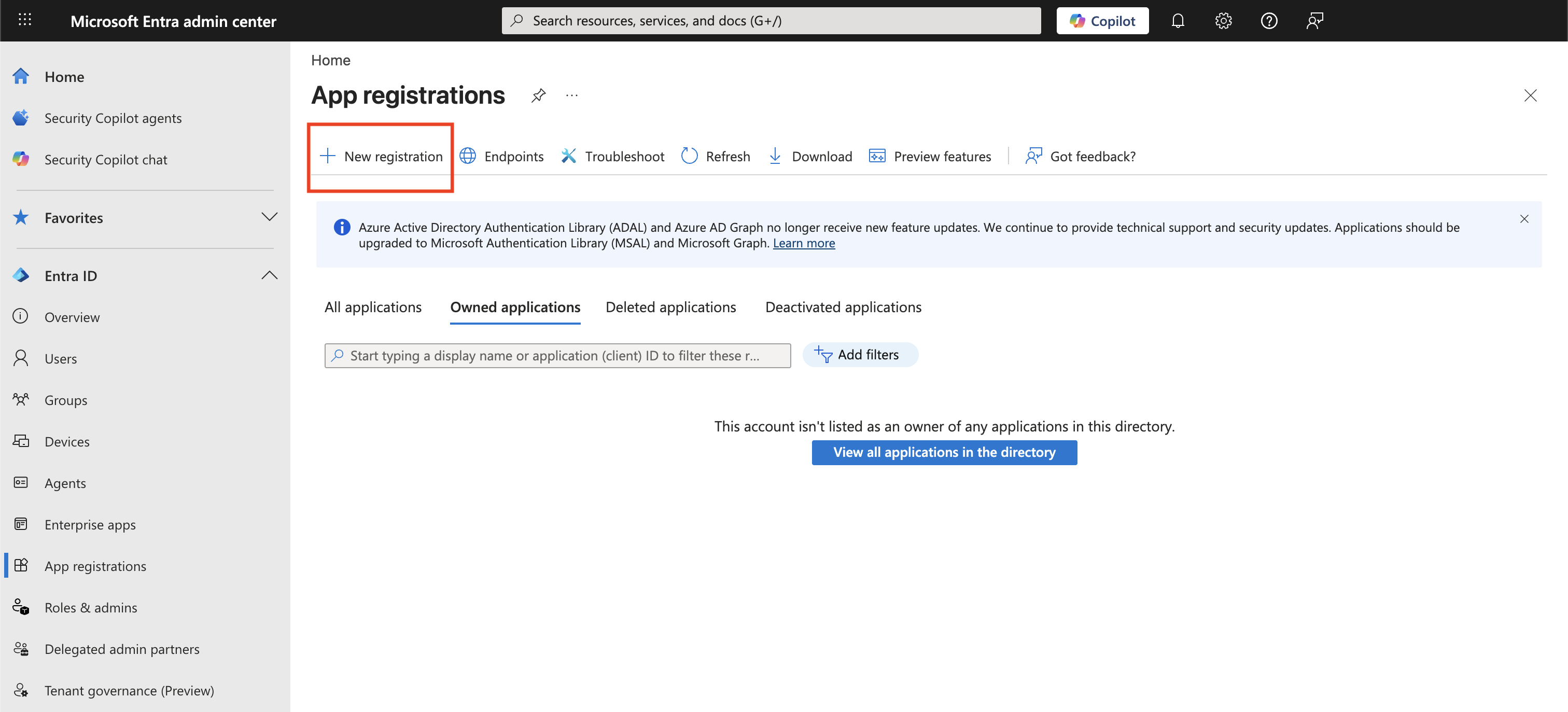
In the left panel, navigate to App registrations and click New registration.
-
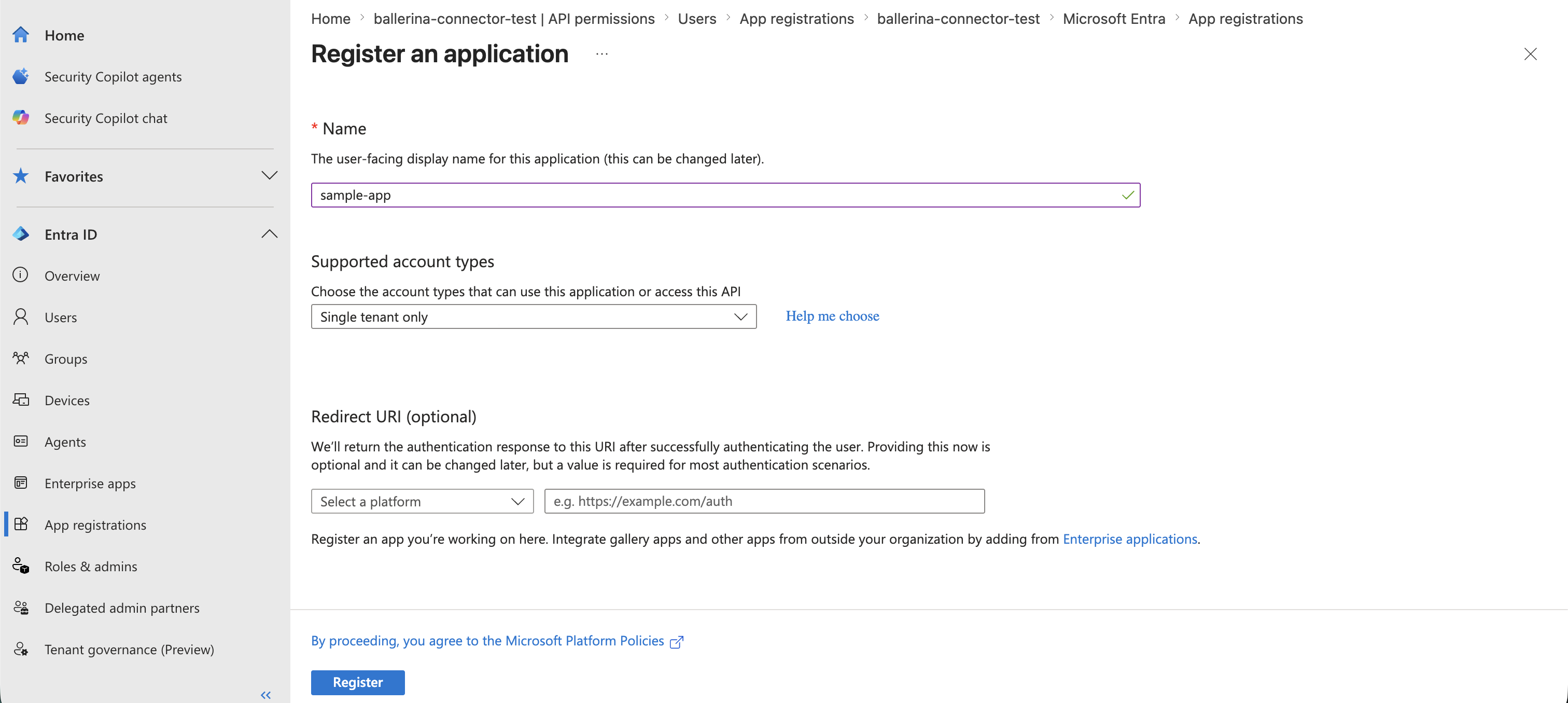
Enter a name for your application, select the appropriate Supported account types (e.g., "Single tenant only"), and click Register.
-
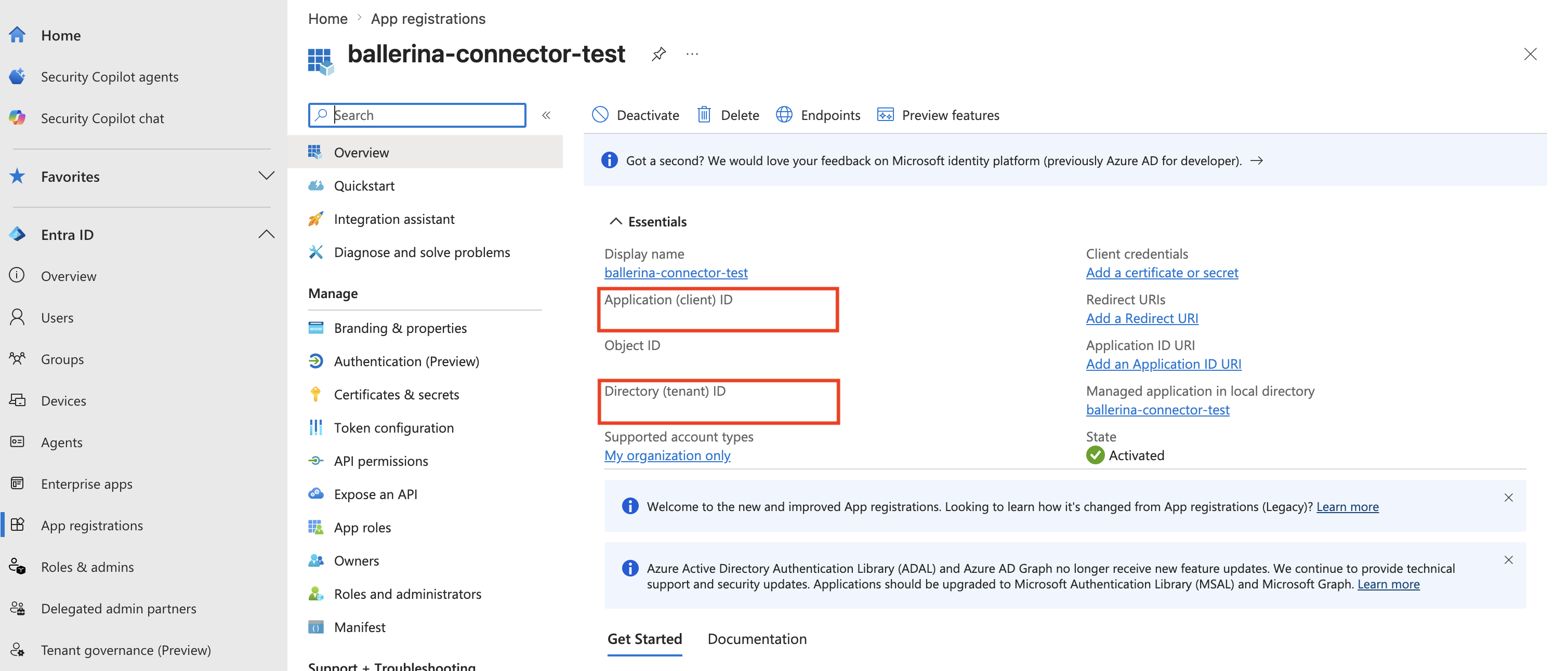
Once the application is registered, note down the Application (client) ID and Directory (tenant) ID from the Overview page.
-
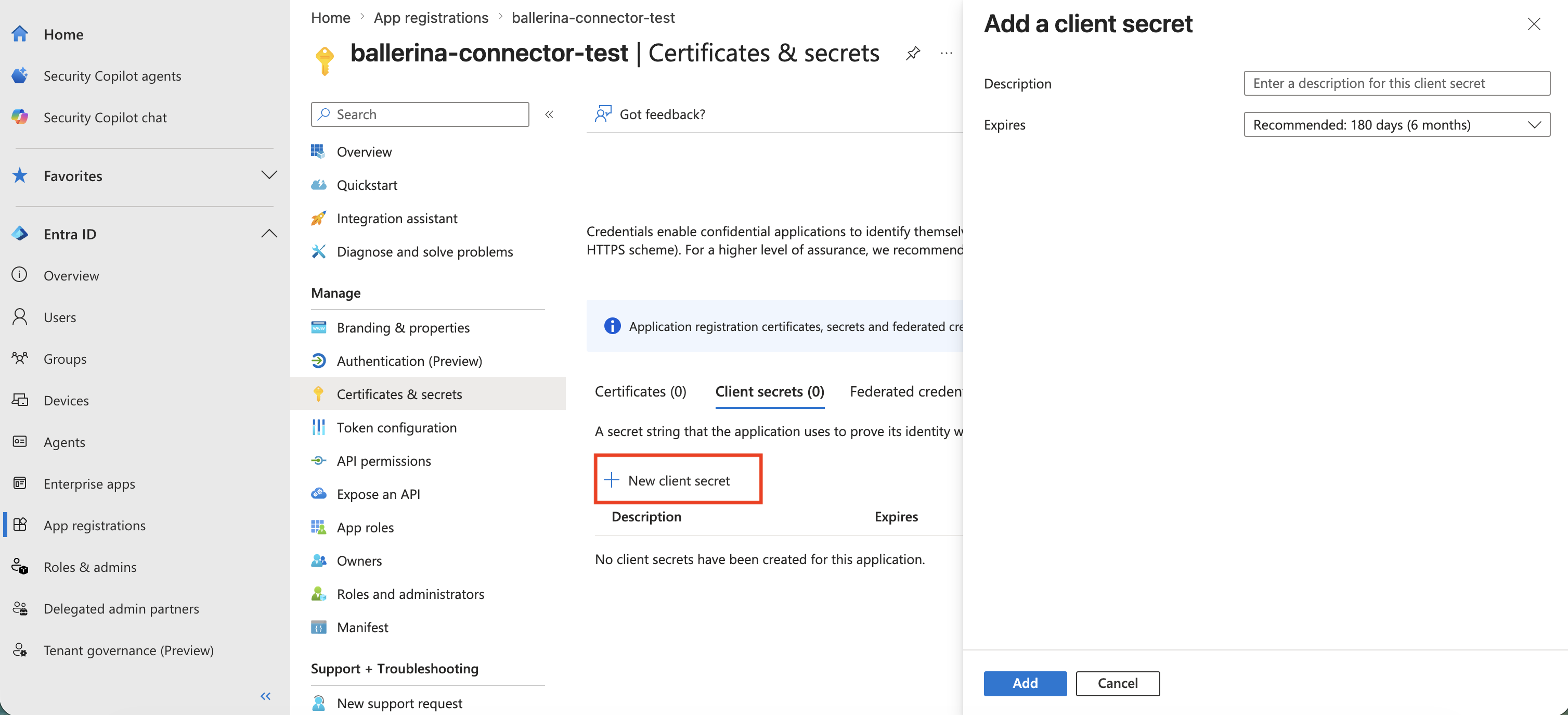
Navigate to Certificates & secrets in the left panel, click New client secret, provide a description and expiry period, then click Add. Copy the generated client secret value immediately.
-
Navigate to API permissions in the left panel and click Add a permission.
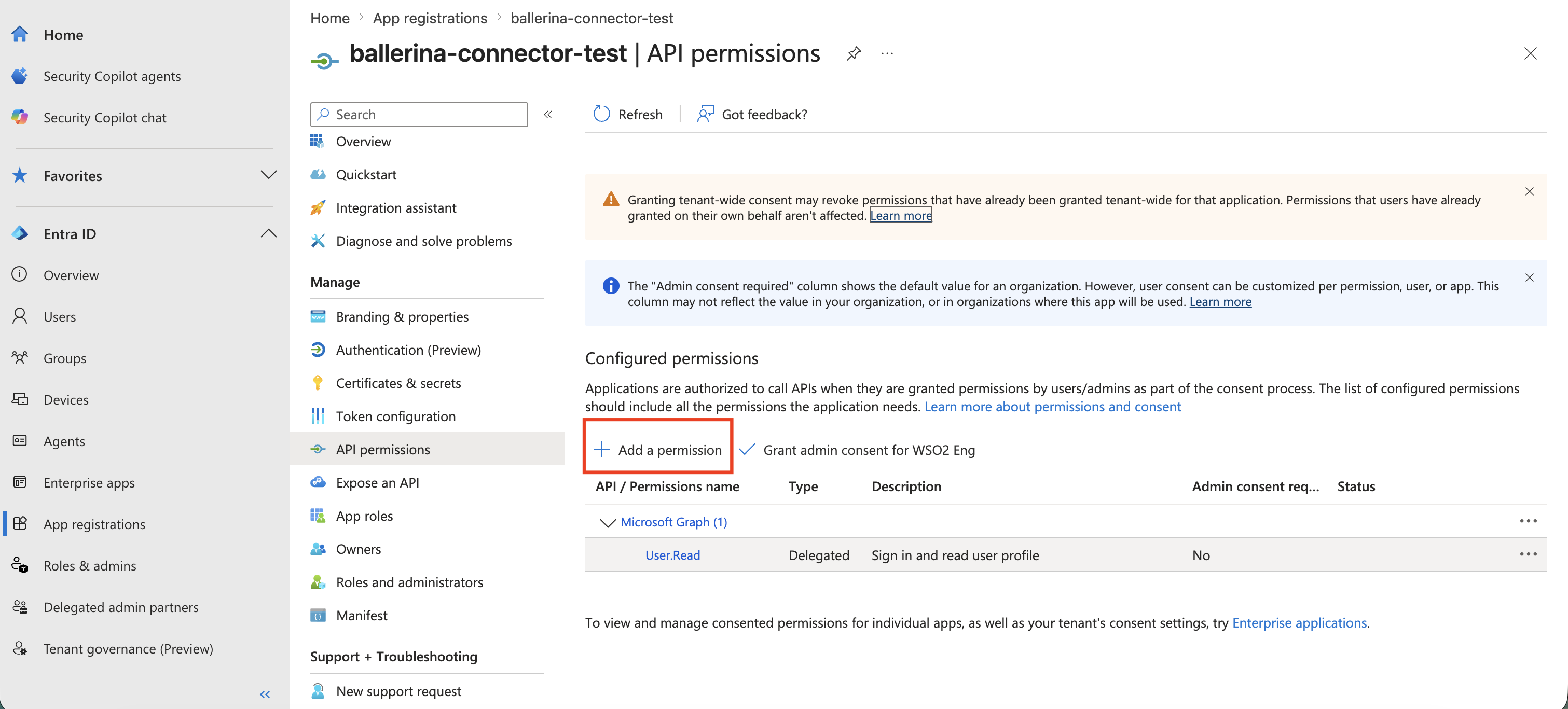
-
Select Microsoft Graph from the available API options.
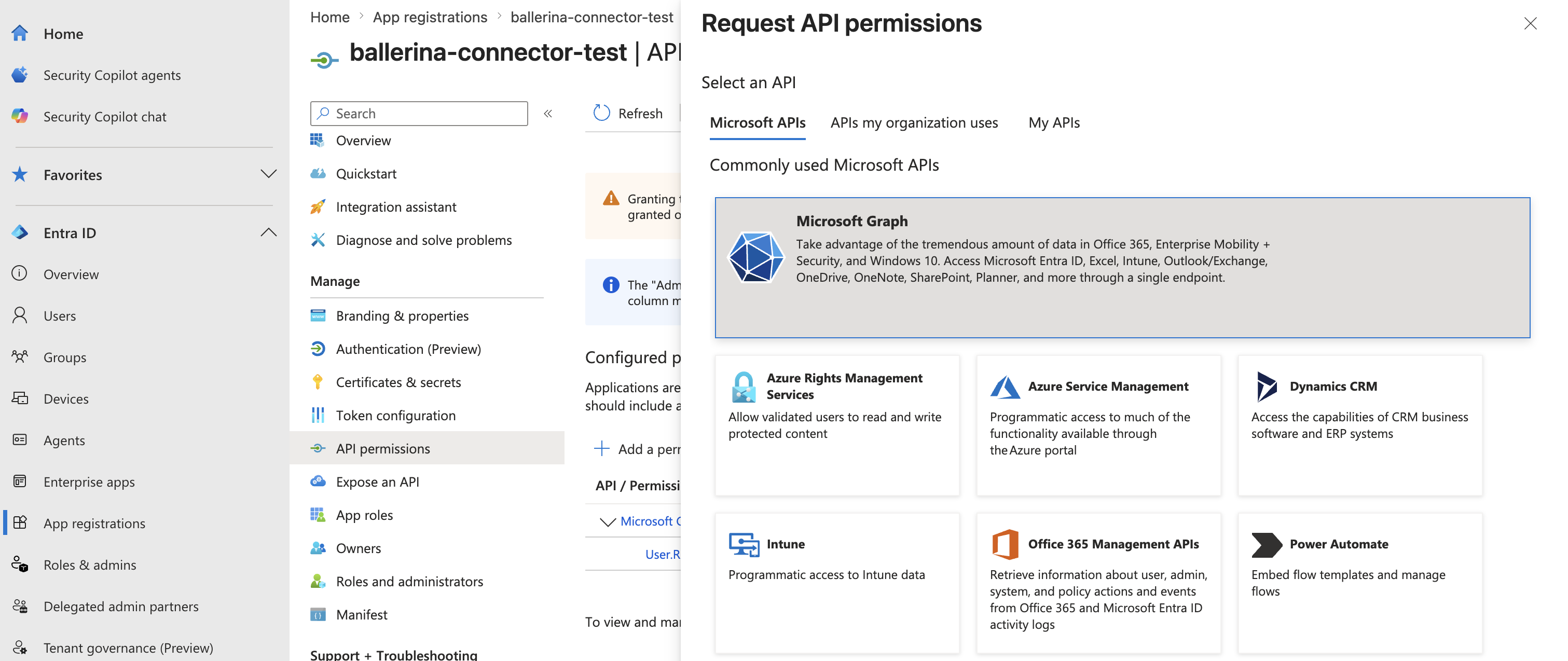
-
Select Application permissions, then search for and add the following permissions depending on your use case, then click Add permissions.
Permission Operations covered Sites.Read.AllRead sites, lists, columns, content types, drives, analytics Sites.ReadWrite.AllCreate and update lists, list items, drives, and content Sites.Manage.AllUpdate site properties, create/delete columns and content types Sites.FullControl.AllManage site permissions Tip: Grant only the permissions your application actually requires. For read-only use cases,
Sites.Read.Allis sufficient. For full connector coverage, add all four.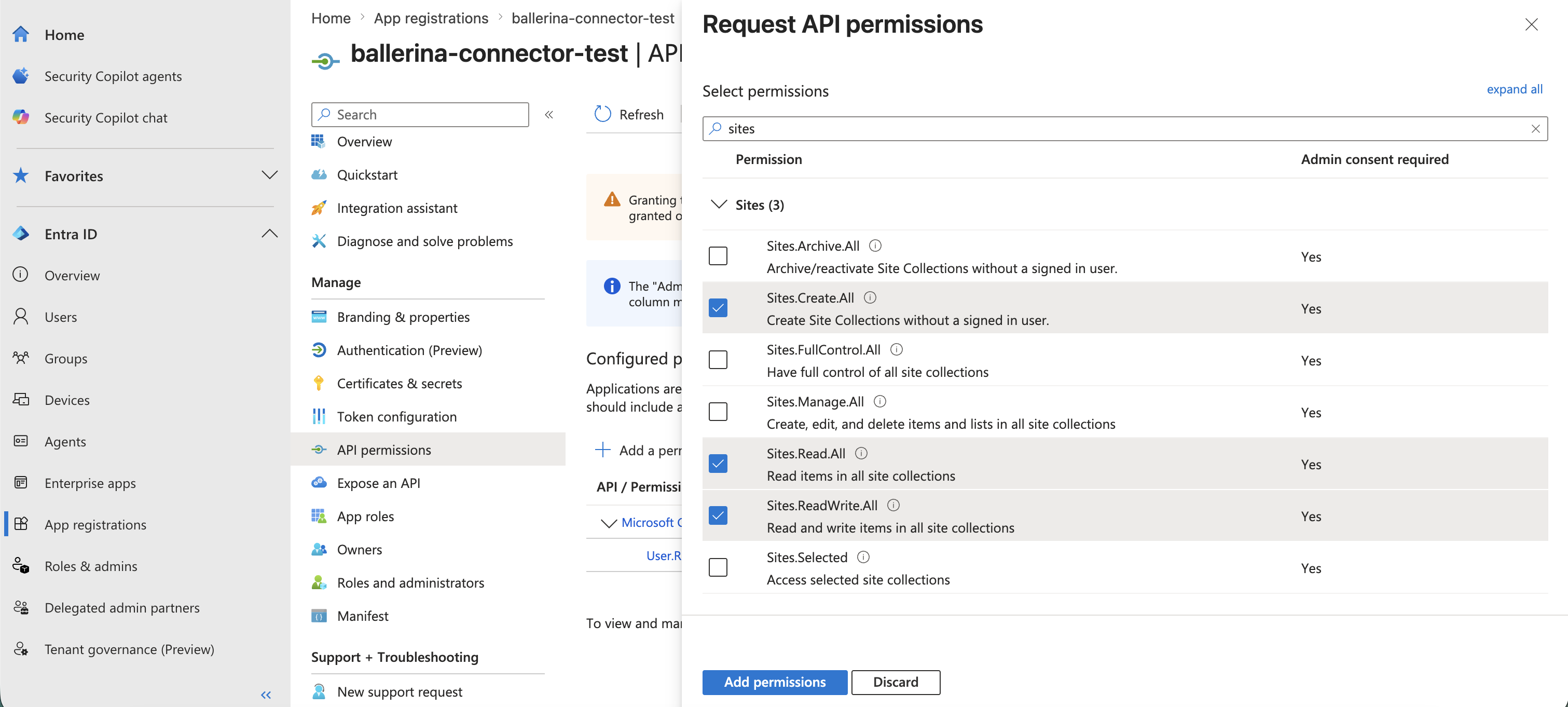
-
Click Grant admin consent to approve the permissions for your organization.
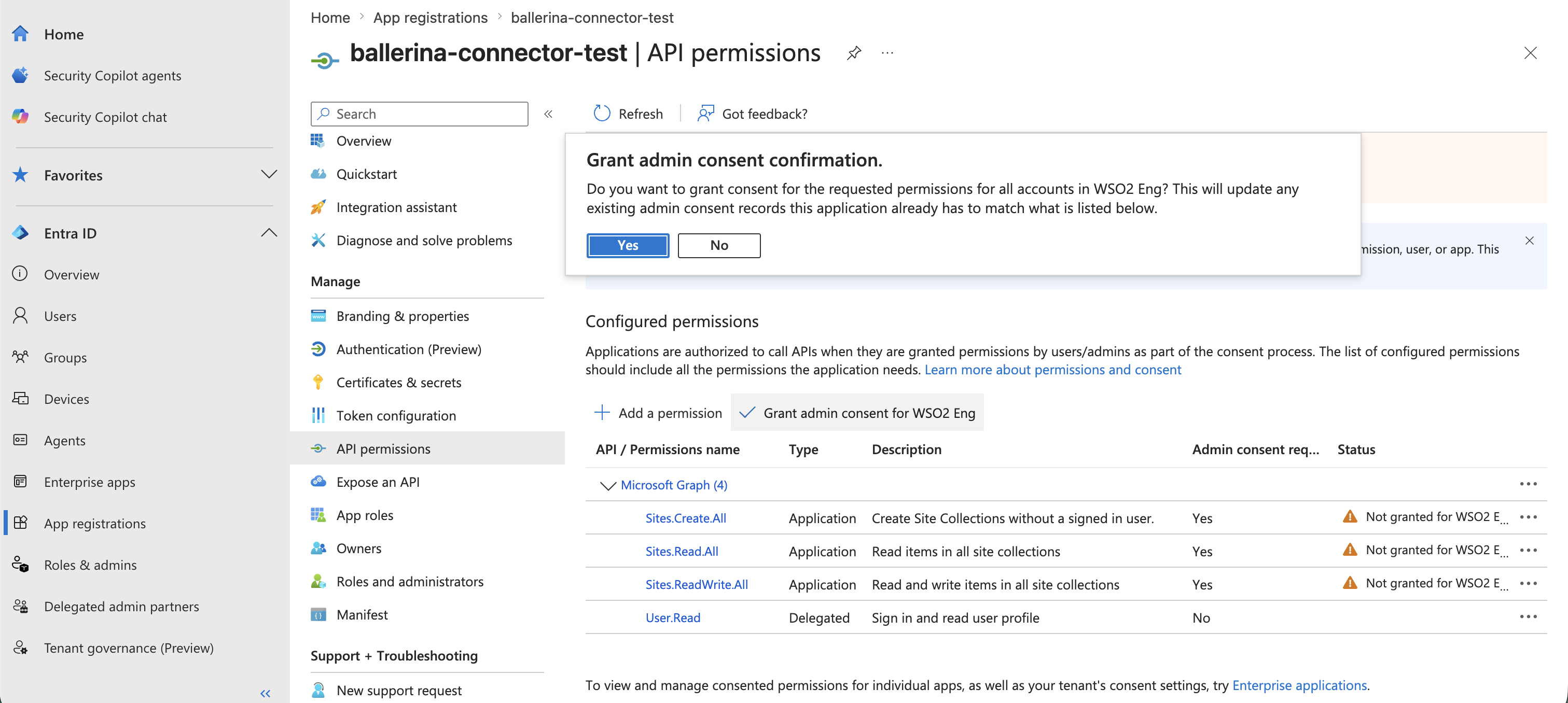
-
Construct the
tokenUrlusing the Directory (tenant) ID obtained in step 5:
https://login.microsoftonline.com/<TENANT_ID>/oauth2/v2.0/token
This is the OAuth 2.0 token endpoint the connector uses to exchange your clientId and clientSecret for an access token with the https://graph.microsoft.com/.default scope.
Quickstart
To use the microsoft.sharepoint.lists connector in your Ballerina application, update the .bal file as follows:
Step 1: Import the module
import ballerinax/microsoft.sharepoint.lists;
Step 2: Instantiate a new connector
- Create a
Config.tomlfile and configure the credentials obtained above:
clientId = "<CLIENT_ID>" clientSecret = "<CLIENT_SECRET>" tokenUrl = "https://login.microsoftonline.com/<TENANT_ID>/oauth2/v2.0/token"
- Instantiate a
lists:Clientwith the obtained credentials.
configurable string clientId = ?; configurable string clientSecret = ?; configurable string tokenUrl = ?; final lists:Client listsClient = check new ({ auth: { clientId, clientSecret, tokenUrl, scopes: "https://graph.microsoft.com/.default" } });
Step 3: Invoke the connector operation
Now, utilize the available connector operations.
Create a new list
public function main() returns error? { lists:MicrosoftGraphList newList = { displayName: "Project Tasks", list: { template: "genericList", contentTypesEnabled: false } }; lists:MicrosoftGraphList response = check listsClient->createList("contoso.sharepoint.com,abc123,def456", newList); }
Step 4: Run the Ballerina application
bal run
Examples
The microsoft.sharepoint.lists connector provides practical examples illustrating usage in various scenarios. Explore these examples, covering the following use cases:
- Compliance snapshot verification - Demonstrates how to capture and verify compliance snapshots of SharePoint list data.
- Sharepoint webhook subscription lifecycle - Illustrates creating, verifying, and extending SharePoint webhook subscriptions to manage event-driven notifications.
- Content type compliance audit - Demonstrates how to audit SharePoint list items for adherence to expected content type configurations.
- Stale items archival audit - Illustrates identifying and archiving stale items from SharePoint lists based on inactivity criteria.
Clients
microsoft.sharepoint.lists: Client
SharePoint subset of the Microsoft Graph v1.0 OpenAPI specification (generated from graphexplorer.yaml).
Constructor
Gets invoked to initialize the connector.
init (ConnectionConfig config, string serviceUrl)- config ConnectionConfig - The configurations to be used when initializing the
connector
- serviceUrl string "https://graph.microsoft.com/v1.0/sites" - URL of the target service
listLists
function listLists(string siteId, map<string|string[]> headers, *ListListsQueries queries) returns MicrosoftGraphListCollectionResponse|errorGet lists in a site
Parameters
- siteId string - The unique identifier of site
- queries *ListListsQueries - Queries to be sent with the request
Return Type
- MicrosoftGraphListCollectionResponse|error - Retrieved collection
createList
function createList(string siteId, MicrosoftGraphList payload, map<string|string[]> headers) returns MicrosoftGraphList|errorCreate a new list
Parameters
- siteId string - The unique identifier of site
- payload MicrosoftGraphList - New navigation property
Return Type
- MicrosoftGraphList|error - Created navigation property
getList
function getList(string siteId, string listId, map<string|string[]> headers, *GetListQueries queries) returns MicrosoftGraphList|errorGet metadata for a list
Parameters
- siteId string - The unique identifier of site
- listId string - The unique identifier of list
- queries *GetListQueries - Queries to be sent with the request
Return Type
- MicrosoftGraphList|error - Retrieved navigation property
deleteList
function deleteList(string siteId, string listId, DeleteListHeaders headers) returns error?Delete navigation property lists for sites
Parameters
- siteId string - The unique identifier of site
- listId string - The unique identifier of list
- headers DeleteListHeaders (default {}) - Headers to be sent with the request
Return Type
- error? - Success
updateList
function updateList(string siteId, string listId, MicrosoftGraphList payload, map<string|string[]> headers) returns error?Update the navigation property lists in sites
Parameters
- siteId string - The unique identifier of site
- listId string - The unique identifier of list
- payload MicrosoftGraphList - New navigation property values
Return Type
- error? - Success
listColumns
function listColumns(string siteId, string listId, map<string|string[]> headers, *ListColumnsQueries queries) returns MicrosoftGraphColumnDefinitionCollectionResponse|errorList columnDefinitions in a list
Parameters
- siteId string - The unique identifier of site
- listId string - The unique identifier of list
- queries *ListColumnsQueries - Queries to be sent with the request
Return Type
- MicrosoftGraphColumnDefinitionCollectionResponse|error - Retrieved collection
createColumn
function createColumn(string siteId, string listId, MicrosoftGraphColumnDefinition payload, map<string|string[]> headers) returns MicrosoftGraphColumnDefinition|errorCreate a columnDefinition in a list
Parameters
- siteId string - The unique identifier of site
- listId string - The unique identifier of list
- payload MicrosoftGraphColumnDefinition - New navigation property
Return Type
- MicrosoftGraphColumnDefinition|error - Created navigation property
getColumn
function getColumn(string siteId, string listId, string columnDefinitionId, map<string|string[]> headers, *GetColumnQueries queries) returns MicrosoftGraphColumnDefinition|errorGet columns from sites
Parameters
- siteId string - The unique identifier of site
- listId string - The unique identifier of list
- columnDefinitionId string - The unique identifier of columnDefinition
- queries *GetColumnQueries - Queries to be sent with the request
Return Type
- MicrosoftGraphColumnDefinition|error - Retrieved navigation property
deleteColumn
function deleteColumn(string siteId, string listId, string columnDefinitionId, DeleteColumnHeaders headers) returns error?Delete navigation property columns for sites
Parameters
- siteId string - The unique identifier of site
- listId string - The unique identifier of list
- columnDefinitionId string - The unique identifier of columnDefinition
- headers DeleteColumnHeaders (default {}) - Headers to be sent with the request
Return Type
- error? - Success
updateColumn
function updateColumn(string siteId, string listId, string columnDefinitionId, MicrosoftGraphColumnDefinition payload, map<string|string[]> headers) returns error?Update the navigation property columns in sites
Parameters
- siteId string - The unique identifier of site
- listId string - The unique identifier of list
- columnDefinitionId string - The unique identifier of columnDefinition
- payload MicrosoftGraphColumnDefinition - New navigation property values
Return Type
- error? - Success
getColumnSourceColumn
function getColumnSourceColumn(string siteId, string listId, string columnDefinitionId, map<string|string[]> headers, *GetColumnSourceColumnQueries queries) returns MicrosoftGraphColumnDefinition|errorGet sourceColumn from sites
Parameters
- siteId string - The unique identifier of site
- listId string - The unique identifier of list
- columnDefinitionId string - The unique identifier of columnDefinition
- queries *GetColumnSourceColumnQueries - Queries to be sent with the request
Return Type
- MicrosoftGraphColumnDefinition|error - Retrieved navigation property
getColumnsCount
function getColumnsCount(string siteId, string listId, map<string|string[]> headers, *GetColumnsCountQueries queries) returns string|errorGet the number of the resource
Parameters
- siteId string - The unique identifier of site
- listId string - The unique identifier of list
- queries *GetColumnsCountQueries - Queries to be sent with the request
listContentTypes
function listContentTypes(string siteId, string listId, map<string|string[]> headers, *ListContentTypesQueries queries) returns MicrosoftGraphContentTypeCollectionResponse|errorList contentTypes in a list
Parameters
- siteId string - The unique identifier of site
- listId string - The unique identifier of list
- queries *ListContentTypesQueries - Queries to be sent with the request
Return Type
- MicrosoftGraphContentTypeCollectionResponse|error - Retrieved collection
createContentType
function createContentType(string siteId, string listId, MicrosoftGraphContentType payload, map<string|string[]> headers) returns MicrosoftGraphContentType|errorCreate new navigation property to contentTypes for sites
Parameters
- siteId string - The unique identifier of site
- listId string - The unique identifier of list
- payload MicrosoftGraphContentType - New navigation property
Return Type
- MicrosoftGraphContentType|error - Created navigation property
getContentType
function getContentType(string siteId, string listId, string contentTypeId, map<string|string[]> headers, *GetContentTypeQueries queries) returns MicrosoftGraphContentType|errorGet contentTypes from sites
Parameters
- siteId string - The unique identifier of site
- listId string - The unique identifier of list
- contentTypeId string - The unique identifier of contentType
- queries *GetContentTypeQueries - Queries to be sent with the request
Return Type
- MicrosoftGraphContentType|error - Retrieved navigation property
deleteContentType
function deleteContentType(string siteId, string listId, string contentTypeId, DeleteContentTypeHeaders headers) returns error?Delete navigation property contentTypes for sites
Parameters
- siteId string - The unique identifier of site
- listId string - The unique identifier of list
- contentTypeId string - The unique identifier of contentType
- headers DeleteContentTypeHeaders (default {}) - Headers to be sent with the request
Return Type
- error? - Success
updateContentType
function updateContentType(string siteId, string listId, string contentTypeId, MicrosoftGraphContentType payload, map<string|string[]> headers) returns error?Update the navigation property contentTypes in sites
Parameters
- siteId string - The unique identifier of site
- listId string - The unique identifier of list
- contentTypeId string - The unique identifier of contentType
- payload MicrosoftGraphContentType - New navigation property values
Return Type
- error? - Success
getContentTypeBase
function getContentTypeBase(string siteId, string listId, string contentTypeId, map<string|string[]> headers, *GetContentTypeBaseQueries queries) returns MicrosoftGraphContentType|errorGet base from sites
Parameters
- siteId string - The unique identifier of site
- listId string - The unique identifier of list
- contentTypeId string - The unique identifier of contentType
- queries *GetContentTypeBaseQueries - Queries to be sent with the request
Return Type
- MicrosoftGraphContentType|error - Retrieved navigation property
listContentTypeBaseTypes
function listContentTypeBaseTypes(string siteId, string listId, string contentTypeId, map<string|string[]> headers, *ListContentTypeBaseTypesQueries queries) returns MicrosoftGraphContentTypeCollectionResponse|errorGet baseTypes from sites
Parameters
- siteId string - The unique identifier of site
- listId string - The unique identifier of list
- contentTypeId string - The unique identifier of contentType
- queries *ListContentTypeBaseTypesQueries - Queries to be sent with the request
Return Type
- MicrosoftGraphContentTypeCollectionResponse|error - Retrieved collection
getContentTypeBaseTypes
function getContentTypeBaseTypes(string siteId, string listId, string contentTypeId, string contentTypeId1, map<string|string[]> headers, *GetContentTypeBaseTypesQueries queries) returns MicrosoftGraphContentType|errorGet baseTypes from sites
Parameters
- siteId string - The unique identifier of site
- listId string - The unique identifier of list
- contentTypeId string - The unique identifier of contentType
- contentTypeId1 string - The unique identifier of contentType
- queries *GetContentTypeBaseTypesQueries - Queries to be sent with the request
Return Type
- MicrosoftGraphContentType|error - Retrieved navigation property
getContentTypeBaseTypesCount
function getContentTypeBaseTypesCount(string siteId, string listId, string contentTypeId, map<string|string[]> headers, *GetContentTypeBaseTypesCountQueries queries) returns string|errorGet the number of the resource
Parameters
- siteId string - The unique identifier of site
- listId string - The unique identifier of list
- contentTypeId string - The unique identifier of contentType
- queries *GetContentTypeBaseTypesCountQueries - Queries to be sent with the request
listContentTypeColumnLinks
function listContentTypeColumnLinks(string siteId, string listId, string contentTypeId, map<string|string[]> headers, *ListContentTypeColumnLinksQueries queries) returns MicrosoftGraphColumnLinkCollectionResponse|errorGet columnLinks from sites
Parameters
- siteId string - The unique identifier of site
- listId string - The unique identifier of list
- contentTypeId string - The unique identifier of contentType
- queries *ListContentTypeColumnLinksQueries - Queries to be sent with the request
Return Type
- MicrosoftGraphColumnLinkCollectionResponse|error - Retrieved collection
createContentTypeColumnLink
function createContentTypeColumnLink(string siteId, string listId, string contentTypeId, MicrosoftGraphColumnLink payload, map<string|string[]> headers) returns MicrosoftGraphColumnLink|errorCreate new navigation property to columnLinks for sites
Parameters
- siteId string - The unique identifier of site
- listId string - The unique identifier of list
- contentTypeId string - The unique identifier of contentType
- payload MicrosoftGraphColumnLink - New navigation property
Return Type
- MicrosoftGraphColumnLink|error - Created navigation property
getContentTypeColumnLink
function getContentTypeColumnLink(string siteId, string listId, string contentTypeId, string columnLinkId, map<string|string[]> headers, *GetContentTypeColumnLinkQueries queries) returns MicrosoftGraphColumnLink|errorGet columnLinks from sites
Parameters
- siteId string - The unique identifier of site
- listId string - The unique identifier of list
- contentTypeId string - The unique identifier of contentType
- columnLinkId string - The unique identifier of columnLink
- queries *GetContentTypeColumnLinkQueries - Queries to be sent with the request
Return Type
- MicrosoftGraphColumnLink|error - Retrieved navigation property
deleteContentTypeColumnLink
function deleteContentTypeColumnLink(string siteId, string listId, string contentTypeId, string columnLinkId, DeleteContentTypeColumnLinkHeaders headers) returns error?Delete navigation property columnLinks for sites
Parameters
- siteId string - The unique identifier of site
- listId string - The unique identifier of list
- contentTypeId string - The unique identifier of contentType
- columnLinkId string - The unique identifier of columnLink
- headers DeleteContentTypeColumnLinkHeaders (default {}) - Headers to be sent with the request
Return Type
- error? - Success
updateContentTypeColumnLink
function updateContentTypeColumnLink(string siteId, string listId, string contentTypeId, string columnLinkId, MicrosoftGraphColumnLink payload, map<string|string[]> headers) returns error?Update the navigation property columnLinks in sites
Parameters
- siteId string - The unique identifier of site
- listId string - The unique identifier of list
- contentTypeId string - The unique identifier of contentType
- columnLinkId string - The unique identifier of columnLink
- payload MicrosoftGraphColumnLink - New navigation property values
Return Type
- error? - Success
getContentTypeColumnLinksCount
function getContentTypeColumnLinksCount(string siteId, string listId, string contentTypeId, map<string|string[]> headers, *GetContentTypeColumnLinksCountQueries queries) returns string|errorGet the number of the resource
Parameters
- siteId string - The unique identifier of site
- listId string - The unique identifier of list
- contentTypeId string - The unique identifier of contentType
- queries *GetContentTypeColumnLinksCountQueries - Queries to be sent with the request
listContentTypeColumnPositions
function listContentTypeColumnPositions(string siteId, string listId, string contentTypeId, map<string|string[]> headers, *ListContentTypeColumnPositionsQueries queries) returns MicrosoftGraphColumnDefinitionCollectionResponse|errorGet columnPositions from sites
Parameters
- siteId string - The unique identifier of site
- listId string - The unique identifier of list
- contentTypeId string - The unique identifier of contentType
- queries *ListContentTypeColumnPositionsQueries - Queries to be sent with the request
Return Type
- MicrosoftGraphColumnDefinitionCollectionResponse|error - Retrieved collection
getContentTypeColumnPosition
function getContentTypeColumnPosition(string siteId, string listId, string contentTypeId, string columnDefinitionId, map<string|string[]> headers, *GetContentTypeColumnPositionQueries queries) returns MicrosoftGraphColumnDefinition|errorGet columnPositions from sites
Parameters
- siteId string - The unique identifier of site
- listId string - The unique identifier of list
- contentTypeId string - The unique identifier of contentType
- columnDefinitionId string - The unique identifier of columnDefinition
- queries *GetContentTypeColumnPositionQueries - Queries to be sent with the request
Return Type
- MicrosoftGraphColumnDefinition|error - Retrieved navigation property
getContentTypeColumnPositionsCount
function getContentTypeColumnPositionsCount(string siteId, string listId, string contentTypeId, map<string|string[]> headers, *GetContentTypeColumnPositionsCountQueries queries) returns string|errorGet the number of the resource
Parameters
- siteId string - The unique identifier of site
- listId string - The unique identifier of list
- contentTypeId string - The unique identifier of contentType
- queries *GetContentTypeColumnPositionsCountQueries - Queries to be sent with the request
listContentTypeColumns
function listContentTypeColumns(string siteId, string listId, string contentTypeId, map<string|string[]> headers, *ListContentTypeColumnsQueries queries) returns MicrosoftGraphColumnDefinitionCollectionResponse|errorGet columns from sites
Parameters
- siteId string - The unique identifier of site
- listId string - The unique identifier of list
- contentTypeId string - The unique identifier of contentType
- queries *ListContentTypeColumnsQueries - Queries to be sent with the request
Return Type
- MicrosoftGraphColumnDefinitionCollectionResponse|error - Retrieved collection
createContentTypeColumn
function createContentTypeColumn(string siteId, string listId, string contentTypeId, MicrosoftGraphColumnDefinition payload, map<string|string[]> headers) returns MicrosoftGraphColumnDefinition|errorCreate new navigation property to columns for sites
Parameters
- siteId string - The unique identifier of site
- listId string - The unique identifier of list
- contentTypeId string - The unique identifier of contentType
- payload MicrosoftGraphColumnDefinition - New navigation property
Return Type
- MicrosoftGraphColumnDefinition|error - Created navigation property
getContentTypeColumn
function getContentTypeColumn(string siteId, string listId, string contentTypeId, string columnDefinitionId, map<string|string[]> headers, *GetContentTypeColumnQueries queries) returns MicrosoftGraphColumnDefinition|errorGet columns from sites
Parameters
- siteId string - The unique identifier of site
- listId string - The unique identifier of list
- contentTypeId string - The unique identifier of contentType
- columnDefinitionId string - The unique identifier of columnDefinition
- queries *GetContentTypeColumnQueries - Queries to be sent with the request
Return Type
- MicrosoftGraphColumnDefinition|error - Retrieved navigation property
deleteContentTypeColumn
function deleteContentTypeColumn(string siteId, string listId, string contentTypeId, string columnDefinitionId, DeleteContentTypeColumnHeaders headers) returns error?Delete navigation property columns for sites
Parameters
- siteId string - The unique identifier of site
- listId string - The unique identifier of list
- contentTypeId string - The unique identifier of contentType
- columnDefinitionId string - The unique identifier of columnDefinition
- headers DeleteContentTypeColumnHeaders (default {}) - Headers to be sent with the request
Return Type
- error? - Success
updateContentTypeColumn
function updateContentTypeColumn(string siteId, string listId, string contentTypeId, string columnDefinitionId, MicrosoftGraphColumnDefinition payload, map<string|string[]> headers) returns error?Update the navigation property columns in sites
Parameters
- siteId string - The unique identifier of site
- listId string - The unique identifier of list
- contentTypeId string - The unique identifier of contentType
- columnDefinitionId string - The unique identifier of columnDefinition
- payload MicrosoftGraphColumnDefinition - New navigation property values
Return Type
- error? - Success
getContentTypeColumnSourceColumn
function getContentTypeColumnSourceColumn(string siteId, string listId, string contentTypeId, string columnDefinitionId, map<string|string[]> headers, *GetContentTypeColumnSourceColumnQueries queries) returns MicrosoftGraphColumnDefinition|errorGet sourceColumn from sites
Parameters
- siteId string - The unique identifier of site
- listId string - The unique identifier of list
- contentTypeId string - The unique identifier of contentType
- columnDefinitionId string - The unique identifier of columnDefinition
- queries *GetContentTypeColumnSourceColumnQueries - Queries to be sent with the request
Return Type
- MicrosoftGraphColumnDefinition|error - Retrieved navigation property
getContentTypeColumnsCount
function getContentTypeColumnsCount(string siteId, string listId, string contentTypeId, map<string|string[]> headers, *GetContentTypeColumnsCountQueries queries) returns string|errorGet the number of the resource
Parameters
- siteId string - The unique identifier of site
- listId string - The unique identifier of list
- contentTypeId string - The unique identifier of contentType
- queries *GetContentTypeColumnsCountQueries - Queries to be sent with the request
associateContentTypeWithHubSites
function associateContentTypeWithHubSites(string siteId, string listId, string contentTypeId, ContentTypeIdMicrosoftGraphAssociateWithHubSitesBody payload, map<string|string[]> headers) returns error?Invoke action associateWithHubSites
Parameters
- siteId string - The unique identifier of site
- listId string - The unique identifier of list
- contentTypeId string - The unique identifier of contentType
- payload ContentTypeIdMicrosoftGraphAssociateWithHubSitesBody - Action parameters
Return Type
- error? - Success
copyContentTypeToDefaultContentLocation
function copyContentTypeToDefaultContentLocation(string siteId, string listId, string contentTypeId, ContentTypeIdMicrosoftGraphCopyToDefaultContentLocationBody payload, map<string|string[]> headers) returns error?Invoke action copyToDefaultContentLocation
Parameters
- siteId string - The unique identifier of site
- listId string - The unique identifier of list
- contentTypeId string - The unique identifier of contentType
- payload ContentTypeIdMicrosoftGraphCopyToDefaultContentLocationBody - Action parameters
Return Type
- error? - Success
isContentTypePublished
function isContentTypePublished(string siteId, string listId, string contentTypeId, map<string|string[]> headers) returns BooleanValueResponse|errorInvoke function isPublished
Parameters
- siteId string - The unique identifier of site
- listId string - The unique identifier of list
- contentTypeId string - The unique identifier of contentType
Return Type
- BooleanValueResponse|error - Success
publishContentType
function publishContentType(string siteId, string listId, string contentTypeId, map<string|string[]> headers) returns error?Invoke action publish
Parameters
- siteId string - The unique identifier of site
- listId string - The unique identifier of list
- contentTypeId string - The unique identifier of contentType
Return Type
- error? - Success
unpublishContentType
function unpublishContentType(string siteId, string listId, string contentTypeId, map<string|string[]> headers) returns error?Invoke action unpublish
Parameters
- siteId string - The unique identifier of site
- listId string - The unique identifier of list
- contentTypeId string - The unique identifier of contentType
Return Type
- error? - Success
getContentTypesCount
function getContentTypesCount(string siteId, string listId, map<string|string[]> headers, *GetContentTypesCountQueries queries) returns string|errorGet the number of the resource
Parameters
- siteId string - The unique identifier of site
- listId string - The unique identifier of list
- queries *GetContentTypesCountQueries - Queries to be sent with the request
addContentTypeCopy
function addContentTypeCopy(string siteId, string listId, ContentTypesMicrosoftGraphAddCopyBody payload, map<string|string[]> headers) returns ContentTypeOrNullResponse|errorInvoke action addCopy
Parameters
- siteId string - The unique identifier of site
- listId string - The unique identifier of list
- payload ContentTypesMicrosoftGraphAddCopyBody - Action parameters
Return Type
- ContentTypeOrNullResponse|error - Success
addContentTypeCopyFromContentTypeHub
function addContentTypeCopyFromContentTypeHub(string siteId, string listId, ContentTypesMicrosoftGraphAddCopyFromContentTypeHubBody payload, map<string|string[]> headers) returns ContentTypeOrNullResponse|errorInvoke action addCopyFromContentTypeHub
Parameters
- siteId string - The unique identifier of site
- listId string - The unique identifier of list
- payload ContentTypesMicrosoftGraphAddCopyFromContentTypeHubBody - Action parameters
Return Type
- ContentTypeOrNullResponse|error - Success
getCompatibleHubContentTypes
function getCompatibleHubContentTypes(string siteId, string listId, map<string|string[]> headers, *GetCompatibleHubContentTypesQueries queries) returns CollectionOfContentType|errorInvoke function getCompatibleHubContentTypes
Parameters
- siteId string - The unique identifier of site
- listId string - The unique identifier of list
- queries *GetCompatibleHubContentTypesQueries - Queries to be sent with the request
Return Type
- CollectionOfContentType|error - Success
getListCreatedByUser
function getListCreatedByUser(string siteId, string listId, map<string|string[]> headers, *GetListCreatedByUserQueries queries) returns MicrosoftGraphUser|errorGet createdByUser from sites
Parameters
- siteId string - The unique identifier of site
- listId string - The unique identifier of list
- queries *GetListCreatedByUserQueries - Queries to be sent with the request
Return Type
- MicrosoftGraphUser|error - Retrieved navigation property
getCreatedByUserMailboxSettings
function getCreatedByUserMailboxSettings(string siteId, string listId, map<string|string[]> headers, *GetCreatedByUserMailboxSettingsQueries queries) returns MicrosoftGraphMailboxSettings|errorGet mailboxSettings property value
Parameters
- siteId string - The unique identifier of site
- listId string - The unique identifier of list
- queries *GetCreatedByUserMailboxSettingsQueries - Queries to be sent with the request
Return Type
- MicrosoftGraphMailboxSettings|error - Entity result
updateCreatedByUserMailboxSettings
function updateCreatedByUserMailboxSettings(string siteId, string listId, MicrosoftGraphMailboxSettings payload, map<string|string[]> headers) returns error?Update property mailboxSettings value.
Parameters
- siteId string - The unique identifier of site
- listId string - The unique identifier of list
- payload MicrosoftGraphMailboxSettings - New property values
Return Type
- error? - Success
listCreatedByUserServiceProvisioningErrors
function listCreatedByUserServiceProvisioningErrors(string siteId, string listId, map<string|string[]> headers, *ListCreatedByUserServiceProvisioningErrorsQueries queries) returns MicrosoftGraphServiceProvisioningErrorCollectionResponse|errorGet serviceProvisioningErrors property value
Parameters
- siteId string - The unique identifier of site
- listId string - The unique identifier of list
- queries *ListCreatedByUserServiceProvisioningErrorsQueries - Queries to be sent with the request
Return Type
- MicrosoftGraphServiceProvisioningErrorCollectionResponse|error - Retrieved collection
getCreatedByUserServiceProvisioningErrorsCount
function getCreatedByUserServiceProvisioningErrorsCount(string siteId, string listId, map<string|string[]> headers, *GetCreatedByUserServiceProvisioningErrorsCountQueries queries) returns string|errorGet the number of the resource
Parameters
- siteId string - The unique identifier of site
- listId string - The unique identifier of list
- queries *GetCreatedByUserServiceProvisioningErrorsCountQueries - Queries to be sent with the request
getListDrive
function getListDrive(string siteId, string listId, map<string|string[]> headers, *GetListDriveQueries queries) returns MicrosoftGraphDrive|errorGet drive from sites
Parameters
- siteId string - The unique identifier of site
- listId string - The unique identifier of list
- queries *GetListDriveQueries - Queries to be sent with the request
Return Type
- MicrosoftGraphDrive|error - Retrieved navigation property
listItems
function listItems(string siteId, string listId, map<string|string[]> headers, *ListItemsQueries queries) returns MicrosoftGraphListItemCollectionResponse|errorList items
Parameters
- siteId string - The unique identifier of site
- listId string - The unique identifier of list
- queries *ListItemsQueries - Queries to be sent with the request
Return Type
- MicrosoftGraphListItemCollectionResponse|error - Retrieved collection
createItem
function createItem(string siteId, string listId, MicrosoftGraphListItem payload, map<string|string[]> headers) returns MicrosoftGraphListItem|errorCreate a new item in a list
Parameters
- siteId string - The unique identifier of site
- listId string - The unique identifier of list
- payload MicrosoftGraphListItem - New navigation property
Return Type
- MicrosoftGraphListItem|error - Created navigation property
getItem
function getItem(string siteId, string listId, string listItemId, map<string|string[]> headers, *GetItemQueries queries) returns MicrosoftGraphListItem|errorGet listItem
Parameters
- siteId string - The unique identifier of site
- listId string - The unique identifier of list
- listItemId string - The unique identifier of listItem
- queries *GetItemQueries - Queries to be sent with the request
Return Type
- MicrosoftGraphListItem|error - Retrieved navigation property
deleteItem
function deleteItem(string siteId, string listId, string listItemId, DeleteItemHeaders headers) returns error?Delete an item from a list
Parameters
- siteId string - The unique identifier of site
- listId string - The unique identifier of list
- listItemId string - The unique identifier of listItem
- headers DeleteItemHeaders (default {}) - Headers to be sent with the request
Return Type
- error? - Success
updateItem
function updateItem(string siteId, string listId, string listItemId, MicrosoftGraphListItem payload, map<string|string[]> headers) returns error?Update the navigation property items in sites
Parameters
- siteId string - The unique identifier of site
- listId string - The unique identifier of list
- listItemId string - The unique identifier of listItem
- payload MicrosoftGraphListItem - New navigation property values
Return Type
- error? - Success
getItemAnalytics
function getItemAnalytics(string siteId, string listId, string listItemId, map<string|string[]> headers, *GetItemAnalyticsQueries queries) returns MicrosoftGraphItemAnalytics|errorGet analytics from sites
Parameters
- siteId string - The unique identifier of site
- listId string - The unique identifier of list
- listItemId string - The unique identifier of listItem
- queries *GetItemAnalyticsQueries - Queries to be sent with the request
Return Type
- MicrosoftGraphItemAnalytics|error - Retrieved navigation property
getItemCreatedByUser
function getItemCreatedByUser(string siteId, string listId, string listItemId, map<string|string[]> headers, *GetItemCreatedByUserQueries queries) returns MicrosoftGraphUser|errorGet createdByUser from sites
Parameters
- siteId string - The unique identifier of site
- listId string - The unique identifier of list
- listItemId string - The unique identifier of listItem
- queries *GetItemCreatedByUserQueries - Queries to be sent with the request
Return Type
- MicrosoftGraphUser|error - Retrieved navigation property
getItemCreatedByUserMailboxSettings
function getItemCreatedByUserMailboxSettings(string siteId, string listId, string listItemId, map<string|string[]> headers, *GetItemCreatedByUserMailboxSettingsQueries queries) returns MicrosoftGraphMailboxSettings|errorGet mailboxSettings property value
Parameters
- siteId string - The unique identifier of site
- listId string - The unique identifier of list
- listItemId string - The unique identifier of listItem
- queries *GetItemCreatedByUserMailboxSettingsQueries - Queries to be sent with the request
Return Type
- MicrosoftGraphMailboxSettings|error - Entity result
updateItemCreatedByUserMailboxSettings
function updateItemCreatedByUserMailboxSettings(string siteId, string listId, string listItemId, MicrosoftGraphMailboxSettings payload, map<string|string[]> headers) returns error?Update property mailboxSettings value.
Parameters
- siteId string - The unique identifier of site
- listId string - The unique identifier of list
- listItemId string - The unique identifier of listItem
- payload MicrosoftGraphMailboxSettings - New property values
Return Type
- error? - Success
listItemCreatedByUserServiceProvisioningErrors
function listItemCreatedByUserServiceProvisioningErrors(string siteId, string listId, string listItemId, map<string|string[]> headers, *ListItemCreatedByUserServiceProvisioningErrorsQueries queries) returns MicrosoftGraphServiceProvisioningErrorCollectionResponse|errorGet serviceProvisioningErrors property value
Parameters
- siteId string - The unique identifier of site
- listId string - The unique identifier of list
- listItemId string - The unique identifier of listItem
- queries *ListItemCreatedByUserServiceProvisioningErrorsQueries - Queries to be sent with the request
Return Type
- MicrosoftGraphServiceProvisioningErrorCollectionResponse|error - Retrieved collection
getItemCreatedByUserServiceProvisioningErrorsCount
function getItemCreatedByUserServiceProvisioningErrorsCount(string siteId, string listId, string listItemId, map<string|string[]> headers, *GetItemCreatedByUserServiceProvisioningErrorsCountQueries queries) returns string|errorGet the number of the resource
Parameters
- siteId string - The unique identifier of site
- listId string - The unique identifier of list
- listItemId string - The unique identifier of listItem
- queries *GetItemCreatedByUserServiceProvisioningErrorsCountQueries - Queries to be sent with the request
listItemDocumentSetVersions
function listItemDocumentSetVersions(string siteId, string listId, string listItemId, map<string|string[]> headers, *ListItemDocumentSetVersionsQueries queries) returns MicrosoftGraphDocumentSetVersionCollectionResponse|errorList documentSetVersions
Parameters
- siteId string - The unique identifier of site
- listId string - The unique identifier of list
- listItemId string - The unique identifier of listItem
- queries *ListItemDocumentSetVersionsQueries - Queries to be sent with the request
Return Type
- MicrosoftGraphDocumentSetVersionCollectionResponse|error - Retrieved collection
createItemDocumentSetVersion
function createItemDocumentSetVersion(string siteId, string listId, string listItemId, MicrosoftGraphDocumentSetVersion payload, map<string|string[]> headers) returns MicrosoftGraphDocumentSetVersion|errorCreate documentSetVersion
Parameters
- siteId string - The unique identifier of site
- listId string - The unique identifier of list
- listItemId string - The unique identifier of listItem
- payload MicrosoftGraphDocumentSetVersion - New navigation property
Return Type
- MicrosoftGraphDocumentSetVersion|error - Created navigation property
getItemDocumentSetVersion
function getItemDocumentSetVersion(string siteId, string listId, string listItemId, string documentSetVersionId, map<string|string[]> headers, *GetItemDocumentSetVersionQueries queries) returns MicrosoftGraphDocumentSetVersion|errorGet documentSetVersion
Parameters
- siteId string - The unique identifier of site
- listId string - The unique identifier of list
- listItemId string - The unique identifier of listItem
- documentSetVersionId string - The unique identifier of documentSetVersion
- queries *GetItemDocumentSetVersionQueries - Queries to be sent with the request
Return Type
- MicrosoftGraphDocumentSetVersion|error - Retrieved navigation property
deleteItemDocumentSetVersion
function deleteItemDocumentSetVersion(string siteId, string listId, string listItemId, string documentSetVersionId, DeleteItemDocumentSetVersionHeaders headers) returns error?Delete documentSetVersion
Parameters
- siteId string - The unique identifier of site
- listId string - The unique identifier of list
- listItemId string - The unique identifier of listItem
- documentSetVersionId string - The unique identifier of documentSetVersion
- headers DeleteItemDocumentSetVersionHeaders (default {}) - Headers to be sent with the request
Return Type
- error? - Success
updateItemDocumentSetVersion
function updateItemDocumentSetVersion(string siteId, string listId, string listItemId, string documentSetVersionId, MicrosoftGraphDocumentSetVersion payload, map<string|string[]> headers) returns error?Update the navigation property documentSetVersions in sites
Parameters
- siteId string - The unique identifier of site
- listId string - The unique identifier of list
- listItemId string - The unique identifier of listItem
- documentSetVersionId string - The unique identifier of documentSetVersion
- payload MicrosoftGraphDocumentSetVersion - New navigation property values
Return Type
- error? - Success
getItemDocumentSetVersionFields
function getItemDocumentSetVersionFields(string siteId, string listId, string listItemId, string documentSetVersionId, map<string|string[]> headers, *GetItemDocumentSetVersionFieldsQueries queries) returns MicrosoftGraphFieldValueSet|errorGet fields from sites
Parameters
- siteId string - The unique identifier of site
- listId string - The unique identifier of list
- listItemId string - The unique identifier of listItem
- documentSetVersionId string - The unique identifier of documentSetVersion
- queries *GetItemDocumentSetVersionFieldsQueries - Queries to be sent with the request
Return Type
- MicrosoftGraphFieldValueSet|error - Retrieved navigation property
deleteItemDocumentSetVersionFields
function deleteItemDocumentSetVersionFields(string siteId, string listId, string listItemId, string documentSetVersionId, DeleteItemDocumentSetVersionFieldsHeaders headers) returns error?Delete navigation property fields for sites
Parameters
- siteId string - The unique identifier of site
- listId string - The unique identifier of list
- listItemId string - The unique identifier of listItem
- documentSetVersionId string - The unique identifier of documentSetVersion
- headers DeleteItemDocumentSetVersionFieldsHeaders (default {}) - Headers to be sent with the request
Return Type
- error? - Success
updateItemDocumentSetVersionFields
function updateItemDocumentSetVersionFields(string siteId, string listId, string listItemId, string documentSetVersionId, MicrosoftGraphFieldValueSet payload, map<string|string[]> headers) returns error?Update the navigation property fields in sites
Parameters
- siteId string - The unique identifier of site
- listId string - The unique identifier of list
- listItemId string - The unique identifier of listItem
- documentSetVersionId string - The unique identifier of documentSetVersion
- payload MicrosoftGraphFieldValueSet - New navigation property values
Return Type
- error? - Success
restoreItemDocumentSetVersion
function restoreItemDocumentSetVersion(string siteId, string listId, string listItemId, string documentSetVersionId, map<string|string[]> headers) returns error?Invoke action restore
Parameters
- siteId string - The unique identifier of site
- listId string - The unique identifier of list
- listItemId string - The unique identifier of listItem
- documentSetVersionId string - The unique identifier of documentSetVersion
Return Type
- error? - Success
getItemDocumentSetVersionsCount
function getItemDocumentSetVersionsCount(string siteId, string listId, string listItemId, map<string|string[]> headers, *GetItemDocumentSetVersionsCountQueries queries) returns string|errorGet the number of the resource
Parameters
- siteId string - The unique identifier of site
- listId string - The unique identifier of list
- listItemId string - The unique identifier of listItem
- queries *GetItemDocumentSetVersionsCountQueries - Queries to be sent with the request
getItemDriveItem
function getItemDriveItem(string siteId, string listId, string listItemId, map<string|string[]> headers, *GetItemDriveItemQueries queries) returns MicrosoftGraphDriveItem|errorGet driveItem from sites
Parameters
- siteId string - The unique identifier of site
- listId string - The unique identifier of list
- listItemId string - The unique identifier of listItem
- queries *GetItemDriveItemQueries - Queries to be sent with the request
Return Type
- MicrosoftGraphDriveItem|error - Retrieved navigation property
getItemDriveItemContent
function getItemDriveItemContent(string siteId, string listId, string listItemId, map<string|string[]> headers, *GetItemDriveItemContentQueries queries) returns byte[]|errorGet content for the navigation property driveItem from sites
Parameters
- siteId string - The unique identifier of site
- listId string - The unique identifier of list
- listItemId string - The unique identifier of listItem
- queries *GetItemDriveItemContentQueries - Queries to be sent with the request
Return Type
- byte[]|error - Retrieved media content
updateItemDriveItemContent
function updateItemDriveItemContent(string siteId, string listId, string listItemId, byte[] payload, map<string|string[]> headers) returns error?Update content for the navigation property driveItem in sites
Parameters
- siteId string - The unique identifier of site
- listId string - The unique identifier of list
- listItemId string - The unique identifier of listItem
- payload byte[] - New media content
Return Type
- error? - Success
getItemFields
function getItemFields(string siteId, string listId, string listItemId, map<string|string[]> headers, *GetItemFieldsQueries queries) returns MicrosoftGraphFieldValueSet|errorGet fields from sites
Parameters
- siteId string - The unique identifier of site
- listId string - The unique identifier of list
- listItemId string - The unique identifier of listItem
- queries *GetItemFieldsQueries - Queries to be sent with the request
Return Type
- MicrosoftGraphFieldValueSet|error - Retrieved navigation property
deleteItemFields
function deleteItemFields(string siteId, string listId, string listItemId, DeleteItemFieldsHeaders headers) returns error?Delete navigation property fields for sites
Parameters
- siteId string - The unique identifier of site
- listId string - The unique identifier of list
- listItemId string - The unique identifier of listItem
- headers DeleteItemFieldsHeaders (default {}) - Headers to be sent with the request
Return Type
- error? - Success
updateItemFields
function updateItemFields(string siteId, string listId, string listItemId, MicrosoftGraphFieldValueSet payload, map<string|string[]> headers) returns error?Update listItem
Parameters
- siteId string - The unique identifier of site
- listId string - The unique identifier of list
- listItemId string - The unique identifier of listItem
- payload MicrosoftGraphFieldValueSet - New navigation property values
Return Type
- error? - Success
getItemLastModifiedByUser
function getItemLastModifiedByUser(string siteId, string listId, string listItemId, map<string|string[]> headers, *GetItemLastModifiedByUserQueries queries) returns MicrosoftGraphUser|errorGet lastModifiedByUser from sites
Parameters
- siteId string - The unique identifier of site
- listId string - The unique identifier of list
- listItemId string - The unique identifier of listItem
- queries *GetItemLastModifiedByUserQueries - Queries to be sent with the request
Return Type
- MicrosoftGraphUser|error - Retrieved navigation property
getItemLastModifiedByUserMailboxSettings
function getItemLastModifiedByUserMailboxSettings(string siteId, string listId, string listItemId, map<string|string[]> headers, *GetItemLastModifiedByUserMailboxSettingsQueries queries) returns MicrosoftGraphMailboxSettings|errorGet mailboxSettings property value
Parameters
- siteId string - The unique identifier of site
- listId string - The unique identifier of list
- listItemId string - The unique identifier of listItem
- queries *GetItemLastModifiedByUserMailboxSettingsQueries - Queries to be sent with the request
Return Type
- MicrosoftGraphMailboxSettings|error - Entity result
updateItemLastModifiedByUserMailboxSettings
function updateItemLastModifiedByUserMailboxSettings(string siteId, string listId, string listItemId, MicrosoftGraphMailboxSettings payload, map<string|string[]> headers) returns error?Update property mailboxSettings value.
Parameters
- siteId string - The unique identifier of site
- listId string - The unique identifier of list
- listItemId string - The unique identifier of listItem
- payload MicrosoftGraphMailboxSettings - New property values
Return Type
- error? - Success
listItemLastModifiedByUserServiceProvisioningErrors
function listItemLastModifiedByUserServiceProvisioningErrors(string siteId, string listId, string listItemId, map<string|string[]> headers, *ListItemLastModifiedByUserServiceProvisioningErrorsQueries queries) returns MicrosoftGraphServiceProvisioningErrorCollectionResponse|errorGet serviceProvisioningErrors property value
Parameters
- siteId string - The unique identifier of site
- listId string - The unique identifier of list
- listItemId string - The unique identifier of listItem
- queries *ListItemLastModifiedByUserServiceProvisioningErrorsQueries - Queries to be sent with the request
Return Type
- MicrosoftGraphServiceProvisioningErrorCollectionResponse|error - Retrieved collection
getItemLastModifiedByUserServiceProvisioningErrorsCount
function getItemLastModifiedByUserServiceProvisioningErrorsCount(string siteId, string listId, string listItemId, map<string|string[]> headers, *GetItemLastModifiedByUserServiceProvisioningErrorsCountQueries queries) returns string|errorGet the number of the resource
Parameters
- siteId string - The unique identifier of site
- listId string - The unique identifier of list
- listItemId string - The unique identifier of listItem
- queries *GetItemLastModifiedByUserServiceProvisioningErrorsCountQueries - Queries to be sent with the request
createItemLink
function createItemLink(string siteId, string listId, string listItemId, ListItemIdMicrosoftGraphCreateLinkBody payload, map<string|string[]> headers) returns PermissionOrNullResponse|errorInvoke action createLink
Parameters
- siteId string - The unique identifier of site
- listId string - The unique identifier of list
- listItemId string - The unique identifier of listItem
- payload ListItemIdMicrosoftGraphCreateLinkBody - Action parameters
Return Type
- PermissionOrNullResponse|error - Success
getItemActivitiesByInterval
function getItemActivitiesByInterval(string siteId, string listId, string listItemId, map<string|string[]> headers, *GetItemActivitiesByIntervalQueries queries) returns CollectionOfItemActivityStat|errorInvoke function getActivitiesByInterval
Parameters
- siteId string - The unique identifier of site
- listId string - The unique identifier of list
- listItemId string - The unique identifier of listItem
- queries *GetItemActivitiesByIntervalQueries - Queries to be sent with the request
Return Type
- CollectionOfItemActivityStat|error - Success
getItemActivitiesByIntervalWithDates
function getItemActivitiesByIntervalWithDates(string siteId, string listId, string listItemId, string? startDateTime, string? endDateTime, string? interval, map<string|string[]> headers, *GetItemActivitiesByIntervalWithDatesQueries queries) returns CollectionOfItemActivityStat|errorInvoke function getActivitiesByInterval
Parameters
- siteId string - The unique identifier of site
- listId string - The unique identifier of list
- listItemId string - The unique identifier of listItem
- startDateTime string? - Usage: startDateTime='{startDateTime}'
- endDateTime string? - Usage: endDateTime='{endDateTime}'
- interval string? - Usage: interval='{interval}'
- queries *GetItemActivitiesByIntervalWithDatesQueries - Queries to be sent with the request
Return Type
- CollectionOfItemActivityStat|error - Success
listItemVersions
function listItemVersions(string siteId, string listId, string listItemId, map<string|string[]> headers, *ListItemVersionsQueries queries) returns MicrosoftGraphListItemVersionCollectionResponse|errorListing versions of a ListItem
Parameters
- siteId string - The unique identifier of site
- listId string - The unique identifier of list
- listItemId string - The unique identifier of listItem
- queries *ListItemVersionsQueries - Queries to be sent with the request
Return Type
- MicrosoftGraphListItemVersionCollectionResponse|error - Retrieved collection
createItemVersion
function createItemVersion(string siteId, string listId, string listItemId, MicrosoftGraphListItemVersion payload, map<string|string[]> headers) returns MicrosoftGraphListItemVersion|errorCreate new navigation property to versions for sites
Parameters
- siteId string - The unique identifier of site
- listId string - The unique identifier of list
- listItemId string - The unique identifier of listItem
- payload MicrosoftGraphListItemVersion - New navigation property
Return Type
- MicrosoftGraphListItemVersion|error - Created navigation property
getItemVersion
function getItemVersion(string siteId, string listId, string listItemId, string listItemVersionId, map<string|string[]> headers, *GetItemVersionQueries queries) returns MicrosoftGraphListItemVersion|errorGet a ListItemVersion resource
Parameters
- siteId string - The unique identifier of site
- listId string - The unique identifier of list
- listItemId string - The unique identifier of listItem
- listItemVersionId string - The unique identifier of listItemVersion
- queries *GetItemVersionQueries - Queries to be sent with the request
Return Type
- MicrosoftGraphListItemVersion|error - Retrieved navigation property
deleteItemVersion
function deleteItemVersion(string siteId, string listId, string listItemId, string listItemVersionId, DeleteItemVersionHeaders headers) returns error?Delete navigation property versions for sites
Parameters
- siteId string - The unique identifier of site
- listId string - The unique identifier of list
- listItemId string - The unique identifier of listItem
- listItemVersionId string - The unique identifier of listItemVersion
- headers DeleteItemVersionHeaders (default {}) - Headers to be sent with the request
Return Type
- error? - Success
updateItemVersion
function updateItemVersion(string siteId, string listId, string listItemId, string listItemVersionId, MicrosoftGraphListItemVersion payload, map<string|string[]> headers) returns error?Update the navigation property versions in sites
Parameters
- siteId string - The unique identifier of site
- listId string - The unique identifier of list
- listItemId string - The unique identifier of listItem
- listItemVersionId string - The unique identifier of listItemVersion
- payload MicrosoftGraphListItemVersion - New navigation property values
Return Type
- error? - Success
getItemVersionFields
function getItemVersionFields(string siteId, string listId, string listItemId, string listItemVersionId, map<string|string[]> headers, *GetItemVersionFieldsQueries queries) returns MicrosoftGraphFieldValueSet|errorGet fields from sites
Parameters
- siteId string - The unique identifier of site
- listId string - The unique identifier of list
- listItemId string - The unique identifier of listItem
- listItemVersionId string - The unique identifier of listItemVersion
- queries *GetItemVersionFieldsQueries - Queries to be sent with the request
Return Type
- MicrosoftGraphFieldValueSet|error - Retrieved navigation property
deleteItemVersionFields
function deleteItemVersionFields(string siteId, string listId, string listItemId, string listItemVersionId, DeleteItemVersionFieldsHeaders headers) returns error?Delete navigation property fields for sites
Parameters
- siteId string - The unique identifier of site
- listId string - The unique identifier of list
- listItemId string - The unique identifier of listItem
- listItemVersionId string - The unique identifier of listItemVersion
- headers DeleteItemVersionFieldsHeaders (default {}) - Headers to be sent with the request
Return Type
- error? - Success
updateItemVersionFields
function updateItemVersionFields(string siteId, string listId, string listItemId, string listItemVersionId, MicrosoftGraphFieldValueSet payload, map<string|string[]> headers) returns error?Update the navigation property fields in sites
Parameters
- siteId string - The unique identifier of site
- listId string - The unique identifier of list
- listItemId string - The unique identifier of listItem
- listItemVersionId string - The unique identifier of listItemVersion
- payload MicrosoftGraphFieldValueSet - New navigation property values
Return Type
- error? - Success
restoreItemVersion
function restoreItemVersion(string siteId, string listId, string listItemId, string listItemVersionId, map<string|string[]> headers) returns error?Invoke action restoreVersion
Parameters
- siteId string - The unique identifier of site
- listId string - The unique identifier of list
- listItemId string - The unique identifier of listItem
- listItemVersionId string - The unique identifier of listItemVersion
Return Type
- error? - Success
getItemVersionsCount
function getItemVersionsCount(string siteId, string listId, string listItemId, map<string|string[]> headers, *GetItemVersionsCountQueries queries) returns string|errorGet the number of the resource
Parameters
- siteId string - The unique identifier of site
- listId string - The unique identifier of list
- listItemId string - The unique identifier of listItem
- queries *GetItemVersionsCountQueries - Queries to be sent with the request
getItemsDelta
function getItemsDelta(string siteId, string listId, map<string|string[]> headers, *GetItemsDeltaQueries queries) returns CollectionOfListItem|errorInvoke function delta
Parameters
- siteId string - The unique identifier of site
- listId string - The unique identifier of list
- queries *GetItemsDeltaQueries - Queries to be sent with the request
Return Type
- CollectionOfListItem|error - Success
getItemsDeltaWithToken
function getItemsDeltaWithToken(string siteId, string listId, string? token, map<string|string[]> headers, *GetItemsDeltaWithTokenQueries queries) returns CollectionOfListItem|errorInvoke function delta
Parameters
- siteId string - The unique identifier of site
- listId string - The unique identifier of list
- token string? - Usage: token='{token}'
- queries *GetItemsDeltaWithTokenQueries - Queries to be sent with the request
Return Type
- CollectionOfListItem|error - Success
getListLastModifiedByUser
function getListLastModifiedByUser(string siteId, string listId, map<string|string[]> headers, *GetListLastModifiedByUserQueries queries) returns MicrosoftGraphUser|errorGet lastModifiedByUser from sites
Parameters
- siteId string - The unique identifier of site
- listId string - The unique identifier of list
- queries *GetListLastModifiedByUserQueries - Queries to be sent with the request
Return Type
- MicrosoftGraphUser|error - Retrieved navigation property
getLastModifiedByUserMailboxSettings
function getLastModifiedByUserMailboxSettings(string siteId, string listId, map<string|string[]> headers, *GetLastModifiedByUserMailboxSettingsQueries queries) returns MicrosoftGraphMailboxSettings|errorGet mailboxSettings property value
Parameters
- siteId string - The unique identifier of site
- listId string - The unique identifier of list
- queries *GetLastModifiedByUserMailboxSettingsQueries - Queries to be sent with the request
Return Type
- MicrosoftGraphMailboxSettings|error - Entity result
updateLastModifiedByUserMailboxSettings
function updateLastModifiedByUserMailboxSettings(string siteId, string listId, MicrosoftGraphMailboxSettings payload, map<string|string[]> headers) returns error?Update property mailboxSettings value.
Parameters
- siteId string - The unique identifier of site
- listId string - The unique identifier of list
- payload MicrosoftGraphMailboxSettings - New property values
Return Type
- error? - Success
listLastModifiedByUserServiceProvisioningErrors
function listLastModifiedByUserServiceProvisioningErrors(string siteId, string listId, map<string|string[]> headers, *ListLastModifiedByUserServiceProvisioningErrorsQueries queries) returns MicrosoftGraphServiceProvisioningErrorCollectionResponse|errorGet serviceProvisioningErrors property value
Parameters
- siteId string - The unique identifier of site
- listId string - The unique identifier of list
- queries *ListLastModifiedByUserServiceProvisioningErrorsQueries - Queries to be sent with the request
Return Type
- MicrosoftGraphServiceProvisioningErrorCollectionResponse|error - Retrieved collection
getLastModifiedByUserServiceProvisioningErrorsCount
function getLastModifiedByUserServiceProvisioningErrorsCount(string siteId, string listId, map<string|string[]> headers, *GetLastModifiedByUserServiceProvisioningErrorsCountQueries queries) returns string|errorGet the number of the resource
Parameters
- siteId string - The unique identifier of site
- listId string - The unique identifier of list
- queries *GetLastModifiedByUserServiceProvisioningErrorsCountQueries - Queries to be sent with the request
listOperations
function listOperations(string siteId, string listId, map<string|string[]> headers, *ListOperationsQueries queries) returns MicrosoftGraphRichLongRunningOperationCollectionResponse|errorGet operations from sites
Parameters
- siteId string - The unique identifier of site
- listId string - The unique identifier of list
- queries *ListOperationsQueries - Queries to be sent with the request
Return Type
- MicrosoftGraphRichLongRunningOperationCollectionResponse|error - Retrieved collection
createOperation
function createOperation(string siteId, string listId, MicrosoftGraphRichLongRunningOperation payload, map<string|string[]> headers) returns MicrosoftGraphRichLongRunningOperation|errorCreate new navigation property to operations for sites
Parameters
- siteId string - The unique identifier of site
- listId string - The unique identifier of list
- payload MicrosoftGraphRichLongRunningOperation - New navigation property
Return Type
- MicrosoftGraphRichLongRunningOperation|error - Created navigation property
getOperation
function getOperation(string siteId, string listId, string richLongRunningOperationId, map<string|string[]> headers, *GetOperationQueries queries) returns MicrosoftGraphRichLongRunningOperation|errorGet operations from sites
Parameters
- siteId string - The unique identifier of site
- listId string - The unique identifier of list
- richLongRunningOperationId string - The unique identifier of richLongRunningOperation
- queries *GetOperationQueries - Queries to be sent with the request
Return Type
- MicrosoftGraphRichLongRunningOperation|error - Retrieved navigation property
deleteOperation
function deleteOperation(string siteId, string listId, string richLongRunningOperationId, DeleteOperationHeaders headers) returns error?Delete navigation property operations for sites
Parameters
- siteId string - The unique identifier of site
- listId string - The unique identifier of list
- richLongRunningOperationId string - The unique identifier of richLongRunningOperation
- headers DeleteOperationHeaders (default {}) - Headers to be sent with the request
Return Type
- error? - Success
updateOperation
function updateOperation(string siteId, string listId, string richLongRunningOperationId, MicrosoftGraphRichLongRunningOperation payload, map<string|string[]> headers) returns error?Update the navigation property operations in sites
Parameters
- siteId string - The unique identifier of site
- listId string - The unique identifier of list
- richLongRunningOperationId string - The unique identifier of richLongRunningOperation
- payload MicrosoftGraphRichLongRunningOperation - New navigation property values
Return Type
- error? - Success
getOperationsCount
function getOperationsCount(string siteId, string listId, map<string|string[]> headers, *GetOperationsCountQueries queries) returns string|errorGet the number of the resource
Parameters
- siteId string - The unique identifier of site
- listId string - The unique identifier of list
- queries *GetOperationsCountQueries - Queries to be sent with the request
listSubscriptions
function listSubscriptions(string siteId, string listId, map<string|string[]> headers, *ListSubscriptionsQueries queries) returns MicrosoftGraphSubscriptionCollectionResponse|errorGet subscriptions from sites
Parameters
- siteId string - The unique identifier of site
- listId string - The unique identifier of list
- queries *ListSubscriptionsQueries - Queries to be sent with the request
Return Type
- MicrosoftGraphSubscriptionCollectionResponse|error - Retrieved collection
createSubscription
function createSubscription(string siteId, string listId, MicrosoftGraphSubscription payload, map<string|string[]> headers) returns MicrosoftGraphSubscription|errorCreate new navigation property to subscriptions for sites
Parameters
- siteId string - The unique identifier of site
- listId string - The unique identifier of list
- payload MicrosoftGraphSubscription - New navigation property
Return Type
- MicrosoftGraphSubscription|error - Created navigation property
getSubscription
function getSubscription(string siteId, string listId, string subscriptionId, map<string|string[]> headers, *GetSubscriptionQueries queries) returns MicrosoftGraphSubscription|errorGet subscriptions from sites
Parameters
- siteId string - The unique identifier of site
- listId string - The unique identifier of list
- subscriptionId string - The unique identifier of subscription
- queries *GetSubscriptionQueries - Queries to be sent with the request
Return Type
- MicrosoftGraphSubscription|error - Retrieved navigation property
deleteSubscription
function deleteSubscription(string siteId, string listId, string subscriptionId, DeleteSubscriptionHeaders headers) returns error?Delete navigation property subscriptions for sites
Parameters
- siteId string - The unique identifier of site
- listId string - The unique identifier of list
- subscriptionId string - The unique identifier of subscription
- headers DeleteSubscriptionHeaders (default {}) - Headers to be sent with the request
Return Type
- error? - Success
updateSubscription
function updateSubscription(string siteId, string listId, string subscriptionId, MicrosoftGraphSubscription payload, map<string|string[]> headers) returns error?Update the navigation property subscriptions in sites
Parameters
- siteId string - The unique identifier of site
- listId string - The unique identifier of list
- subscriptionId string - The unique identifier of subscription
- payload MicrosoftGraphSubscription - New navigation property values
Return Type
- error? - Success
reauthorizeSubscription
function reauthorizeSubscription(string siteId, string listId, string subscriptionId, map<string|string[]> headers) returns error?Invoke action reauthorize
Parameters
- siteId string - The unique identifier of site
- listId string - The unique identifier of list
- subscriptionId string - The unique identifier of subscription
Return Type
- error? - Success
getSubscriptionsCount
function getSubscriptionsCount(string siteId, string listId, map<string|string[]> headers, *GetSubscriptionsCountQueries queries) returns string|errorGet the number of the resource
Parameters
- siteId string - The unique identifier of site
- listId string - The unique identifier of list
- queries *GetSubscriptionsCountQueries - Queries to be sent with the request
getListsCount
function getListsCount(string siteId, map<string|string[]> headers, *GetListsCountQueries queries) returns string|errorGet the number of the resource
Parameters
- siteId string - The unique identifier of site
- queries *GetListsCountQueries - Queries to be sent with the request
Records
microsoft.sharepoint.lists: BaseCollectionPaginationCountResponse
Base schema providing pagination support with a next page link for collection responses.
Fields
- atOdataNextLink? string? - OData URL to retrieve the next page of results in a paginated collection.
microsoft.sharepoint.lists: BaseDeltaFunctionResponse
Base response for delta queries, containing OData delta and next page links.
Fields
- atOdataDeltaLink? string? - OData link for retrieving subsequent delta changes after the current result set.
- atOdataNextLink? string? - OData link for retrieving the next page of results in a paginated response.
microsoft.sharepoint.lists: BooleanValueResponse
Generic response wrapper containing a single boolean result value.
Fields
- value boolean(default false) - The boolean result of the operation; defaults to false.
microsoft.sharepoint.lists: CollectionOfContentType
Paginated collection of SharePoint content types with pagination and count metadata.
Fields
- Fields Included from *BaseCollectionPaginationCountResponse
- atOdataNextLink string|()
- anydata...
- value? MicrosoftGraphContentType[] - Array of contentType items returned in the collection response.
microsoft.sharepoint.lists: CollectionOfItemActivityStat
A paginated collection of item activity statistics for a SharePoint resource
Fields
- Fields Included from *BaseCollectionPaginationCountResponse
- atOdataNextLink string|()
- anydata...
- value? MicrosoftGraphItemActivityStat[] - The array of itemActivityStat objects returned in the collection
microsoft.sharepoint.lists: CollectionOfListItem
A delta-enabled collection of SharePoint list items.
Fields
- Fields Included from *BaseDeltaFunctionResponse
- value? MicrosoftGraphListItem[] - Array of SharePoint list items returned in the collection response.
microsoft.sharepoint.lists: ColorModesAnyOf2
Nullable object representing an extended or unknown color mode value for printer capabilities.
microsoft.sharepoint.lists: ConnectionConfig
Provides a set of configurations for controlling the behaviours when communicating with a remote HTTP endpoint.
Fields
- auth OAuth2ClientCredentialsGrantConfig|BearerTokenConfig|OAuth2RefreshTokenGrantConfig - Configurations related to client authentication
- httpVersion HttpVersion(default http:HTTP_2_0) - The HTTP version understood by the client
- http1Settings ClientHttp1Settings(default {}) - Configurations related to HTTP/1.x protocol
- http2Settings ClientHttp2Settings(default {}) - Configurations related to HTTP/2 protocol
- timeout decimal(default 30) - The maximum time to wait (in seconds) for a response before closing the connection
- forwarded string(default "disable") - The choice of setting
forwarded/x-forwardedheader
- followRedirects? FollowRedirects - Configurations associated with Redirection
- poolConfig? PoolConfiguration - Configurations associated with request pooling
- cache CacheConfig(default {}) - HTTP caching related configurations
- compression Compression(default http:COMPRESSION_AUTO) - Specifies the way of handling compression (
accept-encoding) header
- circuitBreaker? CircuitBreakerConfig - Configurations associated with the behaviour of the Circuit Breaker
- retryConfig? RetryConfig - Configurations associated with retrying
- responseLimits ResponseLimitConfigs(default {}) - Configurations associated with inbound response size limits
- secureSocket? ClientSecureSocket - SSL/TLS-related options
- proxy? ProxyConfig - Proxy server related options
- socketConfig ClientSocketConfig(default {}) - Provides settings related to client socket configuration
- validation boolean(default true) - Enables the inbound payload validation functionality which provided by the constraint package. Enabled by default
- laxDataBinding boolean(default true) - Enables relaxed data binding on the client side. When enabled,
nilvalues are treated as optional, and absent fields are handled asnilabletypes. Enabled by default.
microsoft.sharepoint.lists: ContentTypeIdMicrosoftGraphAssociateWithHubSitesBody
Request body for associating a content type with one or more hub sites.
Fields
- hubSiteUrls? string[] - List of hub site URLs to associate with the content type.
- propagateToExistingLists boolean?(default false) - Whether to propagate the content type to existing lists on associated hub sites.
microsoft.sharepoint.lists: ContentTypeIdMicrosoftGraphCopyToDefaultContentLocationBody
Request body for copying a file to the default content location of a content type.
Fields
- destinationFileName? string? - The target file name at the destination content location.
- sourceFile? MicrosoftGraphItemReference - Reference information identifying a drive item or list item by location and IDs.
microsoft.sharepoint.lists: ContentTypesMicrosoftGraphAddCopyBody
Request body for the addCopy action, specifying the content type to copy.
Fields
- contentType? string - The URL or identifier of the content type to copy.
microsoft.sharepoint.lists: ContentTypesMicrosoftGraphAddCopyFromContentTypeHubBody
Request body for copying a content type from the content type hub by ID.
Fields
- contentTypeId? string - The unique identifier of the content type to copy from the hub.
microsoft.sharepoint.lists: DaysOfWeekAnyOf2
Nullable object alternative type for the daysOfWeek anyOf composition.
microsoft.sharepoint.lists: DaysOfWeekAnyOf21
A nullable object variant used in days-of-week anyOf composition.
microsoft.sharepoint.lists: DeleteColumnHeaders
Represents the Headers record for the operation: deleteColumn
Fields
- ifMatch? string - ETag
microsoft.sharepoint.lists: DeleteContentTypeColumnHeaders
Represents the Headers record for the operation: deleteContentTypeColumn
Fields
- ifMatch? string - ETag
microsoft.sharepoint.lists: DeleteContentTypeColumnLinkHeaders
Represents the Headers record for the operation: deleteContentTypeColumnLink
Fields
- ifMatch? string - ETag
microsoft.sharepoint.lists: DeleteContentTypeHeaders
Represents the Headers record for the operation: deleteContentType
Fields
- ifMatch? string - ETag
microsoft.sharepoint.lists: DeleteItemDocumentSetVersionFieldsHeaders
Represents the Headers record for the operation: deleteItemDocumentSetVersionFields
Fields
- ifMatch? string - ETag
microsoft.sharepoint.lists: DeleteItemDocumentSetVersionHeaders
Represents the Headers record for the operation: deleteItemDocumentSetVersion
Fields
- ifMatch? string - ETag
microsoft.sharepoint.lists: DeleteItemFieldsHeaders
Represents the Headers record for the operation: deleteItemFields
Fields
- ifMatch? string - ETag
microsoft.sharepoint.lists: DeleteItemHeaders
Represents the Headers record for the operation: deleteItem
Fields
- ifMatch? string - ETag
microsoft.sharepoint.lists: DeleteItemVersionFieldsHeaders
Represents the Headers record for the operation: deleteItemVersionFields
Fields
- ifMatch? string - ETag
microsoft.sharepoint.lists: DeleteItemVersionHeaders
Represents the Headers record for the operation: deleteItemVersion
Fields
- ifMatch? string - ETag
microsoft.sharepoint.lists: DeleteListHeaders
Represents the Headers record for the operation: deleteList
Fields
- ifMatch? string - ETag
microsoft.sharepoint.lists: DeleteOperationHeaders
Represents the Headers record for the operation: deleteOperation
Fields
- ifMatch? string - ETag
microsoft.sharepoint.lists: DeleteSubscriptionHeaders
Represents the Headers record for the operation: deleteSubscription
Fields
- ifMatch? string - ETag
microsoft.sharepoint.lists: DuplexModesAnyOf2
Nullable object variant used in anyOf composition for duplex mode values.
microsoft.sharepoint.lists: FeedOrientationsAnyOf2
Nullable object alternative type for the feedOrientations anyOf composition.
microsoft.sharepoint.lists: FinishingsAnyOf2
Nullable object type used as an alternative schema variant for finishing options.
microsoft.sharepoint.lists: FinishingsAnyOf21
Nullable object variant used in a finishings anyOf composition.
microsoft.sharepoint.lists: FinishingsAnyOf22
Nullable object variant used in a finishings anyOf composition.
microsoft.sharepoint.lists: GetColumnQueries
Represents the Queries record for the operation: getColumn
Fields
- dollarExpand? ("*"|"sourceColumn")[] - Expand related entities
- dollarSelect? ("id"|"boolean"|"calculated"|"choice"|"columnGroup"|"contentApprovalStatus"|"currency"|"dateTime"|"defaultValue"|"description"|"displayName"|"enforceUniqueValues"|"geolocation"|"hidden"|"hyperlinkOrPicture"|"indexed"|"isDeletable"|"isReorderable"|"isSealed"|"lookup"|"name"|"number"|"personOrGroup"|"propagateChanges"|"readOnly"|"required"|"sourceContentType"|"term"|"text"|"thumbnail"|"type"|"validation"|"sourceColumn")[] - Select properties to be returned
microsoft.sharepoint.lists: GetColumnsCountQueries
Represents the Queries record for the operation: getColumnsCount
Fields
- dollarFilter? string - Filter items by property values
- dollarSearch? string - Search items by search phrases
microsoft.sharepoint.lists: GetColumnSourceColumnQueries
Represents the Queries record for the operation: getColumnSourceColumn
Fields
- dollarExpand? ("*"|"sourceColumn")[] - Expand related entities
- dollarSelect? ("id"|"boolean"|"calculated"|"choice"|"columnGroup"|"contentApprovalStatus"|"currency"|"dateTime"|"defaultValue"|"description"|"displayName"|"enforceUniqueValues"|"geolocation"|"hidden"|"hyperlinkOrPicture"|"indexed"|"isDeletable"|"isReorderable"|"isSealed"|"lookup"|"name"|"number"|"personOrGroup"|"propagateChanges"|"readOnly"|"required"|"sourceContentType"|"term"|"text"|"thumbnail"|"type"|"validation"|"sourceColumn")[] - Select properties to be returned
microsoft.sharepoint.lists: GetCompatibleHubContentTypesQueries
Represents the Queries record for the operation: getCompatibleHubContentTypes
Fields
- dollarSkip? int - Skip the first n items
- dollarTop? int - Show only the first n items
- dollarFilter? string - Filter items by property values
- dollarSearch? string - Search items by search phrases
- dollarOrderby? ("id"|"id desc"|"associatedHubsUrls"|"associatedHubsUrls desc"|"description"|"description desc"|"documentSet"|"documentSet desc"|"documentTemplate"|"documentTemplate desc"|"group"|"group desc"|"hidden"|"hidden desc"|"inheritedFrom"|"inheritedFrom desc"|"isBuiltIn"|"isBuiltIn desc"|"name"|"name desc"|"order"|"order desc"|"parentId"|"parentId desc"|"propagateChanges"|"propagateChanges desc"|"readOnly"|"readOnly desc"|"sealed"|"sealed desc")[] - Order items by property values
- dollarExpand? ("*"|"base"|"baseTypes"|"columnLinks"|"columnPositions"|"columns")[] - Expand related entities
- dollarCount? boolean - Include count of items
- dollarSelect? ("id"|"associatedHubsUrls"|"description"|"documentSet"|"documentTemplate"|"group"|"hidden"|"inheritedFrom"|"isBuiltIn"|"name"|"order"|"parentId"|"propagateChanges"|"readOnly"|"sealed"|"base"|"baseTypes"|"columnLinks"|"columnPositions"|"columns")[] - Select properties to be returned
microsoft.sharepoint.lists: GetContentTypeBaseQueries
Represents the Queries record for the operation: getContentTypeBase
Fields
- dollarExpand? ("*"|"base"|"baseTypes"|"columnLinks"|"columnPositions"|"columns")[] - Expand related entities
- dollarSelect? ("id"|"associatedHubsUrls"|"description"|"documentSet"|"documentTemplate"|"group"|"hidden"|"inheritedFrom"|"isBuiltIn"|"name"|"order"|"parentId"|"propagateChanges"|"readOnly"|"sealed"|"base"|"baseTypes"|"columnLinks"|"columnPositions"|"columns")[] - Select properties to be returned
microsoft.sharepoint.lists: GetContentTypeBaseTypesCountQueries
Represents the Queries record for the operation: getContentTypeBaseTypesCount
Fields
- dollarFilter? string - Filter items by property values
- dollarSearch? string - Search items by search phrases
microsoft.sharepoint.lists: GetContentTypeBaseTypesQueries
Represents the Queries record for the operation: getContentTypeBaseTypes
Fields
- dollarExpand? ("*"|"base"|"baseTypes"|"columnLinks"|"columnPositions"|"columns")[] - Expand related entities
- dollarSelect? ("id"|"associatedHubsUrls"|"description"|"documentSet"|"documentTemplate"|"group"|"hidden"|"inheritedFrom"|"isBuiltIn"|"name"|"order"|"parentId"|"propagateChanges"|"readOnly"|"sealed"|"base"|"baseTypes"|"columnLinks"|"columnPositions"|"columns")[] - Select properties to be returned
microsoft.sharepoint.lists: GetContentTypeColumnLinkQueries
Represents the Queries record for the operation: getContentTypeColumnLink
Fields
- dollarExpand? ("*")[] - Expand related entities
- dollarSelect? ("id"|"name")[] - Select properties to be returned
microsoft.sharepoint.lists: GetContentTypeColumnLinksCountQueries
Represents the Queries record for the operation: getContentTypeColumnLinksCount
Fields
- dollarFilter? string - Filter items by property values
- dollarSearch? string - Search items by search phrases
microsoft.sharepoint.lists: GetContentTypeColumnPositionQueries
Represents the Queries record for the operation: getContentTypeColumnPosition
Fields
- dollarExpand? ("*"|"sourceColumn")[] - Expand related entities
- dollarSelect? ("id"|"boolean"|"calculated"|"choice"|"columnGroup"|"contentApprovalStatus"|"currency"|"dateTime"|"defaultValue"|"description"|"displayName"|"enforceUniqueValues"|"geolocation"|"hidden"|"hyperlinkOrPicture"|"indexed"|"isDeletable"|"isReorderable"|"isSealed"|"lookup"|"name"|"number"|"personOrGroup"|"propagateChanges"|"readOnly"|"required"|"sourceContentType"|"term"|"text"|"thumbnail"|"type"|"validation"|"sourceColumn")[] - Select properties to be returned
microsoft.sharepoint.lists: GetContentTypeColumnPositionsCountQueries
Represents the Queries record for the operation: getContentTypeColumnPositionsCount
Fields
- dollarFilter? string - Filter items by property values
- dollarSearch? string - Search items by search phrases
microsoft.sharepoint.lists: GetContentTypeColumnQueries
Represents the Queries record for the operation: getContentTypeColumn
Fields
- dollarExpand? ("*"|"sourceColumn")[] - Expand related entities
- dollarSelect? ("id"|"boolean"|"calculated"|"choice"|"columnGroup"|"contentApprovalStatus"|"currency"|"dateTime"|"defaultValue"|"description"|"displayName"|"enforceUniqueValues"|"geolocation"|"hidden"|"hyperlinkOrPicture"|"indexed"|"isDeletable"|"isReorderable"|"isSealed"|"lookup"|"name"|"number"|"personOrGroup"|"propagateChanges"|"readOnly"|"required"|"sourceContentType"|"term"|"text"|"thumbnail"|"type"|"validation"|"sourceColumn")[] - Select properties to be returned
microsoft.sharepoint.lists: GetContentTypeColumnsCountQueries
Represents the Queries record for the operation: getContentTypeColumnsCount
Fields
- dollarFilter? string - Filter items by property values
- dollarSearch? string - Search items by search phrases
microsoft.sharepoint.lists: GetContentTypeColumnSourceColumnQueries
Represents the Queries record for the operation: getContentTypeColumnSourceColumn
Fields
- dollarExpand? ("*"|"sourceColumn")[] - Expand related entities
- dollarSelect? ("id"|"boolean"|"calculated"|"choice"|"columnGroup"|"contentApprovalStatus"|"currency"|"dateTime"|"defaultValue"|"description"|"displayName"|"enforceUniqueValues"|"geolocation"|"hidden"|"hyperlinkOrPicture"|"indexed"|"isDeletable"|"isReorderable"|"isSealed"|"lookup"|"name"|"number"|"personOrGroup"|"propagateChanges"|"readOnly"|"required"|"sourceContentType"|"term"|"text"|"thumbnail"|"type"|"validation"|"sourceColumn")[] - Select properties to be returned
microsoft.sharepoint.lists: GetContentTypeQueries
Represents the Queries record for the operation: getContentType
Fields
- dollarExpand? ("*"|"base"|"baseTypes"|"columnLinks"|"columnPositions"|"columns")[] - Expand related entities
- dollarSelect? ("id"|"associatedHubsUrls"|"description"|"documentSet"|"documentTemplate"|"group"|"hidden"|"inheritedFrom"|"isBuiltIn"|"name"|"order"|"parentId"|"propagateChanges"|"readOnly"|"sealed"|"base"|"baseTypes"|"columnLinks"|"columnPositions"|"columns")[] - Select properties to be returned
microsoft.sharepoint.lists: GetContentTypesCountQueries
Represents the Queries record for the operation: getContentTypesCount
Fields
- dollarFilter? string - Filter items by property values
- dollarSearch? string - Search items by search phrases
microsoft.sharepoint.lists: GetCreatedByUserMailboxSettingsQueries
Represents the Queries record for the operation: getCreatedByUserMailboxSettings
Fields
- dollarExpand? ("*")[] - Expand related entities
- dollarSelect? ("archiveFolder"|"automaticRepliesSetting"|"dateFormat"|"delegateMeetingMessageDeliveryOptions"|"language"|"timeFormat"|"timeZone"|"userPurpose"|"workingHours")[] - Select properties to be returned
microsoft.sharepoint.lists: GetCreatedByUserServiceProvisioningErrorsCountQueries
Represents the Queries record for the operation: getCreatedByUserServiceProvisioningErrorsCount
Fields
- dollarFilter? string - Filter items by property values
- dollarSearch? string - Search items by search phrases
microsoft.sharepoint.lists: GetItemActivitiesByIntervalQueries
Represents the Queries record for the operation: getItemActivitiesByInterval
Fields
- dollarSkip? int - Skip the first n items
- dollarTop? int - Show only the first n items
- dollarFilter? string - Filter items by property values
- dollarSearch? string - Search items by search phrases
- dollarOrderby? ("id"|"id desc"|"access"|"access desc"|"create"|"create desc"|"delete"|"delete desc"|"edit"|"edit desc"|"endDateTime"|"endDateTime desc"|"incompleteData"|"incompleteData desc"|"isTrending"|"isTrending desc"|"move"|"move desc"|"startDateTime"|"startDateTime desc")[] - Order items by property values
- dollarExpand? ("*"|"activities")[] - Expand related entities
- dollarCount? boolean - Include count of items
- dollarSelect? ("id"|"access"|"create"|"delete"|"edit"|"endDateTime"|"incompleteData"|"isTrending"|"move"|"startDateTime"|"activities")[] - Select properties to be returned
microsoft.sharepoint.lists: GetItemActivitiesByIntervalWithDatesQueries
Represents the Queries record for the operation: getItemActivitiesByIntervalWithDates
Fields
- dollarSkip? int - Skip the first n items
- dollarTop? int - Show only the first n items
- dollarFilter? string - Filter items by property values
- dollarSearch? string - Search items by search phrases
- dollarOrderby? ("id"|"id desc"|"access"|"access desc"|"create"|"create desc"|"delete"|"delete desc"|"edit"|"edit desc"|"endDateTime"|"endDateTime desc"|"incompleteData"|"incompleteData desc"|"isTrending"|"isTrending desc"|"move"|"move desc"|"startDateTime"|"startDateTime desc")[] - Order items by property values
- dollarExpand? ("*"|"activities")[] - Expand related entities
- dollarCount? boolean - Include count of items
- dollarSelect? ("id"|"access"|"create"|"delete"|"edit"|"endDateTime"|"incompleteData"|"isTrending"|"move"|"startDateTime"|"activities")[] - Select properties to be returned
microsoft.sharepoint.lists: GetItemAnalyticsQueries
Represents the Queries record for the operation: getItemAnalytics
Fields
- dollarExpand? ("*"|"allTime"|"itemActivityStats"|"lastSevenDays")[] - Expand related entities
- dollarSelect? ("id"|"allTime"|"itemActivityStats"|"lastSevenDays")[] - Select properties to be returned
microsoft.sharepoint.lists: GetItemCreatedByUserMailboxSettingsQueries
Represents the Queries record for the operation: getItemCreatedByUserMailboxSettings
Fields
- dollarExpand? ("*")[] - Expand related entities
- dollarSelect? ("archiveFolder"|"automaticRepliesSetting"|"dateFormat"|"delegateMeetingMessageDeliveryOptions"|"language"|"timeFormat"|"timeZone"|"userPurpose"|"workingHours")[] - Select properties to be returned
microsoft.sharepoint.lists: GetItemCreatedByUserQueries
Represents the Queries record for the operation: getItemCreatedByUser
Fields
- dollarExpand? ("*"|"activities"|"adhocCalls"|"agreementAcceptances"|"appRoleAssignments"|"authentication"|"calendar"|"calendarGroups"|"calendars"|"calendarView"|"chats"|"cloudClipboard"|"cloudPCs"|"contactFolders"|"contacts"|"createdObjects"|"dataSecurityAndGovernance"|"deviceManagementTroubleshootingEvents"|"directReports"|"drive"|"drives"|"employeeExperience"|"events"|"extensions"|"followedSites"|"inferenceClassification"|"insights"|"joinedTeams"|"licenseDetails"|"mailFolders"|"managedAppRegistrations"|"managedDevices"|"manager"|"memberOf"|"messages"|"oauth2PermissionGrants"|"onenote"|"onlineMeetings"|"onPremisesSyncBehavior"|"outlook"|"ownedDevices"|"ownedObjects"|"people"|"permissionGrants"|"photo"|"photos"|"planner"|"presence"|"registeredDevices"|"scopedRoleMemberOf"|"settings"|"solutions"|"sponsors"|"teamwork"|"todo"|"transitiveMemberOf")[] - Expand related entities
- dollarSelect? ("id"|"deletedDateTime"|"aboutMe"|"accountEnabled"|"ageGroup"|"assignedLicenses"|"assignedPlans"|"authorizationInfo"|"birthday"|"businessPhones"|"city"|"companyName"|"consentProvidedForMinor"|"country"|"createdDateTime"|"creationType"|"customSecurityAttributes"|"department"|"deviceEnrollmentLimit"|"displayName"|"employeeHireDate"|"employeeId"|"employeeLeaveDateTime"|"employeeOrgData"|"employeeType"|"externalUserState"|"externalUserStateChangeDateTime"|"faxNumber"|"givenName"|"hireDate"|"identities"|"identityParentId"|"imAddresses"|"interests"|"isManagementRestricted"|"isResourceAccount"|"jobTitle"|"lastPasswordChangeDateTime"|"legalAgeGroupClassification"|"licenseAssignmentStates"|"mail"|"mailboxSettings"|"mailNickname"|"mobilePhone"|"mySite"|"officeLocation"|"onPremisesDistinguishedName"|"onPremisesDomainName"|"onPremisesExtensionAttributes"|"onPremisesImmutableId"|"onPremisesLastSyncDateTime"|"onPremisesProvisioningErrors"|"onPremisesSamAccountName"|"onPremisesSecurityIdentifier"|"onPremisesSyncEnabled"|"onPremisesUserPrincipalName"|"otherMails"|"passwordPolicies"|"passwordProfile"|"pastProjects"|"postalCode"|"preferredDataLocation"|"preferredLanguage"|"preferredName"|"print"|"provisionedPlans"|"proxyAddresses"|"responsibilities"|"schools"|"securityIdentifier"|"serviceProvisioningErrors"|"showInAddressList"|"signInActivity"|"signInSessionsValidFromDateTime"|"skills"|"state"|"streetAddress"|"surname"|"usageLocation"|"userPrincipalName"|"userType"|"activities"|"adhocCalls"|"agreementAcceptances"|"appRoleAssignments"|"authentication"|"calendar"|"calendarGroups"|"calendars"|"calendarView"|"chats"|"cloudClipboard"|"cloudPCs"|"contactFolders"|"contacts"|"createdObjects"|"dataSecurityAndGovernance"|"deviceManagementTroubleshootingEvents"|"directReports"|"drive"|"drives"|"employeeExperience"|"events"|"extensions"|"followedSites"|"inferenceClassification"|"insights"|"joinedTeams"|"licenseDetails"|"mailFolders"|"managedAppRegistrations"|"managedDevices"|"manager"|"memberOf"|"messages"|"oauth2PermissionGrants"|"onenote"|"onlineMeetings"|"onPremisesSyncBehavior"|"outlook"|"ownedDevices"|"ownedObjects"|"people"|"permissionGrants"|"photo"|"photos"|"planner"|"presence"|"registeredDevices"|"scopedRoleMemberOf"|"settings"|"solutions"|"sponsors"|"teamwork"|"todo"|"transitiveMemberOf")[] - Select properties to be returned
microsoft.sharepoint.lists: GetItemCreatedByUserServiceProvisioningErrorsCountQueries
Represents the Queries record for the operation: getItemCreatedByUserServiceProvisioningErrorsCount
Fields
- dollarFilter? string - Filter items by property values
- dollarSearch? string - Search items by search phrases
microsoft.sharepoint.lists: GetItemDocumentSetVersionFieldsQueries
Represents the Queries record for the operation: getItemDocumentSetVersionFields
Fields
- dollarExpand? ("*")[] - Expand related entities
- dollarSelect? ("id")[] - Select properties to be returned
microsoft.sharepoint.lists: GetItemDocumentSetVersionQueries
Represents the Queries record for the operation: getItemDocumentSetVersion
Fields
- dollarExpand? ("*"|"fields")[] - Expand related entities
- dollarSelect? ("id"|"lastModifiedBy"|"lastModifiedDateTime"|"publication"|"comment"|"createdBy"|"createdDateTime"|"items"|"shouldCaptureMinorVersion"|"fields")[] - Select properties to be returned
microsoft.sharepoint.lists: GetItemDocumentSetVersionsCountQueries
Represents the Queries record for the operation: getItemDocumentSetVersionsCount
Fields
- dollarFilter? string - Filter items by property values
- dollarSearch? string - Search items by search phrases
microsoft.sharepoint.lists: GetItemDriveItemContentQueries
Represents the Queries record for the operation: getItemDriveItemContent
Fields
- dollarFormat? string - Format of the content
microsoft.sharepoint.lists: GetItemDriveItemQueries
Represents the Queries record for the operation: getItemDriveItem
Fields
- dollarExpand? ("*"|"createdByUser"|"lastModifiedByUser"|"analytics"|"children"|"listItem"|"permissions"|"retentionLabel"|"subscriptions"|"thumbnails"|"versions"|"workbook")[] - Expand related entities
- dollarSelect? ("id"|"createdBy"|"createdDateTime"|"description"|"eTag"|"lastModifiedBy"|"lastModifiedDateTime"|"name"|"parentReference"|"webUrl"|"audio"|"bundle"|"content"|"cTag"|"deleted"|"file"|"fileSystemInfo"|"folder"|"image"|"location"|"malware"|"package"|"pendingOperations"|"photo"|"publication"|"remoteItem"|"root"|"searchResult"|"shared"|"sharepointIds"|"size"|"specialFolder"|"video"|"webDavUrl"|"createdByUser"|"lastModifiedByUser"|"analytics"|"children"|"listItem"|"permissions"|"retentionLabel"|"subscriptions"|"thumbnails"|"versions"|"workbook")[] - Select properties to be returned
microsoft.sharepoint.lists: GetItemFieldsQueries
Represents the Queries record for the operation: getItemFields
Fields
- dollarExpand? ("*")[] - Expand related entities
- dollarSelect? ("id")[] - Select properties to be returned
microsoft.sharepoint.lists: GetItemLastModifiedByUserMailboxSettingsQueries
Represents the Queries record for the operation: getItemLastModifiedByUserMailboxSettings
Fields
- dollarExpand? ("*")[] - Expand related entities
- dollarSelect? ("archiveFolder"|"automaticRepliesSetting"|"dateFormat"|"delegateMeetingMessageDeliveryOptions"|"language"|"timeFormat"|"timeZone"|"userPurpose"|"workingHours")[] - Select properties to be returned
microsoft.sharepoint.lists: GetItemLastModifiedByUserQueries
Represents the Queries record for the operation: getItemLastModifiedByUser
Fields
- dollarExpand? ("*"|"activities"|"adhocCalls"|"agreementAcceptances"|"appRoleAssignments"|"authentication"|"calendar"|"calendarGroups"|"calendars"|"calendarView"|"chats"|"cloudClipboard"|"cloudPCs"|"contactFolders"|"contacts"|"createdObjects"|"dataSecurityAndGovernance"|"deviceManagementTroubleshootingEvents"|"directReports"|"drive"|"drives"|"employeeExperience"|"events"|"extensions"|"followedSites"|"inferenceClassification"|"insights"|"joinedTeams"|"licenseDetails"|"mailFolders"|"managedAppRegistrations"|"managedDevices"|"manager"|"memberOf"|"messages"|"oauth2PermissionGrants"|"onenote"|"onlineMeetings"|"onPremisesSyncBehavior"|"outlook"|"ownedDevices"|"ownedObjects"|"people"|"permissionGrants"|"photo"|"photos"|"planner"|"presence"|"registeredDevices"|"scopedRoleMemberOf"|"settings"|"solutions"|"sponsors"|"teamwork"|"todo"|"transitiveMemberOf")[] - Expand related entities
- dollarSelect? ("id"|"deletedDateTime"|"aboutMe"|"accountEnabled"|"ageGroup"|"assignedLicenses"|"assignedPlans"|"authorizationInfo"|"birthday"|"businessPhones"|"city"|"companyName"|"consentProvidedForMinor"|"country"|"createdDateTime"|"creationType"|"customSecurityAttributes"|"department"|"deviceEnrollmentLimit"|"displayName"|"employeeHireDate"|"employeeId"|"employeeLeaveDateTime"|"employeeOrgData"|"employeeType"|"externalUserState"|"externalUserStateChangeDateTime"|"faxNumber"|"givenName"|"hireDate"|"identities"|"identityParentId"|"imAddresses"|"interests"|"isManagementRestricted"|"isResourceAccount"|"jobTitle"|"lastPasswordChangeDateTime"|"legalAgeGroupClassification"|"licenseAssignmentStates"|"mail"|"mailboxSettings"|"mailNickname"|"mobilePhone"|"mySite"|"officeLocation"|"onPremisesDistinguishedName"|"onPremisesDomainName"|"onPremisesExtensionAttributes"|"onPremisesImmutableId"|"onPremisesLastSyncDateTime"|"onPremisesProvisioningErrors"|"onPremisesSamAccountName"|"onPremisesSecurityIdentifier"|"onPremisesSyncEnabled"|"onPremisesUserPrincipalName"|"otherMails"|"passwordPolicies"|"passwordProfile"|"pastProjects"|"postalCode"|"preferredDataLocation"|"preferredLanguage"|"preferredName"|"print"|"provisionedPlans"|"proxyAddresses"|"responsibilities"|"schools"|"securityIdentifier"|"serviceProvisioningErrors"|"showInAddressList"|"signInActivity"|"signInSessionsValidFromDateTime"|"skills"|"state"|"streetAddress"|"surname"|"usageLocation"|"userPrincipalName"|"userType"|"activities"|"adhocCalls"|"agreementAcceptances"|"appRoleAssignments"|"authentication"|"calendar"|"calendarGroups"|"calendars"|"calendarView"|"chats"|"cloudClipboard"|"cloudPCs"|"contactFolders"|"contacts"|"createdObjects"|"dataSecurityAndGovernance"|"deviceManagementTroubleshootingEvents"|"directReports"|"drive"|"drives"|"employeeExperience"|"events"|"extensions"|"followedSites"|"inferenceClassification"|"insights"|"joinedTeams"|"licenseDetails"|"mailFolders"|"managedAppRegistrations"|"managedDevices"|"manager"|"memberOf"|"messages"|"oauth2PermissionGrants"|"onenote"|"onlineMeetings"|"onPremisesSyncBehavior"|"outlook"|"ownedDevices"|"ownedObjects"|"people"|"permissionGrants"|"photo"|"photos"|"planner"|"presence"|"registeredDevices"|"scopedRoleMemberOf"|"settings"|"solutions"|"sponsors"|"teamwork"|"todo"|"transitiveMemberOf")[] - Select properties to be returned
microsoft.sharepoint.lists: GetItemLastModifiedByUserServiceProvisioningErrorsCountQueries
Represents the Queries record for the operation: getItemLastModifiedByUserServiceProvisioningErrorsCount
Fields
- dollarFilter? string - Filter items by property values
- dollarSearch? string - Search items by search phrases
microsoft.sharepoint.lists: GetItemQueries
Represents the Queries record for the operation: getItem
Fields
- dollarExpand? ("*"|"createdByUser"|"lastModifiedByUser"|"analytics"|"documentSetVersions"|"driveItem"|"fields"|"versions")[] - Expand related entities
- dollarSelect? ("id"|"createdBy"|"createdDateTime"|"description"|"eTag"|"lastModifiedBy"|"lastModifiedDateTime"|"name"|"parentReference"|"webUrl"|"contentType"|"deleted"|"sharepointIds"|"createdByUser"|"lastModifiedByUser"|"analytics"|"documentSetVersions"|"driveItem"|"fields"|"versions")[] - Select properties to be returned
microsoft.sharepoint.lists: GetItemsDeltaQueries
Represents the Queries record for the operation: getItemsDelta
Fields
- dollarSkip? int - Skip the first n items
- dollarTop? int - Show only the first n items
- dollarFilter? string - Filter items by property values
- dollarSearch? string - Search items by search phrases
- dollarOrderby? ("id"|"id desc"|"createdBy"|"createdBy desc"|"createdDateTime"|"createdDateTime desc"|"description"|"description desc"|"eTag"|"eTag desc"|"lastModifiedBy"|"lastModifiedBy desc"|"lastModifiedDateTime"|"lastModifiedDateTime desc"|"name"|"name desc"|"parentReference"|"parentReference desc"|"webUrl"|"webUrl desc"|"contentType"|"contentType desc"|"deleted"|"deleted desc"|"sharepointIds"|"sharepointIds desc")[] - Order items by property values
- dollarExpand? ("*"|"createdByUser"|"lastModifiedByUser"|"analytics"|"documentSetVersions"|"driveItem"|"fields"|"versions")[] - Expand related entities
- dollarCount? boolean - Include count of items
- dollarSelect? ("id"|"createdBy"|"createdDateTime"|"description"|"eTag"|"lastModifiedBy"|"lastModifiedDateTime"|"name"|"parentReference"|"webUrl"|"contentType"|"deleted"|"sharepointIds"|"createdByUser"|"lastModifiedByUser"|"analytics"|"documentSetVersions"|"driveItem"|"fields"|"versions")[] - Select properties to be returned
microsoft.sharepoint.lists: GetItemsDeltaWithTokenQueries
Represents the Queries record for the operation: getItemsDeltaWithToken
Fields
- dollarSkip? int - Skip the first n items
- dollarTop? int - Show only the first n items
- dollarFilter? string - Filter items by property values
- dollarSearch? string - Search items by search phrases
- dollarOrderby? ("id"|"id desc"|"createdBy"|"createdBy desc"|"createdDateTime"|"createdDateTime desc"|"description"|"description desc"|"eTag"|"eTag desc"|"lastModifiedBy"|"lastModifiedBy desc"|"lastModifiedDateTime"|"lastModifiedDateTime desc"|"name"|"name desc"|"parentReference"|"parentReference desc"|"webUrl"|"webUrl desc"|"contentType"|"contentType desc"|"deleted"|"deleted desc"|"sharepointIds"|"sharepointIds desc")[] - Order items by property values
- dollarExpand? ("*"|"createdByUser"|"lastModifiedByUser"|"analytics"|"documentSetVersions"|"driveItem"|"fields"|"versions")[] - Expand related entities
- dollarCount? boolean - Include count of items
- dollarSelect? ("id"|"createdBy"|"createdDateTime"|"description"|"eTag"|"lastModifiedBy"|"lastModifiedDateTime"|"name"|"parentReference"|"webUrl"|"contentType"|"deleted"|"sharepointIds"|"createdByUser"|"lastModifiedByUser"|"analytics"|"documentSetVersions"|"driveItem"|"fields"|"versions")[] - Select properties to be returned
microsoft.sharepoint.lists: GetItemVersionFieldsQueries
Represents the Queries record for the operation: getItemVersionFields
Fields
- dollarExpand? ("*")[] - Expand related entities
- dollarSelect? ("id")[] - Select properties to be returned
microsoft.sharepoint.lists: GetItemVersionQueries
Represents the Queries record for the operation: getItemVersion
Fields
- dollarExpand? ("*"|"fields")[] - Expand related entities
- dollarSelect? ("id"|"lastModifiedBy"|"lastModifiedDateTime"|"publication"|"fields")[] - Select properties to be returned
microsoft.sharepoint.lists: GetItemVersionsCountQueries
Represents the Queries record for the operation: getItemVersionsCount
Fields
- dollarFilter? string - Filter items by property values
- dollarSearch? string - Search items by search phrases
microsoft.sharepoint.lists: GetLastModifiedByUserMailboxSettingsQueries
Represents the Queries record for the operation: getLastModifiedByUserMailboxSettings
Fields
- dollarExpand? ("*")[] - Expand related entities
- dollarSelect? ("archiveFolder"|"automaticRepliesSetting"|"dateFormat"|"delegateMeetingMessageDeliveryOptions"|"language"|"timeFormat"|"timeZone"|"userPurpose"|"workingHours")[] - Select properties to be returned
microsoft.sharepoint.lists: GetLastModifiedByUserServiceProvisioningErrorsCountQueries
Represents the Queries record for the operation: getLastModifiedByUserServiceProvisioningErrorsCount
Fields
- dollarFilter? string - Filter items by property values
- dollarSearch? string - Search items by search phrases
microsoft.sharepoint.lists: GetListCreatedByUserQueries
Represents the Queries record for the operation: getListCreatedByUser
Fields
- dollarExpand? ("*"|"activities"|"adhocCalls"|"agreementAcceptances"|"appRoleAssignments"|"authentication"|"calendar"|"calendarGroups"|"calendars"|"calendarView"|"chats"|"cloudClipboard"|"cloudPCs"|"contactFolders"|"contacts"|"createdObjects"|"dataSecurityAndGovernance"|"deviceManagementTroubleshootingEvents"|"directReports"|"drive"|"drives"|"employeeExperience"|"events"|"extensions"|"followedSites"|"inferenceClassification"|"insights"|"joinedTeams"|"licenseDetails"|"mailFolders"|"managedAppRegistrations"|"managedDevices"|"manager"|"memberOf"|"messages"|"oauth2PermissionGrants"|"onenote"|"onlineMeetings"|"onPremisesSyncBehavior"|"outlook"|"ownedDevices"|"ownedObjects"|"people"|"permissionGrants"|"photo"|"photos"|"planner"|"presence"|"registeredDevices"|"scopedRoleMemberOf"|"settings"|"solutions"|"sponsors"|"teamwork"|"todo"|"transitiveMemberOf")[] - Expand related entities
- dollarSelect? ("id"|"deletedDateTime"|"aboutMe"|"accountEnabled"|"ageGroup"|"assignedLicenses"|"assignedPlans"|"authorizationInfo"|"birthday"|"businessPhones"|"city"|"companyName"|"consentProvidedForMinor"|"country"|"createdDateTime"|"creationType"|"customSecurityAttributes"|"department"|"deviceEnrollmentLimit"|"displayName"|"employeeHireDate"|"employeeId"|"employeeLeaveDateTime"|"employeeOrgData"|"employeeType"|"externalUserState"|"externalUserStateChangeDateTime"|"faxNumber"|"givenName"|"hireDate"|"identities"|"identityParentId"|"imAddresses"|"interests"|"isManagementRestricted"|"isResourceAccount"|"jobTitle"|"lastPasswordChangeDateTime"|"legalAgeGroupClassification"|"licenseAssignmentStates"|"mail"|"mailboxSettings"|"mailNickname"|"mobilePhone"|"mySite"|"officeLocation"|"onPremisesDistinguishedName"|"onPremisesDomainName"|"onPremisesExtensionAttributes"|"onPremisesImmutableId"|"onPremisesLastSyncDateTime"|"onPremisesProvisioningErrors"|"onPremisesSamAccountName"|"onPremisesSecurityIdentifier"|"onPremisesSyncEnabled"|"onPremisesUserPrincipalName"|"otherMails"|"passwordPolicies"|"passwordProfile"|"pastProjects"|"postalCode"|"preferredDataLocation"|"preferredLanguage"|"preferredName"|"print"|"provisionedPlans"|"proxyAddresses"|"responsibilities"|"schools"|"securityIdentifier"|"serviceProvisioningErrors"|"showInAddressList"|"signInActivity"|"signInSessionsValidFromDateTime"|"skills"|"state"|"streetAddress"|"surname"|"usageLocation"|"userPrincipalName"|"userType"|"activities"|"adhocCalls"|"agreementAcceptances"|"appRoleAssignments"|"authentication"|"calendar"|"calendarGroups"|"calendars"|"calendarView"|"chats"|"cloudClipboard"|"cloudPCs"|"contactFolders"|"contacts"|"createdObjects"|"dataSecurityAndGovernance"|"deviceManagementTroubleshootingEvents"|"directReports"|"drive"|"drives"|"employeeExperience"|"events"|"extensions"|"followedSites"|"inferenceClassification"|"insights"|"joinedTeams"|"licenseDetails"|"mailFolders"|"managedAppRegistrations"|"managedDevices"|"manager"|"memberOf"|"messages"|"oauth2PermissionGrants"|"onenote"|"onlineMeetings"|"onPremisesSyncBehavior"|"outlook"|"ownedDevices"|"ownedObjects"|"people"|"permissionGrants"|"photo"|"photos"|"planner"|"presence"|"registeredDevices"|"scopedRoleMemberOf"|"settings"|"solutions"|"sponsors"|"teamwork"|"todo"|"transitiveMemberOf")[] - Select properties to be returned
microsoft.sharepoint.lists: GetListDriveQueries
Represents the Queries record for the operation: getListDrive
Fields
- dollarExpand? ("*"|"createdByUser"|"lastModifiedByUser"|"bundles"|"following"|"items"|"list"|"root"|"special")[] - Expand related entities
- dollarSelect? ("id"|"createdBy"|"createdDateTime"|"description"|"eTag"|"lastModifiedBy"|"lastModifiedDateTime"|"name"|"parentReference"|"webUrl"|"driveType"|"owner"|"quota"|"sharePointIds"|"system"|"createdByUser"|"lastModifiedByUser"|"bundles"|"following"|"items"|"list"|"root"|"special")[] - Select properties to be returned
microsoft.sharepoint.lists: GetListLastModifiedByUserQueries
Represents the Queries record for the operation: getListLastModifiedByUser
Fields
- dollarExpand? ("*"|"activities"|"adhocCalls"|"agreementAcceptances"|"appRoleAssignments"|"authentication"|"calendar"|"calendarGroups"|"calendars"|"calendarView"|"chats"|"cloudClipboard"|"cloudPCs"|"contactFolders"|"contacts"|"createdObjects"|"dataSecurityAndGovernance"|"deviceManagementTroubleshootingEvents"|"directReports"|"drive"|"drives"|"employeeExperience"|"events"|"extensions"|"followedSites"|"inferenceClassification"|"insights"|"joinedTeams"|"licenseDetails"|"mailFolders"|"managedAppRegistrations"|"managedDevices"|"manager"|"memberOf"|"messages"|"oauth2PermissionGrants"|"onenote"|"onlineMeetings"|"onPremisesSyncBehavior"|"outlook"|"ownedDevices"|"ownedObjects"|"people"|"permissionGrants"|"photo"|"photos"|"planner"|"presence"|"registeredDevices"|"scopedRoleMemberOf"|"settings"|"solutions"|"sponsors"|"teamwork"|"todo"|"transitiveMemberOf")[] - Expand related entities
- dollarSelect? ("id"|"deletedDateTime"|"aboutMe"|"accountEnabled"|"ageGroup"|"assignedLicenses"|"assignedPlans"|"authorizationInfo"|"birthday"|"businessPhones"|"city"|"companyName"|"consentProvidedForMinor"|"country"|"createdDateTime"|"creationType"|"customSecurityAttributes"|"department"|"deviceEnrollmentLimit"|"displayName"|"employeeHireDate"|"employeeId"|"employeeLeaveDateTime"|"employeeOrgData"|"employeeType"|"externalUserState"|"externalUserStateChangeDateTime"|"faxNumber"|"givenName"|"hireDate"|"identities"|"identityParentId"|"imAddresses"|"interests"|"isManagementRestricted"|"isResourceAccount"|"jobTitle"|"lastPasswordChangeDateTime"|"legalAgeGroupClassification"|"licenseAssignmentStates"|"mail"|"mailboxSettings"|"mailNickname"|"mobilePhone"|"mySite"|"officeLocation"|"onPremisesDistinguishedName"|"onPremisesDomainName"|"onPremisesExtensionAttributes"|"onPremisesImmutableId"|"onPremisesLastSyncDateTime"|"onPremisesProvisioningErrors"|"onPremisesSamAccountName"|"onPremisesSecurityIdentifier"|"onPremisesSyncEnabled"|"onPremisesUserPrincipalName"|"otherMails"|"passwordPolicies"|"passwordProfile"|"pastProjects"|"postalCode"|"preferredDataLocation"|"preferredLanguage"|"preferredName"|"print"|"provisionedPlans"|"proxyAddresses"|"responsibilities"|"schools"|"securityIdentifier"|"serviceProvisioningErrors"|"showInAddressList"|"signInActivity"|"signInSessionsValidFromDateTime"|"skills"|"state"|"streetAddress"|"surname"|"usageLocation"|"userPrincipalName"|"userType"|"activities"|"adhocCalls"|"agreementAcceptances"|"appRoleAssignments"|"authentication"|"calendar"|"calendarGroups"|"calendars"|"calendarView"|"chats"|"cloudClipboard"|"cloudPCs"|"contactFolders"|"contacts"|"createdObjects"|"dataSecurityAndGovernance"|"deviceManagementTroubleshootingEvents"|"directReports"|"drive"|"drives"|"employeeExperience"|"events"|"extensions"|"followedSites"|"inferenceClassification"|"insights"|"joinedTeams"|"licenseDetails"|"mailFolders"|"managedAppRegistrations"|"managedDevices"|"manager"|"memberOf"|"messages"|"oauth2PermissionGrants"|"onenote"|"onlineMeetings"|"onPremisesSyncBehavior"|"outlook"|"ownedDevices"|"ownedObjects"|"people"|"permissionGrants"|"photo"|"photos"|"planner"|"presence"|"registeredDevices"|"scopedRoleMemberOf"|"settings"|"solutions"|"sponsors"|"teamwork"|"todo"|"transitiveMemberOf")[] - Select properties to be returned
microsoft.sharepoint.lists: GetListQueries
Represents the Queries record for the operation: getList
Fields
- dollarExpand? ("*"|"createdByUser"|"lastModifiedByUser"|"columns"|"contentTypes"|"drive"|"items"|"operations"|"subscriptions")[] - Expand related entities
- dollarSelect? ("id"|"createdBy"|"createdDateTime"|"description"|"eTag"|"lastModifiedBy"|"lastModifiedDateTime"|"name"|"parentReference"|"webUrl"|"displayName"|"list"|"sharepointIds"|"system"|"createdByUser"|"lastModifiedByUser"|"columns"|"contentTypes"|"drive"|"items"|"operations"|"subscriptions")[] - Select properties to be returned
microsoft.sharepoint.lists: GetListsCountQueries
Represents the Queries record for the operation: getListsCount
Fields
- dollarFilter? string - Filter items by property values
- dollarSearch? string - Search items by search phrases
microsoft.sharepoint.lists: GetOperationQueries
Represents the Queries record for the operation: getOperation
Fields
- dollarExpand? ("*")[] - Expand related entities
- dollarSelect? ("id"|"createdDateTime"|"lastActionDateTime"|"resourceLocation"|"status"|"statusDetail"|"error"|"percentageComplete"|"resourceId"|"type")[] - Select properties to be returned
microsoft.sharepoint.lists: GetOperationsCountQueries
Represents the Queries record for the operation: getOperationsCount
Fields
- dollarFilter? string - Filter items by property values
- dollarSearch? string - Search items by search phrases
microsoft.sharepoint.lists: GetSubscriptionQueries
Represents the Queries record for the operation: getSubscription
Fields
- dollarExpand? ("*")[] - Expand related entities
- dollarSelect? ("id"|"applicationId"|"changeType"|"clientState"|"creatorId"|"encryptionCertificate"|"encryptionCertificateId"|"expirationDateTime"|"includeResourceData"|"latestSupportedTlsVersion"|"lifecycleNotificationUrl"|"notificationQueryOptions"|"notificationUrl"|"notificationUrlAppId"|"resource")[] - Select properties to be returned
microsoft.sharepoint.lists: GetSubscriptionsCountQueries
Represents the Queries record for the operation: getSubscriptionsCount
Fields
- dollarFilter? string - Filter items by property values
- dollarSearch? string - Search items by search phrases
microsoft.sharepoint.lists: ListColumnsQueries
Represents the Queries record for the operation: listColumns
Fields
- dollarSkip? int - Skip the first n items
- dollarTop? int - Show only the first n items
- dollarFilter? string - Filter items by property values
- dollarSearch? string - Search items by search phrases
- dollarOrderby? ("id"|"id desc"|"boolean"|"boolean desc"|"calculated"|"calculated desc"|"choice"|"choice desc"|"columnGroup"|"columnGroup desc"|"contentApprovalStatus"|"contentApprovalStatus desc"|"currency"|"currency desc"|"dateTime"|"dateTime desc"|"defaultValue"|"defaultValue desc"|"description"|"description desc"|"displayName"|"displayName desc"|"enforceUniqueValues"|"enforceUniqueValues desc"|"geolocation"|"geolocation desc"|"hidden"|"hidden desc"|"hyperlinkOrPicture"|"hyperlinkOrPicture desc"|"indexed"|"indexed desc"|"isDeletable"|"isDeletable desc"|"isReorderable"|"isReorderable desc"|"isSealed"|"isSealed desc"|"lookup"|"lookup desc"|"name"|"name desc"|"number"|"number desc"|"personOrGroup"|"personOrGroup desc"|"propagateChanges"|"propagateChanges desc"|"readOnly"|"readOnly desc"|"required"|"required desc"|"sourceContentType"|"sourceContentType desc"|"term"|"term desc"|"text"|"text desc"|"thumbnail"|"thumbnail desc"|"type"|"type desc"|"validation"|"validation desc")[] - Order items by property values
- dollarExpand? ("*"|"sourceColumn")[] - Expand related entities
- dollarCount? boolean - Include count of items
- dollarSelect? ("id"|"boolean"|"calculated"|"choice"|"columnGroup"|"contentApprovalStatus"|"currency"|"dateTime"|"defaultValue"|"description"|"displayName"|"enforceUniqueValues"|"geolocation"|"hidden"|"hyperlinkOrPicture"|"indexed"|"isDeletable"|"isReorderable"|"isSealed"|"lookup"|"name"|"number"|"personOrGroup"|"propagateChanges"|"readOnly"|"required"|"sourceContentType"|"term"|"text"|"thumbnail"|"type"|"validation"|"sourceColumn")[] - Select properties to be returned
microsoft.sharepoint.lists: ListContentTypeBaseTypesQueries
Represents the Queries record for the operation: listContentTypeBaseTypes
Fields
- dollarSkip? int - Skip the first n items
- dollarTop? int - Show only the first n items
- dollarFilter? string - Filter items by property values
- dollarSearch? string - Search items by search phrases
- dollarOrderby? ("id"|"id desc"|"associatedHubsUrls"|"associatedHubsUrls desc"|"description"|"description desc"|"documentSet"|"documentSet desc"|"documentTemplate"|"documentTemplate desc"|"group"|"group desc"|"hidden"|"hidden desc"|"inheritedFrom"|"inheritedFrom desc"|"isBuiltIn"|"isBuiltIn desc"|"name"|"name desc"|"order"|"order desc"|"parentId"|"parentId desc"|"propagateChanges"|"propagateChanges desc"|"readOnly"|"readOnly desc"|"sealed"|"sealed desc")[] - Order items by property values
- dollarExpand? ("*"|"base"|"baseTypes"|"columnLinks"|"columnPositions"|"columns")[] - Expand related entities
- dollarCount? boolean - Include count of items
- dollarSelect? ("id"|"associatedHubsUrls"|"description"|"documentSet"|"documentTemplate"|"group"|"hidden"|"inheritedFrom"|"isBuiltIn"|"name"|"order"|"parentId"|"propagateChanges"|"readOnly"|"sealed"|"base"|"baseTypes"|"columnLinks"|"columnPositions"|"columns")[] - Select properties to be returned
microsoft.sharepoint.lists: ListContentTypeColumnLinksQueries
Represents the Queries record for the operation: listContentTypeColumnLinks
Fields
- dollarSkip? int - Skip the first n items
- dollarTop? int - Show only the first n items
- dollarFilter? string - Filter items by property values
- dollarSearch? string - Search items by search phrases
- dollarOrderby? ("id"|"id desc"|"name"|"name desc")[] - Order items by property values
- dollarExpand? ("*")[] - Expand related entities
- dollarCount? boolean - Include count of items
- dollarSelect? ("id"|"name")[] - Select properties to be returned
microsoft.sharepoint.lists: ListContentTypeColumnPositionsQueries
Represents the Queries record for the operation: listContentTypeColumnPositions
Fields
- dollarSkip? int - Skip the first n items
- dollarTop? int - Show only the first n items
- dollarFilter? string - Filter items by property values
- dollarSearch? string - Search items by search phrases
- dollarOrderby? ("id"|"id desc"|"boolean"|"boolean desc"|"calculated"|"calculated desc"|"choice"|"choice desc"|"columnGroup"|"columnGroup desc"|"contentApprovalStatus"|"contentApprovalStatus desc"|"currency"|"currency desc"|"dateTime"|"dateTime desc"|"defaultValue"|"defaultValue desc"|"description"|"description desc"|"displayName"|"displayName desc"|"enforceUniqueValues"|"enforceUniqueValues desc"|"geolocation"|"geolocation desc"|"hidden"|"hidden desc"|"hyperlinkOrPicture"|"hyperlinkOrPicture desc"|"indexed"|"indexed desc"|"isDeletable"|"isDeletable desc"|"isReorderable"|"isReorderable desc"|"isSealed"|"isSealed desc"|"lookup"|"lookup desc"|"name"|"name desc"|"number"|"number desc"|"personOrGroup"|"personOrGroup desc"|"propagateChanges"|"propagateChanges desc"|"readOnly"|"readOnly desc"|"required"|"required desc"|"sourceContentType"|"sourceContentType desc"|"term"|"term desc"|"text"|"text desc"|"thumbnail"|"thumbnail desc"|"type"|"type desc"|"validation"|"validation desc")[] - Order items by property values
- dollarExpand? ("*"|"sourceColumn")[] - Expand related entities
- dollarCount? boolean - Include count of items
- dollarSelect? ("id"|"boolean"|"calculated"|"choice"|"columnGroup"|"contentApprovalStatus"|"currency"|"dateTime"|"defaultValue"|"description"|"displayName"|"enforceUniqueValues"|"geolocation"|"hidden"|"hyperlinkOrPicture"|"indexed"|"isDeletable"|"isReorderable"|"isSealed"|"lookup"|"name"|"number"|"personOrGroup"|"propagateChanges"|"readOnly"|"required"|"sourceContentType"|"term"|"text"|"thumbnail"|"type"|"validation"|"sourceColumn")[] - Select properties to be returned
microsoft.sharepoint.lists: ListContentTypeColumnsQueries
Represents the Queries record for the operation: listContentTypeColumns
Fields
- dollarSkip? int - Skip the first n items
- dollarTop? int - Show only the first n items
- dollarFilter? string - Filter items by property values
- dollarSearch? string - Search items by search phrases
- dollarOrderby? ("id"|"id desc"|"boolean"|"boolean desc"|"calculated"|"calculated desc"|"choice"|"choice desc"|"columnGroup"|"columnGroup desc"|"contentApprovalStatus"|"contentApprovalStatus desc"|"currency"|"currency desc"|"dateTime"|"dateTime desc"|"defaultValue"|"defaultValue desc"|"description"|"description desc"|"displayName"|"displayName desc"|"enforceUniqueValues"|"enforceUniqueValues desc"|"geolocation"|"geolocation desc"|"hidden"|"hidden desc"|"hyperlinkOrPicture"|"hyperlinkOrPicture desc"|"indexed"|"indexed desc"|"isDeletable"|"isDeletable desc"|"isReorderable"|"isReorderable desc"|"isSealed"|"isSealed desc"|"lookup"|"lookup desc"|"name"|"name desc"|"number"|"number desc"|"personOrGroup"|"personOrGroup desc"|"propagateChanges"|"propagateChanges desc"|"readOnly"|"readOnly desc"|"required"|"required desc"|"sourceContentType"|"sourceContentType desc"|"term"|"term desc"|"text"|"text desc"|"thumbnail"|"thumbnail desc"|"type"|"type desc"|"validation"|"validation desc")[] - Order items by property values
- dollarExpand? ("*"|"sourceColumn")[] - Expand related entities
- dollarCount? boolean - Include count of items
- dollarSelect? ("id"|"boolean"|"calculated"|"choice"|"columnGroup"|"contentApprovalStatus"|"currency"|"dateTime"|"defaultValue"|"description"|"displayName"|"enforceUniqueValues"|"geolocation"|"hidden"|"hyperlinkOrPicture"|"indexed"|"isDeletable"|"isReorderable"|"isSealed"|"lookup"|"name"|"number"|"personOrGroup"|"propagateChanges"|"readOnly"|"required"|"sourceContentType"|"term"|"text"|"thumbnail"|"type"|"validation"|"sourceColumn")[] - Select properties to be returned
microsoft.sharepoint.lists: ListContentTypesQueries
Represents the Queries record for the operation: listContentTypes
Fields
- dollarSkip? int - Skip the first n items
- dollarTop? int - Show only the first n items
- dollarFilter? string - Filter items by property values
- dollarSearch? string - Search items by search phrases
- dollarOrderby? ("id"|"id desc"|"associatedHubsUrls"|"associatedHubsUrls desc"|"description"|"description desc"|"documentSet"|"documentSet desc"|"documentTemplate"|"documentTemplate desc"|"group"|"group desc"|"hidden"|"hidden desc"|"inheritedFrom"|"inheritedFrom desc"|"isBuiltIn"|"isBuiltIn desc"|"name"|"name desc"|"order"|"order desc"|"parentId"|"parentId desc"|"propagateChanges"|"propagateChanges desc"|"readOnly"|"readOnly desc"|"sealed"|"sealed desc")[] - Order items by property values
- dollarExpand? ("*"|"base"|"baseTypes"|"columnLinks"|"columnPositions"|"columns")[] - Expand related entities
- dollarCount? boolean - Include count of items
- dollarSelect? ("id"|"associatedHubsUrls"|"description"|"documentSet"|"documentTemplate"|"group"|"hidden"|"inheritedFrom"|"isBuiltIn"|"name"|"order"|"parentId"|"propagateChanges"|"readOnly"|"sealed"|"base"|"baseTypes"|"columnLinks"|"columnPositions"|"columns")[] - Select properties to be returned
microsoft.sharepoint.lists: ListCreatedByUserServiceProvisioningErrorsQueries
Represents the Queries record for the operation: listCreatedByUserServiceProvisioningErrors
Fields
- dollarSkip? int - Skip the first n items
- dollarTop? int - Show only the first n items
- dollarFilter? string - Filter items by property values
- dollarSearch? string - Search items by search phrases
- dollarOrderby? ("createdDateTime"|"createdDateTime desc"|"isResolved"|"isResolved desc"|"serviceInstance"|"serviceInstance desc")[] - Order items by property values
- dollarExpand? ("*")[] - Expand related entities
- dollarCount? boolean - Include count of items
- dollarSelect? ("createdDateTime"|"isResolved"|"serviceInstance")[] - Select properties to be returned
microsoft.sharepoint.lists: ListItemCreatedByUserServiceProvisioningErrorsQueries
Represents the Queries record for the operation: listItemCreatedByUserServiceProvisioningErrors
Fields
- dollarSkip? int - Skip the first n items
- dollarTop? int - Show only the first n items
- dollarFilter? string - Filter items by property values
- dollarSearch? string - Search items by search phrases
- dollarOrderby? ("createdDateTime"|"createdDateTime desc"|"isResolved"|"isResolved desc"|"serviceInstance"|"serviceInstance desc")[] - Order items by property values
- dollarExpand? ("*")[] - Expand related entities
- dollarCount? boolean - Include count of items
- dollarSelect? ("createdDateTime"|"isResolved"|"serviceInstance")[] - Select properties to be returned
microsoft.sharepoint.lists: ListItemDocumentSetVersionsQueries
Represents the Queries record for the operation: listItemDocumentSetVersions
Fields
- dollarSkip? int - Skip the first n items
- dollarTop? int - Show only the first n items
- dollarFilter? string - Filter items by property values
- dollarSearch? string - Search items by search phrases
- dollarOrderby? ("id"|"id desc"|"lastModifiedBy"|"lastModifiedBy desc"|"lastModifiedDateTime"|"lastModifiedDateTime desc"|"publication"|"publication desc"|"comment"|"comment desc"|"createdBy"|"createdBy desc"|"createdDateTime"|"createdDateTime desc"|"items"|"items desc"|"shouldCaptureMinorVersion"|"shouldCaptureMinorVersion desc")[] - Order items by property values
- dollarExpand? ("*"|"fields")[] - Expand related entities
- dollarCount? boolean - Include count of items
- dollarSelect? ("id"|"lastModifiedBy"|"lastModifiedDateTime"|"publication"|"comment"|"createdBy"|"createdDateTime"|"items"|"shouldCaptureMinorVersion"|"fields")[] - Select properties to be returned
microsoft.sharepoint.lists: ListItemIdMicrosoftGraphCreateLinkBody
Request body schema for creating a sharing link for a SharePoint list item.
Fields
- expirationDateTime? string? - ISO 8601 UTC datetime at which the sharing link expires.
- password? string? - Optional password to protect access to the sharing link.
- recipients? MicrosoftGraphDriveRecipient[] - List of recipients to whom the sharing link will be granted.
- scope? string? - The scope of the sharing link, such as anonymous, organization, or specific users.
- sendNotification boolean?(default false) - Indicates whether an email notification is sent to recipients. Defaults to false.
- 'type? string? - The type of sharing link to create, such as view, edit, or embed.
- message? string? - Optional message included in the sharing notification sent to recipients.
- retainInheritedPermissions boolean?(default false) - Indicates whether inherited permissions are retained on the link. Defaults to false.
microsoft.sharepoint.lists: ListItemLastModifiedByUserServiceProvisioningErrorsQueries
Represents the Queries record for the operation: listItemLastModifiedByUserServiceProvisioningErrors
Fields
- dollarSkip? int - Skip the first n items
- dollarTop? int - Show only the first n items
- dollarFilter? string - Filter items by property values
- dollarSearch? string - Search items by search phrases
- dollarOrderby? ("createdDateTime"|"createdDateTime desc"|"isResolved"|"isResolved desc"|"serviceInstance"|"serviceInstance desc")[] - Order items by property values
- dollarExpand? ("*")[] - Expand related entities
- dollarCount? boolean - Include count of items
- dollarSelect? ("createdDateTime"|"isResolved"|"serviceInstance")[] - Select properties to be returned
microsoft.sharepoint.lists: ListItemsQueries
Represents the Queries record for the operation: listItems
Fields
- dollarSkip? int - Skip the first n items
- dollarTop? int - Show only the first n items
- dollarFilter? string - Filter items by property values
- dollarSearch? string - Search items by search phrases
- dollarOrderby? ("id"|"id desc"|"createdBy"|"createdBy desc"|"createdDateTime"|"createdDateTime desc"|"description"|"description desc"|"eTag"|"eTag desc"|"lastModifiedBy"|"lastModifiedBy desc"|"lastModifiedDateTime"|"lastModifiedDateTime desc"|"name"|"name desc"|"parentReference"|"parentReference desc"|"webUrl"|"webUrl desc"|"contentType"|"contentType desc"|"deleted"|"deleted desc"|"sharepointIds"|"sharepointIds desc")[] - Order items by property values
- dollarExpand? ("*"|"createdByUser"|"lastModifiedByUser"|"analytics"|"documentSetVersions"|"driveItem"|"fields"|"versions")[] - Expand related entities
- dollarCount? boolean - Include count of items
- dollarSelect? ("id"|"createdBy"|"createdDateTime"|"description"|"eTag"|"lastModifiedBy"|"lastModifiedDateTime"|"name"|"parentReference"|"webUrl"|"contentType"|"deleted"|"sharepointIds"|"createdByUser"|"lastModifiedByUser"|"analytics"|"documentSetVersions"|"driveItem"|"fields"|"versions")[] - Select properties to be returned
microsoft.sharepoint.lists: ListItemVersionsQueries
Represents the Queries record for the operation: listItemVersions
Fields
- dollarSkip? int - Skip the first n items
- dollarTop? int - Show only the first n items
- dollarFilter? string - Filter items by property values
- dollarSearch? string - Search items by search phrases
- dollarOrderby? ("id"|"id desc"|"lastModifiedBy"|"lastModifiedBy desc"|"lastModifiedDateTime"|"lastModifiedDateTime desc"|"publication"|"publication desc")[] - Order items by property values
- dollarExpand? ("*"|"fields")[] - Expand related entities
- dollarCount? boolean - Include count of items
- dollarSelect? ("id"|"lastModifiedBy"|"lastModifiedDateTime"|"publication"|"fields")[] - Select properties to be returned
microsoft.sharepoint.lists: ListLastModifiedByUserServiceProvisioningErrorsQueries
Represents the Queries record for the operation: listLastModifiedByUserServiceProvisioningErrors
Fields
- dollarSkip? int - Skip the first n items
- dollarTop? int - Show only the first n items
- dollarFilter? string - Filter items by property values
- dollarSearch? string - Search items by search phrases
- dollarOrderby? ("createdDateTime"|"createdDateTime desc"|"isResolved"|"isResolved desc"|"serviceInstance"|"serviceInstance desc")[] - Order items by property values
- dollarExpand? ("*")[] - Expand related entities
- dollarCount? boolean - Include count of items
- dollarSelect? ("createdDateTime"|"isResolved"|"serviceInstance")[] - Select properties to be returned
microsoft.sharepoint.lists: ListListsQueries
Represents the Queries record for the operation: listLists
Fields
- dollarSkip? int - Skip the first n items
- dollarTop? int - Show only the first n items
- dollarFilter? string - Filter items by property values
- dollarSearch? string - Search items by search phrases
- dollarOrderby? ("id"|"id desc"|"createdBy"|"createdBy desc"|"createdDateTime"|"createdDateTime desc"|"description"|"description desc"|"eTag"|"eTag desc"|"lastModifiedBy"|"lastModifiedBy desc"|"lastModifiedDateTime"|"lastModifiedDateTime desc"|"name"|"name desc"|"parentReference"|"parentReference desc"|"webUrl"|"webUrl desc"|"displayName"|"displayName desc"|"list"|"list desc"|"sharepointIds"|"sharepointIds desc"|"system"|"system desc")[] - Order items by property values
- dollarExpand? ("*"|"createdByUser"|"lastModifiedByUser"|"columns"|"contentTypes"|"drive"|"items"|"operations"|"subscriptions")[] - Expand related entities
- dollarCount? boolean - Include count of items
- dollarSelect? ("id"|"createdBy"|"createdDateTime"|"description"|"eTag"|"lastModifiedBy"|"lastModifiedDateTime"|"name"|"parentReference"|"webUrl"|"displayName"|"list"|"sharepointIds"|"system"|"createdByUser"|"lastModifiedByUser"|"columns"|"contentTypes"|"drive"|"items"|"operations"|"subscriptions")[] - Select properties to be returned
microsoft.sharepoint.lists: ListOperationsQueries
Represents the Queries record for the operation: listOperations
Fields
- dollarSkip? int - Skip the first n items
- dollarTop? int - Show only the first n items
- dollarFilter? string - Filter items by property values
- dollarSearch? string - Search items by search phrases
- dollarOrderby? ("id"|"id desc"|"createdDateTime"|"createdDateTime desc"|"lastActionDateTime"|"lastActionDateTime desc"|"resourceLocation"|"resourceLocation desc"|"status"|"status desc"|"statusDetail"|"statusDetail desc"|"error"|"error desc"|"percentageComplete"|"percentageComplete desc"|"resourceId"|"resourceId desc"|"type"|"type desc")[] - Order items by property values
- dollarExpand? ("*")[] - Expand related entities
- dollarCount? boolean - Include count of items
- dollarSelect? ("id"|"createdDateTime"|"lastActionDateTime"|"resourceLocation"|"status"|"statusDetail"|"error"|"percentageComplete"|"resourceId"|"type")[] - Select properties to be returned
microsoft.sharepoint.lists: ListSubscriptionsQueries
Represents the Queries record for the operation: listSubscriptions
Fields
- dollarSkip? int - Skip the first n items
- dollarTop? int - Show only the first n items
- dollarFilter? string - Filter items by property values
- dollarSearch? string - Search items by search phrases
- dollarOrderby? ("id"|"id desc"|"applicationId"|"applicationId desc"|"changeType"|"changeType desc"|"clientState"|"clientState desc"|"creatorId"|"creatorId desc"|"encryptionCertificate"|"encryptionCertificate desc"|"encryptionCertificateId"|"encryptionCertificateId desc"|"expirationDateTime"|"expirationDateTime desc"|"includeResourceData"|"includeResourceData desc"|"latestSupportedTlsVersion"|"latestSupportedTlsVersion desc"|"lifecycleNotificationUrl"|"lifecycleNotificationUrl desc"|"notificationQueryOptions"|"notificationQueryOptions desc"|"notificationUrl"|"notificationUrl desc"|"notificationUrlAppId"|"notificationUrlAppId desc"|"resource"|"resource desc")[] - Order items by property values
- dollarExpand? ("*")[] - Expand related entities
- dollarCount? boolean - Include count of items
- dollarSelect? ("id"|"applicationId"|"changeType"|"clientState"|"creatorId"|"encryptionCertificate"|"encryptionCertificateId"|"expirationDateTime"|"includeResourceData"|"latestSupportedTlsVersion"|"lifecycleNotificationUrl"|"notificationQueryOptions"|"notificationUrl"|"notificationUrlAppId"|"resource")[] - Select properties to be returned
microsoft.sharepoint.lists: MicrosoftGraphAccessAction
Represents an access action event recorded in an item's audit activity.
microsoft.sharepoint.lists: MicrosoftGraphActivitiesContainer
Container entity holding a collection of content activity logs.
Fields
- Fields Included from *MicrosoftGraphEntity
- id string
- anydata...
- contentActivities? MicrosoftGraphContentActivity[] - Collection of activity logs related to content processing
microsoft.sharepoint.lists: MicrosoftGraphActivityHistoryItem
Represents a single activity session history entry, tracking start time, duration, status, and associated user activity.
Fields
- Fields Included from *MicrosoftGraphEntity
- id string
- anydata...
- startedDateTime? string - Required. UTC DateTime when the activityHistoryItem (activity session) was started. Required for timeline history
- expirationDateTime? string? - Optional. UTC DateTime when the activityHistoryItem will undergo hard-delete. Can be set by the client
- lastModifiedDateTime? string? - Set by the server. DateTime in UTC when the object was modified on the server
- activity? MicrosoftGraphUserActivity - Represents a user activity in an app, tracking cross-platform engagement history and activation details.
- lastActiveDateTime? string? - Optional. UTC DateTime when the activityHistoryItem (activity session) was last understood as active or finished - if null, activityHistoryItem status should be Ongoing
- createdDateTime? string? - Set by the server. DateTime in UTC when the object was created on the server
- activeDurationSeconds? decimal? - Optional. The duration of active user engagement. if not supplied, this is calculated from the startedDateTime and lastActiveDateTime
- userTimezone? string? - Optional. The timezone in which the user's device used to generate the activity was located at activity creation time. Values supplied as Olson IDs in order to support cross-platform representation
- status? MicrosoftGraphStatus|record {} - Set by the server. A status code used to identify valid objects. Values: active, updated, deleted, ignored
microsoft.sharepoint.lists: MicrosoftGraphActivityMetadata
Metadata object describing a user activity and its associated type.
Fields
- activity? MicrosoftGraphUserActivityType - Represents the type of user activity: text/file upload or download.
microsoft.sharepoint.lists: MicrosoftGraphAdhocCall
Represents an ad hoc call entity, providing access to its associated recordings and transcripts.
Fields
- Fields Included from *MicrosoftGraphEntity
- id string
- anydata...
- recordings? MicrosoftGraphCallRecording[] - The recordings of a call. Read-only
- transcripts? MicrosoftGraphCallTranscript[] - The transcripts of a call. Read-only
microsoft.sharepoint.lists: MicrosoftGraphAgreementAcceptance
Represents a user's acceptance record for a terms-of-use agreement, including device and state details.
Fields
- Fields Included from *MicrosoftGraphEntity
- id string
- anydata...
- expirationDateTime? string? - The expiration date time of the acceptance. The Timestamp type represents date and time information using ISO 8601 format and is always in UTC time. For example, midnight UTC on Jan 1, 2014 is 2014-01-01T00:00:00Z. Supports $filter (eq, ge, le) and eq for null values
- deviceOSType? string? - The operating system used to accept the agreement
- userDisplayName? string? - Display name of the user when the acceptance was recorded
- deviceId? string? - The unique identifier of the device used for accepting the agreement. Supports $filter (eq) and eq for null values
- userId? string? - The identifier of the user who accepted the agreement. Supports $filter (eq)
- agreementFileId? string? - The identifier of the agreement file accepted by the user
- deviceDisplayName? string? - The display name of the device used for accepting the agreement
- deviceOSVersion? string? - The operating system version of the device used to accept the agreement
- agreementId? string? - The identifier of the agreement
- userEmail? string? - Email of the user when the acceptance was recorded
- state? MicrosoftGraphAgreementAcceptanceState|record {} - The state of the agreement acceptance. The possible values are: accepted, declined. Supports $filter (eq)
- recordedDateTime? string? - The Timestamp type represents date and time information using ISO 8601 format and is always in UTC time. For example, midnight UTC on Jan 1, 2014 is 2014-01-01T00:00:00Z
- userPrincipalName? string? - UPN of the user when the acceptance was recorded
microsoft.sharepoint.lists: MicrosoftGraphAlbum
Represents a photo album, including its cover image reference.
Fields
- coverImageItemId? string? - Unique identifier of the driveItem that is the cover of the album
microsoft.sharepoint.lists: MicrosoftGraphAlternativeSecurityId
Represents an alternative security identifier for internal identity provider use.
Fields
- 'type? decimal? - For internal use only
- identityProvider? string? - For internal use only
- 'key? string? - For internal use only
microsoft.sharepoint.lists: MicrosoftGraphAppIdentity
Identifies an application by its ID, display name, and service principal details in Microsoft Entra ID.
Fields
- servicePrincipalName? string? - Refers to the Service Principal Name is the Application name in the tenant
- displayName? string? - Refers to the application name displayed in the Microsoft Entra admin center
- appId? string? - Refers to the unique ID representing application in Microsoft Entra ID
- servicePrincipalId? string? - Refers to the unique ID for the service principal in Microsoft Entra ID
microsoft.sharepoint.lists: MicrosoftGraphAppRoleAssignment
Represents an app role assignment granted to a user, group, or service principal for a resource app.
Fields
- Fields Included from *MicrosoftGraphDirectoryObject
- resourceDisplayName? string? - The display name of the resource app's service principal to which the assignment is made. Maximum length is 256 characters
- resourceId? string? - The unique identifier (id) for the resource service principal for which the assignment is made. Required on create. Supports $filter (eq only)
- principalDisplayName? string? - The display name of the user, group, or service principal that was granted the app role assignment. Maximum length is 256 characters. Read-only. Supports $filter (eq and startswith)
- appRoleId? string - The identifier (id) for the app role that's assigned to the principal. This app role must be exposed in the appRoles property on the resource application's service principal (resourceId). If the resource application hasn't declared any app roles, a default app role ID of 00000000-0000-0000-0000-000000000000 can be specified to signal that the principal is assigned to the resource app without any specific app roles. Required on create
- createdDateTime? string? - The time when the app role assignment was created. The Timestamp type represents date and time information using ISO 8601 format and is always in UTC time. For example, midnight UTC on Jan 1, 2014 is 2014-01-01T00:00:00Z. Read-only
- principalId? string? - The unique identifier (id) for the user, security group, or service principal being granted the app role. Security groups with dynamic memberships are supported. Required on create
- principalType? string? - The type of the assigned principal. This can either be User, Group, or ServicePrincipal. Read-only
microsoft.sharepoint.lists: MicrosoftGraphAssignedLabel
Represents a sensitivity label assigned to a Microsoft 365 group.
Fields
- labelId? string? - The unique identifier of the label
- displayName? string? - The display name of the label. Read-only
microsoft.sharepoint.lists: MicrosoftGraphAssignedLicense
Represents a license assigned to a user, including SKU and disabled service plans.
Fields
- disabledPlans? MicrosoftGraphAssignedLicenseDisabledPlansItemsString[] - A collection of the unique identifiers for plans that have been disabled. IDs are available in servicePlans > servicePlanId in the tenant's subscribedSkus or serviceStatus > servicePlanId in the tenant's companySubscription
- skuId? string? - The unique identifier for the SKU. Corresponds to the skuId from subscribedSkus or companySubscription
microsoft.sharepoint.lists: MicrosoftGraphAssignedPlan
Represents a service plan assigned to a user or organization, including status and identifiers.
Fields
- assignedDateTime? string? - The date and time at which the plan was assigned. The Timestamp type represents date and time information using ISO 8601 format and is always in UTC time. For example, midnight UTC on Jan 1, 2014 is 2014-01-01T00:00:00Z
- 'service? string? - The name of the service; for example, exchange
- capabilityStatus? string? - Condition of the capability assignment. The possible values are Enabled, Warning, Suspended, Deleted, LockedOut. See a detailed description of each value
- servicePlanId? string? - A GUID that identifies the service plan. For a complete list of GUIDs and their equivalent friendly service names, see Product names and service plan identifiers for licensing
microsoft.sharepoint.lists: MicrosoftGraphAssociatedTeamInfo
Represents a Microsoft Teams team associated with a user or resource, extending TeamInfo.
Fields
- Fields Included from *MicrosoftGraphTeamInfo
- displayName string|()
- tenantId string|()
- team MicrosoftGraphTeam|record { anydata... }
- id string
- anydata...
microsoft.sharepoint.lists: MicrosoftGraphAttachment
Represents a file or item attached to a message or event.
Fields
- Fields Included from *MicrosoftGraphEntity
- id string
- anydata...
- lastModifiedDateTime? string? - The Timestamp type represents date and time information using ISO 8601 format and is always in UTC time. For example, midnight UTC on Jan 1, 2014 is 2014-01-01T00:00:00Z
- size? decimal - The length of the attachment in bytes
- name? string? - The attachment's file name
- isInline? boolean - true if the attachment is an inline attachment; otherwise, false
- contentType? string? - The MIME type
microsoft.sharepoint.lists: MicrosoftGraphAttachmentBase
Base schema for attachments, including name, size, MIME type, and last modified timestamp.
Fields
- Fields Included from *MicrosoftGraphEntity
- id string
- anydata...
- lastModifiedDateTime? string? - The Timestamp type represents date and time information using ISO 8601 format and is always in UTC time. For example, midnight UTC on Jan 1, 2014 is 2014-01-01T00:00:00Z
- size? decimal - The length of the attachment in bytes
- name? string? - The display name of the attachment. This doesn't need to be the actual file name
- contentType? string? - The MIME type
microsoft.sharepoint.lists: MicrosoftGraphAttachmentSession
Represents an active upload session for adding a large attachment.
Fields
- Fields Included from *MicrosoftGraphEntity
- id string
- anydata...
- expirationDateTime? string? - The date and time in UTC when the upload session will expire. The complete file must be uploaded before this expiration time is reached
- nextExpectedRanges? string[] - Indicates a single value {start} that represents the location in the file where the next upload should begin
- content? string? - The content streams that are uploaded
microsoft.sharepoint.lists: MicrosoftGraphAttendanceInterval
Represents a single join/leave interval for a meeting attendee, including duration.
Fields
- joinDateTime? string? - The time the attendee joined in UTC
- durationInSeconds? decimal? - Duration of the meeting interval in seconds; that is, the difference between joinDateTime and leaveDateTime
- leaveDateTime? string? - The time the attendee left in UTC
microsoft.sharepoint.lists: MicrosoftGraphAttendanceRecord
Represents a meeting attendance record for a participant, including intervals and total duration
Fields
- Fields Included from *MicrosoftGraphEntity
- id string
- anydata...
- emailAddress? string? - Email address of the user associated with this attendance record
- role? string? - Role of the attendee. The possible values are: None, Attendee, Presenter, and Organizer
- externalRegistrationInformation? MicrosoftGraphVirtualEventExternalRegistrationInformation|record {} - The external information for a virtualEventRegistration
- identity? MicrosoftGraphIdentity|record {} - The identity of the user associated with this attendance record. The specific type is one of the following derived types of identity, depending on the user type: communicationsUserIdentity, azureCommunicationServicesUserIdentity
- attendanceIntervals? MicrosoftGraphAttendanceInterval[] - List of time periods between joining and leaving a meeting
- registrationId? string? - Unique identifier of a virtualEventRegistration that is available to all participants registered for the virtualEventWebinar
- totalAttendanceInSeconds? decimal? - Total duration of the attendances in seconds
microsoft.sharepoint.lists: MicrosoftGraphAttendee
Represents a meeting attendee, extending AttendeeBase with response status and proposed time.
Fields
- Fields Included from *MicrosoftGraphAttendeeBase
- type MicrosoftGraphAttendeeType|record { anydata... }
- emailAddress MicrosoftGraphEmailAddress|record { anydata... }
- anydata...
- proposedNewTime? MicrosoftGraphTimeSlot|record {} - An alternate date/time proposed by the attendee for a meeting request to start and end. If the attendee hasn't proposed another time, then this property isn't included in a response of a GET event
- status? MicrosoftGraphResponseStatus|record {} - The attendee's response (none, accepted, declined, etc.) for the event and date-time that the response was sent
microsoft.sharepoint.lists: MicrosoftGraphAttendeeBase
Represents a meeting attendee, extending the recipient model with an attendee type classification.
Fields
- Fields Included from *MicrosoftGraphRecipient
- emailAddress MicrosoftGraphEmailAddress|record { anydata... }
- anydata...
- 'type? MicrosoftGraphAttendeeType|record {} - The type of attendee. The possible values are: required, optional, resource. Currently if the attendee is a person, findMeetingTimes always considers the person is of the Required type
microsoft.sharepoint.lists: MicrosoftGraphAudio
Contains audio file metadata including artist, album, genre, bitrate, duration, track info, and DRM status.
Fields
- hasDrm? boolean? - Indicates if the file is protected with digital rights management
- composers? string? - The name of the composer of the audio file
- copyright? string? - Copyright information for the audio file
- artist? string? - The performing artist for the audio file
- isVariableBitrate? boolean? - Indicates if the file is encoded with a variable bitrate
- year? decimal? - The year the audio file was recorded
- album? string? - The title of the album for this audio file
- bitrate? decimal? - Bitrate expressed in kbps
- title? string? - The title of the audio file
- discCount? decimal? - The total number of discs in this album
- duration? decimal? - Duration of the audio file, expressed in milliseconds
- trackCount? decimal? - The total number of tracks on the original disc for this audio file
- albumArtist? string? - The artist named on the album for the audio file
- genre? string? - The genre of this audio file
- disc? decimal? - The number of the disc this audio file came from
- track? decimal? - The number of the track on the original disc for this audio file
microsoft.sharepoint.lists: MicrosoftGraphAudioConferencing
Represents audio conferencing settings for an online meeting, including dial-in numbers and conference ID.
Fields
- dialinUrl? string? - A URL to the externally-accessible web page that contains dial-in information
- tollFreeNumber? string? - The toll-free number that connects to the Audio Conference Provider
- conferenceId? string? - The conference id of the online meeting
- tollNumber? string? - The toll number that connects to the Audio Conference Provider
- tollFreeNumbers? string[] - List of toll-free numbers that are displayed in the meeting invite
- tollNumbers? string[] - List of toll numbers that are displayed in the meeting invite
microsoft.sharepoint.lists: MicrosoftGraphAuthentication
Represents a user's registered authentication methods and related operations.
Fields
- Fields Included from *MicrosoftGraphEntity
- id string
- anydata...
- phoneMethods? MicrosoftGraphPhoneAuthenticationMethod[] - The phone numbers registered to a user for authentication
- emailMethods? MicrosoftGraphEmailAuthenticationMethod[] - The email address registered to a user for authentication
- externalAuthenticationMethods? MicrosoftGraphExternalAuthenticationMethod[] - Represents the external MFA registered to a user for authentication using an external identity provider
- operations? MicrosoftGraphLongRunningOperation[] - Represents the status of a long-running operation, such as a password reset operation
- passwordMethods? MicrosoftGraphPasswordAuthenticationMethod[] - Represents the password registered to a user for authentication. For security, the password itself is never returned in the object, but action can be taken to reset a password
- temporaryAccessPassMethods? MicrosoftGraphTemporaryAccessPassAuthenticationMethod[] - Represents a Temporary Access Pass registered to a user for authentication through time-limited passcodes
- methods? MicrosoftGraphAuthenticationMethod[] - Represents all authentication methods registered to a user
- fido2Methods? MicrosoftGraphFido2AuthenticationMethod[] - Represents the FIDO2 security keys registered to a user for authentication
- windowsHelloForBusinessMethods? MicrosoftGraphWindowsHelloForBusinessAuthenticationMethod[] - Represents the Windows Hello for Business authentication method registered to a user for authentication
- softwareOathMethods? MicrosoftGraphSoftwareOathAuthenticationMethod[] - The software OATH time-based one-time password (TOTP) applications registered to a user for authentication
- microsoftAuthenticatorMethods? MicrosoftGraphMicrosoftAuthenticatorAuthenticationMethod[] - The details of the Microsoft Authenticator app registered to a user for authentication
- platformCredentialMethods? MicrosoftGraphPlatformCredentialAuthenticationMethod[] - Represents a platform credential instance registered to a user on Mac OS
microsoft.sharepoint.lists: MicrosoftGraphAuthenticationMethod
Represents an authentication method registered to a user, including its creation timestamp.
Fields
- Fields Included from *MicrosoftGraphEntity
- id string
- anydata...
- createdDateTime? string? - Represents the date and time when an entity was created. Read-only
microsoft.sharepoint.lists: MicrosoftGraphAuthorizationInfo
Authorization information for a user, including associated certificate user identifiers.
Fields
- certificateUserIds? string[] - Collection of certificate-based user identifiers associated with the user's authorization.
microsoft.sharepoint.lists: MicrosoftGraphAutomaticRepliesSetting
Configuration settings for automatic email replies, including schedule, audience, and reply messages.
Fields
- externalAudience? MicrosoftGraphExternalAudienceScope|record {} - The set of audience external to the signed-in user's organization who will receive the ExternalReplyMessage, if Status is AlwaysEnabled or Scheduled. The possible values are: none, contactsOnly, all
- scheduledEndDateTime? MicrosoftGraphDateTimeTimeZone|record {} - The date and time that automatic replies are set to end, if Status is set to Scheduled
- scheduledStartDateTime? MicrosoftGraphDateTimeTimeZone|record {} - The date and time that automatic replies are set to begin, if Status is set to Scheduled
- internalReplyMessage? string? - The automatic reply to send to the audience internal to the signed-in user's organization, if Status is AlwaysEnabled or Scheduled
- externalReplyMessage? string? - The automatic reply to send to the specified external audience, if Status is AlwaysEnabled or Scheduled
- status? MicrosoftGraphAutomaticRepliesStatus|record {} - Configurations status for automatic replies. The possible values are: disabled, alwaysEnabled, scheduled
microsoft.sharepoint.lists: MicrosoftGraphBaseItem
Abstract base resource for SharePoint and OneDrive items with common metadata fields.
Fields
- Fields Included from *MicrosoftGraphEntity
- id string
- anydata...
- parentReference? MicrosoftGraphItemReference|record {} - Parent information, if the item has a parent. Read-write
- lastModifiedDateTime? string - Date and time the item was last modified. Read-only
- createdBy? MicrosoftGraphIdentitySet|record {} - Identity of the user, device, or application that created the item. Read-only
- createdByUser? MicrosoftGraphUser|record {} - Identity of the user who created the item. Read-only
- webUrl? string? - URL that either displays the resource in the browser (for Office file formats), or is a direct link to the file (for other formats). Read-only
- lastModifiedBy? MicrosoftGraphIdentitySet|record {} - Identity of the user, device, and application that last modified the item. Read-only
- name? string? - The name of the item. Read-write
- createdDateTime? string - Date and time of item creation. Read-only
- description? string? - Provides a user-visible description of the item. Optional
- eTag? string? - ETag for the item. Read-only
- lastModifiedByUser? MicrosoftGraphUser|record {} - Identity of the user who last modified the item. Read-only
microsoft.sharepoint.lists: MicrosoftGraphBaseItemVersion
Represents a version of a base item, including modification metadata and publication status.
Fields
- Fields Included from *MicrosoftGraphEntity
- id string
- anydata...
- lastModifiedDateTime? string? - Date and time the version was last modified. Read-only
- lastModifiedBy? MicrosoftGraphIdentitySet|record {} - Identity of the user which last modified the version. Read-only
- publication? MicrosoftGraphPublicationFacet|record {} - Indicates the publication status of this particular version. Read-only
microsoft.sharepoint.lists: MicrosoftGraphBaseSitePage
Represents a base SharePoint site page with layout, title, and publishing state.
Fields
- Fields Included from *MicrosoftGraphBaseItem
- parentReference MicrosoftGraphItemReference|record { anydata... }
- lastModifiedDateTime string
- createdBy MicrosoftGraphIdentitySet|record { anydata... }
- createdByUser MicrosoftGraphUser|record { anydata... }
- webUrl string|()
- lastModifiedBy MicrosoftGraphIdentitySet|record { anydata... }
- name string|()
- createdDateTime string
- description string|()
- eTag string|()
- lastModifiedByUser MicrosoftGraphUser|record { anydata... }
- id string
- anydata...
- pageLayout? MicrosoftGraphPageLayoutType|record {} - The name of the page layout of the page. The possible values are: microsoftReserved, article, home, unknownFutureValue
- title? string? - Title of the sitePage
- publishingState? MicrosoftGraphPublicationFacet|record {} - The publishing status and the MM.mm version of the page
microsoft.sharepoint.lists: MicrosoftGraphBooleanColumn
Represents a boolean column type definition in a SharePoint list.
microsoft.sharepoint.lists: MicrosoftGraphBroadcastMeetingCaptionSettings
Caption and translation settings for a Teams live event broadcast.
Fields
- isCaptionEnabled? boolean? - Indicates whether captions are enabled for this Teams live event
- translationLanguages? string[] - The translation languages (choose up to 6)
- spokenLanguage? string? - The spoken language
microsoft.sharepoint.lists: MicrosoftGraphBroadcastMeetingSettings
Configuration settings for a Teams live event, including audience, recording, Q&A, and caption options.
Fields
- isQuestionAndAnswerEnabled? boolean? - Indicates whether Q&A is enabled for this Teams live event. Default value is false
- isRecordingEnabled? boolean? - Indicates whether recording is enabled for this Teams live event. Default value is false
- isAttendeeReportEnabled? boolean? - Indicates whether attendee report is enabled for this Teams live event. Default value is false
- isVideoOnDemandEnabled? boolean? - Indicates whether video on demand is enabled for this Teams live event. Default value is false
- allowedAudience? MicrosoftGraphBroadcastMeetingAudience|record {} - Defines who can join the Teams live event. Possible values are listed in the following table
- captions? MicrosoftGraphBroadcastMeetingCaptionSettings|record {} - Caption settings of a Teams live event
microsoft.sharepoint.lists: MicrosoftGraphBundle
Represents a drive item bundle, optionally containing album metadata and a count of immediate children.
Fields
- album? MicrosoftGraphAlbum|record {} - If the bundle is an album, then the album property is included
- childCount? decimal? - Number of children contained immediately within this container
microsoft.sharepoint.lists: MicrosoftGraphCalculatedColumn
Defines a calculated column with a formula, output type, and optional date format.
Fields
- format? string? - For dateTime output types, the format of the value. The possible values are: dateOnly or dateTime
- formula? string? - The formula used to compute the value for this column
- outputType? string? - The output type used to format values in this column. The possible values are: boolean, currency, dateTime, number, or text
microsoft.sharepoint.lists: MicrosoftGraphCalendar
Represents a user or group calendar with events, permissions, color, and online meeting settings.
Fields
- Fields Included from *MicrosoftGraphEntity
- id string
- anydata...
- owner? MicrosoftGraphEmailAddress|record {} - If set, this represents the user who created or added the calendar. For a calendar that the user created or added, the owner property is set to the user. For a calendar shared with the user, the owner property is set to the person who shared that calendar with the user
- color? MicrosoftGraphCalendarColor|record {} - Specifies the color theme to distinguish the calendar from other calendars in a UI. The property values are: auto, lightBlue, lightGreen, lightOrange, lightGray, lightYellow, lightTeal, lightPink, lightBrown, lightRed, maxColor
- singleValueExtendedProperties? MicrosoftGraphSingleValueLegacyExtendedProperty[] - The collection of single-value extended properties defined for the calendar. Read-only. Nullable
- canEdit? boolean? - true if the user can write to the calendar, false otherwise. This property is true for the user who created the calendar. This property is also true for a user who shared a calendar and granted write access
- isDefaultCalendar? boolean? - true if this is the default calendar where new events are created by default, false otherwise
- defaultOnlineMeetingProvider? MicrosoftGraphOnlineMeetingProviderType|record {} - The default online meeting provider for meetings sent from this calendar. The possible values are: unknown, skypeForBusiness, skypeForConsumer, teamsForBusiness
- calendarPermissions? MicrosoftGraphCalendarPermission[] - The permissions of the users with whom the calendar is shared
- hexColor? string? - The calendar color, expressed in a hex color code of three hexadecimal values, each ranging from 00 to FF and representing the red, green, or blue components of the color in the RGB color space. If the user has never explicitly set a color for the calendar, this property is empty. Read-only
- changeKey? string? - Identifies the version of the calendar object. Every time the calendar is changed, changeKey changes as well. This allows Exchange to apply changes to the correct version of the object. Read-only
- multiValueExtendedProperties? MicrosoftGraphMultiValueLegacyExtendedProperty[] - The collection of multi-value extended properties defined for the calendar. Read-only. Nullable
- name? string? - The calendar name
- calendarView? MicrosoftGraphEvent[] - The calendar view for the calendar. Navigation property. Read-only
- allowedOnlineMeetingProviders? (MicrosoftGraphOnlineMeetingProviderType|record {})[] - Represent the online meeting service providers that can be used to create online meetings in this calendar. The possible values are: unknown, skypeForBusiness, skypeForConsumer, teamsForBusiness
- isTallyingResponses? boolean? - Indicates whether this user calendar supports tracking of meeting responses. Only meeting invites sent from users' primary calendars support tracking of meeting responses
- isRemovable? boolean? - Indicates whether this user calendar can be deleted from the user mailbox
- canViewPrivateItems? boolean? - If true, the user can read calendar items that have been marked private, false otherwise
- events? MicrosoftGraphEvent[] - The events in the calendar. Navigation property. Read-only
microsoft.sharepoint.lists: MicrosoftGraphCalendarGroup
Represents a group of calendars, identified by name and class, containing associated calendar entries.
Fields
- Fields Included from *MicrosoftGraphEntity
- id string
- anydata...
- changeKey? string? - Identifies the version of the calendar group. Every time the calendar group is changed, ChangeKey changes as well. This allows Exchange to apply changes to the correct version of the object. Read-only
- classId? string? - The class identifier. Read-only
- calendars? MicrosoftGraphCalendar[] - The calendars in the calendar group. Navigation property. Read-only. Nullable
- name? string? - The group name
microsoft.sharepoint.lists: MicrosoftGraphCalendarPermission
Represents sharing or delegate permissions granted on a calendar to a recipient.
Fields
- Fields Included from *MicrosoftGraphEntity
- id string
- anydata...
- emailAddress? MicrosoftGraphEmailAddress|record {} - Represents a share recipient or delegate who has access to the calendar. For the 'My Organization' share recipient, the address property is null. Read-only
- isInsideOrganization? boolean? - True if the user in context (recipient or delegate) is inside the same organization as the calendar owner
- role? MicrosoftGraphCalendarRoleType|record {} - Current permission level of the calendar share recipient or delegate
- allowedRoles? (MicrosoftGraphCalendarRoleType|record {})[] - List of allowed sharing or delegating permission levels for the calendar. The possible values are: none, freeBusyRead, limitedRead, read, write, delegateWithoutPrivateEventAccess, delegateWithPrivateEventAccess, custom
- isRemovable? boolean? - True if the user can be removed from the list of recipients or delegates for the specified calendar, false otherwise. The 'My organization' user determines the permissions other people within your organization have to the given calendar. You can't remove 'My organization' as a share recipient to a calendar
microsoft.sharepoint.lists: MicrosoftGraphCallRecording
Represents a call recording entity with metadata such as content URL, timestamps, and meeting details.
Fields
- Fields Included from *MicrosoftGraphEntity
- id string
- anydata...
- callId? string? - The unique identifier for the call that is related to this recording. Read-only
- meetingOrganizer? MicrosoftGraphIdentitySet|record {} - The identity information of the organizer of the onlineMeeting related to this recording. Read-only
- recordingContentUrl? string? - The URL that can be used to access the content of the recording. Read-only
- createdDateTime? string? - Date and time at which the recording was created. The timestamp type represents date and time information using ISO 8601 format and is always in UTC. For example, midnight UTC on Jan 1, 2014 is 2014-01-01T00:00:00Z. Read-only
- meetingId? string? - The unique identifier of the onlineMeeting related to this recording. Read-only
- contentCorrelationId? string? - The unique identifier that links the transcript with its corresponding recording. Read-only
- endDateTime? string? - Date and time at which the recording ends. The timestamp type represents date and time information using ISO 8601 format and is always in UTC. For example, midnight UTC on Jan 1, 2014 is 2014-01-01T00:00:00Z. Read-only
- content? string? - The content of the recording. Read-only
microsoft.sharepoint.lists: MicrosoftGraphCallTranscript
Represents a transcript of an online meeting call, including content, metadata, and timing details.
Fields
- Fields Included from *MicrosoftGraphEntity
- id string
- anydata...
- callId? string? - The unique identifier for the call that is related to this transcript. Read-only
- meetingOrganizer? MicrosoftGraphIdentitySet|record {} - The identity information of the organizer of the onlineMeeting related to this transcript. Read-only
- metadataContent? string? - The time-aligned metadata of the utterances in the transcript. Read-only
- transcriptContentUrl? string? - The URL that can be used to access the content of the transcript. Read-only
- createdDateTime? string? - Date and time at which the transcript was created. The timestamp type represents date and time information using ISO 8601 format and is always in UTC. For example, midnight UTC on Jan 1, 2014 is 2014-01-01T00:00:00Z. Read-only
- meetingId? string? - The unique identifier of the online meeting related to this transcript. Read-only
- contentCorrelationId? string? - The unique identifier that links the transcript with its corresponding recording. Read-only
- endDateTime? string? - Date and time at which the transcription ends. The timestamp type represents date and time information using ISO 8601 format and is always in UTC. For example, midnight UTC on Jan 1, 2014 is 2014-01-01T00:00:00Z. Read-only
- content? string? - The content of the transcript. Read-only
microsoft.sharepoint.lists: MicrosoftGraphChangeTrackedEntity
Base entity with audit fields tracking creation and last modification identity and timestamps
Fields
- Fields Included from *MicrosoftGraphEntity
- id string
- anydata...
- lastModifiedDateTime? string? - The Timestamp type represents date and time information using ISO 8601 format and is always in UTC time. For example, midnight UTC on Jan 1, 2014 is 2014-01-01T00:00:00Z
- createdBy? MicrosoftGraphIdentitySet|record {} - Identity of the creator of the entity
- lastModifiedBy? MicrosoftGraphIdentitySet|record {} - Identity of the person who last modified the entity
- createdDateTime? string? - The Timestamp type represents date and time information using ISO 8601 format and is always in UTC time. For example, midnight UTC on Jan 1, 2014 is 2014-01-01T00:00:00Z
microsoft.sharepoint.lists: MicrosoftGraphChannel
Represents a Microsoft Teams channel, including messaging, membership, and metadata.
Fields
- Fields Included from *MicrosoftGraphEntity
- id string
- anydata...
- summary? MicrosoftGraphChannelSummary|record {} - Contains summary information about the channel, including number of owners, members, guests, and an indicator for members from other tenants. The summary property will only be returned if it is specified in the $select clause of the Get channel method
- membershipType? MicrosoftGraphChannelMembershipType|record {} - The type of the channel. Can be set during creation and can't be changed. The possible values are: standard, private, unknownFutureValue, shared. The default value is standard. Use the Prefer: include-unknown-enum-members request header to get the following members in this evolvable enum: shared
- allMembers? MicrosoftGraphConversationMember[] - A collection of membership records associated with the channel, including both direct and indirect members of shared channels
- displayName? string - Channel name as it will appear to the user in Microsoft Teams. The maximum length is 50 characters
- isArchived? boolean? - Indicates whether the channel is archived. Read-only
- filesFolder? MicrosoftGraphDriveItem|record {} - Metadata for the location where the channel's files are stored
- tabs? MicrosoftGraphTeamsTab[] - A collection of all the tabs in the channel. A navigation property
- createdDateTime? string? - Read only. Timestamp at which the channel was created
- description? string? - Optional textual description for the channel
- originalCreatedDateTime? string? - Timestamp of the original creation time for the channel. The value is null if the channel never entered migration mode
- migrationMode? MicrosoftGraphMigrationMode|record {} - Indicates whether a channel is in migration mode. This value is null for channels that never entered migration mode. The possible values are: inProgress, completed, unknownFutureValue
- webUrl? string? - A hyperlink that will go to the channel in Microsoft Teams. This is the URL that you get when you right-click a channel in Microsoft Teams and select Get link to channel. This URL should be treated as an opaque blob, and not parsed. Read-only
- enabledApps? MicrosoftGraphTeamsApp[] - A collection of enabled apps in the channel
- members? MicrosoftGraphConversationMember[] - A collection of membership records associated with the channel
- tenantId? string? - The ID of the Microsoft Entra tenant
- layoutType? MicrosoftGraphChannelLayoutType|record {} - The layout type of the channel. It can be set during creation and updated later. The possible values are: post, chat, unknownFutureValue. The default value is post. Channels with the post layout use a traditional post‑reply conversation format, and channels with the chat layout provide a chat‑like threading experience similar to group chats
- messages? MicrosoftGraphChatMessage[] - A collection of all the messages in the channel. A navigation property. Nullable
- isFavoriteByDefault? boolean? - Indicates whether the channel should be marked as recommended for all members of the team to show in their channel list. Note: All recommended channels automatically show in the channels list for education and frontline worker users. The property can only be set programmatically via the Create team method. The default value is false
- email? string? - The email address for sending messages to the channel. Read-only
microsoft.sharepoint.lists: MicrosoftGraphChannelIdentity
Identifies the Teams channel and team in which a message was posted
Fields
- teamId? string? - The identity of the team in which the message was posted
- channelId? string? - The identity of the channel in which the message was posted
microsoft.sharepoint.lists: MicrosoftGraphChannelSummary
Represents aggregate membership counts and external member presence for a Teams channel.
Fields
- membersCount? decimal? - Count of members in a channel
- guestsCount? decimal? - Count of guests in a channel
- hasMembersFromOtherTenants? boolean? - Indicates whether external members are included on the channel
- ownersCount? decimal? - Count of owners in a channel
microsoft.sharepoint.lists: MicrosoftGraphChat
Represents a Microsoft Teams chat, including members, messages, apps, tabs, and metadata.
Fields
- Fields Included from *MicrosoftGraphEntity
- id string
- anydata...
- pinnedMessages? MicrosoftGraphPinnedChatMessageInfo[] - A collection of all the pinned messages in the chat. Nullable
- viewpoint? MicrosoftGraphChatViewpoint|record {} - Represents caller-specific information about the chat, such as the last message read date and time. This property is populated only when the request is made in a delegated context
- permissionGrants? MicrosoftGraphResourceSpecificPermissionGrant[] - A collection of permissions granted to apps for the chat
- tabs? MicrosoftGraphTeamsTab[] - A collection of all the tabs in the chat. Nullable
- createdDateTime? string? - Date and time at which the chat was created. Read-only
- onlineMeetingInfo? MicrosoftGraphTeamworkOnlineMeetingInfo|record {} - Represents details about an online meeting. If the chat isn't associated with an online meeting, the property is empty. Read-only
- isHiddenForAllMembers? boolean? - Indicates whether the chat is hidden for all its members. Read-only
- targetedMessages? MicrosoftGraphTargetedChatMessage[] - Collection of targeted messages sent in this chat.
- originalCreatedDateTime? string? - Timestamp of the original creation time for the chat. The value is null if the chat never entered migration mode
- migrationMode? MicrosoftGraphMigrationMode|record {} - Indicates whether a chat is in migration mode. This value is null for chats that never entered migration mode. The possible values are: inProgress, completed, unknownFutureValue
- installedApps? MicrosoftGraphTeamsAppInstallation[] - A collection of all the apps in the chat. Nullable
- webUrl? string? - The URL for the chat in Microsoft Teams. The URL should be treated as an opaque blob, and not parsed. Read-only
- lastMessagePreview? MicrosoftGraphChatMessageInfo|record {} - Preview of the last message sent in the chat. Null if no messages were sent in the chat. Currently, only the list chats operation supports this property
- members? MicrosoftGraphConversationMember[] - A collection of all the members in the chat. Nullable
- tenantId? string? - The identifier of the tenant in which the chat was created. Read-only
- topic? string? - (Optional) Subject or topic for the chat. Only available for group chats
- messages? MicrosoftGraphChatMessage[] - A collection of all the messages in the chat. Nullable
- lastUpdatedDateTime? string? - Date and time at which the chat was renamed or the list of members was last changed. Read-only
- chatType? MicrosoftGraphChatType - Enumeration of chat conversation types: one-on-one, group, meeting, or unknown.
microsoft.sharepoint.lists: MicrosoftGraphChatInfo
Contains identifiers for a Microsoft Teams chat thread, message, and reply chain.
Fields
- threadId? string? - The unique identifier for a thread in Microsoft Teams
- replyChainMessageId? string? - The ID of the reply message
- messageId? string? - The unique identifier of a message in a Microsoft Teams channel
microsoft.sharepoint.lists: MicrosoftGraphChatMessage
Represents a message in a Teams channel or chat, including content, metadata, and reactions.
Fields
- Fields Included from *MicrosoftGraphEntity
- id string
- anydata...
- summary? string? - Summary text of the chat message that could be used for push notifications and summary views or fall back views. Only applies to channel chat messages, not chat messages in a chat
- attachments? MicrosoftGraphChatMessageAttachment[] - References to attached objects like files, tabs, meetings etc
- lastEditedDateTime? string? - Read only. Timestamp when edits to the chat message were made. Triggers an 'Edited' flag in the Teams UI. If no edits are made the value is null
- lastModifiedDateTime? string? - Read only. Timestamp when the chat message is created (initial setting) or modified, including when a reaction is added or removed
- chatId? string? - If the message was sent in a chat, represents the identity of the chat
- importance? MicrosoftGraphChatMessageImportance - Enumeration of importance levels for a chat message: normal, high, urgent, or unknownFutureValue.
- replyToId? string? - Read-only. ID of the parent chat message or root chat message of the thread. (Only applies to chat messages in channels, not chats.)
- subject? string? - The subject of the chat message, in plaintext
- createdDateTime? string? - Timestamp of when the chat message was created
- deletedDateTime? string? - Read only. Timestamp at which the chat message was deleted, or null if not deleted
- policyViolation? MicrosoftGraphChatMessagePolicyViolation|record {} - Defines the properties of a policy violation set by a data loss prevention (DLP) application
- body? MicrosoftGraphItemBody - Represents the body content of an item, including its type (text or HTML).
- locale? string - Locale of the chat message set by the client. Always set to en-us
- channelIdentity? MicrosoftGraphChannelIdentity|record {} - If the message was sent in a channel, represents identity of the channel
- messageType? MicrosoftGraphChatMessageType - Enum representing the type of a chat message: message, chatEvent, typing, systemEventMessage, or unknownFutureValue.
- replies? MicrosoftGraphChatMessage[] - Replies for a specified message. Supports $expand for channel messages
- webUrl? string? - Read-only. Link to the message in Microsoft Teams
- mentions? MicrosoftGraphChatMessageMention[] - List of entities mentioned in the chat message. Supported entities are: user, bot, team, channel, chat, and tag
- hostedContents? MicrosoftGraphChatMessageHostedContent[] - Content in a message hosted by Microsoft Teams - for example, images or code snippets
- messageHistory? MicrosoftGraphChatMessageHistoryItem[] - List of activity history of a message item, including modification time and actions, such as reactionAdded, reactionRemoved, or reaction changes, on the message
- etag? string? - Read-only. Version number of the chat message
- 'from? MicrosoftGraphChatMessageFromIdentitySet|record {} - Details of the sender of the chat message. Can only be set during migration
- reactions? MicrosoftGraphChatMessageReaction[] - Reactions for this chat message (for example, Like)
- eventDetail? MicrosoftGraphEventMessageDetail|record {} - Read-only. If present, represents details of an event that happened in a chat, a channel, or a team, for example, adding new members. For event messages, the messageType property will be set to systemEventMessage
microsoft.sharepoint.lists: MicrosoftGraphChatMessageAttachment
Represents an attachment in a chat message, including content, URL, type, and thumbnail details.
Fields
- teamsAppId? string? - The ID of the Teams app that is associated with the attachment. The property is used to attribute a Teams message card to the specified app
- contentUrl? string? - The URL for the content of the attachment
- name? string? - The name of the attachment
- id? string? - Read-only. The unique ID of the attachment
- contentType? string? - The media type of the content attachment. The possible values are: reference: The attachment is a link to another file. Populate the contentURL with the link to the object.forwardedMessageReference: The attachment is a reference to a forwarded message. Populate the content with the original message context.Any contentType that is supported by the Bot Framework's Attachment object.application/vnd.microsoft.card.codesnippet: A code snippet. application/vnd.microsoft.card.announcement: An announcement header
- content? string? - The content of the attachment. If the attachment is a rich card, set the property to the rich card object. This property and contentUrl are mutually exclusive
- thumbnailUrl? string? - The URL to a thumbnail image that the channel can use if it supports using an alternative, smaller form of content or contentUrl. For example, if you set contentType to application/word and set contentUrl to the location of the Word document, you might include a thumbnail image that represents the document. The channel could display the thumbnail image instead of the document. When the user selects the image, the channel would open the document
microsoft.sharepoint.lists: MicrosoftGraphChatMessageFromIdentitySet
Represents the sender identity set for a chat message, extending IdentitySet.
Fields
- Fields Included from *MicrosoftGraphIdentitySet
- application MicrosoftGraphIdentity|record { anydata... }
- device MicrosoftGraphIdentity|record { anydata... }
- user MicrosoftGraphIdentity|record { anydata... }
- anydata...
microsoft.sharepoint.lists: MicrosoftGraphChatMessageHistoryItem
Represents a historical modification record for a chat message, including reactions and actions.
Fields
- reaction? MicrosoftGraphChatMessageReaction|record {} - The reaction in the modified message
- modifiedDateTime? string - The date and time when the message was modified
- actions? MicrosoftGraphChatMessageActions - Flags enumeration of actions on a chat message, such as reactionAdded or reactionRemoved.
microsoft.sharepoint.lists: MicrosoftGraphChatMessageHostedContent
Represents hosted content embedded within a chat message in Microsoft Teams.
Fields
- Fields Included from *MicrosoftGraphTeamworkHostedContent
microsoft.sharepoint.lists: MicrosoftGraphChatMessageInfo
Summary information about a Teams chat message, including sender, body, type, and event details.
Fields
- Fields Included from *MicrosoftGraphEntity
- id string
- anydata...
- isDeleted? boolean? - If set to true, the original message has been deleted
- messageType? MicrosoftGraphChatMessageType - Enum representing the type of a chat message: message, chatEvent, typing, systemEventMessage, or unknownFutureValue.
- createdDateTime? string? - Date time object representing the time at which message was created
- 'from? MicrosoftGraphChatMessageFromIdentitySet|record {} - Information about the sender of the message
- body? MicrosoftGraphItemBody|record {} - Body of the chatMessage. This will still contain markers for @mentions and attachments even though the object doesn't return @mentions and attachments
- eventDetail? MicrosoftGraphEventMessageDetail|record {} - Read-only. If present, represents details of an event that happened in a chat, a channel, or a team, for example, members were added, and so on. For event messages, the messageType property is set to systemEventMessage
microsoft.sharepoint.lists: MicrosoftGraphChatMessageMention
Represents an @mention of a user, team, channel, app, or chat within a chat message.
Fields
- mentionText? string? - String used to represent the mention. For example, a user's display name, a team name
- id? decimal? - Index of an entity being mentioned in the specified chatMessage. Matches the {index} value in the corresponding <at id='{index}'> tag in the message body
- mentioned? MicrosoftGraphChatMessageMentionedIdentitySet|record {} - The entity (user, application, team, channel, or chat) that was @mentioned
microsoft.sharepoint.lists: MicrosoftGraphChatMessageMentionedIdentitySet
Identity set for an entity mentioned in a chat message, including conversation context.
Fields
- Fields Included from *MicrosoftGraphIdentitySet
- application MicrosoftGraphIdentity|record { anydata... }
- device MicrosoftGraphIdentity|record { anydata... }
- user MicrosoftGraphIdentity|record { anydata... }
- anydata...
- conversation? MicrosoftGraphTeamworkConversationIdentity|record {} - If present, represents a conversation (for example, team, channel, or chat) @mentioned in a message
microsoft.sharepoint.lists: MicrosoftGraphChatMessagePolicyViolation
Represents a DLP policy violation on a chat message, including action taken, policy tip, user response, and verdict details.
Fields
- justificationText? string? - Justification text provided by the sender of the message when overriding a policy violation
- userAction? MicrosoftGraphChatMessagePolicyViolationUserActionTypes|record {} - Indicates the action taken by the user on a message blocked by the DLP provider. Supported values are: NoneOverrideReportFalsePositiveWhen the DLP provider is updating the message for blocking sensitive content, userAction isn't required
- policyTip? MicrosoftGraphChatMessagePolicyViolationPolicyTip|record {} - Information to display to the message sender about why the message was flagged as a violation
- dlpAction? MicrosoftGraphChatMessagePolicyViolationDlpActionTypes|record {} - The action taken by the DLP provider on the message with sensitive content. Supported values are: NoneNotifySender -- Inform the sender of the violation but allow readers to read the message.BlockAccess -- Block readers from reading the message.BlockAccessExternal -- Block users outside the organization from reading the message, while allowing users within the organization to read the message
- verdictDetails? MicrosoftGraphChatMessagePolicyViolationVerdictDetailsTypes|record {} - Indicates what actions the sender may take in response to the policy violation. Supported values are: NoneAllowFalsePositiveOverride -- Allows the sender to declare the policyViolation to be an error in the DLP app and its rules, and allow readers to see the message again if the dlpAction hides it.AllowOverrideWithoutJustification -- Allows the sender to override the DLP violation and allow readers to see the message again if the dlpAction hides it, without needing to provide an explanation for doing so. AllowOverrideWithJustification -- Allows the sender to override the DLP violation and allow readers to see the message again if the dlpAction hides it, after providing an explanation for doing so.AllowOverrideWithoutJustification and AllowOverrideWithJustification are mutually exclusive
microsoft.sharepoint.lists: MicrosoftGraphChatMessagePolicyViolationPolicyTip
Represents a DLP policy tip shown to a message sender, including violation details and compliance URL.
Fields
- complianceUrl? string? - The URL a user can visit to read about the data loss prevention policies for the organization. (ie, policies about what users shouldn't say in chats)
- generalText? string? - Explanatory text shown to the sender of the message
- matchedConditionDescriptions? string[] - The list of improper data in the message that was detected by the data loss prevention app. Each DLP app defines its own conditions, examples include 'Credit Card Number' and 'Social Security Number'
microsoft.sharepoint.lists: MicrosoftGraphChatMessageReaction
Represents a reaction to a chat message, including type, display name, content URL, timestamp, and the reacting user.
Fields
- reactionType? string - The reaction type. Supported values include Unicode characters, custom, and some backward-compatible reaction types, such as like, angry, sad, laugh, heart, and surprised
- displayName? string? - The name of the reaction
- reactionContentUrl? string? - The hosted content URL for the custom reaction type
- createdDateTime? string - The timestamp type represents date and time information using ISO 8601 format and is always in UTC. For example, midnight UTC on Jan 1, 2014 is 2014-01-01T00:00:00Z
- user? MicrosoftGraphChatMessageReactionIdentitySet - Represents the set of identities associated with a reaction on a chat message.
microsoft.sharepoint.lists: MicrosoftGraphChatMessageReactionIdentitySet
Represents the set of identities associated with a reaction on a chat message.
Fields
- Fields Included from *MicrosoftGraphIdentitySet
- application MicrosoftGraphIdentity|record { anydata... }
- device MicrosoftGraphIdentity|record { anydata... }
- user MicrosoftGraphIdentity|record { anydata... }
- anydata...
microsoft.sharepoint.lists: MicrosoftGraphChatRestrictions
Defines chat restrictions for a meeting, such as limiting messages to text-only content.
Fields
- allowTextOnly? boolean? - Indicates whether only text is allowed in the meeting chat. Optional
microsoft.sharepoint.lists: MicrosoftGraphChatViewpoint
Represents the current user's perspective on a chat, including read state and visibility.
Fields
- lastMessageReadDateTime? string? - Represents the dateTime up until which the current user has read chatMessages in a specific chat
- isHidden? boolean? - Indicates whether the chat is hidden for the current user
microsoft.sharepoint.lists: MicrosoftGraphChecklistItem
Represents a single checklist item within a task, including its title and completion state.
Fields
- Fields Included from *MicrosoftGraphEntity
- id string
- anydata...
- displayName? string? - Indicates the title of the checklistItem
- createdDateTime? string - The date and time when the checklistItem was created
- checkedDateTime? string? - The date and time when the checklistItem was finished
- isChecked? boolean? - State that indicates whether the item is checked off or not
microsoft.sharepoint.lists: MicrosoftGraphChoiceColumn
Defines a choice column with available options, display style, and custom entry settings.
Fields
- allowTextEntry? boolean? - If true, allows custom values that aren't in the configured choices
- displayAs? string? - How the choices are to be presented in the UX. Must be one of checkBoxes, dropDownMenu, or radioButtons
- choices? string[] - The list of values available for this column
microsoft.sharepoint.lists: MicrosoftGraphCloudClipboardItem
Represents a cloud clipboard item containing one or more payload formats.
Fields
- Fields Included from *MicrosoftGraphEntity
- id string
- anydata...
- expirationDateTime? string - Set by the server. DateTime in UTC when the object expires and after that the object is no longer available. The default and also maximum TTL is 12 hours after the creation, but it might change for performance optimization
- lastModifiedDateTime? string? - Set by the server if not provided in the client's request. DateTime in UTC when the object was modified by the client
- payloads? MicrosoftGraphCloudClipboardItemPayload[] - A cloudClipboardItem can have multiple cloudClipboardItemPayload objects in the payloads. A window can place more than one clipboard object on the clipboard. Each one represents the same information in a different clipboard format
- createdDateTime? string - Set by the server. DateTime in UTC when the object was created on the server
microsoft.sharepoint.lists: MicrosoftGraphCloudClipboardItemPayload
Represents a single cloud clipboard payload with a format name and base64-encoded content.
Fields
- formatName? string - For a list of possible values see formatName values
- content? string - The formatName version of the value of a cloud clipboard encoded in base64
microsoft.sharepoint.lists: MicrosoftGraphCloudClipboardRoot
Represents the root container for a user's Cloud Clipboard items.
Fields
- Fields Included from *MicrosoftGraphEntity
- id string
- anydata...
- items? MicrosoftGraphCloudClipboardItem[] - Represents a collection of Cloud Clipboard items
microsoft.sharepoint.lists: MicrosoftGraphCloudPC
Represents a Windows 365 Cloud PC entity with provisioning, device, and service plan details.
Fields
- Fields Included from *MicrosoftGraphEntity
- id string
- anydata...
- lastModifiedDateTime? string - The last modified date and time of the Cloud PC. The timestamp type represents date and time information using ISO 8601 format and is always in UTC. For example, midnight UTC on Jan 1, 2014 is 2014-01-01T00:00:00Z
- displayName? string? - The display name for the Cloud PC. Maximum length is 64 characters. Read-only. You can use the cloudPC: rename API to modify the Cloud PC name
- gracePeriodEndDateTime? string? - The date and time when the grace period ends and reprovisioning or deprovisioning happen. Required only if the status is inGracePeriod. The timestamp is shown in ISO 8601 format and Coordinated Universal Time (UTC). For example, midnight UTC on Jan 1, 2014 is 2014-01-01T00:00:00Z
- managedDeviceName? string? - The Intune enrolled device name for the Cloud PC. The managedDeviceName property of Windows 365 Business Cloud PCs is always null as Windows 365 Business Cloud PCs aren't Intune-enrolled automatically by Windows 365. Read-only
- onPremisesConnectionName? string? - The on-premises connection that applied during the provisioning of Cloud PCs. Read-only
- provisioningPolicyId? string? - The provisioning policy ID for the Cloud PC that consists of 32 characters in a GUID format. A policy defines the type of Cloud PC the user wants to create. Read-only
- servicePlanName? string? - The service plan name for the customer-facing Cloud PC entity. Read-only
- managedDeviceId? string? - The Intune enrolled device ID for the Cloud PC that consists of 32 characters in a GUID format. The managedDeviceId property of Windows 365 Business Cloud PCs is always null as Windows 365 Business Cloud PCs aren't Intune-enrolled automatically by Windows 365. Read-only
- provisioningType? MicrosoftGraphCloudPcProvisioningType|record {} - The type of licenses to be used when provisioning Cloud PCs using this policy. The possible values are: dedicated, shared, unknownFutureValue. The default value is dedicated
- provisioningPolicyName? string? - The provisioning policy that applied during the provisioning of Cloud PCs. Maximum length is 120 characters. Read-only
- aadDeviceId? string? - The Microsoft Entra device ID for the Cloud PC, also known as the Azure Active Directory (Azure AD) device ID, that consists of 32 characters in a GUID format. Generated on a VM joined to Microsoft Entra ID. Read-only
- servicePlanId? string? - The service plan ID for the Cloud PC that consists of 32 characters in a GUID format. For more information about service plans, see Product names and service plan identifiers for licensing. Read-only
- imageDisplayName? string? - The name of the operating system image used for the Cloud PC. Maximum length is 50 characters. Only letters (A-Z, a-z), numbers (0-9), and special characters (-,,.) are allowed for this property. The property value can't begin or end with an underscore. Read-only
- userPrincipalName? string? - The user principal name (UPN) of the user assigned to the Cloud PC. Maximum length is 113 characters. For more information on username policies, see Password policies and account restrictions in Microsoft Entra ID. Read-only
microsoft.sharepoint.lists: MicrosoftGraphColumnDefinition
Defines the schema and configuration of a column in a SharePoint list or content type.
Fields
- Fields Included from *MicrosoftGraphEntity
- id string
- anydata...
- dateTime? MicrosoftGraphDateTimeColumn|record {} - This column stores DateTime values
- isSealed? boolean? - Specifies whether the column can be changed
- defaultValue? MicrosoftGraphDefaultColumnValue|record {} - The default value for this column
- displayName? string? - The user-facing name of the column
- description? string? - The user-facing description of the column
- enforceUniqueValues? boolean? - If true, no two list items may have the same value for this column
- 'type? MicrosoftGraphColumnTypes|record {} - For site columns, the type of column. Read-only
- required? boolean? - Specifies whether the column value isn't optional
- isDeletable? boolean? - Indicates whether this column can be deleted
- number? MicrosoftGraphNumberColumn|record {} - This column stores number values
- propagateChanges? boolean? - If 'true', changes to this column will be propagated to lists that implement the column
- contentApprovalStatus? MicrosoftGraphContentApprovalStatusColumn|record {} - This column stores content approval status
- personOrGroup? MicrosoftGraphPersonOrGroupColumn|record {} - This column stores Person or Group values
- currency? MicrosoftGraphCurrencyColumn|record {} - This column stores currency values
- term? MicrosoftGraphTermColumn|record {} - This column stores taxonomy terms
- text? MicrosoftGraphTextColumn|record {} - This column stores text values
- calculated? MicrosoftGraphCalculatedColumn|record {} - This column's data is calculated based on other columns
- validation? MicrosoftGraphColumnValidation|record {} - This column stores validation formula and message for the column
- sourceColumn? MicrosoftGraphColumnDefinition|record {} - The source column for the content type column
- lookup? MicrosoftGraphLookupColumn|record {} - This column's data is looked up from another source in the site
- columnGroup? string? - For site columns, the name of the group this column belongs to. Helps organize related columns
- thumbnail? MicrosoftGraphThumbnailColumn|record {} - This column stores thumbnail values
- indexed? boolean? - Specifies whether the column values can be used for sorting and searching
- readOnly? boolean? - Specifies whether the column values can be modified
- sourceContentType? MicrosoftGraphContentTypeInfo|record {} - ContentType from which this column is inherited from. Present only in contentTypes columns response. Read-only
- hyperlinkOrPicture? MicrosoftGraphHyperlinkOrPictureColumn|record {} - This column stores hyperlink or picture values
- 'boolean? MicrosoftGraphBooleanColumn|record {} - This column stores Boolean values
- name? string? - The API-facing name of the column as it appears in the fields on a listItem. For the user-facing name, see displayName
- choice? MicrosoftGraphChoiceColumn|record {} - This column stores data from a list of choices
- geolocation? MicrosoftGraphGeolocationColumn|record {} - This column stores a geolocation
- isReorderable? boolean? - Indicates whether values in the column can be reordered. Read-only
microsoft.sharepoint.lists: MicrosoftGraphColumnDefinitionCollectionResponse
Paginated collection response containing an array of SharePoint column definitions.
Fields
- Fields Included from *BaseCollectionPaginationCountResponse
- atOdataNextLink string|()
- anydata...
- value? MicrosoftGraphColumnDefinition[] - Array of column definition objects returned in the collection response.
microsoft.sharepoint.lists: MicrosoftGraphColumnLink
Represents a reference linking a column to a content type by name.
Fields
- Fields Included from *MicrosoftGraphEntity
- id string
- anydata...
- name? string? - The name of the column in this content type
microsoft.sharepoint.lists: MicrosoftGraphColumnLinkCollectionResponse
Paginated collection response containing an array of columnLink resources.
Fields
- Fields Included from *BaseCollectionPaginationCountResponse
- atOdataNextLink string|()
- anydata...
- value? MicrosoftGraphColumnLink[] - Array of columnLink objects returned in the collection response.
microsoft.sharepoint.lists: MicrosoftGraphColumnValidation
Defines validation rules and localized messages for a SharePoint list column.
Fields
- defaultLanguage? string? - Default BCP 47 language tag for the description
- formula? string? - The formula to validate column value. For examples, see Examples of common formulas in lists
- descriptions? MicrosoftGraphDisplayNameLocalization[] - Localized messages that explain what is needed for this column's value to be considered valid. User will be prompted with this message if validation fails
microsoft.sharepoint.lists: MicrosoftGraphConfigurationManagerClientEnabledFeatures
configuration Manager client enabled features
Fields
- modernApps? boolean - Whether modern application is managed by Intune
- compliancePolicy? boolean - Whether compliance policy is managed by Intune
- windowsUpdateForBusiness? boolean - Whether Windows Update for Business is managed by Intune
- deviceConfiguration? boolean - Whether device configuration is managed by Intune
- inventory? boolean - Whether inventory is managed by Intune
- resourceAccess? boolean - Whether resource access is managed by Intune
microsoft.sharepoint.lists: MicrosoftGraphContact
Represents an Outlook contact with personal, business, and communication details.
Fields
- Fields Included from *MicrosoftGraphOutlookItem
- birthday? string? - The contact's birthday. The Timestamp type represents date and time information using ISO 8601 format and is always in UTC time. For example, midnight UTC on Jan 1, 2014 is 2014-01-01T00:00:00Z
- assistantName? string? - The name of the contact's assistant
- parentFolderId? string? - The ID of the contact's parent folder
- displayName? string? - The contact's display name. You can specify the display name in a create or update operation. Note that later updates to other properties may cause an automatically generated value to overwrite the displayName value you have specified. To preserve a pre-existing value, always include it as displayName in an update operation
- fileAs? string? - The name the contact is filed under
- companyName? string? - The name of the contact's company
- jobTitle? string? - The contact’s job title
- businessHomePage? string? - The business home page of the contact
- yomiCompanyName? string? - The phonetic Japanese company name of the contact
- title? string? - The contact's title
- primaryEmailAddress? MicrosoftGraphEmailAddress|record {} - The contact's primary email address
- businessPhones? string[] - The contact's business phone numbers
- personalNotes? string? - The user's notes about the contact
- emailAddresses? MicrosoftGraphEmailAddress[] - The contact's email addresses
- multiValueExtendedProperties? MicrosoftGraphMultiValueLegacyExtendedProperty[] - The collection of multi-value extended properties defined for the contact. Read-only. Nullable
- children? string[] - The names of the contact's children
- officeLocation? string? - The location of the contact's office
- surname? string? - The contact's surname
- otherAddress? MicrosoftGraphPhysicalAddress|record {} - Other addresses for the contact
- businessAddress? MicrosoftGraphPhysicalAddress|record {} - The contact's business address
- department? string? - The contact's department
- homeAddress? MicrosoftGraphPhysicalAddress|record {} - The contact's home address
- generation? string? - The contact's suffix
- profession? string? - The contact's profession
- yomiGivenName? string? - The phonetic Japanese given name (first name) of the contact
- manager? string? - The name of the contact's manager
- singleValueExtendedProperties? MicrosoftGraphSingleValueLegacyExtendedProperty[] - The collection of single-value extended properties defined for the contact. Read-only. Nullable
- initials? string? - The contact's initials
- nickName? string? - The contact's nickname
- givenName? string? - The contact's given name
- photo? MicrosoftGraphProfilePhoto|record {} - Optional contact picture. You can get or set a photo for a contact
- homePhones? string[] - The contact's home phone numbers
- extensions? MicrosoftGraphExtension[] - The collection of open extensions defined for the contact. Read-only. Nullable
- mobilePhone? string? - The contact's mobile phone number
- secondaryEmailAddress? MicrosoftGraphEmailAddress|record {} - The contact's secondary email address
- tertiaryEmailAddress? MicrosoftGraphEmailAddress|record {} - The contact's tertiary email address
- middleName? string? - The contact's middle name
- imAddresses? string[] - The contact's instant messaging (IM) addresses
- spouseName? string? - The name of the contact's spouse/partner
- yomiSurname? string? - The phonetic Japanese surname (last name) of the contact
microsoft.sharepoint.lists: MicrosoftGraphContactFolder
Represents an Outlook contact folder containing contacts and child folders.
Fields
- Fields Included from *MicrosoftGraphEntity
- id string
- anydata...
- multiValueExtendedProperties? MicrosoftGraphMultiValueLegacyExtendedProperty[] - The collection of multi-value extended properties defined for the contactFolder. Read-only. Nullable
- singleValueExtendedProperties? MicrosoftGraphSingleValueLegacyExtendedProperty[] - The collection of single-value extended properties defined for the contactFolder. Read-only. Nullable
- parentFolderId? string? - The ID of the folder's parent folder
- displayName? string? - The folder's display name
- childFolders? MicrosoftGraphContactFolder[] - The collection of child folders in the folder. Navigation property. Read-only. Nullable
- contacts? MicrosoftGraphContact[] - The contacts in the folder. Navigation property. Read-only. Nullable
microsoft.sharepoint.lists: MicrosoftGraphContentActivity
Represents a content activity entity, including metadata, user ID, and protection scope identifier.
Fields
- Fields Included from *MicrosoftGraphEntity
- id string
- anydata...
- contentMetadata? MicrosoftGraphProcessContentRequest - Request payload for content processing, including content entries, protected app metadata, device, activity, and integrated app metadata.
- userId? string? - ID of the user
- scopeIdentifier? string? - The scope identified from computed protection scopes
microsoft.sharepoint.lists: MicrosoftGraphContentApprovalStatusColumn
Defines the content approval status column configuration for a SharePoint list.
microsoft.sharepoint.lists: MicrosoftGraphContentBase
Base schema representing generic content; serves as a foundation for derived content types.
microsoft.sharepoint.lists: MicrosoftGraphContentType
Represents a SharePoint content type, defining column structure, metadata, templates, and inheritance for list items.
Fields
- Fields Included from *MicrosoftGraphEntity
- id string
- anydata...
- associatedHubsUrls? string[] - List of canonical URLs for hub sites with which this content type is associated to. This will contain all hub sites where this content type is queued to be enforced or is already enforced. Enforcing a content type means that the content type is applied to the lists in the enforced sites
- sealed? boolean? - If true, the content type can't be modified by users or through push-down operations. Only site collection administrators can seal or unseal content types
- columns? MicrosoftGraphColumnDefinition[] - The collection of column definitions for this content type
- description? string? - The descriptive text for the item
- columnPositions? MicrosoftGraphColumnDefinition[] - Column order information in a content type
- readOnly? boolean? - If true, the content type can't be modified unless this value is first set to false
- baseTypes? MicrosoftGraphContentType[] - The collection of content types that are ancestors of this content type
- isBuiltIn? boolean? - Specifies if a content type is a built-in content type
- columnLinks? MicrosoftGraphColumnLink[] - The collection of columns that are required by this content type
- parentId? string? - The unique identifier of the content type
- propagateChanges? boolean? - If true, any changes made to the content type are pushed to inherited content types and lists that implement the content type
- documentSet? MicrosoftGraphDocumentSet|record {} - Document Set metadata
- name? string? - The name of the content type
- inheritedFrom? MicrosoftGraphItemReference|record {} - If this content type is inherited from another scope (like a site), provides a reference to the item where the content type is defined
- documentTemplate? MicrosoftGraphDocumentSetContent|record {} - Document template metadata. To make sure that documents have consistent content across a site and its subsites, you can associate a Word, Excel, or PowerPoint template with a site content type
- group? string? - The name of the group this content type belongs to. Helps organize related content types
- 'order? MicrosoftGraphContentTypeOrder|record {} - Specifies the order in which the content type appears in the selection UI
- base? MicrosoftGraphContentType|record {} - Parent contentType from which this content type is derived
microsoft.sharepoint.lists: MicrosoftGraphContentTypeCollectionResponse
Paginated collection response containing an array of SharePoint content type resources.
Fields
- Fields Included from *BaseCollectionPaginationCountResponse
- atOdataNextLink string|()
- anydata...
- value? MicrosoftGraphContentType[] - Array of content type resources returned in the collection response.
microsoft.sharepoint.lists: MicrosoftGraphContentTypeInfo
Identifies a SharePoint content type by its unique ID and display name.
Fields
- name? string? - The name of the content type
- id? string? - The ID of the content type
microsoft.sharepoint.lists: MicrosoftGraphContentTypeOrder
Defines the display order and default status of a content type in the selection UI.
Fields
- default? boolean? - Indicates whether this is the default content type
- position? decimal? - Specifies the position in which the content type appears in the selection UI
microsoft.sharepoint.lists: MicrosoftGraphConversation
Represents a group conversation, extending Entity with topic, preview, senders, threads, and attachment info.
Fields
- Fields Included from *MicrosoftGraphEntity
- id string
- anydata...
- preview? string - A short summary from the body of the latest post in this conversation. Supports $filter (eq, ne, le, ge)
- uniqueSenders? string[] - All the users that sent a message to this Conversation
- lastDeliveredDateTime? string - The Timestamp type represents date and time information using ISO 8601 format and is always in UTC time. For example, midnight UTC on Jan 1, 2014 is 2014-01-01T00:00:00Z
- topic? string - The topic of the conversation. This property can be set when the conversation is created, but it cannot be updated
- threads? MicrosoftGraphConversationThread[] - A collection of all the conversation threads in the conversation. A navigation property. Read-only. Nullable
- hasAttachments? boolean - Indicates whether any of the posts within this Conversation has at least one attachment. Supports $filter (eq, ne) and $search
microsoft.sharepoint.lists: MicrosoftGraphConversationMember
Represents a member of a conversation or chat, extending Entity with display name, roles, and history visibility.
Fields
- Fields Included from *MicrosoftGraphEntity
- id string
- anydata...
- displayName? string? - The display name of the user
- roles? string[] - The roles for that user. This property contains more qualifiers only when relevant - for example, if the member has owner privileges, the roles property contains owner as one of the values. Similarly, if the member is an in-tenant guest, the roles property contains guest as one of the values. A basic member shouldn't have any values specified in the roles property. An Out-of-tenant external member is assigned the owner role
- visibleHistoryStartDateTime? string? - The timestamp denoting how far back a conversation's history is shared with the conversation member. This property is settable only for members of a chat
microsoft.sharepoint.lists: MicrosoftGraphConversationThread
Represents a thread within a group conversation, including recipients, topic, posts, and metadata.
Fields
- Fields Included from *MicrosoftGraphEntity
- id string
- anydata...
- preview? string - A short summary from the body of the latest post in this conversation. Returned by default
- toRecipients? MicrosoftGraphRecipient[] - The To: recipients for the thread. Requires $select to retrieve
- uniqueSenders? string[] - All the users that sent a message to this thread. Returned by default
- lastDeliveredDateTime? string - The Timestamp type represents date and time information using ISO 8601 format and is always in UTC time. For example, midnight UTC on Jan 1, 2014 is 2014-01-01T00:00:00Z.Returned by default
- isLocked? boolean - Indicates if the thread is locked. Returned by default
- ccRecipients? MicrosoftGraphRecipient[] - The Cc: recipients for the thread. Requires $select to retrieve
- topic? string - The topic of the conversation. This property can be set when the conversation is created, but it cannot be updated. Returned by default
- hasAttachments? boolean - Indicates whether any of the posts within this thread has at least one attachment. Returned by default
- posts? MicrosoftGraphPost[] - Collection of posts belonging to this conversation thread. Navigation property.
microsoft.sharepoint.lists: MicrosoftGraphCurrencyColumn
Defines currency column settings, including the locale used to infer the currency symbol.
Fields
- locale? string? - Specifies the locale from which to infer the currency symbol
microsoft.sharepoint.lists: MicrosoftGraphCustomSecurityAttributeValue
Represents a custom security attribute value assigned to a directory object.
microsoft.sharepoint.lists: MicrosoftGraphDataSecurityAndGovernance
Represents data security and governance settings, including associated sensitivity labels.
Fields
- Fields Included from *MicrosoftGraphEntity
- id string
- anydata...
- sensitivityLabels? MicrosoftGraphSensitivityLabel[] - Collection of sensitivity labels associated with this governance resource.
microsoft.sharepoint.lists: MicrosoftGraphDateTimeColumn
Configures display and format options for a date/time column in a SharePoint list.
Fields
- displayAs? string? - How the value should be presented in the UX. Must be one of default, friendly, or standard. See below for more details. If unspecified, treated as default
- format? string? - Indicates whether the value should be presented as a date only or a date and time. Must be one of dateOnly or dateTime
microsoft.sharepoint.lists: MicrosoftGraphDateTimeTimeZone
Represents a point in time combined with a time zone identifier.
Fields
- dateTime? string - A single point of time in a combined date and time representation ({date}T{time}; for example, 2017-08-29T04:00:00.0000000)
- timeZone? string? - Represents a time zone, for example, 'Pacific Standard Time'. See below for more possible values
microsoft.sharepoint.lists: MicrosoftGraphDayNote
A note associated with a specific schedule day, including draft and shared versions.
Fields
- Fields Included from *MicrosoftGraphChangeTrackedEntity
- lastModifiedDateTime string|()
- createdBy MicrosoftGraphIdentitySet|record { anydata... }
- lastModifiedBy MicrosoftGraphIdentitySet|record { anydata... }
- createdDateTime string|()
- id string
- anydata...
- draftDayNote? MicrosoftGraphItemBody|record {} - The draft version of this day note that is viewable by managers. Only contentType text is supported
- dayNoteDate? string? - The date of the day note
microsoft.sharepoint.lists: MicrosoftGraphDefaultColumnValue
Defines the default value for a SharePoint column, specified as a formula or a direct value.
Fields
- formula? string? - The formula used to compute the default value for the column
- value? string? - The direct value to use as the default value for the column
microsoft.sharepoint.lists: MicrosoftGraphDeleted
Represents the deletion state of a soft-deleted item.
Fields
- state? string? - Represents the state of the deleted item
microsoft.sharepoint.lists: MicrosoftGraphDevice
Represents a device registered or joined in Microsoft Entra ID, including OS, compliance, and management details.
Fields
- Fields Included from *MicrosoftGraphDirectoryObject
- displayName? string? - The display name for the device. Maximum length is 256 characters. Required. Supports $filter (eq, ne, not, ge, le, in, startsWith, and eq on null values), $search, and $orderby
- alternativeSecurityIds? MicrosoftGraphAlternativeSecurityId[] - For internal use only. Not nullable. Supports $filter (eq, not, ge, le)
- deviceId? string? - Unique identifier set by Azure Device Registration Service at the time of registration. This alternate key can be used to reference the device object. Supports $filter (eq, ne, not, startsWith)
- operatingSystem? string? - The type of operating system on the device. Required. Supports $filter (eq, ne, not, ge, le, startsWith, and eq on null values)
- accountEnabled? boolean? - true if the account is enabled; otherwise, false. Required. Default is true. Supports $filter (eq, ne, not, in). Only callers with at least the Cloud Device Administrator role can set this property
- isCompliant? boolean? - true if the device complies with Mobile Device Management (MDM) policies; otherwise, false. Read-only. This can only be updated by Intune for any device OS type or by an approved MDM app for Windows OS devices. Supports $filter (eq, ne, not)
- isRooted? boolean? - true if the device is rooted or jail-broken. This property can only be updated by Intune
- managementType? string? - The management channel of the device. This property is set by Intune. The possible values are: eas, mdm, easMdm, intuneClient, easIntuneClient, configurationManagerClient, configurationManagerClientMdm, configurationManagerClientMdmEas, unknown, jamf, googleCloudDevicePolicyController
- manufacturer? string? - Manufacturer of the device. Read-only
- operatingSystemVersion? string? - The version of the operating system on the device. Required. Supports $filter (eq, ne, not, ge, le, startsWith, and eq on null values)
- onPremisesSyncEnabled? boolean? - true if this object is synced from an on-premises directory; false if this object was originally synced from an on-premises directory but is no longer synced; null if this object has never been synced from an on-premises directory (default). Read-only. Supports $filter (eq, ne, not, in, and eq on null values)
- profileType? string? - The profile type of the device. Possible values: RegisteredDevice (default), SecureVM, Printer, Shared, IoT
- deviceOwnership? string? - Ownership of the device. Intune sets this property. The possible values are: unknown, company, personal
- deviceMetadata? string? - For internal use only. Set to null
- registeredUsers? MicrosoftGraphDirectoryObject[] - Collection of registered users of the device. For cloud joined devices and registered personal devices, registered users are set to the same value as registered owners at the time of registration. Read-only. Nullable. Supports $expand
- model? string? - Model of the device. Read-only
- memberOf? MicrosoftGraphDirectoryObject[] - Groups and administrative units that this device is a member of. Read-only. Nullable. Supports $expand
- enrollmentProfileName? string? - Enrollment profile applied to the device. For example, Apple Device Enrollment Profile, Device enrollment - Corporate device identifiers, or Windows Autopilot profile name. This property is set by Intune
- mdmAppId? string? - Application identifier used to register device into MDM. Read-only. Supports $filter (eq, ne, not, startsWith)
- transitiveMemberOf? MicrosoftGraphDirectoryObject[] - Groups and administrative units that the device is a member of. This operation is transitive. Supports $expand
- complianceExpirationDateTime? string? - The timestamp when the device is no longer deemed compliant. The timestamp type represents date and time information using ISO 8601 format and is always in UTC time. For example, midnight UTC on Jan 1, 2014 is 2014-01-01T00:00:00Z. Read-only
- approximateLastSignInDateTime? string? - The timestamp type represents date and time information using ISO 8601 format and is always in UTC time. For example, midnight UTC on Jan 1, 2014 is 2014-01-01T00:00:00Z. Read-only. Supports $filter (eq, ne, not, ge, le, and eq on null values) and $orderby
- isManagementRestricted? boolean? - Indicates whether the device is a member of a restricted management administrative unit. If not set, the default value is null and the default behavior is false. Read-only. To manage a device that's a member of a restricted management administrative unit, the administrator or calling app must be assigned a Microsoft Entra role at the scope of the restricted management administrative unit. Requires $select to retrieve
- deviceVersion? decimal? - For internal use only
- physicalIds? string[] - For internal use only. Not nullable. Supports $filter (eq, not, ge, le, startsWith,/$count eq 0, /$count ne 0)
- onPremisesSecurityIdentifier? string? - The on-premises security identifier (SID) for the user who was synchronized from on-premises to the cloud. Read-only. Requires $select to retrieve. Supports $filter (eq)
- isManaged? boolean? - true if the device is managed by a Mobile Device Management (MDM) app; otherwise, false. This can only be updated by Intune for any device OS type or by an approved MDM app for Windows OS devices. Supports $filter (eq, ne, not)
- registrationDateTime? string? - Date and time of when the device was registered. The timestamp type represents date and time information using ISO 8601 format and is always in UTC time. For example, midnight UTC on Jan 1, 2014 is 2014-01-01T00:00:00Z. Read-only
- extensions? MicrosoftGraphExtension[] - The collection of open extensions defined for the device. Read-only. Nullable
- deviceCategory? string? - User-defined property set by Intune to automatically add devices to groups and simplify managing devices
- registeredOwners? MicrosoftGraphDirectoryObject[] - The user that cloud joined the device or registered their personal device. The registered owner is set at the time of registration. Read-only. Nullable. Supports $expand
- systemLabels? string[] - List of labels applied to the device by the system. Supports $filter (/$count eq 0, /$count ne 0)
- onPremisesLastSyncDateTime? string? - The last time at which the object was synced with the on-premises directory. The Timestamp type represents date and time information using ISO 8601 format and is always in UTC time. For example, midnight UTC on Jan 1, 2014 is 2014-01-01T00:00:00Z Read-only. Supports $filter (eq, ne, not, ge, le, in)
- trustType? string? - Type of trust for the joined device. Read-only. Possible values: Workplace (indicates bring your own personal devices), AzureAd (Cloud-only joined devices), ServerAd (on-premises domain joined devices joined to Microsoft Entra ID). For more information, see Introduction to device management in Microsoft Entra ID. Supports $filter (eq, ne, not, in)
- enrollmentType? string? - Enrollment type of the device. Intune sets this property. The possible values are: unknown, userEnrollment, deviceEnrollmentManager, appleBulkWithUser, appleBulkWithoutUser, windowsAzureADJoin, windowsBulkUserless, windowsAutoEnrollment, windowsBulkAzureDomainJoin, windowsCoManagement, windowsAzureADJoinUsingDeviceAuth,appleUserEnrollment, appleUserEnrollmentWithServiceAccount. NOTE: This property might return other values apart from those listed
microsoft.sharepoint.lists: MicrosoftGraphDeviceActionResult
Device action result
Fields
- startDateTime? string - Time the action was initiated
- actionState? MicrosoftGraphActionState - State of the action on the device
- lastUpdatedDateTime? string - Time the action state was last updated
- actionName? string? - Action name
microsoft.sharepoint.lists: MicrosoftGraphDeviceCategory
Represents a device category used to organize and group devices within Intune by administrator-defined classifications.
Fields
- Fields Included from *MicrosoftGraphEntity
- id string
- anydata...
- displayName? string? - Display name for the device category
- description? string? - Optional description for the device category
microsoft.sharepoint.lists: MicrosoftGraphDeviceCompliancePolicySettingState
Device Compilance Policy Setting State for a given device
Fields
- errorDescription? string? - Error description
- sources? MicrosoftGraphSettingSource[] - Contributing policies
- instanceDisplayName? string? - Name of setting instance that is being reported
- errorCode? decimal - Error code for the setting
- userEmail? string? - UserEmail
- state? MicrosoftGraphComplianceStatus - Enumeration of device or policy compliance status values.
- userName? string? - UserName
- userId? string? - UserId
- currentValue? string? - Current value of setting on device
- userPrincipalName? string? - UserPrincipalName
- setting? string? - The setting that is being reported
- settingName? string? - Localized/user friendly setting name that is being reported
microsoft.sharepoint.lists: MicrosoftGraphDeviceCompliancePolicyState
Represents the compliance policy state for a specific device, including settings and status.
Fields
- Fields Included from *MicrosoftGraphEntity
- id string
- anydata...
- settingStates? MicrosoftGraphDeviceCompliancePolicySettingState[] - Collection of individual setting states within the compliance policy.
- displayName? string? - The name of the policy for this policyBase
- platformType? MicrosoftGraphPolicyPlatformType - Supported platform types for policies
- state? MicrosoftGraphComplianceStatus - Enumeration of device or policy compliance status values.
- version? decimal - The version of the policy
- settingCount? decimal - Count of how many setting a policy holds
microsoft.sharepoint.lists: MicrosoftGraphDeviceConfigurationSettingState
Device Configuration Setting State for a given device
Fields
- errorDescription? string? - Error description
- sources? MicrosoftGraphSettingSource[] - Contributing policies
- instanceDisplayName? string? - Name of setting instance that is being reported
- errorCode? decimal - Error code for the setting
- userEmail? string? - UserEmail
- state? MicrosoftGraphComplianceStatus - Enumeration of device or policy compliance status values.
- userName? string? - UserName
- userId? string? - UserId
- currentValue? string? - Current value of setting on device
- userPrincipalName? string? - UserPrincipalName
- setting? string? - The setting that is being reported
- settingName? string? - Localized/user friendly setting name that is being reported
microsoft.sharepoint.lists: MicrosoftGraphDeviceConfigurationState
Represents the compliance state of a device configuration policy. Deprecated as of May 2026.
Fields
- Fields Included from *MicrosoftGraphEntity
- id string
- anydata...
- settingStates? MicrosoftGraphDeviceConfigurationSettingState[] - Collection of individual setting compliance states within the device configuration policy.
- displayName? string? - The name of the policy for this policyBase
- platformType? MicrosoftGraphPolicyPlatformType - Supported platform types for policies
- state? MicrosoftGraphComplianceStatus - Enumeration of device or policy compliance status values.
- version? decimal - The version of the policy
- settingCount? decimal - Count of how many setting a policy holds
microsoft.sharepoint.lists: MicrosoftGraphDeviceHealthAttestationState
Detailed health attestation state of a device, including boot security, TPM, BitLocker, and integrity metrics.
Fields
- testSigning? string? - When test signing is allowed, the device does not enforce signature validation during boot
- pcr0? string? - The measurement that is captured in PCR[0]
- restartCount? decimal - The number of times a PC device has rebooted
- resetCount? decimal - The number of times a PC device has hibernated or resumed
- attestationIdentityKey? string? - TWhen an Attestation Identity Key (AIK) is present on a device, it indicates that the device has an endorsement key (EK) certificate
- healthAttestationSupportedStatus? string? - This attribute indicates if DHA is supported for the device
- secureBoot? string? - When Secure Boot is enabled, the core components must have the correct cryptographic signatures
- bootManagerSecurityVersion? string? - The security version number of the Boot Application
- bootRevisionListInfo? string? - The Boot Revision List that was loaded during initial boot on the attested device
- bootAppSecurityVersion? string? - The security version number of the Boot Application
- operatingSystemKernelDebugging? string? - When operatingSystemKernelDebugging is enabled, the device is used in development and testing
- bootDebugging? string? - When bootDebugging is enabled, the device is used in development and testing
- deviceHealthAttestationStatus? string? - The DHA report version. (Namespace version)
- healthStatusMismatchInfo? string? - This attribute appears if DHA-Service detects an integrity issue
- bitLockerStatus? string? - On or Off of BitLocker Drive Encryption
- contentNamespaceUrl? string? - The DHA report version. (Namespace version)
- lastUpdateDateTime? string? - The Timestamp of the last update
- secureBootConfigurationPolicyFingerPrint? string? - Fingerprint of the Custom Secure Boot Configuration Policy
- tpmVersion? string? - The security version number of the Boot Application
- codeIntegrityPolicy? string? - The Code Integrity policy that is controlling the security of the boot environment
- windowsPE? string? - Operating system running with limited services that is used to prepare a computer for Windows
- dataExcutionPolicy? string? - DEP Policy defines a set of hardware and software technologies that perform additional checks on memory
- pcrHashAlgorithm? string? - Informational attribute that identifies the HASH algorithm that was used by TPM
- operatingSystemRevListInfo? string? - The Operating System Revision List that was loaded during initial boot on the attested device
- codeIntegrity? string? - When code integrity is enabled, code execution is restricted to integrity verified code
- codeIntegrityCheckVersion? string? - The version of the Boot Manager
- safeMode? string? - Safe mode is a troubleshooting option for Windows that starts your computer in a limited state
- earlyLaunchAntiMalwareDriverProtection? string? - ELAM provides protection for the computers in your network when they start up
- issuedDateTime? string - The DateTime when device was evaluated or issued to MDM
- contentVersion? string? - The HealthAttestation state schema version
- bootManagerVersion? string? - The version of the Boot Manager
- virtualSecureMode? string? - Indicates whether the device has Virtual Secure Mode (VSM) enabled. Virtual Secure Mode (VSM) is a container that protects high value assets from a compromised kernel. This property will be deprecated in beta from August 2023. Support for this property will end in August 2025 for v1.0 API. A new property virtualizationBasedSecurity is added and used instead. The value used for virtualSecureMode will be passed by virtualizationBasedSecurity during the deprecation process. Possible values are 'enabled', 'disabled' and 'notApplicable'. 'enabled' indicates Virtual Secure Mode (VSM) is enabled. 'disabled' indicates Virtual Secure Mode (VSM) is disabled. 'notApplicable' indicates the device is not a Windows 11 device. Default value is 'notApplicable'
microsoft.sharepoint.lists: MicrosoftGraphDeviceLogCollectionResponse
Represents a Windows device log collection request and its associated metadata.
Fields
- Fields Included from *MicrosoftGraphEntity
- id string
- anydata...
- managedDeviceId? string - Indicates Intune device unique identifier
- enrolledByUser? string? - The User Principal Name (UPN) of the user that enrolled the device
- expirationDateTimeUTC? string? - The DateTime of the expiration of the logs
- receivedDateTimeUTC? string? - The DateTime the request was received
- initiatedByUserPrincipalName? string? - The UPN for who initiated the request
- sizeInKB? decimal|string|ReferenceNumeric? - The size of the logs in KB. Valid values -1.79769313486232E+308 to 1.79769313486232E+308
- requestedDateTimeUTC? string? - The DateTime of the request
- status? MicrosoftGraphAppLogUploadState - AppLogUploadStatus
microsoft.sharepoint.lists: MicrosoftGraphDeviceManagementTroubleshootingEvent
Represents a general device management failure event with timestamp and correlation identifier.
Fields
- Fields Included from *MicrosoftGraphEntity
- id string
- anydata...
- eventDateTime? string - Time when the event occurred
- correlationId? string? - Id used for tracing the failure in the service
microsoft.sharepoint.lists: MicrosoftGraphDeviceMetadata
Represents metadata for a device, including type, IP address, and OS specifications.
Fields
- deviceType? string? - Optional. The general type of the device (for example, 'Managed', 'Unmanaged')
- operatingSystemSpecifications? MicrosoftGraphOperatingSystemSpecifications|record {} - Details about the operating system platform and version
- ipAddress? string? - The Internet Protocol (IP) address of the device
microsoft.sharepoint.lists: MicrosoftGraphDirectoryObject
Base type for Azure AD directory objects, providing a common identity and deletion timestamp.
Fields
- Fields Included from *MicrosoftGraphEntity
- id string
- anydata...
- deletedDateTime? string? - Date and time when this object was deleted. Always null when the object hasn't been deleted
microsoft.sharepoint.lists: MicrosoftGraphDisplayNameLocalization
Represents a localized display name paired with its corresponding language tag.
Fields
- displayName? string? - If present, the value of this field contains the displayName string that has been set for the language present in the languageTag field
- languageTag? string? - Provides the language culture-code and friendly name of the language that the displayName field has been provided in
microsoft.sharepoint.lists: MicrosoftGraphDocumentSet
Represents a SharePoint document set, defining its allowed content types, default contents, shared columns, and welcome page configuration.
Fields
- allowedContentTypes? MicrosoftGraphContentTypeInfo[] - Content types allowed in document set
- propagateWelcomePageChanges? boolean? - Specifies whether to push welcome page changes to inherited content types
- shouldPrefixNameToFile? boolean? - Indicates whether to add the name of the document set to each file name
- defaultContents? MicrosoftGraphDocumentSetContent[] - Default contents of document set
- welcomePageUrl? string? - Welcome page absolute URL
- welcomePageColumns? MicrosoftGraphColumnDefinition[] - The column definitions displayed on the document set's welcome page.
microsoft.sharepoint.lists: MicrosoftGraphDocumentSetContent
Defines a default file or template included in a SharePoint document set, with its content type and folder placement.
Fields
- fileName? string? - Name of the file in resource folder that should be added as a default content or a template in the document set
- folderName? string? - Folder name in which the file will be placed when a new document set is created in the library
- contentType? MicrosoftGraphContentTypeInfo|record {} - Content type information of the file
microsoft.sharepoint.lists: MicrosoftGraphDocumentSetVersion
Represents a captured version of a document set, extending ListItemVersion with creator, timestamp, and items.
Fields
- Fields Included from *MicrosoftGraphListItemVersion
- fields MicrosoftGraphFieldValueSet|record { anydata... }
- lastModifiedDateTime string|()
- lastModifiedBy MicrosoftGraphIdentitySet|record { anydata... }
- publication MicrosoftGraphPublicationFacet|record { anydata... }
- id string
- anydata...
- createdBy? MicrosoftGraphIdentitySet|record {} - User who captured the version
- shouldCaptureMinorVersion? boolean? - If true, minor versions of items are also captured; otherwise, only major versions are captured. The default value is false
- createdDateTime? string? - Date and time when this version was created
- comment? string? - Comment about the captured version
- items? MicrosoftGraphDocumentSetVersionItem[] - Items within the document set that are captured as part of this version
microsoft.sharepoint.lists: MicrosoftGraphDocumentSetVersionCollectionResponse
Paginated collection response containing an array of document set version resources.
Fields
- Fields Included from *BaseCollectionPaginationCountResponse
- atOdataNextLink string|()
- anydata...
- value? MicrosoftGraphDocumentSetVersion[] - Array of documentSetVersion objects returned in the collection response.
microsoft.sharepoint.lists: MicrosoftGraphDocumentSetVersionItem
Represents a specific versioned item captured within a document set version snapshot.
Fields
- itemId? string? - The unique identifier for the item
- versionId? string? - The version ID of the item
- title? string? - The title of the item
microsoft.sharepoint.lists: MicrosoftGraphDrive
Represents a OneDrive or SharePoint document library drive and its contents.
Fields
- Fields Included from *MicrosoftGraphBaseItem
- parentReference MicrosoftGraphItemReference|record { anydata... }
- lastModifiedDateTime string
- createdBy MicrosoftGraphIdentitySet|record { anydata... }
- createdByUser MicrosoftGraphUser|record { anydata... }
- webUrl string|()
- lastModifiedBy MicrosoftGraphIdentitySet|record { anydata... }
- name string|()
- createdDateTime string
- description string|()
- eTag string|()
- lastModifiedByUser MicrosoftGraphUser|record { anydata... }
- id string
- anydata...
- owner? MicrosoftGraphIdentitySet|record {} - Optional. The user account that owns the drive. Read-only
- special? MicrosoftGraphDriveItem[] - Collection of common folders available in OneDrive. Read-only. Nullable
- system? MicrosoftGraphSystemFacet|record {} - If present, indicates that it's a system-managed drive. Read-only
- driveType? string? - Describes the type of drive represented by this resource. OneDrive personal drives return personal. OneDrive for Business returns business. SharePoint document libraries return documentLibrary. Read-only
- quota? MicrosoftGraphQuota|record {} - Optional. Information about the drive's storage space quota. Read-only
- bundles? MicrosoftGraphDriveItem[] - Collection of bundles (albums and multi-select-shared sets of items). Only in personal OneDrive
- following? MicrosoftGraphDriveItem[] - The list of items the user is following. Only in OneDrive for Business
- root? MicrosoftGraphDriveItem|record {} - The root folder of the drive. Read-only
- list? MicrosoftGraphList|record {} - For drives in SharePoint, the underlying document library list. Read-only. Nullable
- items? MicrosoftGraphDriveItem[] - All items contained in the drive. Read-only. Nullable
microsoft.sharepoint.lists: MicrosoftGraphDriveItem
Represents a file, folder, or other item stored in a drive, including metadata for content, sharing, permissions, and media types.
Fields
- Fields Included from *MicrosoftGraphBaseItem
- parentReference MicrosoftGraphItemReference|record { anydata... }
- lastModifiedDateTime string
- createdBy MicrosoftGraphIdentitySet|record { anydata... }
- createdByUser MicrosoftGraphUser|record { anydata... }
- webUrl string|()
- lastModifiedBy MicrosoftGraphIdentitySet|record { anydata... }
- name string|()
- createdDateTime string
- description string|()
- eTag string|()
- lastModifiedByUser MicrosoftGraphUser|record { anydata... }
- id string
- anydata...
- searchResult? MicrosoftGraphSearchResult|record {} - Search metadata, if the item is from a search result. Read-only
- subscriptions? MicrosoftGraphSubscription[] - The set of subscriptions on the item. Only supported on the root of a drive
- video? MicrosoftGraphVideo|record {} - Video metadata, if the item is a video. Read-only
- content? string? - The content stream, if the item represents a file
- analytics? MicrosoftGraphItemAnalytics|record {} - Analytics about the view activities that took place on this item
- file? MicrosoftGraphFile|record {} - File metadata, if the item is a file. Read-only
- pendingOperations? MicrosoftGraphPendingOperations|record {} - If present, indicates that one or more operations that might affect the state of the driveItem are pending completion. Read-only
- children? MicrosoftGraphDriveItem[] - Collection containing Item objects for the immediate children of Item. Only items representing folders have children. Read-only. Nullable
- permissions? MicrosoftGraphPermission[] - The set of permissions for the item. Read-only. Nullable
- publication? MicrosoftGraphPublicationFacet|record {} - Provides information about the published or checked-out state of an item, in locations that support such actions. This property isn't returned by default. Read-only
- root? MicrosoftGraphRoot|record {} - If this property is non-null, it indicates that the driveItem is the top-most driveItem in the drive
- cTag? string? - An eTag for the content of the item. This eTag isn't changed if only the metadata is changed. Note This property isn't returned if the item is a folder. Read-only
- audio? MicrosoftGraphAudio|record {} - Audio metadata, if the item is an audio file. Read-only. Read-only. Only on OneDrive Personal
- bundle? MicrosoftGraphBundle|record {} - Bundle metadata, if the item is a bundle. Read-only
- workbook? MicrosoftGraphWorkbook|record {} - For files that are Excel spreadsheets, access to the workbook API to work with the spreadsheet's contents. Nullable
- image? MicrosoftGraphImage|record {} - Image metadata, if the item is an image. Read-only
- listItem? MicrosoftGraphListItem|record {} - For drives in SharePoint, the associated document library list item. Read-only. Nullable
- malware? MicrosoftGraphMalware|record {} - Malware metadata, if the item was detected to contain malware. Read-only
- package? MicrosoftGraphPackage|record {} - If present, indicates that this item is a package instead of a folder or file. Packages are treated like files in some contexts and folders in others. Read-only
- photo? MicrosoftGraphPhoto|record {} - Photo metadata, if the item is a photo. Read-only
- webDavUrl? string? - WebDAV compatible URL for the item
- deleted? MicrosoftGraphDeleted|record {} - Information about the deleted state of the item. Read-only
- folder? MicrosoftGraphFolder|record {} - Folder metadata, if the item is a folder. Read-only
- size? decimal? - Size of the item in bytes. Read-only
- remoteItem? MicrosoftGraphRemoteItem|record {} - Remote item data, if the item is shared from a drive other than the one being accessed. Read-only
- versions? MicrosoftGraphDriveItemVersion[] - The list of previous versions of the item. For more info, see getting previous versions. Read-only. Nullable
- retentionLabel? MicrosoftGraphItemRetentionLabel|record {} - Information about retention label and settings enforced on the driveItem. Read-write
- location? MicrosoftGraphGeoCoordinates|record {} - Location metadata, if the item has location data. Read-only
- specialFolder? MicrosoftGraphSpecialFolder|record {} - If the current item is also available as a special folder, this facet is returned. Read-only
- thumbnails? MicrosoftGraphThumbnailSet[] - Collection of thumbnailSet objects associated with the item. For more information, see getting thumbnails. Read-only. Nullable
- fileSystemInfo? MicrosoftGraphFileSystemInfo|record {} - File system information on client. Read-write
microsoft.sharepoint.lists: MicrosoftGraphDriveItemVersion
Represents a specific version of a drive item, including its content stream and size.
Fields
- Fields Included from *MicrosoftGraphBaseItemVersion
- lastModifiedDateTime string|()
- lastModifiedBy MicrosoftGraphIdentitySet|record { anydata... }
- publication MicrosoftGraphPublicationFacet|record { anydata... }
- id string
- anydata...
- size? decimal? - Indicates the size of the content stream for this version of the item
- content? string? - The content stream for this version of the item
microsoft.sharepoint.lists: MicrosoftGraphDriveRecipient
Identifies a sharing invitation recipient by alias, email address, or directory object ID.
Fields
- alias? string? - The alias of the domain object, for cases where an email address is unavailable (for example, security groups)
- email? string? - The email address for the recipient, if the recipient has an associated email address
- objectId? string? - The unique identifier for the recipient in the directory
microsoft.sharepoint.lists: MicrosoftGraphEmailAddress
Represents an email address with the recipient's display name and email address string.
Fields
- address? string? - The email address of the person or entity
- name? string? - The display name of the person or entity
microsoft.sharepoint.lists: MicrosoftGraphEmailAuthenticationMethod
Represents an email-based authentication method registered to a user account.
Fields
- Fields Included from *MicrosoftGraphAuthenticationMethod
- emailAddress? string? - The email address registered to this user
microsoft.sharepoint.lists: MicrosoftGraphEmployeeExperienceUser
Represents a user in the employee experience context, including Viva Engage roles and learning activities.
Fields
- Fields Included from *MicrosoftGraphEntity
- id string
- anydata...
- assignedRoles? MicrosoftGraphEngagementRole[] - Represents the collection of Viva Engage roles assigned to a user
- learningCourseActivities? MicrosoftGraphLearningCourseActivity[] - Collection of learning course activities associated with the employee experience user.
microsoft.sharepoint.lists: MicrosoftGraphEmployeeOrgData
Represents organizational data for an employee, including division and cost center.
Fields
- division? string? - The name of the division in which the user works. Requires $select to retrieve. Supports $filter
- costCenter? string? - The cost center associated with the user. Requires $select to retrieve. Supports $filter
microsoft.sharepoint.lists: MicrosoftGraphEngagementRole
Represents a Viva Engage role entity, including its display name and assigned members.
Fields
- Fields Included from *MicrosoftGraphEntity
- id string
- anydata...
- displayName? string - The name of the role
- members? MicrosoftGraphEngagementRoleMember[] - Users that have this role assigned
microsoft.sharepoint.lists: MicrosoftGraphEngagementRoleMember
Represents the assignment of an engagement role to a user, including assignment timestamp and user reference.
Fields
- Fields Included from *MicrosoftGraphEntity
- id string
- anydata...
- createdDateTime? string - The date and time when the role was assigned to the user. The timestamp type represents date and time information using ISO 8601 format and is always in UTC. For example, midnight UTC on Jan 1, 2014 is 2014-01-01T00:00:00Z
- userId? string? - The Microsoft Entra ID of the user who has the role assigned
- user? MicrosoftGraphUser|record {} - The user who has this role assigned
microsoft.sharepoint.lists: MicrosoftGraphEntity
Base entity type providing a read-only unique identifier for all Microsoft Graph resources
Fields
- id? string - The unique identifier for an entity. Read-only
microsoft.sharepoint.lists: MicrosoftGraphEvent
Represents a calendar event with scheduling, attendee, recurrence, location, and online meeting details.
Fields
- Fields Included from *MicrosoftGraphOutlookItem
- isOnlineMeeting? boolean? - True if this event has online meeting information (that is, onlineMeeting points to an onlineMeetingInfo resource), false otherwise. Default is false (onlineMeeting is null). Optional. After you set isOnlineMeeting to true, Microsoft Graph initializes onlineMeeting. Subsequently, Outlook ignores any further changes to isOnlineMeeting, and the meeting remains available online
- attachments? MicrosoftGraphAttachment[] - The collection of FileAttachment, ItemAttachment, and referenceAttachment attachments for the event. Navigation property. Read-only. Nullable
- cancelledOccurrences? string[] - Contains occurrenceId property values of canceled instances in a recurring series, if the event is the series master. Instances in a recurring series that are canceled are called canceled occurences.Requires $select to retrieve. Only returned in a Get operation that specifies the ID (seriesMasterId property value) of a series master event
- instances? MicrosoftGraphEvent[] - The occurrences of a recurring series, if the event is a series master. This property includes occurrences that are part of the recurrence pattern, and exceptions modified, but doesn't include occurrences canceled from the series. Navigation property. Read-only. Nullable
- importance? MicrosoftGraphImportance|record {} - The importance of the event. The possible values are: low, normal, high
- subject? string? - The text of the event's subject line
- webLink? string? - The URL to open the event in Outlook on the web.Outlook on the web opens the event in the browser if you are signed in to your mailbox. Otherwise, Outlook on the web prompts you to sign in.This URL can't be accessed from within an iFrame
- iCalUId? string? - A unique identifier for an event across calendars. This ID is different for each occurrence in a recurring series. Read-only
- isDraft? boolean? - Set to true if the user has updated the meeting in Outlook but hasn't sent the updates to attendees. Set to false if all changes are sent, or if the event is an appointment without any attendees
- bodyPreview? string? - The preview of the message associated with the event. It's in text format
- onlineMeetingProvider? MicrosoftGraphOnlineMeetingProviderType|record {} - Represents the online meeting service provider. By default, onlineMeetingProvider is unknown. The possible values are unknown, teamsForBusiness, skypeForBusiness, and skypeForConsumer. Optional. After you set onlineMeetingProvider, Microsoft Graph initializes onlineMeeting. Subsequently, you can't change onlineMeetingProvider again, and the meeting remains available online
- body? MicrosoftGraphItemBody|record {} - The body of the message associated with the event. It can be in HTML or text format
- originalEndTimeZone? string? - The end time zone that was set when the event was created. A value of tzone://Microsoft/Custom indicates that a legacy custom time zone was set in desktop Outlook
- 'type? MicrosoftGraphEventType|record {} - The event type. The possible values are: singleInstance, occurrence, exception, seriesMaster. Read-only
- allowNewTimeProposals? boolean? - true if the meeting organizer allows invitees to propose a new time when responding; otherwise, false. Optional. The default is true
- seriesMasterId? string? - The ID for the recurring series master item, if this event is part of a recurring series
- isAllDay? boolean? - Set to true if the event lasts all day. If true, regardless of whether it's a single-day or multi-day event, start, and endtime must be set to midnight and be in the same time zone
- reminderMinutesBeforeStart? decimal? - The number of minutes before the event start time that the reminder alert occurs
- multiValueExtendedProperties? MicrosoftGraphMultiValueLegacyExtendedProperty[] - The collection of multi-value extended properties defined for the event. Read-only. Nullable
- end? MicrosoftGraphDateTimeTimeZone|record {} - The date, time, and time zone that the event ends. By default, the end time is in UTC
- hasAttachments? boolean? - Set to true if the event has attachments
- responseRequested? boolean? - Default is true, which represents the organizer would like an invitee to send a response to the event
- exceptionOccurrences? MicrosoftGraphEvent[] - Contains the id property values of the event instances that are exceptions in a recurring series.Exceptions can differ from other occurrences in a recurring series, such as the subject, start or end times, or attendees. Exceptions don't include canceled occurrences.Requires $select and $expand to retrieve. Only returned in a GET operation that specifies the ID (seriesMasterId property value) of a series master event
- calendar? MicrosoftGraphCalendar|record {} - The calendar that contains the event. Navigation property. Read-only
- isCancelled? boolean? - Set to true if the event has been canceled
- originalStartTimeZone? string? - The start time zone that was set when the event was created. A value of tzone://Microsoft/Custom indicates that a legacy custom time zone was set in desktop Outlook
- showAs? MicrosoftGraphFreeBusyStatus|record {} - The status to show. The possible values are: free, tentative, busy, oof, workingElsewhere, unknown
- singleValueExtendedProperties? MicrosoftGraphSingleValueLegacyExtendedProperty[] - The collection of single-value extended properties defined for the event. Read-only. Nullable
- attendees? MicrosoftGraphAttendee[] - The collection of attendees for the event
- isReminderOn? boolean? - Set to true if an alert is set to remind the user of the event
- 'start? MicrosoftGraphDateTimeTimeZone|record {} - The start date, time, and time zone of the event. By default, the start time is in UTC
- responseStatus? MicrosoftGraphResponseStatus|record {} - Indicates the type of response sent in response to an event message
- transactionId? string? - A custom identifier specified by a client app for the server to avoid redundant POST operations in case of client retries to create the same event. It's useful when low network connectivity causes the client to time out before receiving a response from the server for the client's prior create-event request. After you set transactionId when creating an event, you can't change transactionId in a subsequent update. This property is only returned in a response payload if an app has set it. Optional
- hideAttendees? boolean? - When set to true, each attendee only sees themselves in the meeting request and meeting Tracking list. The default is false
- recurrence? MicrosoftGraphPatternedRecurrence|record {} - The recurrence pattern for the event
- extensions? MicrosoftGraphExtension[] - The collection of open extensions defined for the event. Nullable
- isOrganizer? boolean? - Set to true if the calendar owner (specified by the owner property of the calendar) is the organizer of the event (specified by the organizer property of the event). It also applies if a delegate organized the event on behalf of the owner
- onlineMeeting? MicrosoftGraphOnlineMeetingInfo|record {} - Details for an attendee to join the meeting online. The default is null. Read-only. After you set the isOnlineMeeting and onlineMeetingProvider properties to enable a meeting online, Microsoft Graph initializes onlineMeeting. When set, the meeting remains available online, and you can't change the isOnlineMeeting, onlineMeetingProvider, and onlneMeeting properties again
- organizer? MicrosoftGraphRecipient|record {} - The organizer of the event
- originalStart? string? - Represents the start time of an event when it's initially created as an occurrence or exception in a recurring series. This property is not returned for events that are single instances. Its date and time information is expressed in ISO 8601 format and is always in UTC. For example, midnight UTC on Jan 1, 2014 is 2014-01-01T00:00:00Z
- onlineMeetingUrl? string? - A URL for an online meeting. The property is set only when an organizer specifies in Outlook that an event is an online meeting such as Skype. Read-only.To access the URL to join an online meeting, use joinUrl which is exposed via the onlineMeeting property of the event. The onlineMeetingUrl property will be deprecated in the future
- location? MicrosoftGraphLocation|record {} - The location of the event
- locations? MicrosoftGraphLocation[] - The locations where the event is held or attended from. The location and locations properties always correspond with each other. If you update the location property, any prior locations in the locations collection are removed and replaced by the new location value
- sensitivity? MicrosoftGraphSensitivity|record {} - The possible values are: normal, personal, private, and confidential
microsoft.sharepoint.lists: MicrosoftGraphEventMessageDetail
Base type representing detail information associated with a chat or channel event message.
microsoft.sharepoint.lists: MicrosoftGraphExchangeSettings
Represents Exchange-specific settings for a user, including primary mailbox identifier.
Fields
- Fields Included from *MicrosoftGraphEntity
- id string
- anydata...
- primaryMailboxId? string? - The unique identifier for the user's primary mailbox
microsoft.sharepoint.lists: MicrosoftGraphExtension
Represents an open extension that allows adding custom properties to a Microsoft Graph resource.
Fields
- Fields Included from *MicrosoftGraphEntity
- id string
- anydata...
microsoft.sharepoint.lists: MicrosoftGraphExternalAuthenticationMethod
Represents a registered external MFA method, including its display name and configuration identifier.
Fields
- Fields Included from *MicrosoftGraphAuthenticationMethod
- displayName? string - Custom name given to the registered external MFA
- configurationId? string - A unique identifier used to manage the external auth method within Microsoft Entra ID
microsoft.sharepoint.lists: MicrosoftGraphExternalLink
Represents an external hyperlink with a target URL.
Fields
- href? string? - The URL of the link
microsoft.sharepoint.lists: MicrosoftGraphFido2AuthenticationMethod
Represents a FIDO2 passkey authentication method registered to a user, including attestation and credential details.
Fields
- Fields Included from *MicrosoftGraphAuthenticationMethod
- passkeyType? MicrosoftGraphPasskeyType|record {} - The type of passkey. The possible values are: deviceBound, synced, unknownFutureValue
- aaGuid? string? - Authenticator Attestation GUID, an identifier that indicates the type (such as make and model) of the authenticator
- displayName? string? - The display name of the key as given by the user
- model? string? - The manufacturer-assigned model of the FIDO2 passkey
- attestationCertificates? string[] - The attestation certificate or certificates attached to this passkey
- attestationLevel? MicrosoftGraphAttestationLevel|record {} - The attestation level of this passkey (FIDO2). The possible values are: attested, notAttested, unknownFutureValue
- publicKeyCredential? MicrosoftGraphWebauthnPublicKeyCredential|record {} - Contains the WebAuthn public key credential information being registered. This property is used only for write requests and isn't returned on read operations
microsoft.sharepoint.lists: MicrosoftGraphFieldValueSet
Represents the set of column field values for a SharePoint list item.
Fields
- Fields Included from *MicrosoftGraphEntity
- id string
- anydata...
microsoft.sharepoint.lists: MicrosoftGraphFile
Represents file metadata including MIME type, content hashes, and processing status.
Fields
- processingMetadata? boolean? - Indicates whether the file's metadata is currently being processed.
- hashes? MicrosoftGraphHashes|record {} - Hashes of the file's binary content, if available. Read-only
- mimeType? string? - The MIME type for the file. This is determined by logic on the server and might not be the value provided when the file was uploaded. Read-only
microsoft.sharepoint.lists: MicrosoftGraphFileSystemInfo
File system metadata including client-reported created, modified, and last accessed timestamps
Fields
- lastAccessedDateTime? string? - The UTC date and time the file was last accessed. Available for the recent file list only
- lastModifiedDateTime? string? - The UTC date and time the file was last modified on a client
- createdDateTime? string? - The UTC date and time the file was created on a client
microsoft.sharepoint.lists: MicrosoftGraphFolder
Represents a folder with child count and recommended view properties.
Fields
- view? MicrosoftGraphFolderView|record {} - A collection of properties defining the recommended view for the folder
- childCount? decimal? - Number of children contained immediately within this container
microsoft.sharepoint.lists: MicrosoftGraphFolderView
Represents the preferred view settings for a folder, including sort order, sort method, and view type.
Fields
- sortOrder? string? - If true, indicates that items should be sorted in descending order. Otherwise, items should be sorted ascending
- viewType? string? - The type of view that should be used to represent the folder
- sortBy? string? - The method by which the folder should be sorted
microsoft.sharepoint.lists: MicrosoftGraphFollowupFlag
Represents a follow-up flag with start, due, and completed dates and flag status.
Fields
- startDateTime? MicrosoftGraphDateTimeTimeZone|record {} - The date and time that the follow-up is to begin
- dueDateTime? MicrosoftGraphDateTimeTimeZone|record {} - The date and time that the follow-up is to be finished. Note: To set the due date, you must also specify the startDateTime; otherwise, you get a 400 Bad Request response
- flagStatus? MicrosoftGraphFollowupFlagStatus|record {} - The status for follow-up for an item. Possible values are notFlagged, complete, and flagged
- completedDateTime? MicrosoftGraphDateTimeTimeZone|record {} - The date and time that the follow-up was finished
microsoft.sharepoint.lists: MicrosoftGraphGeoCoordinates
Represents geographic coordinates with optional latitude, longitude, and altitude values.
Fields
- altitude? decimal|string|ReferenceNumeric? - Optional. The altitude (height), in feet, above sea level for the item. Read-only
- latitude? decimal|string|ReferenceNumeric? - Optional. The latitude, in decimal, for the item. Read-only
- longitude? decimal|string|ReferenceNumeric? - Optional. The longitude, in decimal, for the item. Read-only
microsoft.sharepoint.lists: MicrosoftGraphGeolocationColumn
Represents a geolocation column type configuration for a SharePoint list.
microsoft.sharepoint.lists: MicrosoftGraphGroup
Represents a Microsoft Entra group, including Microsoft 365, security, and distribution groups.
Fields
- Fields Included from *MicrosoftGraphDirectoryObject
- assignedLabels? MicrosoftGraphAssignedLabel[] - The list of sensitivity label pairs (label ID, label name) associated with a Microsoft 365 group. Requires $select to retrieve. This property can be updated only in delegated scenarios where the caller requires both the Microsoft Graph permission and a supported administrator role
- membershipRule? string? - The rule that determines members for this group if the group is a dynamic group (groupTypes contains DynamicMembership). For more information about the syntax of the membership rule, see Membership Rules syntax. Returned by default. Supports $filter (eq, ne, not, ge, le, startsWith)
- hideFromAddressLists? boolean? - True if the group isn't displayed in certain parts of the Outlook UI: the Address Book, address lists for selecting message recipients, and the Browse Groups dialog for searching groups; otherwise, false. The default value is false. Requires $select to retrieve. Supported only on the Get group API (GET /groups/{ID})
- mail? string? - The SMTP address for the group, for example, 'serviceadmins@contoso.com'. Returned by default. Read-only. Supports $filter (eq, ne, not, ge, le, in, startsWith, and eq on null values)
- mailEnabled? boolean? - Specifies whether the group is mail-enabled. Required. Returned by default. Supports $filter (eq, ne, not)
- serviceProvisioningErrors? MicrosoftGraphServiceProvisioningError[] - Errors published by a federated service describing a nontransient, service-specific error regarding the properties or link from a group object. Supports $filter (eq, not, for isResolved and serviceInstance)
- acceptedSenders? MicrosoftGraphDirectoryObject[] - The list of users or groups allowed to create posts or calendar events in this group. If this list is nonempty, then only users or groups listed here are allowed to post
- createdDateTime? string? - Timestamp of when the group was created. The value can't be modified and is automatically populated when the group is created. The Timestamp type represents date and time information using ISO 8601 format and is always in UTC time. For example, midnight UTC on January 1, 2014 is 2014-01-01T00:00:00Z. Returned by default. Read-only
- owners? MicrosoftGraphDirectoryObject[] - The owners of the group who can be users or service principals. Limited to 100 owners. Nullable. If this property isn't specified when creating a Microsoft 365 group the calling user (admin or non-admin) is automatically assigned as the group owner. A non-admin user can't explicitly add themselves to this collection when they're creating the group. For more information, see the related known issue. For security groups, the admin user isn't automatically added to this collection. For more information, see the related known issue. Supports $filter (/$count eq 0, /$count ne 0, /$count eq 1, /$count ne 1); Supports $expand including nested $select. For example, /groups?$filter=startsWith(displayName,'Role')&$select=id,displayName&$expand=owners($select=id,userPrincipalName,displayName)
- sites? MicrosoftGraphSite[] - The list of SharePoint sites in this group. Access the default site with /sites/root
- photos? MicrosoftGraphProfilePhoto[] - The profile photos owned by the group. Read-only. Nullable
- membersWithLicenseErrors? MicrosoftGraphDirectoryObject[] - A list of group members with license errors from this group-based license assignment. Read-only
- resourceProvisioningOptions? string[] - Specifies the group resources that are associated with the Microsoft 365 group. The possible value is Team. For more information, see Microsoft 365 group behaviors and provisioning options. Returned by default. Supports $filter (eq, not, startsWith)
- onenote? MicrosoftGraphOnenote|record {} - Entry point to the OneNote resources associated with this group.
- onPremisesSyncEnabled? boolean? - true if this group is synced from an on-premises directory; false if this group was originally synced from an on-premises directory but is no longer synced; null if this object has never synced from an on-premises directory (default). Returned by default. Read-only. Supports $filter (eq, ne, not, in, and eq on null values)
- members? MicrosoftGraphDirectoryObject[] - The members of this group, who can be users, devices, other groups, or service principals. Supports the List members, Add member, and Remove member operations. Nullable. Supports $expand including nested $select. For example, /groups?$filter=startsWith(displayName,'Role')&$select=id,displayName&$expand=members($select=id,userPrincipalName,displayName)
- onPremisesSamAccountName? string? - Contains the on-premises SAM account name synchronized from the on-premises directory. The property is only populated for customers synchronizing their on-premises directory to Microsoft Entra ID via Microsoft Entra Connect.Returned by default. Supports $filter (eq, ne, not, ge, le, in, startsWith). Read-only
- events? MicrosoftGraphEvent[] - The group's calendar events
- licenseProcessingState? MicrosoftGraphLicenseProcessingState|record {} - Indicates the status of the group license assignment to all group members. The default value is false. Read-only. Possible values: QueuedForProcessing, ProcessingInProgress, and ProcessingComplete.Requires $select to retrieve. Read-only
- mailNickname? string? - The mail alias for the group, unique for Microsoft 365 groups in the organization. Maximum length is 64 characters. This property can contain only characters in the ASCII character set 0 - 127 except the following characters: @ () / [] ' ; : <> , SPACE. Required. Returned by default. Supports $filter (eq, ne, not, ge, le, in, startsWith, and eq on null values)
- transitiveMemberOf? MicrosoftGraphDirectoryObject[] - The groups that a group is a member of, either directly or through nested membership. Nullable
- settings? MicrosoftGraphGroupSetting[] - Settings that can govern this group's behavior, like whether members can invite guests to the group. Nullable
- hasMembersWithLicenseErrors? boolean? - Indicates whether there are members in this group that have license errors from its group-based license assignment. This property is never returned on a GET operation. You can use it as a $filter argument to get groups that have members with license errors (that is, filter for this property being true). See an example. Supports $filter (eq)
- visibility? string? - Specifies the group join policy and group content visibility for groups. The possible values are: Private, Public, or HiddenMembership. HiddenMembership can be set only for Microsoft 365 groups when the groups are created. It can't be updated later. Other values of visibility can be updated after group creation. If visibility value isn't specified during group creation on Microsoft Graph, a security group is created as Private by default, and the Microsoft 365 group is Public. Groups assignable to roles are always Private. To learn more, see group visibility options. Returned by default. Nullable
- classification? string? - Describes a classification for the group (such as low, medium, or high business impact). Valid values for this property are defined by creating a ClassificationList setting value, based on the template definition.Returned by default. Supports $filter (eq, ne, not, ge, le, startsWith)
- hideFromOutlookClients? boolean? - True if the group isn't displayed in Outlook clients, such as Outlook for Windows and Outlook on the web; otherwise, false. The default value is false. Requires $select to retrieve. Supported only on the Get group API (GET /groups/{ID})
- proxyAddresses? string[] - Email addresses for the group that direct to the same group mailbox. For example: ['SMTP: bob@contoso.com', 'smtp: bob@sales.contoso.com']. The any operator is required to filter expressions on multi-valued properties. Returned by default. Read-only. Not nullable. Supports $filter (eq, not, ge, le, startsWith, endsWith, /$count eq 0, /$count ne 0)
- extensions? MicrosoftGraphExtension[] - The collection of open extensions defined for the group. Read-only. Nullable
- uniqueName? string? - The unique identifier that can be assigned to a group and used as an alternate key. Immutable. Read-only
- drives? MicrosoftGraphDrive[] - The group's drives. Read-only
- onPremisesDomainName? string? - Contains the on-premises domain FQDN, also called dnsDomainName synchronized from the on-premises directory. The property is only populated for customers synchronizing their on-premises directory to Microsoft Entra ID via Microsoft Entra Connect.Returned by default. Read-only
- securityIdentifier? string? - Security identifier of the group, used in Windows scenarios. Read-only. Returned by default
- onPremisesLastSyncDateTime? string? - Indicates the last time at which the group was synced with the on-premises directory. The Timestamp type represents date and time information using ISO 8601 format and is always in UTC time. For example, midnight UTC on January 1, 2014 is 2014-01-01T00:00:00Z. Returned by default. Read-only. Supports $filter (eq, ne, not, ge, le, in)
- drive? MicrosoftGraphDrive|record {} - The group's default drive. Read-only
- expirationDateTime? string? - Timestamp of when the group is set to expire. It's null for security groups, but for Microsoft 365 groups, it represents when the group is set to expire as defined in the groupLifecyclePolicy. The Timestamp type represents date and time information using ISO 8601 format and is always in UTC. For example, midnight UTC on January 1, 2014 is 2014-01-01T00:00:00Z. Returned by default. Supports $filter (eq, ne, not, ge, le, in). Read-only
- preferredLanguage? string? - The preferred language for a Microsoft 365 group. Should follow ISO 639-1 Code; for example, en-US. Returned by default. Supports $filter (eq, ne, not, ge, le, in, startsWith, and eq on null values)
- permissionGrants? MicrosoftGraphResourceSpecificPermissionGrant[] - Resource-specific permission grants assigned to the group for application access.
- membershipRuleProcessingState? string? - Indicates whether the dynamic membership processing is on or paused. Possible values are On or Paused. Returned by default. Supports $filter (eq, ne, not, in)
- welcomeMessageEnabled? boolean? - Indicates whether a welcome message is sent to new group members upon joining.
- onPremisesSyncBehavior? MicrosoftGraphOnPremisesSyncBehavior|record {} - Specifies the synchronization behavior for this group with the on-premises directory.
- displayName? string? - The display name for the group. This property is required when a group is created and can't be cleared during updates. Maximum length is 256 characters. Returned by default. Supports $filter (eq, ne, not, ge, le, in, startsWith, and eq on null values), $search, and $orderby
- isArchived? boolean? - When a group is associated with a team, this property determines whether the team is in read-only mode.To read this property, use the /group/{groupId}/team endpoint or the Get team API. To update this property, use the archiveTeam and unarchiveTeam APIs
- onPremisesNetBiosName? string? - Contains the on-premises netBios name synchronized from the on-premises directory. The property is only populated for customers synchronizing their on-premises directory to Microsoft Entra ID via Microsoft Entra Connect.Returned by default. Read-only
- description? string? - An optional description for the group. Returned by default. Supports $filter (eq, ne, not, ge, le, startsWith) and $search
- preferredDataLocation? string? - The preferred data location for the Microsoft 365 group. By default, the group inherits the group creator's preferred data location. To set this property, the calling app must be granted the Directory.ReadWrite.All permission and the user be assigned at least one of the following Microsoft Entra roles: User Account Administrator Directory Writer Exchange Administrator SharePoint Administrator For more information about this property, see OneDrive Online Multi-Geo. Nullable. Returned by default
- transitiveMembers? MicrosoftGraphDirectoryObject[] - The direct and transitive members of a group. Nullable
- unseenCount? decimal? - Count of conversations that received new posts since the signed-in user last visited the group. Requires $select to retrieve. Supported only on the Get group API (GET /groups/{ID})
- conversations? MicrosoftGraphConversation[] - The group's conversations
- autoSubscribeNewMembers? boolean? - Indicates if new members added to the group are autosubscribed to receive email notifications. You can set this property in a PATCH request for the group; don't set it in the initial POST request that creates the group. Default value is false. Requires $select to retrieve. Supported only on the Get group API (GET /groups/{ID})
- isAssignableToRole? boolean? - Indicates whether this group can be assigned to a Microsoft Entra role. Optional. This property can only be set while creating the group and is immutable. If set to true, the securityEnabled property must also be set to true, visibility must be Hidden, and the group can't be a dynamic group (that is, groupTypes can't contain DynamicMembership). Only callers with at least the Privileged Role Administrator role can set this property. The caller must also be assigned the RoleManagement.ReadWrite.Directory permission to set this property or update the membership of such groups. For more, see Using a group to manage Microsoft Entra role assignmentsUsing this feature requires a Microsoft Entra ID P1 license. Returned by default. Supports $filter (eq, ne, not)
- allowExternalSenders? boolean? - Indicates if people external to the organization can send messages to the group. The default value is false. Requires $select to retrieve. Supported only on the Get group API (GET /groups/{ID})
- theme? string? - Specifies a Microsoft 365 group's color theme. Possible values are Teal, Purple, Green, Blue, Pink, Orange, or Red. Returned by default
- resourceBehaviorOptions? string[] - Specifies the group behaviors that can be set for a Microsoft 365 group during creation. This property can be set only as part of creation (POST). For the list of possible values, see Microsoft 365 group behaviors and provisioning options
- memberOf? MicrosoftGraphDirectoryObject[] - Groups that this group is a member of. HTTP Methods: GET (supported for all groups). Read-only. Nullable. Supports $expand
- planner? MicrosoftGraphPlannerGroup|record {} - Entry-point to Planner resource that might exist for a Unified Group
- onPremisesProvisioningErrors? MicrosoftGraphOnPremisesProvisioningError[] - Errors when using Microsoft synchronization product during provisioning. Returned by default. Supports $filter (eq, not)
- calendar? MicrosoftGraphCalendar|record {} - The group's calendar. Read-only
- groupLifecyclePolicies? MicrosoftGraphGroupLifecyclePolicy[] - The collection of lifecycle policies for this group. Read-only. Nullable
- assignedLicenses? MicrosoftGraphAssignedLicense[] - The licenses that are assigned to the group. Requires $select to retrieve. Supports $filter (eq). Read-only
- groupTypes? string[] - Specifies the group type and its membership. If the collection contains Unified, the group is a Microsoft 365 group; otherwise, it's either a security group or a distribution group. For details, see groups overview.If the collection includes DynamicMembership, the group has dynamic membership; otherwise, membership is static. Returned by default. Supports $filter (eq, not)
- isManagementRestricted? boolean? - Indicates whether the group is a member of a restricted management administrative unit. If not set, the default value is null and the default behavior is false. Read-only. To manage a group member of a restricted management administrative unit, the administrator or calling app must be assigned a Microsoft Entra role at the scope of the restricted management administrative unit. Requires $select to retrieve
- appRoleAssignments? MicrosoftGraphAppRoleAssignment[] - Represents the app roles granted to a group for an application. Supports $expand
- photo? MicrosoftGraphProfilePhoto|record {} - The group's profile photo
- threads? MicrosoftGraphConversationThread[] - The group's conversation threads. Nullable
- team? MicrosoftGraphTeam|record {} - The team associated with this group
- onPremisesSecurityIdentifier? string? - Contains the on-premises security identifier (SID) for the group synchronized from on-premises to the cloud. Read-only. Returned by default. Supports $filter (eq including on null values)
- renewedDateTime? string? - Timestamp of when the group was last renewed. This value can't be modified directly and is only updated via the renew service action. The Timestamp type represents date and time information using ISO 8601 format and is always in UTC. For example, midnight UTC on January 1, 2014 is 2014-01-01T00:00:00Z. Returned by default. Supports $filter (eq, ne, not, ge, le, in). Read-only
- createdOnBehalfOf? MicrosoftGraphDirectoryObject|record {} - The user (or application) that created the group. NOTE: This property isn't set if the user is an administrator. Read-only
- rejectedSenders? MicrosoftGraphDirectoryObject[] - The list of users or groups not allowed to create posts or calendar events in this group. Nullable
- calendarView? MicrosoftGraphEvent[] - The calendar view for the calendar. Read-only
- isSubscribedByMail? boolean? - Indicates whether the signed-in user is subscribed to receive email conversations. The default value is true. Requires $select to retrieve. Supported only on the Get group API (GET /groups/{ID})
- securityEnabled? boolean? - Specifies whether the group is a security group. Required. Returned by default. Supports $filter (eq, ne, not, in)
- infoCatalogs? string[] - Array of information catalog identifiers associated with the group.
microsoft.sharepoint.lists: MicrosoftGraphGroupLifecyclePolicy
Defines a group lifecycle policy including expiration period, managed group types, and notification email recipients.
Fields
- Fields Included from *MicrosoftGraphEntity
- id string
- anydata...
- alternateNotificationEmails? string? - List of email address to send notifications for groups without owners. Multiple email address can be defined by separating email address with a semicolon
- groupLifetimeInDays? decimal? - Number of days before a group expires and needs to be renewed. Once renewed, the group expiration is extended by the number of days defined
- managedGroupTypes? string? - The group type for which the expiration policy applies. Possible values are All, Selected or None
microsoft.sharepoint.lists: MicrosoftGraphGroupSetting
Represents a group-level settings object customized from a tenant-level settings template.
Fields
- Fields Included from *MicrosoftGraphEntity
- id string
- anydata...
- displayName? string? - Display name of this group of settings, which comes from the associated template
- values? MicrosoftGraphSettingValue[] - Collection of name-value pairs corresponding to the name and defaultValue properties in the referenced groupSettingTemplates object
- templateId? string? - Unique identifier for the tenant-level groupSettingTemplates object that's been customized for this group-level settings object. Read-only
microsoft.sharepoint.lists: MicrosoftGraphHashes
File integrity hash values including SHA1, SHA256, CRC32, and QuickXorHash. Read-only.
Fields
- sha256Hash? string? - This property isn't supported. Don't use
- quickXorHash? string? - A proprietary hash of the file that can be used to determine if the contents of the file change (if available). Read-only
- sha1Hash? string? - SHA1 hash for the contents of the file (if available). Read-only
- crc32Hash? string? - The CRC32 value of the file (if available). Read-only
microsoft.sharepoint.lists: MicrosoftGraphHyperlinkOrPictureColumn
Configuration for a URL column specifying display as hyperlink or picture.
Fields
- isPicture? boolean? - Specifies whether the display format used for URL columns is an image or a hyperlink
microsoft.sharepoint.lists: MicrosoftGraphIdentity
Represents an identity (user, group, or application) with a display name and unique ID.
Fields
- displayName? string? - The display name of the identity.For drive items, the display name might not always be available or up to date. For example, if a user changes their display name the API might show the new value in a future response, but the items associated with the user don't show up as changed when using delta
- id? string? - Unique identifier for the identity or actor. For example, in the access reviews decisions API, this property might record the id of the principal, that is, the group, user, or application that's subject to review
microsoft.sharepoint.lists: MicrosoftGraphIdentitySet
Represents a keyed collection of identity references for application, device, and user actors.
Fields
- application? MicrosoftGraphIdentity|record {} - Optional. The application associated with this action
- device? MicrosoftGraphIdentity|record {} - Optional. The device associated with this action
- user? MicrosoftGraphIdentity|record {} - Optional. The user associated with this action
microsoft.sharepoint.lists: MicrosoftGraphImage
Represents image metadata including optional width and height dimensions in pixels.
Fields
- width? decimal? - Optional. Width of the image, in pixels. Read-only
- height? decimal? - Optional. Height of the image, in pixels. Read-only
microsoft.sharepoint.lists: MicrosoftGraphImageInfo
Metadata describing an image resource, including its URI, alt text, and dynamic rendering parameters.
Fields
- addImageQuery? boolean? - Optional; parameter used to indicate the server is able to render image dynamically in response to parameterization. For example – a high contrast image
- alternateText? string? - Optional; alt-text accessible content for the image
- iconUrl? string? - Optional; URI that points to an icon which represents the application used to generate the activity
- alternativeText? string? - Alternative text for the image, used for accessibility and fallback display.
microsoft.sharepoint.lists: MicrosoftGraphIncompleteData
Indicates conditions under which reported data may be incomplete, such as throttling or missing history.
Fields
- wasThrottled? boolean? - Some data was not recorded due to excessive activity
- missingDataBeforeDateTime? string? - The service does not have source data before the specified time
microsoft.sharepoint.lists: MicrosoftGraphInferenceClassification
Represents a user's focused inbox classification settings, including sender-based override rules.
Fields
- Fields Included from *MicrosoftGraphEntity
- id string
- anydata...
- overrides? MicrosoftGraphInferenceClassificationOverride[] - A set of overrides for a user to always classify messages from specific senders in certain ways: focused, or other. Read-only. Nullable
microsoft.sharepoint.lists: MicrosoftGraphInferenceClassificationOverride
An override rule that classifies incoming messages from a specific sender as focused or other.
Fields
- Fields Included from *MicrosoftGraphEntity
- id string
- anydata...
- senderEmailAddress? MicrosoftGraphEmailAddress|record {} - The email address information of the sender for whom the override is created
- classifyAs? MicrosoftGraphInferenceClassificationType|record {} - Specifies how incoming messages from a specific sender should always be classified as. The possible values are: focused, other
microsoft.sharepoint.lists: MicrosoftGraphInsightIdentity
Identity of a user who shared an item, including email address, display name, and ID
Fields
- address? string? - The email address of the user who shared the item
- displayName? string? - The display name of the user who shared the item
- id? string? - The ID of the user who shared the item
microsoft.sharepoint.lists: MicrosoftGraphIntegerRange
Defines an inclusive integer range with lower and upper bounds.
Fields
- 'start? decimal? - The inclusive lower bound of the integer range
- end? decimal? - The inclusive upper bound of the integer range
microsoft.sharepoint.lists: MicrosoftGraphIntegratedApplicationMetadata
Metadata describing an integrated application, including its name and version number.
Fields
- name? string? - The name of the integrated application
- version? string? - The version number of the integrated application
microsoft.sharepoint.lists: MicrosoftGraphInternetMessageHeader
Represents an internet message header as a key-value pair with name and value properties.
Fields
- name? string? - Represents the key in a key-value pair
- value? string? - The value in a key-value pair
microsoft.sharepoint.lists: MicrosoftGraphItemActionStat
Aggregated statistics for a specific item action, including action count and distinct actor count.
Fields
- actionCount? decimal? - The number of times the action took place. Read-only
- actorCount? decimal? - The number of distinct actors that performed the action. Read-only
microsoft.sharepoint.lists: MicrosoftGraphItemActivity
Represents an activity that occurred on a SharePoint or OneDrive item
Fields
- Fields Included from *MicrosoftGraphEntity
- id string
- anydata...
- actor? MicrosoftGraphIdentitySet|record {} - Identity of who performed the action. Read-only
- driveItem? MicrosoftGraphDriveItem|record {} - Exposes the driveItem that was the target of this activity
- access? MicrosoftGraphAccessAction|record {} - An item was accessed
- activityDateTime? string? - Details about when the activity took place. Read-only
microsoft.sharepoint.lists: MicrosoftGraphItemActivityStat
Aggregated activity statistics for a drive item over a time interval, including access, edit, create, move, and delete counts.
Fields
- Fields Included from *MicrosoftGraphEntity
- id string
- anydata...
- move? MicrosoftGraphItemActionStat|record {} - Statistics about the move actions in this interval. Read-only
- access? MicrosoftGraphItemActionStat|record {} - Statistics about the access actions in this interval. Read-only
- isTrending? boolean? - Indicates whether the item is 'trending.' Read-only
- startDateTime? string? - When the interval starts. Read-only
- incompleteData? MicrosoftGraphIncompleteData|record {} - Indicates that the statistics in this interval are based on incomplete data. Read-only
- edit? MicrosoftGraphItemActionStat|record {} - Statistics about the edit actions in this interval. Read-only
- activities? MicrosoftGraphItemActivity[] - Exposes the itemActivities represented in this itemActivityStat resource
- create? MicrosoftGraphItemActionStat|record {} - Statistics about the create actions in this interval. Read-only
- endDateTime? string? - When the interval ends. Read-only
- delete? MicrosoftGraphItemActionStat|record {} - Statistics about the delete actions in this interval. Read-only
microsoft.sharepoint.lists: MicrosoftGraphItemAnalytics
Represents usage analytics data for a SharePoint or OneDrive item.
Fields
- Fields Included from *MicrosoftGraphEntity
- id string
- anydata...
- lastSevenDays? MicrosoftGraphItemActivityStat|record {} - Activity statistics aggregated over the last seven days for the item.
- itemActivityStats? MicrosoftGraphItemActivityStat[] - Collection of activity stat records associated with the item.
- allTime? MicrosoftGraphItemActivityStat|record {} - Cumulative activity statistics aggregated over the entire lifetime of the item.
microsoft.sharepoint.lists: MicrosoftGraphItemBody
Represents the body content of an item, including its type (text or HTML).
Fields
- contentType? MicrosoftGraphBodyType|record {} - The type of the content. Possible values are text and html
- content? string? - The content of the item
microsoft.sharepoint.lists: MicrosoftGraphItemInsights
Represents item-level insights derived from user activity, extending OfficeGraphInsights.
Fields
- Fields Included from *MicrosoftGraphOfficeGraphInsights
- trending MicrosoftGraphTrending[]
- shared MicrosoftGraphSharedInsight[]
- used MicrosoftGraphUsedInsight[]
- id string
- anydata...
microsoft.sharepoint.lists: MicrosoftGraphItemReference
Reference information identifying a drive item or list item by location and IDs.
Fields
- path? string? - Percent-encoded path that can be used to navigate to the item. Read-only
- driveId? string? - Unique identifier of the drive instance that contains the driveItem. Only returned if the item is located in a drive. Read-only
- driveType? string? - Identifies the type of drive. Only returned if the item is located in a drive. See drive resource for values
- name? string? - The name of the item being referenced. Read-only
- siteId? string? - For OneDrive for Business and SharePoint, this property represents the ID of the site that contains the parent document library of the driveItem resource or the parent list of the listItem resource. The value is the same as the id property of that site resource. It is an opaque string that consists of three identifiers of the site. For OneDrive, this property is not populated
- id? string? - Unique identifier of the driveItem in the drive or a listItem in a list. Read-only
microsoft.sharepoint.lists: MicrosoftGraphItemRetentionLabel
Represents a retention label applied to a SharePoint item, including label metadata and settings.
Fields
- Fields Included from *MicrosoftGraphEntity
- id string
- anydata...
- labelAppliedDateTime? string? - The date and time when the label was applied on the item. The timestamp type represents date and time information using ISO 8601 format and is always in UTC. For example, midnight UTC on Jan 1, 2014 is 2014-01-01T00:00:00Z. Read-only
- retentionSettings? MicrosoftGraphRetentionLabelSettings|record {} - The retention settings enforced on the item. Read-write
- name? string? - The retention label on the document. Read-write
- isLabelAppliedExplicitly? boolean? - Specifies whether the label is applied explicitly on the item. True indicates that the label is applied explicitly; otherwise, the label is inherited from its parent. Read-only
- labelAppliedBy? MicrosoftGraphIdentitySet|record {} - Identity of the user who applied the label. Read-only
microsoft.sharepoint.lists: MicrosoftGraphJoinMeetingIdSettings
Represents settings for joining a meeting by ID, including the meeting ID, passcode, and passcode requirement flag.
Fields
- isPasscodeRequired? boolean? - Indicates whether a passcode is required to join a meeting when using joinMeetingId. Optional
- joinMeetingId? string? - The meeting ID to be used to join a meeting. Optional. Read-only
- passcode? string? - The passcode to join a meeting. Optional. Read-only
microsoft.sharepoint.lists: MicrosoftGraphJson
Represents an arbitrary JSON value used for flexible data storage.
microsoft.sharepoint.lists: MicrosoftGraphKeyValue
A generic key-value pair structure for storing arbitrary string-based metadata.
Fields
- value? string? - Value for the key-value pair
- 'key? string? - Key for the key-value pair
microsoft.sharepoint.lists: MicrosoftGraphLearningCourseActivity
Represents a Viva Learning course activity assigned to a learner, including progress and status.
Fields
- Fields Included from *MicrosoftGraphEntity
- id string
- anydata...
- learningContentId? string - The ID of the learning content created in Viva Learning. Required
- completionPercentage? decimal? - The percentage completion value of the course activity. Optional
- learningProviderId? string? - The registration ID of the provider. Required
- learnerUserId? string - The user ID of the learner to whom the activity is assigned. Required
- completedDateTime? string? - Date and time when the assignment was completed. Optional
- externalcourseActivityId? string? - External identifier for the course activity in the provider's system.
- status? MicrosoftGraphCourseStatus|record {} - The status of the course activity. The possible values are: notStarted, inProgress, completed. Required
microsoft.sharepoint.lists: MicrosoftGraphLicenseAssignmentState
Represents the state of a license assignment for a user, including source, status, and errors.
Fields
- assignedByGroup? string? - Indicates whether the license is directly-assigned or inherited from a group. If directly-assigned, this field is null; if inherited through a group membership, this field contains the ID of the group. Read-Only
- lastUpdatedDateTime? string? - The timestamp when the state of the license assignment was last updated
- state? string? - Indicate the current state of this assignment. Read-Only. The possible values are Active, ActiveWithError, Disabled, and Error
- 'error? string? - License assignment failure error. If the license is assigned successfully, this field will be Null. Read-Only. The possible values are CountViolation, MutuallyExclusiveViolation, DependencyViolation, ProhibitedInUsageLocationViolation, UniquenessViolation, and Other. For more information on how to identify and resolve license assignment errors, see here
- disabledPlans? MicrosoftGraphLicenseAssignmentStateDisabledPlansItemsString[] - The service plans that are disabled in this assignment. Read-Only
- skuId? string? - The unique identifier for the SKU. Read-Only
microsoft.sharepoint.lists: MicrosoftGraphLicenseDetails
Represents the details of a license assigned to a user, including SKU and service plan information.
Fields
- Fields Included from *MicrosoftGraphEntity
- id string
- anydata...
- skuPartNumber? string? - Unique SKU display name. Equal to the skuPartNumber on the related subscribedSku object; for example, AAD_Premium. Read-only
- servicePlans? MicrosoftGraphServicePlanInfo[] - Information about the service plans assigned with the license. Read-only. Not nullable
- skuId? string? - Unique identifier (GUID) for the service SKU. Equal to the skuId property on the related subscribedSku object. Read-only
microsoft.sharepoint.lists: MicrosoftGraphLicenseProcessingState
Represents the current processing state of a license assignment for a user or group.
Fields
- state? string? - The current processing state value of the license assignment. Nullable.
microsoft.sharepoint.lists: MicrosoftGraphLinkedResource
Represents an external resource linked to a To Do task from a third-party application.
Fields
- Fields Included from *MicrosoftGraphEntity
- id string
- anydata...
- displayName? string? - The title of the linkedResource
- webUrl? string? - Deep link to the linkedResource
- externalId? string? - ID of the object that is associated with this task on the third-party/partner system
- applicationName? string? - The app name of the source that sends the linkedResource
microsoft.sharepoint.lists: MicrosoftGraphList
Represents a SharePoint list, including its items, columns, content types, and drive access
Fields
- Fields Included from *MicrosoftGraphBaseItem
- parentReference MicrosoftGraphItemReference|record { anydata... }
- lastModifiedDateTime string
- createdBy MicrosoftGraphIdentitySet|record { anydata... }
- createdByUser MicrosoftGraphUser|record { anydata... }
- webUrl string|()
- lastModifiedBy MicrosoftGraphIdentitySet|record { anydata... }
- name string|()
- createdDateTime string
- description string|()
- eTag string|()
- lastModifiedByUser MicrosoftGraphUser|record { anydata... }
- id string
- anydata...
- subscriptions? MicrosoftGraphSubscription[] - The set of subscriptions on the list
- system? MicrosoftGraphSystemFacet|record {} - If present, indicates that the list is system-managed. Read-only
- operations? MicrosoftGraphRichLongRunningOperation[] - The collection of long-running operations on the list
- displayName? string? - The displayable title of the list
- columns? MicrosoftGraphColumnDefinition[] - The collection of field definitions for this list
- list? MicrosoftGraphListInfo|record {} - Contains more details about the list
- contentTypes? MicrosoftGraphContentType[] - The collection of content types present in this list
- drive? MicrosoftGraphDrive|record {} - Allows access to the list as a drive resource with driveItems. Only present on document libraries
- items? MicrosoftGraphListItem[] - All items contained in the list
microsoft.sharepoint.lists: MicrosoftGraphListCollectionResponse
A paginated collection of SharePoint list resources
Fields
- Fields Included from *BaseCollectionPaginationCountResponse
- atOdataNextLink string|()
- anydata...
- value? MicrosoftGraphList[] - The array of SharePoint list objects returned in the collection
microsoft.sharepoint.lists: MicrosoftGraphListInfo
Metadata describing a SharePoint list, including its template type, visibility, and content type settings.
Fields
- template? string? - An enumerated value that represents the base list template used in creating the list. Possible values include documentLibrary, genericList, task, survey, announcements, contacts, and more
- contentTypesEnabled? boolean? - If true, indicates that content types are enabled for this list
microsoft.sharepoint.lists: MicrosoftGraphListItem
Represents an item in a SharePoint list, including fields, content type, and version history.
Fields
- Fields Included from *MicrosoftGraphBaseItem
- parentReference MicrosoftGraphItemReference|record { anydata... }
- lastModifiedDateTime string
- createdBy MicrosoftGraphIdentitySet|record { anydata... }
- createdByUser MicrosoftGraphUser|record { anydata... }
- webUrl string|()
- lastModifiedBy MicrosoftGraphIdentitySet|record { anydata... }
- name string|()
- createdDateTime string
- description string|()
- eTag string|()
- lastModifiedByUser MicrosoftGraphUser|record { anydata... }
- id string
- anydata...
- analytics? MicrosoftGraphItemAnalytics|record {} - Analytics about the view activities that took place on this item
- driveItem? MicrosoftGraphDriveItem|record {} - For document libraries, the driveItem relationship exposes the listItem as a driveItem
- deleted? MicrosoftGraphDeleted|record {} - If present in the result of a delta enumeration, indicates that the item was deleted. Read-only
- versions? MicrosoftGraphListItemVersion[] - The list of previous versions of the list item
- fields? MicrosoftGraphFieldValueSet|record {} - The values of the columns set on this list item
- contentType? MicrosoftGraphContentTypeInfo|record {} - The content type of this list item
- documentSetVersions? MicrosoftGraphDocumentSetVersion[] - Version information for a document set version created by a user
microsoft.sharepoint.lists: MicrosoftGraphListItemCollectionResponse
Paginated collection response containing an array of SharePoint list items.
Fields
- Fields Included from *BaseCollectionPaginationCountResponse
- atOdataNextLink string|()
- anydata...
- value? MicrosoftGraphListItem[] - Array of SharePoint list item objects returned in the collection response.
microsoft.sharepoint.lists: MicrosoftGraphListItemVersion
Represents a version of a SharePoint list item, including its versioned field values.
Fields
- Fields Included from *MicrosoftGraphBaseItemVersion
- lastModifiedDateTime string|()
- lastModifiedBy MicrosoftGraphIdentitySet|record { anydata... }
- publication MicrosoftGraphPublicationFacet|record { anydata... }
- id string
- anydata...
- fields? MicrosoftGraphFieldValueSet|record {} - A collection of the fields and values for this version of the list item
microsoft.sharepoint.lists: MicrosoftGraphListItemVersionCollectionResponse
Paginated collection of list item versions with pagination and count metadata.
Fields
- Fields Included from *BaseCollectionPaginationCountResponse
- atOdataNextLink string|()
- anydata...
- value? MicrosoftGraphListItemVersion[] - Array of listItem version objects returned in the collection response.
microsoft.sharepoint.lists: MicrosoftGraphLobbyBypassSettings
Configures meeting lobby bypass behavior, including scope and dial-in caller exemptions.
Fields
- isDialInBypassEnabled? boolean? - Specifies whether or not to always let dial-in callers bypass the lobby. Optional
- scope? MicrosoftGraphLobbyBypassScope|record {} - Specifies the type of participants that are automatically admitted into a meeting, bypassing the lobby. Optional
microsoft.sharepoint.lists: MicrosoftGraphLocaleInfo
Represents a user's locale, including natural language display name and BCP 47 locale code.
Fields
- displayName? string? - A name representing the user's locale in natural language, for example, 'English (United States)'
- locale? string? - A locale representation for the user, which includes the user's preferred language and country/region. For example, 'en-us'. The language component follows 2-letter codes as defined in ISO 639-1, and the country component follows 2-letter codes as defined in ISO 3166-1 alpha-2
microsoft.sharepoint.lists: MicrosoftGraphLocation
Represents a physical or virtual location with address, coordinates, type, and contact details.
Fields
- address? MicrosoftGraphPhysicalAddress|record {} - The street address of the location
- uniqueIdType? MicrosoftGraphLocationUniqueIdType|record {} - For internal use only
- displayName? string? - The name associated with the location
- coordinates? MicrosoftGraphOutlookGeoCoordinates|record {} - The geographic coordinates and elevation of the location
- locationType? MicrosoftGraphLocationType|record {} - The type of location. The possible values are: default, conferenceRoom, homeAddress, businessAddress,geoCoordinates, streetAddress, hotel, restaurant, localBusiness, postalAddress. Read-only
- locationUri? string? - Optional URI representing the location
- uniqueId? string? - For internal use only
- locationEmailAddress? string? - Optional email address of the location
microsoft.sharepoint.lists: MicrosoftGraphLongRunningOperation
Represents the status and metadata of a long-running asynchronous operation.
Fields
- Fields Included from *MicrosoftGraphEntity
- id string
- anydata...
- createdDateTime? string? - The start time of the operation. The timestamp type represents date and time information using ISO 8601 format and is always in UTC. For example, midnight UTC on Jan 1, 2014 is 2014-01-01T00:00:00Z
- statusDetail? string? - Details about the status of the operation
- resourceLocation? string? - URI of the resource that the operation is performed on
- lastActionDateTime? string? - The time of the last action in the operation. The timestamp type represents date and time information using ISO 8601 format and is always in UTC. For example, midnight UTC on Jan 1, 2014 is 2014-01-01T00:00:00Z
- status? MicrosoftGraphLongRunningOperationStatus|record {} - The status of the operation. The possible values are: notStarted, running, succeeded, failed, unknownFutureValue
microsoft.sharepoint.lists: MicrosoftGraphLookupColumn
Defines a lookup column configuration referencing a source list, column name, and value constraints.
Fields
- listId? string? - The unique identifier of the lookup source list
- allowMultipleValues? boolean? - Indicates whether multiple values can be selected from the source
- primaryLookupColumnId? string? - If specified, this column is a secondary lookup, pulling an additional field from the list item looked up by the primary lookup. Use the list item looked up by the primary as the source for the column named here
- allowUnlimitedLength? boolean? - Indicates whether values in the column should be able to exceed the standard limit of 255 characters
- columnName? string? - The name of the lookup source column
microsoft.sharepoint.lists: MicrosoftGraphMailboxSettings
Configuration settings for a user's mailbox, including locale, time zone, and automatic replies.
Fields
- dateFormat? string? - The date format for the user's mailbox
- delegateMeetingMessageDeliveryOptions? MicrosoftGraphDelegateMeetingMessageDeliveryOptions|record {} - If the user has a calendar delegate, this specifies whether the delegate, mailbox owner, or both receive meeting messages and meeting responses. The possible values are: sendToDelegateAndInformationToPrincipal, sendToDelegateAndPrincipal, sendToDelegateOnly
- timeFormat? string? - The time format for the user's mailbox
- automaticRepliesSetting? MicrosoftGraphAutomaticRepliesSetting|record {} - Configuration settings to automatically notify the sender of an incoming email with a message from the signed-in user
- timeZone? string? - The default time zone for the user's mailbox
- language? MicrosoftGraphLocaleInfo|record {} - The locale information for the user, including the preferred language and country/region
- archiveFolder? string? - Folder ID of an archive folder for the user
- workingHours? MicrosoftGraphWorkingHours|record {} - The days of the week and hours in a specific time zone that the user works
- userPurpose? MicrosoftGraphUserPurpose|record {} - The purpose of the mailbox. Differentiates a mailbox for a single user from a shared mailbox and equipment mailbox in Exchange Online. The possible values are: user, linked, shared, room, equipment, others, unknownFutureValue. Read-only
microsoft.sharepoint.lists: MicrosoftGraphMailFolder
Represents a mail folder in a user's mailbox, including messages, child folders, and rules.
Fields
- Fields Included from *MicrosoftGraphEntity
- id string
- anydata...
- messageRules? MicrosoftGraphMessageRule[] - The collection of rules that apply to the user's Inbox folder
- childFolderCount? decimal? - The number of immediate child mailFolders in the current mailFolder
- multiValueExtendedProperties? MicrosoftGraphMultiValueLegacyExtendedProperty[] - The collection of multi-value extended properties defined for the mailFolder. Read-only. Nullable
- singleValueExtendedProperties? MicrosoftGraphSingleValueLegacyExtendedProperty[] - The collection of single-value extended properties defined for the mailFolder. Read-only. Nullable
- parentFolderId? string? - The unique identifier for the mailFolder's parent mailFolder
- displayName? string? - The mailFolder's display name
- childFolders? MicrosoftGraphMailFolder[] - The collection of child folders in the mailFolder
- messages? MicrosoftGraphMessage[] - The collection of messages in the mailFolder
- unreadItemCount? decimal? - The number of items in the mailFolder marked as unread
- isHidden? boolean? - Indicates whether the mailFolder is hidden. This property can be set only when creating the folder. Find more information in Hidden mail folders
- totalItemCount? decimal? - The number of items in the mailFolder
microsoft.sharepoint.lists: MicrosoftGraphMalware
Malware facet containing virus detail information for a detected threat.
Fields
- description? string? - Contains the virus details for the malware facet
microsoft.sharepoint.lists: MicrosoftGraphManagedAppOperation
Represents an operation applied against a managed app registration, including its state and timestamps.
Fields
- Fields Included from *MicrosoftGraphEntity
- id string
- anydata...
- lastModifiedDateTime? string - The last time the app operation was modified
- displayName? string? - The operation name
- state? string? - The current state of the operation
- version? string? - Version of the entity
microsoft.sharepoint.lists: MicrosoftGraphManagedAppPolicy
Base type for platform-specific managed app policies, including display name, description, and timestamps.
Fields
- Fields Included from *MicrosoftGraphEntity
- id string
- anydata...
- lastModifiedDateTime? string - Last time the policy was modified
- displayName? string - Policy display name
- createdDateTime? string - The date and time the policy was created
- description? string? - The policy's description
- version? string? - Version of the entity
microsoft.sharepoint.lists: MicrosoftGraphManagedAppRegistration
Represents a managed app registration, capturing device, policy, and sync details for app management.
Fields
- Fields Included from *MicrosoftGraphEntity
- id string
- anydata...
- applicationVersion? string? - App version
- deviceType? string? - Host device type
- deviceTag? string? - App management SDK generated tag, which helps relate apps hosted on the same device. Not guaranteed to relate apps in all conditions
- intendedPolicies? MicrosoftGraphManagedAppPolicy[] - Zero or more policies admin intended for the app as of now
- appliedPolicies? MicrosoftGraphManagedAppPolicy[] - Zero or more policys already applied on the registered app when it last synchronized with managment service
- createdDateTime? string - Date and time of creation
- flaggedReasons? MicrosoftGraphManagedAppFlaggedReason[] - Zero or more reasons an app registration is flagged. E.g. app running on rooted device
- appIdentifier? MicrosoftGraphMobileAppIdentifier|record {} - The app package Identifier
- deviceName? string? - Host device name
- userId? string? - The user Id to who this app registration belongs
- version? string? - Version of the entity
- managementSdkVersion? string? - App management SDK version
- operations? MicrosoftGraphManagedAppOperation[] - Zero or more long running operations triggered on the app registration
- lastSyncDateTime? string - Date and time of last the app synced with management service
- platformVersion? string? - Operating System version
microsoft.sharepoint.lists: MicrosoftGraphManagedDevice
Represents a device managed or pre-enrolled via Intune, including hardware, compliance, and enrollment details.
Fields
- Fields Included from *MicrosoftGraphEntity
- id string
- anydata...
- meid? string? - MEID. This property is read-only
- notes? string? - Notes on the device created by IT Admin. Default is null. To retrieve actual values GET call needs to be made, with device id and included in select parameter. Supports: $select. $Search is not supported
- activationLockBypassCode? string? - The code that allows the Activation Lock on managed device to be bypassed. Default, is Null (Non-Default property) for this property when returned as part of managedDevice entity in LIST call. To retrieve actual values GET call needs to be made, with device id and included in select parameter. Supports: $select. $Search is not supported. Read-only. This property is read-only
- deviceName? string? - Name of the device. This property is read-only
- operatingSystem? string? - Operating system of the device. Windows, iOS, etc. This property is read-only
- remoteAssistanceSessionErrorDetails? string? - An error string that identifies issues when creating Remote Assistance session objects. This property is read-only
- emailAddress? string? - Email(s) for the user associated with the device. This property is read-only
- iccid? string? - Integrated Circuit Card Identifier, it is A SIM card's unique identification number. Default is an empty string. To retrieve actual values GET call needs to be made, with device id and included in select parameter. Supports: $select. $Search is not supported. Read-only. This property is read-only
- lastSyncDateTime? string - The date and time that the device last completed a successful sync with Intune. Supports $filter operator 'lt' and 'gt'. This property is read-only
- configurationManagerClientEnabledFeatures? MicrosoftGraphConfigurationManagerClientEnabledFeatures|record {} - ConfigrMgr client enabled features. This property is read-only
- deviceCompliancePolicyStates? MicrosoftGraphDeviceCompliancePolicyState[] - Device compliance policy states for this device
- exchangeAccessStateReason? MicrosoftGraphDeviceManagementExchangeAccessStateReason - Device Exchange Access State Reason
- totalStorageSpaceInBytes? decimal - Total Storage in Bytes. This property is read-only
- model? string? - Model of the device. This property is read-only
- wiFiMacAddress? string? - Wi-Fi MAC. This property is read-only
- windowsProtectionState? MicrosoftGraphWindowsProtectionState|record {} - The device protection status. This property is read-only
- exchangeLastSuccessfulSyncDateTime? string - Last time the device contacted Exchange. This property is read-only
- managedDeviceOwnerType? MicrosoftGraphManagedDeviceOwnerType - Owner type of device
- easActivationDateTime? string - Exchange ActivationSync activation time of the device. This property is read-only
- serialNumber? string? - SerialNumber. This property is read-only
- subscriberCarrier? string? - Subscriber Carrier. This property is read-only
- deviceEnrollmentType? MicrosoftGraphDeviceEnrollmentType - Possible ways of adding a mobile device to management
- users? MicrosoftGraphUser[] - The primary users associated with the managed device
- isSupervised? boolean - Device supervised status. This property is read-only
- managementAgent? MicrosoftGraphManagementAgentType - Enum indicating the management agent type used to manage a device (e.g., MDM, EAS, ConfigMgr).
- phoneNumber? string? - Phone number of the device. This property is read-only
- deviceCategory? MicrosoftGraphDeviceCategory|record {} - Device category
- deviceCategoryDisplayName? string? - Device category display name. Default is an empty string. Supports $filter operator 'eq' and 'or'. This property is read-only
- physicalMemoryInBytes? decimal - Total Memory in Bytes. Default is 0. To retrieve actual values GET call needs to be made, with device id and included in select parameter. Supports: $select. Read-only. This property is read-only
- logCollectionRequests? MicrosoftGraphDeviceLogCollectionResponse[] - List of log collection requests
- deviceHealthAttestationState? MicrosoftGraphDeviceHealthAttestationState|record {} - The device health attestation state. This property is read-only
- managementCertificateExpirationDate? string - Reports device management certificate expiration date. This property is read-only
- enrolledDateTime? string - Enrollment time of the device. Supports $filter operator 'lt' and 'gt'. This property is read-only
- managementState? MicrosoftGraphManagementState - Management state of device in Microsoft Intune
- deviceConfigurationStates? MicrosoftGraphDeviceConfigurationState[] - Device configuration states for this device
- androidSecurityPatchLevel? string? - Android security patch level. This property is read-only
- azureADRegistered? boolean? - Whether the device is Azure Active Directory registered. This property is read-only
- deviceRegistrationState? MicrosoftGraphDeviceRegistrationState - Device registration status
- deviceActionResults? MicrosoftGraphDeviceActionResult[] - List of ComplexType deviceActionResult objects. This property is read-only
- easDeviceId? string? - Exchange ActiveSync Id of the device. This property is read-only
- complianceState? MicrosoftGraphComplianceState - Compliance state
- partnerReportedThreatState? MicrosoftGraphManagedDevicePartnerReportedHealthState - Available health states for the Device Health API
- manufacturer? string? - Manufacturer of the device. This property is read-only
- osVersion? string? - Operating system version of the device. This property is read-only
- ethernetMacAddress? string? - Indicates Ethernet MAC Address of the device. Default, is Null (Non-Default property) for this property when returned as part of managedDevice entity. Individual get call with select query options is needed to retrieve actual values. Example: deviceManagement/managedDevices({managedDeviceId})?$select=ethernetMacAddress Supports: $select. $Search is not supported. Read-only. This property is read-only
- isEncrypted? boolean - Device encryption status. This property is read-only
- udid? string? - Unique Device Identifier for iOS and macOS devices. Default is an empty string. To retrieve actual values GET call needs to be made, with device id and included in select parameter. Supports: $select. $Search is not supported. Read-only. This property is read-only
- enrollmentProfileName? string? - Name of the enrollment profile assigned to the device. Default value is empty string, indicating no enrollment profile was assgined. This property is read-only
- userPrincipalName? string? - Device user principal name. This property is read-only
- jailBroken? string? - Whether the device is jail broken or rooted. Default is an empty string. Supports $filter operator 'eq' and 'or'. This property is read-only
- easActivated? boolean - Whether the device is Exchange ActiveSync activated. This property is read-only
- exchangeAccessState? MicrosoftGraphDeviceManagementExchangeAccessState - Device Exchange Access State
- freeStorageSpaceInBytes? decimal - Free Storage in Bytes. Default value is 0. Read-only. This property is read-only
- remoteAssistanceSessionUrl? string? - Url that allows a Remote Assistance session to be established with the device. Default is an empty string. To retrieve actual values GET call needs to be made, with device id and included in select parameter. This property is read-only
- userDisplayName? string? - User display name. This property is read-only
- requireUserEnrollmentApproval? boolean? - Reports if the managed iOS device is user approval enrollment. This property is read-only
- managedDeviceName? string? - Automatically generated name to identify a device. Can be overwritten to a user friendly name
- userId? string? - Unique Identifier for the user associated with the device. This property is read-only
- azureADDeviceId? string? - The unique identifier for the Azure Active Directory device. Read only. This property is read-only
- imei? string? - IMEI. This property is read-only
- complianceGracePeriodExpirationDateTime? string - The DateTime when device compliance grace period expires. This property is read-only
microsoft.sharepoint.lists: MicrosoftGraphMeetingAttendanceReport
Represents an attendance report for a meeting, including participant count, timestamps, and attendance records.
Fields
- Fields Included from *MicrosoftGraphEntity
- id string
- anydata...
- meetingEndDateTime? string? - UTC time when the meeting ended. Read-only
- externalEventInformation? MicrosoftGraphVirtualEventExternalInformation[] - The external information of a virtual event. Returned only for event organizers or coorganizers. Read-only
- attendanceRecords? MicrosoftGraphAttendanceRecord[] - List of attendance records of an attendance report. Read-only
- meetingStartDateTime? string? - UTC time when the meeting started. Read-only
- totalParticipantCount? decimal? - Total number of participants. Read-only
microsoft.sharepoint.lists: MicrosoftGraphMeetingParticipantInfo
Represents identity, role, and UPN information for a participant in an online meeting.
Fields
- upn? string? - User principal name of the participant
- role? MicrosoftGraphOnlineMeetingRole|record {} - Specifies the participant's role in the meeting
- identity? MicrosoftGraphIdentitySet|record {} - Identity information of the participant
microsoft.sharepoint.lists: MicrosoftGraphMeetingParticipants
Represents participants in a meeting, including the list of attendees and the organizer.
Fields
- attendees? MicrosoftGraphMeetingParticipantInfo[] - Information about the meeting attendees
- organizer? MicrosoftGraphMeetingParticipantInfo|record {} - Information about the meeting organizer
microsoft.sharepoint.lists: MicrosoftGraphMessage
Represents an email message in a user mailbox, extending OutlookItem with full message properties.
Fields
- Fields Included from *MicrosoftGraphOutlookItem
- flag? MicrosoftGraphFollowupFlag|record {} - Indicates the status, start date, due date, or completion date for the message
- attachments? MicrosoftGraphAttachment[] - The fileAttachment and itemAttachment attachments for the message
- parentFolderId? string? - The unique identifier for the message's parent mailFolder
- importance? MicrosoftGraphImportance|record {} - The importance of the message. The possible values are: low, normal, and high
- subject? string? - The subject of the message
- webLink? string? - The URL to open the message in Outlook on the web.You can append an ispopout argument to the end of the URL to change how the message is displayed. If ispopout is not present or if it is set to 1, then the message is shown in a popout window. If ispopout is set to 0, the browser shows the message in the Outlook on the web review pane.The message opens in the browser if you are signed in to your mailbox via Outlook on the web. You are prompted to sign in if you are not already signed in with the browser.This URL cannot be accessed from within an iFrame.NOTE: When using this URL to access a message from a mailbox with delegate permissions, both the signed-in user and the target mailbox must be in the same database region. For example, an error is returned when a user with a mailbox in the EUR (Europe) region attempts to access messages from a mailbox in the NAM (North America) region
- isDraft? boolean? - Indicates whether the message is a draft. A message is a draft if it hasn't been sent yet
- isRead? boolean? - Indicates whether the message has been read
- bodyPreview? string? - The first 255 characters of the message body. It is in text format
- body? MicrosoftGraphItemBody|record {} - The body of the message. It can be in HTML or text format. Find out about safe HTML in a message body
- inferenceClassification? MicrosoftGraphInferenceClassificationType|record {} - The classification of the message for the user, based on inferred relevance or importance, or on an explicit override. The possible values are: focused or other
- internetMessageId? string? - The message ID in the format specified by RFC2822
- toRecipients? MicrosoftGraphRecipient[] - The To: recipients for the message
- multiValueExtendedProperties? MicrosoftGraphMultiValueLegacyExtendedProperty[] - The collection of multi-value extended properties defined for the message. Nullable
- isReadReceiptRequested? boolean? - Indicates whether a read receipt is requested for the message
- 'from? MicrosoftGraphRecipient|record {} - The owner of the mailbox from which the message is sent. In most cases, this value is the same as the sender property, except for sharing or delegation scenarios. The value must correspond to the actual mailbox used. Find out more about setting the from and sender properties of a message
- uniqueBody? MicrosoftGraphItemBody|record {} - The part of the body of the message that is unique to the current message. uniqueBody is not returned by default but can be retrieved for a given message by use of the ?$select=uniqueBody query. It can be in HTML or text format
- hasAttachments? boolean? - Indicates whether the message has attachments. This property doesn't include inline attachments, so if a message contains only inline attachments, this property is false. To verify the existence of inline attachments, parse the body property to look for a src attribute, such as <IMG src='cid:image001.jpg@01D26CD8.6C05F070'>
- sentDateTime? string? - The date and time the message was sent. The date and time information uses ISO 8601 format and is always in UTC time. For example, midnight UTC on Jan 1, 2014 is 2014-01-01T00:00:00Z
- conversationIndex? string? - Indicates the position of the message within the conversation
- singleValueExtendedProperties? MicrosoftGraphSingleValueLegacyExtendedProperty[] - The collection of single-value extended properties defined for the message. Nullable
- conversationId? string? - The ID of the conversation the email belongs to
- internetMessageHeaders? MicrosoftGraphInternetMessageHeader[] - A collection of message headers defined by RFC5322. The set includes message headers indicating the network path taken by a message from the sender to the recipient. It can also contain custom message headers that hold app data for the message. Requires $select to retrieve. Read-only
- receivedDateTime? string? - The date and time the message was received. The date and time information uses ISO 8601 format and is always in UTC time. For example, midnight UTC on Jan 1, 2014 is 2014-01-01T00:00:00Z
- extensions? MicrosoftGraphExtension[] - The collection of open extensions defined for the message. Nullable
- sender? MicrosoftGraphRecipient|record {} - The account that is used to generate the message. In most cases, this value is the same as the from property. You can set this property to a different value when sending a message from a shared mailbox, for a shared calendar, or as a delegate. In any case, the value must correspond to the actual mailbox used. Find out more about setting the from and sender properties of a message
- bccRecipients? MicrosoftGraphRecipient[] - The Bcc: recipients for the message
- ccRecipients? MicrosoftGraphRecipient[] - The Cc: recipients for the message
- isDeliveryReceiptRequested? boolean? - Indicates whether a read receipt is requested for the message
- replyTo? MicrosoftGraphRecipient[] - The email addresses to use when replying
microsoft.sharepoint.lists: MicrosoftGraphMessageRule
Represents an Outlook inbox rule with conditions, actions, and exceptions.
Fields
- Fields Included from *MicrosoftGraphEntity
- id string
- anydata...
- sequence? decimal? - Indicates the order in which the rule is executed, among other rules
- isReadOnly? boolean? - Indicates if the rule is read-only and cannot be modified or deleted by the rules REST API
- displayName? string? - The display name of the rule
- isEnabled? boolean? - Indicates whether the rule is enabled to be applied to messages
- hasError? boolean? - Indicates whether the rule is in an error condition. Read-only
- conditions? MicrosoftGraphMessageRulePredicates|record {} - Conditions that when fulfilled trigger the corresponding actions for that rule
- actions? MicrosoftGraphMessageRuleActions|record {} - Actions to be taken on a message when the corresponding conditions are fulfilled
- exceptions? MicrosoftGraphMessageRulePredicates|record {} - Exception conditions for the rule
microsoft.sharepoint.lists: MicrosoftGraphMessageRuleActions
Defines the set of actions to perform on a mail message when a rule condition is met.
Fields
- copyToFolder? string? - The ID of a folder that a message is to be copied to
- stopProcessingRules? boolean? - Indicates whether subsequent rules should be evaluated
- forwardAsAttachmentTo? MicrosoftGraphRecipient[] - The email addresses of the recipients to which a message should be forwarded as an attachment
- moveToFolder? string? - The ID of the folder that a message will be moved to
- assignCategories? string[] - A list of categories to be assigned to a message
- permanentDelete? boolean? - Indicates whether a message should be permanently deleted and not saved to the Deleted Items folder
- redirectTo? MicrosoftGraphRecipient[] - The email addresses to which a message should be redirected
- forwardTo? MicrosoftGraphRecipient[] - The email addresses of the recipients to which a message should be forwarded
- markImportance? MicrosoftGraphImportance|record {} - Sets the importance of the message, which can be: low, normal, high
- delete? boolean? - Indicates whether a message should be moved to the Deleted Items folder
- markAsRead? boolean? - Indicates whether a message should be marked as read
microsoft.sharepoint.lists: MicrosoftGraphMessageRulePredicates
Defines the set of conditions and exceptions that evaluate incoming messages for mail rule processing.
Fields
- isPermissionControlled? boolean? - Indicates whether an incoming message must be permission controlled (RMS-protected) in order for the condition or exception to apply
- isSigned? boolean? - Indicates whether an incoming message must be S/MIME-signed in order for the condition or exception to apply
- isAutomaticReply? boolean? - Indicates whether an incoming message must be an auto reply in order for the condition or exception to apply
- importance? MicrosoftGraphImportance|record {} - The importance that is stamped on an incoming message in order for the condition or exception to apply: low, normal, high
- fromAddresses? MicrosoftGraphRecipient[] - Represents the specific sender email addresses of an incoming message in order for the condition or exception to apply
- isMeetingResponse? boolean? - Indicates whether an incoming message must be a meeting response in order for the condition or exception to apply
- senderContains? string[] - Represents the strings that appear in the from property of an incoming message in order for the condition or exception to apply
- isVoicemail? boolean? - Indicates whether an incoming message must be a voice mail in order for the condition or exception to apply
- isApprovalRequest? boolean? - Indicates whether an incoming message must be an approval request in order for the condition or exception to apply
- isEncrypted? boolean? - Indicates whether an incoming message must be encrypted in order for the condition or exception to apply
- sentToMe? boolean? - Indicates whether the owner of the mailbox must be in the toRecipients property of an incoming message in order for the condition or exception to apply
- bodyContains? string[] - Represents the strings that should appear in the body of an incoming message in order for the condition or exception to apply
- categories? string[] - Represents the categories that an incoming message should be labeled with in order for the condition or exception to apply
- isNonDeliveryReport? boolean? - Indicates whether an incoming message must be a non-delivery report in order for the condition or exception to apply
- hasAttachments? boolean? - Indicates whether an incoming message must have attachments in order for the condition or exception to apply
- isReadReceipt? boolean? - Indicates whether an incoming message must be a read receipt in order for the condition or exception to apply
- recipientContains? string[] - Represents the strings that appear in either the toRecipients or ccRecipients properties of an incoming message in order for the condition or exception to apply
- sentCcMe? boolean? - Indicates whether the owner of the mailbox must be in the ccRecipients property of an incoming message in order for the condition or exception to apply
- headerContains? string[] - Represents the strings that appear in the headers of an incoming message in order for the condition or exception to apply
- sentOnlyToMe? boolean? - Indicates whether the owner of the mailbox must be the only recipient in an incoming message in order for the condition or exception to apply
- sentToOrCcMe? boolean? - Indicates whether the owner of the mailbox must be in either a toRecipients or ccRecipients property of an incoming message in order for the condition or exception to apply
- notSentToMe? boolean? - Indicates whether the owner of the mailbox must not be a recipient of an incoming message in order for the condition or exception to apply
- messageActionFlag? MicrosoftGraphMessageActionFlag|record {} - Represents the flag-for-action value that appears on an incoming message in order for the condition or exception to apply. The possible values are: any, call, doNotForward, followUp, fyi, forward, noResponseNecessary, read, reply, replyToAll, review
- isMeetingRequest? boolean? - Indicates whether an incoming message must be a meeting request in order for the condition or exception to apply
- bodyOrSubjectContains? string[] - Represents the strings that should appear in the body or subject of an incoming message in order for the condition or exception to apply
- sensitivity? MicrosoftGraphSensitivity|record {} - Represents the sensitivity level that must be stamped on an incoming message in order for the condition or exception to apply. The possible values are: normal, personal, private, confidential
- subjectContains? string[] - Represents the strings that appear in the subject of an incoming message in order for the condition or exception to apply
- withinSizeRange? MicrosoftGraphSizeRange|record {} - Represents the minimum and maximum sizes (in kilobytes) that an incoming message must fall in between in order for the condition or exception to apply
- isAutomaticForward? boolean? - Indicates whether an incoming message must be automatically forwarded in order for the condition or exception to apply
- sentToAddresses? MicrosoftGraphRecipient[] - Represents the email addresses that an incoming message must have been sent to in order for the condition or exception to apply
microsoft.sharepoint.lists: MicrosoftGraphMicrosoftAuthenticatorAuthenticationMethod
Represents a Microsoft Authenticator app registered as an authentication method.
Fields
- Fields Included from *MicrosoftGraphAuthenticationMethod
- deviceTag? string? - Tags containing app metadata
- displayName? string? - The name of the device on which this app is registered
- phoneAppVersion? string? - Numerical version of this instance of the Authenticator app
- device? MicrosoftGraphDevice|record {} - The registered device on which Microsoft Authenticator resides. This property is null if the device isn't registered for passwordless Phone Sign-In
microsoft.sharepoint.lists: MicrosoftGraphMobileAppIdentifier
The identifier for a mobile app
microsoft.sharepoint.lists: MicrosoftGraphMultiValueLegacyExtendedProperty
Represents a legacy extended property that holds multiple string values.
Fields
- Fields Included from *MicrosoftGraphEntity
- id string
- anydata...
- value? string[] - A collection of property values
microsoft.sharepoint.lists: MicrosoftGraphNotebook
Represents a OneNote notebook, including its sections, section groups, sharing status, and access links.
Fields
- Fields Included from *MicrosoftGraphOnenoteEntityHierarchyModel
- lastModifiedDateTime string|()
- createdBy MicrosoftGraphIdentitySet|record { anydata... }
- displayName string|()
- lastModifiedBy MicrosoftGraphIdentitySet|record { anydata... }
- createdDateTime string|()
- self string|()
- id string
- anydata...
- sectionsUrl? string? - The URL for the sections navigation property, which returns all the sections in the notebook. Read-only
- isDefault? boolean? - Indicates whether this is the user's default notebook. Read-only
- sectionGroups? MicrosoftGraphSectionGroup[] - The section groups in the notebook. Read-only. Nullable
- links? MicrosoftGraphNotebookLinks|record {} - Links for opening the notebook. The oneNoteClientURL link opens the notebook in the OneNote native client if it's installed. The oneNoteWebURL link opens the notebook in OneNote on the web
- userRole? MicrosoftGraphOnenoteUserRole|record {} - The possible values are: Owner, Contributor, Reader, None. Owner represents owner-level access to the notebook. Contributor represents read/write access to the notebook. Reader represents read-only access to the notebook. Read-only
- sectionGroupsUrl? string? - The URL for the sectionGroups navigation property, which returns all the section groups in the notebook. Read-only
- sections? MicrosoftGraphOnenoteSection[] - The sections in the notebook. Read-only. Nullable
microsoft.sharepoint.lists: MicrosoftGraphNotebookLinks
Links for opening a OneNote notebook in the native client or on the web.
Fields
- oneNoteClientUrl? MicrosoftGraphExternalLink|record {} - Opens the notebook in the OneNote native client if it's installed
- oneNoteWebUrl? MicrosoftGraphExternalLink|record {} - Opens the notebook in OneNote on the web
microsoft.sharepoint.lists: MicrosoftGraphNumberColumn
Defines configuration for a numeric column, including display format and value constraints.
Fields
- decimalPlaces? string? - How many decimal places to display. See below for information about the possible values
- displayAs? string? - How the value should be presented in the UX. Must be one of number or percentage. If unspecified, treated as number
- maximum? decimal|string|ReferenceNumeric? - The maximum permitted value
- minimum? decimal|string|ReferenceNumeric? - The minimum permitted value
microsoft.sharepoint.lists: MicrosoftGraphOAuth2PermissionGrant
Represents a delegated permission grant authorizing a client app to access an API on behalf of a user.
Fields
- Fields Included from *MicrosoftGraphEntity
- id string
- anydata...
- resourceId? string - The id of the resource service principal to which access is authorized. This identifies the API that the client is authorized to attempt to call on behalf of a signed-in user. Supports $filter (eq only)
- clientId? string - The object id (not appId) of the client service principal for the application that's authorized to act on behalf of a signed-in user when accessing an API. Required. Supports $filter (eq only)
- scope? string? - A space-separated list of the claim values for delegated permissions that should be included in access tokens for the resource application (the API). For example, openid User.Read GroupMember.Read.All. Each claim value should match the value field of one of the delegated permissions defined by the API, listed in the oauth2PermissionScopes property of the resource service principal. Must not exceed 3,850 characters in length
- consentType? string? - Indicates if authorization is granted for the client application to impersonate all users or only a specific user. AllPrincipals indicates authorization to impersonate all users. Principal indicates authorization to impersonate a specific user. Consent on behalf of all users can be granted by an administrator. Nonadmin users might be authorized to consent on behalf of themselves in some cases, for some delegated permissions. Required. Supports $filter (eq only)
- principalId? string? - The id of the user on behalf of whom the client is authorized to access the resource, when consentType is Principal. If consentType is AllPrincipals this value is null. Required when consentType is Principal. Supports $filter (eq only)
microsoft.sharepoint.lists: MicrosoftGraphObjectIdentity
Represents a sign-in identity for a user, including issuer, issuer-assigned ID, and sign-in type.
Fields
- signInType? string? - Specifies the user sign-in types in your directory, such as emailAddress, userName, federated, or userPrincipalName. federated represents a unique identifier for a user from an issuer that can be in any format chosen by the issuer. Setting or updating a userPrincipalName identity updates the value of the userPrincipalName property on the user object. The validations performed on the userPrincipalName property on the user object, for example, verified domains and acceptable characters, are performed when setting or updating a userPrincipalName identity. Extra validation is enforced on issuerAssignedId when the sign-in type is set to emailAddress or userName. This property can also be set to any custom string. For more information about filtering behavior for this property, see Filtering on the identities property of a user
- issuerAssignedId? string? - Specifies the unique identifier assigned to the user by the issuer. 64 character limit. The combination of issuer and issuerAssignedId must be unique within the organization. Represents the sign-in name for the user, when signInType is set to emailAddress or userName (also known as local accounts).When signInType is set to: emailAddress (or a custom string that starts with emailAddress like emailAddress1), issuerAssignedId must be a valid email addressuserName, issuerAssignedId must begin with an alphabetical character or number, and can only contain alphanumeric characters and the following symbols: - or _ For more information about filtering behavior for this property, see Filtering on the identities property of a user
- issuer? string? - Specifies the issuer of the identity, for example facebook.com. 512 character limit. For local accounts (where signInType isn't federated), this property is the local default domain name for the tenant, for example contoso.com. For guests from other Microsoft Entra organizations, this is the domain of the federated organization, for example contoso.com. For more information about filtering behavior for this property, see Filtering on the identities property of a user
microsoft.sharepoint.lists: MicrosoftGraphOfferShiftRequest
Represents a shift offer request, extending ScheduleChangeRequest with recipient and sender shift details.
Fields
- Fields Included from *MicrosoftGraphScheduleChangeRequest
- senderMessage string|()
- managerUserId string|()
- managerActionMessage string|()
- senderUserId string|()
- senderDateTime string|()
- managerActionDateTime string|()
- state MicrosoftGraphScheduleChangeState|record { anydata... }
- assignedTo MicrosoftGraphScheduleChangeRequestActor|record { anydata... }
- lastModifiedDateTime string|()
- createdBy MicrosoftGraphIdentitySet|record { anydata... }
- lastModifiedBy MicrosoftGraphIdentitySet|record { anydata... }
- createdDateTime string|()
- id string
- anydata...
- recipientUserId? string? - The recipient's user ID
- recipientActionMessage? string? - The message sent by the recipient regarding the request
- recipientActionDateTime? string? - The date and time when the recipient approved or declined the request
- senderShiftId? string? - The sender's shift ID
microsoft.sharepoint.lists: MicrosoftGraphOfficeGraphInsights
Calculated insights including trending, shared, and recently used documents for a user.
Fields
- Fields Included from *MicrosoftGraphEntity
- id string
- anydata...
- trending? MicrosoftGraphTrending[] - Calculated relationship that identifies documents trending around a user. Trending documents are calculated based on activity of the user's closest network of people and include files stored in OneDrive for work or school and SharePoint. Trending insights help the user to discover potentially useful content that the user has access to, but has never viewed before
- used? MicrosoftGraphUsedInsight[] - Calculated relationship that identifies the latest documents viewed or modified by a user, including OneDrive for work or school and SharePoint documents, ranked by recency of use
microsoft.sharepoint.lists: MicrosoftGraphOnenote
Represents the OneNote service, providing access to notebooks, sections, pages, and related resources owned by a user or group.
Fields
- Fields Included from *MicrosoftGraphEntity
- id string
- anydata...
- operations? MicrosoftGraphOnenoteOperation[] - The status of OneNote operations. Getting an operations collection isn't supported, but you can get the status of long-running operations if the Operation-Location header is returned in the response. Read-only. Nullable
- pages? MicrosoftGraphOnenotePage[] - The pages in all OneNote notebooks that are owned by the user or group. Read-only. Nullable
- notebooks? MicrosoftGraphNotebook[] - The collection of OneNote notebooks that are owned by the user or group. Read-only. Nullable
- sectionGroups? MicrosoftGraphSectionGroup[] - The section groups in all OneNote notebooks that are owned by the user or group. Read-only. Nullable
- resources? MicrosoftGraphOnenoteResource[] - The image and other file resources in OneNote pages. Getting a resources collection isn't supported, but you can get the binary content of a specific resource. Read-only. Nullable
- sections? MicrosoftGraphOnenoteSection[] - The sections in all OneNote notebooks that are owned by the user or group. Read-only. Nullable
microsoft.sharepoint.lists: MicrosoftGraphOnenoteEntityBaseModel
Base model for OneNote entities, providing a self-referencing endpoint URL alongside the base entity id.
Fields
- Fields Included from *MicrosoftGraphEntity
- id string
- anydata...
- self? string? - The endpoint where you can get details about the page. Read-only
microsoft.sharepoint.lists: MicrosoftGraphOnenoteEntityHierarchyModel
Hierarchical OneNote entity model with display name, creator, and modification metadata.
Fields
- Fields Included from *MicrosoftGraphOnenoteEntitySchemaObjectModel
- lastModifiedDateTime? string? - The date and time when the notebook was last modified. The timestamp represents date and time information using ISO 8601 format and is always in UTC time. For example, midnight UTC on Jan 1, 2014 is 2014-01-01T00:00:00Z. Read-only
- createdBy? MicrosoftGraphIdentitySet|record {} - Identity of the user, device, and application that created the item. Read-only
- displayName? string? - The name of the notebook
- lastModifiedBy? MicrosoftGraphIdentitySet|record {} - Identity of the user, device, and application that created the item. Read-only
microsoft.sharepoint.lists: MicrosoftGraphOnenoteEntitySchemaObjectModel
Represents a OneNote entity schema object model with creation timestamp metadata.
Fields
- Fields Included from *MicrosoftGraphOnenoteEntityBaseModel
- createdDateTime? string? - The date and time when the page was created. The timestamp represents date and time information using ISO 8601 format and is always in UTC time. For example, midnight UTC on Jan 1, 2014 is 2014-01-01T00:00:00Z. Read-only
microsoft.sharepoint.lists: MicrosoftGraphOnenoteOperation
Represents a long-running OneNote operation, including its progress, result, and error state.
Fields
- Fields Included from *MicrosoftGraphOperation
- createdDateTime string|()
- lastActionDateTime string|()
- status MicrosoftGraphOperationStatus|record { anydata... }
- id string
- anydata...
- resourceId? string? - The resource id
- percentComplete? string? - The operation percent complete if the operation is still in running status
- 'error? MicrosoftGraphOnenoteOperationError|record {} - The error returned by the operation
- resourceLocation? string? - The resource URI for the object. For example, the resource URI for a copied page or section
microsoft.sharepoint.lists: MicrosoftGraphOnenoteOperationError
Represents an error returned by a OneNote operation, containing an error code and message.
Fields
- code? string? - The error code
- message? string? - The error message
microsoft.sharepoint.lists: MicrosoftGraphOnenotePage
Represents a OneNote page, including its content, metadata, and parent notebook or section.
Fields
- Fields Included from *MicrosoftGraphOnenoteEntitySchemaObjectModel
- parentSection? MicrosoftGraphOnenoteSection|record {} - The section that contains the page. Read-only
- contentUrl? string? - The URL for the page's HTML content. Read-only
- lastModifiedDateTime? string? - The date and time when the page was last modified. The timestamp represents date and time information using ISO 8601 format and is always in UTC time. For example, midnight UTC on Jan 1, 2014 is 2014-01-01T00:00:00Z. Read-only
- level? decimal? - The indentation level of the page. Read-only
- parentNotebook? MicrosoftGraphNotebook|record {} - The notebook that contains the page. Read-only
- userTags? string[] - Collection of user-defined tags associated with the OneNote page.
- links? MicrosoftGraphPageLinks|record {} - Links for opening the page. The oneNoteClientURL link opens the page in the OneNote native client if it 's installed. The oneNoteWebUrl link opens the page in OneNote on the web. Read-only
- createdByAppId? string? - The unique identifier of the application that created the page. Read-only
- title? string? - The title of the page
- content? string? - The page's HTML content
- 'order? decimal? - The order of the page within its parent section. Read-only
microsoft.sharepoint.lists: MicrosoftGraphOnenoteResource
Represents a binary resource in a OneNote page, such as an image or file.
Fields
- Fields Included from *MicrosoftGraphOnenoteEntityBaseModel
- contentUrl? string? - The URL for downloading the content
- content? string? - The content stream
microsoft.sharepoint.lists: MicrosoftGraphOnenoteSection
Represents a OneNote section, including its pages, parent notebook, section group, and navigation links.
Fields
- Fields Included from *MicrosoftGraphOnenoteEntityHierarchyModel
- lastModifiedDateTime string|()
- createdBy MicrosoftGraphIdentitySet|record { anydata... }
- displayName string|()
- lastModifiedBy MicrosoftGraphIdentitySet|record { anydata... }
- createdDateTime string|()
- self string|()
- id string
- anydata...
- isDefault? boolean? - Indicates whether this is the user's default section. Read-only
- pagesUrl? string? - The pages endpoint where you can get details for all the pages in the section. Read-only
- pages? MicrosoftGraphOnenotePage[] - The collection of pages in the section. Read-only. Nullable
- parentNotebook? MicrosoftGraphNotebook|record {} - The notebook that contains the section. Read-only
- links? MicrosoftGraphSectionLinks|record {} - Links for opening the section. The oneNoteClientURL link opens the section in the OneNote native client if it's installed. The oneNoteWebURL link opens the section in OneNote on the web
- parentSectionGroup? MicrosoftGraphSectionGroup|record {} - The section group that contains the section. Read-only
microsoft.sharepoint.lists: MicrosoftGraphOnlineMeeting
Represents a Microsoft Teams online meeting, including scheduling, participants, broadcast settings, and recordings.
Fields
- Fields Included from *MicrosoftGraphOnlineMeetingBase
- subject string|()
- allowBreakoutRooms boolean|()
- joinMeetingIdSettings MicrosoftGraphJoinMeetingIdSettings|record { anydata... }
- isEndToEndEncryptionEnabled boolean|()
- meetingOptionsWebUrl string|()
- chatInfo MicrosoftGraphChatInfo|record { anydata... }
- meetingSpokenLanguageTag string|()
- allowedPresenters MicrosoftGraphOnlineMeetingPresenters|record { anydata... }
- allowRecording boolean|()
- chatRestrictions MicrosoftGraphChatRestrictions|record { anydata... }
- allowTeamworkReactions boolean|()
- joinWebUrl string|()
- allowAttendeeToEnableCamera boolean|()
- allowAttendeeToEnableMic boolean|()
- attendanceReports MicrosoftGraphMeetingAttendanceReport[]
- sensitivityLabelAssignment MicrosoftGraphOnlineMeetingSensitivityLabelAssignment|record { anydata... }
- expiryDateTime string|()
- allowParticipantsToChangeName boolean|()
- allowTranscription boolean|()
- videoTeleconferenceId string|()
- lobbyBypassSettings MicrosoftGraphLobbyBypassSettings|record { anydata... }
- recordAutomatically boolean|()
- allowMeetingChat MicrosoftGraphMeetingChatMode|record { anydata... }
- shareMeetingChatHistoryDefault MicrosoftGraphMeetingChatHistoryDefaultMode|record { anydata... }
- isEntryExitAnnounced boolean|()
- allowWhiteboard boolean|()
- allowPowerPointSharing boolean|()
- joinInformation MicrosoftGraphItemBody|record { anydata... }
- allowCopyingAndSharingMeetingContent boolean|()
- allowLiveShare MicrosoftGraphMeetingLiveShareOptions|record { anydata... }
- allowedLobbyAdmitters MicrosoftGraphAllowedLobbyAdmitterRoles|record { anydata... }
- audioConferencing MicrosoftGraphAudioConferencing|record { anydata... }
- watermarkProtection MicrosoftGraphWatermarkProtectionValues|record { anydata... }
- id string
- anydata...
- meetingTemplateId? string? - The ID of the meeting template
- startDateTime? string? - The meeting start time in UTC
- recordings? MicrosoftGraphCallRecording[] - The recordings of an online meeting. Read-only
- transcripts? MicrosoftGraphCallTranscript[] - The transcripts of an online meeting. Read-only
- attendeeReport? string? - The content stream of the attendee report of a Microsoft Teams live event. Read-only
- isBroadcast? boolean? - Indicates whether this meeting is a Teams live event
- externalId? string? - The external ID that is a custom identifier. Optional
- broadcastSettings? MicrosoftGraphBroadcastMeetingSettings|record {} - Settings related to a live event
- endDateTime? string? - The meeting end time in UTC. Required when you create an online meeting
- creationDateTime? string? - The meeting creation time in UTC. Read-only
- participants? MicrosoftGraphMeetingParticipants|record {} - The participants associated with the online meeting, including the organizer and the attendees
microsoft.sharepoint.lists: MicrosoftGraphOnlineMeetingBase
Base schema for an online meeting, defining permissions, chat, conferencing, and participant settings.
Fields
- Fields Included from *MicrosoftGraphEntity
- id string
- anydata...
- subject? string? - The subject of the online meeting
- allowBreakoutRooms? boolean? - Indicates whether breakout rooms are enabled for the meeting
- joinMeetingIdSettings? MicrosoftGraphJoinMeetingIdSettings|record {} - Specifies the joinMeetingId, the meeting passcode, and the requirement for the passcode. Once an onlineMeeting is created, the joinMeetingIdSettings can't be modified. To make any changes to this property, you must cancel this meeting and create a new one
- isEndToEndEncryptionEnabled? boolean? - Indicates whether end-to-end encryption (E2EE) is enabled for the online meeting
- meetingOptionsWebUrl? string? - Provides the URL to the Teams meeting options page for the specified meeting. This link allows only the organizer to configure meeting settings
- chatInfo? MicrosoftGraphChatInfo|record {} - The chat information associated with this online meeting
- meetingSpokenLanguageTag? string? - Specifies the spoken language used during the meeting for recording and transcription purposes
- allowedPresenters? MicrosoftGraphOnlineMeetingPresenters|record {} - Specifies who can be a presenter in a meeting. The possible values are: everyone, organization, roleIsPresenter, organizer, unknownFutureValue. Inherited from onlineMeetingBase
- allowRecording? boolean? - Indicates whether recording is enabled for the meeting
- chatRestrictions? MicrosoftGraphChatRestrictions|record {} - Specifies the configuration settings for meeting chat restrictions
- allowTeamworkReactions? boolean? - Indicates if Teams reactions are enabled for the meeting
- joinWebUrl? string? - The join URL of the online meeting. Read-only
- allowAttendeeToEnableCamera? boolean? - Indicates whether attendees can turn on their camera
- allowAttendeeToEnableMic? boolean? - Indicates whether attendees can turn on their microphone
- attendanceReports? MicrosoftGraphMeetingAttendanceReport[] - The attendance reports of an online meeting. Read-only
- sensitivityLabelAssignment? MicrosoftGraphOnlineMeetingSensitivityLabelAssignment|record {} - Specifies the sensitivity label applied to the Teams meeting
- expiryDateTime? string? - Indicates the date and time when the meeting resource expires. The timestamp type represents date and time information using ISO 8601 format and is always in UTC. For example, midnight UTC on Jan 1, 2014 is 2014-01-01T00:00:00Z
- allowParticipantsToChangeName? boolean? - Specifies if participants are allowed to rename themselves in an instance of the meeting
- allowTranscription? boolean? - Indicates whether transcription is enabled for the meeting
- videoTeleconferenceId? string? - The video teleconferencing ID. Read-only
- lobbyBypassSettings? MicrosoftGraphLobbyBypassSettings|record {} - Specifies which participants can bypass the meeting lobby
- recordAutomatically? boolean? - Indicates whether to record the meeting automatically
- allowMeetingChat? MicrosoftGraphMeetingChatMode|record {} - Specifies the mode of the meeting chat
- isEntryExitAnnounced? boolean? - Indicates whether to announce when callers join or leave
- allowWhiteboard? boolean? - Indicates whether whiteboard is enabled for the meeting
- allowPowerPointSharing? boolean? - Indicates whether PowerPoint live is enabled for the meeting
- joinInformation? MicrosoftGraphItemBody|record {} - The join information in the language and locale variant specified in 'Accept-Language' request HTTP header. Read-only
- allowCopyingAndSharingMeetingContent? boolean? - Indicates whether the ability to copy and share meeting content is enabled for the meeting
- allowedLobbyAdmitters? MicrosoftGraphAllowedLobbyAdmitterRoles|record {} - Specifies the users who can admit from the lobby. The possible values are: organizerAndCoOrganizersAndPresenters, organizerAndCoOrganizers, unknownFutureValue
- audioConferencing? MicrosoftGraphAudioConferencing|record {} - The phone access (dial-in) information for an online meeting. Read-only
- watermarkProtection? MicrosoftGraphWatermarkProtectionValues|record {} - Specifies whether the client application should apply a watermark to a content type
microsoft.sharepoint.lists: MicrosoftGraphOnlineMeetingInfo
Connection details for joining an online meeting, including dial-in numbers and join URL.
Fields
- conferenceId? string? - The ID of the conference
- tollNumber? string? - The toll number that can be used to join the conference
- phones? MicrosoftGraphPhone[] - All of the phone numbers associated with this conference
- joinUrl? string? - The external link that launches the online meeting. This is a URL that clients launch into a browser and will redirect the user to join the meeting
- quickDial? string? - The preformatted quick dial for this call
- tollFreeNumbers? string[] - The toll free numbers that can be used to join the conference
microsoft.sharepoint.lists: MicrosoftGraphOnlineMeetingSensitivityLabelAssignment
Represents the sensitivity label assigned to a Teams online meeting, identified by label ID.
Fields
- sensitivityLabelId? string? - The ID of the sensitivity label that is applied to the Teams meeting
microsoft.sharepoint.lists: MicrosoftGraphOnPremisesExtensionAttributes
Set of fifteen customizable extension attributes synchronized from on-premises Active Directory.
Fields
- extensionAttribute14? string? - Fourteenth customizable extension attribute
- extensionAttribute15? string? - Fifteenth customizable extension attribute
- extensionAttribute2? string? - Second customizable extension attribute
- extensionAttribute1? string? - First customizable extension attribute
- extensionAttribute4? string? - Fourth customizable extension attribute
- extensionAttribute3? string? - Third customizable extension attribute
- extensionAttribute6? string? - Sixth customizable extension attribute
- extensionAttribute5? string? - Fifth customizable extension attribute
- extensionAttribute8? string? - Eighth customizable extension attribute
- extensionAttribute7? string? - Seventh customizable extension attribute
- extensionAttribute9? string? - Ninth customizable extension attribute
- extensionAttribute12? string? - Twelfth customizable extension attribute
- extensionAttribute13? string? - Thirteenth customizable extension attribute
- extensionAttribute10? string? - Tenth customizable extension attribute
- extensionAttribute11? string? - Eleventh customizable extension attribute
microsoft.sharepoint.lists: MicrosoftGraphOnPremisesProvisioningError
Represents an error that occurred during on-premises directory synchronization provisioning.
Fields
- propertyCausingError? string? - Name of the directory property causing the error. Current possible values: UserPrincipalName or ProxyAddress
- category? string? - Category of the provisioning error. Note: Currently, there is only one possible value. Possible value: PropertyConflict - indicates a property value is not unique. Other objects contain the same value for the property
- value? string? - Value of the property causing the error
- occurredDateTime? string? - The date and time at which the error occurred
microsoft.sharepoint.lists: MicrosoftGraphOnPremisesSyncBehavior
Represents the on-premises synchronization behavior configuration for an entity.
Fields
- Fields Included from *MicrosoftGraphEntity
- id string
- anydata...
- isCloudManaged? boolean - Indicates whether the entity is managed from the cloud rather than on-premises.
microsoft.sharepoint.lists: MicrosoftGraphOpenShift
Represents an open shift in a schedule, including shared, draft, and deletion state.
Fields
- Fields Included from *MicrosoftGraphChangeTrackedEntity
- lastModifiedDateTime string|()
- createdBy MicrosoftGraphIdentitySet|record { anydata... }
- lastModifiedBy MicrosoftGraphIdentitySet|record { anydata... }
- createdDateTime string|()
- id string
- anydata...
- draftOpenShift? MicrosoftGraphOpenShiftItem|record {} - Draft changes in the openShift are only visible to managers until they're shared
- isStagedForDeletion? boolean? - The openShift is marked for deletion, a process that is finalized when the schedule is shared
- schedulingGroupId? string? - The ID of the schedulingGroup that contains the openShift
microsoft.sharepoint.lists: MicrosoftGraphOpenShiftChangeRequest
Represents a request to claim an open shift in a schedule, extending the base schedule change request.
Fields
- Fields Included from *MicrosoftGraphScheduleChangeRequest
- senderMessage string|()
- managerUserId string|()
- managerActionMessage string|()
- senderUserId string|()
- senderDateTime string|()
- managerActionDateTime string|()
- state MicrosoftGraphScheduleChangeState|record { anydata... }
- assignedTo MicrosoftGraphScheduleChangeRequestActor|record { anydata... }
- lastModifiedDateTime string|()
- createdBy MicrosoftGraphIdentitySet|record { anydata... }
- lastModifiedBy MicrosoftGraphIdentitySet|record { anydata... }
- createdDateTime string|()
- id string
- anydata...
- openShiftId? string? - ID for the open shift
microsoft.sharepoint.lists: MicrosoftGraphOpenShiftItem
Represents an open shift item, extending shift details with available slot count.
Fields
- Fields Included from *MicrosoftGraphShiftItem
- notes string|()
- activities MicrosoftGraphShiftActivity[]
- displayName string|()
- startDateTime string|()
- theme MicrosoftGraphScheduleEntityTheme
- endDateTime string|()
- anydata...
- openSlotCount? decimal - Count of the number of slots for the given open shift
microsoft.sharepoint.lists: MicrosoftGraphOperatingSystemSpecifications
Specifies the platform and version of an operating system.
Fields
- operatingSystemPlatform? string - The platform of the operating system (for example, 'Windows')
- operatingSystemVersion? string - The version string of the operating system
microsoft.sharepoint.lists: MicrosoftGraphOperation
Represents a long-running operation, including its creation time, last action time, and current status.
Fields
- Fields Included from *MicrosoftGraphEntity
- id string
- anydata...
- createdDateTime? string? - The start time of the operation
- lastActionDateTime? string? - The time of the last action of the operation
- status? MicrosoftGraphOperationStatus|record {} - The current status of the operation: notStarted, running, completed, failed
microsoft.sharepoint.lists: MicrosoftGraphOperationError
Represents an error that occurred during an operation, including a code and message.
Fields
- code? string? - Operation error code
- message? string? - Operation error message
microsoft.sharepoint.lists: MicrosoftGraphOutlookCategory
Represents a named category with an associated color used to tag Outlook items in a user's mailbox.
Fields
- Fields Included from *MicrosoftGraphEntity
- id string
- anydata...
- color? MicrosoftGraphCategoryColor|record {} - A pre-set color constant that characterizes a category, and that is mapped to one of 25 predefined colors. For more details, see the following note
- displayName? string? - A unique name that identifies a category in the user's mailbox. After a category is created, the name cannot be changed. Read-only
microsoft.sharepoint.lists: MicrosoftGraphOutlookGeoCoordinates
Represents geographic coordinates including latitude, longitude, altitude, and accuracy.
Fields
- altitude? decimal|string|ReferenceNumeric? - The altitude of the location
- latitude? decimal|string|ReferenceNumeric? - The latitude of the location
- accuracy? decimal|string|ReferenceNumeric? - The accuracy of the latitude and longitude. As an example, the accuracy can be measured in meters, such as the latitude and longitude are accurate to within 50 meters
- altitudeAccuracy? decimal|string|ReferenceNumeric? - The accuracy of the altitude
- longitude? decimal|string|ReferenceNumeric? - The longitude of the location
microsoft.sharepoint.lists: MicrosoftGraphOutlookItem
Base Outlook item with creation, modification timestamps, version key, and categories.
Fields
- Fields Included from *MicrosoftGraphEntity
- id string
- anydata...
- changeKey? string? - Identifies the version of the item. Every time the item is changed, changeKey changes as well. This allows Exchange to apply changes to the correct version of the object. Read-only
- lastModifiedDateTime? string? - The Timestamp type represents date and time information using ISO 8601 format and is always in UTC time. For example, midnight UTC on Jan 1, 2014 is 2014-01-01T00:00:00Z
- createdDateTime? string? - The Timestamp type represents date and time information using ISO 8601 format and is always in UTC time. For example, midnight UTC on Jan 1, 2014 is 2014-01-01T00:00:00Z
- categories? string[] - The categories associated with the item
microsoft.sharepoint.lists: MicrosoftGraphOutlookUser
Represents an Outlook user resource, extending the base entity with Outlook-specific properties.
Fields
- Fields Included from *MicrosoftGraphEntity
- id string
- anydata...
- masterCategories? MicrosoftGraphOutlookCategory[] - A list of categories defined for the user
microsoft.sharepoint.lists: MicrosoftGraphOutOfOfficeSettings
Represents a user's out-of-office status and configured auto-reply message.
Fields
- isOutOfOffice? boolean? - If true, either of the following is met:The current time falls within the out-of-office window configured in Outlook or Teams.An event marked as 'Show as Out of Office' appears on the user's calendar.Otherwise, false
- message? string? - The out-of-office message configured by the user in the Outlook client (Automatic replies) or the Teams client (Schedule out of office)
microsoft.sharepoint.lists: MicrosoftGraphPackage
Represents a package item, identifying its type (e.g., 'oneNote') for special handling.
Fields
- 'type? string? - A string indicating the type of package. While oneNote is the only currently defined value, you should expect other package types to be returned and handle them accordingly
microsoft.sharepoint.lists: MicrosoftGraphPageLinks
Contains URLs to open a OneNote page in the native client or web browser.
Fields
- oneNoteClientUrl? MicrosoftGraphExternalLink|record {} - Opens the page in the OneNote native client if it's installed
- oneNoteWebUrl? MicrosoftGraphExternalLink|record {} - Opens the page in OneNote on the web
microsoft.sharepoint.lists: MicrosoftGraphPasswordAuthenticationMethod
Represents a password-based authentication method registered to a user.
Fields
- Fields Included from *MicrosoftGraphAuthenticationMethod
- password? string? - For security, the password is always returned as null from a LIST or GET operation
microsoft.sharepoint.lists: MicrosoftGraphPasswordProfile
Defines a user's password profile, including the password value and change-on-sign-in policy flags.
Fields
- password? string? - The password for the user. This property is required when a user is created. It can be updated, but the user will be required to change the password on the next sign-in. The password must satisfy minimum requirements as specified by the user's passwordPolicies property. By default, a strong password is required
- forceChangePasswordNextSignIn? boolean? - true if the user must change their password on the next sign-in; otherwise false
- forceChangePasswordNextSignInWithMfa? boolean? - If true, at next sign-in, the user must perform a multifactor authentication (MFA) before being forced to change their password. The behavior is identical to forceChangePasswordNextSignIn except that the user is required to first perform a multifactor authentication before password change. After a password change, this property will be automatically reset to false. If not set, default is false
microsoft.sharepoint.lists: MicrosoftGraphPatternedRecurrence
Defines the recurrence pattern and range for a recurring event or access review.
Fields
- pattern? MicrosoftGraphRecurrencePattern|record {} - The frequency of an event. For access reviews: Do not specify this property for a one-time access review. Only interval, dayOfMonth, and type (weekly, absoluteMonthly) properties of recurrencePattern are supported
- range? MicrosoftGraphRecurrenceRange|record {} - The duration of an event
microsoft.sharepoint.lists: MicrosoftGraphPendingContentUpdate
Represents a pending binary content update, including the UTC timestamp when it was queued.
Fields
- queuedDateTime? string? - Date and time the pending binary operation was queued in UTC time. Read-only
microsoft.sharepoint.lists: MicrosoftGraphPendingOperations
Represents pending asynchronous operations on a drive item, such as a binary content update.
Fields
- pendingContentUpdate? MicrosoftGraphPendingContentUpdate|record {} - A property that indicates that an operation that might update the binary content of a file is pending completion
microsoft.sharepoint.lists: MicrosoftGraphPermission
Represents an access permission granted on a DriveItem, including sharing links and role assignments.
Fields
- Fields Included from *MicrosoftGraphEntity
- id string
- anydata...
- expirationDateTime? string? - A format of yyyy-MM-ddTHH:mm:ssZ of DateTimeOffset indicates the expiration time of the permission. DateTime.MinValue indicates there's no expiration set for this permission. Optional
- grantedTo? MicrosoftGraphIdentitySet|record {} - For user type permissions, the details of the users and applications for this permission. Read-only
- grantedToIdentitiesV2? MicrosoftGraphSharePointIdentitySet[] - For link type permissions, the details of the users to whom permission was granted. Read-only
- invitation? MicrosoftGraphSharingInvitation|record {} - Details of any associated sharing invitation for this permission. Read-only
- roles? string[] - The type of permission, for example, read. See below for the full list of roles. Read-only
- link? MicrosoftGraphSharingLink|record {} - Provides the link details of the current permission, if it's a link type permission. Read-only
- hasPassword? boolean? - Indicates whether the password is set for this permission. This property only appears in the response. Optional. Read-only. For OneDrive Personal only
- grantedToIdentities? MicrosoftGraphIdentitySet[] - For type permissions, the details of the users to whom permission was granted. Read-only
- inheritedFrom? MicrosoftGraphItemReference|record {} - Provides a reference to the ancestor of the current permission, if it's inherited from an ancestor. Read-only
- grantedToV2? MicrosoftGraphSharePointIdentitySet|record {} - For user type permissions, the details of the users and applications for this permission. Read-only
microsoft.sharepoint.lists: MicrosoftGraphPerson
Represents a person relevant to a user, with contact details, job info, and relevance data.
Fields
- Fields Included from *MicrosoftGraphEntity
- id string
- anydata...
- birthday? string? - The person's birthday
- profession? string? - The person's profession
- scoredEmailAddresses? MicrosoftGraphScoredEmailAddress[] - The person's email addresses
- yomiCompany? string? - The phonetic Japanese name of the person's company
- displayName? string? - The person's display name
- companyName? string? - The name of the person's company
- givenName? string? - The person's given name
- jobTitle? string? - The person's job title
- phones? MicrosoftGraphPhone[] - The person's phone numbers
- postalAddresses? MicrosoftGraphLocation[] - The person's addresses
- imAddress? string? - The instant message voice over IP (VOIP) session initiation protocol (SIP) address for the user. Read-only
- officeLocation? string? - The location of the person's office
- surname? string? - The person's surname
- websites? MicrosoftGraphWebsite[] - The person's websites
- department? string? - The person's department
- personNotes? string? - Free-form notes that the user has taken about this person
- personType? MicrosoftGraphPersonType|record {} - The type of person
- userPrincipalName? string? - The user principal name (UPN) of the person. The UPN is an Internet-style login name for the person based on the Internet standard RFC 822. By convention, this should map to the person's email name. The general format is alias@domain
- isFavorite? boolean? - True if the user has flagged this person as a favorite
microsoft.sharepoint.lists: MicrosoftGraphPersonOrGroupColumn
Defines configuration for a SharePoint column that references a person or group.
Fields
- allowMultipleSelection? boolean? - Indicates whether multiple values can be selected from the source
- chooseFromType? string? - Whether to allow selection of people only, or people and groups. Must be one of peopleAndGroups or peopleOnly
- displayAs? string? - How to display the information about the person or group chosen. See below
microsoft.sharepoint.lists: MicrosoftGraphPersonType
Describes the classification of a person by primary data source type and secondary subclass.
Fields
- subclass? string? - The secondary type of data source, such as OrganizationUser
- 'class? string? - The type of data source, such as Person
microsoft.sharepoint.lists: MicrosoftGraphPhone
Represents a phone number with its type, number, language, and region attributes.
Fields
- number? string? - The phone number
- language? string? - The language associated with the phone number.
- region? string? - The region or country associated with the phone number.
- 'type? MicrosoftGraphPhoneType|record {} - The type of phone number. The possible values are: home, business, mobile, other, assistant, homeFax, businessFax, otherFax, pager, radio
microsoft.sharepoint.lists: MicrosoftGraphPhoneAuthenticationMethod
Represents a phone-based authentication method, including phone number, type, and SMS sign-in state.
Fields
- Fields Included from *MicrosoftGraphAuthenticationMethod
- phoneType? MicrosoftGraphAuthenticationPhoneType|record {} - The type of this phone. The possible values are: mobile, alternateMobile, or office
- phoneNumber? string? - The phone number to text or call for authentication. Phone numbers use the format +{country code} {number}x{extension}, with extension optional. For example, +1 5555551234 or +1 5555551234x123 are valid. Numbers are rejected when creating or updating if they don't match the required format
- smsSignInState? MicrosoftGraphAuthenticationMethodSignInState|record {} - Whether a phone is ready to be used for SMS sign-in or not. The possible values are: notSupported, notAllowedByPolicy, notEnabled, phoneNumberNotUnique, ready, or notConfigured, unknownFutureValue
microsoft.sharepoint.lists: MicrosoftGraphPhoto
Represents photo metadata from a camera, including exposure, ISO, focal length, and capture timestamp.
Fields
- exposureNumerator? decimal|string|ReferenceNumeric? - The numerator for the exposure time fraction from the camera. Read-only
- orientation? decimal? - The orientation value from the camera. Writable on OneDrive Personal
- exposureDenominator? decimal|string|ReferenceNumeric? - The denominator for the exposure time fraction from the camera. Read-only
- iso? decimal? - The ISO value from the camera. Read-only
- fNumber? decimal|string|ReferenceNumeric? - The F-stop value from the camera. Read-only
- cameraModel? string? - Camera model. Read-only
- cameraMake? string? - Camera manufacturer. Read-only
- takenDateTime? string? - Represents the date and time the photo was taken. Read-only
- focalLength? decimal|string|ReferenceNumeric? - The focal length from the camera. Read-only
microsoft.sharepoint.lists: MicrosoftGraphPhysicalAddress
Represents a physical mailing address including street, city, state, postal code, and country.
Fields
- countryOrRegion? string? - The country or region. It's a free-format string value, for example, 'United States'
- city? string? - The city
- street? string? - The street
- postalCode? string? - The postal code
- state? string? - The state
microsoft.sharepoint.lists: MicrosoftGraphPinnedChatMessageInfo
Entity representing metadata about a pinned message within a Teams chat.
Fields
- Fields Included from *MicrosoftGraphEntity
- id string
- anydata...
- message? MicrosoftGraphChatMessage|record {} - Represents details about the chat message that is pinned
microsoft.sharepoint.lists: MicrosoftGraphPlannerAppliedCategories
Represents the set of category labels applied to a Planner task.
microsoft.sharepoint.lists: MicrosoftGraphPlannerAssignedToTaskBoardTaskFormat
Defines the display format for a Planner task on the AssignedTo view of the Task Board.
Fields
- Fields Included from *MicrosoftGraphEntity
- id string
- anydata...
- orderHintsByAssignee? MicrosoftGraphPlannerOrderHintsByAssignee|record {} - Dictionary of hints used to order tasks on the AssignedTo view of the Task Board. The key of each entry is one of the users the task is assigned to and the value is the order hint. The format of each value is defined as outlined here
- unassignedOrderHint? string? - Hint value used to order the task on the AssignedTo view of the Task Board when the task isn't assigned to anyone, or if the orderHintsByAssignee dictionary doesn't provide an order hint for the user the task is assigned to. The format is defined as outlined here
microsoft.sharepoint.lists: MicrosoftGraphPlannerAssignments
Represents the collection of assignments for a Planner task, keyed by user ID.
microsoft.sharepoint.lists: MicrosoftGraphPlannerBucket
Represents a bucket (category) within a Planner plan used to organize tasks.
Fields
- Fields Included from *MicrosoftGraphEntity
- id string
- anydata...
- orderHint? string? - Hint used to order items of this type in a list view. For details about the supported format, see Using order hints in Planner
- name? string - Name of the bucket
- planId? string? - Plan ID to which the bucket belongs
- tasks? MicrosoftGraphPlannerTask[] - Read-only. Nullable. The collection of tasks in the bucket
microsoft.sharepoint.lists: MicrosoftGraphPlannerBucketTaskBoardTaskFormat
Defines the display format of a Planner task in the bucket view of a task board, including ordering hints.
Fields
- Fields Included from *MicrosoftGraphEntity
- id string
- anydata...
- orderHint? string? - Hint used to order tasks in the bucket view of the task board. For details about the supported format, see Using order hints in Planner
microsoft.sharepoint.lists: MicrosoftGraphPlannerCategoryDescriptions
Defines custom display labels for up to 25 task categories used in a Planner plan.
Fields
- category25? string? - The label associated with Category 25
- category24? string? - The label associated with Category 24
- category12? string? - The label associated with Category 12
- category11? string? - The label associated with Category 11
- category10? string? - The label associated with Category 10
- category2? string? - The label associated with Category 2
- category19? string? - The label associated with Category 19
- category3? string? - The label associated with Category 3
- category18? string? - The label associated with Category 18
- category4? string? - The label associated with Category 4
- category17? string? - The label associated with Category 17
- category5? string? - The label associated with Category 5
- category16? string? - The label associated with Category 16
- category15? string? - The label associated with Category 15
- category14? string? - The label associated with Category 14
- category1? string? - The label associated with Category 1
- category13? string? - The label associated with Category 13
- category6? string? - The label associated with Category 6
- category7? string? - The label associated with Category 7
- category8? string? - The label associated with Category 8
- category9? string? - The label associated with Category 9
- category23? string? - The label associated with Category 23
- category22? string? - The label associated with Category 22
- category21? string? - The label associated with Category 21
- category20? string? - The label associated with Category 20
microsoft.sharepoint.lists: MicrosoftGraphPlannerChecklistItems
A collection of checklist items associated with a Planner task.
microsoft.sharepoint.lists: MicrosoftGraphPlannerExternalReferences
Represents a collection of external references associated with a Planner task.
microsoft.sharepoint.lists: MicrosoftGraphPlannerGroup
Represents Planner resources associated with a Microsoft 365 group.
Fields
- Fields Included from *MicrosoftGraphEntity
- id string
- anydata...
- plans? MicrosoftGraphPlannerPlan[] - Read-only. Nullable. Returns the plannerPlans owned by the group
microsoft.sharepoint.lists: MicrosoftGraphPlannerOrderHintsByAssignee
Order hints keyed by assignee user ID for Planner task ordering.
microsoft.sharepoint.lists: MicrosoftGraphPlannerPlan
Represents a Planner plan entity with its container, buckets, tasks, and associated metadata.
Fields
- Fields Included from *MicrosoftGraphEntity
- id string
- anydata...
- container? MicrosoftGraphPlannerPlanContainer|record {} - Identifies the container of the plan. Specify only the url, the containerId and type, or all properties. After it's set, this property can’t be updated. Required
- owner? string? - Use the container property instead. ID of the group that owns the plan. After it's set, this property can’t be updated. This property won't return a valid group ID if the container of the plan isn't a group
- createdBy? MicrosoftGraphIdentitySet|record {} - Read-only. The user who created the plan
- buckets? MicrosoftGraphPlannerBucket[] - Read-only. Nullable. Collection of buckets in the plan
- createdDateTime? string? - Read-only. Date and time at which the plan is created. The Timestamp type represents date and time information using ISO 8601 format and is always in UTC time. For example, midnight UTC on Jan 1, 2014 is 2014-01-01T00:00:00Z
- details? MicrosoftGraphPlannerPlanDetails|record {} - Read-only. Nullable. Extra details about the plan
- title? string - Required. Title of the plan
- tasks? MicrosoftGraphPlannerTask[] - Read-only. Nullable. Collection of tasks in the plan
microsoft.sharepoint.lists: MicrosoftGraphPlannerPlanContainer
Represents the container resource (group, roster) that owns a Planner plan.
Fields
- containerId? string? - The identifier of the resource that contains the plan. Optional
- 'type? MicrosoftGraphPlannerContainerType|record {} - The type of the resource that contains the plan. For supported types, see the previous table. The possible values are: group, unknownFutureValue, roster. Use the Prefer: include-unknown-enum-members request header to get the following members in this evolvable enum: roster. Optional
- url? string? - The full canonical URL of the container. Optional
microsoft.sharepoint.lists: MicrosoftGraphPlannerPlanDetails
Represents extended details for a Planner plan, including category descriptions and shared user memberships.
Fields
- Fields Included from *MicrosoftGraphEntity
- id string
- anydata...
- categoryDescriptions? MicrosoftGraphPlannerCategoryDescriptions|record {} - An object that specifies the descriptions of the 25 categories that can be associated with tasks in the plan
microsoft.sharepoint.lists: MicrosoftGraphPlannerProgressTaskBoardTaskFormat
Represents the display format of a task on the Planner progress-view task board.
Fields
- Fields Included from *MicrosoftGraphEntity
- id string
- anydata...
- orderHint? string? - Hint value used to order the task on the progress view of the task board. For details about the supported format, see Using order hints in Planner
microsoft.sharepoint.lists: MicrosoftGraphPlannerTask
Represents a Planner task with assignments, priority, progress, dates, checklist items, and board formatting details.
Fields
- Fields Included from *MicrosoftGraphEntity
- id string
- anydata...
- assignments? MicrosoftGraphPlannerAssignments|record {} - The set of assignees the task is assigned to
- checklistItemCount? decimal? - Number of checklist items that are present on the task
- progressTaskBoardFormat? MicrosoftGraphPlannerProgressTaskBoardTaskFormat|record {} - Read-only. Nullable. Used to render the task correctly in the task board view when grouped by progress
- createdDateTime? string? - Read-only. Date and time at which the task is created. The Timestamp type represents date and time information using ISO 8601 format and is always in UTC time. For example, midnight UTC on Jan 1, 2014 is 2014-01-01T00:00:00Z
- bucketId? string? - Bucket ID to which the task belongs. The bucket needs to be in the plan that the task is in. It's 28 characters long and case-sensitive. Format validation is done on the service
- completedDateTime? string? - Read-only. Date and time at which the 'percentComplete' of the task is set to '100'. The Timestamp type represents date and time information using ISO 8601 format and is always in UTC time. For example, midnight UTC on Jan 1, 2014 is 2014-01-01T00:00:00Z
- title? string - Title of the task
- assignedToTaskBoardFormat? MicrosoftGraphPlannerAssignedToTaskBoardTaskFormat|record {} - Read-only. Nullable. Used to render the task correctly in the task board view when grouped by assignedTo
- orderHint? string? - Hint used to order items of this type in a list view. The format is defined as outlined here
- planId? string? - Plan ID to which the task belongs
- details? MicrosoftGraphPlannerTaskDetails|record {} - Read-only. Nullable. More details about the task
- assigneePriority? string? - Hint used to order items of this type in a list view. The format is defined as outlined here
- conversationThreadId? string? - Thread ID of the conversation on the task. This is the ID of the conversation thread object created in the group
- hasDescription? boolean? - Read-only. Value is true if the details object of the task has a nonempty description and false otherwise
- percentComplete? decimal? - Percentage of task completion. When set to 100, the task is considered completed
- previewType? MicrosoftGraphPlannerPreviewType|record {} - This sets the type of preview that shows up on the task. The possible values are: automatic, noPreview, checklist, description, reference
- priority? decimal? - Priority of the task. The valid range of values is between 0 and 10, with the increasing value being lower priority (0 has the highest priority and 10 has the lowest priority). Currently, Planner interprets values 0 and 1 as 'urgent', 2, 3 and 4 as 'important', 5, 6, and 7 as 'medium', and 8, 9, and 10 as 'low'. Additionally, Planner sets the value 1 for 'urgent', 3 for 'important', 5 for 'medium', and 9 for 'low'
- startDateTime? string? - Date and time at which the task starts. The Timestamp type represents date and time information using ISO 8601 format and is always in UTC time. For example, midnight UTC on Jan 1, 2014 is 2014-01-01T00:00:00Z
- dueDateTime? string? - Date and time at which the task is due. The Timestamp type represents date and time information using ISO 8601 format and is always in UTC time. For example, midnight UTC on Jan 1, 2014 is 2014-01-01T00:00:00Z
- createdBy? MicrosoftGraphIdentitySet|record {} - Identity of the user that created the task
- referenceCount? decimal? - Number of external references that exist on the task
- bucketTaskBoardFormat? MicrosoftGraphPlannerBucketTaskBoardTaskFormat|record {} - Read-only. Nullable. Used to render the task correctly in the task board view when grouped by bucket
- appliedCategories? MicrosoftGraphPlannerAppliedCategories|record {} - The categories to which the task has been applied. See applied Categories for possible values
- completedBy? MicrosoftGraphIdentitySet|record {} - Identity of the user that completed the task
- activeChecklistItemCount? decimal? - Number of checklist items with value set to false, representing incomplete items
microsoft.sharepoint.lists: MicrosoftGraphPlannerTaskDetails
Detailed information about a Planner task, including checklist, references, and preview type.
Fields
- Fields Included from *MicrosoftGraphEntity
- id string
- anydata...
- references? MicrosoftGraphPlannerExternalReferences|record {} - The collection of references on the task
- description? string? - Description of the task
- checklist? MicrosoftGraphPlannerChecklistItems|record {} - The collection of checklist items on the task
- previewType? MicrosoftGraphPlannerPreviewType|record {} - This sets the type of preview that shows up on the task. The possible values are: automatic, noPreview, checklist, description, reference. When set to automatic the displayed preview is chosen by the app viewing the task
microsoft.sharepoint.lists: MicrosoftGraphPlannerUser
Represents a user's Planner context, exposing their assigned tasks and shared plans.
Fields
- Fields Included from *MicrosoftGraphEntity
- id string
- anydata...
- plans? MicrosoftGraphPlannerPlan[] - Read-only. Nullable. Returns the plannerTasks assigned to the user
- tasks? MicrosoftGraphPlannerTask[] - Read-only. Nullable. Returns the plannerPlans shared with the user
microsoft.sharepoint.lists: MicrosoftGraphPlannerUserIds
Represents a set of user IDs associated with a Planner resource.
microsoft.sharepoint.lists: MicrosoftGraphPlatformCredentialAuthenticationMethod
Represents a Platform Credential authentication method registered to a user's account.
Fields
- Fields Included from *MicrosoftGraphAuthenticationMethod
- displayName? string? - The name of the device on which Platform Credential is registered
- keyStrength? MicrosoftGraphAuthenticationMethodKeyStrength|record {} - Key strength of this Platform Credential key. The possible values are: normal, weak, unknown
- device? MicrosoftGraphDevice|record {} - The registered device on which this Platform Credential resides. Supports $expand. When you get a user's Platform Credential registration information, this property is returned only on a single GET and when you specify ?$expand. For example, GET /users/admin@contoso.com/authentication/platformCredentialAuthenticationMethod/_jpuR-TGZtk6aQCLF3BQjA2?$expand=device
- platform? MicrosoftGraphAuthenticationMethodPlatform|record {} - Platform on which this Platform Credential key is present. The possible values are: unknown, windows, macOS,iOS, android, linux
microsoft.sharepoint.lists: MicrosoftGraphPolicyLocation
Represents a policy location with a value identifying a domain, URL, or application target.
Fields
- value? string - The actual value representing the location. Location value is specific for concretetype of the policyLocation - policyLocationDomain, policyLocationUrl, or policyLocationApplication (for example, 'contoso.com', 'https://partner.contoso.com/upload', '83ef198a-0396-4893-9d4f-d36efbffcaaa')
microsoft.sharepoint.lists: MicrosoftGraphPost
Represents a post item within an Outlook group conversation thread.
Fields
- Fields Included from *MicrosoftGraphOutlookItem
- attachments? MicrosoftGraphAttachment[] - Read-only. Nullable. Supports $expand
- singleValueExtendedProperties? MicrosoftGraphSingleValueLegacyExtendedProperty[] - The collection of single-value extended properties defined for the post. Read-only. Nullable
- conversationId? string? - Unique ID of the conversation. Read-only
- inReplyTo? MicrosoftGraphPost|record {} - Read-only. Supports $expand
- body? MicrosoftGraphItemBody|record {} - The contents of the post. This is a default property. This property can be null
- receivedDateTime? string - Specifies when the post was received. The DateTimeOffset type represents date and time information using ISO 8601 format and is always in UTC time. For example, midnight UTC on Jan 1, 2014 is 2014-01-01T00:00:00Z
- extensions? MicrosoftGraphExtension[] - The collection of open extensions defined for the post. Read-only. Nullable. Supports $expand
- multiValueExtendedProperties? MicrosoftGraphMultiValueLegacyExtendedProperty[] - The collection of multi-value extended properties defined for the post. Read-only. Nullable
- sender? MicrosoftGraphRecipient|record {} - Contains the address of the sender. The value of Sender is assumed to be the address of the authenticated user in the case when Sender is not specified. This is a default property
- 'from? MicrosoftGraphRecipient - Represents a message recipient identified by an email address.
- newParticipants? MicrosoftGraphRecipient[] - Conversation participants that were added to the thread as part of this post
- hasAttachments? boolean - Indicates whether the post has at least one attachment. This is a default property
- conversationThreadId? string? - Unique ID of the conversation thread. Read-only
microsoft.sharepoint.lists: MicrosoftGraphPresence
Represents a user's presence status, availability, activity, and out-of-office settings.
Fields
- Fields Included from *MicrosoftGraphEntity
- id string
- anydata...
- workLocation? MicrosoftGraphUserWorkLocation|record {} - Represents the user’s aggregated work location state
- sequenceNumber? string? - The lexicographically sortable String stamp that represents the version of a presence object
- activity? string? - The supplemental information to a user's availability. Possible values are available, away, beRightBack, busy, doNotDisturb, offline, outOfOffice, presenceUnknown
- outOfOfficeSettings? MicrosoftGraphOutOfOfficeSettings|record {} - The out of office settings for a user
- availability? string? - The base presence information for a user. Possible values are available, away, beRightBack, busy, doNotDisturb, focusing, inACall, inAMeeting, offline, presenting, presenceUnknown
- statusMessage? MicrosoftGraphPresenceStatusMessage|record {} - The presence status message of a user
microsoft.sharepoint.lists: MicrosoftGraphPresenceStatusMessage
Represents a user's presence status message, including the message body, expiry date-time, and published date-time.
Fields
- publishedDateTime? string? - Time in which the status message was published.Read-only.publishedDateTime isn't available when you request the presence of another user
- message? MicrosoftGraphItemBody|record {} - Status message item. The only supported format currently is message.contentType = 'text'
- expiryDateTime? MicrosoftGraphDateTimeTimeZone|record {} - Time in which the status message expires.If not provided, the status message doesn't expire.expiryDateTime.dateTime shouldn't include time zone.expiryDateTime isn't available when you request the presence of another user
microsoft.sharepoint.lists: MicrosoftGraphPrintConnector
Represents a Universal Print connector, including its version, location, and registration details.
Fields
- Fields Included from *MicrosoftGraphEntity
- id string
- anydata...
- appVersion? string - The connector's version
- displayName? string - The name of the connector
- fullyQualifiedDomainName? string - The connector machine's hostname
- location? MicrosoftGraphPrinterLocation|record {} - The physical and/or organizational location of the connector
- operatingSystem? string - The connector machine's operating system version
- registeredDateTime? string - The DateTimeOffset when the connector was registered
microsoft.sharepoint.lists: MicrosoftGraphPrintDocument
Represents a document submitted to a print job, including metadata such as name, size, content type, and timestamps.
Fields
- Fields Included from *MicrosoftGraphEntity
- id string
- anydata...
- uploadedDateTime? string? - The time the document was uploaded. Read-only
- size? decimal - The document's size in bytes. Read-only
- displayName? string? - The document's name. Read-only
- downloadedDateTime? string? - The time the document was downloaded. Read-only
- contentType? string? - The document's content (MIME) type. Read-only
microsoft.sharepoint.lists: MicrosoftGraphPrinter
Represents a physical or virtual printer registered with Universal Print, including shares, connectors, and status.
Fields
- Fields Included from *MicrosoftGraphPrinterBase
- capabilities MicrosoftGraphPrinterCapabilities|record { anydata... }
- defaults MicrosoftGraphPrinterDefaults|record { anydata... }
- displayName string
- jobs MicrosoftGraphPrintJob[]
- location MicrosoftGraphPrinterLocation|record { anydata... }
- model string|()
- isAcceptingJobs boolean|()
- manufacturer string|()
- status MicrosoftGraphPrinterStatus
- id string
- anydata...
- taskTriggers? MicrosoftGraphPrintTaskTrigger[] - A list of task triggers that are associated with the printer
- connectors? MicrosoftGraphPrintConnector[] - The connectors that are associated with the printer
- hasPhysicalDevice? boolean - True if the printer has a physical device for printing. Read-only
- lastSeenDateTime? string? - The most recent dateTimeOffset when a printer interacted with Universal Print. Read-only
- registeredDateTime? string - The DateTimeOffset when the printer was registered. Read-only
microsoft.sharepoint.lists: MicrosoftGraphPrinterBase
Base schema representing shared properties of a printer or printer share in Universal Print.
Fields
- Fields Included from *MicrosoftGraphEntity
- id string
- anydata...
- capabilities? MicrosoftGraphPrinterCapabilities|record {} - The capabilities of the printer/printerShare
- defaults? MicrosoftGraphPrinterDefaults|record {} - The default print settings of printer/printerShare
- displayName? string - The name of the printer/printerShare
- jobs? MicrosoftGraphPrintJob[] - The list of jobs that are queued for printing by the printer/printerShare
- location? MicrosoftGraphPrinterLocation|record {} - The physical and/or organizational location of the printer/printerShare
- model? string? - The model name of the printer/printerShare
- isAcceptingJobs? boolean? - Specifies whether the printer/printerShare is currently accepting new print jobs
- manufacturer? string? - The manufacturer of the printer/printerShare
- status? MicrosoftGraphPrinterStatus - Represents the current processing status of a printer, including state and details.
microsoft.sharepoint.lists: MicrosoftGraphPrinterCapabilities
Describes the full set of hardware and feature capabilities supported by a printer, including media, color, orientation, and finishing options.
Fields
- leftMargins? MicrosoftGraphPrinterCapabilitiesLeftMarginsItemsNumber[] - A list of supported left margins(in microns) for the printer
- isColorPrintingSupported? boolean? - True if color printing is supported by the printer; false otherwise. Read-only
- inputBins? string[] - Supported input bins for the printer
- topMargins? MicrosoftGraphPrinterCapabilitiesTopMarginsItemsNumber[] - A list of supported top margins(in microns) for the printer
- finishings? MicrosoftgraphprinterCapabilitiesFinishings[] - Finishing processes the printer supports for a printed document
- orientations? MicrosoftgraphprinterCapabilitiesOrientations[] - The print orientations supported by the printer. Valid values are described in the following table
- copiesPerJob? MicrosoftGraphIntegerRange|record {} - The range of copies per job supported by the printer
- isPageRangeSupported? boolean? - True if the printer supports printing by page ranges; false otherwise
- rightMargins? MicrosoftGraphPrinterCapabilitiesRightMarginsItemsNumber[] - A list of supported right margins(in microns) for the printer
- multipageLayouts? MicrosoftgraphprinterCapabilitiesMultipageLayouts[] - The presentation directions supported by the printer. Supported values are described in the following table
- colorModes? MicrosoftgraphprinterCapabilitiesColorModes[] - The color modes supported by the printer. Valid values are described in the following table
- scalings? MicrosoftgraphprinterCapabilitiesScalings[] - Supported print scalings
- supportsFitPdfToPage? boolean? - True if the printer supports scaling PDF pages to match the print media size; false otherwise
- dpis? MicrosoftGraphPrinterCapabilitiesDpisItemsNumber[] - The list of print resolutions in DPI that are supported by the printer
- collation? boolean? - True if the printer supports collating when printing muliple copies of a multi-page document; false otherwise
- mediaColors? string[] - The media (for example, paper) colors supported by the printer
- outputBins? string[] - The printer's supported output bins (trays)
- duplexModes? MicrosoftgraphprinterCapabilitiesDuplexModes[] - The list of duplex modes that are supported by the printer. Valid values are described in the following table
- mediaTypes? string[] - The media types supported by the printer
- feedOrientations? MicrosoftgraphprinterCapabilitiesFeedOrientations[] - The list of feed orientations that are supported by the printer
- qualities? MicrosoftgraphprinterCapabilitiesQualities[] - The print qualities supported by the printer
- bottomMargins? MicrosoftGraphPrinterCapabilitiesBottomMarginsItemsNumber[] - A list of supported bottom margins(in microns) for the printer
- pagesPerSheet? MicrosoftGraphPrinterCapabilitiesPagesPerSheetItemsNumber[] - Supported number of Input Pages to impose upon a single Impression
- contentTypes? string[] - A list of supported content (MIME) types that the printer supports. It is not guaranteed that the Universal Print service supports printing all of these MIME types
- mediaSizes? string[] - The media sizes supported by the printer. Supports standard size names for ISO and ANSI media sizes. For the list of supported values, see mediaSizes values
microsoft.sharepoint.lists: MicrosoftGraphPrinterDefaults
Defines the default print job settings for a printer, including media, orientation, color mode, duplex, and quality options.
Fields
- fitPdfToPage? boolean? - The default fitPdfToPage setting. True to fit each page of a PDF document to a physical sheet of media; false to let the printer decide how to lay out impressions
- orientation? MicrosoftGraphPrintOrientation|record {} - The default orientation to use when printing the document. Valid values are described in the following table
- scaling? MicrosoftGraphPrintScaling|record {} - Specifies how the printer scales the document data to fit the requested media. Valid values are described in the following table
- finishings? MicrosoftgraphprinterDefaultsFinishings[] - The default set of finishings to apply to print jobs. Valid values are described in the following table
- multipageLayout? MicrosoftGraphPrintMultipageLayout|record {} - The default direction to lay out pages when multiple pages are being printed per sheet. Valid values are described in the following table
- colorMode? MicrosoftGraphPrintColorMode|record {} - The default color mode to use when printing the document. Valid values are described in the following table
- copiesPerJob? decimal? - The default number of copies printed per job
- mediaType? string? - The default media (such as paper) type to print the document on
- outputBin? string? - The default output bin to place completed prints into. See the printer's capabilities for a list of supported output bins
- mediaColor? string? - The default media (such as paper) color to print the document on
- quality? MicrosoftGraphPrintQuality|record {} - The default quality to use when printing the document. Valid values are described in the following table
- mediaSize? string? - The default media size to use. Supports standard size names for ISO and ANSI media sizes. Valid values are listed in the printerCapabilities topic
- inputBin? string? - The default input bin that serves as the paper source
- duplexMode? MicrosoftGraphPrintDuplexMode|record {} - The default duplex (double-sided) configuration to use when printing a document. Valid values are described in the following table
- pagesPerSheet? decimal? - The default number of document pages to print on each sheet
- dpi? decimal? - The default resolution in DPI to use when printing the job
- contentType? string? - The default content (MIME) type to use when processing documents
microsoft.sharepoint.lists: MicrosoftGraphPrinterLocation
Describes the physical location of a printer, including address, coordinates, building, floor, and room details.
Fields
- altitudeInMeters? decimal? - The altitude, in meters, that the printer is located at
- city? string? - The city that the printer is located in
- latitude? decimal|string|ReferenceNumeric? - The latitude that the printer is located at
- postalCode? string? - The postal code that the printer is located in
- subunit? string[] - Array of subunit identifiers specifying a subdivision within the printer's physical location.
- building? string? - The building that the printer is located in
- roomName? string? - The room that the printer is located in. Only numerical values are supported right now
- subdivision? string[] - The subdivision that the printer is located in. The elements should be in hierarchical order
- site? string? - The site that the printer is located in
- roomDescription? string? - The description of the room that the printer is located in
- countryOrRegion? string? - The country or region that the printer is located in
- floorDescription? string? - The description of the floor that the printer is located on
- stateOrProvince? string? - The state or province that the printer is located in
- streetAddress? string? - The street address where the printer is located
- organization? string[] - The organizational hierarchy that the printer belongs to. The elements should be in hierarchical order
- floor? string? - The floor that the printer is located on. Only numerical values are supported right now
- longitude? decimal|string|ReferenceNumeric? - The longitude that the printer is located at
microsoft.sharepoint.lists: MicrosoftGraphPrinterShare
Represents a shared printer, including access controls, allowed users/groups, and associated printer details.
Fields
- Fields Included from *MicrosoftGraphPrinterBase
- capabilities MicrosoftGraphPrinterCapabilities|record { anydata... }
- defaults MicrosoftGraphPrinterDefaults|record { anydata... }
- displayName string
- jobs MicrosoftGraphPrintJob[]
- location MicrosoftGraphPrinterLocation|record { anydata... }
- model string|()
- isAcceptingJobs boolean|()
- manufacturer string|()
- status MicrosoftGraphPrinterStatus
- id string
- anydata...
- viewPoint? MicrosoftGraphPrinterShareViewpoint|record {} - Additional data for a printer share as viewed by the signed-in user
- allowAllUsers? boolean - If true, all users and groups will be granted access to this printer share. This supersedes the allow lists defined by the allowedUsers and allowedGroups navigation properties
- printer? MicrosoftGraphPrinter|record {} - The printer that this printer share is related to
- createdDateTime? string - The DateTimeOffset when the printer share was created. Read-only
- allowedUsers? MicrosoftGraphUser[] - The users who have access to print using the printer
- allowedGroups? MicrosoftGraphGroup[] - The groups whose users have access to print using the printer
microsoft.sharepoint.lists: MicrosoftGraphPrinterShareViewpoint
Represents the signed-in user's viewpoint of a printer share, including the last used timestamp.
Fields
- lastUsedDateTime? string? - Date and time when the printer was last used by the signed-in user. The timestamp type represents date and time information using ISO 8601 format and is always in UTC time. For example, midnight UTC on Jan 1, 2014 is 2014-01-01T00:00:00Z
microsoft.sharepoint.lists: MicrosoftGraphPrinterStatus
Represents the current processing status of a printer, including state and details.
Fields
- description? string? - A human-readable description of the printer's current processing state. Read-only
- details? MicrosoftGraphPrinterProcessingStateDetail[] - The list of details describing why the printer is in the current state. Valid values are described in the following table. Read-only
- state? MicrosoftGraphPrinterProcessingState - Enum representing the current processing state of a printer: unknown, idle, processing, stopped, or unknownFutureValue.
microsoft.sharepoint.lists: MicrosoftGraphPrintJob
Represents a print job entity, including configuration, status, documents, and lifecycle timestamps.
Fields
- Fields Included from *MicrosoftGraphEntity
- id string
- anydata...
- acknowledgedDateTime? string? - The dateTimeOffset when the job was acknowledged. Read-only
- redirectedTo? string? - Contains the destination job URL, if the job has been redirected to another printer
- configuration? MicrosoftGraphPrintJobConfiguration - Defines the configuration settings applied to a print job, including layout, quality, and media options.
- createdBy? MicrosoftGraphUserIdentity|record {} - The identity of the user who created the print job.
- documents? MicrosoftGraphPrintDocument[] - The collection of documents associated with this print job.
- createdDateTime? string - The DateTimeOffset when the job was created. Read-only
- errorCode? decimal? - The error code of the print job. Read-only
- isFetchable? boolean - If true, document can be fetched by printer
- redirectedFrom? string? - Contains the source job URL, if the job has been redirected from another printer
- tasks? MicrosoftGraphPrintTask[] - A list of printTasks that were triggered by this print job
- status? MicrosoftGraphPrintJobStatus - Represents the current processing status of a print job, including state and details.
microsoft.sharepoint.lists: MicrosoftGraphPrintJobConfiguration
Defines the configuration settings applied to a print job, including layout, quality, and media options.
Fields
- fitPdfToPage? boolean? - True to fit each page of a PDF document to a physical sheet of media; false to let the printer decide how to lay out impressions
- margin? MicrosoftGraphPrintMargin|record {} - The margin settings to use when printing
- orientation? MicrosoftGraphPrintOrientation|record {} - The orientation setting the printer should use when printing the job. Valid values are described in the following table
- scaling? MicrosoftGraphPrintScaling|record {} - Specifies how the printer should scale the document data to fit the requested media. Valid values are described in the following table
- finishings? MicrosoftgraphprintJobConfigurationFinishings[] - Finishing processes to use when printing
- multipageLayout? MicrosoftGraphPrintMultipageLayout|record {} - The direction to lay out pages when multiple pages are being printed per sheet. Valid values are described in the following table
- colorMode? MicrosoftGraphPrintColorMode|record {} - The color mode the printer should use to print the job. Valid values are described in the table below. Read-only
- mediaType? string? - The default media (such as paper) type to print the document on
- outputBin? string? - The output bin to place completed prints into. See the printer's capabilities for a list of supported output bins
- feedOrientation? MicrosoftGraphPrinterFeedOrientation|record {} - The orientation to use when feeding media into the printer. Valid values are described in the following table. Read-only
- quality? MicrosoftGraphPrintQuality|record {} - The print quality to use when printing the job. Valid values are described in the table below. Read-only
- pageRanges? MicrosoftGraphIntegerRange[] - The page ranges to print. Read-only
- collate? boolean? - Whether the printer should collate pages wehen printing multiple copies of a multi-page document
- mediaSize? string? - The media size to use when printing. Supports standard size names for ISO and ANSI media sizes. Valid values listed in the printerCapabilities topic
- copies? decimal? - The number of copies that should be printed. Read-only
- inputBin? string? - The input bin (tray) to use when printing. See the printer's capabilities for a list of supported input bins
- duplexMode? MicrosoftGraphPrintDuplexMode|record {} - The duplex mode the printer should use when printing the job. Valid values are described in the table below. Read-only
- pagesPerSheet? decimal? - The number of document pages to print on each sheet
- dpi? decimal? - The resolution to use when printing the job, expressed in dots per inch (DPI). Read-only
microsoft.sharepoint.lists: MicrosoftGraphPrintJobStatus
Represents the current processing status of a print job, including state and details.
Fields
- isAcquiredByPrinter? boolean - True if the job was acknowledged by a printer; false otherwise. Read-only
- description? string - A human-readable description of the print job's current processing state. Read-only
- details? MicrosoftGraphPrintJobStateDetail[] - Additional details for print job state. Valid values are described in the following table. Read-only
- state? MicrosoftGraphPrintJobProcessingState - Enumeration of possible processing states for a print job lifecycle.
microsoft.sharepoint.lists: MicrosoftGraphPrintMargin
Defines page margin dimensions in microns for top, bottom, left, and right edges.
Fields
- top? decimal? - The margin in microns from the top edge
- left? decimal? - The margin in microns from the left edge
- bottom? decimal? - The margin in microns from the bottom edge
- right? decimal? - The margin in microns from the right edge
microsoft.sharepoint.lists: MicrosoftGraphPrintTask
Entity representing a task triggered during a Universal Print print job.
Fields
- Fields Included from *MicrosoftGraphEntity
- id string
- anydata...
- parentUrl? string - The URL for the print entity that triggered this task. For example, https://graph.microsoft.com/v1.0/print/printers/{printerId}/jobs/{jobId}. Read-only
- definition? MicrosoftGraphPrintTaskDefinition - Defines a print task template, including its display name, creator, and associated tasks.
- trigger? MicrosoftGraphPrintTaskTrigger - Represents a trigger that initiates a print task in response to a print event.
- status? MicrosoftGraphPrintTaskStatus - Represents the current processing status of a print task, including state and description.
microsoft.sharepoint.lists: MicrosoftGraphPrintTaskDefinition
Defines a print task template, including its display name, creator, and associated tasks.
Fields
- Fields Included from *MicrosoftGraphEntity
- id string
- anydata...
- createdBy? MicrosoftGraphAppIdentity - Identifies an application by its ID, display name, and service principal details in Microsoft Entra ID.
- displayName? string - The name of the printTaskDefinition
- tasks? MicrosoftGraphPrintTask[] - A list of tasks that have been created based on this definition. The list includes currently running tasks and recently completed tasks. Read-only
microsoft.sharepoint.lists: MicrosoftGraphPrintTaskStatus
Represents the current processing status of a print task, including state and description.
Fields
- description? string - A human-readable description of the current processing state of the printTask
- state? MicrosoftGraphPrintTaskProcessingState - Enum representing the processing state of a print task: pending, processing, completed, aborted, or unknownFutureValue.
microsoft.sharepoint.lists: MicrosoftGraphPrintTaskTrigger
Represents a trigger that initiates a print task in response to a print event.
Fields
- Fields Included from *MicrosoftGraphEntity
- id string
- anydata...
- definition? MicrosoftGraphPrintTaskDefinition - Defines a print task template, including its display name, creator, and associated tasks.
- event? MicrosoftGraphPrintEvent - Enumeration of print events that can trigger notifications, such as jobStarted or unknownFutureValue.
microsoft.sharepoint.lists: MicrosoftGraphProcessContentMetadataBase
Base metadata describing content submitted for policy evaluation or processing.
Fields
- isTruncated? boolean - Required. Indicates if the provided content has been truncated from its original form (for example, due to size limits)
- identifier? string - Required. A unique identifier for this specific content entry within the context of the calling application or enforcement plane (for example, message ID, file path/URL)
- sequenceNumber? decimal? - A sequence number indicating the order in which content was generated or should be processed, required when correlationId is used
- length? decimal? - The length of the original content in bytes
- name? string - Required. A descriptive name for the content (for example, file name, web page title, 'Chat Message')
- createdDateTime? string - Required. Timestamp indicating when the original content was created (for example, file creation time, message sent time)
- correlationId? string? - An identifier used to group multiple related content entries (for example, different parts of the same file upload, messages in a conversation)
- modifiedDateTime? string - Required. Timestamp indicating when the original content was last modified. For ephemeral content like messages, this might be the same as createdDateTime
- content? MicrosoftGraphContentBase|record {} - Represents the actual content, either as text (textContent) or binary data (binaryContent). Optional if metadata alone is sufficient for policy evaluation. Do not use for contentActivities
microsoft.sharepoint.lists: MicrosoftGraphProcessContentRequest
Request payload for content processing, including content entries, protected app metadata, device, activity, and integrated app metadata.
Fields
- deviceMetadata? MicrosoftGraphDeviceMetadata - Represents metadata for a device, including type, IP address, and OS specifications.
- integratedAppMetadata? MicrosoftGraphIntegratedApplicationMetadata - Metadata describing an integrated application, including its name and version number.
- contentEntries? MicrosoftGraphProcessContentMetadataBase[] - A collection of content entries to be processed. Each entry contains the content itself and its metadata. Use conversation metadata for content like prompts and responses and file metadata for files. Required
- protectedAppMetadata? MicrosoftGraphProtectedApplicationMetadata|record {} - Metadata about the protected application making the request. Required
- activityMetadata? MicrosoftGraphActivityMetadata - Metadata object describing a user activity and its associated type.
microsoft.sharepoint.lists: MicrosoftGraphProfilePhoto
A profile photo entity with pixel dimensions for a user or group
Fields
- Fields Included from *MicrosoftGraphEntity
- id string
- anydata...
- width? decimal? - The width of the photo. Read-only
- height? decimal? - The height of the photo. Read-only
microsoft.sharepoint.lists: MicrosoftGraphProtectedApplicationMetadata
Represents metadata for a protected application, including its policy location within Microsoft Entra.
Fields
- Fields Included from *MicrosoftGraphIntegratedApplicationMetadata
- applicationLocation? MicrosoftGraphPolicyLocation|record {} - The client (application) ID of the Microsoft Entra application. Required
microsoft.sharepoint.lists: MicrosoftGraphProvisionedPlan
Represents a service plan provisioned for a user or organization.
Fields
- provisioningStatus? string? - The possible values are:Success - Service is fully provisioned.Disabled - Service is disabled.Error - The service plan isn't provisioned and is in an error state.PendingInput - The service isn't provisioned and is awaiting service confirmation.PendingActivation - The service is provisioned but requires explicit activation by an administrator (for example, Intune_O365 service plan)PendingProvisioning - Microsoft has added a new service to the product SKU and it isn't activated in the tenant
- 'service? string? - The name of the service; for example, 'AccessControlS2S'
- capabilityStatus? string? - Condition of the capability assignment. The possible values are Enabled, Warning, Suspended, Deleted, LockedOut. See a detailed description of each value
microsoft.sharepoint.lists: MicrosoftGraphPublicationFacet
Describes the publication state of a document, including version, level, and checked-out user.
Fields
- versionId? string? - The unique identifier for the version that is visible to the current caller. Read-only
- level? string? - The state of publication for this document. Either published or checkout. Read-only
- checkedOutBy? MicrosoftGraphIdentitySet|record {} - The user who checked out the file
microsoft.sharepoint.lists: MicrosoftGraphPublicError
Represents a public-facing error with code, message, target, and error details.
Fields
- code? string? - Represents the error code
- details? MicrosoftGraphPublicErrorDetail[] - Details of the error
- innerError? MicrosoftGraphPublicInnerError|record {} - Details of the inner error
- message? string? - A non-localized message for the developer
- target? string? - The target of the error
microsoft.sharepoint.lists: MicrosoftGraphPublicErrorDetail
Detailed error information including a code, message, and target for a public-facing API error.
Fields
- code? string? - The error code
- message? string? - The error message
- target? string? - The target of the error
microsoft.sharepoint.lists: MicrosoftGraphPublicInnerError
Represents a nested error detail within a public API error response.
Fields
- code? string? - The error code
- details? MicrosoftGraphPublicErrorDetail[] - A collection of error details
- message? string? - The error message
- target? string? - The target of the error
microsoft.sharepoint.lists: MicrosoftGraphQuota
Represents storage quota details for a drive, including total, used, remaining, deleted, and state.
Fields
- total? decimal? - Total allowed storage space, in bytes. Read-only
- deleted? decimal? - Total space consumed by files in the recycle bin, in bytes. Read-only
- state? string? - Enumeration value that indicates the state of the storage space. Read-only
- used? decimal? - Total space used, in bytes. Read-only
- storagePlanInformation? MicrosoftGraphStoragePlanInformation|record {} - Information about the drive's storage quota plans. Only in Personal OneDrive
- remaining? decimal? - Total space remaining before reaching the capacity limit, in bytes. Read-only
microsoft.sharepoint.lists: MicrosoftGraphRecipient
Represents a message recipient identified by an email address.
Fields
- emailAddress? MicrosoftGraphEmailAddress|record {} - The recipient's email address
microsoft.sharepoint.lists: MicrosoftGraphRecurrencePattern
Defines the recurrence pattern for a recurring event, including frequency, interval, and day/week/month constraints.
Fields
- month? decimal - The month in which the event occurs. This is a number from 1 to 12
- dayOfMonth? decimal - The day of the month on which the event occurs. Required if type is absoluteMonthly or absoluteYearly
- firstDayOfWeek? MicrosoftGraphDayOfWeek|record {} - The first day of the week. The possible values are: sunday, monday, tuesday, wednesday, thursday, friday, saturday. Default is sunday. Required if type is weekly
- index? MicrosoftGraphWeekIndex|record {} - Specifies on which instance of the allowed days specified in daysOfWeek the event occurs, counted from the first instance in the month. The possible values are: first, second, third, fourth, last. Default is first. Optional and used if type is relativeMonthly or relativeYearly
- interval? decimal - The number of units between occurrences, where units can be in days, weeks, months, or years, depending on the type. Required
- daysOfWeek? MicrosoftgraphrecurrencePatternDaysOfWeek[] - A collection of the days of the week on which the event occurs. The possible values are: sunday, monday, tuesday, wednesday, thursday, friday, saturday. If type is relativeMonthly or relativeYearly, and daysOfWeek specifies more than one day, the event falls on the first day that satisfies the pattern. Required if type is weekly, relativeMonthly, or relativeYearly
- 'type? MicrosoftGraphRecurrencePatternType|record {} - The recurrence pattern type: daily, weekly, absoluteMonthly, relativeMonthly, absoluteYearly, relativeYearly. Required. For more information, see values of type property
microsoft.sharepoint.lists: MicrosoftGraphRecurrenceRange
Defines the date range over which a recurrence pattern applies, including start, end, and occurrence limits.
Fields
- endDate? string? - The date to stop applying the recurrence pattern. Depending on the recurrence pattern of the event, the last occurrence of the meeting may not be this date. Required if type is endDate
- numberOfOccurrences? decimal - The number of times to repeat the event. Required and must be positive if type is numbered
- recurrenceTimeZone? string? - Time zone for the startDate and endDate properties. Optional. If not specified, the time zone of the event is used
- 'type? MicrosoftGraphRecurrenceRangeType|record {} - The recurrence range. The possible values are: endDate, noEnd, numbered. Required
- startDate? string? - The date to start applying the recurrence pattern. The first occurrence of the meeting may be this date or later, depending on the recurrence pattern of the event. Must be the same value as the start property of the recurring event. Required
microsoft.sharepoint.lists: MicrosoftGraphRemoteItem
Represents a reference to an item in a remote drive, with metadata for files, folders, and media.
Fields
- image? MicrosoftGraphImage|record {} - Image metadata, if the item is an image. Read-only
- lastModifiedDateTime? string? - Date and time the item was last modified. Read-only
- package? MicrosoftGraphPackage|record {} - If present, indicates that this item is a package instead of a folder or file. Packages are treated like files in some contexts and folders in others. Read-only
- lastModifiedBy? MicrosoftGraphIdentitySet|record {} - Identity of the user, device, and application which last modified the item. Read-only
- createdDateTime? string? - Date and time of item creation. Read-only
- webDavUrl? string? - DAV compatible URL for the item
- video? MicrosoftGraphVideo|record {} - Video metadata, if the item is a video. Read-only
- parentReference? MicrosoftGraphItemReference|record {} - Properties of the parent of the remote item. Read-only
- file? MicrosoftGraphFile|record {} - Indicates that the remote item is a file. Read-only
- folder? MicrosoftGraphFolder|record {} - Indicates that the remote item is a folder. Read-only
- size? decimal? - Size of the remote item. Read-only
- createdBy? MicrosoftGraphIdentitySet|record {} - Identity of the user, device, and application which created the item. Read-only
- webUrl? string? - URL that displays the resource in the browser. Read-only
- name? string? - Optional. Filename of the remote item. Read-only
- id? string? - Unique identifier for the remote item in its drive. Read-only
- specialFolder? MicrosoftGraphSpecialFolder|record {} - If the current item is also available as a special folder, this facet is returned. Read-only
- fileSystemInfo? MicrosoftGraphFileSystemInfo|record {} - Information about the remote item from the local file system. Read-only
microsoft.sharepoint.lists: MicrosoftGraphResourceReference
A reference to a Microsoft Graph resource, containing its URL, unique identifier, and type classification.
Fields
- webUrl? string? - A URL leading to the referenced item
- id? string? - The item's unique identifier
- 'type? string? - A string value that can be used to classify the item, such as 'microsoft.graph.driveItem'
microsoft.sharepoint.lists: MicrosoftGraphResourceSpecificPermissionGrant
Represents a resource-specific permission grant for a Microsoft Entra app to access a hosted resource.
Fields
- Fields Included from *MicrosoftGraphDirectoryObject
- permissionType? string? - The type of permission. The possible values are: Application, Delegated. Read-only
- clientId? string? - ID of the Microsoft Entra app that has been granted access. Read-only
- resourceAppId? string? - ID of the Microsoft Entra app that is hosting the resource. Read-only
- permission? string? - The name of the resource-specific permission. Read-only
- clientAppId? string? - ID of the service principal of the Microsoft Entra app that has been granted access. Read-only
microsoft.sharepoint.lists: MicrosoftGraphResourceVisualization
Provides display and preview properties for rendering a document or resource in a UI experience.
Fields
- containerWebUrl? string? - A path leading to the folder in which the item is stored
- containerType? string? - Can be used for filtering by the type of container in which the file is stored. Such as Site or OneDriveBusiness
- previewImageUrl? string? - A URL leading to the preview image for the item
- mediaType? string? - The item's media type. Can be used for filtering for a specific type of file based on supported IANA Media Mime Types. Not all Media Mime Types are supported
- previewText? string? - A preview text for the item
- title? string? - The item's title text
- 'type? string? - The item's media type. Can be used for filtering for a specific file based on a specific type. See the section Type property values for supported types
- containerDisplayName? string? - A string describing where the item is stored. For example, the name of a SharePoint site or the user name identifying the owner of the OneDrive storing the item
microsoft.sharepoint.lists: MicrosoftGraphResponseStatus
Represents a meeting response status, including the response type and timestamp.
Fields
- response? MicrosoftGraphResponseType|record {} - The response type. The possible values are: none, organizer, tentativelyAccepted, accepted, declined, notResponded.To differentiate between none and notResponded: none – from organizer's perspective. This value is used when the status of an attendee/participant is reported to the organizer of a meeting. notResponded – from attendee's perspective. Indicates the attendee has not responded to the meeting request. Clients can treat notResponded == none. As an example, if attendee Alex hasn't responded to a meeting request, getting Alex' response status for that event in Alex' calendar returns notResponded. Getting Alex' response from the calendar of any other attendee or the organizer's returns none. Getting the organizer's response for the event in anybody's calendar also returns none
- time? string? - The date and time when the response was returned. It uses ISO 8601 format and is always in UTC time. For example, midnight UTC on Jan 1, 2014 is 2014-01-01T00:00:00Z
microsoft.sharepoint.lists: MicrosoftGraphRetentionLabelSettings
Read-only retention label settings governing content behavior, updates, and deletion during retention.
Fields
- behaviorDuringRetentionPeriod? MicrosoftGraphSecurityBehaviorDuringRetentionPeriod|record {} - Describes the item behavior during retention period. The possible values are: doNotRetain, retain, retainAsRecord, retainAsRegulatoryRecord, unknownFutureValue. Read-only
- isLabelUpdateAllowed? boolean? - Specifies whether you're allowed to change the retention label on the document. Read-only
- isContentUpdateAllowed? boolean? - Specifies whether updates to document content are allowed. Read-only
- isDeleteAllowed? boolean? - Specifies whether the document deletion is allowed. Read-only
- isRecordLocked? boolean? - Specifies whether the item is locked. Read-write
- isMetadataUpdateAllowed? boolean? - Specifies whether updates to the item metadata (for example, the Title field) are blocked. Read-only
microsoft.sharepoint.lists: MicrosoftGraphRichLongRunningOperation
Represents the status and progress of a long-running operation, including error details and completion percentage.
Fields
- Fields Included from *MicrosoftGraphLongRunningOperation
- resourceId? string? - The unique identifier for the result
- percentageComplete? decimal? - A value between 0 and 100 that indicates the progress of the operation
- 'error? MicrosoftGraphPublicError|record {} - Error that caused the operation to fail
- 'type? string? - The type of the operation
microsoft.sharepoint.lists: MicrosoftGraphRichLongRunningOperationCollectionResponse
Paginated collection of richLongRunningOperation resources.
Fields
- Fields Included from *BaseCollectionPaginationCountResponse
- atOdataNextLink string|()
- anydata...
- value? MicrosoftGraphRichLongRunningOperation[] - Array of richLongRunningOperation objects returned in the collection.
microsoft.sharepoint.lists: MicrosoftGraphRoot
Facet indicating that a resource is the root of its hierarchy.
microsoft.sharepoint.lists: MicrosoftGraphSchedule
Represents a team's work schedule, including shifts, time off, open shifts, and scheduling configuration.
Fields
- Fields Included from *MicrosoftGraphEntity
- id string
- anydata...
- isActivitiesIncludedWhenCopyingShiftsEnabled? boolean? - Indicates whether copied shifts include activities from the original shift
- schedulingGroups? MicrosoftGraphSchedulingGroup[] - The logical grouping of users in the schedule (usually by role)
- openShifts? MicrosoftGraphOpenShift[] - The set of open shifts in a scheduling group in the schedule
- openShiftChangeRequests? MicrosoftGraphOpenShiftChangeRequest[] - The open shift requests in the schedule
- workforceIntegrationIds? string[] - The IDs for the workforce integrations associated with this schedule
- timeClockEnabled? boolean? - Indicates whether time clock is enabled for the schedule
- timeZone? string? - Indicates the time zone of the schedule team using tz database format. Required
- timeCards? MicrosoftGraphTimeCard[] - The time cards in the schedule
- timeOffReasons? MicrosoftGraphTimeOffReason[] - The set of reasons for a time off in the schedule
- enabled? boolean? - Indicates whether the schedule is enabled for the team. Required
- offerShiftRequestsEnabled? boolean? - Indicates whether offer shift requests are enabled for the schedule
- dayNotes? MicrosoftGraphDayNote[] - The day notes in the schedule
- timeOffRequests? MicrosoftGraphTimeOffRequest[] - The time off requests in the schedule
- offerShiftRequests? MicrosoftGraphOfferShiftRequest[] - The offer requests for shifts in the schedule
- startDayOfWeek? MicrosoftGraphDayOfWeek|record {} - Indicates the start day of the week. The possible values are: sunday, monday, tuesday, wednesday, thursday, friday, saturday
- swapShiftsRequestsEnabled? boolean? - Indicates whether swap shifts requests are enabled for the schedule
- timesOff? MicrosoftGraphTimeOff[] - The instances of times off in the schedule
- provisionStatus? MicrosoftGraphOperationStatus|record {} - The status of the schedule provisioning. The possible values are notStarted, running, completed, failed
- provisionStatusCode? string? - Additional information about why schedule provisioning failed
- openShiftsEnabled? boolean? - Indicates whether open shifts are enabled for the schedule
- timeClockSettings? MicrosoftGraphTimeClockSettings|record {} - The time clock location settings for this schedule
- shifts? MicrosoftGraphShift[] - The shifts in the schedule
- timeOffRequestsEnabled? boolean? - Indicates whether time off requests are enabled for the schedule
- swapShiftsChangeRequests? MicrosoftGraphSwapShiftsChangeRequest[] - The swap requests for shifts in the schedule
microsoft.sharepoint.lists: MicrosoftGraphScheduleChangeRequest
Represents a schedule change request with sender, manager, state, and assignment details.
Fields
- Fields Included from *MicrosoftGraphChangeTrackedEntity
- lastModifiedDateTime string|()
- createdBy MicrosoftGraphIdentitySet|record { anydata... }
- lastModifiedBy MicrosoftGraphIdentitySet|record { anydata... }
- createdDateTime string|()
- id string
- anydata...
- senderMessage? string? - The message sent by the sender of the scheduleChangeRequest. Optional
- managerUserId? string? - The user ID of the manager who approved or declined the scheduleChangeRequest
- managerActionMessage? string? - The message sent by the manager regarding the scheduleChangeRequest. Optional
- senderUserId? string? - The user ID of the sender of the scheduleChangeRequest
- senderDateTime? string? - The date and time when the sender sent the scheduleChangeRequest. The timestamp type represents date and time information using ISO 8601 format and is always in UTC. For example, midnight UTC on Jan 1, 2014 is 2014-01-01T00:00:00Z
- managerActionDateTime? string? - The date and time when the manager approved or declined the scheduleChangeRequest. The timestamp type represents date and time information using ISO 8601 format and is always in UTC. For example, midnight UTC on Jan 1, 2014 is 2014-01-01T00:00:00Z
- state? MicrosoftGraphScheduleChangeState|record {} - The state of the scheduleChangeRequest. The possible values are: pending, approved, declined, unknownFutureValue
- assignedTo? MicrosoftGraphScheduleChangeRequestActor|record {} - Indicates who the request is assigned to. The possible values are: sender, recipient, manager, system, unknownFutureValue
microsoft.sharepoint.lists: MicrosoftGraphScheduleEntity
Represents a scheduled time block with start/end datetime and a display theme.
Fields
- startDateTime? string? - The start date and time of the scheduled entity (ISO 8601 format).
- theme? MicrosoftGraphScheduleEntityTheme - Color theme applied to a schedule entity, such as a shift or time-off block
- endDateTime? string? - The end date and time of the scheduled entity (ISO 8601 format).
microsoft.sharepoint.lists: MicrosoftGraphSchedulingGroup
Represents a group of users within a team schedule in Microsoft Teams.
Fields
- Fields Included from *MicrosoftGraphChangeTrackedEntity
- lastModifiedDateTime string|()
- createdBy MicrosoftGraphIdentitySet|record { anydata... }
- lastModifiedBy MicrosoftGraphIdentitySet|record { anydata... }
- createdDateTime string|()
- id string
- anydata...
- code? string? - The code for the schedulingGroup to represent an external identifier. This field must be unique within the team in Microsoft Teams and uses an alphanumeric format, with a maximum of 100 characters
- displayName? string? - The display name for the schedulingGroup. Required
- userIds? string[] - The list of user IDs that are a member of the schedulingGroup. Required
- isActive? boolean? - Indicates whether the schedulingGroup can be used when creating new entities or updating existing ones. Required
microsoft.sharepoint.lists: MicrosoftGraphScopedRoleMembership
Represents a directory role membership scoped to a specific administrative unit.
Fields
- Fields Included from *MicrosoftGraphEntity
- id string
- anydata...
- administrativeUnitId? string - Unique identifier for the administrative unit that the directory role is scoped to
- roleMemberInfo? MicrosoftGraphIdentity - Represents an identity (user, group, or application) with a display name and unique ID.
- roleId? string - Unique identifier for the directory role that the member is in
microsoft.sharepoint.lists: MicrosoftGraphScoredEmailAddress
An email address with an associated relevance score and selection likelihood
Fields
- itemId? string? - The unique identifier of the item associated with the email address
- address? string? - The email address
- relevanceScore? decimal|string|ReferenceNumeric? - The relevance score of the email address. A relevance score is used as a sort key, in relation to the other returned results. A higher relevance score value corresponds to a more relevant result. Relevance is determined by the user’s communication and collaboration patterns and business relationships
- selectionLikelihood? MicrosoftGraphSelectionLikelihoodInfo|record {} - The likelihood that this email address will be selected by the user
microsoft.sharepoint.lists: MicrosoftGraphSearchResult
Represents metadata for a search result, including telemetry tracking information.
Fields
- onClickTelemetryUrl? string? - A callback URL that can be used to record telemetry information. The application should issue a GET on this URL if the user interacts with this item to improve the quality of results
microsoft.sharepoint.lists: MicrosoftGraphSectionGroup
A OneNote section group containing nested sections, section groups, and parent notebook references.
Fields
- Fields Included from *MicrosoftGraphOnenoteEntityHierarchyModel
- lastModifiedDateTime string|()
- createdBy MicrosoftGraphIdentitySet|record { anydata... }
- displayName string|()
- lastModifiedBy MicrosoftGraphIdentitySet|record { anydata... }
- createdDateTime string|()
- self string|()
- id string
- anydata...
- sectionsUrl? string? - The URL for the sections navigation property, which returns all the sections in the section group. Read-only
- parentNotebook? MicrosoftGraphNotebook|record {} - The notebook that contains the section group. Read-only
- sectionGroups? MicrosoftGraphSectionGroup[] - The section groups in the section. Read-only. Nullable
- parentSectionGroup? MicrosoftGraphSectionGroup|record {} - The section group that contains the section group. Read-only
- sectionGroupsUrl? string? - The URL for the sectionGroups navigation property, which returns all the section groups in the section group. Read-only
- sections? MicrosoftGraphOnenoteSection[] - The sections in the section group. Read-only. Nullable
microsoft.sharepoint.lists: MicrosoftGraphSectionLinks
Contains URLs to open a OneNote section in the native client or on the web.
Fields
- oneNoteClientUrl? MicrosoftGraphExternalLink|record {} - Opens the section in the OneNote native client if it's installed
- oneNoteWebUrl? MicrosoftGraphExternalLink|record {} - Opens the section in OneNote on the web
microsoft.sharepoint.lists: MicrosoftGraphSensitivityLabel
Represents a sensitivity label used to classify and protect content.
Fields
- Fields Included from *MicrosoftGraphEntity
- id string
- anydata...
- sublabels? MicrosoftGraphSensitivityLabel[] - Collection of child sensitivity labels nested under this label.
- displayName? string? - The human-readable display name of the sensitivity label.
- isScopedToUser? boolean? - Indicates whether the sensitivity label is scoped to the current user.
- toolTip? string? - Tooltip text displayed to users when hovering over the sensitivity label.
- description? string? - A descriptive summary of the sensitivity label's purpose or classification.
- locale? string? - The locale associated with the sensitivity label.
- priority? decimal? - The priority order of the sensitivity label (int32).
- actionSource? MicrosoftGraphLabelActionSource|record {} - The source action that triggered application of the sensitivity label.
- isDefault? boolean? - Indicates whether this is the default sensitivity label.
- autoTooltip? string? - Tooltip text displayed when the label is automatically applied.
- isEndpointProtectionEnabled? boolean? - Indicates whether endpoint protection is enabled for this label.
- rights? MicrosoftGraphUsageRightsIncluded|record {} - The usage rights included with this sensitivity label.
- hasProtection? boolean? - Indicates whether the sensitivity label enforces protection settings.
- name? string? - The display name of the sensitivity label.
microsoft.sharepoint.lists: MicrosoftGraphServicePlanInfo
Contains details about a service plan, including its name, ID, provisioning status, and assignment scope.
Fields
- servicePlanName? string? - The name of the service plan
- provisioningStatus? string? - The provisioning status of the service plan. The possible values are:Success - Service is fully provisioned.Disabled - Service is disabled.Error - The service plan isn't provisioned and is in an error state.PendingInput - The service isn't provisioned and is awaiting service confirmation.PendingActivation - The service is provisioned but requires explicit activation by an administrator (for example, Intune_O365 service plan)PendingProvisioning - Microsoft has added a new service to the product SKU and it isn't activated in the tenant
- appliesTo? string? - The object the service plan can be assigned to. The possible values are:User - service plan can be assigned to individual users.Company - service plan can be assigned to the entire tenant
- servicePlanId? string? - The unique identifier of the service plan
microsoft.sharepoint.lists: MicrosoftGraphServiceProvisioningError
Represents an error that occurred during service provisioning, including timestamp, service instance, and resolution status.
Fields
- createdDateTime? string? - The date and time at which the error occurred
- serviceInstance? string? - Qualified service instance (for example, 'SharePoint/Dublin') that published the service error information
- isResolved? boolean? - Indicates whether the error has been attended to
microsoft.sharepoint.lists: MicrosoftGraphServiceProvisioningErrorCollectionResponse
Paginated collection response containing an array of service provisioning errors.
Fields
- Fields Included from *BaseCollectionPaginationCountResponse
- atOdataNextLink string|()
- anydata...
- value? MicrosoftGraphServiceProvisioningError[] - Array of service provisioning error objects returned in the collection.
microsoft.sharepoint.lists: MicrosoftGraphServiceStorageQuotaBreakdown
Represents a storage quota breakdown for a specific Microsoft 365 service.
Fields
- Fields Included from *MicrosoftGraphStorageQuotaBreakdown
microsoft.sharepoint.lists: MicrosoftGraphSettingSource
Identifies the source of a device configuration setting, including its type, display name, and identifier.
Fields
- sourceType? MicrosoftGraphSettingSourceType - Enumeration indicating the source type of a setting: deviceConfiguration or deviceIntent.
- displayName? string? - The human-readable display name of the setting source.
- id? string? - The unique identifier of the setting source.
microsoft.sharepoint.lists: MicrosoftGraphSettingValue
A name-value pair representing a single group setting value.
Fields
- name? string? - Name of the setting (as defined by the groupSettingTemplate)
- value? string? - Value of the setting
microsoft.sharepoint.lists: MicrosoftGraphShared
Represents sharing metadata for an item, including owner, scope, sharer identity, and shared timestamp.
Fields
- owner? MicrosoftGraphIdentitySet|record {} - The identity of the owner of the shared item. Read-only
- scope? string? - Indicates the scope of how the item is shared. The possible values are: anonymous, organization, or users. Read-only
microsoft.sharepoint.lists: MicrosoftGraphSharedInsight
Represents an insight about a document shared with or by a user, including sharing details and resource references.
Fields
- Fields Included from *MicrosoftGraphEntity
- id string
- anydata...
- 'resource? MicrosoftGraphEntity|record {} - Used for navigating to the item that was shared. For file attachments, the type is fileAttachment. For linked attachments, the type is driveItem
- resourceReference? MicrosoftGraphResourceReference|record {} - Reference properties of the shared document, such as the url and type of the document. Read-only
- resourceVisualization? MicrosoftGraphResourceVisualization|record {} - Properties that you can use to visualize the document in your experience. Read-only
microsoft.sharepoint.lists: MicrosoftGraphSharedWithChannelTeamInfo
Represents a team that has access to a shared channel, including host status and allowed members.
Fields
- Fields Included from *MicrosoftGraphTeamInfo
- displayName string|()
- tenantId string|()
- team MicrosoftGraphTeam|record { anydata... }
- id string
- anydata...
- isHostTeam? boolean? - Indicates whether the team is the host of the channel
- allowedMembers? MicrosoftGraphConversationMember[] - A collection of team members who have access to the shared channel
microsoft.sharepoint.lists: MicrosoftGraphSharePointGroupIdentity
Represents the identity of a SharePoint group, including its principal ID and title.
Fields
- Fields Included from *MicrosoftGraphIdentity
- principalId? string? - The principal ID of the SharePoint group in the tenant. Read-only
- title? string? - The title of the SharePoint group. Read-only
microsoft.sharepoint.lists: MicrosoftGraphSharePointIdentity
Represents a SharePoint identity, extending base identity with a SharePoint-specific login name.
Fields
- Fields Included from *MicrosoftGraphIdentity
- loginName? string? - The sign in name of the SharePoint identity
microsoft.sharepoint.lists: MicrosoftGraphSharePointIdentitySet
Extends IdentitySet with SharePoint-specific identities including site users, site groups, and SharePoint groups.
Fields
- Fields Included from *MicrosoftGraphIdentitySet
- application MicrosoftGraphIdentity|record { anydata... }
- device MicrosoftGraphIdentity|record { anydata... }
- user MicrosoftGraphIdentity|record { anydata... }
- anydata...
- siteGroup? MicrosoftGraphSharePointIdentity|record {} - The SharePoint group associated with this action, identified by a principal ID that is unique only within the site. Optional
- siteUser? MicrosoftGraphSharePointIdentity|record {} - The SharePoint user associated with this action. Optional
- group? MicrosoftGraphIdentity|record {} - The group associated with this action. Optional
microsoft.sharepoint.lists: MicrosoftGraphSharepointIds
Contains SharePoint and OneDrive identifiers (GUIDs) for a site, list, item, web, and tenant.
Fields
- listId? string? - The unique identifier (guid) for the item's list in SharePoint
- listItemUniqueId? string? - The unique identifier (guid) for the item within OneDrive for Business or a SharePoint site
- siteUrl? string? - The SharePoint URL for the site that contains the item
- webId? string? - The unique identifier (guid) for the item's site (SPWeb)
- listItemId? string? - An integer identifier for the item within the containing list
- tenantId? string? - The unique identifier (guid) for the tenancy
- siteId? string? - The unique identifier (guid) for the item's site collection (SPSite)
microsoft.sharepoint.lists: MicrosoftGraphSharingDetail
Details about how, when, and by whom a document was shared.
Fields
microsoft.sharepoint.lists: MicrosoftGraphSharingInvitation
Represents a sharing invitation, including sender details, recipient email, sign-in requirements, and redemption status.
Fields
- invitedBy? MicrosoftGraphIdentitySet|record {} - Provides information about who sent the invitation that created this permission, if that information is available. Read-only
- signInRequired? boolean? - If true the recipient of the invitation needs to sign in in order to access the shared item. Read-only
- redeemedBy? string? - The identity of the user who redeemed the sharing invitation.
- email? string? - The email address provided for the recipient of the sharing invitation. Read-only
microsoft.sharepoint.lists: MicrosoftGraphSharingLink
Represents a sharing link for a OneDrive or SharePoint item, including its URL, scope, type, and access restrictions.
Fields
- preventsDownload? boolean? - If true then the user can only use this link to view the item on the web, and cannot use it to download the contents of the item. Only for OneDrive for Business and SharePoint
- application? MicrosoftGraphIdentity|record {} - The app the link is associated with
- webUrl? string? - A URL that opens the item in the browser on the OneDrive website
- scope? string? - The scope of the link represented by this permission. Value anonymous indicates the link is usable by anyone, organization indicates the link is only usable for users signed into the same tenant
- webHtml? string? - For embed links, this property contains the HTML code for an <iframe> element that will embed the item in a webpage
- 'type? string? - The type of the link created
microsoft.sharepoint.lists: MicrosoftGraphShift
Represents a scheduled work shift, including draft and shared versions, user assignment, and scheduling group.
Fields
- Fields Included from *MicrosoftGraphChangeTrackedEntity
- lastModifiedDateTime string|()
- createdBy MicrosoftGraphIdentitySet|record { anydata... }
- lastModifiedBy MicrosoftGraphIdentitySet|record { anydata... }
- createdDateTime string|()
- id string
- anydata...
- draftShift? MicrosoftGraphShiftItem|record {} - Draft changes in the shift. Draft changes are only visible to managers. The changes are visible to employees when they're shared, which copies the changes from the draftShift to the sharedShift property
- isStagedForDeletion? boolean? - The shift is marked for deletion, a process that is finalized when the schedule is shared
- schedulingGroupId? string? - ID of the scheduling group the shift is part of. Required
- userId? string? - ID of the user assigned to the shift. Required
microsoft.sharepoint.lists: MicrosoftGraphShiftActivity
Represents an activity within a shift, including timing, pay status, theme, and display name.
Fields
- isPaid? boolean? - Indicates whether the microsoft.graph.user should be paid for the activity during their shift. Required
- code? string? - Customer defined code for the shiftActivity. Required
- startDateTime? string? - The start date and time for the shiftActivity. The Timestamp type represents date and time information using ISO 8601 format and is always in UTC time. For example, midnight UTC on Jan 1, 2014 is 2014-01-01T00:00:00Z. Required
- displayName? string? - The name of the shiftActivity. Required
- theme? MicrosoftGraphScheduleEntityTheme - Color theme applied to a schedule entity, such as a shift or time-off block
- endDateTime? string? - The end date and time for the shiftActivity. The Timestamp type represents date and time information using ISO 8601 format and is always in UTC time. For example, midnight UTC on Jan 1, 2014 is 2014-01-01T00:00:00Z. Required
microsoft.sharepoint.lists: MicrosoftGraphShiftAvailability
Represents a user's shift availability, including recurrence pattern, time zone, and preferred time slots.
Fields
- recurrence? MicrosoftGraphPatternedRecurrence|record {} - Specifies the pattern for recurrence
- timeZone? string? - Specifies the time zone for the indicated time
- timeSlots? MicrosoftGraphTimeRange[] - The time slot(s) preferred by the user
microsoft.sharepoint.lists: MicrosoftGraphShiftItem
Represents the details of a shift, including activities, display name, and notes.
Fields
- Fields Included from *MicrosoftGraphScheduleEntity
- startDateTime string|()
- theme MicrosoftGraphScheduleEntityTheme
- endDateTime string|()
- anydata...
- notes? string? - The shift notes for the shiftItem
- activities? MicrosoftGraphShiftActivity[] - An incremental part of a shift which can cover details of when and where an employee is during their shift. For example, an assignment or a scheduled break or lunch. Required
- displayName? string? - The shift label of the shiftItem
microsoft.sharepoint.lists: MicrosoftGraphShiftPreferences
Represents a user's shift scheduling preferences, including work availability and recurrence patterns.
Fields
- Fields Included from *MicrosoftGraphChangeTrackedEntity
- lastModifiedDateTime string|()
- createdBy MicrosoftGraphIdentitySet|record { anydata... }
- lastModifiedBy MicrosoftGraphIdentitySet|record { anydata... }
- createdDateTime string|()
- id string
- anydata...
- availability? MicrosoftGraphShiftAvailability[] - Availability of the user to be scheduled for work and its recurrence pattern
microsoft.sharepoint.lists: MicrosoftGraphSignInActivity
Tracks user sign-in activity including last interactive, non-interactive, and successful sign-in timestamps and request IDs.
Fields
- lastSuccessfulSignInDateTime? string? - The date and time of the user's most recent successful interactive or non-interactive sign-in. Use this property if you need to determine when the account was truly accessed. This field can be used to build reports, such as inactive users. The timestamp type represents date and time information using ISO 8601 format and is always in UTC. For example, midnight UTC on Jan 1, 2014 is 2014-01-01T00:00:00Z. Microsoft Entra ID maintains interactive sign-ins going back to April 2020. For more information about using the value of this property, see Manage inactive user accounts in Microsoft Entra ID
- lastSuccessfulSignInRequestId? string? - The request ID of the last successful sign-in
- lastSignInRequestId? string? - Request identifier of the last interactive sign-in performed by this user
- lastNonInteractiveSignInDateTime? string? - The last non-interactive sign-in date for a specific user. You can use this field to calculate the last time a client attempted (either successfully or unsuccessfully) to sign in to the directory on behalf of a user. Because some users may use clients to access tenant resources rather than signing into your tenant directly, you can use the non-interactive sign-in date to along with lastSignInDateTime to identify inactive users. The timestamp type represents date and time information using ISO 8601 format and is always in UTC. For example, midnight UTC on Jan 1, 2014 is 2014-01-01T00:00:00Z. Microsoft Entra ID maintains non-interactive sign-ins going back to May 2020. For more information about using the value of this property, see Manage inactive user accounts in Microsoft Entra ID
- lastNonInteractiveSignInRequestId? string? - Request identifier of the last non-interactive sign-in performed by this user
- lastSignInDateTime? string? - The last interactive sign-in date and time for a specific user. This property records the last time a user attempted an interactive sign-in to the directory—whether the attempt was successful or not. Note: Since unsuccessful attempts are also logged, this value might not accurately reflect actual system usage. For tracking actual account access, please use the lastSuccessfulSignInDateTime property. The timestamp type represents date and time information using ISO 8601 format and is always in UTC. For example, midnight UTC on Jan 1, 2014 is 2014-01-01T00:00:00Z
microsoft.sharepoint.lists: MicrosoftGraphSingleValueLegacyExtendedProperty
Represents a legacy extended property with a single string value.
Fields
- Fields Included from *MicrosoftGraphEntity
- id string
- anydata...
- value? string? - A property value
microsoft.sharepoint.lists: MicrosoftGraphSite
Represents a SharePoint site, including its collections of lists, drives, pages, content types, permissions, and related resources.
Fields
- Fields Included from *MicrosoftGraphBaseItem
- parentReference MicrosoftGraphItemReference|record { anydata... }
- lastModifiedDateTime string
- createdBy MicrosoftGraphIdentitySet|record { anydata... }
- createdByUser MicrosoftGraphUser|record { anydata... }
- webUrl string|()
- lastModifiedBy MicrosoftGraphIdentitySet|record { anydata... }
- name string|()
- createdDateTime string
- description string|()
- eTag string|()
- lastModifiedByUser MicrosoftGraphUser|record { anydata... }
- id string
- anydata...
- isPersonalSite? boolean? - Identifies whether the site is personal or not. Read-only
- siteCollection? MicrosoftGraphSiteCollection|record {} - Provides details about the site's site collection. Available only on the root site. Read-only
- displayName? string? - The full title for the site. Read-only
- columns? MicrosoftGraphColumnDefinition[] - The collection of column definitions reusable across lists under this site
- sites? MicrosoftGraphSite[] - The collection of the sub-sites under this site
- 'error? MicrosoftGraphPublicError|record {} - Error details associated with the site, if applicable.
- analytics? MicrosoftGraphItemAnalytics|record {} - Analytics about the view activities that took place on this site
- termStore? MicrosoftGraphTermStoreStore|record {} - The default termStore under this site
- onenote? MicrosoftGraphOnenote|record {} - Calls the OneNote service for notebook related operations
- operations? MicrosoftGraphRichLongRunningOperation[] - The collection of long-running operations on the site
- pages? MicrosoftGraphBaseSitePage[] - The collection of pages in the baseSitePages list in this site
- termStores? MicrosoftGraphTermStoreStore[] - The collection of termStores under this site
- drives? MicrosoftGraphDrive[] - The collection of drives (document libraries) under this site
- externalColumns? MicrosoftGraphColumnDefinition[] - Collection of externally referenced column definitions available to this site.
- lists? MicrosoftGraphList[] - The collection of lists under this site
- permissions? MicrosoftGraphPermission[] - The permissions associated with the site. Nullable
- root? MicrosoftGraphRoot|record {} - If present, provides the root site in the site collection. Read-only
- contentTypes? MicrosoftGraphContentType[] - The collection of content types defined for this site
- drive? MicrosoftGraphDrive|record {} - The default drive (document library) for this site
- items? MicrosoftGraphBaseItem[] - Used to address any item contained in this site. This collection can't be enumerated
microsoft.sharepoint.lists: MicrosoftGraphSiteArchivalDetails
Contains archival status details for a SharePoint site collection.
Fields
- archiveStatus? MicrosoftGraphSiteArchiveStatus|record {} - Represents the current archive status of the site collection. Requires $select to retrieve. The possible values are: recentlyArchived, fullyArchived, reactivating, unknownFutureValue
microsoft.sharepoint.lists: MicrosoftGraphSiteCollection
Represents a SharePoint site collection with hostname, geographic region, archival state, and root site indicators.
Fields
- dataLocationCode? string? - The geographic region code for where this site collection resides. Only present for multi-geo tenants. Read-only
- hostname? string? - The hostname for the site collection. Read-only
- archivalDetails? MicrosoftGraphSiteArchivalDetails|record {} - Represents whether the site collection is recently archived, fully archived, or reactivating. The possible values are: recentlyArchived, fullyArchived, reactivating, unknownFutureValue
- root? MicrosoftGraphRoot|record {} - If present, indicates that this is a root site collection in SharePoint. Read-only
microsoft.sharepoint.lists: MicrosoftGraphSizeRange
Defines minimum and maximum size bounds (in kilobytes) for message filtering conditions.
Fields
- minimumSize? decimal? - The minimum size (in kilobytes) that an incoming message must have in order for a condition or exception to apply
- maximumSize? decimal? - The maximum size (in kilobytes) that an incoming message must have in order for a condition or exception to apply
microsoft.sharepoint.lists: MicrosoftGraphSoftwareOathAuthenticationMethod
Represents a software OATH token registered to a user as an authentication method.
Fields
- Fields Included from *MicrosoftGraphAuthenticationMethod
- secretKey? string? - The secret key of the method. Always returns null
microsoft.sharepoint.lists: MicrosoftGraphSpecialFolder
Represents a special folder reference with a unique identifier within the /drive/special collection.
Fields
- name? string? - The unique identifier for this item in the /drive/special collection
microsoft.sharepoint.lists: MicrosoftGraphStoragePlanInformation
Represents storage plan details, indicating whether higher storage quota upgrade plans are available.
Fields
- upgradeAvailable? boolean? - Indicates whether there are higher storage quota plans available. Read-only
microsoft.sharepoint.lists: MicrosoftGraphStorageQuotaBreakdown
Represents a breakdown of storage quota usage for a specific resource within a SharePoint tenant.
Fields
- Fields Included from *MicrosoftGraphEntity
- id string
- anydata...
- displayName? string? - Human-readable name identifying the storage quota breakdown entry.
- manageWebUrl? string? - URL to the web page for managing the associated storage resource.
- used? decimal? - Amount of storage consumed, in bytes, for this quota breakdown entry.
microsoft.sharepoint.lists: MicrosoftGraphSubscription
Represents a webhook subscription for receiving change notifications on a monitored Microsoft Graph resource.
Fields
- Fields Included from *MicrosoftGraphEntity
- id string
- anydata...
- notificationUrl? string - Required. The URL of the endpoint that receives the change notifications. This URL must make use of the HTTPS protocol. Any query string parameter included in the notificationUrl property is included in the HTTP POST request when Microsoft Graph sends the change notifications
- expirationDateTime? string - Required. Specifies the date and time when the webhook subscription expires. The time is in UTC, and can be an amount of time from subscription creation that varies for the resource subscribed to. Any value under 45 minutes after the time of the request is automatically set to 45 minutes after the request time. For the maximum supported subscription length of time, see Subscription lifetime
- includeResourceData? boolean? - Optional. When set to true, change notifications include resource data (such as content of a chat message)
- encryptionCertificateId? string? - Optional. A custom app-provided identifier to help identify the certificate needed to decrypt resource data
- 'resource? string - Required. Specifies the resource that is monitored for changes. Don't include the base URL (https://graph.microsoft.com/v1.0/). See the possible resource path values for each supported resource
- changeType? string - Required. Indicates the type of change in the subscribed resource that raises a change notification. The supported values are: created, updated, deleted. Multiple values can be combined using a comma-separated list. Note: Drive root item and list change notifications support only the updated changeType. User and group change notifications support updated and deleted changeType. Use updated to receive notifications when user or group is created, updated, or soft deleted. Use deleted to receive notifications when user or group is permanently deleted
- creatorId? string? - Optional. Identifier of the user or service principal that created the subscription. If the app used delegated permissions to create the subscription, this field contains the ID of the signed-in user the app called on behalf of. If the app used application permissions, this field contains the ID of the service principal corresponding to the app. Read-only
- lifecycleNotificationUrl? string? - Required for Teams resources if the expirationDateTime value is more than 1 hour from now; optional otherwise. The URL of the endpoint that receives lifecycle notifications, including subscriptionRemoved, reauthorizationRequired, and missed notifications. This URL must make use of the HTTPS protocol. For more information, see Reduce missing subscriptions and change notifications
- latestSupportedTlsVersion? string? - Optional. Specifies the latest version of Transport Layer Security (TLS) that the notification endpoint, specified by notificationUrl, supports. The possible values are: v10, v11, v12, v13. For subscribers whose notification endpoint supports a version lower than the currently recommended version (TLS 1.2), specifying this property by a set timeline allows them to temporarily use their deprecated version of TLS before completing their upgrade to TLS 1.2. For these subscribers, not setting this property per the timeline would result in subscription operations failing. For subscribers whose notification endpoint already supports TLS 1.2, setting this property is optional. In such cases, Microsoft Graph defaults the property to v1_2
- notificationQueryOptions? string? - Optional. OData query options for specifying value for the targeting resource. Clients receive notifications when resource reaches the state matching the query options provided here. With this new property in the subscription creation payload along with all existing properties, Webhooks deliver notifications whenever a resource reaches the desired state mentioned in the notificationQueryOptions property. For example, when the print job is completed or when a print job resource isFetchable property value becomes true etc. Supported only for Universal Print Service. For more information, see Subscribe to change notifications from cloud printing APIs using Microsoft Graph
- clientState? string? - Optional. Specifies the value of the clientState property sent by the service in each change notification. The maximum length is 128 characters. The client can check that the change notification came from the service by comparing the value of the clientState property sent with the subscription with the value of the clientState property received with each change notification
- notificationUrlAppId? string? - Optional. The app ID that the subscription service can use to generate the validation token. The value allows the client to validate the authenticity of the notification received
- applicationId? string? - Optional. Identifier of the application used to create the subscription. Read-only
- encryptionCertificate? string? - Optional. A base64-encoded representation of a certificate with a public key used to encrypt resource data in change notifications. Optional but required when includeResourceData is true
microsoft.sharepoint.lists: MicrosoftGraphSubscriptionCollectionResponse
Paginated collection response containing an array of subscription resources.
Fields
- Fields Included from *BaseCollectionPaginationCountResponse
- atOdataNextLink string|()
- anydata...
- value? MicrosoftGraphSubscription[] - Array of subscription objects returned in the collection response.
microsoft.sharepoint.lists: MicrosoftGraphSwapShiftsChangeRequest
Represents a request to swap shifts between two employees, extending the offer shift request with a recipient shift.
Fields
- Fields Included from *MicrosoftGraphOfferShiftRequest
- recipientUserId string|()
- recipientActionMessage string|()
- recipientActionDateTime string|()
- senderShiftId string|()
- senderMessage string|()
- managerUserId string|()
- managerActionMessage string|()
- senderUserId string|()
- senderDateTime string|()
- managerActionDateTime string|()
- state MicrosoftGraphScheduleChangeState|record { anydata... }
- assignedTo MicrosoftGraphScheduleChangeRequestActor|record { anydata... }
- lastModifiedDateTime string|()
- createdBy MicrosoftGraphIdentitySet|record { anydata... }
- lastModifiedBy MicrosoftGraphIdentitySet|record { anydata... }
- createdDateTime string|()
- id string
- anydata...
- recipientShiftId? string? - The recipient's Shift ID
microsoft.sharepoint.lists: MicrosoftGraphSystemFacet
Indicates that a resource is managed or controlled by the system.
microsoft.sharepoint.lists: MicrosoftGraphTargetedChatMessage
A chat message directed to a specific recipient identity, extending the base chat message.
Fields
- Fields Included from *MicrosoftGraphChatMessage
- summary string|()
- attachments MicrosoftGraphChatMessageAttachment[]
- lastEditedDateTime string|()
- lastModifiedDateTime string|()
- chatId string|()
- importance MicrosoftGraphChatMessageImportance
- replyToId string|()
- subject string|()
- createdDateTime string|()
- deletedDateTime string|()
- policyViolation MicrosoftGraphChatMessagePolicyViolation|record { anydata... }
- body MicrosoftGraphItemBody
- locale string
- channelIdentity MicrosoftGraphChannelIdentity|record { anydata... }
- messageType MicrosoftGraphChatMessageType
- replies MicrosoftGraphChatMessage[]
- webUrl string|()
- mentions MicrosoftGraphChatMessageMention[]
- hostedContents MicrosoftGraphChatMessageHostedContent[]
- messageHistory MicrosoftGraphChatMessageHistoryItem[]
- etag string|()
- from MicrosoftGraphChatMessageFromIdentitySet|record { anydata... }
- reactions MicrosoftGraphChatMessageReaction[]
- eventDetail MicrosoftGraphEventMessageDetail|record { anydata... }
- id string
- anydata...
- recipient? MicrosoftGraphIdentity|record {} - The identity of the intended recipient for the targeted chat message.
microsoft.sharepoint.lists: MicrosoftGraphTeam
Represents a Microsoft Teams team, including settings, members, channels, and metadata.
Fields
- Fields Included from *MicrosoftGraphEntity
- id string
- anydata...
- template? MicrosoftGraphTeamsTemplate|record {} - The template this team was created from. See available templates
- permissionGrants? MicrosoftGraphResourceSpecificPermissionGrant[] - A collection of permissions granted to apps to access the team
- displayName? string? - The name of the team
- isArchived? boolean? - Whether this team is in read-only mode
- createdDateTime? string? - Timestamp at which the team was created
- description? string? - An optional description for the team. Maximum length: 1,024 characters
- internalId? string? - A unique ID for the team that was used in a few places such as the audit log/Office 365 Management Activity API
- allChannels? MicrosoftGraphChannel[] - List of channels either hosted in or shared with the team (incoming channels)
- installedApps? MicrosoftGraphTeamsAppInstallation[] - The apps installed in this team
- operations? MicrosoftGraphTeamsAsyncOperation[] - The async operations that ran or are running on this team
- members? MicrosoftGraphConversationMember[] - Members and owners of the team
- group? MicrosoftGraphGroup|record {} - The Microsoft 365 group associated with this team.
- summary? MicrosoftGraphTeamSummary|record {} - Contains summary information about the team, including number of owners, members, and guests
- incomingChannels? MicrosoftGraphChannel[] - List of channels shared with the team
- guestSettings? MicrosoftGraphTeamGuestSettings|record {} - Settings to configure whether guests can create, update, or delete channels in the team
- visibility? MicrosoftGraphTeamVisibilityType|record {} - The visibility of the group and team. Defaults to Public
- firstChannelName? string? - The name of the first channel in the team. This is an optional property, only used during team creation and isn't returned in methods to get and list teams
- photo? MicrosoftGraphProfilePhoto|record {} - The profile photo for the team
- classification? string? - An optional label. Typically describes the data or business sensitivity of the team. Must match one of a preconfigured set in the tenant's directory
- schedule? MicrosoftGraphSchedule|record {} - The schedule of shifts for this team
- messagingSettings? MicrosoftGraphTeamMessagingSettings|record {} - Settings to configure messaging and mentions in the team
- channels? MicrosoftGraphChannel[] - The collection of channels and messages associated with the team
- funSettings? MicrosoftGraphTeamFunSettings|record {} - Settings to configure use of Giphy, memes, and stickers in the team
- webUrl? string? - A hyperlink that goes to the team in the Microsoft Teams client. You get this URL when you right-click a team in the Microsoft Teams client and select Get link to team. This URL should be treated as an opaque blob, and not parsed
- tenantId? string? - The ID of the Microsoft Entra tenant
- specialization? MicrosoftGraphTeamSpecialization|record {} - Optional. Indicates whether the team is intended for a particular use case. Each team specialization has access to unique behaviors and experiences targeted to its use case
- primaryChannel? MicrosoftGraphChannel|record {} - The general channel for the team
- memberSettings? MicrosoftGraphTeamMemberSettings|record {} - Settings to configure whether members can perform certain actions, for example, create channels and add bots, in the team
microsoft.sharepoint.lists: MicrosoftGraphTeamFunSettings
Settings controlling Giphy, custom memes, and sticker use within a team.
Fields
- allowCustomMemes? boolean? - If set to true, enables users to include custom memes
- giphyContentRating? MicrosoftGraphGiphyRatingType|record {} - Giphy content rating. The possible values are: moderate, strict
- allowGiphy? boolean? - If set to true, enables Giphy use
- allowStickersAndMemes? boolean? - If set to true, enables users to include stickers and memes
microsoft.sharepoint.lists: MicrosoftGraphTeamGuestSettings
Represents guest permission settings for a Microsoft Teams team.
Fields
- allowDeleteChannels? boolean? - If set to true, guests can delete channels
- allowCreateUpdateChannels? boolean? - If set to true, guests can add and update channels
microsoft.sharepoint.lists: MicrosoftGraphTeamInfo
Represents metadata about a Microsoft Teams team, including display name and tenant association.
Fields
- Fields Included from *MicrosoftGraphEntity
- id string
- anydata...
- displayName? string? - The name of the team
- tenantId? string? - The ID of the Microsoft Entra tenant
- team? MicrosoftGraphTeam|record {} - Navigation property referencing the associated Microsoft Teams team resource.
microsoft.sharepoint.lists: MicrosoftGraphTeamMemberSettings
Configures permissions controlling what actions team members are allowed to perform within a team.
Fields
- allowCreatePrivateChannels? boolean? - If set to true, members can add and update private channels
- allowCreateUpdateRemoveTabs? boolean? - If set to true, members can add, update, and remove tabs
- allowAddRemoveApps? boolean? - If set to true, members can add and remove apps
- allowCreateUpdateRemoveConnectors? boolean? - If set to true, members can add, update, and remove connectors
- allowDeleteChannels? boolean? - If set to true, members can delete channels
- allowCreateUpdateChannels? boolean? - If set to true, members can add and update channels
microsoft.sharepoint.lists: MicrosoftGraphTeamMessagingSettings
Configures messaging permissions for a team, including edits, deletes, and mentions.
Fields
- allowUserDeleteMessages? boolean? - If set to true, users can delete their messages
- allowTeamMentions? boolean? - If set to true, @team mentions are allowed
- allowChannelMentions? boolean? - If set to true, @channel mentions are allowed
- allowOwnerDeleteMessages? boolean? - If set to true, owners can delete any message
- allowUserEditMessages? boolean? - If set to true, users can edit their messages
microsoft.sharepoint.lists: MicrosoftGraphTeamsApp
Represents a Microsoft Teams app in the catalog, including versioning and distribution details.
Fields
- Fields Included from *MicrosoftGraphEntity
- id string
- anydata...
- distributionMethod? MicrosoftGraphTeamsAppDistributionMethod|record {} - The method of distribution for the app. Read-only
- appDefinitions? MicrosoftGraphTeamsAppDefinition[] - The details for each version of the app
- displayName? string? - The name of the catalog app provided by the app developer in the Microsoft Teams zip app package
- externalId? string? - The ID of the catalog provided by the app developer in the Microsoft Teams zip app package
microsoft.sharepoint.lists: MicrosoftGraphTeamsAppAuthorization
Authorization details for a Teams app, including required permissions and associated Entra app registration.
Fields
- requiredPermissionSet? MicrosoftGraphTeamsAppPermissionSet|record {} - Set of permissions required by the teamsApp
- clientAppId? string? - The registration ID of the Microsoft Entra app ID associated with the teamsApp
microsoft.sharepoint.lists: MicrosoftGraphTeamsAppDefinition
Represents a specific version of a Teams app, including its manifest details and publishing state.
Fields
- Fields Included from *MicrosoftGraphEntity
- id string
- anydata...
- teamsAppId? string? - The ID from the Teams app manifest
- lastModifiedDateTime? string? - Timestamp of the most recent modification to the app definition.
- createdBy? MicrosoftGraphIdentitySet|record {} - Identity of the user or principal who created this app definition version.
- displayName? string? - The name of the app provided by the app developer
- bot? MicrosoftGraphTeamworkBot|record {} - The details of the bot specified in the Teams app manifest
- description? string? - Verbose description of the application
- shortDescription? string? - Short description of the application
- version? string? - The version number of the application
- publishingState? MicrosoftGraphTeamsAppPublishingState|record {} - The published status of a specific version of a Teams app. The possible values are:submitted—The specific version of the Teams app was submitted and is under review.published—The request to publish the specific version of the Teams app was approved by the admin and the app is published.rejected—The admin rejected the request to publish the specific version of the Teams app
microsoft.sharepoint.lists: MicrosoftGraphTeamsAppInstallation
Entity representing an installed Teams app instance within a scope.
Fields
- Fields Included from *MicrosoftGraphEntity
- id string
- anydata...
- teamsApp? MicrosoftGraphTeamsApp|record {} - The app that is installed
- consentedPermissionSet? MicrosoftGraphTeamsAppPermissionSet|record {} - The set of resource-specific permissions consented to while installing or upgrading the teamsApp
- teamsAppDefinition? MicrosoftGraphTeamsAppDefinition|record {} - The details of this version of the app
microsoft.sharepoint.lists: MicrosoftGraphTeamsAppPermissionSet
Defines the set of resource-specific permissions granted to a Teams application.
Fields
- resourceSpecificPermissions? MicrosoftGraphTeamsAppResourceSpecificPermission[] - A collection of resource-specific permissions
microsoft.sharepoint.lists: MicrosoftGraphTeamsAppResourceSpecificPermission
Represents a resource-specific permission granted to a Teams app, including its name and type.
Fields
- permissionValue? string? - The name of the resource-specific permission
- permissionType? MicrosoftGraphTeamsAppResourceSpecificPermissionType|record {} - The type of resource-specific permission
microsoft.sharepoint.lists: MicrosoftGraphTeamsAsyncOperation
Represents a long-running async Teams operation, tracking its status, type, and result resource.
Fields
- Fields Included from *MicrosoftGraphEntity
- id string
- anydata...
- targetResourceId? string? - The ID of the object that's created or modified as result of this async operation, typically a team
- attemptsCount? decimal - Number of times the operation was attempted before being marked successful or failed
- targetResourceLocation? string? - The location of the object that's created or modified as result of this async operation. This URL should be treated as an opaque value and not parsed into its component paths
- createdDateTime? string - Time when the operation was created
- operationType? MicrosoftGraphTeamsAsyncOperationType - Specifies the type of asynchronous Teams operation, such as clone, archive, or create.
- 'error? MicrosoftGraphOperationError|record {} - Any error that causes the async operation to fail
- lastActionDateTime? string - Time when the async operation was last updated
- status? MicrosoftGraphTeamsAsyncOperationStatus - Indicates the current status of an asynchronous Teams operation.
microsoft.sharepoint.lists: MicrosoftGraphTeamsTab
Represents a tab pinned within a Microsoft Teams channel, including its app, configuration, name, and URL.
Fields
- Fields Included from *MicrosoftGraphEntity
- id string
- anydata...
- teamsApp? MicrosoftGraphTeamsApp|record {} - The application that is linked to the tab. This can't be changed after tab creation
- configuration? MicrosoftGraphTeamsTabConfiguration|record {} - Container for custom settings applied to a tab. The tab is considered configured only once this property is set
- displayName? string? - Name of the tab
- webUrl? string? - Deep link URL of the tab instance. Read-only
microsoft.sharepoint.lists: MicrosoftGraphTeamsTabConfiguration
Represents the configuration settings for a Microsoft Teams tab, including URLs.
Fields
- contentUrl? string? - Url used for rendering tab contents in Teams. Required
- removeUrl? string? - Url called by Teams client when a Tab is removed using the Teams Client
- websiteUrl? string? - Url for showing tab contents outside of Teams
- entityId? string? - Identifier for the entity hosted by the tab provider
microsoft.sharepoint.lists: MicrosoftGraphTeamsTemplate
Represents a Microsoft Teams team template, extending the base entity with no additional properties.
Fields
- Fields Included from *MicrosoftGraphEntity
- id string
- anydata...
microsoft.sharepoint.lists: MicrosoftGraphTeamSummary
Aggregate membership counts for a Team, including members, guests, and owners.
Fields
- membersCount? decimal? - Count of members in a team
- guestsCount? decimal? - Count of guests in a team
- ownersCount? decimal? - Count of owners in a team
microsoft.sharepoint.lists: MicrosoftGraphTeamworkBot
Represents a bot registered for use within Microsoft Teams teamwork scenarios.
Fields
- Fields Included from *MicrosoftGraphEntity
- id string
- anydata...
microsoft.sharepoint.lists: MicrosoftGraphTeamworkConversationIdentity
Represents the identity of a Teams conversation, extending base identity with conversation type.
Fields
- Fields Included from *MicrosoftGraphIdentity
- conversationIdentityType? MicrosoftGraphTeamworkConversationIdentityType|record {} - Type of conversation. The possible values are: team, channel, chat, and unknownFutureValue
microsoft.sharepoint.lists: MicrosoftGraphTeamworkHostedContent
Entity representing hosted binary content used within Microsoft Teams.
Fields
- Fields Included from *MicrosoftGraphEntity
- id string
- anydata...
- contentBytes? string? - Write only. Bytes for the hosted content (such as images)
- contentType? string? - Write only. Content type. such as image/png, image/jpg
microsoft.sharepoint.lists: MicrosoftGraphTeamworkOnlineMeetingInfo
Represents metadata for an online meeting associated with a Teams conversation.
Fields
- calendarEventId? string? - The identifier of the calendar event associated with the meeting
- joinWebUrl? string? - The URL that users click to join or uniquely identify the meeting
- organizer? MicrosoftGraphTeamworkUserIdentity|record {} - The organizer of the meeting
microsoft.sharepoint.lists: MicrosoftGraphTeamworkTag
Represents a tag in Microsoft Teams, including display name, description, type, member count, and assigned members.
Fields
- Fields Included from *MicrosoftGraphEntity
- id string
- anydata...
- displayName? string? - The name of the tag as it appears to the user in Microsoft Teams
- memberCount? decimal? - The number of users assigned to the tag
- teamId? string? - ID of the team in which the tag is defined
- members? MicrosoftGraphTeamworkTagMember[] - Users assigned to the tag
- tagType? MicrosoftGraphTeamworkTagType|record {} - The type of the tag. Default is standard
- description? string? - The description of the tag as it appears to the user in Microsoft Teams. A teamworkTag can't have more than 200 teamworkTagMembers
microsoft.sharepoint.lists: MicrosoftGraphTeamworkTagMember
Represents a member associated with a teamwork tag, including identity and tenant details.
Fields
- Fields Included from *MicrosoftGraphEntity
- id string
- anydata...
- displayName? string? - The member's display name
- tenantId? string? - The ID of the tenant that the tag member is a part of
- userId? string? - The user ID of the member
microsoft.sharepoint.lists: MicrosoftGraphTeamworkUserIdentity
Represents a user identity within Microsoft Teams, including identity type.
Fields
- Fields Included from *MicrosoftGraphIdentity
- userIdentityType? MicrosoftGraphTeamworkUserIdentityType|record {} - Type of user. The possible values are: aadUser, onPremiseAadUser, anonymousGuest, federatedUser, personalMicrosoftAccountUser, skypeUser, phoneUser, unknownFutureValue and emailUser
microsoft.sharepoint.lists: MicrosoftGraphTemporaryAccessPassAuthenticationMethod
Represents a time-limited passcode authentication method used for passwordless sign-in.
Fields
- Fields Included from *MicrosoftGraphAuthenticationMethod
- startDateTime? string? - The date and time when the Temporary Access Pass becomes available to use and when isUsable is true is enforced
- temporaryAccessPass? string? - The Temporary Access Pass used to authenticate. Returned only on creation of a new temporaryAccessPassAuthenticationMethod object; Hidden in subsequent read operations and returned as null with GET
- isUsable? boolean? - The state of the authentication method that indicates whether it's currently usable by the user
- lifetimeInMinutes? decimal? - The lifetime of the Temporary Access Pass in minutes starting at startDateTime. Must be between 10 and 43200 inclusive (equivalent to 30 days)
- methodUsabilityReason? string? - Details about the usability state (isUsable). Reasons can include: EnabledByPolicy, DisabledByPolicy, Expired, NotYetValid, OneTimeUsed
- isUsableOnce? boolean? - Determines whether the pass is limited to a one-time use. If true, the pass can be used once; if false, the pass can be used multiple times within the Temporary Access Pass lifetime
microsoft.sharepoint.lists: MicrosoftGraphTermColumn
Defines configuration for a taxonomy term column in a SharePoint list.
Fields
- allowMultipleValues? boolean? - Specifies whether the column allows more than one value
- showFullyQualifiedName? boolean? - Specifies whether to display the entire term path or only the term label
- termSet? MicrosoftGraphTermStoreSet|record {} - The term store set from which column values are selected.
- parentTerm? MicrosoftGraphTermStoreTerm|record {} - The parent term that scopes selectable values within the term set.
microsoft.sharepoint.lists: MicrosoftGraphTermStoreGroup
Represents a term store group containing term sets, with scope, display name, and metadata.
Fields
- Fields Included from *MicrosoftGraphEntity
- id string
- anydata...
- parentSiteId? string? - ID of the parent site of this group
- sets? MicrosoftGraphTermStoreSet[] - All sets under the group in a term [store]
- displayName? string? - Name of the group
- scope? MicrosoftGraphTermStoreTermGroupScope|record {} - Returns the type of the group. The possible values are: global, system, and siteCollection
- createdDateTime? string? - Date and time of the group creation. Read-only
- description? string? - Description that gives details on the term usage
microsoft.sharepoint.lists: MicrosoftGraphTermStoreLocalizedDescription
A localized description for a term store entry, with text and language tag.
Fields
- description? string? - The description in the localized language
- languageTag? string? - The language tag for the label
microsoft.sharepoint.lists: MicrosoftGraphTermStoreLocalizedLabel
Represents a localized label for a term store term, including its name, language tag, and default status.
Fields
- isDefault? boolean? - Indicates whether the label is the default label
- name? string? - The name of the label
- languageTag? string? - The language tag for the label
microsoft.sharepoint.lists: MicrosoftGraphTermStoreLocalizedName
Represents a localized name for a term store object, pairing a display name with its associated language tag.
Fields
- name? string? - The name in the localized language
- languageTag? string? - The language tag for the label
microsoft.sharepoint.lists: MicrosoftGraphTermStoreRelation
Represents a relationship between term store terms, defining pin or reuse associations within a set.
Fields
- Fields Included from *MicrosoftGraphEntity
- id string
- anydata...
- toTerm? MicrosoftGraphTermStoreTerm|record {} - The to [term] of the relation. The term to which the relationship is defined
- set? MicrosoftGraphTermStoreSet|record {} - The [set] in which the relation is relevant
- fromTerm? MicrosoftGraphTermStoreTerm|record {} - The from [term] of the relation. The term from which the relationship is defined. A null value would indicate the relation is directly with the [set]
- relationship? MicrosoftGraphTermStoreRelationType|record {} - The type of relation. The possible values are: pin, reuse
microsoft.sharepoint.lists: MicrosoftGraphTermStoreSet
Represents a term set within a SharePoint term store, containing hierarchical terms and metadata.
Fields
- Fields Included from *MicrosoftGraphEntity
- id string
- anydata...
- children? MicrosoftGraphTermStoreTerm[] - Children terms of set in term [store]
- terms? MicrosoftGraphTermStoreTerm[] - All the terms under the set
- localizedNames? MicrosoftGraphTermStoreLocalizedName[] - Name of the set for each languageTag
- createdDateTime? string? - Date and time of set creation. Read-only
- description? string? - Description that gives details on the term usage
- parentGroup? MicrosoftGraphTermStoreGroup - Represents a term store group containing term sets, with scope, display name, and metadata.
- relations? MicrosoftGraphTermStoreRelation[] - Indicates which terms have been pinned or reused directly under the set
- properties? MicrosoftGraphKeyValue[] - Custom properties for the set
microsoft.sharepoint.lists: MicrosoftGraphTermStoreStore
Represents a SharePoint taxonomy term store containing term groups, sets, and language configuration.
Fields
- Fields Included from *MicrosoftGraphEntity
- id string
- anydata...
- languageTags? string[] - List of languages for the term store
- sets? MicrosoftGraphTermStoreSet[] - Collection of all sets available in the term store. This relationship can only be used to load a specific term set
- defaultLanguageTag? string - Default language of the term store
- groups? MicrosoftGraphTermStoreGroup[] - Collection of all groups available in the term store
microsoft.sharepoint.lists: MicrosoftGraphTermStoreTerm
Represents a term in the term store, including labels, relations, and child terms.
Fields
- Fields Included from *MicrosoftGraphEntity
- id string
- anydata...
- lastModifiedDateTime? string? - Last date and time of term modification. Read-only
- set? MicrosoftGraphTermStoreSet|record {} - The [set] in which the term is created
- children? MicrosoftGraphTermStoreTerm[] - Children of current term
- createdDateTime? string? - Date and time of term creation. Read-only
- relations? MicrosoftGraphTermStoreRelation[] - To indicate which terms are related to the current term as either pinned or reused
- descriptions? MicrosoftGraphTermStoreLocalizedDescription[] - Description about term that is dependent on the languageTag
- properties? MicrosoftGraphKeyValue[] - Collection of properties on the term
- labels? MicrosoftGraphTermStoreLocalizedLabel[] - Label metadata for a term
microsoft.sharepoint.lists: MicrosoftGraphTextColumn
Configuration for a text column, defining length limits, multi-line support, and text type.
Fields
- linesForEditing? decimal? - The size of the text box
- appendChangesToExistingText? boolean? - Whether updates to this column should replace existing text, or append to it
- allowMultipleLines? boolean? - Whether to allow multiple lines of text
- textType? string? - The type of text being stored. Must be one of plain or richText
- maxLength? decimal? - The maximum number of characters for the value
microsoft.sharepoint.lists: MicrosoftGraphThumbnail
Represents a thumbnail image, including its URL, dimensions, content stream, and source item ID.
Fields
- sourceItemId? string? - The unique identifier of the item that provided the thumbnail. This is only available when a folder thumbnail is requested
- width? decimal? - The width of the thumbnail, in pixels
- content? string? - The content stream for the thumbnail
- url? string? - The URL used to fetch the thumbnail content
- height? decimal? - The height of the thumbnail, in pixels
microsoft.sharepoint.lists: MicrosoftGraphThumbnailColumn
Represents a thumbnail column definition in a SharePoint list.
microsoft.sharepoint.lists: MicrosoftGraphThumbnailSet
Represents a set of thumbnails in multiple sizes for a drive item or resource.
Fields
- Fields Included from *MicrosoftGraphEntity
- id string
- anydata...
- small? MicrosoftGraphThumbnail|record {} - A 48x48 cropped thumbnail
- large? MicrosoftGraphThumbnail|record {} - A 1920x1920 scaled thumbnail
- medium? MicrosoftGraphThumbnail|record {} - A 176x176 scaled thumbnail
- 'source? MicrosoftGraphThumbnail|record {} - A custom thumbnail image or the original image used to generate other thumbnails
microsoft.sharepoint.lists: MicrosoftGraphTimeCard
Represents a time card record with clock-in/out events, breaks, state, and confirmation details.
Fields
- Fields Included from *MicrosoftGraphChangeTrackedEntity
- lastModifiedDateTime string|()
- createdBy MicrosoftGraphIdentitySet|record { anydata... }
- lastModifiedBy MicrosoftGraphIdentitySet|record { anydata... }
- createdDateTime string|()
- id string
- anydata...
- originalEntry? MicrosoftGraphTimeCardEntry|record {} - The original timeCardEntry of the timeCard before it was edited
- notes? MicrosoftGraphItemBody|record {} - Notes about the timeCard
- breaks? MicrosoftGraphTimeCardBreak[] - The list of breaks associated with the timeCard
- confirmedBy? MicrosoftGraphConfirmedBy|record {} - Indicates whether this timeCard entry is confirmed. The possible values are: none, user, manager, unknownFutureValue
- clockOutEvent? MicrosoftGraphTimeCardEvent|record {} - The clock-out event of the timeCard
- state? MicrosoftGraphTimeCardState|record {} - The current state of the timeCard during its life cycle. The possible values are: clockedIn, onBreak, clockedOut, unknownFutureValue
- clockInEvent? MicrosoftGraphTimeCardEvent|record {} - The clock-in event of the timeCard
- userId? string? - User ID to which the timeCard belongs
microsoft.sharepoint.lists: MicrosoftGraphTimeCardBreak
Represents a break period within a time card, including start and end events.
Fields
- breakId? string? - ID of the timeCardBreak
- notes? MicrosoftGraphItemBody|record {} - Notes about the timeCardBreak
- 'start? MicrosoftGraphTimeCardEvent - Represents a time card clock event with timestamp, location approval, and notes.
- end? MicrosoftGraphTimeCardEvent|record {} - The start event of the timeCardBreak
microsoft.sharepoint.lists: MicrosoftGraphTimeCardEntry
Represents a time card entry containing clock-in, clock-out, and break events.
Fields
- breaks? MicrosoftGraphTimeCardBreak[] - The clock-in event of the timeCard
- clockOutEvent? MicrosoftGraphTimeCardEvent|record {} - The list of breaks associated with the timeCard
- clockInEvent? MicrosoftGraphTimeCardEvent|record {} - The clock-out event of the timeCard
microsoft.sharepoint.lists: MicrosoftGraphTimeCardEvent
Represents a time card clock event with timestamp, location approval, and notes.
Fields
- dateTime? string - The time the entry is recorded
- notes? MicrosoftGraphItemBody|record {} - Notes about the timeCardEvent
- isAtApprovedLocation? boolean? - Indicates whether this action happens at an approved location
microsoft.sharepoint.lists: MicrosoftGraphTimeClockSettings
Configuration settings for the time clock, including approved location.
Fields
- approvedLocation? MicrosoftGraphGeoCoordinates|record {} - The approved location of the timeClock
microsoft.sharepoint.lists: MicrosoftGraphTimeOff
Represents a scheduled time-off entry for a user in a workforce schedule.
Fields
- Fields Included from *MicrosoftGraphChangeTrackedEntity
- lastModifiedDateTime string|()
- createdBy MicrosoftGraphIdentitySet|record { anydata... }
- lastModifiedBy MicrosoftGraphIdentitySet|record { anydata... }
- createdDateTime string|()
- id string
- anydata...
- draftTimeOff? MicrosoftGraphTimeOffItem|record {} - The draft version of this timeOff item that is viewable by managers. It must be shared before it's visible to team members. Required
- isStagedForDeletion? boolean? - The timeOff is marked for deletion, a process that is finalized when the schedule is shared
- userId? string? - ID of the user assigned to the timeOff. Required
microsoft.sharepoint.lists: MicrosoftGraphTimeOffDetails
Details of a time-off entry, including whether it is all-day and its subject or reason
Fields
- isAllDay? boolean - Indicates whether the time-off entry spans the entire day
- subject? string? - The subject or reason for the time-off entry
microsoft.sharepoint.lists: MicrosoftGraphTimeOffItem
Represents a time-off entry in a schedule, including its reason reference.
Fields
- Fields Included from *MicrosoftGraphScheduleEntity
- startDateTime string|()
- theme MicrosoftGraphScheduleEntityTheme
- endDateTime string|()
- anydata...
- timeOffReasonId? string? - ID of the timeOffReason for this timeOffItem. Required
microsoft.sharepoint.lists: MicrosoftGraphTimeOffReason
Represents a reason for time off in a Microsoft Teams schedule, including display metadata and active status.
Fields
- Fields Included from *MicrosoftGraphChangeTrackedEntity
- lastModifiedDateTime string|()
- createdBy MicrosoftGraphIdentitySet|record { anydata... }
- lastModifiedBy MicrosoftGraphIdentitySet|record { anydata... }
- createdDateTime string|()
- id string
- anydata...
- code? string? - The code of the timeOffReason to represent an external identifier. This field must be unique within the team in Microsoft Teams and uses an alphanumeric format, with a maximum of 100 characters
- displayName? string? - The name of the timeOffReason. Required
- iconType? MicrosoftGraphTimeOffReasonIconType|record {} - Supported icon types are: none, car, calendar, running, plane, firstAid, doctor, notWorking, clock, juryDuty, globe, cup, phone, weather, umbrella, piggyBank, dog, cake, trafficCone, pin, sunny. Required
- isActive? boolean? - Indicates whether the timeOffReason can be used when creating new entities or updating existing ones. Required
microsoft.sharepoint.lists: MicrosoftGraphTimeOffRequest
Represents an employee's request for time off, including start/end times and the reason for absence.
Fields
- Fields Included from *MicrosoftGraphScheduleChangeRequest
- senderMessage string|()
- managerUserId string|()
- managerActionMessage string|()
- senderUserId string|()
- senderDateTime string|()
- managerActionDateTime string|()
- state MicrosoftGraphScheduleChangeState|record { anydata... }
- assignedTo MicrosoftGraphScheduleChangeRequestActor|record { anydata... }
- lastModifiedDateTime string|()
- createdBy MicrosoftGraphIdentitySet|record { anydata... }
- lastModifiedBy MicrosoftGraphIdentitySet|record { anydata... }
- createdDateTime string|()
- id string
- anydata...
- startDateTime? string? - The date and time the time off starts in ISO 8601 format and in UTC time
- timeOffReasonId? string? - The reason for the time off
- endDateTime? string? - The date and time the time off ends in ISO 8601 format and in UTC time
microsoft.sharepoint.lists: MicrosoftGraphTimeRange
Represents a time range with a start and end time, used for scheduling and availability definitions.
Fields
- startTime? string? - Start time for the time range
- endTime? string? - End time for the time range
microsoft.sharepoint.lists: MicrosoftGraphTimeSlot
Represents a defined time interval with a start and end date-time, each expressed in a specific time zone.
Fields
- 'start? MicrosoftGraphDateTimeTimeZone - Represents a point in time combined with a time zone identifier.
- end? MicrosoftGraphDateTimeTimeZone - Represents a point in time combined with a time zone identifier.
microsoft.sharepoint.lists: MicrosoftGraphTimeZoneBase
Base time zone representation containing the name of the time zone.
Fields
- name? string? - The name of a time zone. It can be a standard time zone name such as 'Hawaii-Aleutian Standard Time', or 'Customized Time Zone' for a custom time zone
microsoft.sharepoint.lists: MicrosoftGraphTodo
Represents the Microsoft To Do service resource, containing a user's task lists.
Fields
- Fields Included from *MicrosoftGraphEntity
- id string
- anydata...
- lists? MicrosoftGraphTodoTaskList[] - The task lists in the users mailbox
microsoft.sharepoint.lists: MicrosoftGraphTodoTask
Represents a task in Microsoft To Do, including scheduling, recurrence, attachments, and status details.
Fields
- Fields Included from *MicrosoftGraphEntity
- id string
- anydata...
- lastModifiedDateTime? string - The date and time when the task was last modified. By default, it is in UTC. You can provide a custom time zone in the request header. The property value uses ISO 8601 format and is always in UTC time. For example, midnight UTC on Jan 1, 2020 would look like this: '2020-01-01T00:00:00Z'
- attachments? MicrosoftGraphAttachmentBase[] - A collection of file attachments for the task
- attachmentSessions? MicrosoftGraphAttachmentSession[] - Active upload sessions associated with pending file attachments for the task.
- importance? MicrosoftGraphImportance - Enum representing the importance level of an item: low, normal, or high.
- isReminderOn? boolean - Set to true if an alert is set to remind the user of the task
- reminderDateTime? MicrosoftGraphDateTimeTimeZone|record {} - The date and time in the specified time zone for a reminder alert of the task to occur
- createdDateTime? string - The date and time when the task was created. By default, it is in UTC. You can provide a custom time zone in the request header. The property value uses ISO 8601 format. For example, midnight UTC on Jan 1, 2020 would look like this: '2020-01-01T00:00:00Z'
- completedDateTime? MicrosoftGraphDateTimeTimeZone|record {} - The date and time in the specified time zone that the task was finished
- body? MicrosoftGraphItemBody|record {} - The task body that typically contains information about the task
- title? string? - A brief description of the task
- recurrence? MicrosoftGraphPatternedRecurrence|record {} - The recurrence pattern for the task
- extensions? MicrosoftGraphExtension[] - The collection of open extensions defined for the task. Nullable
- startDateTime? MicrosoftGraphDateTimeTimeZone|record {} - The date and time in the specified time zone at which the task is scheduled to start
- linkedResources? MicrosoftGraphLinkedResource[] - A collection of resources linked to the task
- dueDateTime? MicrosoftGraphDateTimeTimeZone|record {} - The date and time in the specified time zone that the task is to be finished
- checklistItems? MicrosoftGraphChecklistItem[] - A collection of checklistItems linked to a task
- categories? string[] - The categories associated with the task. Each category corresponds to the displayName property of an outlookCategory that the user has defined
- hasAttachments? boolean? - Indicates whether the task has attachments
- bodyLastModifiedDateTime? string - The date and time when the task body was last modified. By default, it is in UTC. You can provide a custom time zone in the request header. The property value uses ISO 8601 format and is always in UTC time. For example, midnight UTC on Jan 1, 2020 would look like this: '2020-01-01T00:00:00Z'
- status? MicrosoftGraphTaskStatus - Indicates the completion status of a task.
microsoft.sharepoint.lists: MicrosoftGraphTodoTaskList
Represents a Microsoft To Do task list containing tasks and associated metadata.
Fields
- Fields Included from *MicrosoftGraphEntity
- id string
- anydata...
- wellknownListName? MicrosoftGraphWellknownListName - Enumeration of well-known Microsoft To Do list identifiers.
- extensions? MicrosoftGraphExtension[] - The collection of open extensions defined for the task list. Nullable
- isOwner? boolean - True if the user is owner of the given task list
- displayName? string? - The name of the task list
- tasks? MicrosoftGraphTodoTask[] - The tasks in this task list. Read-only. Nullable
microsoft.sharepoint.lists: MicrosoftGraphTrending
Represents a document trending around a user, including weight, resource reference, and visualization metadata.
Fields
- Fields Included from *MicrosoftGraphEntity
- id string
- anydata...
- lastModifiedDateTime? string? - The Timestamp type represents date and time information using ISO 8601 format and is always in UTC time. For example, midnight UTC on Jan 1, 2014 is 2014-01-01T00:00:00Z
- 'resource? MicrosoftGraphEntity|record {} - Used for navigating to the trending document
- weight? decimal|string|ReferenceNumeric? - Value indicating how much the document is currently trending. The larger the number, the more the document is currently trending around the user (the more relevant it is). Returned documents are sorted by this value
- resourceReference? MicrosoftGraphResourceReference|record {} - Reference properties of the trending document, such as the url and type of the document
- resourceVisualization? MicrosoftGraphResourceVisualization|record {} - Properties that you can use to visualize the document in your experience
microsoft.sharepoint.lists: MicrosoftGraphUnifiedStorageQuota
Represents a user's unified storage quota, including total, used, remaining, and deleted storage values across services.
Fields
- Fields Included from *MicrosoftGraphEntity
- id string
- anydata...
- total? decimal? - Total storage quota allocated, in bytes.
- deleted? decimal? - Storage space consumed by deleted items, in bytes.
- manageWebUrl? string? - URL to the web page for managing storage quota settings.
- state? string? - Current state of the storage quota (e.g., normal, nearing limit, exceeded).
- used? decimal? - Total storage space currently in use, in bytes.
- services? MicrosoftGraphServiceStorageQuotaBreakdown[] - Collection of per-service storage quota breakdowns for this unified quota.
- remaining? decimal? - Remaining available storage quota, in bytes.
microsoft.sharepoint.lists: MicrosoftGraphUsageDetails
Represents timestamps for when a resource was last accessed and last modified by a user.
Fields
- lastAccessedDateTime? string? - The date and time the resource was last accessed by the user. The timestamp represents date and time information using ISO 8601 format and is always in UTC time. For example, midnight UTC on Jan 1, 2014 is 2014-01-01T00:00:00Z. Read-only
- lastModifiedDateTime? string? - The date and time the resource was last modified by the user. The timestamp represents date and time information using ISO 8601 format and is always in UTC time. For example, midnight UTC on Jan 1, 2014 is 2014-01-01T00:00:00Z. Read-only
microsoft.sharepoint.lists: MicrosoftGraphUsageRightsIncluded
Represents usage rights included for a label, associated with a user and owner email.
Fields
- Fields Included from *MicrosoftGraphEntity
- id string
- anydata...
- userEmail? string? - The email of user with label user rights
- value? MicrosoftGraphUsageRights - Flag enumeration of usage rights permissions applicable to protected content.
- ownerEmail? string? - The email of owner label rights
microsoft.sharepoint.lists: MicrosoftGraphUsedInsight
Represents an insight about a document or resource recently used by a user.
Fields
- Fields Included from *MicrosoftGraphEntity
- id string
- anydata...
- lastUsed? MicrosoftGraphUsageDetails|record {} - Information about when the item was last viewed or modified by the user. Read-only
- 'resource? MicrosoftGraphEntity|record {} - Used for navigating to the item that was used. For file attachments, the type is fileAttachment. For linked attachments, the type is driveItem
- resourceReference? MicrosoftGraphResourceReference|record {} - Reference properties of the used document, such as the URL and type of the document. Read-only
- resourceVisualization? MicrosoftGraphResourceVisualization|record {} - Properties that you can use to visualize the document in your experience. Read-only
microsoft.sharepoint.lists: MicrosoftGraphUser
Represents a Microsoft Entra user account with identity, profile, and organizational properties.
Fields
- Fields Included from *MicrosoftGraphDirectoryObject
- scopedRoleMemberOf? MicrosoftGraphScopedRoleMembership[] - Collection of scoped role memberships assigned to the user.
- companyName? string? - The name of the company that the user is associated with. This property can be useful for describing the company that a guest comes from. The maximum length is 64 characters.Requires $select to retrieve. Supports $filter (eq, ne, not, ge, le, in, startsWith, and eq on null values)
- serviceProvisioningErrors? MicrosoftGraphServiceProvisioningError[] - Errors published by a federated service describing a nontransient, service-specific error regarding the properties or link from a user object. Supports $filter (eq, not, for isResolved and serviceInstance)
- createdDateTime? string? - The date and time the user was created, in ISO 8601 format and UTC. The value can't be modified and is automatically populated when the entity is created. Nullable. For on-premises users, the value represents when they were first created in Microsoft Entra ID. Property is null for some users created before June 2018 and on-premises users that were synced to Microsoft Entra ID before June 2018. Read-only. Requires $select to retrieve. Supports $filter (eq, ne, not , ge, le, in)
- legalAgeGroupClassification? string? - Used by enterprise applications to determine the legal age group of the user. This property is read-only and calculated based on ageGroup and consentProvidedForMinor properties. Allowed values: null, Undefined, MinorWithOutParentalConsent, MinorWithParentalConsent, MinorNoParentalConsentRequired, NotAdult, and Adult. For more information, see legal age group property definitions. Requires $select to retrieve
- managedAppRegistrations? MicrosoftGraphManagedAppRegistration[] - Zero or more managed app registrations that belong to the user
- mailboxSettings? MicrosoftGraphMailboxSettings|record {} - Settings for the primary mailbox of the signed-in user. You can get or update settings for sending automatic replies to incoming messages, locale, and time zone. Requires $select to retrieve
- skills? string[] - A list for the user to enumerate their skills. Requires $select to retrieve
- externalUserStateChangeDateTime? string? - Shows the timestamp for the latest change to the externalUserState property. Requires $select to retrieve. Supports $filter (eq, ne, not , in)
- onenote? MicrosoftGraphOnenote|record {} - Entry point to the user's OneNote resources and notebooks.
- onPremisesSyncEnabled? boolean? - true if this user object is currently being synced from an on-premises Active Directory (AD); otherwise the user isn't being synced and can be managed in Microsoft Entra ID. Read-only. Requires $select to retrieve. Supports $filter (eq, ne, not, in, and eq on null values)
- officeLocation? string? - The office location in the user's place of business. Returned by default. Supports $filter (eq, ne, not, ge, le, in, startsWith, and eq on null values)
- sponsors? MicrosoftGraphDirectoryObject[] - The users and groups responsible for this guest's privileges in the tenant and keeping the guest's information and access updated. (HTTP Methods: GET, POST, DELETE.). Supports $expand
- onPremisesSamAccountName? string? - Contains the on-premises samAccountName synchronized from the on-premises directory. The property is only populated for customers who are synchronizing their on-premises directory to Microsoft Entra ID via Microsoft Entra Connect. Read-only. Requires $select to retrieve. Supports $filter (eq, ne, not, ge, le, in, startsWith)
- passwordPolicies? string? - Specifies password policies for the user. This value is an enumeration with one possible value being DisableStrongPassword, which allows weaker passwords than the default policy to be specified. DisablePasswordExpiration can also be specified. The two might be specified together; for example: DisablePasswordExpiration, DisableStrongPassword. Requires $select to retrieve. For more information on the default password policies, see Microsoft Entra password policies. Supports $filter (ne, not, and eq on null values)
- registeredDevices? MicrosoftGraphDirectoryObject[] - Devices that are registered for the user. Read-only. Nullable. Supports $expand and returns up to 100 objects
- preferredName? string? - The preferred name for the user. Not Supported. This attribute returns an empty string.Requires $select to retrieve
- state? string? - The state or province in the user's address. Maximum length is 128 characters. Requires $select to retrieve. Supports $filter (eq, ne, not, ge, le, in, startsWith, and eq on null values)
- presence? MicrosoftGraphPresence|record {} - The user's current presence status in Microsoft Teams.
- events? MicrosoftGraphEvent[] - The user's events. Default is to show Events under the Default Calendar. Read-only. Nullable
- mailNickname? string? - The mail alias for the user. This property must be specified when a user is created. Maximum length is 64 characters. Requires $select to retrieve. Supports $filter (eq, ne, not, ge, le, in, startsWith, and eq on null values)
- pastProjects? string[] - A list for the user to enumerate their past projects. Requires $select to retrieve
- givenName? string? - The given name (first name) of the user. Maximum length is 64 characters. Returned by default. Supports $filter (eq, ne, not , ge, le, in, startsWith, and eq on null values)
- deviceManagementTroubleshootingEvents? MicrosoftGraphDeviceManagementTroubleshootingEvent[] - The list of troubleshooting events for this user
- onPremisesExtensionAttributes? MicrosoftGraphOnPremisesExtensionAttributes|record {} - Contains extensionAttributes1-15 for the user. These extension attributes are also known as Exchange custom attributes 1-15. Each attribute can store up to 1024 characters. For an onPremisesSyncEnabled user, the source of authority for this set of properties is the on-premises and is read-only. For a cloud-only user (where onPremisesSyncEnabled is false), these properties can be set during the creation or update of a user object. For a cloud-only user previously synced from on-premises Active Directory, these properties are read-only in Microsoft Graph but can be fully managed through the Exchange Admin Center or the Exchange Online V2 module in PowerShell. Requires $select to retrieve. Supports $filter (eq, ne, not, in)
- proxyAddresses? string[] - For example: ['SMTP: bob@contoso.com', 'smtp: bob@sales.contoso.com']. Changes to the mail property update this collection to include the value as an SMTP address. For more information, see mail and proxyAddresses properties. The proxy address prefixed with SMTP (capitalized) is the primary proxy address, while those addresses prefixed with smtp are the secondary proxy addresses. For Azure AD B2C accounts, this property has a limit of 10 unique addresses. Read-only in Microsoft Graph; you can update this property only through the Microsoft 365 admin center. Not nullable. Requires $select to retrieve. Supports $filter (eq, not, ge, le, startsWith, endsWith, /$count eq 0, /$count ne 0)
- creationType? string? - Indicates whether the user account was created through one of the following methods: As a regular school or work account (null). As an external account (Invitation). As a local account for an Azure Active Directory B2C tenant (LocalAccount). Through self-service sign-up by an internal user using email verification (EmailVerified). Through self-service sign-up by a guest signing up through a link that is part of a user flow (SelfServiceSignUp). Read-only.Requires $select to retrieve. Supports $filter (eq, ne, not, in)
- extensions? MicrosoftGraphExtension[] - The collection of open extensions defined for the user. Read-only. Supports $expand. Nullable
- mobilePhone? string? - The primary cellular telephone number for the user. Read-only for users synced from the on-premises directory. Maximum length is 64 characters. Returned by default. Supports $filter (eq, ne, not, ge, le, in, startsWith, and eq on null values) and $search
- oauth2PermissionGrants? MicrosoftGraphOAuth2PermissionGrant[] - Collection of OAuth 2.0 delegated permission grants for the user.
- schools? string[] - A list for the user to enumerate the schools they attended. Requires $select to retrieve
- drives? MicrosoftGraphDrive[] - A collection of drives available for this user. Read-only
- onPremisesDomainName? string? - Contains the on-premises domainFQDN, also called dnsDomainName synchronized from the on-premises directory. The property is only populated for customers who are synchronizing their on-premises directory to Microsoft Entra ID via Microsoft Entra Connect. Read-only. Requires $select to retrieve
- messages? MicrosoftGraphMessage[] - The messages in a mailbox or folder. Read-only. Nullable
- consentProvidedForMinor? string? - Sets whether consent was obtained for minors. Allowed values: null, Granted, Denied, and NotRequired. For more information, see legal age group property definitions. Requires $select to retrieve. Supports $filter (eq, ne, not, and in)
- drive? MicrosoftGraphDrive|record {} - The user's OneDrive. Read-only
- permissionGrants? MicrosoftGraphResourceSpecificPermissionGrant[] - List all resource-specific permission grants of a user
- directReports? MicrosoftGraphDirectoryObject[] - The users and contacts that report to the user. (The users and contacts that have their manager property set to this user.) Read-only. Nullable. Supports $expand
- onPremisesSyncBehavior? MicrosoftGraphOnPremisesSyncBehavior|record {} - Defines synchronization behavior between on-premises directory and Microsoft Entra ID.
- city? string? - The city where the user is located. Maximum length is 128 characters. Requires $select to retrieve. Supports $filter (eq, ne, not, ge, le, in, startsWith, and eq on null values)
- displayName? string? - The name displayed in the address book for the user. This value is usually the combination of the user's first name, middle initial, and family name. This property is required when a user is created and it can't be cleared during updates. Maximum length is 256 characters. Returned by default. Supports $filter (eq, ne, not , ge, le, in, startsWith, and eq on null values), $orderby, and $search
- joinedTeams? MicrosoftGraphTeam[] - Collection of Microsoft Teams teams that the user is a member of.
- onlineMeetings? MicrosoftGraphOnlineMeeting[] - Information about a meeting, including the URL used to join a meeting, the attendees list, and the description
- preferredDataLocation? string? - The preferred data location for the user. For more information, see OneDrive Online Multi-Geo
- inferenceClassification? MicrosoftGraphInferenceClassification|record {} - Relevance classification of the user's messages based on explicit designations that override inferred relevance or importance
- employeeLeaveDateTime? string? - The date and time when the user left or will leave the organization. To read this property, the calling app must be assigned the User-LifeCycleInfo.Read.All permission. To write this property, the calling app must be assigned the User.Read.All and User-LifeCycleInfo.ReadWrite.All permissions. To read this property in delegated scenarios, the admin needs at least one of the following Microsoft Entra roles: Lifecycle Workflows Administrator (least privilege), Global Reader. To write this property in delegated scenarios, the admin needs the Global Administrator role. Supports $filter (eq, ne, not , ge, le, in). For more information, see Configure the employeeLeaveDateTime property for a user
- businessPhones? string[] - The telephone numbers for the user. NOTE: Although it's a string collection, only one number can be set for this property. Read-only for users synced from the on-premises directory. Returned by default. Supports $filter (eq, not, ge, le, startsWith)
- externalUserState? string? - For a guest invited to the tenant using the invitation API, this property represents the invited user's invitation status. For invited users, the state can be PendingAcceptance or Accepted, or null for all other users. Requires $select to retrieve. Supports $filter (eq, ne, not , in)
- identities? MicrosoftGraphObjectIdentity[] - Represents the identities that can be used to sign in to this user account. Microsoft (also known as a local account), organizations, or social identity providers such as Facebook, Google, and Microsoft can provide identity and tie it to a user account. It might contain multiple items with the same signInType value. Requires $select to retrieve. Supports $filter (eq) with limitations
- surname? string? - The user's surname (family name or last name). Maximum length is 64 characters. Returned by default. Supports $filter (eq, ne, not, ge, le, in, startsWith, and eq on null values)
- deviceEnrollmentLimit? decimal - The limit on the maximum number of devices that the user is permitted to enroll. Allowed values are 5 or 1000
- memberOf? MicrosoftGraphDirectoryObject[] - The groups and directory roles that the user is a member of. Read-only. Nullable. Supports $expand
- licenseAssignmentStates? MicrosoftGraphLicenseAssignmentState[] - State of license assignments for this user. Also indicates licenses that are directly assigned or the user inherited through group memberships. Read-only. Requires $select to retrieve
- planner? MicrosoftGraphPlannerUser|record {} - Entry-point to the Planner resource that might exist for a user. Read-only
- onPremisesProvisioningErrors? MicrosoftGraphOnPremisesProvisioningError[] - Errors when using Microsoft synchronization product during provisioning. Requires $select to retrieve. Supports $filter (eq, not, ge, le)
- calendar? MicrosoftGraphCalendar|record {} - The user's primary calendar. Read-only
- manager? MicrosoftGraphDirectoryObject|record {} - The user or contact that is this user's manager. Read-only. Supports $expand
- appRoleAssignments? MicrosoftGraphAppRoleAssignment[] - Represents the app roles a user is granted for an application. Supports $expand
- createdObjects? MicrosoftGraphDirectoryObject[] - Directory objects that the user created. Read-only. Nullable
- photo? MicrosoftGraphProfilePhoto|record {} - The user's profile photo. Read-only
- employeeId? string? - The employee identifier assigned to the user by the organization. The maximum length is 16 characters. Requires $select to retrieve. Supports $filter (eq, ne, not , ge, le, in, startsWith, and eq on null values)
- identityParentId? string? - Identifier referencing the parent identity record for the user.
- onPremisesSecurityIdentifier? string? - Contains the on-premises security identifier (SID) for the user that was synchronized from on-premises to the cloud. Read-only. Requires $select to retrieve. Supports $filter (eq including on null values)
- signInActivity? MicrosoftGraphSignInActivity|record {} - Get the last signed-in date and request ID of the sign-in for a given user. Read-only.Requires $select to retrieve. Supports $filter (eq, ne, not, ge, le) but not with any other filterable properties. Note: Details for this property require a Microsoft Entra ID P1 or P2 license and the AuditLog.Read.All permission.This property isn't returned for a user who never signed in or last signed in before April 2020
- people? MicrosoftGraphPerson[] - People that are relevant to the user. Read-only. Nullable
- customSecurityAttributes? MicrosoftGraphCustomSecurityAttributeValue|record {} - An open complex type that holds the value of a custom security attribute that is assigned to a directory object. Nullable. Requires $select to retrieve. Supports $filter (eq, ne, not, startsWith). The filter value is case-sensitive. To read this property, the calling app must be assigned the CustomSecAttributeAssignment.Read.All permission. To write this property, the calling app must be assigned the CustomSecAttributeAssignment.ReadWrite.All permissions. To read or write this property in delegated scenarios, the admin must be assigned the Attribute Assignment Administrator role
- todo? MicrosoftGraphTodo|record {} - Represents the To Do services available to a user
- otherMails? string[] - A list of other email addresses for the user; for example: ['bob@contoso.com', 'Robert@fabrikam.com']. Can store up to 250 values, each with a limit of 250 characters. NOTE: This property can't contain accent characters. Requires $select to retrieve. Supports $filter (eq, not, ge, le, in, startsWith, endsWith, /$count eq 0, /$count ne 0)
- ownedDevices? MicrosoftGraphDirectoryObject[] - Devices the user owns. Read-only. Nullable. Supports $expand and $filter (/$count eq 0, /$count ne 0, /$count eq 1, /$count ne 1)
- streetAddress? string? - The street address of the user's place of business. Maximum length is 1,024 characters. Requires $select to retrieve. Supports $filter (eq, ne, not, ge, le, in, startsWith, and eq on null values)
- calendars? MicrosoftGraphCalendar[] - The user's calendars. Read-only. Nullable
- teamwork? MicrosoftGraphUserTeamwork|record {} - A container for Microsoft Teams features available for the user. Read-only. Nullable
- employeeOrgData? MicrosoftGraphEmployeeOrgData|record {} - Represents organization data (for example, division and costCenter) associated with a user. Requires $select to retrieve. Supports $filter (eq, ne, not , ge, le, in)
- imAddresses? string[] - The instant message voice-over IP (VOIP) session initiation protocol (SIP) addresses for the user. Read-only. Requires $select to retrieve. Supports $filter (eq, not, ge, le, startsWith)
- usageLocation? string? - A two-letter country code (ISO standard 3166). Required for users that are assigned licenses due to legal requirements to check for availability of services in countries/regions. Examples include: US, JP, and GB. Not nullable. Requires $select to retrieve. Supports $filter (eq, ne, not, ge, le, in, startsWith, and eq on null values)
- interests? string[] - A list for the user to describe their interests. Requires $select to retrieve
- contacts? MicrosoftGraphContact[] - The user's contacts. Read-only. Nullable
- lastPasswordChangeDateTime? string? - The time when this Microsoft Entra user last changed their password or when their password was created, whichever date the latest action was performed. The date and time information uses ISO 8601 format and is always in UTC. For example, midnight UTC on Jan 1, 2014 is 2014-01-01T00:00:00Z. Requires $select to retrieve
- passwordProfile? MicrosoftGraphPasswordProfile|record {} - Specifies the password profile for the user. The profile contains the user's password. This property is required when a user is created. The password in the profile must satisfy minimum requirements as specified by the passwordPolicies property. By default, a strong password is required. Requires $select to retrieve. Supports $filter (eq, ne, not, in, and eq on null values). To update this property: User-PasswordProfile.ReadWrite.All is the least privileged permission to update this property. In delegated scenarios, the User Administrator Microsoft Entra role is the least privileged admin role supported to update this property for nonadmin users. Privileged Authentication Administrator is the least privileged role that's allowed to update this property for all administrators in the tenant. In general, the signed-in user must have a higher privileged administrator role as indicated in Who can reset passwords. In app-only scenarios, the calling app must be assigned a supported permission and at least the User Administrator Microsoft Entra role
- country? string? - The country or region where the user is located; for example, US or UK. Maximum length is 128 characters. Requires $select to retrieve. Supports $filter (eq, ne, not, ge, le, in, startsWith, and eq on null values)
- onPremisesDistinguishedName? string? - Contains the on-premises Active Directory distinguished name or DN. The property is only populated for customers who are synchronizing their on-premises directory to Microsoft Entra ID via Microsoft Entra Connect. Read-only. Requires $select to retrieve
- mail? string? - The SMTP address for the user, for example, jeff@contoso.com. Changes to this property update the user's proxyAddresses collection to include the value as an SMTP address. This property can't contain accent characters. NOTE: We don't recommend updating this property for Azure AD B2C user profiles. Use the otherMails property instead. Returned by default. Supports $filter (eq, ne, not, ge, le, in, startsWith, endsWith, and eq on null values)
- jobTitle? string? - The user's job title. Maximum length is 128 characters. Returned by default. Supports $filter (eq, ne, not , ge, le, in, startsWith, and eq on null values)
- postalCode? string? - The postal code for the user's postal address. The postal code is specific to the user's country or region. In the United States of America, this attribute contains the ZIP code. Maximum length is 40 characters. Requires $select to retrieve. Supports $filter (eq, ne, not, ge, le, in, startsWith, and eq on null values)
- signInSessionsValidFromDateTime? string? - Any refresh tokens or session tokens (session cookies) issued before this time are invalid. Applications get an error when using an invalid refresh or session token to acquire a delegated access token (to access APIs such as Microsoft Graph). If this happens, the application needs to acquire a new refresh token by requesting the authorized endpoint. Read-only. Use revokeSignInSessions to reset. Requires $select to retrieve
- ownedObjects? MicrosoftGraphDirectoryObject[] - Directory objects the user owns. Read-only. Nullable. Supports $expand, $select nested in $expand, and $filter (/$count eq 0, /$count ne 0, /$count eq 1, /$count ne 1)
- photos? MicrosoftGraphProfilePhoto[] - The collection of the user's profile photos in different sizes. Read-only
- accountEnabled? boolean? - true if the account is enabled; otherwise, false. This property is required when a user is created. Requires $select to retrieve. Supports $filter (eq, ne, not, and in)
- agreementAcceptances? MicrosoftGraphAgreementAcceptance[] - The user's terms of use acceptance statuses. Read-only. Nullable
- assignedPlans? MicrosoftGraphAssignedPlan[] - The plans that are assigned to the user. Read-only. Not nullable. Requires $select to retrieve. Supports $filter (eq and not)
- responsibilities? string[] - A list for the user to enumerate their responsibilities. Requires $select to retrieve
- onPremisesUserPrincipalName? string? - Contains the on-premises userPrincipalName synchronized from the on-premises directory. The property is only populated for customers who are synchronizing their on-premises directory to Microsoft Entra ID via Microsoft Entra Connect. Read-only. Requires $select to retrieve. Supports $filter (eq, ne, not, ge, le, in, startsWith)
- followedSites? MicrosoftGraphSite[] - Collection of SharePoint sites followed by the user.
- showInAddressList? boolean? - Do not use in Microsoft Graph. Manage this property through the Microsoft 365 admin center instead. Represents whether the user should be included in the Outlook global address list. See Known issue
- dataSecurityAndGovernance? MicrosoftGraphUserDataSecurityAndGovernance|record {} - The data security and governance settings for the user. Read-only. Nullable
- transitiveMemberOf? MicrosoftGraphDirectoryObject[] - The groups, including nested groups, and directory roles that a user is a member of. Nullable
- settings? MicrosoftGraphUserSettings|record {} - User-level settings and preferences for Microsoft 365 services.
- insights? MicrosoftGraphItemInsights|record {} - Represents relationships between a user and items such as OneDrive for work or school documents, calculated using advanced analytics and machine learning techniques. Read-only. Nullable
- solutions? MicrosoftGraphUserSolutionRoot|record {} - The identifier that relates the user to the working time schedule triggers. Read-Only. Nullable
- ageGroup? string? - Sets the age group of the user. Allowed values: null, Minor, NotAdult, and Adult. For more information, see legal age group property definitions. Requires $select to retrieve. Supports $filter (eq, ne, not, and in)
- licenseDetails? MicrosoftGraphLicenseDetails[] - A collection of this user's license details. Read-only
- cloudPCs? MicrosoftGraphCloudPC[] - The user's Cloud PCs. Read-only. Nullable
- onPremisesImmutableId? string? - This property is used to associate an on-premises Active Directory user account to their Microsoft Entra user object. This property must be specified when creating a new user account in the Graph if you're using a federated domain for the user's userPrincipalName (UPN) property. NOTE: The $ and _ characters can't be used when specifying this property. Requires $select to retrieve. Supports $filter (eq, ne, not, ge, le, in)
- adhocCalls? MicrosoftGraphAdhocCall[] - Ad hoc calls associated with the user. Read-only. Nullable
- cloudClipboard? MicrosoftGraphCloudClipboardRoot|record {} - Entry point to the user's cloud clipboard data and items.
- chats? MicrosoftGraphChat[] - Collection of Microsoft Teams chats the user participates in.
- securityIdentifier? string? - Security identifier (SID) of the user, used in Windows scenarios. Read-only. Returned by default. Supports $select and $filter (eq, not, ge, le, startsWith)
- onPremisesLastSyncDateTime? string? - Indicates the last time at which the object was synced with the on-premises directory; for example: 2013-02-16T03:04:54Z. The Timestamp type represents date and time information using ISO 8601 format and is always in UTC. For example, midnight UTC on Jan 1, 2014 is 2014-01-01T00:00:00Z. Read-only. Requires $select to retrieve. Supports $filter (eq, ne, not, ge, le, in)
- userType? string? - A string value that can be used to classify user types in your directory. The possible values are Member and Guest. Requires $select to retrieve. Supports $filter (eq, ne, not, in, and eq on null values). NOTE: For more information about the permissions for members and guests, see What are the default user permissions in Microsoft Entra ID?
- birthday? string - The birthday of the user. The Timestamp type represents date and time information using ISO 8601 format and is always in UTC. For example, midnight UTC on Jan 1, 2014, is 2014-01-01T00:00:00Z. Requires $select to retrieve
- preferredLanguage? string? - The preferred language for the user. The preferred language format is based on RFC 4646. The name is a combination of an ISO 639 two-letter lowercase culture code associated with the language, and an ISO 3166 two-letter uppercase subculture code associated with the country or region. Example: 'en-US', or 'es-ES'. Returned by default. Supports $filter (eq, ne, not, ge, le, in, startsWith, and eq on null values)
- mySite? string? - The URL for the user's site. Requires $select to retrieve
- isResourceAccount? boolean? - Don't use – reserved for future use
- employeeHireDate? string? - The date and time when the user was hired or will start work in a future hire. Requires $select to retrieve. Supports $filter (eq, ne, not , ge, le, in)
- mailFolders? MicrosoftGraphMailFolder[] - The user's mail folders. Read-only. Nullable
- aboutMe? string? - A freeform text entry field for the user to describe themselves. Requires $select to retrieve
- contactFolders? MicrosoftGraphContactFolder[] - The user's contacts folders. Read-only. Nullable
- provisionedPlans? MicrosoftGraphProvisionedPlan[] - The plans that are provisioned for the user. Read-only. Not nullable. Requires $select to retrieve. Supports $filter (eq, not, ge, le)
- department? string? - The name of the department in which the user works. Maximum length is 64 characters. Requires $select to retrieve. Supports $filter (eq, ne, not , ge, le, in, and eq on null values)
- employeeExperience? MicrosoftGraphEmployeeExperienceUser|record {} - Employee experience data and learning resources associated with the user.
- userPrincipalName? string? - The user principal name (UPN) of the user. The UPN is an Internet-style sign-in name for the user based on the Internet standard RFC 822. By convention, this value should map to the user's email name. The general format is alias@domain, where the domain must be present in the tenant's collection of verified domains. This property is required when a user is created. The verified domains for the tenant can be accessed from the verifiedDomains property of organization.NOTE: This property can't contain accent characters. Only the following characters are allowed A - Z, a - z, 0 - 9, ' . - _ ! # ^ ~. For the complete list of allowed characters, see username policies. Returned by default. Supports $filter (eq, ne, not, ge, le, in, startsWith, endsWith) and $orderby
- authentication? MicrosoftGraphAuthentication|record {} - The authentication methods that are supported for the user
- assignedLicenses? MicrosoftGraphAssignedLicense[] - The licenses that are assigned to the user, including inherited (group-based) licenses. This property doesn't differentiate between directly assigned and inherited licenses. Use the licenseAssignmentStates property to identify the directly assigned and inherited licenses. Not nullable. Requires $select to retrieve. Supports $filter (eq, not, /$count eq 0, /$count ne 0)
- hireDate? string - The hire date of the user. The Timestamp type represents date and time information using ISO 8601 format and is always in UTC. For example, midnight UTC on Jan 1, 2014, is 2014-01-01T00:00:00Z. Requires $select to retrieve. Note: This property is specific to SharePoint in Microsoft 365. We recommend using the native employeeHireDate property to set and update hire date values using Microsoft Graph APIs
- isManagementRestricted? boolean? - true if the user is a member of a restricted management administrative unit. If not set, the default value is null and the default behavior is false. Read-only. To manage a user who is a member of a restricted management administrative unit, the administrator or calling app must be assigned a Microsoft Entra role at the scope of the restricted management administrative unit. Requires $select to retrieve
- calendarGroups? MicrosoftGraphCalendarGroup[] - The user's calendar groups. Read-only. Nullable
- print? MicrosoftGraphUserPrint|record {} - Entry point to Universal Print resources and printers for the user.
- employeeType? string? - Captures enterprise worker type. For example, Employee, Contractor, Consultant, or Vendor. Requires $select to retrieve. Supports $filter (eq, ne, not , ge, le, in, startsWith)
- activities? MicrosoftGraphUserActivity[] - The user's activities across devices. Read-only. Nullable
- calendarView? MicrosoftGraphEvent[] - The calendar view for the calendar. Read-only. Nullable
- faxNumber? string? - The fax number of the user. Requires $select to retrieve. Supports $filter (eq, ne, not , ge, le, in, startsWith, and eq on null values)
- managedDevices? MicrosoftGraphManagedDevice[] - The managed devices associated with the user
- outlook? MicrosoftGraphOutlookUser|record {} - Entry point to Outlook-specific resources and settings for the user.
microsoft.sharepoint.lists: MicrosoftGraphUserActivity
Represents a user activity in an app, tracking cross-platform engagement history and activation details.
Fields
- Fields Included from *MicrosoftGraphEntity
- id string
- anydata...
- expirationDateTime? string? - Set by the server. DateTime in UTC when the object expired on the server
- lastModifiedDateTime? string? - Set by the server. DateTime in UTC when the object was modified on the server
- appDisplayName? string? - Optional. Short text description of the app used to generate the activity for use in cases when the app is not installed on the user’s local device
- createdDateTime? string? - Set by the server. DateTime in UTC when the object was created on the server
- contentInfo? MicrosoftGraphJson|record {} - Optional. A custom piece of data - JSON-LD extensible description of content according to schema.org syntax
- visualElements? MicrosoftGraphVisualInfo - Visual presentation metadata for a user activity, including text, icon, color, and custom content.
- appActivityId? string - Required. The unique activity ID in the context of the app - supplied by caller and immutable thereafter
- contentUrl? string? - Optional. Used in the event the content can be rendered outside of a native or web-based app experience (for example, a pointer to an item in an RSS feed)
- fallbackUrl? string? - Optional. URL used to launch the activity in a web-based app, if available
- activitySourceHost? string - Required. URL for the domain representing the cross-platform identity mapping for the app. Mapping is stored either as a JSON file hosted on the domain or configurable via Windows Dev Center. The JSON file is named cross-platform-app-identifiers and is hosted at root of your HTTPS domain, either at the top level domain or include a sub domain. For example: https://contoso.com or https://myapp.contoso.com but NOT https://myapp.contoso.com/somepath. You must have a unique file and domain (or sub domain) per cross-platform app identity. For example, a separate file and domain is needed for Word vs. PowerPoint
- historyItems? MicrosoftGraphActivityHistoryItem[] - Optional. NavigationProperty/Containment; navigation property to the activity's historyItems
- activationUrl? string - Required. URL used to launch the activity in the best native experience represented by the appId. Might launch a web-based app if no native app exists
- userTimezone? string? - Optional. The timezone in which the user's device used to generate the activity was located at activity creation time; values supplied as Olson IDs in order to support cross-platform representation
- status? MicrosoftGraphStatus|record {} - Set by the server. A status code used to identify valid objects. Values: active, updated, deleted, ignored
microsoft.sharepoint.lists: MicrosoftGraphUserDataSecurityAndGovernance
User-scoped data security and governance resource with activity logs and protection scopes.
Fields
- Fields Included from *MicrosoftGraphDataSecurityAndGovernance
- sensitivityLabels MicrosoftGraphSensitivityLabel[]
- id string
- anydata...
- protectionScopes? MicrosoftGraphUserProtectionScopeContainer|record {} - Container defining the data protection scopes applicable to this user.
- activities? MicrosoftGraphActivitiesContainer|record {} - Container for activity logs (content processing and audit) related to this user. ContainsTarget: true
microsoft.sharepoint.lists: MicrosoftGraphUserIdentity
Represents a user identity, extending base identity with IP address and UPN.
Fields
- Fields Included from *MicrosoftGraphIdentity
- ipAddress? string? - Indicates the client IP address associated with the user performing the activity (audit log only)
- userPrincipalName? string? - The userPrincipalName attribute of the user
microsoft.sharepoint.lists: MicrosoftGraphUserInsightsSettings
Represents user-level settings controlling item insights and meeting hours insights visibility.
Fields
- Fields Included from *MicrosoftGraphEntity
- id string
- anydata...
- isEnabled? boolean - True if the user's itemInsights and meeting hours insights are enabled; false if the user's itemInsights and meeting hours insights are disabled. The default value is true. Optional
microsoft.sharepoint.lists: MicrosoftGraphUserPrint
Represents print-related resources associated with a user, including recent printer shares.
Fields
microsoft.sharepoint.lists: MicrosoftGraphUserProtectionScopeContainer
Container entity defining the scope of user protection settings.
Fields
- Fields Included from *MicrosoftGraphEntity
- id string
- anydata...
microsoft.sharepoint.lists: MicrosoftGraphUserScopeTeamsAppInstallation
Represents a Teams app installation scoped to a specific user, including its associated chat.
Fields
- Fields Included from *MicrosoftGraphTeamsAppInstallation
- teamsApp MicrosoftGraphTeamsApp|record { anydata... }
- consentedPermissionSet MicrosoftGraphTeamsAppPermissionSet|record { anydata... }
- teamsAppDefinition MicrosoftGraphTeamsAppDefinition|record { anydata... }
- id string
- anydata...
- chat? MicrosoftGraphChat|record {} - The chat between the user and Teams app
microsoft.sharepoint.lists: MicrosoftGraphUserSettings
User-level settings including content discovery, insights, work hours, and platform-specific preferences.
Fields
- Fields Included from *MicrosoftGraphEntity
- id string
- anydata...
- contributionToContentDiscoveryDisabled? boolean - When set to true, the delegate access to the user's trending API is disabled. When set to true, documents in the user's Office Delve are disabled. When set to true, the relevancy of the content displayed in Microsoft 365, for example in Suggested sites in SharePoint Home and the Discover view in OneDrive for work or school is affected. Users can control this setting in Office Delve
- workHoursAndLocations? MicrosoftGraphWorkHoursAndLocationsSetting|record {} - The user's settings for work hours and location preferences for scheduling and availability management
- exchange? MicrosoftGraphExchangeSettings|record {} - The Exchange settings for mailbox discovery
- storage? MicrosoftGraphUserStorage|record {} - Navigation property representing the user's storage settings and quota information.
- windows? MicrosoftGraphWindowsSetting[] - The Windows settings of the user stored in the cloud
- itemInsights? MicrosoftGraphUserInsightsSettings|record {} - The user's settings for the visibility of meeting hour insights, and insights derived between a user and other items in Microsoft 365, such as documents or sites. Get userInsightsSettings through this navigation property
- contributionToContentDiscoveryAsOrganizationDisabled? boolean - Reflects the organization level setting controlling delegate access to the trending API. When set to true, the organization doesn't have access to Office Delve. The relevancy of the content displayed in Microsoft 365, for example in Suggested sites in SharePoint Home and the Discover view in OneDrive for work or school is affected for the whole organization. This setting is read-only and can only be changed by administrators in the SharePoint admin center
- shiftPreferences? MicrosoftGraphShiftPreferences|record {} - Navigation property representing the user's shift scheduling preferences.
microsoft.sharepoint.lists: MicrosoftGraphUserSolutionRoot
Root container for user-specific solution resources, including the associated working time schedule.
Fields
- Fields Included from *MicrosoftGraphEntity
- id string
- anydata...
- workingTimeSchedule? MicrosoftGraphWorkingTimeSchedule|record {} - The working time schedule entity associated with the solution
microsoft.sharepoint.lists: MicrosoftGraphUserStorage
Represents a user's storage resource, including associated quota information.
Fields
- Fields Included from *MicrosoftGraphEntity
- id string
- anydata...
- quota? MicrosoftGraphUnifiedStorageQuota|record {} - The unified storage quota details associated with the user's storage.
microsoft.sharepoint.lists: MicrosoftGraphUserTeamwork
Represents a user's Microsoft Teams presence, including installed apps, teams, locale, and region.
Fields
- Fields Included from *MicrosoftGraphEntity
- id string
- anydata...
- installedApps? MicrosoftGraphUserScopeTeamsAppInstallation[] - The apps installed in the personal scope of this user
- associatedTeams? MicrosoftGraphAssociatedTeamInfo[] - The list of associatedTeamInfo objects that a user is associated with
- locale? string? - Represents the location that a user selected in Microsoft Teams and doesn't follow the Office's locale setting. A user's locale is represented by their preferred language and country or region. For example, en-us. The language component follows two-letter codes as defined in ISO 639-1, and the country component follows two-letter codes as defined in ISO 3166-1 alpha-2
- region? string? - Represents the region of the organization or the user. For users with multigeo licenses, the property contains the user's region (if available). For users without multigeo licenses, the property contains the organization's region.The region value can be any region supported by the Teams payload. The possible values are: Americas, Europe and MiddleEast, Asia Pacific, UAE, Australia, Brazil, Canada, Switzerland, Germany, France, India, Japan, South Korea, Norway, Singapore, United Kingdom, South Africa, Sweden, Qatar, Poland, Italy, Israel, Spain, Mexico, USGov Community Cloud, USGov Community Cloud High, USGov Department of Defense, and China
microsoft.sharepoint.lists: MicrosoftGraphUserWorkLocation
Represents a user's work location, including place, type, and source details.
Fields
- placeId? string? - Identifier of the place, if applicable
- workLocationType? MicrosoftGraphWorkLocationType - Enumeration of work location types: unspecified, office, remote, timeOff, or unknownFutureValue.
- 'source? MicrosoftGraphWorkLocationSource - Indicates how a user's work location was determined (e.g., manual, scheduled, automatic)
microsoft.sharepoint.lists: MicrosoftGraphVideo
Represents video file metadata including dimensions, bitrate, frame rate, and audio properties.
Fields
- duration? decimal? - Duration of the file in milliseconds
- frameRate? decimal|string|ReferenceNumeric? - Frame rate of the video
- audioChannels? decimal? - Number of audio channels
- audioBitsPerSample? decimal? - Number of audio bits per sample
- fourCC? string? - 'Four character code' name of the video format
- width? decimal? - Width of the video, in pixels
- audioFormat? string? - Name of the audio format (AAC, MP3, etc.)
- bitrate? decimal? - Bit rate of the video in bits per second
- audioSamplesPerSecond? decimal? - Number of audio samples per second
- height? decimal? - Height of the video, in pixels
microsoft.sharepoint.lists: MicrosoftGraphVirtualEventExternalInformation
Represents external application information associated with a virtual event, including an external event ID and hosting application identifier.
Fields
- externalEventId? string? - The identifier for a virtualEventExternalInformation object that associates the virtual event with an event ID in an external application. This association bundles all the information (both supported and not supported in virtualEvent) into one virtual event object. Optional. If set, the maximum supported length is 256 characters
- applicationId? string? - Identifier of the application that hosts the externalEventId. Read-only
microsoft.sharepoint.lists: MicrosoftGraphVirtualEventExternalRegistrationInformation
External registration details for a virtual event registrant, including referrer URL and external registration ID.
Fields
- referrer? string? - A URL or string that represents the location from which the registrant registered. Optional
- registrationId? string? - The identifier for a virtualEventExternalRegistrationInformation object. Optional. If set, the maximum supported length is 256 characters
microsoft.sharepoint.lists: MicrosoftGraphVisualInfo
Visual presentation metadata for a user activity, including text, icon, color, and custom content.
Fields
- displayText? string - Required. Short text description of the user's unique activity (for example, document name in cases where an activity refers to document creation)
- backgroundColor? string? - Optional. Background color used to render the activity in the UI - brand color for the application source of the activity. Must be a valid hex color
- attribution? MicrosoftGraphImageInfo|record {} - Optional. JSON object used to represent an icon which represents the application used to generate the activity
- description? string? - Optional. Longer text description of the user's unique activity (example: document name, first sentence, and/or metadata)
- content? MicrosoftGraphJson|record {} - Optional. Custom piece of data - JSON object used to provide custom content to render the activity in the Windows Shell UI
microsoft.sharepoint.lists: MicrosoftGraphWatermarkProtectionValues
Defines watermark protection settings for content sharing and video feeds in a meeting.
Fields
- isEnabledForContentSharing? boolean? - Indicates whether to apply a watermark to any shared content
- isEnabledForVideo? boolean? - Indicates whether to apply a watermark to everyone's video feed
microsoft.sharepoint.lists: MicrosoftGraphWebauthnAuthenticationExtensionsClientOutputs
Represents the client output extensions returned during a WebAuthn authentication operation.
microsoft.sharepoint.lists: MicrosoftGraphWebauthnAuthenticatorAttestationResponse
Contains Base64URL-encoded attestation data returned by a WebAuthn authenticator.
Fields
- clientDataJSON? string? - Contains the JSON-compatible serialization of client data passed to the authenticator by the client. This value is Base64URL-encoded without padding
- attestationObject? string? - A CBOR-encoded attestation object containing the authenticator data and attestation statement. This value is Base64URL-encoded without padding
microsoft.sharepoint.lists: MicrosoftGraphWebauthnPublicKeyCredential
Represents a WebAuthn public key credential, including attestation response, credential ID, and extension results.
Fields
- response? MicrosoftGraphWebauthnAuthenticatorAttestationResponse|record {} - The response from the WebAuthn Authenticator after generating an attestation
- id? string? - The credential ID created by the WebAuthn Authenticator. This value is Base64URL-encoded without padding
- clientExtensionResults? MicrosoftGraphWebauthnAuthenticationExtensionsClientOutputs|record {} - The output of the WebAuthn extension processing
microsoft.sharepoint.lists: MicrosoftGraphWebsite
Represents a website with URL, display name, and type classification.
Fields
- address? string? - The URL of the website
- displayName? string? - The display name of the web site
- 'type? MicrosoftGraphWebsiteType|record {} - The possible values are: other, home, work, blog, profile
microsoft.sharepoint.lists: MicrosoftGraphWindowsDeviceMalwareState
Represents a malware detection record on a Windows device, including threat details, severity, state, and detection timestamps.
Fields
- Fields Included from *MicrosoftGraphEntity
- id string
- anydata...
- initialDetectionDateTime? string? - Initial detection datetime of the malware
- severity? MicrosoftGraphWindowsMalwareSeverity|record {} - Severity of the malware. The possible values are: unknown, low, moderate, high, severe
- detectionCount? decimal? - Number of times the malware is detected
- displayName? string? - Malware name
- executionState? MicrosoftGraphWindowsMalwareExecutionState|record {} - Execution status of the malware like blocked/executing etc. The possible values are: unknown, blocked, allowed, running, notRunning
- lastStateChangeDateTime? string? - The last time this particular threat was changed
- threatState? MicrosoftGraphWindowsMalwareThreatState|record {} - Current status of the malware like cleaned/quarantined/allowed etc. The possible values are: active, actionFailed, manualStepsRequired, fullScanRequired, rebootRequired, remediatedWithNonCriticalFailures, quarantined, removed, cleaned, allowed, noStatusCleared
- additionalInformationUrl? string? - Information URL to learn more about the malware
- state? MicrosoftGraphWindowsMalwareState|record {} - Current status of the malware like cleaned/quarantined/allowed etc. The possible values are: unknown, detected, cleaned, quarantined, removed, allowed, blocked, cleanFailed, quarantineFailed, removeFailed, allowFailed, abandoned, blockFailed
- category? MicrosoftGraphWindowsMalwareCategory|record {} - Category of the malware. The possible values are: invalid, adware, spyware, passwordStealer, trojanDownloader, worm, backdoor, remoteAccessTrojan, trojan, emailFlooder, keylogger, dialer, monitoringSoftware, browserModifier, cookie, browserPlugin, aolExploit, nuker, securityDisabler, jokeProgram, hostileActiveXControl, softwareBundler, stealthNotifier, settingsModifier, toolBar, remoteControlSoftware, trojanFtp, potentialUnwantedSoftware, icqExploit, trojanTelnet, exploit, filesharingProgram, malwareCreationTool, remoteControlSoftware, tool, trojanDenialOfService, trojanDropper, trojanMassMailer, trojanMonitoringSoftware, trojanProxyServer, virus, known, unknown, spp, behavior, vulnerability, policy, enterpriseUnwantedSoftware, ransom, hipsRule
microsoft.sharepoint.lists: MicrosoftGraphWindowsHelloForBusinessAuthenticationMethod
Represents a Windows Hello for Business authentication method registered to a user.
Fields
- Fields Included from *MicrosoftGraphAuthenticationMethod
- displayName? string? - The name of the device on which Windows Hello for Business is registered
- keyStrength? MicrosoftGraphAuthenticationMethodKeyStrength|record {} - Key strength of this Windows Hello for Business key. The possible values are: normal, weak, unknown
- device? MicrosoftGraphDevice|record {} - The registered device on which this Windows Hello for Business key resides. Supports $expand. When you get a user's Windows Hello for Business registration information, this property is returned only on a single GET and when you specify ?$expand. For example, GET /users/admin@contoso.com/authentication/windowsHelloForBusinessMethods/_jpuR-TGZtk6aQCLF3BQjA2?$expand=device
microsoft.sharepoint.lists: MicrosoftGraphWindowsProtectionState
Represents the Windows Defender protection status of a device, including scan states, engine versions, and detected malware.
Fields
- Fields Included from *MicrosoftGraphEntity
- id string
- anydata...
- engineVersion? string? - Current endpoint protection engine's version
- quickScanOverdue? boolean? - When TRUE indicates quick scan is overdue, when FALSE indicates quick scan is not overdue. Defaults to setting on client device
- rebootRequired? boolean? - When TRUE indicates reboot is required, when FALSE indicates when TRUE indicates reboot is not required. Defaults to setting on client device
- tamperProtectionEnabled? boolean? - When TRUE indicates the Windows Defender tamper protection feature is enabled, when FALSE indicates the Windows Defender tamper protection feature is not enabled. Defaults to setting on client device
- lastFullScanSignatureVersion? string? - Last full scan signature version
- fullScanRequired? boolean? - When TRUE indicates full scan is required, when FALSE indicates full scan is not required. Defaults to setting on client device
- lastQuickScanDateTime? string? - Last quick scan datetime
- productStatus? MicrosoftGraphWindowsDefenderProductStatus|record {} - Product Status of Windows Defender Antivirus. The possible values are: noStatus, serviceNotRunning, serviceStartedWithoutMalwareProtection, pendingFullScanDueToThreatAction, pendingRebootDueToThreatAction, pendingManualStepsDueToThreatAction, avSignaturesOutOfDate, asSignaturesOutOfDate, noQuickScanHappenedForSpecifiedPeriod, noFullScanHappenedForSpecifiedPeriod, systemInitiatedScanInProgress, systemInitiatedCleanInProgress, samplesPendingSubmission, productRunningInEvaluationMode, productRunningInNonGenuineMode, productExpired, offlineScanRequired, serviceShutdownAsPartOfSystemShutdown, threatRemediationFailedCritically, threatRemediationFailedNonCritically, noStatusFlagsSet, platformOutOfDate, platformUpdateInProgress, platformAboutToBeOutdated, signatureOrPlatformEndOfLifeIsPastOrIsImpending, windowsSModeSignaturesInUseOnNonWin10SInstall. The possible values are: noStatus, serviceNotRunning, serviceStartedWithoutMalwareProtection, pendingFullScanDueToThreatAction, pendingRebootDueToThreatAction, pendingManualStepsDueToThreatAction, avSignaturesOutOfDate, asSignaturesOutOfDate, noQuickScanHappenedForSpecifiedPeriod, noFullScanHappenedForSpecifiedPeriod, systemInitiatedScanInProgress, systemInitiatedCleanInProgress, samplesPendingSubmission, productRunningInEvaluationMode, productRunningInNonGenuineMode, productExpired, offlineScanRequired, serviceShutdownAsPartOfSystemShutdown, threatRemediationFailedCritically, threatRemediationFailedNonCritically, noStatusFlagsSet, platformOutOfDate, platformUpdateInProgress, platformAboutToBeOutdated, signatureOrPlatformEndOfLifeIsPastOrIsImpending, windowsSModeSignaturesInUseOnNonWin10SInstall
- antiMalwareVersion? string? - Current anti malware version
- networkInspectionSystemEnabled? boolean? - When TRUE indicates network inspection system enabled, when FALSE indicates network inspection system is not enabled. Defaults to setting on client device
- signatureVersion? string? - Current malware definitions version
- controlledConfigurationEnabled? boolean? - When TRUE indicates the Windows Defender controlled configuration feature is enabled, when FALSE indicates the Windows Defender controlled configuration feature is not enabled. Defaults to setting on client device
- isVirtualMachine? boolean? - When TRUE indicates the device is a virtual machine, when FALSE indicates the device is not a virtual machine. Defaults to setting on client device
- lastFullScanDateTime? string? - Last quick scan datetime
- lastQuickScanSignatureVersion? string? - Last quick scan signature version
- detectedMalwareState? MicrosoftGraphWindowsDeviceMalwareState[] - Device malware list
- malwareProtectionEnabled? boolean? - When TRUE indicates anti malware is enabled when FALSE indicates anti malware is not enabled
- signatureUpdateOverdue? boolean? - When TRUE indicates signature is out of date, when FALSE indicates signature is not out of date. Defaults to setting on client device
- realTimeProtectionEnabled? boolean? - When TRUE indicates real time protection is enabled, when FALSE indicates real time protection is not enabled. Defaults to setting on client device
- deviceState? MicrosoftGraphWindowsDeviceHealthState|record {} - Indicates device's health state. The possible values are: clean, fullScanPending, rebootPending, manualStepsPending, offlineScanPending, critical. The possible values are: clean, fullScanPending, rebootPending, manualStepsPending, offlineScanPending, critical
- lastReportedDateTime? string? - Last device health status reported time
- fullScanOverdue? boolean? - When TRUE indicates full scan is overdue, when FALSE indicates full scan is not overdue. Defaults to setting on client device
microsoft.sharepoint.lists: MicrosoftGraphWindowsSetting
Represents a Windows setting associated with a user or device, including payload and type metadata.
Fields
- Fields Included from *MicrosoftGraphEntity
- id string
- anydata...
- payloadType? string? - The type of setting payloads contained in the instances navigation property
- instances? MicrosoftGraphWindowsSettingInstance[] - A collection of setting values for a given windowsSetting
- settingType? MicrosoftGraphWindowsSettingType - Enumeration of Windows setting synchronization types: roaming, backup, or unknownFutureValue.
- windowsDeviceId? string? - A unique identifier for the device the setting might belong to if it is of the settingType backup
microsoft.sharepoint.lists: MicrosoftGraphWindowsSettingInstance
Represents a specific instance of a Windows setting, including its payload, timestamps, and expiration.
Fields
- Fields Included from *MicrosoftGraphEntity
- id string
- anydata...
- expirationDateTime? string - Set by the server. The object expires at the specified dateTime in UTC, making it unavailable after that time
- lastModifiedDateTime? string? - Set by the server if not provided in the request from the Windows client device. Refers to the user's Windows device that modified the object at the specified dateTime in UTC
- payload? string - Base64-encoded JSON setting value
- createdDateTime? string - Set by the server. Represents the dateTime in UTC when the object was created on the server
microsoft.sharepoint.lists: MicrosoftGraphWorkbook
Represents an Excel workbook, including worksheets, tables, names, comments, and operations.
Fields
- Fields Included from *MicrosoftGraphEntity
- id string
- anydata...
- tables? MicrosoftGraphWorkbookTable[] - Represents a collection of tables associated with the workbook. Read-only
- comments? MicrosoftGraphWorkbookComment[] - Represents a collection of comments in a workbook
- names? MicrosoftGraphWorkbookNamedItem[] - Represents a collection of workbooks scoped named items (named ranges and constants). Read-only
- operations? MicrosoftGraphWorkbookOperation[] - The status of workbook operations. Getting an operation collection is not supported, but you can get the status of a long-running operation if the Location header is returned in the response. Read-only
- worksheets? MicrosoftGraphWorkbookWorksheet[] - Represents a collection of worksheets associated with the workbook. Read-only
- application? MicrosoftGraphWorkbookApplication|record {} - The Excel application instance associated with this workbook.
- functions? MicrosoftGraphWorkbookFunctions|record {} - The collection of worksheet functions available for use within the workbook.
microsoft.sharepoint.lists: MicrosoftGraphWorkbookApplication
Represents the Excel workbook application, exposing calculation mode settings.
Fields
- Fields Included from *MicrosoftGraphEntity
- id string
- anydata...
- calculationMode? string - Returns the calculation mode used in the workbook. The possible values are: Automatic, AutomaticExceptTables, Manual
microsoft.sharepoint.lists: MicrosoftGraphWorkbookChart
Represents an Excel workbook chart, including its axes, layout, series, legend, title, and format properties.
Fields
- Fields Included from *MicrosoftGraphEntity
- id string
- anydata...
- dataLabels? MicrosoftGraphWorkbookChartDataLabels|record {} - Represents the data labels on the chart. Read-only
- top? decimal|string|ReferenceNumeric? - Represents the distance, in points, from the top edge of the object to the top of row 1 (on a worksheet) or the top of the chart area (on a chart)
- left? decimal|string|ReferenceNumeric? - The distance, in points, from the left side of the chart to the worksheet origin
- legend? MicrosoftGraphWorkbookChartLegend|record {} - Represents the legend for the chart. Read-only
- series? MicrosoftGraphWorkbookChartSeries[] - Represents either a single series or collection of series in the chart. Read-only
- name? string? - Represents the name of a chart object
- width? decimal|string|ReferenceNumeric? - Represents the width, in points, of the chart object
- axes? MicrosoftGraphWorkbookChartAxes|record {} - Represents chart axes. Read-only
- format? MicrosoftGraphWorkbookChartAreaFormat|record {} - Encapsulates the format properties for the chart area. Read-only
- worksheet? MicrosoftGraphWorkbookWorksheet|record {} - The worksheet containing the current chart. Read-only
- title? MicrosoftGraphWorkbookChartTitle|record {} - Represents the title of the specified chart, including the text, visibility, position and formatting of the title. Read-only
- height? decimal|string|ReferenceNumeric? - Represents the height, in points, of the chart object
microsoft.sharepoint.lists: MicrosoftGraphWorkbookChartAreaFormat
Represents the formatting properties for a workbook chart area, including fill and font attributes.
Fields
- Fields Included from *MicrosoftGraphEntity
- id string
- anydata...
- fill? MicrosoftGraphWorkbookChartFill|record {} - Represents the fill format of an object, which includes background formatting information. Read-only
- font? MicrosoftGraphWorkbookChartFont|record {} - Represents the font attributes (font name, font size, color, etc.) for the current object. Read-only
microsoft.sharepoint.lists: MicrosoftGraphWorkbookChartAxes
Represents the collection of axes (category, value, series) for a workbook chart.
Fields
- Fields Included from *MicrosoftGraphEntity
- id string
- anydata...
- categoryAxis? MicrosoftGraphWorkbookChartAxis|record {} - Represents the category axis in a chart. Read-only
- valueAxis? MicrosoftGraphWorkbookChartAxis|record {} - Represents the value axis in an axis. Read-only
- seriesAxis? MicrosoftGraphWorkbookChartAxis|record {} - Represents the series axis of a 3-dimensional chart. Read-only
microsoft.sharepoint.lists: MicrosoftGraphWorkbookChartAxis
Represents a chart axis in a workbook, including scale, gridlines, formatting, and title properties.
Fields
- Fields Included from *MicrosoftGraphEntity
- id string
- anydata...
- minorGridlines? MicrosoftGraphWorkbookChartGridlines|record {} - Returns a Gridlines object that represents the minor gridlines for the specified axis. Read-only
- majorGridlines? MicrosoftGraphWorkbookChartGridlines|record {} - Returns a gridlines object that represents the major gridlines for the specified axis. Read-only
- format? MicrosoftGraphWorkbookChartAxisFormat|record {} - Represents the formatting of a chart object, which includes line and font formatting. Read-only
- maximum? MicrosoftGraphJson|record {} - Represents the maximum value on the value axis. Can be set to a numeric value or an empty string (for automatic axis values). The returned value is always a number
- title? MicrosoftGraphWorkbookChartAxisTitle|record {} - Represents the axis title. Read-only
- minimum? MicrosoftGraphJson|record {} - Represents the minimum value on the value axis. Can be set to a numeric value or an empty string (for automatic axis values). The returned value is always a number
- minorUnit? MicrosoftGraphJson|record {} - Represents the interval between two minor tick marks. 'Can be set to a numeric value or an empty string (for automatic axis values). The returned value is always a number
- majorUnit? MicrosoftGraphJson|record {} - Represents the interval between two major tick marks. Can be set to a numeric value or an empty string. The returned value is always a number
microsoft.sharepoint.lists: MicrosoftGraphWorkbookChartAxisFormat
Encapsulates format properties for a workbook chart axis, including line and font styling.
Fields
- Fields Included from *MicrosoftGraphEntity
- id string
- anydata...
- line? MicrosoftGraphWorkbookChartLineFormat|record {} - Represents chart line formatting. Read-only
- font? MicrosoftGraphWorkbookChartFont|record {} - Represents the font attributes (font name, font size, color, etc.) for a chart axis element. Read-only
microsoft.sharepoint.lists: MicrosoftGraphWorkbookChartAxisTitle
Represents a chart axis title, including its text, visibility, and formatting properties.
Fields
- Fields Included from *MicrosoftGraphEntity
- id string
- anydata...
- visible? boolean - A Boolean that specifies the visibility of an axis title
- format? MicrosoftGraphWorkbookChartAxisTitleFormat|record {} - Represents the formatting of chart axis title. Read-only
- text? string? - Represents the axis title
microsoft.sharepoint.lists: MicrosoftGraphWorkbookChartAxisTitleFormat
Represents formatting options for a workbook chart axis title, including font attributes.
Fields
- Fields Included from *MicrosoftGraphEntity
- id string
- anydata...
- font? MicrosoftGraphWorkbookChartFont|record {} - Represents the font attributes, such as font name, font size, color, etc. of chart axis title object. Read-only
microsoft.sharepoint.lists: MicrosoftGraphWorkbookChartDataLabelFormat
Represents formatting options for workbook chart data labels, including fill and font.
Fields
- Fields Included from *MicrosoftGraphEntity
- id string
- anydata...
- fill? MicrosoftGraphWorkbookChartFill|record {} - Represents the fill format of the current chart data label. Read-only
- font? MicrosoftGraphWorkbookChartFont|record {} - Represents the font attributes (font name, font size, color, etc.) for a chart data label. Read-only
microsoft.sharepoint.lists: MicrosoftGraphWorkbookChartDataLabels
Represents the data labels on a workbook chart, including visibility, position, format, and separator settings.
Fields
- Fields Included from *MicrosoftGraphEntity
- id string
- anydata...
- showValue? boolean? - Boolean value that represents whether the data label value is visible
- showBubbleSize? boolean? - Boolean value that represents whether the data label bubble size is visible
- showLegendKey? boolean? - Boolean value that represents whether the data label legend key is visible
- showPercentage? boolean? - Boolean value that represents whether the data label percentage is visible
- showSeriesName? boolean? - Boolean value that represents whether the data label series name is visible
- format? MicrosoftGraphWorkbookChartDataLabelFormat|record {} - Represents the format of chart data labels, which includes fill and font formatting. Read-only
- showCategoryName? boolean? - Boolean value that represents whether the data label category name is visible
- position? string? - DataLabelPosition value that represents the position of the data label. The possible values are: None, Center, InsideEnd, InsideBase, OutsideEnd, Left, Right, Top, Bottom, BestFit, Callout
- separator? string? - String that represents the separator used for the data labels on a chart
microsoft.sharepoint.lists: MicrosoftGraphWorkbookChartFill
Represents fill formatting for a workbook chart element.
Fields
- Fields Included from *MicrosoftGraphEntity
- id string
- anydata...
microsoft.sharepoint.lists: MicrosoftGraphWorkbookChartFont
Represents font formatting properties applied to text within a workbook chart element.
Fields
- Fields Included from *MicrosoftGraphEntity
- id string
- anydata...
- color? string? - The HTML color code representation of the text color. For example #FF0000 represents Red
- size? decimal|string|ReferenceNumeric? - The size of the font. For example, 11
- underline? string? - The type of underlining applied to the font. The possible values are: None, Single
- name? string? - The font name. For example 'Calibri'
- bold? boolean? - Indicates whether the fond is bold
- italic? boolean? - Indicates whether the fond is italic
microsoft.sharepoint.lists: MicrosoftGraphWorkbookChartGridlines
Represents major or minor gridlines on a workbook chart axis, including formatting.
Fields
- Fields Included from *MicrosoftGraphEntity
- id string
- anydata...
- visible? boolean - Indicates whether the axis gridlines are visible
- format? MicrosoftGraphWorkbookChartGridlinesFormat|record {} - Represents the formatting of chart gridlines. Read-only
microsoft.sharepoint.lists: MicrosoftGraphWorkbookChartGridlinesFormat
Represents the formatting of chart gridlines, including line style properties.
Fields
- Fields Included from *MicrosoftGraphEntity
- id string
- anydata...
- line? MicrosoftGraphWorkbookChartLineFormat|record {} - Represents chart line formatting. Read-only
microsoft.sharepoint.lists: MicrosoftGraphWorkbookChartLegend
Represents the legend of a workbook chart, including its visibility, position, overlay behavior, and formatting.
Fields
- Fields Included from *MicrosoftGraphEntity
- id string
- anydata...
- visible? boolean - Indicates whether the chart legend is visible
- overlay? boolean? - Indicates whether the chart legend should overlap with the main body of the chart
- format? MicrosoftGraphWorkbookChartLegendFormat|record {} - Represents the formatting of a chart legend, which includes fill and font formatting. Read-only
- position? string? - Represents the position of the legend on the chart. The possible values are: Top, Bottom, Left, Right, Corner, Custom
microsoft.sharepoint.lists: MicrosoftGraphWorkbookChartLegendFormat
Represents the formatting properties for a workbook chart legend, including fill and font settings.
Fields
- Fields Included from *MicrosoftGraphEntity
- id string
- anydata...
- fill? MicrosoftGraphWorkbookChartFill|record {} - Represents the fill format of an object, which includes background formating information. Read-only
- font? MicrosoftGraphWorkbookChartFont|record {} - Represents the font attributes such as font name, font size, color, etc. of a chart legend. Read-only
microsoft.sharepoint.lists: MicrosoftGraphWorkbookChartLineFormat
Represents the line formatting properties for a workbook chart element, including color.
Fields
- Fields Included from *MicrosoftGraphEntity
- id string
- anydata...
- color? string? - The HTML color code that represents the color of lines in the chart
microsoft.sharepoint.lists: MicrosoftGraphWorkbookChartPoint
Represents a single data point within a workbook chart series.
Fields
- Fields Included from *MicrosoftGraphEntity
- id string
- anydata...
- format? MicrosoftGraphWorkbookChartPointFormat|record {} - The format properties of the chart point. Read-only
- value? MicrosoftGraphJson|record {} - The value of a chart point. Read-only
microsoft.sharepoint.lists: MicrosoftGraphWorkbookChartPointFormat
Represents the formatting properties applied to a workbook chart point.
Fields
- Fields Included from *MicrosoftGraphEntity
- id string
- anydata...
- fill? MicrosoftGraphWorkbookChartFill|record {} - Represents the fill format of a chart, which includes background formatting information. Read-only
microsoft.sharepoint.lists: MicrosoftGraphWorkbookChartSeries
Represents a chart series in a workbook, including its name, formatting, and collection of data points.
Fields
- Fields Included from *MicrosoftGraphEntity
- id string
- anydata...
- name? string? - The name of a series in a chart
- format? MicrosoftGraphWorkbookChartSeriesFormat|record {} - The formatting of a chart series, which includes fill and line formatting. Read-only
- points? MicrosoftGraphWorkbookChartPoint[] - A collection of all points in the series. Read-only
microsoft.sharepoint.lists: MicrosoftGraphWorkbookChartSeriesFormat
Represents the formatting options for a workbook chart series, including line and fill styles.
Fields
- Fields Included from *MicrosoftGraphEntity
- id string
- anydata...
- line? MicrosoftGraphWorkbookChartLineFormat|record {} - Represents line formatting. Read-only
- fill? MicrosoftGraphWorkbookChartFill|record {} - Represents the fill format of a chart series, which includes background formatting information. Read-only
microsoft.sharepoint.lists: MicrosoftGraphWorkbookChartTitle
Represents a chart title in a workbook, including text, visibility, overlay, and formatting.
Fields
- Fields Included from *MicrosoftGraphEntity
- id string
- anydata...
- visible? boolean - Indicates whether the chart title is visible
- overlay? boolean? - Indicates whether the chart title will overlay the chart or not
- format? MicrosoftGraphWorkbookChartTitleFormat|record {} - The formatting of a chart title, which includes fill and font formatting. Read-only
- text? string? - The title text of the chart
microsoft.sharepoint.lists: MicrosoftGraphWorkbookChartTitleFormat
Represents the formatting options for a workbook chart title, including fill and font.
Fields
- Fields Included from *MicrosoftGraphEntity
- id string
- anydata...
- fill? MicrosoftGraphWorkbookChartFill|record {} - Represents the fill format of an object, which includes background formatting information. Read-only
- font? MicrosoftGraphWorkbookChartFont|record {} - Represents the font attributes (font name, font size, color, etc.) for the current object. Read-only
microsoft.sharepoint.lists: MicrosoftGraphWorkbookComment
Represents a comment in a workbook, including its content and associated replies.
Fields
- Fields Included from *MicrosoftGraphEntity
- id string
- anydata...
- replies? MicrosoftGraphWorkbookCommentReply[] - The list of replies to the comment. Read-only. Nullable
- contentType? string - The content type of the comment
- content? string? - The content of the comment
microsoft.sharepoint.lists: MicrosoftGraphWorkbookCommentReply
Represents a reply to a comment in a workbook, including its content and content type.
Fields
- Fields Included from *MicrosoftGraphEntity
- id string
- anydata...
- contentType? string - The content type for the reply
- content? string? - The content of the reply
microsoft.sharepoint.lists: MicrosoftGraphWorkbookFilter
Represents a filter applied to a workbook column, exposing the active filter criteria.
Fields
- Fields Included from *MicrosoftGraphEntity
- id string
- anydata...
- criteria? MicrosoftGraphWorkbookFilterCriteria|record {} - The currently applied filter on the given column. Read-only
microsoft.sharepoint.lists: MicrosoftGraphWorkbookFilterCriteria
Defines the filter criteria applied to a workbook column, including values, operators, and color.
Fields
- color? string? - The color applied to the cell
- filterOn? string - Indicates whether a filter is applied to a column
- values? MicrosoftGraphJson|record {} - The values that appear in the cell
- icon? MicrosoftGraphWorkbookIcon|record {} - An icon applied to a cell via conditional formatting
- criterion2? string? - A custom criterion
- dynamicCriteria? string - A dynamic formula specified in a custom filter
- operator? string - An operator in a cell; for example, =, >, <, <=, or <>
- criterion1? string? - A custom criterion
microsoft.sharepoint.lists: MicrosoftGraphWorkbookFunctions
Represents a workbook functions entity used to invoke Excel worksheet functions.
Fields
- Fields Included from *MicrosoftGraphEntity
- id string
- anydata...
microsoft.sharepoint.lists: MicrosoftGraphWorkbookIcon
Represents an icon in a workbook, defined by its icon set and index within that set.
Fields
- set? string - The set that the icon is part of. The possible values are: Invalid, ThreeArrows, ThreeArrowsGray, ThreeFlags, ThreeTrafficLights1, ThreeTrafficLights2, ThreeSigns, ThreeSymbols, ThreeSymbols2, FourArrows, FourArrowsGray, FourRedToBlack, FourRating, FourTrafficLights, FiveArrows, FiveArrowsGray, FiveRating, FiveQuarters, ThreeStars, ThreeTriangles, FiveBoxes
- index? decimal - The index of the icon in the given set
microsoft.sharepoint.lists: MicrosoftGraphWorkbookNamedItem
Represents a named range or constant defined in an Excel workbook.
Fields
- Fields Included from *MicrosoftGraphEntity
- id string
- anydata...
- visible? boolean - Indicates whether the object is visible
- scope? string - Indicates whether the name is scoped to the workbook or to a specific worksheet. Read-only
- name? string? - The name of the object. Read-only
- comment? string? - The comment associated with this name
- worksheet? MicrosoftGraphWorkbookWorksheet|record {} - Returns the worksheet to which the named item is scoped. Available only if the item is scoped to the worksheet. Read-only
- 'type? string? - The type of reference is associated with the name. The possible values are: String, Integer, Double, Boolean, Range. Read-only
- value? MicrosoftGraphJson|record {} - The formula that the name is defined to refer to. For example, =Sheet14!$B$2:$H$12 and =4.75. Read-only
microsoft.sharepoint.lists: MicrosoftGraphWorkbookOperation
Represents a long-running workbook operation, including its status, result location, and any errors.
Fields
- Fields Included from *MicrosoftGraphEntity
- id string
- anydata...
- 'error? MicrosoftGraphWorkbookOperationError|record {} - The error returned by the operation
- resourceLocation? string? - The resource URI for the result
- status? MicrosoftGraphWorkbookOperationStatus - Enum indicating the current execution status of a workbook operation.
microsoft.sharepoint.lists: MicrosoftGraphWorkbookOperationError
Represents an error from a workbook operation, including an error code, message, and optional nested inner error.
Fields
- code? string? - The error code
- innerError? MicrosoftGraphWorkbookOperationError|record {} - A nested workbook operation error providing additional error detail.
- message? string? - The error message
microsoft.sharepoint.lists: MicrosoftGraphWorkbookPivotTable
Represents an Excel workbook pivot table and its associated worksheet.
Fields
- Fields Included from *MicrosoftGraphEntity
- id string
- anydata...
- name? string? - The name of the pivot table
- worksheet? MicrosoftGraphWorkbookWorksheet|record {} - The worksheet that contains the current pivot table. Read-only
microsoft.sharepoint.lists: MicrosoftGraphWorkbookSortField
Defines a sort condition for a workbook, including sort type, key column, color, icon, and direction.
Fields
- sortOn? string - Represents the type of sorting of this condition. The possible values are: Value, CellColor, FontColor, Icon
- color? string? - Represents the color that is the target of the condition if the sorting is on font or cell color
- icon? MicrosoftGraphWorkbookIcon|record {} - Represents the icon that is the target of the condition if the sorting is on the cell's icon
- 'ascending? boolean - Represents whether the sorting is done in an ascending fashion
- dataOption? string - Represents additional sorting options for this field. The possible values are: Normal, TextAsNumber
- 'key? decimal - Represents the column (or row, depending on the sort orientation) that the condition is on. Represented as an offset from the first column (or row)
microsoft.sharepoint.lists: MicrosoftGraphWorkbookTable
Represents an Excel workbook table, including its structure, formatting, and data.
Fields
- Fields Included from *MicrosoftGraphEntity
- id string
- anydata...
- highlightFirstColumn? boolean - Indicates whether the first column contains special formatting
- showHeaders? boolean - Indicates whether the header row is visible or not. This value can be set to show or remove the header row
- columns? MicrosoftGraphWorkbookTableColumn[] - The list of all the columns in the table. Read-only
- showBandedRows? boolean - Indicates whether the rows show banded formatting in which odd rows are highlighted differently from even ones to make reading the table easier
- sort? MicrosoftGraphWorkbookTableSort|record {} - The sorting for the table. Read-only
- rows? MicrosoftGraphWorkbookTableRow[] - The list of all the rows in the table. Read-only
- highlightLastColumn? boolean - Indicates whether the last column contains special formatting
- showBandedColumns? boolean - Indicates whether the columns show banded formatting in which odd columns are highlighted differently from even ones to make reading the table easier
- showTotals? boolean - Indicates whether the total row is visible or not. This value can be set to show or remove the total row
- name? string? - The name of the table
- showFilterButton? boolean - Indicates whether the filter buttons are visible at the top of each column header. Setting this is only allowed if the table contains a header row
- legacyId? string? - A legacy identifier used in older Excel clients. The value of the identifier remains the same even when the table is renamed. This property should be interpreted as an opaque string value and shouldn't be parsed to any other type. Read-only
- style? string? - A constant value that represents the Table style. The possible values are: TableStyleLight1 through TableStyleLight21, TableStyleMedium1 through TableStyleMedium28, TableStyleStyleDark1 through TableStyleStyleDark11. A custom user-defined style present in the workbook can also be specified
- worksheet? MicrosoftGraphWorkbookWorksheet|record {} - The worksheet containing the current table. Read-only
microsoft.sharepoint.lists: MicrosoftGraphWorkbookTableColumn
Represents a column within a workbook table, including its values and filter.
Fields
- Fields Included from *MicrosoftGraphEntity
- id string
- anydata...
- filter? MicrosoftGraphWorkbookFilter|record {} - The filter applied to the column. Read-only
- values? MicrosoftGraphJson|record {} - TRepresents the raw values of the specified range. The data returned could be of type string, number, or a Boolean. Cell that contain an error will return the error string
- name? string? - The name of the table column
- index? decimal - The index of the column within the columns collection of the table. Zero-indexed. Read-only
microsoft.sharepoint.lists: MicrosoftGraphWorkbookTableRow
Represents a row in a workbook table, including its zero-based index and raw cell values.
Fields
- Fields Included from *MicrosoftGraphEntity
- id string
- anydata...
- values? MicrosoftGraphJson|record {} - The raw values of the specified range. The data returned could be of type string, number, or a Boolean. Any cell that contain an error will return the error string
- index? decimal - The index of the row within the rows collection of the table. Zero-based. Read-only
microsoft.sharepoint.lists: MicrosoftGraphWorkbookTableSort
Represents the sort configuration applied to a workbook table, including sort fields and method.
Fields
- Fields Included from *MicrosoftGraphEntity
- id string
- anydata...
- matchCase? boolean - Indicates whether the casing impacted the last sort of the table. Read-only
- method? string - The Chinese character ordering method last used to sort the table. The possible values are: PinYin, StrokeCount. Read-only
- fields? MicrosoftGraphWorkbookSortField[] - The list of the current conditions last used to sort the table. Read-only
microsoft.sharepoint.lists: MicrosoftGraphWorkbookWorksheet
Represents an Excel workbook worksheet, including its charts, tables, names, and pivot tables.
Fields
- Fields Included from *MicrosoftGraphEntity
- id string
- anydata...
- charts? MicrosoftGraphWorkbookChart[] - The list of charts that are part of the worksheet. Read-only
- tables? MicrosoftGraphWorkbookTable[] - The list of tables that are part of the worksheet. Read-only
- names? MicrosoftGraphWorkbookNamedItem[] - The list of names that are associated with the worksheet. Read-only
- visibility? string - The visibility of the worksheet. The possible values are: Visible, Hidden, VeryHidden
- name? string? - The display name of the worksheet
- protection? MicrosoftGraphWorkbookWorksheetProtection|record {} - The sheet protection object for a worksheet. Read-only
- position? decimal - The zero-based position of the worksheet within the workbook
- pivotTables? MicrosoftGraphWorkbookPivotTable[] - The list of piot tables that are part of the worksheet
microsoft.sharepoint.lists: MicrosoftGraphWorkbookWorksheetProtection
Represents the protection state and settings applied to a workbook worksheet.
Fields
- Fields Included from *MicrosoftGraphEntity
- id string
- anydata...
- protected? boolean - Indicates whether the worksheet is protected. Read-only
- options? MicrosoftGraphWorkbookWorksheetProtectionOptions|record {} - Worksheet protection options. Read-only
microsoft.sharepoint.lists: MicrosoftGraphWorkbookWorksheetProtectionOptions
Defines protection options for a workbook worksheet, controlling allowed user actions such as formatting, sorting, and inserting or deleting rows and columns.
Fields
- allowPivotTables? boolean - Indicates whether the worksheet protection option to allow the use of the pivot table feature is enabled
- allowDeleteColumns? boolean - Indicates whether the worksheet protection option to allow deleting columns is enabled
- allowDeleteRows? boolean - Indicates whether the worksheet protection option to allow deleting rows is enabled
- allowFormatCells? boolean - Indicates whether the worksheet protection option to allow formatting cells is enabled
- allowInsertRows? boolean - Indicates whether the worksheet protection option to allow inserting rows is enabled
- allowAutoFilter? boolean - Indicates whether the worksheet protection option to allow the use of the autofilter feature is enabled
- allowFormatRows? boolean - Indicates whether the worksheet protection option to allow formatting rows is enabled
- allowInsertHyperlinks? boolean - Indicates whether the worksheet protection option to allow inserting hyperlinks is enabled
- allowInsertColumns? boolean - Indicates whether the worksheet protection option to allow inserting columns is enabled
- allowFormatColumns? boolean - Indicates whether the worksheet protection option to allow formatting columns is enabled
- allowSort? boolean - Indicates whether the worksheet protection option to allow the use of the sort feature is enabled
microsoft.sharepoint.lists: MicrosoftGraphWorkHoursAndLocationsSetting
Represents a user's work hours and location settings, including recurring and occurrence-based work plans.
Fields
- Fields Included from *MicrosoftGraphEntity
- id string
- anydata...
- occurrences? MicrosoftGraphWorkPlanOccurrence[] - Collection of work plan occurrences
- recurrences? MicrosoftGraphWorkPlanRecurrence[] - Collection of recurring work plans defined by the user
microsoft.sharepoint.lists: MicrosoftGraphWorkingHours
Defines a user's working hours, including days of week, start/end times, and time zone.
Fields
- timeZone? MicrosoftGraphTimeZoneBase|record {} - The time zone to which the working hours apply
- startTime? string? - The time of the day that the user starts working
- endTime? string? - The time of the day that the user stops working
- daysOfWeek? MicrosoftgraphworkingHoursDaysOfWeek[] - The days of the week on which the user works
microsoft.sharepoint.lists: MicrosoftGraphWorkingTimeSchedule
Represents a user's working time schedule entity, extending the base entity.
Fields
- Fields Included from *MicrosoftGraphEntity
- id string
- anydata...
microsoft.sharepoint.lists: MicrosoftGraphWorkPlanOccurrence
Represents a single occurrence of a work plan entry, including location, timing, and time-off details.
Fields
- Fields Included from *MicrosoftGraphEntity
- id string
- anydata...
- timeOffDetails? MicrosoftGraphTimeOffDetails|record {} - The details about the time off. Only applicable when workLocationType is set to timeOff
- placeId? string? - Identifier of a place from the Microsoft Graph Places Directory API. Only applicable when workLocationType is set to office
- 'start? MicrosoftGraphDateTimeTimeZone - Represents a point in time combined with a time zone identifier.
- end? MicrosoftGraphDateTimeTimeZone - Represents a point in time combined with a time zone identifier.
- workLocationType? MicrosoftGraphWorkLocationType - Enumeration of work location types: unspecified, office, remote, timeOff, or unknownFutureValue.
- recurrenceId? string? - The identifier of the parent recurrence pattern that generated this occurrence. The value is null for time-off occurrences because they don't have a parent recurrence
microsoft.sharepoint.lists: MicrosoftGraphWorkPlanRecurrence
Represents a recurring work plan schedule with location, recurrence pattern, and time range.
Fields
- Fields Included from *MicrosoftGraphEntity
- id string
- anydata...
- recurrence? MicrosoftGraphPatternedRecurrence - Defines the recurrence pattern and range for a recurring event or access review.
- placeId? string? - Identifier of a place from the Microsoft Graph Places Directory API. Only applicable when workLocationType is set to office
- 'start? MicrosoftGraphDateTimeTimeZone - Represents a point in time combined with a time zone identifier.
- end? MicrosoftGraphDateTimeTimeZone - Represents a point in time combined with a time zone identifier.
- workLocationType? MicrosoftGraphWorkLocationType - Enumeration of work location types: unspecified, office, remote, timeOff, or unknownFutureValue.
microsoft.sharepoint.lists: MultipageLayoutsAnyOf2
Nullable object variant used in multipage layout anyOf composition.
microsoft.sharepoint.lists: NullableContentTypeResult
A nullable object representing a content type operation result.
microsoft.sharepoint.lists: NullablePermissionResult
Represents a nullable permission result object.
microsoft.sharepoint.lists: OAuth2ClientCredentialsGrantConfig
OAuth2 Client Credentials Grant Configs
Fields
- Fields Included from *OAuth2ClientCredentialsGrantConfig
- tokenUrl string(default "https://login.microsoftonline.com/common/oauth2/v2.0/token") - Token URL
microsoft.sharepoint.lists: OAuth2RefreshTokenGrantConfig
OAuth2 Refresh Token Grant Configs
Fields
- Fields Included from *OAuth2RefreshTokenGrantConfig
- refreshUrl string(default "https://login.microsoftonline.com/common/oauth2/v2.0/token") - Refresh URL
microsoft.sharepoint.lists: OrientationsAnyOf2
Nullable object variant used as an alternative type within orientation schema definitions.
microsoft.sharepoint.lists: QualitiesAnyOf2
Nullable object variant used in a qualities anyOf composition.
microsoft.sharepoint.lists: ScalingsAnyOf2
Nullable object variant used as an alternative type in scaling definitions.
Union types
microsoft.sharepoint.lists: MicrosoftGraphExternalAudienceScope
MicrosoftGraphExternalAudienceScope
Enumeration defining the audience scope for external auto-reply messages: none, contactsOnly, or all.
microsoft.sharepoint.lists: MicrosoftGraphFollowupFlagStatus
MicrosoftGraphFollowupFlagStatus
Enumeration representing the follow-up flag status of an item: notFlagged, complete, or flagged.
microsoft.sharepoint.lists: MicrosoftGraphPlannerPreviewType
MicrosoftGraphPlannerPreviewType
Enumeration defining the preview type displayed on a Planner task card.
microsoft.sharepoint.lists: MicrosoftGraphActionState
MicrosoftGraphActionState
State of the action on the device
microsoft.sharepoint.lists: MicrosoftGraphWindowsMalwareThreatState
MicrosoftGraphWindowsMalwareThreatState
Malware threat status
microsoft.sharepoint.lists: MicrosoftGraphChatMessagePolicyViolationVerdictDetailsTypes
MicrosoftGraphChatMessagePolicyViolationVerdictDetailsTypes
Flags enum specifying override options available for a policy violation verdict on a chat message.
microsoft.sharepoint.lists: MicrosoftGraphManagementAgentType
MicrosoftGraphManagementAgentType
Enum indicating the management agent type used to manage a device (e.g., MDM, EAS, ConfigMgr).
microsoft.sharepoint.lists: MicrosoftGraphSelectionLikelihoodInfo
MicrosoftGraphSelectionLikelihoodInfo
Indicates the likelihood of an item being selected; either 'notSpecified' or 'high'.
microsoft.sharepoint.lists: MicrosoftGraphCourseStatus
MicrosoftGraphCourseStatus
Represents the completion status of a course: notStarted, inProgress, or completed.
microsoft.sharepoint.lists: MicrosoftGraphTimeOffReasonIconType
MicrosoftGraphTimeOffReasonIconType
Enum of icon types used to visually represent a time-off reason in a schedule.
microsoft.sharepoint.lists: MicrosoftGraphWindowsMalwareExecutionState
MicrosoftGraphWindowsMalwareExecutionState
Malware execution status
microsoft.sharepoint.lists: MicrosoftGraphPlannerContainerType
MicrosoftGraphPlannerContainerType
Enumeration of container types for a Planner plan: group, roster, or unknownFutureValue.
microsoft.sharepoint.lists: MicrosoftGraphUserPurpose
MicrosoftGraphUserPurpose
Enumeration of mailbox purpose types such as user, shared, room, equipment, linked, or others.
microsoft.sharepoint.lists: MicrosoftGraphTeamworkTagType
MicrosoftGraphTeamworkTagType
Enumeration of tag types in Microsoft Teams teamwork: standard or unknownFutureValue.
microsoft.sharepoint.lists: MicrosoftGraphPrintScaling
MicrosoftGraphPrintScaling
Enumeration of print scaling modes: auto, shrinkToFit, fill, fit, none, or unknownFutureValue.
microsoft.sharepoint.lists: MicrosoftGraphWindowsDeviceHealthState
MicrosoftGraphWindowsDeviceHealthState
Computer endpoint protection state
microsoft.sharepoint.lists: MicrosoftGraphDeviceRegistrationState
MicrosoftGraphDeviceRegistrationState
Device registration status
microsoft.sharepoint.lists: MicrosoftgraphprinterDefaultsFinishings
MicrosoftgraphprinterDefaultsFinishings
Default finishing options for a printer, combining standard and extended finishing values.
microsoft.sharepoint.lists: MicrosoftGraphLobbyBypassScope
MicrosoftGraphLobbyBypassScope
Specifies which participants can bypass the meeting lobby to join directly.
microsoft.sharepoint.lists: MicrosoftGraphResponseType
MicrosoftGraphResponseType
Indicates a meeting participant's response status to an event invitation.
microsoft.sharepoint.lists: MicrosoftGraphCloudPcProvisioningType
MicrosoftGraphCloudPcProvisioningType
Specifies the provisioning type for a Cloud PC as dedicated, shared, or unknown.
microsoft.sharepoint.lists: MicrosoftGraphPrintJobStateDetail
MicrosoftGraphPrintJobStateDetail
Provides detailed status information about the current state of a print job.
microsoft.sharepoint.lists: MicrosoftGraphWorkbookOperationStatus
MicrosoftGraphWorkbookOperationStatus
Enum indicating the current execution status of a workbook operation.
microsoft.sharepoint.lists: MicrosoftGraphPrintFinishing
MicrosoftGraphPrintFinishing
Enum specifying the finishing options applied to a print job, such as staple, punch, or fold.
microsoft.sharepoint.lists: MicrosoftGraphScheduleChangeRequestActor
MicrosoftGraphScheduleChangeRequestActor
Enumeration of actors involved in a schedule change request: sender, recipient, manager, system, or unknown.
microsoft.sharepoint.lists: MicrosoftGraphBodyType
MicrosoftGraphBodyType
Enumeration specifying the format of a message body: plain text or HTML.
microsoft.sharepoint.lists: MicrosoftGraphAgreementAcceptanceState
MicrosoftGraphAgreementAcceptanceState
Enum indicating whether a user accepted, declined, or has an unknown agreement acceptance state.
microsoft.sharepoint.lists: MicrosoftGraphWindowsMalwareState
MicrosoftGraphWindowsMalwareState
Malware current status
microsoft.sharepoint.lists: MicrosoftGraphTeamsAsyncOperationStatus
MicrosoftGraphTeamsAsyncOperationStatus
Indicates the current status of an asynchronous Teams operation.
microsoft.sharepoint.lists: ReferenceNumeric
ReferenceNumeric
Represents special IEEE 754 numeric reference values: negative infinity, infinity, or NaN.
microsoft.sharepoint.lists: MicrosoftGraphTaskStatus
MicrosoftGraphTaskStatus
Indicates the completion status of a task.
microsoft.sharepoint.lists: MicrosoftgraphprinterCapabilitiesColorModes
MicrosoftgraphprinterCapabilitiesColorModes
Supported color modes for a printer, accepting a PrintColorMode value or extended type.
microsoft.sharepoint.lists: MicrosoftGraphPrintQuality
MicrosoftGraphPrintQuality
Enumeration of print quality levels: low, medium, high, or unknownFutureValue.
microsoft.sharepoint.lists: MicrosoftGraphCategoryColor
MicrosoftGraphCategoryColor
Enumeration of category color presets (none or preset0–preset24) for Outlook categories.
microsoft.sharepoint.lists: MicrosoftGraphPrintOrientation
MicrosoftGraphPrintOrientation
Enumeration of print orientation options: portrait, landscape, reverseLandscape, reversePortrait, or unknownFutureValue.
microsoft.sharepoint.lists: MicrosoftgraphprinterCapabilitiesScalings
MicrosoftgraphprinterCapabilitiesScalings
Represents supported print scaling options, accepting either a standard or extended scaling value.
microsoft.sharepoint.lists: MicrosoftGraphScheduleChangeState
MicrosoftGraphScheduleChangeState
Indicates the approval state of a schedule change request: pending, approved, declined, or unknownFutureValue.
microsoft.sharepoint.lists: MicrosoftGraphTermStoreRelationType
MicrosoftGraphTermStoreRelationType
Defines the type of relationship between term store terms: pin, reuse, or unknownFutureValue.
microsoft.sharepoint.lists: MicrosoftGraphBroadcastMeetingAudience
MicrosoftGraphBroadcastMeetingAudience
Defines the audience scope for a broadcast meeting event.
microsoft.sharepoint.lists: MicrosoftGraphScheduleEntityTheme
MicrosoftGraphScheduleEntityTheme
Color theme applied to a schedule entity, such as a shift or time-off block
microsoft.sharepoint.lists: MicrosoftGraphWorkLocationSource
MicrosoftGraphWorkLocationSource
Indicates how a user's work location was determined (e.g., manual, scheduled, automatic)
microsoft.sharepoint.lists: MicrosoftGraphPrintColorMode
MicrosoftGraphPrintColorMode
Color mode used for a print job (e.g., blackAndWhite, grayscale, color, auto)
microsoft.sharepoint.lists: MicrosoftGraphEventType
MicrosoftGraphEventType
Enum indicating the calendar event type: single instance, occurrence, exception, or series master.
microsoft.sharepoint.lists: MicrosoftGraphTeamsAppPublishingState
MicrosoftGraphTeamsAppPublishingState
Enum representing the publishing state of a Teams app: submitted, rejected, published, or unknown.
microsoft.sharepoint.lists: MicrosoftGraphSiteArchiveStatus
MicrosoftGraphSiteArchiveStatus
Enumeration of possible archive states for a SharePoint site.
microsoft.sharepoint.lists: MicrosoftGraphUsageRights
MicrosoftGraphUsageRights
Flag enumeration of usage rights permissions applicable to protected content.
microsoft.sharepoint.lists: MicrosoftGraphSecurityBehaviorDuringRetentionPeriod
MicrosoftGraphSecurityBehaviorDuringRetentionPeriod
Enumeration defining content retention behavior during an active retention period.
microsoft.sharepoint.lists: MicrosoftGraphWellknownListName
MicrosoftGraphWellknownListName
Enumeration of well-known Microsoft To Do list identifiers.
microsoft.sharepoint.lists: MicrosoftGraphPrintJobProcessingState
MicrosoftGraphPrintJobProcessingState
Enumeration of possible processing states for a print job lifecycle.
microsoft.sharepoint.lists: MicrosoftGraphComplianceStatus
MicrosoftGraphComplianceStatus
Enumeration of device or policy compliance status values.
microsoft.sharepoint.lists: MicrosoftGraphWorkLocationType
MicrosoftGraphWorkLocationType
Enumeration of work location types: unspecified, office, remote, timeOff, or unknownFutureValue.
microsoft.sharepoint.lists: MicrosoftGraphCalendarColor
MicrosoftGraphCalendarColor
Enumeration of available calendar color themes, from auto-assigned to specific color options.
microsoft.sharepoint.lists: MicrosoftGraphWeekIndex
MicrosoftGraphWeekIndex
Enumeration indicating the week position within a month: first, second, third, fourth, or last.
microsoft.sharepoint.lists: MicrosoftGraphTeamworkUserIdentityType
MicrosoftGraphTeamworkUserIdentityType
Enumeration of user identity types supported in Microsoft Teams teamwork contexts.
microsoft.sharepoint.lists: MicrosoftGraphMigrationMode
MicrosoftGraphMigrationMode
Enum indicating the migration state: inProgress, completed, or unknownFutureValue.
microsoft.sharepoint.lists: MicrosoftGraphTeamsAppResourceSpecificPermissionType
MicrosoftGraphTeamsAppResourceSpecificPermissionType
Enum specifying whether a Teams app resource-specific permission is delegated or application-level.
microsoft.sharepoint.lists: MicrosoftGraphStatus
MicrosoftGraphStatus
Enum representing the status of a resource: active, updated, deleted, ignored, or unknownFutureValue.
microsoft.sharepoint.lists: MicrosoftGraphInferenceClassificationType
MicrosoftGraphInferenceClassificationType
Enum indicating whether a message is classified as focused or other by inference.
microsoft.sharepoint.lists: MicrosoftGraphMessageActionFlag
MicrosoftGraphMessageActionFlag
Enumeration of action flags that can be applied to a mail message.
microsoft.sharepoint.lists: MicrosoftGraphOnlineMeetingProviderType
MicrosoftGraphOnlineMeetingProviderType
Enumeration of supported online meeting provider types for calendar events.
microsoft.sharepoint.lists: MicrosoftgraphprinterCapabilitiesFinishings
MicrosoftgraphprinterCapabilitiesFinishings
Supported finishing options for a printer, combining standard and extended finishing values.
microsoft.sharepoint.lists: MicrosoftGraphManagedAppFlaggedReason
MicrosoftGraphManagedAppFlaggedReason
The reason for which a user has been flagged
microsoft.sharepoint.lists: MicrosoftGraphAuthenticationPhoneType
MicrosoftGraphAuthenticationPhoneType
Enumeration of phone types used for authentication: mobile, alternateMobile, office, or unknownFutureValue.
microsoft.sharepoint.lists: MicrosoftGraphPrintEvent
MicrosoftGraphPrintEvent
Enumeration of print events that can trigger notifications, such as jobStarted or unknownFutureValue.
microsoft.sharepoint.lists: MicrosoftGraphWindowsMalwareSeverity
MicrosoftGraphWindowsMalwareSeverity
Malware severity
microsoft.sharepoint.lists: MicrosoftGraphChatMessageImportance
MicrosoftGraphChatMessageImportance
Enumeration of importance levels for a chat message: normal, high, urgent, or unknownFutureValue.
microsoft.sharepoint.lists: MicrosoftGraphOnlineMeetingRole
MicrosoftGraphOnlineMeetingRole
Defines the role of a participant in an online meeting: attendee, presenter, producer, or coorganizer.
microsoft.sharepoint.lists: MicrosoftGraphManagedDeviceOwnerType
MicrosoftGraphManagedDeviceOwnerType
Owner type of device
microsoft.sharepoint.lists: MicrosoftGraphTeamworkConversationIdentityType
MicrosoftGraphTeamworkConversationIdentityType
Specifies the type of Teams conversation: team, channel, chat, or an unknown future value.
microsoft.sharepoint.lists: MicrosoftGraphDeviceManagementExchangeAccessStateReason
MicrosoftGraphDeviceManagementExchangeAccessStateReason
Device Exchange Access State Reason
microsoft.sharepoint.lists: MicrosoftGraphLabelActionSource
MicrosoftGraphLabelActionSource
Indicates the source that triggered a label action: manual, automatic, recommended, or none.
microsoft.sharepoint.lists: MicrosoftGraphPrintDuplexMode
MicrosoftGraphPrintDuplexMode
Specifies the duplex printing mode: flipOnLongEdge, flipOnShortEdge, or oneSided.
microsoft.sharepoint.lists: MicrosoftGraphAppLogUploadState
MicrosoftGraphAppLogUploadState
AppLogUploadStatus
microsoft.sharepoint.lists: MicrosoftGraphPrintTaskProcessingState
MicrosoftGraphPrintTaskProcessingState
Enum representing the processing state of a print task: pending, processing, completed, aborted, or unknownFutureValue.
microsoft.sharepoint.lists: MicrosoftGraphChatType
MicrosoftGraphChatType
Enumeration of chat conversation types: one-on-one, group, meeting, or unknown.
microsoft.sharepoint.lists: MicrosoftGraphLocationType
MicrosoftGraphLocationType
Enumeration of location classification types for addresses and venues.
microsoft.sharepoint.lists: MicrosoftGraphPrinterFeedOrientation
MicrosoftGraphPrinterFeedOrientation
Enumeration specifying paper feed orientation: long edge first, short edge first, or unknown.
microsoft.sharepoint.lists: MicrosoftGraphManagementState
MicrosoftGraphManagementState
Management state of device in Microsoft Intune
microsoft.sharepoint.lists: MicrosoftGraphMaxWorkLocationDetails
MicrosoftGraphMaxWorkLocationDetails
Enum indicating the precision level of a work location: unknown, none, approximate, specific, or unknownFutureValue.
microsoft.sharepoint.lists: MicrosoftGraphChatMessageType
MicrosoftGraphChatMessageType
Enum representing the type of a chat message: message, chatEvent, typing, systemEventMessage, or unknownFutureValue.
microsoft.sharepoint.lists: MicrosoftGraphDayOfWeek
MicrosoftGraphDayOfWeek
Enumeration of days of the week: sunday through saturday.
microsoft.sharepoint.lists: MicrosoftGraphChatMessageActions
MicrosoftGraphChatMessageActions
Flags enumeration of actions on a chat message, such as reactionAdded or reactionRemoved.
microsoft.sharepoint.lists: MicrosoftGraphAutomaticRepliesStatus
MicrosoftGraphAutomaticRepliesStatus
Enumeration indicating the automatic replies status: disabled, alwaysEnabled, or scheduled.
microsoft.sharepoint.lists: MicrosoftGraphOperationStatus
MicrosoftGraphOperationStatus
Enumeration of possible operation states: NotStarted, Running, Completed, or Failed.
microsoft.sharepoint.lists: MicrosoftGraphPrintMultipageLayout
MicrosoftGraphPrintMultipageLayout
Enumeration of multipage print layout orientations defining page ordering direction.
microsoft.sharepoint.lists: MicrosoftGraphAttestationLevel
MicrosoftGraphAttestationLevel
Enumeration indicating whether a credential or key has been attested.
microsoft.sharepoint.lists: MicrosoftGraphManagedDevicePartnerReportedHealthState
MicrosoftGraphManagedDevicePartnerReportedHealthState
Available health states for the Device Health API
microsoft.sharepoint.lists: MicrosoftGraphWindowsMalwareCategory
MicrosoftGraphWindowsMalwareCategory
Malware category id
microsoft.sharepoint.lists: MicrosoftGraphCalendarRoleType
MicrosoftGraphCalendarRoleType
Enumeration of permission levels for calendar sharing and delegation.
microsoft.sharepoint.lists: MicrosoftgraphprintJobConfigurationFinishings
MicrosoftgraphprintJobConfigurationFinishings
Specifies the finishing options applied to a print job configuration.
microsoft.sharepoint.lists: MicrosoftGraphLongRunningOperationStatus
MicrosoftGraphLongRunningOperationStatus
Enumeration of possible states for a long-running operation lifecycle.
microsoft.sharepoint.lists: MicrosoftGraphAllowedLobbyAdmitterRoles
MicrosoftGraphAllowedLobbyAdmitterRoles
Enumeration of roles permitted to admit participants from a meeting lobby.
microsoft.sharepoint.lists: MicrosoftGraphOnenoteUserRole
MicrosoftGraphOnenoteUserRole
The user's role in a OneNote notebook: None, Owner, Contributor, or Reader.
microsoft.sharepoint.lists: MicrosoftGraphAuthenticationMethodPlatform
MicrosoftGraphAuthenticationMethodPlatform
The platform associated with an authentication method (e.g., windows, macOS, iOS, android).
microsoft.sharepoint.lists: MicrosoftGraphDeviceEnrollmentType
MicrosoftGraphDeviceEnrollmentType
Possible ways of adding a mobile device to management
microsoft.sharepoint.lists: MicrosoftGraphTeamsAppDistributionMethod
MicrosoftGraphTeamsAppDistributionMethod
Enum indicating how a Teams app is distributed: store, organization, or sideloaded.
microsoft.sharepoint.lists: MicrosoftGraphPasskeyType
MicrosoftGraphPasskeyType
Enumeration indicating the passkey type: device-bound, synced, or reserved for future values.
microsoft.sharepoint.lists: MicrosoftGraphGiphyRatingType
MicrosoftGraphGiphyRatingType
Enumeration specifying the Giphy content rating level: strict, moderate, or reserved for future values.
microsoft.sharepoint.lists: MicrosoftGraphPageLayoutType
MicrosoftGraphPageLayoutType
Enumeration of SharePoint site page layout types: article, home, reserved, or future values.
microsoft.sharepoint.lists: MicrosoftgraphprinterCapabilitiesDuplexModes
MicrosoftgraphprinterCapabilitiesDuplexModes
Represents the supported duplex printing modes for a printer, combining standard and extended mode values.
microsoft.sharepoint.lists: PermissionOrNullResponse
PermissionOrNullResponse
Response schema returning either a permission resource or a nullable result.
microsoft.sharepoint.lists: MicrosoftGraphFreeBusyStatus
MicrosoftGraphFreeBusyStatus
Enumeration of calendar availability states: unknown, free, tentative, busy, oof, or workingElsewhere.
microsoft.sharepoint.lists: MicrosoftGraphDelegateMeetingMessageDeliveryOptions
MicrosoftGraphDelegateMeetingMessageDeliveryOptions
Enum specifying how meeting messages are delivered to delegates and principals.
microsoft.sharepoint.lists: MicrosoftGraphSettingSourceType
MicrosoftGraphSettingSourceType
Enumeration indicating the source type of a setting: deviceConfiguration or deviceIntent.
microsoft.sharepoint.lists: MicrosoftgraphprinterCapabilitiesOrientations
MicrosoftgraphprinterCapabilitiesOrientations
Represents a supported print orientation value, as either a standard or extended orientation type.
microsoft.sharepoint.lists: MicrosoftGraphWindowsSettingType
MicrosoftGraphWindowsSettingType
Enumeration of Windows setting synchronization types: roaming, backup, or unknownFutureValue.
microsoft.sharepoint.lists: MicrosoftGraphColumnTypes
MicrosoftGraphColumnTypes
Enumeration of supported SharePoint column data types.
microsoft.sharepoint.lists: MicrosoftGraphOnlineMeetingPresenters
MicrosoftGraphOnlineMeetingPresenters
Enumeration of presenter permission roles for an online meeting.
microsoft.sharepoint.lists: MicrosoftGraphRecurrenceRangeType
MicrosoftGraphRecurrenceRangeType
Enumeration of recurrence range types: end date, no end, or occurrence count.
microsoft.sharepoint.lists: MicrosoftGraphAuthenticationMethodKeyStrength
MicrosoftGraphAuthenticationMethodKeyStrength
Indicates the cryptographic key strength of an authentication method: normal, weak, or unknown.
microsoft.sharepoint.lists: MicrosoftgraphrecurrencePatternDaysOfWeek
MicrosoftgraphrecurrencePatternDaysOfWeek
Specifies the days of the week for a recurrence pattern, accepting a standard day or extended day-of-week value.
microsoft.sharepoint.lists: MicrosoftGraphChatMessagePolicyViolationUserActionTypes
MicrosoftGraphChatMessagePolicyViolationUserActionTypes
Flags enum indicating user actions taken on a policy violation: none, override, or reportFalsePositive.
microsoft.sharepoint.lists: MicrosoftGraphComplianceState
MicrosoftGraphComplianceState
Compliance state
microsoft.sharepoint.lists: MicrosoftGraphAuthenticationMethodSignInState
MicrosoftGraphAuthenticationMethodSignInState
Enum indicating the sign-in capability state of an authentication method for a user.
microsoft.sharepoint.lists: MicrosoftGraphPhoneType
MicrosoftGraphPhoneType
Enum representing the classification of a phone number, such as home, business, mobile, or fax.
microsoft.sharepoint.lists: MicrosoftGraphPrinterProcessingStateDetail
MicrosoftGraphPrinterProcessingStateDetail
Enum providing detailed status codes describing the current processing state or condition of a printer.
microsoft.sharepoint.lists: MicrosoftgraphprinterCapabilitiesFeedOrientations
MicrosoftgraphprinterCapabilitiesFeedOrientations
Represents supported paper feed orientations for a printer, combining standard and extended orientation values.
microsoft.sharepoint.lists: MicrosoftGraphChatMessagePolicyViolationDlpActionTypes
MicrosoftGraphChatMessagePolicyViolationDlpActionTypes
Flags enum specifying DLP actions taken on a policy-violating chat message: none, notifySender, blockAccess, or blockAccessExternal.
microsoft.sharepoint.lists: MicrosoftGraphTermStoreTermGroupScope
MicrosoftGraphTermStoreTermGroupScope
Enum specifying the scope of a term store group: global, system, siteCollection, or unknownFutureValue.
microsoft.sharepoint.lists: MicrosoftGraphConfirmedBy
MicrosoftGraphConfirmedBy
Flags enum indicating who confirmed an action: none, user, manager, or unknownFutureValue.
microsoft.sharepoint.lists: MicrosoftGraphMeetingChatMode
MicrosoftGraphMeetingChatMode
Enum specifying the chat mode for an online meeting: enabled, disabled, limited, or unknownFutureValue.
microsoft.sharepoint.lists: MicrosoftGraphLocationUniqueIdType
MicrosoftGraphLocationUniqueIdType
Enumeration of location identifier source types: unknown, locationStore, directory, private, or bing.
microsoft.sharepoint.lists: MicrosoftGraphRecurrencePatternType
MicrosoftGraphRecurrencePatternType
Enumeration of recurrence pattern types: daily, weekly, absolute/relative monthly, or absolute/relative yearly.
microsoft.sharepoint.lists: MicrosoftgraphprinterCapabilitiesQualities
MicrosoftgraphprinterCapabilitiesQualities
Represents the supported print quality values for a printer's capabilities.
microsoft.sharepoint.lists: MicrosoftGraphMeetingLiveShareOptions
MicrosoftGraphMeetingLiveShareOptions
Specifies the Live Share enablement state for a meeting: enabled, disabled, or unknownFutureValue.
microsoft.sharepoint.lists: MicrosoftGraphMeetingChatHistoryDefaultMode
MicrosoftGraphMeetingChatHistoryDefaultMode
Enum indicating the default chat history visibility mode for a meeting.
microsoft.sharepoint.lists: MicrosoftGraphWindowsDefenderProductStatus
MicrosoftGraphWindowsDefenderProductStatus
Product Status of Windows Defender
microsoft.sharepoint.lists: MicrosoftGraphImportance
MicrosoftGraphImportance
Enum representing the importance level of an item: low, normal, or high.
microsoft.sharepoint.lists: MicrosoftGraphTimeCardState
MicrosoftGraphTimeCardState
Enum representing the current clock state of a time card entry.
microsoft.sharepoint.lists: MicrosoftGraphChannelLayoutType
MicrosoftGraphChannelLayoutType
Enum defining channel layout types: post, chat, or unknownFutureValue.
microsoft.sharepoint.lists: MicrosoftGraphWebsiteType
MicrosoftGraphWebsiteType
Enum defining website categories: other, home, work, blog, or profile.
microsoft.sharepoint.lists: MicrosoftgraphworkingHoursDaysOfWeek
MicrosoftgraphworkingHoursDaysOfWeek
Represents the days of the week for working hours, accepting a day-of-week value or a collection variant.
microsoft.sharepoint.lists: MicrosoftGraphAttendeeType
MicrosoftGraphAttendeeType
Specifies the attendee role: required, optional, or resource.
microsoft.sharepoint.lists: MicrosoftGraphUserActivityType
MicrosoftGraphUserActivityType
Represents the type of user activity: text/file upload or download.
microsoft.sharepoint.lists: MicrosoftgraphprinterCapabilitiesMultipageLayouts
MicrosoftgraphprinterCapabilitiesMultipageLayouts
Supported multipage layout options for the printer, as an enum or extended value.
microsoft.sharepoint.lists: MicrosoftGraphTeamsAsyncOperationType
MicrosoftGraphTeamsAsyncOperationType
Specifies the type of asynchronous Teams operation, such as clone, archive, or create.
microsoft.sharepoint.lists: MicrosoftGraphPolicyPlatformType
MicrosoftGraphPolicyPlatformType
Supported platform types for policies
microsoft.sharepoint.lists: MicrosoftGraphTeamVisibilityType
MicrosoftGraphTeamVisibilityType
Enum indicating a team's visibility: private, public, hiddenMembership, or unknownFutureValue.
microsoft.sharepoint.lists: MicrosoftGraphPrinterProcessingState
MicrosoftGraphPrinterProcessingState
Enum representing the current processing state of a printer: unknown, idle, processing, stopped, or unknownFutureValue.
microsoft.sharepoint.lists: ContentTypeOrNullResponse
ContentTypeOrNullResponse
Response schema returning either a content type resource or a nullable result.
microsoft.sharepoint.lists: MicrosoftGraphDeviceManagementExchangeAccessState
MicrosoftGraphDeviceManagementExchangeAccessState
Device Exchange Access State
microsoft.sharepoint.lists: MicrosoftGraphChannelMembershipType
MicrosoftGraphChannelMembershipType
Enumeration of Teams channel membership types: standard, private, shared, or unknownFutureValue.
microsoft.sharepoint.lists: MicrosoftGraphTeamSpecialization
MicrosoftGraphTeamSpecialization
Indicates the specialized use case for a team, such as education, healthcare, or general purpose.
microsoft.sharepoint.lists: MicrosoftGraphSensitivity
MicrosoftGraphSensitivity
Enumeration of sensitivity levels: normal, personal, private, or confidential.
String types
Decimal types
microsoft.sharepoint.lists: MicrosoftGraphPrinterCapabilitiesLeftMarginsItemsNumber
MicrosoftGraphPrinterCapabilitiesLeftMarginsItemsNumber
microsoft.sharepoint.lists: MicrosoftGraphPrinterCapabilitiesBottomMarginsItemsNumber
MicrosoftGraphPrinterCapabilitiesBottomMarginsItemsNumber
microsoft.sharepoint.lists: MicrosoftGraphPrinterCapabilitiesRightMarginsItemsNumber
MicrosoftGraphPrinterCapabilitiesRightMarginsItemsNumber
microsoft.sharepoint.lists: MicrosoftGraphPrinterCapabilitiesPagesPerSheetItemsNumber
MicrosoftGraphPrinterCapabilitiesPagesPerSheetItemsNumber
microsoft.sharepoint.lists: MicrosoftGraphPrinterCapabilitiesDpisItemsNumber
MicrosoftGraphPrinterCapabilitiesDpisItemsNumber
microsoft.sharepoint.lists: MicrosoftGraphPrinterCapabilitiesTopMarginsItemsNumber
MicrosoftGraphPrinterCapabilitiesTopMarginsItemsNumber
Import
import ballerinax/microsoft.sharepoint.lists;Other versions
1.0.0