Module microsoft.dynamics365.bc

ballerinax/microsoft.dynamics365.bc Ballerina library
Overview
Microsoft Dynamics 365 Business Central is a cloud ERP system for small and mid-sized organisations, covering finance, sales, purchasing, inventory, projects and human resources in a single ledger-backed system of record.
The Business Central connector provides access to the Business Central Standard APIs, version 1.0 over OAuth 2.0. It covers the complete published surface spanning the business objects of a company (customers, vendors, items, employees, sales and purchase documents, journals, dimensions and general ledger entries), the bound actions that move a document through its lifecycle, the financial statement reports, the attachments, pictures and generated PDF documents, and the reference data that the documents point at.
Key Features
- Manage the customer, vendor, item and employee master data of a company
- Raise and maintain sales quotes, orders, invoices and credit memos, including their document lines
- Drive the document lifecycle with the Business Central actions
- Record and post journals, journal lines and customer payments
- Read financial data
- Pull the financial statement reports
- Work with documents and media
Setup guide
To use the Business Central connector, you need a Business Central environment, a user account with access to it, and an application registered in Microsoft Entra ID.
Step 1: Register an application in Microsoft Entra ID
-
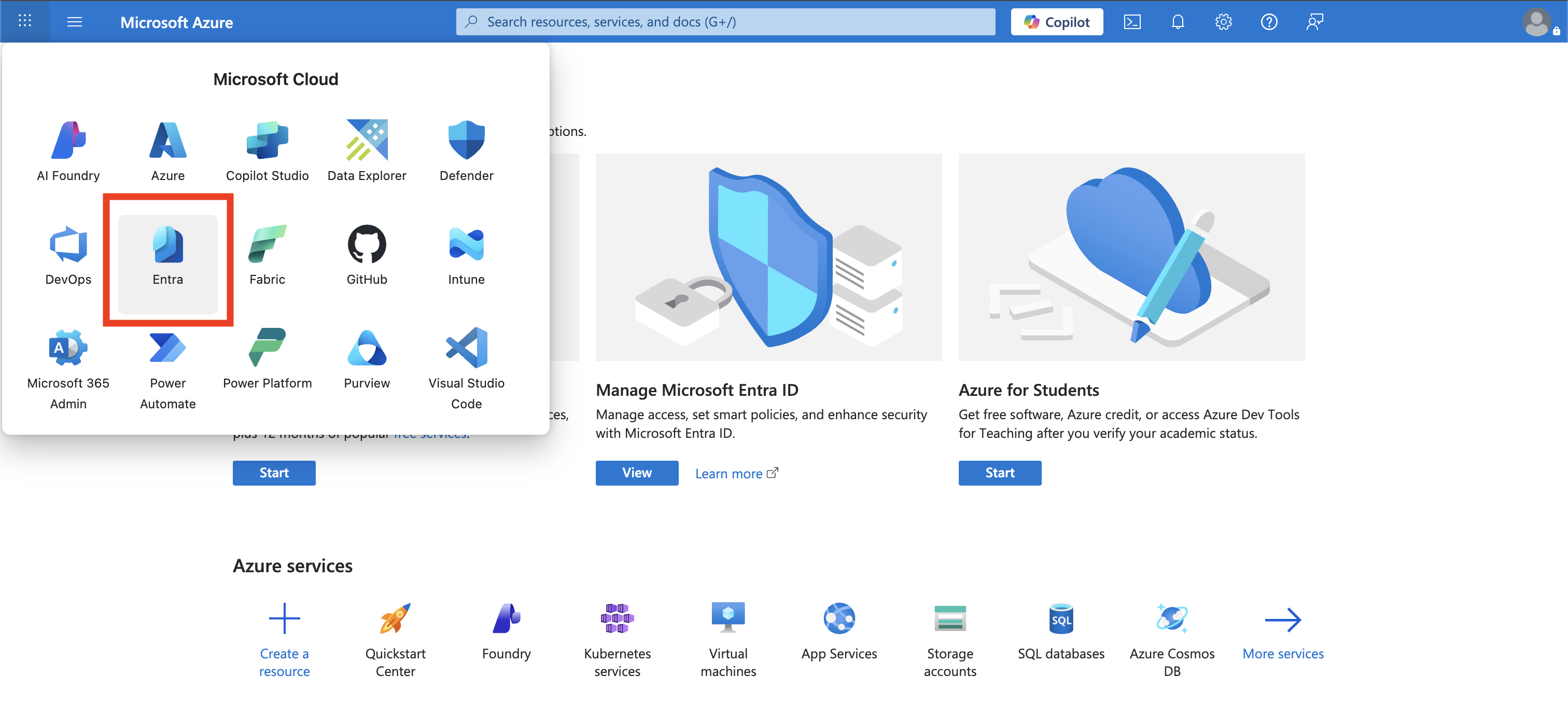
Sign in to the Azure portal with an account that can register applications, and open Entra from the Microsoft Cloud menu. You can also go straight to the Microsoft Entra admin center.
-
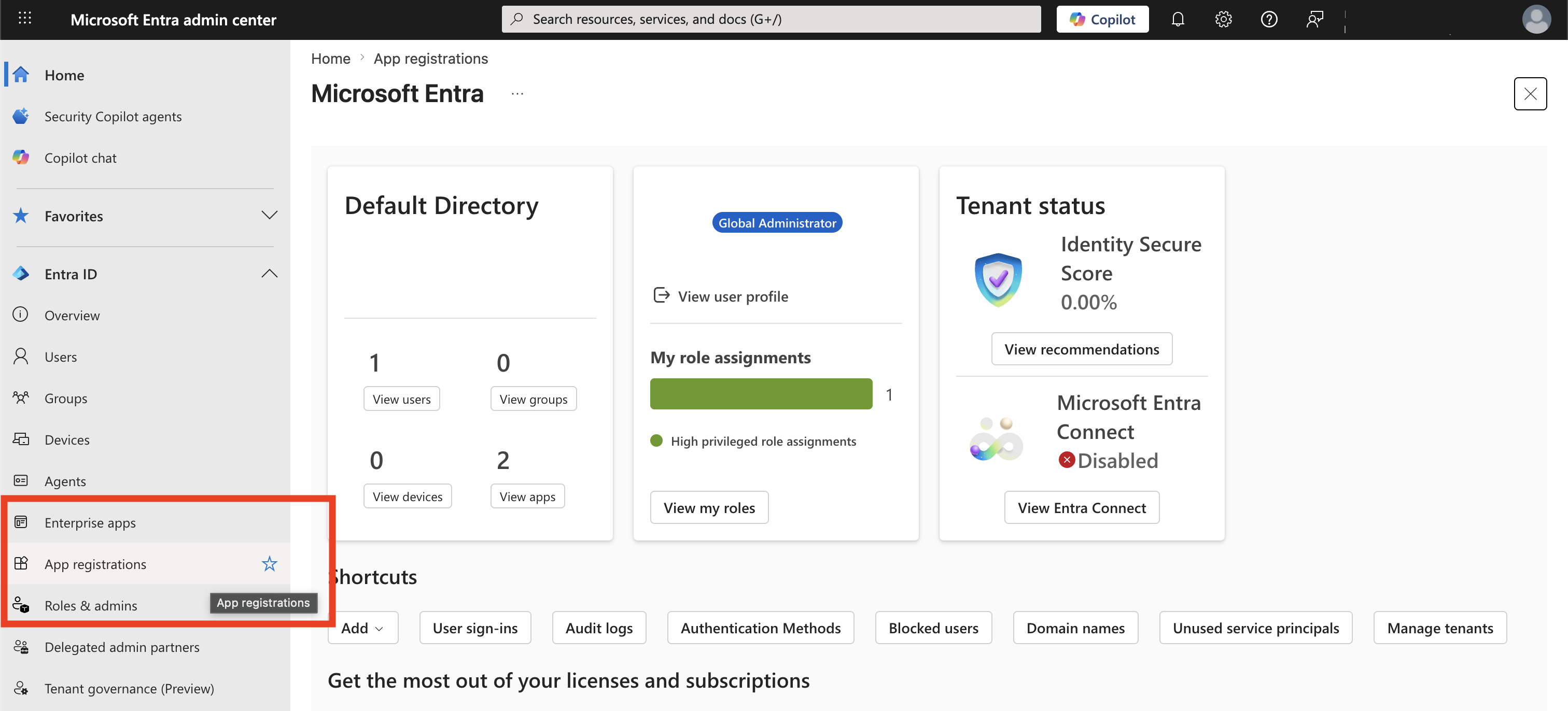
Select App registrations from the left sidebar, then select New registration.
-
Enter a name, choose Accounts in this organizational directory only, add
https://jwt.msas a Web redirect URI, and select Register. Business Central is reached with a work or school account in the tenant that owns the environment, so personal Microsoft accounts cannot be used.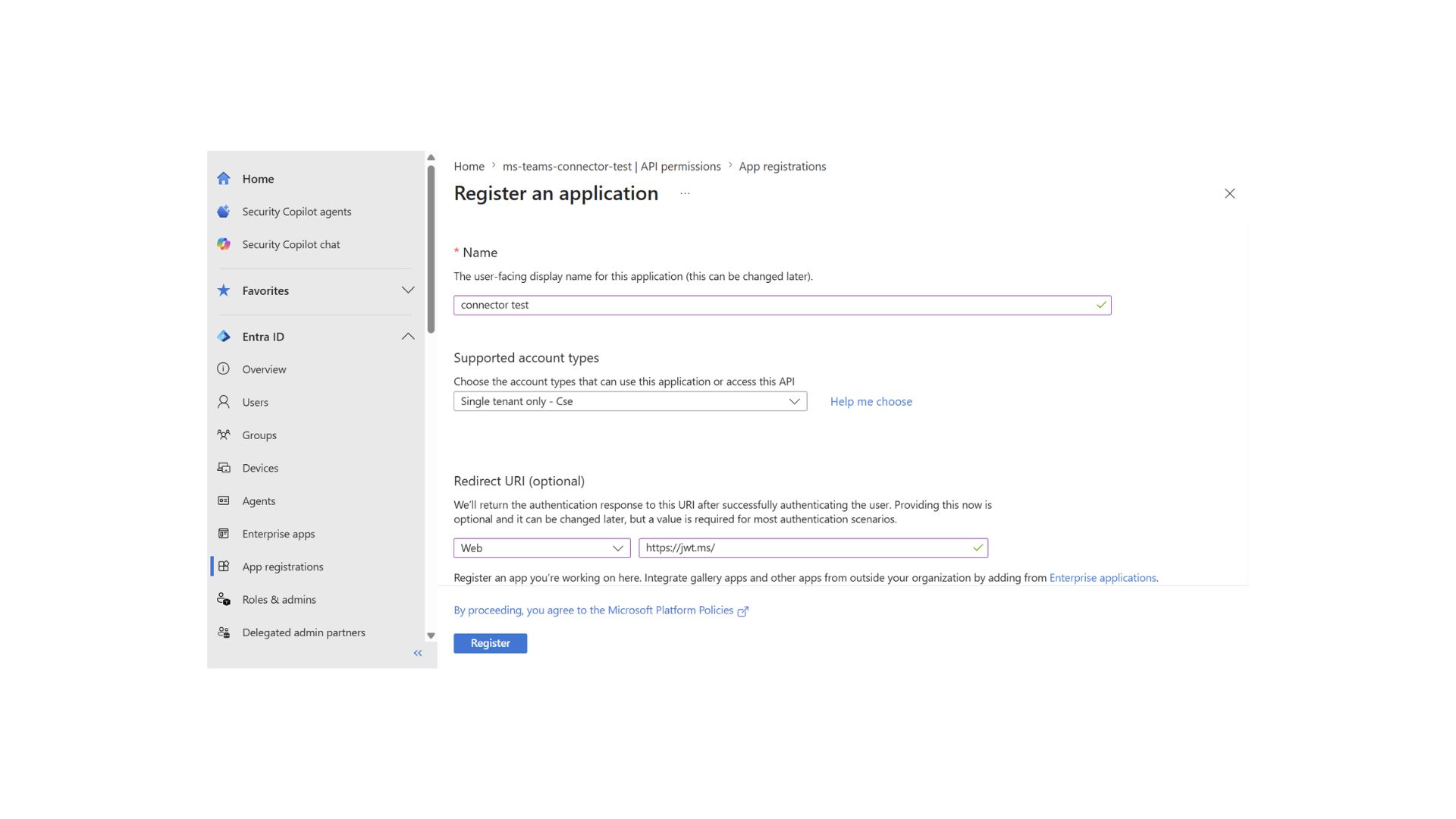
-
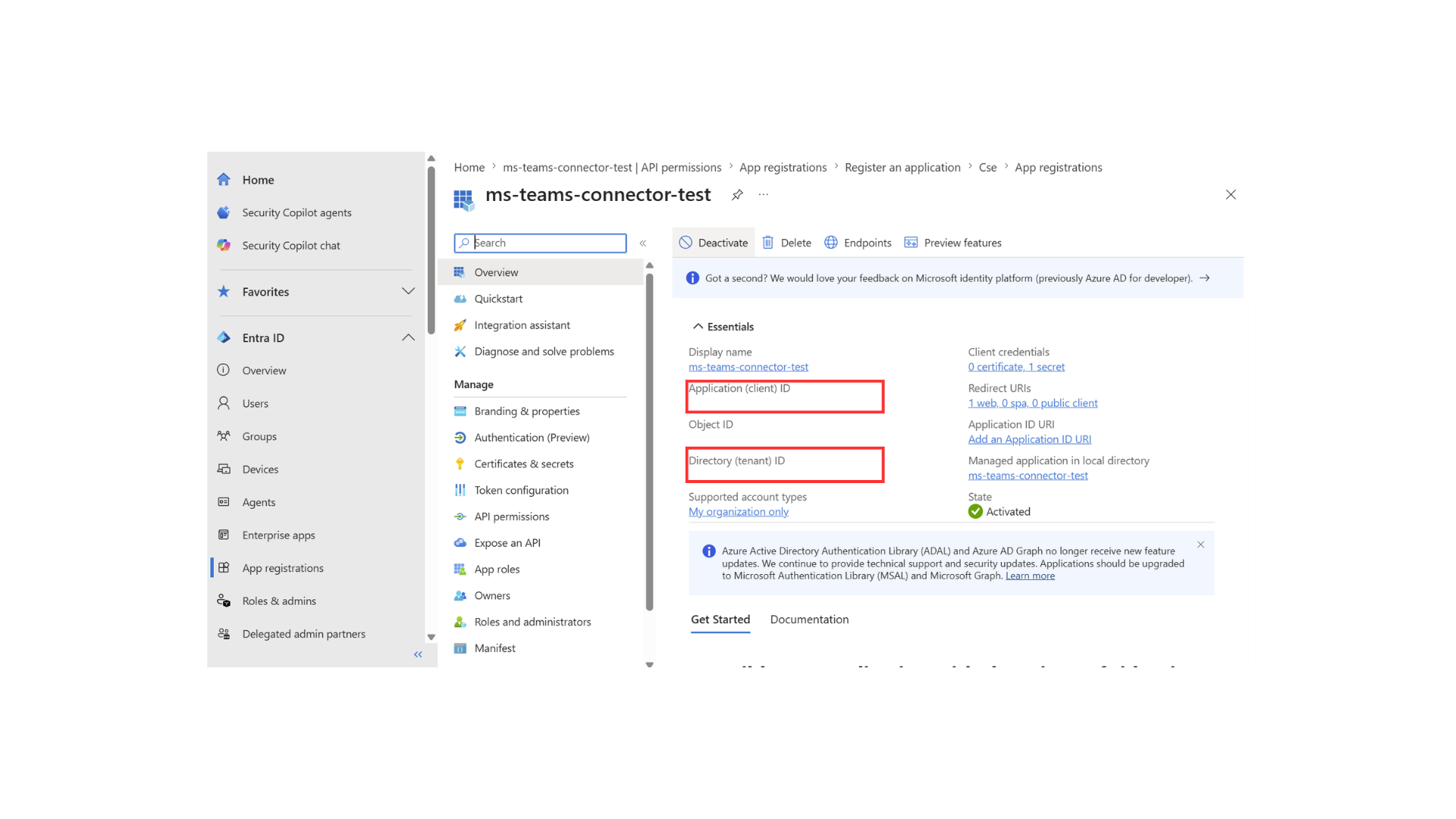
On the application's Overview page, note the Application (client) ID and the Directory (tenant) ID.
Step 2: Grant the Business Central API permissions
- Go to API permissions > Add a permission > Dynamics 365 Business Central.
- Select the delegated Financials.ReadWrite.All permission, which covers the operations in this connector, and select Add permissions.
- Grant admin consent if your tenant requires it.
Step 3: Create a client secret
-
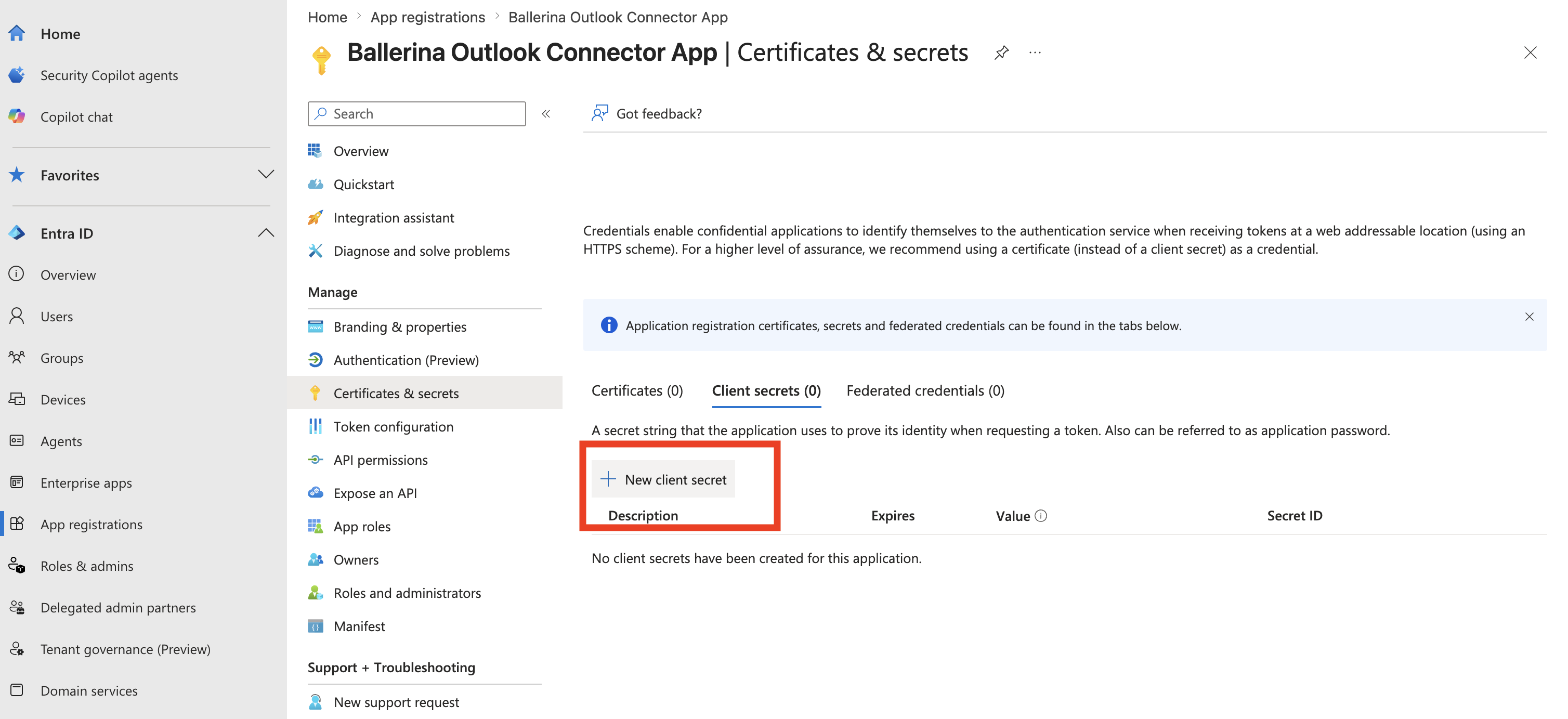
Go to Certificates & secrets > Client secrets > New client secret.
-
Add a description and an expiry, select Add, and copy the secret's Value. The value is shown only once.
Step 4: Obtain a refresh token
The connector authenticates with an OAuth 2.0 refresh token from Microsoft Entra ID and renews its access token automatically.
-
Open the following URL in a browser, with your tenant ID and client ID, and sign in with a user account that has access to the Business Central environment:
https://login.microsoftonline.com/<tenant-id>/oauth2/v2.0/authorize?client_id=<client-id>&response_type=code&redirect_uri=https%3A%2F%2Fjwt.ms&response_mode=query&scope=https%3A%2F%2Fapi.businesscentral.dynamics.com%2FFinancials.ReadWrite.All%20offline_access -
Accept the consent prompt. The browser opens
https://jwt.ms/?code=<authorization-code>. Copy thecodevalue, which is single-use and expires within minutes. -
Exchange the code for a refresh token:
curl -X POST "https://login.microsoftonline.com/<tenant-id>/oauth2/v2.0/token" \ --data-urlencode "client_id=<client-id>" \ --data-urlencode "client_secret=<client-secret>" \ --data-urlencode "scope=https://api.businesscentral.dynamics.com/Financials.ReadWrite.All offline_access" \ --data-urlencode "code=<authorization-code>" \ --data-urlencode "redirect_uri=https://jwt.ms" \ --data-urlencode "grant_type=authorization_code" -
Copy the
refresh_tokenvalue from the JSON response.
Step 5: Find the environment and company
The service URL carries the environment name — https://api.businesscentral.dynamics.com/v2.0/{environment}/api/v1.0, where {environment} is production by default and can be a sandbox name instead. The client defaults to the production environment; pass a different service URL to init to target a sandbox. Call listCompanies to obtain the identifier of the company the integration works in.
Quickstart
To use the Business Central connector in your Ballerina application, update the .bal file as follows:
Step 1: Import the module
import ballerinax/microsoft.dynamics365.bc as bc;
Step 2: Instantiate a new connector
Create a bc:Client with the credentials from Step 4 of the setup guide.
configurable string tenantId = ?; configurable string clientId = ?; configurable string clientSecret = ?; configurable string refreshToken = ?; final bc:OAuth2RefreshTokenGrantConfig auth = { clientId, clientSecret, refreshToken, refreshUrl: string `https://login.microsoftonline.com/${tenantId}/oauth2/v2.0/token`, scopes: ["https://api.businesscentral.dynamics.com/Financials.ReadWrite.All", "offline_access"] }; final bc:Client dynamics365 = check new ({auth});
Note: The connector's default token URL is the multi-tenant
https://login.microsoftonline.com/common/oauth2/v2.0/tokenendpoint. It works only for applications that accept accounts from any organization, so change it to your tenant's endpoint, asrefreshUrldoes above.
Provide the values in a Config.toml file:
tenantId = "<tenant-id>" clientId = "<client-id>" clientSecret = "<client-secret>" refreshToken = "<refresh-token>"
To work against a sandbox environment, pass the service URL explicitly:
final bc:Client sandboxClient = check new ( {auth}, "https://api.businesscentral.dynamics.com/v2.0/sandbox/api/v1.0" );
Step 3: Invoke the connector operation
public function main() returns error? { bc:CompanyCollection _ = check dynamics365->listCompanies(); }
Step 4: Run the Ballerina application
bal run
Examples
The Microsoft Dynamics 365 Business Central connector provides practical examples illustrating usage in various scenarios. Explore these examples, covering the following use cases:
- Customer invoice workflow — Onboard a customer, raise a sales invoice with a line, and post it to the general ledger.
- Item catalog management — Review the item catalog, register a new stocked item, and correct its price with an
If-Matchguarded update. - Sales order processing — Open a sales order for an existing customer and read back the lines that belong to it.
- Financial ledger review — Take a month-end snapshot of the chart of accounts, the bank accounts, and the posted ledger entries.
Clients
microsoft.dynamics365.bc: Client
Business Central Standard APIs (v1.0) for Microsoft Dynamics 365 Business Central.
Constructor
Gets invoked to initialize the connector.
init (ConnectionConfig config, string serviceUrl)- config ConnectionConfig - The configurations to be used when initializing the
connector
- serviceUrl string "https://api.businesscentral.dynamics.com/v2.0/production/api/v1.0" - URL of the target service
listCompanies
function listCompanies(map<string|string[]> headers, *ListCompaniesQueries queries) returns CompanyCollection|errorReturns a list of companies
Parameters
- queries *ListCompaniesQueries - Queries to be sent with the request
Return Type
- CompanyCollection|error - A list of companies was returned successfully
getCompany
function getCompany(string companyId, map<string|string[]> headers, *GetCompanyQueries queries) returns Company|errorReturns a company.
Parameters
- companyId string - The unique identifier of the company
- queries *GetCompanyQueries - Queries to be sent with the request
listItems
function listItems(string companyId, map<string|string[]> headers, *ListItemsQueries queries) returns ItemCollection|errorReturns a list of items
Parameters
- companyId string - The unique identifier of the company
- queries *ListItemsQueries - Queries to be sent with the request
Return Type
- ItemCollection|error - A list of items was returned successfully
createItem
function createItem(string companyId, ItemRequest payload, map<string|string[]> headers) returns Item|errorCreates an item
Parameters
- companyId string - The unique identifier of the company
- payload ItemRequest - The item to create or update
getItem
function getItem(string companyId, string itemId, map<string|string[]> headers, *GetItemQueries queries) returns Item|errorReturns an item.
Parameters
- companyId string - The unique identifier of the company
- itemId string - The unique identifier of the item
- queries *GetItemQueries - Queries to be sent with the request
deleteItem
Deletes an item
Parameters
- companyId string - The unique identifier of the company
- itemId string - The unique identifier of the item
Return Type
- error? - The item was deleted successfully
updateItem
function updateItem(string companyId, string itemId, UpdateItemHeaders headers, ItemRequest payload) returns Item|errorUpdates an item
Parameters
- companyId string - The unique identifier of the company
- itemId string - The unique identifier of the item
- headers UpdateItemHeaders - Headers to be sent with the request
- payload ItemRequest - The item to create or update
listPicturesForItem
function listPicturesForItem(string companyId, string itemId, map<string|string[]> headers, *ListPicturesForItemQueries queries) returns PictureCollection|errorReturns a list of pictures for an item
Parameters
- companyId string - The unique identifier of the company
- itemId string - The unique identifier of the item
- queries *ListPicturesForItemQueries - Queries to be sent with the request
Return Type
- PictureCollection|error - A list of pictures was returned successfully
getPictureForItem
function getPictureForItem(string companyId, string itemId, string pictureId, map<string|string[]> headers, *GetPictureForItemQueries queries) returns Picture|errorReturns a picture for an item.
Parameters
- companyId string - The unique identifier of the company
- itemId string - The unique identifier of the item
- pictureId string - The unique identifier of the picture
- queries *GetPictureForItemQueries - Queries to be sent with the request
deletePictureForItem
function deletePictureForItem(string companyId, string itemId, string pictureId, map<string|string[]> headers) returns error?Deletes a picture for an item
Parameters
- companyId string - The unique identifier of the company
- itemId string - The unique identifier of the item
- pictureId string - The unique identifier of the picture
Return Type
- error? - The picture was deleted successfully
updatePictureForItem
function updatePictureForItem(string companyId, string itemId, string pictureId, UpdatePictureForItemHeaders headers, PictureRequest payload) returns Picture|errorUpdates a picture for an item
Parameters
- companyId string - The unique identifier of the company
- itemId string - The unique identifier of the item
- pictureId string - The unique identifier of the picture
- headers UpdatePictureForItemHeaders - Headers to be sent with the request
- payload PictureRequest - The picture to create or update
listDefaultDimensionsForItem
function listDefaultDimensionsForItem(string companyId, string itemId, map<string|string[]> headers, *ListDefaultDimensionsForItemQueries queries) returns DefaultDimensionsCollection|errorReturns a list of default dimensions for an item
Parameters
- companyId string - The unique identifier of the company
- itemId string - The unique identifier of the item
- queries *ListDefaultDimensionsForItemQueries - Queries to be sent with the request
Return Type
- DefaultDimensionsCollection|error - A list of default dimensions was returned successfully
createDefaultDimensionsForItem
function createDefaultDimensionsForItem(string companyId, string itemId, DefaultDimensionsRequest payload, map<string|string[]> headers) returns DefaultDimensions|errorCreates a default dimension for an item
Parameters
- companyId string - The unique identifier of the company
- itemId string - The unique identifier of the item
- payload DefaultDimensionsRequest - The default dimensions to create or update
Return Type
- DefaultDimensions|error - The default dimension was created successfully
getDefaultDimensionsForItem
function getDefaultDimensionsForItem(string companyId, string itemId, string defaultDimensionsParentId, string defaultDimensionsDimensionId, map<string|string[]> headers, *GetDefaultDimensionsForItemQueries queries) returns DefaultDimensions|errorReturns a default dimension for an item.
Parameters
- companyId string - The unique identifier of the company
- itemId string - The unique identifier of the item
- defaultDimensionsParentId string - The parent id of the default dimensions
- defaultDimensionsDimensionId string - The dimension id of the default dimensions
- queries *GetDefaultDimensionsForItemQueries - Queries to be sent with the request
Return Type
- DefaultDimensions|error - The requested default dimension was returned successfully
deleteDefaultDimensionsForItem
function deleteDefaultDimensionsForItem(string companyId, string itemId, string defaultDimensionsParentId, string defaultDimensionsDimensionId, map<string|string[]> headers) returns error?Deletes a default dimension for an item
Parameters
- companyId string - The unique identifier of the company
- itemId string - The unique identifier of the item
- defaultDimensionsParentId string - The parent id of the default dimensions
- defaultDimensionsDimensionId string - The dimension id of the default dimensions
Return Type
- error? - The default dimension was deleted successfully
updateDefaultDimensionsForItem
function updateDefaultDimensionsForItem(string companyId, string itemId, string defaultDimensionsParentId, string defaultDimensionsDimensionId, UpdateDefaultDimensionsForItemHeaders headers, DefaultDimensionsRequest payload) returns DefaultDimensions|errorUpdates a default dimension for an item
Parameters
- companyId string - The unique identifier of the company
- itemId string - The unique identifier of the item
- defaultDimensionsParentId string - The parent id of the default dimensions
- defaultDimensionsDimensionId string - The dimension id of the default dimensions
- headers UpdateDefaultDimensionsForItemHeaders - Headers to be sent with the request
- payload DefaultDimensionsRequest - The default dimensions to create or update
Return Type
- DefaultDimensions|error - The updated default dimension was returned successfully
listPictures
function listPictures(string companyId, map<string|string[]> headers, *ListPicturesQueries queries) returns PictureCollection|errorReturns a list of pictures
Parameters
- companyId string - The unique identifier of the company
- queries *ListPicturesQueries - Queries to be sent with the request
Return Type
- PictureCollection|error - A list of pictures was returned successfully
getPicture
function getPicture(string companyId, string pictureId, map<string|string[]> headers, *GetPictureQueries queries) returns Picture|errorReturns a picture.
Parameters
- companyId string - The unique identifier of the company
- pictureId string - The unique identifier of the picture
- queries *GetPictureQueries - Queries to be sent with the request
deletePicture
function deletePicture(string companyId, string pictureId, map<string|string[]> headers) returns error?Deletes a picture
Parameters
- companyId string - The unique identifier of the company
- pictureId string - The unique identifier of the picture
Return Type
- error? - The picture was deleted successfully
updatePicture
function updatePicture(string companyId, string pictureId, UpdatePictureHeaders headers, PictureRequest payload) returns Picture|errorUpdates a picture
Parameters
- companyId string - The unique identifier of the company
- pictureId string - The unique identifier of the picture
- headers UpdatePictureHeaders - Headers to be sent with the request
- payload PictureRequest - The picture to create or update
listDefaultDimensions
function listDefaultDimensions(string companyId, map<string|string[]> headers, *ListDefaultDimensionsQueries queries) returns DefaultDimensionsCollection|errorReturns a list of default dimensions
Parameters
- companyId string - The unique identifier of the company
- queries *ListDefaultDimensionsQueries - Queries to be sent with the request
Return Type
- DefaultDimensionsCollection|error - A list of default dimensions was returned successfully
createDefaultDimensions
function createDefaultDimensions(string companyId, DefaultDimensionsRequest payload, map<string|string[]> headers) returns DefaultDimensions|errorCreates a default dimension
Parameters
- companyId string - The unique identifier of the company
- payload DefaultDimensionsRequest - The default dimensions to create or update
Return Type
- DefaultDimensions|error - The default dimension was created successfully
getDefaultDimensions
function getDefaultDimensions(string companyId, string defaultDimensionsParentId, string defaultDimensionsDimensionId, map<string|string[]> headers, *GetDefaultDimensionsQueries queries) returns DefaultDimensions|errorReturns a default dimension.
Parameters
- companyId string - The unique identifier of the company
- defaultDimensionsParentId string - The parent id of the default dimensions
- defaultDimensionsDimensionId string - The dimension id of the default dimensions
- queries *GetDefaultDimensionsQueries - Queries to be sent with the request
Return Type
- DefaultDimensions|error - The requested default dimension was returned successfully
deleteDefaultDimensions
function deleteDefaultDimensions(string companyId, string defaultDimensionsParentId, string defaultDimensionsDimensionId, map<string|string[]> headers) returns error?Deletes a default dimension
Parameters
- companyId string - The unique identifier of the company
- defaultDimensionsParentId string - The parent id of the default dimensions
- defaultDimensionsDimensionId string - The dimension id of the default dimensions
Return Type
- error? - The default dimension was deleted successfully
updateDefaultDimensions
function updateDefaultDimensions(string companyId, string defaultDimensionsParentId, string defaultDimensionsDimensionId, UpdateDefaultDimensionsHeaders headers, DefaultDimensionsRequest payload) returns DefaultDimensions|errorUpdates a default dimension
Parameters
- companyId string - The unique identifier of the company
- defaultDimensionsParentId string - The parent id of the default dimensions
- defaultDimensionsDimensionId string - The dimension id of the default dimensions
- headers UpdateDefaultDimensionsHeaders - Headers to be sent with the request
- payload DefaultDimensionsRequest - The default dimensions to create or update
Return Type
- DefaultDimensions|error - The updated default dimension was returned successfully
listCustomers
function listCustomers(string companyId, map<string|string[]> headers, *ListCustomersQueries queries) returns CustomerCollection|errorReturns a list of customers
Parameters
- companyId string - The unique identifier of the company
- queries *ListCustomersQueries - Queries to be sent with the request
Return Type
- CustomerCollection|error - A list of customers was returned successfully
createCustomer
function createCustomer(string companyId, CustomerRequest payload, map<string|string[]> headers) returns Customer|errorCreates a customer
Parameters
- companyId string - The unique identifier of the company
- payload CustomerRequest - The customer to create or update
getCustomer
function getCustomer(string companyId, string customerId, map<string|string[]> headers, *GetCustomerQueries queries) returns Customer|errorReturns a customer.
Parameters
- companyId string - The unique identifier of the company
- customerId string - The unique identifier of the customer
- queries *GetCustomerQueries - Queries to be sent with the request
deleteCustomer
function deleteCustomer(string companyId, string customerId, map<string|string[]> headers) returns error?Deletes a customer
Parameters
- companyId string - The unique identifier of the company
- customerId string - The unique identifier of the customer
Return Type
- error? - The customer was deleted successfully
updateCustomer
function updateCustomer(string companyId, string customerId, UpdateCustomerHeaders headers, CustomerRequest payload) returns Customer|errorUpdates a customer
Parameters
- companyId string - The unique identifier of the company
- customerId string - The unique identifier of the customer
- headers UpdateCustomerHeaders - Headers to be sent with the request
- payload CustomerRequest - The customer to create or update
listCustomerFinancialDetailsForCustomer
function listCustomerFinancialDetailsForCustomer(string companyId, string customerId, map<string|string[]> headers, *ListCustomerFinancialDetailsForCustomerQueries queries) returns CustomerFinancialDetailCollection|errorReturns a list of customer financial details for a customer
Parameters
- companyId string - The unique identifier of the company
- customerId string - The unique identifier of the customer
- queries *ListCustomerFinancialDetailsForCustomerQueries - Queries to be sent with the request
Return Type
- CustomerFinancialDetailCollection|error - A list of customer financial details was returned successfully
getCustomerFinancialDetailForCustomer
function getCustomerFinancialDetailForCustomer(string companyId, string customerId, string customerFinancialDetailId, map<string|string[]> headers, *GetCustomerFinancialDetailForCustomerQueries queries) returns CustomerFinancialDetail|errorReturns a customer financial detail for a customer.
Parameters
- companyId string - The unique identifier of the company
- customerId string - The unique identifier of the customer
- customerFinancialDetailId string - The unique identifier of the customer financial detail
- queries *GetCustomerFinancialDetailForCustomerQueries - Queries to be sent with the request
Return Type
- CustomerFinancialDetail|error - The requested customer financial detail was returned successfully
listPicturesForCustomer
function listPicturesForCustomer(string companyId, string customerId, map<string|string[]> headers, *ListPicturesForCustomerQueries queries) returns PictureCollection|errorReturns a list of pictures for a customer
Parameters
- companyId string - The unique identifier of the company
- customerId string - The unique identifier of the customer
- queries *ListPicturesForCustomerQueries - Queries to be sent with the request
Return Type
- PictureCollection|error - A list of pictures was returned successfully
getPictureForCustomer
function getPictureForCustomer(string companyId, string customerId, string pictureId, map<string|string[]> headers, *GetPictureForCustomerQueries queries) returns Picture|errorReturns a picture for a customer.
Parameters
- companyId string - The unique identifier of the company
- customerId string - The unique identifier of the customer
- pictureId string - The unique identifier of the picture
- queries *GetPictureForCustomerQueries - Queries to be sent with the request
deletePictureForCustomer
function deletePictureForCustomer(string companyId, string customerId, string pictureId, map<string|string[]> headers) returns error?Deletes a picture for a customer
Parameters
- companyId string - The unique identifier of the company
- customerId string - The unique identifier of the customer
- pictureId string - The unique identifier of the picture
Return Type
- error? - The picture was deleted successfully
updatePictureForCustomer
function updatePictureForCustomer(string companyId, string customerId, string pictureId, UpdatePictureForCustomerHeaders headers, PictureRequest payload) returns Picture|errorUpdates a picture for a customer
Parameters
- companyId string - The unique identifier of the company
- customerId string - The unique identifier of the customer
- pictureId string - The unique identifier of the picture
- headers UpdatePictureForCustomerHeaders - Headers to be sent with the request
- payload PictureRequest - The picture to create or update
listDefaultDimensionsForCustomer
function listDefaultDimensionsForCustomer(string companyId, string customerId, map<string|string[]> headers, *ListDefaultDimensionsForCustomerQueries queries) returns DefaultDimensionsCollection|errorReturns a list of default dimensions for a customer
Parameters
- companyId string - The unique identifier of the company
- customerId string - The unique identifier of the customer
- queries *ListDefaultDimensionsForCustomerQueries - Queries to be sent with the request
Return Type
- DefaultDimensionsCollection|error - A list of default dimensions was returned successfully
createDefaultDimensionsForCustomer
function createDefaultDimensionsForCustomer(string companyId, string customerId, DefaultDimensionsRequest payload, map<string|string[]> headers) returns DefaultDimensions|errorCreates a default dimension for a customer
Parameters
- companyId string - The unique identifier of the company
- customerId string - The unique identifier of the customer
- payload DefaultDimensionsRequest - The default dimensions to create or update
Return Type
- DefaultDimensions|error - The default dimension was created successfully
getDefaultDimensionsForCustomer
function getDefaultDimensionsForCustomer(string companyId, string customerId, string defaultDimensionsParentId, string defaultDimensionsDimensionId, map<string|string[]> headers, *GetDefaultDimensionsForCustomerQueries queries) returns DefaultDimensions|errorReturns a default dimension for a customer.
Parameters
- companyId string - The unique identifier of the company
- customerId string - The unique identifier of the customer
- defaultDimensionsParentId string - The parent id of the default dimensions
- defaultDimensionsDimensionId string - The dimension id of the default dimensions
- queries *GetDefaultDimensionsForCustomerQueries - Queries to be sent with the request
Return Type
- DefaultDimensions|error - The requested default dimension was returned successfully
deleteDefaultDimensionsForCustomer
function deleteDefaultDimensionsForCustomer(string companyId, string customerId, string defaultDimensionsParentId, string defaultDimensionsDimensionId, map<string|string[]> headers) returns error?Deletes a default dimension for a customer
Parameters
- companyId string - The unique identifier of the company
- customerId string - The unique identifier of the customer
- defaultDimensionsParentId string - The parent id of the default dimensions
- defaultDimensionsDimensionId string - The dimension id of the default dimensions
Return Type
- error? - The default dimension was deleted successfully
updateDefaultDimensionsForCustomer
function updateDefaultDimensionsForCustomer(string companyId, string customerId, string defaultDimensionsParentId, string defaultDimensionsDimensionId, UpdateDefaultDimensionsForCustomerHeaders headers, DefaultDimensionsRequest payload) returns DefaultDimensions|errorUpdates a default dimension for a customer
Parameters
- companyId string - The unique identifier of the company
- customerId string - The unique identifier of the customer
- defaultDimensionsParentId string - The parent id of the default dimensions
- defaultDimensionsDimensionId string - The dimension id of the default dimensions
- headers UpdateDefaultDimensionsForCustomerHeaders - Headers to be sent with the request
- payload DefaultDimensionsRequest - The default dimensions to create or update
Return Type
- DefaultDimensions|error - The updated default dimension was returned successfully
listCustomerFinancialDetails
function listCustomerFinancialDetails(string companyId, map<string|string[]> headers, *ListCustomerFinancialDetailsQueries queries) returns CustomerFinancialDetailCollection|errorReturns a list of customer financial details
Parameters
- companyId string - The unique identifier of the company
- queries *ListCustomerFinancialDetailsQueries - Queries to be sent with the request
Return Type
- CustomerFinancialDetailCollection|error - A list of customer financial details was returned successfully
getCustomerFinancialDetail
function getCustomerFinancialDetail(string companyId, string customerFinancialDetailId, map<string|string[]> headers, *GetCustomerFinancialDetailQueries queries) returns CustomerFinancialDetail|errorReturns a customer financial detail.
Parameters
- companyId string - The unique identifier of the company
- customerFinancialDetailId string - The unique identifier of the customer financial detail
- queries *GetCustomerFinancialDetailQueries - Queries to be sent with the request
Return Type
- CustomerFinancialDetail|error - The requested customer financial detail was returned successfully
listVendors
function listVendors(string companyId, map<string|string[]> headers, *ListVendorsQueries queries) returns VendorCollection|errorReturns a list of vendors
Parameters
- companyId string - The unique identifier of the company
- queries *ListVendorsQueries - Queries to be sent with the request
Return Type
- VendorCollection|error - A list of vendors was returned successfully
createVendor
function createVendor(string companyId, VendorRequest payload, map<string|string[]> headers) returns Vendor|errorCreates a vendor
Parameters
- companyId string - The unique identifier of the company
- payload VendorRequest - The vendor to create or update
getVendor
function getVendor(string companyId, string vendorId, map<string|string[]> headers, *GetVendorQueries queries) returns Vendor|errorReturns a vendor.
Parameters
- companyId string - The unique identifier of the company
- vendorId string - The unique identifier of the vendor
- queries *GetVendorQueries - Queries to be sent with the request
deleteVendor
function deleteVendor(string companyId, string vendorId, map<string|string[]> headers) returns error?Deletes a vendor
Parameters
- companyId string - The unique identifier of the company
- vendorId string - The unique identifier of the vendor
Return Type
- error? - The vendor was deleted successfully
updateVendor
function updateVendor(string companyId, string vendorId, UpdateVendorHeaders headers, VendorRequest payload) returns Vendor|errorUpdates a vendor
Parameters
- companyId string - The unique identifier of the company
- vendorId string - The unique identifier of the vendor
- headers UpdateVendorHeaders - Headers to be sent with the request
- payload VendorRequest - The vendor to create or update
listPicturesForVendor
function listPicturesForVendor(string companyId, string vendorId, map<string|string[]> headers, *ListPicturesForVendorQueries queries) returns PictureCollection|errorReturns a list of pictures for a vendor
Parameters
- companyId string - The unique identifier of the company
- vendorId string - The unique identifier of the vendor
- queries *ListPicturesForVendorQueries - Queries to be sent with the request
Return Type
- PictureCollection|error - A list of pictures was returned successfully
getPictureForVendor
function getPictureForVendor(string companyId, string vendorId, string pictureId, map<string|string[]> headers, *GetPictureForVendorQueries queries) returns Picture|errorReturns a picture for a vendor.
Parameters
- companyId string - The unique identifier of the company
- vendorId string - The unique identifier of the vendor
- pictureId string - The unique identifier of the picture
- queries *GetPictureForVendorQueries - Queries to be sent with the request
deletePictureForVendor
function deletePictureForVendor(string companyId, string vendorId, string pictureId, map<string|string[]> headers) returns error?Deletes a picture for a vendor
Parameters
- companyId string - The unique identifier of the company
- vendorId string - The unique identifier of the vendor
- pictureId string - The unique identifier of the picture
Return Type
- error? - The picture was deleted successfully
updatePictureForVendor
function updatePictureForVendor(string companyId, string vendorId, string pictureId, UpdatePictureForVendorHeaders headers, PictureRequest payload) returns Picture|errorUpdates a picture for a vendor
Parameters
- companyId string - The unique identifier of the company
- vendorId string - The unique identifier of the vendor
- pictureId string - The unique identifier of the picture
- headers UpdatePictureForVendorHeaders - Headers to be sent with the request
- payload PictureRequest - The picture to create or update
listDefaultDimensionsForVendor
function listDefaultDimensionsForVendor(string companyId, string vendorId, map<string|string[]> headers, *ListDefaultDimensionsForVendorQueries queries) returns DefaultDimensionsCollection|errorReturns a list of default dimensions for a vendor
Parameters
- companyId string - The unique identifier of the company
- vendorId string - The unique identifier of the vendor
- queries *ListDefaultDimensionsForVendorQueries - Queries to be sent with the request
Return Type
- DefaultDimensionsCollection|error - A list of default dimensions was returned successfully
createDefaultDimensionsForVendor
function createDefaultDimensionsForVendor(string companyId, string vendorId, DefaultDimensionsRequest payload, map<string|string[]> headers) returns DefaultDimensions|errorCreates a default dimension for a vendor
Parameters
- companyId string - The unique identifier of the company
- vendorId string - The unique identifier of the vendor
- payload DefaultDimensionsRequest - The default dimensions to create or update
Return Type
- DefaultDimensions|error - The default dimension was created successfully
getDefaultDimensionsForVendor
function getDefaultDimensionsForVendor(string companyId, string vendorId, string defaultDimensionsParentId, string defaultDimensionsDimensionId, map<string|string[]> headers, *GetDefaultDimensionsForVendorQueries queries) returns DefaultDimensions|errorReturns a default dimension for a vendor.
Parameters
- companyId string - The unique identifier of the company
- vendorId string - The unique identifier of the vendor
- defaultDimensionsParentId string - The parent id of the default dimensions
- defaultDimensionsDimensionId string - The dimension id of the default dimensions
- queries *GetDefaultDimensionsForVendorQueries - Queries to be sent with the request
Return Type
- DefaultDimensions|error - The requested default dimension was returned successfully
deleteDefaultDimensionsForVendor
function deleteDefaultDimensionsForVendor(string companyId, string vendorId, string defaultDimensionsParentId, string defaultDimensionsDimensionId, map<string|string[]> headers) returns error?Deletes a default dimension for a vendor
Parameters
- companyId string - The unique identifier of the company
- vendorId string - The unique identifier of the vendor
- defaultDimensionsParentId string - The parent id of the default dimensions
- defaultDimensionsDimensionId string - The dimension id of the default dimensions
Return Type
- error? - The default dimension was deleted successfully
updateDefaultDimensionsForVendor
function updateDefaultDimensionsForVendor(string companyId, string vendorId, string defaultDimensionsParentId, string defaultDimensionsDimensionId, UpdateDefaultDimensionsForVendorHeaders headers, DefaultDimensionsRequest payload) returns DefaultDimensions|errorUpdates a default dimension for a vendor
Parameters
- companyId string - The unique identifier of the company
- vendorId string - The unique identifier of the vendor
- defaultDimensionsParentId string - The parent id of the default dimensions
- defaultDimensionsDimensionId string - The dimension id of the default dimensions
- headers UpdateDefaultDimensionsForVendorHeaders - Headers to be sent with the request
- payload DefaultDimensionsRequest - The default dimensions to create or update
Return Type
- DefaultDimensions|error - The updated default dimension was returned successfully
listCompanyInformation
function listCompanyInformation(string companyId, map<string|string[]> headers, *ListCompanyInformationQueries queries) returns CompanyInformationCollection|errorReturns a list of company information records
Parameters
- companyId string - The unique identifier of the company
- queries *ListCompanyInformationQueries - Queries to be sent with the request
Return Type
- CompanyInformationCollection|error - A list of company information records was returned successfully
getCompanyInformation
function getCompanyInformation(string companyId, string companyInformationId, map<string|string[]> headers, *GetCompanyInformationQueries queries) returns CompanyInformation|errorReturns a company information record.
Parameters
- companyId string - The unique identifier of the company
- companyInformationId string - The unique identifier of the company information
- queries *GetCompanyInformationQueries - Queries to be sent with the request
Return Type
- CompanyInformation|error - The requested company information record was returned successfully
updateCompanyInformation
function updateCompanyInformation(string companyId, string companyInformationId, UpdateCompanyInformationHeaders headers, CompanyInformationRequest payload) returns CompanyInformation|errorUpdates a company information record
Parameters
- companyId string - The unique identifier of the company
- companyInformationId string - The unique identifier of the company information
- headers UpdateCompanyInformationHeaders - Headers to be sent with the request
- payload CompanyInformationRequest - The company information to create or update
Return Type
- CompanyInformation|error - The updated company information record was returned successfully
listSalesInvoices
function listSalesInvoices(string companyId, map<string|string[]> headers, *ListSalesInvoicesQueries queries) returns SalesInvoiceCollection|errorReturns a list of sales invoices
Parameters
- companyId string - The unique identifier of the company
- queries *ListSalesInvoicesQueries - Queries to be sent with the request
Return Type
- SalesInvoiceCollection|error - A list of sales invoices was returned successfully
createSalesInvoice
function createSalesInvoice(string companyId, SalesInvoiceRequest payload, map<string|string[]> headers) returns SalesInvoice|errorCreates a sales invoice
Parameters
- companyId string - The unique identifier of the company
- payload SalesInvoiceRequest - The sales invoice to create or update
Return Type
- SalesInvoice|error - The sales invoice was created successfully
getSalesInvoice
function getSalesInvoice(string companyId, string salesInvoiceId, map<string|string[]> headers, *GetSalesInvoiceQueries queries) returns SalesInvoice|errorReturns a sales invoice.
Parameters
- companyId string - The unique identifier of the company
- salesInvoiceId string - The unique identifier of the sales invoice
- queries *GetSalesInvoiceQueries - Queries to be sent with the request
Return Type
- SalesInvoice|error - The requested sales invoice was returned successfully
deleteSalesInvoice
function deleteSalesInvoice(string companyId, string salesInvoiceId, map<string|string[]> headers) returns error?Deletes a sales invoice
Parameters
- companyId string - The unique identifier of the company
- salesInvoiceId string - The unique identifier of the sales invoice
Return Type
- error? - The sales invoice was deleted successfully
updateSalesInvoice
function updateSalesInvoice(string companyId, string salesInvoiceId, UpdateSalesInvoiceHeaders headers, SalesInvoiceRequest payload) returns SalesInvoice|errorUpdates a sales invoice
Parameters
- companyId string - The unique identifier of the company
- salesInvoiceId string - The unique identifier of the sales invoice
- headers UpdateSalesInvoiceHeaders - Headers to be sent with the request
- payload SalesInvoiceRequest - The sales invoice to create or update
Return Type
- SalesInvoice|error - The updated sales invoice was returned successfully
cancelAndSendSalesInvoice
function cancelAndSendSalesInvoice(string companyId, string salesInvoiceId, map<string|string[]> headers) returns error?Performs the cancel and send action on a sales invoice
Parameters
- companyId string - The unique identifier of the company
- salesInvoiceId string - The unique identifier of the sales invoice
Return Type
- error? - The cancel and send action completed successfully
cancelSalesInvoice
function cancelSalesInvoice(string companyId, string salesInvoiceId, map<string|string[]> headers) returns error?Performs the cancel action on a sales invoice
Parameters
- companyId string - The unique identifier of the company
- salesInvoiceId string - The unique identifier of the sales invoice
Return Type
- error? - The cancel action completed successfully
makeCorrectiveCreditMemoForSalesInvoice
function makeCorrectiveCreditMemoForSalesInvoice(string companyId, string salesInvoiceId, map<string|string[]> headers) returns error?Performs the make corrective credit memo action on a sales invoice
Parameters
- companyId string - The unique identifier of the company
- salesInvoiceId string - The unique identifier of the sales invoice
Return Type
- error? - The make corrective credit memo action completed successfully
postAndSendSalesInvoice
function postAndSendSalesInvoice(string companyId, string salesInvoiceId, map<string|string[]> headers) returns error?Performs the post and send action on a sales invoice
Parameters
- companyId string - The unique identifier of the company
- salesInvoiceId string - The unique identifier of the sales invoice
Return Type
- error? - The post and send action completed successfully
postSalesInvoice
function postSalesInvoice(string companyId, string salesInvoiceId, map<string|string[]> headers) returns error?Performs the post action on a sales invoice
Parameters
- companyId string - The unique identifier of the company
- salesInvoiceId string - The unique identifier of the sales invoice
Return Type
- error? - The post action completed successfully
sendSalesInvoice
function sendSalesInvoice(string companyId, string salesInvoiceId, map<string|string[]> headers) returns error?Performs the send action on a sales invoice
Parameters
- companyId string - The unique identifier of the company
- salesInvoiceId string - The unique identifier of the sales invoice
Return Type
- error? - The send action completed successfully
listSalesInvoiceLinesForSalesInvoice
function listSalesInvoiceLinesForSalesInvoice(string companyId, string salesInvoiceId, map<string|string[]> headers, *ListSalesInvoiceLinesForSalesInvoiceQueries queries) returns SalesInvoiceLineCollection|errorReturns a list of sales invoice lines for a sales invoice
Parameters
- companyId string - The unique identifier of the company
- salesInvoiceId string - The unique identifier of the sales invoice
- queries *ListSalesInvoiceLinesForSalesInvoiceQueries - Queries to be sent with the request
Return Type
- SalesInvoiceLineCollection|error - A list of sales invoice lines was returned successfully
createSalesInvoiceLineForSalesInvoice
function createSalesInvoiceLineForSalesInvoice(string companyId, string salesInvoiceId, SalesInvoiceLineRequest payload, map<string|string[]> headers) returns SalesInvoiceLine|errorCreates a sales invoice line for a sales invoice
Parameters
- companyId string - The unique identifier of the company
- salesInvoiceId string - The unique identifier of the sales invoice
- payload SalesInvoiceLineRequest - The sales invoice line to create or update
Return Type
- SalesInvoiceLine|error - The sales invoice line was created successfully
getSalesInvoiceLineForSalesInvoice
function getSalesInvoiceLineForSalesInvoice(string companyId, string salesInvoiceId, string salesInvoiceLineId, map<string|string[]> headers, *GetSalesInvoiceLineForSalesInvoiceQueries queries) returns SalesInvoiceLine|errorReturns a sales invoice line for a sales invoice.
Parameters
- companyId string - The unique identifier of the company
- salesInvoiceId string - The unique identifier of the sales invoice
- salesInvoiceLineId string - The unique identifier of the sales invoice line
- queries *GetSalesInvoiceLineForSalesInvoiceQueries - Queries to be sent with the request
Return Type
- SalesInvoiceLine|error - The requested sales invoice line was returned successfully
deleteSalesInvoiceLineForSalesInvoice
function deleteSalesInvoiceLineForSalesInvoice(string companyId, string salesInvoiceId, string salesInvoiceLineId, map<string|string[]> headers) returns error?Deletes a sales invoice line for a sales invoice
Parameters
- companyId string - The unique identifier of the company
- salesInvoiceId string - The unique identifier of the sales invoice
- salesInvoiceLineId string - The unique identifier of the sales invoice line
Return Type
- error? - The sales invoice line was deleted successfully
updateSalesInvoiceLineForSalesInvoice
function updateSalesInvoiceLineForSalesInvoice(string companyId, string salesInvoiceId, string salesInvoiceLineId, UpdateSalesInvoiceLineForSalesInvoiceHeaders headers, SalesInvoiceLineRequest payload) returns SalesInvoiceLine|errorUpdates a sales invoice line for a sales invoice
Parameters
- companyId string - The unique identifier of the company
- salesInvoiceId string - The unique identifier of the sales invoice
- salesInvoiceLineId string - The unique identifier of the sales invoice line
- headers UpdateSalesInvoiceLineForSalesInvoiceHeaders - Headers to be sent with the request
- payload SalesInvoiceLineRequest - The sales invoice line to create or update
Return Type
- SalesInvoiceLine|error - The updated sales invoice line was returned successfully
listPdfDocumentsForSalesInvoice
function listPdfDocumentsForSalesInvoice(string companyId, string salesInvoiceId, map<string|string[]> headers, *ListPdfDocumentsForSalesInvoiceQueries queries) returns PdfDocumentCollection|errorReturns a list of PDF documents for a sales invoice
Parameters
- companyId string - The unique identifier of the company
- salesInvoiceId string - The unique identifier of the sales invoice
- queries *ListPdfDocumentsForSalesInvoiceQueries - Queries to be sent with the request
Return Type
- PdfDocumentCollection|error - A list of PDF documents was returned successfully
getPdfDocumentForSalesInvoice
function getPdfDocumentForSalesInvoice(string companyId, string salesInvoiceId, string pdfDocumentId, map<string|string[]> headers, *GetPdfDocumentForSalesInvoiceQueries queries) returns PdfDocument|errorReturns a PDF document for a sales invoice.
Parameters
- companyId string - The unique identifier of the company
- salesInvoiceId string - The unique identifier of the sales invoice
- pdfDocumentId string - The unique identifier of the pdf document
- queries *GetPdfDocumentForSalesInvoiceQueries - Queries to be sent with the request
Return Type
- PdfDocument|error - The requested PDF document was returned successfully
listSalesInvoiceLines
function listSalesInvoiceLines(string companyId, map<string|string[]> headers, *ListSalesInvoiceLinesQueries queries) returns SalesInvoiceLineCollection|errorReturns a list of sales invoice lines
Parameters
- companyId string - The unique identifier of the company
- queries *ListSalesInvoiceLinesQueries - Queries to be sent with the request
Return Type
- SalesInvoiceLineCollection|error - A list of sales invoice lines was returned successfully
createSalesInvoiceLine
function createSalesInvoiceLine(string companyId, SalesInvoiceLineRequest payload, map<string|string[]> headers) returns SalesInvoiceLine|errorCreates a sales invoice line
Parameters
- companyId string - The unique identifier of the company
- payload SalesInvoiceLineRequest - The sales invoice line to create or update
Return Type
- SalesInvoiceLine|error - The sales invoice line was created successfully
getSalesInvoiceLine
function getSalesInvoiceLine(string companyId, string salesInvoiceLineId, map<string|string[]> headers, *GetSalesInvoiceLineQueries queries) returns SalesInvoiceLine|errorReturns a sales invoice line.
Parameters
- companyId string - The unique identifier of the company
- salesInvoiceLineId string - The unique identifier of the sales invoice line
- queries *GetSalesInvoiceLineQueries - Queries to be sent with the request
Return Type
- SalesInvoiceLine|error - The requested sales invoice line was returned successfully
deleteSalesInvoiceLine
function deleteSalesInvoiceLine(string companyId, string salesInvoiceLineId, map<string|string[]> headers) returns error?Deletes a sales invoice line
Parameters
- companyId string - The unique identifier of the company
- salesInvoiceLineId string - The unique identifier of the sales invoice line
Return Type
- error? - The sales invoice line was deleted successfully
updateSalesInvoiceLine
function updateSalesInvoiceLine(string companyId, string salesInvoiceLineId, UpdateSalesInvoiceLineHeaders headers, SalesInvoiceLineRequest payload) returns SalesInvoiceLine|errorUpdates a sales invoice line
Parameters
- companyId string - The unique identifier of the company
- salesInvoiceLineId string - The unique identifier of the sales invoice line
- headers UpdateSalesInvoiceLineHeaders - Headers to be sent with the request
- payload SalesInvoiceLineRequest - The sales invoice line to create or update
Return Type
- SalesInvoiceLine|error - The updated sales invoice line was returned successfully
listPdfDocuments
function listPdfDocuments(string companyId, map<string|string[]> headers, *ListPdfDocumentsQueries queries) returns PdfDocumentCollection|errorReturns a list of PDF documents
Parameters
- companyId string - The unique identifier of the company
- queries *ListPdfDocumentsQueries - Queries to be sent with the request
Return Type
- PdfDocumentCollection|error - A list of PDF documents was returned successfully
getPdfDocument
function getPdfDocument(string companyId, string pdfDocumentId, map<string|string[]> headers, *GetPdfDocumentQueries queries) returns PdfDocument|errorReturns a PDF document.
Parameters
- companyId string - The unique identifier of the company
- pdfDocumentId string - The unique identifier of the pdf document
- queries *GetPdfDocumentQueries - Queries to be sent with the request
Return Type
- PdfDocument|error - The requested PDF document was returned successfully
listCustomerPaymentJournals
function listCustomerPaymentJournals(string companyId, map<string|string[]> headers, *ListCustomerPaymentJournalsQueries queries) returns CustomerPaymentJournalCollection|errorReturns a list of customer payment journals
Parameters
- companyId string - The unique identifier of the company
- queries *ListCustomerPaymentJournalsQueries - Queries to be sent with the request
Return Type
- CustomerPaymentJournalCollection|error - A list of customer payment journals was returned successfully
createCustomerPaymentJournal
function createCustomerPaymentJournal(string companyId, CustomerPaymentJournalRequest payload, map<string|string[]> headers) returns CustomerPaymentJournal|errorCreates a customer payment journal
Parameters
- companyId string - The unique identifier of the company
- payload CustomerPaymentJournalRequest - The customer payment journal to create or update
Return Type
- CustomerPaymentJournal|error - The customer payment journal was created successfully
getCustomerPaymentJournal
function getCustomerPaymentJournal(string companyId, string customerPaymentJournalId, map<string|string[]> headers, *GetCustomerPaymentJournalQueries queries) returns CustomerPaymentJournal|errorReturns a customer payment journal.
Parameters
- companyId string - The unique identifier of the company
- customerPaymentJournalId string - The unique identifier of the customer payment journal
- queries *GetCustomerPaymentJournalQueries - Queries to be sent with the request
Return Type
- CustomerPaymentJournal|error - The requested customer payment journal was returned successfully
deleteCustomerPaymentJournal
function deleteCustomerPaymentJournal(string companyId, string customerPaymentJournalId, map<string|string[]> headers) returns error?Deletes a customer payment journal
Parameters
- companyId string - The unique identifier of the company
- customerPaymentJournalId string - The unique identifier of the customer payment journal
Return Type
- error? - The customer payment journal was deleted successfully
updateCustomerPaymentJournal
function updateCustomerPaymentJournal(string companyId, string customerPaymentJournalId, UpdateCustomerPaymentJournalHeaders headers, CustomerPaymentJournalRequest payload) returns CustomerPaymentJournal|errorUpdates a customer payment journal
Parameters
- companyId string - The unique identifier of the company
- customerPaymentJournalId string - The unique identifier of the customer payment journal
- headers UpdateCustomerPaymentJournalHeaders - Headers to be sent with the request
- payload CustomerPaymentJournalRequest - The customer payment journal to create or update
Return Type
- CustomerPaymentJournal|error - The updated customer payment journal was returned successfully
listCustomerPaymentsForCustomerPaymentJournal
function listCustomerPaymentsForCustomerPaymentJournal(string companyId, string customerPaymentJournalId, map<string|string[]> headers, *ListCustomerPaymentsForCustomerPaymentJournalQueries queries) returns CustomerPaymentCollection|errorReturns a list of customer payments for a customer payment journal
Parameters
- companyId string - The unique identifier of the company
- customerPaymentJournalId string - The unique identifier of the customer payment journal
- queries *ListCustomerPaymentsForCustomerPaymentJournalQueries - Queries to be sent with the request
Return Type
- CustomerPaymentCollection|error - A list of customer payments was returned successfully
createCustomerPaymentForCustomerPaymentJournal
function createCustomerPaymentForCustomerPaymentJournal(string companyId, string customerPaymentJournalId, CustomerPaymentRequest payload, map<string|string[]> headers) returns CustomerPayment|errorCreates a customer payment for a customer payment journal
Parameters
- companyId string - The unique identifier of the company
- customerPaymentJournalId string - The unique identifier of the customer payment journal
- payload CustomerPaymentRequest - The customer payment to create or update
Return Type
- CustomerPayment|error - The customer payment was created successfully
getCustomerPaymentForCustomerPaymentJournal
function getCustomerPaymentForCustomerPaymentJournal(string companyId, string customerPaymentJournalId, string customerPaymentId, map<string|string[]> headers, *GetCustomerPaymentForCustomerPaymentJournalQueries queries) returns CustomerPayment|errorReturns a customer payment for a customer payment journal.
Parameters
- companyId string - The unique identifier of the company
- customerPaymentJournalId string - The unique identifier of the customer payment journal
- customerPaymentId string - The unique identifier of the customer payment
- queries *GetCustomerPaymentForCustomerPaymentJournalQueries - Queries to be sent with the request
Return Type
- CustomerPayment|error - The requested customer payment was returned successfully
deleteCustomerPaymentForCustomerPaymentJournal
function deleteCustomerPaymentForCustomerPaymentJournal(string companyId, string customerPaymentJournalId, string customerPaymentId, map<string|string[]> headers) returns error?Deletes a customer payment for a customer payment journal
Parameters
- companyId string - The unique identifier of the company
- customerPaymentJournalId string - The unique identifier of the customer payment journal
- customerPaymentId string - The unique identifier of the customer payment
Return Type
- error? - The customer payment was deleted successfully
updateCustomerPaymentForCustomerPaymentJournal
function updateCustomerPaymentForCustomerPaymentJournal(string companyId, string customerPaymentJournalId, string customerPaymentId, UpdateCustomerPaymentForCustomerPaymentJournalHeaders headers, CustomerPaymentRequest payload) returns CustomerPayment|errorUpdates a customer payment for a customer payment journal
Parameters
- companyId string - The unique identifier of the company
- customerPaymentJournalId string - The unique identifier of the customer payment journal
- customerPaymentId string - The unique identifier of the customer payment
- headers UpdateCustomerPaymentForCustomerPaymentJournalHeaders - Headers to be sent with the request
- payload CustomerPaymentRequest - The customer payment to create or update
Return Type
- CustomerPayment|error - The updated customer payment was returned successfully
listCustomerPayments
function listCustomerPayments(string companyId, map<string|string[]> headers, *ListCustomerPaymentsQueries queries) returns CustomerPaymentCollection|errorReturns a list of customer payments
Parameters
- companyId string - The unique identifier of the company
- queries *ListCustomerPaymentsQueries - Queries to be sent with the request
Return Type
- CustomerPaymentCollection|error - A list of customer payments was returned successfully
createCustomerPayment
function createCustomerPayment(string companyId, CustomerPaymentRequest payload, map<string|string[]> headers) returns CustomerPayment|errorCreates a customer payment
Parameters
- companyId string - The unique identifier of the company
- payload CustomerPaymentRequest - The customer payment to create or update
Return Type
- CustomerPayment|error - The customer payment was created successfully
getCustomerPayment
function getCustomerPayment(string companyId, string customerPaymentId, map<string|string[]> headers, *GetCustomerPaymentQueries queries) returns CustomerPayment|errorReturns a customer payment.
Parameters
- companyId string - The unique identifier of the company
- customerPaymentId string - The unique identifier of the customer payment
- queries *GetCustomerPaymentQueries - Queries to be sent with the request
Return Type
- CustomerPayment|error - The requested customer payment was returned successfully
deleteCustomerPayment
function deleteCustomerPayment(string companyId, string customerPaymentId, map<string|string[]> headers) returns error?Deletes a customer payment
Parameters
- companyId string - The unique identifier of the company
- customerPaymentId string - The unique identifier of the customer payment
Return Type
- error? - The customer payment was deleted successfully
updateCustomerPayment
function updateCustomerPayment(string companyId, string customerPaymentId, UpdateCustomerPaymentHeaders headers, CustomerPaymentRequest payload) returns CustomerPayment|errorUpdates a customer payment
Parameters
- companyId string - The unique identifier of the company
- customerPaymentId string - The unique identifier of the customer payment
- headers UpdateCustomerPaymentHeaders - Headers to be sent with the request
- payload CustomerPaymentRequest - The customer payment to create or update
Return Type
- CustomerPayment|error - The updated customer payment was returned successfully
listAccounts
function listAccounts(string companyId, map<string|string[]> headers, *ListAccountsQueries queries) returns AccountCollection|errorReturns a list of general ledger accounts
Parameters
- companyId string - The unique identifier of the company
- queries *ListAccountsQueries - Queries to be sent with the request
Return Type
- AccountCollection|error - A list of general ledger accounts was returned successfully
getAccount
function getAccount(string companyId, string accountId, map<string|string[]> headers, *GetAccountQueries queries) returns Account|errorReturns a general ledger account.
Parameters
- companyId string - The unique identifier of the company
- accountId string - The unique identifier of the account
- queries *GetAccountQueries - Queries to be sent with the request
listTaxGroups
function listTaxGroups(string companyId, map<string|string[]> headers, *ListTaxGroupsQueries queries) returns TaxGroupCollection|errorReturns a list of tax groups
Parameters
- companyId string - The unique identifier of the company
- queries *ListTaxGroupsQueries - Queries to be sent with the request
Return Type
- TaxGroupCollection|error - A list of tax groups was returned successfully
createTaxGroup
function createTaxGroup(string companyId, TaxGroupRequest payload, map<string|string[]> headers) returns TaxGroup|errorCreates a tax group
Parameters
- companyId string - The unique identifier of the company
- payload TaxGroupRequest - The tax group to create or update
getTaxGroup
function getTaxGroup(string companyId, string taxGroupId, map<string|string[]> headers, *GetTaxGroupQueries queries) returns TaxGroup|errorReturns a tax group.
Parameters
- companyId string - The unique identifier of the company
- taxGroupId string - The unique identifier of the tax group
- queries *GetTaxGroupQueries - Queries to be sent with the request
deleteTaxGroup
function deleteTaxGroup(string companyId, string taxGroupId, map<string|string[]> headers) returns error?Deletes a tax group
Parameters
- companyId string - The unique identifier of the company
- taxGroupId string - The unique identifier of the tax group
Return Type
- error? - The tax group was deleted successfully
updateTaxGroup
function updateTaxGroup(string companyId, string taxGroupId, UpdateTaxGroupHeaders headers, TaxGroupRequest payload) returns TaxGroup|errorUpdates a tax group
Parameters
- companyId string - The unique identifier of the company
- taxGroupId string - The unique identifier of the tax group
- headers UpdateTaxGroupHeaders - Headers to be sent with the request
- payload TaxGroupRequest - The tax group to create or update
listJournals
function listJournals(string companyId, map<string|string[]> headers, *ListJournalsQueries queries) returns JournalCollection|errorReturns a list of journals
Parameters
- companyId string - The unique identifier of the company
- queries *ListJournalsQueries - Queries to be sent with the request
Return Type
- JournalCollection|error - A list of journals was returned successfully
createJournal
function createJournal(string companyId, JournalRequest payload, map<string|string[]> headers) returns Journal|errorCreates a journal
Parameters
- companyId string - The unique identifier of the company
- payload JournalRequest - The journal to create or update
getJournal
function getJournal(string companyId, string journalId, map<string|string[]> headers, *GetJournalQueries queries) returns Journal|errorReturns a journal.
Parameters
- companyId string - The unique identifier of the company
- journalId string - The unique identifier of the journal
- queries *GetJournalQueries - Queries to be sent with the request
deleteJournal
function deleteJournal(string companyId, string journalId, map<string|string[]> headers) returns error?Deletes a journal
Parameters
- companyId string - The unique identifier of the company
- journalId string - The unique identifier of the journal
Return Type
- error? - The journal was deleted successfully
updateJournal
function updateJournal(string companyId, string journalId, UpdateJournalHeaders headers, JournalRequest payload) returns Journal|errorUpdates a journal
Parameters
- companyId string - The unique identifier of the company
- journalId string - The unique identifier of the journal
- headers UpdateJournalHeaders - Headers to be sent with the request
- payload JournalRequest - The journal to create or update
postJournal
function postJournal(string companyId, string journalId, map<string|string[]> headers) returns error?Performs the post action on a journal
Parameters
- companyId string - The unique identifier of the company
- journalId string - The unique identifier of the journal
Return Type
- error? - The post action completed successfully
listJournalLinesForJournal
function listJournalLinesForJournal(string companyId, string journalId, map<string|string[]> headers, *ListJournalLinesForJournalQueries queries) returns JournalLineCollection|errorReturns a list of journal lines for a journal
Parameters
- companyId string - The unique identifier of the company
- journalId string - The unique identifier of the journal
- queries *ListJournalLinesForJournalQueries - Queries to be sent with the request
Return Type
- JournalLineCollection|error - A list of journal lines was returned successfully
createJournalLineForJournal
function createJournalLineForJournal(string companyId, string journalId, JournalLineRequest payload, map<string|string[]> headers) returns JournalLine|errorCreates a journal line for a journal
Parameters
- companyId string - The unique identifier of the company
- journalId string - The unique identifier of the journal
- payload JournalLineRequest - The journal line to create or update
Return Type
- JournalLine|error - The journal line was created successfully
getJournalLineForJournal
function getJournalLineForJournal(string companyId, string journalId, string journalLineId, map<string|string[]> headers, *GetJournalLineForJournalQueries queries) returns JournalLine|errorReturns a journal line for a journal.
Parameters
- companyId string - The unique identifier of the company
- journalId string - The unique identifier of the journal
- journalLineId string - The unique identifier of the journal line
- queries *GetJournalLineForJournalQueries - Queries to be sent with the request
Return Type
- JournalLine|error - The requested journal line was returned successfully
deleteJournalLineForJournal
function deleteJournalLineForJournal(string companyId, string journalId, string journalLineId, map<string|string[]> headers) returns error?Deletes a journal line for a journal
Parameters
- companyId string - The unique identifier of the company
- journalId string - The unique identifier of the journal
- journalLineId string - The unique identifier of the journal line
Return Type
- error? - The journal line was deleted successfully
updateJournalLineForJournal
function updateJournalLineForJournal(string companyId, string journalId, string journalLineId, UpdateJournalLineForJournalHeaders headers, JournalLineRequest payload) returns JournalLine|errorUpdates a journal line for a journal
Parameters
- companyId string - The unique identifier of the company
- journalId string - The unique identifier of the journal
- journalLineId string - The unique identifier of the journal line
- headers UpdateJournalLineForJournalHeaders - Headers to be sent with the request
- payload JournalLineRequest - The journal line to create or update
Return Type
- JournalLine|error - The updated journal line was returned successfully
listAttachmentsForJournalLineForJournal
function listAttachmentsForJournalLineForJournal(string companyId, string journalId, string journalLineId, map<string|string[]> headers, *ListAttachmentsForJournalLineForJournalQueries queries) returns AttachmentCollection|errorReturns a list of attachments for a journal line of a journal
Parameters
- companyId string - The unique identifier of the company
- journalId string - The unique identifier of the journal
- journalLineId string - The unique identifier of the journal line
- queries *ListAttachmentsForJournalLineForJournalQueries - Queries to be sent with the request
Return Type
- AttachmentCollection|error - A list of attachments was returned successfully
createAttachmentForJournalLineForJournal
function createAttachmentForJournalLineForJournal(string companyId, string journalId, string journalLineId, AttachmentRequest payload, map<string|string[]> headers) returns Attachment|errorCreates an attachment for a journal line of a journal
Parameters
- companyId string - The unique identifier of the company
- journalId string - The unique identifier of the journal
- journalLineId string - The unique identifier of the journal line
- payload AttachmentRequest - The attachments to create or update
Return Type
- Attachment|error - The attachment was created successfully
getAttachmentForJournalLineForJournal
function getAttachmentForJournalLineForJournal(string companyId, string journalId, string journalLineId, string attachmentsParentId, string attachmentsId, map<string|string[]> headers, *GetAttachmentForJournalLineForJournalQueries queries) returns Attachment|errorReturns an attachment for a journal line of a journal.
Parameters
- companyId string - The unique identifier of the company
- journalId string - The unique identifier of the journal
- journalLineId string - The unique identifier of the journal line
- attachmentsParentId string - The parent id of the attachments
- attachmentsId string - The unique identifier of the attachments
- queries *GetAttachmentForJournalLineForJournalQueries - Queries to be sent with the request
Return Type
- Attachment|error - The requested attachment was returned successfully
deleteAttachmentForJournalLineForJournal
function deleteAttachmentForJournalLineForJournal(string companyId, string journalId, string journalLineId, string attachmentsParentId, string attachmentsId, map<string|string[]> headers) returns error?Deletes an attachment for a journal line of a journal
Parameters
- companyId string - The unique identifier of the company
- journalId string - The unique identifier of the journal
- journalLineId string - The unique identifier of the journal line
- attachmentsParentId string - The parent id of the attachments
- attachmentsId string - The unique identifier of the attachments
Return Type
- error? - The attachment was deleted successfully
updateAttachmentForJournalLineForJournal
function updateAttachmentForJournalLineForJournal(string companyId, string journalId, string journalLineId, string attachmentsParentId, string attachmentsId, UpdateAttachmentForJournalLineForJournalHeaders headers, AttachmentRequest payload) returns Attachment|errorUpdates an attachment for a journal line of a journal
Parameters
- companyId string - The unique identifier of the company
- journalId string - The unique identifier of the journal
- journalLineId string - The unique identifier of the journal line
- attachmentsParentId string - The parent id of the attachments
- attachmentsId string - The unique identifier of the attachments
- headers UpdateAttachmentForJournalLineForJournalHeaders - Headers to be sent with the request
- payload AttachmentRequest - The attachments to create or update
Return Type
- Attachment|error - The updated attachment was returned successfully
listJournalLines
function listJournalLines(string companyId, map<string|string[]> headers, *ListJournalLinesQueries queries) returns JournalLineCollection|errorReturns a list of journal lines
Parameters
- companyId string - The unique identifier of the company
- queries *ListJournalLinesQueries - Queries to be sent with the request
Return Type
- JournalLineCollection|error - A list of journal lines was returned successfully
createJournalLine
function createJournalLine(string companyId, JournalLineRequest payload, map<string|string[]> headers) returns JournalLine|errorCreates a journal line
Parameters
- companyId string - The unique identifier of the company
- payload JournalLineRequest - The journal line to create or update
Return Type
- JournalLine|error - The journal line was created successfully
getJournalLine
function getJournalLine(string companyId, string journalLineId, map<string|string[]> headers, *GetJournalLineQueries queries) returns JournalLine|errorReturns a journal line.
Parameters
- companyId string - The unique identifier of the company
- journalLineId string - The unique identifier of the journal line
- queries *GetJournalLineQueries - Queries to be sent with the request
Return Type
- JournalLine|error - The requested journal line was returned successfully
deleteJournalLine
function deleteJournalLine(string companyId, string journalLineId, map<string|string[]> headers) returns error?Deletes a journal line
Parameters
- companyId string - The unique identifier of the company
- journalLineId string - The unique identifier of the journal line
Return Type
- error? - The journal line was deleted successfully
updateJournalLine
function updateJournalLine(string companyId, string journalLineId, UpdateJournalLineHeaders headers, JournalLineRequest payload) returns JournalLine|errorUpdates a journal line
Parameters
- companyId string - The unique identifier of the company
- journalLineId string - The unique identifier of the journal line
- headers UpdateJournalLineHeaders - Headers to be sent with the request
- payload JournalLineRequest - The journal line to create or update
Return Type
- JournalLine|error - The updated journal line was returned successfully
listAttachmentsForJournalLine
function listAttachmentsForJournalLine(string companyId, string journalLineId, map<string|string[]> headers, *ListAttachmentsForJournalLineQueries queries) returns AttachmentCollection|errorReturns a list of attachments for a journal line
Parameters
- companyId string - The unique identifier of the company
- journalLineId string - The unique identifier of the journal line
- queries *ListAttachmentsForJournalLineQueries - Queries to be sent with the request
Return Type
- AttachmentCollection|error - A list of attachments was returned successfully
createAttachmentForJournalLine
function createAttachmentForJournalLine(string companyId, string journalLineId, AttachmentRequest payload, map<string|string[]> headers) returns Attachment|errorCreates an attachment for a journal line
Parameters
- companyId string - The unique identifier of the company
- journalLineId string - The unique identifier of the journal line
- payload AttachmentRequest - The attachments to create or update
Return Type
- Attachment|error - The attachment was created successfully
getAttachmentForJournalLine
function getAttachmentForJournalLine(string companyId, string journalLineId, string attachmentsParentId, string attachmentsId, map<string|string[]> headers, *GetAttachmentForJournalLineQueries queries) returns Attachment|errorReturns an attachment for a journal line.
Parameters
- companyId string - The unique identifier of the company
- journalLineId string - The unique identifier of the journal line
- attachmentsParentId string - The parent id of the attachments
- attachmentsId string - The unique identifier of the attachments
- queries *GetAttachmentForJournalLineQueries - Queries to be sent with the request
Return Type
- Attachment|error - The requested attachment was returned successfully
deleteAttachmentForJournalLine
function deleteAttachmentForJournalLine(string companyId, string journalLineId, string attachmentsParentId, string attachmentsId, map<string|string[]> headers) returns error?Deletes an attachment for a journal line
Parameters
- companyId string - The unique identifier of the company
- journalLineId string - The unique identifier of the journal line
- attachmentsParentId string - The parent id of the attachments
- attachmentsId string - The unique identifier of the attachments
Return Type
- error? - The attachment was deleted successfully
updateAttachmentForJournalLine
function updateAttachmentForJournalLine(string companyId, string journalLineId, string attachmentsParentId, string attachmentsId, UpdateAttachmentForJournalLineHeaders headers, AttachmentRequest payload) returns Attachment|errorUpdates an attachment for a journal line
Parameters
- companyId string - The unique identifier of the company
- journalLineId string - The unique identifier of the journal line
- attachmentsParentId string - The parent id of the attachments
- attachmentsId string - The unique identifier of the attachments
- headers UpdateAttachmentForJournalLineHeaders - Headers to be sent with the request
- payload AttachmentRequest - The attachments to create or update
Return Type
- Attachment|error - The updated attachment was returned successfully
listAttachments
function listAttachments(string companyId, map<string|string[]> headers, *ListAttachmentsQueries queries) returns AttachmentCollection|errorReturns a list of attachments
Parameters
- companyId string - The unique identifier of the company
- queries *ListAttachmentsQueries - Queries to be sent with the request
Return Type
- AttachmentCollection|error - A list of attachments was returned successfully
createAttachment
function createAttachment(string companyId, AttachmentRequest payload, map<string|string[]> headers) returns Attachment|errorCreates an attachment
Parameters
- companyId string - The unique identifier of the company
- payload AttachmentRequest - The attachments to create or update
Return Type
- Attachment|error - The attachment was created successfully
getAttachment
function getAttachment(string companyId, string attachmentsParentId, string attachmentsId, map<string|string[]> headers, *GetAttachmentQueries queries) returns Attachment|errorReturns an attachment.
Parameters
- companyId string - The unique identifier of the company
- attachmentsParentId string - The parent id of the attachments
- attachmentsId string - The unique identifier of the attachments
- queries *GetAttachmentQueries - Queries to be sent with the request
Return Type
- Attachment|error - The requested attachment was returned successfully
deleteAttachment
function deleteAttachment(string companyId, string attachmentsParentId, string attachmentsId, map<string|string[]> headers) returns error?Deletes an attachment
Parameters
- companyId string - The unique identifier of the company
- attachmentsParentId string - The parent id of the attachments
- attachmentsId string - The unique identifier of the attachments
Return Type
- error? - The attachment was deleted successfully
updateAttachment
function updateAttachment(string companyId, string attachmentsParentId, string attachmentsId, UpdateAttachmentHeaders headers, AttachmentRequest payload) returns Attachment|errorUpdates an attachment
Parameters
- companyId string - The unique identifier of the company
- attachmentsParentId string - The parent id of the attachments
- attachmentsId string - The unique identifier of the attachments
- headers UpdateAttachmentHeaders - Headers to be sent with the request
- payload AttachmentRequest - The attachments to create or update
Return Type
- Attachment|error - The updated attachment was returned successfully
listEmployees
function listEmployees(string companyId, map<string|string[]> headers, *ListEmployeesQueries queries) returns EmployeeCollection|errorReturns a list of employees
Parameters
- companyId string - The unique identifier of the company
- queries *ListEmployeesQueries - Queries to be sent with the request
Return Type
- EmployeeCollection|error - A list of employees was returned successfully
createEmployee
function createEmployee(string companyId, EmployeeRequest payload, map<string|string[]> headers) returns Employee|errorCreates an employee
Parameters
- companyId string - The unique identifier of the company
- payload EmployeeRequest - The employee to create or update
getEmployee
function getEmployee(string companyId, string employeeId, map<string|string[]> headers, *GetEmployeeQueries queries) returns Employee|errorReturns an employee.
Parameters
- companyId string - The unique identifier of the company
- employeeId string - The unique identifier of the employee
- queries *GetEmployeeQueries - Queries to be sent with the request
deleteEmployee
function deleteEmployee(string companyId, string employeeId, map<string|string[]> headers) returns error?Deletes an employee
Parameters
- companyId string - The unique identifier of the company
- employeeId string - The unique identifier of the employee
Return Type
- error? - The employee was deleted successfully
updateEmployee
function updateEmployee(string companyId, string employeeId, UpdateEmployeeHeaders headers, EmployeeRequest payload) returns Employee|errorUpdates an employee
Parameters
- companyId string - The unique identifier of the company
- employeeId string - The unique identifier of the employee
- headers UpdateEmployeeHeaders - Headers to be sent with the request
- payload EmployeeRequest - The employee to create or update
listPicturesForEmployee
function listPicturesForEmployee(string companyId, string employeeId, map<string|string[]> headers, *ListPicturesForEmployeeQueries queries) returns PictureCollection|errorReturns a list of pictures for an employee
Parameters
- companyId string - The unique identifier of the company
- employeeId string - The unique identifier of the employee
- queries *ListPicturesForEmployeeQueries - Queries to be sent with the request
Return Type
- PictureCollection|error - A list of pictures was returned successfully
getPictureForEmployee
function getPictureForEmployee(string companyId, string employeeId, string pictureId, map<string|string[]> headers, *GetPictureForEmployeeQueries queries) returns Picture|errorReturns a picture for an employee.
Parameters
- companyId string - The unique identifier of the company
- employeeId string - The unique identifier of the employee
- pictureId string - The unique identifier of the picture
- queries *GetPictureForEmployeeQueries - Queries to be sent with the request
deletePictureForEmployee
function deletePictureForEmployee(string companyId, string employeeId, string pictureId, map<string|string[]> headers) returns error?Deletes a picture for an employee
Parameters
- companyId string - The unique identifier of the company
- employeeId string - The unique identifier of the employee
- pictureId string - The unique identifier of the picture
Return Type
- error? - The picture was deleted successfully
updatePictureForEmployee
function updatePictureForEmployee(string companyId, string employeeId, string pictureId, UpdatePictureForEmployeeHeaders headers, PictureRequest payload) returns Picture|errorUpdates a picture for an employee
Parameters
- companyId string - The unique identifier of the company
- employeeId string - The unique identifier of the employee
- pictureId string - The unique identifier of the picture
- headers UpdatePictureForEmployeeHeaders - Headers to be sent with the request
- payload PictureRequest - The picture to create or update
listDefaultDimensionsForEmployee
function listDefaultDimensionsForEmployee(string companyId, string employeeId, map<string|string[]> headers, *ListDefaultDimensionsForEmployeeQueries queries) returns DefaultDimensionsCollection|errorReturns a list of default dimensions for an employee
Parameters
- companyId string - The unique identifier of the company
- employeeId string - The unique identifier of the employee
- queries *ListDefaultDimensionsForEmployeeQueries - Queries to be sent with the request
Return Type
- DefaultDimensionsCollection|error - A list of default dimensions was returned successfully
createDefaultDimensionsForEmployee
function createDefaultDimensionsForEmployee(string companyId, string employeeId, DefaultDimensionsRequest payload, map<string|string[]> headers) returns DefaultDimensions|errorCreates a default dimension for an employee
Parameters
- companyId string - The unique identifier of the company
- employeeId string - The unique identifier of the employee
- payload DefaultDimensionsRequest - The default dimensions to create or update
Return Type
- DefaultDimensions|error - The default dimension was created successfully
getDefaultDimensionsForEmployee
function getDefaultDimensionsForEmployee(string companyId, string employeeId, string defaultDimensionsParentId, string defaultDimensionsDimensionId, map<string|string[]> headers, *GetDefaultDimensionsForEmployeeQueries queries) returns DefaultDimensions|errorReturns a default dimension for an employee.
Parameters
- companyId string - The unique identifier of the company
- employeeId string - The unique identifier of the employee
- defaultDimensionsParentId string - The parent id of the default dimensions
- defaultDimensionsDimensionId string - The dimension id of the default dimensions
- queries *GetDefaultDimensionsForEmployeeQueries - Queries to be sent with the request
Return Type
- DefaultDimensions|error - The requested default dimension was returned successfully
deleteDefaultDimensionsForEmployee
function deleteDefaultDimensionsForEmployee(string companyId, string employeeId, string defaultDimensionsParentId, string defaultDimensionsDimensionId, map<string|string[]> headers) returns error?Deletes a default dimension for an employee
Parameters
- companyId string - The unique identifier of the company
- employeeId string - The unique identifier of the employee
- defaultDimensionsParentId string - The parent id of the default dimensions
- defaultDimensionsDimensionId string - The dimension id of the default dimensions
Return Type
- error? - The default dimension was deleted successfully
updateDefaultDimensionsForEmployee
function updateDefaultDimensionsForEmployee(string companyId, string employeeId, string defaultDimensionsParentId, string defaultDimensionsDimensionId, UpdateDefaultDimensionsForEmployeeHeaders headers, DefaultDimensionsRequest payload) returns DefaultDimensions|errorUpdates a default dimension for an employee
Parameters
- companyId string - The unique identifier of the company
- employeeId string - The unique identifier of the employee
- defaultDimensionsParentId string - The parent id of the default dimensions
- defaultDimensionsDimensionId string - The dimension id of the default dimensions
- headers UpdateDefaultDimensionsForEmployeeHeaders - Headers to be sent with the request
- payload DefaultDimensionsRequest - The default dimensions to create or update
Return Type
- DefaultDimensions|error - The updated default dimension was returned successfully
listTimeRegistrationEntriesForEmployee
function listTimeRegistrationEntriesForEmployee(string companyId, string employeeId, map<string|string[]> headers, *ListTimeRegistrationEntriesForEmployeeQueries queries) returns TimeRegistrationEntryCollection|errorReturns a list of time registration entries for an employee
Parameters
- companyId string - The unique identifier of the company
- employeeId string - The unique identifier of the employee
- queries *ListTimeRegistrationEntriesForEmployeeQueries - Queries to be sent with the request
Return Type
- TimeRegistrationEntryCollection|error - A list of time registration entries was returned successfully
createTimeRegistrationEntryForEmployee
function createTimeRegistrationEntryForEmployee(string companyId, string employeeId, TimeRegistrationEntryRequest payload, map<string|string[]> headers) returns TimeRegistrationEntry|errorCreates a time registration entry for an employee
Parameters
- companyId string - The unique identifier of the company
- employeeId string - The unique identifier of the employee
- payload TimeRegistrationEntryRequest - The time registration entry to create or update
Return Type
- TimeRegistrationEntry|error - The time registration entry was created successfully
getTimeRegistrationEntryForEmployee
function getTimeRegistrationEntryForEmployee(string companyId, string employeeId, string timeRegistrationEntryId, map<string|string[]> headers, *GetTimeRegistrationEntryForEmployeeQueries queries) returns TimeRegistrationEntry|errorReturns a time registration entry for an employee.
Parameters
- companyId string - The unique identifier of the company
- employeeId string - The unique identifier of the employee
- timeRegistrationEntryId string - The unique identifier of the time registration entry
- queries *GetTimeRegistrationEntryForEmployeeQueries - Queries to be sent with the request
Return Type
- TimeRegistrationEntry|error - The requested time registration entry was returned successfully
deleteTimeRegistrationEntryForEmployee
function deleteTimeRegistrationEntryForEmployee(string companyId, string employeeId, string timeRegistrationEntryId, map<string|string[]> headers) returns error?Deletes a time registration entry for an employee
Parameters
- companyId string - The unique identifier of the company
- employeeId string - The unique identifier of the employee
- timeRegistrationEntryId string - The unique identifier of the time registration entry
Return Type
- error? - The time registration entry was deleted successfully
updateTimeRegistrationEntryForEmployee
function updateTimeRegistrationEntryForEmployee(string companyId, string employeeId, string timeRegistrationEntryId, UpdateTimeRegistrationEntryForEmployeeHeaders headers, TimeRegistrationEntryRequest payload) returns TimeRegistrationEntry|errorUpdates a time registration entry for an employee
Parameters
- companyId string - The unique identifier of the company
- employeeId string - The unique identifier of the employee
- timeRegistrationEntryId string - The unique identifier of the time registration entry
- headers UpdateTimeRegistrationEntryForEmployeeHeaders - Headers to be sent with the request
- payload TimeRegistrationEntryRequest - The time registration entry to create or update
Return Type
- TimeRegistrationEntry|error - The updated time registration entry was returned successfully
listTimeRegistrationEntries
function listTimeRegistrationEntries(string companyId, map<string|string[]> headers, *ListTimeRegistrationEntriesQueries queries) returns TimeRegistrationEntryCollection|errorReturns a list of time registration entries
Parameters
- companyId string - The unique identifier of the company
- queries *ListTimeRegistrationEntriesQueries - Queries to be sent with the request
Return Type
- TimeRegistrationEntryCollection|error - A list of time registration entries was returned successfully
createTimeRegistrationEntry
function createTimeRegistrationEntry(string companyId, TimeRegistrationEntryRequest payload, map<string|string[]> headers) returns TimeRegistrationEntry|errorCreates a time registration entry
Parameters
- companyId string - The unique identifier of the company
- payload TimeRegistrationEntryRequest - The time registration entry to create or update
Return Type
- TimeRegistrationEntry|error - The time registration entry was created successfully
getTimeRegistrationEntry
function getTimeRegistrationEntry(string companyId, string timeRegistrationEntryId, map<string|string[]> headers, *GetTimeRegistrationEntryQueries queries) returns TimeRegistrationEntry|errorReturns a time registration entry.
Parameters
- companyId string - The unique identifier of the company
- timeRegistrationEntryId string - The unique identifier of the time registration entry
- queries *GetTimeRegistrationEntryQueries - Queries to be sent with the request
Return Type
- TimeRegistrationEntry|error - The requested time registration entry was returned successfully
deleteTimeRegistrationEntry
function deleteTimeRegistrationEntry(string companyId, string timeRegistrationEntryId, map<string|string[]> headers) returns error?Deletes a time registration entry
Parameters
- companyId string - The unique identifier of the company
- timeRegistrationEntryId string - The unique identifier of the time registration entry
Return Type
- error? - The time registration entry was deleted successfully
updateTimeRegistrationEntry
function updateTimeRegistrationEntry(string companyId, string timeRegistrationEntryId, UpdateTimeRegistrationEntryHeaders headers, TimeRegistrationEntryRequest payload) returns TimeRegistrationEntry|errorUpdates a time registration entry
Parameters
- companyId string - The unique identifier of the company
- timeRegistrationEntryId string - The unique identifier of the time registration entry
- headers UpdateTimeRegistrationEntryHeaders - Headers to be sent with the request
- payload TimeRegistrationEntryRequest - The time registration entry to create or update
Return Type
- TimeRegistrationEntry|error - The updated time registration entry was returned successfully
listGeneralLedgerEntries
function listGeneralLedgerEntries(string companyId, map<string|string[]> headers, *ListGeneralLedgerEntriesQueries queries) returns GeneralLedgerEntryCollection|errorReturns a list of general ledger entries
Parameters
- companyId string - The unique identifier of the company
- queries *ListGeneralLedgerEntriesQueries - Queries to be sent with the request
Return Type
- GeneralLedgerEntryCollection|error - A list of general ledger entries was returned successfully
getGeneralLedgerEntry
function getGeneralLedgerEntry(string companyId, Signed32 generalLedgerEntryId, map<string|string[]> headers, *GetGeneralLedgerEntryQueries queries) returns GeneralLedgerEntry|errorReturns a general ledger entry.
Parameters
- companyId string - The unique identifier of the company
- generalLedgerEntryId Signed32 - The unique identifier of the general ledger entry
- queries *GetGeneralLedgerEntryQueries - Queries to be sent with the request
Return Type
- GeneralLedgerEntry|error - The requested general ledger entry was returned successfully
listCurrencies
function listCurrencies(string companyId, map<string|string[]> headers, *ListCurrenciesQueries queries) returns CurrencyCollection|errorReturns a list of currencies
Parameters
- companyId string - The unique identifier of the company
- queries *ListCurrenciesQueries - Queries to be sent with the request
Return Type
- CurrencyCollection|error - A list of currencies was returned successfully
createCurrency
function createCurrency(string companyId, CurrencyRequest payload, map<string|string[]> headers) returns Currency|errorCreates a currency
Parameters
- companyId string - The unique identifier of the company
- payload CurrencyRequest - The currency to create or update
getCurrency
function getCurrency(string companyId, string currencyId, map<string|string[]> headers, *GetCurrencyQueries queries) returns Currency|errorReturns a currency.
Parameters
- companyId string - The unique identifier of the company
- currencyId string - The unique identifier of the currency
- queries *GetCurrencyQueries - Queries to be sent with the request
deleteCurrency
function deleteCurrency(string companyId, string currencyId, map<string|string[]> headers) returns error?Deletes a currency
Parameters
- companyId string - The unique identifier of the company
- currencyId string - The unique identifier of the currency
Return Type
- error? - The currency was deleted successfully
updateCurrency
function updateCurrency(string companyId, string currencyId, UpdateCurrencyHeaders headers, CurrencyRequest payload) returns Currency|errorUpdates a currency
Parameters
- companyId string - The unique identifier of the company
- currencyId string - The unique identifier of the currency
- headers UpdateCurrencyHeaders - Headers to be sent with the request
- payload CurrencyRequest - The currency to create or update
listPaymentMethods
function listPaymentMethods(string companyId, map<string|string[]> headers, *ListPaymentMethodsQueries queries) returns PaymentMethodCollection|errorReturns a list of payment methods
Parameters
- companyId string - The unique identifier of the company
- queries *ListPaymentMethodsQueries - Queries to be sent with the request
Return Type
- PaymentMethodCollection|error - A list of payment methods was returned successfully
createPaymentMethod
function createPaymentMethod(string companyId, PaymentMethodRequest payload, map<string|string[]> headers) returns PaymentMethod|errorCreates a payment method
Parameters
- companyId string - The unique identifier of the company
- payload PaymentMethodRequest - The payment method to create or update
Return Type
- PaymentMethod|error - The payment method was created successfully
getPaymentMethod
function getPaymentMethod(string companyId, string paymentMethodId, map<string|string[]> headers, *GetPaymentMethodQueries queries) returns PaymentMethod|errorReturns a payment method.
Parameters
- companyId string - The unique identifier of the company
- paymentMethodId string - The unique identifier of the payment method
- queries *GetPaymentMethodQueries - Queries to be sent with the request
Return Type
- PaymentMethod|error - The requested payment method was returned successfully
deletePaymentMethod
function deletePaymentMethod(string companyId, string paymentMethodId, map<string|string[]> headers) returns error?Deletes a payment method
Parameters
- companyId string - The unique identifier of the company
- paymentMethodId string - The unique identifier of the payment method
Return Type
- error? - The payment method was deleted successfully
updatePaymentMethod
function updatePaymentMethod(string companyId, string paymentMethodId, UpdatePaymentMethodHeaders headers, PaymentMethodRequest payload) returns PaymentMethod|errorUpdates a payment method
Parameters
- companyId string - The unique identifier of the company
- paymentMethodId string - The unique identifier of the payment method
- headers UpdatePaymentMethodHeaders - Headers to be sent with the request
- payload PaymentMethodRequest - The payment method to create or update
Return Type
- PaymentMethod|error - The updated payment method was returned successfully
listDimensions
function listDimensions(string companyId, map<string|string[]> headers, *ListDimensionsQueries queries) returns DimensionCollection|errorReturns a list of dimensions
Parameters
- companyId string - The unique identifier of the company
- queries *ListDimensionsQueries - Queries to be sent with the request
Return Type
- DimensionCollection|error - A list of dimensions was returned successfully
getDimension
function getDimension(string companyId, string dimensionId, map<string|string[]> headers, *GetDimensionQueries queries) returns Dimension|errorReturns a dimension.
Parameters
- companyId string - The unique identifier of the company
- dimensionId string - The unique identifier of the dimension
- queries *GetDimensionQueries - Queries to be sent with the request
listDimensionValuesForDimension
function listDimensionValuesForDimension(string companyId, string dimensionId, map<string|string[]> headers, *ListDimensionValuesForDimensionQueries queries) returns DimensionValueCollection|errorReturns a list of dimension values for a dimension
Parameters
- companyId string - The unique identifier of the company
- dimensionId string - The unique identifier of the dimension
- queries *ListDimensionValuesForDimensionQueries - Queries to be sent with the request
Return Type
- DimensionValueCollection|error - A list of dimension values was returned successfully
getDimensionValueForDimension
function getDimensionValueForDimension(string companyId, string dimensionId, string dimensionValueId, map<string|string[]> headers, *GetDimensionValueForDimensionQueries queries) returns DimensionValue|errorReturns a dimension value for a dimension.
Parameters
- companyId string - The unique identifier of the company
- dimensionId string - The unique identifier of the dimension
- dimensionValueId string - The unique identifier of the dimension value
- queries *GetDimensionValueForDimensionQueries - Queries to be sent with the request
Return Type
- DimensionValue|error - The requested dimension value was returned successfully
listDimensionValues
function listDimensionValues(string companyId, map<string|string[]> headers, *ListDimensionValuesQueries queries) returns DimensionValueCollection|errorReturns a list of dimension values
Parameters
- companyId string - The unique identifier of the company
- queries *ListDimensionValuesQueries - Queries to be sent with the request
Return Type
- DimensionValueCollection|error - A list of dimension values was returned successfully
getDimensionValue
function getDimensionValue(string companyId, string dimensionValueId, map<string|string[]> headers, *GetDimensionValueQueries queries) returns DimensionValue|errorReturns a dimension value.
Parameters
- companyId string - The unique identifier of the company
- dimensionValueId string - The unique identifier of the dimension value
- queries *GetDimensionValueQueries - Queries to be sent with the request
Return Type
- DimensionValue|error - The requested dimension value was returned successfully
listDimensionLines
function listDimensionLines(string companyId, map<string|string[]> headers, *ListDimensionLinesQueries queries) returns DimensionLineCollection|errorReturns a list of dimension lines
Parameters
- companyId string - The unique identifier of the company
- queries *ListDimensionLinesQueries - Queries to be sent with the request
Return Type
- DimensionLineCollection|error - A list of dimension lines was returned successfully
createDimensionLine
function createDimensionLine(string companyId, DimensionLineRequest payload, map<string|string[]> headers) returns DimensionLine|errorCreates a dimension line
Parameters
- companyId string - The unique identifier of the company
- payload DimensionLineRequest - The dimension line to create or update
Return Type
- DimensionLine|error - The dimension line was created successfully
getDimensionLine
function getDimensionLine(string companyId, string dimensionLineParentId, string dimensionLineId, map<string|string[]> headers, *GetDimensionLineQueries queries) returns DimensionLine|errorReturns a dimension line.
Parameters
- companyId string - The unique identifier of the company
- dimensionLineParentId string - The parent id of the dimension line
- dimensionLineId string - The unique identifier of the dimension line
- queries *GetDimensionLineQueries - Queries to be sent with the request
Return Type
- DimensionLine|error - The requested dimension line was returned successfully
deleteDimensionLine
function deleteDimensionLine(string companyId, string dimensionLineParentId, string dimensionLineId, map<string|string[]> headers) returns error?Deletes a dimension line
Parameters
- companyId string - The unique identifier of the company
- dimensionLineParentId string - The parent id of the dimension line
- dimensionLineId string - The unique identifier of the dimension line
Return Type
- error? - The dimension line was deleted successfully
updateDimensionLine
function updateDimensionLine(string companyId, string dimensionLineParentId, string dimensionLineId, UpdateDimensionLineHeaders headers, DimensionLineRequest payload) returns DimensionLine|errorUpdates a dimension line
Parameters
- companyId string - The unique identifier of the company
- dimensionLineParentId string - The parent id of the dimension line
- dimensionLineId string - The unique identifier of the dimension line
- headers UpdateDimensionLineHeaders - Headers to be sent with the request
- payload DimensionLineRequest - The dimension line to create or update
Return Type
- DimensionLine|error - The updated dimension line was returned successfully
listPaymentTerms
function listPaymentTerms(string companyId, map<string|string[]> headers, *ListPaymentTermsQueries queries) returns PaymentTermCollection|errorReturns a list of payment terms
Parameters
- companyId string - The unique identifier of the company
- queries *ListPaymentTermsQueries - Queries to be sent with the request
Return Type
- PaymentTermCollection|error - A list of payment terms was returned successfully
createPaymentTerm
function createPaymentTerm(string companyId, PaymentTermRequest payload, map<string|string[]> headers) returns PaymentTerm|errorCreates a payment term
Parameters
- companyId string - The unique identifier of the company
- payload PaymentTermRequest - The payment term to create or update
Return Type
- PaymentTerm|error - The payment term was created successfully
getPaymentTerm
function getPaymentTerm(string companyId, string paymentTermId, map<string|string[]> headers, *GetPaymentTermQueries queries) returns PaymentTerm|errorReturns a payment term.
Parameters
- companyId string - The unique identifier of the company
- paymentTermId string - The unique identifier of the payment term
- queries *GetPaymentTermQueries - Queries to be sent with the request
Return Type
- PaymentTerm|error - The requested payment term was returned successfully
deletePaymentTerm
function deletePaymentTerm(string companyId, string paymentTermId, map<string|string[]> headers) returns error?Deletes a payment term
Parameters
- companyId string - The unique identifier of the company
- paymentTermId string - The unique identifier of the payment term
Return Type
- error? - The payment term was deleted successfully
updatePaymentTerm
function updatePaymentTerm(string companyId, string paymentTermId, UpdatePaymentTermHeaders headers, PaymentTermRequest payload) returns PaymentTerm|errorUpdates a payment term
Parameters
- companyId string - The unique identifier of the company
- paymentTermId string - The unique identifier of the payment term
- headers UpdatePaymentTermHeaders - Headers to be sent with the request
- payload PaymentTermRequest - The payment term to create or update
Return Type
- PaymentTerm|error - The updated payment term was returned successfully
listShipmentMethods
function listShipmentMethods(string companyId, map<string|string[]> headers, *ListShipmentMethodsQueries queries) returns ShipmentMethodCollection|errorReturns a list of shipment methods
Parameters
- companyId string - The unique identifier of the company
- queries *ListShipmentMethodsQueries - Queries to be sent with the request
Return Type
- ShipmentMethodCollection|error - A list of shipment methods was returned successfully
createShipmentMethod
function createShipmentMethod(string companyId, ShipmentMethodRequest payload, map<string|string[]> headers) returns ShipmentMethod|errorCreates a shipment method
Parameters
- companyId string - The unique identifier of the company
- payload ShipmentMethodRequest - The shipment method to create or update
Return Type
- ShipmentMethod|error - The shipment method was created successfully
getShipmentMethod
function getShipmentMethod(string companyId, string shipmentMethodId, map<string|string[]> headers, *GetShipmentMethodQueries queries) returns ShipmentMethod|errorReturns a shipment method.
Parameters
- companyId string - The unique identifier of the company
- shipmentMethodId string - The unique identifier of the shipment method
- queries *GetShipmentMethodQueries - Queries to be sent with the request
Return Type
- ShipmentMethod|error - The requested shipment method was returned successfully
deleteShipmentMethod
function deleteShipmentMethod(string companyId, string shipmentMethodId, map<string|string[]> headers) returns error?Deletes a shipment method
Parameters
- companyId string - The unique identifier of the company
- shipmentMethodId string - The unique identifier of the shipment method
Return Type
- error? - The shipment method was deleted successfully
updateShipmentMethod
function updateShipmentMethod(string companyId, string shipmentMethodId, UpdateShipmentMethodHeaders headers, ShipmentMethodRequest payload) returns ShipmentMethod|errorUpdates a shipment method
Parameters
- companyId string - The unique identifier of the company
- shipmentMethodId string - The unique identifier of the shipment method
- headers UpdateShipmentMethodHeaders - Headers to be sent with the request
- payload ShipmentMethodRequest - The shipment method to create or update
Return Type
- ShipmentMethod|error - The updated shipment method was returned successfully
listItemCategories
function listItemCategories(string companyId, map<string|string[]> headers, *ListItemCategoriesQueries queries) returns ItemCategoryCollection|errorReturns a list of item categories
Parameters
- companyId string - The unique identifier of the company
- queries *ListItemCategoriesQueries - Queries to be sent with the request
Return Type
- ItemCategoryCollection|error - A list of item categories was returned successfully
createItemCategory
function createItemCategory(string companyId, ItemCategoryRequest payload, map<string|string[]> headers) returns ItemCategory|errorCreates an item category
Parameters
- companyId string - The unique identifier of the company
- payload ItemCategoryRequest - The item category to create or update
Return Type
- ItemCategory|error - The item category was created successfully
getItemCategory
function getItemCategory(string companyId, string itemCategoryId, map<string|string[]> headers, *GetItemCategoryQueries queries) returns ItemCategory|errorReturns an item category.
Parameters
- companyId string - The unique identifier of the company
- itemCategoryId string - The unique identifier of the item category
- queries *GetItemCategoryQueries - Queries to be sent with the request
Return Type
- ItemCategory|error - The requested item category was returned successfully
deleteItemCategory
function deleteItemCategory(string companyId, string itemCategoryId, map<string|string[]> headers) returns error?Deletes an item category
Parameters
- companyId string - The unique identifier of the company
- itemCategoryId string - The unique identifier of the item category
Return Type
- error? - The item category was deleted successfully
updateItemCategory
function updateItemCategory(string companyId, string itemCategoryId, UpdateItemCategoryHeaders headers, ItemCategoryRequest payload) returns ItemCategory|errorUpdates an item category
Parameters
- companyId string - The unique identifier of the company
- itemCategoryId string - The unique identifier of the item category
- headers UpdateItemCategoryHeaders - Headers to be sent with the request
- payload ItemCategoryRequest - The item category to create or update
Return Type
- ItemCategory|error - The updated item category was returned successfully
listCashFlowStatementLines
function listCashFlowStatementLines(string companyId, map<string|string[]> headers, *ListCashFlowStatementLinesQueries queries) returns CashFlowStatementCollection|errorReturns a list of cash flow statement lines
Parameters
- companyId string - The unique identifier of the company
- queries *ListCashFlowStatementLinesQueries - Queries to be sent with the request
Return Type
- CashFlowStatementCollection|error - A list of cash flow statement lines was returned successfully
getCashFlowStatementLine
function getCashFlowStatementLine(string companyId, Signed32 cashFlowStatementLineNumber, map<string|string[]> headers, *GetCashFlowStatementLineQueries queries) returns CashFlowStatement|errorReturns a cash flow statement line.
Parameters
- companyId string - The unique identifier of the company
- cashFlowStatementLineNumber Signed32 - The line number of the cash flow statement
- queries *GetCashFlowStatementLineQueries - Queries to be sent with the request
Return Type
- CashFlowStatement|error - The requested cash flow statement line was returned successfully
listCountriesRegions
function listCountriesRegions(string companyId, map<string|string[]> headers, *ListCountriesRegionsQueries queries) returns CountryRegionCollection|errorReturns a list of countries/regions
Parameters
- companyId string - The unique identifier of the company
- queries *ListCountriesRegionsQueries - Queries to be sent with the request
Return Type
- CountryRegionCollection|error - A list of countries/regions was returned successfully
createCountryRegion
function createCountryRegion(string companyId, CountryRegionRequest payload, map<string|string[]> headers) returns CountryRegion|errorCreates a country/region
Parameters
- companyId string - The unique identifier of the company
- payload CountryRegionRequest - The country region to create or update
Return Type
- CountryRegion|error - The country/region was created successfully
getCountryRegion
function getCountryRegion(string companyId, string countryRegionId, map<string|string[]> headers, *GetCountryRegionQueries queries) returns CountryRegion|errorReturns a country/region.
Parameters
- companyId string - The unique identifier of the company
- countryRegionId string - The unique identifier of the country region
- queries *GetCountryRegionQueries - Queries to be sent with the request
Return Type
- CountryRegion|error - The requested country/region was returned successfully
deleteCountryRegion
function deleteCountryRegion(string companyId, string countryRegionId, map<string|string[]> headers) returns error?Deletes a country/region
Parameters
- companyId string - The unique identifier of the company
- countryRegionId string - The unique identifier of the country region
Return Type
- error? - The country/region was deleted successfully
updateCountryRegion
function updateCountryRegion(string companyId, string countryRegionId, UpdateCountryRegionHeaders headers, CountryRegionRequest payload) returns CountryRegion|errorUpdates a country/region
Parameters
- companyId string - The unique identifier of the company
- countryRegionId string - The unique identifier of the country region
- headers UpdateCountryRegionHeaders - Headers to be sent with the request
- payload CountryRegionRequest - The country region to create or update
Return Type
- CountryRegion|error - The updated country/region was returned successfully
listSalesOrders
function listSalesOrders(string companyId, map<string|string[]> headers, *ListSalesOrdersQueries queries) returns SalesOrderCollection|errorReturns a list of sales orders
Parameters
- companyId string - The unique identifier of the company
- queries *ListSalesOrdersQueries - Queries to be sent with the request
Return Type
- SalesOrderCollection|error - A list of sales orders was returned successfully
createSalesOrder
function createSalesOrder(string companyId, SalesOrderRequest payload, map<string|string[]> headers) returns SalesOrder|errorCreates a sales order
Parameters
- companyId string - The unique identifier of the company
- payload SalesOrderRequest - The sales order to create or update
Return Type
- SalesOrder|error - The sales order was created successfully
getSalesOrder
function getSalesOrder(string companyId, string salesOrderId, map<string|string[]> headers, *GetSalesOrderQueries queries) returns SalesOrder|errorReturns a sales order.
Parameters
- companyId string - The unique identifier of the company
- salesOrderId string - The unique identifier of the sales order
- queries *GetSalesOrderQueries - Queries to be sent with the request
Return Type
- SalesOrder|error - The requested sales order was returned successfully
deleteSalesOrder
function deleteSalesOrder(string companyId, string salesOrderId, map<string|string[]> headers) returns error?Deletes a sales order
Parameters
- companyId string - The unique identifier of the company
- salesOrderId string - The unique identifier of the sales order
Return Type
- error? - The sales order was deleted successfully
updateSalesOrder
function updateSalesOrder(string companyId, string salesOrderId, UpdateSalesOrderHeaders headers, SalesOrderRequest payload) returns SalesOrder|errorUpdates a sales order
Parameters
- companyId string - The unique identifier of the company
- salesOrderId string - The unique identifier of the sales order
- headers UpdateSalesOrderHeaders - Headers to be sent with the request
- payload SalesOrderRequest - The sales order to create or update
Return Type
- SalesOrder|error - The updated sales order was returned successfully
shipAndInvoiceSalesOrder
function shipAndInvoiceSalesOrder(string companyId, string salesOrderId, map<string|string[]> headers) returns error?Performs the ship and invoice action on a sales order
Parameters
- companyId string - The unique identifier of the company
- salesOrderId string - The unique identifier of the sales order
Return Type
- error? - The ship and invoice action completed successfully
listSalesOrderLinesForSalesOrder
function listSalesOrderLinesForSalesOrder(string companyId, string salesOrderId, map<string|string[]> headers, *ListSalesOrderLinesForSalesOrderQueries queries) returns SalesOrderLineCollection|errorReturns a list of sales order lines for a sales order
Parameters
- companyId string - The unique identifier of the company
- salesOrderId string - The unique identifier of the sales order
- queries *ListSalesOrderLinesForSalesOrderQueries - Queries to be sent with the request
Return Type
- SalesOrderLineCollection|error - A list of sales order lines was returned successfully
createSalesOrderLineForSalesOrder
function createSalesOrderLineForSalesOrder(string companyId, string salesOrderId, SalesOrderLineRequest payload, map<string|string[]> headers) returns SalesOrderLine|errorCreates a sales order line for a sales order
Parameters
- companyId string - The unique identifier of the company
- salesOrderId string - The unique identifier of the sales order
- payload SalesOrderLineRequest - The sales order line to create or update
Return Type
- SalesOrderLine|error - The sales order line was created successfully
getSalesOrderLineForSalesOrder
function getSalesOrderLineForSalesOrder(string companyId, string salesOrderId, string salesOrderLineId, map<string|string[]> headers, *GetSalesOrderLineForSalesOrderQueries queries) returns SalesOrderLine|errorReturns a sales order line for a sales order.
Parameters
- companyId string - The unique identifier of the company
- salesOrderId string - The unique identifier of the sales order
- salesOrderLineId string - The unique identifier of the sales order line
- queries *GetSalesOrderLineForSalesOrderQueries - Queries to be sent with the request
Return Type
- SalesOrderLine|error - The requested sales order line was returned successfully
deleteSalesOrderLineForSalesOrder
function deleteSalesOrderLineForSalesOrder(string companyId, string salesOrderId, string salesOrderLineId, map<string|string[]> headers) returns error?Deletes a sales order line for a sales order
Parameters
- companyId string - The unique identifier of the company
- salesOrderId string - The unique identifier of the sales order
- salesOrderLineId string - The unique identifier of the sales order line
Return Type
- error? - The sales order line was deleted successfully
updateSalesOrderLineForSalesOrder
function updateSalesOrderLineForSalesOrder(string companyId, string salesOrderId, string salesOrderLineId, UpdateSalesOrderLineForSalesOrderHeaders headers, SalesOrderLineRequest payload) returns SalesOrderLine|errorUpdates a sales order line for a sales order
Parameters
- companyId string - The unique identifier of the company
- salesOrderId string - The unique identifier of the sales order
- salesOrderLineId string - The unique identifier of the sales order line
- headers UpdateSalesOrderLineForSalesOrderHeaders - Headers to be sent with the request
- payload SalesOrderLineRequest - The sales order line to create or update
Return Type
- SalesOrderLine|error - The updated sales order line was returned successfully
listSalesOrderLines
function listSalesOrderLines(string companyId, map<string|string[]> headers, *ListSalesOrderLinesQueries queries) returns SalesOrderLineCollection|errorReturns a list of sales order lines
Parameters
- companyId string - The unique identifier of the company
- queries *ListSalesOrderLinesQueries - Queries to be sent with the request
Return Type
- SalesOrderLineCollection|error - A list of sales order lines was returned successfully
createSalesOrderLine
function createSalesOrderLine(string companyId, SalesOrderLineRequest payload, map<string|string[]> headers) returns SalesOrderLine|errorCreates a sales order line
Parameters
- companyId string - The unique identifier of the company
- payload SalesOrderLineRequest - The sales order line to create or update
Return Type
- SalesOrderLine|error - The sales order line was created successfully
getSalesOrderLine
function getSalesOrderLine(string companyId, string salesOrderLineId, map<string|string[]> headers, *GetSalesOrderLineQueries queries) returns SalesOrderLine|errorReturns a sales order line.
Parameters
- companyId string - The unique identifier of the company
- salesOrderLineId string - The unique identifier of the sales order line
- queries *GetSalesOrderLineQueries - Queries to be sent with the request
Return Type
- SalesOrderLine|error - The requested sales order line was returned successfully
deleteSalesOrderLine
function deleteSalesOrderLine(string companyId, string salesOrderLineId, map<string|string[]> headers) returns error?Deletes a sales order line
Parameters
- companyId string - The unique identifier of the company
- salesOrderLineId string - The unique identifier of the sales order line
Return Type
- error? - The sales order line was deleted successfully
updateSalesOrderLine
function updateSalesOrderLine(string companyId, string salesOrderLineId, UpdateSalesOrderLineHeaders headers, SalesOrderLineRequest payload) returns SalesOrderLine|errorUpdates a sales order line
Parameters
- companyId string - The unique identifier of the company
- salesOrderLineId string - The unique identifier of the sales order line
- headers UpdateSalesOrderLineHeaders - Headers to be sent with the request
- payload SalesOrderLineRequest - The sales order line to create or update
Return Type
- SalesOrderLine|error - The updated sales order line was returned successfully
listRetainedEarningsStatementLines
function listRetainedEarningsStatementLines(string companyId, map<string|string[]> headers, *ListRetainedEarningsStatementLinesQueries queries) returns RetainedEarningsStatementCollection|errorReturns a list of retained earnings statement lines
Parameters
- companyId string - The unique identifier of the company
- queries *ListRetainedEarningsStatementLinesQueries - Queries to be sent with the request
Return Type
- RetainedEarningsStatementCollection|error - A list of retained earnings statement lines was returned successfully
getRetainedEarningsStatementLine
function getRetainedEarningsStatementLine(string companyId, Signed32 retainedEarningsStatementLineNumber, map<string|string[]> headers, *GetRetainedEarningsStatementLineQueries queries) returns RetainedEarningsStatement|errorReturns a retained earnings statement line.
Parameters
- companyId string - The unique identifier of the company
- retainedEarningsStatementLineNumber Signed32 - The line number of the retained earnings statement
- queries *GetRetainedEarningsStatementLineQueries - Queries to be sent with the request
Return Type
- RetainedEarningsStatement|error - The requested retained earnings statement line was returned successfully
listUnitsOfMeasure
function listUnitsOfMeasure(string companyId, map<string|string[]> headers, *ListUnitsOfMeasureQueries queries) returns UnitOfMeasureCollection|errorReturns a list of units of measure
Parameters
- companyId string - The unique identifier of the company
- queries *ListUnitsOfMeasureQueries - Queries to be sent with the request
Return Type
- UnitOfMeasureCollection|error - A list of units of measure was returned successfully
createUnitOfMeasure
function createUnitOfMeasure(string companyId, UnitOfMeasureRequest payload, map<string|string[]> headers) returns UnitOfMeasure|errorCreates a unit of measure
Parameters
- companyId string - The unique identifier of the company
- payload UnitOfMeasureRequest - The unit of measure to create or update
Return Type
- UnitOfMeasure|error - The unit of measure was created successfully
getUnitOfMeasure
function getUnitOfMeasure(string companyId, string unitOfMeasureId, map<string|string[]> headers, *GetUnitOfMeasureQueries queries) returns UnitOfMeasure|errorReturns a unit of measure.
Parameters
- companyId string - The unique identifier of the company
- unitOfMeasureId string - The unique identifier of the unit of measure
- queries *GetUnitOfMeasureQueries - Queries to be sent with the request
Return Type
- UnitOfMeasure|error - The requested unit of measure was returned successfully
deleteUnitOfMeasure
function deleteUnitOfMeasure(string companyId, string unitOfMeasureId, map<string|string[]> headers) returns error?Deletes a unit of measure
Parameters
- companyId string - The unique identifier of the company
- unitOfMeasureId string - The unique identifier of the unit of measure
Return Type
- error? - The unit of measure was deleted successfully
updateUnitOfMeasure
function updateUnitOfMeasure(string companyId, string unitOfMeasureId, UpdateUnitOfMeasureHeaders headers, UnitOfMeasureRequest payload) returns UnitOfMeasure|errorUpdates a unit of measure
Parameters
- companyId string - The unique identifier of the company
- unitOfMeasureId string - The unique identifier of the unit of measure
- headers UpdateUnitOfMeasureHeaders - Headers to be sent with the request
- payload UnitOfMeasureRequest - The unit of measure to create or update
Return Type
- UnitOfMeasure|error - The updated unit of measure was returned successfully
listAgedAccountsReceivable
function listAgedAccountsReceivable(string companyId, map<string|string[]> headers, *ListAgedAccountsReceivableQueries queries) returns AgedAccountsReceivableCollection|errorReturns the aged accounts receivable report
Parameters
- companyId string - The unique identifier of the company
- queries *ListAgedAccountsReceivableQueries - Queries to be sent with the request
Return Type
- AgedAccountsReceivableCollection|error - The aged accounts receivable report was returned successfully
getAgedAccountsReceivableByCustomer
function getAgedAccountsReceivableByCustomer(string companyId, string agedAccountsReceivableCustomerId, map<string|string[]> headers, *GetAgedAccountsReceivableByCustomerQueries queries) returns AgedAccountsReceivable|errorReturns the aged accounts receivable for a customer.
Parameters
- companyId string - The unique identifier of the company
- agedAccountsReceivableCustomerId string - The customer id of the aged accounts receivable
- queries *GetAgedAccountsReceivableByCustomerQueries - Queries to be sent with the request
Return Type
- AgedAccountsReceivable|error - The aged accounts receivable for the customer was returned successfully
listAgedAccountsPayable
function listAgedAccountsPayable(string companyId, map<string|string[]> headers, *ListAgedAccountsPayableQueries queries) returns AgedAccountsPayableCollection|errorReturns the aged accounts payable report
Parameters
- companyId string - The unique identifier of the company
- queries *ListAgedAccountsPayableQueries - Queries to be sent with the request
Return Type
- AgedAccountsPayableCollection|error - The aged accounts payable report was returned successfully
getAgedAccountsPayableByVendor
function getAgedAccountsPayableByVendor(string companyId, string agedAccountsPayableVendorId, map<string|string[]> headers, *GetAgedAccountsPayableByVendorQueries queries) returns AgedAccountsPayable|errorReturns the aged accounts payable for a vendor.
Parameters
- companyId string - The unique identifier of the company
- agedAccountsPayableVendorId string - The vendor id of the aged accounts payable
- queries *GetAgedAccountsPayableByVendorQueries - Queries to be sent with the request
Return Type
- AgedAccountsPayable|error - The aged accounts payable for the vendor was returned successfully
listBalanceSheetLines
function listBalanceSheetLines(string companyId, map<string|string[]> headers, *ListBalanceSheetLinesQueries queries) returns BalanceSheetCollection|errorReturns a list of balance sheet lines
Parameters
- companyId string - The unique identifier of the company
- queries *ListBalanceSheetLinesQueries - Queries to be sent with the request
Return Type
- BalanceSheetCollection|error - A list of balance sheet lines was returned successfully
getBalanceSheetLine
function getBalanceSheetLine(string companyId, Signed32 balanceSheetLineNumber, map<string|string[]> headers, *GetBalanceSheetLineQueries queries) returns BalanceSheet|errorReturns a balance sheet line.
Parameters
- companyId string - The unique identifier of the company
- balanceSheetLineNumber Signed32 - The line number of the balance sheet
- queries *GetBalanceSheetLineQueries - Queries to be sent with the request
Return Type
- BalanceSheet|error - The requested balance sheet line was returned successfully
listTrialBalanceLines
function listTrialBalanceLines(string companyId, map<string|string[]> headers, *ListTrialBalanceLinesQueries queries) returns TrialBalanceCollection|errorReturns a list of trial balance lines
Parameters
- companyId string - The unique identifier of the company
- queries *ListTrialBalanceLinesQueries - Queries to be sent with the request
Return Type
- TrialBalanceCollection|error - A list of trial balance lines was returned successfully
getTrialBalanceLine
function getTrialBalanceLine(string companyId, string trialBalanceNumber, map<string|string[]> headers, *GetTrialBalanceLineQueries queries) returns TrialBalance|errorReturns a trial balance line.
Parameters
- companyId string - The unique identifier of the company
- trialBalanceNumber string - The number of the trial balance
- queries *GetTrialBalanceLineQueries - Queries to be sent with the request
Return Type
- TrialBalance|error - The requested trial balance line was returned successfully
listIncomeStatementLines
function listIncomeStatementLines(string companyId, map<string|string[]> headers, *ListIncomeStatementLinesQueries queries) returns IncomeStatementCollection|errorReturns a list of income statement lines
Parameters
- companyId string - The unique identifier of the company
- queries *ListIncomeStatementLinesQueries - Queries to be sent with the request
Return Type
- IncomeStatementCollection|error - A list of income statement lines was returned successfully
getIncomeStatementLine
function getIncomeStatementLine(string companyId, Signed32 incomeStatementLineNumber, map<string|string[]> headers, *GetIncomeStatementLineQueries queries) returns IncomeStatement|errorReturns an income statement line.
Parameters
- companyId string - The unique identifier of the company
- incomeStatementLineNumber Signed32 - The line number of the income statement
- queries *GetIncomeStatementLineQueries - Queries to be sent with the request
Return Type
- IncomeStatement|error - The requested income statement line was returned successfully
listTaxAreas
function listTaxAreas(string companyId, map<string|string[]> headers, *ListTaxAreasQueries queries) returns TaxAreaCollection|errorReturns a list of tax areas
Parameters
- companyId string - The unique identifier of the company
- queries *ListTaxAreasQueries - Queries to be sent with the request
Return Type
- TaxAreaCollection|error - A list of tax areas was returned successfully
createTaxArea
function createTaxArea(string companyId, TaxAreaRequest payload, map<string|string[]> headers) returns TaxArea|errorCreates a tax area
Parameters
- companyId string - The unique identifier of the company
- payload TaxAreaRequest - The tax area to create or update
getTaxArea
function getTaxArea(string companyId, string taxAreaId, map<string|string[]> headers, *GetTaxAreaQueries queries) returns TaxArea|errorReturns a tax area.
Parameters
- companyId string - The unique identifier of the company
- taxAreaId string - The unique identifier of the tax area
- queries *GetTaxAreaQueries - Queries to be sent with the request
deleteTaxArea
function deleteTaxArea(string companyId, string taxAreaId, map<string|string[]> headers) returns error?Deletes a tax area
Parameters
- companyId string - The unique identifier of the company
- taxAreaId string - The unique identifier of the tax area
Return Type
- error? - The tax area was deleted successfully
updateTaxArea
function updateTaxArea(string companyId, string taxAreaId, UpdateTaxAreaHeaders headers, TaxAreaRequest payload) returns TaxArea|errorUpdates a tax area
Parameters
- companyId string - The unique identifier of the company
- taxAreaId string - The unique identifier of the tax area
- headers UpdateTaxAreaHeaders - Headers to be sent with the request
- payload TaxAreaRequest - The tax area to create or update
listSalesQuotes
function listSalesQuotes(string companyId, map<string|string[]> headers, *ListSalesQuotesQueries queries) returns SalesQuoteCollection|errorReturns a list of sales quotes
Parameters
- companyId string - The unique identifier of the company
- queries *ListSalesQuotesQueries - Queries to be sent with the request
Return Type
- SalesQuoteCollection|error - A list of sales quotes was returned successfully
createSalesQuote
function createSalesQuote(string companyId, SalesQuoteRequest payload, map<string|string[]> headers) returns SalesQuote|errorCreates a sales quote
Parameters
- companyId string - The unique identifier of the company
- payload SalesQuoteRequest - The sales quote to create or update
Return Type
- SalesQuote|error - The sales quote was created successfully
getSalesQuote
function getSalesQuote(string companyId, string salesQuoteId, map<string|string[]> headers, *GetSalesQuoteQueries queries) returns SalesQuote|errorReturns a sales quote.
Parameters
- companyId string - The unique identifier of the company
- salesQuoteId string - The unique identifier of the sales quote
- queries *GetSalesQuoteQueries - Queries to be sent with the request
Return Type
- SalesQuote|error - The requested sales quote was returned successfully
deleteSalesQuote
function deleteSalesQuote(string companyId, string salesQuoteId, map<string|string[]> headers) returns error?Deletes a sales quote
Parameters
- companyId string - The unique identifier of the company
- salesQuoteId string - The unique identifier of the sales quote
Return Type
- error? - The sales quote was deleted successfully
updateSalesQuote
function updateSalesQuote(string companyId, string salesQuoteId, UpdateSalesQuoteHeaders headers, SalesQuoteRequest payload) returns SalesQuote|errorUpdates a sales quote
Parameters
- companyId string - The unique identifier of the company
- salesQuoteId string - The unique identifier of the sales quote
- headers UpdateSalesQuoteHeaders - Headers to be sent with the request
- payload SalesQuoteRequest - The sales quote to create or update
Return Type
- SalesQuote|error - The updated sales quote was returned successfully
makeInvoiceFromSalesQuote
function makeInvoiceFromSalesQuote(string companyId, string salesQuoteId, map<string|string[]> headers) returns error?Performs the make invoice action on a sales quote
Parameters
- companyId string - The unique identifier of the company
- salesQuoteId string - The unique identifier of the sales quote
Return Type
- error? - The make invoice action completed successfully
makeOrderFromSalesQuote
function makeOrderFromSalesQuote(string companyId, string salesQuoteId, map<string|string[]> headers) returns error?Performs the make order action on a sales quote
Parameters
- companyId string - The unique identifier of the company
- salesQuoteId string - The unique identifier of the sales quote
Return Type
- error? - The make order action completed successfully
sendSalesQuote
function sendSalesQuote(string companyId, string salesQuoteId, map<string|string[]> headers) returns error?Performs the send action on a sales quote
Parameters
- companyId string - The unique identifier of the company
- salesQuoteId string - The unique identifier of the sales quote
Return Type
- error? - The send action completed successfully
listSalesQuoteLinesForSalesQuote
function listSalesQuoteLinesForSalesQuote(string companyId, string salesQuoteId, map<string|string[]> headers, *ListSalesQuoteLinesForSalesQuoteQueries queries) returns SalesQuoteLineCollection|errorReturns a list of sales quote lines for a sales quote
Parameters
- companyId string - The unique identifier of the company
- salesQuoteId string - The unique identifier of the sales quote
- queries *ListSalesQuoteLinesForSalesQuoteQueries - Queries to be sent with the request
Return Type
- SalesQuoteLineCollection|error - A list of sales quote lines was returned successfully
createSalesQuoteLineForSalesQuote
function createSalesQuoteLineForSalesQuote(string companyId, string salesQuoteId, SalesQuoteLineRequest payload, map<string|string[]> headers) returns SalesQuoteLine|errorCreates a sales quote line for a sales quote
Parameters
- companyId string - The unique identifier of the company
- salesQuoteId string - The unique identifier of the sales quote
- payload SalesQuoteLineRequest - The sales quote line to create or update
Return Type
- SalesQuoteLine|error - The sales quote line was created successfully
getSalesQuoteLineForSalesQuote
function getSalesQuoteLineForSalesQuote(string companyId, string salesQuoteId, string salesQuoteLineId, map<string|string[]> headers, *GetSalesQuoteLineForSalesQuoteQueries queries) returns SalesQuoteLine|errorReturns a sales quote line for a sales quote.
Parameters
- companyId string - The unique identifier of the company
- salesQuoteId string - The unique identifier of the sales quote
- salesQuoteLineId string - The unique identifier of the sales quote line
- queries *GetSalesQuoteLineForSalesQuoteQueries - Queries to be sent with the request
Return Type
- SalesQuoteLine|error - The requested sales quote line was returned successfully
deleteSalesQuoteLineForSalesQuote
function deleteSalesQuoteLineForSalesQuote(string companyId, string salesQuoteId, string salesQuoteLineId, map<string|string[]> headers) returns error?Deletes a sales quote line for a sales quote
Parameters
- companyId string - The unique identifier of the company
- salesQuoteId string - The unique identifier of the sales quote
- salesQuoteLineId string - The unique identifier of the sales quote line
Return Type
- error? - The sales quote line was deleted successfully
updateSalesQuoteLineForSalesQuote
function updateSalesQuoteLineForSalesQuote(string companyId, string salesQuoteId, string salesQuoteLineId, UpdateSalesQuoteLineForSalesQuoteHeaders headers, SalesQuoteLineRequest payload) returns SalesQuoteLine|errorUpdates a sales quote line for a sales quote
Parameters
- companyId string - The unique identifier of the company
- salesQuoteId string - The unique identifier of the sales quote
- salesQuoteLineId string - The unique identifier of the sales quote line
- headers UpdateSalesQuoteLineForSalesQuoteHeaders - Headers to be sent with the request
- payload SalesQuoteLineRequest - The sales quote line to create or update
Return Type
- SalesQuoteLine|error - The updated sales quote line was returned successfully
listPdfDocumentsForSalesQuote
function listPdfDocumentsForSalesQuote(string companyId, string salesQuoteId, map<string|string[]> headers, *ListPdfDocumentsForSalesQuoteQueries queries) returns PdfDocumentCollection|errorReturns a list of PDF documents for a sales quote
Parameters
- companyId string - The unique identifier of the company
- salesQuoteId string - The unique identifier of the sales quote
- queries *ListPdfDocumentsForSalesQuoteQueries - Queries to be sent with the request
Return Type
- PdfDocumentCollection|error - A list of PDF documents was returned successfully
getPdfDocumentForSalesQuote
function getPdfDocumentForSalesQuote(string companyId, string salesQuoteId, string pdfDocumentId, map<string|string[]> headers, *GetPdfDocumentForSalesQuoteQueries queries) returns PdfDocument|errorReturns a PDF document for a sales quote.
Parameters
- companyId string - The unique identifier of the company
- salesQuoteId string - The unique identifier of the sales quote
- pdfDocumentId string - The unique identifier of the pdf document
- queries *GetPdfDocumentForSalesQuoteQueries - Queries to be sent with the request
Return Type
- PdfDocument|error - The requested PDF document was returned successfully
listSalesQuoteLines
function listSalesQuoteLines(string companyId, map<string|string[]> headers, *ListSalesQuoteLinesQueries queries) returns SalesQuoteLineCollection|errorReturns a list of sales quote lines
Parameters
- companyId string - The unique identifier of the company
- queries *ListSalesQuoteLinesQueries - Queries to be sent with the request
Return Type
- SalesQuoteLineCollection|error - A list of sales quote lines was returned successfully
createSalesQuoteLine
function createSalesQuoteLine(string companyId, SalesQuoteLineRequest payload, map<string|string[]> headers) returns SalesQuoteLine|errorCreates a sales quote line
Parameters
- companyId string - The unique identifier of the company
- payload SalesQuoteLineRequest - The sales quote line to create or update
Return Type
- SalesQuoteLine|error - The sales quote line was created successfully
getSalesQuoteLine
function getSalesQuoteLine(string companyId, string salesQuoteLineId, map<string|string[]> headers, *GetSalesQuoteLineQueries queries) returns SalesQuoteLine|errorReturns a sales quote line.
Parameters
- companyId string - The unique identifier of the company
- salesQuoteLineId string - The unique identifier of the sales quote line
- queries *GetSalesQuoteLineQueries - Queries to be sent with the request
Return Type
- SalesQuoteLine|error - The requested sales quote line was returned successfully
deleteSalesQuoteLine
function deleteSalesQuoteLine(string companyId, string salesQuoteLineId, map<string|string[]> headers) returns error?Deletes a sales quote line
Parameters
- companyId string - The unique identifier of the company
- salesQuoteLineId string - The unique identifier of the sales quote line
Return Type
- error? - The sales quote line was deleted successfully
updateSalesQuoteLine
function updateSalesQuoteLine(string companyId, string salesQuoteLineId, UpdateSalesQuoteLineHeaders headers, SalesQuoteLineRequest payload) returns SalesQuoteLine|errorUpdates a sales quote line
Parameters
- companyId string - The unique identifier of the company
- salesQuoteLineId string - The unique identifier of the sales quote line
- headers UpdateSalesQuoteLineHeaders - Headers to be sent with the request
- payload SalesQuoteLineRequest - The sales quote line to create or update
Return Type
- SalesQuoteLine|error - The updated sales quote line was returned successfully
listSalesCreditMemos
function listSalesCreditMemos(string companyId, map<string|string[]> headers, *ListSalesCreditMemosQueries queries) returns SalesCreditMemoCollection|errorReturns a list of sales credit memos
Parameters
- companyId string - The unique identifier of the company
- queries *ListSalesCreditMemosQueries - Queries to be sent with the request
Return Type
- SalesCreditMemoCollection|error - A list of sales credit memos was returned successfully
createSalesCreditMemo
function createSalesCreditMemo(string companyId, SalesCreditMemoRequest payload, map<string|string[]> headers) returns SalesCreditMemo|errorCreates a sales credit memo
Parameters
- companyId string - The unique identifier of the company
- payload SalesCreditMemoRequest - The sales credit memo to create or update
Return Type
- SalesCreditMemo|error - The sales credit memo was created successfully
getSalesCreditMemo
function getSalesCreditMemo(string companyId, string salesCreditMemoId, map<string|string[]> headers, *GetSalesCreditMemoQueries queries) returns SalesCreditMemo|errorReturns a sales credit memo.
Parameters
- companyId string - The unique identifier of the company
- salesCreditMemoId string - The unique identifier of the sales credit memo
- queries *GetSalesCreditMemoQueries - Queries to be sent with the request
Return Type
- SalesCreditMemo|error - The requested sales credit memo was returned successfully
deleteSalesCreditMemo
function deleteSalesCreditMemo(string companyId, string salesCreditMemoId, map<string|string[]> headers) returns error?Deletes a sales credit memo
Parameters
- companyId string - The unique identifier of the company
- salesCreditMemoId string - The unique identifier of the sales credit memo
Return Type
- error? - The sales credit memo was deleted successfully
updateSalesCreditMemo
function updateSalesCreditMemo(string companyId, string salesCreditMemoId, UpdateSalesCreditMemoHeaders headers, SalesCreditMemoRequest payload) returns SalesCreditMemo|errorUpdates a sales credit memo
Parameters
- companyId string - The unique identifier of the company
- salesCreditMemoId string - The unique identifier of the sales credit memo
- headers UpdateSalesCreditMemoHeaders - Headers to be sent with the request
- payload SalesCreditMemoRequest - The sales credit memo to create or update
Return Type
- SalesCreditMemo|error - The updated sales credit memo was returned successfully
cancelAndSendSalesCreditMemo
function cancelAndSendSalesCreditMemo(string companyId, string salesCreditMemoId, map<string|string[]> headers) returns error?Performs the cancel and send action on a sales credit memo
Parameters
- companyId string - The unique identifier of the company
- salesCreditMemoId string - The unique identifier of the sales credit memo
Return Type
- error? - The cancel and send action completed successfully
cancelSalesCreditMemo
function cancelSalesCreditMemo(string companyId, string salesCreditMemoId, map<string|string[]> headers) returns error?Performs the cancel action on a sales credit memo
Parameters
- companyId string - The unique identifier of the company
- salesCreditMemoId string - The unique identifier of the sales credit memo
Return Type
- error? - The cancel action completed successfully
postAndSendSalesCreditMemo
function postAndSendSalesCreditMemo(string companyId, string salesCreditMemoId, map<string|string[]> headers) returns error?Performs the post and send action on a sales credit memo
Parameters
- companyId string - The unique identifier of the company
- salesCreditMemoId string - The unique identifier of the sales credit memo
Return Type
- error? - The post and send action completed successfully
postSalesCreditMemo
function postSalesCreditMemo(string companyId, string salesCreditMemoId, map<string|string[]> headers) returns error?Performs the post action on a sales credit memo
Parameters
- companyId string - The unique identifier of the company
- salesCreditMemoId string - The unique identifier of the sales credit memo
Return Type
- error? - The post action completed successfully
sendSalesCreditMemo
function sendSalesCreditMemo(string companyId, string salesCreditMemoId, map<string|string[]> headers) returns error?Performs the send action on a sales credit memo
Parameters
- companyId string - The unique identifier of the company
- salesCreditMemoId string - The unique identifier of the sales credit memo
Return Type
- error? - The send action completed successfully
listSalesCreditMemoLinesForSalesCreditMemo
function listSalesCreditMemoLinesForSalesCreditMemo(string companyId, string salesCreditMemoId, map<string|string[]> headers, *ListSalesCreditMemoLinesForSalesCreditMemoQueries queries) returns SalesCreditMemoLineCollection|errorReturns a list of sales credit memo lines for a sales credit memo
Parameters
- companyId string - The unique identifier of the company
- salesCreditMemoId string - The unique identifier of the sales credit memo
- queries *ListSalesCreditMemoLinesForSalesCreditMemoQueries - Queries to be sent with the request
Return Type
- SalesCreditMemoLineCollection|error - A list of sales credit memo lines was returned successfully
createSalesCreditMemoLineForSalesCreditMemo
function createSalesCreditMemoLineForSalesCreditMemo(string companyId, string salesCreditMemoId, SalesCreditMemoLineRequest payload, map<string|string[]> headers) returns SalesCreditMemoLine|errorCreates a sales credit memo line for a sales credit memo
Parameters
- companyId string - The unique identifier of the company
- salesCreditMemoId string - The unique identifier of the sales credit memo
- payload SalesCreditMemoLineRequest - The sales credit memo line to create or update
Return Type
- SalesCreditMemoLine|error - The sales credit memo line was created successfully
getSalesCreditMemoLineForSalesCreditMemo
function getSalesCreditMemoLineForSalesCreditMemo(string companyId, string salesCreditMemoId, string salesCreditMemoLineId, map<string|string[]> headers, *GetSalesCreditMemoLineForSalesCreditMemoQueries queries) returns SalesCreditMemoLine|errorReturns a sales credit memo line for a sales credit memo.
Parameters
- companyId string - The unique identifier of the company
- salesCreditMemoId string - The unique identifier of the sales credit memo
- salesCreditMemoLineId string - The unique identifier of the sales credit memo line
- queries *GetSalesCreditMemoLineForSalesCreditMemoQueries - Queries to be sent with the request
Return Type
- SalesCreditMemoLine|error - The requested sales credit memo line was returned successfully
deleteSalesCreditMemoLineForSalesCreditMemo
function deleteSalesCreditMemoLineForSalesCreditMemo(string companyId, string salesCreditMemoId, string salesCreditMemoLineId, map<string|string[]> headers) returns error?Deletes a sales credit memo line for a sales credit memo
Parameters
- companyId string - The unique identifier of the company
- salesCreditMemoId string - The unique identifier of the sales credit memo
- salesCreditMemoLineId string - The unique identifier of the sales credit memo line
Return Type
- error? - The sales credit memo line was deleted successfully
updateSalesCreditMemoLineForSalesCreditMemo
function updateSalesCreditMemoLineForSalesCreditMemo(string companyId, string salesCreditMemoId, string salesCreditMemoLineId, UpdateSalesCreditMemoLineForSalesCreditMemoHeaders headers, SalesCreditMemoLineRequest payload) returns SalesCreditMemoLine|errorUpdates a sales credit memo line for a sales credit memo
Parameters
- companyId string - The unique identifier of the company
- salesCreditMemoId string - The unique identifier of the sales credit memo
- salesCreditMemoLineId string - The unique identifier of the sales credit memo line
- headers UpdateSalesCreditMemoLineForSalesCreditMemoHeaders - Headers to be sent with the request
- payload SalesCreditMemoLineRequest - The sales credit memo line to create or update
Return Type
- SalesCreditMemoLine|error - The updated sales credit memo line was returned successfully
listPdfDocumentsForSalesCreditMemo
function listPdfDocumentsForSalesCreditMemo(string companyId, string salesCreditMemoId, map<string|string[]> headers, *ListPdfDocumentsForSalesCreditMemoQueries queries) returns PdfDocumentCollection|errorReturns a list of PDF documents for a sales credit memo
Parameters
- companyId string - The unique identifier of the company
- salesCreditMemoId string - The unique identifier of the sales credit memo
- queries *ListPdfDocumentsForSalesCreditMemoQueries - Queries to be sent with the request
Return Type
- PdfDocumentCollection|error - A list of PDF documents was returned successfully
getPdfDocumentForSalesCreditMemo
function getPdfDocumentForSalesCreditMemo(string companyId, string salesCreditMemoId, string pdfDocumentId, map<string|string[]> headers, *GetPdfDocumentForSalesCreditMemoQueries queries) returns PdfDocument|errorReturns a PDF document for a sales credit memo.
Parameters
- companyId string - The unique identifier of the company
- salesCreditMemoId string - The unique identifier of the sales credit memo
- pdfDocumentId string - The unique identifier of the pdf document
- queries *GetPdfDocumentForSalesCreditMemoQueries - Queries to be sent with the request
Return Type
- PdfDocument|error - The requested PDF document was returned successfully
listSalesCreditMemoLines
function listSalesCreditMemoLines(string companyId, map<string|string[]> headers, *ListSalesCreditMemoLinesQueries queries) returns SalesCreditMemoLineCollection|errorReturns a list of sales credit memo lines
Parameters
- companyId string - The unique identifier of the company
- queries *ListSalesCreditMemoLinesQueries - Queries to be sent with the request
Return Type
- SalesCreditMemoLineCollection|error - A list of sales credit memo lines was returned successfully
createSalesCreditMemoLine
function createSalesCreditMemoLine(string companyId, SalesCreditMemoLineRequest payload, map<string|string[]> headers) returns SalesCreditMemoLine|errorCreates a sales credit memo line
Parameters
- companyId string - The unique identifier of the company
- payload SalesCreditMemoLineRequest - The sales credit memo line to create or update
Return Type
- SalesCreditMemoLine|error - The sales credit memo line was created successfully
getSalesCreditMemoLine
function getSalesCreditMemoLine(string companyId, string salesCreditMemoLineId, map<string|string[]> headers, *GetSalesCreditMemoLineQueries queries) returns SalesCreditMemoLine|errorReturns a sales credit memo line.
Parameters
- companyId string - The unique identifier of the company
- salesCreditMemoLineId string - The unique identifier of the sales credit memo line
- queries *GetSalesCreditMemoLineQueries - Queries to be sent with the request
Return Type
- SalesCreditMemoLine|error - The requested sales credit memo line was returned successfully
deleteSalesCreditMemoLine
function deleteSalesCreditMemoLine(string companyId, string salesCreditMemoLineId, map<string|string[]> headers) returns error?Deletes a sales credit memo line
Parameters
- companyId string - The unique identifier of the company
- salesCreditMemoLineId string - The unique identifier of the sales credit memo line
Return Type
- error? - The sales credit memo line was deleted successfully
updateSalesCreditMemoLine
function updateSalesCreditMemoLine(string companyId, string salesCreditMemoLineId, UpdateSalesCreditMemoLineHeaders headers, SalesCreditMemoLineRequest payload) returns SalesCreditMemoLine|errorUpdates a sales credit memo line
Parameters
- companyId string - The unique identifier of the company
- salesCreditMemoLineId string - The unique identifier of the sales credit memo line
- headers UpdateSalesCreditMemoLineHeaders - Headers to be sent with the request
- payload SalesCreditMemoLineRequest - The sales credit memo line to create or update
Return Type
- SalesCreditMemoLine|error - The updated sales credit memo line was returned successfully
listGeneralLedgerEntryAttachments
function listGeneralLedgerEntryAttachments(string companyId, map<string|string[]> headers, *ListGeneralLedgerEntryAttachmentsQueries queries) returns GeneralLedgerEntryAttachmentCollection|errorReturns a list of general ledger entry attachments
Parameters
- companyId string - The unique identifier of the company
- queries *ListGeneralLedgerEntryAttachmentsQueries - Queries to be sent with the request
Return Type
- GeneralLedgerEntryAttachmentCollection|error - A list of general ledger entry attachments was returned successfully
createGeneralLedgerEntryAttachment
function createGeneralLedgerEntryAttachment(string companyId, GeneralLedgerEntryAttachmentsRequest payload, map<string|string[]> headers) returns GeneralLedgerEntryAttachments|errorCreates a general ledger entry attachment
Parameters
- companyId string - The unique identifier of the company
- payload GeneralLedgerEntryAttachmentsRequest - The general ledger entry attachments to create or update
Return Type
- GeneralLedgerEntryAttachments|error - The general ledger entry attachment was created successfully
getGeneralLedgerEntryAttachment
function getGeneralLedgerEntryAttachment(string companyId, Signed32 generalLedgerEntryAttachmentsGeneralLedgerEntryNumber, string generalLedgerEntryAttachmentsId, map<string|string[]> headers, *GetGeneralLedgerEntryAttachmentQueries queries) returns GeneralLedgerEntryAttachments|errorReturns a general ledger entry attachment.
Parameters
- companyId string - The unique identifier of the company
- generalLedgerEntryAttachmentsGeneralLedgerEntryNumber Signed32 - The general ledger entry number of the general ledger entry attachments
- generalLedgerEntryAttachmentsId string - The unique identifier of the general ledger entry attachments
- queries *GetGeneralLedgerEntryAttachmentQueries - Queries to be sent with the request
Return Type
- GeneralLedgerEntryAttachments|error - The requested general ledger entry attachment was returned successfully
deleteGeneralLedgerEntryAttachment
function deleteGeneralLedgerEntryAttachment(string companyId, Signed32 generalLedgerEntryAttachmentsGeneralLedgerEntryNumber, string generalLedgerEntryAttachmentsId, map<string|string[]> headers) returns error?Deletes a general ledger entry attachment
Parameters
- companyId string - The unique identifier of the company
- generalLedgerEntryAttachmentsGeneralLedgerEntryNumber Signed32 - The general ledger entry number of the general ledger entry attachments
- generalLedgerEntryAttachmentsId string - The unique identifier of the general ledger entry attachments
Return Type
- error? - The general ledger entry attachment was deleted successfully
updateGeneralLedgerEntryAttachment
function updateGeneralLedgerEntryAttachment(string companyId, Signed32 generalLedgerEntryAttachmentsGeneralLedgerEntryNumber, string generalLedgerEntryAttachmentsId, UpdateGeneralLedgerEntryAttachmentHeaders headers, GeneralLedgerEntryAttachmentsRequest payload) returns GeneralLedgerEntryAttachments|errorUpdates a general ledger entry attachment
Parameters
- companyId string - The unique identifier of the company
- generalLedgerEntryAttachmentsGeneralLedgerEntryNumber Signed32 - The general ledger entry number of the general ledger entry attachments
- generalLedgerEntryAttachmentsId string - The unique identifier of the general ledger entry attachments
- headers UpdateGeneralLedgerEntryAttachmentHeaders - Headers to be sent with the request
- payload GeneralLedgerEntryAttachmentsRequest - The general ledger entry attachments to create or update
Return Type
- GeneralLedgerEntryAttachments|error - The updated general ledger entry attachment was returned successfully
listPurchaseInvoices
function listPurchaseInvoices(string companyId, map<string|string[]> headers, *ListPurchaseInvoicesQueries queries) returns PurchaseInvoiceCollection|errorReturns a list of purchase invoices
Parameters
- companyId string - The unique identifier of the company
- queries *ListPurchaseInvoicesQueries - Queries to be sent with the request
Return Type
- PurchaseInvoiceCollection|error - A list of purchase invoices was returned successfully
createPurchaseInvoice
function createPurchaseInvoice(string companyId, PurchaseInvoiceRequest payload, map<string|string[]> headers) returns PurchaseInvoice|errorCreates a purchase invoice
Parameters
- companyId string - The unique identifier of the company
- payload PurchaseInvoiceRequest - The purchase invoice to create or update
Return Type
- PurchaseInvoice|error - The purchase invoice was created successfully
getPurchaseInvoice
function getPurchaseInvoice(string companyId, string purchaseInvoiceId, map<string|string[]> headers, *GetPurchaseInvoiceQueries queries) returns PurchaseInvoice|errorReturns a purchase invoice.
Parameters
- companyId string - The unique identifier of the company
- purchaseInvoiceId string - The unique identifier of the purchase invoice
- queries *GetPurchaseInvoiceQueries - Queries to be sent with the request
Return Type
- PurchaseInvoice|error - The requested purchase invoice was returned successfully
deletePurchaseInvoice
function deletePurchaseInvoice(string companyId, string purchaseInvoiceId, map<string|string[]> headers) returns error?Deletes a purchase invoice
Parameters
- companyId string - The unique identifier of the company
- purchaseInvoiceId string - The unique identifier of the purchase invoice
Return Type
- error? - The purchase invoice was deleted successfully
updatePurchaseInvoice
function updatePurchaseInvoice(string companyId, string purchaseInvoiceId, UpdatePurchaseInvoiceHeaders headers, PurchaseInvoiceRequest payload) returns PurchaseInvoice|errorUpdates a purchase invoice
Parameters
- companyId string - The unique identifier of the company
- purchaseInvoiceId string - The unique identifier of the purchase invoice
- headers UpdatePurchaseInvoiceHeaders - Headers to be sent with the request
- payload PurchaseInvoiceRequest - The purchase invoice to create or update
Return Type
- PurchaseInvoice|error - The updated purchase invoice was returned successfully
postPurchaseInvoice
function postPurchaseInvoice(string companyId, string purchaseInvoiceId, map<string|string[]> headers) returns error?Performs the post action on a purchase invoice
Parameters
- companyId string - The unique identifier of the company
- purchaseInvoiceId string - The unique identifier of the purchase invoice
Return Type
- error? - The post action completed successfully
listPurchaseInvoiceLinesForPurchaseInvoice
function listPurchaseInvoiceLinesForPurchaseInvoice(string companyId, string purchaseInvoiceId, map<string|string[]> headers, *ListPurchaseInvoiceLinesForPurchaseInvoiceQueries queries) returns PurchaseInvoiceLineCollection|errorReturns a list of purchase invoice lines for a purchase invoice
Parameters
- companyId string - The unique identifier of the company
- purchaseInvoiceId string - The unique identifier of the purchase invoice
- queries *ListPurchaseInvoiceLinesForPurchaseInvoiceQueries - Queries to be sent with the request
Return Type
- PurchaseInvoiceLineCollection|error - A list of purchase invoice lines was returned successfully
createPurchaseInvoiceLineForPurchaseInvoice
function createPurchaseInvoiceLineForPurchaseInvoice(string companyId, string purchaseInvoiceId, PurchaseInvoiceLineRequest payload, map<string|string[]> headers) returns PurchaseInvoiceLine|errorCreates a purchase invoice line for a purchase invoice
Parameters
- companyId string - The unique identifier of the company
- purchaseInvoiceId string - The unique identifier of the purchase invoice
- payload PurchaseInvoiceLineRequest - The purchase invoice line to create or update
Return Type
- PurchaseInvoiceLine|error - The purchase invoice line was created successfully
getPurchaseInvoiceLineForPurchaseInvoice
function getPurchaseInvoiceLineForPurchaseInvoice(string companyId, string purchaseInvoiceId, string purchaseInvoiceLineId, map<string|string[]> headers, *GetPurchaseInvoiceLineForPurchaseInvoiceQueries queries) returns PurchaseInvoiceLine|errorReturns a purchase invoice line for a purchase invoice.
Parameters
- companyId string - The unique identifier of the company
- purchaseInvoiceId string - The unique identifier of the purchase invoice
- purchaseInvoiceLineId string - The unique identifier of the purchase invoice line
- queries *GetPurchaseInvoiceLineForPurchaseInvoiceQueries - Queries to be sent with the request
Return Type
- PurchaseInvoiceLine|error - The requested purchase invoice line was returned successfully
deletePurchaseInvoiceLineForPurchaseInvoice
function deletePurchaseInvoiceLineForPurchaseInvoice(string companyId, string purchaseInvoiceId, string purchaseInvoiceLineId, map<string|string[]> headers) returns error?Deletes a purchase invoice line for a purchase invoice
Parameters
- companyId string - The unique identifier of the company
- purchaseInvoiceId string - The unique identifier of the purchase invoice
- purchaseInvoiceLineId string - The unique identifier of the purchase invoice line
Return Type
- error? - The purchase invoice line was deleted successfully
updatePurchaseInvoiceLineForPurchaseInvoice
function updatePurchaseInvoiceLineForPurchaseInvoice(string companyId, string purchaseInvoiceId, string purchaseInvoiceLineId, UpdatePurchaseInvoiceLineForPurchaseInvoiceHeaders headers, PurchaseInvoiceLineRequest payload) returns PurchaseInvoiceLine|errorUpdates a purchase invoice line for a purchase invoice
Parameters
- companyId string - The unique identifier of the company
- purchaseInvoiceId string - The unique identifier of the purchase invoice
- purchaseInvoiceLineId string - The unique identifier of the purchase invoice line
- headers UpdatePurchaseInvoiceLineForPurchaseInvoiceHeaders - Headers to be sent with the request
- payload PurchaseInvoiceLineRequest - The purchase invoice line to create or update
Return Type
- PurchaseInvoiceLine|error - The updated purchase invoice line was returned successfully
listPdfDocumentsForPurchaseInvoice
function listPdfDocumentsForPurchaseInvoice(string companyId, string purchaseInvoiceId, map<string|string[]> headers, *ListPdfDocumentsForPurchaseInvoiceQueries queries) returns PdfDocumentCollection|errorReturns a list of PDF documents for a purchase invoice
Parameters
- companyId string - The unique identifier of the company
- purchaseInvoiceId string - The unique identifier of the purchase invoice
- queries *ListPdfDocumentsForPurchaseInvoiceQueries - Queries to be sent with the request
Return Type
- PdfDocumentCollection|error - A list of PDF documents was returned successfully
getPdfDocumentForPurchaseInvoice
function getPdfDocumentForPurchaseInvoice(string companyId, string purchaseInvoiceId, string pdfDocumentId, map<string|string[]> headers, *GetPdfDocumentForPurchaseInvoiceQueries queries) returns PdfDocument|errorReturns a PDF document for a purchase invoice.
Parameters
- companyId string - The unique identifier of the company
- purchaseInvoiceId string - The unique identifier of the purchase invoice
- pdfDocumentId string - The unique identifier of the pdf document
- queries *GetPdfDocumentForPurchaseInvoiceQueries - Queries to be sent with the request
Return Type
- PdfDocument|error - The requested PDF document was returned successfully
listPurchaseInvoiceLines
function listPurchaseInvoiceLines(string companyId, map<string|string[]> headers, *ListPurchaseInvoiceLinesQueries queries) returns PurchaseInvoiceLineCollection|errorReturns a list of purchase invoice lines
Parameters
- companyId string - The unique identifier of the company
- queries *ListPurchaseInvoiceLinesQueries - Queries to be sent with the request
Return Type
- PurchaseInvoiceLineCollection|error - A list of purchase invoice lines was returned successfully
createPurchaseInvoiceLine
function createPurchaseInvoiceLine(string companyId, PurchaseInvoiceLineRequest payload, map<string|string[]> headers) returns PurchaseInvoiceLine|errorCreates a purchase invoice line
Parameters
- companyId string - The unique identifier of the company
- payload PurchaseInvoiceLineRequest - The purchase invoice line to create or update
Return Type
- PurchaseInvoiceLine|error - The purchase invoice line was created successfully
getPurchaseInvoiceLine
function getPurchaseInvoiceLine(string companyId, string purchaseInvoiceLineId, map<string|string[]> headers, *GetPurchaseInvoiceLineQueries queries) returns PurchaseInvoiceLine|errorReturns a purchase invoice line.
Parameters
- companyId string - The unique identifier of the company
- purchaseInvoiceLineId string - The unique identifier of the purchase invoice line
- queries *GetPurchaseInvoiceLineQueries - Queries to be sent with the request
Return Type
- PurchaseInvoiceLine|error - The requested purchase invoice line was returned successfully
deletePurchaseInvoiceLine
function deletePurchaseInvoiceLine(string companyId, string purchaseInvoiceLineId, map<string|string[]> headers) returns error?Deletes a purchase invoice line
Parameters
- companyId string - The unique identifier of the company
- purchaseInvoiceLineId string - The unique identifier of the purchase invoice line
Return Type
- error? - The purchase invoice line was deleted successfully
updatePurchaseInvoiceLine
function updatePurchaseInvoiceLine(string companyId, string purchaseInvoiceLineId, UpdatePurchaseInvoiceLineHeaders headers, PurchaseInvoiceLineRequest payload) returns PurchaseInvoiceLine|errorUpdates a purchase invoice line
Parameters
- companyId string - The unique identifier of the company
- purchaseInvoiceLineId string - The unique identifier of the purchase invoice line
- headers UpdatePurchaseInvoiceLineHeaders - Headers to be sent with the request
- payload PurchaseInvoiceLineRequest - The purchase invoice line to create or update
Return Type
- PurchaseInvoiceLine|error - The updated purchase invoice line was returned successfully
listProjects
function listProjects(string companyId, map<string|string[]> headers, *ListProjectsQueries queries) returns ProjectCollection|errorReturns a list of projects
Parameters
- companyId string - The unique identifier of the company
- queries *ListProjectsQueries - Queries to be sent with the request
Return Type
- ProjectCollection|error - A list of projects was returned successfully
createProject
function createProject(string companyId, ProjectRequest payload, map<string|string[]> headers) returns Project|errorCreates a project
Parameters
- companyId string - The unique identifier of the company
- payload ProjectRequest - The project to create or update
getProject
function getProject(string companyId, string projectId, map<string|string[]> headers, *GetProjectQueries queries) returns Project|errorReturns a project.
Parameters
- companyId string - The unique identifier of the company
- projectId string - The unique identifier of the project
- queries *GetProjectQueries - Queries to be sent with the request
deleteProject
function deleteProject(string companyId, string projectId, map<string|string[]> headers) returns error?Deletes a project
Parameters
- companyId string - The unique identifier of the company
- projectId string - The unique identifier of the project
Return Type
- error? - The project was deleted successfully
updateProject
function updateProject(string companyId, string projectId, UpdateProjectHeaders headers, ProjectRequest payload) returns Project|errorUpdates a project
Parameters
- companyId string - The unique identifier of the company
- projectId string - The unique identifier of the project
- headers UpdateProjectHeaders - Headers to be sent with the request
- payload ProjectRequest - The project to create or update
listBankAccounts
function listBankAccounts(string companyId, map<string|string[]> headers, *ListBankAccountsQueries queries) returns BankAccountCollection|errorReturns a list of bank accounts
Parameters
- companyId string - The unique identifier of the company
- queries *ListBankAccountsQueries - Queries to be sent with the request
Return Type
- BankAccountCollection|error - A list of bank accounts was returned successfully
createBankAccount
function createBankAccount(string companyId, BankAccountRequest payload, map<string|string[]> headers) returns BankAccount|errorCreates a bank account
Parameters
- companyId string - The unique identifier of the company
- payload BankAccountRequest - The bank account to create or update
Return Type
- BankAccount|error - The bank account was created successfully
getBankAccount
function getBankAccount(string companyId, string bankAccountId, map<string|string[]> headers, *GetBankAccountQueries queries) returns BankAccount|errorReturns a bank account.
Parameters
- companyId string - The unique identifier of the company
- bankAccountId string - The unique identifier of the bank account
- queries *GetBankAccountQueries - Queries to be sent with the request
Return Type
- BankAccount|error - The requested bank account was returned successfully
deleteBankAccount
function deleteBankAccount(string companyId, string bankAccountId, map<string|string[]> headers) returns error?Deletes a bank account
Parameters
- companyId string - The unique identifier of the company
- bankAccountId string - The unique identifier of the bank account
Return Type
- error? - The bank account was deleted successfully
updateBankAccount
function updateBankAccount(string companyId, string bankAccountId, UpdateBankAccountHeaders headers, BankAccountRequest payload) returns BankAccount|errorUpdates a bank account
Parameters
- companyId string - The unique identifier of the company
- bankAccountId string - The unique identifier of the bank account
- headers UpdateBankAccountHeaders - Headers to be sent with the request
- payload BankAccountRequest - The bank account to create or update
Return Type
- BankAccount|error - The updated bank account was returned successfully
listCustomerSales
function listCustomerSales(string companyId, map<string|string[]> headers, *ListCustomerSalesQueries queries) returns CustomerSaleCollection|errorReturns a list of customer sales records
Parameters
- companyId string - The unique identifier of the company
- queries *ListCustomerSalesQueries - Queries to be sent with the request
Return Type
- CustomerSaleCollection|error - A list of customer sales records was returned successfully
getCustomerSale
function getCustomerSale(string companyId, string customerSaleCustomerId, string customerSaleCustomerNumber, string customerSaleName, map<string|string[]> headers, *GetCustomerSaleQueries queries) returns CustomerSale|errorReturns a customer sales record.
Parameters
- companyId string - The unique identifier of the company
- customerSaleCustomerId string - The customer id of the customer sale
- customerSaleCustomerNumber string - The customer number of the customer sale
- customerSaleName string - The name of the customer sale
- queries *GetCustomerSaleQueries - Queries to be sent with the request
Return Type
- CustomerSale|error - The requested customer sales record was returned successfully
listVendorPurchases
function listVendorPurchases(string companyId, map<string|string[]> headers, *ListVendorPurchasesQueries queries) returns VendorPurchaseCollection|errorReturns a list of vendor purchase records
Parameters
- companyId string - The unique identifier of the company
- queries *ListVendorPurchasesQueries - Queries to be sent with the request
Return Type
- VendorPurchaseCollection|error - A list of vendor purchase records was returned successfully
getVendorPurchase
function getVendorPurchase(string companyId, string vendorPurchaseVendorId, string vendorPurchaseVendorNumber, string vendorPurchaseName, map<string|string[]> headers, *GetVendorPurchaseQueries queries) returns VendorPurchase|errorReturns a vendor purchase record.
Parameters
- companyId string - The unique identifier of the company
- vendorPurchaseVendorId string - The vendor id of the vendor purchase
- vendorPurchaseVendorNumber string - The vendor number of the vendor purchase
- vendorPurchaseName string - The name of the vendor purchase
- queries *GetVendorPurchaseQueries - Queries to be sent with the request
Return Type
- VendorPurchase|error - The requested vendor purchase record was returned successfully
Records
microsoft.dynamics365.bc: Account
Represents the account resource of Dynamics 365 Business Central
Fields
- number? string? - The number of the account
- subCategory? string? - The sub category of the account
- lastModifiedDateTime? string? - The last modified date time of the account
- blocked? boolean? - The blocked of the account
- displayName? string? - The display name of the account
- id? string - The id of the account
- category? string? - The category of the account
microsoft.dynamics365.bc: AccountCollection
Fields
- value? Account[] -
microsoft.dynamics365.bc: AgedAccountsPayable
Represents the aged accounts payable resource of Dynamics 365 Business Central
Fields
- period2Amount? decimal? - The period2 amount of the aged accounts payable
- agedAsOfDate? string? - The aged as of date of the aged accounts payable
- period3Amount? decimal? - The period3 amount of the aged accounts payable
- balanceDue? decimal? - The balance due of the aged accounts payable
- name? string? - The name of the aged accounts payable
- vendorId? string - The vendor id of the aged accounts payable
- currentAmount? decimal? - The current amount of the aged accounts payable
- period1Amount? decimal? - The period1 amount of the aged accounts payable
- vendorNumber? string? - The vendor number of the aged accounts payable
- currencyCode? string? - The currency code of the aged accounts payable
- periodLengthFilter? string? - The period length filter of the aged accounts payable
microsoft.dynamics365.bc: AgedAccountsPayableCollection
Fields
- value? AgedAccountsPayable[] -
microsoft.dynamics365.bc: AgedAccountsReceivable
Represents the aged accounts receivable resource of Dynamics 365 Business Central
Fields
- period2Amount? decimal? - The period2 amount of the aged accounts receivable
- agedAsOfDate? string? - The aged as of date of the aged accounts receivable
- period3Amount? decimal? - The period3 amount of the aged accounts receivable
- balanceDue? decimal? - The balance due of the aged accounts receivable
- customerId? string - The customer id of the aged accounts receivable
- name? string? - The name of the aged accounts receivable
- currentAmount? decimal? - The current amount of the aged accounts receivable
- period1Amount? decimal? - The period1 amount of the aged accounts receivable
- customerNumber? string? - The customer number of the aged accounts receivable
- currencyCode? string? - The currency code of the aged accounts receivable
- periodLengthFilter? string? - The period length filter of the aged accounts receivable
microsoft.dynamics365.bc: AgedAccountsReceivableCollection
Fields
- value? AgedAccountsReceivable[] -
microsoft.dynamics365.bc: Attachment
Represents the attachment resource of Dynamics 365 Business Central
Fields
- fileName? string? - The file name of the attachments
- lastModifiedDateTime? string? - The last modified date time of the attachments
- byteSize? Signed32? - The byte size of the attachments
- id? string - The id of the attachments
- parentId? string - The parent id of the attachments
- content? record { fileContent byte[], fileName string }? - The content of the attachments
microsoft.dynamics365.bc: AttachmentCollection
Fields
- value? Attachment[] -
microsoft.dynamics365.bc: AttachmentRequest
The payload used to create or update an attachment
Fields
- fileName? string? - The file name of the attachments
- lastModifiedDateTime? string? - The last modified date time of the attachments
- byteSize? Signed32? - The byte size of the attachments
- id? string - The id of the attachments
- parentId? string - The parent id of the attachments
- content? record { fileContent byte[], fileName string }? - The content of the attachments
microsoft.dynamics365.bc: BalanceSheet
Represents the balance sheet resource of Dynamics 365 Business Central
Fields
- indentation? Signed32? - The indentation of the balance sheet
- balance? decimal? - The balance of the balance sheet
- display? string? - The display of the balance sheet
- lineType? string? - The line type of the balance sheet
- lineNumber? Signed32 - The line number of the balance sheet
- dateFilter? string? - The date filter of the balance sheet
microsoft.dynamics365.bc: BalanceSheetCollection
Fields
- value? BalanceSheet[] -
microsoft.dynamics365.bc: BankAccount
Represents the bank account resource of Dynamics 365 Business Central
Fields
- number? string? - The number of the bank account
- displayName? string? - The display name of the bank account
- id? string - The id of the bank account
microsoft.dynamics365.bc: BankAccountCollection
Fields
- value? BankAccount[] -
microsoft.dynamics365.bc: BankAccountRequest
The payload used to create or update a bank account
Fields
- number? string? - The number of the bank account
- displayName? string? - The display name of the bank account
- id? string - The id of the bank account
microsoft.dynamics365.bc: CashFlowStatement
Represents the cash flow statement resource of Dynamics 365 Business Central
Fields
- netChange? decimal? - The net change of the cash flow statement
- indentation? Signed32? - The indentation of the cash flow statement
- display? string? - The display of the cash flow statement
- lineType? string? - The line type of the cash flow statement
- lineNumber? Signed32 - The line number of the cash flow statement
- dateFilter? string? - The date filter of the cash flow statement
microsoft.dynamics365.bc: CashFlowStatementCollection
Fields
- value? CashFlowStatement[] -
microsoft.dynamics365.bc: Company
Represents the company resource of Dynamics 365 Business Central
Fields
- projects? Project[]? - The projects of the company
- trialBalance? TrialBalance[]? - The trial balance of the company
- bankAccounts? BankAccount[]? - The bank accounts of the company
- generalLedgerEntryAttachments? GeneralLedgerEntryAttachments[]? - The general ledger entry attachments of the company
- dimensionValues? DimensionValue[]? - The dimension values of the company
- pdfDocument? PdfDocument[]? - The pdf document of the company
- id? string - The id of the company
- balanceSheet? BalanceSheet[]? - The balance sheet of the company
- vendors? Vendor[]? - The vendors of the company
- paymentTerms? PaymentTerm[]? - The payment terms of the company
- businessProfileId? string? - The business profile id of the company
- purchaseInvoices? PurchaseInvoice[]? - The purchase invoices of the company
- salesQuotes? SalesQuote[]? - The sales quotes of the company
- journals? Journal[]? - The journals of the company
- shipmentMethods? ShipmentMethod[]? - The shipment methods of the company
- salesCreditMemoLines? SalesCreditMemoLine[]? - The sales credit memo lines of the company
- cashFlowStatement? CashFlowStatement[]? - The cash flow statement of the company
- name? string? - The name of the company
- salesInvoices? SalesInvoice[]? - The sales invoices of the company
- defaultDimensions? DefaultDimensions[]? - The default dimensions of the company
- employees? Employee[]? - The employees of the company
- items? Item[]? - The items of the company
- taxGroups? TaxGroup[]? - The tax groups of the company
- customerFinancialDetails? CustomerFinancialDetail[]? - The customer financial details of the company
- attachments? Attachment[]? - The attachments of the company
- displayName? string? - The display name of the company
- incomeStatement? IncomeStatement[]? - The income statement of the company
- customerSales? CustomerSale[]? - The customer sales of the company
- taxAreas? TaxArea[]? - The tax areas of the company
- retainedEarningsStatement? RetainedEarningsStatement[]? - The retained earnings statement of the company
- systemVersion? string? - The system version of the company
- agedAccountsPayable? AgedAccountsPayable[]? - The aged accounts payable of the company
- agedAccountsReceivable? AgedAccountsReceivable[]? - The aged accounts receivable of the company
- companyInformation? CompanyInformation[]? - The company information of the company
- customerPaymentJournals? CustomerPaymentJournal[]? - The customer payment journals of the company
- timeRegistrationEntries? TimeRegistrationEntry[]? - The time registration entries of the company
- paymentMethods? PaymentMethod[]? - The payment methods of the company
- customers? Customer[]? - The customers of the company
- salesCreditMemos? SalesCreditMemo[]? - The sales credit memos of the company
- journalLines? JournalLine[]? - The journal lines of the company
- countriesRegions? CountryRegion[]? - The countries regions of the company
- customerPayments? CustomerPayment[]? - The customer payments of the company
- salesOrders? SalesOrder[]? - The sales orders of the company
- itemCategories? ItemCategory[]? - The item categories of the company
- salesQuoteLines? SalesQuoteLine[]? - The sales quote lines of the company
- salesInvoiceLines? SalesInvoiceLine[]? - The sales invoice lines of the company
- generalLedgerEntries? GeneralLedgerEntry[]? - The general ledger entries of the company
- picture? Picture[]? - The picture of the company
- purchaseInvoiceLines? PurchaseInvoiceLine[]? - The purchase invoice lines of the company
- dimensionLines? DimensionLine[]? - The dimension lines of the company
- vendorPurchases? VendorPurchase[]? - The vendor purchases of the company
- salesOrderLines? SalesOrderLine[]? - The sales order lines of the company
- unitsOfMeasure? UnitOfMeasure[]? - The units of measure of the company
- accounts? Account[]? - The accounts of the company
- currencies? Currency[]? - The currencies of the company
- dimensions? Dimension[]? - The dimensions of the company
microsoft.dynamics365.bc: CompanyCollection
Fields
- value? Company[] -
microsoft.dynamics365.bc: CompanyInformation
Represents the company information resource of Dynamics 365 Business Central
Fields
- website? string? - The website of the company information
- address? PostalAddress - The address of the company information
- lastModifiedDateTime? string? - The last modified date time of the company information
- displayName? string? - The display name of the company information
- industry? string? - The industry of the company information
- picture? record { fileContent byte[], fileName string }? - The picture of the company information
- phoneNumber? string? - The phone number of the company information
- currentFiscalYearStartDate? string? - The current fiscal year start date of the company information
- faxNumber? string? - The fax number of the company information
- taxRegistrationNumber? string? - The tax registration number of the company information
- id? string - The id of the company information
- currencyCode? string? - The currency code of the company information
- email? string? - The email of the company information
microsoft.dynamics365.bc: CompanyInformationCollection
Fields
- value? CompanyInformation[] -
microsoft.dynamics365.bc: CompanyInformationRequest
The payload used to create or update a company information
Fields
- website? string? - The website of the company information
- address? PostalAddress - The address of the company information
- lastModifiedDateTime? string? - The last modified date time of the company information
- displayName? string? - The display name of the company information
- industry? string? - The industry of the company information
- picture? record { fileContent byte[], fileName string }? - The picture of the company information
- phoneNumber? string? - The phone number of the company information
- currentFiscalYearStartDate? string? - The current fiscal year start date of the company information
- faxNumber? string? - The fax number of the company information
- taxRegistrationNumber? string? - The tax registration number of the company information
- id? string - The id of the company information
- currencyCode? string? - The currency code of the company information
- email? string? - The email of the company information
microsoft.dynamics365.bc: ConnectionConfig
Provides a set of configurations for controlling the behaviours when communicating with a remote HTTP endpoint.
Fields
- auth OAuth2ClientCredentialsGrantConfig|BearerTokenConfig|OAuth2RefreshTokenGrantConfig - Configurations related to client authentication
- httpVersion HttpVersion(default http:HTTP_2_0) - The HTTP version understood by the client
- http1Settings ClientHttp1Settings(default {}) - Configurations related to HTTP/1.x protocol
- http2Settings ClientHttp2Settings(default {}) - Configurations related to HTTP/2 protocol
- timeout decimal(default 30) - The maximum time to wait (in seconds) for a response before closing the connection
- forwarded string(default "disable") - The choice of setting
forwarded/x-forwardedheader
- followRedirects? FollowRedirects - Configurations associated with Redirection
- poolConfig? PoolConfiguration - Configurations associated with request pooling
- cache CacheConfig(default {}) - HTTP caching related configurations
- compression Compression(default http:COMPRESSION_AUTO) - Specifies the way of handling compression (
accept-encoding) header
- circuitBreaker? CircuitBreakerConfig - Configurations associated with the behaviour of the Circuit Breaker
- retryConfig? RetryConfig - Configurations associated with retrying
- responseLimits ResponseLimitConfigs(default {}) - Configurations associated with inbound response size limits
- secureSocket? ClientSecureSocket - SSL/TLS-related options
- proxy? ProxyConfig - Proxy server related options
- socketConfig ClientSocketConfig(default {}) - Provides settings related to client socket configuration
- validation boolean(default true) - Enables the inbound payload validation functionality which provided by the constraint package. Enabled by default
- laxDataBinding boolean(default true) - Enables relaxed data binding on the client side. When enabled,
nilvalues are treated as optional, and absent fields are handled asnilabletypes. Enabled by default.
microsoft.dynamics365.bc: CountryRegion
Represents the country region resource of Dynamics 365 Business Central
Fields
- code? string - The code of the country region
- lastModifiedDateTime? string? - The last modified date time of the country region
- displayName? string? - The display name of the country region
- addressFormat? string? - The address format of the country region
- id? string - The id of the country region
microsoft.dynamics365.bc: CountryRegionCollection
Fields
- value? CountryRegion[] -
microsoft.dynamics365.bc: CountryRegionRequest
The payload used to create or update a country region
Fields
- code? string - The code of the country region
- lastModifiedDateTime? string? - The last modified date time of the country region
- displayName? string? - The display name of the country region
- addressFormat? string? - The address format of the country region
- id? string - The id of the country region
microsoft.dynamics365.bc: Currency
Represents the currency resource of Dynamics 365 Business Central
Fields
- symbol? string? - The symbol of the currency
- code? string - The code of the currency
- lastModifiedDateTime? string? - The last modified date time of the currency
- displayName? string? - The display name of the currency
- amountDecimalPlaces? string? - The amount decimal places of the currency
- id? string - The id of the currency
- amountRoundingPrecision? decimal? - The amount rounding precision of the currency
microsoft.dynamics365.bc: CurrencyCollection
Fields
- value? Currency[] -
microsoft.dynamics365.bc: CurrencyRequest
The payload used to create or update a currency
Fields
- symbol? string? - The symbol of the currency
- code? string - The code of the currency
- lastModifiedDateTime? string? - The last modified date time of the currency
- displayName? string? - The display name of the currency
- amountDecimalPlaces? string? - The amount decimal places of the currency
- id? string - The id of the currency
- amountRoundingPrecision? decimal? - The amount rounding precision of the currency
microsoft.dynamics365.bc: Customer
Represents the customer resource of Dynamics 365 Business Central
Fields
- lastModifiedDateTime? string? - The last modified date time of the customer
- shipmentMethodId? string? - The shipment method id of the customer
- displayName? string - The display name of the customer
- taxLiable? boolean? - The tax liable of the customer
- 'type? string? - The type of the customer
- shipmentMethod? ShipmentMethod - The shipment method of the customer
- number? string? - The number of the customer
- paymentTermsId? string? - The payment terms id of the customer
- blocked? string? - The blocked of the customer
- paymentMethodId? string? - The payment method id of the customer
- currency? Currency - The currency of the customer
- id? string - The id of the customer
- currencyId? string? - The currency id of the customer
- taxAreaDisplayName? string? - The tax area display name of the customer
- email? string? - The email of the customer
- website? string? - The website of the customer
- address? PostalAddress - The address of the customer
- picture? Picture[]? - The picture of the customer
- phoneNumber? string? - The phone number of the customer
- taxAreaId? string? - The tax area id of the customer
- paymentMethod? PaymentMethod - The payment method of the customer
- taxRegistrationNumber? string? - The tax registration number of the customer
- defaultDimensions? DefaultDimensions[]? - The default dimensions of the customer
- currencyCode? string? - The currency code of the customer
- paymentTerm? PaymentTerm - The payment term of the customer
- customerFinancialDetails? CustomerFinancialDetail[]? - The customer financial details of the customer
microsoft.dynamics365.bc: CustomerCollection
Fields
- value? Customer[] -
microsoft.dynamics365.bc: CustomerFinancialDetail
Represents the customer financial detail resource of Dynamics 365 Business Central
Fields
- number? string? - The number of the customer financial detail
- totalSalesExcludingTax? decimal? - The total sales excluding tax of the customer financial detail
- overdueAmount? decimal? - The overdue amount of the customer financial detail
- balance? decimal? - The balance of the customer financial detail
- id? string - The id of the customer financial detail
microsoft.dynamics365.bc: CustomerFinancialDetailCollection
Fields
- value? CustomerFinancialDetail[] -
microsoft.dynamics365.bc: CustomerPayment
Represents the customer payment resource of Dynamics 365 Business Central
Fields
- amount? decimal? - The amount of the customer payment
- lastModifiedDateTime? string? - The last modified date time of the customer payment
- contactId? string? - The contact id of the customer payment
- documentNumber? string? - The document number of the customer payment
- description? string? - The description of the customer payment
- postingDate? string? - The posting date of the customer payment
- customerNumber? string? - The customer number of the customer payment
- journalDisplayName? string? - The journal display name of the customer payment
- appliesToInvoiceNumber? string? - The applies to invoice number of the customer payment
- appliesToInvoiceId? string? - The applies to invoice id of the customer payment
- customerId? string? - The customer id of the customer payment
- externalDocumentNumber? string? - The external document number of the customer payment
- comment? string? - The comment of the customer payment
- id? string - The id of the customer payment
- lineNumber? Signed32? - The line number of the customer payment
- dimensions? DimensionType[] - The dimensions of the customer payment
- customer? Customer - The customer of the customer payment
microsoft.dynamics365.bc: CustomerPaymentCollection
Fields
- value? CustomerPayment[] -
microsoft.dynamics365.bc: CustomerPaymentJournal
Represents the customer payment journal resource of Dynamics 365 Business Central
Fields
- balancingAccountNumber? string? - The balancing account number of the customer payment journal
- code? string - The code of the customer payment journal
- lastModifiedDateTime? string? - The last modified date time of the customer payment journal
- customerPayments? CustomerPayment[]? - The customer payments of the customer payment journal
- displayName? string? - The display name of the customer payment journal
- id? string - The id of the customer payment journal
- balancingAccountId? string? - The balancing account id of the customer payment journal
- account? Account - The account of the customer payment journal
microsoft.dynamics365.bc: CustomerPaymentJournalCollection
Fields
- value? CustomerPaymentJournal[] -
microsoft.dynamics365.bc: CustomerPaymentJournalRequest
The payload used to create or update a customer payment journal
Fields
- balancingAccountNumber? string? - The balancing account number of the customer payment journal
- code? string - The code of the customer payment journal
- lastModifiedDateTime? string? - The last modified date time of the customer payment journal
- displayName? string? - The display name of the customer payment journal
- id? string - The id of the customer payment journal
- balancingAccountId? string? - The balancing account id of the customer payment journal
microsoft.dynamics365.bc: CustomerPaymentRequest
The payload used to create or update a customer payment
Fields
- amount? decimal? - The amount of the customer payment
- lastModifiedDateTime? string? - The last modified date time of the customer payment
- contactId? string? - The contact id of the customer payment
- documentNumber? string? - The document number of the customer payment
- description? string? - The description of the customer payment
- postingDate? string? - The posting date of the customer payment
- customerNumber? string? - The customer number of the customer payment
- journalDisplayName? string? - The journal display name of the customer payment
- appliesToInvoiceNumber? string? - The applies to invoice number of the customer payment
- appliesToInvoiceId? string? - The applies to invoice id of the customer payment
- customerId? string? - The customer id of the customer payment
- externalDocumentNumber? string? - The external document number of the customer payment
- comment? string? - The comment of the customer payment
- id? string - The id of the customer payment
- lineNumber? Signed32? - The line number of the customer payment
- dimensions? DimensionType[] - The dimensions of the customer payment
microsoft.dynamics365.bc: CustomerRequest
The payload used to create or update a customer
Fields
- website? string? - The website of the customer
- address? PostalAddress - The address of the customer
- lastModifiedDateTime? string? - The last modified date time of the customer
- shipmentMethodId? string? - The shipment method id of the customer
- displayName? string - The display name of the customer
- taxLiable? boolean? - The tax liable of the customer
- 'type? string? - The type of the customer
- number? string? - The number of the customer
- paymentTermsId? string? - The payment terms id of the customer
- phoneNumber? string? - The phone number of the customer
- taxAreaId? string? - The tax area id of the customer
- blocked? string? - The blocked of the customer
- paymentMethodId? string? - The payment method id of the customer
- taxRegistrationNumber? string? - The tax registration number of the customer
- id? string - The id of the customer
- currencyId? string? - The currency id of the customer
- taxAreaDisplayName? string? - The tax area display name of the customer
- currencyCode? string? - The currency code of the customer
- email? string? - The email of the customer
microsoft.dynamics365.bc: CustomerSale
Represents the customer sale resource of Dynamics 365 Business Central
Fields
- customerId? string - The customer id of the customer sale
- name? string - The name of the customer sale
- dateFilterFilterOnly? string? - The date filter_filter only of the customer sale
- customerNumber? string - The customer number of the customer sale
- totalSalesAmount? decimal? - The total sales amount of the customer sale
microsoft.dynamics365.bc: CustomerSaleCollection
Fields
- value? CustomerSale[] -
microsoft.dynamics365.bc: DefaultDimensions
Represents the default dimensions resource of Dynamics 365 Business Central
Fields
- dimensionValueCode? string? - The dimension value code of the default dimensions
- dimensionValue? DimensionValue - The dimension value of the default dimensions
- dimensionId? string - The dimension id of the default dimensions
- dimensionValueId? string? - The dimension value id of the default dimensions
- dimensionCode? string? - The dimension code of the default dimensions
- postingValidation? string? - The posting validation of the default dimensions
- dimension? Dimension - The dimension of the default dimensions
- parentId? string - The parent id of the default dimensions
- account? Account - The account of the default dimensions
microsoft.dynamics365.bc: DefaultDimensionsCollection
Fields
- value? DefaultDimensions[] -
microsoft.dynamics365.bc: DefaultDimensionsRequest
The payload used to create or update a default dimensions
Fields
- dimensionValueCode? string? - The dimension value code of the default dimensions
- dimensionId? string - The dimension id of the default dimensions
- dimensionValueId? string? - The dimension value id of the default dimensions
- dimensionCode? string? - The dimension code of the default dimensions
- postingValidation? string? - The posting validation of the default dimensions
- parentId? string - The parent id of the default dimensions
microsoft.dynamics365.bc: Dimension
Represents the dimension resource of Dynamics 365 Business Central
Fields
- code? string? - The code of the dimension
- lastModifiedDateTime? string? - The last modified date time of the dimension
- dimensionValues? DimensionValue[]? - The dimension values of the dimension
- displayName? string? - The display name of the dimension
- id? string - The id of the dimension
microsoft.dynamics365.bc: DimensionCollection
Fields
- value? Dimension[] -
microsoft.dynamics365.bc: DimensionLine
Represents the dimension line resource of Dynamics 365 Business Central
Fields
- valueId? string? - The value id of the dimension line
- valueDisplayName? string? - The value display name of the dimension line
- code? string? - The code of the dimension line
- displayName? string? - The display name of the dimension line
- valueCode? string? - The value code of the dimension line
- id? string - The id of the dimension line
- dimension? Dimension - The dimension of the dimension line
- parentId? string - The parent id of the dimension line
microsoft.dynamics365.bc: DimensionLineCollection
Fields
- value? DimensionLine[] -
microsoft.dynamics365.bc: DimensionLineRequest
The payload used to create or update a dimension line
Fields
- valueId? string? - The value id of the dimension line
- valueDisplayName? string? - The value display name of the dimension line
- code? string? - The code of the dimension line
- displayName? string? - The display name of the dimension line
- valueCode? string? - The value code of the dimension line
- id? string - The id of the dimension line
- parentId? string - The parent id of the dimension line
microsoft.dynamics365.bc: DimensionType
Represents the dimension type resource of Dynamics 365 Business Central
Fields
- valueDisplayName? string? - The value display name of the dimensiontype
- code? string - The code of the dimensiontype
- displayName? string? - The display name of the dimensiontype
- valueCode? string - The value code of the dimensiontype
- customer? Customer - The customer of the dimension type
microsoft.dynamics365.bc: DimensionValue
Represents the dimension value resource of Dynamics 365 Business Central
Fields
- code? string? - The code of the dimension value
- lastModifiedDateTime? string? - The last modified date time of the dimension value
- displayName? string? - The display name of the dimension value
- id? string - The id of the dimension value
microsoft.dynamics365.bc: DimensionValueCollection
Fields
- value? DimensionValue[] -
microsoft.dynamics365.bc: DocumentLineObjectDetails
Represents the document line object details resource of Dynamics 365 Business Central
Fields
- number? string? - The number of the documentlineobjectdetailstype
- item? Item - The item of the document line object details
- displayName? string? - The display name of the documentlineobjectdetailstype
- account? Account - The account of the document line object details
microsoft.dynamics365.bc: Employee
Represents the employee resource of Dynamics 365 Business Central
Fields
- address? PostalAddress - The address of the employee
- statisticsGroupCode? string? - The statistics group code of the employee
- lastModifiedDateTime? string? - The last modified date time of the employee
- displayName? string? - The display name of the employee
- employmentDate? string? - The employment date of the employee
- givenName? string? - The given name of the employee
- jobTitle? string? - The job title of the employee
- birthDate? string? - The birth date of the employee
- picture? Picture[]? - The picture of the employee
- personalEmail? string? - The personal email of the employee
- terminationDate? string? - The termination date of the employee
- number? string? - The number of the employee
- phoneNumber? string? - The phone number of the employee
- mobilePhone? string? - The mobile phone of the employee
- surname? string? - The surname of the employee
- timeRegistrationEntries? TimeRegistrationEntry[]? - The time registration entries of the employee
- middleName? string? - The middle name of the employee
- id? string - The id of the employee
- defaultDimensions? DefaultDimensions[]? - The default dimensions of the employee
- email? string? - The email of the employee
- status? string? - The status of the employee
microsoft.dynamics365.bc: EmployeeCollection
Fields
- value? Employee[] -
microsoft.dynamics365.bc: EmployeeRequest
The payload used to create or update an employee
Fields
- address? PostalAddress - The address of the employee
- statisticsGroupCode? string? - The statistics group code of the employee
- lastModifiedDateTime? string? - The last modified date time of the employee
- displayName? string? - The display name of the employee
- employmentDate? string? - The employment date of the employee
- givenName? string? - The given name of the employee
- jobTitle? string? - The job title of the employee
- birthDate? string? - The birth date of the employee
- personalEmail? string? - The personal email of the employee
- terminationDate? string? - The termination date of the employee
- number? string? - The number of the employee
- phoneNumber? string? - The phone number of the employee
- mobilePhone? string? - The mobile phone of the employee
- surname? string? - The surname of the employee
- middleName? string? - The middle name of the employee
- id? string - The id of the employee
- email? string? - The email of the employee
- status? string? - The status of the employee
microsoft.dynamics365.bc: GeneralLedgerEntry
Represents the general ledger entry resource of Dynamics 365 Business Central
Fields
- accountId? string? - The account id of the general ledger entry
- lastModifiedDateTime? string? - The last modified date time of the general ledger entry
- documentType? string? - The document type of the general ledger entry
- documentNumber? string? - The document number of the general ledger entry
- description? string? - The description of the general ledger entry
- id? Signed32 - The id of the general ledger entry
- postingDate? string? - The posting date of the general ledger entry
- debitAmount? decimal? - The debit amount of the general ledger entry
- accountNumber? string? - The account number of the general ledger entry
- creditAmount? decimal? - The credit amount of the general ledger entry
- account? Account - The account of the general ledger entry
- dimensions? DimensionType[] - The dimensions of the general ledger entry
microsoft.dynamics365.bc: GeneralLedgerEntryAttachmentCollection
Fields
- value? GeneralLedgerEntryAttachments[] -
microsoft.dynamics365.bc: GeneralLedgerEntryAttachments
Represents the general ledger entry attachments resource of Dynamics 365 Business Central
Fields
- generalLedgerEntry? GeneralLedgerEntry - The general ledger entry of the general ledger entry attachments
- fileName? string? - The file name of the general ledger entry attachments
- byteSize? Signed32? - The byte size of the general ledger entry attachments
- createdDateTime? string? - The created date time of the general ledger entry attachments
- generalLedgerEntryNumber? Signed32 - The general ledger entry number of the general ledger entry attachments
- id? string - The id of the general ledger entry attachments
- content? record { fileContent byte[], fileName string }? - The content of the general ledger entry attachments
microsoft.dynamics365.bc: GeneralLedgerEntryAttachmentsRequest
The payload used to create or update a general ledger entry attachments
Fields
- fileName? string? - The file name of the general ledger entry attachments
- byteSize? Signed32? - The byte size of the general ledger entry attachments
- createdDateTime? string? - The created date time of the general ledger entry attachments
- generalLedgerEntryNumber? Signed32 - The general ledger entry number of the general ledger entry attachments
- id? string - The id of the general ledger entry attachments
- content? record { fileContent byte[], fileName string }? - The content of the general ledger entry attachments
microsoft.dynamics365.bc: GeneralLedgerEntryCollection
Fields
- value? GeneralLedgerEntry[] -
microsoft.dynamics365.bc: GetAccountQueries
Represents the Queries record for the operation: getAccount
Fields
- 'select? ("id"|"number"|"displayName"|"category"|"subCategory"|"blocked"|"lastModifiedDateTime")[] - The properties to include in the returned entities
microsoft.dynamics365.bc: GetAgedAccountsPayableByVendorQueries
Represents the Queries record for the operation: getAgedAccountsPayableByVendor
Fields
- 'select? ("vendorId"|"vendorNumber"|"name"|"currencyCode"|"balanceDue"|"currentAmount"|"period1Amount"|"period2Amount"|"period3Amount"|"agedAsOfDate"|"periodLengthFilter")[] - The properties to include in the returned entities
microsoft.dynamics365.bc: GetAgedAccountsReceivableByCustomerQueries
Represents the Queries record for the operation: getAgedAccountsReceivableByCustomer
Fields
- 'select? ("customerId"|"customerNumber"|"name"|"currencyCode"|"balanceDue"|"currentAmount"|"period1Amount"|"period2Amount"|"period3Amount"|"agedAsOfDate"|"periodLengthFilter")[] - The properties to include in the returned entities
microsoft.dynamics365.bc: GetAttachmentForJournalLineForJournalQueries
Represents the Queries record for the operation: getAttachmentForJournalLineForJournal
Fields
- 'select? ("parentId"|"id"|"fileName"|"byteSize"|"content"|"lastModifiedDateTime")[] - The properties to include in the returned entities
microsoft.dynamics365.bc: GetAttachmentForJournalLineQueries
Represents the Queries record for the operation: getAttachmentForJournalLine
Fields
- 'select? ("parentId"|"id"|"fileName"|"byteSize"|"content"|"lastModifiedDateTime")[] - The properties to include in the returned entities
microsoft.dynamics365.bc: GetAttachmentQueries
Represents the Queries record for the operation: getAttachment
Fields
- 'select? ("parentId"|"id"|"fileName"|"byteSize"|"content"|"lastModifiedDateTime")[] - The properties to include in the returned entities
microsoft.dynamics365.bc: GetBalanceSheetLineQueries
Represents the Queries record for the operation: getBalanceSheetLine
Fields
- 'select? ("lineNumber"|"display"|"balance"|"lineType"|"indentation"|"dateFilter")[] - The properties to include in the returned entities
microsoft.dynamics365.bc: GetBankAccountQueries
Represents the Queries record for the operation: getBankAccount
Fields
- 'select? ("id"|"number"|"displayName")[] - The properties to include in the returned entities
microsoft.dynamics365.bc: GetCashFlowStatementLineQueries
Represents the Queries record for the operation: getCashFlowStatementLine
Fields
- 'select? ("lineNumber"|"display"|"netChange"|"lineType"|"indentation"|"dateFilter")[] - The properties to include in the returned entities
microsoft.dynamics365.bc: GetCompanyInformationQueries
Represents the Queries record for the operation: getCompanyInformation
Fields
- 'select? ("id"|"displayName"|"address"|"phoneNumber"|"faxNumber"|"email"|"website"|"taxRegistrationNumber"|"currencyCode"|"currentFiscalYearStartDate"|"industry"|"picture"|"lastModifiedDateTime")[] - The properties to include in the returned entities
microsoft.dynamics365.bc: GetCompanyQueries
Represents the Queries record for the operation: getCompany
Fields
- 'select? ("id"|"systemVersion"|"name"|"displayName"|"businessProfileId")[] - The properties to include in the returned entities
microsoft.dynamics365.bc: GetCountryRegionQueries
Represents the Queries record for the operation: getCountryRegion
Fields
- 'select? ("id"|"code"|"displayName"|"addressFormat"|"lastModifiedDateTime")[] - The properties to include in the returned entities
microsoft.dynamics365.bc: GetCurrencyQueries
Represents the Queries record for the operation: getCurrency
Fields
- 'select? ("id"|"code"|"displayName"|"symbol"|"amountDecimalPlaces"|"amountRoundingPrecision"|"lastModifiedDateTime")[] - The properties to include in the returned entities
microsoft.dynamics365.bc: GetCustomerFinancialDetailForCustomerQueries
Represents the Queries record for the operation: getCustomerFinancialDetailForCustomer
Fields
- 'select? ("id"|"number"|"balance"|"totalSalesExcludingTax"|"overdueAmount")[] - The properties to include in the returned entities
microsoft.dynamics365.bc: GetCustomerFinancialDetailQueries
Represents the Queries record for the operation: getCustomerFinancialDetail
Fields
- 'select? ("id"|"number"|"balance"|"totalSalesExcludingTax"|"overdueAmount")[] - The properties to include in the returned entities
microsoft.dynamics365.bc: GetCustomerPaymentForCustomerPaymentJournalQueries
Represents the Queries record for the operation: getCustomerPaymentForCustomerPaymentJournal
Fields
- expand? ("customer")[] - The related entities to include in the response
- 'select? ("id"|"journalDisplayName"|"lineNumber"|"customerId"|"customerNumber"|"contactId"|"postingDate"|"documentNumber"|"externalDocumentNumber"|"amount"|"appliesToInvoiceId"|"appliesToInvoiceNumber"|"description"|"comment"|"dimensions"|"lastModifiedDateTime")[] - The properties to include in the returned entities
microsoft.dynamics365.bc: GetCustomerPaymentJournalQueries
Represents the Queries record for the operation: getCustomerPaymentJournal
Fields
- expand? ("customerPayments"|"account")[] - The related entities to include in the response
- 'select? ("id"|"code"|"displayName"|"lastModifiedDateTime"|"balancingAccountId"|"balancingAccountNumber")[] - The properties to include in the returned entities
microsoft.dynamics365.bc: GetCustomerPaymentQueries
Represents the Queries record for the operation: getCustomerPayment
Fields
- expand? ("customer")[] - The related entities to include in the response
- 'select? ("id"|"journalDisplayName"|"lineNumber"|"customerId"|"customerNumber"|"contactId"|"postingDate"|"documentNumber"|"externalDocumentNumber"|"amount"|"appliesToInvoiceId"|"appliesToInvoiceNumber"|"description"|"comment"|"dimensions"|"lastModifiedDateTime")[] - The properties to include in the returned entities
microsoft.dynamics365.bc: GetCustomerQueries
Represents the Queries record for the operation: getCustomer
Fields
- expand? ("customerFinancialDetails"|"picture"|"defaultDimensions"|"currency"|"paymentTerm"|"shipmentMethod"|"paymentMethod")[] - The related entities to include in the response
- 'select? ("id"|"number"|"displayName"|"type"|"address"|"phoneNumber"|"email"|"website"|"taxLiable"|"taxAreaId"|"taxAreaDisplayName"|"taxRegistrationNumber"|"currencyId"|"currencyCode"|"paymentTermsId"|"shipmentMethodId"|"paymentMethodId"|"blocked"|"lastModifiedDateTime")[] - The properties to include in the returned entities
microsoft.dynamics365.bc: GetCustomerSaleQueries
Represents the Queries record for the operation: getCustomerSale
Fields
- 'select? ("customerId"|"customerNumber"|"name"|"totalSalesAmount"|"dateFilter_FilterOnly")[] - The properties to include in the returned entities
microsoft.dynamics365.bc: GetDefaultDimensionsForCustomerQueries
Represents the Queries record for the operation: getDefaultDimensionsForCustomer
Fields
- expand? ("account"|"dimension"|"dimensionValue")[] - The related entities to include in the response
- 'select? ("parentId"|"dimensionId"|"dimensionCode"|"dimensionValueId"|"dimensionValueCode"|"postingValidation")[] - The properties to include in the returned entities
microsoft.dynamics365.bc: GetDefaultDimensionsForEmployeeQueries
Represents the Queries record for the operation: getDefaultDimensionsForEmployee
Fields
- expand? ("account"|"dimension"|"dimensionValue")[] - The related entities to include in the response
- 'select? ("parentId"|"dimensionId"|"dimensionCode"|"dimensionValueId"|"dimensionValueCode"|"postingValidation")[] - The properties to include in the returned entities
microsoft.dynamics365.bc: GetDefaultDimensionsForItemQueries
Represents the Queries record for the operation: getDefaultDimensionsForItem
Fields
- expand? ("account"|"dimension"|"dimensionValue")[] - The related entities to include in the response
- 'select? ("parentId"|"dimensionId"|"dimensionCode"|"dimensionValueId"|"dimensionValueCode"|"postingValidation")[] - The properties to include in the returned entities
microsoft.dynamics365.bc: GetDefaultDimensionsForVendorQueries
Represents the Queries record for the operation: getDefaultDimensionsForVendor
Fields
- expand? ("account"|"dimension"|"dimensionValue")[] - The related entities to include in the response
- 'select? ("parentId"|"dimensionId"|"dimensionCode"|"dimensionValueId"|"dimensionValueCode"|"postingValidation")[] - The properties to include in the returned entities
microsoft.dynamics365.bc: GetDefaultDimensionsQueries
Represents the Queries record for the operation: getDefaultDimensions
Fields
- expand? ("account"|"dimension"|"dimensionValue")[] - The related entities to include in the response
- 'select? ("parentId"|"dimensionId"|"dimensionCode"|"dimensionValueId"|"dimensionValueCode"|"postingValidation")[] - The properties to include in the returned entities
microsoft.dynamics365.bc: GetDimensionLineQueries
Represents the Queries record for the operation: getDimensionLine
Fields
- expand? ("dimension")[] - The related entities to include in the response
- 'select? ("parentId"|"id"|"code"|"displayName"|"valueId"|"valueCode"|"valueDisplayName")[] - The properties to include in the returned entities
microsoft.dynamics365.bc: GetDimensionQueries
Represents the Queries record for the operation: getDimension
Fields
- expand? ("dimensionValues")[] - The related entities to include in the response
- 'select? ("id"|"code"|"displayName"|"lastModifiedDateTime")[] - The properties to include in the returned entities
microsoft.dynamics365.bc: GetDimensionValueForDimensionQueries
Represents the Queries record for the operation: getDimensionValueForDimension
Fields
- 'select? ("id"|"code"|"displayName"|"lastModifiedDateTime")[] - The properties to include in the returned entities
microsoft.dynamics365.bc: GetDimensionValueQueries
Represents the Queries record for the operation: getDimensionValue
Fields
- 'select? ("id"|"code"|"displayName"|"lastModifiedDateTime")[] - The properties to include in the returned entities
microsoft.dynamics365.bc: GetEmployeeQueries
Represents the Queries record for the operation: getEmployee
Fields
- expand? ("picture"|"defaultDimensions"|"timeRegistrationEntries")[] - The related entities to include in the response
- 'select? ("id"|"number"|"displayName"|"givenName"|"middleName"|"surname"|"jobTitle"|"address"|"phoneNumber"|"mobilePhone"|"email"|"personalEmail"|"employmentDate"|"terminationDate"|"status"|"birthDate"|"statisticsGroupCode"|"lastModifiedDateTime")[] - The properties to include in the returned entities
microsoft.dynamics365.bc: GetGeneralLedgerEntryAttachmentQueries
Represents the Queries record for the operation: getGeneralLedgerEntryAttachment
Fields
- expand? ("generalLedgerEntry")[] - The related entities to include in the response
- 'select? ("generalLedgerEntryNumber"|"id"|"fileName"|"byteSize"|"content"|"createdDateTime")[] - The properties to include in the returned entities
microsoft.dynamics365.bc: GetGeneralLedgerEntryQueries
Represents the Queries record for the operation: getGeneralLedgerEntry
Fields
- expand? ("account")[] - The related entities to include in the response
- 'select? ("id"|"postingDate"|"documentNumber"|"documentType"|"accountId"|"accountNumber"|"description"|"debitAmount"|"creditAmount"|"dimensions"|"lastModifiedDateTime")[] - The properties to include in the returned entities
microsoft.dynamics365.bc: GetIncomeStatementLineQueries
Represents the Queries record for the operation: getIncomeStatementLine
Fields
- 'select? ("lineNumber"|"display"|"netChange"|"lineType"|"indentation"|"dateFilter")[] - The properties to include in the returned entities
microsoft.dynamics365.bc: GetItemCategoryQueries
Represents the Queries record for the operation: getItemCategory
Fields
- 'select? ("id"|"code"|"displayName"|"lastModifiedDateTime")[] - The properties to include in the returned entities
microsoft.dynamics365.bc: GetItemQueries
Represents the Queries record for the operation: getItem
Fields
- expand? ("picture"|"defaultDimensions"|"itemCategory")[] - The related entities to include in the response
- 'select? ("id"|"number"|"displayName"|"type"|"itemCategoryId"|"itemCategoryCode"|"blocked"|"baseUnitOfMeasureId"|"baseUnitOfMeasure"|"gtin"|"inventory"|"unitPrice"|"priceIncludesTax"|"unitCost"|"taxGroupId"|"taxGroupCode"|"lastModifiedDateTime")[] - The properties to include in the returned entities
microsoft.dynamics365.bc: GetJournalLineForJournalQueries
Represents the Queries record for the operation: getJournalLineForJournal
Fields
- expand? ("attachments"|"account")[] - The related entities to include in the response
- 'select? ("id"|"journalDisplayName"|"lineNumber"|"accountType"|"accountId"|"accountNumber"|"postingDate"|"documentNumber"|"externalDocumentNumber"|"amount"|"description"|"comment"|"dimensions"|"lastModifiedDateTime")[] - The properties to include in the returned entities
microsoft.dynamics365.bc: GetJournalLineQueries
Represents the Queries record for the operation: getJournalLine
Fields
- expand? ("attachments"|"account")[] - The related entities to include in the response
- 'select? ("id"|"journalDisplayName"|"lineNumber"|"accountType"|"accountId"|"accountNumber"|"postingDate"|"documentNumber"|"externalDocumentNumber"|"amount"|"description"|"comment"|"dimensions"|"lastModifiedDateTime")[] - The properties to include in the returned entities
microsoft.dynamics365.bc: GetJournalQueries
Represents the Queries record for the operation: getJournal
Fields
- expand? ("journalLines"|"account")[] - The related entities to include in the response
- 'select? ("id"|"code"|"displayName"|"lastModifiedDateTime"|"balancingAccountId"|"balancingAccountNumber")[] - The properties to include in the returned entities
microsoft.dynamics365.bc: GetPaymentMethodQueries
Represents the Queries record for the operation: getPaymentMethod
Fields
- 'select? ("id"|"code"|"displayName"|"lastModifiedDateTime")[] - The properties to include in the returned entities
microsoft.dynamics365.bc: GetPaymentTermQueries
Represents the Queries record for the operation: getPaymentTerm
Fields
- 'select? ("id"|"code"|"displayName"|"dueDateCalculation"|"discountDateCalculation"|"discountPercent"|"calculateDiscountOnCreditMemos"|"lastModifiedDateTime")[] - The properties to include in the returned entities
microsoft.dynamics365.bc: GetPdfDocumentForPurchaseInvoiceQueries
Represents the Queries record for the operation: getPdfDocumentForPurchaseInvoice
Fields
- 'select? ("id"|"content")[] - The properties to include in the returned entities
microsoft.dynamics365.bc: GetPdfDocumentForSalesCreditMemoQueries
Represents the Queries record for the operation: getPdfDocumentForSalesCreditMemo
Fields
- 'select? ("id"|"content")[] - The properties to include in the returned entities
microsoft.dynamics365.bc: GetPdfDocumentForSalesInvoiceQueries
Represents the Queries record for the operation: getPdfDocumentForSalesInvoice
Fields
- 'select? ("id"|"content")[] - The properties to include in the returned entities
microsoft.dynamics365.bc: GetPdfDocumentForSalesQuoteQueries
Represents the Queries record for the operation: getPdfDocumentForSalesQuote
Fields
- 'select? ("id"|"content")[] - The properties to include in the returned entities
microsoft.dynamics365.bc: GetPdfDocumentQueries
Represents the Queries record for the operation: getPdfDocument
Fields
- 'select? ("id"|"content")[] - The properties to include in the returned entities
microsoft.dynamics365.bc: GetPictureForCustomerQueries
Represents the Queries record for the operation: getPictureForCustomer
Fields
- 'select? ("id"|"width"|"height"|"contentType"|"content")[] - The properties to include in the returned entities
microsoft.dynamics365.bc: GetPictureForEmployeeQueries
Represents the Queries record for the operation: getPictureForEmployee
Fields
- 'select? ("id"|"width"|"height"|"contentType"|"content")[] - The properties to include in the returned entities
microsoft.dynamics365.bc: GetPictureForItemQueries
Represents the Queries record for the operation: getPictureForItem
Fields
- 'select? ("id"|"width"|"height"|"contentType"|"content")[] - The properties to include in the returned entities
microsoft.dynamics365.bc: GetPictureForVendorQueries
Represents the Queries record for the operation: getPictureForVendor
Fields
- 'select? ("id"|"width"|"height"|"contentType"|"content")[] - The properties to include in the returned entities
microsoft.dynamics365.bc: GetPictureQueries
Represents the Queries record for the operation: getPicture
Fields
- 'select? ("id"|"width"|"height"|"contentType"|"content")[] - The properties to include in the returned entities
microsoft.dynamics365.bc: GetProjectQueries
Represents the Queries record for the operation: getProject
Fields
- 'select? ("id"|"number"|"displayName")[] - The properties to include in the returned entities
microsoft.dynamics365.bc: GetPurchaseInvoiceLineForPurchaseInvoiceQueries
Represents the Queries record for the operation: getPurchaseInvoiceLineForPurchaseInvoice
Fields
- expand? ("item"|"account")[] - The related entities to include in the response
- 'select? ("id"|"documentId"|"sequence"|"itemId"|"accountId"|"lineType"|"lineDetails"|"description"|"unitOfMeasure"|"unitCost"|"quantity"|"discountAmount"|"discountPercent"|"discountAppliedBeforeTax"|"amountExcludingTax"|"taxCode"|"taxPercent"|"totalTaxAmount"|"amountIncludingTax"|"invoiceDiscountAllocation"|"netAmount"|"netTaxAmount"|"netAmountIncludingTax"|"expectedReceiptDate")[] - The properties to include in the returned entities
microsoft.dynamics365.bc: GetPurchaseInvoiceLineQueries
Represents the Queries record for the operation: getPurchaseInvoiceLine
Fields
- expand? ("item"|"account")[] - The related entities to include in the response
- 'select? ("id"|"documentId"|"sequence"|"itemId"|"accountId"|"lineType"|"lineDetails"|"description"|"unitOfMeasure"|"unitCost"|"quantity"|"discountAmount"|"discountPercent"|"discountAppliedBeforeTax"|"amountExcludingTax"|"taxCode"|"taxPercent"|"totalTaxAmount"|"amountIncludingTax"|"invoiceDiscountAllocation"|"netAmount"|"netTaxAmount"|"netAmountIncludingTax"|"expectedReceiptDate")[] - The properties to include in the returned entities
microsoft.dynamics365.bc: GetPurchaseInvoiceQueries
Represents the Queries record for the operation: getPurchaseInvoice
Fields
- expand? ("purchaseInvoiceLines"|"pdfDocument"|"vendor"|"currency")[] - The related entities to include in the response
- 'select? ("id"|"number"|"invoiceDate"|"dueDate"|"vendorInvoiceNumber"|"vendorId"|"vendorNumber"|"vendorName"|"payToName"|"payToContact"|"payToVendorId"|"payToVendorNumber"|"shipToName"|"shipToContact"|"buyFromAddress"|"payToAddress"|"shipToAddress"|"currencyId"|"currencyCode"|"pricesIncludeTax"|"discountAmount"|"discountAppliedBeforeTax"|"totalAmountExcludingTax"|"totalTaxAmount"|"totalAmountIncludingTax"|"status"|"lastModifiedDateTime")[] - The properties to include in the returned entities
microsoft.dynamics365.bc: GetRetainedEarningsStatementLineQueries
Represents the Queries record for the operation: getRetainedEarningsStatementLine
Fields
- 'select? ("lineNumber"|"display"|"netChange"|"lineType"|"indentation"|"dateFilter")[] - The properties to include in the returned entities
microsoft.dynamics365.bc: GetSalesCreditMemoLineForSalesCreditMemoQueries
Represents the Queries record for the operation: getSalesCreditMemoLineForSalesCreditMemo
Fields
- expand? ("item"|"account")[] - The related entities to include in the response
- 'select? ("id"|"documentId"|"sequence"|"itemId"|"accountId"|"lineType"|"lineDetails"|"description"|"unitOfMeasureId"|"unitOfMeasure"|"unitPrice"|"quantity"|"discountAmount"|"discountPercent"|"discountAppliedBeforeTax"|"amountExcludingTax"|"taxCode"|"taxPercent"|"totalTaxAmount"|"amountIncludingTax"|"invoiceDiscountAllocation"|"netAmount"|"netTaxAmount"|"netAmountIncludingTax"|"shipmentDate")[] - The properties to include in the returned entities
microsoft.dynamics365.bc: GetSalesCreditMemoLineQueries
Represents the Queries record for the operation: getSalesCreditMemoLine
Fields
- expand? ("item"|"account")[] - The related entities to include in the response
- 'select? ("id"|"documentId"|"sequence"|"itemId"|"accountId"|"lineType"|"lineDetails"|"description"|"unitOfMeasureId"|"unitOfMeasure"|"unitPrice"|"quantity"|"discountAmount"|"discountPercent"|"discountAppliedBeforeTax"|"amountExcludingTax"|"taxCode"|"taxPercent"|"totalTaxAmount"|"amountIncludingTax"|"invoiceDiscountAllocation"|"netAmount"|"netTaxAmount"|"netAmountIncludingTax"|"shipmentDate")[] - The properties to include in the returned entities
microsoft.dynamics365.bc: GetSalesCreditMemoQueries
Represents the Queries record for the operation: getSalesCreditMemo
Fields
- expand? ("salesCreditMemoLines"|"pdfDocument"|"customer"|"currency"|"paymentTerm"|"shipmentMethod")[] - The related entities to include in the response
- 'select? ("id"|"number"|"externalDocumentNumber"|"creditMemoDate"|"dueDate"|"customerId"|"contactId"|"customerNumber"|"customerName"|"billToName"|"billToCustomerId"|"billToCustomerNumber"|"sellingPostalAddress"|"billingPostalAddress"|"currencyId"|"currencyCode"|"paymentTermsId"|"shipmentMethodId"|"salesperson"|"pricesIncludeTax"|"discountAmount"|"discountAppliedBeforeTax"|"totalAmountExcludingTax"|"totalTaxAmount"|"totalAmountIncludingTax"|"status"|"lastModifiedDateTime"|"invoiceId"|"invoiceNumber"|"phoneNumber"|"email")[] - The properties to include in the returned entities
microsoft.dynamics365.bc: GetSalesInvoiceLineForSalesInvoiceQueries
Represents the Queries record for the operation: getSalesInvoiceLineForSalesInvoice
Fields
- expand? ("item"|"account")[] - The related entities to include in the response
- 'select? ("id"|"documentId"|"sequence"|"itemId"|"accountId"|"lineType"|"lineDetails"|"description"|"unitOfMeasureId"|"unitOfMeasure"|"unitPrice"|"quantity"|"discountAmount"|"discountPercent"|"discountAppliedBeforeTax"|"amountExcludingTax"|"taxCode"|"taxPercent"|"totalTaxAmount"|"amountIncludingTax"|"invoiceDiscountAllocation"|"netAmount"|"netTaxAmount"|"netAmountIncludingTax"|"shipmentDate")[] - The properties to include in the returned entities
microsoft.dynamics365.bc: GetSalesInvoiceLineQueries
Represents the Queries record for the operation: getSalesInvoiceLine
Fields
- expand? ("item"|"account")[] - The related entities to include in the response
- 'select? ("id"|"documentId"|"sequence"|"itemId"|"accountId"|"lineType"|"lineDetails"|"description"|"unitOfMeasureId"|"unitOfMeasure"|"unitPrice"|"quantity"|"discountAmount"|"discountPercent"|"discountAppliedBeforeTax"|"amountExcludingTax"|"taxCode"|"taxPercent"|"totalTaxAmount"|"amountIncludingTax"|"invoiceDiscountAllocation"|"netAmount"|"netTaxAmount"|"netAmountIncludingTax"|"shipmentDate")[] - The properties to include in the returned entities
microsoft.dynamics365.bc: GetSalesInvoiceQueries
Represents the Queries record for the operation: getSalesInvoice
Fields
- expand? ("salesInvoiceLines"|"pdfDocument"|"customer"|"currency"|"paymentTerm"|"shipmentMethod")[] - The related entities to include in the response
- 'select? ("id"|"number"|"externalDocumentNumber"|"invoiceDate"|"dueDate"|"customerPurchaseOrderReference"|"customerId"|"contactId"|"customerNumber"|"customerName"|"billToName"|"billToCustomerId"|"billToCustomerNumber"|"shipToName"|"shipToContact"|"sellingPostalAddress"|"billingPostalAddress"|"shippingPostalAddress"|"currencyId"|"currencyCode"|"orderId"|"orderNumber"|"paymentTermsId"|"shipmentMethodId"|"salesperson"|"pricesIncludeTax"|"remainingAmount"|"discountAmount"|"discountAppliedBeforeTax"|"totalAmountExcludingTax"|"totalTaxAmount"|"totalAmountIncludingTax"|"status"|"lastModifiedDateTime"|"phoneNumber"|"email")[] - The properties to include in the returned entities
microsoft.dynamics365.bc: GetSalesOrderLineForSalesOrderQueries
Represents the Queries record for the operation: getSalesOrderLineForSalesOrder
Fields
- expand? ("item"|"account")[] - The related entities to include in the response
- 'select? ("id"|"documentId"|"sequence"|"itemId"|"accountId"|"lineType"|"lineDetails"|"description"|"unitOfMeasureId"|"unitOfMeasure"|"quantity"|"unitPrice"|"discountAmount"|"discountPercent"|"discountAppliedBeforeTax"|"amountExcludingTax"|"taxCode"|"taxPercent"|"totalTaxAmount"|"amountIncludingTax"|"invoiceDiscountAllocation"|"netAmount"|"netTaxAmount"|"netAmountIncludingTax"|"shipmentDate"|"shippedQuantity"|"invoicedQuantity"|"invoiceQuantity"|"shipQuantity")[] - The properties to include in the returned entities
microsoft.dynamics365.bc: GetSalesOrderLineQueries
Represents the Queries record for the operation: getSalesOrderLine
Fields
- expand? ("item"|"account")[] - The related entities to include in the response
- 'select? ("id"|"documentId"|"sequence"|"itemId"|"accountId"|"lineType"|"lineDetails"|"description"|"unitOfMeasureId"|"unitOfMeasure"|"quantity"|"unitPrice"|"discountAmount"|"discountPercent"|"discountAppliedBeforeTax"|"amountExcludingTax"|"taxCode"|"taxPercent"|"totalTaxAmount"|"amountIncludingTax"|"invoiceDiscountAllocation"|"netAmount"|"netTaxAmount"|"netAmountIncludingTax"|"shipmentDate"|"shippedQuantity"|"invoicedQuantity"|"invoiceQuantity"|"shipQuantity")[] - The properties to include in the returned entities
microsoft.dynamics365.bc: GetSalesOrderQueries
Represents the Queries record for the operation: getSalesOrder
Fields
- expand? ("salesOrderLines"|"customer"|"currency"|"paymentTerm"|"shipmentMethod")[] - The related entities to include in the response
- 'select? ("id"|"number"|"externalDocumentNumber"|"orderDate"|"customerId"|"contactId"|"customerNumber"|"customerName"|"billToName"|"billToCustomerId"|"billToCustomerNumber"|"shipToName"|"shipToContact"|"sellingPostalAddress"|"billingPostalAddress"|"shippingPostalAddress"|"currencyId"|"currencyCode"|"pricesIncludeTax"|"paymentTermsId"|"shipmentMethodId"|"salesperson"|"partialShipping"|"requestedDeliveryDate"|"discountAmount"|"discountAppliedBeforeTax"|"totalAmountExcludingTax"|"totalTaxAmount"|"totalAmountIncludingTax"|"fullyShipped"|"status"|"lastModifiedDateTime"|"phoneNumber"|"email")[] - The properties to include in the returned entities
microsoft.dynamics365.bc: GetSalesQuoteLineForSalesQuoteQueries
Represents the Queries record for the operation: getSalesQuoteLineForSalesQuote
Fields
- expand? ("item"|"account")[] - The related entities to include in the response
- 'select? ("id"|"documentId"|"sequence"|"itemId"|"accountId"|"lineType"|"lineDetails"|"description"|"unitOfMeasureId"|"unitOfMeasure"|"unitPrice"|"quantity"|"discountAmount"|"discountPercent"|"discountAppliedBeforeTax"|"amountExcludingTax"|"taxCode"|"taxPercent"|"totalTaxAmount"|"amountIncludingTax"|"netAmount"|"netTaxAmount"|"netAmountIncludingTax")[] - The properties to include in the returned entities
microsoft.dynamics365.bc: GetSalesQuoteLineQueries
Represents the Queries record for the operation: getSalesQuoteLine
Fields
- expand? ("item"|"account")[] - The related entities to include in the response
- 'select? ("id"|"documentId"|"sequence"|"itemId"|"accountId"|"lineType"|"lineDetails"|"description"|"unitOfMeasureId"|"unitOfMeasure"|"unitPrice"|"quantity"|"discountAmount"|"discountPercent"|"discountAppliedBeforeTax"|"amountExcludingTax"|"taxCode"|"taxPercent"|"totalTaxAmount"|"amountIncludingTax"|"netAmount"|"netTaxAmount"|"netAmountIncludingTax")[] - The properties to include in the returned entities
microsoft.dynamics365.bc: GetSalesQuoteQueries
Represents the Queries record for the operation: getSalesQuote
Fields
- expand? ("salesQuoteLines"|"pdfDocument"|"customer"|"currency"|"paymentTerm"|"shipmentMethod")[] - The related entities to include in the response
- 'select? ("id"|"number"|"externalDocumentNumber"|"documentDate"|"dueDate"|"customerId"|"contactId"|"customerNumber"|"customerName"|"billToName"|"billToCustomerId"|"billToCustomerNumber"|"shipToName"|"shipToContact"|"sellingPostalAddress"|"billingPostalAddress"|"shippingPostalAddress"|"currencyId"|"currencyCode"|"paymentTermsId"|"shipmentMethodId"|"salesperson"|"discountAmount"|"totalAmountExcludingTax"|"totalTaxAmount"|"totalAmountIncludingTax"|"status"|"sentDate"|"validUntilDate"|"acceptedDate"|"lastModifiedDateTime"|"phoneNumber"|"email")[] - The properties to include in the returned entities
microsoft.dynamics365.bc: GetShipmentMethodQueries
Represents the Queries record for the operation: getShipmentMethod
Fields
- 'select? ("id"|"code"|"displayName"|"lastModifiedDateTime")[] - The properties to include in the returned entities
microsoft.dynamics365.bc: GetTaxAreaQueries
Represents the Queries record for the operation: getTaxArea
Fields
- 'select? ("id"|"code"|"displayName"|"taxType"|"lastModifiedDateTime")[] - The properties to include in the returned entities
microsoft.dynamics365.bc: GetTaxGroupQueries
Represents the Queries record for the operation: getTaxGroup
Fields
- 'select? ("id"|"code"|"displayName"|"taxType"|"lastModifiedDateTime")[] - The properties to include in the returned entities
microsoft.dynamics365.bc: GetTimeRegistrationEntryForEmployeeQueries
Represents the Queries record for the operation: getTimeRegistrationEntryForEmployee
Fields
- expand? ("project")[] - The related entities to include in the response
- 'select? ("id"|"employeeId"|"employeeNumber"|"jobId"|"jobNumber"|"absence"|"lineNumber"|"date"|"quantity"|"status"|"unitOfMeasureId"|"unitOfMeasure"|"dimensions"|"lastModfiedDateTime")[] - The properties to include in the returned entities
microsoft.dynamics365.bc: GetTimeRegistrationEntryQueries
Represents the Queries record for the operation: getTimeRegistrationEntry
Fields
- expand? ("project")[] - The related entities to include in the response
- 'select? ("id"|"employeeId"|"employeeNumber"|"jobId"|"jobNumber"|"absence"|"lineNumber"|"date"|"quantity"|"status"|"unitOfMeasureId"|"unitOfMeasure"|"dimensions"|"lastModfiedDateTime")[] - The properties to include in the returned entities
microsoft.dynamics365.bc: GetTrialBalanceLineQueries
Represents the Queries record for the operation: getTrialBalanceLine
Fields
- expand? ("account")[] - The related entities to include in the response
- 'select? ("number"|"accountId"|"accountType"|"display"|"totalDebit"|"totalCredit"|"balanceAtDateDebit"|"balanceAtDateCredit"|"dateFilter")[] - The properties to include in the returned entities
microsoft.dynamics365.bc: GetUnitOfMeasureQueries
Represents the Queries record for the operation: getUnitOfMeasure
Fields
- 'select? ("id"|"code"|"displayName"|"internationalStandardCode"|"lastModifiedDateTime")[] - The properties to include in the returned entities
microsoft.dynamics365.bc: GetVendorPurchaseQueries
Represents the Queries record for the operation: getVendorPurchase
Fields
- 'select? ("vendorId"|"vendorNumber"|"name"|"totalPurchaseAmount"|"dateFilter_FilterOnly")[] - The properties to include in the returned entities
microsoft.dynamics365.bc: GetVendorQueries
Represents the Queries record for the operation: getVendor
Fields
- expand? ("picture"|"defaultDimensions"|"currency"|"paymentTerm"|"paymentMethod")[] - The related entities to include in the response
- 'select? ("id"|"number"|"displayName"|"address"|"phoneNumber"|"email"|"website"|"taxRegistrationNumber"|"currencyId"|"currencyCode"|"irs1099Code"|"paymentTermsId"|"paymentMethodId"|"taxLiable"|"blocked"|"balance"|"lastModifiedDateTime")[] - The properties to include in the returned entities
microsoft.dynamics365.bc: IncomeStatement
Represents the income statement resource of Dynamics 365 Business Central
Fields
- netChange? decimal? - The net change of the income statement
- indentation? Signed32? - The indentation of the income statement
- display? string? - The display of the income statement
- lineType? string? - The line type of the income statement
- lineNumber? Signed32 - The line number of the income statement
- dateFilter? string? - The date filter of the income statement
microsoft.dynamics365.bc: IncomeStatementCollection
Fields
- value? IncomeStatement[] -
microsoft.dynamics365.bc: Item
Represents the item resource of Dynamics 365 Business Central
Fields
- unitPrice? decimal? - The unit price of the item
- gtin? string? - The gtin of the item
- lastModifiedDateTime? string? - The last modified date time of the item
- displayName? string? - The display name of the item
- itemCategory? ItemCategory - The item category of the item
- itemCategoryId? string? - The item category id of the item
- priceIncludesTax? boolean? - The price includes tax of the item
- itemCategoryCode? string? - The item category code of the item
- 'type? string? - The type of the item
- baseUnitOfMeasureId? string? - The base unit of measure id of the item
- inventory? decimal? - The inventory of the item
- picture? Picture[]? - The picture of the item
- number? string? - The number of the item
- blocked? boolean? - The blocked of the item
- baseUnitOfMeasure? UnitOfMeasureDetail - The base unit of measure of the item
- unitCost? decimal? - The unit cost of the item
- taxGroupId? string? - The tax group id of the item
- taxGroupCode? string? - The tax group code of the item
- id? string - The id of the item
- defaultDimensions? DefaultDimensions[]? - The default dimensions of the item
microsoft.dynamics365.bc: ItemCategory
Represents the item category resource of Dynamics 365 Business Central
Fields
- code? string - The code of the item category
- lastModifiedDateTime? string? - The last modified date time of the item category
- displayName? string? - The display name of the item category
- id? string - The id of the item category
microsoft.dynamics365.bc: ItemCategoryCollection
Fields
- value? ItemCategory[] -
microsoft.dynamics365.bc: ItemCategoryRequest
The payload used to create or update an item category
Fields
- code? string - The code of the item category
- lastModifiedDateTime? string? - The last modified date time of the item category
- displayName? string? - The display name of the item category
- id? string - The id of the item category
microsoft.dynamics365.bc: ItemCollection
Fields
- value? Item[] -
microsoft.dynamics365.bc: ItemRequest
The payload used to create or update an item
Fields
- unitPrice? decimal? - The unit price of the item
- gtin? string? - The gtin of the item
- lastModifiedDateTime? string? - The last modified date time of the item
- displayName? string? - The display name of the item
- itemCategoryId? string? - The item category id of the item
- priceIncludesTax? boolean? - The price includes tax of the item
- itemCategoryCode? string? - The item category code of the item
- 'type? string? - The type of the item
- baseUnitOfMeasureId? string? - The base unit of measure id of the item
- inventory? decimal? - The inventory of the item
- number? string? - The number of the item
- blocked? boolean? - The blocked of the item
- baseUnitOfMeasure? UnitOfMeasureDetail - The base unit of measure of the item
- unitCost? decimal? - The unit cost of the item
- taxGroupId? string? - The tax group id of the item
- taxGroupCode? string? - The tax group code of the item
- id? string - The id of the item
microsoft.dynamics365.bc: ItemUnitOfMeasureConversion
Represents the item unit of measure conversion resource of Dynamics 365 Business Central
Fields
- toUnitOfMeasure? string? - The to unit of measure of the itemunitofmeasureconversiontype
- itemCategory? ItemCategory - The item category of the item unit of measure conversion
- fromToConversionRate? decimal? - The from to conversion rate of the itemunitofmeasureconversiontype
- defaultDimensions? DefaultDimensions[]? - The default dimensions of the item unit of measure conversion
- picture? Picture[]? - The picture of the item unit of measure conversion
microsoft.dynamics365.bc: Journal
Represents the journal resource of Dynamics 365 Business Central
Fields
- balancingAccountNumber? string? - The balancing account number of the journal
- code? string - The code of the journal
- lastModifiedDateTime? string? - The last modified date time of the journal
- journalLines? JournalLine[]? - The journal lines of the journal
- displayName? string? - The display name of the journal
- id? string - The id of the journal
- balancingAccountId? string? - The balancing account id of the journal
- account? Account - The account of the journal
microsoft.dynamics365.bc: JournalCollection
Fields
- value? Journal[] -
microsoft.dynamics365.bc: JournalLine
Represents the journal line resource of Dynamics 365 Business Central
Fields
- amount? decimal? - The amount of the journal line
- lastModifiedDateTime? string? - The last modified date time of the journal line
- attachments? Attachment[]? - The attachments of the journal line
- documentNumber? string? - The document number of the journal line
- accountType? string? - The account type of the journal line
- description? string? - The description of the journal line
- postingDate? string? - The posting date of the journal line
- accountNumber? string? - The account number of the journal line
- journalDisplayName? string? - The journal display name of the journal line
- accountId? string? - The account id of the journal line
- externalDocumentNumber? string? - The external document number of the journal line
- comment? string? - The comment of the journal line
- id? string - The id of the journal line
- lineNumber? Signed32? - The line number of the journal line
- account? Account - The account of the journal line
- dimensions? DimensionType[] - The dimensions of the journal line
microsoft.dynamics365.bc: JournalLineCollection
Fields
- value? JournalLine[] -
microsoft.dynamics365.bc: JournalLineRequest
The payload used to create or update a journal line
Fields
- amount? decimal? - The amount of the journal line
- lastModifiedDateTime? string? - The last modified date time of the journal line
- documentNumber? string? - The document number of the journal line
- accountType? string? - The account type of the journal line
- description? string? - The description of the journal line
- postingDate? string? - The posting date of the journal line
- accountNumber? string? - The account number of the journal line
- journalDisplayName? string? - The journal display name of the journal line
- accountId? string? - The account id of the journal line
- externalDocumentNumber? string? - The external document number of the journal line
- comment? string? - The comment of the journal line
- id? string - The id of the journal line
- lineNumber? Signed32? - The line number of the journal line
- dimensions? DimensionType[] - The dimensions of the journal line
microsoft.dynamics365.bc: JournalRequest
The payload used to create or update a journal
Fields
- balancingAccountNumber? string? - The balancing account number of the journal
- code? string - The code of the journal
- lastModifiedDateTime? string? - The last modified date time of the journal
- displayName? string? - The display name of the journal
- id? string - The id of the journal
- balancingAccountId? string? - The balancing account id of the journal
microsoft.dynamics365.bc: ListAccountsQueries
Represents the Queries record for the operation: listAccounts
Fields
- skip? int - The number of entities to skip before returning the results
- top? int - The maximum number of entities to return
- filter? string - An OData filter expression that restricts the entities returned
- 'limit? int - The maximum number of entities to return in the page
- 'select? ("id"|"number"|"displayName"|"category"|"subCategory"|"blocked"|"lastModifiedDateTime")[] - The properties to include in the returned entities
microsoft.dynamics365.bc: ListAgedAccountsPayableQueries
Represents the Queries record for the operation: listAgedAccountsPayable
Fields
- skip? int - The number of entities to skip before returning the results
- top? int - The maximum number of entities to return
- filter? string - An OData filter expression that restricts the entities returned
- 'limit? int - The maximum number of entities to return in the page
- 'select? ("vendorId"|"vendorNumber"|"name"|"currencyCode"|"balanceDue"|"currentAmount"|"period1Amount"|"period2Amount"|"period3Amount"|"agedAsOfDate"|"periodLengthFilter")[] - The properties to include in the returned entities
microsoft.dynamics365.bc: ListAgedAccountsReceivableQueries
Represents the Queries record for the operation: listAgedAccountsReceivable
Fields
- skip? int - The number of entities to skip before returning the results
- top? int - The maximum number of entities to return
- filter? string - An OData filter expression that restricts the entities returned
- 'limit? int - The maximum number of entities to return in the page
- 'select? ("customerId"|"customerNumber"|"name"|"currencyCode"|"balanceDue"|"currentAmount"|"period1Amount"|"period2Amount"|"period3Amount"|"agedAsOfDate"|"periodLengthFilter")[] - The properties to include in the returned entities
microsoft.dynamics365.bc: ListAttachmentsForJournalLineForJournalQueries
Represents the Queries record for the operation: listAttachmentsForJournalLineForJournal
Fields
- skip? int - The number of entities to skip before returning the results
- top? int - The maximum number of entities to return
- filter? string - An OData filter expression that restricts the entities returned
- 'limit? int - The maximum number of entities to return in the page
- 'select? ("parentId"|"id"|"fileName"|"byteSize"|"content"|"lastModifiedDateTime")[] - The properties to include in the returned entities
microsoft.dynamics365.bc: ListAttachmentsForJournalLineQueries
Represents the Queries record for the operation: listAttachmentsForJournalLine
Fields
- skip? int - The number of entities to skip before returning the results
- top? int - The maximum number of entities to return
- filter? string - An OData filter expression that restricts the entities returned
- 'limit? int - The maximum number of entities to return in the page
- 'select? ("parentId"|"id"|"fileName"|"byteSize"|"content"|"lastModifiedDateTime")[] - The properties to include in the returned entities
microsoft.dynamics365.bc: ListAttachmentsQueries
Represents the Queries record for the operation: listAttachments
Fields
- skip? int - The number of entities to skip before returning the results
- top? int - The maximum number of entities to return
- filter? string - An OData filter expression that restricts the entities returned
- 'limit? int - The maximum number of entities to return in the page
- 'select? ("parentId"|"id"|"fileName"|"byteSize"|"content"|"lastModifiedDateTime")[] - The properties to include in the returned entities
microsoft.dynamics365.bc: ListBalanceSheetLinesQueries
Represents the Queries record for the operation: listBalanceSheetLines
Fields
- skip? int - The number of entities to skip before returning the results
- top? int - The maximum number of entities to return
- filter? string - An OData filter expression that restricts the entities returned
- 'limit? int - The maximum number of entities to return in the page
- 'select? ("lineNumber"|"display"|"balance"|"lineType"|"indentation"|"dateFilter")[] - The properties to include in the returned entities
microsoft.dynamics365.bc: ListBankAccountsQueries
Represents the Queries record for the operation: listBankAccounts
Fields
- skip? int - The number of entities to skip before returning the results
- top? int - The maximum number of entities to return
- filter? string - An OData filter expression that restricts the entities returned
- 'limit? int - The maximum number of entities to return in the page
- 'select? ("id"|"number"|"displayName")[] - The properties to include in the returned entities
microsoft.dynamics365.bc: ListCashFlowStatementLinesQueries
Represents the Queries record for the operation: listCashFlowStatementLines
Fields
- skip? int - The number of entities to skip before returning the results
- top? int - The maximum number of entities to return
- filter? string - An OData filter expression that restricts the entities returned
- 'limit? int - The maximum number of entities to return in the page
- 'select? ("lineNumber"|"display"|"netChange"|"lineType"|"indentation"|"dateFilter")[] - The properties to include in the returned entities
microsoft.dynamics365.bc: ListCompaniesQueries
Represents the Queries record for the operation: listCompanies
Fields
- skip? int - The number of entities to skip before returning the results
- top? int - The maximum number of entities to return
- filter? string - An OData filter expression that restricts the entities returned
- 'limit? int - The maximum number of entities to return in the page
- 'select? ("id"|"systemVersion"|"name"|"displayName"|"businessProfileId")[] - The properties to include in the returned entities
microsoft.dynamics365.bc: ListCompanyInformationQueries
Represents the Queries record for the operation: listCompanyInformation
Fields
- skip? int - The number of entities to skip before returning the results
- top? int - The maximum number of entities to return
- filter? string - An OData filter expression that restricts the entities returned
- 'limit? int - The maximum number of entities to return in the page
- 'select? ("id"|"displayName"|"address"|"phoneNumber"|"faxNumber"|"email"|"website"|"taxRegistrationNumber"|"currencyCode"|"currentFiscalYearStartDate"|"industry"|"picture"|"lastModifiedDateTime")[] - The properties to include in the returned entities
microsoft.dynamics365.bc: ListCountriesRegionsQueries
Represents the Queries record for the operation: listCountriesRegions
Fields
- skip? int - The number of entities to skip before returning the results
- top? int - The maximum number of entities to return
- filter? string - An OData filter expression that restricts the entities returned
- 'limit? int - The maximum number of entities to return in the page
- 'select? ("id"|"code"|"displayName"|"addressFormat"|"lastModifiedDateTime")[] - The properties to include in the returned entities
microsoft.dynamics365.bc: ListCurrenciesQueries
Represents the Queries record for the operation: listCurrencies
Fields
- skip? int - The number of entities to skip before returning the results
- top? int - The maximum number of entities to return
- filter? string - An OData filter expression that restricts the entities returned
- 'limit? int - The maximum number of entities to return in the page
- 'select? ("id"|"code"|"displayName"|"symbol"|"amountDecimalPlaces"|"amountRoundingPrecision"|"lastModifiedDateTime")[] - The properties to include in the returned entities
microsoft.dynamics365.bc: ListCustomerFinancialDetailsForCustomerQueries
Represents the Queries record for the operation: listCustomerFinancialDetailsForCustomer
Fields
- skip? int - The number of entities to skip before returning the results
- top? int - The maximum number of entities to return
- filter? string - An OData filter expression that restricts the entities returned
- 'limit? int - The maximum number of entities to return in the page
- 'select? ("id"|"number"|"balance"|"totalSalesExcludingTax"|"overdueAmount")[] - The properties to include in the returned entities
microsoft.dynamics365.bc: ListCustomerFinancialDetailsQueries
Represents the Queries record for the operation: listCustomerFinancialDetails
Fields
- skip? int - The number of entities to skip before returning the results
- top? int - The maximum number of entities to return
- filter? string - An OData filter expression that restricts the entities returned
- 'limit? int - The maximum number of entities to return in the page
- 'select? ("id"|"number"|"balance"|"totalSalesExcludingTax"|"overdueAmount")[] - The properties to include in the returned entities
microsoft.dynamics365.bc: ListCustomerPaymentJournalsQueries
Represents the Queries record for the operation: listCustomerPaymentJournals
Fields
- skip? int - The number of entities to skip before returning the results
- top? int - The maximum number of entities to return
- filter? string - An OData filter expression that restricts the entities returned
- 'limit? int - The maximum number of entities to return in the page
- expand? ("customerPayments"|"account")[] - The related entities to include in the response
- 'select? ("id"|"code"|"displayName"|"lastModifiedDateTime"|"balancingAccountId"|"balancingAccountNumber")[] - The properties to include in the returned entities
microsoft.dynamics365.bc: ListCustomerPaymentsForCustomerPaymentJournalQueries
Represents the Queries record for the operation: listCustomerPaymentsForCustomerPaymentJournal
Fields
- skip? int - The number of entities to skip before returning the results
- top? int - The maximum number of entities to return
- filter? string - An OData filter expression that restricts the entities returned
- 'limit? int - The maximum number of entities to return in the page
- expand? ("customer")[] - The related entities to include in the response
- 'select? ("id"|"journalDisplayName"|"lineNumber"|"customerId"|"customerNumber"|"contactId"|"postingDate"|"documentNumber"|"externalDocumentNumber"|"amount"|"appliesToInvoiceId"|"appliesToInvoiceNumber"|"description"|"comment"|"dimensions"|"lastModifiedDateTime")[] - The properties to include in the returned entities
microsoft.dynamics365.bc: ListCustomerPaymentsQueries
Represents the Queries record for the operation: listCustomerPayments
Fields
- skip? int - The number of entities to skip before returning the results
- top? int - The maximum number of entities to return
- filter? string - An OData filter expression that restricts the entities returned
- 'limit? int - The maximum number of entities to return in the page
- expand? ("customer")[] - The related entities to include in the response
- 'select? ("id"|"journalDisplayName"|"lineNumber"|"customerId"|"customerNumber"|"contactId"|"postingDate"|"documentNumber"|"externalDocumentNumber"|"amount"|"appliesToInvoiceId"|"appliesToInvoiceNumber"|"description"|"comment"|"dimensions"|"lastModifiedDateTime")[] - The properties to include in the returned entities
microsoft.dynamics365.bc: ListCustomerSalesQueries
Represents the Queries record for the operation: listCustomerSales
Fields
- skip? int - The number of entities to skip before returning the results
- top? int - The maximum number of entities to return
- filter? string - An OData filter expression that restricts the entities returned
- 'limit? int - The maximum number of entities to return in the page
- 'select? ("customerId"|"customerNumber"|"name"|"totalSalesAmount"|"dateFilter_FilterOnly")[] - The properties to include in the returned entities
microsoft.dynamics365.bc: ListCustomersQueries
Represents the Queries record for the operation: listCustomers
Fields
- skip? int - The number of entities to skip before returning the results
- top? int - The maximum number of entities to return
- filter? string - An OData filter expression that restricts the entities returned
- 'limit? int - The maximum number of entities to return in the page
- expand? ("customerFinancialDetails"|"picture"|"defaultDimensions"|"currency"|"paymentTerm"|"shipmentMethod"|"paymentMethod")[] - The related entities to include in the response
- 'select? ("id"|"number"|"displayName"|"type"|"address"|"phoneNumber"|"email"|"website"|"taxLiable"|"taxAreaId"|"taxAreaDisplayName"|"taxRegistrationNumber"|"currencyId"|"currencyCode"|"paymentTermsId"|"shipmentMethodId"|"paymentMethodId"|"blocked"|"lastModifiedDateTime")[] - The properties to include in the returned entities
microsoft.dynamics365.bc: ListDefaultDimensionsForCustomerQueries
Represents the Queries record for the operation: listDefaultDimensionsForCustomer
Fields
- skip? int - The number of entities to skip before returning the results
- top? int - The maximum number of entities to return
- filter? string - An OData filter expression that restricts the entities returned
- 'limit? int - The maximum number of entities to return in the page
- expand? ("account"|"dimension"|"dimensionValue")[] - The related entities to include in the response
- 'select? ("parentId"|"dimensionId"|"dimensionCode"|"dimensionValueId"|"dimensionValueCode"|"postingValidation")[] - The properties to include in the returned entities
microsoft.dynamics365.bc: ListDefaultDimensionsForEmployeeQueries
Represents the Queries record for the operation: listDefaultDimensionsForEmployee
Fields
- skip? int - The number of entities to skip before returning the results
- top? int - The maximum number of entities to return
- filter? string - An OData filter expression that restricts the entities returned
- 'limit? int - The maximum number of entities to return in the page
- expand? ("account"|"dimension"|"dimensionValue")[] - The related entities to include in the response
- 'select? ("parentId"|"dimensionId"|"dimensionCode"|"dimensionValueId"|"dimensionValueCode"|"postingValidation")[] - The properties to include in the returned entities
microsoft.dynamics365.bc: ListDefaultDimensionsForItemQueries
Represents the Queries record for the operation: listDefaultDimensionsForItem
Fields
- skip? int - The number of entities to skip before returning the results
- top? int - The maximum number of entities to return
- filter? string - An OData filter expression that restricts the entities returned
- 'limit? int - The maximum number of entities to return in the page
- expand? ("account"|"dimension"|"dimensionValue")[] - The related entities to include in the response
- 'select? ("parentId"|"dimensionId"|"dimensionCode"|"dimensionValueId"|"dimensionValueCode"|"postingValidation")[] - The properties to include in the returned entities
microsoft.dynamics365.bc: ListDefaultDimensionsForVendorQueries
Represents the Queries record for the operation: listDefaultDimensionsForVendor
Fields
- skip? int - The number of entities to skip before returning the results
- top? int - The maximum number of entities to return
- filter? string - An OData filter expression that restricts the entities returned
- 'limit? int - The maximum number of entities to return in the page
- expand? ("account"|"dimension"|"dimensionValue")[] - The related entities to include in the response
- 'select? ("parentId"|"dimensionId"|"dimensionCode"|"dimensionValueId"|"dimensionValueCode"|"postingValidation")[] - The properties to include in the returned entities
microsoft.dynamics365.bc: ListDefaultDimensionsQueries
Represents the Queries record for the operation: listDefaultDimensions
Fields
- skip? int - The number of entities to skip before returning the results
- top? int - The maximum number of entities to return
- filter? string - An OData filter expression that restricts the entities returned
- 'limit? int - The maximum number of entities to return in the page
- expand? ("account"|"dimension"|"dimensionValue")[] - The related entities to include in the response
- 'select? ("parentId"|"dimensionId"|"dimensionCode"|"dimensionValueId"|"dimensionValueCode"|"postingValidation")[] - The properties to include in the returned entities
microsoft.dynamics365.bc: ListDimensionLinesQueries
Represents the Queries record for the operation: listDimensionLines
Fields
- skip? int - The number of entities to skip before returning the results
- top? int - The maximum number of entities to return
- filter? string - An OData filter expression that restricts the entities returned
- 'limit? int - The maximum number of entities to return in the page
- expand? ("dimension")[] - The related entities to include in the response
- 'select? ("parentId"|"id"|"code"|"displayName"|"valueId"|"valueCode"|"valueDisplayName")[] - The properties to include in the returned entities
microsoft.dynamics365.bc: ListDimensionsQueries
Represents the Queries record for the operation: listDimensions
Fields
- skip? int - The number of entities to skip before returning the results
- top? int - The maximum number of entities to return
- filter? string - An OData filter expression that restricts the entities returned
- 'limit? int - The maximum number of entities to return in the page
- expand? ("dimensionValues")[] - The related entities to include in the response
- 'select? ("id"|"code"|"displayName"|"lastModifiedDateTime")[] - The properties to include in the returned entities
microsoft.dynamics365.bc: ListDimensionValuesForDimensionQueries
Represents the Queries record for the operation: listDimensionValuesForDimension
Fields
- skip? int - The number of entities to skip before returning the results
- top? int - The maximum number of entities to return
- filter? string - An OData filter expression that restricts the entities returned
- 'limit? int - The maximum number of entities to return in the page
- 'select? ("id"|"code"|"displayName"|"lastModifiedDateTime")[] - The properties to include in the returned entities
microsoft.dynamics365.bc: ListDimensionValuesQueries
Represents the Queries record for the operation: listDimensionValues
Fields
- skip? int - The number of entities to skip before returning the results
- top? int - The maximum number of entities to return
- filter? string - An OData filter expression that restricts the entities returned
- 'limit? int - The maximum number of entities to return in the page
- 'select? ("id"|"code"|"displayName"|"lastModifiedDateTime")[] - The properties to include in the returned entities
microsoft.dynamics365.bc: ListEmployeesQueries
Represents the Queries record for the operation: listEmployees
Fields
- skip? int - The number of entities to skip before returning the results
- top? int - The maximum number of entities to return
- filter? string - An OData filter expression that restricts the entities returned
- 'limit? int - The maximum number of entities to return in the page
- expand? ("picture"|"defaultDimensions"|"timeRegistrationEntries")[] - The related entities to include in the response
- 'select? ("id"|"number"|"displayName"|"givenName"|"middleName"|"surname"|"jobTitle"|"address"|"phoneNumber"|"mobilePhone"|"email"|"personalEmail"|"employmentDate"|"terminationDate"|"status"|"birthDate"|"statisticsGroupCode"|"lastModifiedDateTime")[] - The properties to include in the returned entities
microsoft.dynamics365.bc: ListGeneralLedgerEntriesQueries
Represents the Queries record for the operation: listGeneralLedgerEntries
Fields
- skip? int - The number of entities to skip before returning the results
- top? int - The maximum number of entities to return
- filter? string - An OData filter expression that restricts the entities returned
- 'limit? int - The maximum number of entities to return in the page
- expand? ("account")[] - The related entities to include in the response
- 'select? ("id"|"postingDate"|"documentNumber"|"documentType"|"accountId"|"accountNumber"|"description"|"debitAmount"|"creditAmount"|"dimensions"|"lastModifiedDateTime")[] - The properties to include in the returned entities
microsoft.dynamics365.bc: ListGeneralLedgerEntryAttachmentsQueries
Represents the Queries record for the operation: listGeneralLedgerEntryAttachments
Fields
- skip? int - The number of entities to skip before returning the results
- top? int - The maximum number of entities to return
- filter? string - An OData filter expression that restricts the entities returned
- 'limit? int - The maximum number of entities to return in the page
- expand? ("generalLedgerEntry")[] - The related entities to include in the response
- 'select? ("generalLedgerEntryNumber"|"id"|"fileName"|"byteSize"|"content"|"createdDateTime")[] - The properties to include in the returned entities
microsoft.dynamics365.bc: ListIncomeStatementLinesQueries
Represents the Queries record for the operation: listIncomeStatementLines
Fields
- skip? int - The number of entities to skip before returning the results
- top? int - The maximum number of entities to return
- filter? string - An OData filter expression that restricts the entities returned
- 'limit? int - The maximum number of entities to return in the page
- 'select? ("lineNumber"|"display"|"netChange"|"lineType"|"indentation"|"dateFilter")[] - The properties to include in the returned entities
microsoft.dynamics365.bc: ListItemCategoriesQueries
Represents the Queries record for the operation: listItemCategories
Fields
- skip? int - The number of entities to skip before returning the results
- top? int - The maximum number of entities to return
- filter? string - An OData filter expression that restricts the entities returned
- 'limit? int - The maximum number of entities to return in the page
- 'select? ("id"|"code"|"displayName"|"lastModifiedDateTime")[] - The properties to include in the returned entities
microsoft.dynamics365.bc: ListItemsQueries
Represents the Queries record for the operation: listItems
Fields
- skip? int - The number of entities to skip before returning the results
- top? int - The maximum number of entities to return
- filter? string - An OData filter expression that restricts the entities returned
- 'limit? int - The maximum number of entities to return in the page
- expand? ("picture"|"defaultDimensions"|"itemCategory")[] - The related entities to include in the response
- 'select? ("id"|"number"|"displayName"|"type"|"itemCategoryId"|"itemCategoryCode"|"blocked"|"baseUnitOfMeasureId"|"baseUnitOfMeasure"|"gtin"|"inventory"|"unitPrice"|"priceIncludesTax"|"unitCost"|"taxGroupId"|"taxGroupCode"|"lastModifiedDateTime")[] - The properties to include in the returned entities
microsoft.dynamics365.bc: ListJournalLinesForJournalQueries
Represents the Queries record for the operation: listJournalLinesForJournal
Fields
- skip? int - The number of entities to skip before returning the results
- top? int - The maximum number of entities to return
- filter? string - An OData filter expression that restricts the entities returned
- 'limit? int - The maximum number of entities to return in the page
- expand? ("attachments"|"account")[] - The related entities to include in the response
- 'select? ("id"|"journalDisplayName"|"lineNumber"|"accountType"|"accountId"|"accountNumber"|"postingDate"|"documentNumber"|"externalDocumentNumber"|"amount"|"description"|"comment"|"dimensions"|"lastModifiedDateTime")[] - The properties to include in the returned entities
microsoft.dynamics365.bc: ListJournalLinesQueries
Represents the Queries record for the operation: listJournalLines
Fields
- skip? int - The number of entities to skip before returning the results
- top? int - The maximum number of entities to return
- filter? string - An OData filter expression that restricts the entities returned
- 'limit? int - The maximum number of entities to return in the page
- expand? ("attachments"|"account")[] - The related entities to include in the response
- 'select? ("id"|"journalDisplayName"|"lineNumber"|"accountType"|"accountId"|"accountNumber"|"postingDate"|"documentNumber"|"externalDocumentNumber"|"amount"|"description"|"comment"|"dimensions"|"lastModifiedDateTime")[] - The properties to include in the returned entities
microsoft.dynamics365.bc: ListJournalsQueries
Represents the Queries record for the operation: listJournals
Fields
- skip? int - The number of entities to skip before returning the results
- top? int - The maximum number of entities to return
- filter? string - An OData filter expression that restricts the entities returned
- 'limit? int - The maximum number of entities to return in the page
- expand? ("journalLines"|"account")[] - The related entities to include in the response
- 'select? ("id"|"code"|"displayName"|"lastModifiedDateTime"|"balancingAccountId"|"balancingAccountNumber")[] - The properties to include in the returned entities
microsoft.dynamics365.bc: ListPaymentMethodsQueries
Represents the Queries record for the operation: listPaymentMethods
Fields
- skip? int - The number of entities to skip before returning the results
- top? int - The maximum number of entities to return
- filter? string - An OData filter expression that restricts the entities returned
- 'limit? int - The maximum number of entities to return in the page
- 'select? ("id"|"code"|"displayName"|"lastModifiedDateTime")[] - The properties to include in the returned entities
microsoft.dynamics365.bc: ListPaymentTermsQueries
Represents the Queries record for the operation: listPaymentTerms
Fields
- skip? int - The number of entities to skip before returning the results
- top? int - The maximum number of entities to return
- filter? string - An OData filter expression that restricts the entities returned
- 'limit? int - The maximum number of entities to return in the page
- 'select? ("id"|"code"|"displayName"|"dueDateCalculation"|"discountDateCalculation"|"discountPercent"|"calculateDiscountOnCreditMemos"|"lastModifiedDateTime")[] - The properties to include in the returned entities
microsoft.dynamics365.bc: ListPdfDocumentsForPurchaseInvoiceQueries
Represents the Queries record for the operation: listPdfDocumentsForPurchaseInvoice
Fields
- skip? int - The number of entities to skip before returning the results
- top? int - The maximum number of entities to return
- filter? string - An OData filter expression that restricts the entities returned
- 'limit? int - The maximum number of entities to return in the page
- 'select? ("id"|"content")[] - The properties to include in the returned entities
microsoft.dynamics365.bc: ListPdfDocumentsForSalesCreditMemoQueries
Represents the Queries record for the operation: listPdfDocumentsForSalesCreditMemo
Fields
- skip? int - The number of entities to skip before returning the results
- top? int - The maximum number of entities to return
- filter? string - An OData filter expression that restricts the entities returned
- 'limit? int - The maximum number of entities to return in the page
- 'select? ("id"|"content")[] - The properties to include in the returned entities
microsoft.dynamics365.bc: ListPdfDocumentsForSalesInvoiceQueries
Represents the Queries record for the operation: listPdfDocumentsForSalesInvoice
Fields
- skip? int - The number of entities to skip before returning the results
- top? int - The maximum number of entities to return
- filter? string - An OData filter expression that restricts the entities returned
- 'limit? int - The maximum number of entities to return in the page
- 'select? ("id"|"content")[] - The properties to include in the returned entities
microsoft.dynamics365.bc: ListPdfDocumentsForSalesQuoteQueries
Represents the Queries record for the operation: listPdfDocumentsForSalesQuote
Fields
- skip? int - The number of entities to skip before returning the results
- top? int - The maximum number of entities to return
- filter? string - An OData filter expression that restricts the entities returned
- 'limit? int - The maximum number of entities to return in the page
- 'select? ("id"|"content")[] - The properties to include in the returned entities
microsoft.dynamics365.bc: ListPdfDocumentsQueries
Represents the Queries record for the operation: listPdfDocuments
Fields
- skip? int - The number of entities to skip before returning the results
- top? int - The maximum number of entities to return
- filter? string - An OData filter expression that restricts the entities returned
- 'limit? int - The maximum number of entities to return in the page
- 'select? ("id"|"content")[] - The properties to include in the returned entities
microsoft.dynamics365.bc: ListPicturesForCustomerQueries
Represents the Queries record for the operation: listPicturesForCustomer
Fields
- skip? int - The number of entities to skip before returning the results
- top? int - The maximum number of entities to return
- filter? string - An OData filter expression that restricts the entities returned
- 'limit? int - The maximum number of entities to return in the page
- 'select? ("id"|"width"|"height"|"contentType"|"content")[] - The properties to include in the returned entities
microsoft.dynamics365.bc: ListPicturesForEmployeeQueries
Represents the Queries record for the operation: listPicturesForEmployee
Fields
- skip? int - The number of entities to skip before returning the results
- top? int - The maximum number of entities to return
- filter? string - An OData filter expression that restricts the entities returned
- 'limit? int - The maximum number of entities to return in the page
- 'select? ("id"|"width"|"height"|"contentType"|"content")[] - The properties to include in the returned entities
microsoft.dynamics365.bc: ListPicturesForItemQueries
Represents the Queries record for the operation: listPicturesForItem
Fields
- skip? int - The number of entities to skip before returning the results
- top? int - The maximum number of entities to return
- filter? string - An OData filter expression that restricts the entities returned
- 'limit? int - The maximum number of entities to return in the page
- 'select? ("id"|"width"|"height"|"contentType"|"content")[] - The properties to include in the returned entities
microsoft.dynamics365.bc: ListPicturesForVendorQueries
Represents the Queries record for the operation: listPicturesForVendor
Fields
- skip? int - The number of entities to skip before returning the results
- top? int - The maximum number of entities to return
- filter? string - An OData filter expression that restricts the entities returned
- 'limit? int - The maximum number of entities to return in the page
- 'select? ("id"|"width"|"height"|"contentType"|"content")[] - The properties to include in the returned entities
microsoft.dynamics365.bc: ListPicturesQueries
Represents the Queries record for the operation: listPictures
Fields
- skip? int - The number of entities to skip before returning the results
- top? int - The maximum number of entities to return
- filter? string - An OData filter expression that restricts the entities returned
- 'limit? int - The maximum number of entities to return in the page
- 'select? ("id"|"width"|"height"|"contentType"|"content")[] - The properties to include in the returned entities
microsoft.dynamics365.bc: ListProjectsQueries
Represents the Queries record for the operation: listProjects
Fields
- skip? int - The number of entities to skip before returning the results
- top? int - The maximum number of entities to return
- filter? string - An OData filter expression that restricts the entities returned
- 'limit? int - The maximum number of entities to return in the page
- 'select? ("id"|"number"|"displayName")[] - The properties to include in the returned entities
microsoft.dynamics365.bc: ListPurchaseInvoiceLinesForPurchaseInvoiceQueries
Represents the Queries record for the operation: listPurchaseInvoiceLinesForPurchaseInvoice
Fields
- skip? int - The number of entities to skip before returning the results
- top? int - The maximum number of entities to return
- filter? string - An OData filter expression that restricts the entities returned
- 'limit? int - The maximum number of entities to return in the page
- expand? ("item"|"account")[] - The related entities to include in the response
- 'select? ("id"|"documentId"|"sequence"|"itemId"|"accountId"|"lineType"|"lineDetails"|"description"|"unitOfMeasure"|"unitCost"|"quantity"|"discountAmount"|"discountPercent"|"discountAppliedBeforeTax"|"amountExcludingTax"|"taxCode"|"taxPercent"|"totalTaxAmount"|"amountIncludingTax"|"invoiceDiscountAllocation"|"netAmount"|"netTaxAmount"|"netAmountIncludingTax"|"expectedReceiptDate")[] - The properties to include in the returned entities
microsoft.dynamics365.bc: ListPurchaseInvoiceLinesQueries
Represents the Queries record for the operation: listPurchaseInvoiceLines
Fields
- skip? int - The number of entities to skip before returning the results
- top? int - The maximum number of entities to return
- filter? string - An OData filter expression that restricts the entities returned
- 'limit? int - The maximum number of entities to return in the page
- expand? ("item"|"account")[] - The related entities to include in the response
- 'select? ("id"|"documentId"|"sequence"|"itemId"|"accountId"|"lineType"|"lineDetails"|"description"|"unitOfMeasure"|"unitCost"|"quantity"|"discountAmount"|"discountPercent"|"discountAppliedBeforeTax"|"amountExcludingTax"|"taxCode"|"taxPercent"|"totalTaxAmount"|"amountIncludingTax"|"invoiceDiscountAllocation"|"netAmount"|"netTaxAmount"|"netAmountIncludingTax"|"expectedReceiptDate")[] - The properties to include in the returned entities
microsoft.dynamics365.bc: ListPurchaseInvoicesQueries
Represents the Queries record for the operation: listPurchaseInvoices
Fields
- skip? int - The number of entities to skip before returning the results
- top? int - The maximum number of entities to return
- filter? string - An OData filter expression that restricts the entities returned
- 'limit? int - The maximum number of entities to return in the page
- expand? ("purchaseInvoiceLines"|"pdfDocument"|"vendor"|"currency")[] - The related entities to include in the response
- 'select? ("id"|"number"|"invoiceDate"|"dueDate"|"vendorInvoiceNumber"|"vendorId"|"vendorNumber"|"vendorName"|"payToName"|"payToContact"|"payToVendorId"|"payToVendorNumber"|"shipToName"|"shipToContact"|"buyFromAddress"|"payToAddress"|"shipToAddress"|"currencyId"|"currencyCode"|"pricesIncludeTax"|"discountAmount"|"discountAppliedBeforeTax"|"totalAmountExcludingTax"|"totalTaxAmount"|"totalAmountIncludingTax"|"status"|"lastModifiedDateTime")[] - The properties to include in the returned entities
microsoft.dynamics365.bc: ListRetainedEarningsStatementLinesQueries
Represents the Queries record for the operation: listRetainedEarningsStatementLines
Fields
- skip? int - The number of entities to skip before returning the results
- top? int - The maximum number of entities to return
- filter? string - An OData filter expression that restricts the entities returned
- 'limit? int - The maximum number of entities to return in the page
- 'select? ("lineNumber"|"display"|"netChange"|"lineType"|"indentation"|"dateFilter")[] - The properties to include in the returned entities
microsoft.dynamics365.bc: ListSalesCreditMemoLinesForSalesCreditMemoQueries
Represents the Queries record for the operation: listSalesCreditMemoLinesForSalesCreditMemo
Fields
- skip? int - The number of entities to skip before returning the results
- top? int - The maximum number of entities to return
- filter? string - An OData filter expression that restricts the entities returned
- 'limit? int - The maximum number of entities to return in the page
- expand? ("item"|"account")[] - The related entities to include in the response
- 'select? ("id"|"documentId"|"sequence"|"itemId"|"accountId"|"lineType"|"lineDetails"|"description"|"unitOfMeasureId"|"unitOfMeasure"|"unitPrice"|"quantity"|"discountAmount"|"discountPercent"|"discountAppliedBeforeTax"|"amountExcludingTax"|"taxCode"|"taxPercent"|"totalTaxAmount"|"amountIncludingTax"|"invoiceDiscountAllocation"|"netAmount"|"netTaxAmount"|"netAmountIncludingTax"|"shipmentDate")[] - The properties to include in the returned entities
microsoft.dynamics365.bc: ListSalesCreditMemoLinesQueries
Represents the Queries record for the operation: listSalesCreditMemoLines
Fields
- skip? int - The number of entities to skip before returning the results
- top? int - The maximum number of entities to return
- filter? string - An OData filter expression that restricts the entities returned
- 'limit? int - The maximum number of entities to return in the page
- expand? ("item"|"account")[] - The related entities to include in the response
- 'select? ("id"|"documentId"|"sequence"|"itemId"|"accountId"|"lineType"|"lineDetails"|"description"|"unitOfMeasureId"|"unitOfMeasure"|"unitPrice"|"quantity"|"discountAmount"|"discountPercent"|"discountAppliedBeforeTax"|"amountExcludingTax"|"taxCode"|"taxPercent"|"totalTaxAmount"|"amountIncludingTax"|"invoiceDiscountAllocation"|"netAmount"|"netTaxAmount"|"netAmountIncludingTax"|"shipmentDate")[] - The properties to include in the returned entities
microsoft.dynamics365.bc: ListSalesCreditMemosQueries
Represents the Queries record for the operation: listSalesCreditMemos
Fields
- skip? int - The number of entities to skip before returning the results
- top? int - The maximum number of entities to return
- filter? string - An OData filter expression that restricts the entities returned
- 'limit? int - The maximum number of entities to return in the page
- expand? ("salesCreditMemoLines"|"pdfDocument"|"customer"|"currency"|"paymentTerm"|"shipmentMethod")[] - The related entities to include in the response
- 'select? ("id"|"number"|"externalDocumentNumber"|"creditMemoDate"|"dueDate"|"customerId"|"contactId"|"customerNumber"|"customerName"|"billToName"|"billToCustomerId"|"billToCustomerNumber"|"sellingPostalAddress"|"billingPostalAddress"|"currencyId"|"currencyCode"|"paymentTermsId"|"shipmentMethodId"|"salesperson"|"pricesIncludeTax"|"discountAmount"|"discountAppliedBeforeTax"|"totalAmountExcludingTax"|"totalTaxAmount"|"totalAmountIncludingTax"|"status"|"lastModifiedDateTime"|"invoiceId"|"invoiceNumber"|"phoneNumber"|"email")[] - The properties to include in the returned entities
microsoft.dynamics365.bc: ListSalesInvoiceLinesForSalesInvoiceQueries
Represents the Queries record for the operation: listSalesInvoiceLinesForSalesInvoice
Fields
- skip? int - The number of entities to skip before returning the results
- top? int - The maximum number of entities to return
- filter? string - An OData filter expression that restricts the entities returned
- 'limit? int - The maximum number of entities to return in the page
- expand? ("item"|"account")[] - The related entities to include in the response
- 'select? ("id"|"documentId"|"sequence"|"itemId"|"accountId"|"lineType"|"lineDetails"|"description"|"unitOfMeasureId"|"unitOfMeasure"|"unitPrice"|"quantity"|"discountAmount"|"discountPercent"|"discountAppliedBeforeTax"|"amountExcludingTax"|"taxCode"|"taxPercent"|"totalTaxAmount"|"amountIncludingTax"|"invoiceDiscountAllocation"|"netAmount"|"netTaxAmount"|"netAmountIncludingTax"|"shipmentDate")[] - The properties to include in the returned entities
microsoft.dynamics365.bc: ListSalesInvoiceLinesQueries
Represents the Queries record for the operation: listSalesInvoiceLines
Fields
- skip? int - The number of entities to skip before returning the results
- top? int - The maximum number of entities to return
- filter? string - An OData filter expression that restricts the entities returned
- 'limit? int - The maximum number of entities to return in the page
- expand? ("item"|"account")[] - The related entities to include in the response
- 'select? ("id"|"documentId"|"sequence"|"itemId"|"accountId"|"lineType"|"lineDetails"|"description"|"unitOfMeasureId"|"unitOfMeasure"|"unitPrice"|"quantity"|"discountAmount"|"discountPercent"|"discountAppliedBeforeTax"|"amountExcludingTax"|"taxCode"|"taxPercent"|"totalTaxAmount"|"amountIncludingTax"|"invoiceDiscountAllocation"|"netAmount"|"netTaxAmount"|"netAmountIncludingTax"|"shipmentDate")[] - The properties to include in the returned entities
microsoft.dynamics365.bc: ListSalesInvoicesQueries
Represents the Queries record for the operation: listSalesInvoices
Fields
- skip? int - The number of entities to skip before returning the results
- top? int - The maximum number of entities to return
- filter? string - An OData filter expression that restricts the entities returned
- 'limit? int - The maximum number of entities to return in the page
- expand? ("salesInvoiceLines"|"pdfDocument"|"customer"|"currency"|"paymentTerm"|"shipmentMethod")[] - The related entities to include in the response
- 'select? ("id"|"number"|"externalDocumentNumber"|"invoiceDate"|"dueDate"|"customerPurchaseOrderReference"|"customerId"|"contactId"|"customerNumber"|"customerName"|"billToName"|"billToCustomerId"|"billToCustomerNumber"|"shipToName"|"shipToContact"|"sellingPostalAddress"|"billingPostalAddress"|"shippingPostalAddress"|"currencyId"|"currencyCode"|"orderId"|"orderNumber"|"paymentTermsId"|"shipmentMethodId"|"salesperson"|"pricesIncludeTax"|"remainingAmount"|"discountAmount"|"discountAppliedBeforeTax"|"totalAmountExcludingTax"|"totalTaxAmount"|"totalAmountIncludingTax"|"status"|"lastModifiedDateTime"|"phoneNumber"|"email")[] - The properties to include in the returned entities
microsoft.dynamics365.bc: ListSalesOrderLinesForSalesOrderQueries
Represents the Queries record for the operation: listSalesOrderLinesForSalesOrder
Fields
- skip? int - The number of entities to skip before returning the results
- top? int - The maximum number of entities to return
- filter? string - An OData filter expression that restricts the entities returned
- 'limit? int - The maximum number of entities to return in the page
- expand? ("item"|"account")[] - The related entities to include in the response
- 'select? ("id"|"documentId"|"sequence"|"itemId"|"accountId"|"lineType"|"lineDetails"|"description"|"unitOfMeasureId"|"unitOfMeasure"|"quantity"|"unitPrice"|"discountAmount"|"discountPercent"|"discountAppliedBeforeTax"|"amountExcludingTax"|"taxCode"|"taxPercent"|"totalTaxAmount"|"amountIncludingTax"|"invoiceDiscountAllocation"|"netAmount"|"netTaxAmount"|"netAmountIncludingTax"|"shipmentDate"|"shippedQuantity"|"invoicedQuantity"|"invoiceQuantity"|"shipQuantity")[] - The properties to include in the returned entities
microsoft.dynamics365.bc: ListSalesOrderLinesQueries
Represents the Queries record for the operation: listSalesOrderLines
Fields
- skip? int - The number of entities to skip before returning the results
- top? int - The maximum number of entities to return
- filter? string - An OData filter expression that restricts the entities returned
- 'limit? int - The maximum number of entities to return in the page
- expand? ("item"|"account")[] - The related entities to include in the response
- 'select? ("id"|"documentId"|"sequence"|"itemId"|"accountId"|"lineType"|"lineDetails"|"description"|"unitOfMeasureId"|"unitOfMeasure"|"quantity"|"unitPrice"|"discountAmount"|"discountPercent"|"discountAppliedBeforeTax"|"amountExcludingTax"|"taxCode"|"taxPercent"|"totalTaxAmount"|"amountIncludingTax"|"invoiceDiscountAllocation"|"netAmount"|"netTaxAmount"|"netAmountIncludingTax"|"shipmentDate"|"shippedQuantity"|"invoicedQuantity"|"invoiceQuantity"|"shipQuantity")[] - The properties to include in the returned entities
microsoft.dynamics365.bc: ListSalesOrdersQueries
Represents the Queries record for the operation: listSalesOrders
Fields
- skip? int - The number of entities to skip before returning the results
- top? int - The maximum number of entities to return
- filter? string - An OData filter expression that restricts the entities returned
- 'limit? int - The maximum number of entities to return in the page
- expand? ("salesOrderLines"|"customer"|"currency"|"paymentTerm"|"shipmentMethod")[] - The related entities to include in the response
- 'select? ("id"|"number"|"externalDocumentNumber"|"orderDate"|"customerId"|"contactId"|"customerNumber"|"customerName"|"billToName"|"billToCustomerId"|"billToCustomerNumber"|"shipToName"|"shipToContact"|"sellingPostalAddress"|"billingPostalAddress"|"shippingPostalAddress"|"currencyId"|"currencyCode"|"pricesIncludeTax"|"paymentTermsId"|"shipmentMethodId"|"salesperson"|"partialShipping"|"requestedDeliveryDate"|"discountAmount"|"discountAppliedBeforeTax"|"totalAmountExcludingTax"|"totalTaxAmount"|"totalAmountIncludingTax"|"fullyShipped"|"status"|"lastModifiedDateTime"|"phoneNumber"|"email")[] - The properties to include in the returned entities
microsoft.dynamics365.bc: ListSalesQuoteLinesForSalesQuoteQueries
Represents the Queries record for the operation: listSalesQuoteLinesForSalesQuote
Fields
- skip? int - The number of entities to skip before returning the results
- top? int - The maximum number of entities to return
- filter? string - An OData filter expression that restricts the entities returned
- 'limit? int - The maximum number of entities to return in the page
- expand? ("item"|"account")[] - The related entities to include in the response
- 'select? ("id"|"documentId"|"sequence"|"itemId"|"accountId"|"lineType"|"lineDetails"|"description"|"unitOfMeasureId"|"unitOfMeasure"|"unitPrice"|"quantity"|"discountAmount"|"discountPercent"|"discountAppliedBeforeTax"|"amountExcludingTax"|"taxCode"|"taxPercent"|"totalTaxAmount"|"amountIncludingTax"|"netAmount"|"netTaxAmount"|"netAmountIncludingTax")[] - The properties to include in the returned entities
microsoft.dynamics365.bc: ListSalesQuoteLinesQueries
Represents the Queries record for the operation: listSalesQuoteLines
Fields
- skip? int - The number of entities to skip before returning the results
- top? int - The maximum number of entities to return
- filter? string - An OData filter expression that restricts the entities returned
- 'limit? int - The maximum number of entities to return in the page
- expand? ("item"|"account")[] - The related entities to include in the response
- 'select? ("id"|"documentId"|"sequence"|"itemId"|"accountId"|"lineType"|"lineDetails"|"description"|"unitOfMeasureId"|"unitOfMeasure"|"unitPrice"|"quantity"|"discountAmount"|"discountPercent"|"discountAppliedBeforeTax"|"amountExcludingTax"|"taxCode"|"taxPercent"|"totalTaxAmount"|"amountIncludingTax"|"netAmount"|"netTaxAmount"|"netAmountIncludingTax")[] - The properties to include in the returned entities
microsoft.dynamics365.bc: ListSalesQuotesQueries
Represents the Queries record for the operation: listSalesQuotes
Fields
- skip? int - The number of entities to skip before returning the results
- top? int - The maximum number of entities to return
- filter? string - An OData filter expression that restricts the entities returned
- 'limit? int - The maximum number of entities to return in the page
- expand? ("salesQuoteLines"|"pdfDocument"|"customer"|"currency"|"paymentTerm"|"shipmentMethod")[] - The related entities to include in the response
- 'select? ("id"|"number"|"externalDocumentNumber"|"documentDate"|"dueDate"|"customerId"|"contactId"|"customerNumber"|"customerName"|"billToName"|"billToCustomerId"|"billToCustomerNumber"|"shipToName"|"shipToContact"|"sellingPostalAddress"|"billingPostalAddress"|"shippingPostalAddress"|"currencyId"|"currencyCode"|"paymentTermsId"|"shipmentMethodId"|"salesperson"|"discountAmount"|"totalAmountExcludingTax"|"totalTaxAmount"|"totalAmountIncludingTax"|"status"|"sentDate"|"validUntilDate"|"acceptedDate"|"lastModifiedDateTime"|"phoneNumber"|"email")[] - The properties to include in the returned entities
microsoft.dynamics365.bc: ListShipmentMethodsQueries
Represents the Queries record for the operation: listShipmentMethods
Fields
- skip? int - The number of entities to skip before returning the results
- top? int - The maximum number of entities to return
- filter? string - An OData filter expression that restricts the entities returned
- 'limit? int - The maximum number of entities to return in the page
- 'select? ("id"|"code"|"displayName"|"lastModifiedDateTime")[] - The properties to include in the returned entities
microsoft.dynamics365.bc: ListTaxAreasQueries
Represents the Queries record for the operation: listTaxAreas
Fields
- skip? int - The number of entities to skip before returning the results
- top? int - The maximum number of entities to return
- filter? string - An OData filter expression that restricts the entities returned
- 'limit? int - The maximum number of entities to return in the page
- 'select? ("id"|"code"|"displayName"|"taxType"|"lastModifiedDateTime")[] - The properties to include in the returned entities
microsoft.dynamics365.bc: ListTaxGroupsQueries
Represents the Queries record for the operation: listTaxGroups
Fields
- skip? int - The number of entities to skip before returning the results
- top? int - The maximum number of entities to return
- filter? string - An OData filter expression that restricts the entities returned
- 'limit? int - The maximum number of entities to return in the page
- 'select? ("id"|"code"|"displayName"|"taxType"|"lastModifiedDateTime")[] - The properties to include in the returned entities
microsoft.dynamics365.bc: ListTimeRegistrationEntriesForEmployeeQueries
Represents the Queries record for the operation: listTimeRegistrationEntriesForEmployee
Fields
- skip? int - The number of entities to skip before returning the results
- top? int - The maximum number of entities to return
- filter? string - An OData filter expression that restricts the entities returned
- 'limit? int - The maximum number of entities to return in the page
- expand? ("project")[] - The related entities to include in the response
- 'select? ("id"|"employeeId"|"employeeNumber"|"jobId"|"jobNumber"|"absence"|"lineNumber"|"date"|"quantity"|"status"|"unitOfMeasureId"|"unitOfMeasure"|"dimensions"|"lastModfiedDateTime")[] - The properties to include in the returned entities
microsoft.dynamics365.bc: ListTimeRegistrationEntriesQueries
Represents the Queries record for the operation: listTimeRegistrationEntries
Fields
- skip? int - The number of entities to skip before returning the results
- top? int - The maximum number of entities to return
- filter? string - An OData filter expression that restricts the entities returned
- 'limit? int - The maximum number of entities to return in the page
- expand? ("project")[] - The related entities to include in the response
- 'select? ("id"|"employeeId"|"employeeNumber"|"jobId"|"jobNumber"|"absence"|"lineNumber"|"date"|"quantity"|"status"|"unitOfMeasureId"|"unitOfMeasure"|"dimensions"|"lastModfiedDateTime")[] - The properties to include in the returned entities
microsoft.dynamics365.bc: ListTrialBalanceLinesQueries
Represents the Queries record for the operation: listTrialBalanceLines
Fields
- skip? int - The number of entities to skip before returning the results
- top? int - The maximum number of entities to return
- filter? string - An OData filter expression that restricts the entities returned
- 'limit? int - The maximum number of entities to return in the page
- expand? ("account")[] - The related entities to include in the response
- 'select? ("number"|"accountId"|"accountType"|"display"|"totalDebit"|"totalCredit"|"balanceAtDateDebit"|"balanceAtDateCredit"|"dateFilter")[] - The properties to include in the returned entities
microsoft.dynamics365.bc: ListUnitsOfMeasureQueries
Represents the Queries record for the operation: listUnitsOfMeasure
Fields
- skip? int - The number of entities to skip before returning the results
- top? int - The maximum number of entities to return
- filter? string - An OData filter expression that restricts the entities returned
- 'limit? int - The maximum number of entities to return in the page
- 'select? ("id"|"code"|"displayName"|"internationalStandardCode"|"lastModifiedDateTime")[] - The properties to include in the returned entities
microsoft.dynamics365.bc: ListVendorPurchasesQueries
Represents the Queries record for the operation: listVendorPurchases
Fields
- skip? int - The number of entities to skip before returning the results
- top? int - The maximum number of entities to return
- filter? string - An OData filter expression that restricts the entities returned
- 'limit? int - The maximum number of entities to return in the page
- 'select? ("vendorId"|"vendorNumber"|"name"|"totalPurchaseAmount"|"dateFilter_FilterOnly")[] - The properties to include in the returned entities
microsoft.dynamics365.bc: ListVendorsQueries
Represents the Queries record for the operation: listVendors
Fields
- skip? int - The number of entities to skip before returning the results
- top? int - The maximum number of entities to return
- filter? string - An OData filter expression that restricts the entities returned
- 'limit? int - The maximum number of entities to return in the page
- expand? ("picture"|"defaultDimensions"|"currency"|"paymentTerm"|"paymentMethod")[] - The related entities to include in the response
- 'select? ("id"|"number"|"displayName"|"address"|"phoneNumber"|"email"|"website"|"taxRegistrationNumber"|"currencyId"|"currencyCode"|"irs1099Code"|"paymentTermsId"|"paymentMethodId"|"taxLiable"|"blocked"|"balance"|"lastModifiedDateTime")[] - The properties to include in the returned entities
microsoft.dynamics365.bc: OAuth2ClientCredentialsGrantConfig
OAuth2 Client Credentials Grant Configs
Fields
- Fields Included from *OAuth2ClientCredentialsGrantConfig
- tokenUrl string(default "https://login.microsoftonline.com/common/oauth2/v2.0/token") - Token URL
microsoft.dynamics365.bc: OAuth2RefreshTokenGrantConfig
OAuth2 Refresh Token Grant Configs
Fields
- Fields Included from *OAuth2RefreshTokenGrantConfig
- refreshUrl string(default "https://login.microsoftonline.com/common/oauth2/v2.0/token") - Refresh URL
microsoft.dynamics365.bc: PaymentMethod
Represents the payment method resource of Dynamics 365 Business Central
Fields
- code? string - The code of the payment method
- lastModifiedDateTime? string? - The last modified date time of the payment method
- displayName? string? - The display name of the payment method
- id? string - The id of the payment method
microsoft.dynamics365.bc: PaymentMethodCollection
Fields
- value? PaymentMethod[] -
microsoft.dynamics365.bc: PaymentMethodRequest
The payload used to create or update a payment method
Fields
- code? string - The code of the payment method
- lastModifiedDateTime? string? - The last modified date time of the payment method
- displayName? string? - The display name of the payment method
- id? string - The id of the payment method
microsoft.dynamics365.bc: PaymentTerm
Represents the payment term resource of Dynamics 365 Business Central
Fields
- dueDateCalculation? string? - The due date calculation of the payment term
- code? string - The code of the payment term
- discountPercent? decimal? - The discount percent of the payment term
- lastModifiedDateTime? string? - The last modified date time of the payment term
- displayName? string? - The display name of the payment term
- discountDateCalculation? string? - The discount date calculation of the payment term
- calculateDiscountOnCreditMemos? boolean? - The calculate discount on credit memos of the payment term
- id? string - The id of the payment term
microsoft.dynamics365.bc: PaymentTermCollection
Fields
- value? PaymentTerm[] -
microsoft.dynamics365.bc: PaymentTermRequest
The payload used to create or update a payment term
Fields
- dueDateCalculation? string? - The due date calculation of the payment term
- code? string - The code of the payment term
- discountPercent? decimal? - The discount percent of the payment term
- lastModifiedDateTime? string? - The last modified date time of the payment term
- displayName? string? - The display name of the payment term
- discountDateCalculation? string? - The discount date calculation of the payment term
- calculateDiscountOnCreditMemos? boolean? - The calculate discount on credit memos of the payment term
- id? string - The id of the payment term
microsoft.dynamics365.bc: PdfDocument
Represents the pdf document resource of Dynamics 365 Business Central
Fields
- id? string - The id of the pdf document
- content? record { fileContent byte[], fileName string }? - The content of the pdf document
microsoft.dynamics365.bc: PdfDocumentCollection
Fields
- value? PdfDocument[] -
microsoft.dynamics365.bc: Picture
Represents the picture resource of Dynamics 365 Business Central
Fields
- contentOdataMediaEditLink? string? - The content@odata.media edit link of the picture
- contentOdataMediaReadLink? string? - The content@odata.media read link of the picture
- width? Signed32? - The width of the picture
- id? string - The id of the picture
- contentType? string? - The content type of the picture
- height? Signed32? - The height of the picture
microsoft.dynamics365.bc: PictureCollection
Fields
- value? Picture[] -
microsoft.dynamics365.bc: PictureRequest
The payload used to create or update a picture
Fields
- width? Signed32? - The width of the picture
- id? string - The id of the picture
- contentType? string? - The content type of the picture
- content? record { fileContent byte[], fileName string }? - The content of the picture
- height? Signed32? - The height of the picture
microsoft.dynamics365.bc: PostalAddress
Represents the postal address resource of Dynamics 365 Business Central
Fields
- shipmentMethod? ShipmentMethod - The shipment method of the postal address
- city? string? - The city of the postaladdresstype
- street? string? - The street of the postaladdresstype
- countryLetterCode? string? - The country letter code of the postaladdresstype
- postalCode? string? - The postal code of the postaladdresstype
- paymentMethod? PaymentMethod - The payment method of the postal address
- currency? Currency - The currency of the postal address
- state? string? - The state of the postaladdresstype
- defaultDimensions? DefaultDimensions[]? - The default dimensions of the postal address
- paymentTerm? PaymentTerm - The payment term of the postal address
- customerFinancialDetails? CustomerFinancialDetail[]? - The customer financial details of the postal address
- picture? Picture[]? - The picture of the postal address
microsoft.dynamics365.bc: Project
Represents the project resource of Dynamics 365 Business Central
Fields
- number? string? - The number of the project
- displayName? string? - The display name of the project
- id? string - The id of the project
microsoft.dynamics365.bc: ProjectCollection
Fields
- value? Project[] -
microsoft.dynamics365.bc: ProjectRequest
The payload used to create or update a project
Fields
- number? string? - The number of the project
- displayName? string? - The display name of the project
- id? string - The id of the project
microsoft.dynamics365.bc: PurchaseInvoice
Represents the purchase invoice resource of Dynamics 365 Business Central
Fields
- payToContact? string? - The pay to contact of the purchase invoice
- shipToAddress? PostalAddress - The ship to address of the purchase invoice
- payToName? string? - The pay to name of the purchase invoice
- payToVendorId? string? - The pay to vendor id of the purchase invoice
- lastModifiedDateTime? string? - The last modified date time of the purchase invoice
- discountAppliedBeforeTax? boolean? - The discount applied before tax of the purchase invoice
- dueDate? string? - The due date of the purchase invoice
- vendorId? string? - The vendor id of the purchase invoice
- discountAmount? decimal? - The discount amount of the purchase invoice
- payToAddress? PostalAddress - The pay to address of the purchase invoice
- vendorInvoiceNumber? string? - The vendor invoice number of the purchase invoice
- number? string? - The number of the purchase invoice
- pdfDocument? PdfDocument[]? - The pdf document of the purchase invoice
- totalAmountExcludingTax? decimal? - The total amount excluding tax of the purchase invoice
- vendor? Vendor - The vendor of the purchase invoice
- currency? Currency - The currency of the purchase invoice
- id? string - The id of the purchase invoice
- currencyId? string? - The currency id of the purchase invoice
- totalAmountIncludingTax? decimal? - The total amount including tax of the purchase invoice
- buyFromAddress? PostalAddress - The buy from address of the purchase invoice
- invoiceDate? string? - The invoice date of the purchase invoice
- vendorName? string? - The vendor name of the purchase invoice
- pricesIncludeTax? boolean? - The prices include tax of the purchase invoice
- payToVendorNumber? string? - The pay to vendor number of the purchase invoice
- purchaseInvoiceLines? PurchaseInvoiceLine[]? - The purchase invoice lines of the purchase invoice
- shipToContact? string? - The ship to contact of the purchase invoice
- shipToName? string? - The ship to name of the purchase invoice
- vendorNumber? string? - The vendor number of the purchase invoice
- totalTaxAmount? decimal? - The total tax amount of the purchase invoice
- currencyCode? string? - The currency code of the purchase invoice
- status? string? - The status of the purchase invoice
microsoft.dynamics365.bc: PurchaseInvoiceCollection
Fields
- value? PurchaseInvoice[] -
microsoft.dynamics365.bc: PurchaseInvoiceLine
Represents the purchase invoice line resource of Dynamics 365 Business Central
Fields
- lineDetails? DocumentLineObjectDetails - The line details of the purchase invoice line
- discountAppliedBeforeTax? boolean? - The discount applied before tax of the purchase invoice line
- description? string? - The description of the purchase invoice line
- discountAmount? decimal? - The discount amount of the purchase invoice line
- invoiceDiscountAllocation? decimal? - The invoice discount allocation of the purchase invoice line
- lineType? string? - The line type of the purchase invoice line
- taxPercent? decimal? - The tax percent of the purchase invoice line
- id? string - The id of the purchase invoice line
- item? Item - The item of the purchase invoice line
- quantity? decimal? - The quantity of the purchase invoice line
- discountPercent? decimal? - The discount percent of the purchase invoice line
- unitOfMeasure? UnitOfMeasureDetail - The unit of measure of the purchase invoice line
- netAmount? decimal? - The net amount of the purchase invoice line
- amountExcludingTax? decimal? - The amount excluding tax of the purchase invoice line
- taxCode? string? - The tax code of the purchase invoice line
- netTaxAmount? decimal? - The net tax amount of the purchase invoice line
- expectedReceiptDate? string? - The expected receipt date of the purchase invoice line
- sequence? Signed32? - The sequence of the purchase invoice line
- itemId? string? - The item id of the purchase invoice line
- accountId? string? - The account id of the purchase invoice line
- netAmountIncludingTax? decimal? - The net amount including tax of the purchase invoice line
- unitCost? decimal? - The unit cost of the purchase invoice line
- documentId? string? - The document id of the purchase invoice line
- totalTaxAmount? decimal? - The total tax amount of the purchase invoice line
- amountIncludingTax? decimal? - The amount including tax of the purchase invoice line
- account? Account - The account of the purchase invoice line
microsoft.dynamics365.bc: PurchaseInvoiceLineCollection
Fields
- value? PurchaseInvoiceLine[] -
microsoft.dynamics365.bc: PurchaseInvoiceLineRequest
The payload used to create or update a purchase invoice line
Fields
- quantity? decimal? - The quantity of the purchase invoice line
- discountPercent? decimal? - The discount percent of the purchase invoice line
- lineDetails? DocumentLineObjectDetails - The line details of the purchase invoice line
- unitOfMeasure? UnitOfMeasureDetail - The unit of measure of the purchase invoice line
- discountAppliedBeforeTax? boolean? - The discount applied before tax of the purchase invoice line
- netAmount? decimal? - The net amount of the purchase invoice line
- amountExcludingTax? decimal? - The amount excluding tax of the purchase invoice line
- description? string? - The description of the purchase invoice line
- discountAmount? decimal? - The discount amount of the purchase invoice line
- taxCode? string? - The tax code of the purchase invoice line
- invoiceDiscountAllocation? decimal? - The invoice discount allocation of the purchase invoice line
- netTaxAmount? decimal? - The net tax amount of the purchase invoice line
- expectedReceiptDate? string? - The expected receipt date of the purchase invoice line
- sequence? Signed32? - The sequence of the purchase invoice line
- itemId? string? - The item id of the purchase invoice line
- accountId? string? - The account id of the purchase invoice line
- netAmountIncludingTax? decimal? - The net amount including tax of the purchase invoice line
- lineType? string? - The line type of the purchase invoice line
- unitCost? decimal? - The unit cost of the purchase invoice line
- taxPercent? decimal? - The tax percent of the purchase invoice line
- documentId? string? - The document id of the purchase invoice line
- id? string - The id of the purchase invoice line
- totalTaxAmount? decimal? - The total tax amount of the purchase invoice line
- amountIncludingTax? decimal? - The amount including tax of the purchase invoice line
microsoft.dynamics365.bc: PurchaseInvoiceRequest
The payload used to create or update a purchase invoice
Fields
- payToContact? string? - The pay to contact of the purchase invoice
- shipToAddress? PostalAddress - The ship to address of the purchase invoice
- payToName? string? - The pay to name of the purchase invoice
- payToVendorId? string? - The pay to vendor id of the purchase invoice
- lastModifiedDateTime? string? - The last modified date time of the purchase invoice
- discountAppliedBeforeTax? boolean? - The discount applied before tax of the purchase invoice
- dueDate? string? - The due date of the purchase invoice
- vendorId? string? - The vendor id of the purchase invoice
- discountAmount? decimal? - The discount amount of the purchase invoice
- payToAddress? PostalAddress - The pay to address of the purchase invoice
- vendorInvoiceNumber? string? - The vendor invoice number of the purchase invoice
- number? string? - The number of the purchase invoice
- totalAmountExcludingTax? decimal? - The total amount excluding tax of the purchase invoice
- id? string - The id of the purchase invoice
- currencyId? string? - The currency id of the purchase invoice
- totalAmountIncludingTax? decimal? - The total amount including tax of the purchase invoice
- buyFromAddress? PostalAddress - The buy from address of the purchase invoice
- invoiceDate? string? - The invoice date of the purchase invoice
- vendorName? string? - The vendor name of the purchase invoice
- pricesIncludeTax? boolean? - The prices include tax of the purchase invoice
- payToVendorNumber? string? - The pay to vendor number of the purchase invoice
- shipToContact? string? - The ship to contact of the purchase invoice
- shipToName? string? - The ship to name of the purchase invoice
- vendorNumber? string? - The vendor number of the purchase invoice
- totalTaxAmount? decimal? - The total tax amount of the purchase invoice
- currencyCode? string? - The currency code of the purchase invoice
- status? string? - The status of the purchase invoice
microsoft.dynamics365.bc: RetainedEarningsStatement
Represents the retained earnings statement resource of Dynamics 365 Business Central
Fields
- netChange? decimal? - The net change of the retained earnings statement
- indentation? Signed32? - The indentation of the retained earnings statement
- display? string? - The display of the retained earnings statement
- lineType? string? - The line type of the retained earnings statement
- lineNumber? Signed32 - The line number of the retained earnings statement
- dateFilter? string? - The date filter of the retained earnings statement
microsoft.dynamics365.bc: RetainedEarningsStatementCollection
Fields
- value? RetainedEarningsStatement[] -
microsoft.dynamics365.bc: SalesCreditMemo
Represents the sales credit memo resource of Dynamics 365 Business Central
Fields
- lastModifiedDateTime? string? - The last modified date time of the sales credit memo
- shipmentMethodId? string? - The shipment method id of the sales credit memo
- discountAppliedBeforeTax? boolean? - The discount applied before tax of the sales credit memo
- dueDate? string? - The due date of the sales credit memo
- discountAmount? decimal? - The discount amount of the sales credit memo
- sellingPostalAddress? PostalAddress - The selling postal address of the sales credit memo
- shipmentMethod? ShipmentMethod - The shipment method of the sales credit memo
- number? string? - The number of the sales credit memo
- paymentTermsId? string? - The payment terms id of the sales credit memo
- pdfDocument? PdfDocument[]? - The pdf document of the sales credit memo
- totalAmountExcludingTax? decimal? - The total amount excluding tax of the sales credit memo
- customerId? string? - The customer id of the sales credit memo
- invoiceNumber? string? - The invoice number of the sales credit memo
- creditMemoDate? string? - The credit memo date of the sales credit memo
- currency? Currency - The currency of the sales credit memo
- id? string - The id of the sales credit memo
- currencyId? string? - The currency id of the sales credit memo
- totalAmountIncludingTax? decimal? - The total amount including tax of the sales credit memo
- email? string? - The email of the sales credit memo
- contactId? string? - The contact id of the sales credit memo
- billToCustomerId? string? - The bill to customer id of the sales credit memo
- billToName? string? - The bill to name of the sales credit memo
- customerNumber? string? - The customer number of the sales credit memo
- pricesIncludeTax? boolean? - The prices include tax of the sales credit memo
- customerName? string? - The customer name of the sales credit memo
- salesCreditMemoLines? SalesCreditMemoLine[]? - The sales credit memo lines of the sales credit memo
- billingPostalAddress? PostalAddress - The billing postal address of the sales credit memo
- phoneNumber? string? - The phone number of the sales credit memo
- billToCustomerNumber? string? - The bill to customer number of the sales credit memo
- salesperson? string? - The salesperson of the sales credit memo
- externalDocumentNumber? string? - The external document number of the sales credit memo
- invoiceId? string? - The invoice id of the sales credit memo
- totalTaxAmount? decimal? - The total tax amount of the sales credit memo
- currencyCode? string? - The currency code of the sales credit memo
- paymentTerm? PaymentTerm - The payment term of the sales credit memo
- status? string? - The status of the sales credit memo
- customer? Customer - The customer of the sales credit memo
microsoft.dynamics365.bc: SalesCreditMemoCollection
Fields
- value? SalesCreditMemo[] -
microsoft.dynamics365.bc: SalesCreditMemoLine
Represents the sales credit memo line resource of Dynamics 365 Business Central
Fields
- lineDetails? DocumentLineObjectDetails - The line details of the sales credit memo line
- discountAppliedBeforeTax? boolean? - The discount applied before tax of the sales credit memo line
- description? string? - The description of the sales credit memo line
- discountAmount? decimal? - The discount amount of the sales credit memo line
- invoiceDiscountAllocation? decimal? - The invoice discount allocation of the sales credit memo line
- lineType? string? - The line type of the sales credit memo line
- taxPercent? decimal? - The tax percent of the sales credit memo line
- id? string - The id of the sales credit memo line
- shipmentDate? string? - The shipment date of the sales credit memo line
- unitPrice? decimal? - The unit price of the sales credit memo line
- item? Item - The item of the sales credit memo line
- quantity? decimal? - The quantity of the sales credit memo line
- discountPercent? decimal? - The discount percent of the sales credit memo line
- unitOfMeasure? UnitOfMeasureDetail - The unit of measure of the sales credit memo line
- netAmount? decimal? - The net amount of the sales credit memo line
- amountExcludingTax? decimal? - The amount excluding tax of the sales credit memo line
- unitOfMeasureId? string? - The unit of measure id of the sales credit memo line
- taxCode? string? - The tax code of the sales credit memo line
- netTaxAmount? decimal? - The net tax amount of the sales credit memo line
- sequence? Signed32? - The sequence of the sales credit memo line
- itemId? string? - The item id of the sales credit memo line
- accountId? string? - The account id of the sales credit memo line
- netAmountIncludingTax? decimal? - The net amount including tax of the sales credit memo line
- documentId? string? - The document id of the sales credit memo line
- totalTaxAmount? decimal? - The total tax amount of the sales credit memo line
- amountIncludingTax? decimal? - The amount including tax of the sales credit memo line
- account? Account - The account of the sales credit memo line
microsoft.dynamics365.bc: SalesCreditMemoLineCollection
Fields
- value? SalesCreditMemoLine[] -
microsoft.dynamics365.bc: SalesCreditMemoLineRequest
The payload used to create or update a sales credit memo line
Fields
- lineDetails? DocumentLineObjectDetails - The line details of the sales credit memo line
- discountAppliedBeforeTax? boolean? - The discount applied before tax of the sales credit memo line
- description? string? - The description of the sales credit memo line
- discountAmount? decimal? - The discount amount of the sales credit memo line
- invoiceDiscountAllocation? decimal? - The invoice discount allocation of the sales credit memo line
- lineType? string? - The line type of the sales credit memo line
- taxPercent? decimal? - The tax percent of the sales credit memo line
- id? string - The id of the sales credit memo line
- shipmentDate? string? - The shipment date of the sales credit memo line
- unitPrice? decimal? - The unit price of the sales credit memo line
- quantity? decimal? - The quantity of the sales credit memo line
- discountPercent? decimal? - The discount percent of the sales credit memo line
- unitOfMeasure? UnitOfMeasureDetail - The unit of measure of the sales credit memo line
- netAmount? decimal? - The net amount of the sales credit memo line
- amountExcludingTax? decimal? - The amount excluding tax of the sales credit memo line
- unitOfMeasureId? string? - The unit of measure id of the sales credit memo line
- taxCode? string? - The tax code of the sales credit memo line
- netTaxAmount? decimal? - The net tax amount of the sales credit memo line
- sequence? Signed32? - The sequence of the sales credit memo line
- itemId? string? - The item id of the sales credit memo line
- accountId? string? - The account id of the sales credit memo line
- netAmountIncludingTax? decimal? - The net amount including tax of the sales credit memo line
- documentId? string? - The document id of the sales credit memo line
- totalTaxAmount? decimal? - The total tax amount of the sales credit memo line
- amountIncludingTax? decimal? - The amount including tax of the sales credit memo line
microsoft.dynamics365.bc: SalesCreditMemoRequest
The payload used to create or update a sales credit memo
Fields
- lastModifiedDateTime? string? - The last modified date time of the sales credit memo
- shipmentMethodId? string? - The shipment method id of the sales credit memo
- discountAppliedBeforeTax? boolean? - The discount applied before tax of the sales credit memo
- dueDate? string? - The due date of the sales credit memo
- discountAmount? decimal? - The discount amount of the sales credit memo
- sellingPostalAddress? PostalAddress - The selling postal address of the sales credit memo
- number? string? - The number of the sales credit memo
- paymentTermsId? string? - The payment terms id of the sales credit memo
- totalAmountExcludingTax? decimal? - The total amount excluding tax of the sales credit memo
- customerId? string? - The customer id of the sales credit memo
- invoiceNumber? string? - The invoice number of the sales credit memo
- creditMemoDate? string? - The credit memo date of the sales credit memo
- id? string - The id of the sales credit memo
- currencyId? string? - The currency id of the sales credit memo
- totalAmountIncludingTax? decimal? - The total amount including tax of the sales credit memo
- email? string? - The email of the sales credit memo
- contactId? string? - The contact id of the sales credit memo
- billToCustomerId? string? - The bill to customer id of the sales credit memo
- billToName? string? - The bill to name of the sales credit memo
- customerNumber? string? - The customer number of the sales credit memo
- pricesIncludeTax? boolean? - The prices include tax of the sales credit memo
- customerName? string? - The customer name of the sales credit memo
- billingPostalAddress? PostalAddress - The billing postal address of the sales credit memo
- phoneNumber? string? - The phone number of the sales credit memo
- billToCustomerNumber? string? - The bill to customer number of the sales credit memo
- salesperson? string? - The salesperson of the sales credit memo
- externalDocumentNumber? string? - The external document number of the sales credit memo
- invoiceId? string? - The invoice id of the sales credit memo
- totalTaxAmount? decimal? - The total tax amount of the sales credit memo
- currencyCode? string? - The currency code of the sales credit memo
- status? string? - The status of the sales credit memo
microsoft.dynamics365.bc: SalesInvoice
Represents the sales invoice resource of Dynamics 365 Business Central
Fields
- orderNumber? string? - The order number of the sales invoice
- lastModifiedDateTime? string? - The last modified date time of the sales invoice
- shipmentMethodId? string? - The shipment method id of the sales invoice
- discountAppliedBeforeTax? boolean? - The discount applied before tax of the sales invoice
- orderId? string? - The order id of the sales invoice
- dueDate? string? - The due date of the sales invoice
- discountAmount? decimal? - The discount amount of the sales invoice
- customerPurchaseOrderReference? string? - The customer purchase order reference of the sales invoice
- sellingPostalAddress? PostalAddress - The selling postal address of the sales invoice
- shipmentMethod? ShipmentMethod - The shipment method of the sales invoice
- number? string? - The number of the sales invoice
- paymentTermsId? string? - The payment terms id of the sales invoice
- remainingAmount? decimal? - The remaining amount of the sales invoice
- pdfDocument? PdfDocument[]? - The pdf document of the sales invoice
- totalAmountExcludingTax? decimal? - The total amount excluding tax of the sales invoice
- shippingPostalAddress? PostalAddress - The shipping postal address of the sales invoice
- customerId? string? - The customer id of the sales invoice
- currency? Currency - The currency of the sales invoice
- id? string - The id of the sales invoice
- currencyId? string? - The currency id of the sales invoice
- totalAmountIncludingTax? decimal? - The total amount including tax of the sales invoice
- email? string? - The email of the sales invoice
- contactId? string? - The contact id of the sales invoice
- billToCustomerId? string? - The bill to customer id of the sales invoice
- billToName? string? - The bill to name of the sales invoice
- invoiceDate? string? - The invoice date of the sales invoice
- customerNumber? string? - The customer number of the sales invoice
- pricesIncludeTax? boolean? - The prices include tax of the sales invoice
- salesInvoiceLines? SalesInvoiceLine[]? - The sales invoice lines of the sales invoice
- customerName? string? - The customer name of the sales invoice
- billingPostalAddress? PostalAddress - The billing postal address of the sales invoice
- phoneNumber? string? - The phone number of the sales invoice
- billToCustomerNumber? string? - The bill to customer number of the sales invoice
- salesperson? string? - The salesperson of the sales invoice
- shipToContact? string? - The ship to contact of the sales invoice
- externalDocumentNumber? string? - The external document number of the sales invoice
- shipToName? string? - The ship to name of the sales invoice
- totalTaxAmount? decimal? - The total tax amount of the sales invoice
- currencyCode? string? - The currency code of the sales invoice
- paymentTerm? PaymentTerm - The payment term of the sales invoice
- status? string? - The status of the sales invoice
- customer? Customer - The customer of the sales invoice
microsoft.dynamics365.bc: SalesInvoiceCollection
Fields
- value? SalesInvoice[] -
microsoft.dynamics365.bc: SalesInvoiceLine
Represents the sales invoice line resource of Dynamics 365 Business Central
Fields
- lineDetails? DocumentLineObjectDetails - The line details of the sales invoice line
- discountAppliedBeforeTax? boolean? - The discount applied before tax of the sales invoice line
- description? string? - The description of the sales invoice line
- discountAmount? decimal? - The discount amount of the sales invoice line
- invoiceDiscountAllocation? decimal? - The invoice discount allocation of the sales invoice line
- lineType? string? - The line type of the sales invoice line
- taxPercent? decimal? - The tax percent of the sales invoice line
- id? string - The id of the sales invoice line
- shipmentDate? string? - The shipment date of the sales invoice line
- unitPrice? decimal? - The unit price of the sales invoice line
- item? Item - The item of the sales invoice line
- quantity? decimal? - The quantity of the sales invoice line
- discountPercent? decimal? - The discount percent of the sales invoice line
- unitOfMeasure? UnitOfMeasureDetail - The unit of measure of the sales invoice line
- netAmount? decimal? - The net amount of the sales invoice line
- amountExcludingTax? decimal? - The amount excluding tax of the sales invoice line
- unitOfMeasureId? string? - The unit of measure id of the sales invoice line
- taxCode? string? - The tax code of the sales invoice line
- netTaxAmount? decimal? - The net tax amount of the sales invoice line
- sequence? Signed32? - The sequence of the sales invoice line
- itemId? string? - The item id of the sales invoice line
- accountId? string? - The account id of the sales invoice line
- netAmountIncludingTax? decimal? - The net amount including tax of the sales invoice line
- documentId? string? - The document id of the sales invoice line
- totalTaxAmount? decimal? - The total tax amount of the sales invoice line
- amountIncludingTax? decimal? - The amount including tax of the sales invoice line
- account? Account - The account of the sales invoice line
microsoft.dynamics365.bc: SalesInvoiceLineCollection
Fields
- value? SalesInvoiceLine[] -
microsoft.dynamics365.bc: SalesInvoiceLineRequest
The payload used to create or update a sales invoice line
Fields
- lineDetails? DocumentLineObjectDetails - The line details of the sales invoice line
- discountAppliedBeforeTax? boolean? - The discount applied before tax of the sales invoice line
- description? string? - The description of the sales invoice line
- discountAmount? decimal? - The discount amount of the sales invoice line
- invoiceDiscountAllocation? decimal? - The invoice discount allocation of the sales invoice line
- lineType? string? - The line type of the sales invoice line
- taxPercent? decimal? - The tax percent of the sales invoice line
- id? string - The id of the sales invoice line
- shipmentDate? string? - The shipment date of the sales invoice line
- unitPrice? decimal? - The unit price of the sales invoice line
- quantity? decimal? - The quantity of the sales invoice line
- discountPercent? decimal? - The discount percent of the sales invoice line
- unitOfMeasure? UnitOfMeasureDetail - The unit of measure of the sales invoice line
- netAmount? decimal? - The net amount of the sales invoice line
- amountExcludingTax? decimal? - The amount excluding tax of the sales invoice line
- unitOfMeasureId? string? - The unit of measure id of the sales invoice line
- taxCode? string? - The tax code of the sales invoice line
- netTaxAmount? decimal? - The net tax amount of the sales invoice line
- sequence? Signed32? - The sequence of the sales invoice line
- itemId? string? - The item id of the sales invoice line
- accountId? string? - The account id of the sales invoice line
- netAmountIncludingTax? decimal? - The net amount including tax of the sales invoice line
- documentId? string? - The document id of the sales invoice line
- totalTaxAmount? decimal? - The total tax amount of the sales invoice line
- amountIncludingTax? decimal? - The amount including tax of the sales invoice line
microsoft.dynamics365.bc: SalesInvoiceRequest
The payload used to create or update a sales invoice
Fields
- orderNumber? string? - The order number of the sales invoice
- lastModifiedDateTime? string? - The last modified date time of the sales invoice
- shipmentMethodId? string? - The shipment method id of the sales invoice
- discountAppliedBeforeTax? boolean? - The discount applied before tax of the sales invoice
- orderId? string? - The order id of the sales invoice
- dueDate? string? - The due date of the sales invoice
- discountAmount? decimal? - The discount amount of the sales invoice
- customerPurchaseOrderReference? string? - The customer purchase order reference of the sales invoice
- sellingPostalAddress? PostalAddress - The selling postal address of the sales invoice
- number? string? - The number of the sales invoice
- paymentTermsId? string? - The payment terms id of the sales invoice
- remainingAmount? decimal? - The remaining amount of the sales invoice
- totalAmountExcludingTax? decimal? - The total amount excluding tax of the sales invoice
- shippingPostalAddress? PostalAddress - The shipping postal address of the sales invoice
- customerId? string? - The customer id of the sales invoice
- id? string - The id of the sales invoice
- currencyId? string? - The currency id of the sales invoice
- totalAmountIncludingTax? decimal? - The total amount including tax of the sales invoice
- email? string? - The email of the sales invoice
- contactId? string? - The contact id of the sales invoice
- billToCustomerId? string? - The bill to customer id of the sales invoice
- billToName? string? - The bill to name of the sales invoice
- invoiceDate? string? - The invoice date of the sales invoice
- customerNumber? string? - The customer number of the sales invoice
- pricesIncludeTax? boolean? - The prices include tax of the sales invoice
- customerName? string? - The customer name of the sales invoice
- billingPostalAddress? PostalAddress - The billing postal address of the sales invoice
- phoneNumber? string? - The phone number of the sales invoice
- billToCustomerNumber? string? - The bill to customer number of the sales invoice
- salesperson? string? - The salesperson of the sales invoice
- shipToContact? string? - The ship to contact of the sales invoice
- externalDocumentNumber? string? - The external document number of the sales invoice
- shipToName? string? - The ship to name of the sales invoice
- totalTaxAmount? decimal? - The total tax amount of the sales invoice
- currencyCode? string? - The currency code of the sales invoice
- status? string? - The status of the sales invoice
microsoft.dynamics365.bc: SalesOrder
Represents the sales order resource of Dynamics 365 Business Central
Fields
- lastModifiedDateTime? string? - The last modified date time of the sales order
- shipmentMethodId? string? - The shipment method id of the sales order
- discountAppliedBeforeTax? boolean? - The discount applied before tax of the sales order
- fullyShipped? boolean? - The fully shipped of the sales order
- discountAmount? decimal? - The discount amount of the sales order
- sellingPostalAddress? PostalAddress - The selling postal address of the sales order
- shipmentMethod? ShipmentMethod - The shipment method of the sales order
- number? string? - The number of the sales order
- paymentTermsId? string? - The payment terms id of the sales order
- totalAmountExcludingTax? decimal? - The total amount excluding tax of the sales order
- shippingPostalAddress? PostalAddress - The shipping postal address of the sales order
- customerId? string? - The customer id of the sales order
- currency? Currency - The currency of the sales order
- id? string - The id of the sales order
- currencyId? string? - The currency id of the sales order
- totalAmountIncludingTax? decimal? - The total amount including tax of the sales order
- email? string? - The email of the sales order
- contactId? string? - The contact id of the sales order
- billToCustomerId? string? - The bill to customer id of the sales order
- billToName? string? - The bill to name of the sales order
- customerNumber? string? - The customer number of the sales order
- pricesIncludeTax? boolean? - The prices include tax of the sales order
- customerName? string? - The customer name of the sales order
- billingPostalAddress? PostalAddress - The billing postal address of the sales order
- phoneNumber? string? - The phone number of the sales order
- billToCustomerNumber? string? - The bill to customer number of the sales order
- salesperson? string? - The salesperson of the sales order
- shipToContact? string? - The ship to contact of the sales order
- salesOrderLines? SalesOrderLine[]? - The sales order lines of the sales order
- requestedDeliveryDate? string? - The requested delivery date of the sales order
- externalDocumentNumber? string? - The external document number of the sales order
- shipToName? string? - The ship to name of the sales order
- partialShipping? boolean? - The partial shipping of the sales order
- totalTaxAmount? decimal? - The total tax amount of the sales order
- orderDate? string? - The order date of the sales order
- currencyCode? string? - The currency code of the sales order
- paymentTerm? PaymentTerm - The payment term of the sales order
- status? string? - The status of the sales order
- customer? Customer - The customer of the sales order
microsoft.dynamics365.bc: SalesOrderCollection
Fields
- value? SalesOrder[] -
microsoft.dynamics365.bc: SalesOrderLine
Represents the sales order line resource of Dynamics 365 Business Central
Fields
- lineDetails? DocumentLineObjectDetails - The line details of the sales order line
- discountAppliedBeforeTax? boolean? - The discount applied before tax of the sales order line
- description? string? - The description of the sales order line
- discountAmount? decimal? - The discount amount of the sales order line
- invoiceDiscountAllocation? decimal? - The invoice discount allocation of the sales order line
- lineType? string? - The line type of the sales order line
- shippedQuantity? decimal? - The shipped quantity of the sales order line
- taxPercent? decimal? - The tax percent of the sales order line
- id? string - The id of the sales order line
- shipmentDate? string? - The shipment date of the sales order line
- unitPrice? decimal? - The unit price of the sales order line
- item? Item - The item of the sales order line
- quantity? decimal? - The quantity of the sales order line
- discountPercent? decimal? - The discount percent of the sales order line
- unitOfMeasure? UnitOfMeasureDetail - The unit of measure of the sales order line
- netAmount? decimal? - The net amount of the sales order line
- amountExcludingTax? decimal? - The amount excluding tax of the sales order line
- unitOfMeasureId? string? - The unit of measure id of the sales order line
- taxCode? string? - The tax code of the sales order line
- netTaxAmount? decimal? - The net tax amount of the sales order line
- invoicedQuantity? decimal? - The invoiced quantity of the sales order line
- shipQuantity? decimal? - The ship quantity of the sales order line
- sequence? Signed32? - The sequence of the sales order line
- itemId? string? - The item id of the sales order line
- accountId? string? - The account id of the sales order line
- invoiceQuantity? decimal? - The invoice quantity of the sales order line
- netAmountIncludingTax? decimal? - The net amount including tax of the sales order line
- documentId? string? - The document id of the sales order line
- totalTaxAmount? decimal? - The total tax amount of the sales order line
- amountIncludingTax? decimal? - The amount including tax of the sales order line
- account? Account - The account of the sales order line
microsoft.dynamics365.bc: SalesOrderLineCollection
Fields
- value? SalesOrderLine[] -
microsoft.dynamics365.bc: SalesOrderLineRequest
The payload used to create or update a sales order line
Fields
- lineDetails? DocumentLineObjectDetails - The line details of the sales order line
- discountAppliedBeforeTax? boolean? - The discount applied before tax of the sales order line
- description? string? - The description of the sales order line
- discountAmount? decimal? - The discount amount of the sales order line
- invoiceDiscountAllocation? decimal? - The invoice discount allocation of the sales order line
- lineType? string? - The line type of the sales order line
- shippedQuantity? decimal? - The shipped quantity of the sales order line
- taxPercent? decimal? - The tax percent of the sales order line
- id? string - The id of the sales order line
- shipmentDate? string? - The shipment date of the sales order line
- unitPrice? decimal? - The unit price of the sales order line
- quantity? decimal? - The quantity of the sales order line
- discountPercent? decimal? - The discount percent of the sales order line
- unitOfMeasure? UnitOfMeasureDetail - The unit of measure of the sales order line
- netAmount? decimal? - The net amount of the sales order line
- amountExcludingTax? decimal? - The amount excluding tax of the sales order line
- unitOfMeasureId? string? - The unit of measure id of the sales order line
- taxCode? string? - The tax code of the sales order line
- netTaxAmount? decimal? - The net tax amount of the sales order line
- invoicedQuantity? decimal? - The invoiced quantity of the sales order line
- shipQuantity? decimal? - The ship quantity of the sales order line
- sequence? Signed32? - The sequence of the sales order line
- itemId? string? - The item id of the sales order line
- accountId? string? - The account id of the sales order line
- invoiceQuantity? decimal? - The invoice quantity of the sales order line
- netAmountIncludingTax? decimal? - The net amount including tax of the sales order line
- documentId? string? - The document id of the sales order line
- totalTaxAmount? decimal? - The total tax amount of the sales order line
- amountIncludingTax? decimal? - The amount including tax of the sales order line
microsoft.dynamics365.bc: SalesOrderRequest
The payload used to create or update a sales order
Fields
- lastModifiedDateTime? string? - The last modified date time of the sales order
- shipmentMethodId? string? - The shipment method id of the sales order
- discountAppliedBeforeTax? boolean? - The discount applied before tax of the sales order
- fullyShipped? boolean? - The fully shipped of the sales order
- discountAmount? decimal? - The discount amount of the sales order
- sellingPostalAddress? PostalAddress - The selling postal address of the sales order
- number? string? - The number of the sales order
- paymentTermsId? string? - The payment terms id of the sales order
- totalAmountExcludingTax? decimal? - The total amount excluding tax of the sales order
- shippingPostalAddress? PostalAddress - The shipping postal address of the sales order
- customerId? string? - The customer id of the sales order
- id? string - The id of the sales order
- currencyId? string? - The currency id of the sales order
- totalAmountIncludingTax? decimal? - The total amount including tax of the sales order
- email? string? - The email of the sales order
- contactId? string? - The contact id of the sales order
- billToCustomerId? string? - The bill to customer id of the sales order
- billToName? string? - The bill to name of the sales order
- customerNumber? string? - The customer number of the sales order
- pricesIncludeTax? boolean? - The prices include tax of the sales order
- customerName? string? - The customer name of the sales order
- billingPostalAddress? PostalAddress - The billing postal address of the sales order
- phoneNumber? string? - The phone number of the sales order
- billToCustomerNumber? string? - The bill to customer number of the sales order
- salesperson? string? - The salesperson of the sales order
- shipToContact? string? - The ship to contact of the sales order
- requestedDeliveryDate? string? - The requested delivery date of the sales order
- externalDocumentNumber? string? - The external document number of the sales order
- shipToName? string? - The ship to name of the sales order
- partialShipping? boolean? - The partial shipping of the sales order
- totalTaxAmount? decimal? - The total tax amount of the sales order
- orderDate? string? - The order date of the sales order
- currencyCode? string? - The currency code of the sales order
- status? string? - The status of the sales order
microsoft.dynamics365.bc: SalesQuote
Represents the sales quote resource of Dynamics 365 Business Central
Fields
- documentDate? string? - The document date of the sales quote
- lastModifiedDateTime? string? - The last modified date time of the sales quote
- shipmentMethodId? string? - The shipment method id of the sales quote
- dueDate? string? - The due date of the sales quote
- discountAmount? decimal? - The discount amount of the sales quote
- sellingPostalAddress? PostalAddress - The selling postal address of the sales quote
- validUntilDate? string? - The valid until date of the sales quote
- acceptedDate? string? - The accepted date of the sales quote
- shipmentMethod? ShipmentMethod - The shipment method of the sales quote
- number? string? - The number of the sales quote
- paymentTermsId? string? - The payment terms id of the sales quote
- sentDate? string? - The sent date of the sales quote
- pdfDocument? PdfDocument[]? - The pdf document of the sales quote
- totalAmountExcludingTax? decimal? - The total amount excluding tax of the sales quote
- shippingPostalAddress? PostalAddress - The shipping postal address of the sales quote
- customerId? string? - The customer id of the sales quote
- currency? Currency - The currency of the sales quote
- id? string - The id of the sales quote
- currencyId? string? - The currency id of the sales quote
- totalAmountIncludingTax? decimal? - The total amount including tax of the sales quote
- email? string? - The email of the sales quote
- contactId? string? - The contact id of the sales quote
- billToCustomerId? string? - The bill to customer id of the sales quote
- salesQuoteLines? SalesQuoteLine[]? - The sales quote lines of the sales quote
- billToName? string? - The bill to name of the sales quote
- customerNumber? string? - The customer number of the sales quote
- customerName? string? - The customer name of the sales quote
- billingPostalAddress? PostalAddress - The billing postal address of the sales quote
- phoneNumber? string? - The phone number of the sales quote
- billToCustomerNumber? string? - The bill to customer number of the sales quote
- salesperson? string? - The salesperson of the sales quote
- shipToContact? string? - The ship to contact of the sales quote
- externalDocumentNumber? string? - The external document number of the sales quote
- shipToName? string? - The ship to name of the sales quote
- totalTaxAmount? decimal? - The total tax amount of the sales quote
- currencyCode? string? - The currency code of the sales quote
- paymentTerm? PaymentTerm - The payment term of the sales quote
- status? string? - The status of the sales quote
- customer? Customer - The customer of the sales quote
microsoft.dynamics365.bc: SalesQuoteCollection
Fields
- value? SalesQuote[] -
microsoft.dynamics365.bc: SalesQuoteLine
Represents the sales quote line resource of Dynamics 365 Business Central
Fields
- lineDetails? DocumentLineObjectDetails - The line details of the sales quote line
- discountAppliedBeforeTax? boolean? - The discount applied before tax of the sales quote line
- description? string? - The description of the sales quote line
- discountAmount? decimal? - The discount amount of the sales quote line
- lineType? string? - The line type of the sales quote line
- taxPercent? decimal? - The tax percent of the sales quote line
- id? string - The id of the sales quote line
- unitPrice? decimal? - The unit price of the sales quote line
- item? Item - The item of the sales quote line
- quantity? decimal? - The quantity of the sales quote line
- discountPercent? decimal? - The discount percent of the sales quote line
- unitOfMeasure? UnitOfMeasureDetail - The unit of measure of the sales quote line
- netAmount? decimal? - The net amount of the sales quote line
- amountExcludingTax? decimal? - The amount excluding tax of the sales quote line
- unitOfMeasureId? string? - The unit of measure id of the sales quote line
- taxCode? string? - The tax code of the sales quote line
- netTaxAmount? decimal? - The net tax amount of the sales quote line
- sequence? Signed32? - The sequence of the sales quote line
- itemId? string? - The item id of the sales quote line
- accountId? string? - The account id of the sales quote line
- netAmountIncludingTax? decimal? - The net amount including tax of the sales quote line
- documentId? string? - The document id of the sales quote line
- totalTaxAmount? decimal? - The total tax amount of the sales quote line
- amountIncludingTax? decimal? - The amount including tax of the sales quote line
- account? Account - The account of the sales quote line
microsoft.dynamics365.bc: SalesQuoteLineCollection
Fields
- value? SalesQuoteLine[] -
microsoft.dynamics365.bc: SalesQuoteLineRequest
The payload used to create or update a sales quote line
Fields
- unitPrice? decimal? - The unit price of the sales quote line
- quantity? decimal? - The quantity of the sales quote line
- discountPercent? decimal? - The discount percent of the sales quote line
- lineDetails? DocumentLineObjectDetails - The line details of the sales quote line
- unitOfMeasure? UnitOfMeasureDetail - The unit of measure of the sales quote line
- discountAppliedBeforeTax? boolean? - The discount applied before tax of the sales quote line
- netAmount? decimal? - The net amount of the sales quote line
- amountExcludingTax? decimal? - The amount excluding tax of the sales quote line
- description? string? - The description of the sales quote line
- discountAmount? decimal? - The discount amount of the sales quote line
- unitOfMeasureId? string? - The unit of measure id of the sales quote line
- taxCode? string? - The tax code of the sales quote line
- netTaxAmount? decimal? - The net tax amount of the sales quote line
- sequence? Signed32? - The sequence of the sales quote line
- itemId? string? - The item id of the sales quote line
- accountId? string? - The account id of the sales quote line
- netAmountIncludingTax? decimal? - The net amount including tax of the sales quote line
- lineType? string? - The line type of the sales quote line
- taxPercent? decimal? - The tax percent of the sales quote line
- documentId? string? - The document id of the sales quote line
- id? string - The id of the sales quote line
- totalTaxAmount? decimal? - The total tax amount of the sales quote line
- amountIncludingTax? decimal? - The amount including tax of the sales quote line
microsoft.dynamics365.bc: SalesQuoteRequest
The payload used to create or update a sales quote
Fields
- documentDate? string? - The document date of the sales quote
- lastModifiedDateTime? string? - The last modified date time of the sales quote
- shipmentMethodId? string? - The shipment method id of the sales quote
- dueDate? string? - The due date of the sales quote
- discountAmount? decimal? - The discount amount of the sales quote
- sellingPostalAddress? PostalAddress - The selling postal address of the sales quote
- validUntilDate? string? - The valid until date of the sales quote
- acceptedDate? string? - The accepted date of the sales quote
- number? string? - The number of the sales quote
- paymentTermsId? string? - The payment terms id of the sales quote
- sentDate? string? - The sent date of the sales quote
- totalAmountExcludingTax? decimal? - The total amount excluding tax of the sales quote
- shippingPostalAddress? PostalAddress - The shipping postal address of the sales quote
- customerId? string? - The customer id of the sales quote
- id? string - The id of the sales quote
- currencyId? string? - The currency id of the sales quote
- totalAmountIncludingTax? decimal? - The total amount including tax of the sales quote
- email? string? - The email of the sales quote
- contactId? string? - The contact id of the sales quote
- billToCustomerId? string? - The bill to customer id of the sales quote
- billToName? string? - The bill to name of the sales quote
- customerNumber? string? - The customer number of the sales quote
- customerName? string? - The customer name of the sales quote
- billingPostalAddress? PostalAddress - The billing postal address of the sales quote
- phoneNumber? string? - The phone number of the sales quote
- billToCustomerNumber? string? - The bill to customer number of the sales quote
- salesperson? string? - The salesperson of the sales quote
- shipToContact? string? - The ship to contact of the sales quote
- externalDocumentNumber? string? - The external document number of the sales quote
- shipToName? string? - The ship to name of the sales quote
- totalTaxAmount? decimal? - The total tax amount of the sales quote
- currencyCode? string? - The currency code of the sales quote
- status? string? - The status of the sales quote
microsoft.dynamics365.bc: ShipmentMethod
Represents the shipment method resource of Dynamics 365 Business Central
Fields
- code? string - The code of the shipment method
- lastModifiedDateTime? string? - The last modified date time of the shipment method
- displayName? string? - The display name of the shipment method
- id? string - The id of the shipment method
microsoft.dynamics365.bc: ShipmentMethodCollection
Fields
- value? ShipmentMethod[] -
microsoft.dynamics365.bc: ShipmentMethodRequest
The payload used to create or update a shipment method
Fields
- code? string - The code of the shipment method
- lastModifiedDateTime? string? - The last modified date time of the shipment method
- displayName? string? - The display name of the shipment method
- id? string - The id of the shipment method
microsoft.dynamics365.bc: TaxArea
Represents the tax area resource of Dynamics 365 Business Central
Fields
- code? string? - The code of the tax area
- lastModifiedDateTime? string? - The last modified date time of the tax area
- displayName? string? - The display name of the tax area
- id? string - The id of the tax area
- taxType? string? - The tax type of the tax area
microsoft.dynamics365.bc: TaxAreaCollection
Fields
- value? TaxArea[] -
microsoft.dynamics365.bc: TaxAreaRequest
The payload used to create or update a tax area
Fields
- code? string? - The code of the tax area
- lastModifiedDateTime? string? - The last modified date time of the tax area
- displayName? string? - The display name of the tax area
- id? string - The id of the tax area
- taxType? string? - The tax type of the tax area
microsoft.dynamics365.bc: TaxGroup
Represents the tax group resource of Dynamics 365 Business Central
Fields
- code? string? - The code of the tax group
- lastModifiedDateTime? string? - The last modified date time of the tax group
- displayName? string? - The display name of the tax group
- id? string - The id of the tax group
- taxType? string? - The tax type of the tax group
microsoft.dynamics365.bc: TaxGroupCollection
Fields
- value? TaxGroup[] -
microsoft.dynamics365.bc: TaxGroupRequest
The payload used to create or update a tax group
Fields
- code? string? - The code of the tax group
- lastModifiedDateTime? string? - The last modified date time of the tax group
- displayName? string? - The display name of the tax group
- id? string - The id of the tax group
- taxType? string? - The tax type of the tax group
microsoft.dynamics365.bc: TimeRegistrationEntry
Represents the time registration entry resource of Dynamics 365 Business Central
Fields
- date? string? - The date of the time registration entry
- quantity? decimal? - The quantity of the time registration entry
- unitOfMeasure? UnitOfMeasureDetail - The unit of measure of the time registration entry
- absence? string? - The absence of the time registration entry
- project? Project - The project of the time registration entry
- employeeId? string? - The employee id of the time registration entry
- unitOfMeasureId? string? - The unit of measure id of the time registration entry
- employeeNumber? string? - The employee number of the time registration entry
- lastModfiedDateTime? string? - The last modfied date time of the time registration entry
- jobId? string? - The job id of the time registration entry
- id? string - The id of the time registration entry
- lineNumber? Signed32? - The line number of the time registration entry
- jobNumber? string? - The job number of the time registration entry
- status? string? - The status of the time registration entry
- dimensions? DimensionType[] - The dimensions of the time registration entry
microsoft.dynamics365.bc: TimeRegistrationEntryCollection
Fields
- value? TimeRegistrationEntry[] -
microsoft.dynamics365.bc: TimeRegistrationEntryRequest
The payload used to create or update a time registration entry
Fields
- date? string? - The date of the time registration entry
- quantity? decimal? - The quantity of the time registration entry
- unitOfMeasure? UnitOfMeasureDetail - The unit of measure of the time registration entry
- absence? string? - The absence of the time registration entry
- employeeId? string? - The employee id of the time registration entry
- unitOfMeasureId? string? - The unit of measure id of the time registration entry
- employeeNumber? string? - The employee number of the time registration entry
- lastModfiedDateTime? string? - The last modfied date time of the time registration entry
- jobId? string? - The job id of the time registration entry
- id? string - The id of the time registration entry
- lineNumber? Signed32? - The line number of the time registration entry
- jobNumber? string? - The job number of the time registration entry
- status? string? - The status of the time registration entry
- dimensions? DimensionType[] - The dimensions of the time registration entry
microsoft.dynamics365.bc: TrialBalance
Represents the trial balance resource of Dynamics 365 Business Central
Fields
- number? string - The number of the trial balance
- accountId? string? - The account id of the trial balance
- totalCredit? string? - The total credit of the trial balance
- accountType? string? - The account type of the trial balance
- display? string? - The display of the trial balance
- balanceAtDateCredit? string? - The balance at date credit of the trial balance
- totalDebit? string? - The total debit of the trial balance
- balanceAtDateDebit? string? - The balance at date debit of the trial balance
- account? Account - The account of the trial balance
- dateFilter? string? - The date filter of the trial balance
microsoft.dynamics365.bc: TrialBalanceCollection
Fields
- value? TrialBalance[] -
microsoft.dynamics365.bc: UnitOfMeasure
Represents the unit of measure resource of Dynamics 365 Business Central
Fields
- code? string - The code of the unit of measure
- internationalStandardCode? string? - The international standard code of the unit of measure
- lastModifiedDateTime? string? - The last modified date time of the unit of measure
- displayName? string? - The display name of the unit of measure
- id? string - The id of the unit of measure
microsoft.dynamics365.bc: UnitOfMeasureCollection
Fields
- value? UnitOfMeasure[] -
microsoft.dynamics365.bc: UnitOfMeasureDetail
Represents the unit of measure detail resource of Dynamics 365 Business Central
Fields
- symbol? string? - The symbol of the unitofmeasuretype
- code? string? - The code of the unitofmeasuretype
- displayName? string? - The display name of the unitofmeasuretype
- itemCategory? ItemCategory - The item category of the unit of measure detail
- unitConversion? ItemUnitOfMeasureConversion - The unit conversion of the unit of measure detail
- defaultDimensions? DefaultDimensions[]? - The default dimensions of the unit of measure detail
- picture? Picture[]? - The picture of the unit of measure detail
microsoft.dynamics365.bc: UnitOfMeasureRequest
The payload used to create or update a unit of measure
Fields
- code? string - The code of the unit of measure
- internationalStandardCode? string? - The international standard code of the unit of measure
- lastModifiedDateTime? string? - The last modified date time of the unit of measure
- displayName? string? - The display name of the unit of measure
- id? string - The id of the unit of measure
microsoft.dynamics365.bc: UpdateAttachmentForJournalLineForJournalHeaders
Represents the Headers record for the operation: updateAttachmentForJournalLineForJournal
Fields
- ifMatch string - The ETag of the entity being changed. The request fails when the value does not match the current ETag of the entity
microsoft.dynamics365.bc: UpdateAttachmentForJournalLineHeaders
Represents the Headers record for the operation: updateAttachmentForJournalLine
Fields
- ifMatch string - The ETag of the entity being changed. The request fails when the value does not match the current ETag of the entity
microsoft.dynamics365.bc: UpdateAttachmentHeaders
Represents the Headers record for the operation: updateAttachment
Fields
- ifMatch string - The ETag of the entity being changed. The request fails when the value does not match the current ETag of the entity
microsoft.dynamics365.bc: UpdateBankAccountHeaders
Represents the Headers record for the operation: updateBankAccount
Fields
- ifMatch string - The ETag of the entity being changed. The request fails when the value does not match the current ETag of the entity
microsoft.dynamics365.bc: UpdateCompanyInformationHeaders
Represents the Headers record for the operation: updateCompanyInformation
Fields
- ifMatch string - The ETag of the entity being changed. The request fails when the value does not match the current ETag of the entity
microsoft.dynamics365.bc: UpdateCountryRegionHeaders
Represents the Headers record for the operation: updateCountryRegion
Fields
- ifMatch string - The ETag of the entity being changed. The request fails when the value does not match the current ETag of the entity
microsoft.dynamics365.bc: UpdateCurrencyHeaders
Represents the Headers record for the operation: updateCurrency
Fields
- ifMatch string - The ETag of the entity being changed. The request fails when the value does not match the current ETag of the entity
microsoft.dynamics365.bc: UpdateCustomerHeaders
Represents the Headers record for the operation: updateCustomer
Fields
- ifMatch string - The ETag of the entity being changed. The request fails when the value does not match the current ETag of the entity
microsoft.dynamics365.bc: UpdateCustomerPaymentForCustomerPaymentJournalHeaders
Represents the Headers record for the operation: updateCustomerPaymentForCustomerPaymentJournal
Fields
- ifMatch string - The ETag of the entity being changed. The request fails when the value does not match the current ETag of the entity
microsoft.dynamics365.bc: UpdateCustomerPaymentHeaders
Represents the Headers record for the operation: updateCustomerPayment
Fields
- ifMatch string - The ETag of the entity being changed. The request fails when the value does not match the current ETag of the entity
microsoft.dynamics365.bc: UpdateCustomerPaymentJournalHeaders
Represents the Headers record for the operation: updateCustomerPaymentJournal
Fields
- ifMatch string - The ETag of the entity being changed. The request fails when the value does not match the current ETag of the entity
microsoft.dynamics365.bc: UpdateDefaultDimensionsForCustomerHeaders
Represents the Headers record for the operation: updateDefaultDimensionsForCustomer
Fields
- ifMatch string - The ETag of the entity being changed. The request fails when the value does not match the current ETag of the entity
microsoft.dynamics365.bc: UpdateDefaultDimensionsForEmployeeHeaders
Represents the Headers record for the operation: updateDefaultDimensionsForEmployee
Fields
- ifMatch string - The ETag of the entity being changed. The request fails when the value does not match the current ETag of the entity
microsoft.dynamics365.bc: UpdateDefaultDimensionsForItemHeaders
Represents the Headers record for the operation: updateDefaultDimensionsForItem
Fields
- ifMatch string - The ETag of the entity being changed. The request fails when the value does not match the current ETag of the entity
microsoft.dynamics365.bc: UpdateDefaultDimensionsForVendorHeaders
Represents the Headers record for the operation: updateDefaultDimensionsForVendor
Fields
- ifMatch string - The ETag of the entity being changed. The request fails when the value does not match the current ETag of the entity
microsoft.dynamics365.bc: UpdateDefaultDimensionsHeaders
Represents the Headers record for the operation: updateDefaultDimensions
Fields
- ifMatch string - The ETag of the entity being changed. The request fails when the value does not match the current ETag of the entity
microsoft.dynamics365.bc: UpdateDimensionLineHeaders
Represents the Headers record for the operation: updateDimensionLine
Fields
- ifMatch string - The ETag of the entity being changed. The request fails when the value does not match the current ETag of the entity
microsoft.dynamics365.bc: UpdateEmployeeHeaders
Represents the Headers record for the operation: updateEmployee
Fields
- ifMatch string - The ETag of the entity being changed. The request fails when the value does not match the current ETag of the entity
microsoft.dynamics365.bc: UpdateGeneralLedgerEntryAttachmentHeaders
Represents the Headers record for the operation: updateGeneralLedgerEntryAttachment
Fields
- ifMatch string - The ETag of the entity being changed. The request fails when the value does not match the current ETag of the entity
microsoft.dynamics365.bc: UpdateItemCategoryHeaders
Represents the Headers record for the operation: updateItemCategory
Fields
- ifMatch string - The ETag of the entity being changed. The request fails when the value does not match the current ETag of the entity
microsoft.dynamics365.bc: UpdateItemHeaders
Represents the Headers record for the operation: updateItem
Fields
- ifMatch string - The ETag of the entity being changed. The request fails when the value does not match the current ETag of the entity
microsoft.dynamics365.bc: UpdateJournalHeaders
Represents the Headers record for the operation: updateJournal
Fields
- ifMatch string - The ETag of the entity being changed. The request fails when the value does not match the current ETag of the entity
microsoft.dynamics365.bc: UpdateJournalLineForJournalHeaders
Represents the Headers record for the operation: updateJournalLineForJournal
Fields
- ifMatch string - The ETag of the entity being changed. The request fails when the value does not match the current ETag of the entity
microsoft.dynamics365.bc: UpdateJournalLineHeaders
Represents the Headers record for the operation: updateJournalLine
Fields
- ifMatch string - The ETag of the entity being changed. The request fails when the value does not match the current ETag of the entity
microsoft.dynamics365.bc: UpdatePaymentMethodHeaders
Represents the Headers record for the operation: updatePaymentMethod
Fields
- ifMatch string - The ETag of the entity being changed. The request fails when the value does not match the current ETag of the entity
microsoft.dynamics365.bc: UpdatePaymentTermHeaders
Represents the Headers record for the operation: updatePaymentTerm
Fields
- ifMatch string - The ETag of the entity being changed. The request fails when the value does not match the current ETag of the entity
microsoft.dynamics365.bc: UpdatePictureForCustomerHeaders
Represents the Headers record for the operation: updatePictureForCustomer
Fields
- ifMatch string - The ETag of the entity being changed. The request fails when the value does not match the current ETag of the entity
microsoft.dynamics365.bc: UpdatePictureForEmployeeHeaders
Represents the Headers record for the operation: updatePictureForEmployee
Fields
- ifMatch string - The ETag of the entity being changed. The request fails when the value does not match the current ETag of the entity
microsoft.dynamics365.bc: UpdatePictureForItemHeaders
Represents the Headers record for the operation: updatePictureForItem
Fields
- ifMatch string - The ETag of the entity being changed. The request fails when the value does not match the current ETag of the entity
microsoft.dynamics365.bc: UpdatePictureForVendorHeaders
Represents the Headers record for the operation: updatePictureForVendor
Fields
- ifMatch string - The ETag of the entity being changed. The request fails when the value does not match the current ETag of the entity
microsoft.dynamics365.bc: UpdatePictureHeaders
Represents the Headers record for the operation: updatePicture
Fields
- ifMatch string - The ETag of the entity being changed. The request fails when the value does not match the current ETag of the entity
microsoft.dynamics365.bc: UpdateProjectHeaders
Represents the Headers record for the operation: updateProject
Fields
- ifMatch string - The ETag of the entity being changed. The request fails when the value does not match the current ETag of the entity
microsoft.dynamics365.bc: UpdatePurchaseInvoiceHeaders
Represents the Headers record for the operation: updatePurchaseInvoice
Fields
- ifMatch string - The ETag of the entity being changed. The request fails when the value does not match the current ETag of the entity
microsoft.dynamics365.bc: UpdatePurchaseInvoiceLineForPurchaseInvoiceHeaders
Represents the Headers record for the operation: updatePurchaseInvoiceLineForPurchaseInvoice
Fields
- ifMatch string - The ETag of the entity being changed. The request fails when the value does not match the current ETag of the entity
microsoft.dynamics365.bc: UpdatePurchaseInvoiceLineHeaders
Represents the Headers record for the operation: updatePurchaseInvoiceLine
Fields
- ifMatch string - The ETag of the entity being changed. The request fails when the value does not match the current ETag of the entity
microsoft.dynamics365.bc: UpdateSalesCreditMemoHeaders
Represents the Headers record for the operation: updateSalesCreditMemo
Fields
- ifMatch string - The ETag of the entity being changed. The request fails when the value does not match the current ETag of the entity
microsoft.dynamics365.bc: UpdateSalesCreditMemoLineForSalesCreditMemoHeaders
Represents the Headers record for the operation: updateSalesCreditMemoLineForSalesCreditMemo
Fields
- ifMatch string - The ETag of the entity being changed. The request fails when the value does not match the current ETag of the entity
microsoft.dynamics365.bc: UpdateSalesCreditMemoLineHeaders
Represents the Headers record for the operation: updateSalesCreditMemoLine
Fields
- ifMatch string - The ETag of the entity being changed. The request fails when the value does not match the current ETag of the entity
microsoft.dynamics365.bc: UpdateSalesInvoiceHeaders
Represents the Headers record for the operation: updateSalesInvoice
Fields
- ifMatch string - The ETag of the entity being changed. The request fails when the value does not match the current ETag of the entity
microsoft.dynamics365.bc: UpdateSalesInvoiceLineForSalesInvoiceHeaders
Represents the Headers record for the operation: updateSalesInvoiceLineForSalesInvoice
Fields
- ifMatch string - The ETag of the entity being changed. The request fails when the value does not match the current ETag of the entity
microsoft.dynamics365.bc: UpdateSalesInvoiceLineHeaders
Represents the Headers record for the operation: updateSalesInvoiceLine
Fields
- ifMatch string - The ETag of the entity being changed. The request fails when the value does not match the current ETag of the entity
microsoft.dynamics365.bc: UpdateSalesOrderHeaders
Represents the Headers record for the operation: updateSalesOrder
Fields
- ifMatch string - The ETag of the entity being changed. The request fails when the value does not match the current ETag of the entity
microsoft.dynamics365.bc: UpdateSalesOrderLineForSalesOrderHeaders
Represents the Headers record for the operation: updateSalesOrderLineForSalesOrder
Fields
- ifMatch string - The ETag of the entity being changed. The request fails when the value does not match the current ETag of the entity
microsoft.dynamics365.bc: UpdateSalesOrderLineHeaders
Represents the Headers record for the operation: updateSalesOrderLine
Fields
- ifMatch string - The ETag of the entity being changed. The request fails when the value does not match the current ETag of the entity
microsoft.dynamics365.bc: UpdateSalesQuoteHeaders
Represents the Headers record for the operation: updateSalesQuote
Fields
- ifMatch string - The ETag of the entity being changed. The request fails when the value does not match the current ETag of the entity
microsoft.dynamics365.bc: UpdateSalesQuoteLineForSalesQuoteHeaders
Represents the Headers record for the operation: updateSalesQuoteLineForSalesQuote
Fields
- ifMatch string - The ETag of the entity being changed. The request fails when the value does not match the current ETag of the entity
microsoft.dynamics365.bc: UpdateSalesQuoteLineHeaders
Represents the Headers record for the operation: updateSalesQuoteLine
Fields
- ifMatch string - The ETag of the entity being changed. The request fails when the value does not match the current ETag of the entity
microsoft.dynamics365.bc: UpdateShipmentMethodHeaders
Represents the Headers record for the operation: updateShipmentMethod
Fields
- ifMatch string - The ETag of the entity being changed. The request fails when the value does not match the current ETag of the entity
microsoft.dynamics365.bc: UpdateTaxAreaHeaders
Represents the Headers record for the operation: updateTaxArea
Fields
- ifMatch string - The ETag of the entity being changed. The request fails when the value does not match the current ETag of the entity
microsoft.dynamics365.bc: UpdateTaxGroupHeaders
Represents the Headers record for the operation: updateTaxGroup
Fields
- ifMatch string - The ETag of the entity being changed. The request fails when the value does not match the current ETag of the entity
microsoft.dynamics365.bc: UpdateTimeRegistrationEntryForEmployeeHeaders
Represents the Headers record for the operation: updateTimeRegistrationEntryForEmployee
Fields
- ifMatch string - The ETag of the entity being changed. The request fails when the value does not match the current ETag of the entity
microsoft.dynamics365.bc: UpdateTimeRegistrationEntryHeaders
Represents the Headers record for the operation: updateTimeRegistrationEntry
Fields
- ifMatch string - The ETag of the entity being changed. The request fails when the value does not match the current ETag of the entity
microsoft.dynamics365.bc: UpdateUnitOfMeasureHeaders
Represents the Headers record for the operation: updateUnitOfMeasure
Fields
- ifMatch string - The ETag of the entity being changed. The request fails when the value does not match the current ETag of the entity
microsoft.dynamics365.bc: UpdateVendorHeaders
Represents the Headers record for the operation: updateVendor
Fields
- ifMatch string - The ETag of the entity being changed. The request fails when the value does not match the current ETag of the entity
microsoft.dynamics365.bc: Vendor
Represents the vendor resource of Dynamics 365 Business Central
Fields
- website? string? - The website of the vendor
- address? PostalAddress - The address of the vendor
- lastModifiedDateTime? string? - The last modified date time of the vendor
- displayName? string? - The display name of the vendor
- taxLiable? boolean? - The tax liable of the vendor
- picture? Picture[]? - The picture of the vendor
- number? string? - The number of the vendor
- paymentTermsId? string? - The payment terms id of the vendor
- phoneNumber? string? - The phone number of the vendor
- blocked? string? - The blocked of the vendor
- balance? decimal? - The balance of the vendor
- paymentMethodId? string? - The payment method id of the vendor
- paymentMethod? PaymentMethod - The payment method of the vendor
- taxRegistrationNumber? string? - The tax registration number of the vendor
- currency? Currency - The currency of the vendor
- id? string - The id of the vendor
- defaultDimensions? DefaultDimensions[]? - The default dimensions of the vendor
- currencyId? string? - The currency id of the vendor
- currencyCode? string? - The currency code of the vendor
- irs1099Code? string? - The irs1099 code of the vendor
- paymentTerm? PaymentTerm - The payment term of the vendor
- email? string? - The email of the vendor
microsoft.dynamics365.bc: VendorCollection
Fields
- value? Vendor[] -
microsoft.dynamics365.bc: VendorPurchase
Represents the vendor purchase resource of Dynamics 365 Business Central
Fields
- name? string - The name of the vendor purchase
- vendorId? string - The vendor id of the vendor purchase
- dateFilterFilterOnly? string? - The date filter_filter only of the vendor purchase
- vendorNumber? string - The vendor number of the vendor purchase
- totalPurchaseAmount? decimal? - The total purchase amount of the vendor purchase
microsoft.dynamics365.bc: VendorPurchaseCollection
Fields
- value? VendorPurchase[] -
microsoft.dynamics365.bc: VendorRequest
The payload used to create or update a vendor
Fields
- website? string? - The website of the vendor
- address? PostalAddress - The address of the vendor
- lastModifiedDateTime? string? - The last modified date time of the vendor
- displayName? string? - The display name of the vendor
- taxLiable? boolean? - The tax liable of the vendor
- number? string? - The number of the vendor
- paymentTermsId? string? - The payment terms id of the vendor
- phoneNumber? string? - The phone number of the vendor
- blocked? string? - The blocked of the vendor
- balance? decimal? - The balance of the vendor
- paymentMethodId? string? - The payment method id of the vendor
- taxRegistrationNumber? string? - The tax registration number of the vendor
- id? string - The id of the vendor
- currencyId? string? - The currency id of the vendor
- currencyCode? string? - The currency code of the vendor
- irs1099Code? string? - The irs1099 code of the vendor
- email? string? - The email of the vendor
Import
import ballerinax/microsoft.dynamics365.bc;Other versions
1.0.0