Module hubspot.crm.properties

ballerinax/hubspot.crm.properties Ballerina library
Overview
HubSpot is an AI-powered customer relationship management (CRM) platform.
The HubSpot connector offers APIs to connect and interact with the Hubspot Properties API endpoints, specifically based on the HubSpot REST API.
Key Features
- Create, read, update, and delete CRM object properties
- Manage property groups and field types
- Batch operations for bulk property management
- Support for custom property definitions across CRM objects
Setup guide
To use the HubSpot Properties connector, you must have access to the HubSpot API through a HubSpot developer account and a HubSpot App under it. Therefore, you need to register for a developer account at HubSpot if you don't have one already.
Step 1: Create/Login to a HubSpot Developer Account
If you have an account already, go to the HubSpot developer portal
If you don't have a HubSpot Developer Account you can sign up to a free account here
Step 2 (Optional): Create a Developer Test Account under your account
Within app developer accounts, you can create developer test accounts to test apps and integrations without affecting any real HubSpot data.
Note: These accounts are only for development and testing purposes. In production you should not use Developer Test Accounts.
-
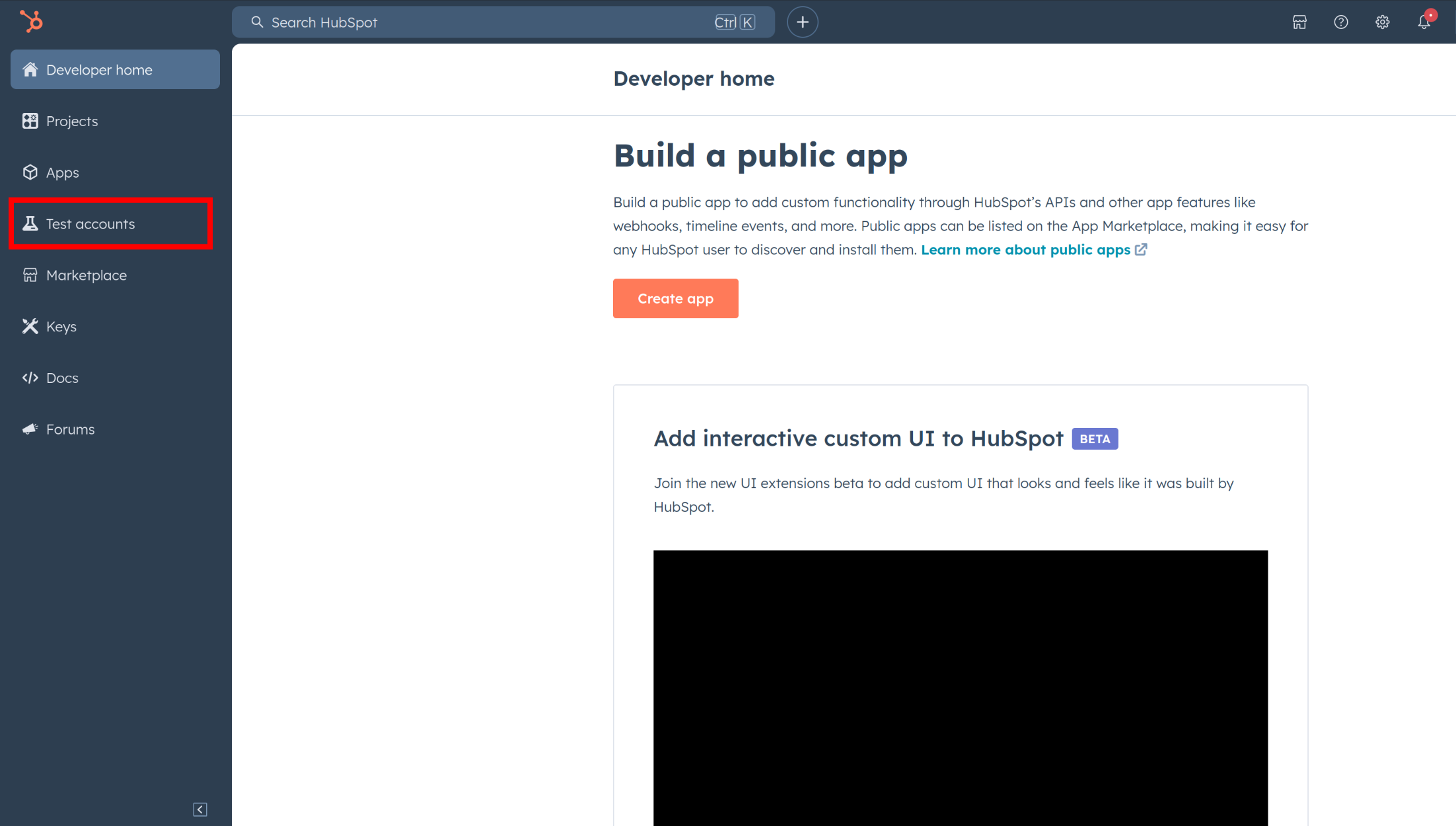
Go to Test Account section from the left sidebar.
-
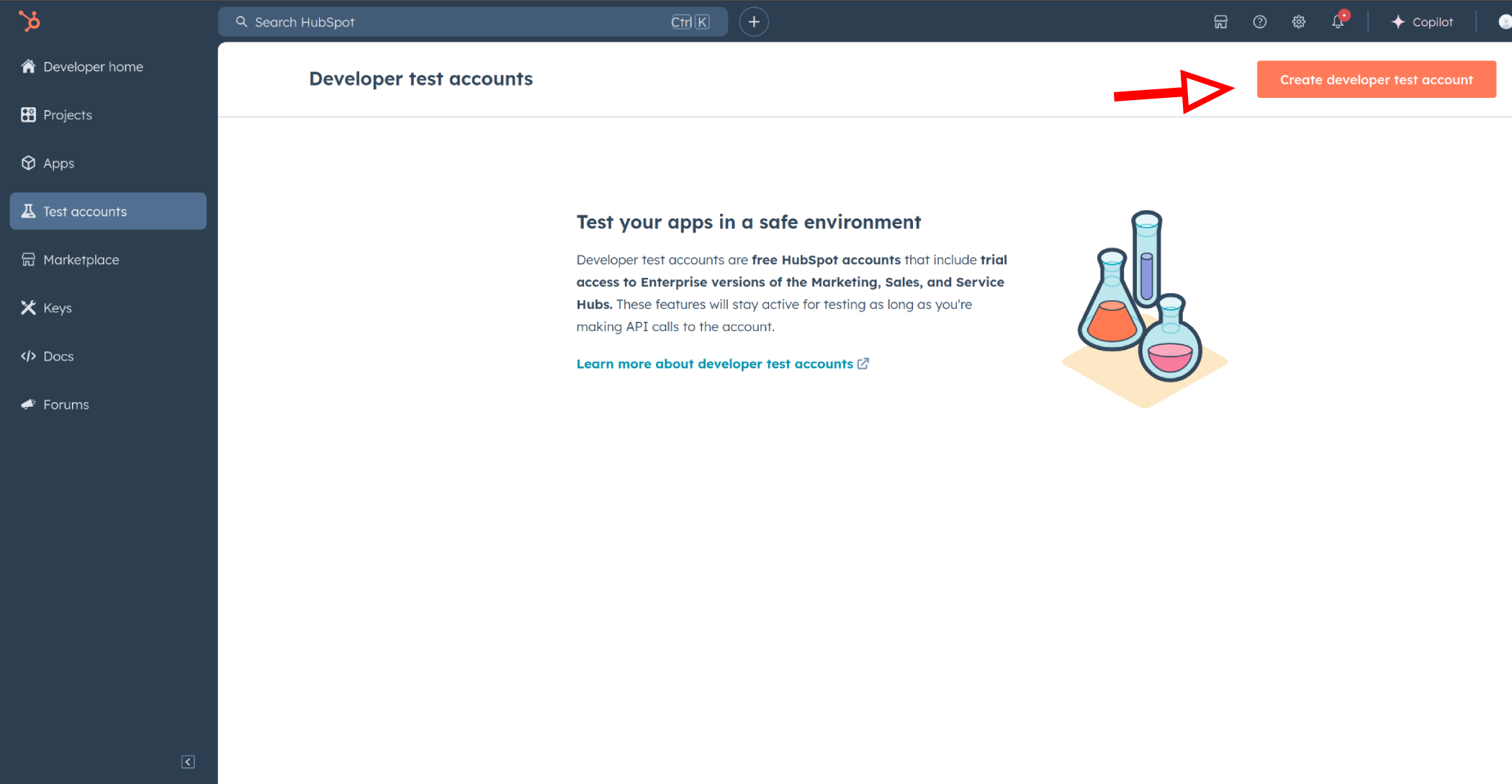
Click Create developer test account.
-
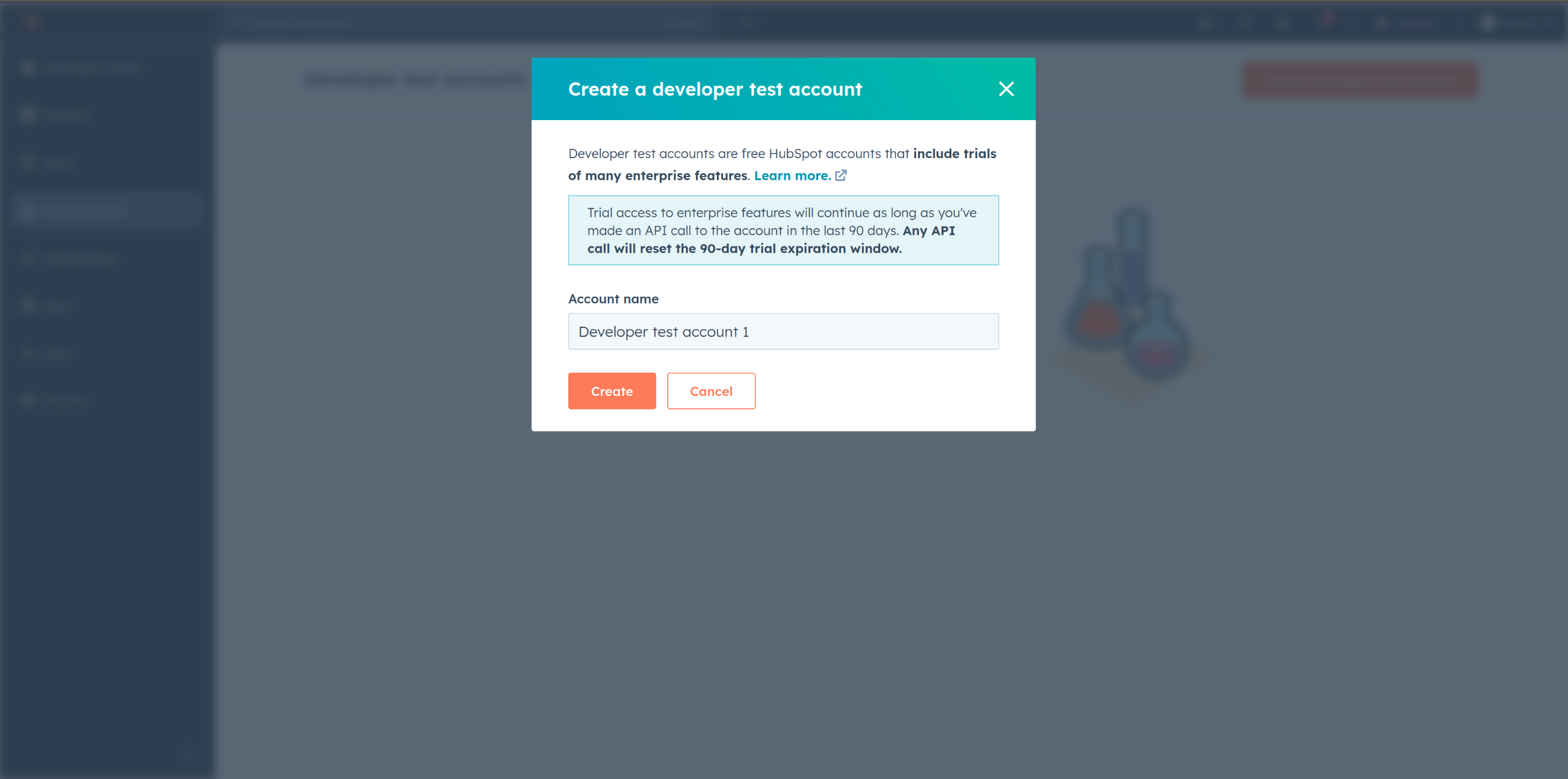
In the dialogue box, give a name to your test account and click create.
Step 3: Create a HubSpot App under your account
-
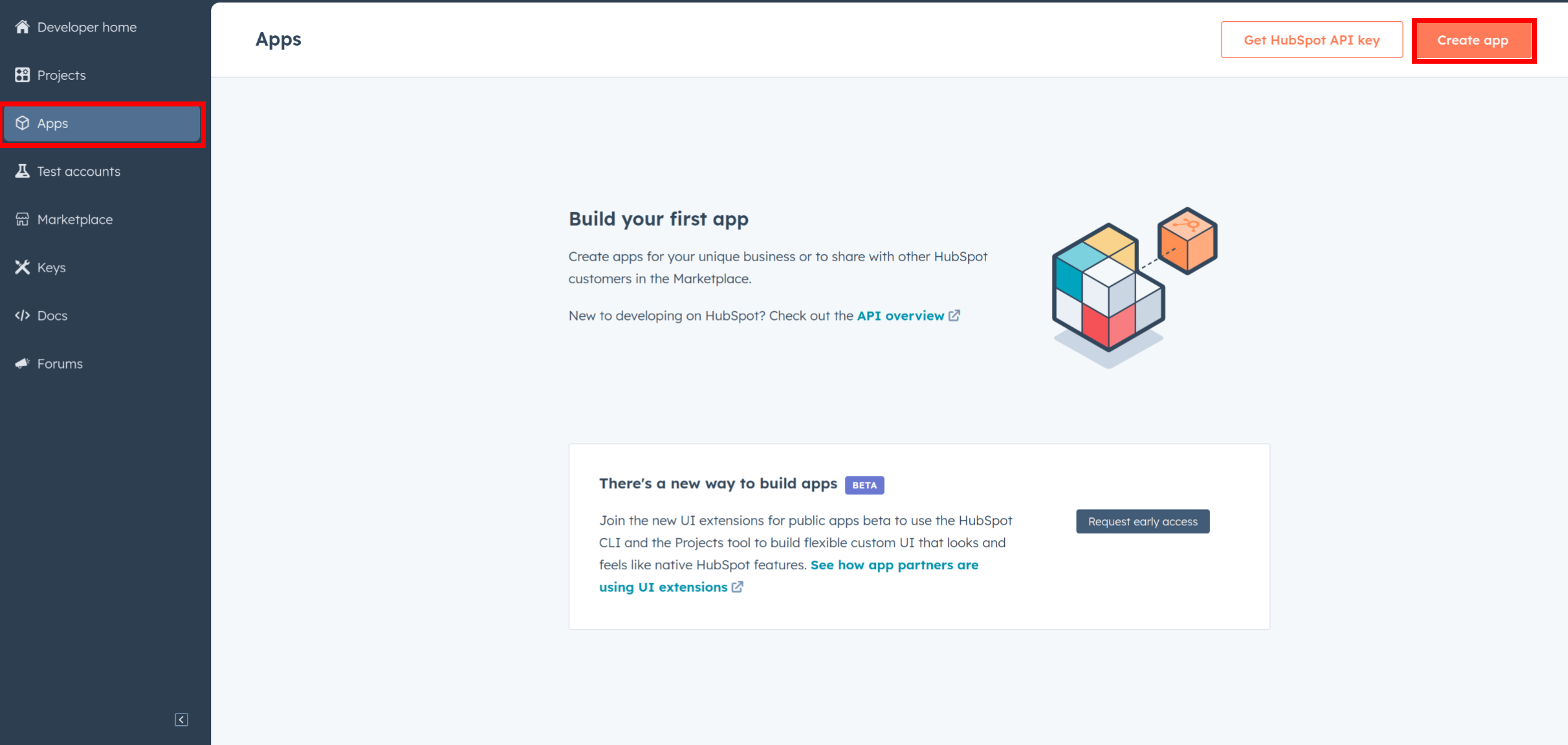
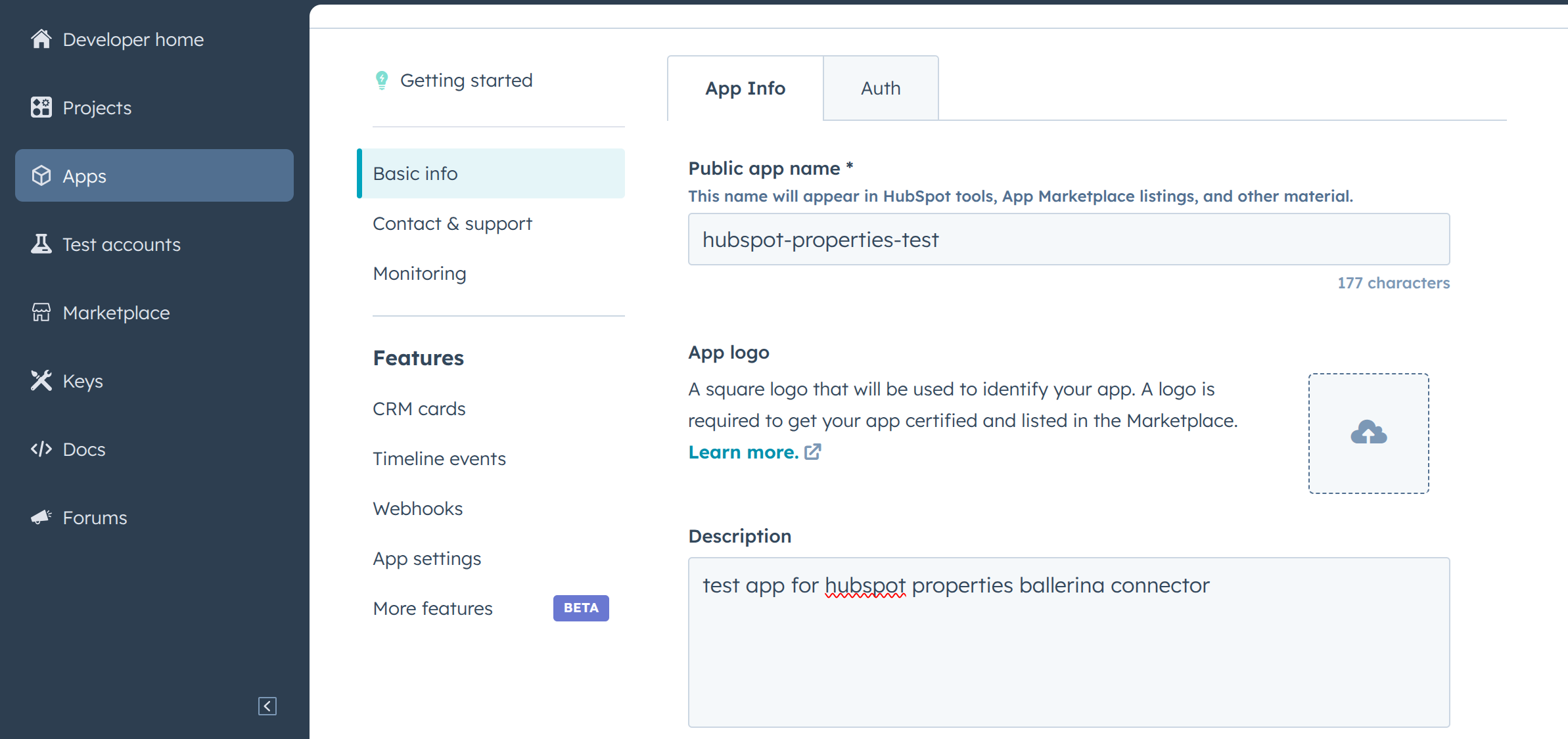
In your developer account, navigate to the "Apps" section. Click on "Create App"
-
Provide the necessary details, including the app name and description.
Step 4: Configure the Authentication Flow
-
Move to the Auth Tab.
-
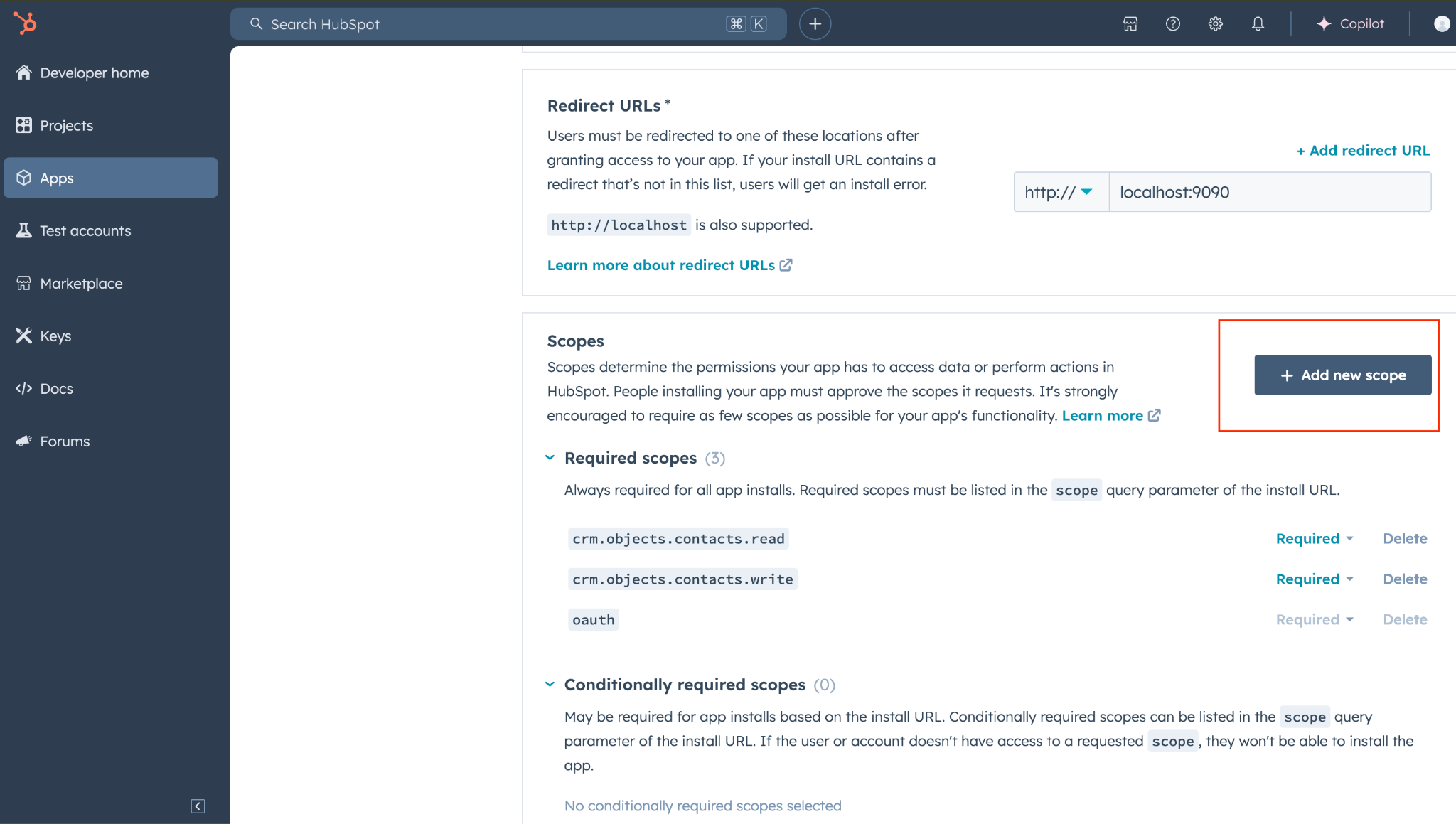
In the Scopes section, add necessary scopes for your app using the "Add new scope" button.
-
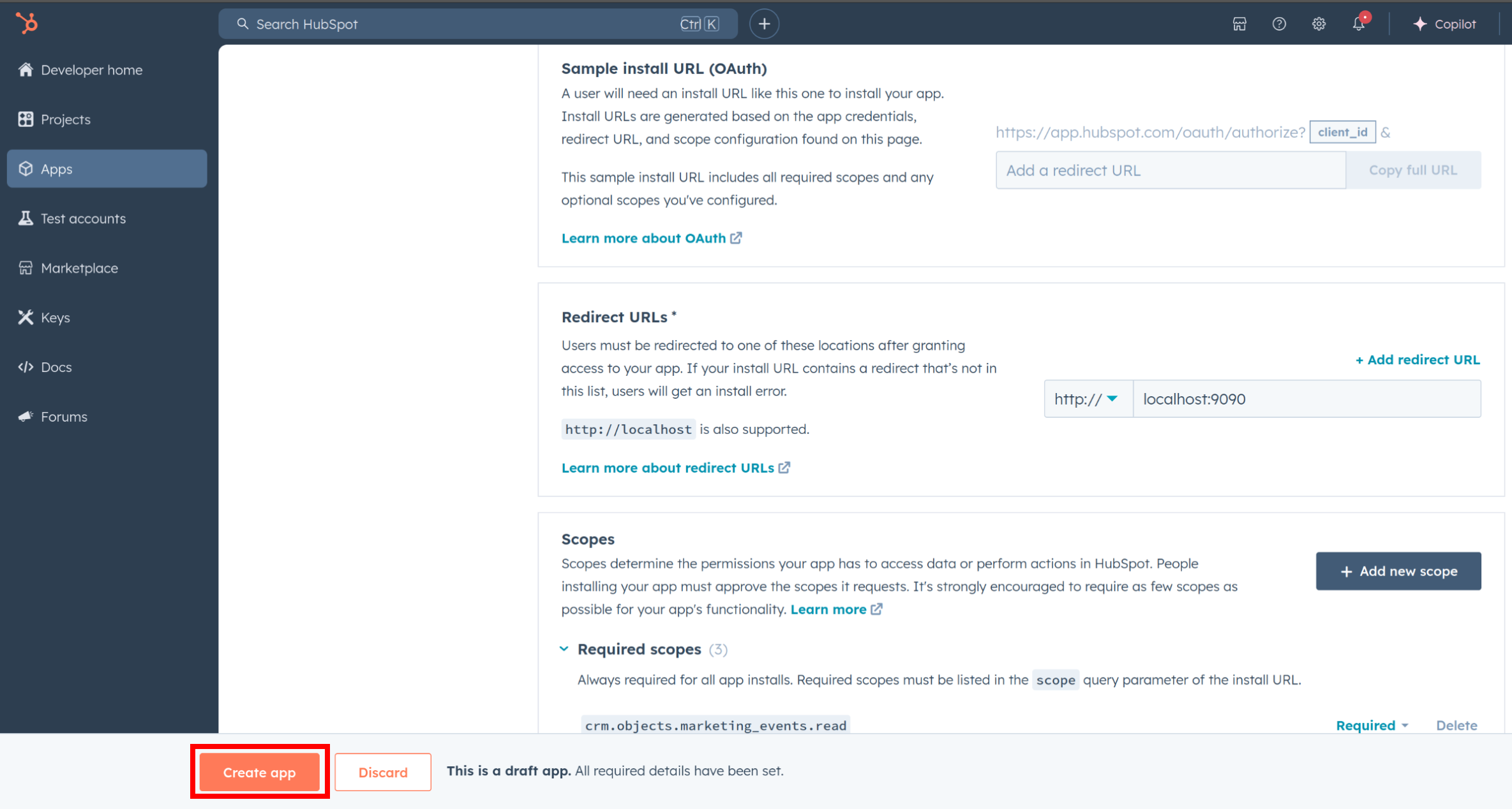
Add your Redirect URI in the relevant section. You can also use localhost addresses for local development purposes. Click Create App.
Step 5: Get your Client ID and Client Secret
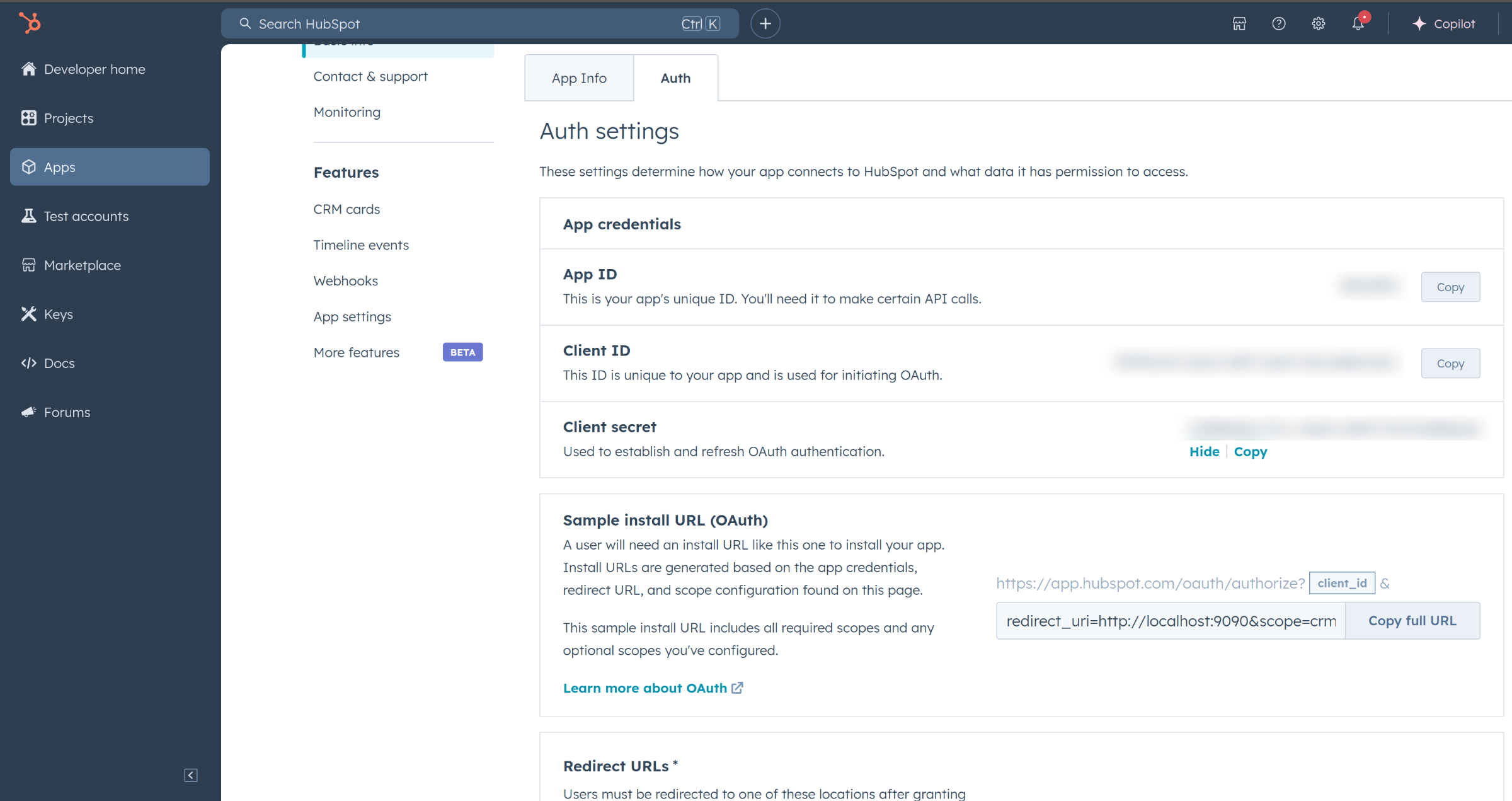
- Navigate to the Auth section of your app. Make sure to save the provided Client ID and Client Secret.
Step 6: Setup Authentication Flow
Before proceeding with the Quickstart, ensure you have obtained the Access Token using the following steps:
-
Create an authorization URL using the following format:
https://app.hubspot.com/oauth/authorize?client_id=<YOUR_CLIENT_ID>&scope=<YOUR_SCOPES>&redirect_uri=<YOUR_REDIRECT_URI>Replace the
<YOUR_CLIENT_ID>,<YOUR_REDIRECT_URI>, and<YOUR_SCOPES>with your specific value. -
Paste it in the browser and select your developer test account to install the app when prompted.
-
A code will be displayed in the browser. Copy the code.
-
Run the following curl command. Replace the
<YOUR_CLIENT_ID>,<YOUR_REDIRECT_URI>, and<YOUR_CLIENT_SECRET>with your specific value. Use the code you received in the above step 3 as the<CODE>.-
Linux/macOS
curl --request POST \ --url https://api.hubapi.com/oauth/v1/token \ --header 'content-type: application/x-www-form-urlencoded' \ --data 'grant_type=authorization_code&code=<CODE>&redirect_uri=<YOUR_REDIRECT_URI>&client_id=<YOUR_CLIENT_ID>&client_secret=<YOUR_CLIENT_SECRET>' -
Windows
curl --request POST ^ --url https://api.hubapi.com/oauth/v1/token ^ --header 'content-type: application/x-www-form-urlencoded' ^ --data 'grant_type=authorization_code&code=<CODE>&redirect_uri=<YOUR_REDIRECT_URI>&client_id=<YOUR_CLIENT_ID>&client_secret=<YOUR_CLIENT_SECRET>'
This command will return the access token necessary for API calls.
{ "token_type": "bearer", "refresh_token": "<Refresh Token>", "access_token": "<Access Token>", "expires_in": 1800 } -
-
Store the access token securely for use in your application.
Quickstart
To use the HubSpot Properties connector in your Ballerina application, update the .bal file as follows:
Step 1: Import the module
Import the hubspot.properties module and oauth2 module.
import ballerinax/hubspot.properties as hsproperties; import ballerina/oauth2;
Step 2: Instantiate a new connector
-
Instantiate a
hsproperties:ConnectionConfigwith the obtained credentials and initialize the connector with it.configurable string clientId = ?; configurable string clientSecret = ?; configurable string refreshToken = ?; final hsproperties:ConnectionConfig config = { auth : { clientId, clientSecret, refreshToken, credentialBearer: oauth2:POST_BODY_BEARER } }; final hsproperties:Client hsproperties = check new (config); -
Create a
Config.tomlfile and, configure the obtained credentials in the above steps as follows:clientId = <Client Id> clientSecret = <Client Secret> refreshToken = <Refresh Token>
Step 3: Invoke the connector operation
Now, utilize the available connector operations. A sample use case is shown below.
Create a Property Group
public function main() returns error? { hsproperties:PropertyGroupCreate propertyGroupInput = { "name": "examplePropertyGroup", "displayOrder": -1, "label": "This is an example Property Group" }; hsproperties:PropertyGroup response = check hubSpotProperties->/[testObjectType]/groups.post(payload = propertyGroupInput); }
Run the Ballerina application
bal run
Examples
The Ballerina HubSpot CRM Properties Connector connector provides practical examples illustrating usage in various scenarios. Explore these examples, covering the following use cases:
Clients
hubspot.crm.properties: Client
All HubSpot objects store data in default and custom properties. These endpoints provide access to read and modify object properties in HubSpot.
Constructor
Gets invoked to initialize the connector.
init (ConnectionConfig config, string serviceUrl)- config ConnectionConfig - The configurations to be used when initializing the
connector
- serviceUrl string "https://api.hubapi.com/crm/v3/properties" - URL of the target service
post [string objectType]/batch/archive
function post [string objectType]/batch/archive(BatchInputPropertyName payload, map<string|string[]> headers) returns error?Archive a batch of properties
Parameters
- payload BatchInputPropertyName -
Return Type
- error? - No content
get [string objectType]/groups/[string groupName]
function get [string objectType]/groups/[string groupName](map<string|string[]> headers) returns PropertyGroup|errorRead a property group
Return Type
- PropertyGroup|error - successful operation
delete [string objectType]/groups/[string groupName]
function delete [string objectType]/groups/[string groupName](map<string|string[]> headers) returns error?Archive a property group
Return Type
- error? - No content
patch [string objectType]/groups/[string groupName]
function patch [string objectType]/groups/[string groupName](PropertyGroupUpdate payload, map<string|string[]> headers) returns PropertyGroup|errorUpdate a property group
Parameters
- payload PropertyGroupUpdate -
Return Type
- PropertyGroup|error - successful operation
get [string objectType]/[string propertyName]
function get [string objectType]/[string propertyName](map<string|string[]> headers, *GetCrmV3PropertiesObjectTypePropertyNameGetByNameQueries queries) returns Property|errorRead a property
Parameters
- queries *GetCrmV3PropertiesObjectTypePropertyNameGetByNameQueries - Queries to be sent with the request
delete [string objectType]/[string propertyName]
function delete [string objectType]/[string propertyName](map<string|string[]> headers) returns error?Archive a property
Return Type
- error? - No content
patch [string objectType]/[string propertyName]
function patch [string objectType]/[string propertyName](PropertyUpdate payload, map<string|string[]> headers) returns Property|errorUpdate a property
Parameters
- payload PropertyUpdate -
post [string objectType]/batch/read
function post [string objectType]/batch/read(BatchReadInputPropertyName payload, map<string|string[]> headers) returns BatchResponseProperty|BatchResponsePropertyWithErrors|errorRead a batch of properties
Parameters
- payload BatchReadInputPropertyName -
Return Type
- BatchResponseProperty|BatchResponsePropertyWithErrors|error - successful operation
post [string objectType]/batch/create
function post [string objectType]/batch/create(BatchInputPropertyCreate payload, map<string|string[]> headers) returns BatchResponseProperty|BatchResponsePropertyWithErrors|errorCreate a batch of properties
Parameters
- payload BatchInputPropertyCreate -
Return Type
- BatchResponseProperty|BatchResponsePropertyWithErrors|error - successful operation
get [string objectType]
function get [string objectType](map<string|string[]> headers, *GetCrmV3PropertiesObjectTypeGetAllQueries queries) returns CollectionResponsePropertyNoPaging|errorRead all properties
Parameters
- queries *GetCrmV3PropertiesObjectTypeGetAllQueries - Queries to be sent with the request
Return Type
- CollectionResponsePropertyNoPaging|error - successful operation
post [string objectType]
function post [string objectType](PropertyCreate payload, map<string|string[]> headers) returns Property|errorCreate a property
Parameters
- payload PropertyCreate -
post [string objectType]/groups
function post [string objectType]/groups(PropertyGroupCreate payload, map<string|string[]> headers) returns PropertyGroup|errorCreate a property group
Parameters
- payload PropertyGroupCreate -
Return Type
- PropertyGroup|error - successful operation
Records
hubspot.crm.properties: ApiKeysConfig
Provides API key configurations needed when communicating with a remote HTTP endpoint.
Fields
- privateAppLegacy string -
- privateApp string -
hubspot.crm.properties: BatchInputPropertyCreate
Fields
- inputs PropertyCreate[] -
hubspot.crm.properties: BatchInputPropertyName
Fields
- inputs PropertyName[] -
hubspot.crm.properties: BatchReadInputPropertyName
Fields
- archived boolean -
- inputs PropertyName[] -
hubspot.crm.properties: BatchResponseProperty
Fields
- completedAt string -
- requestedAt? string -
- startedAt string -
- links? record { string... } -
- results Property[] -
- status "PENDING"|"PROCESSING"|"CANCELED"|"COMPLETE" -
hubspot.crm.properties: BatchResponsePropertyWithErrors
Fields
- completedAt string -
- numErrors? Signed32 -
- requestedAt? string -
- startedAt string -
- links? record { string... } -
- results Property[] -
- errors? StandardError[] -
- status "PENDING"|"PROCESSING"|"CANCELED"|"COMPLETE" -
hubspot.crm.properties: CollectionResponsePropertyNoPaging
Fields
- results Property[] -
hubspot.crm.properties: ConnectionConfig
Provides a set of configurations for controlling the behaviours when communicating with a remote HTTP endpoint.
Fields
- auth BearerTokenConfig|OAuth2RefreshTokenGrantConfig|ApiKeysConfig - Provides Auth configurations needed when communicating with a remote HTTP endpoint.
- httpVersion HttpVersion(default http:HTTP_2_0) - The HTTP version understood by the client
- http1Settings ClientHttp1Settings(default {}) - Configurations related to HTTP/1.x protocol
- http2Settings ClientHttp2Settings(default {}) - Configurations related to HTTP/2 protocol
- timeout decimal(default 30) - The maximum time to wait (in seconds) for a response before closing the connection
- forwarded string(default "disable") - The choice of setting
forwarded/x-forwardedheader
- followRedirects? FollowRedirects - Configurations associated with Redirection
- poolConfig? PoolConfiguration - Configurations associated with request pooling
- cache CacheConfig(default {}) - HTTP caching related configurations
- compression Compression(default http:COMPRESSION_AUTO) - Specifies the way of handling compression (
accept-encoding) header
- circuitBreaker? CircuitBreakerConfig - Configurations associated with the behaviour of the Circuit Breaker
- retryConfig? RetryConfig - Configurations associated with retrying
- responseLimits ResponseLimitConfigs(default {}) - Configurations associated with inbound response size limits
- secureSocket? ClientSecureSocket - SSL/TLS-related options
- proxy? ProxyConfig - Proxy server related options
- socketConfig ClientSocketConfig(default {}) - Provides settings related to client socket configuration
- validation boolean(default true) - Enables the inbound payload validation functionality which provided by the constraint package. Enabled by default
- laxDataBinding boolean(default true) - Enables relaxed data binding on the client side. When enabled,
nilvalues are treated as optional, and absent fields are handled asnilabletypes. Enabled by default.
hubspot.crm.properties: ErrorDetail
Fields
- subCategory? string - A specific category that contains more specific detail about the error
- code? string - The status code associated with the error detail
- 'in? string - The name of the field or parameter in which the error was found
- context? record { string[]... } - Context about the error condition
- message string - A human readable message describing the error along with remediation steps where appropriate
hubspot.crm.properties: GetCrmV3PropertiesObjectTypeGetAllQueries
Represents the Queries record for the operation: get-/crm/v3/properties/{objectType}_getAll
Fields
- archived boolean(default false) - Whether to return only results that have been archived
- properties? string -
hubspot.crm.properties: GetCrmV3PropertiesObjectTypePropertyNameGetByNameQueries
Represents the Queries record for the operation: get-/crm/v3/properties/{objectType}/{propertyName}_getByName
Fields
- archived boolean(default false) - Whether to return only results that have been archived
- properties? string -
hubspot.crm.properties: OAuth2RefreshTokenGrantConfig
OAuth2 Refresh Token Grant Configs
Fields
- Fields Included from *OAuth2RefreshTokenGrantConfig
- refreshUrl string(default "https://api.hubapi.com/oauth/v1/token") - Refresh URL
hubspot.crm.properties: Option
Fields
- displayOrder? Signed32 - Options are displayed in order starting with the lowest positive integer value. Values of -1 will cause the option to be displayed after any positive values
- description? string - A description of the option
- label string - A human-readable option label that will be shown in HubSpot
- value string - The internal value of the option, which must be used when setting the property value through the API
hubspot.crm.properties: OptionInput
Fields
- displayOrder? Signed32 - Options are shown in order starting with the lowest positive integer value. Values of -1 will cause the option to be displayed after any positive values
- description? string - A description of the option
- label string - A human-readable option label that will be shown in HubSpot
- value string - The internal value of the option, which must be used when setting the property value through the API
hubspot.crm.properties: Property
Fields
- createdUserId? string - The internal user ID of the user who created the property in HubSpot. This field may not exist if the property was created outside of HubSpot
- modificationMetadata? PropertyModificationMetadata -
- displayOrder? Signed32 - Properties are shown in order, starting with the lowest positive integer value
- description string - A description of the property that will be shown as help text in HubSpot
- showCurrencySymbol? boolean - Whether or not the property will display the currency symbol set in the account settings
- label string - A human-readable property label that will be shown in HubSpot
- 'type string - The property data type
- hubspotDefined? boolean - This will be true for default object properties built into HubSpot
- formField? boolean - Whether or not the property can be used in a HubSpot form
- createdAt? string -
- archivedAt? string - When the property was archived
- archived? boolean - Whether or not the property is archived
- groupName string - The name of the property group the property belongs to
- referencedObjectType? string - If this property is related to other object(s), they'll be listed here
- name string - The internal property name, which must be used when referencing the property via the API
- options Option[] - A list of valid options for the property. This field is required for enumerated properties, but will be empty for other property types
- calculationFormula? string - Represents a formula that is used to compute a calculated property
- hasUniqueValue? boolean - Whether or not the property's value must be unique. Once set, this can't be changed
- fieldType string - Controls how the property appears in HubSpot
- updatedUserId? string - The internal user ID of the user who updated the property in HubSpot. This field may not exist if the property was updated outside of HubSpot
- calculated? boolean - For default properties, true indicates that the property is calculated by a HubSpot process. It has no effect for custom properties
- externalOptions? boolean - For default properties, true indicates that the options are stored externally to the property settings
- updatedAt? string -
hubspot.crm.properties: PropertyCreate
Fields
- displayOrder? Signed32 - Properties are displayed in order starting with the lowest positive integer value. Values of -1 will cause the property to be displayed after any positive values
- description? string - A description of the property that will be shown as help text in HubSpot
- label string - A human-readable property label that will be shown in HubSpot
- 'type "string"|"number"|"date"|"datetime"|"enumeration"|"bool" - The data type of the property
- formField? boolean - Whether or not the property can be used in a HubSpot form
- groupName string - The name of the property group the property belongs to
- referencedObjectType? string - Should be set to 'OWNER' when 'externalOptions' is true, which causes the property to dynamically pull option values from the current HubSpot users
- name string - The internal property name, which must be used when referencing the property via the API
- options? OptionInput[] - A list of valid options for the property. This field is required for enumerated properties
- calculationFormula? string - Represents a formula that is used to compute a calculated property
- hasUniqueValue? boolean - Whether or not the property's value must be unique. Once set, this can't be changed
- fieldType "textarea"|"text"|"date"|"file"|"number"|"select"|"radio"|"checkbox"|"booleancheckbox"|"calculation_equation" - Controls how the property appears in HubSpot
- externalOptions? boolean - Applicable only for 'enumeration' type properties. Should be set to true in conjunction with a 'referencedObjectType' of 'OWNER'. Otherwise false
hubspot.crm.properties: PropertyGroup
An ID for a group of properties
Fields
- archived boolean -
- name string - The internal property group name, which must be used when referencing the property group via the API
- displayOrder Signed32 - Property groups are displayed in order starting with the lowest positive integer value. Values of -1 will cause the property group to be displayed after any positive values
- label string - A human-readable label that will be shown in HubSpot
hubspot.crm.properties: PropertyGroupCreate
Fields
- name string - The internal property group name, which must be used when referencing the property group via the API
- displayOrder? Signed32 - Property groups are displayed in order starting with the lowest positive integer value. Values of -1 will cause the property group to be displayed after any positive values
- label string - A human-readable label that will be shown in HubSpot
hubspot.crm.properties: PropertyGroupUpdate
Fields
- displayOrder? Signed32 - Property groups are displayed in order starting with the lowest positive integer value. Values of -1 will cause the property group to be displayed after any positive values
- label? string - A human-readable label that will be shown in HubSpot
hubspot.crm.properties: PropertyModificationMetadata
Fields
- readOnlyOptions? boolean -
- readOnlyValue boolean -
- readOnlyDefinition boolean -
- archivable boolean -
hubspot.crm.properties: PropertyName
Fields
- name string - The name of the property to read or modify
hubspot.crm.properties: PropertyUpdate
Fields
- groupName? string - The name of the property group the property belongs to
- options? OptionInput[] - A list of valid options for the property
- displayOrder? Signed32 - Properties are displayed in order starting with the lowest positive integer value. Values of -1 will cause the Property to be displayed after any positive values
- description? string - A description of the property that will be shown as help text in HubSpot
- calculationFormula? string - Represents a formula that is used to compute a calculated property
- label? string - A human-readable property label that will be shown in HubSpot
- 'type? "string"|"number"|"date"|"datetime"|"enumeration"|"bool" - The data type of the property
- fieldType? "textarea"|"text"|"date"|"file"|"number"|"select"|"radio"|"checkbox"|"booleancheckbox"|"calculation_equation" - Controls how the property appears in HubSpot
- formField? boolean - Whether or not the property can be used in a HubSpot form
hubspot.crm.properties: StandardError
Fields
- subCategory? record {} -
- context record { string[]... } -
- links record { string... } -
- id? string -
- category string -
- message string -
- errors ErrorDetail[] -
- status string -