Module googleapis.chat

ballerinax/googleapis.chat Ballerina library
Overview
Google Chat is a communication platform from Google, designed for teams and businesses as part of Google Workspace.
The ballerinax/googleapis.chat package provides both:
- A REST client (
chat:Client) for the Google Chat API — create spaces, send messages, manage memberships, upload attachments, etc. - A webhook listener (
chat:Listener) that receives Google Chat interaction events (messages, slash commands, card clicks, dialog submissions, app-home opens) over HTTP and dispatches them to typedremote functions on achat:ChatService.
The listener runs as a plain HTTPS endpoint that Google Chat POSTs events to directly. It supports three authentication mechanisms: service account (recommended for bots), OAuth 2.0 (for user-scoped actions such as attachment uploads), and short-lived bearer tokens (for quick tests).
Setup guide
To use the Google Chat connector, you must have access to the Google Chat API through a Google Cloud Platform (GCP) account with a project under it. If you do not have a GCP account, you can sign up for one here.
Step 1: Create a Google Cloud Platform project
-
Open the Google Cloud Platform Console.
-
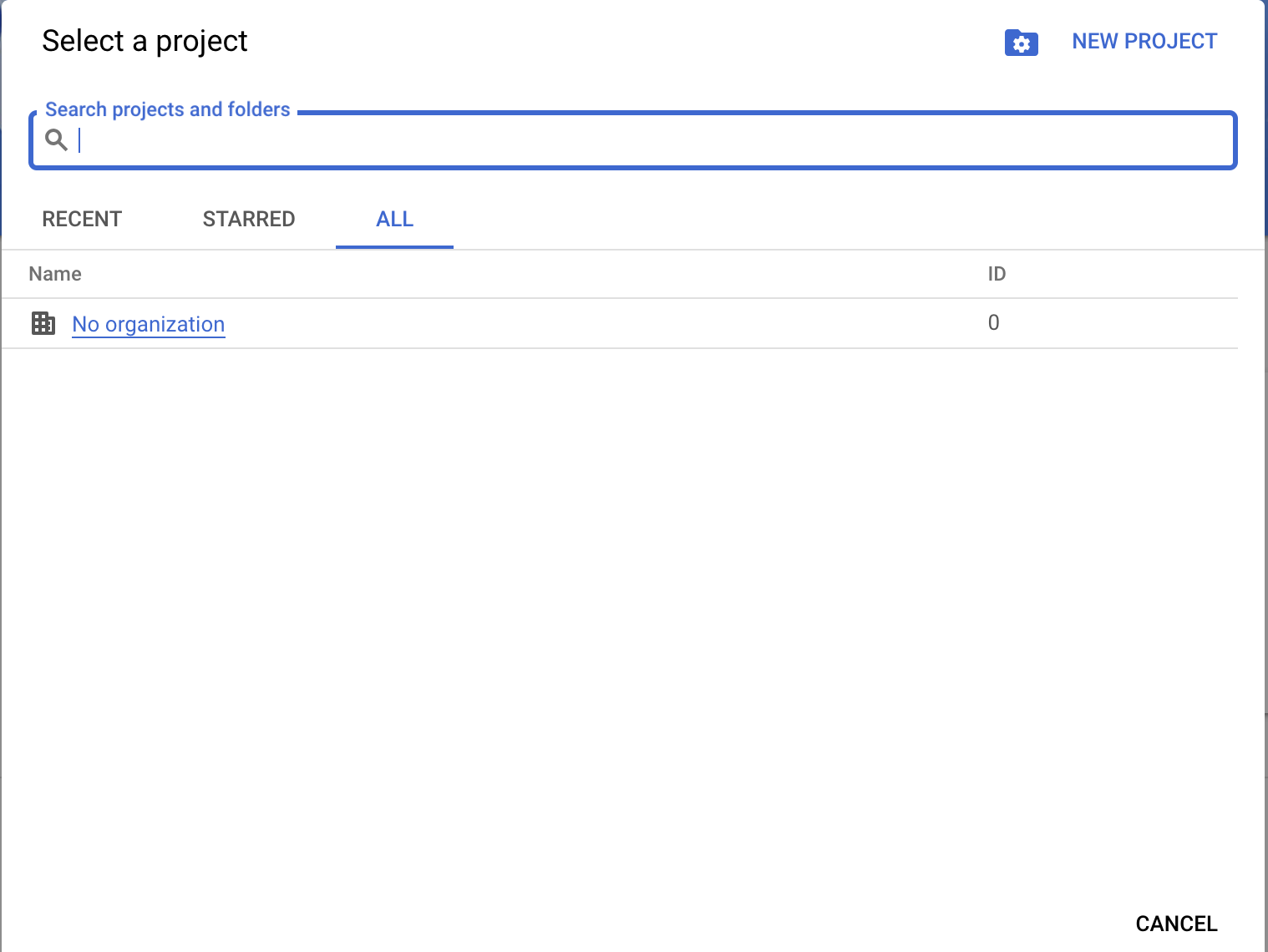
Click the project drop-down menu and select an existing project, or create a new one for your Chat app.
Step 2: Enable the Google Chat API
-
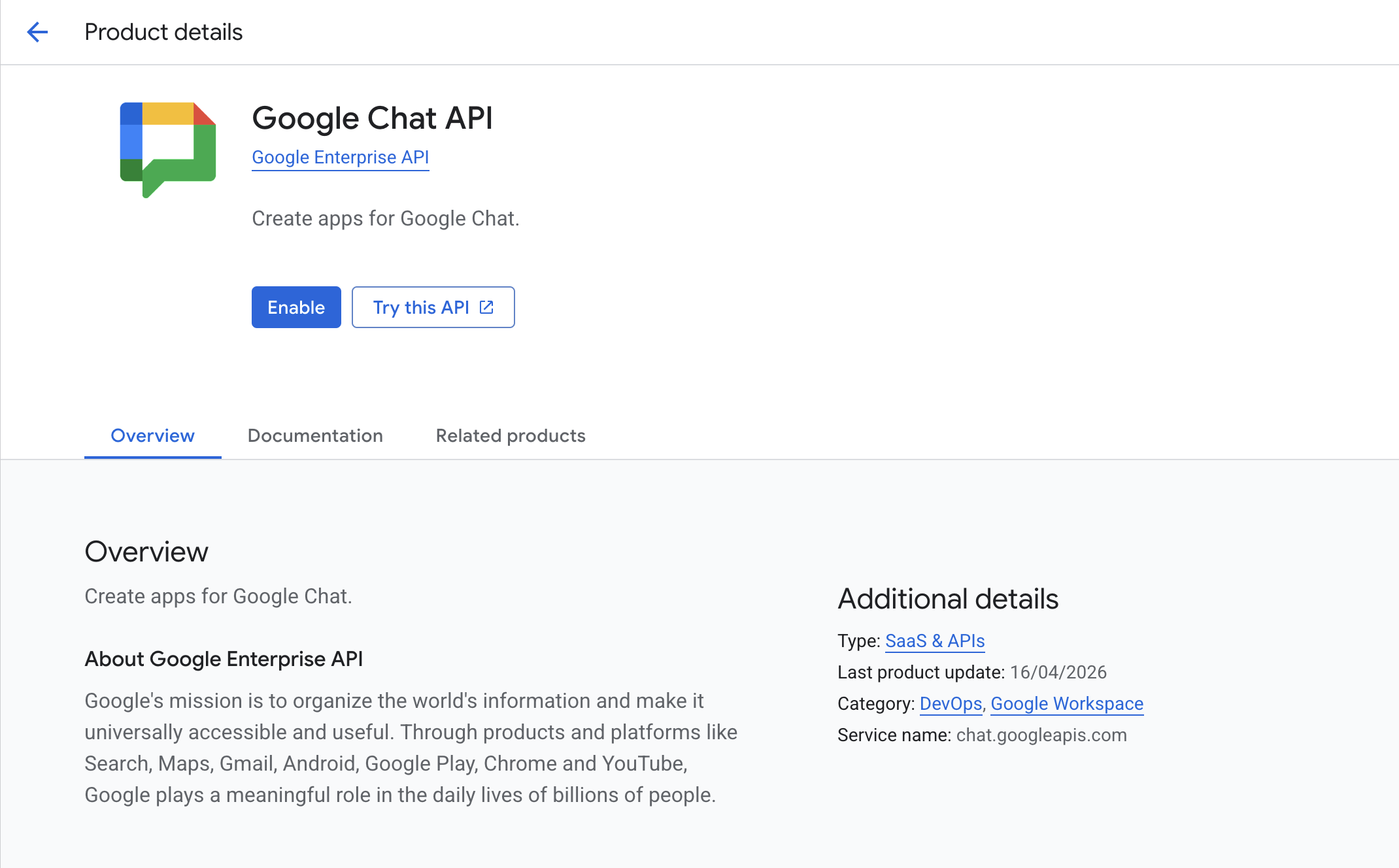
Navigate to APIs & Services → Library and enable the Google Chat API.
Step 3: Expose your local listener (development)
Google Chat must reach the listener over a public HTTPS URL. For local development the easiest option is ngrok:
ngrok http 8000
Copy the https://<sub>.ngrok-free.app URL it prints — you will use this both in the next step and as the listener's endpointUrl in code.
For production, deploy the listener behind any HTTPS-terminating load balancer or reverse proxy; what matters is that Google Chat can reach a stable HTTPS URL.
Step 4: Configure the Chat app
-
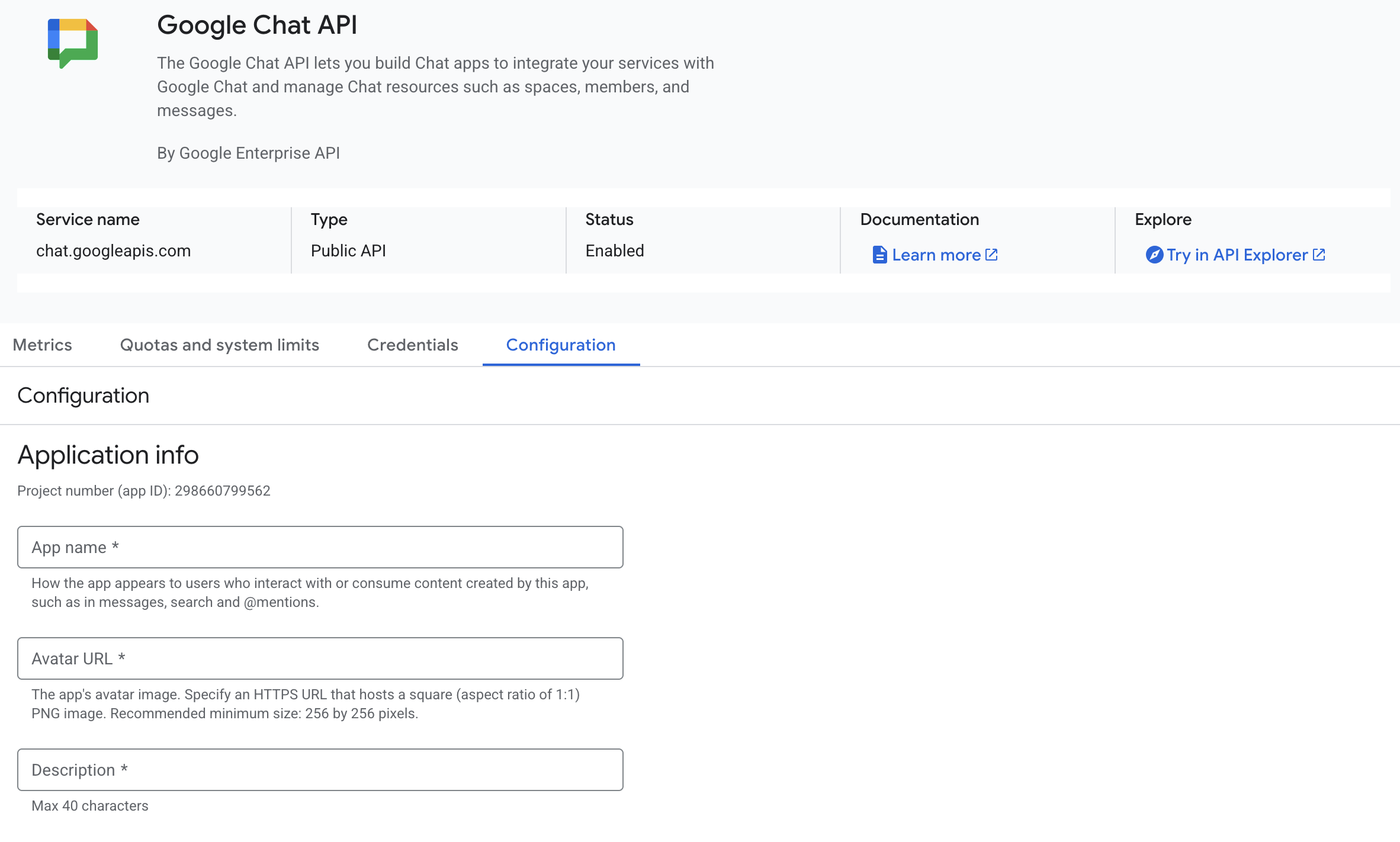
In the Google Cloud Console, open the Google Chat API page and select the Configuration tab.
-
Provide the App name, Avatar URL and Description.
-
Make sure "Build this Chat app as a Workspace add-on" is unchecked — this connector handles interaction events directly over HTTP, not as a Workspace add-on.
-
Under Interactive features, enable the features your app needs (receive 1:1 messages, join spaces, slash commands, etc.).
-
Under Connection settings, choose HTTP endpoint URL and paste the ngrok (or production) HTTPS URL from Step 3.
-
Set Authentication audience to either:
- the same HTTP endpoint URL (use
HttpEndpointUrlConfig/endpointUrlin the listener), or - your Project number (use
ProjectNumberConfig/projectNumberin the listener).
The value you choose here must match what your service annotation declares — the listener uses it to validate the
audclaim of the Google-signed bearer token on every incoming request.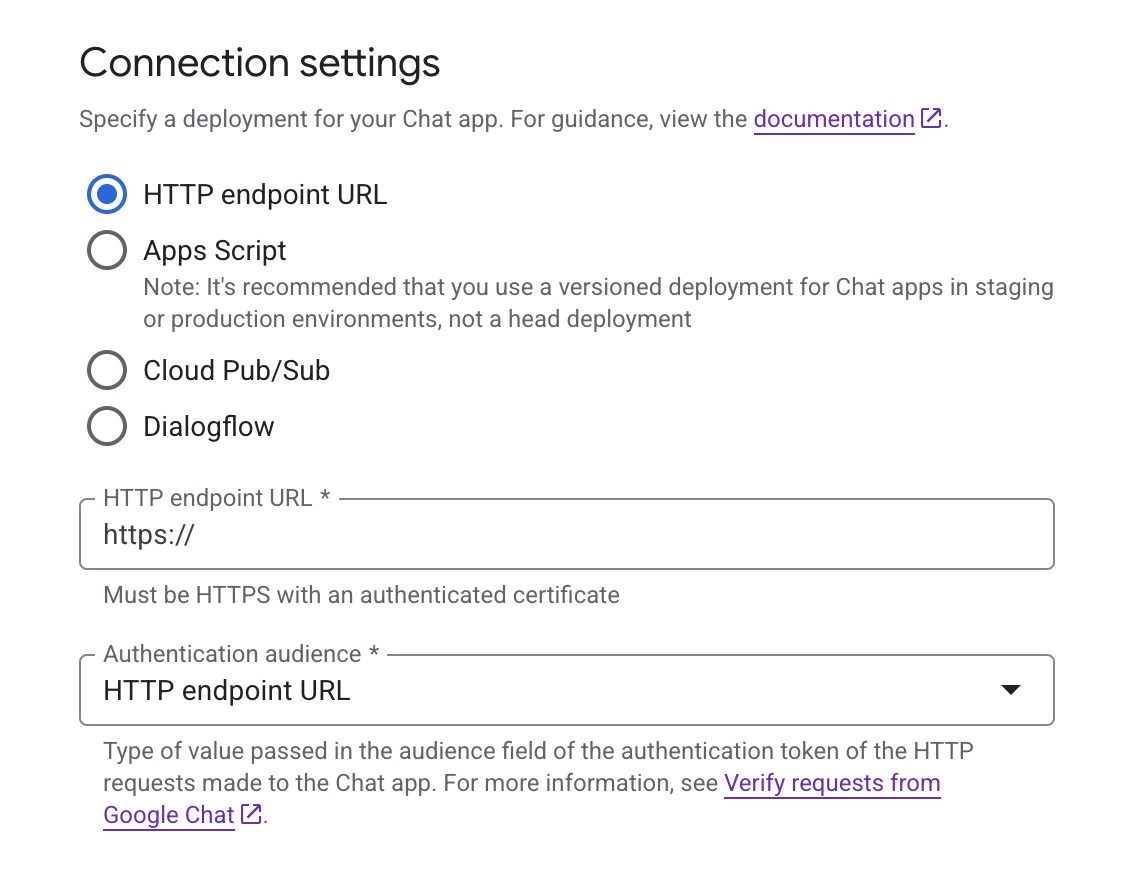
- the same HTTP endpoint URL (use
-
Under Visibility, add the email addresses of users or Google Workspace domains that can install your app.
Step 5: Choose an authentication method
The connector supports three authentication modes. Pick the one that matches your use case.
Option A — Service Account (recommended for bots)
A service account lets your app act as itself — ideal for bots that post messages, manage memberships, or run continuously.
-
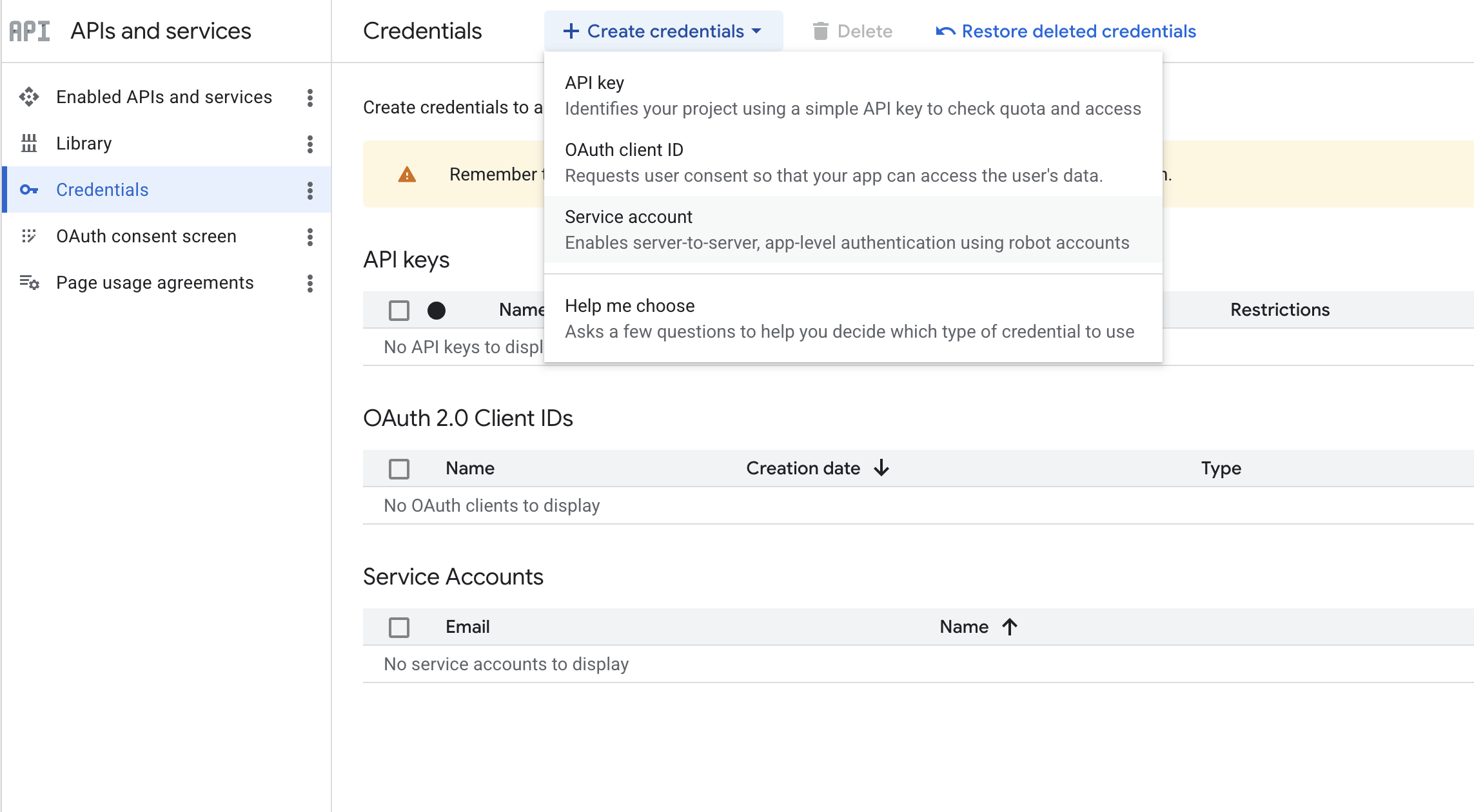
Navigate to APIs & Services → Credentials, open the + Create credentials dropdown, and select Service account.
-
Give it a name, click Done, then open the created service account and go to the Keys tab.
-
Click Add key → Create new key → JSON and save the downloaded JSON file securely. You will reference its path from
Config.toml.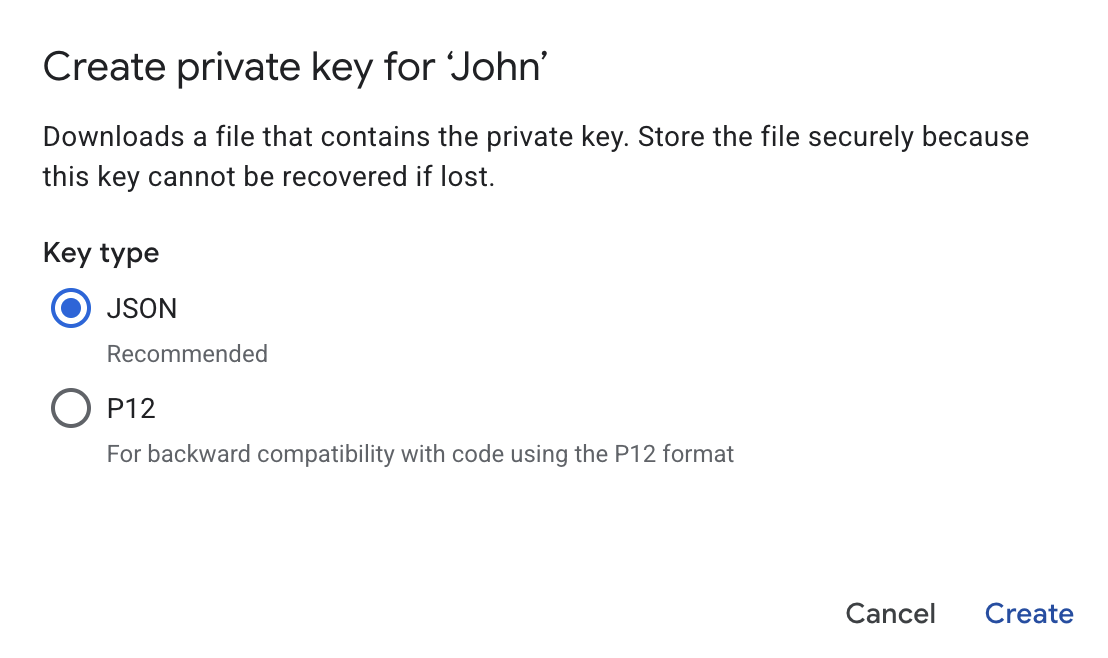
Option B — OAuth 2.0 (for user-scoped actions)
OAuth 2.0 lets your app act on behalf of a signed-in user — required for operations like attachment uploads that need user scopes.
-
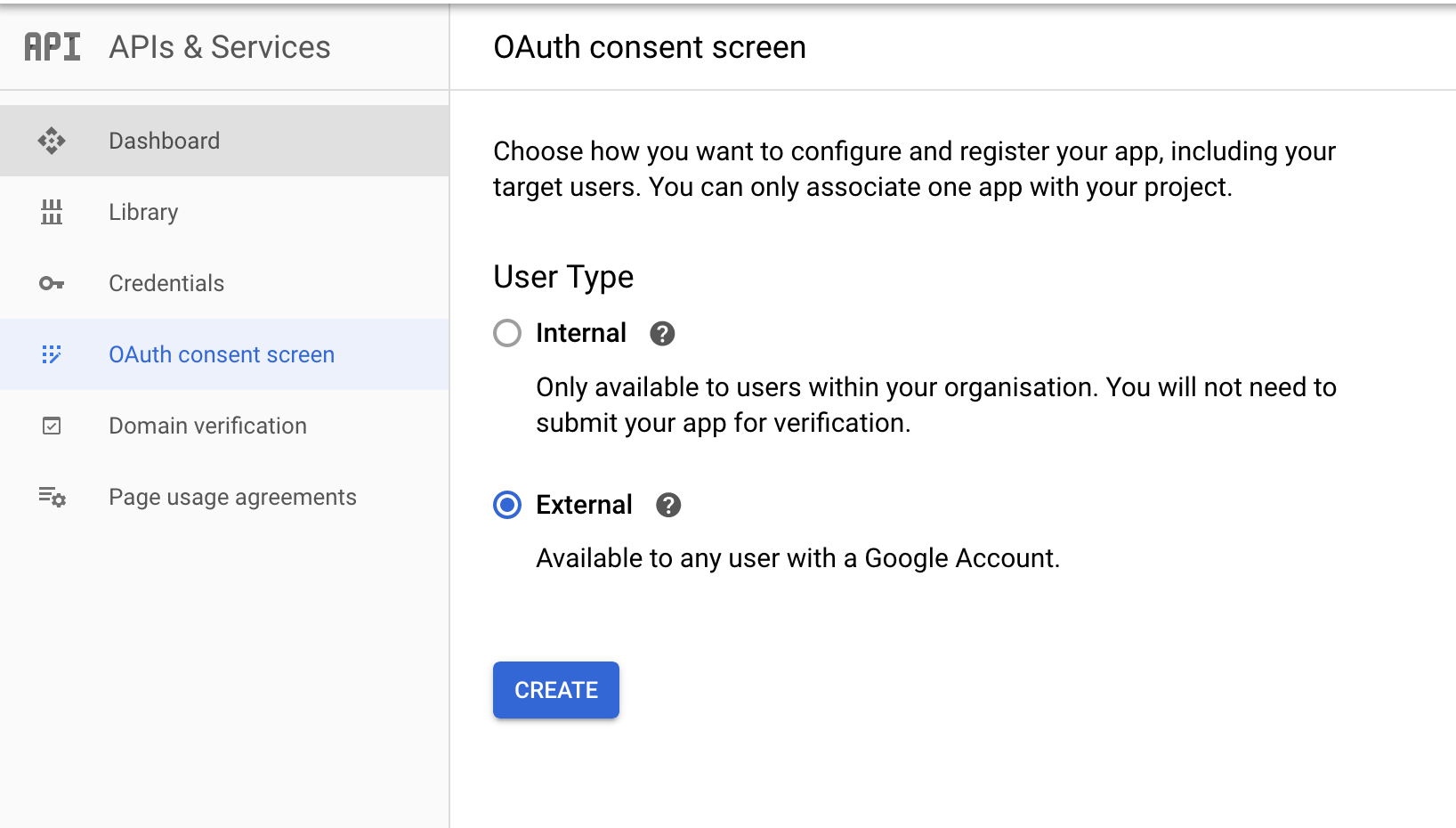
Open APIs & Services → OAuth consent screen and configure your consent screen (provide an app name and support email). You do not need to add scopes here — they are requested at authorisation time in the OAuth Playground.
-
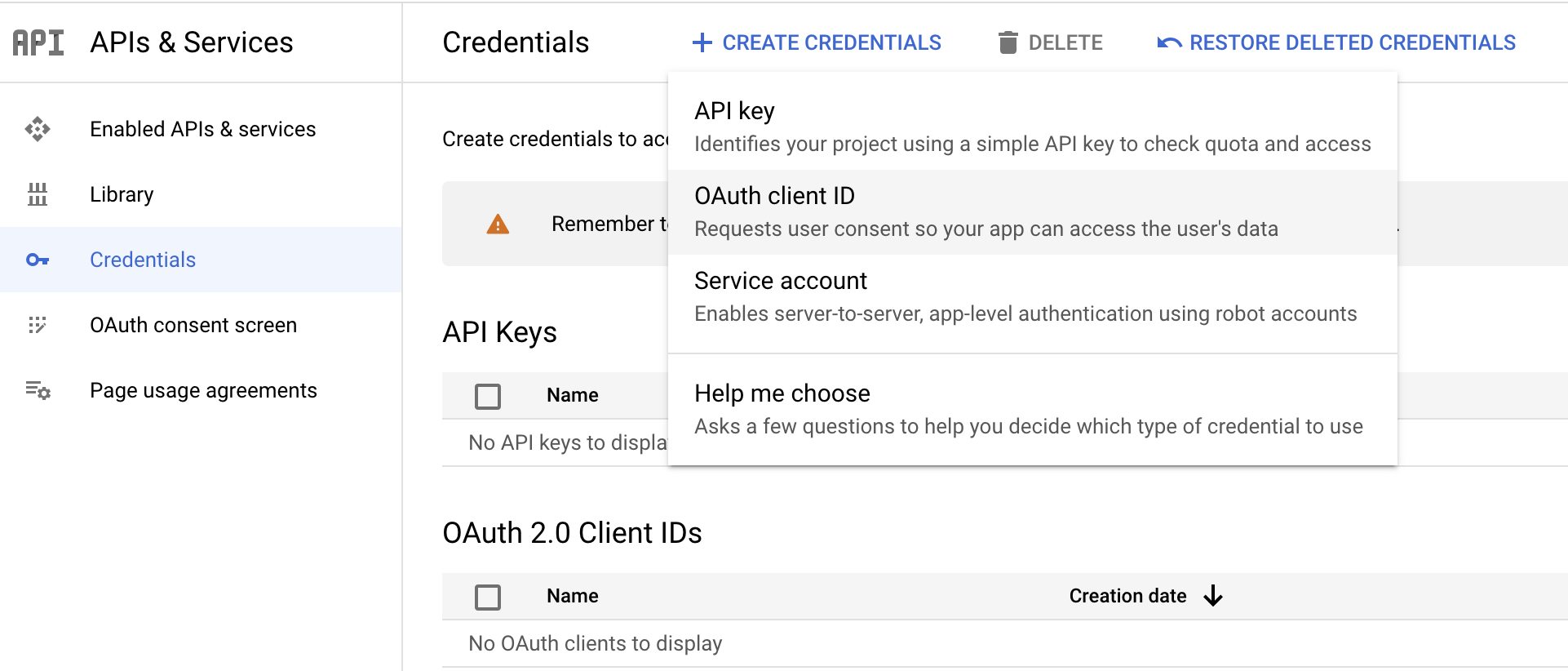
Open APIs & Services → Credentials → Create credentials → OAuth client ID.
-
Fill in the form:
Field Value Application type Web Application Name ChatConnector Authorized Redirect URIs https://developers.google.com/oauthplayground -
Save the Client ID and Client secret.
-
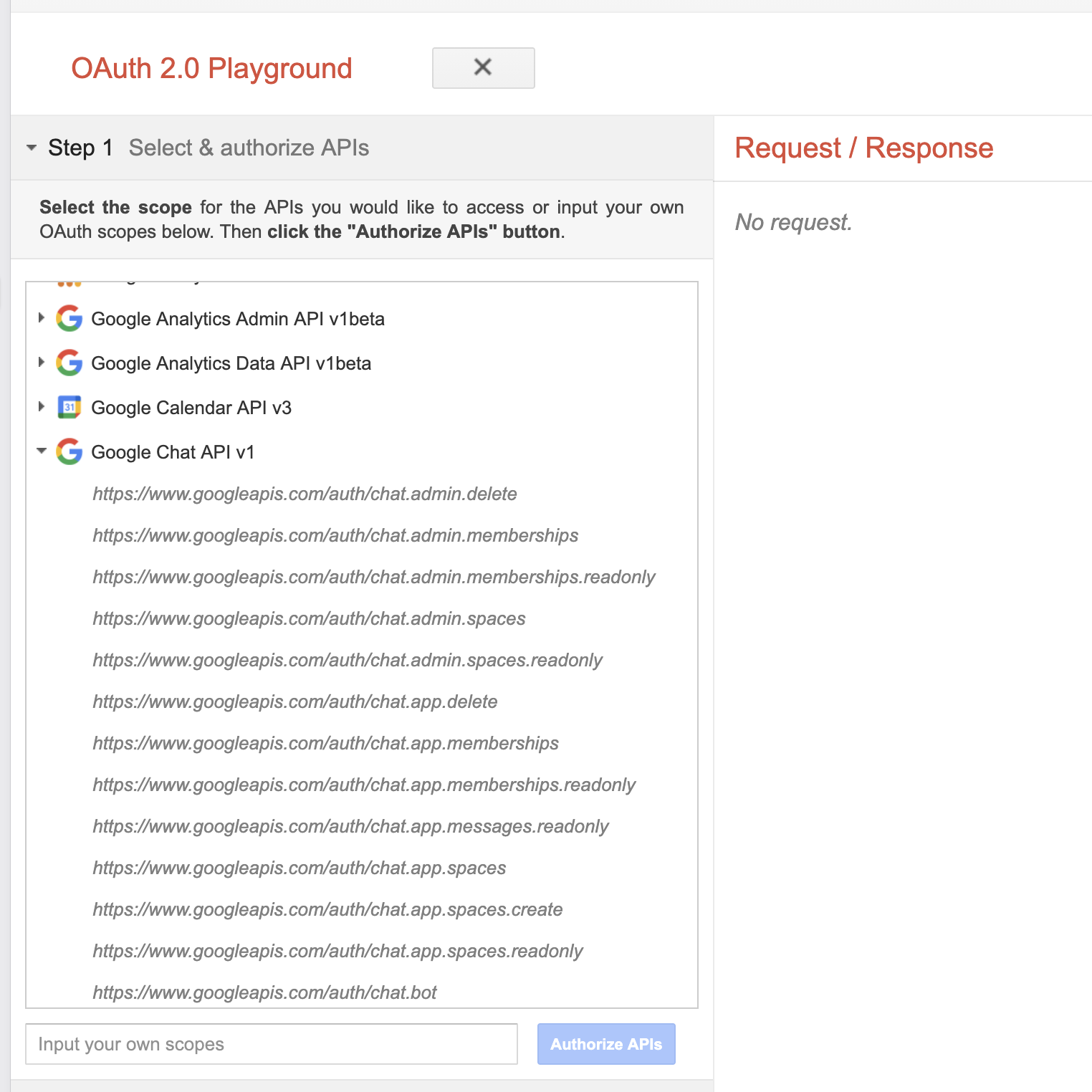
Use the OAuth 2.0 Playground to obtain a refresh token: open the gear icon → "Use your own OAuth credentials" → enter the client ID and secret → authorise the Chat scopes you need → exchange the authorisation code for tokens.
Option C — Bearer token (for quick tests)
For short-lived experiments you can use a Google access token directly:
gcloud auth print-access-token
Note: Google access tokens expire in roughly one hour. Bearer-token auth is best for short-lived processes (CI jobs, scripts, manual tests). For long-running services, use service account or OAuth 2.0 — both auto-refresh tokens.
Quickstart
The connector has two independent entry points — a REST client for calling the Chat API and a listener for handling interaction events. Follow the track that matches your use case.
Client
Use this if your app only calls the Chat REST API (no event handling).
Step 1: Import the module
import ballerinax/googleapis.chat;
Step 2: Initialise a Chat client
Create a chat:ConnectionConfig with the credentials obtained during setup.
configurable chat:OAuth2Config oauthAuth = ?; final chat:Client chatClient = check new ({auth: oauthAuth});
Step 3: Invoke connector operations
// List spaces the app has access to. chat:ListSpacesResponse spaces = check chatClient->/spaces(); // Send a message to a space. chat:Message sent = check chatClient->/spaces/["space-id"]/messages.post({ text: "Hello from Ballerina!" });
Step 4: Run the Ballerina application
bal run
Listener
Use this if your app needs to handle interaction events from Google Chat (messages, card clicks, slash commands, etc.). The listener exposes an HTTP endpoint that Google Chat POSTs events to; it provides an internal Chat API client used by the injected caller — no separate client needed for replies.
Step 1: Import the module
import ballerinax/googleapis.chat;
Step 2: Initialise a Chat listener
listener chat:Listener chatListener = new (8000, { auth: {path: "./service-account-key.json"} }); @chat:ServiceConfig { endpointUrl: "https://<your-subdomain>.ngrok-free.app" } service chat:ChatService on chatListener { remote function onMessage(chat:MessageEvent event, chat:MessageCaller caller) returns error? { check caller->respond({text: "Echo: " + (event.message.text ?: "")}); } }
The endpointUrl must exactly match the HTTP endpoint URL configured in your Chat app (Setup Step 4). The listener uses it to validate the aud claim of the incoming Google-signed bearer token. If you configured the Authentication audience as your project number instead, use projectNumber: "<your-project-number>" in the annotation in place of endpointUrl.
Step 3: Implement handlers
chat:ChatService exposes one optional remote function per Chat event type. Implement only the ones you need:
| Function | Triggered by |
|---|---|
onMessage | A user sends a message, @mentions the app, or invokes a slash command. |
onAddedToSpace | The app is added to a space. |
onRemovedFromSpace | The app is removed from a space. |
onCardClicked | A user clicks a button or interactive element on a card. |
onSubmitForm | A user submits a dialog or form. |
onAppHome | A user opens the app's home page. |
onWidgetUpdated | A widget requests an autocomplete or similar update. |
Each handler receives the event and (optionally) an event-specific caller (chat:MessageCaller, chat:CardClickedCaller, chat:AppHomeCaller, etc.) pre-configured with the event's space context. Use the caller to respond (synchronously, within the event window) or to call Chat APIs asynchronously (sendMessage, updateMessage, etc.).
Step 4: Run the Ballerina application
bal run
In a separate terminal, expose the listener to Google Chat with ngrok (see Setup Step 3):
ngrok http 8000
Examples
The googleapis.chat connector provides practical examples illustrating usage in various scenarios. Explore these examples.
- Echo bot — A minimal Google Chat app that replies to every message with the same text, demonstrating the listener's HTTP delivery mode and replying via the injected
chat:MessageCaller.
Clients
googleapis.chat: AppHomeCaller
Caller for app home events (onAppHome).
The respond method sets the card to display in the app home tab. The caller
automatically wraps the Card in the required RenderActions / pushCard
structure.
Example:
remote function onAppHome(chat:ChatEvent event, chat:AppHomeCaller caller) returns error? { check caller->respond({ sections: [{ widgets: [{ textParagraph: { text: "Welcome to the app home!" } }] }] }); }
respond
Sets the synchronous response with the app home card.
The Card is automatically wrapped in the required response structure:
{ action: { navigations: [{ pushCard: <card> }] } }
Parameters
- card Card (default {}) - The card to display in the app home tab.
Return Type
- error? - An error if respond has already been called
googleapis.chat: CardClickedCaller
Caller for card-clicked events (onCardClicked).
The respond method accepts either a Message (for regular card interactions
including dialogs, card updates, and link preview updates) or a Card (for
card interactions originating from the app home, auto-wrapped in RenderActions).
Example — update a card:
remote function onCardClicked(chat:ChatEvent event, chat:CardClickedCaller caller) returns error? { check caller->respond({ actionResponse: { 'type: chat:UPDATE_MESSAGE }, cardsV2: [{ cardId: "updated", card: { ... } }] }); }
Example — open a dialog:
remote function onCardClicked(chat:ChatEvent event, chat:CardClickedCaller caller) returns error? { check caller->respond({ actionResponse: { 'type: chat:DIALOG, dialogAction: { dialog: { body: myDialogCard } } } }); }
respond
Sets the synchronous response back to Google Chat.
Accepts a Message for regular card interactions (dialogs, card updates,
link preview updates), or a Card for interactions originating from the
app home (auto-wrapped in RenderActions with updateCard navigation).
Return Type
- error? - An error if respond has already been called
sendMessage
function sendMessage(CreateMessageRequest message) returns Message|errorSends a message to the space asynchronously via the Chat API.
Parameters
- message CreateMessageRequest - The message payload to send
updateMessage
function updateMessage(Message message, *UpdateMessageQueries queries) returns Message|errorUpdates a bot-accessible message in the same space.
Parameters
- message Message - The message to update (must have
nameset)
- queries *UpdateMessageQueries - Query parameters such as
updateMaskandallowMissing
deleteMessage
Deletes a bot-accessible message in the same space.
Parameters
- message Message - The message to delete (must have
nameset)
Return Type
- error? - An error if the operation fails
getSpace
Returns details about the space where the event occurred.
googleapis.chat: Client
Google Chat API client. Provides resource-based access to the Google Chat REST API v1 for managing spaces, messages, memberships, reactions, and attachments.
Supports four authentication modes:
- Service Account Record (
ServiceAccountCredentials): For Chat bots with inline service account credentials - Service Account File (
ServiceAccountFileConfig): For Chat bots with a JSON key file path - OAuth2 (
OAuth2Config): For user-authenticated access with auto token refresh - Bearer Token (
http:BearerTokenConfig): For pre-obtained tokens
For service-account auth, the client manages its own access token: it self-signs a JWT assertion, exchanges it at Google's OAuth2 token endpoint, caches the resulting access token, and refreshes it transparently before expiry.
Constructor
Initializes the Google Chat API client.
init (ConnectionConfig config, string serviceUrl)- config ConnectionConfig - Connection configuration with authentication credentials
- serviceUrl string CHAT_API_BASE_URL - Base URL of the Google Chat API. Defaults to v1 endpoint.
downloadMedia
Downloads attachment bytes using the media API.
Pass the exact attachmentDataRef.resourceName value returned by Google Chat.
Treat this value as opaque and do not parse or reconstruct it.
Parameters
- resourceName string - The opaque media resource name from
Attachment.attachmentDataRef.resourceName
Return Type
- byte[]|error - The downloaded media bytes or an error
get spaces
function get spaces(*ListSpacesQueries queries) returns ListSpacesResponse|errorLists spaces the caller is a member of.
Parameters
- queries *ListSpacesQueries - Query parameters for filtering and pagination
Return Type
- ListSpacesResponse|error - A list of spaces or an error
post spaces
Creates a named space (requires user authentication).
Parameters
- payload Space - The space to create
get spaces/[string spaceId]
Returns details about a space.
patch spaces/[string spaceId]
function patch spaces/[string spaceId](Space payload, *UpdateSpaceQueries queries) returns Space|errorUpdates a space.
Parameters
- payload Space - The updated space fields
- queries *UpdateSpaceQueries - Query parameters (updateMask)
delete spaces/[string spaceId]
function delete spaces/[string spaceId]() returns error?Deletes a named space.
Return Type
- error? - An error if the operation fails
get spaces/findDirectMessage
function get spaces/findDirectMessage(*FindDirectMessageQueries queries) returns Space|errorFinds an existing direct message space with a specified user.
Parameters
- queries *FindDirectMessageQueries - Query parameters containing the user's resource name
get spaces/search
function get spaces/search(*SearchSpacesQueries queries) returns SearchSpacesResponse|errorSearches for spaces in a Google Workspace organization (requires admin access).
Returns a paginated list of spaces matching the given query. The caller must
be a Google Workspace administrator with the manage chat and spaces conversations
privilege. Set useAdminAccess to true in the query parameters.
Requires the chat.admin.spaces or chat.admin.spaces.readonly OAuth scope.
Parameters
- queries *SearchSpacesQueries - Query parameters including the required
queryfield and optionaluseAdminAccess,pageSize,pageToken, andorderBy
Return Type
- SearchSpacesResponse|error - A paginated list of matching spaces or an error
post spaces/setup
function post spaces/setup(SetUpSpaceRequest payload) returns Space|errorCreates a space and adds specified users or Google Groups to it.
The calling user is automatically added to the space and should not be specified in the memberships list. Supports creating named spaces, group chats, and direct messages (including DMs with the calling app).
Requires user authentication with the chat.spaces or
chat.spaces.create OAuth scope.
Parameters
- payload SetUpSpaceRequest - The setup request containing the space definition and optional initial memberships and idempotency request ID
post spaces/[string spaceId]/messages
function post spaces/[string spaceId]/messages(CreateMessageRequest payload, *CreateMessageQueries queries) returns Message|errorCreates a message in a Google Chat space.
Parameters
- payload CreateMessageRequest - The message to create
- queries *CreateMessageQueries - Query parameters for threading and idempotency
get spaces/[string spaceId]/messages
function get spaces/[string spaceId]/messages(*ListMessagesQueries queries) returns ListMessagesResponse|errorLists messages in a space.
Parameters
- queries *ListMessagesQueries - Query parameters for filtering, ordering, and pagination
Return Type
- ListMessagesResponse|error - A list of messages or an error
get spaces/[string spaceId]/messages/[string messageId]
Returns details about a message.
patch spaces/[string spaceId]/messages/[string messageId]
function patch spaces/[string spaceId]/messages/[string messageId](UpdateMessageRequest payload, *UpdateMessageQueries queries) returns Message|errorUpdates a message using PATCH. Allows updating the text, cards, and attachments.
Parameters
- payload UpdateMessageRequest - The updated message fields
- queries *UpdateMessageQueries - Query parameters (updateMask, allowMissing)
delete spaces/[string spaceId]/messages/[string messageId]
function delete spaces/[string spaceId]/messages/[string messageId]() returns error?Deletes a message.
Return Type
- error? - An error if the operation fails
post spaces/[string spaceId]/members
function post spaces/[string spaceId]/members(Membership payload) returns Membership|errorCreates a membership (adds a user or Chat app to a space).
Parameters
- payload Membership - The membership to create
Return Type
- Membership|error - The created membership or an error
get spaces/[string spaceId]/members
function get spaces/[string spaceId]/members(*ListMembershipsQueries queries) returns ListMembershipsResponse|errorLists memberships in a space.
Parameters
- queries *ListMembershipsQueries - Query parameters for filtering and pagination
Return Type
- ListMembershipsResponse|error - A list of memberships or an error
get spaces/[string spaceId]/members/[string memberId]
function get spaces/[string spaceId]/members/[string memberId](*GetMembershipQueries queries) returns Membership|errorReturns details about a membership.
Parameters
- queries *GetMembershipQueries - Query parameters (optional
useAdminAccessfor admin privileges)
Return Type
- Membership|error - The membership or an error
patch spaces/[string spaceId]/members/[string memberId]
function patch spaces/[string spaceId]/members/[string memberId](Membership payload, *UpdateMembershipQueries queries) returns Membership|errorUpdates a membership (e.g., changes a member's role in a space).
Parameters
- payload Membership - The membership with updated fields
- queries *UpdateMembershipQueries - Query parameters (
updateMaskis required; optionallyuseAdminAccess)
Return Type
- Membership|error - The updated membership or an error
delete spaces/[string spaceId]/members/[string memberId]
function delete spaces/[string spaceId]/members/[string memberId]() returns error?Deletes a membership (removes a user or Chat app from a space).
Return Type
- error? - An error if the operation fails
post spaces/[string spaceId]/messages/[string messageId]/reactions
function post spaces/[string spaceId]/messages/[string messageId]/reactions(Reaction payload) returns Reaction|errorCreates a reaction on a message.
Parameters
- payload Reaction - The reaction to create
get spaces/[string spaceId]/messages/[string messageId]/reactions
function get spaces/[string spaceId]/messages/[string messageId]/reactions(*ListReactionsQueries queries) returns ListReactionsResponse|errorLists reactions on a message.
Parameters
- queries *ListReactionsQueries - Query parameters for filtering and pagination
Return Type
- ListReactionsResponse|error - A list of reactions or an error
delete spaces/[string spaceId]/messages/[string messageId]/reactions/[string reactionId]
function delete spaces/[string spaceId]/messages/[string messageId]/reactions/[string reactionId]() returns error?Deletes a reaction from a message.
Return Type
- error? - An error if the operation fails
post spaces/[string spaceId]/attachments/upload
function post spaces/[string spaceId]/attachments/upload(UploadAttachmentRequest payload) returns UploadAttachmentResponse|errorUploads an attachment to a Google Chat space.
Parameters
- payload UploadAttachmentRequest - The attachment metadata and file bytes to upload
Return Type
- UploadAttachmentResponse|error - The uploaded attachment reference or an error
get spaces/[string spaceId]/messages/[string messageId]/attachments/[string attachmentId]
function get spaces/[string spaceId]/messages/[string messageId]/attachments/[string attachmentId]() returns Attachment|errorGets the metadata of a message attachment.
Return Type
- Attachment|error - The attachment metadata or an error
get spaces/[string spaceId]/spaceEvents/[string spaceEventId]
function get spaces/[string spaceId]/spaceEvents/[string spaceEventId]() returns SpaceEvent|errorReturns an event from a Google Chat space.
Return Type
- SpaceEvent|error - The space event or an error
get spaces/[string spaceId]/spaceEvents
function get spaces/[string spaceId]/spaceEvents(*ListSpaceEventsQueries queries) returns ListSpaceEventsResponse|errorLists events from a Google Chat space.
Parameters
- queries *ListSpaceEventsQueries - Query parameters (filter is required for event type)
Return Type
- ListSpaceEventsResponse|error - A list of space events or an error
googleapis.chat: MessageCaller
Caller for message-related events (onMessage, onAddedToSpace, onAppCommand).
The respond method sets the synchronous HTTP response that will be sent
back to Google Chat. The response is delivered immediately, and the handler
continues executing — allowing long-running operations (e.g., AI agent tool
calls) to use async Chat API methods like sendMessage.
Async Chat API operations (sendMessage, updateMessage, deleteMessage,
getSpace) are available for follow-up actions after calling respond.
Example — quick reply:
remote function onMessage(chat:MessageEvent event, chat:MessageCaller caller) returns error? { check caller->respond({ text: "Got your message!" }); }
Example — AI agent (respond immediately, then process):
remote function onMessage(chat:MessageEvent event, chat:MessageCaller caller) returns error? { check caller->respond({}); // acknowledge immediately string agentResponse = check runAgent(event.message.text ?: ""); _ = check caller->sendMessage({ text: agentResponse }); }
respond
Sets the synchronous response to send back to Google Chat.
This can only be called once per event. The response is delivered immediately as the HTTP response body. The handler continues executing after this returns.
The Message record can include text, cardsV2, actionResponse
(for dialogs, card updates, link previews), and accessoryWidgets.
Parameters
- response Message (default {}) - The message to send as the synchronous response.
Return Type
- error? - An error if respond has already been called
sendMessage
function sendMessage(CreateMessageRequest message) returns Message|errorSends a message to the space asynchronously via the Chat API.
Parameters
- message CreateMessageRequest - The message payload to send
updateMessage
function updateMessage(Message message, *UpdateMessageQueries queries) returns Message|errorUpdates a bot-accessible message in the same space.
Parameters
- message Message - The message to update (must have
nameset)
- queries *UpdateMessageQueries - Query parameters such as
updateMaskandallowMissing
deleteMessage
Deletes a bot-accessible message in the same space.
Parameters
- message Message - The message to delete (must have
nameset)
Return Type
- error? - An error if the operation fails
getSpace
Returns details about the space where the event occurred.
googleapis.chat: SubmitFormCaller
Caller for submit-form events from app home (onSubmitForm).
The respond method sets the updated card for the app home. The caller
automatically wraps the Card in the required RenderActions / updateCard
structure.
Example:
remote function onSubmitForm(chat:ChatEvent event, chat:SubmitFormCaller caller) returns error? { check caller->respond({ sections: [{ widgets: [{ textParagraph: { text: "Form submitted!" } }] }] }); }
respond
Sets the synchronous response with the updated app home card.
The Card is automatically wrapped in the required response structure:
{ renderActions: { action: { navigations: [{ updateCard: <card> }] } } }
Parameters
- card Card (default {}) - The updated card to display in the app home tab.
Return Type
- error? - An error if respond has already been called
googleapis.chat: WidgetUpdatedCaller
Caller for widget-updated events (onWidgetUpdated).
The respond method sets the synchronous HTTP response with autocomplete
suggestions or other widget update results.
Example:
remote function onWidgetUpdated(chat:ChatEvent event, chat:WidgetUpdatedCaller caller) returns error? { check caller->respond({ actionResponse: { 'type: chat:UPDATE_WIDGET, updatedWidget: { suggestions: { items: [{ text: "Option 1" }] } } } }); }
respond
Sets the synchronous response with widget update results.
Parameters
- response Message (default {}) - The message containing the widget update (typically with
actionResponse.type = UPDATE_WIDGET).
Return Type
- error? - An error if respond has already been called
Service types
googleapis.chat: ChatService
Triggers when a Google Chat interaction event is received.
Implement this service object to handle Chat app events. Each remote function corresponds to a specific event type. You only need to implement the handlers relevant to your Chat app.
Each handler receives the event and an event-specific Caller for responding. The Caller's respond() method sends a synchronous HTTP response back to Google Chat. Additional async Chat API operations (sendMessage, updateMessage, etc.) are available on callers that support them.
remote function onMessage(chat:MessageEvent event, chat:MessageCaller caller) returns error? { check caller->respond({ text: "Got your message!" }); } remote function onAppHome(chat:ChatEvent event, chat:AppHomeCaller caller) returns error? { check caller->respond({ sections: [{ widgets: [{ textParagraph: { text: "Welcome!" } }] }] }); }
Available event handlers:
onMessage(MessageEvent|ChatEvent, MessageCaller)- A user sends a messageonAddedToSpace(ChatEvent, MessageCaller)- The app is added to a spaceonRemovedFromSpace(ChatEvent)- The app is removed from a space (no caller)onCardClicked(ChatEvent, CardClickedCaller)- A user clicks a button/card elementonWidgetUpdated(ChatEvent, WidgetUpdatedCaller)- A user updates a widgetonAppCommand(ChatEvent, MessageCaller)- A user invokes a commandonAppHome(ChatEvent, AppHomeCaller)- A user navigates to the app homeonSubmitForm(ChatEvent, SubmitFormCaller)- A user submits a form from app home
Enums
googleapis.chat: AccessState
Access state of a space.
Members
googleapis.chat: AnnotationType
Type of an annotation in a message.
Members
googleapis.chat: AppCommandType
Type of a Chat app command.
Members
googleapis.chat: AttachmentSource
Source of an attachment in a message.
Members
googleapis.chat: BorderType
Border type.
Members
googleapis.chat: ButtonType
Type of a Button (filled, outlined, etc.).
Members
googleapis.chat: ChipListLayout
Layout of a ChipList widget.
Members
googleapis.chat: ControlType
Type of a SwitchControl widget.
Members
googleapis.chat: DateTimePickerType
Type of a DateTimePicker widget.
Members
googleapis.chat: DeletionType
Type of deletion for a message.
Members
googleapis.chat: DialogEventType
Type of dialog event.
Members
googleapis.chat: DisplayStyle
How a card is displayed in an add-on (not used in Chat apps).
Members
googleapis.chat: DividerStyle
Divider style between card sections.
Members
googleapis.chat: EventType
Type of Chat app interaction event.
Members
googleapis.chat: GridItemLayout
Layout of a GridItem.
Members
googleapis.chat: HistoryState
Message history state of a space.
Members
googleapis.chat: HorizontalAlignment
Horizontal alignment of a widget within a column.
Members
googleapis.chat: HorizontalSizeStyle
How a column sizes itself horizontally.
Members
googleapis.chat: ImageCropType
Image crop type.
Members
googleapis.chat: ImageType
Shape used to crop an image in a card header or icon.
Members
googleapis.chat: MembershipRole
Role of a member in a space.
Members
googleapis.chat: MembershipState
Membership state in a space.
Members
googleapis.chat: MessageReplyOption
Members
googleapis.chat: PredefinedPermissionSettings
Predefined permission settings for a space (input only when creating a named space).
Members
googleapis.chat: QuoteType
Quote type for a quoted message.
Members
googleapis.chat: ResponseType
Type of an action response from a Chat app.
Members
googleapis.chat: RichLinkType
Type of a rich link.
Members
googleapis.chat: SelectionType
Type of a SelectionInput widget.
Members
googleapis.chat: SpaceThreadingState
Threading state of a space.
Members
googleapis.chat: SpaceType
The type of a Google Chat space.
Members
googleapis.chat: TextInputType
Type of a TextInput widget.
Members
googleapis.chat: TextSyntax
Syntax used to render TextParagraph text.
Members
googleapis.chat: UserType
The type of a Chat user.
Members
googleapis.chat: VerticalAlignment
Vertical alignment of content within a column cell.
Members
googleapis.chat: Visibility
Visibility of a widget (Workspace Studio add-ons only).
Members
Listeners
googleapis.chat: Listener
Google Chat trigger listener. Receives Google Chat interaction events via direct HTTP delivery from Google Chat.
Google Chat sends interaction events directly to the listener's root path
(/). Each request carries a bearer token in the Authorization header
that is verified before processing.
Usage
listener chat:Listener chatListener = new (8090, { auth: { path: "/path/to/service-account.json" } }); @chat:ServiceConfig { endpointUrl: "https://my-app.example.com" } service chat:ChatService on chatListener { remote function onMessage(chat:MessageEvent event, chat:MessageCaller caller) returns error? { check caller->respond({ text: "Hello!" }); } }
Constructor
Initializes the Google Chat trigger listener.
init (int|Listener listenOn, *ListenerConfig config)- config *ListenerConfig - Configuration including auth credentials
attach
function attach(GenericServiceType serviceRef, () attachPoint) returns error?Attaches a ChatService implementation to this listener.
Reads the @ServiceConfig annotation on the service to configure bearer
token verification settings.
Parameters
- serviceRef GenericServiceType - The service to attach (must have a
@ServiceConfigannotation)
- attachPoint () - The attach point (unused, kept for API compatibility)
Return Type
- error? - An error if the annotation is missing
detach
function detach(GenericServiceType serviceRef) returns error?Detaches a ChatService implementation from this listener.
Parameters
- serviceRef GenericServiceType - The service to detach
Return Type
- error? - An error if detachment fails
'start
function 'start() returns error?Starts the HTTP listener to begin receiving events.
Return Type
- error? - An error if starting fails
gracefulStop
function gracefulStop() returns error?Gracefully stops the listener.
Return Type
- error? - An error if shutdown fails
immediateStop
function immediateStop() returns error?Immediately stops the listener.
Return Type
- error? - An error if shutdown fails
Annotations
googleapis.chat: ServiceConfig
 service
Annotation for service-level Google Chat trigger configuration.
Records
googleapis.chat: AccessoryWidget
An interactive widget that appears at the bottom of a message.
Fields
googleapis.chat: AccessSettings
Access settings of a space.
Fields
- accessState? AccessState - The access state of the space
- audience? string - The resource name of the target audience
googleapis.chat: Action
An action triggered by a widget interaction.
Fields
- 'function? string -
- parameters? ActionParameter[] - List of action parameters
- loadIndicator? string - Loading indicator shown while the action runs
- persistValues? boolean - Whether form values are preserved after the action
- interaction? string - Interaction type, e.g. OPEN_DIALOG (Chat apps only)
- requiredWidgets? string[] - Names of widgets required for a valid submission
- allWidgetsAreRequired? boolean - If true, all widgets are treated as required
googleapis.chat: ActionParameter
A parameter for an action.
Fields
- 'key? string -
- value? string - The value of the parameter
googleapis.chat: ActionResponse
Parameters that a Chat app can use to configure how its response is posted.
Fields
- 'type? ResponseType -
- url? string - URL for user authentication or configuration
- dialogAction? DialogAction - The action for a dialog
- updatedWidget? UpdatedWidget - Widget autocomplete results (for UPDATE_WIDGET response type)
googleapis.chat: ActionStatus
The status of a dialog action.
Fields
- statusCode? string - The status code
- userFacingMessage? string - A message to display to the user
googleapis.chat: AppCommandMetadata
Metadata about a Chat app command, present for APP_COMMAND interaction events.
Fields
- appCommandId? int - The ID for the command specified in the Chat API configuration
- appCommandType? AppCommandType - The type of Chat app command (slash or quick command)
googleapis.chat: AppHomeResponse
Response structure for APP_HOME events.
Serializes as: { "action": { "navigations": [{ "pushCard": ... }] } }
Fields
- action NavigationAction - The action containing card navigations
googleapis.chat: AttachedGif
A GIF image attached to a message.
Fields
- uri? string - The URL of the GIF image
googleapis.chat: Attachment
An attachment in Google Chat.
Fields
- name? string - Resource name. Format:
spaces/{space}/messages/{message}/attachments/{attachment}
- contentName? string - The original file name of the attachment
- contentType? string - The content (MIME) type of the attachment
- thumbnailUri? string - A thumbnail URL for the attachment
- downloadUri? string - A download URL for the attachment
- attachmentDataRef? AttachmentDataRef - Reference to attachment data uploaded via the Chat API
- driveDataRef? DriveDataRef - Reference to a Google Drive file
- 'source? AttachmentSource -
googleapis.chat: AttachmentDataRef
Reference to the data of a Chat attachment.
Fields
- resourceName? string - Opaque media resource name used with
Client.downloadMedia()to download the attachment bytes. Pass this value exactly as returned by Google Chat without parsing or reconstructing it
- attachmentUploadToken? string - Opaque token containing a reference to an uploaded attachment
googleapis.chat: BorderStyle
Border style applied to a widget or image.
Fields
- 'type? BorderType -
- strokeColor? Color - The color of the border stroke
- cornerRadius? int - The corner radius in pixels
googleapis.chat: Button
A button in a card.
Fields
- text? string - The button label text
- icon? Icon - The icon for the button
- color? Color - The fill color of the button
- onClick? OnClick - Action triggered when the button is clicked
- disabled? boolean - Whether the button is disabled
- altText? string - Accessibility label for the button
- 'type? ButtonType -
googleapis.chat: ButtonList
A list of buttons.
Fields
googleapis.chat: CalendarEventLinkData
Data for Calendar event rich links.
Fields
- calendarEventId? string - The ID of the Calendar event
googleapis.chat: Card
A Google Chat card (Cards V2 format).
Fields
- header? CardHeader - The header of the card
- sections? Section[] - Sections of the card
- sectionDividerStyle? DividerStyle - Divider style between header, sections and footer
- cardActions? CardAction[] - Card actions (menu items in the card toolbar; add-ons only)
- name? string - Name of the card (used for card navigation; add-ons only)
- displayStyle? DisplayStyle - How the card is displayed (add-ons only)
- peekCardHeader? CardHeader - Peek card header for contextual content (add-ons only)
googleapis.chat: CardAction
A card action appears in the card toolbar menu (add-ons only).
Fields
- actionLabel? string - The label of the action
- onClick? OnClick - The click action
googleapis.chat: CardFixedFooter
Fixed footer displayed at the bottom of a card.
Fields
- primaryButton? Button - The primary button in the footer
- secondaryButton? Button - The secondary button in the footer
googleapis.chat: CardHeader
Header of a card.
Fields
- title? string - The title of the card header
- subtitle? string - The subtitle of the card header
- imageType? ImageType - The shape used to crop the image
- imageUrl? string - The URL of the image in the card header
- imageAltText? string - The alternative text of the image
googleapis.chat: CardWithId
A card with a unique identifier, using the Cards V2 format.
Fields
- cardId? string - A unique identifier for a card in a message
- card? Card - The card body
googleapis.chat: Carousel
A carousel containing a collection of nested widgets.
Fields
- carouselCards? CarouselCard[] - The carousel cards to display
googleapis.chat: CarouselCard
A card within a carousel.
Fields
- widgets? NestedWidget[] - The main widgets in the carousel card
googleapis.chat: ChatAnnotation
An annotation on a message, highlighting a user mention, slash command, link, or custom emoji.
Fields
- 'type? AnnotationType -
- startIndex? Signed32 - Start index (inclusive) in the plain-text message body
- length? Signed32 - Length of the annotation in the plain-text message body
- userMention? UserMentionMetadata - The user mentioned
- slashCommand? SlashCommandMetadata - The slash command
- richLinkMetadata? RichLinkMetadata - Rich link metadata
- customEmojiMetadata? CustomEmojiMetadata - Custom emoji metadata (for CUSTOM_EMOJI annotations)
googleapis.chat: ChatEvent
A Google Chat app interaction event.
This represents the full event payload that Google Chat sends when a user
interacts with the Chat app. The type field determines which remote function
on the ChatService is invoked.
Fields
- 'type EventType -
- eventTime? string - When the event occurred (RFC 3339 timestamp)
- token? string - A secret value for legacy verification (modern apps should not rely on this)
- threadKey? string - The Chat app-defined key for the thread related to this event
- message? Message - The message that triggered the event (for MESSAGE, ADDED_TO_SPACE, CARD_CLICKED)
- user? User - The user that triggered the interaction
- thread? ChatThread - The thread related to the event
- space? Space - The space where the interaction occurred
- action? FormAction - The form action data (for CARD_CLICKED and SUBMIT_FORM events)
- configCompleteRedirectUrl? string - URL to redirect after configuration completes (for MESSAGE, ADDED_TO_SPACE, APP_COMMAND)
- isDialogEvent? boolean - Whether this is a dialog-related event (for CARD_CLICKED and MESSAGE)
- dialogEventType? DialogEventType - The type of dialog event
- common? CommonEventObject - Information about the user's client (locale, platform, form inputs)
- appCommandMetadata? AppCommandMetadata - Metadata about a Chat app command (for APP_COMMAND events)
googleapis.chat: ChatSpaceLinkData
Data for Chat space links.
Fields
- space? string - The space of the linked resource. Format:
spaces/{space}
- thread? string - The thread of the linked resource. Format:
spaces/{space}/threads/{thread}
- message? string - The message of the linked resource. Format:
spaces/{space}/messages/{message}
googleapis.chat: ChatThread
A thread in a Google Chat space.
Named ChatThread to avoid conflict with Ballerina's builtin Thread type.
Fields
- name? string - Resource name of the thread. Format:
spaces/{space}/threads/{thread}
- threadKey? string - A client-specified thread identifier
googleapis.chat: Chip
A single chip in a ChipList.
Fields
- icon? Icon - The icon displayed in the chip
- label? string - The text label of the chip
- onClick? OnClick - Action triggered when the chip is clicked
- disabled? boolean - Whether the chip is disabled
- altText? string - Accessibility label for the chip
googleapis.chat: ChipList
A list of chips.
Fields
- layout? ChipListLayout - The layout of the chip list (WRAPPED or HORIZONTAL_SCROLLABLE)
- chips? Chip[] - The chips to display
googleapis.chat: CollapseControl
Custom expand/collapse buttons for a collapsible section.
Fields
- horizontalAlignment? HorizontalAlignment - Alignment of the expand/collapse button
- expandButton? Button - Custom button shown to expand the section
- collapseButton? Button - Custom button shown to collapse the section
googleapis.chat: Color
An RGBA color value.
Fields
- red? float - Red channel value in [0.0, 1.0]
- green? float - Green channel value in [0.0, 1.0]
- blue? float - Blue channel value in [0.0, 1.0]
- alpha? float - Alpha (opacity) value in [0.0, 1.0]
googleapis.chat: Column
A single column within a Columns widget.
Fields
- horizontalSizeStyle? HorizontalSizeStyle - How the column sizes itself horizontally
- horizontalAlignment? HorizontalAlignment - Horizontal alignment of widgets within the column
- verticalAlignment? VerticalAlignment - Vertical alignment of widgets within the column
- widgets? Widget[] - The widgets within this column
googleapis.chat: Columns
A columns layout widget containing up to 2 columns.
Fields
- columnItems? Column[] - The columns to display
googleapis.chat: CommonEventObject
Information about the user's client platform, locale, and form inputs.
Fields
- userLocale? string - The user's locale (e.g., "en-US")
- hostApp? string - The host app the add-on is active in
- platform? string - The platform of the user's client (WEB, IOS, ANDROID)
- timeZone? TimeZone - The user's timezone
- invokedFunction? string - Name of the function invoked (for Chat apps)
googleapis.chat: ConnectionConfig
Configuration for the Google Chat API client. Supports four authentication modes:
- Service Account Record (
ServiceAccountCredentials): Inline Ballerina record matching the Google JSON key file. - Service Account File (
ServiceAccountFileConfig): Path to the Google JSON key file. - OAuth2 (
OAuth2Config): For user-authenticated access with automatic token refresh. - Bearer Token (
http:BearerTokenConfig): For short-lived pre-obtained tokens.
Fields
- auth ServiceAccountAuthConfig|OAuth2Config|BearerTokenConfig - Authentication configuration (service account, OAuth2, or bearer token)
- httpVersion HttpVersion(default http:HTTP_2_0) - The HTTP version to use. Defaults to HTTP/2
- http1Settings ClientHttp1Settings(default {}) - HTTP/1.x protocol settings
- http2Settings ClientHttp2Settings(default {}) - HTTP/2 protocol settings
- timeout decimal(default 30) - Maximum time (in seconds) to wait for a response. Defaults to 30s
- forwarded string(default "disable") - The
forwarded/x-forwardedheader setting
- followRedirects? FollowRedirects - Redirect handling configuration
- poolConfig? PoolConfiguration - Connection pool configuration
- cache CacheConfig(default {}) - HTTP caching configuration
- compression Compression(default http:COMPRESSION_AUTO) - Compression handling for
accept-encodingheader
- circuitBreaker? CircuitBreakerConfig - Circuit breaker configuration
- retryConfig? RetryConfig - Retry configuration
- responseLimits ResponseLimitConfigs(default {}) - Inbound response size limits
- secureSocket? ClientSecureSocket - SSL/TLS configuration
- proxy? ProxyConfig - Proxy server configuration
- socketConfig ClientSocketConfig(default {}) - Client socket configuration
- validation boolean(default true) - Enable/disable constraint validation. Defaults to true
- laxDataBinding boolean(default true) - Enable relaxed data binding (nil-safe). Defaults to true
googleapis.chat: CreateMessageQueries
Query parameters for creating a message.
Fields
- threadKey? string - Thread identifier for creating or replying to a thread
- requestId? string - A unique request ID for idempotent requests
- messageReplyOption? MessageReplyOption - How to handle threading when
threadKeyis set
- messageId? string - A custom ID for the message
googleapis.chat: CreateMessageRequest
Request payload for creating or updating a message.
Fields
- text? string - Plain-text body of the message
- cardsV2? CardWithId[] - Cards V2 to attach to the message
- thread? ChatThread - Thread to post the message in (for threaded replies)
- fallbackText? string - Plain-text description of message cards
- actionResponse? ActionResponse - Parameters for configuring how the response is posted
- attachment? Attachment[] - User-uploaded attachments to include in the message
- privateMessageViewer? User - If set, the message is only visible to this user and the Chat app
- quotedMessageMetadata? QuotedMessageMetadata - Information about the quoted message
- accessoryWidgets? AccessoryWidget[] - Interactive widgets at the bottom of the message
googleapis.chat: CustomEmoji
A custom emoji.
Fields
- uid? string - The unique identifier of the custom emoji
googleapis.chat: CustomEmojiMetadata
Metadata for a custom emoji annotation in a message.
Fields
- customEmoji? CustomEmoji - The custom emoji
googleapis.chat: DateInput
Date input values from a DateTimePicker widget that only accepts date values.
Fields
- msSinceEpoch? string - Time since epoch, in milliseconds
googleapis.chat: DateTimeInput
Date and time input values from a DateTimePicker widget that accepts both a date and time.
Fields
- msSinceEpoch? string - Time since epoch, in milliseconds
- hasDate? boolean - Whether the input includes a calendar date
- hasTime? boolean - Whether the input includes a timestamp
googleapis.chat: DateTimePicker
A date, time, or date-and-time picker widget.
Fields
- name? string - The name identifying the picker in form data
- label? string - The label displayed above the picker
- 'type? DateTimePickerType -
- valueMsEpoch? string - Pre-filled value as milliseconds since Unix epoch (string-encoded int64)
- timezoneOffsetDate? int - UTC offset in minutes for date-only pickers
- onChangeAction? Action - Action triggered when the user picks a value
googleapis.chat: DecoratedText
A decorated text widget with optional icon, labels, and action.
Fields
- icon? Icon - Deprecated. Use startIcon instead
- startIcon? Icon - Icon displayed in front of the text
- startIconVerticalAlignment? VerticalAlignment - Vertical alignment of the start icon
- topLabel? string - Label above the primary text
- text? string - The primary text content
- wrapText? boolean - Whether the text wraps to the next line
- bottomLabel? string - Label below the primary text
- onClick? OnClick - Action triggered when the widget is clicked
- switchControl? SwitchControl - A switch/checkbox at the end of the row
- endIcon? Icon - An icon at the end of the row
googleapis.chat: DeletionMetadata
Information about a deleted message. A message is deleted when delete_time
is set.
Fields
- deletionType? DeletionType - Indicates who deleted the message
googleapis.chat: Dialog
A dialog body.
Fields
- body? Card - The card body of the dialog
googleapis.chat: DialogAction
An action for a dialog.
Fields
- dialog? Dialog - The dialog body
- actionStatus? ActionStatus - The status of the dialog action
googleapis.chat: Divider
A horizontal line divider widget.
googleapis.chat: DriveDataRef
Reference to a Google Drive file.
Fields
- driveFileId? string - The ID of the Google Drive file
googleapis.chat: DriveLinkData
Data for Google Drive links.
Fields
- driveDataRef? DriveDataRef - Reference to a Google Drive file
- mimeType? string - The MIME type of the Drive file
googleapis.chat: Emoji
An emoji used for a reaction.
Fields
- unicode? string - A basic emoji represented by a unicode string
- customEmoji? CustomEmoji - A custom emoji
googleapis.chat: EmojiReactionSummary
Summary of an emoji reaction on a message.
Fields
- emoji? Emoji - The emoji associated with the reactions
- reactionCount? int - The total number of reactions using this emoji
googleapis.chat: FindDirectMessageQueries
Query parameters for finding a direct message space with a user.
Fields
- name? string - Resource name of the user to find DM with. Format:
users/{user}
googleapis.chat: FormAction
A form action from user interaction.
Fields
- actionMethodName? string - The method name of the action
- parameters? ActionParameter[] - List of action parameters
googleapis.chat: ForwardedMetadata
Metadata about the source space of a forwarded message.
Fields
- space? string - Output only. Resource name of the source space. Format:
spaces/{space}
- spaceDisplayName? string - Output only. Display name of the source space at time of forwarding
googleapis.chat: GetMembershipQueries
Query parameters for getting a membership.
Fields
- useAdminAccess? boolean - When
true, the method runs using the user's Google Workspace administrator privileges. The calling user must be a Workspace admin with the manage chat and spaces conversations privilege. Requires thechat.admin.membershipsorchat.admin.memberships.readonlyOAuth scope. Getting app memberships in a space is not supported when using admin access
googleapis.chat: Grid
A grid widget displaying a collection of items.
Fields
- title? string - Text shown at the top of the grid
- items? GridItem[] - The items to display in the grid
- borderStyle? BorderStyle - The border style to apply to each grid item
- columnCount? int - Number of columns in the grid
- onClick? OnClick - Action triggered when any grid item is clicked (unless the item has its own onClick)
googleapis.chat: GridItem
An item in a grid widget.
Fields
- id? string - Identifier for the item, returned in the grid's onClick parameters
- image? ImageComponent - The image displayed for the item
- title? string - Title text for the item
- subtitle? string - Subtitle text for the item
- layout? GridItemLayout - How the text is positioned relative to the image
googleapis.chat: Group
A Google Group in Google Chat.
Fields
- name? string - Resource name of the Google Group. Format:
groups/{group}
googleapis.chat: HttpEndpointUrlConfig
HTTP mode configuration that verifies bearer tokens using the HTTP endpoint URL as the audience (Google's recommended approach).
Use this when your Chat app configuration in Google Cloud Console has
Authentication Audience set to HTTP endpoint URL. Google Chat will
send a Google-signed OIDC ID token whose aud claim matches the endpoint URL.
Fields
- endpointUrl string - The public HTTPS URL of this listener, exactly as entered in
the HTTP endpoint URL field of the Chat app configuration
(e.g.,
"https://my-app.example.com"). The listener validates theaudclaim of every incoming bearer token against this value.
googleapis.chat: Icon
An icon displayed in a card widget.
Fields
- altText? string - Accessibility label for the icon
- imageType? ImageType - The shape used to crop the icon image
- knownIcon? string - A built-in Chat icon specified by name (e.g. "EMAIL", "PERSON")
- iconUrl? string - A custom icon specified by HTTPS URL
- materialIcon? MaterialIcon - A Google Material Icon
googleapis.chat: Image
An image widget.
Fields
- imageUrl? string - The HTTPS URL of the image
- altText? string - The alternative text for accessibility
- onClick? OnClick - Action triggered when the user clicks the image
googleapis.chat: ImageComponent
An image component used in grid and other widgets.
Fields
- imageUri? string - The HTTPS URL of the image
- altText? string - Accessibility label for the image
- cropStyle? ImageCropStyle - How to crop the image
- borderStyle? BorderStyle - Border to apply to the image
googleapis.chat: ImageCropStyle
Defines how an image is cropped.
Fields
- 'type? ImageCropType -
- aspectRatio? float - Aspect ratio for RECTANGLE_CUSTOM crop type (width / height)
googleapis.chat: Inputs
Union of input types that a user can submit from a card or dialog widget. Exactly one of the fields will be populated depending on the widget type.
Fields
- stringInputs? StringInputs - String values from text inputs or selection inputs
- dateTimeInput? DateTimeInput - Date and time values from a date-time picker
- dateInput? DateInput - Date-only values from a date picker
- timeInput? TimeInput - Time-only values from a time picker
googleapis.chat: ListenerConfig
Configuration for the Google Chat trigger listener.
The listener receives interaction events directly from Google Chat over HTTP.
The auth credentials are used to create the internal Chat API client
(for responding to events via the Chat API).
For service account auth: You can use one of three forms:
ServiceAccountConfigwithissuerplus a PEM/private-key configServiceAccountCredentialswith the service account represented as a Ballerina recordServiceAccountFileConfigwith the path to the JSON key file
For OAuth2 auth: Create OAuth2 credentials in Google Cloud Console and
obtain a refresh token with the https://www.googleapis.com/auth/chat.bot scope.
For bearer token auth: Provide a pre-obtained OAuth2 access token. Note that Google access tokens expire after ~1 hour; if the listener runs longer, the Chat API client may fail.
Fields
- auth ServiceAccountAuthConfig|OAuth2Config|BearerTokenConfig - Authentication for the Chat API client (service account, OAuth2, or bearer token)
- httpListenerConfig ListenerConfiguration(default {}) - Optional inbound HTTP listener settings
googleapis.chat: ListMembershipsQueries
Query parameters for listing memberships.
Fields
- pageSize? int - Maximum number of memberships to return (max 1000)
- pageToken? string - Page token from a previous list request
- filter? string - A query filter (e.g.,
role = "ROLE_MANAGER")
- showGroups? boolean - Whether to include Google Group memberships
- showInvited? boolean - Whether to include invited memberships
- useAdminAccess? boolean - Whether to use admin access for the request
googleapis.chat: ListMembershipsResponse
Response from listing memberships in a space.
Fields
- nextPageToken? string - Token for the next page of results
- memberships? Membership[] - List of memberships
googleapis.chat: ListMessagesQueries
Query parameters for listing messages.
Fields
- pageSize? int - Maximum number of messages to return (max 1000)
- pageToken? string - Page token from a previous list request
- filter? string - A query filter
- orderBy? string - Ordering of results (e.g.,
createTime desc)
- showDeleted? boolean - Whether to include deleted messages in the response
googleapis.chat: ListMessagesResponse
Response from listing messages in a space.
Fields
- nextPageToken? string - Token for the next page of results
- messages? Message[] - List of messages
googleapis.chat: ListReactionsQueries
Query parameters for listing reactions.
Fields
- pageSize? int - Maximum number of reactions to return (max 25)
- pageToken? string - Page token from a previous list request
- filter? string - A query filter (e.g., filter by emoji)
googleapis.chat: ListReactionsResponse
Response from listing reactions on a message.
Fields
- nextPageToken? string - Token for the next page of results
- reactions? Reaction[] - List of reactions
googleapis.chat: ListSpaceEventsQueries
Query parameters for listing space events.
Fields
- pageSize? int - Maximum number of events to return
- pageToken? string - Page token from a previous list request
- filter string - Required. An event type filter (e.g.,
eventTypes:"google.workspace.chat.message.v1.created")
googleapis.chat: ListSpaceEventsResponse
Response from listing space events.
Fields
- nextPageToken? string - Token for the next page of results
- spaceEvents? SpaceEvent[] - List of space events
googleapis.chat: ListSpacesQueries
Query parameters for listing spaces.
Fields
- pageSize? int - Maximum number of spaces to return (max 1000)
- pageToken? string - Page token from a previous list request
- filter? string - A query filter (e.g.,
spaceType = "SPACE")
googleapis.chat: ListSpacesResponse
Response from listing spaces.
Fields
- nextPageToken? string - Token for the next page of results
- spaces? Space[] - List of spaces
googleapis.chat: MatchedUrl
A matched URL in a message.
Fields
- url? string - The matched URL
googleapis.chat: MaterialIcon
A Google Material Icon. Reference: https://fonts.google.com/icons
Fields
- name? string - The icon name defined in the Material Symbols font (e.g. "home", "star")
- fill? boolean - Whether the icon is rendered filled (true) or outlined (false)
- weight? int - Stroke weight of the icon; one of 100, 200, 300, 400, 500, 600, 700
- grade? int - Visual emphasis: negative (−25), default (0), or high emphasis (200)
googleapis.chat: MeetSpaceLinkData
Data for Meet space rich links.
Fields
- meetSpaceUri? string - The URI of the Meet space
googleapis.chat: Membership
Represents a membership relation in Google Chat, such as whether a user or Chat app is invited to, part of, or absent from a space.
Fields
- name? string - Resource name. Format:
spaces/{space}/members/{member}
- state? MembershipState - Output only. State of the membership
- role? MembershipRole - User's role within the space
- createTime? string - The creation time of the membership (RFC 3339)
- deleteTime? string - The deletion time of the membership (RFC 3339)
- member? User - The user or Chat app that the membership corresponds to
- groupMember? Group - The Google Group the membership corresponds to
googleapis.chat: MembershipCount
Count of members in a space.
Fields
- joinedDirectHumanUserCount? Signed32 - Count of human users that have directly joined the space
- joinedGroupCount? Signed32 - Count of Google Groups that have directly joined the space
googleapis.chat: Message
A message in a Google Chat space.
Fields
- name? string - Resource name of the message. Format:
spaces/{space}/messages/{message}
- sender? User - Output only. The user who created the message
- createTime? string - The time the message was created (RFC 3339)
- lastUpdateTime? string - The time the message was last updated (RFC 3339)
- deleteTime? string - The time the message was deleted (RFC 3339)
- text? string - Plain-text body of the message
- formattedText? string - Rich-text body with formatting markup
- cardsV2? CardWithId[] - Cards V2 attached to the message
- annotations? ChatAnnotation[] - Annotations associated with the message
- thread? ChatThread - The thread the message belongs to
- space? Space - The space the message belongs to
- fallbackText? string - Plain-text description of message cards
- actionResponse? ActionResponse - Parameters for configuring how the response is posted
- argumentText? string - Plain-text body with Chat app mentions stripped out
- slashCommand? SlashCommand - Slash command information
- attachment? Attachment[] - Attachments uploaded with the message
- matchedUrl? MatchedUrl - A URL in the message that matches a link preview pattern
- threadReply? boolean - Whether the message is a reply in a thread
- clientAssignedMessageId? string - A custom ID for the message
- emojiReactionSummaries? EmojiReactionSummary[] - Emoji reaction summaries on the message
- privateMessageViewer? User - If set, the message is only visible to this user and the Chat app
- deletionMetadata? DeletionMetadata - Information about deletion of the message
- quotedMessageMetadata? QuotedMessageMetadata - Information about a quoted message
- attachedGifs? AttachedGif[] - GIF images attached to the message
- accessoryWidgets? AccessoryWidget[] - Interactive widgets at the bottom of the message
googleapis.chat: MessageEvent
A Google Chat message interaction event with a guaranteed non-optional message field.
Use this instead of ChatEvent as the parameter type for onMessage when you want
compile-time assurance that message is present, avoiding nil-check operators on access.
Example:
remote function onMessage(chat:MessageEvent event, chat:MessageCaller caller) returns error? { string text = event.message.text ?: "(no text)"; // no ?. needed on .message }
Fields
- Fields Included from *ChatEvent
- type EventType
- eventTime string
- token string
- threadKey string
- message Message
- user User
- thread ChatThread
- space Space
- action FormAction
- configCompleteRedirectUrl string
- isDialogEvent boolean
- dialogEventType DialogEventType
- common CommonEventObject
- appCommandMetadata AppCommandMetadata
- anydata...
- message Message - The message that triggered the event (always present for MESSAGE events)
googleapis.chat: Navigation
A navigation entry within an app home response.
Exactly one of the fields should be set to indicate the navigation type.
Fields
- pushCard? Card - A card to push onto the navigation stack (used for APP_HOME response)
- updateCard? Card - A card to replace the current card (used for SUBMIT_FORM responses)
googleapis.chat: NavigationAction
The action object containing a list of navigations.
Fields
googleapis.chat: NestedWidget
A widget that can be nested inside a CarouselCard. Only a subset of widget types are supported.
Fields
- textParagraph? TextParagraph - A text paragraph
- image? Image - An image
googleapis.chat: OAuth2Config
OAuth2 credentials for user-authenticated access. Obtain from
Google Cloud Console > APIs & Credentials > OAuth 2.0 Client IDs, then use the
OAuth2 Playground or consent flow to get a refresh token with the
https://www.googleapis.com/auth/chat.bot scope.
Fields
- clientId string - OAuth2 Client ID
- clientSecret string - OAuth2 Client Secret
- refreshUrl string(default GOOGLE_OAUTH2_TOKEN_URL) - Token refresh endpoint. Defaults to Google's OAuth2 token URL
- refreshToken string - OAuth2 refresh token with the required scope
googleapis.chat: OnClick
An onClick action.
Fields
- action? Action - Action to perform (form submission or function call)
- openLink? OpenLink - URL to open
- openDynamicLinkAction? Action - Add-on action that opens a dynamic link (add-ons only)
- card? Card - A card to push onto the card stack (add-ons only)
- overflowMenu? OverflowMenu - An overflow menu to open
googleapis.chat: OpenLink
An open link action.
Fields
- url? string - The URL to open
- openAs? string - How to open the URL (FULL_SIZE, OVERLAY)
- onClose? string - What to do when the link is closed
googleapis.chat: OverflowMenu
An overflow menu displayed when an OnClick is triggered.
Fields
- items? OverflowMenuItem[] - The list of menu items
googleapis.chat: OverflowMenuItem
A single item in an overflow menu.
Fields
- startIcon? Icon - Icon displayed before the item text
- text? string - The item label
- onClick? OnClick - Action triggered when the item is clicked
- disabled? boolean - Whether the item is disabled
googleapis.chat: PermissionSetting
Controls whether space managers and/or members are allowed to perform a specific action.
Fields
- managersAllowed? boolean - Whether space managers (ROLE_MANAGER) have this permission
- membersAllowed? boolean - Whether regular members (ROLE_MEMBER) have this permission
- assistantManagersAllowed? boolean - Whether assistant managers (ROLE_ASSISTANT_MANAGER) have this permission
googleapis.chat: PermissionSettings
Fine-grained permission settings for an existing named space.
Fields
- manageMembersAndGroups? PermissionSetting - Permission to manage members and groups
- modifySpaceDetails? PermissionSetting - Permission to update space name, avatar, description and guidelines
- toggleHistory? PermissionSetting - Permission to toggle space history on and off
- useAtMentionAll? PermissionSetting - Permission to use @all in a space
- manageApps? PermissionSetting - Permission to manage apps in a space
- manageWebhooks? PermissionSetting - Permission to manage webhooks in a space
- postMessages? PermissionSetting - Permission to post messages (output only)
- replyMessages? PermissionSetting - Permission to reply to messages
googleapis.chat: ProjectNumberConfig
HTTP mode configuration that verifies bearer tokens using the GCP project number as the audience.
Use this when your Chat app configuration in Google Cloud Console has
Authentication Audience set to Project Number. Google Chat will send
a self-signed JWT whose aud claim matches the GCP project number.
Fields
- projectNumber string - The GCP project number used to build the Chat app, as a
string (e.g.,
"1234567890"). The listener validates theaudclaim of every incoming bearer token against this value.
googleapis.chat: QuotedMessageMetadata
Information about a quoted message.
Fields
- name? string - Resource name of the quoted message. Format:
spaces/{space}/messages/{message}
- lastUpdateTime? string - The last update time of the quoted message (RFC 3339)
- quoteType? QuoteType - The type of quote (REPLY or FORWARD)
- quotedMessageSnapshot? QuotedMessageSnapshot - Output only. A snapshot of the quoted message's content
- forwardedMetadata? ForwardedMetadata - Output only. Metadata about the source space (for FORWARD type)
googleapis.chat: QuotedMessageSnapshot
A snapshot of the content of a quoted message.
Fields
- sender? string - Output only. The quoted message's author resource name
- text? string - Output only. Snapshot of the quoted message's plain text content
- formattedText? string - Output only. Text with formatting markup (FORWARD type only)
- annotations? ChatAnnotation[] - Output only. Annotations parsed from the text body (FORWARD type only)
- attachments? Attachment[] - Output only. Copies of the attachment metadata (FORWARD type only)
googleapis.chat: Reaction
A reaction to a message.
Fields
- name? string - Resource name. Format:
spaces/{space}/messages/{message}/reactions/{reaction}
- user? User - The user who created the reaction
- emoji? Emoji - The emoji used for the reaction
googleapis.chat: RenderActionsResponse
Response structure for SUBMIT_FORM and card interaction events from app home.
Serializes as: { "renderActions": { "action": { "navigations": [{ "updateCard": ... }] } } }
Fields
- renderActions AppHomeResponse - The render actions wrapper containing the action and navigations
googleapis.chat: RichLinkMetadata
Rich link metadata for a link in a message.
Fields
- uri? string - The URI of the link
- richLinkType? RichLinkType - The type of rich link
- driveLinkData? DriveLinkData - Drive link data (if DRIVE_FILE type)
- chatSpaceLinkData? ChatSpaceLinkData - Chat space link data (if CHAT_SPACE type)
- meetSpaceLinkData? MeetSpaceLinkData - Meet space link data (if MEET_SPACE type)
- calendarEventLinkData? CalendarEventLinkData - Calendar event link data (if CALENDAR_EVENT type)
googleapis.chat: SearchSpacesQueries
Query parameters for searching spaces (admin access required).
Requires user authentication with administrator privileges and the
chat.admin.spaces or chat.admin.spaces.readonly OAuth scope.
Fields
- query string - Required. A search query supporting fields such as
createTime,customer,displayName,externalUserAllowed,lastActiveTime,spaceHistoryState, andspaceType.customerandspaceTypeare required fields in the query. Example:customer = "customers/my_customer" AND spaceType = "SPACE"
- useAdminAccess boolean(default true) - Must be
true. Runs the method using the user's Google Workspace administrator privileges
- pageSize? int - Maximum number of spaces to return (default 100, max 1000)
- pageToken? string - Page token from a previous search request for pagination
- orderBy? string - How to order the results. Supported values:
membershipCount.joined_direct_human_user_count,lastActiveTime,createTime. AppendASCorDESC(e.g.,lastActiveTime DESC)
googleapis.chat: SearchSpacesResponse
Response from searching spaces (admin access).
Fields
- spaces? Space[] - Page of spaces matching the search query
- nextPageToken? string - Token to retrieve the next page. Empty if no more pages
- totalSize? int - Total number of spaces matching the query across all pages. An estimate if the total exceeds 10,000
googleapis.chat: Section
A section of a card.
Fields
- header? string - Text that appears at the top of a section
- widgets? Widget[] - Widgets in the section
- collapsible? boolean - Whether the section is collapsible
- uncollapsibleWidgetsCount? int - The number of widgets always visible when collapsed
- id? string - Unique ID for the section (Workspace Studio add-ons only)
- collapseControl? CollapseControl - Custom expand/collapse buttons (optional)
googleapis.chat: SelectionInput
A selection input widget (checkboxes, radio buttons, switch, dropdown, multi-select).
Fields
- name? string - The name identifying the selection in form data
- label? string - The label displayed above the selection control
- 'type? SelectionType -
- items? SelectionItem[] - The list of selectable items
- onChangeAction? Action - Action triggered when the selection changes
- multiSelectMaxSelectedItems? int - Max number of items a user can select (multi-select)
- multiSelectMinQueryLength? int - Min characters before autocomplete is triggered (multi-select)
- hintText? string - Helper text for multi-select inputs
- externalDataSource? Action - Action to fetch external data source items
googleapis.chat: SelectionItem
A selectable item in a SelectionInput.
Fields
- text? string - The display text for the item
- value? string - The form data value submitted when selected
- selected? boolean - Whether the item is pre-selected
- bottomText? string - Description text displayed below the item text
- startIconUri? string - HTTPS URL of an icon displayed before the item text
googleapis.chat: SelectionItems
A list of selection items for widget autocomplete.
Fields
- items? json[] - The list of selection items
googleapis.chat: ServiceAccountCredentials
Google service account credentials represented directly as a Ballerina record. This mirrors the common fields in the service account JSON key file downloaded from Google Cloud Console > IAM & Admin > Service Accounts.
The library validates that the account type is service_account, then uses
client_email and private_key to construct the JWT bearer grant internally.
Example:
chat:ServiceAccountCredentials saCredentials = { client_email: "my-bot@my-project.iam.gserviceaccount.com", private_key: string `-----BEGIN PRIVATE KEY----- ... -----END PRIVATE KEY-----` };
Fields
- 'type string(default "service_account") -
- project_id? string - Google Cloud project ID
- private_key_id? string - Private key ID from the service account JSON
- private_key string - PEM-encoded private key content from the service account JSON
- client_email string - Service account email address
- client_id? string - Numeric client ID
- auth_uri? string - Google OAuth authorization URI
- token_uri? string - Google OAuth token URI
- auth_provider_x509_cert_url? string - Google auth provider certificate URL
- client_x509_cert_url? string - Service account certificate URL
- universe_domain? string - Google API universe domain
googleapis.chat: ServiceAccountFileConfig
Path to a Google service account JSON key file.
The library reads the JSON file, validates it as a service account credential, and constructs the JWT bearer grant internally.
Fields
- path string - Path to the Google service account JSON key file
googleapis.chat: SetUpSpaceRequest
Request body for setting up a space with initial members.
Creates a space and adds specified users or Google Groups to it. The calling
user is automatically added and should not be specified in memberships.
Requires user authentication with the chat.spaces or chat.spaces.create
OAuth scope.
Fields
- space Space - Required. The space to create.
Space.spaceTypeis required. SetspaceTypetoSPACEfor a named space,GROUP_CHATfor a group chat, orDIRECT_MESSAGEfor a 1:1 DM
- requestId? string - Optional unique identifier for idempotency. A random UUID is recommended. Re-using an existing ID returns the previously created space
- memberships? Membership[] - Optional list of human users or Google Groups to invite. The calling user is added automatically. Maximum 49 memberships
googleapis.chat: SlashCommand
A slash command in a message.
Fields
- commandId? Signed32 - The ID of the invoked slash command
googleapis.chat: SlashCommandMetadata
Metadata about a slash command.
Fields
- bot? User - The Chat app whose command was invoked
- 'type? string -
- commandName? string - The name of the invoked slash command
- commandId? Signed32 - The command ID of the invoked slash command
- triggersDialog? boolean - Whether the command triggers a dialog
googleapis.chat: Space
A space in Google Chat. Spaces are conversations between two or more users or 1:1 messages between a user and a Chat app.
Fields
- name? string - Resource name of the space. Format:
spaces/{space}
- spaceType? SpaceType - The type of space
- displayName? string - The display name of the space (for SPACE type only)
- singleUserBotDm? boolean - Whether the space is a DM between a Chat app and a single human
- spaceThreadingState? SpaceThreadingState - The threading state in the space
- spaceDetails? SpaceDetails - Details about the space including description and rules
- spaceHistoryState? HistoryState - The message history state for the space
- importMode? boolean - Whether the space is in import mode
- createTime? string - Time the space was created (RFC 3339)
- lastActiveTime? string - Time of the most recent activity in the space (RFC 3339)
- adminInstalled? boolean - Whether the Chat app was installed by a Google Workspace admin
- membershipCount? MembershipCount - Member counts for the space
- accessSettings? AccessSettings - Access settings of the space
- spaceUri? string - URI for a user to access the space
- externalUserAllowed? boolean - Whether the space allows external users
- importModeExpireTime? string - Time when the space will be auto-deleted if it remains in import mode (RFC 3339)
- customer? string - Immutable customer ID of the domain; format:
customers/{customer}
- predefinedPermissionSettings? PredefinedPermissionSettings - Input only predefined permission settings when creating a space
- permissionSettings? PermissionSettings - Fine-grained permission settings for an existing named space
googleapis.chat: SpaceDetails
Details about a space including description and rules.
Fields
- description? string - Description of the space
- guidelines? string - Guidelines or rules for the space
googleapis.chat: SpaceEvent
An event from a Google Chat space (from Workspace Events API).
Fields
- name? string - Resource name. Format:
spaces/{space}/spaceEvents/{spaceEvent}
- eventTime? string - The time the event occurred (RFC 3339)
- eventType? string - The type of the space event
- payload? json - The event payload (varies by event type)
googleapis.chat: StringInputs
String input values from a form widget.
Fields
- value? string[] - The list of string values
googleapis.chat: SuggestionItem
A single autocomplete suggestion item.
Fields
- text? string - The suggestion text shown to the user
googleapis.chat: Suggestions
Autocomplete suggestion items for a text input.
Fields
- items? SuggestionItem[] - The list of suggestion items
googleapis.chat: SwitchControl
A switch or checkbox control.
Fields
- name? string - The name identifying the switch in form input data
- value? string - The value returned in form data when selected
- selected? boolean - Whether the switch is selected by default
- onChangeAction? Action - Action triggered when the switch state changes
- controlType? ControlType - Visual style of the control (SWITCH, CHECKBOX)
googleapis.chat: TextInput
A text input widget.
Fields
- name? string - The name that identifies the input in form data
- label? string - The label displayed above the text field
- hintText? string - Helper text displayed inside the text field when empty
- value? string - The pre-filled value
- 'type? TextInputType -
- onChangeAction? Action - Action triggered on every keystroke
- initialSuggestions? Suggestions - Autocomplete suggestions shown on focus
- autoCompleteAction? Action - Server-side action to fetch autocomplete suggestions
- validation? Validation - Validation rules for the input
- placeholderText? string - Placeholder text shown in multi-select chips
googleapis.chat: TextParagraph
A text paragraph widget.
Fields
- text? string - The text content (supports simple HTML formatting)
- maxLines? int - Maximum lines to display before truncating with a "show more" button
- textSyntax? TextSyntax - The syntax used to render the text (HTML or MARKDOWN)
googleapis.chat: TimeInput
Time input values from a DateTimePicker widget that only accepts time values.
Fields
- hours? int - The hour on a 24-hour clock
- minutes? int - The number of minutes past the hour (0–59)
googleapis.chat: TimeZone
Timezone information.
Fields
- id? string - The IANA TZ time zone database code (e.g., "America/Toronto")
- offset? int - The offset from UTC in milliseconds
googleapis.chat: UpdatedWidget
Updated widget with autocomplete suggestions, returned for UPDATE_WIDGET responses.
Fields
- widget? string - The ID of the updated widget
- suggestions? SelectionItems - Input only. List of widget autocomplete results
googleapis.chat: UpdateMembershipQueries
Query parameters for updating a membership.
Fields
- updateMask string - Required. The field paths to update, separated by commas or use
*to update all field paths. Currently supported field paths:role
- useAdminAccess? boolean - When
true, the method runs using the user's Google Workspace administrator privileges. The calling user must be a Workspace admin with the manage chat and spaces conversations privilege. Requires thechat.admin.membershipsOAuth scope
googleapis.chat: UpdateMessageQueries
Query parameters for updating a message.
Fields
- updateMask string - Required. The field paths to update, separated by commas (e.g.
text,cardsV2) or*to update all. Supported paths:text,attachment,cards,cardsV2,accessoryWidgets,quotedMessageMetadata
- allowMissing? boolean - If true, create the message if it doesn't exist
googleapis.chat: UpdateMessageRequest
Request payload for updating a message.
Fields
- text? string - Plain-text body of the message
- cardsV2? CardWithId[] - Cards V2 to attach to the message
- fallbackText? string - Plain-text description of message cards
- accessoryWidgets? AccessoryWidget[] - Interactive widgets at the bottom of the message
googleapis.chat: UpdateSpaceQueries
Query parameters for updating a space.
Fields
- updateMask? string - The field paths to update (comma-separated)
googleapis.chat: UploadAttachmentRequest
Upload attachment request payload.
Fields
- filename string - The filename of the attachment
- mediaBytes byte[] - The raw bytes of the attachment
googleapis.chat: UploadAttachmentResponse
Response returned after uploading an attachment.
Fields
- attachmentDataRef? AttachmentDataRef - Reference to the uploaded attachment
googleapis.chat: User
A user in Google Chat. When returned as an output from a request, if your
Chat app authenticates as a user, the output only populates the user's
name and type.
Fields
- name? string - Resource name of the user. Format:
users/{user}
- displayName? string - The user's display name
- domainId? string - Unique identifier of the user's Google Workspace domain
- 'type? UserType -
- isAnonymous? boolean - Whether the user is anonymous
googleapis.chat: UserMentionMetadata
Metadata about a user mention.
Fields
- user? User - The user mentioned
- 'type? string -
googleapis.chat: Validation
Validation rules for a TextInput widget.
Fields
- characterLimit? int - Maximum number of characters allowed
- inputType? string - Type of input allowed (e.g. EMAIL, INTEGER)
googleapis.chat: Widget
A widget in a card section.
Fields
- horizontalAlignment? HorizontalAlignment - Horizontal alignment of the widget within a column
- id? string - Unique ID assigned to the widget (Workspace Studio add-ons only)
- visibility? Visibility - Whether the widget is visible or hidden (Workspace Studio add-ons only)
- textParagraph? TextParagraph - A text paragraph widget
- image? Image - An image widget
- decoratedText? DecoratedText - A decorated text widget
- textInput? TextInput - A text input widget
- selectionInput? SelectionInput - A selection input widget (checkboxes, radio buttons, dropdown, etc.)
- dateTimePicker? DateTimePicker - A date/time picker widget
- divider? Divider - A horizontal line divider
- grid? Grid - A grid widget
- columns? Columns - A columns layout widget
- carousel? Carousel - A carousel of nested widgets
- chipList? ChipList - A list of chips
Errors
googleapis.chat: AuthenticationError
Represents an error when a request from Google Chat fails bearer token verification. Returned when an incoming HTTP request does not carry a valid Google-signed token.
googleapis.chat: ClientError
Represents an error originating from the Google Chat API client.
googleapis.chat: DispatchError
Represents an error when dispatching an event to the service fails.
googleapis.chat: ListenerError
Represents an error originating from the Google Chat trigger listener.
googleapis.chat: PayloadValidationError
Represents an error when payload parsing or validation fails.
googleapis.chat: ServiceAccountError
Represents an error when resolving service account credentials.
Union types
googleapis.chat: ServiceAccountAuthConfig
ServiceAccountAuthConfig
Supported service-account-based authentication inputs.
googleapis.chat: HttpConfig
HttpConfig
HTTP-based configuration for the Google Chat trigger.
A union of the two supported bearer token verification approaches:
HttpEndpointUrlConfig(recommended): bearer token is a Google-signed OIDC ID token; audience is your HTTP endpoint URL.ProjectNumberConfig: bearer token is a self-signed JWT; audience is your GCP project number.
Choose the variant that matches the Authentication Audience setting in your Chat app configuration in Google Cloud Console.
Simple name reference types
googleapis.chat: ServiceConfiguration
ServiceConfiguration
Service-level configuration for the Google Chat trigger.
Apply one of the supported HTTP configurations to the @chat:ServiceConfig
annotation on your chat:ChatService.
HTTP mode — endpoint URL verification (recommended):
@chat:ServiceConfig { endpointUrl: "https://my-app.example.com" } service chat:ChatService on chatListener { ... }
HTTP mode — project number verification:
@chat:ServiceConfig { projectNumber: "1234567890" } service chat:ChatService on chatListener { ... }
googleapis.chat: GenericServiceType
GenericServiceType
Union type for all service types the listener can attach.
Import
import ballerinax/googleapis.chat;Other versions
0.1.0