Module azure.storage.files

ballerinax/azure.storage.files Ballerina library
Overview
Azure Files offers fully managed file shares in the cloud, accessible via the industry-standard SMB and NFS protocols and a REST API.
The Azure Files connector offers APIs to connect to Azure Files and manage shares and the directories and files within them, covering uploads, downloads, copies, renames, byte ranges, snapshots, and SAS token generation. It also provides a polling Listener that turns files arriving on a share into service events.
Key Features
- Share-scoped
Clientfor directory and file operations, transfers, copies, and byte ranges - Account-level
AdminClientfor creating, listing, deleting, and restoring shares - Polling
Listenerthat routes files arriving on a watched path to raw, typed, or streaming content handlers, with an optionalonErrorerror handler - Share snapshots
- Authentication with shared key, SAS tokens, connection strings, and Microsoft Entra ID
- GraalVM compatible for native image builds
Setup guide
To use the Azure Files connector, you must have an Azure subscription and an Azure storage account. If you do not have an Azure account, you can sign up for one here.
Step 1: Create a storage account
-
Sign in to the Azure portal, search for Storage accounts, and open it.
-
Click + Create.
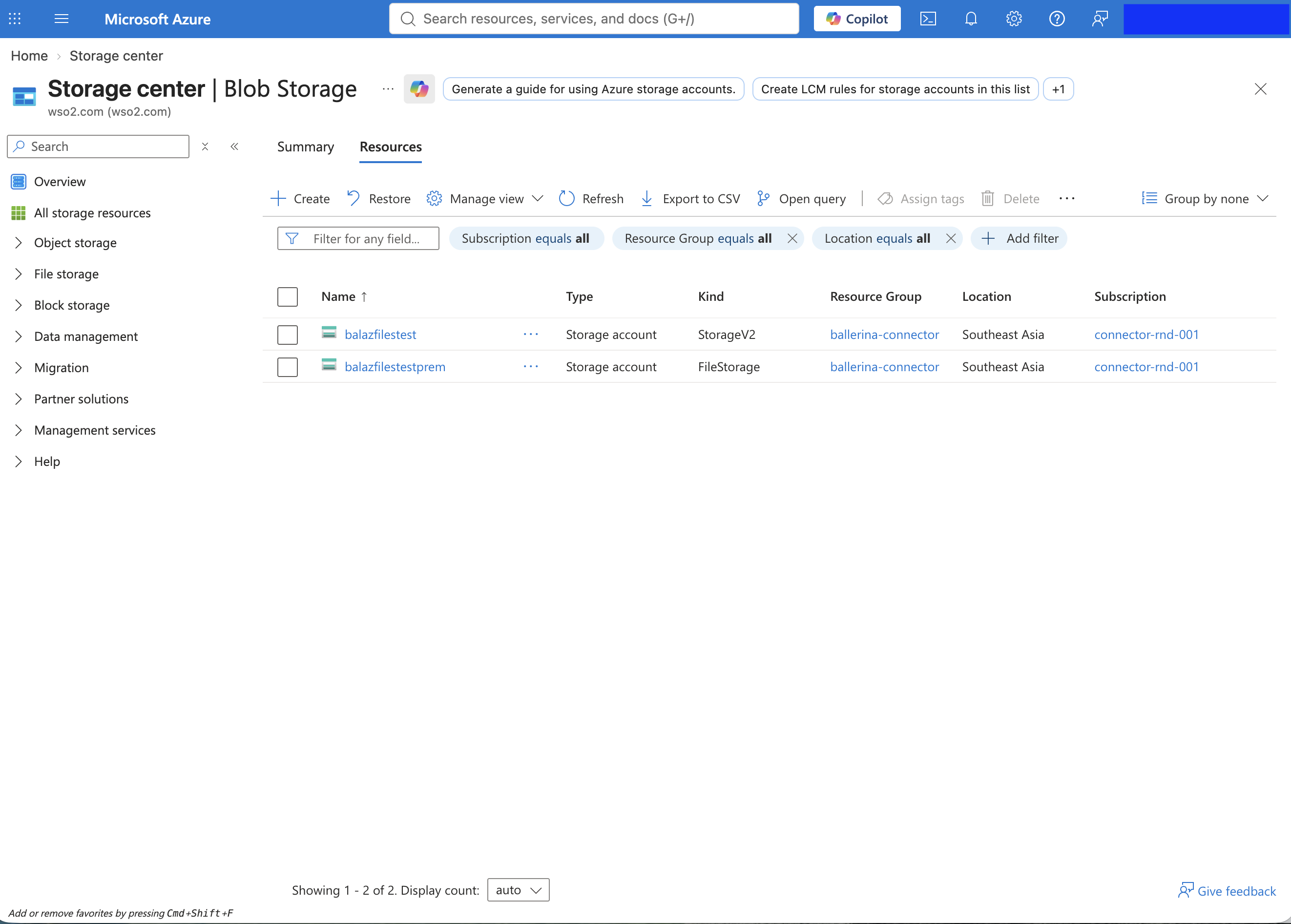
-
On the Basics tab, provide the following:
Input Value Subscription and Resource group The subscription and group the account bills to. Storage account name A globally unique name. Region The region closest to your workload. Performance Standard is sufficient for SMB file shares; choose Premium with the File shares account type only for provisioned performance or NFS. 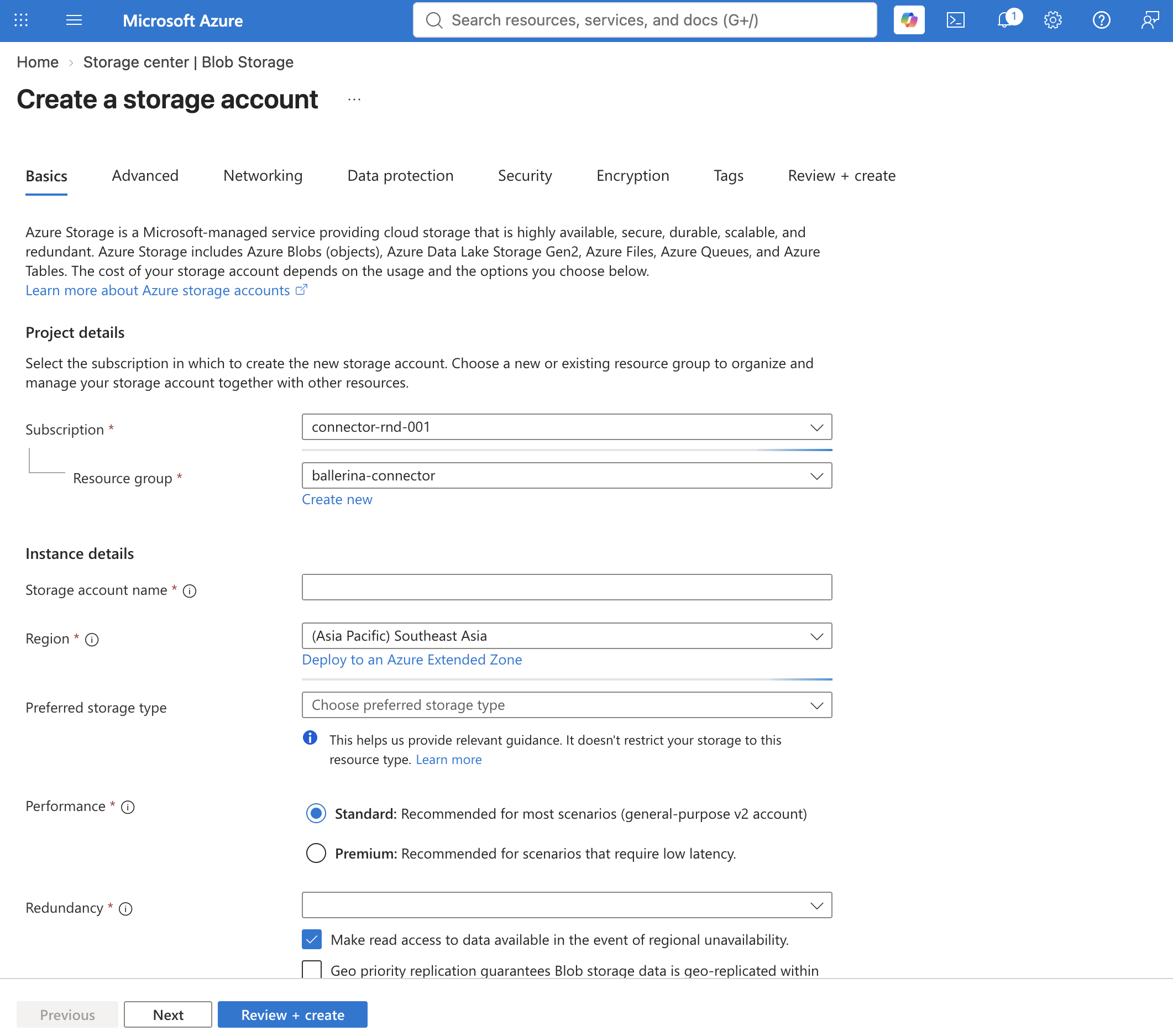
-
Click Review + create, then Create, and wait for the deployment to complete. For the full set of options, see the Azure documentation.
Step 2: Create a file share
-
Open the deployed storage account and navigate to Data storage > File shares.
-
Click + File share, provide a name, and click Create. The share name is what you pass to the connector's
Clientat initialization.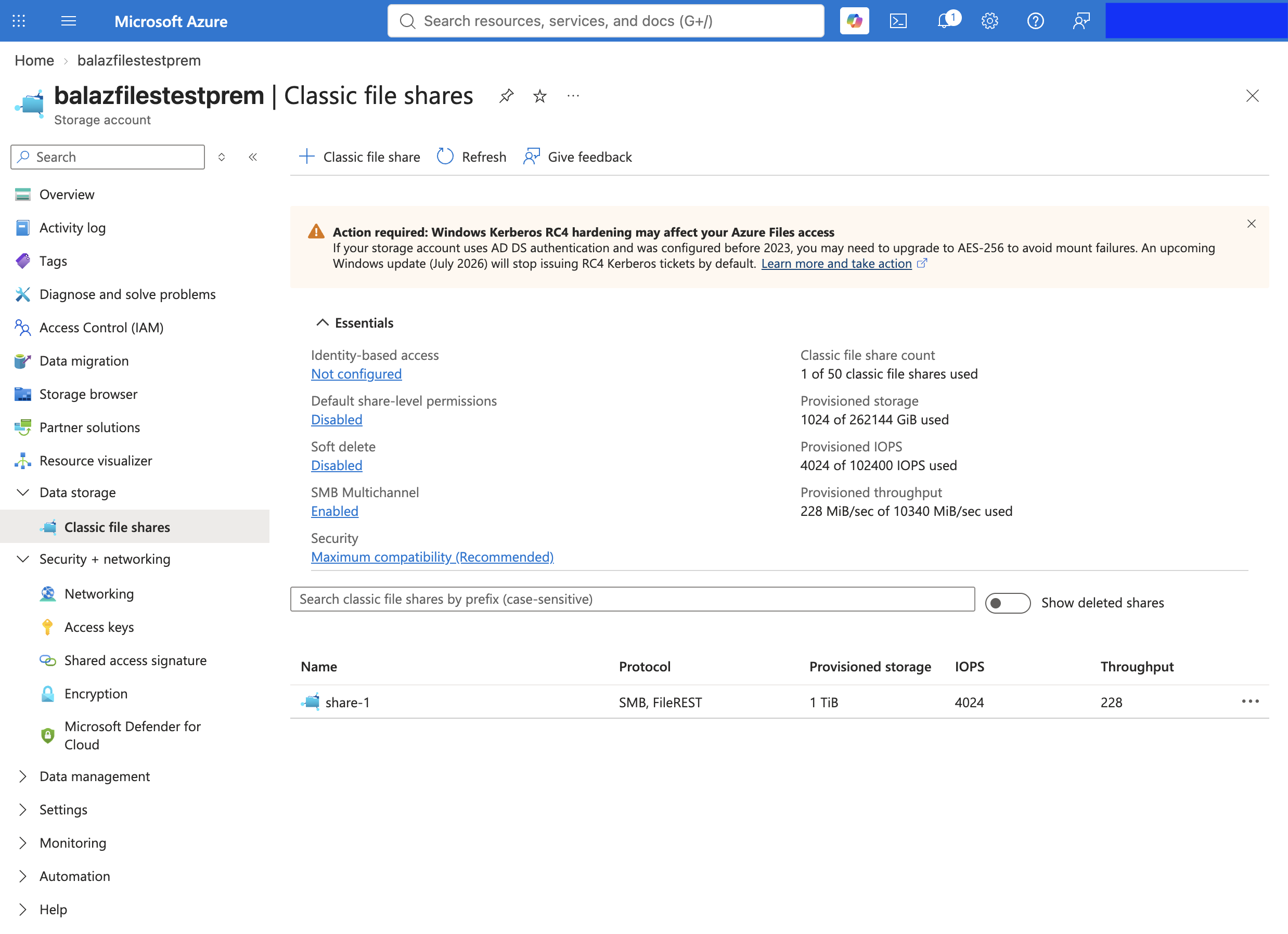
Step 3: Obtain the credentials
-
In the storage account, navigate to Security + networking > Access keys.
-
Click Show next to key1 and copy the following values:
Value Used as Storage account name accountNamekey1 Key accountKey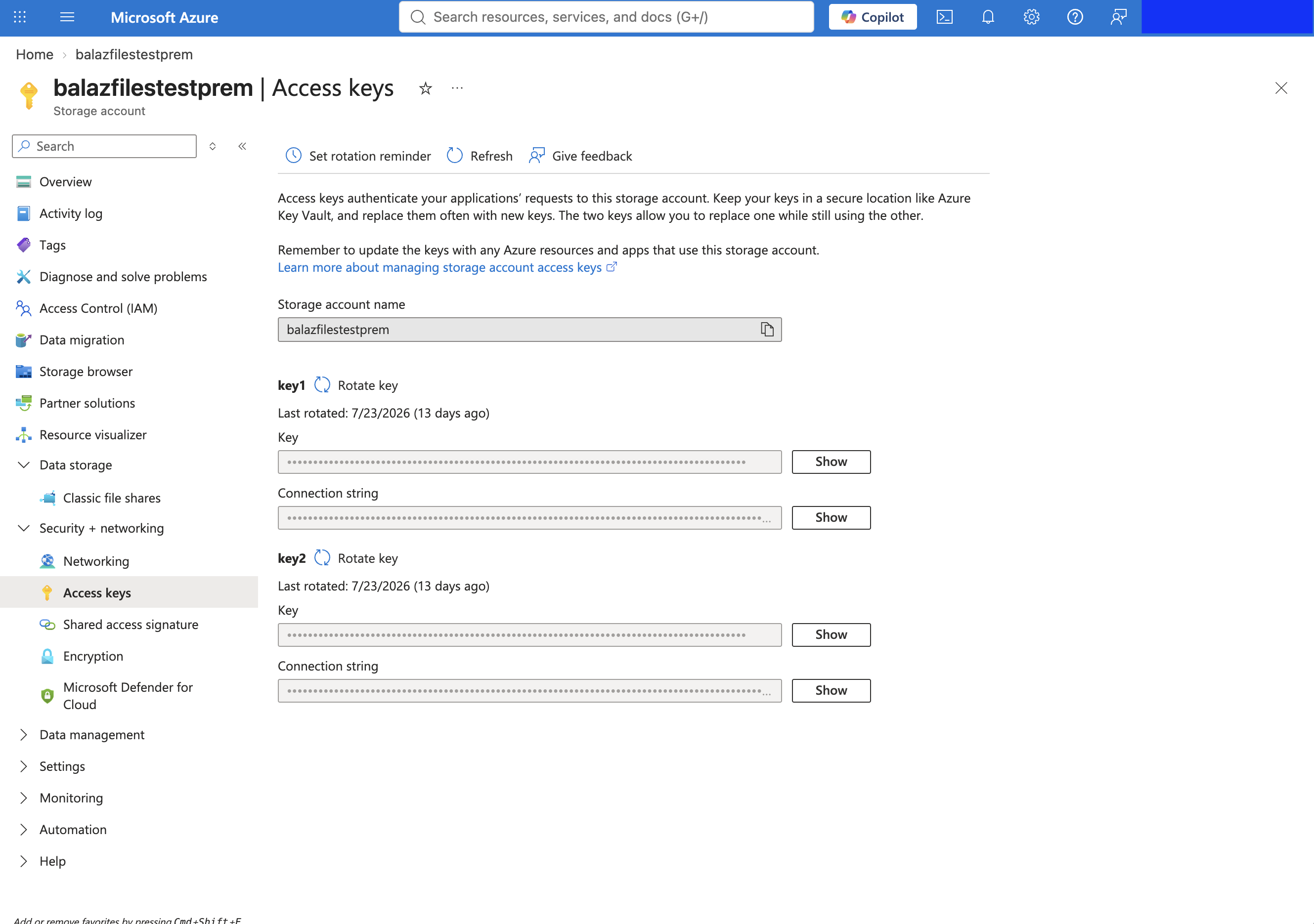
-
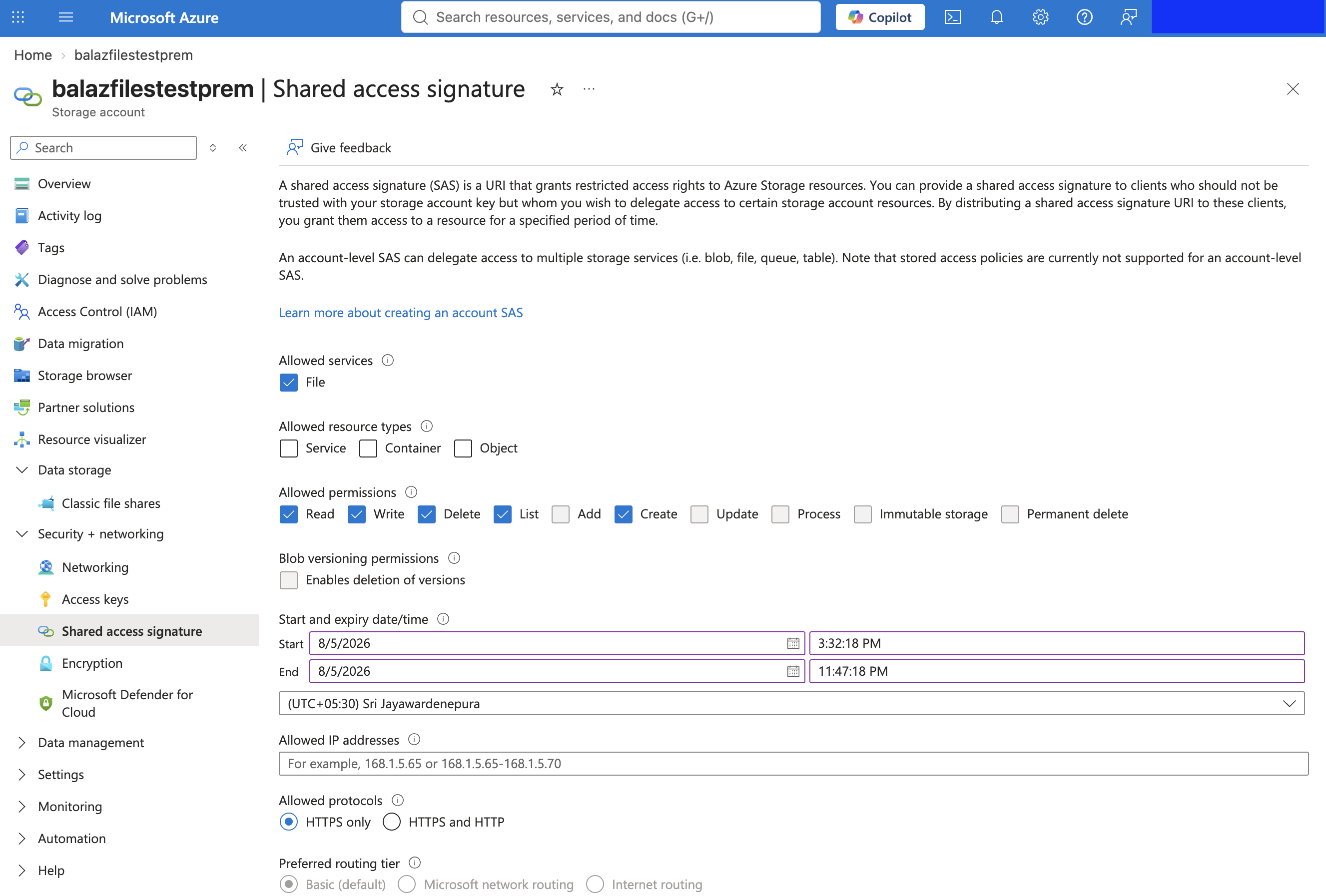
Optionally, use one of the other credentials the connector accepts: a SAS token or SAS URL (generated under Security + networking > Shared access signature), a connection string (shown alongside each access key), or Microsoft Entra ID credentials.
Quickstart
To use the azure.storage.files connector in your Ballerina application, modify the .bal file as follows:
Step 1: Import the module
import ballerinax/azure.storage.files;
Step 2: Instantiate a new connector
A Client is bound to a single file share. Provide the credentials through configurable variables:
configurable string accountName = ?; configurable string accountKey = ?; files:Client fileClient = check new ("reports", auth = {accountName, accountKey});
Step 3: Invoke the connector operation
Now, utilize the available connector operations.
Create the share
The client is bound to a share, so create it first if it does not exist yet.
files:AdminClient admin = check new (auth = {accountName, accountKey}); check admin->createShare("reports");
Upload a file
Paths are relative to the bound share, so /q1.pdf is at the share root. Azure does not create
parent directories, so create a directory before writing into one.
check fileClient->uploadFromFile("./local/q1.pdf", "/q1.pdf");
Get the properties of a file
files:FileProperties props = check fileClient->getFileProperties("/q1.pdf");
Step 4: Run the Ballerina application
Save the changes and run the Ballerina application using the following command.
bal run
Examples
The azure.storage.files connector provides practical examples illustrating usage in various scenarios. Explore these examples, covering use cases like backing up a folder to a share, handing out a time-limited file link, and processing files dropped into a share folder.
- File backup - Back up a local folder to a file share and restore a file from it.
- Share handout - Upload a report and generate a time-limited, read-only SAS URL to share with a third party.
- Drop folder processor - Watch a folder on a share with the listener and process each dropped file, deleting JSON files and moving the rest into a processed folder.
- Change tracker - Derive created, modified, and deleted events from a watched share with an application-kept eTag snapshot.
Clients
azure.storage.files: AdminClient
Account-level client for Azure Files, managing the shares within a storage account.
Constructor
Initializes the account-level client for the given storage account.
init (*ClientConfiguration config)- config *ClientConfiguration - The client configuration (authentication, retry, transport)
hasShare
Checks whether a share exists in the storage account. Returns false only when Azure
confirms the share is absent; an Error means the check itself failed.
Parameters
- shareName string - The name of the share to check
listShares
function listShares(ShareListOptions? options) returns ShareInfo[]|ErrorLists the shares in the storage account.
Parameters
- options ShareListOptions? (default ()) - Optional filtering and listing options
createShare
function createShare(string shareName, ShareCreateOptions? options) returns Error?Creates a new share in the storage account.
Parameters
- shareName string - The name of the share to create
- options ShareCreateOptions? (default ()) - Optional creation options (quota, tier, protocols, metadata)
Return Type
- Error? - An
Errorif the share could not be created, otherwise()
deleteShare
function deleteShare(string shareName, ShareDeleteOptions? options) returns Error?Deletes a share from the storage account.
Parameters
- shareName string - The name of the share to delete
- options ShareDeleteOptions? (default ()) - Optional deletion options (snapshot handling, lease id)
Return Type
- Error? - An
Errorif the share could not be deleted, otherwise()
undeleteShare
Restores a soft-deleted share.
Parameters
- shareName string - The name of the soft-deleted share to restore
- version string - The version of the soft-deleted share (from
ShareInfo.version)
Return Type
- Error? - An
Errorif the share could not be restored, otherwise()
getServiceProperties
function getServiceProperties() returns ServiceProperties|ErrorReads the account's file-service configuration (metrics and CORS rules).
Return Type
- ServiceProperties|Error - The
ServiceProperties, or anError
setServiceProperties
function setServiceProperties(ServiceProperties properties) returns Error?Updates the account's file-service configuration. The record replaces the whole configuration.
Parameters
- properties ServiceProperties - The complete file-service configuration to apply
Return Type
- Error? - An
Errorif the configuration could not be updated, otherwise()
getUserDelegationKey
function getUserDelegationKey(Utc startTime, Utc expiryTime) returns UserDelegationKey|ErrorGets a user-delegation key for signing user-delegation SAS tokens. Requires Microsoft
Entra ID credentials with the Storage File Delegator role.
Parameters
- startTime Utc - The start of the key's validity period
- expiryTime Utc - The end of the key's validity period (at most 7 days out)
Return Type
- UserDelegationKey|Error - The
UserDelegationKey, or anError
generateAccountSas
function generateAccountSas(AccountSasSignatureValues values) returns string|ErrorGenerates an account-level SAS (Shared Access Signature) token. Requires shared key credentials.
Parameters
- values AccountSasSignatureValues - What the SAS grants: validity window, permissions, and resource types
azure.storage.files: Caller
The context object passed to a listener service's handlers, exposing a share-scoped
subset of Client to act on the event's file.
It cannot be instantiated by user code.
download
function download(string sourcePath, string destinationPath, DownloadOptions? options) returns Error?Downloads a file to a local path. An existing local file at destinationPath fails
the download.
Parameters
- sourcePath string - The share-relative path of the file to download, including the file name
- destinationPath string - The local path to write the downloaded file to (must not exist)
- options DownloadOptions? (default ()) - Optional download options (range)
Return Type
- Error? - An
Errorif the download failed, otherwise()
getFile
function getFile(string path, GetFileOptions? options, typedesc<RetrievableType> targetType) returns targetType|ErrorRetrieves a file's content in the form the target type selects. CSV content binds to
record array and record stream targets only. Binding is strict: content that does not
match the target fails with a client side Error.
Parameters
- path string - The source share-relative path
- options GetFileOptions? (default ()) - Optional retrieval options (range, snapshot, record binding format)
- targetType typedesc<RetrievableType> (default <>) - Expected return type (to be used for automatic data binding).
Supported types:
- Raw bytes (
byte[]) or UTF-8 text (string) - A
jsonorxmlvalue - Custom records (e.g.,
Person,Person[]), bound perGetFileOptions.fileFormat, else the path's extension (.json,.xml,.csv) - A lazy byte stream (
stream<byte[], error?>) - A lazy stream of CSV-bound records (e.g.,
stream<Person, error?>)
- Raw bytes (
Return Type
- targetType|Error - The content in the requested form, or an
Erroron a failed retrieval or a data binding failure
uploadFromFile
function uploadFromFile(string sourcePath, string destinationPath, UploadOptions? options) returns Error?Uploads a local file to the watched share.
Parameters
- sourcePath string - The path of the local file to upload, including the file name
- destinationPath string - The share-relative path the file is written to, including the file name
- options UploadOptions? (default ()) - Optional upload options (headers, metadata)
Return Type
- Error? - An
Errorif the upload failed, otherwise()
upload
function upload(UploadContent content, string destinationPath, UploadContentOptions? options) returns Error?Uploads in-memory content to the watched share.
Parameters
- content UploadContent - The content to upload. A record, a record array, or another
jsonvalue is serialized per the resolved file format
- destinationPath string - The share-relative path the content is written to, including the file name
- options UploadContentOptions? (default ()) - Optional upload options (headers, metadata, format override)
Return Type
- Error? - An
Errorif the upload failed, otherwise()
deleteFile
Deletes a file from the watched share.
Parameters
- path string - The share-relative path of the file to delete
Return Type
- Error? - An
Errorif the file could not be deleted, otherwise()
renameFile
function renameFile(string sourcePath, string destinationPath, RenameOptions? options) returns Error?Renames or moves a file within the watched share. An existing destination file is
overwritten only when RenameOptions.replaceIfExists is set.
Parameters
- sourcePath string - The current share-relative path of the file
- destinationPath string - The new share-relative path
- options RenameOptions? (default ()) - Optional rename options (overwrite, metadata)
Return Type
- Error? - An
Errorif the file could not be renamed, otherwise()
copyFile
function copyFile(string sourcePath, string destinationPath, CopyOptions? options) returns CopyInfo|ErrorCopies a file within the watched share. The copy is asynchronous; inspect the returned
CopyInfo.copyStatus for its state.
Parameters
- sourcePath string - The source share-relative path
- destinationPath string - The destination share-relative path
- options CopyOptions? (default ()) - Optional copy options (metadata)
checkCopyStatus
function checkCopyStatus(string path) returns CopyStatusInfo?|ErrorChecks the state of the most recent copy operation that targeted a file.
Parameters
- path string - The destination share-relative path of the copy
Return Type
- CopyStatusInfo?|Error - The
CopyStatusInfo,()if the file has never been the destination of a copy operation, or anError
abortCopy
Aborts a pending asynchronous copy operation.
Parameters
- path string - The destination share-relative path of the copy
- copyId string - The identifier of the copy to abort (from
CopyInfo.copyId)
Return Type
- Error? - An
Errorif the copy could not be aborted, otherwise()
createDirectory
function createDirectory(string directoryPath, DirectoryCreateOptions? options) returns Error?Creates a directory in the watched share.
Parameters
- directoryPath string - The share-relative path of the directory to create
- options DirectoryCreateOptions? (default ()) - Optional creation options (metadata)
Return Type
- Error? - An
Errorif the directory could not be created, otherwise()
deleteDirectory
Deletes a directory from the watched share. The directory must be empty.
Parameters
- directoryPath string - The share-relative path of the directory to delete
Return Type
- Error? - An
Errorif the directory could not be deleted, otherwise()
list
Lists the entries (files and subdirectories) under a directory of the watched share.
Parameters
- directoryPath string - The share-relative path of the directory to list
- options ListOptions? (default ()) - Optional listing options (prefix, recursion, extended info)
azure.storage.files: Client
Share-scoped client for Azure Files, operating on a single share and the directories and files within it.
Constructor
Initializes the client and binds it to a single share.
init (string shareName, *ClientConfiguration config)- shareName string - The name of the share this client operates on
- config *ClientConfiguration - The client configuration (authentication, retry, transport)
getShareProperties
function getShareProperties() returns ShareProperties|ErrorGets the properties of the bound share.
Return Type
- ShareProperties|Error - The
ShareProperties, or anError
setShareMetadata
Replaces the metadata of the bound share.
Return Type
- Error? - An
Errorif the metadata could not be set, otherwise()
getShareUsage
Gets the approximate amount of data stored on the bound share, in bytes.
createDirectory
function createDirectory(string directoryPath, DirectoryCreateOptions? options) returns Error?Creates a directory in the bound share.
Parameters
- directoryPath string - The share-relative path of the directory to create
- options DirectoryCreateOptions? (default ()) - Optional creation options (metadata)
Return Type
- Error? - An
Errorif the directory could not be created, otherwise()
deleteDirectory
Deletes a directory from the bound share. The directory must be empty.
Parameters
- directoryPath string - The share-relative path of the directory to delete
Return Type
- Error? - An
Errorif the directory could not be deleted, otherwise()
hasDirectory
Checks whether a directory exists in the bound share. Returns false only when Azure
confirms the directory is absent; an Error means the check itself failed.
Parameters
- directoryPath string - The share-relative path of the directory
getDirectoryProperties
function getDirectoryProperties(string directoryPath) returns DirectoryProperties|ErrorGets the properties of a directory.
Parameters
- directoryPath string - The share-relative path of the directory
Return Type
- DirectoryProperties|Error - The
DirectoryProperties, or anError
setDirectoryMetadata
Replaces the metadata of a directory.
Parameters
- directoryPath string - The share-relative path of the directory
Return Type
- Error? - An
Errorif the metadata could not be set, otherwise()
list
Lists the entries (files and subdirectories) under a directory.
Parameters
- directoryPath string - The share-relative path of the directory to list
- options ListOptions? (default ()) - Optional listing options (prefix, recursion, extended info)
renameDirectory
function renameDirectory(string sourcePath, string destinationPath, RenameOptions? options) returns Error?Renames or moves a directory within the bound share, together with its entire contents.
Parameters
- sourcePath string - The current share-relative path of the directory
- destinationPath string - The new share-relative path
- options RenameOptions? (default ()) - Optional rename options (overwrite, metadata)
Return Type
- Error? - An
Errorif the directory could not be renamed, otherwise()
createFile
function createFile(string path, int sizeInBytes, CreateOptions? options) returns Error?Creates an empty file of a fixed size.
Parameters
- path string - The share-relative path of the file to create
- sizeInBytes int - The size of the file, in bytes
- options CreateOptions? (default ()) - Optional creation options (headers, metadata)
Return Type
- Error? - An
Errorif the file could not be created, otherwise()
deleteFile
Deletes a file from the bound share.
Parameters
- path string - The share-relative path of the file to delete
Return Type
- Error? - An
Errorif the file could not be deleted, otherwise()
hasFile
Checks whether a file exists in the bound share. Returns false only when Azure
confirms the file is absent; an Error means the check itself failed.
Parameters
- path string - The share-relative path of the file
getFileProperties
function getFileProperties(string path) returns FileProperties|ErrorGets the properties of a file.
Parameters
- path string - The share-relative path of the file
Return Type
- FileProperties|Error - The
FileProperties, or anError
setFileMetadata
Replaces the metadata of a file.
Parameters
- path string - The share-relative path of the file
Return Type
- Error? - An
Errorif the metadata could not be set, otherwise()
setContentHeaders
function setContentHeaders(string path, ContentHeaders headers) returns Error?Sets the content headers of a file, such as Content-Type and Cache-Control.
Any header omitted from headers is cleared on the file.
Parameters
- path string - The share-relative path of the file
- headers ContentHeaders - The full set of content headers the file should carry
Return Type
- Error? - An
Errorif the headers could not be set, otherwise()
renameFile
function renameFile(string sourcePath, string destinationPath, RenameOptions? options) returns Error?Renames or moves a file within the bound share. An existing destination file is
overwritten only when RenameOptions.replaceIfExists is set.
Parameters
- sourcePath string - The current share-relative path of the file
- destinationPath string - The new share-relative path
- options RenameOptions? (default ()) - Optional rename options (overwrite, metadata)
Return Type
- Error? - An
Errorif the file could not be renamed, otherwise()
uploadFromFile
function uploadFromFile(string sourcePath, string destinationPath, UploadOptions? options) returns Error?Uploads a local file to the bound share.
// ./reports/q1.pdf (local disk) --> /2026/q1/report.pdf (on the share) check fileClient->uploadFromFile("./reports/q1.pdf", "/2026/q1/report.pdf");
Parameters
- sourcePath string - The path of the local file to upload, including the file name
- destinationPath string - The share-relative path the file is written to, including the file name
- options UploadOptions? (default ()) - Optional upload options (headers, metadata)
Return Type
- Error? - An
Errorif the upload failed, otherwise()
upload
function upload(UploadContent content, string destinationPath, UploadContentOptions? options) returns Error?Uploads in-memory content to the bound share.
Metrics metrics = {revenue: 1250000, growth: 0.12}; check fileClient->upload(metrics, "/2026/q1/metrics.json");
Parameters
- content UploadContent - The content to upload. A record, a record array, or another
jsonvalue is serialized per the resolved file format
- destinationPath string - The share-relative path the content is written to, including the file name
- options UploadContentOptions? (default ()) - Optional upload options (headers, metadata, format override)
Return Type
- Error? - An
Errorif the upload failed, otherwise()
uploadFromStream
function uploadFromStream(stream<byte[], error?> content, int contentLength, string destinationPath, UploadOptions? options) returns Error?Uploads a byte stream to the bound share. The total content length is required. There
is no record stream upload, so collect records into a record {}[] and use upload.
Parameters
- contentLength int - The total length of the content, in bytes
- destinationPath string - The share-relative path the content is written to, including the file name
- options UploadOptions? (default ()) - Optional upload options (headers, metadata)
Return Type
- Error? - An
Errorif the upload failed, otherwise()
download
function download(string sourcePath, string destinationPath, DownloadOptions? options) returns Error?Downloads a file to a local path. An existing local file at destinationPath fails
the download.
// /2026/q1/report.pdf (on the share) --> ./reports/q1.pdf (local disk) check fileClient->download("/2026/q1/report.pdf", "./reports/q1.pdf");
Parameters
- sourcePath string - The share-relative path of the file to download, including the file name
- destinationPath string - The local path to write the downloaded file to (must not exist)
- options DownloadOptions? (default ()) - Optional download options (range)
Return Type
- Error? - An
Errorif the download failed, otherwise()
getFile
function getFile(string path, GetFileOptions? options, typedesc<RetrievableType> targetType) returns targetType|ErrorRetrieves a file's content in the form the target type selects. CSV content binds to
record array and record stream targets only. Binding is strict: content that does not
match the target fails with a client side Error.
byte[] raw = check fileClient->getFile("/2026/q1/report.pdf"); Person[] people = check fileClient->getFile("/2026/q1/people.csv"); stream<byte[], error?> chunks = check fileClient->getFile("/2026/q1/large.bin");
Parameters
- path string - The source share-relative path
- options GetFileOptions? (default ()) - Optional retrieval options (range, snapshot, record binding format)
- targetType typedesc<RetrievableType> (default <>) - Expected return type (to be used for automatic data binding).
Supported types:
- Raw bytes (
byte[]) or UTF-8 text (string) - A
jsonorxmlvalue - Custom records (e.g.,
Person,Person[]), bound perGetFileOptions.fileFormat, else the path's extension (.json,.xml,.csv) - A lazy byte stream (
stream<byte[], error?>) - A lazy stream of CSV-bound records (e.g.,
stream<Person, error?>)
- Raw bytes (
Return Type
- targetType|Error - The content in the requested form, or an
Erroron a failed retrieval or a data binding failure
copyFile
function copyFile(string sourcePath, string destinationPath, CopyOptions? options) returns CopyInfo|ErrorCopies a file within the bound share. The copy is asynchronous; inspect the returned
CopyInfo.copyStatus for its state.
Parameters
- sourcePath string - The source share-relative path
- destinationPath string - The destination share-relative path
- options CopyOptions? (default ()) - Optional copy options (metadata)
copyFileFromUrl
function copyFileFromUrl(string sourceUrl, string destinationPath, CopyOptions? options) returns CopyInfo|ErrorCopies a file from an external URL into the bound share. A source outside this storage account must carry its own authorization in the URL (typically a SAS token).
Parameters
- sourceUrl string - The URL of the source file
- destinationPath string - The destination share-relative path
- options CopyOptions? (default ()) - Optional copy options (metadata)
checkCopyStatus
function checkCopyStatus(string path) returns CopyStatusInfo?|ErrorChecks the state of the most recent copy operation that targeted a file.
Parameters
- path string - The destination share-relative path of the copy
Return Type
- CopyStatusInfo?|Error - The
CopyStatusInfo,()if the file has never been the destination of a copy operation, or anError
abortCopy
Aborts a pending asynchronous copy operation.
Parameters
- path string - The destination share-relative path of the copy
- copyId string - The identifier of the copy to abort (from
CopyInfo.copyId)
Return Type
- Error? - An
Errorif the copy could not be aborted, otherwise()
uploadRange
Writes a range of bytes into a file at a given offset. A single range write is capped at 4 MiB by the service.
Parameters
- path string - The share-relative path of the file
- offset int - The zero-based byte offset at which to begin writing
- content byte[] - The bytes to write (at most 4 MiB)
Return Type
- Error? - An
Errorif the range could not be written, otherwise()
clearRange
Clears a range of bytes in a file.
Parameters
- path string - The share-relative path of the file
- offset int - The zero-based byte offset at which to begin clearing
- length int - The number of bytes to clear
Return Type
- Error? - An
Errorif the range could not be cleared, otherwise()
listRanges
function listRanges(string path, RangeListOptions? options) returns Range[]|ErrorLists the valid (written) byte ranges of a file.
Parameters
- path string - The share-relative path of the file
- options RangeListOptions? (default ()) - Optional range-listing options
createShareSnapshot
function createShareSnapshot(map<string>? metadata) returns ShareSnapshotInfo|ErrorCreates a point-in-time, read-only snapshot of the bound share. Requires account-level credentials.
Parameters
Return Type
- ShareSnapshotInfo|Error - The
ShareSnapshotInfofor the new snapshot, or anError
listShareSnapshots
function listShareSnapshots() returns ShareSnapshotInfo[]|ErrorLists the snapshots of the bound share. Requires account-level credentials.
Return Type
- ShareSnapshotInfo[]|Error - The share's snapshots, or an
Error
deleteShareSnapshot
Deletes one snapshot of the bound share. Requires account-level credentials.
Parameters
- snapshotId string - The identifier of the snapshot to delete
Return Type
- Error? - An
Errorif the snapshot could not be deleted, otherwise()
listRangesDiff
function listRangesDiff(string path, string previousSnapshotId, RangeListOptions? options) returns RangeDiff|ErrorLists how a file's byte ranges changed since a share snapshot.
Parameters
- path string - The share-relative path of the file
- previousSnapshotId string - The identifier of the baseline snapshot to diff against
- options RangeListOptions? (default ()) - Optional range-listing options
generateShareSas
function generateShareSas(ShareSasSignatureValues values) returns string|ErrorGenerates a SAS (Shared Access Signature) token scoped to the bound share. Requires shared key credentials.
Parameters
- values ShareSasSignatureValues - What the SAS grants: validity window and permissions, or a stored policy reference
generateSas
function generateSas(string path, FileSasSignatureValues values) returns string|ErrorGenerates a SAS (Shared Access Signature) token scoped to a single file. Requires shared key credentials.
Parameters
- path string - The share-relative path of the file the SAS grants access to
- values FileSasSignatureValues - What the SAS grants: validity window and permissions, or a stored policy reference
generateShareUserDelegationSas
function generateShareUserDelegationSas(ShareSasSignatureValues values, UserDelegationKey key) returns string|ErrorGenerates a user-delegation SAS token scoped to the bound share.
Parameters
- values ShareSasSignatureValues - What the SAS grants: validity window and permissions
- key UserDelegationKey - The user-delegation key to sign with
generateUserDelegationSas
function generateUserDelegationSas(string path, FileSasSignatureValues values, UserDelegationKey key) returns string|ErrorGenerates a user-delegation SAS token scoped to a single file.
Parameters
- path string - The share-relative path of the file the SAS grants access to
- values FileSasSignatureValues - What the SAS grants: validity window and permissions
- key UserDelegationKey - The user-delegation key to sign with
Service types
azure.storage.files: Service
The service type attached to a Listener.
Constants
azure.storage.files: DEFAULT_AZURE_CREDENTIAL
The credential-kind discriminator value selecting DefaultEntraIdConfig.
azure.storage.files: DELETE
The auto-consume action that deletes the file after the handler runs.
azure.storage.files: MANAGED_IDENTITY
The credential-kind discriminator value selecting ManagedIdentityConfig.
Enums
azure.storage.files: CopyStatus
The status of an asynchronous copy operation.
Members
azure.storage.files: FileFormat
The serialization and binding format of record and json content.
Members
azure.storage.files: LeaseDuration
The duration category of a lease.
Members
azure.storage.files: LeaseState
The lifecycle state of a share's or file's lease.
Members
azure.storage.files: LeaseStatus
Whether a lease currently locks the share or file: LOCKED while a lease is in force,
UNLOCKED otherwise.
Members
azure.storage.files: NfsRootSquash
The NFS root-squash behaviour applied to a share.
Members
azure.storage.files: ProxyType
The proxy protocol kinds.
Members
azure.storage.files: RetryPolicyType
The retry policy kinds: EXPONENTIAL grows the delay between tries exponentially;
FIXED_INTERVAL keeps the same delay between every try.
Members
azure.storage.files: SasProtocol
The protocols a request presenting a SAS token may use.
Members
azure.storage.files: ShareAccessTier
The billing and performance tier of a file share.
Members
azure.storage.files: ShareProtocol
The file-access protocol(s) enabled on a share.
Members
azure.storage.files: ShareSnapshotsDeleteOption
How a share's snapshots are handled when the share is deleted.
Members
Listeners
azure.storage.files: Listener
A polling watcher for a single Azure Files share path.
Constructor
Initializes the listener for a share.
init (string shareName, *ListenerConfiguration config)- shareName string - The name of the share to watch
- config *ListenerConfiguration - The listener configuration (authentication, polling cadence, retry, transport)
attach
Attaches a service to the listener. One service attaches per listener; a second attach fails.
Parameters
- serviceRef Service - The service to attach
Return Type
- error? - An
errorif the service could not be attached, otherwise()
detach
Detaches a service from the listener.
Parameters
- serviceRef Service - The service to detach
Return Type
- error? - An
errorif the service could not be detached, otherwise()
'start
function 'start() returns error?Starts polling and dispatching to the attached service.
Return Type
- error? - An
errorif the listener could not start, otherwise()
gracefulStop
function gracefulStop() returns error?Stops polling. In-flight handler invocations run to completion.
Return Type
- error? - An
errorif the listener could not stop, otherwise()
immediateStop
function immediateStop() returns error?Stops polling immediately. In-flight handler invocations run to completion.
Return Type
- error? - An
errorif the listener could not stop, otherwise()
Annotations
azure.storage.files: FunctionConfig
 object function
Declares the configuration of a listener handler.
azure.storage.files: ServiceConfig
serviceDeclares the optional filters of a listener service.
Records
azure.storage.files: AccountSasPermissions
The permissions granted by an account-level SAS. Every permission is off unless enabled.
Fields
- read boolean(default false) - Read content, properties, and metadata, and list entries
- write boolean(default false) - Write content, properties, and metadata
- delete boolean(default false) - Delete resources
- list boolean(default false) - List shares and directory contents
- add boolean(default false) - Add content (append-style operations of other storage services)
- create boolean(default false) - Create new resources
- update boolean(default false) - Update stored entities (of other storage services)
- process boolean(default false) - Process stored messages (of other storage services)
azure.storage.files: AccountSasResourceTypes
The resource types an account-level SAS applies to. Every type is off unless enabled.
Fields
- 'service boolean(default false) - Service-level operations (e.g. list shares, service properties)
- container boolean(default false) - Container-level operations (the share level: share properties, metadata)
- 'object boolean(default false) - Object-level operations (files and directories)
azure.storage.files: AccountSasSignatureValues
The inputs for generating an account-level SAS via AdminClient.generateAccountSas.
Fields
- expiryTime Utc - The end of the SAS validity period (UTC)
- permissions AccountSasPermissions - The permissions the SAS grants
- resourceTypes AccountSasResourceTypes - The resource types the SAS applies to
- startTime? Utc - The start of the SAS validity period (UTC); omit for immediately valid
- protocol? SasProtocol - The protocols a request presenting the SAS may use; omit to allow HTTPS and HTTP
- ipRange? string - An IP address or range the requests must come from (e.g.
168.1.5.60-168.1.5.70)
azure.storage.files: CertKey
A client certificate and private key pair, as files.
Fields
- certFile string - The path to the certificate file
- keyFile string - The path to the private key file
- keyPassword? string - The password protecting the private key, when it has one
azure.storage.files: ClientCertificateConfig
Microsoft Entra ID authentication as a service principal with a client certificate.
Fields
- accountName string - The storage account name (determines the service URL unless
serviceUrloverrides it)
- tenantId string - The Entra ID tenant (directory) id
- clientId string - The application (client) id of the service principal
- certificatePath string - The path to the certificate file (PEM, or PFX when
certificatePasswordis set)
- certificatePassword? string - The password protecting the certificate file, when it has one
- serviceUrl? string - The file service endpoint URL, including the scheme. Omit to use the default
https://{accountName}.file.core.windows.net
azure.storage.files: ClientConfiguration
Configuration for an azure.storage.files client (Client or AdminClient).
Fields
- auth AuthConfig - The authentication configuration (see
AuthConfig)
- retryConfig? RetryConfig - Retry behaviour for service requests; omit for the service defaults
- transportConfig? TransportConfig - HTTP transport settings (proxy, connection pool, TLS); omit for the defaults
azure.storage.files: ClientSecretConfig
Microsoft Entra ID authentication as a service principal with a client secret.
Fields
- accountName string - The storage account name (determines the service URL unless
serviceUrloverrides it)
- tenantId string - The Entra ID tenant (directory) id
- clientId string - The application (client) id of the service principal
- clientSecret string - The client secret of the service principal
- serviceUrl? string - The file service endpoint URL, including the scheme. Omit to use the default
https://{accountName}.file.core.windows.net
azure.storage.files: ConnectionPoolConfig
Tunes the connector's HTTP connection pool.
Fields
- maxConnections int(default 50) - The maximum number of concurrent connections
- idleTimeoutSeconds decimal(default 60) - How long an idle connection is kept before being closed, in seconds
- connectTimeoutSeconds decimal(default 10) - The timeout for establishing a connection, in seconds
- readTimeoutSeconds decimal(default 60) - The timeout for reading a response, in seconds
azure.storage.files: ConnectionStringConfig
Connection-string authentication. The connection string carries the account name, the credential (an account key or a SAS token), and the service endpoints.
Fields
- connectionString string - An Azure Storage connection string, as issued by the Azure portal, the Azure CLI, or infrastructure tooling
azure.storage.files: ContentBindingErrorDetail
Structured detail carried by a ContentBindingError, identifying the file that failed
to bind so an onError handler can act on it.
Fields
- filePath string - The share-relative path of the file whose content failed to bind
- content? byte[] - The file's raw content; absent when the failure happened before the content was read
azure.storage.files: ContentHeaders
The standard content headers that can be set on a file.
Fields
- contentType? string - The MIME type of the content (e.g.
application/pdf), served asContent-Typeon downloads
- contentEncoding? string - Any encoding applied to the stored content (e.g.
gzip)
- contentLanguage? string - The natural language of the content (e.g.
en-US)
- contentDisposition? string - How receivers should present the content (e.g.
attachmentorinline)
- cacheControl? string - Caching directives served with the file (e.g.
max-age=3600, private)
- contentMd5? string - Base64-encoded MD5 of the content, for integrity verification
azure.storage.files: CopyInfo
The result of starting a copy operation. Copies are asynchronous.
Fields
- copyId string - The copy operation identifier; pass to
Client.abortCopyto cancel a pending copy
- copyStatus CopyStatus - The copy status at the moment the copy started,
PENDINGwhile the copy is still in progress
- eTag string - The entity tag of the destination after the copy started
- lastModified Utc - The last-modified time of the destination (UTC)
azure.storage.files: CopyOptions
Options for Client.copyFile and Client.copyFileFromUrl.
Fields
azure.storage.files: CopyProgress
Progress of an asynchronous copy operation.
Fields
- copiedBytes int - The number of bytes copied so far
- totalBytes int - The total number of bytes to be copied
azure.storage.files: CopyStatusInfo
The state of the most recent copy operation that targeted a file, as returned by
Client.checkCopyStatus. A point-in-time snapshot; call checkCopyStatus again to
observe the progress of a pending copy.
Fields
- copyId string - The identifier of the copy operation; pass to
Client.abortCopyto cancel a pending copy
- copyStatus CopyStatus - The status of the copy
- copyProgress? CopyProgress - Progress of the copy (bytes copied so far out of the total)
azure.storage.files: CorsRule
One CORS (Cross-Origin Resource Sharing) rule of the file service. The string fields are
comma-separated lists; * allows all.
Fields
- allowedOrigins string - The origin domains allowed to make requests
- allowedMethods string - The HTTP methods an allowed origin may use
- allowedHeaders string - The request headers an allowed origin may send
- exposedHeaders string - The response headers exposed to the browser
- maxAgeInSeconds int - How long, in seconds, a browser may cache the preflight response
azure.storage.files: CreateOptions
Options for Client.createFile (creating an empty file of a given size).
Fields
- contentHeaders? ContentHeaders - Content headers to set on the file, such as
Content-TypeandCache-Control
azure.storage.files: DefaultEntraIdConfig
Microsoft Entra ID authentication through the default credential chain. The chain tries the environment, a managed identity, and developer sign-ins (Azure CLI, IDE accounts) in turn, so one configuration works both locally and when deployed.
Fields
- kind DEFAULT_AZURE_CREDENTIAL - Selects the default credential chain
- accountName string - The storage account name (determines the service URL unless
serviceUrloverrides it)
- serviceUrl? string - The file service endpoint URL, including the scheme. Omit to use the default
https://{accountName}.file.core.windows.net
azure.storage.files: DirectoryCreateOptions
Options for Client.createDirectory.
Fields
azure.storage.files: DirectoryProperties
Properties of a directory. A point-in-time snapshot; call getDirectoryProperties again
for current state.
Fields
- eTag string - The entity tag for optimistic concurrency
- lastModified Utc - The last-modified time (UTC)
- isServerEncrypted boolean - Whether the service has encrypted the directory at rest
azure.storage.files: DownloadOptions
Options for the download operations (download, getFile).
Fields
- range? Range - Download only this byte range instead of the whole file
- snapshotId? string - Read from the share snapshot with this id instead of the live share
azure.storage.files: Entry
One entry returned by Client.list.
Fields
- path string - The share-relative path of the entry, e.g.
/dir1/dir2/file.ext
- name string - The entry name (file or directory), without the directory component
- isDirectory boolean -
trueif the entry is a directory,falseif it is a file
- sizeBytes? int - The file size in bytes; not present for directories
- id string - The entry identifier
- eTag? string - The entity tag; present only when the listing requests extended info
(
ListOptions.includeExtendedInfo)
- lastModified? Utc - The last-modified time (UTC); present only when the listing requests extended info
(
ListOptions.includeExtendedInfo)
azure.storage.files: FileInfo
The listing-derived payload delivered to a listener service's handlers, identifying the file
an event is about. It carries what a directory listing provides; for full properties
(content type, metadata, headers), construct a Client and call getFileProperties.
Fields
- path string - The share-relative path of the file, e.g.
/dir1/dir2/file.ext
- name string - The file name only, without the directory component
- sizeBytes int - The file size in bytes
- eTag string - The entity tag of the file
- lastModified Utc - The last-modified time (UTC)
azure.storage.files: FileProperties
Properties of a file. A point-in-time snapshot; call getFileProperties again for
current state.
Fields
- eTag string - The entity tag for optimistic concurrency
- lastModified Utc - The last-modified time (UTC)
- contentLength int - The size of the file in bytes
- contentType string(default "application/octet-stream") - The MIME type of the content (e.g.
application/pdf), served asContent-Typeon downloads.application/octet-streamwhen no content type was ever set
- contentEncoding? string - The encoding applied to the stored content (e.g.
gzip)
- contentDisposition? string - How receivers should present the content (e.g.
attachmentorinline)
- cacheControl? string - Caching directives served with the file (e.g.
max-age=3600, private)
- contentMd5? string - Base64-encoded MD5 of the content, for integrity verification
- isServerEncrypted boolean - Whether the service has encrypted the file at rest (server-side encryption, covering the file data and its metadata)
- leaseState? LeaseState - Where the lease stands in its lifecycle; present only while a lease exists
- leaseStatus? LeaseStatus -
LOCKEDwhile a lease is in force,UNLOCKEDotherwise; present only while a lease exists
- leaseDuration? LeaseDuration - Whether the active lease is infinite or fixed-duration; present only while a lease exists
- copyStatus? CopyStatus - The status of the most recent copy operation, if any
- copyId? string - The identifier of the most recent copy operation, if any
- copyProgress? CopyProgress - Progress of the most recent copy operation, if any
azure.storage.files: FileSasPermissions
The permissions granted by a file-scoped SAS. Every permission is off unless enabled.
Fields
- read boolean(default false) - Read the file's content, properties, and metadata
- create boolean(default false) - Create the file
- write boolean(default false) - Write the file's content, properties, and metadata
- delete boolean(default false) - Delete the file
azure.storage.files: FileSasSignatureValues
The inputs for generating a file-scoped SAS via Client.generateSas or
Client.generateUserDelegationSas.
Fields
- expiryTime? Utc - The end of the SAS validity period (UTC). May be omitted only when
identifierreferences a stored access policy that carries an expiry
- permissions? FileSasPermissions - The permissions the SAS grants. May be omitted only when
identifierreferences a stored access policy that carries permissions
- startTime? Utc - The start of the SAS validity period (UTC); omit for immediately valid
- protocol? SasProtocol - The protocols a request presenting the SAS may use; omit to allow HTTPS and HTTP
- ipRange? string - An IP address or range the requests must come from (e.g.
168.1.5.60-168.1.5.70)
- identifier? string - The identifier of a stored access policy on the share, as an alternative to spelling out expiry and permissions here. Not valid for the user delegation variants, which reject it
azure.storage.files: FunctionConfiguration
The per-handler configuration, supplied through the @files:FunctionConfig annotation. It
routes files to a handler by name pattern and auto-consumes a file after the handler runs.
On onError, the consume actions apply to the content-binding failures it handles, and
fileNamePattern is ignored.
Fields
- fileNamePattern? string - A regular expression matched against the file name that routes matching files to this handler
azure.storage.files: GetFileOptions
Options for getFile, extending the download options with the record binding format.
Fields
- Fields Included from *DownloadOptions
- fileFormat? FileFormat - The binding format for
record {}andrecord {}[]targets; when absent, the format is inferred from the path's extension (.json,.xml,.csv)
azure.storage.files: ListenerConfiguration
Configuration for an azure.storage.files Listener
Fields
- auth AuthConfig - The authentication configuration (see
AuthConfig)
- pollingInterval decimal(default 60) - How often the watched path is polled, in seconds. Must be greater than zero
- retryConfig? RetryConfig - Retry behaviour for service requests; omit for the service defaults
- transportConfig? TransportConfig - HTTP transport settings (proxy, connection pool, TLS); omit for the defaults
- laxDataBinding boolean(default false) - Relaxed data binding for the typed content handlers: JSON, XML, and CSV record binding treat a null value as an optional field and an absent field as a nilable field
azure.storage.files: ListOptions
Options for Client.list.
Fields
- prefix? string - Return only entries whose name begins with this prefix
- recursive boolean(default false) - List entries in subdirectories as well
- pageSize int(default 5000) - The number of entries fetched per service round-trip, up to the service maximum of 5,000. Does not cap the total number of results
- includeExtendedInfo boolean(default false) - Include the ETag and timestamps on each entry
- snapshotId? string - List from the share snapshot with this id instead of the live share
azure.storage.files: ManagedIdentityConfig
Microsoft Entra ID authentication as an Azure managed identity, for workloads running on Azure compute (VMs, App Service, AKS, Functions).
Fields
- kind MANAGED_IDENTITY - Selects the managed-identity credential
- accountName string - The storage account name (determines the service URL unless
serviceUrloverrides it)
- clientId? string - The client id of a user-assigned managed identity; omit to use the system-assigned identity
- serviceUrl? string - The file service endpoint URL, including the scheme. Omit to use the default
https://{accountName}.file.core.windows.net
azure.storage.files: Metrics
A metrics-collection setting of the file service.
Fields
- enabled boolean - Whether metrics are collected
- version? string - The storage-analytics version the setting applies to
- includeApis? boolean - Whether metrics cover called API operations as well as storage capacity
- retentionDays? int - How many days collected metrics are retained
azure.storage.files: Move
The auto-consume action that moves the file after the handler runs. A move onto an existing same-named file replaces it.
Fields
- moveTo string - The target directory the file is moved into (the file keeps its name); the directory is created if it does not exist
- preserveSubDirs boolean(default true) - Recreate the file's sub-path (relative to the watched path) under
moveTo, on recursive watches
azure.storage.files: ProtocolSettings
Protocol-level settings of the file service.
Fields
- smbMultichannelEnabled? boolean - Whether SMB multichannel (multiple parallel network channels per SMB session) is enabled for the account
azure.storage.files: ProxyConfig
Routes the connector's traffic through a proxy server.
Fields
- proxyType ProxyType - The proxy protocol
- host string - The proxy host name or IP address
- port int - The proxy port
- username? string - The user name, when the proxy requires authentication
- password? string - The password, when the proxy requires authentication
- nonProxyHosts string[](default []) - Hosts reached directly, bypassing the proxy
azure.storage.files: Range
A single byte range within a file. Both bounds are inclusive (a range starting at offset
o with length l is startByte = o, endByte = o + l - 1).
Fields
- startByte int - The zero-based inclusive start offset
- endByte int - The zero-based inclusive end offset
azure.storage.files: RangeDiff
The result of Client.listRangesDiff: how a file's ranges changed since a share snapshot.
Fields
- ranges Range[] - The ranges written since the baseline snapshot
- clearRanges Range[] - The ranges cleared since the baseline snapshot
azure.storage.files: RangeListOptions
Options for Client.listRanges and Client.listRangesDiff.
Fields
- range? Range - Restrict the listing to this byte range
azure.storage.files: RenameOptions
Options for Client.renameFile and Client.renameDirectory.
Fields
- replaceIfExists boolean(default false) - If a file already occupies the destination path, delete it and give its path to the renamed entry. A directory occupying the destination always fails the operation regardless of this flag
azure.storage.files: RetryConfig
Retry behaviour for service requests.
Fields
- retryPolicyType RetryPolicyType(default EXPONENTIAL) - How the delay between tries grows
- maxTries int(default 4) - The maximum number of tries (the first attempt plus retries)
- tryTimeoutSeconds decimal(default 60) - The timeout applied to each individual try, in seconds
- retryDelaySeconds decimal(default 4) - The base delay between tries, in seconds
- maxRetryDelaySeconds decimal(default 120) - The upper bound on the delay between tries, in seconds
- secondaryHostUrl? string - A secondary endpoint to retry reads against (geo-redundant accounts)
azure.storage.files: SasConfig
Shared Access Signature (SAS) authentication with a bare SAS token, as issued by
az storage share generate-sas or the SAS-generation operations.
Fields
- accountName string - The name of the storage account the token belongs to (determines the service URL)
- sasToken string - A SAS token scoped to the required resources and permissions
azure.storage.files: SasUrlConfig
Shared Access Signature (SAS) authentication with a full SAS URL, which carries the service URL and the SAS token in one string, as issued by the Azure portal.
Fields
- sasUrl string - A full file-service SAS URL, including the scheme and the SAS query string
(e.g.
https://{account}.file.core.windows.net/?sv=...&sig=...)
azure.storage.files: SecureSocket
Custom TLS settings for the connection to the service.
Fields
- cert? TrustStore|string - The trust material for verifying the server: a PKCS12 or JKS truststore, or the path to a PEM certificate file. Omit to trust the platform's default certificate authorities
- tlsVersions? string[] - The TLS versions offered during the handshake (e.g.
TLSv1.3,TLSv1.2). Omit to use the platform defaults
- ciphers? string[] - The cipher suites offered during the handshake. Omit to use the platform defaults
- verifyHostName boolean(default true) - Verify that the server certificate matches the host being called. Disabling this removes protection against man-in-the-middle attacks, so it is meant for testing only
- validateRevocation boolean(default false) - Check the server certificate against revocation information: a stapled OCSP response
when the server sends one, otherwise an OCSP or CRL fetch. Requires
certto be set
- serverName? string - The SNI (Server Name Indication) host name presented during the handshake; omit to use the host being called
- handshakeTimeoutSeconds? decimal - The TLS handshake timeout, in seconds
- sessionTimeoutSeconds? decimal - How long a TLS session stays reusable, in seconds
azure.storage.files: ServiceConfiguration
Optional per-service filters, supplied through the @files:ServiceConfig annotation. The
watched path itself is the service's attach point (for example service /invoices on lsn),
and a service with no attach point watches the share root.
Fields
- recursive boolean(default true) - Watch subdirectories under the watched path
- fileNamePattern? string - A regular expression matched against the file name (not the path); non-matching files are never dispatched
- minFileAgeSeconds? decimal - Skip files younger than this many seconds
azure.storage.files: ServiceErrorDetail
Structured detail carried by every error the Azure service raised.
Fields
- httpStatus int - The HTTP status code returned by Azure
- errorCode string - The Azure error code (e.g.
ShareNotFound)
azure.storage.files: ServiceProperties
The account's file-service configuration: request-metrics collection and cross-origin resource sharing rules.
Fields
- hourMetrics? Metrics - Metrics aggregated per hour
- minuteMetrics? Metrics - Metrics aggregated per minute
- cors? CorsRule[] - The CORS (Cross-Origin Resource Sharing) rules, evaluated in order; at most five
- protocol? ProtocolSettings - Protocol-level settings
azure.storage.files: ShareCreateOptions
Options for AdminClient.createShare.
Fields
- quotaInGb? int - The provisioned capacity of the share, in GiB; when absent, the account kind's default quota applies
- accessTier? ShareAccessTier - The access tier for the share; when absent, the account kind's default tier applies
(
TRANSACTION_OPTIMIZEDon pay-as-you-go accounts,PREMIUMon premium accounts)
- enabledProtocols ShareProtocol[](default [SMB]) - The protocols to enable on the share (SMB and/or NFS)
- rootSquash? NfsRootSquash - The NFS root-squash setting (NFS shares only); when absent, NFS shares default to
NO_ROOT_SQUASH
azure.storage.files: ShareDeleteOptions
Options for AdminClient.deleteShare.
Fields
- deleteSnapshots? ShareSnapshotsDeleteOption - How the share's snapshots are handled; when absent, only the share itself is deleted (the delete fails if snapshots exist)
- snapshotId? string - Delete a specific snapshot rather than the share itself
- leaseId? string - The active lease id, required when the share is leased
azure.storage.files: SharedKeyConfig
Shared Key authentication using one of the storage account's access keys.
Fields
- accountName string - The storage account name, used to sign requests and to derive the service URL
- accountKey string - A base64-encoded access key of the storage account
- serviceUrl? string - The file service endpoint URL, including the scheme. Omit to use the default
https://{accountName}.file.core.windows.net
azure.storage.files: ShareInfo
One share as returned by AdminClient.listShares.
Fields
- name string - The share name
- properties ShareProperties - The share's properties
- snapshotId? string - The snapshot identifier, present only for snapshot listings
- isDeleted? boolean -
truewhen this entry is a soft-deleted share (requiresincludeDeleted)
- version? string - The share version; pass to
AdminClient.undeleteShareto restore a deleted share
azure.storage.files: ShareListOptions
Options for AdminClient.listShares.
Fields
- prefix? string - Return only shares whose name begins with this prefix
- includeMetadata boolean(default false) - Include each share's metadata in the results
- includeSnapshots boolean(default false) - Include share snapshots in the results
- includeDeleted boolean(default false) - Include soft-deleted shares in the results
azure.storage.files: ShareProperties
Properties of a file share. A point-in-time snapshot; call getShareProperties again for
current state.
Fields
- quotaInGb int - The provisioned capacity of the share, in GiB
- accessTier ShareAccessTier - The share's access tier. Shares on premium (FileStorage) accounts always report
PREMIUM
- eTag string - The entity tag for optimistic concurrency
- lastModified Utc - The last-modified time (UTC)
- enabledProtocols? ShareProtocol[] - The enabled protocols (SMB and/or NFS)
- rootSquash? NfsRootSquash - The NFS root-squash setting (NFS shares only)
- leaseState? LeaseState - Where the lease stands in its lifecycle; present only while a lease exists
- leaseStatus? LeaseStatus -
LOCKEDwhile a lease is in force,UNLOCKEDotherwise; present only while a lease exists
- leaseDuration? LeaseDuration - Whether the active lease is infinite or fixed-duration; present only while a lease exists
- provisionedIops? int - Provisioned IOPS (premium shares only)
- provisionedBandwidthMibps? int - Provisioned bandwidth in MiB/s (premium shares only)
azure.storage.files: ShareSasPermissions
The permissions granted by a share-scoped SAS. Every permission is off unless enabled.
Fields
- read boolean(default false) - Read file content, properties, and metadata
- create boolean(default false) - Create files and directories
- write boolean(default false) - Write file content, properties, and metadata
- delete boolean(default false) - Delete files and directories
- list boolean(default false) - List files and directories
azure.storage.files: ShareSasSignatureValues
The inputs for generating a share-scoped SAS via Client.generateShareSas or
Client.generateShareUserDelegationSas.
Fields
- expiryTime? Utc - The end of the SAS validity period (UTC). May be omitted only when
identifierreferences a stored access policy that carries an expiry
- permissions? ShareSasPermissions - The permissions the SAS grants. May be omitted only when
identifierreferences a stored access policy that carries permissions
- startTime? Utc - The start of the SAS validity period (UTC); omit for immediately valid
- protocol? SasProtocol - The protocols a request presenting the SAS may use; omit to allow HTTPS and HTTP
- ipRange? string - An IP address or range the requests must come from (e.g.
168.1.5.60-168.1.5.70)
- identifier? string - The identifier of a stored access policy on the share, as an alternative to spelling out expiry and permissions here. Not valid for the user delegation variants, which reject it
azure.storage.files: ShareSnapshotInfo
One share snapshot, as returned by Client.createShareSnapshot and
Client.listShareSnapshots.
Fields
- snapshotId string - The snapshot identifier, an opaque UTC-timestamp-formatted string. Pass it as the
snapshotIdof the download and list options to read from the snapshot
- eTag string - The entity tag of the share at the moment of the snapshot
- lastModified Utc - The last-modified time of the share at the moment of the snapshot (UTC)
azure.storage.files: TransportConfig
HTTP transport settings: proxying, connection pooling, and TLS.
Fields
- proxy? ProxyConfig - Route traffic through this proxy
- connectionPool ConnectionPoolConfig(default {}) - Connection-pool tuning
- secureSocket? SecureSocket - Custom TLS settings (trust and key material, verification)
azure.storage.files: UploadContentOptions
Options for upload, extending the upload options with the content
serialization format.
Fields
- Fields Included from *UploadOptions
- contentHeaders ContentHeaders
- metadata map<string>
- fileFormat? FileFormat - The serialization format for
json,record {}, andrecord {}[]content; when absent, the format is inferred from the destination path's extension (.json,.xml,.csv)
azure.storage.files: UploadOptions
Options for the upload operations (uploadFromFile, upload, uploadFromStream).
Fields
- contentHeaders? ContentHeaders - Content headers to set on the file, such as
Content-TypeandCache-Control
azure.storage.files: UserDelegationKey
A key for signing user-delegation SAS tokens, obtained via
AdminClient.getUserDelegationKey.
Fields
- signedObjectId string - The object id of the Entra ID principal the key was issued to
- signedTenantId string - The Entra ID tenant the key was issued in
- signedStart Utc - The start of the key's validity period (UTC)
- signedExpiry Utc - The end of the key's validity period (UTC)
- signedService string - The service the key is valid for
- signedVersion string - The storage service version the key was issued for
- value string - The key itself, base64-encoded
azure.storage.files: WorkloadIdentityConfig
Microsoft Entra ID workload-identity authentication, for Kubernetes workloads federated with Entra ID.
Fields
- accountName string - The storage account name (determines the service URL unless
serviceUrloverrides it)
- tenantId string - The Entra ID tenant (directory) id
- clientId string - The application (client) id federated with the workload
- tokenFilePath string - The path to the file holding the federated service-account token
- serviceUrl? string - The file service endpoint URL, including the scheme. Omit to use the default
https://{accountName}.file.core.windows.net
Errors
azure.storage.files: AuthorizationError
Authentication or authorization failed, e.g. an invalid key or insufficient SAS permissions (HTTP 403).
azure.storage.files: ConflictError
The operation conflicts with the current state of the resource, e.g. creating a share that already exists (HTTP 409).
azure.storage.files: ContentBindingError
A listener content-binding failure: a dispatched file's content did not bind to the
handler's declared type. Delivered to the service's onError handler.
azure.storage.files: Error
The root error type for the connector. Every error raised by an azure.storage.files
operation is a subtype of this type. A client-side failure (invalid configuration, local
I/O, content that fails to bind, or any other failure the Azure service did not raise) is
this generic type and carries no detail, except the listener's ContentBindingError;
errors raised by the service are ServiceErrors.
azure.storage.files: NotFoundError
The requested share, directory, or file was not found (HTTP 404).
azure.storage.files: PreconditionFailedError
A precondition such as an ETag If-Match/If-None-Match condition or a lease-id
requirement on a file operation was not met (HTTP 412).
azure.storage.files: QuotaExceededError
The share is full: a write was rejected because the share's provisioned capacity is exhausted (HTTP 403).
azure.storage.files: RangeNotSatisfiableError
The requested byte range cannot be satisfied for the target file (HTTP 416).
Union types
azure.storage.files: UploadContent
UploadContent
The content forms accepted by upload: raw bytes, text, a JSON or XML value,
and records or record arrays serialized per the resolved FileFormat.
azure.storage.files: RetrievableType
RetrievableType
The target forms getFile retrieves: raw bytes, text, a JSON or XML value, records
or record arrays bound per the resolved FileFormat, a lazy byte stream, or a lazy
stream of CSV-bound records.
azure.storage.files: EntraIdConfig
EntraIdConfig
Microsoft Entra ID authentication: one record per credential kind. The identity must hold the
Storage File Data Privileged Reader or Storage File Data Privileged Contributor role.
azure.storage.files: AuthConfig
AuthConfig
The authentication configuration: one credential-artifact record (an account key, a bare SAS token, a full SAS URL, a connection string, or a Microsoft Entra ID identity).
Simple name reference types
azure.storage.files: MOVE
MOVE
The Move action's named form, used in the post-process action unions.